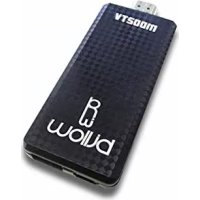
MD02TV - Dongle Billow - Free user manual and instructions
Find the device manual for free MD02TV Billow in PDF.



Frequently Asked Questions - MD02TV Billow
User questions about MD02TV Billow
0 question about this device. Answer the ones you know or ask your own.
Ask a new question about this device
Download the instructions for your Dongle in PDF format for free! Find your manual MD02TV - Billow and take your electronic device back in hand. On this page are published all the documents necessary for the use of your device. MD02TV by Billow.
USER MANUAL MD02TV Billow
Introduction and Product Description
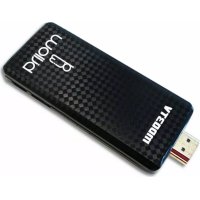
Thank you for choosing the Android TV Stick MD02TV / MD03TV.
The MD02TV / MD03TV is an Android TV Stick, designed to turn your TV into an ultimate generation Smart TV. With its Quad Core processor, 1GB/2GB DDR RAM memory, 8GB of storage memory, WiFi b / g / n and Bluetooth 4.0 will equip your TV with all of the potential to play or do anything. Its operating system is Android 4.4 Kit Kat, which offers unmatched stability.
The application package is the most complete on the market, with XBMC you will have endless possibilities and TV on demand.
Discover the new way of enjoying your TV!
Package Contents
- MD02TV / MD03TV
- USB / Micro USB cable
- Quick Installation guide
- HDMI Adapter cable
Make sure your package contains the elements described above. If you find any items are missing or damaged, please contact your dealer.
System Requirements
- TV with free HDMI Port
- 1 USB 2.0 port
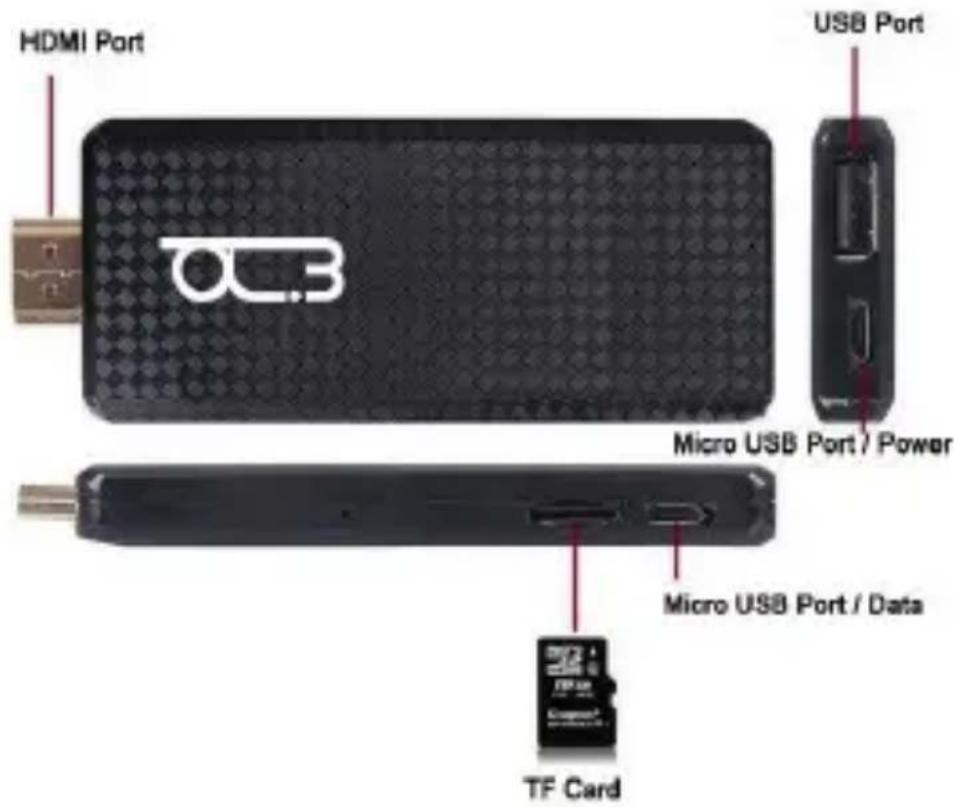
Part Descriptions
Basic Operations
Connections
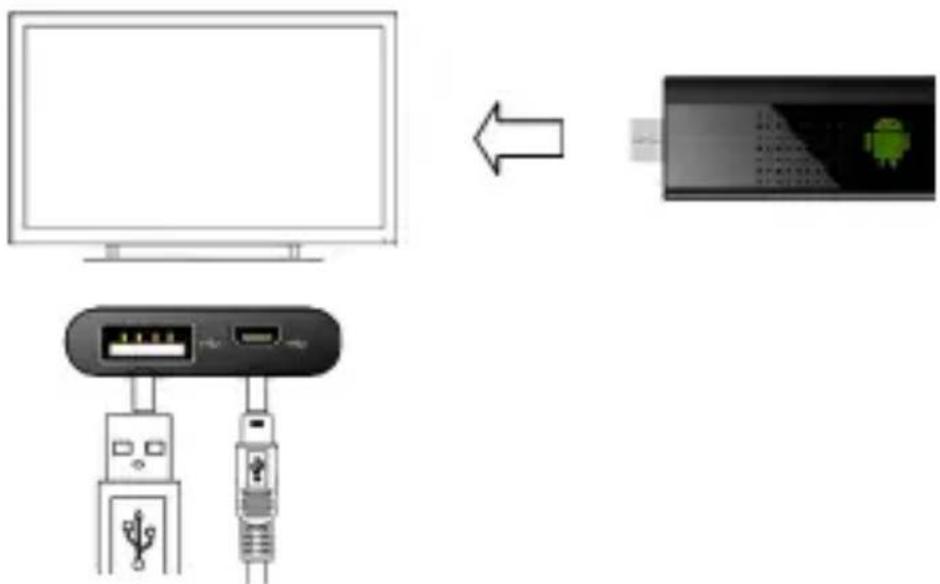
- Connect the MD02TV / MD03TV to a TV's HDMI port.
2.If your TV has a USB port connect the supplied USB cable between the USB port on your TV and the DC port of the MD02TV / MD03TV.
3.If your TV does not have a USB port, you must purchase a USB adapter 5VDC / 2A, and connect the supplied USB cable between the USB port on your adapter and DC port of the MD02TV / MD03TV.
- The USB port can be used to connect a PC mouse, Air mouse and other input devices. To begin handling the device, please connect a USB mouse.
Turn On and Off
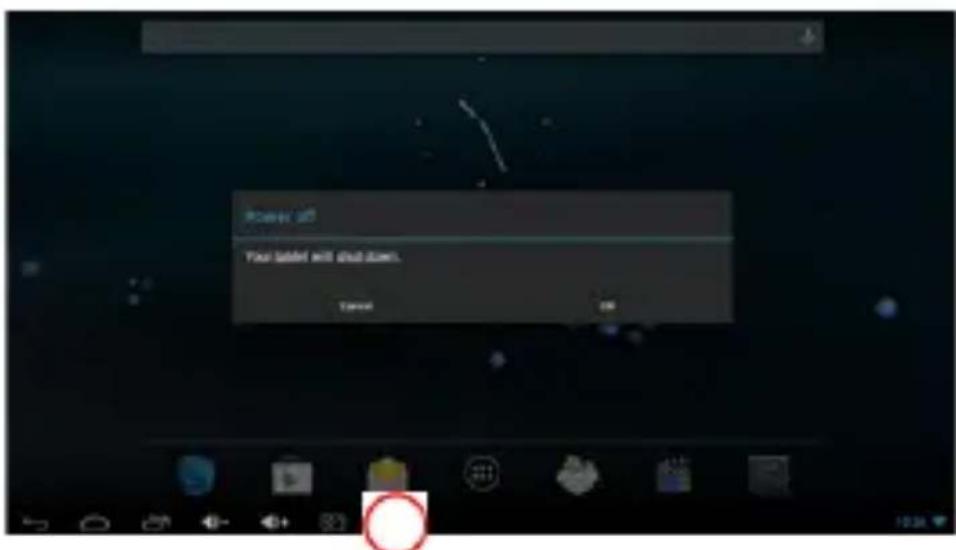
- The device will turn on automatically once been powered by the DC port, as described in the previous step.
2.Click on the icon to turn off the device.
Functions with Mouse
1. One click
Click the left button to open the application or individual
menu Click the right mouse button to return.
2.Scroll
Move the mouse wheel to scroll the page view.
3.Click and hold
Click and hold the left button to get menu or drag the selected icon.
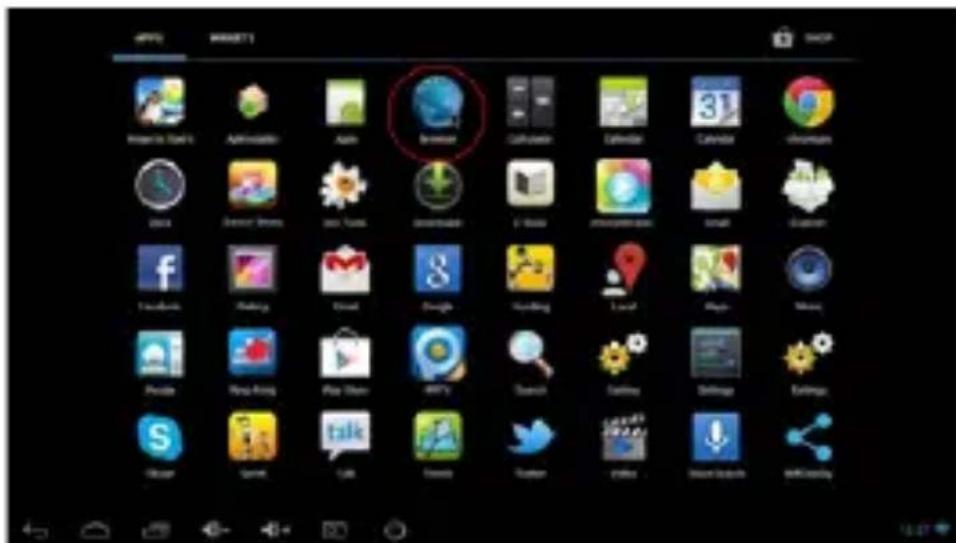
How to open applications
Move the cursor over the application icon and click the left mouse button to start the selected application.
Applications recently used
Click on the icon to view all applications that are running.
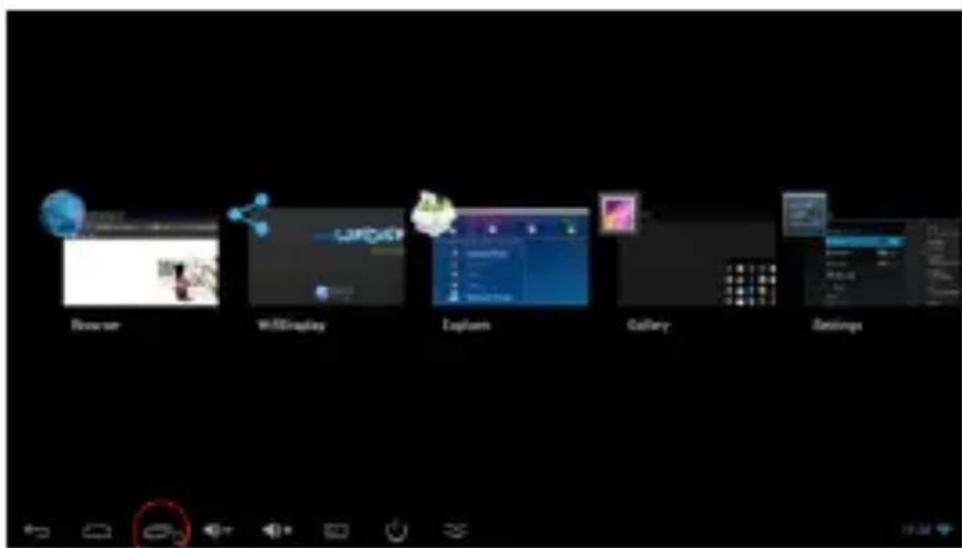
You can select the desired to bring it forward.
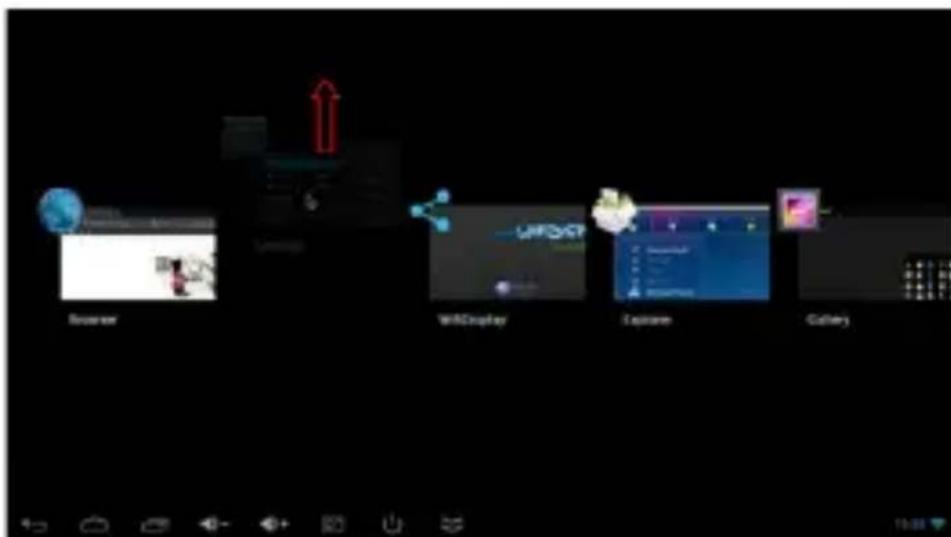
How to close applications
Click on the icon to see all running applications, choose one of them by clicking and holding, drag it to the area above until you close the application.
Moving between screens on the desktop
Click and hold on the desktop, move left or right to view other screens.
Return to the main screen or desktop
Click on the icon
to return to the main screen.
Write
Click the box where you want to write something and the virtual keyboard opens to write any text.
Connect and read data from external devices
- Connect external hard drive:
Connect the external hard drive to the Usb port of the MD02TV / MD03TV, click the Browser application
The "USB" storage will be enabled.
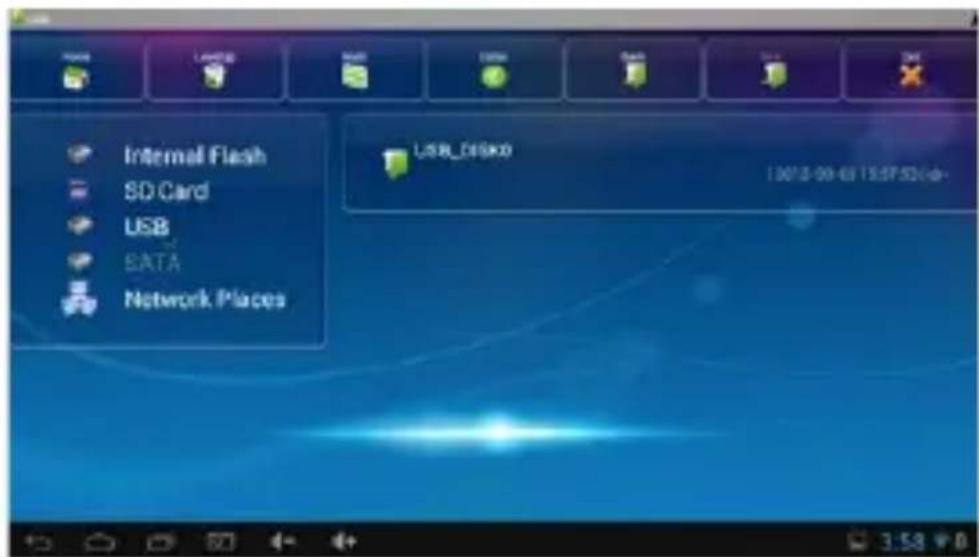
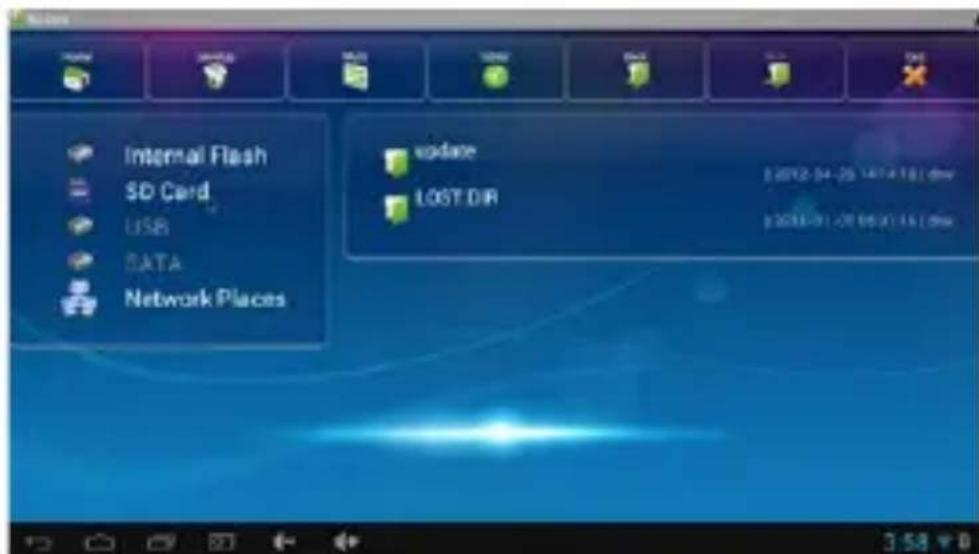
2.Connect the Micro SD Card:
Connect the micro SD card to the micro SD port of the MD02TV / MD03TV, click the browser application
The "SD Card" storage will be enabled.
WIFI Connection
Click the icon setting Select Wi-Fi, Change the Wi-Fi switch to the ON position.
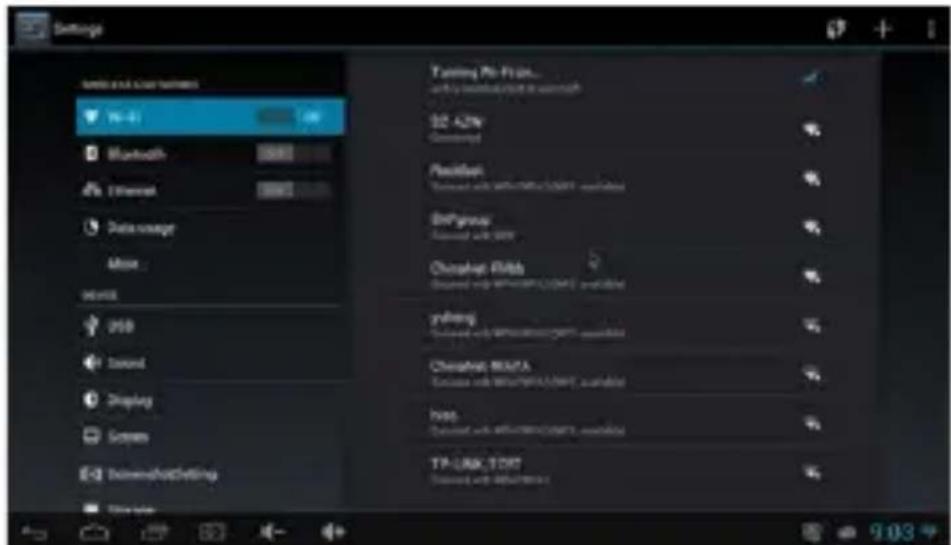
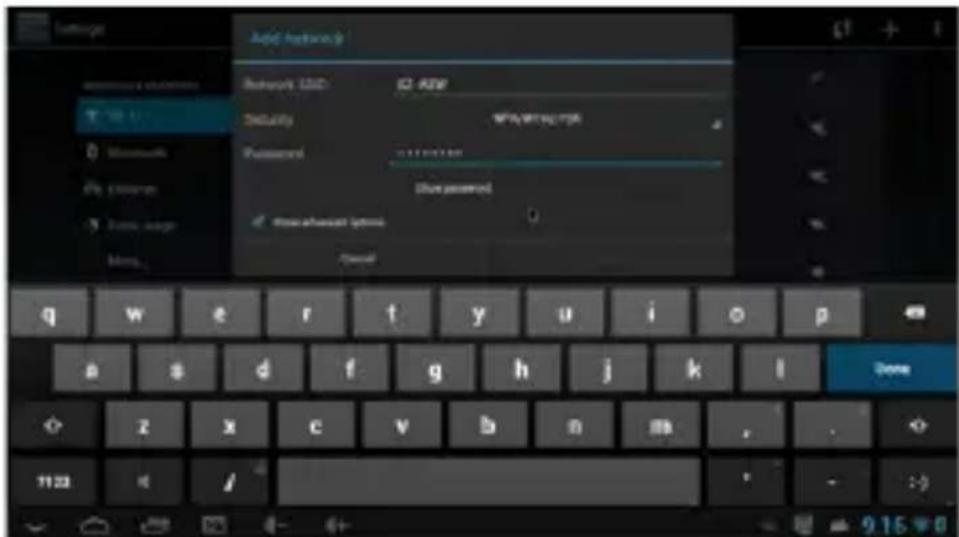
Select the desired wireless network and enter the access key to connect.
Bluetooth Connection
Click on the icon Select Bluetooth, change the switch to the ON position.
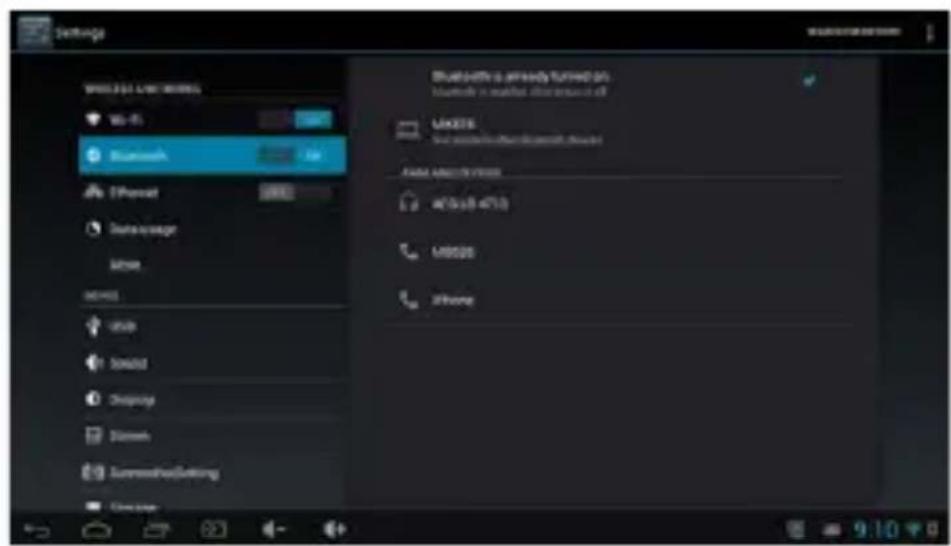
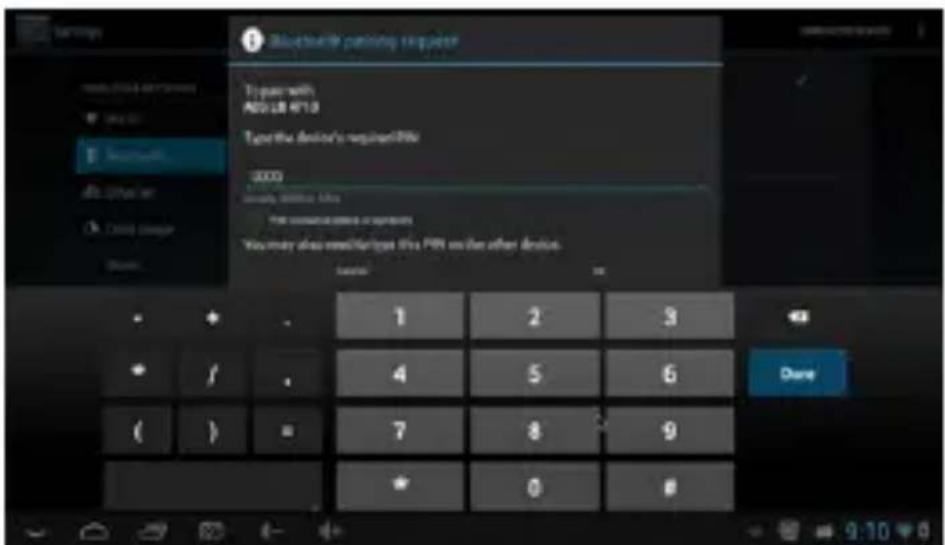
Click on the desired product to the right and enter the required PIN (generally "0000" or "1234") to connect to the device Bluetooth device.
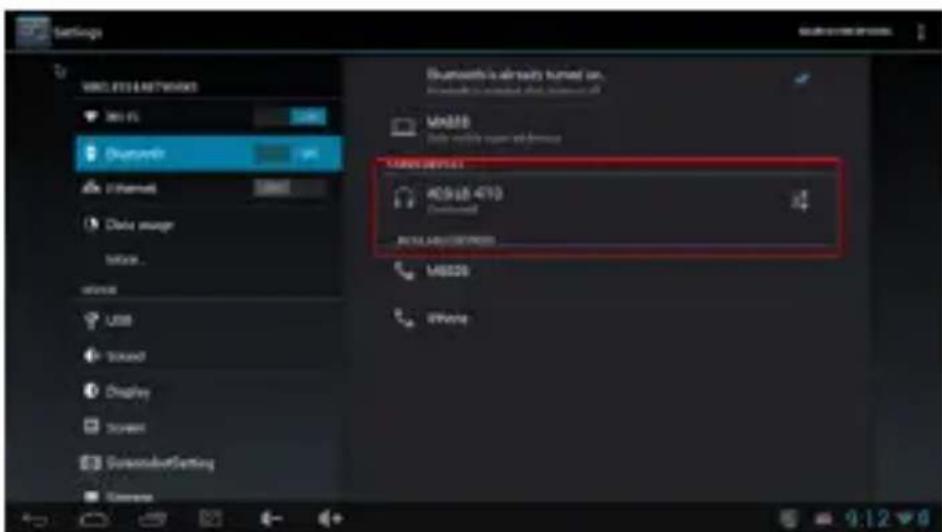
This image shows the connected Bluetooth device.
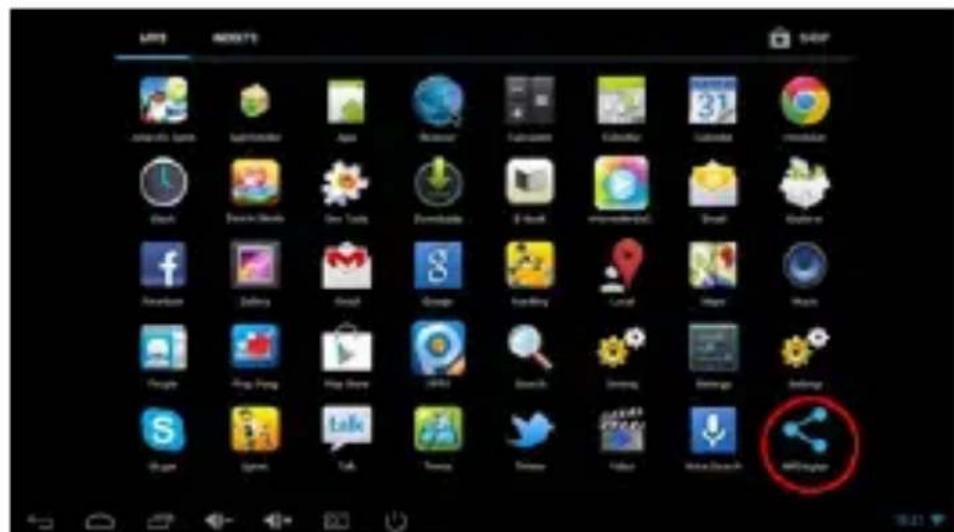
Miracast Wireless Screen Connection
Click the "Wireless Display" application, select the desired Miracast device and click connect.
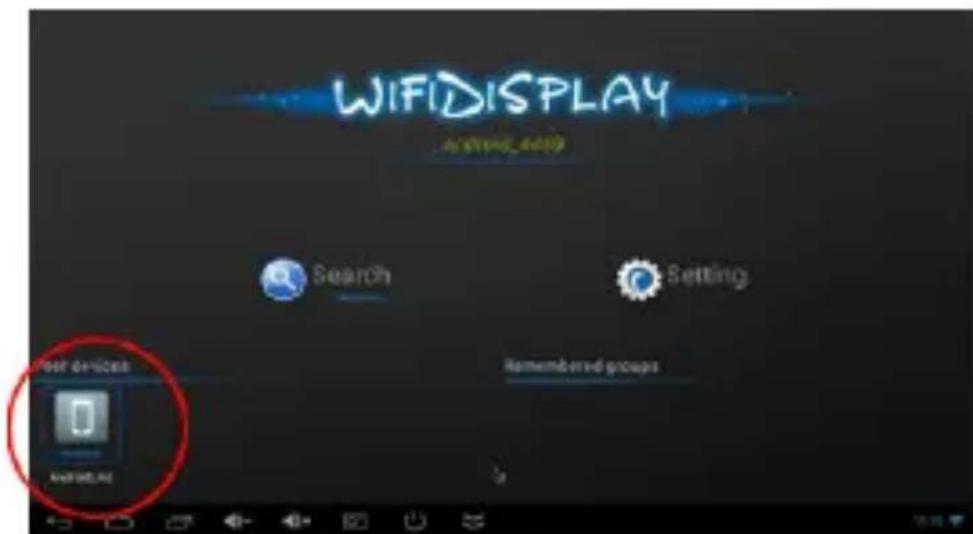
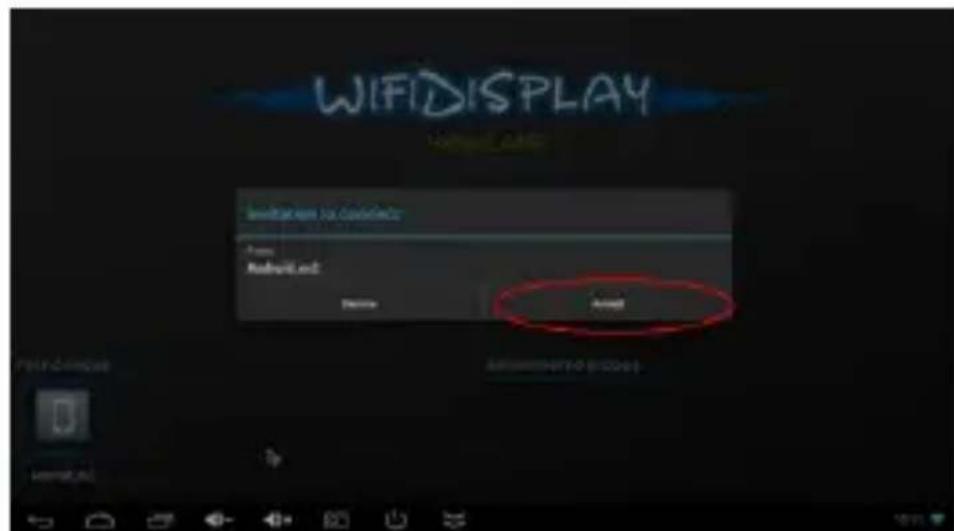
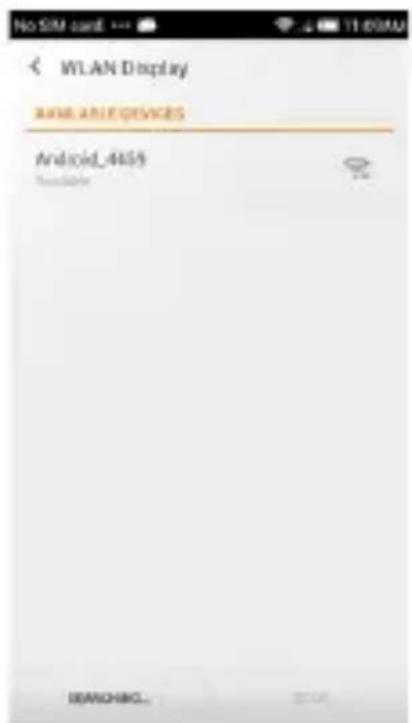
In the smartphone
Go to the configuration interface wireless display on your smartphone, enable wireless display function and click the name of MD02TV / MD03TV device to connect.
Once connected, you can enjoy movies, games on TV.
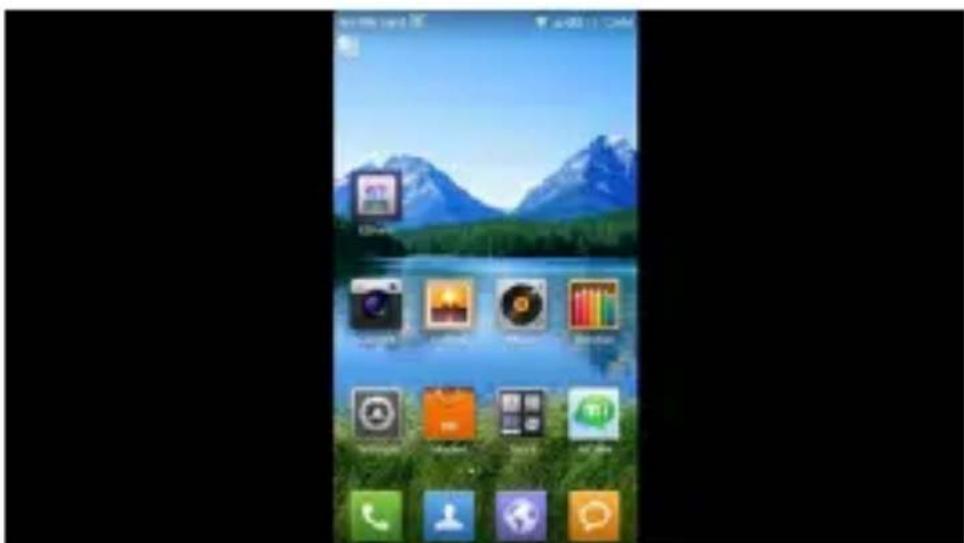
- Please ensure that both the MD02TV / MD03TV and the Smartphone are running on the same Wifi network.
Note: Billow Technology is not responsible or owner of the installed applications, or its contents and as such, the maintenance of these applications is not associated with the brand.
Technical Support
For more information on installing and configuring this product go to our website www.billowtechnology.com or write an email to support@billowtechnology.com
SAFETY, MAINTENANCE AND RECYCLING INSTRUCTIONS
- Caution: Never open the device, the internal parts are danger, electrical shock.
2.Do not install this unit near water, for example, in a wet basement, in an unprotected outdoor installation or in any area classified as a wet.
3.Make sure to connect the power supply to the TV USB port or power adapter 5VDC / 2A. - Connect the HDMI connector correctly, otherwise the HDMI connector of your device or TV could be damaged.
5.Clean the product with a soft and dry cloth.
6.Follow local regulations for disposing of the product.
EC DECLARATION OF CONFORMITY
We declare under our sole responsibility that the product:
Brand name: BILLOW TECHNOLOGY
Model no: MD02TV / MD03TV
Product description: Smart TV Android Stick
The measurements shown in this test report were made in accordance with the procedures given in the:
EMC DIRECTIVE:
2004/108/EC
ROHS DIRECTIVE:
2011/65/EU
- RTTE DIRECTIVE:
1999/5/EC
To which this declaration is based on with full conformance to the following European norms and standards:
- EPA3050B:1996, EN1122B:2001
- EPA3052:1996, EPA3060A:1996
- EPA7196A:1992, EPA3540C:1996
- EPA8270D:2007, IEC62321:2008
- EN 55022 : 2010
- EN 61000-3-2 :2006+A1:2009+A2:2009, EN 61000-3-3 :2008
- EN 55024:2010
- EN 61000-4-2 :2009, EN 61000-4-3 :2006+A1:2008+A2:2010,
- EN 61000-4-4 :2012, EN 61000-4-5 :2006,
- EN 61000-4-6 :2009, EN 61000-4-8 :2010, EN 61000-4-11 :2004
Signed Jun 9th, 2015
Jose Luis Ruiz Gomez Managing Director
BILLOW TECHNOLOGY
ADD: Poligono Industrial Guadalquivir
C/ Tecnología, 5 Postcode: 41120Gelves (Sevilla), Spain.
Website: www.approx.es

Reciclado
AEE REI RAEE 5548 In this manual, the container (bin) symbol indicates that the product is subject to the European directive 2002/96 / EC, electrical and electronic products, batteries, and batteries and other accessories must necessarily be subject to a selective collection.
At the end of the life of the device, make use of the recycling bins. This gesture will help reduce the health risks and preserve the environment.
Municipalities and distributors, will provide essential details on recycling your old device. If this device carries an internal battery, it must be removed and deposited separately for proper management.
Recyclage
The content of this guide is subject to typographical errors

billowtechnology.com