I.Beat rock - Mp3 player TrekStor - Free user manual and instructions
Find the device manual for free I.Beat rock TrekStor in PDF.



Frequently Asked Questions - I.Beat rock TrekStor
User questions about I.Beat rock TrekStor
0 question about this device. Answer the ones you know or ask your own.
Ask a new question about this device
Download the instructions for your Mp3 player in PDF format for free! Find your manual I.Beat rock - TrekStor and take your electronic device back in hand. On this page are published all the documents necessary for the use of your device. I.Beat rock by TrekStor.
USER MANUAL I.Beat rock TrekStor
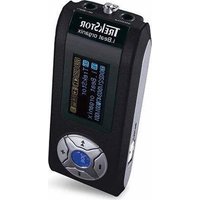
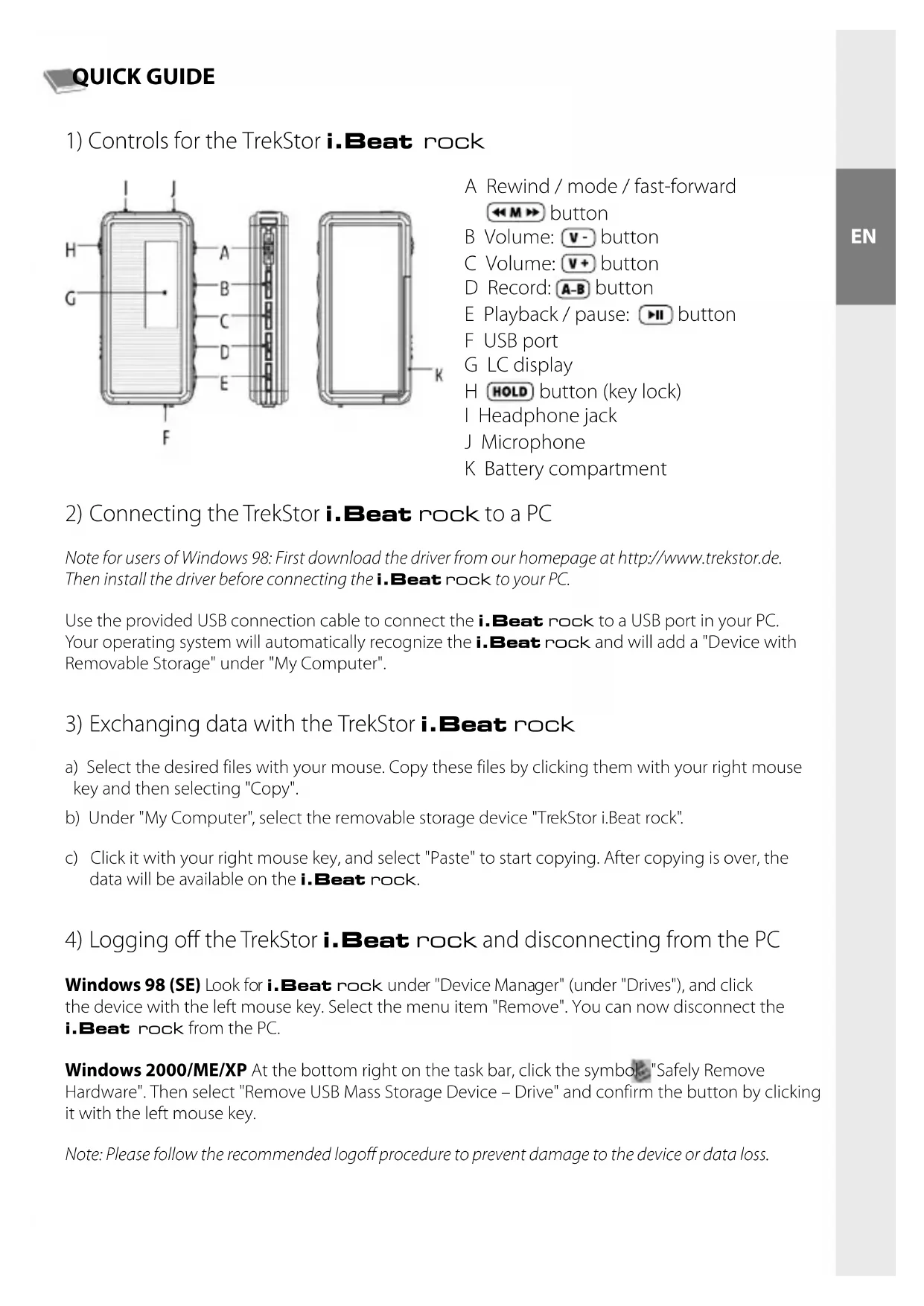
A Rewind / mode / fast-forward
←M→ button
B Volume: v - button
C Volume: v+ button
D Record: (A-B) button
EPlayback/pause: button
F USB port
G LC display
H HOLD button (key lock)
I Headphone jack
J Microphone
K Battery compartment
2) Connecting the TrekStor i. Beat rock to a PC
Note for users of Windows 98: First download the driver from our homepage at http://www.trekstor.de. Then install the driver before connecting the i.Beat rock to your PC.
Use the provided USB connection cable to connect the i.Beat rock to a USB port in your PC. Your operating system will automatically recognize the i.Beat rock and will add a "Device with Removable Storage" under "My Computer".
3) Exchanging data with the TrekStor i. Beat rock
a) Select the desired files with your mouse. Copy these files by clicking them with your right mouse key and then selecting "Copy".
b) Under "My Computer", select the removable storage device "TrekStor i.Beat rock".
c) Click it with your right mouse key, and select "Paste" to start copying. After copying is over, the data will be available on the i.Beat rock.
4) Logging off the TrekStor i. Beat rock and disconnecting from the PC
Windows 98 (SE) Look for i. Beat rock under "Device Manager" (under "Drives"), and click the device with the left mouse key. Select the menu item "Remove". You can now disconnect the i. Beat rock from the PC.
Windows 2000/ME/XP At the bottom right on the task bar, click the symbol "Safely Remove Hardware". Then select "Remove USB Mass Storage Device - Drive" and confirm the button by clicking it with the left mouse key.
Note: Please follow the recommended logoff procedure to prevent damage to the device or data loss.
5) Using the TrekStor i. Beat rock
Turning the device on and off
Turn on the i. Beat rock by pressing the button for 2 seconds. To turn off the i. Beat rock, again press the button for 2 seconds.
Note: Make sure that the HOLD switch is in the correct position, i.e., that the key lock is turned off. If the key lock is activated, the key lock symbol or a corresponding message will appear.
Different modes
The i.Beat rock has different modes (Music, Voice, Folder, Settings). To go to a mode, hold the M button for approximately 1 second.
Push the button again.
Mode: Music
Switch to "Music" mode.
- Playback
Briefly press the button to start the playback of an audio file.
- Pause
Briefly press the button to stop playback. Repress the button to continue playback.
- Change title
Briefly press the butto the left or right to change the current title. Press the
button to the right to select the next title. If you press the button to the left within 10
seconds after a playback starts, you switch to the prior title. If you do this after 10 seconds of playback, the i.Beat rock returns to the beginning of the current title.
- Fast Forward / rewind within a title
By continuously pressing the button in one direction, you can go forward or rewind
within a title. Press the bntto the right to fast-forward. Press the button tM
the left to rewind.
Note: The longer you hold the M button in one direction, the faster the device will go forward or rewind.
Volume increase / volume decrease
You can easily decrease the volume by briefly pressing the button, or increase it by pressing the button.
Mode:Voice
Switch to the "Voice" mode.
Record voice
You can record your voice using the integrated microphone. Hold the button for approximately 2 seconds to start recording. Stop recording by again pressing the button for approximately 2 seconds.
Note: All voice recordings are saved in the "VOICE" folder.
Mode:Folder
Switch to "Folder" mode.
- Navigation
Press the button to the right or left to select the next or prior file, and confirm your selection by pressing the button. To go to a subdirectory (folder), repress the button. Continue navigation as usual. To return to the main directory, briefly press the button.
Note: Arrows are shown on the left in the display to help orient you while navigating. When you reach the first file of a directory, a line appears above the arrows; when you reach the last file of a directory, a line appears below the arrows.
Mode: Settings
Switch to the "Settings" mode.
Here you can set the length of illumination, contrast, different options for automatically shutting off, and the language of the i.Beat rock. In addition, you can display the entire memory and free memory.
Additional functions
The i.Beat rock also has other functions (Equalizer, Preview Song, Repeat and Delete) that you can access by briefly pressing the button.
Note:
This MP3 player is optimized for the provided earphones (32 Ohm impedance). Using other earphones with a lower impedance can damage the MP3 player or earphone, especially MP3 players with 2 earphone jacks.
Note: This device can produce high volumes. To prevent hearing loss, do not listen to high volumes for long periods. Do not use in street traffic.
- Do not use USB cables longer than 3 meters.
The manufacturer retains the right to continuously improve the product. These changes may be made without being directly described in these quick guides. For this reason, the information provided in these guick guides may not reflect the current state of the art.
The manufacturer only guarantees suitability for the product's intended purpose. In addition, the manufacturer is not responsible for damages or loss of data and subsequent consequences.
Copyright © 2005 TrekStor GmbH & Co. KG. All rights retained. Other cited product or company names may be trademarks or brand names of the respective owner.
GUIDE ABRÉGÉ DE L'UTILISATEUR
In这对于 the Italian, this is a very good idea. In this case, it is possible to use the same method for the other.
- Altre funzioni
A工程技术 of the microfondo is an integrated system that includes a 3D digital model, a 2D digital model, and a 1D digital model. The system is designed to be able to realize real-time measurements of the microfondo in real time.
rrrrrrrrrrrrrrrrrrrrrrrrrrrrrrrrrrrrr
Hqnnnns
C 5