ManualGo.com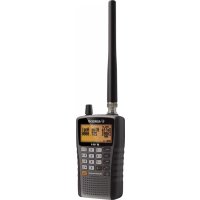
27125 - Radio ALBRECHT - Free user manual and instructions
Find the device manual for free 27125 ALBRECHT in PDF.



| Features | Details |
|---|---|
| Product type | Radio |
| Supported frequencies | AM/FM |
| Power supply | Mains and battery |
| Dimensions | Compact, ideal for transport |
| Weight | Lightweight, easy to handle |
| Usage | Listening to local and international radio stations |
| Maintenance | Regular surface cleaning, checking connections |
| Safety | Do not expose to moisture, use with a certified adapter |
| Included accessories | Power cable, user manual |
| Warranty | Consult the seller for warranty conditions |
Frequently Asked Questions - 27125 ALBRECHT
Download the instructions for your Radio in PDF format for free! Find your manual 27125 - ALBRECHT and take your electronic device back in hand. On this page are published all the documents necessary for the use of your device. 27125 by ALBRECHT.
USER MANUAL 27125 ALBRECHT
AE125H Scanning-Receiver
50,00000 - 79,99500 5,0 FM 80,00000 - 82,99500 5,0
137,00000 - 137,99500 5,0 FM 138,00000 - 143,99500 5,0
(AM) 127,175 MHz 130 µV VHF High 1 Band (FM) 161,9875 MHz 100 µV VHF High 2 Band
(FM) 406,875 MHz 180 µV Public Service Band (FM) 857,150 MHz 280 µV
(AM) 25,0050 MHz 46 dB (FM) 54,050 MHz 42 dB Flugfunk Band
(AM) 127,175 MHz 47 dB VHF High 1 Band
(FM) 161,9875 MHz 42 dB VHF High 2 Band
(AM) 325,050 MHz 48 dB
(FM) 406,875 MHz 41 dB Public Service Band
AE125H Scanning Receiver
English62 English Content Precautions 65 Earphone Warning! 65 Warning! 65 Introduction 65 Legal notes: 66 Quickstart 66 Band Plan 1 70 Band Plan 2 71 Included with your Scanner 72 Scanning Basics 72 What is Scanning? 72 What is Searching? 72 What is CTCSS/DCS? 72 Conventional Scanning 73 Simplex Operation 74 Repeater Operation 74 Understanding Banks 74 Channel Storage Banks 74 Service Search Banks 74 Custom Search Banks 75 Setting up your Scanner 75 Connecting the Antenna 75 Connecting an Earphone/Headphone 76 Connecting an Extension Speaker 76 Adjusting the Belt Clip 76 Powering the Scanner 76 Installing Non-Rechargeable Batteries 77 Installing Rechargeable Ni-MH Batteries 77 Charging the Ni-MH Batteries 78 About your Scanner 79 Getting to know the scanner 80 Turning on the Scanner 82 Setting up your Scanner 85 Using the SCROLL CONTROL Knob 85 Adjusting the Volume 85 Adjusting the Squelch 85 Setting the Backlight 86 Adjusting the Contrast 86English 63 Setting the Charging Timer 87 Using the Keypad Lock 88 Setting the Beep Tone 88 Resetting the Scanner 88 PC Programming 88 Programming Channels 89 Programming Channel Text Tags 90 Setting CTCSS/DCS for a Channel 90 Setting Channel Modulation 91 Setting the Priority Channel 92 Setting Channel Delay 92 Clearing a Bank 93 Scanning stored Channels 93 Priority Scan Modes 95 Manually selecting a Channel 95 Locking Out Channels 95 Unlocking Channels 96 Unlock all Channels in Banks Currently Enabled for Scan 96 Service Search Mode 96 Service Search Receive/Hold Modes 97 Custom Search Mode 98 Custom Search Receive/Hold Modes 99 Quick Search Mode 99 Quick Search Receive/Hold Modes 100 Search Options 100 CTCSS/DCS Search 101 Programming Custom Search Ranges 101 Storing Found Search Frequencies 102 Locking Out Search Frequencies 102 Unlocking Search Frequencies 103 Unlocking all Search Frequencies 103 Setting Step Frequency 104 Setting Modulation 104 Close Call 105 Using the Close Call Feature 105 Selecting Close Call Modes 105 Close Call Only Mode 106 Set Close Call Bands 107 Close Call Alert 10864 English Close Call Hits Bank 108 Close Call Delay 109 Technical Specifications 110 References 113 CTCSS Frequencies in Hz 113 DCS Codes 113 Birdies 114 Optional Accessories 114 Warranty and Recycling Information 114 Declaration of Conformity 115English 65 Precautions Before you use this scanner, please read and observe the following. Earphone Warning! Set the volume to a comfortable audio level coming from the speaker before plugging in the monaural earphone or stereo headset of the proper impedance (32 Ohms recommended). Otherwise, you might experience some discomfort or possible hearing damage if the volume suddenly becomes too loud because of the volume control or squelch control setting. This might be particularly true of the type of earphone that is placed in the ear canal. Warning! Alan does not represent this unit to be waterproof. To reduce the risk of fire or electrical shock, do not expose this unit to rain or moisture. Introduction Thank you for purchasing an Albrecht AE125H handheld scanner. The scanner is versatile, compact, and easy to use. In addition to its standard scanning features, your scanner also includes Close Call™ RF capture technology designed to help you detect and identify strong local radio signals in your area. You can program up to 500 frequencies into the scanner's memory either manually or using optional computer software. The scanner lets you scan transmissions and is preprogrammed with service banks for your convenience. You can quickly search those frequencies most commonly used by police and other agencies, without tedious and complicated programming. Use your scanner to monitor:
- HAM radio66 English Legal notes: Depending on national regulations, it can be restricted to listen to certain public or private radio services. All users are requested to gather the necessary information about radio services and their protections and privacy. In some countries unauthorized monitoring of transmissions may be even regarded and prosecuted as a crime. Quickstart At first we would like to give you a quick introduction about the AE125H. If you encounter any problems or need some more detailed explanations please read the following chapters.
1. Connect the supplied antenna by plugging it on and turning it
2. Put the rechargeable batteries into the compartment. Please
mind the correct polarity like it is printed into the compartment.
3. Switch the scanner on by pressing the button.
4. Please press Func + Srch/Svc to start the search of the pre-
programmed service bands. Following bands are available:
You can enable or disable the different bands by pressing the corresponding number. The active bands are displayed on the lower side of the display.
5. Now adjust the volume and the squelch according to your
needs. Press the knob on top of the device then turn it to adjust volume. To adjust the squelch you have to press Func before.
6. If you found an interesting frequency you can save it to the
memory. You have to press the Hold button to pause the search, press Pgm and then press E to confirm. Saved channels can be scanned by pressing Scan.English 67 Feature Highlights 10 Channel Storage Banks-You can store up to 50 frequencies into each bank for a total of 500 frequencies so you can more easily identify calls. Close Call™ RF Capture Technology- you can set the scanner so it detects and provides information about nearby radio transmissions. Close Call Do-Not-Disturb- checks for Close Call activity in between channel reception so active channels are not interrupted. Close Call Temporary Store- temporarily stores and scans the last 10 Close Call hits in the Close Call Hits bank. PC Programming- you can download information into the scanner and upload to the scanner via your personal computer. CTCSS and DCS Squelch Modes- rapid search for CTCSS tones /DCS codes used during a transmission. You can identify up to 50 CTCSS tones and 104 DCS codes. Direct Access- lets you directly access any channel. Lock-Out Function- lets you set your scanner to skip over specified channels or frequencies when scanning or searching. Temporary Lockout- makes it easy to temporarily lock out any channel or frequency. The lockout is cleared when you turn power off, then back on so you don’t have to remember to unlock the channels or frequencies later. Triple-Conversion Circuitry- virtually eliminates any interference from IF (intermediate frequency) images, so you hear only the selected frequency. Text Tagging- you can name each channel, using up to 16 characters per name. Service Banks- frequencies are preset in 7 separate Emergency, Freenet, PMR, Marine, Aircraft, CB radio and HAM radio banks to make it easy to locate specific types of calls and search any or all of these banks.68 English Priority Scan with Do Not Disturb- lets you program one channel in each bank (10 in all) and then have the scanner check each channel every 2 seconds while it scans the banks so you don’t miss transmissions on those channels. Do Not Disturb keeps the scanner from interrupting transmissions during receiving. Priority Plus Scan- you can set the scanner so it scans only the priority channels. Scan/Search Delay/Resume- controls whether the scanner pauses at the end of the transmission to wait for a reply. You can set the Delay time for each Channel, Close Call Search, Custom Search, and Service search. You can also set a negative delay where the scanner stops on transmissions for a set time then automatically resumes. Custom Search- lets you program up to 10 Custom Search Ranges and search any or all of these ranges. Quick Search- allows you to enter a frequency and start searching up or down from that frequency. Turbo Search- increases the search speed from 100 to 300 steps per second automatically for bands with 5 kHz steps. Search Lockouts- you can lock up to 200 search frequencies: 100 temporary frequencies and 100 permanent frequencies in Custom Search, Service Search, Close Call Search, or Quick Search Modes. Frequency Step- Lets you select a frequency step (5, 6.25, 8.33,10,
12.5 or 20 kHz) each band coverage band.
Modulation- Lets you select a modulation (AM or FM) each band coverage band. Display Backlight-You can turn on/off the LCD backlight, set it operate on squelch only, key press only, or both. Signal Strength Meter- shows the signal strength for more powerful transmissions. Flexible Antenna with BNC Connector- provides adequate reception in strong signal areas and is designed to help prevent antenna breakage. You can also connect an external antenna for better reception.English 69 Memory Backup- keeps the frequencies stored in memory for an extended time if the scanner loses power. Three Power Options- let you power the scanner using the included two AA rechargeable or alkaline batteries or the supplied USB cable. Built-In Charger- allows you to charge Ni-MH batteries in the scanner using a USB port on any computer and the supplied USB cable. Key Confirmation Tones-You can turn on/off a tone that sounds when you perform an operation correctly or if you make an error. Key Lock- lets you lock the scanner's keys to help prevent accidental changes to the scanner's programming. Battery Save- works when there is no transmission for 1 minute in Scan Hold mode and any Search Hold mode (without Priority Scan and Close Call).This feature turns off RF power for 1 second and turns on it for 300ms to extend the battery life. Battery Low Alert– the icon will blink in the display and a tone warns you every 15 seconds when the battery power gets low. Frequency Range This table lists the frequency ranges, default step frequency, default modulation, and type of transmissions you can hear for each range.70 English Band Plan 1 Frequency Range (MHz) Default Step(kHz) Mode 25.00000 - 27.99500 5.0 FM 28.00000 - 30.19500 5.0 FM 30.20000 - 49.99500 5.0 FM 50.00000 - 79.99500 5.0 FM 80.00000 - 82.99500 5.0 FM 83.00000 - 83.99500 5.0 FM 84.00000 - 88.00000 5.0 FM 108.00000 - 136.99166 8.33 AM 137.00000 - 137.99375 6.25 FM 138.00000 - 143.99375 6.25 FM 144.00000 - 145.99375 6.25 FM 146.00000 - 155.99375 6.25 FM 156.00000 - 157.43125 6.25 FM 157.43750 - 157.99375
Band Plan 2 (This Band Plan is specially designed for Germany) Frequency Range (MHz) Default Step (kHz) Mode 25.00000 - 27.99500 5.0 AM 28.00000 - 30.19500
FM72 English Included with your Scanner
- AE125H scanner with attached belt clip
- Wrist strap Scanning Basics This section provides you with background on how scanning works. You don’t really need to know all of this to use your scanner, but some background knowledge will help you get the most from your AE125H. What is Scanning? Unlike standard AM or FM radio stations, most two-way communications do not transmit continuously. Your AE125H scans programmed channels until it finds an active frequency, then stops on that frequency and remains on that channel as long as the transmission continues. When the transmission ends, the scanning cycle resumes until the scanner receives another transmission. What is Searching? The AE125H can search for active frequencies. This is different from scanning because you are searching for frequencies that have not been programmed into the scanner. When you select frequency bands to search, the scanner searches for any active frequency within the lower and upper limits you specify. When the scanner finds an active frequency, it stops on that frequency as long as the transmission lasts. If you think the frequency is interesting, you can store it into one of the banks. If not, you can continue to search. UNDERSTANDING SCANNING What is CTCSS/DCS? Your scanner can monitor systems using a Continuous Tone Coded Squelch System (CTCSS) and Digital Coded Squelch (DCS) system, which allows the squelch to open only when the tone you have programmed with a specific frequency is received along with a transmission.English 73 CTCSS and DCS are sub-audible tone signaling systems sometimes referred to as PL or DPL (Motorola’s trademarked terms for Private Line and Digital Private Line respectively). CTCSS and DCS are used only for FM signals and are usually associated with both amateur and commercial two-way frequencies. These systems make use of a special sub-audible tone that accompanies a transmitted signal. CTCSS and DCS are used for many purposes. In many cases, CTCSS and DCS are used to restrict access to a commercial repeater, so that only those units which transmit the correct tone along with their signal can “talk” to the repeater. CTCSS and DCS are also used in areas that receive interference where there are several stations with output frequencies close to each other. When this occurs, you might hear multiple communications on the same frequency. The stations might even interfere with each other to the point where it is impossible to clearly receive any of the stations. Your scanner can code each received frequency with a specific sub-audible CTCSS tone or DCS code. Then, when you receive multiple signals, you only hear the transmission with the CTCSS tone or DCS code you programmed. If you do not receive the correct tone with a signal, the scanner’s squelch remains closed and you hear nothing. Refer to the Reference section of this manual for tables showing the available CTCSS tones and DCS codes. Conventional Scanning Conventional scanning is a relatively simple concept. Each group of users in a conventional system is assigned a single frequency (for simplex systems) or two frequencies (for repeater systems). Any time one of them transmits, their transmission always goes out on the same frequency. Up until the late 1980’s this was the primary way that radio systems operated. Even today, there are many 2-way radio users who operate using a conventional system:
- Many business radio users74 English When you want to store a conventional system, all you need to know is the frequencies they operate on. When you are scanning a conventional system, the scanner stops very briefly on each channel to see if there is activity. If there isn’t, the scanner quickly moves to the next channel. If there is, then the scanner pauses on the transmission until it is over. Simplex Operation Simplex systems use a single frequency for both transmit and receive. Most radios using this type of operation are limited to line-of-sight operation. This type of radio is frequently used at construction job sites, and with inexpensive consumer radios such as PMR radios. The range is typically 1-8 miles, depending upon the terrain and many other factors. Repeater Operation Repeater systems use two frequencies: one transmits from the radio to a central repeater; the other transmits from the repeater to other radios in the system. With a repeater-based system, the repeater is located on top of a tall building or on a radio tower that provides great visibility to the area of operation. When a user transmits (on an input frequency), the signal is picked up by the repeater and retransmitted (on an output frequency). The user’s radios always listen for activity on the output frequency and transmit on the input frequency. Since the repeater is located very high, there is a very large line of sight. Typical repeater systems provide coverage out to about a 25-mile radius from the repeater location. Understanding Banks Channel Storage Banks To make it easier to identify and select the channels you want to listen to, the 500 channels are divided into10 channel storage banks containing 50 channels each. You could use each channel storage bank to group frequencies by department, location, area of interest, or any other way you prefer. You can listen to any or all of the banks by using the number keys to turn them on or off. Service Search Banks The scanner is preprogrammed with many of the frequencies allocated to Emergency, Freenet, PMR, Marine, Aircraft, CB radio and HAM radio services. There are 7 banks allocated for these searches that can beEnglish 75 used just like the channel storage banks to search these frequencies in Service Search mode. Custom Search Banks Custom Search Banks let you program and search 10 custom search ranges. During custom search, the scanner starts searching with the lowest frequency in the search range you select to the highest frequency in the range. You can search any or all of these ranges by turning each search bank on or off just like channel storage banks in Search mode. Setting up your Scanner These guidelines will help you install and use your new scanner. If your scanner receives interference or electrical noise, move the scanner or its antenna away from the source. You might also try changing the height or angle of the rubber antenna. To improve the scanner’s reception, use an optional external antenna designed for multiband coverage. (You can purchase this type of antenna at a local electronics store). If the optional antenna has no cable, use 50 ohm coaxial cable for lead-in. An adapter plug might be necessary for the optional antennas. Use an optional mono earphone or stereo headset with proper impedance for private listening. Read the precautions on page 65 of this Owner’s Manual. Do not use the scanner in high-moisture environments such as the kitchen or bathroom. Avoid placing the scanner in direct sunlight or near heating elements or vents. Connecting the Antenna
1. Align the slots around the antenna's connector with the tabs
on the scanner's BNC connector.
2. Slide the antenna's connector down over the scanner's
3. Rotate the antenna connector's outer ring clockwise until it
locks into place. Connecting an Optional Antenna76 English The scanner's BNC connector makes it easy to connect a variety of optional antennas, including an external mobile antenna or outdoor base station antenna. Note: Always use 50-ohm, RG-58, or RG-8, coaxial cable to connect an outdoor antenna. If the antenna is over 15 m from the scanner, use RG-8 low-loss coaxial cable. If it is less than 15 m, use RG-58. Connecting an Earphone/Headphone For private listening, you can plug a 3.5 mm mini- plug earphone or stereo headphones (not supplied) into the headphone jack on top of your scanner. This automatically disconnects the internal speaker. Connecting an Extension Speaker In a noisy area, an optional extension speaker, positioned in the right place, might provide more comfortable listening. Plug the speaker cable's 3.5-mm mini-plug into your scanner's jack. WARNING! If you connect an external speaker to the scanner's headphone jack, never connect the audio output line to a power supply and ground. This might damage the scanner. Adjusting the Belt Clip The factory-attached belt clip makes it easier to carry the scanner. Use a Phillips screwdriver to adjust (loosen) the mounting screws or remove the belt clip completely. Powering the Scanner You can power the scanner using alkaline (ALK) non- rechargeable batteries (not supplied) or the included Nickel Metal-Hydride (Ni-MH) rechargeable batteries. [Alan provides a USB cable to charge the Ni-MH batteries on initial installation and to recharge them through your computer or through a power adapter that provides USB charge power.] Inside the battery compartment is a switch to set the unit to either ALK or Ni-MH. WARNING! Non-rechargeable batteries can get hot or burst if you try to recharge them.English 77 CAUTIONS:
- When flashes in the display and the scanner beeps every 15 seconds, recharge or replace the batteries.
- Use only fresh batteries of the required size and recommended type.
- Always remove old or weak batteries. Batteries can leak chemicals that destroy electronic circuits.
- Do not mix old and new batteries, different types of batteries (standard, alkaline, or rechargeable), or rechargeable batteries of different capacities.
- Do not use and charge Ni-Cd batteries; this may cause a safety hazard and damage the scanner. Installing Non-Rechargeable Batteries
1. Make sure the power is turned off.
2. Slide the battery compartment cover off.
3. Use a pointed object such as a ballpoint pen to set the battery
selection switch inside the compartment to ALK.
4. Insert the batteries as indicated by the polarity symbols (+and
-) marked inside the battery compartment.
5. Replace the battery compartment cover.
Installing Rechargeable Ni-MH Batteries You can also use two Ni-MH rechargeable batteries to power your scanner. The Ni-MH batteries included with your unit are not fully charged; you must charge them completely after you install them into your scanner. See Charging the Ni-MH Batteries, page 78, for details.
1. Make sure the power is turned off.
2. Slide the battery compartment cover off.
3. Use a pointed object such as a ballpoint pen to set the battery
selection switch inside the compartment to Ni-MH for Nickel Metal-Hydride batteries.78 English
4. Install two batteries in the compartment as indicated by the
polarity symbols (+ and -) marked inside and replace the cover. Note: To prevent damage to Ni-MH batteries, never charge them in an area where the temperature is above 45°C or below 4°C. Charging the Ni-MH Batteries The scanner has a built-in circuit that charges the included Ni-MH batteries when a USB cable connects it to a computer (NOT to a USB hub) or to an AC or DC adapter that provides USB charging power. Verify that the battery selection switch is set to Ni-MH and that only Ni- MH rechargeable batteries are inserted in the scanner before connecting it to your computer. CAUTION: Never attempt to charge non-rechargeable batteries or install non-rechargeable batteries when the battery selection switch is set to Ni-MH. The USB cable will only charge the batteries if the scanner is turned off.
1. Be sure the scanner is turned off. It will recharge only if it is
turned off, even with the USB cable connecting it to a computer.
2. Connect the included USB cable to the scanner’s USB port.
3. Connect the other end of the USB cable to the computer's
USB port or to an AC or DC adapter that provides USB charging power. NOTE: If you connect to a computer's USB port, the PC will prompt you for the drivers for your scanner. USB drivers and optional programming software are available for download from http://www.service.alan- electronics.de. The scanner displays Charging while it charges the batteries and Charge Complete when the Ni-MH batteries are completely charged. Different status messages may display, depending on the battery type and scanner status.English 79 LCD Message
Charging Ni-MH Scanner is charging. Off No Battery None NO batteries in scanner. Off Charge Complete Ni-MH Unit is charged. Off Charge Off Alk./Ni- MH Scanner is not charging (Battery selection switch is set to Alk.) Off Battery Error Ni-MH Batteries cannot be charged (dead battery). Off Illegal Voltage Ni-MH USB external power is out of range. Off See also Setting the Charging Timer, page 87. If the batteries are good, the scanner charges the batteries. If the scanner cannot immediately determine if the batteries are good and can be charged, it checks them. If the scanner judges the batteries are good, the scanner starts charging. If it cannot regard the batteries as good, the scanner stops checking and the battery icon blinks. About your Scanner We use a few simple terms in this manual to explain the features of the scanner. Familiarize yourself with these terms and the scanner's features, and you can put the scanner to work for you right away. Simply determine the type of communications you want to receive, then set the scanner to search those communications. A frequency, expressed in kHz or MHz, is the tuning location of a station. To find active frequencies, you use the search function or refer to a frequency reference. Besides searching within a selected frequency range, you can also search your scanner's service banks. Service banks are preset groups of frequencies categorized by the type of services that use those frequencies. For example, many amateur radio frequencies are located in the HAM service bank.80 English When you search and find a desired frequency, you can store it into a programmable memory location called a channel. Channels are grouped into channel storage banks. The scanner has 10 channel storage banks and each bank has 50 channels. You can scan the channel storage banks to see if there is activity on the frequencies stored there. Getting to know the scanner If your scanner's keys seem confusing at first, the following information should help you understand each key's function. Your scanner's keys have various functions labeled on the key tops and below the keys. The keys operate in Normal mode and Function mode. Pressing Func puts the scanner into Function mode for 3 seconds and then returns to Normal mode. The scanner displays
. During that 3 seconds you can press other keys and operate that function. Pressing Func again before 3 seconds returns to Normal mode and the
icon disappears. In Normal mode the
icon is not displayed.
7/Beep Enter 7. Toggle the Key- beep setting. 9/Mod Enter 9. Toggle the Modulation setting. . Clr
- Enter a decimal point.
- Input a space in a text string.
- Enter Function mode for 3 seconds.
- Return to Normal mode from Function mode.
- Hold on a current channel.
- Release hold and resume scanning/searching.
- Monitor an unprogrammed frequency after you have entered it.
- Access a channel directly after you have entered it. Enter the Close Call menu. Scan Enter or resume Scanmode. NA Srch/ Svc Start Custom Search. Start Service Search.82 English L/O/
- Temporarily lock out a channel or search frequency (press once).
- Permanently lock out a channel or search frequency (press twice).
- Unlock a locked out channel or search frequency.
- Unlock all locked out settings of the enabled channel banks or search frequencies (press and hold). Lock or unlock the keypad.
- Turn scanner on and off (press and hold).
- Turn backlight on and off. Enter the Dis- play/Charge menu. Pgm/E
- Select input data or a menu item.
- Access a channel through its channel number.
- Enter Channel Programming menu.
- Quickly save frequencies in various modes. Note: Turn SCROLLCONTROL to scroll up and down through menu selections. Turning on the Scanner Note: Make sure the scanner's antenna is connected before you turn it on.
1. You can select the band plan (Band Plan 1 or 2) when you
turn on the scanner. When you press and hold for 1 second to turn on the scanner, also press and hold 1 for Band Plan 1 or 2 for Band Plan 2.
2. If the scanner is new or has been reset, the default mode is
Scan Hold with all banks enabled and Close Call Do-Not- Disturb active. Otherwise, the scanner displays the last mode the scanner was in before it was powered down.English 83 A Look at the Display The display has indicators that show the scanner's current operating status. The display information helps you understand how your scanner operates. Note: Not all of these icons may appear at the same time
Item Description 1 •Channel Name in Scan/Scan Hold mode.
- Channel Number and Frequency.
- Searching Frequency.
- C is for the Close Call Hits bank. 5 AM/FM shows channel/frequency modulation.
- PRI+ indicates Priority Plus Scan. 7 Shows any CTCSS tone/DCS code received.
- indicates Close Call Priority.
- indicates Close Call Do-Not-Disturb. 9 ↑or ↓indicates the scan/search direction. 10 indicates the batteries are low.
indicates the key lock is enabled.
Indicates the signal strength.
- TL/O indicates temporary lock out.
- L/O indicates permanent lock out.
- Hold on a frequency.
Indicates Function mode.English 85 Setting up your Scanner When you turn on your scanner for the first time, you can set your screen display preferences as well as other elements such as squelch levels, volumes, brightness, etc. Using the SCROLL CONTROL Knob Turn the SCROLL CONTROL knob on top of the AE125H to:
- Selects characters for text tagging
- Scroll up or down through menu options
- Change channels/frequencies in Hold mode
- Resume scanning Press the SCROLL CONTROL knob to select a setting. Note: Pressing SCROLL CONTROL is the same as pressing Pgm/E on the keypad in Menu mode. Adjusting the Volume
1. Press SCROLL CONTROL; The volume level indicator and
battery voltage display.
2. Turn SCROLL CONTROL to adjust the volume level from 0
again or wait 10 seconds to return to the previous mode. Adjusting the Squelch
1. Press Func, then press SCROLL CONTROL. The squelch
level indicator and battery voltage appears.
2. Turn SCROLL CONTROL to change the squelch level from
scanner picks up unwanted partial signals or very weak transmissions, increase the Squelch setting to increase the86 English signal level required to open squelch. To listen to a weak or distant station, decrease the Squelch setting.
4. Press SCROLL CONTROL to set the desired level and return
to the previous mode. Setting the Backlight Press to turn on the backlight on and off.
1. Press Func and to view the Display/Charge menu.
2. From this menu, scroll to Set Backlight from the submenus.
Press SCROLL CONTROL.
3. Scroll to select one of the following settings:
- Always Off - Backlight is always off.
- Always On – Backlight is always on.
- On with Squelch - Backlight is on while squelch is open and until delay expires.
- On with Keypress - Backlight is on for 10 seconds after any key is pressed.
- Keypress + Squelch – Both above-mentioned "Squelch" and "Keypress."
- < Back - Return to previous menu.
4. Press Pgm/E (or press SCROLL CONTROL) to save and
return to the previous menu. (Default = Always Off )
5. Press .Clr to exit.
Notes: While being in the menu the backlight can be switched between “Always On” and “Always Off” by pressing the button. Adjusting the Contrast This submenu of the Display/Charge menu controls the display’s contrast (how light or dark it appears) for different viewing conditions. There are 15 contrast settings. You see the contrast change as you scroll through the settings.
2. Scroll to Set Contrast and press Pgm/E.
3. Scroll to see the contrast settings.
4. When you have selected a setting, press Pgm/E to set it and
return to the previous menu.
5. Press .Clr to exit.
Setting the Charging Timer The Charging Timer menu is also a submenu of the Display/Charge menu. It sets how long the scanner will charge the batteries when you plug the supplied USB cable into a USB port and connect it to your scanner.
WARNING: The Charging Timer will reset to the set charging time
every time you plug the USB cable into the scanner or charge the batteries while the USB cable is connected.
1. To set the Charging Timer press Func then to view the
Display/Charge menu.
2. Scroll to Set Charge Time and press Pgm/E.
3. Scroll to 1-14 (hours) (default = 14 hours) and press Pgm/E
to save and return to the previous menu. Suggested maximum charging time for Ni-MH batteries: 1500mAh 9 hours 1800mAh 11 hours 2000mAh 12 hours 2100mAh 13 hours 2200mAh 13 hours 2300mAh 14 hours
4. Press .Clr to exit.88 English
Using the Keypad Lock Use the scanner's keypad lock to protect it from accidental program changes. When the keypad is locked, only Func, Hold, , , , and SCROLL CONTROL(volume only) operate. Press Func then L/O to toggle the keypad lock on and off. The scanner displays Keypad Lock On or Keypad Lock Off. Setting the Beep Tone Press Func then Beep/7(Default = ON) to toggle the keypress confirmation tone on or off. Resetting the Scanner
WARNING: Resetting the scanner clears all data and settings you
have entered. You cannot restore user programmed data that has been deleted. You can, at a last step, restore only the original factory data.
1. Press and hold the 2, 9 and Hold keys and turn on the
2. The scanner clears all data and returns to the initial setting
except the band plan. All Memory Clear displays. PC Programming Connect your scanner to your PC through the USB cable to:
- Program channels into the scanner
- Set any setting When you connect your scanner to your PC, a series of screens will appear to assist you. USB drivers and optional programming software are available for download from http://www.service.alan-electronics.de.English 89 Programming Channels Now that you have configured your scanner, you are ready to start using your scanner’s preprogrammed service banks, the custom search banks, the Close Call feature. You can also program your channel memories or re-program your 10 custom search bank memories. Before the scanner can begin scanning, you must program a frequency into at least one channel.
2. Press Pgm/E to enter the Channel menu. (You can also
press Hold and scroll to the channel; press Func then Pgm/E.) Note 1: Turning SCROLL CONTROL in Function mode will allow you to select the first channel in each bank. Note 2: You can quickly store frequencies in Scan Hold mode by entering the frequency and pressing Pgm/E.
3. Scroll to highlight Enter Frequency and press Pgm/E. You will
see the channel number and currently programmed frequency. (To return to the previous screen, press .Clr.)
4. Use number keys and .Clr for a decimal to enter the
frequency. If you make a mistake, press .Clr to clear the display. Press Pgm/E to store the frequency and return to the Channel menu.
5. Press .Clr to return to the last screen.
The scanner automatically rounds the entered number to the nearest valid frequency. For example, if you enter 151.473 (MHz), your scanner accepts it as 151.475. If you entered an invalid frequency, Out of Band appears and the scanner beeps three times. Press .Clr and enter a valid frequency. If you enter a frequency that has already been entered elsewhere, the scanner displays the channel number and Frequency Exists – Confirm? appears.90 English Note: The scanner first checks the Bank in which you want to store the channel. If the scanner does not find a duplicated channel in that Bank then the scanner will check further the remaining Banks of your scanner. When the scanner would find a duplicate in any of the Banks the channel number and a message to confirm the duplicated frequency are shown. If you entered the frequency by mistake, press .Clr then enter the correct frequency. To enter the frequency anyway, press Pgm/E to accept. Programming Channel Text Tags You can customize your channels by programming text tags (up to 16 characters in length) for easier channel frequency identification. The default tag is the bank number followed by the channel number in the bank.
1. To select a channel, press Hold and then enter the channel
2. Press Pgm/E to enter the Channel menu. (You can also
press Hold and scroll to the channel; press Func then Pgm/E.)
3. Scroll to select Edit Tag and press Pgm/E.
4. Turn SCROLL CONTROL to choose the characters, pressing
> or < to move the cursor to the right or left. If you make a mistake, press .Clr to clear the last character. Press .Clr twice to clear all characters. To cancel and exit, press L/O.
5. Press Pgm/E to save the tag and return to the Channel
menu. Setting CTCSS/DCS for a Channel You can store a CTCSS tone or DCS code, set the scanner to search for tones/codes, have the scanner open squelch on any tone/code, or have the squelch only open if no CTCSS/DCS is detected for any channel. (Default = Off )
1. To select a channel, press Hold and then enter the channel
2. Press Pgm/E to enter the Channel menu. (You can also
press HOLD and scroll to the channel; press Func then Pgm/E.)English 91
3. Scroll to select Set CTCSS/DCS and press Pgm/E.
4. Scroll to select one of the following options:
- Off - the scanner ignores all tones and opens squelch on any signal
- CTCSS - the scanner prompts the user for the appropriate tone. Squelch will open for this channel only if the tone matches.
- DCS - the scanner prompts the user for the appropriate code. Squelch will open for this channel only if the code matches.
- CTCSS/DCS Search - the scanner displays any tone/code being used, but opens squelch on any signal.
- No Tone - indicates that the channel squelch will only open if no CTCSS/DCS is detected.
- <Back - returns to Channel Menu. Note: If you select Off, CTCSS/DCS Search, or No Tone, the scanner returns to the channel menu. If you selected CTCSS or DCS, you can then select the CTCSS tone or DCS code.
5. Scroll to select, then press Pgm/E to save and return to the
Channel menu. Setting Channel Modulation
1. To select a channel, press Hold and then enter the channel
2. Press Pgm/E to enter the Channel menu. (You can also
press Hold and scroll to the channel; press Func then Pgm/E.)
3. Scroll to select Set Modulation and press Pgm/E.
4. Scroll to select modulation from the following options :
- AM - the scanner uses AM modulation.
- FM - the scanner uses FM modulation.
5. Press Pgm/E to save and return to the Channel menu.
Note: If current frequency is air band, you cannot select FM modulation.92 English Setting the Priority Channel The Priority feature lets you designate one stored channel in each bank as a Priority channel. When the Priority feature is turned on, the scanner checks that bank's priority channel for activity every 2 seconds as it scans the bank. This feature lets you scan through the channels and still not miss important or interesting calls on specific channels. P displays to identify a Priority channel.
2. Press Pgm/E to enter the Channel menu. (You can also
press Hold and scroll to the channel; press Func then Pgm/E.)
3. Scroll to Set Priority and press Pgm/E.
4. Scroll to Priority On and press Pgm/E to save and return to
the Channel Menu. Setting Channel Delay This setting controls how many seconds the scanner waits after a transmission ends before resuming scanning. If you select a minus delay time, the scanner stops on the transmission for the setting time, then automatically resumes scanning. (Default = 2 seconds)
2. Press Pgm/E to enter the Channel menu. (You can also
press Hold and scroll to the channel; press Func then Pgm/E.)
3. Scroll to Set Delay and press Pgm/E.
4. Turn SCROLL CONTROL to select the delay time from the
- -10 sec - resumes after 10 seconds.
- -5 sec - resumes after 5 seconds.
- 0 sec - resumes immediately.
- 1 sec - waits 1 second for a reply then resumes.
- 2 sec - waits 2 seconds for a reply then resumes.English 93
- 3 sec - waits 3 seconds for a reply then resumes.
- 4 sec - waits 4 seconds for a reply then resumes.
- 5 sec - waits 5 seconds for a reply then resumes.
5. Press Pgm/E to save and return to the Channel menu
DELETING CHANNELS You can delete all programming for a channel.
1. Press Hold then enter the channel number to delete.
2. Press Pgm/E to enter the Channel menu. (You can also
press Hold and scroll to the channel; press Func then Pgm/E.)
3. Scroll to select Delete Channel and press Pgm/E.
4. At Confirm Delete?, press Pgm/E to delete the channel or
.Clr to cancel and return to the Channel menu. Clearing a Bank You can delete all channels in a bank.
1. Press Hold to select any channel in the bank, then enter that
2. Press Pgm/E to enter the Channel menu. (You can also press
Hold and scroll to the channel; press Func then Pgm/E.)
3. Scroll to select Clear Bank and press Pgm/E.
4. At Confirm Clear?, press Pgm/E to clear the bank or . Clr to
cancel and return to the Channel menu. Scanning stored Channels Press Scan to begin scanning channels. The scanner scans through all unlocked channels in the enabled banks in channel order. When the scanner finds a transmission, it stops on it. When the scanning of all normal banks ends, the scanner scans a channel storage bank that is named Close Call Hits (if enabled). This is a storage bank that automatically stores found frequencies with any Close94 English Call mode. You will see Close Call Hits on the display. If the Close Call Hits bank is empty, the scanner does not scan this bank. In Scan mode, the upper line displays the current channel bank number and the lower line displays and scrolls SCAN from right to left with the direction indicator (↑or ↓). Enabled scan banks appear on the lowest line. Disabled scan bank numbers are not displayed. The currently scanned bank number flashes.
- You can turn scan banks on/off by pressing 1-9 or 0, but one scan bank must always be enabled. If you turn off all scan banks, the scanner will display Nothing to Scan. You can turn Close Call Hits bank on/off by pressing .Clr.
- If you want to change the scan direction or if it is a long transmission and you want to continue scanning, turn the SCROLL CONTROL or press Scan. When the scanner finds a transmission, it stops on it. When the transmission ends, the scanner resumes scanning according to the delay setting for each channel.
- To hold on a channel, press Hold.
- To step through the channels, turn the SCROLL CONTROL in Hold mode. Press Hold to resume. While monitoring a transmission, the upper line displays the current bank and bank channel number (or name if tagged) and the lower line displays the channel number in the scanner and frequency with the direction indicator (↑or ↓).
appears in the display if it is a priority channel. The modulation, Priority mode icon (if Priority is enabled), and the Close Call icon (if CC Pri or CC-DND is enabled) also displays. Any CTCSS/DCS received blinks in CTCSS/DCS search and appears solid if programmed. Numbers at the bottom of the display show the selected scan banks. The currently scanned bank number flashes in Receive mode.
- To temporarily lock out a channel, press L/O.English 95
- To permanently lock out a channel, press L/O twice quickly. See Locking Out Channels on page 95 Priority Scan Modes This scanner allows four different Priority modes. These modes also function in Search and Hold modes (except Close Call Only mode). (Default = O
In Scan or Search mode, press Func then Pri/1 to view the Priority menu. Scroll to highlight one of the following option and then press Pgm/E to select it:
- Priority Off- does not check for priority channels.
- Priority DND- checks Priority channels every 2 seconds only when not receiving. If you set Priority mode to Priority DND, the scanner turns on the PRI icon during scanning.
- Priority Scan- checks Priority channels every 2 seconds. If you set mode to Priority Scan, the scanner turns on the PRI icon during scanning or searching.
- Priority Plus- scans only Priority channels in enabled banks. If you set Priority mode to Priority Plus, the scanner turns on the PRI+ icon during scanning.
- Exit- Return to previous mode. Note: If no Priority channels are enabled for scan, Priority Scan No Channel displays and Priority mode is set to Off. Manually selecting a Channel You can continuously monitor a single channel without scanning. This is useful if you hear an emergency broadcast on a channel or if you want to monitor a specific channel.
1. To manually select a channel, press Hold and enter the
2. Press Hold again.
Locking Out Channels You can increase the scanning speed by locking out channels that have a continuous transmission.96 English While receiving a channel or while in Scan Hold mode, press L/O once to temporarily lock out the channel. Temporary L/O and TL/O briefly appear in the display. Turning the scanner off clears the temporary lockout. Press L/O twice quickly to permanently lock out the channel. Locked Out and L/O briefly appear in the display. Turning the scanner off will NOT clear the lockout. If you lock out a channel in Scan mode, the scanner will resume scanning from the next channel. To Lock Out a Specific Channel
2. Enter the channel number you want to lock out and press
Hold again. (You can also press Hold and scroll to the channel.)
3. Press L/O once to temporarily lockout or press L/O twice
quickly to permanently lock out the channel. Note: You can still manually select locked-out channels. If you lock out all channels in the selected bank, the scanner displays All Locked! on the second line. Unlocking Channels
2. Enter the channel number you want to unlock and press Hold
again. (You can also press Hold and scroll to the channel.)
3. Press L/O. L/O (or TL/O) disappears.
Unlock all Channels in Banks Currently Enabled for Scan
1. Press Hold to stop scanning.
2. Press and hold L/O until Confirm Unlock All Channels?
appears in the display.
3. Press Pgm/E to unlock all or .Clr to cancel.
Service Search Mode If you do not have a reference to frequencies in your area, use a search to find a transmission. You can search for Emergency, Freenet, PMR, Marine, Aircraft, CB radio and HAM radio frequencies without knowingEnglish 97 the specific frequencies used in your area. The scanner is preprogrammed with all the frequencies allocated to these services. To start a Service Search, press Func then Srch/Svc. When the scanner finds a transmission, it stops on it. When the transmission ends, the scanner resumes searching according to the search delay (see page 100). During a Service Search, the upper line displays the current service name. The lower line displays the search frequency and the direction indicator (↑or ↓) with the modulation. Enabled service banks appear on the lowest line. Disabled service bank numbers are not displayed. The currently searched bank number flashes. You can turn service banks on/off by using1-7; however, one service bank must always be enabled. If you turn off all service banks, the scanner will display Nothing to Srch. If you want to change the search direction or if it is a long transmission and you want to continue searching, turn the SCROLL CONTROL or press Func then Srch/Svc. Service Search Receive/Hold Modes To hold on a frequency, press Hold. To step through the frequencies, turn SCROLL CONTROL while in Hold mode. Press Hold to resume. While monitoring a transmission, the upper line displays the current service bank name and the lower line displays the channel number (if defined) and current frequency with the direction indicator (↑or ↓). The modulation, Priority mode icon (if Priority is enabled), any CTCSS/DCS received (if enabled), and the Close Call icon (if CC Pri or CC-DND is enabled) will also appear in the display. Numbers at the bottom of the display show the enabled service search banks. The currently searched bank number flashes in Receive mode. To store a frequency, press Pgm/E. (see Storing Found Search Frequencies on page 102.) To temporarily lock out a frequency, press L/O.98 English To permanently lock out a frequency, press L/O twice quickly. See also Search Options on page 100 for Delay, CTCSS/DCS settings, and locking out/reviewing/unlocking frequencies. Custom Search Mode Custom Search mode lets you program and search 10 custom search ranges. You can search any of these ranges simultaneously and reprogram each custom search range. During custom search, the scanner searches starting with the lowest frequency in the search range you select to the highest frequency in the range. This feature lets you search through the preset frequency ranges. (Programming Custom Search Ranges, page 101). The preset frequency ranges are:
400.0000 - 512.0000 10 806.0000 - 960.0000 To start a Custom Search, press Srch/Svc. When the scanner finds a transmission, it stops on it. When the transmission ends, the scanner resumes searching according to the delay setting. While searching, the upper line displays the current search bank name. The lower line displays the search frequency and the direction indicator (↑or ↓) with the modulation. Enabled search banks appear on the lowest line. Disabled search bank numbers are not displayed. The currently searched bank number flashes.English 99
- You can turn search banks on/off by using 1-9 or 0. One search bank must always be enabled. If you turn off all search banks, the scanner will display Nothing to Srch.
- If you want to change the search direction or if it is a long transmission and you want to continue searching, turn SCROLL CONTROL or press Srch/Svc. Custom Search Receive/Hold Modes To hold on a frequency, press Hold. To step through the frequencies, turn SCROLL CONTROL in Hold mode. Press Hold to resume searching. While monitoring a transmission, the upper line displays the current search bank name and the lower line displays the current frequency with the direction indicator (↑or ↓) The modulation, Priority mode icon (if priority is enabled), any CTCSS/DCS received (if enabled), and the Close Call icon (if CC Pri or CC-DND is enabled) will also appear in the display. Numbers at the bottom of the display show the enabled search banks. The currently searched bank number flashes in Receive mode.
- To store a frequency, press Pgm/E; see Storing Found Search Frequencies on page 102.
- To temporarily lock out a frequency, press L/O.
- To permanently lock out a frequency, press L/O twice quickly. See also Search Options on page 100 for Delay, CTCSS/DCS settings and locking out/reviewing/unlocking frequencies. Quick Search Mode Quick Search mode allows you to enter a frequency and start searching up or down from that frequency from any Hold mode (except Close Call Only).To start a Quick Search in Scan or Search mode, press Hold to hold on any channel or frequency. Enter the new frequency (include a decimal point so you don’t go to a channel) and press Hold again to set the frequency. At Quick Search, press Hold to start searching.100 English To start a Quick Search at the current frequency during Close Call Search, turn SCROLL CONTROL in Hold mode and press Hold to start searching. When the scanner finds a transmission, it stops on it. When the transmission ends, the scanner resumes searching according to the delay setting. While searching in Quick Search mode, the upper line displays Quick Search and the lower line displays the searching frequency and the direction indicator (↑or ↓) with the modulation. If you want to change the search direction or if it is a long transmission and you want to continue searching, turn SCROLL CONTROL or press Srch/Svc. Quick Search Receive/Hold Modes To hold on a frequency press Hold. To step through the frequencies, turn SCROLL CONTROL in Hold mode. Press Hold to resume. While monitoring a transmission, the upper line displays Quick Search and the lower line displays the current frequency and the direction indicator (↑or ↓). The modulation, Priority mode icon (if Priority is enabled), any CTCSS/DCS received (if enabled), and the Close Call icon (if CC Pri or CC-DND is enabled) will also appear in the display.
- To store a frequency, press Pgm/E. See Storing Found Search Frequencies, page 102.
- To temporarily lock out a frequency, press L/O.
- To permanently lock out a frequency, press L/O twice quickly.
- To exit Quick Search, press Scan. See also Search Options on page 100 for Delay, CTCSS/DCS settings, and locking out/reviewing/unlocking frequencies. Search Options Search Delay This setting controls how many seconds the scanner waits after a transmission ends before resuming searching. If you select a minus delay time, the scanner stops on the transmission for the setting timeEnglish 101 and then automatically resumes searching. (Default= 2 seconds). This setting affects both Search and Close Call.
1. Press Func then Pgm/E in Service, Custom, or
Quick Search/Search Hold mode to view the Search menu.
2. Scroll to Set Delay and press Pgm/E.
3. Turn SCROLL CONTROL to select the delay time from the
- -10 sec - resumes after 10 seconds.
- -5 sec - resumes after 5 seconds.
- 0 sec - resumes immediately.
- 1 sec - waits 1 second for a reply then resumes.
- 2 sec - waits 2 seconds for a reply then resumes.
- 3 sec - waits 3 seconds for a reply then resumes.
- 4 sec - waits 4 seconds for a reply then resumes.
- 5 sec - waits 5 seconds for a reply then resumes.
4. Press Pgm/E to save and return to previous menu.
CTCSS/DCS Search This setting controls whether the scanner will search for a subaudible tone when it stops on a transmission during a Search. (Default = On). This setting affects both Search and Close Call.
1. Press Func then Pgm/E in any Service, Custom, or
3. Turn SCROLL CONTROL to select one of the following
4. Press Pgm/E to save and return to previous menu.
Programming Custom Search Ranges You can define each search range used during a Custom Search.102 English
1. Press Func then Pgm/E in Custom Search mode to view the
Pgm/E. You will see the previously programmed lower frequency. At Lower, press Pgm/E and use the keypad to enter the lower limit frequency then press Pgm/E.
4. Scroll to Upper. You will see the previously programmed
upper frequency. At Upper, press Pgm/E and use the keypad to enter the upper limit frequency then press Pgm/E.
5. Press .Clr to return to the Select Bank menu. Repeat for each
custom search bank you want to reprogram then press Srch/Svc to start searching. Storing Found Search Frequencies You can store found frequencies into the channel storage banks in any Search mode, any Close Call mode.
- To store a frequency, press Pgm/E.
- To store a frequency in the Close Call Hits bank to a Channel Storage Bank in Scan mode, press Func then Pgm/E. Save Frequency displays and the scanner shows the first empty channel location. To select another location, turn SCROLL CONTROL to select another channel then press Pgm/E to store the frequency or .Clr to exit and return. The scanner saves the frequency to the channel location and brings you to the channel menu for the channel so you can customize the channel options. Scroll to any channel options desired to edit. See PROGRAMMING CHANNELS, page 89. Locking Out Search Frequencies You can lock up to 200 search frequencies: 100 temporary frequencies and 100 permanent frequencies.English 103 While receiving a frequency in any Search or Search Hold mode, press L/O once to temporarily lock out the frequency. Temporary L/O and TL/O briefly appears in the display. When the scanner is turned off, the temporary lockout is cleared. Press L/O twice quickly to permanently lock out the frequency. Locked Out and L/O briefly appear in the display. When the scanner is turned off, the lockout is NOT cleared. If you lock out a frequency in Search mode, the scanner will resume searching from the next frequency. Notes: Any frequency locked out in one Search mode will also be locked out in all Service, Custom, Quick, and Close Call Search modes. You can still manually select locked-out frequencies. However, if you lock out all frequencies in the selected search bank, the scanner displays All Locked! on the second line. Unlocking Search Frequencies
2. Scroll to Review Lockouts and press Pgm/E.
3. Scroll to Review Freq L/O and press Pgm/E.
4. Scroll to view the locked out frequencies. L/O will indicate a
permanent lockout and TLO will indicate a temporary lockout. Press the L/O button to unlock any selected frequency. Unlocking all Search Frequencies
2. Scroll to Review Lockouts and press Pgm/E.
3. Scroll to Unlock All and press Pgm/E. Then Confirm Unlock
All Frequencies? appears.
4. Press Pgm/E to confirm or .Clr to cancel.
Also, you can unlock all search/Close Call frequencies, press and hold L/O in any Search Hold mode until the scanner prompts Confirm Unlock All Frequencies?. Press Pgm/E to confirm or .Clr to cancel.104 English Setting Step Frequency You can change the steps of each band. Selected step affects both search and Close Call. For air band, selected step also affects air service search.
1. Press Func then 3/Step to step frequency menu while
holding the frequency.
2. The scanner displays the current steps.
3. Turn SCROLL CONTROL to select steps from Default,
5kHz, 6.25kHz, 10kHz and 12.5kHz. (for air band, 8.33kHz or 12.5kHz) (for 84.015 - 88 MHz band, 20kHz step is added)
4. Press Pgm/E to select and then return previous mode. Also,
you can set Step Frequency by Search Menu. Note: If the scanner is turned off, step frequency is set to initial setting. Setting Modulation You can change the modulations of each band. Selected modulation affects both search and Close Call. For CB band and HAM band, selected modulation also affects CB band and HAM band service search. For Air band, the modulation is AM only.
1. Press Func then 9/Mod to change the modulation while
holding the frequency.
2. The scanner displays the modulation for 1 seconds.
3. Then return previous mode.
Also, you can set Modulation by Search Menu. Note: If the scanner is turned off, modulation is set to initial setting except CB band and HAM band.English 105 Close Call Using the Close Call Feature Unlike searching, which requires the scanner to tune to a frequency to check for a transmission, Close Call RF capture directly detects the presence of a strong, nearby signal and tunes to that frequency. Close Call RF capture works great for finding frequencies at venues such as malls and sporting events. You can set the scanner so Close Call detection works "in the background" while you are scanning other frequencies, turn off normal scanning while Close Call is working, or turn off the Close Call feature and use the scanner normally. You can set the scanner so it alerts you when the Close Call feature detects a frequency. And you can also set the frequency bands where you want the scanner to look for transmissions. The scanner also automatically stores the last 10 hits received into a temporary bank called "Close Call Hits" in any Close Call mode. The hits go away when you cycle power. You can also store these temporary frequencies into channel storage banks. Close Call capture works well for locating the source of strong local transmissions such as mobile and handheld two-way radios in areas with no other strong transmission sources. However, if you are in an area with many transmission sources (such as pager radio transmitters, multi- use radio towers, traffic control devices, etc.), Close Call RF capture might not find the transmission you are searching for, or it might find a transmission other than the one you are searching for. Close Call works better with some types of transmissions than others. It might not correctly display frequency information for transmitters using a highly directive antenna (such as an amateur radio beam antenna), if there are many transmitters operating at the same time in the same area, or if the transmitter is a broadcast television station. Selecting Close Call Modes
2. Scroll to Close Call Mode and press Pgm/E.106 English
3. Turn SCROLL CONTROL and select from the following
- Close Call Off- turns off Close Call.
- Close Call DND - only checks for Close Call hits between transmissions avoiding breaks in current transmissions.
- Close Call Pri (Priority) - checks for Close Call hits every 2 seconds, even during transmissions.
- Close Call Only - performs continuous Close Call checks until you exit by pressing Scan or Srch/Svc.
If Close Call DND or Close Call Pri is selected, the Close Call icon will display in Scan and Search modes. Close Call Only Mode In Close Call Only mode, the first line displays Close Call, CC Search scrolls from the right to the left on the second line, and the Close Call icon blinks in the display. Enabled search bands appear on the lowest line. Disabled search bands are not displayed.
- To turn Close Call bands on or off, use the number keys(1-6) on the keypad. One search band must always be enabled. If you turn off all search bands, the scanner will display All Band Off!
- To hold on a specific band, press Hold. Turn SCROLL CONTROL and select the band to monitor. When the scanner finds a frequency, CC Found! appears in the display. The scanner will also beep and/or flash the display (if enabled) in the Close Call Alert option in the Close Call menu.
- Press any key (other than Hold) to view the displayed frequency. While monitoring a Close Call transmission, the scanner displays Close Call on first line and the monitoring frequency on the second line.English 107 The modulation and any CTCSS/DCS received (if enabled) will also appear on the display. Numbers at the bottom of the display show the enabled Close Call bands. The currently searched band number flashes. When the transmission ends, the scanner resumes searching according to the delay setting. To hold on a frequency, press Hold. To start a Quick Search at the current frequency, turn the SCROLL CONTROL in Hold mode and press Hold to start searching. To resume searching, turn the SCROLL CONTROL. To temporarily lock out a frequency, press L/O. To permanently lock out a frequency, press L/O twice quickly. To store a frequency, press Pgm/E. See Storing Found Search Frequencies on page 102. To exit Close Call Only mode, press Scan. The following paragraphs describe Delay, CTCSS/DCS, Alert Settings, Setting Close Call Bands, and reviewing/unlocking frequencies. Set Close Call Bands This setting allows you to select the bands searched for all Close Call modes.
1. Press Func then Hold to view the Close Call menu.
2. Scroll to Close Call Bands and press Pgm/E.
3. Scroll to each band you want to enable/disable and press
4. Scroll to select C-Call Band On or Off and press Pgm/E.
5. Press .Clr (or scroll to Back and press Pgm/E) to return to the
Close Call menu. Close Call Alert This setting controls the Alert Beep and Alert Light settings used during Close Call operation. (Default = On for both)
1. Press Func then Hold to view the Close Call menu.
2. Scroll to Close Call Alert and press Pgm/E. Select from the
3. Scroll to any option you want to enable/disable and press
4. Scroll to On or Off and press Pgm/E
5. Press .Clr (or scroll to Back and press Pgm/E) to return to the
Close Call menu. Close Call Hits Bank The scanner saves the last 10 Close Call hits into the Close Call temporary store bank named “Close Call Hits.” This setting turns the bank on or off during Scan mode. (Default= O
2. Scroll to Scan Hits and press Pgm/E.
3. Scroll to Scan Hits On or Off and press Pgm/E to save and
)English 109 You can also store these temporary frequencies into channel storage banks when you receive them in Scan mode and scroll to them in Scan Hold mode. See also Storing Found Search Frequencies on page 102. Close Call Delay This setting controls how long the scanner stays on the frequency after a transmission ends before resuming Close Call operation. If you select a minus delay time, the scanner stops on the transmission for the preset time and then automatically resumes searching. (Default = 2 seconds).This setting affects both Search and Close Call.
1. Press Func then Hold to view the Close Call menu.
2. Scroll to Set Delay and press Pgm/E.
3. Scroll to select the delay time from following options:
- -10 sec - resumes after 10 seconds.
- - 5 sec - resumes after 5 seconds.
- 0 sec - resumes immediately.
- 1 sec - waits 1 second for a reply then resumes.
- 2 sec - waits 2 seconds for a reply then resumes.
- 3 sec - waits 3 seconds for a reply then resumes.
- 4 sec - waits 4 seconds for a reply then resumes.
- 5 sec - waits 5 seconds for a reply then resumes.
4. Press Pgm/E to save and return to the Close Call menu.
Close Call CTCSS/DCS Search This setting controls whether the scanner will search for a subaudible tone when it stops on a transmission during Close Call operation. (Default = On).This setting affects both Search and Close Call.
5. Scroll to select one of the following options:
Press Pgm/E to save and return to the Close Call menu.110 English Technical Specifications Size: 67mm (W) x 32.7mm (D) x 115mm (H) Weight: 175g (without antenna and battery) Operating Temperature: – 20º C to + 60ºC Close Call – 10º C to + 50ºC Power Requirements: 2 AA Rechargeable Ni-MH Batteries (2.4V DC) 2 AA Alkaline Batteries (3.0V DC) Connect to AC adapter or PC with USB cable (5.0V DC 500mA) LCD Display: 64 X 128 Full Dot Matrix LCD with orange-color backlight. Internal Speaker: 24Ohm, 32mm diameter, Dynamic Type, 0.8W Max. Scan Banks: 10 banks Scan Channels: 500 Channels (50 Channels/Bank) Service Searches: 7 Bands Emergency Freenet PMR Marine Aircraft CB radio HAM radio Custom Searches: 10 Bands Search Band: 25 searchable bands Scan Rate: 80 channels/second Search Rate: 90 steps/second 270 steps/second (5kHz step) Scan Delay: 2 seconds (default) Audio Output Power: Internal Speaker - 360mW nominal (24ohm) Headphone (L-ch) 4mW nominal (32ohm) Antenna: 50 Ohms (Impedance)English 111 Sensitivity (12dB SINAD) Nominal VHF Low Band (AM) 25.005 MHz 0.4 µV (FM) 54.050 MHz 0.2 µV (FM) 86.275 MHz 0.2 µV Aircraft Band (AM) 118.800 MHz 0.4 µV (AM) 127.175 MHz 0.4 µV (AM) 135.500 MHz 0.4 µV VHF High 1 Band (FM) 138.150 MHZ 0.2 µV (FM) 161.9875 MHz 0.2 µV (FM) 173.225 MHz 0.2 µV VHF High 2 Band (AM) 225.050 MHz 0.4 µV (AM) 272.950 MHz 0.4 µV (AM) 315.050 MHz 0.4 µV UHF Band (AM) 325.050 MHz 0.4 µV (FM) 406.875 MHz 0.3 µV (FM) 511.9125 MHz 0.3 µV Public Service Band (FM) 806.000 MH 0.3 µV (FM) 857.150 MHz 0.3 µV (FM) 954.9125 MHz 0.3 µV Close Call Sensitivity (No Modulation, Nominal) VHF Low Band (FM) 54.050 MHz 320 µV Aircraft Band (AM) 127.175 MHz 130 µV VHF High 1 Band (FM) 161.9875 MHz 100 µV VHF High 2 Band (AM) 272.950 MHz 140 µV UHF Band (FM) 406.875 MHz 180 µV Public Service Band (FM) 857.150 MHz 280 µV112 English Signal Noise Ratio (nominal) VHF Low Band (AM) 25.0050 MHz 46dB (FM) 54.050 MHz 42dB Aircraft Band (AM) 127.175 MHz 47dB VHF High 1 Band (FM) 161.9875 MHz 42dB VHF High 2 Band (AM) 272.950 MHz 46dB UHF Band (AM) 325.050 MHz 48dB (FM) 406.875 MHz 41dB Public Service Band (FM) 857.150 MHz 42dB Features, specifications, and availability of optional accessories are all subject to change without notice.English 113
References CTCSS Frequencies in Hz
754114 English Birdies All radios can receive "birdies" (undesired signals). If your scanner stops during Scan mode and no sound is heard, it might be receiving a birdie. Birdies are internally generated signals inherent in the electronics of the receiver. Birdies are especially present at the 16MHz multiple (ex. 32 MHz, 480 MHz) - (Internal CPU clock). You can skip the birdies to lock out the frequency. Where to find service hints and documentation The complete technical documentation is updated regularly. You can download the latest versions of user manuals, technical documents and conformity declaration, as well as service hints or FAQ’s anytime from our server under http://www.service.alan-electronics.de If you should have a problem, please have a look to the service hints or frequently asked questions (FAQ )before you send your Scanner back to the service center. Optional Accessories Albrecht recommends to use following accessories. These are only examples, you will find our whole range of accessory items in our catalogue. Warranty and Recycling Information We are legally obliged to include disposal and warranty information as well as EU declaration of conformity with the use instructions in different Order No.
6158 Mini magnetic mount antenna Albrecht Miniscan 6156 AE Maxiscan, BNC Flexantenne 25-1300 MHz 61700 Station Antenna Albrecht Allband 7120 Extension Speaker CB 20 71450 Earphone 73671 AC Adapter230VEnglish 115 countries for every unit. Please find this information on the following pages. 2-Year Warranty from Date of Purchase The manufacturer/retailer guarantees this product for two years from date of purchase. This warranty includes all malfunctions caused by defective components or incorrect functions within the warranty period excluding wear and tear, such as exhausted batteries, scratches on the display, defective casing, broken antenna and defects due to external effects such as corrosion, over voltage through improper external power supply or the use of unsuitable accessories. Defects due to unintended use are also excluded from the warranty. Please contact your local dealer for warranty claims. The dealer will repair or exchange the product or forward it to an authorized service center. You can also contact our service partner directly. Please include your proof of purchase with the product and describe the malfunction as clearly as possible. WEEE and Recycling The European laws do not allow any more the disposal of old or defective electric or electronic devices with the household waste. Return your product to a municipal collection point for recycling to dispose of it. This system is financed by the industry and ensures environmentally responsible disposal and the recycling of valuable raw materials. Declaration of Conformity Herewith we Alan Electronics GmbH, Daimlerstraße 1k, 63303 Dreieich, Germany declare that our product AE125H is in compliance with the essential requirements and other relevant provisions of the R&TTE Council Directives of the EU.116 English A detailed and up to date declaration of conformity is available at www.service.alan-electronics.de
All rights reserved.AE75H
(FM) 161.9875 MHz 0.2 µV
Bande Service Public
48 dB (FM) 406.875 MHz 41 dB Bande Service Public