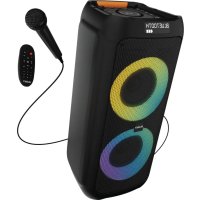
P300 - Speaker Majority - Free user manual and instructions
Find the device manual for free P300 Majority in PDF.



| Product Type | Portable speaker with microphone and FM radio |
| Dimensions | 255 × 255 × 565 mm |
| Weight | 4.40 kg |
| Power supply | 100-240V 50/60Hz (mains adapter); built-in rechargeable battery |
| Battery life | Approximately 8 hours |
| Charging time | Approximately 4 hours |
| Bluetooth version | 5.0 |
| Bluetooth range | Up to 10 meters |
| Compatible audio formats | MP3, WMA, SBC, WAV, FLAC |
| Max USB/SD memory | 64 GB |
| Speaker configuration | 2 x 6.5" woofers + tweeter |
| Playback modes | Bluetooth, USB, SD card, AUX, FM radio |
| Microphone | Wired included with volume and echo controls |
| Recording | On USB or SD card in MP3 format (max. 4 GB per file) |
| Remote control | Yes (AAA batteries not included) |
| LED lighting | Yes, with mode change |
| Equalizer | Rock, Pop, Jazz, Classic, Flat |
| Warranty | 12 months (extendable to 36 months with online registration) |
| Maintenance | Unplug before cleaning; use a dry cloth |
| Safety | Keep away from water; do not obstruct ventilation; avoid heat sources |
Frequently Asked Questions - P300 Majority
User questions about P300 Majority
0 question about this device. Answer the ones you know or ask your own.
Ask a new question about this device
Download the instructions for your Speaker in PDF format for free! Find your manual P300 - Majority and take your electronic device back in hand. On this page are published all the documents necessary for the use of your device. P300 by Majority.
USER MANUAL P300 Majority
Box Contents 3
Controls and Functions 4
P300 Speaker Configuration 6
Basic Operation 7
Bluetooth, USB, SD Controls 8
FM radio, Microphone, and Recording Controls 9
Troubleshooting 10
Specifications and Warranty 11
Safety Information 12
What's in the Box
A. Majority P300 Party Speaker
B. Microphone
C. User Manual
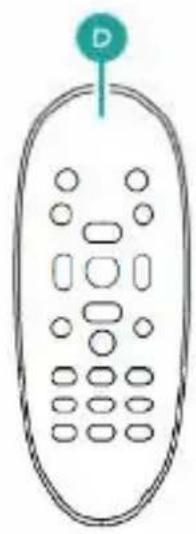
D. Remote Control
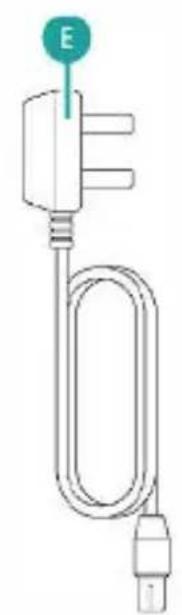
E. Power Adapter
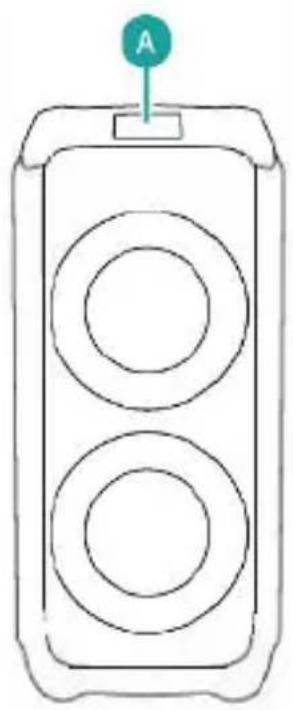

Top View
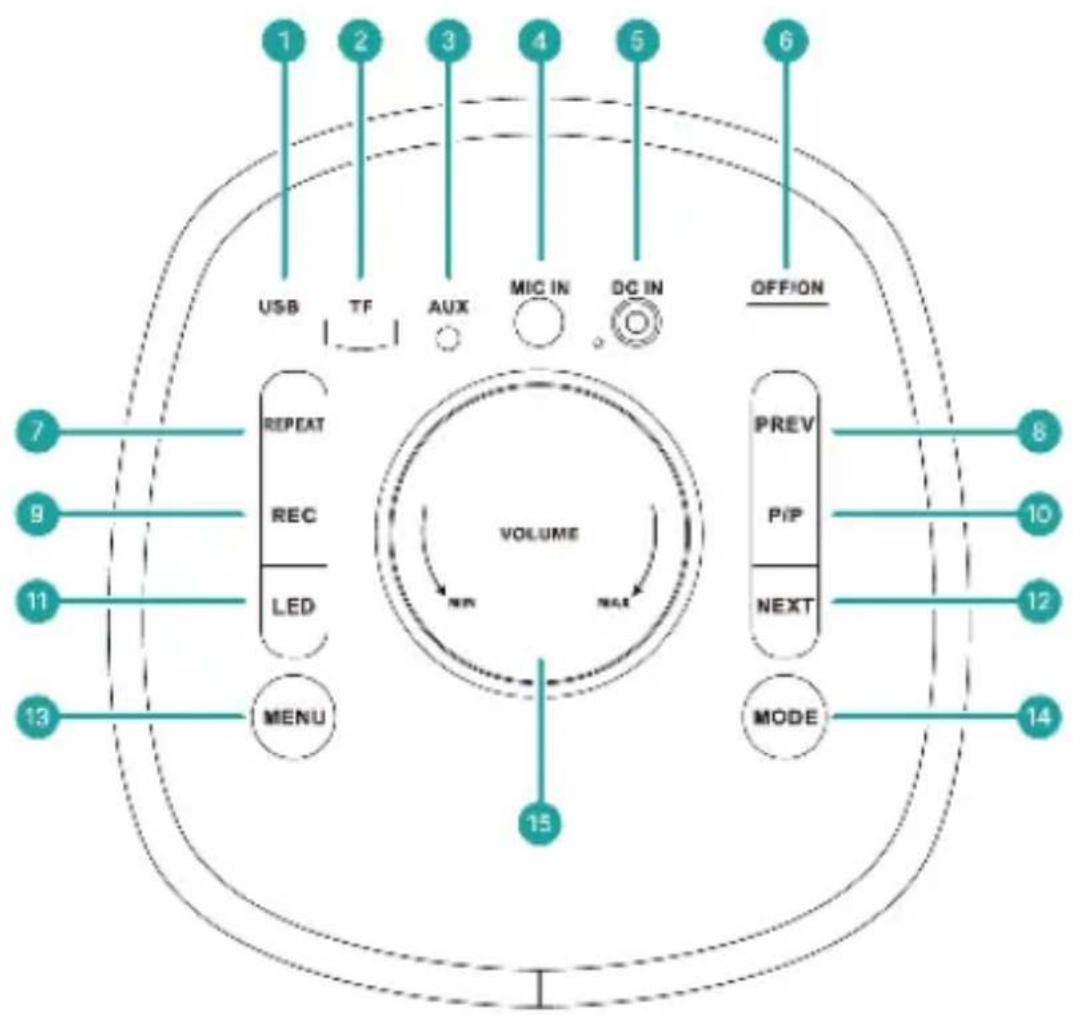
- USB Port
- SD Card Slot
- 3.5mm AUX Port
- Microphone Port
- Power Port
- Power Off/ON
- Repeat Track
- Previous Track
- Record
- Pause/Play
- LED Light Mode Change
- Next Track
- Menu for Bass / Treble / Mic Adjustments
- Mode Select (Bluetooth) / USB / SD Card / AUX / FM Radio
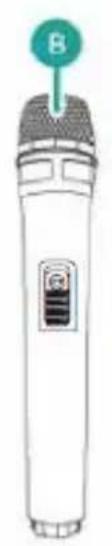
Remote Control
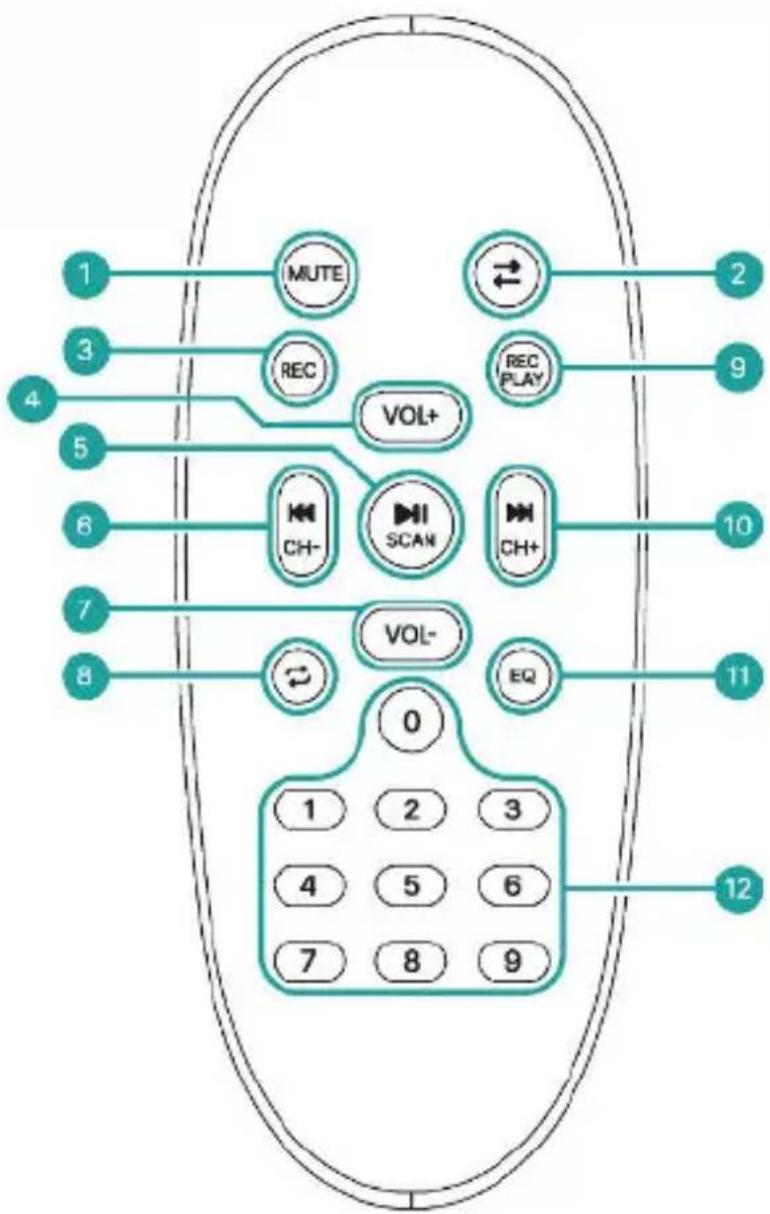
- Mute
- Change Mode
- Record Mic Audio to USB / SD Card
- Increase Volume
- Play / Pause on Bluetooth / USB Mode / Auto-Scan for FM Mode
- Precious Track / Scan
- Decrease Volume
- Repeat Mode (One/All)
- Play Mic Recordings
- Next Track / Scan
- EQ Mode (Rock/Pop/Jazz/Classical/Flat)
- 0-9 Number Keys for USB / SD Card Track Select and FM Presets
Charging
The unit will charge in standby and working mode if It is connected to the mains with the supplied power adaptor. To confirm that the unit is on charge, the charging icon at the top right of the screen will indicate the unit is charging and the level of charge. The charging port will also display a red light to indicate charging.
The speaker will take approximately 4 hours to fully charge, when fully charged the charging port will display a green light.
Play Time
The P300 has an internal rechargeable battery that has a playtime of 8 hours when fully charged. This will allow you to remove the power adaptor and take the speaker on the go and use it portably.
Remote Control Power
Remove the battery cover of the remote control. Insert 2 x AAA batteries. Replace battery cover.
Note: When using the remote control, ensure that you are pointing at the remote sensor otherwise the unit may not respond to key presses.
Basic Controls
On the remote control or top panel of the speaker, use the Vol + & Vol - buttons or volume dial to control the volume.
Press MUTE to mute the audio.
In Bluetooth or USB Mode, use the buttons to skip tracks and rewind or fast forward.
Switching Mode
Select the correct mode using the MODE option button on the remote control or top panel of the speaker.
The mode selected is indicated on the LED display on the front of the main speaker:
-AUX
-Bluetooth
-FM
Bluetooth
To choose Bluetooth mode, press the MODE button on the remote or top panel until Bluetooth mode is selected.
Go to Bluetooth settings on your chosen device and ensure Bluetooth is switched on. Locate "Majority P300" in your available devices and select the device to connect. Once connected, the voice prompt will confirm "Bluetooth Connected".
To choose the music you wish to play, you will need to choose the song, album or playlist from your device.
Note: The speaker only receives Bluetooth input from certain devices such as phones or tablets.
USB
To choose USB mode, press the MODE button on the remote or top panel until USB mode is selected.
Insert USB stick/drive into the USB port and use the remote control functions to play, pause, and navigate through files.
Note: The USB port cannot be used as a connection port with other devices. This port is only to be used for playback from a USB stick or recording.
SD Card
To choose SD Card mode, press the MODE button on the remote or top panel until SD Card mode is selected.
Insert an SD Card into the SD port and use the remote control functions to play, pause, and navigate through files.
FM Radio
To choose FM mode, press the MODE button on the remote or top panel until FM Radio mode is selected.
Playback will auto play the last played station. Press Play/Pause button on the remote control or top panel to auto scan. The device will then auto scan for a confirmed FM signal and save stations as preset 1-9. When complete, the device will then play preset 1. Use the preset buttons on the remote control, or next/previous track/scan to choose between preset stations.
Microphone
Plug in the supplied wired microphone and the speaker will automatically recognize the connection. Ensure the microphone is switched ON. Control the volume and echo of the microphone via the controls on the speaker's top panel. The LED display will show the volume and echo level selected. The microphone can be used with any playback mode.
Record Controls
The record functions is used to record the audio from the microphone when the wired mic is connected. It records to USB or SD card, so either of these ports needs to have a USB stick or SD card connected with free space to save recordings. The recording saves in .mp3 format and maximum of 4GB file size can be saved.
Note: The recording only saves the audio from the microphone and not any audio played through other playback options.
To activate a recording, press the REC button on the remote control or top panel of the speaker and the recording will start.
Top stop the recording, press the REC button again.
To play a saved recording, press the REC PLAY button on the remote control.
| Observation Potential Cause/Solution | |
| No power/function | Check whether the power is switched on or off at the wall. Check that the power adaptor is properly connected to the power outlet. |
| No Sound | Check whether unit is set to MUTE. Check whether MODE is correctly selected. Turn up the volume on the speakers or on your external devices. Check that cables are properly installed. |
| Function disturbance | Switch off and unplug the unit. Leave it for 2 minutes and switch it on again. |
| Bluetooth not connecting | Ensure that you are on Bluetooth mode on the speaker and the Bluetooth on your device is switched on. Select the Bluetooth device 'Majority P300' and you should now be able to play audio. |
Support
If you require further assistance with your Majority product, please contact our support team on the Majority website: www.majority.co.uk/support
Specification
| Power Supply | 100 240V - 50 - 60Hz |
| Mode: Bluetooth | 3.5mm AUX in USB reader SD reader FM radio |
| Power consumption 0.5W (standby mode) | |
| Dimensions 255 × 255 × 565 mm | |
| Weight 4.40 kg | |
| Speakers 2*6.5" Woofer + tweeter | |
| Bluetooth Version 5.0 | |
| Bluetooth range Up to 10 meters | |
| Compatible file types MP3, WMA. SBC, | WAV, FLAC |
| Maximum compatible USB/SD storage | 64GB |
Warranty
All products comes with a standard 12 month warranty. All items must be registered on www.majority.co.uk for warranty to be valid. Once on the web page, use the menu to find "Register Your Product". You will also be given the chance to extend your warranty for an additional 24 months, free of charge.

P300
Benutzerhandbuch
MAJORITY
Majority: www.majority.co.uk/support.
Specifiche
www.majority.co.uk/support
Especificaion
EN Safety and Usage Guidelines (All where applicable)
General Safety Information - Read and Retain: Review all safety and operating instructions before use; keep them for future reference. Follow Instructions: Adhere strictly to all safety and operational guidelines. Water Exposure: Keep the device away from water; avoid placing liquids near it. Ventilation: Ensure ventilation openings are unobstructed to prevent overheating. Heat Sources: Keep the device away from heat-emitting appliances. Wall Mounting - Installation Safety: Follow the manufacturer's instructions and use approved mounting kits only. Avoid drilling into areas with cables, gas, or water lines. Use proper tools and safety apparatus. Regular Maintenance: Inspect regularly for wear or damage, especially if wall-mounted. Relocation: Detach from the wall mount before moving. Child Safety: Keep out of children's reach and ensure heavy items are securely mounted. Seismic Precautions: Use specialized mounts in earthquake-prone areas. Electrical Safety - Power Source: Use the specified power source; consult an electrician if unsure. Cable Management: Protect the power cord from damage. Power Disconnection: Keep the main plug accessible; unplug during storms or long periods of non-use. Battery Safety - Charging: Use the manufacturer's charger; avoid extreme conditions. Heat Exposure: Keep batteries away from heat to prevent explosion or leakage. Battery Condition: Discontinue use if the battery is damaged; dispose of it properly. Replacement: Only use recommended batteries; incorrect types can cause hazards. External Batteries: Use only specified types, observing correct polarity. Battery Removal: Remove batteries if not used for an extended period. Disposal: Follow local regulations for battery disposal; do not incinerate. Connectivity Safety - Cable Connections: Power off devices before connecting or disconnecting cables. Bluetooth Pairing: Ensure a secure connection; avoid interference from other devices. Volume Control: Keep volume moderate to prevent hearing damage. Connectivity and Data Security - Wireless Security: Review privacy policies and secure your network. Software Updates: Keep software updated for security and performance. Children's Safety Warnings - Product Use: Intended for adults; keep away from children. Battery Warning: Keep batteries and items containing batteries out of children's reach. Volume Control: Maintain a safe volume level to protect children's hearing. Fire Hazard - Flammable Materials: Do not place open flames near the product. Overheating: Avoid covering the product to prevent overheating and fire risks. Disposal and Recycling - Product Disposal: Dispose of at a recycling centre according to local laws. Environmental Compliance: Follow regulations for battery and electronic waste disposal. User Maintenance - Cleaning: Unplug before cleaning; use a dry cloth only. Servicing: Only qualified personnel should perform repairs. Data Protection: Reset to factory settings before returning or disposing of the product. Disclaimer: Failure to follow these instructions may result in injury, death, or property damage. The manufacturer is not liable for damage caused by improper use.
Declaration of Conformity:
We, Izilla Ltd, Newton House, 2 Pioneer Court, Histon, Cambridge, CB24 9PT declare under our sole responsibility that the product:
Product Name: P300 Party Speaker Model: 1000002884/1000002988
Brand Name: Majority
To which this declaration referred is in conformity to the following harmonized standards or normative documents (CE & Rohs 2.0);
EN 55035:2017, EN 55032:2015, EN61000-3-2:2014, EN61000-3-3:2013, EEN62368-1:2004+A11:2017, ETSI EN 301 489-1 V2.2.3(2019-11), ETSI EN 301 489-17, V3.2.2(2019-12), ETSI EN 300 328 V2.2.2 (2019-07), EN 62479: 2010, IEC 62321-3-1:2013, IEC 62321-4:2013, IEC 62321-5:2013, IEC 62321-6:2015, IEC 62321-7-1:2015, IEC 62321-7-2:2017, IEC 62321-8:2017, (EC)NO 1275/2008,EN50564:2011, (EC)NO 801/2013.
Complying with the requirements or provisions of Council Directives which relate to:
EMC Directive 2014/30/EU, RED Directive 2014/53/EU, LVD Directive 2014/35/EU, Directive (2011/65/EU) and its amendment directives 2015/863/EU (RoHS 2.0) of the, European parliament, ERP Directive 2009/125/EC.
All essential test suites have been carried out.
Point of Contact: Eddie Latham Founder
Signed: E. Latham Date of Issue: January 2024 Place of Issue: Cambridge, UK
Importer's Addresses:
UK: iZilla Ltd, Newton House, 2 Pioneer Court, Histon, Cambridge, CB24 9PT
Email: techsupport@majority.co.uk
EU RP: AR Experts, Po Box 5047, 3620 AA Breukelen, The Netherlands
Email: info@ar-experts.eu
US: iZilla Ltd C/O A.N.Deringer Inc, 19520 Wilmington Ave, Rancho
Dominguez, CA, 90220
Email: techsupport@majority.co.uk

ATTENTION
RISK OF ELECTRIC SHOCK DO NOT OPEN


CAUTION
RISQUE D'ELECTROCUTION NE PAS OUVIR


IMPORTANT: Please read all instructions carefully before use and keep for future reference
MAJORITY
www.majority.co.uk



Brand : Majority
Model : P300
Category : Speaker