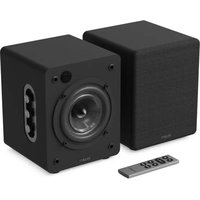
D50X - Loudspeaker Majority - Free user manual and instructions
Find the device manual for free D50X Majority in PDF.


| Product Type | Speaker (Bookshelf) |
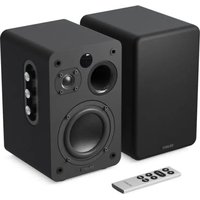
| Brand and Model | Majority D50X |
| Number of Speakers | 2 (pair) |
| Dimensions (per speaker) | 136 x 150 x 180 mm |
| Power Supply | AC 100-240 V ~ 50/60 Hz |
| Standby Power Consumption | < 0.5 Watt |
| Bluetooth Version | 5.3 |
| Bluetooth Range | Up to 10 meters |
| Input Ports | HDMI ARC, Optical, USB, Audio (AUX 3.5 mm) |
| Headphone Output | 3.5 mm jack |
| Supported Audio Formats (USB) | MP3, FLAC, WAV |
| Maximum USB Drive Capacity | 128 GB |
| Main Functions | Bluetooth, USB, HDMI ARC, Optical, Audio In, Sound Equalizers (Levels 1/2/3) |
| Sound Adjustments | Bass and Treble (rotary knobs), Volume, Mute |
| Remote Control | Yes (CR2032 battery included) |
| Warranty | 12 months (free extension after registration) |
| Maintenance and Cleaning | Unplug before cleaning, use a dry cloth |
| Safety Instructions | Do not expose to water, do not obstruct ventilation, keep away from heat sources |
Frequently Asked Questions - D50X Majority
User questions about D50X Majority
0 question about this device. Answer the ones you know or ask your own.
Ask a new question about this device
Download the instructions for your Loudspeaker in PDF format for free! Find your manual D50X - Majority and take your electronic device back in hand. On this page are published all the documents necessary for the use of your device. D50X by Majority.
USER MANUAL D50X Majority
D50X Bookshelf Speakers
User Manual
MAJORITY
What's In the Box? 3
Controls And Functions.... 4
Instructions Guide....
Basic Operation....8
Bluetooth Mode.... 10
USB Port Usage.... 11
HDMI ARC Input.... 12
Optical Input.... 13
Audio Input.... 14
Troubleshooting & Support.... 15
Product Specifications.... 16
Warranty.... 16
Safety Information.... 17
What's in the Box?
A. Majority D50X Speakers
B. Speakers connecting cable
C. Remote Control
D. User Manual
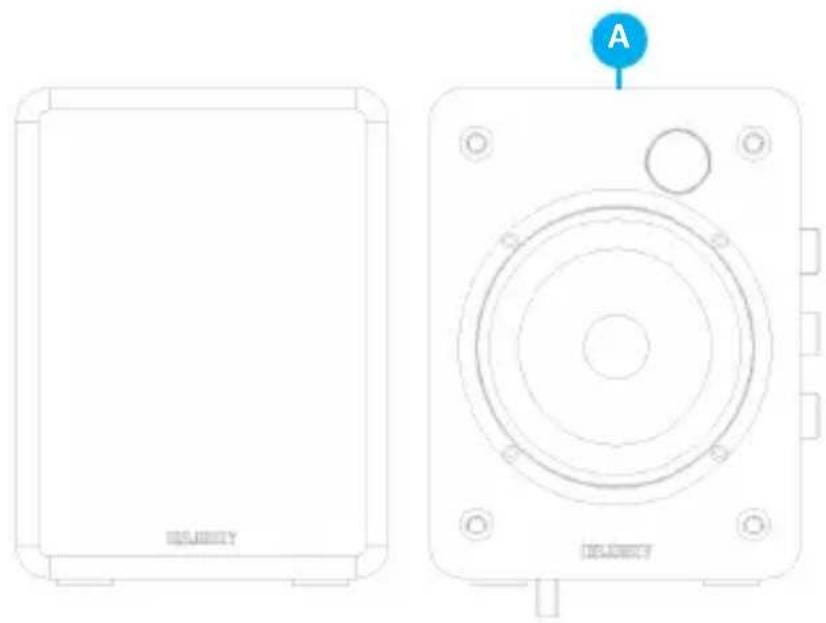
natural_image
Technical line drawing of a device front and top views, showing a rectangular base with 'SUNIONY' label and circular component (no text or symbols beyond labels)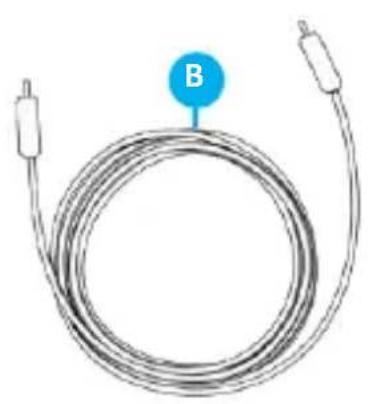
natural_image
Coiled electrical cable with two connectors and a labeled point B (no text or symbols on the cable itself)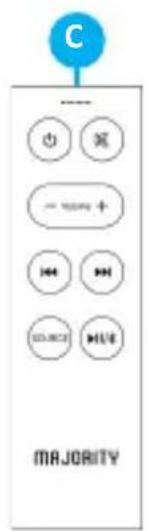

natural_image
Simple line drawing of a blank rectangular book with a blue circular label labeled 'D' on top (no text or symbols on the book itself)Front View
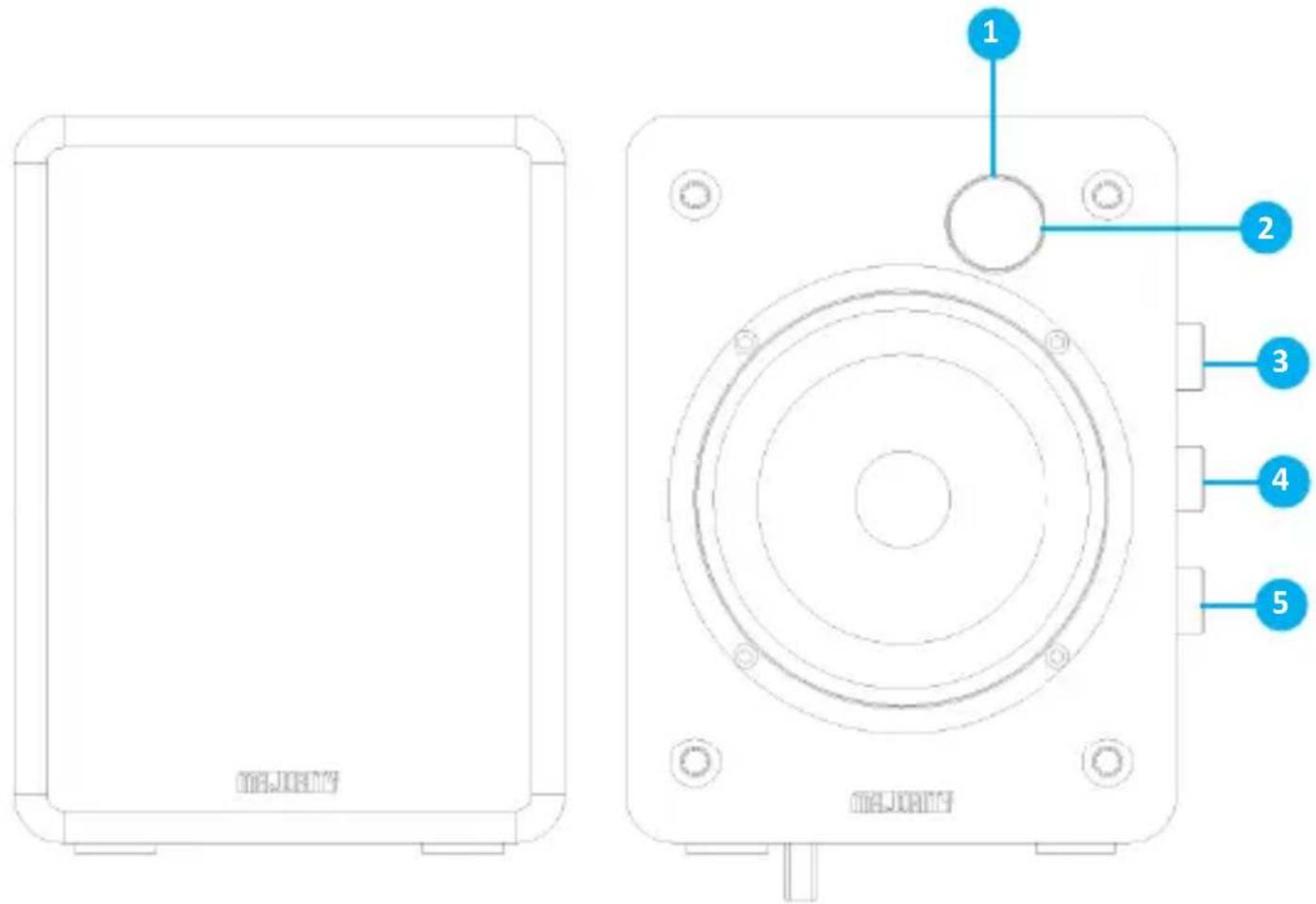
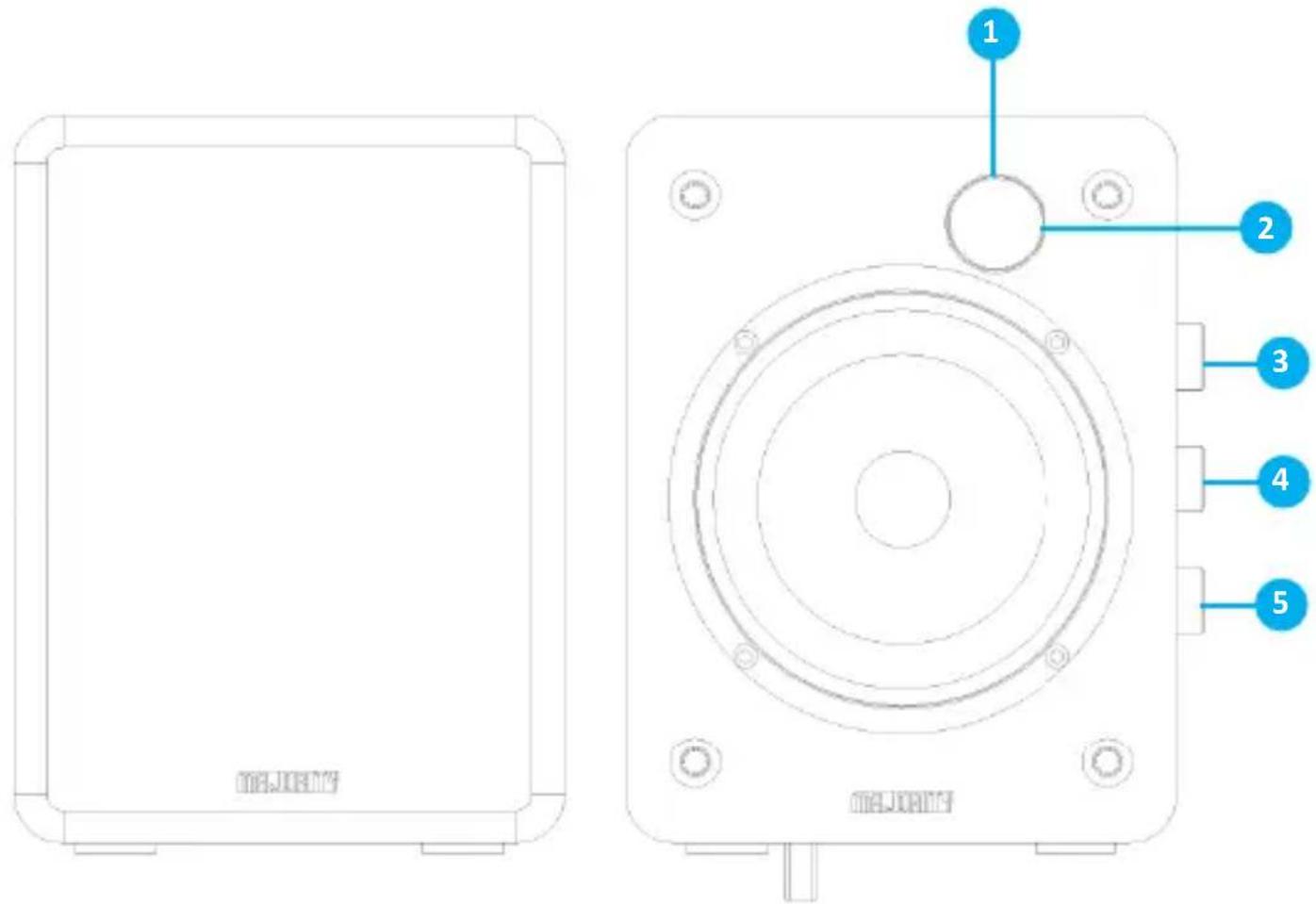
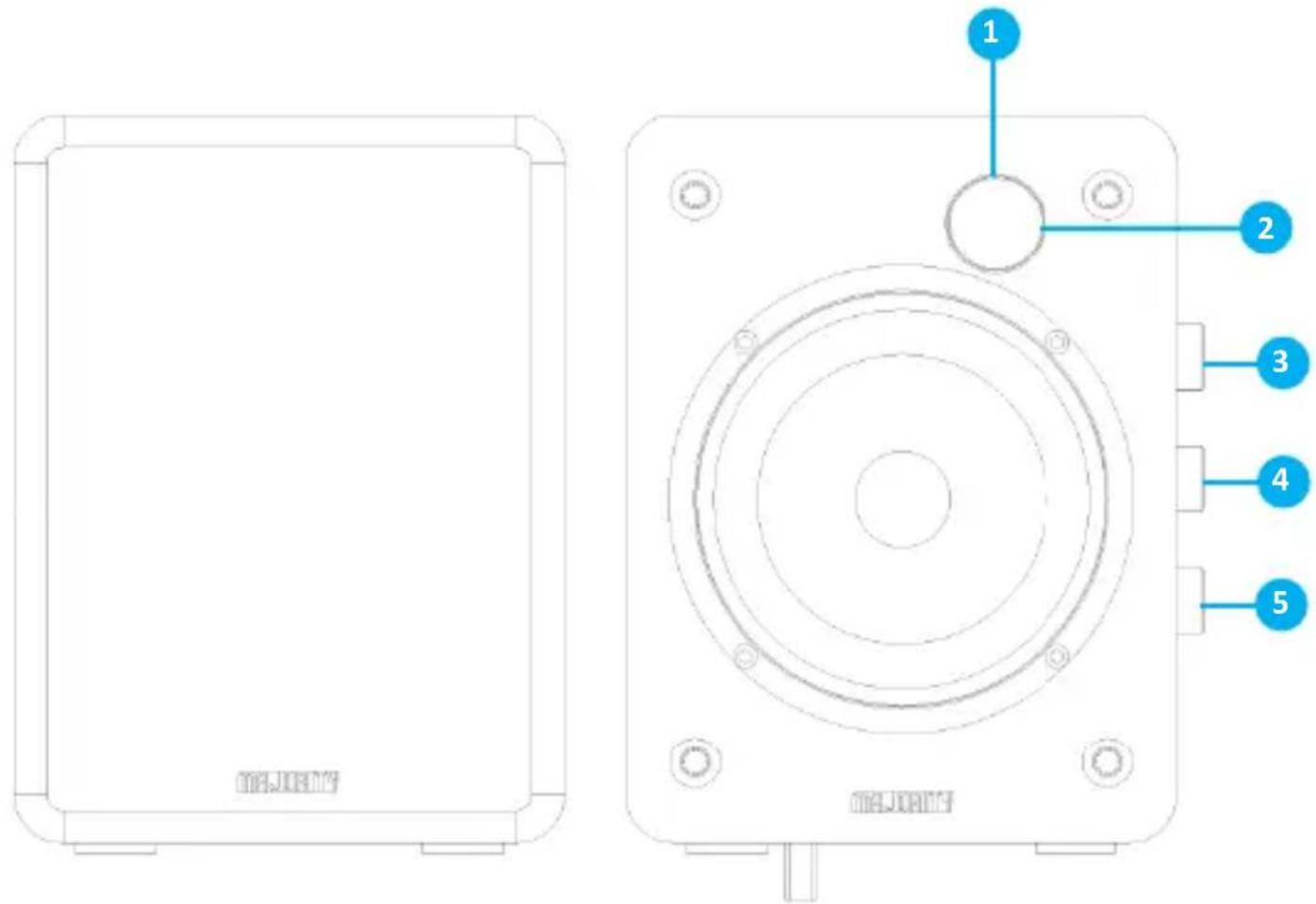
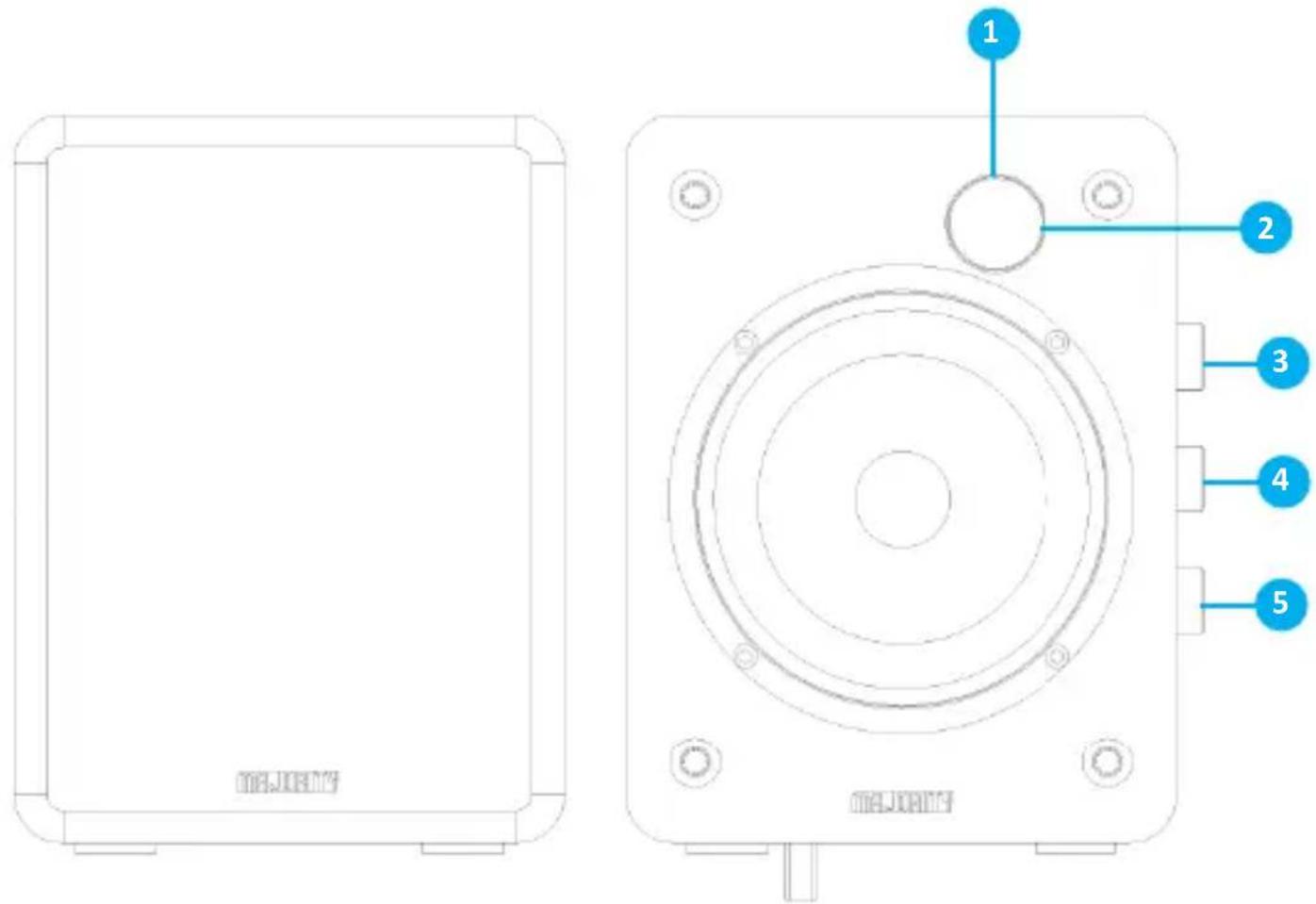
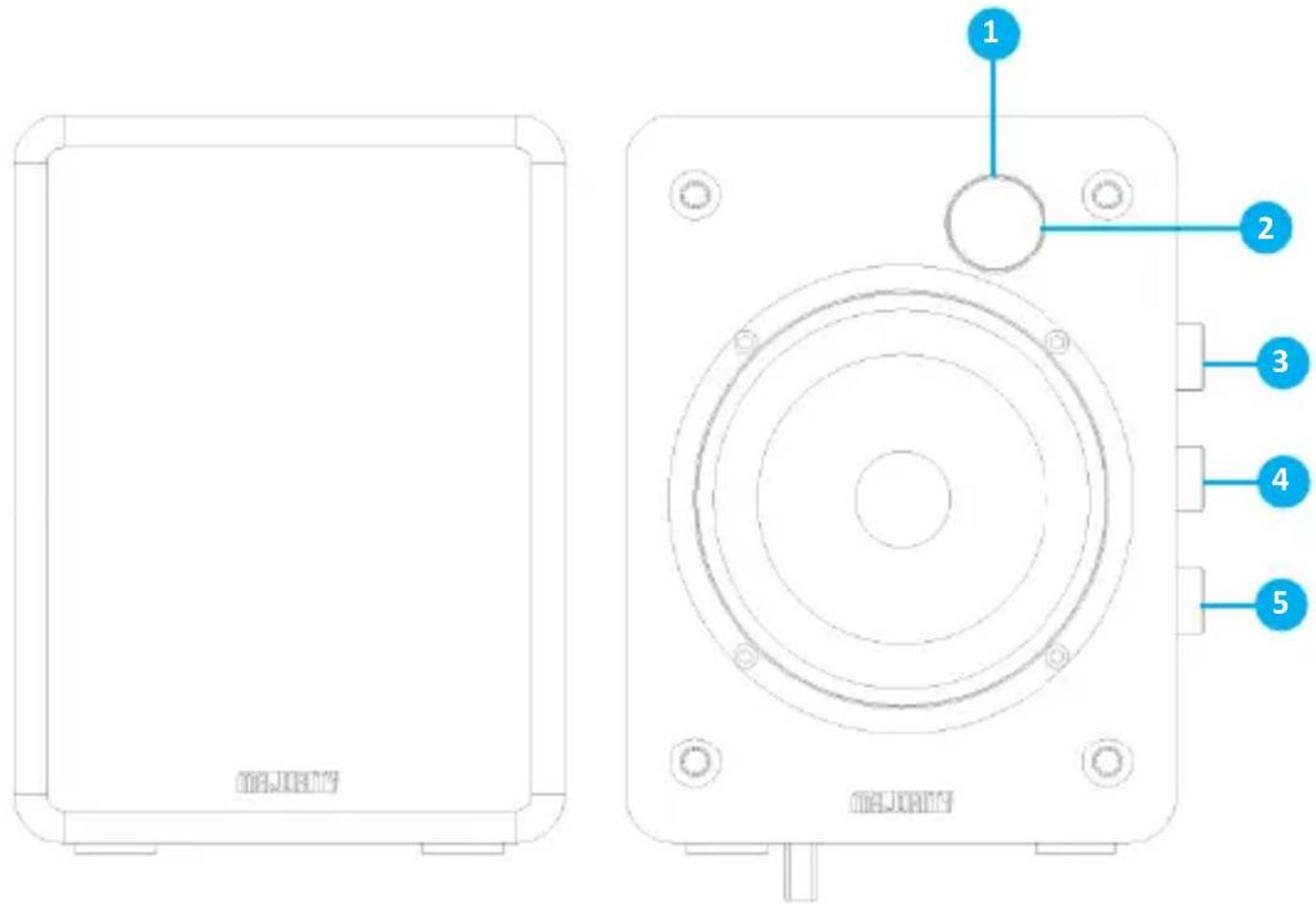
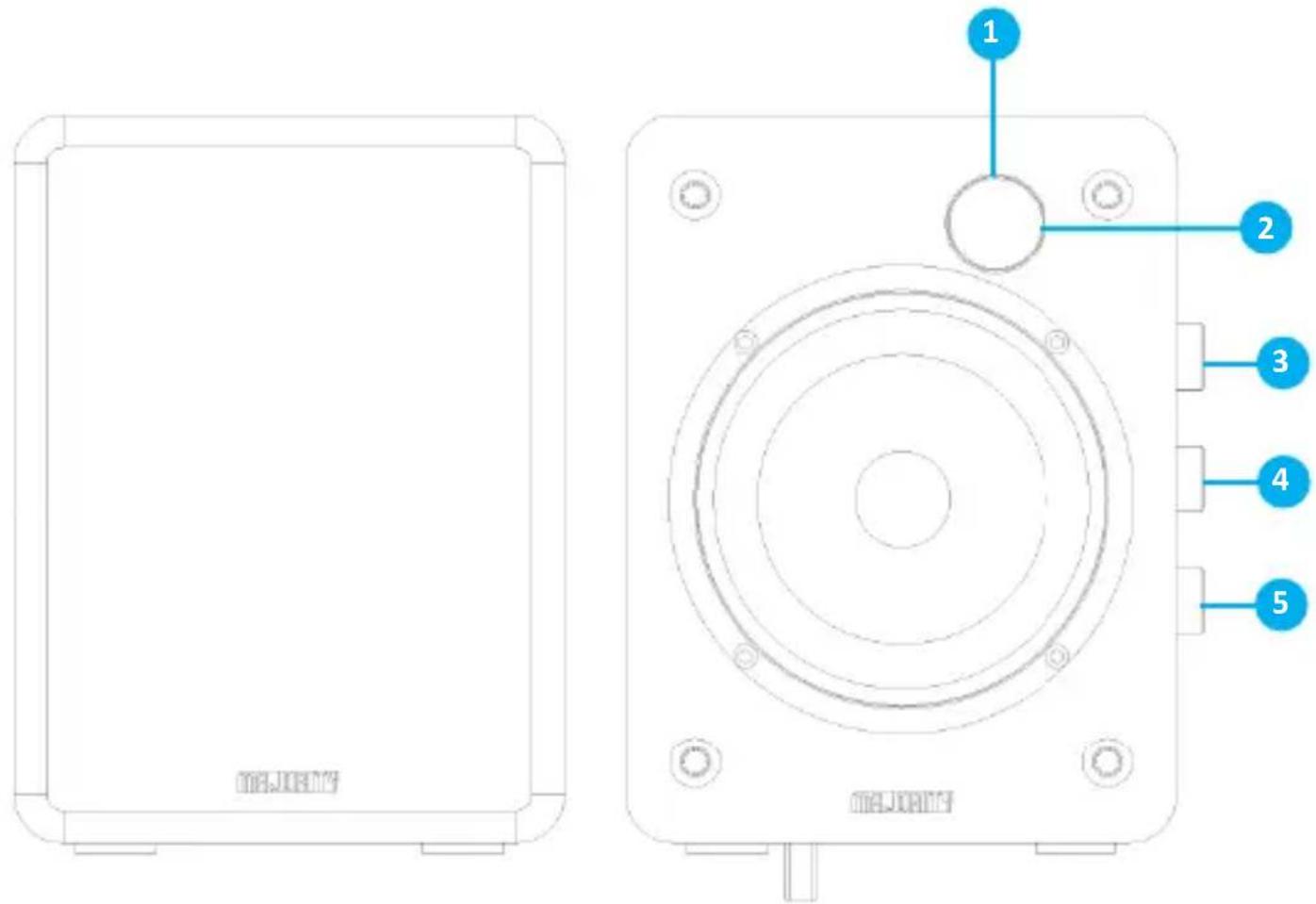
1. Power/ Standby LED Light Indicator.
•The red light indicates that the speakers are in Standby Mode.
•The green light indicates that the speakers are switched on (working mode).
2. Remote Control Sensor
3. Input / Volume Knob
- Press to power on the speakers.
- Press and hold for 4-5 seconds to power off.
- Press to change the mode.
- Rotate to increase/decrease the volume.
4. Treble Rotary Knob.
- Rotate to increase/decrease the treble.
5. Bass Rotary Knob.
- Rotate to increase/decrease the bass.
Back View
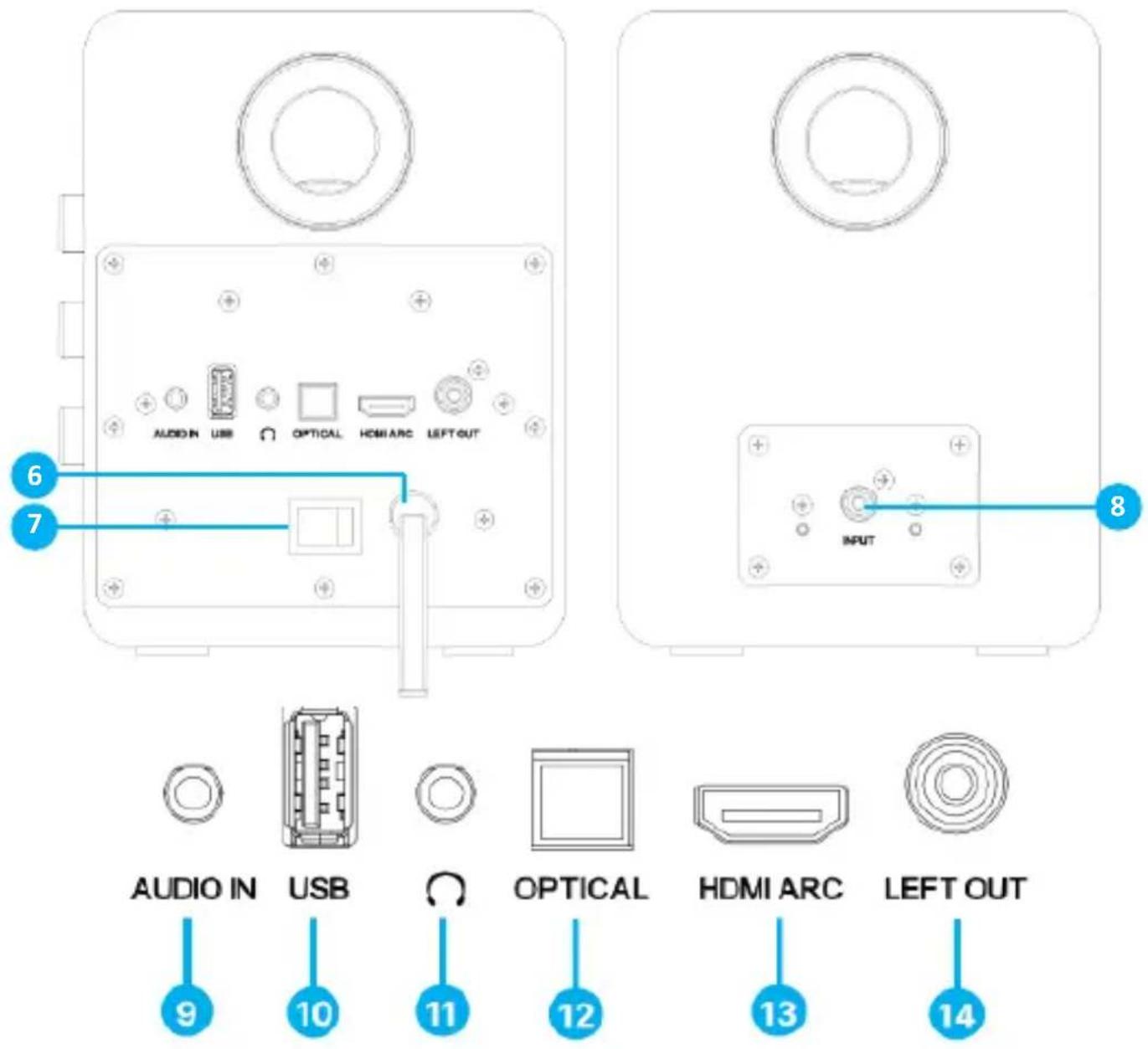
-
AC IN Port 11. Headphone Socket
-
Power switch 12. Optical Port
-
Speaker connecting Port 13. HDMI ARC Port
-
Audio Input 14. Connecting Port with the left speaker
-
USB Port
PLEASE NOTE: The USB port is only to be used for playback from a USB stick or for charging a mobile phone using a USB cable (not included). See page 11 for details.
flowchart
graph TD
    A["15"] --> B["Power Circle"]
    C["17"] --> D["Volume + Button"]
    E["29"] --> F["◀◀"]
    G["21"] --> H["SOURCE"]
    I["20"] --> J["◀◀"]
    K["22"] --> L["▶II/✗"]
    M["18"] --> N["Output"]
    O["MAJORITY"]
-
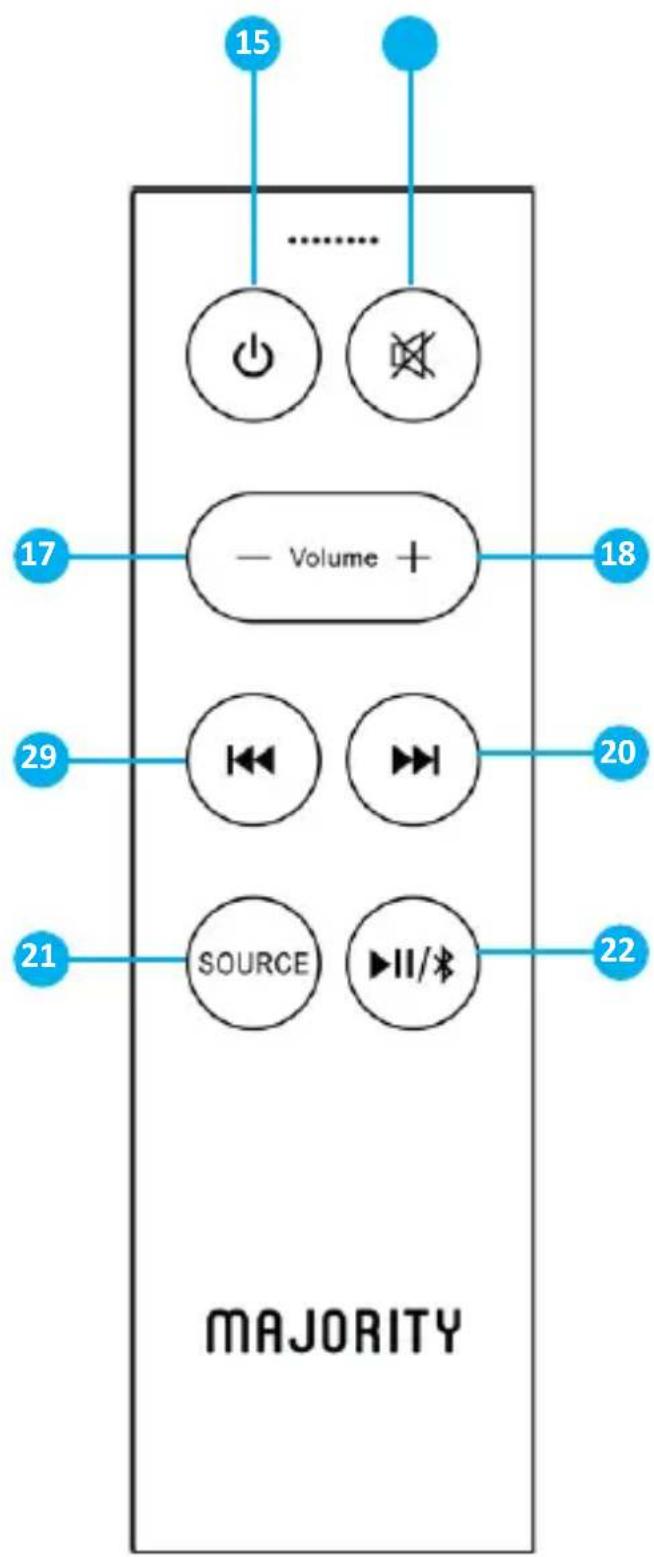
Power ON/ Standby Mode
-
Mute
- Press to mute or resume sound.
- Press and hold for 4-5 seconds to hear which mode the speakers are in.
-
Volume -
-
Volume +
-
'Previous'.
- Press to skip and play previous track in Bluetooth or USB Mode.
20 'Next'.
- Press to skip and select the next track in Bluetooth and USB Mode.
- Source (Mode).
- Press to change the source/ speaker's mode in between : BT-USB-AUDIO-HDMI- OPTICAL
- Play/Pause/BT
- Press to play or pause in Bluetooth and USB playback mode..
- Press and hold down for 2-4 seconds to activate Bluetooth pairing with other device while in Bluetooth Mode, or to disconnect from other paired devices.
- While in HDMI or Optical Mode press and hold for 4-5 seconds to change the sound volume to Level 1. Press and hold again to change to Level 2, and again for Level 3.
PLEASE NOTE: Levels 1, 2 &
3 represents small, medium and large volumes. These are only available when connecting via HDMI ARC or Optical.
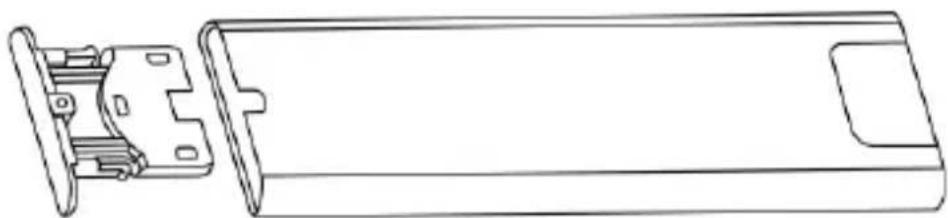
Prepare your remote for usage.
Open the battery slot, position CR2032 battery into its slot as per this diagram.
natural_image
Technical line drawing of a mechanical component with internal parts and housing (no text or symbols)Remote Control Operational Range
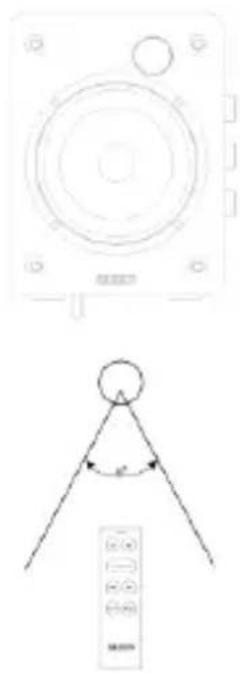
The remote control sensor on the front of the unit is sensitive to the remote-control commands of up to a 5 metres distance and within a maximum of a 60° arc.
PLEASE NOTE: The operating distance may vary depending on the brightness of the room.
natural_image
Technical line drawing of a remote control panel with a circular dial and pointer (no text or symbols)PLEASE NOTE: The instructions within this user manual will refer to the D50X's button number on the main speaker e.g. (Ref. 'number') and to the remote control buttons e.g. (Rem. 'number'), in accordance with the diagrams from pages 4-6.
Remove all packaging and prepare the D50X Speakers for your set-up. Connect both speakers together using the connecting cable, insert one end on the back of the left speaker (Ref.8) into the connecting port and the other end into the speaker output port (Ref.14) on the back of the main speaker. Position the speakers on the left and right hand-side of the device you are about to connect with.
Using the power adaptor provided, plug one end into the AC IN power cable port - this can be found at the back of the primary speaker (Ref.6). Plug the other end into a mains socket.
Ensure all cables are properly connected before switching the Majority D50X Speakers on.
Power On/ Standby Mode
Ensure the switch button at the back of the main speaker is set to ON (Ref.7). When you connect the unit for the first time to the power supply, the unit will automatically switch on. Press the 'Power On/Standby' button on the remote control (Rem.15) or press and hold the 'Input/Volume' (Ref.3) on the unit to switch to Standby Mode, and the POWER indicator will show a red light.
Press the button 'Power On/Standby' on the remote control (Rem.15) or press the 'Input/Volume' button on the unit again to switch the unit back on. The POWER indicator will show a green light to confirm it is switched on.
Disconnect the power supply if you want to switch OFF the unit completely.
Important Note
The Majority D50X Speakers are equipped with an energy saving mode. If there is no activity/signal received from a connected device for up to 19 minutes, then the speakers will automatically switch to Standby Mode to save energy (ERP 2 standard).
If the volume level of the audio source connected with the speakers is set to minimum, the D50X might recognise this as 'No Audio Signal'. This will affect the capability of signal detection and can also lead to the unit automatically switching to Standby Mode. If this happens, please reactivate the audio signal transmission or increase the volume level on your audio source to resume playback.
Changing the audio play mode
Press the 'Source' button on the remote control (Rem.21) repeatedly to change the playing mode: BT-USB-AUDIO-HDMI ARC-OPTICAL. Alternatively, press the 'Input/Volume' button (Ref.3) on the speaker repeatedly. A voice message will announce each mode.
Adjust the Volume Level
Press the 'Volume +/-' buttons to adjust the volume- the POWER indicator will flash a green light when doing so. To turn off the sound press the 'Mute' button on the remote control (Rem.16). Press once again to resume to normal listening.
PLEASE NOTE: When increasing or decreasing the volume, each button press generates a green LED light flash. When you reach the maximum volume level, the green LED light will stop flashing.
If you adjust the volume to maximum and then power off, when you power on again, the volume level will automatically be restored to the factory setting at a lower level.
Sound Equalisers (only with remote use).
While in HDMI or Optical mode, you can use sound equalisers to enhance the sound as per your preferences. Press and hold the 'Play/Pause' button (Rem.22) on remote control for 4-5 seconds to select one of the equalisers named 'Level 1', 'Level 2' or 'Level 3'.
Using Headphones
Enjoy private listening by connecting wired headphones (not included) with a 3.5mm jack.
Whilst the speaker is playing, insert the headphones into the headphone socket (Ref. 11). The sound will automatically switch to the headphones and will no longer be heard through the D50X Speakers.
IMPORTANT: Before connecting the headphones, ensure the speaker volume is set to a low level to protect your hearing. Once all set increase the volume level on your device based on your preferences.
The Majority D50X Speakers can be paired via Bluetooth with a device such as a smartphone, a tablet or any other Bluetooth enabled device to play audio from via the speakers.
- Ensure the D50X Speakers are powered on before connecting with another Bluetooth-enabled device.
- Change the speaker's mode to Bluetooth by pressing and holding the Bluetooth button on the remote control (Rem.22) for 4-5 seconds. Alternatively, press the 'Source' button on the remote control (Rem.21) repeatedly to enter Bluetooth Mode. A voice message will announce the mode. The speakers will then start searching for a device to pair with.
- Activate Bluetooth on your device that you want to pair with the speakers. Search and select "Majority D50X" from the device's list of Bluetooth connections. Once successfully connected, you will hear a voice message saying, "BT connected", indicating that you have successfully paired the speakers with your Bluetooth device. You can now start playing audio from your device.
PLEASE NOTE: If the Majority D50X Speakers are already paired with a device and you wish to connect with a different one, you must press and hold the 'Bluetooth' button (Rem.22) for 3 seconds to unpair from the device and then follow the pairing instructions to connect with the new one.
The operational Bluetooth range between the speakers and a Bluetooth-enabled device is up to 8 metres without having any obstacles or objects blocking connection.
While in Bluetooth mode, if you wish to reconnect to a previously paired device, ensure your device is within the operational range and is still connected with the Majority D50X from your devices list.
The Majority D50X are not compatible with Bluetooth headphones or earbuds.
USB Charging Port
The USB port on Majority D50X, can be used as a charging port for phones or small similar devices. Connect your phone using an USB cable (not included) and insert into the speakers USB port (Ref.10).
PLEASE NOTE: The output voltage of the USB port is 5V/1000mA, therefore not all devices are guaranteed for charging using this port. Please check your device specifications/manual before connecting with the speakers USB port for charging.
A mobile phone can be charged while the speakers are in Standby or Operating Mode. If the working mode is changed to Standby Mode, the phone will stop charging for 2 seconds and then continue charging.
USB Playback Port
The Majority D50X speakers can be connected with a USB mass storage device, USB stick and USB flash player to play audio from via the speakers.
• Insert the USB device into the USB port at the back of the main speaker (Ref.10).
- Press the 'Input/Volume' button on the main speaker (Ref.3) or the 'Source' button on the remote control (Rem.21) repeatedly to change the speaker's mode to USB Mode. A voice message will be heard announcing the mode.
• The stored audio files on the USB device will automatically start playing.
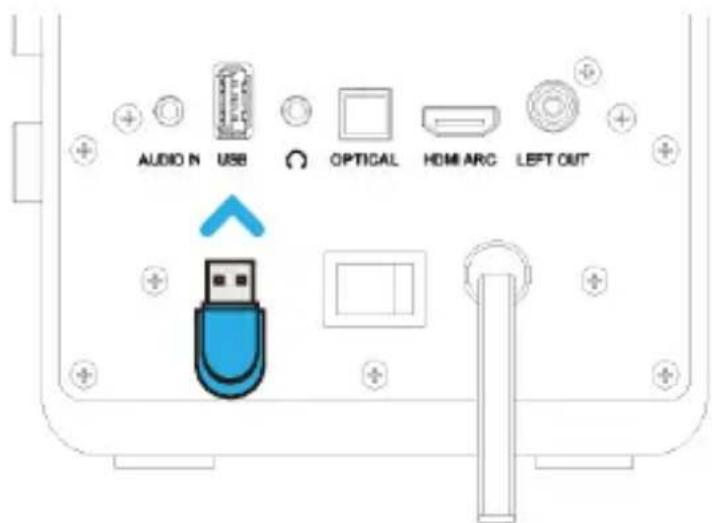
PLEASE NOTE: The USB playback port can be used with an USB stick/drive type 2.0, of up to 128 GB. The audio formats supported are MP3, FLAC & WAV.
The Majority D50X Speakers can be connected to a TV with compatible HDMI-CEC and ARC (Audio Return Channel).
- Using an HDMI high-speed cable which supports ARC function (not included), insert one end into the HDMI port on the rear of the main speaker (Ref.13) and the other end into the HDMI ARC port on the TV.
- Press the 'Input/Volume' button on the main speaker (Ref.3) or the 'Source' button on the remote control (Rem.21) repeatedly to change the speaker's mode to 'ARC'. A voice message will confirm the ARC Mode.
- Adjust your TV audio settings to HDMI audio, enable HDMI-CEC and ARC functions. The sound will then be heard via D50X.
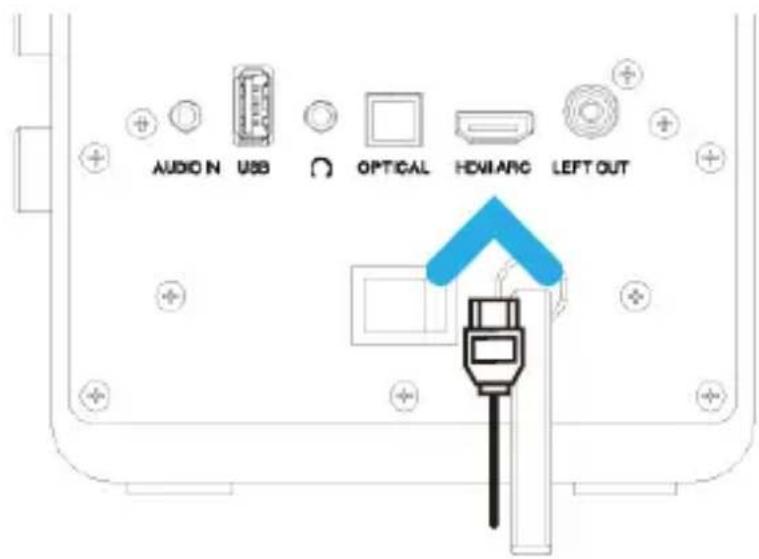
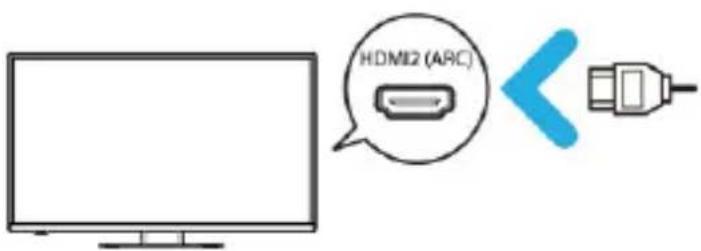
PLEASE NOTE: If your TV is not HDMI-CEC and ARC or the CEC protocol is inconsistent, resulting in no sound, you must use a different type of cable connection to play sound from your TV through the Majority D50X Speakers.
In case you experience no sound when using HDMI ARC connection, please check TV audio settings and set the digital audio format to PCM.
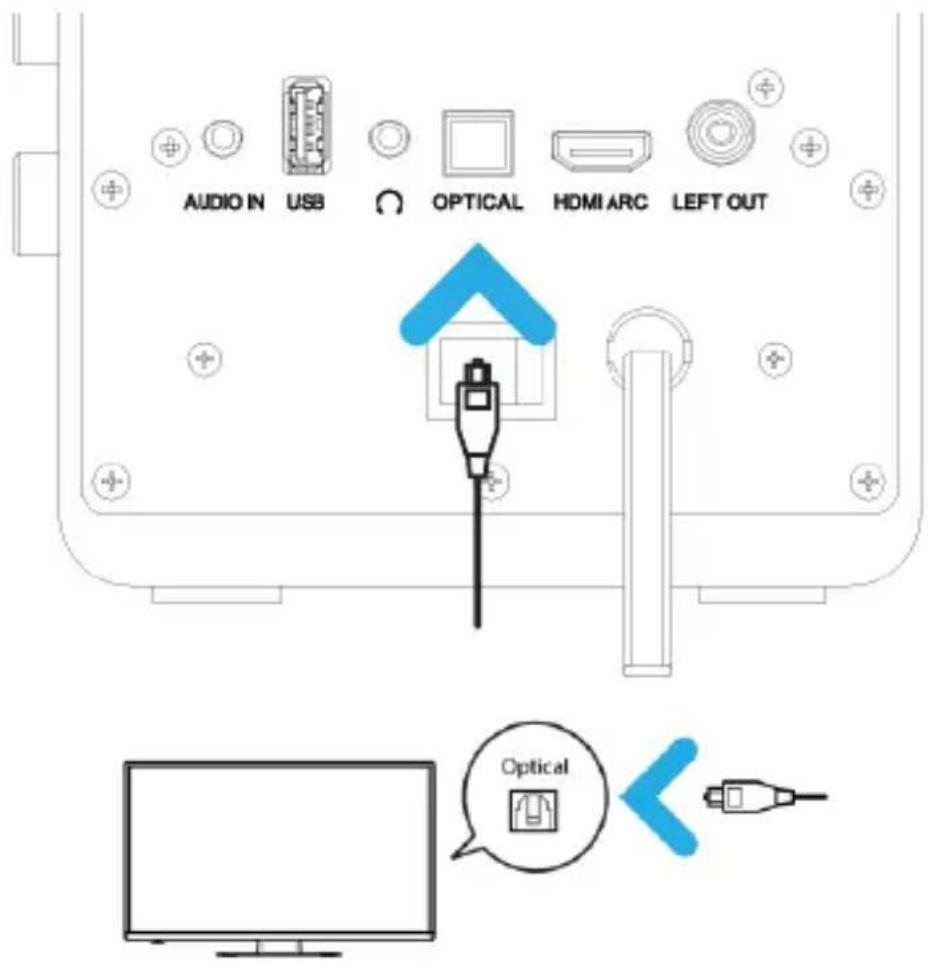
Using the Optical Input, you can connect the Majority D50X with a TV/DVD/SET BOX, outputs using an optical cable.
- Insert one end of the optical cable (not included) into the optical input port on the rear panel of the main speaker (Ref.12) and the other end into your device optical output port.
- Press the 'Input/Volume' button on the main speaker (Ref.3) or the 'Source' button on the remote control (Rem.21) repeatedly to change the speaker's mode to 'Optical'. A voice message will confirm you are using Optical Mode.
- Adjust the audio settings on your device, if required to Optical/Audio and the digital audio format to PCM.
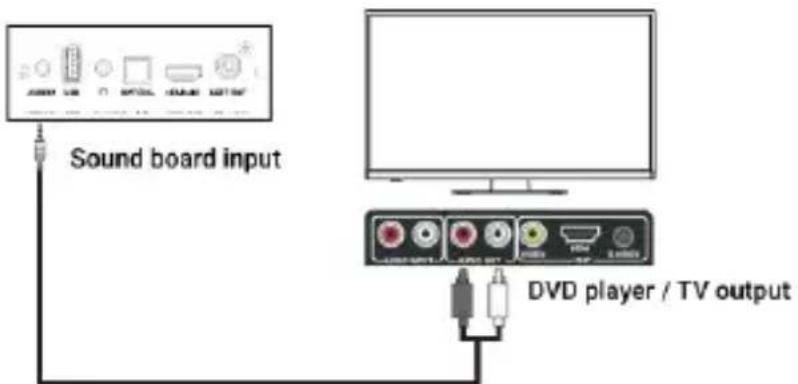
The Majority D50X Speakers can be connected with an audio source using the 'audio input' port with a TV/ PC/ DVD Player. For this, you can use two different cable types such as: AUX (3.5mm jack) to RCA (not included), or AUX(3.5 mm) to AUX (3.5 mm) (not included).
AUX (3.5 mm) to RCA
- Use an analogue audio cable AUX cable with a 3.5 mm jack that can be inserted into the main speaker, audio input port (Ref.9) and the RCA end into the audio source.
- Press the 'Input/Volume' button on the main speaker (Ref.3) or the 'Source' button on the remote control (Rem.21) repeatedly to change the speaker's mode to AUDIO IN.
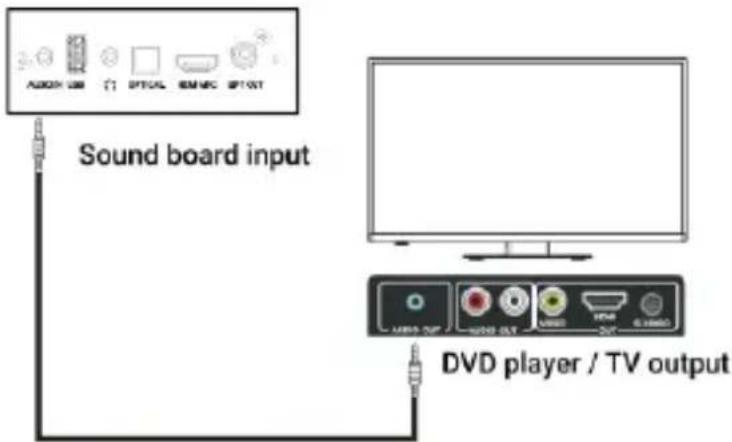
AUX (3.5 mm) to AUX (3.5 mm).
- Connect your TV/DVD Player/Tablet AUX Output Port to the Majority D50X main speaker's Audio Input Port (Ref.9) using an AUX-to-AUX cable of 3.5 mm.
- Press the 'Input/Volume' button on the main speaker (Ref.3) or the 'Source' button on the remote control (Rem.21) repeatedly to change the speaker's mode to AUDIO IN.
Troubleshooting & Support
| Observation Potential Cause/Solution | |
| No sound | Check if all cables are correctly inserted.Check if the speakers are set in the correct mode based on audio source used.Check if the speakers are muted.HDMI connection- If your TV is not HDMI-CEC and ARC or the CEC protocol is inconsistent, you must connect an audio cable to play sound from your TV through the Majority D50X Speakers.Ensure the TV digital audio settings are set to PCMEnsure that the audio setting of the input source (e.g. TV, game console, DVD player, etc.) is set to PCM mode while using Optical ,AUX, and HDMI(ARC) connection. |
| No power | Ensure that the mains cable is connected securely.Ensure the unit is switched on. |
| Bluetooth connection | Ensure the D50X are in Bluetooth mode, and your device has Bluetooth activated before pairing.Ensure the D50X are not paired with other devices. If this is the case, please disconnect, and then follow the pairing steps again.Keep a distance from the device at a range of less than 10 metres. |
| The speakers automatically switches off while playing | Increase the volume level on your device and on the speakers. |
| Function disturbance | Switch the speakers off, disconnect from other devices and unplug. Leave the speakers off for a few minutes and then plug these back in and connect again with your device, then power on the speakers. |
Do you still have issues? Contact Tech Support
If you require further assistance with your Majority product, please contact our team on the Majority website: www.majority.co.uk/support or email us @ techsupport@majority.co.uk
Product Specifications
| Power Supply AC 100-240V~50/60Hz | |
| Power Consumption(standby mode) < 0.5 Watt | |
| Bluetooth version 5.3 | |
| Bluetooth range Up to 10 metres | |
| USB Playback stick/drive Up to 128 GB | |
| Audio supported formats MP3/ FLAC/WAV | |
| Dimensions | 136 x 150 x 180 MM per speaker |
Warranty
All products come with a standard 12-month warranty. All items must be registered within 30 days of purchase via www.majority.co.uk for the warranty to be valid. Once on the web page, use the menu to find 'Register Your Product'. You will also be given the chance to extend your warranty for an additional 24 months, free of charge.
natural_image
Technical line drawing of a device front and top views, showing internal components and mounting points (no text or symbols)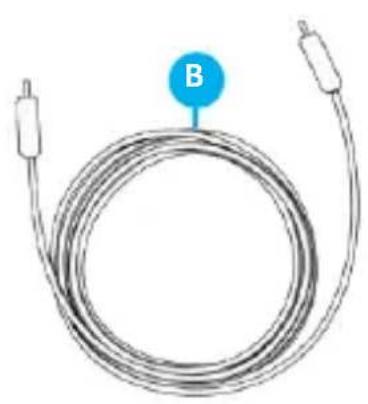
natural_image
Coiled electrical cable with two connectors and a labeled point B (no text or symbols on the cable itself)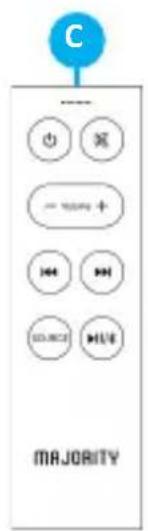

natural_image
Simple line drawing of a blank rectangular book with a blue circular label labeled 'D' on top (no text or symbols on the book itself)Vorderansicht
natural_image
Technical line drawing of a mechanical component with internal parts and housing (no text or symbols)natural_image
Technical line drawing of a circular device with a triangular pointer and control panel (no text or symbols)natural_image
Technical line drawing of a device front and top views, showing internal components and mounting points (no text or symbols)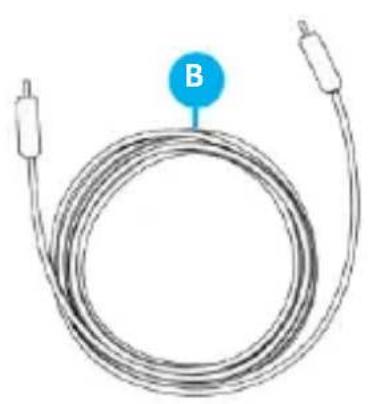
natural_image
Coiled electrical cable with two connectors and a labeled point B (no text or symbols on the cable itself)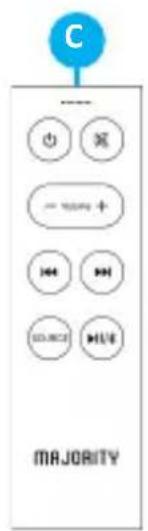

natural_image
Simple line drawing of a blank rectangular book with a blue circular label labeled 'D' on top (no text or symbols on the book itself)Vue Avant
22. Lecture/Pause/BT
natural_image
Technical line drawing of a mechanical component with internal parts (no text or symbols)natural_image
Technical line drawing of a remote control panel with a circular dial and pointer (no text or symbols)AUX (3.5 mm) vers AUX (3.5 mm).
Observation Cause / Solution Potentielle
natural_image
Technical line drawing of a device front and top views, showing a rectangular panel with 'SUNION' label and circular component (no text or symbols beyond labels)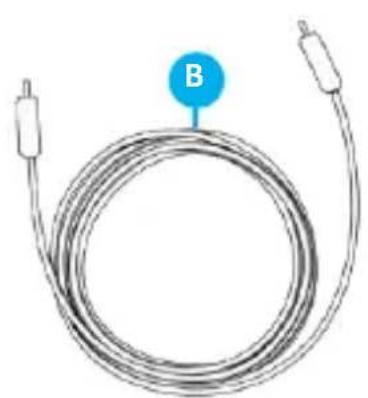
natural_image
Coiled electrical cable with two terminal connectors and a labeled point B (no text or symbols on the cable itself)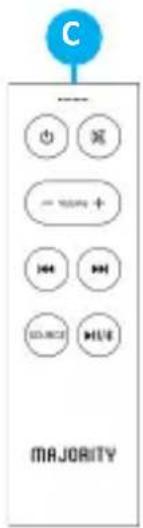
natural_image
Simple line drawing of a blank rectangular book with a blue circular label labeled 'D' on top (no text or symbols on the book itself)Vista Frontale
natural_image
Technical line drawing of a mechanical component with internal parts and housing (no text or symbols)natural_image
Technical line drawing of a remote control panel with a circular dial and pointer (no text or symbols)AUX (3.5 mm) → AUX (3.5 mm)
Majority: www.majority.co.uk/support oppure via email a techsupport@majority.co.uk
natural_image
Technical line drawing of a device front and top views, showing internal components and mounting points (no text or symbols)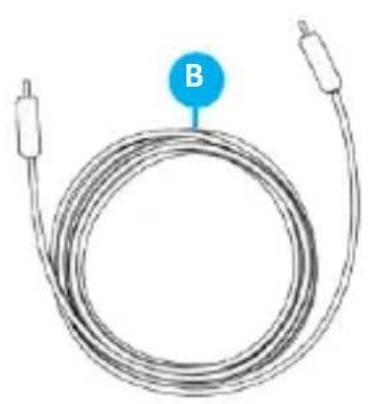
natural_image
Coiled electrical cable with two connectors and a labeled point B (no text or symbols on the cable itself)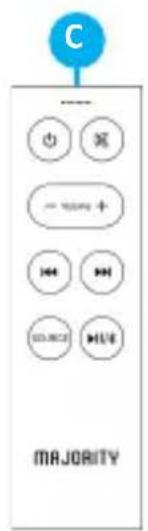

natural_image
Simple line drawing of a blank book with a blue circular icon labeled 'D' on top (no text or symbols on the book itself)Etunäkymä
natural_image
Technical line drawing of a mechanical component with internal parts (no text or symbols)natural_image
Technical line drawing of a remote control panel with a circular dial and pointer (no text or symbols)AUX (3.5 mm) - AUX (3.5 mm)
A. Altavoces Majority D50X
natural_image
Technical line drawing of a device front and top views, showing a rectangular base with 'SUNION' label and circular component (no text or symbols beyond labels)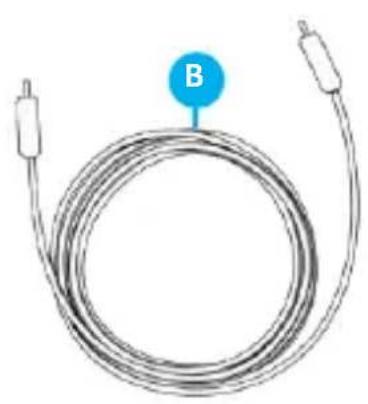
natural_image
Coiled electrical cable with two connectors and a labeled point B (no text or symbols on the cable itself)

natural_image
Simple line drawing of a blank book with a blue circular icon labeled 'D' on top (no text or symbols on the book itself)Vista Frontal
natural_image
Technical line drawing of a mechanical component with internal parts (no text or symbols)natural_image
Technical line drawing of a remote control panel with a circular dial and pointer (no text or symbols)AUX (3.5 mm) a AUX (3.5 mm)
techsupport@majority.co.uk
EN Safety and Usage Guidelines (All where applicable)
General Safety Information - Read and Retain: Review all safety and operating instructions before use; keep them for future reference. Follow Instructions: Adhere strictly to all safety and operational guidelines. Water Exposure: Keep the device away from water; avoid placing liquids near it. Ventilation: Ensure ventilation openings are unobstructed to prevent overheating. Heat Sources: Keep the device away from heat-emitting appliances. Wall Mounting - Installation Safety: Follow the manufacturer's instructions and use approved mounting kits only. Avoid drilling into areas with cables, gas, or water lines. Use proper tools and safety apparatus. Regular Maintenance: Inspect regularly for wear or damage, especially if wall-mounted. Relocation: Detach from the wall mount before moving. Child Safety: Keep out of children's reach and ensure heavy items are securely mounted. Seismic Precautions: Use specialized mounts in earthquake-prone areas. Electrical Safety - Power Source: Use the specified power source; consult an electrician if unsure. Cable Management: Protect the power cord from damage. Power Disconnection: Keep the main plug accessible; unplug during storms or long periods of non-use. Battery Safety - Charging: Use the manufacturer's charger; avoid extreme conditions. Heat Exposure: Keep batteries away from heat to prevent explosion or leakage. Battery Condition: Discontinue use if the battery is damaged; dispose of it properly. Replacement: Only use recommended batteries; incorrect types can cause hazards. External Batteries: Use only specified types, observing correct polarity. Battery Removal: Remove batteries if not used for an extended period. Disposal: Follow local regulations for battery disposal; do not incinerate. Connectivity Safety - Cable Connections: Power off devices before connecting or disconnecting cables. Bluetooth Pairing: Ensure a secure connection; avoid interference from other devices. Volume Control: Keep volume moderate to prevent hearing damage. Connectivity and Data Security - Wireless Security: Review privacy policies and secure your network. Software Updates: Keep software updated for security and performance. Children's Safety Warnings - Product Use: Intended for adults; keep away from children. Battery Warning: Keep batteries and items containing batteries out of children's reach. Volume Control: Maintain a safe volume level to protect children's hearing. Fire Hazard - Flammable Materials: Do not place open flames near the product. Overheating: Avoid covering the product to prevent overheating and fire risks. Disposal and Recycling - Product Disposal: Dispose of at a recycling centre according to local laws. Environmental Compliance: Follow regulations for battery and electronic waste disposal. User Maintenance - Cleaning: Unplug before cleaning; use a dry cloth only. Servicing: Only qualified personnel should perform repairs. Data Protection: Reset to factory settings before returning or disposing of the product. Disclaimer: Failure to follow these instructions may result in injury, death, or property damage. The manufacturer is not liable for damage caused by improper use.
Declaration of Conformity:
We, Izilla Ltd, Newton House, 2 Pioneer Court, Histon, Cambridge, CB24 9PT declare under our sole responsibility that the product:
Product Name: D50X Bookshelf Speakers Model: B-1000003124, W-1000003125,
P-1000003126, B-1000003127, M-1000003128
Brand Name: Majority
To which this declaration referred is in conformity to the following harmonized standards or normative documents (CE & Rohs 2.0);
EN 55035:2017, EN 55032:2015, EN61000-3-2:2014, EN61000-3-3:2013, EEN62368-1:2004+A11:2017,
ETSI EN 301 489-1 V2.2.3(2019-11), ETSI EN 301 489-17, V3.2.2(2019-12), ETSI EN 300 328 V2.2.2
(2019-07), EN 62479: 2010, IEC 62321-3-1:2013, IEC 62321-4:2013, IEC 62321-5:2013, IEC 62321-
6:2015, IEC 62321-7-1:2015, IEC 62321-7-2:2017, IEC 62321-8:2017, (EC)NO 1275/2008, EN50564:2011, (EC)NO 801/2013.
Complying with the requirements or provisions of Council Directives which relate to:
EMC Directive 2014/30/EU, RED Directive 2014/53/EU, LVD Directive 2014/35/EU, Directive
(2011/65/EU) and its amendment directives 2015/863/EU (RoHS 2.0) of the, European parliament, ERP Directive 2009/125/EC.
All essential test suites have been carried out.
Point of Contact: Eddie Latham | Founder
Signed:
Date of Issue: January 2024 Place of Issue: Cambridge, UK
E.Latham
Importer's Addresses:
UK: iZilla Ltd, Newton House, 2 Pioneer Court, Histon, Cambridge, CB24 9PT
Email: techsupport@majority.co.uk
EU RP: AR Experts, Po Box 5047, 3620 AA Breukelen, The Netherlands
Email: info@ar-experts.eu
US: iZilla Ltd C/O A.N.Deringer Inc, 19520 Wilmington Ave, Rancho Dominguez, CA, 90220
Email: techsupport@majority.co.uk

ATTENTION
RISK OF ELECTRIC SHOCK DO NOT OPEN


CAUTION
RISQUE D'ELECTROCUTION NE PAS OUVRIR


IMPORTANT: Please read all instructions carefully before use and keep for future reference
MAJORITY
www.majority.co.uk



- D50X Bookshelf Speakers
- What's in the Box?
- Front View
- Power/ Standby LED Light Indicator.
- Remote Control Sensor
- Input / Volume Knob
- Treble Rotary Knob.
- Bass Rotary Knob.
- Back View
- Prepare your remote for usage.
- Remote Control Operational Range
- Power On/ Standby Mode
- Important Note
- Changing the audio play mode
- Adjust the Volume Level
- Sound Equalisers (only with remote use).
- Using Headphones
- USB Charging Port
- USB Playback Port
- AUX (3.5 mm) to RCA
- AUX (3.5 mm) to AUX (3.5 mm).
- Troubleshooting & Support
- Do you still have issues? Contact Tech Support
- Warranty
- Vorderansicht
- Vue Avant
- Lecture/Pause/BT
- AUX (3.5 mm) vers AUX (3.5 mm).
- Vista Frontale
- AUX (3.5 mm) → AUX (3.5 mm)
- Etunäkymä
- AUX (3.5 mm) - AUX (3.5 mm)
- Vista Frontal
- AUX (3.5 mm) a AUX (3.5 mm)
- EN Safety and Usage Guidelines (All where applicable)
- MAJORITY
Brand : Majority
Model : D50X
Category : Loudspeaker