ManualGo.com
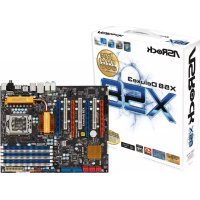
Z77 Extreme9 - Motherboard ASROCK - Free user manual and instructions
Find the device manual for free Z77 Extreme9 ASROCK in PDF.



Frequently Asked Questions - Z77 Extreme9 ASROCK
Download the instructions for your Motherboard in PDF format for free! Find your manual Z77 Extreme9 - ASROCK and take your electronic device back in hand. On this page are published all the documents necessary for the use of your device. Z77 Extreme9 by ASROCK.
USER MANUAL Z77 Extreme9 ASROCK
English Copyright Notice: No part of this installation guide may be reproduced, transcribed, transmitted, or trans- lated in any language, in any form or by any means, except duplication of documentation by the purchaser for backup purpose, without written consent of ASRock Inc. Products and corporate names appearing in this guide may or may not be registered trademarks or copyrights of their respective companies, and are used only for identifi ca- tion or explanation and to the owners’ benefi t, without intent to infringe. Disclaimer: Specifi cations and information contained in this guide are furnished for informational use only and subject to change without notice, and should not be constructed as a commit- ment by ASRock. ASRock assumes no responsibility for any errors or omissions that may appear in this guide. With respect to the contents of this guide, ASRock does not provide warranty of any kind, either expressed or implied, including but not limited to the implied warranties or condi- tions of merchantability or fi tness for a particular purpose. In no event shall ASRock, its directors, offi cers, employees, or agents be liable for any indirect, special, incidental, or consequential damages (including damages for loss of profi ts, loss of business, loss of data, interruption of business and the like), even if ASRock has been advised of the pos- sibility of such damages arising from any defect or error in the guide or product. This device complies with Part 15 of the FCC Rules. Operation is subject to the following two conditions: (1) this device may not cause harmful interference, and (2) this device must accept any interference received, including interference that may cause undesired operation.
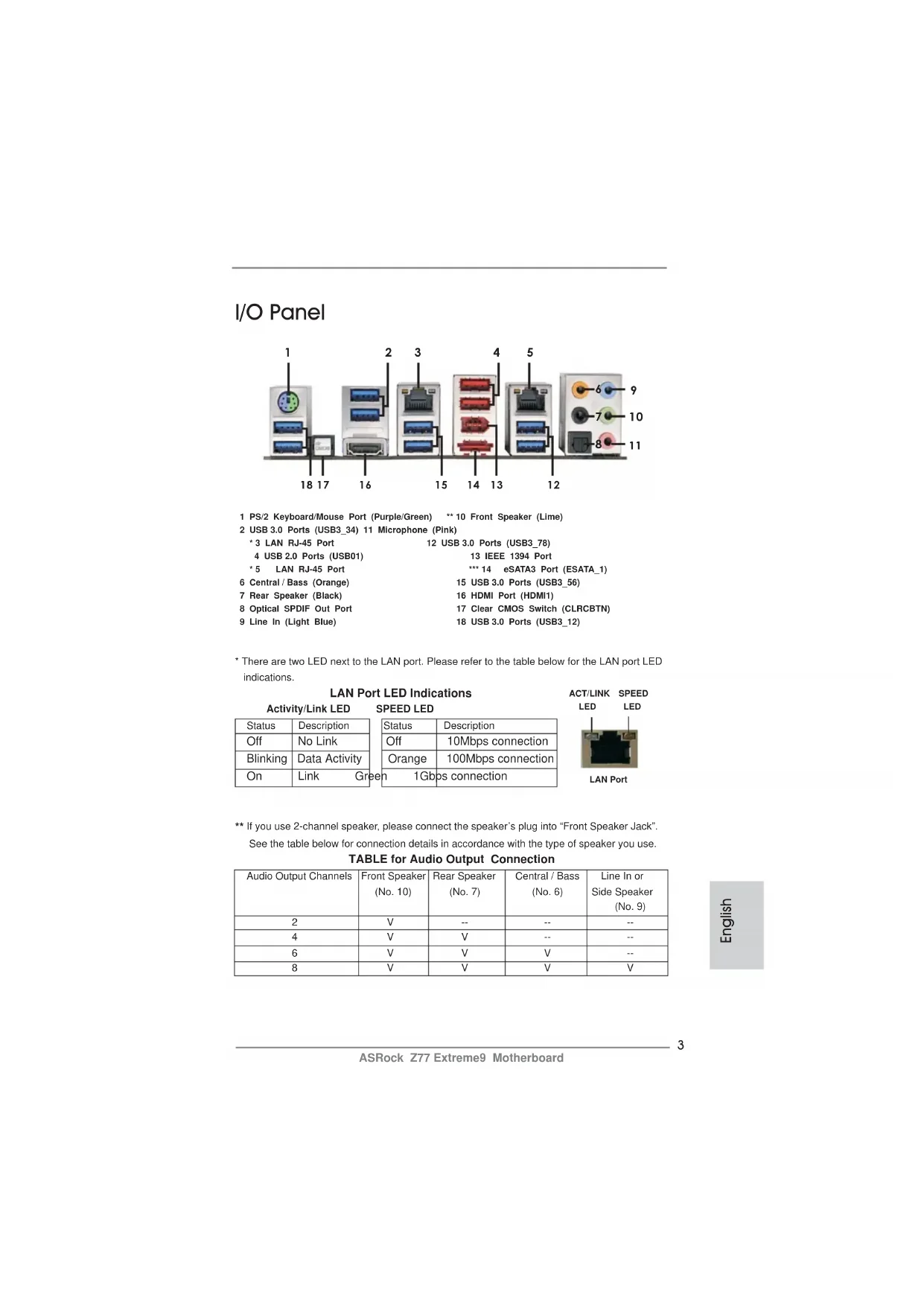
ASRock Z77 Extreme9 Motherboard English I/O Panel
- There are two LED next to the LAN port. Please refer to the table below for the LAN port LED indications. LAN Port LED Indications Activity/Link LED SPEED LEDStatus Description Status Description Off No Link Off 10Mbps connection Blinking Data Activity Orange 100Mbps connection On Link Green 1Gbps connection 1 PS/2 Keyboard/Mouse Port (Purple/Green) ** 10 Front Speaker (Lime) 2 USB 3.0 Ports (USB3_34) 11 Microphone (Pink) * 3 LAN RJ-45 Port 12 USB 3.0 Ports (USB3_78) 4 USB 2.0 Ports (USB01) 13 IEEE 1394 Port
- 5 LAN RJ-45 Port *** 14 eSATA3 Port (ESATA_1) 6 Central / Bass (Orange) 15 USB 3.0 Ports (USB3_56) 7 Rear Speaker (Black) 16 HDMI Port (HDMI1) 8 Optical SPDIF Out Port 17 Clear CMOS Switch (CLRCBTN) 9 Line In (Light Blue) 18 USB 3.0 Ports (USB3_12) ACT/LINK LEDSPEED LEDLAN Port
If you use 2-channel speaker, please connect the speaker’s plug into “Front Speaker Jack”. See the table below for connection details in accordance with the type of speaker you use. TABLE for Audio Output Connection Audio Output Channels Front Speaker Rear Speaker Central / Bass Line In or (No. 10) (No. 7) (No. 6) Side Speaker (No. 9) 2 V -- -- --4 V V -- --6 V V V --8 V V V V
ASRock Z77 Extreme9 Motherboard English To enable Multi-Streaming function, you need to connect a front panel audio cable to the front panel audio header. After restarting your computer, you will fi nd “Mixer” tool on your system. Please select “Mixer ToolBox” , click “Enable playback multi-streaming”, and click “ok”. Choose “2CH”, “4CH”, “6CH”, or “8CH” and then you are allowed to select “Realtek HDA Primary output” to use Rear Speaker, Central/Bass, and Front Speaker, or select “Realtek HDA Audio 2nd output” to use front panel audio. *** eSATA3 connector supports SATA Gen3 in cable 1M.5 ASRock Z77 Extreme9 Motherboard English WiFi + BT Module and ASRock Wi-SB Box WiFi + BT Module This motherboard comes with an exclusive WiFi 802.11 a/b/g/n + BT v4.0 module that offers support for WiFi 802.11 a/b/g/n connectivity standards and Bluetooth v4.0. WiFi + BT module is an easy-to-use wireless local area network (WLAN) adapter to support WiFi + BT function. Bluetooth v4.0 standard features Smart Ready technol- ogy that adds a whole new class of functionality into the mobile devices including Apple’s most recent iPhone 4S. BT 4.0 also includes Low Energy Technology and ensures extraordinary low power consumption for PCs. The 2T2R WiFi solution sets up WiFi high speed standard and offers max link rate up to 300Mbps. Compared to other 1T1R WiFi motherboards with 150Mbps, ASRock 2T2R WiFi solution drives up to 2X faster speed than 1T1R ones.
- The transmission speed may vary according to the environment.
- WiFi + BT module is supported under Windows
7 / 7 64-bit only. WiFi + BT Module6 ASRock Z77 Extreme9 Motherboard English ASRock Wi-SB Box Thanks to the excellent placement of antennas, ASRock Wi-SB Box comes with two invisible antennas (placed in a vertical/horizontal position), hidden inside the front panel that provide the most stable and unrestricted-direction wireless network cover- age, optimized for maximum broadband network. Additionally, it provides two Front USB 3.0 ports for easier USB 3.0 device access and 1 rack for SSD placement.
- For WiFi + BT module and ASRock Wi-SB Box installation guide, please refer to page 37 for details. ASRock Wi-SB Box7 ASRock Z77 Extreme9 Motherboard
Thank you for purchasing ASRock Z77 Extreme9 motherboard, a reliable moth- erboard produced under ASRock’s consistently stringent quality control. It delivers excellent performance with robust design conforming to ASRock’s commitment to quality and endurance. This Quick Installation Guide contains introduction of the motherboard and step-by- step installation guide. More detailed information of the motherboard can be found in the user manual presented in the Support CD. Because the motherboard specifi cations and the BIOS software might be updated, the content of this manual will be subject to change without no- tice. In case any modifi cations of this manual occur, the updated version will be available on ASRock website without further notice. You may fi nd the latest VGA cards and CPU support lists on ASRock website as well. ASRock website http://www.asrock.com If you require technical support related to this motherboard, please visit our website for specifi c information about the model you are using. www.asrock.com/support/index.asp
bit, it is recommended to set the BIOS option in Storage Confi guration to AHCI mode. For the BIOS setup, please refer to the “User Manual” in our support CD for details.8 ASRock Z77 Extreme9 Motherboard English
Platform - ATX Form Factor: 12.0-in x 9.6-in, 30.5 cm x 24.4 cm - Premium Gold Capacitor design (100% Japan-made high-quality Conductive Polymer Capacitors) CPU - Supports 3
Turbo Boost 2.0 Technology - Supports Intel
K-Series unlocked CPU - Supports Hyper-Threading Technology (see CAUTION 1) Chipset - Intel
Z77 - Supports Intel
Rapid Start Technology and Smart Connect Technology Memory - Dual Channel DDR3 Memory Technology (see CAUTION 2) - 4 x DDR3 DIMM slots - Supports DDR3 3000+(OC)/2400(OC)/2133(OC)/1866(OC)/ 1600/1333/1066 non-ECC, un-buffered memory - Max. capacity of system memory: 32GB (see CAUTION 3) - Supports Intel
- PCIE 3.0 is only supported with Intel
Ivy Bridge CPU. With Intel
HD Graphics Built-in Visuals and the VGA outputs can be supported only with processors which are GPU integrated. - Supports Intel
Sandy Bridge CPU. - Max. shared memory 1760MB (see CAUTION 5) - Supports HDMI 1.4a Technology with max. resolution up to 1920x1200 @ 60Hz - Supports Auto Lip Sync, Deep Color (12bpc), xvYCC and HBR (High Bit Rate Audio) with HDMI (Compliant HDMI monitor is required) (see CAUTION 6) - Supports HDCP function with HDMI port - Supports Full HD 1080p Blu-ray (BD) / HD-DVD playback with HDMI port Audio - 7.1 CH HD Audio with Content Protection (Realtek ALC898 Audio Codec) - Premium Blu-ray audio support - Supports THX TruStudio
LAN - PCIE x1 Gigabit LAN 10/100/1000 Mb/s - Broadcom BCM57781 - Supports Wake-On-LAN - Supports Energy Effi cient Ethernet 802.3az - Supports Dual LAN with Teaming function - Supports PXE Wireless LAN WiFi + BT module - Supports IEEE 802.11a/b/g/n - Supports Dual-Band (2.4/5 GHz) - Supports High speed wireless connection up to 300Mbps - 2 antennas to support 2 (Transmit) x 2 (Receive) MIMO technology - Supports Bluetooth 4.0 Class II Rear Panel I/O I/O Panel - 1 x PS/2 Keyboard/Mouse Port - 1 x HDMI Port - 1 x Optical SPDIF Out Port - 2 x Ready-to-Use USB 2.0 Ports - 1 x eSATA3 Connector - 8 x Ready-to-Use USB 3.0 Ports - 2 x RJ-45 LAN Ports with LED (ACT/LINK LED and SPEED LED) - 1 x IEEE 1394 Port - 1 x Clear CMOS Switch with LED - HD Audio Jack: Rear Speaker/Central/Bass/Line in/Front Speaker/Microphone (see CAUTION 7)10 ASRock Z77 Extreme9 Motherboard English SATA3 - 2 x SATA3 6.0 Gb/s connectors by Intel
Z77, support RAID (RAID 0, RAID 1, RAID 5, RAID 10, Intel Rapid Storage and Intel Smart Response Technology), NCQ, AHCI and Hot Plug functions - 4 x SATA3 6.0 Gb/s connectors by ASMedia ASM1061, support NCQ, AHCI and “Hot Plug” functions (SATA3_A4 connector is shared with eSATA3 port) USB3.0 - 4 x Rear USB 3.0 ports by Intel
Z77, support USB 1.0/2.0/3.0 up to 5Gb/s - 4 x Rear USB 3.0 ports by Etron EJ188, support USB 1.0/2.0/3.0 up to 5Gb/s - 2 x Front USB 3.0 headers by Etron EJ188 (support 4 USB 3.0 ports), support USB 1.0/2.0/3.0 up to 5Gb/s Connector - 4 x SATA2 3.0 Gb/s connectors, support RAID (RAID 0, RAID 1, RAID 5, RAID 10, Intel Rapid Storage and Intel Smart Response Technology), NCQ, AHCI and Hot Plug functions - 6 x SATA3 6.0Gb/s connectors - 1 x IR header - 1 x CIR header - 1 x COM port header - 1 x HDMI_SPDIF header - 1 x IEEE 1394 header - 1 x Power LED header - CPU/Chassis/Power FAN connector - 24 pin ATX power connector - 8 pin 12V power connector - SLI/XFire power connector - Front panel audio connector - 3 x USB 2.0 headers (support 6 USB 2.0 ports) - 2 x USB 3.0 headers (support 4 USB 3.0 ports) - 1 x Dr. Debug with LED Smart Switch - 1 x Clear CMOS Switch with LED - 1 x Power Switch with LED - 1 x Reset Switch with LED BIOS Feature - 64Mb AMI UEFI Legal BIOS with GUI support - Supports “Plug and Play” - ACPI 1.1 Compliance Wake Up Events - Supports jumperfree - SMBIOS 2.3.1 Support11 ASRock Z77 Extreme9 Motherboard English - CPU Core, IGPU, DRAM, 1.8V PLL, VTT, VCCSA Voltage Multi-adjustment Support CD - Drivers, Utilities, AntiVirus Software (Trial Version), CyberLink MediaEspresso 6.5 Trial, ASRock MAGIX Multimedia Suite - OEM Unique Feature - ASRock Extreme Tuning Utility (AXTU) (see CAUTION 8) - ASRock Instant Boot - ASRock Instant Flash (see CAUTION 9) - ASRock APP Charger (see CAUTION 10) - ASRock SmartView (see CAUTION 11) - ASRock XFast USB (see CAUTION 12) - ASRock XFast LAN (see CAUTION 13) - ASRock XFast RAM (see CAUTION 14) - ASRock Crashless BIOS (see CAUTION 15) - ASRock OMG (Online Management Guard) (see CAUTION 16) - ASRock Internet Flash (see CAUTION 17) - ASRock Dehumidifi er Function (see CAUTION 18) - Lucid Virtu Universal MVP (see CAUTION 19)
- Lucid Virtu Universal MVP can be supported only with processors which are GPU integrated. - Hybrid Booster: - CPU Frequency Stepless Control (see CAUTION 20) - ASRock U-COP (see CAUTION 21) - Boot Failure Guard (B.F.G.) - Good Night LED Hardware - CPU Temperature Sensing Monitor - Chassis Temperature Sensing - CPU/Chassis/Power Fan Tachometer - CPU/Chassis Quiet Fan (Allows Chassis Fan Speed Auto- Adjust by CPU Temperature) - CPU/Chassis Fan Multi-Speed Control - Voltage Monitoring: +12V, +5V, +3.3V, CPU Vcore OS - Microsoft
64-bit / XP / XP 64-bit compliant (see CAUTION 22) Certifi cations - FCC, CE, WHQL - ErP/EuP Ready (ErP/EuP ready power supply is required) (see CAUTION 23)
- For detailed product information, please visit our website: http://www.asrock.com12 ASRock Z77 Extreme9 Motherboard English CAUTION!
1. About the settings of “Hyper Threading Technology”, please check page
79 of the “User Manual” in the support CD.
2. This motherboard supports Dual Channel Memory Technology. Before
you implement Dual Channel Memory Technology, make sure to read the installation guide of memory modules on page 20 for proper installation.
3. Due to the operating system limitation, the actual memory size may be
less than 4GB for the reservation for system usage under Windows
OS with 64-bit CPU, there is no such limita- tion. You can use ASRock XFast RAM to utilize the memory that Win- dows
3 speed. To run the PCI Express in Gen 3 speed, please install an Ivy Bridge CPU. If you install a Sandy Bridge CPU, the PCI Express will run only at PCI Express Gen 2 speed. Please refer to page 22 for details.
5. The maximum shared memory size is defi ned by the chipset vendor and
is subject to change. Please check Intel
6. xvYCC and Deep Color are only supported under Windows
in EDID. HBR is supported under Windows
7. For microphone input, this motherboard supports both stereo and mono
modes. For audio output, this motherboard supports 2-channel, 4-chan- nel, 6-channel, and 8-channel modes. Please check the table on page 3 for proper connection.
8. ASRock Extreme Tuning Utility (AXTU) is an all-in-one tool to ne-tune dif-
ferent system functions in a user-friendly interface, which includes Hard- ware Monitor, Fan Control, Overclocking, OC DNA and IES. In Hardware Monitor, it shows the major readings of your system. In Fan Control, it shows the fan speed and temperature for you to adjust. In Overclocking, you are allowed to overclock CPU frequency for optimal system per- formance. In OC DNA, you can save your OC settings as a profi le and share it with your friends. Your friends then can load the OC profi le to their own system to get the same OC settings. In IES (Intelligent Energy WARNING Please realize that there is a certain risk involved with overclocking, including adjusting the setting in the BIOS, applying Untied Overclocking Technology, or using third-party overclocking tools. Overclocking may affect your system’s stability, or even cause damage to the components and devices of your system. It should be done at your own risk and expense. We are not responsible for possible damage caused by overclocking.13 ASRock Z77 Extreme9 Motherboard English Saver), the voltage regulator can reduce the number of output phases to improve effi ciency when the CPU cores are idle without sacrifi cing computing performance. Please visit our website for the operation proce- dures of ASRock Extreme Tuning Utility (AXTU). ASRock website: http://www.asrock.com
9. ASRock Instant Flash is a BIOS fl ash utility embedded in Flash ROM.
. With this utility, you can press the <F6> key during the POST or the <F2> key to enter into the BIOS setup menu to access ASRock Instant Flash. Just launch this tool and save the new BIOS fi le to your USB fl ash drive, fl oppy disk or hard drive, then you can update your BIOS only in a few clicks without preparing an additional fl oppy diskette or other complicated fl ash utility. Please be noted that the USB fl ash drive or hard drive must use FAT32/16/12 fi le system.
10. If you desire a faster, less restricted way of charging your Apple devices,
such as iPhone/iPad/iPod Touch, ASRock has prepared a wonderful so- lution for you - ASRock APP Charger. Simply install the APP Charger driver, it makes your iPhone charge much quickly from your computer and up to 40% faster than before. ASRock APP Charger allows you to quickly charge many Apple devices simultaneously and even supports continuous charging when your PC enters into Standby mode (S1), Sus- pend to RAM (S3), hibernation mode (S4) or power off (S5). With APP Charger driver installed, you can easily enjoy the marvelous charging experience. ASRock website: http://www.asrock.com/Feature/AppCharger/index.asp
11. ASRock SmartView, a new function for internet browsers, is the smart
start page for IE that combines your most visited web sites, your history, your Facebook friends and your real-time newsfeed into an enhanced view for a more personal Internet experience. ASRock motherboards are exclusively equipped with the ASRock SmartView utility that helps you keep in touch with friends on-the-go. To use ASRock SmartView feature, please make sure your OS version is Windows
64 bit, and your browser version is IE8. ASRock website: http://www.asrock.com/Feature/SmartView/index.asp
12. ASRock XFast USB can boost USB storage device performance. The
performance may depend on the properties of the device.
13. ASRock XFast LAN provides a faster internet access, which includes
the benefi ts listed below. LAN Application Prioritization: You can confi g- ure your application’s priority ideally and/or add new programs. Lower Latency in Game: After setting online game’s priority higher, it can lower the latency in games. Traffi c Shaping: You can watch Youtube HD videos and download simultaneously. Real-Time Analysis of Your Data: With the status window, you can easily recognize which data streams you are transferring currently.14 ASRock Z77 Extreme9 Motherboard English
14. ASRock XFast RAM is a new function that is included into ASRock Ex-
treme Tuning Utility (AXTU). It fully utilizes the memory space that cannot be used under Windows
OS 32-bit CPU. ASRock XFast RAM shortens the loading time of previously visited websites, making web surfi ng faster than ever. And it also boosts the speed of Adobe Photoshop 5 times faster. Another advantage of ASRock XFast RAM is that it reduces the frequency of accessing your SSDs or HDDs in order to extend their lifes- pan.
15. ASRock Crashless BIOS allows users to update their BIOS without fear
of failing. If power loss occurs during the BIOS update process, ASRock Crashless BIOS will automatically fi nish the BIOS update procedure after regaining power. Please note that BIOS fi les need to be placed in the root directory of your USB disk. Only USB2.0 ports support this feature.
16. Administrators are able to establish an internet curfew or restrict internet
access at specifi ed times via OMG. You may schedule the starting and ending hours of internet access granted to other users. In order to pre- vent users from bypassing OMG, guest accounts without permission to modify the system time are required.
17. ASRock Internet Flash searches for available UEFI firmware updates
from our servers. In other words, the system can auto-detect the latest UEFI from our servers and fl ash them without entering Windows
OS. Please note that you must be running on a DHCP confi gured computer in order to enable this function.
18. Users may prevent motherboard damages due to dampness by enabling
“Dehumidifi er Function”. When enabling Dehumidifi er Function, the com- puter will power on automatically to dehumidify the system after entering S4/S5 state.
19. VIRTU Universal MVP includes the base features of Virtu Universal
technology, which virtualizes integrated GPU and discrete GPU for best of breed functionality. It also features Virtual Vsync™ for no-compromise visual quality. With the added benefits of HyperFormance technology, VIRTU Universal MVP improves game performance by intelligently reduc- ing redundant rendering tasks in the fl ow between the CPU, GPU and the display.
20. Although this motherboard offers stepless control, it is not recommended
to perform over-clocking. Frequencies other than the recommended CPU bus frequencies may cause instability of the system or damage the CPU.
21. While CPU overheat is detected, the system will automatically shutdown.
Before you resume the system, please check if the CPU fan on the moth- erboard functions properly and unplug the power cord, then plug it back again. To improve heat dissipation, remember to spray thermal grease between the CPU and the heatsink when you install the PC system.
22. ASRock XFast RAM is not supported by Microsoft
Smart Connect Technology and Intel
USB 3.0 ports are not supported by Microsoft
23. EuP stands for Energy Using Product, was a provision regulated by the
European Union to define the power consumption for the completed system. According to EuP, the total AC power of the completed system should be under 1.00W in off mode condition. To meet EuP standards, an EuP ready motherboard and an EuP ready power supply are required. According to Intel’s suggestion, the EuP ready power supply must meet the standard of 5v, and the standby power effi ciency should be higher than 50% under 100 mA current consumption. For EuP ready power sup- ply selection, we recommend you to check with the power supply manu- facturer for more details.16 ASRock Z77 Extreme9 Motherboard
This is an ATX form factor (12.0” x 9.6”, 30.5 x 24.4 cm) motherboard. Before you install the motherboard, study the confi guration of your chassis to ensure that the motherboard fi ts into it. Make sure to unplug the power cord before installing or removing the motherboard. Failure to do so may cause physical injuries to you and damages to motherboard components.
Place screws into the holes indicated by circles to secure the motherboard to the chassis. Do not over-tighten the screws! Doing so may damage the motherboard.
2.2 Pre-installation Precautions
Take note of the following precautions before you install motherboard components or change any motherboard settings.
1. Unplug the power cord from the wall socket before touching any
2. To avoid damaging the motherboard’s components due to static
electricity, NEVER place your motherboard directly on the carpet or the like. Also remember to use a grounded wrist strap or touch a safety grounded object before you handle the components.
3. Hold components by the edges and do not touch the ICs.
4. Whenever you uninstall any component, place it on a grounded anti-
static pad or in the bag that comes with the component.
5. When placing screws into the screw holes to secure the mother-
board to the chassis, please do not over-tighten the screws! Doing so may damage the motherboard. Before you install or remove any component, ensure that the power is switched off or the power cord is detached from the power supply. Failure to do so may cause severe damage to the motherboard, peripherals, and/or components. English17 ASRock Z77 Extreme9 Motherboard English 1155-Pin Socket Overview
2.3 CPU Installation
In order to provide the LGA 1155 CPU sock- ets more protection and make the instal- lation process easier, ASRock has added a new protection cover on top of the load plate to replace the former PnP caps that were under the load plate. For the installa- tion of Intel
1155-Pin CPUs with the new protection cover, please follow the steps below. Before you insert the 1155-Pin CPU into the socket, please check if the CPU surface is unclean or if there are any bent pins in the socket. Do not force to insert the CPU into the socket if above situation is found. Otherwise, the CPU will be seriously damaged. Step 1. Open the socket: Step 1-1. Disengage the lever by pressing it down and sliding it out of the hook. You do not have to remove the pro- tection cover. Step 1-2. Keep the lever positioned at about 135 degrees in order to flip up the load plate. Step 2. Insert the 1155-Pin CPU: Step 2-1. Hold the CPU by the edge which is marked with a black line. Step 2-2. Orient the CPU with the IHS (Inte- grated Heat Sink) up. Locate Pin1 and the two orientation key notches. Load PlateCoverContactArray Load LeverSocket Body black line18 ASRock Z77 Extreme9 Motherboard English Pin1 alignment key alignment key Pin1 1155-Pin CPU For proper installation, please ensure to match the two orientation key notches of the CPU with the two alignment keys of the socket. Step 2-3. Carefully place the CPU into the socket. Step 2-4. Verify that the CPU is within the sock- et and properly mated to the orient keys. Step 3. Close the socket: Step 3-1. Flip the load plate onto the IHS. Step 3-2. Press down the load lever, and se- cure it with the load plate tab under the retention tab. The protection cover will automatically come off by itself. Please save and replace the cover if the processor is removed. The cover must be placed if you wish to return the motherboard for after service. orientation key notch orientation key notch 1155-Pin Socket19 ASRock Z77 Extreme9 Motherboard English
2.4 Installation of CPU Fan and Heatsink
This motherboard is equipped with 1155-Pin socket that supports Intel 1155-Pin CPUs. Please adopt the type of heatsink and cooling fan compliant with Intel 1155- Pin CPU to dissipate heat. Before you install the heatsink, you need to spray ther- mal interface material between the CPU and the heatsink to improve heat dissipa- tion. Ensure that the CPU and the heatsink are securely fastened and in good con- tact with each other. Then connect the CPU fan to the CPU_FAN connector (CPU_ FAN1, see page 2, No. 4 or CPU_FAN2, see page 2. No.5). For proper installation, please kindly refer to the instruction manuals of your CPU fan and heatsink. Below is an example to illustrate the installation of the heatsink for 1155-Pin CPUs. Step 1. Apply thermal interface material onto the cen- ter of the IHS on the socket’s surface. Step 2. Place the heatsink onto the socket. Ensure that the fan cables are oriented on side closest to the CPU fan connector on the motherboard (CPU_FAN1, see page 2, No. 4 or CPU_ FAN2, see page 2. No.5). Step 3. Align fasteners with the motherboard through- holes. Step 4. Rotate the fastener clockwise, then press down on fastener caps with thumb to install and lock. Repeat with remaining fasteners. If you press down the fasteners without rotating them clockwise, the heatsink cannot be secured on the motherboard. Step 5. Connect fan header with the CPU fan connector on the motherboard. Step 6. Secure redundant cable with tie-wrap to ensure the cable does not interfere with fan operation or contact other components. Apply ThermalInterface MaterialFan cables on sideclosest to MB headerFastener slotspointing straight out Press Down (4 Places)20 ASRock Z77 Extreme9 Motherboard English
2.5 Installation of Memory Modules (DIMM)
This motherboard provides four 240-pin DDR3 (Double Data Rate 3) DIMM slots, and supports Dual Channel Memory Technology. For dual channel con- fi guration, you always need to install identical (the same brand, speed, size and chip-type) DDR3 DIMM pair in the slots: You have to install identical DDR3 DIMMs in Dual Channel A (DDR3_A1 and DDR3_B1; Black slots; see p.2 No. 6) or identical DDR3 DIMMs in Dual Channel B (DDR3_A2 and DDR3_ B2; Black slots; see p.2 No. 7), so that Dual Channel Memory Technology can be activated. This motherboard also allows you to install four DDR3 DIMMs for dual channel confi guration, please install identical DDR3 DIMMs in all four slots. You may refer to the Dual Channel Memory Confi guration Table below. Dual Channel Memory Confi guration DDR3_A1 DDR3_A2 DDR3_B1 DDR3_B2 (Black Slot) (Black Slot) (Black Slot) (Black Slot) (1) Populated - Populated - (2) - Populated - Populated (3)* Populated Populated Populated Populated
For confi guration (3), please install identical DDR3 DIMMs in all four slots.
1. If you want to install two memory modules, for optimal compatibility
and reliability, it is recommended to install them in the slots: DDR3_ A1 and DDR3_B1, or DDR3_A2 and DDR3_B2.
2. If only one memory module or three memory modules are installed
in the DDR3 DIMM slots on this motherboard, it is unable to activate Dual Channel Memory Technology.
3. If a pair of memory modules is NOT installed in the same Dual
Channel, for example, installing a pair of memory modules in DDR3_A1 and DDR3_A2, it is unable to activate Dual Channel Memory Technology.
4. It is not allowed to install a DDR or DDR2 memory module into
DDR3 slot; otherwise, this motherboard and DIMM may be dam- aged.
5. Some DDR3 1GB double-sided DIMMs with 16 chips may not work
on this motherboard. It is not recommended to install them on this motherboard.
6. For optimal compatibility and stability while overclocking memory
frequency, it is recommended to install one memory module on DDR3_B2 slot or two memory modules on DDR3_A2 and DDR3_ B2 slots.21 ASRock Z77 Extreme9 Motherboard English Installing a DIMM Please make sure to disconnect power supply before adding or removing DIMMs or the system components. Step 1. Unlock a DIMM slot by pressing the retaining clips outward. Step 2. Align a DIMM on the slot such that the notch on the DIMM matches the break on the slot. The DIMM only fi ts in one correct orientation. It will cause permanent damage to the motherboard and the DIMM if you force the DIMM into the slot at incorrect orientation. Step 3. Firmly insert the DIMM into the slot until the retaining clips at both ends fully snap back in place and the DIMM is properly seated.22 ASRock Z77 Extreme9 Motherboard English
2.6 Expansion Slots (PCI Express Slots)
There are 7 PCI Express slots and 1 mini-PCI Express slot on this motherboard. PCIE slots: PCIE1 / PCIE5 (PCIE 3.0 x16 slot) is used for PCI Express x16 lane width graphics cards, or to install PCI Express graphics cards to support CrossFireX
function. PCIE3 / PCIE7 (PCIE 3.0 x16 slot) is used for PCI Express x8 lane width graphics cards, or to install PCI Express graphics cards to support CrossFireX
function. PCIE2 (PCIE 3.0 x16 slot) is used for PCI Express x16 lane width graphics cards. PCIE4 (PCIE 2.0 x16 slot) is used for PCI Express x4 lane width graph- ics cards or ASRock Game Blaster. PCIE6 (PCIE 2.0 x1 slot) is used for a PCI Express x1 lane width card, such as a Gigabit LAN card, SATA2 card, etc. MINI_PCIE1 (mini-PCIE slot) is used for WiFi + BT module. PCIE Slot Confi gurations
PCIE1 PCIE2 PCIE3 PCIE5 PCIE7
Single Graphics Card N/A x16 N/A N/A N/A Two Graphics Cards in x16 N/A N/A x16 N/A CrossFireX
Mode23 ASRock Z77 Extreme9 Motherboard English Installing an expansion card Step 1. Before installing an expansion card, please make sure that the power supply is switched off or the power cord is unplugged. Please read the documentation of the expansion card and make necessary hardware settings for the card before you start the installation. Step 2. Remove the system unit cover (if your motherboard is already installed in a chassis). Step 3. Remove the bracket facing the slot that you intend to use. Keep the screws for later use. Step 4. Align the card connector with the slot and press fi rmly until the card is completely seated on the slot. Step 5. Fasten the card to the chassis with screws. Step 6. Replace the system cover.
1. In single VGA card mode, it is recommended to install a PCI Express
x16 graphics card in the PCIE2 slot.
mode, please install the PCI Express x16 graphics cards in PCIE1 and PCIE5 slots. Both these two slots will work at x16 bandwidth.
mode, please install the PCI Express x16 graphics cards in PCIE1, PCIE3 and PCIE5 slots. PCIE1 and PCIE3 will work at x8 bandwidth, while PCIE5 works at x16 bandwidth.
mode, please install the PCI Express x16 graphics cards in PCIE1, PCIE3, PCIE5 and PCIE7 slots. All these four slots will work at x8 bandwidth.
6. Please connect a chassis fan to the motherboard’s chassis fan
connector (CHA_FAN1, CHA_FAN2 or CHA_FAN3) when using multiple graphics cards for better thermal environment.
7. Only PCIE1, PCIE2, PCIE3, PCIE5, PCIE6 and PCIE7 slots support
Gen 3 speed. To run the PCI Express in Gen 3 speed, please install an Ivy Bridge CPU. If you install a Sandy Bridge CPU, the PCI Express will run only at PCI Express Gen 2 speed.24 ASRock Z77 Extreme9 Motherboard English
Operation Guide This motherboard supports NVIDIA
(Scalable Link Interface) technology that allows you to install up to four identical PCI Express x16 graphics cards. Currently, NVIDIA
technology supports Windows
technology supports Windows
64-bit / 7 / 7 64-bit OS only. Please follow the installation procedures in this section.
-ready graphics cards that are NVIDIA
certifi ed be- cause different types of graphics cards will not work together properly. (Even the GPU chips version shall be the same.) Insert one graphics card into PCIE1 slot and the other graphics card to PCIE5 slot. Make sure that the cards are properly seated on the slots. Requirements
technology, you should have two identical SLI
-ready graphics cards that are NVIDIA
technology you should have three, whereas for 4-Way SLI
technology you should have four. For Quad SLI
technology, you should have two identical Quad SLI
-ready graphics cards that are NVIDIA
2. Make sure that your graphics card driver supports NVIDIA
technology. Download the driver from NVIDIA website (www.nvidia.com).
3. Make sure that your power supply unit (PSU) can provide at least the
minimum power required by your system. It is recommended to use NVIDIA
certifi ed PSU. Please refer to NVIDIA
website for details.25 ASRock Z77 Extreme9 Motherboard English Step4. Connect a VGA cable or a DVI cable to the monitor connector or the DVI connector of the graphics card that is inserted to PCIE1 slot. Step3. Align and insert the ASRock SLI_Bridge_3S Card to the goldfi ngers on each graphics card. Make sure the ASRock SLI_Bridge_3S Card is fi rmly in place. ASRock SLI_Bridge_3S Card Step2. If required, connect the auxiliary power source to the PCI Express graph- ics cards.
-ready graphics cards that are NVIDIA
certi- fi ed because different types of graphics cards will not work together prop- erly. (Even the GPU chips version shall be the same.) Each graphics card should have two goldfi ngers for the 3-Way SLI Bridge connector. Insert one graphics card into PCIE1 slot, another graphics card to PCIE3 slot, and the other graphics card to PCIE5 slot. Make sure that the cards are properly seated on the slots. Two Goldfi ngers26 ASRock Z77 Extreme9 Motherboard English Step4. Connect a VGA cable or a DVI cable to the monitor connector or the DVI connector of the graphics card that is inserted to PCIE1 slot. Step3. Align and insert the ASRock 3-Way SLI Bridge Card to the goldfingers on each graphics card. Make sure the ASRock 3-Way SLI Bridge Card is fi rmly in place. ASRock 3-Way SLI Bridge Card Step2. Connect the auxiliary power source to the PCI Express graphics card. Please make sure that both power connectors on the PCI Express graph- ics card are connected. Repeat this step on the three graphics cards.27 ASRock Z77 Extreme9 Motherboard English
-ready graphics cards that are NVIDIA
certi- fi ed because different types of graphics cards will not work together prop- erly. (Even the GPU chips version shall be the same.) Each graphics card should have two goldfi ngers for the ASRock SLI Bridge Card connectors. Insert one graphics card into the PCIE1 slot, another graphics card into the PCIE3 slot, the third graphics card into the PCIE5 slot and the last graph- ics card into the PCIE7 slot. Make sure that the cards are properly seated on the slots. Step2. Connect the auxiliary power source to the PCI Express graphics card. Please make sure that both power connectors on the PCI Express graph- ics card are connected. Repeat this step on the other graphics cards. Step4. Connect a VGA cable or a DVI cable to the monitor connector or the DVI connector of the graphics card that is inserted to PCIE1 slot. Two Goldfi ngers Step3. Align and insert an ASRock SLI Bridge Card to the goldfi ngers of the fi rst and second graphics card. Install the second ASRock SLI Bridge Card to the goldfi ngers of the third and fourth graphics card. Connect the second and the fourth graphics card with the ASRock SLI_Bridge_3S Card. Make sure the ASRock SLI Bridge Cards are fi rmly in place. 2 ASRock SLI_Bridge Cards and an ASRock SLI_Bridge_3S Card28 ASRock Z77 Extreme9 Motherboard English
2.7.2 Driver Installation and Setup
Install the graphics card drivers to your system. After that, you can enable the Multi- Graphics Processing Unit (GPU) feature in the NVIDIA
nView system tray utility. Please follow the below procedures to enable the multi-GPU feature. For Windows
taskbar. B. From the pop-up menu, select Set SLI and PhysX confi guration. In Set PhysX GPU acceleration item, please select Enabled. In Select an SLI confi guration item, please select Enable SLI. And click Apply. C. Reboot your system. D. You can freely enjoy the benefi t of SLI
feature.30 ASRock Z77 Extreme9 Motherboard English
appearing here is a registered trademark of NVIDIA
Technologies Inc., and is used only for identifi cation or explanation and to the owners’ benefi t, without intent to infringe. For Windows
mode) A. Follow step A to D on page 28. B. From the pop-up menu, select Set SLI and PhysX confi guration. In Select a hardware acceleration setting for PhysX item, please select Enabled. In Select an SLI confi guration item, please select Enable 3-way SLI or Enable 4-way SLI. And click Apply. C. Reboot your system. D. You can freely enjoy the benefi ts of 3-Way SLI
Operation Guide This motherboard supports CrossFireX
technology offers the most advantageous means available of combining multiple high performance Graphics Processing Units (GPU) in a single PC. Combining a range of different operating modes with intelligent software design and an innovative interconnect mechanism, CrossFireX
enables the highest possible level of performance and image quality in any 3D application. Currently CrossFireX
is supported with Windows
are supported with Windows
/ 7 OS only. Please check AMD’s website for CrossFireX
-Ready Graphics Cards Step 1. Insert one Radeon graphics card into PCIE1 slot and the other Radeon graphics card to PCIE5 slot. Make sure that the cards are properly seated on the slots. Different CrossFireX
cards may require different methods to enable CrossFireX
cards that AMD has released or will release in the future, please refer to AMD graphics card manuals for detailed installation guide.
1. If a customer incorrectly confi gures their system they will not see the performance
Ready motherboard and a CrossFireX
Edition co-processor graphics card, must be installed correctly to benefi t from the CrossFireX
Edition card with a 16-pipe card, both cards will operate as 12-pipe cards while in CrossFireX
mode.32 ASRock Z77 Extreme9 Motherboard English Step 3. Connect the DVI monitor cable to the DVI connector on the Radeon graph- ics card on PCIE1 slot. (You may use the DVI to D-Sub adapter to convert the DVI connector to D-Sub interface, and then connect the D-Sub monitor cable to the DVI to D-Sub adapter.) Step 2. Connect two Radeon graphics cards by installing a CrossFire Bridge on the CrossFire Bridge Interconnects on the top of the Radeon graphics cards. (The CrossFire Bridge is provided with the graphics card you pur- chase, not bundled with this motherboard. Please refer to your graphics card vendor for details.) CrossFire Bridge or33 ASRock Z77 Extreme9 Motherboard English
-ready graphics cards that are AMD
certifi ed because different types of graphics cards will not work together properly. (Even the GPU chips version shall be the same.) Insert one graphics card into PCIE1 slot, another graphics card to PCIE3 slot, and the other graphics card to PCIE5 slot. Make sure that the cards are prop- erly seated on the slots. Step 2. Use one CrossFire
Bridge to connect the Radeon graphics cards on PCIE1 and PCIE3 slots, and use the other CrossFire
Bridge to connect the Radeon graphics cards on PCIE3 and PCIE5 slots. (The CrossFire
Bridge is provided with the graphics card you purchase, not bundled with this motherboard. Please refer to your graphics card vendor for details.) Step 3. Connect the DVI monitor cable to the DVI connector on the Radeon graph- ics card on PCIE1 slot. (You may use the DVI to D-Sub adapter to convert the DVI connector to D-Sub interface, and then connect the D-Sub monitor cable to the DVI to D-Sub adapter.) CrossFire
-ready graphics cards that are AMD
certifi ed because different types of graphics cards will not work together properly. (Even the GPU chips version shall be the same.) Insert one graphics card into PCIE1 slot, another graphics card into PCIE3 slot, the third graphics card into PCIE5 slot and the last graphics card into PCIE7 slot. Make sure that the cards are properly seated on the slots. Step 2. Use one CrossFire
Bridge to connect the Radeon graphics cards on PCIE1 and PCIE3 slots, another CrossFire
Bridge to connect the Rad- eon graphics cards on PCIE3 and PCIE5 slots, and use the third Cross- Fire
Bridge to connect the Radeon graphics cards on PCIE5 and PCIE7 slots. (The CrossFire
Bridge is provided with the graphics card you pur- chase, not bundled with this motherboard. Please refer to your graphics card vendor for details.) CrossFire
Bridge Step 3. Connect the DVI monitor cable to the DVI connector on the Radeon graph- ics card on PCIE1 slot. (You may use the DVI to D-Sub adapter to convert the DVI connector to D-Sub interface, and then connect the D-Sub monitor cable to the DVI to D-Sub adapter.)35 ASRock Z77 Extreme9 Motherboard English The Catalyst Uninstaller is an optional download. We recommend using this utility to uninstall any previously installed Catalyst drivers prior to installation. Please check AMD website for ATI
driver updates. Step 3. Install the required drivers to your system. For Windows
XP Service Pack 2 or higher to be installed (If you have Windows
XP Service Pack 2 or higher installed in your system, there is no need to download it again): http://www.microsoft.com/windowsxp/sp2/default.mspx B. You must have Microsoft .NET Framework installed prior to downloading and installing the CATALYST Control Center. Please check Microsoft website for details. For Windows
OS: Install the CATALYST Control Center. Please check AMD website for de- tails. Step 4. Restart your computer. Step 5. Install the VGA card drivers to your system, and restart your computer. Then you will fi nd “ATI Catalyst Control Center” on your Windows
2.8.2 Driver Installation and Setup
Step 1. Power on your computer and boot into OS. Step 2. Remove the AMD driver if you have any VGA driver installed in your system.36 ASRock Z77 Extreme9 Motherboard English Although you have selected the option “Enable CrossFire
function may not work actually. Your computer will automatically reboot. After restarting your computer, please confi rm whether the option “Enable CrossFire
” in “ATI Catalyst Control Center” is selected or not; if not, please select it again, and then you are able to enjoy the benefi t of CrossFireX
feature. Step 7. You can freely enjoy the benefit of CrossFireX
appearing here is a registered trademark of AMD Technologies Inc., and is used only for identifi cation or explanation and to the owners’ benefi t, without intent to infringe.
technology, please check AMD website for updates and details. Step 6. Double-click “ATI Catalyst Control Center”. Click “View”, select “CrossFi- reX
”. Select “2 GPUs” and click “Apply” (if you install two Radeon graphics cards). Select “3 GPUs” and click “OK” (if you install three Radeon graphics cards). Select “4 GPUs” and click “OK” (if you install four Radeon graphics cards).37 ASRock Z77 Extreme9 Motherboard English
2.9 WiFi + BT Module and ASRock Wi-SB Box Installation Guide
This motherboard is bundled with one WiFi + BT module and one ASRock Wi-SB Box. Please follow below procedures to properly install them. Step 1. Prepare the bundled ASRock Wi-SB Box and screws. Step 2. If you have 2.5” HDD/SSDs, you may insert up to two and secure them in ASRock Wi-SB Box with screws. Step 3. Install ASRock Wi-SB Box into the drive bay of the chassis.38 ASRock Z77 Extreme9 Motherboard English Step 4. Screw ASRock Wi-SB Box to the drive bay with screws. Step 5. Attach the cords to the WiFi + BT module on your motherboard. Step 6. Plug the Front USB 3.0 cable into the USB 3.0 header (USB3_9_10 or USB3_11_12) on the motherboard.39 ASRock Z77 Extreme9 Motherboard English
2.10 Surround Display Feature
This motherboard supports surround display upgrade. With the internal HDMI output support and external add-on PCI Express VGA cards, you can easily enjoy the ben- efi ts of surround display feature. Please refer to the following steps to set up a surround display environment:
1. Install the PCI Express VGA cards on PCIE1, PCIE2, PCIE3, PCIE4, PCIE5 and
PCIE7 slots. Please refer to page 22 for proper expansion card installation procedures.
2. Connect a HDMI monitor cable to the HDMI port on the I/O panel. Then connect
other monitor cables to the corresponding connectors of the add-on PCI Express VGA cards on PCIE1, PCIE2, PCIE3, PCIE4, PCIE5 and PCIE7 slots.
3. Boot your system. Press <F2> or <Del> to enter UEFI setup. Enter “Share
Memory” option to adjust the memory capability to [32MB], [64MB], [128MB], [256MB] or [512MB] to enable the function of HDMI. Please make sure that the value you select is less than the total capability of the system memory. If you do not adjust the UEFI setup, the default value of “Share Memory”, [Auto], will disable HDMI function when an add-on VGA card is inserted to this motherboard.
4. Install the onboard VGA driver and the add-on PCI Express VGA card driver to
your system. If you have installed the drivers already, there is no need to install them again.
XP / XP 64-bit OS: Right click on desktop, choose “Properties”, and select the “Settings” tab so that you can adjust the parameters of the multi-monitors according to the steps below. A. Click the “Identify” button to display a large number on each monitor. B. Right-click the display icon in the Display Properties dialog that you wish to be your primary monitor, and then select “Primary”. When you use multiple monitors with your card, one monitor will always be Primary, and all additional monitors will be designated as Secondary. HDMI port40 ASRock Z77 Extreme9 Motherboard C. Select the display icon identifi ed by the number 2. D. Click “Extend my Windows desktop onto this monitor”. E. Right-click the display icon and select “Attached”, if necessary. F. Set the appropriate “Screen Resolution” and “Color Quality” for the second monitor. Click “Apply” or “OK” to apply these new values. G. Repeat steps C through E for the display icon identifi ed by the numbers three to thirteen. For Windows
64-bit OS: Right click the desktop, choose “Personalize”, and select the “Display Settings” tab so that you can adjust the parameters of the multi-monitors according to the steps below. A. Click the number ”2” icon. B. Click the items “This is my main monitor” and “Extend the desktop onto this monitor”. C. Click “OK” to save your change. D. Repeat steps A through C for the display icons identifi ed by the number three to thirteen.
6. Use Surround Display. Click and drag the display icons to positions representing
the physical setup of your monitors that you would like to use. The placement of display icons determines how you move items from one monitor to another. English41 ASRock Z77 Extreme9 Motherboard HDCP Function HDCP function is supported on this motherboard. To use HDCP function with this motherboard, you need to adopt a monitor that supports HDCP function as well. Therefore, you can enjoy the superior display quality with high-defi nition HDCP encryption contents. Please refer to the instructions below for more details about HDCP function. What is HDCP? HDCP stands for High-Bandwidth Digital Content Protection, a specifi cation developed by Intel
for protecting digital entertainment content that uses the HDMI interface. HDCP is a copy protection scheme to eliminate the possibility of intercepting digital data midstream between the video source, or transmitter - such as a computer, DVD player or set-top box - and the digital display, or receiver - such as a monitor, television or projector. In other words, HDCP specifi cation is designed to protect the integrity of content as it is being transmitted. Products compatible with the HDCP scheme such as DVD players, satellite and cable HDTV set-top-boxes, as well as few entertainment PCs requires a secure connection to a compliant display. Due to the increase in manufacturers employing HDCP in their equipment, it is highly recommended that the HDTV or LCD monitor you purchase is compatible. English42 ASRock Z77 Extreme9 Motherboard USB 2.0 header (9-pin, black) CIR header (4-pin, gray)
2.11 ASRock Smart Remote Installation Guide
ASRock Smart Remote is only used for ASRock motherboard with CIR header. Please refer to below procedures for the quick installation and usage of ASRock Smart Remote. Step1. Find the CIR header located next to the USB 2.0 header on ASRock motherboard. Step2. Connect the front USB cable to the USB 2.0 header (as below, pin 1-5) and the CIR header. Please make sure the wire assignments and the pin assignments are matched correctly.
GND ATX+5VSB IRRX IRTX GND DUMMY Step3. Install Multi-Angle CIR Receiver to the front USB port. Step4. Boot up your system. Press <F2> or <Del> to enter BIOS Setup Utility. Make sure the option "CIR Controller" is setting at [Enabled]. (Advanced -> Super IO Confi guration -> CIR Controller -> [Enabled]) If you cannot fi nd this option, please shut down your system and install Multi-Angle CIR Receiver to the other front USB port then try again. Step5. Enter Windows. Execute ASRock support CD and install CIR Driver. (It is listed at the bottom of driver list.) English43 ASRock Z77 Extreme9 Motherboard
- ASRock Smart Remote is only supported by some of ASRock motherboards. Please refer to ASRock website for the motherboard support list: http://www.asrock.com
1. Only one of the front USB port can support CIR function. When
the CIR function is enabled, the other port will remain USB function.
2. Multi-Angle CIR Receiver
is used for front USB only. Please do not use the rear USB bracket to connect it on the rear panel. Multi-Angle CIR Receiver can receive the multi-direction infrared signals (top, down and front), which is compatible with most of the chassis on the market.
3. The Multi-Angle CIR Receiver
does not support Hot-Plug function. Please install it before you boot the system. 3 CIR sensors in different angles English44 ASRock Z77 Extreme9 Motherboard English
The illustration shows how jumpers are setup. When the jumper cap is placed on pins, the jumper is “Short”. If no jumper cap is placed on pins, the jumper is “Open”. The illustration shows a 3-pin jumper whose pin1 and pin2 are “Short” when jumper cap is placed on these 2 pins. Jumper Setting Description Clear CMOS Jumper (CLRCMOS1) (see p.2, No. 22) Note: CLRCMOS1 allows you to clear the data in CMOS. To clear and reset the system parameters to default setup, please turn off the computer and unplug the power cord from the power supply. After waiting for 15 seconds, use a jumper cap to short pin2 and pin3 on CLRCMOS1 for 5 seconds. However, please do not clear the CMOS right after you update the BIOS. If you need to clear the CMOS when you just fi nish updating the BIOS, you must boot up the system fi rst, and then shut it down before you do the clear-CMOS ac- tion. Please be noted that the password, date, time, user default profi le, 1394 GUID and MAC address will be cleared only if the CMOS battery is removed. Clear CMOSDefault The Clear CMOS Switch has the same function as the Clear CMOS jumper.45 ASRock Z77 Extreme9 Motherboard English
2.13 Onboard Headers and Connectors
Onboard headers and connectors are NOT jumpers. Do NOT place jumper caps over these headers and connectors. Placing jumper caps over the headers and connectors will cause permanent damage of the motherboard! Serial ATA2 Connectors These four Serial ATA2 (SATA2) (SATA2_2_3: see p.2, No. 15) connectors support SATA data (SATA2_4_5: see p.2, No. 16) cables for internal storage devices. The current SATA2 interface allows up to 3.0 Gb/s data transfer rate. Serial ATA3 Connectors These six Serial ATA3 (SATA3) (SATA3_A1_A2: see p.2, No. 12) connectors support SATA data (SATA3_A3_A4: see p.2, No. 13) cables for internal storage (SATA3_0_1: see p.2, No. 14) devices. The current SATA3 interface allows up to 6.0 Gb/s data transfer rate. If the eSATA3 port on the rear I/O has been connected, the internal SATA3_A4 will not function. SATA2_3 SATA2_2 SATA2_5 SATA2_4 Serial ATA (SATA) Either end of the SATA data Data Cable cable can be connected to the (Optional) SATA / SATA2 / SATA3 hard disk or the SATA2 / SATA3 connector on this motherboard. connect to the SATA HDD power connector connect to the power supply Serial ATA (SATA) Please connect the black end Power Cable of SATA power cable to the (Optional) power connector on each drive. Then connect the white end of SATA power cable to the power connector of the power supply. SATA3_A4 SATA3_A3 SATA3_1 SATA3_0 SATA3_A2 SATA3_A146 ASRock Z77 Extreme9 Motherboard English USB 3.0 Header Besides eight default USB 3.0 (19-pin USB3_9_10) ports on the I/O panel, there are (see p.2, No. 10) two USB 3.0 headers on this motherboard. Each USB 3.0 header can support two USB 3.0 ports. (19-pin USB3_11_12) (see p.2, No. 9) IntA_P5_D+DUMMYIntA_P5_D- GND IntA_P5_SSTX+ GND IntA_P5_SSTX-IntA_P5_SSRX+IntA_P5_SSRX-VbusVbus Vbus IntA_P4_SSRX-IntA_P4_SSRX+ GND IntA_P4_SSTX-IntA_P4_SSTX+ GND IntA_P4_D-IntA_P4_D+IntA_P5_D+DUMMYIntA_P5_D- GND IntA_P5_SSTX+ GND IntA_P5_SSTX-IntA_P5_SSRX+IntA_P5_SSRX-VbusVbus Vbus IntA_P4_SSRX-IntA_P4_SSRX+ GND IntA_P4_SSTX-IntA_P4_SSTX+ GND IntA_P4_D-IntA_P4_D+ USB 2.0 Headers Besides two default USB 2.0 (9-pin USB2_3) ports on the I/O panel, there are (see p.2, No. 26) three USB 2.0 headers on this motherboard. Each USB 2.0 header can support two USB 2.0 ports. (9-pin USB4_5) (see p.2, No. 27) (9-pin USB6_7) (see p.2, No. 28)
ATX+5VSB IRTX GND IRRX47 ASRock Z77 Extreme9 Motherboard English System Panel Header This header accommodates (9-pin PANEL1) several system front panel (see p.2, No. 20) functions. Connect the power switch, reset switch and system status indicator on the chassis to this header according to the pin assignments below. Note the positive and negative pins before connecting the cables. PWRBTN (Power Switch): Connect to the power switch on the chassis front panel. You may confi gure the way to turn off your system using the power switch. RESET (Reset Switch): Connect to the reset switch on the chassis front panel. Press the reset switch to restart the computer if the computer freezes and fails to perform a normal restart. PLED (System Power LED): Connect to the power status indicator on the chassis front panel. The LED is on when the system is operating. The LED keeps blinking when the Front Panel Audio Header This is an interface for front (9-pin HD_AUDIO1) panel audio cable that allows (see p.2, No. 36) convenient connection and control of audio devices.
MIC_RETPRESENCE# GND
OUT2_RMIC2_RMIC2_LOUT_RET
1. High Defi nition Audio supports Jack Sensing, but the panel wire on the
chassis must support HDA to function correctly. Please follow the instruction in our manual and chassis manual to install your system.
2. If you use AC’97 audio panel, please install it to the front panel audio
header as below: A. Connect Mic_IN (MIC) to MIC2_L. B. Connect Audio_R (RIN) to OUT2_R and Audio_L (LIN) to OUT2_L. C. Connect Ground (GND) to Ground (GND). D. MIC_RET and OUT_RET are for HD audio panel only. You don’t need to connect them for AC’97 audio panel. E. To activate the front mic. For Windows
64-bit OS: Go to the “FrontMic” Tab in the Realtek Control panel. Adjust “Recording Volume”.48 ASRock Z77 Extreme9 Motherboard English Chassis Speaker Header Please connect the chassis (4-pin SPEAKER 1) speaker to this header. (see p.2, No. 21) system is in S1/S3 sleep state. The LED is off when the system is in S4 sleep state or powered off (S5). HDLED (Hard Drive Activity LED): Connect to the hard drive activity LED on the chassis front panel. The LED is on when the hard drive is reading or writing data. The front panel design may differ by chassis. A front panel module mainly consists of power switch, reset switch, power LED, hard drive activity LED, speaker and etc. When connecting your chassis front panel module to this header, make sure the wire assignments and the pin assign-ments are matched correctly. Power LED Header Please connect the chassis (3-pin PLED1) power LED to this header to (see p.2, No. 19) indicate system power status. The LED is on when the system is operating. The LED keeps blinking in S1/S3 state. The LED is off in S4 state or S5 state (power off).
Chassis and Power Fan Connectors Please connect the fan cables (4-pin CHA_FAN1) to the fan connectors and match (see p.2, No. 31) the black wire to the ground pin. CHA_FAN1, CHA_FAN2 and CHA_FAN3 support Fan (3-pin CHA_FAN2) Control. (see p.2, No. 30) (3-pin CHA_FAN3) (see p.2, No. 46) (3-pin PWR_FAN1) (see p.2, No. 3) GND +12V
CHA_FAN_SPEEDFAN_SPEED_CONTROL49
ASRock Z77 Extreme9 Motherboard English Though this motherboard provides 4-Pin CPU fan (Quiet Fan) support, the 3-Pin CPU fan still can work successfully even without the fan speed control function. If you plan to connect the 3-Pin CPU fan to the CPU fan connector on this motherboard, please connect it to Pin 1-3. 3-Pin Fan Installation Pin 1-3 Connected (3-pin CPU_FAN2) (see p.2, No. 5) ATX Power Connector Please connect an ATX power (24-pin ATXPWR1) supply to this connector. (see p.2, No. 8)
20-Pin ATX Power Supply Installation Though this motherboard provides 24-pin ATX power connector, it can still work if you adopt a traditional 20-pin ATX power supply. To use the 20-pin ATX power supply, please plug your power supply along with Pin 1 and Pin 13.
ATX 12V Power Connector Please connect an ATX 12V (8-pin ATX12V1) power supply to this connector. (see p.2, No. 1) 4-Pin ATX 12V Power Supply Installation Though this motherboard provides 8-pin ATX 12V power connector, it can still work if you adopt a traditional 4-pin ATX 12V power supply. To use the 4-pin ATX power supply, please plug your power supply along with Pin 1 and Pin 5. CPU Fan Connectors Please connect the CPU fan (4-pin CPU_FAN1) cable to the connector and (see p.2, No. 4) match the black wire to the ground pin. GND +12V
SLI/XFIRE Power Connector It is not necessary to use this (4-pin SLI/XFIRE_PWR1) connector, but please connect it (see p.2 No. 45) with a hard disk power connecor when two graphics cards are plugged to this motherboard. English51 ASRock Z77 Extreme9 Motherboard Power Switch Power Switch is a smart switch, (PWRBTN) allowing users to quickly turn (see p.2 No. 18) on/off the system. Reset Switch Reset Switch is a smart switch, (RSTBTN) allowing users to quickly reset (see p.2 No. 17) the system. Clear CMOS Switch Clear CMOS Switch is a smart (CLRCBTN) switch, allowing users to quickly (see p.3 No. 17) clear the CMOS values.
The motherboard has three smart switches: power switch, reset switch and clear CMOS switch, allowing users to quickly turn on/off or reset the sytem clear the CMOS values. RESET clr CMOS English52 ASRock Z77 Extreme9 Motherboard
Dr. Debug is used to provide code information, which makes troubleshooting even easier. Please see the diagrams below for reading the Dr. Debug codes. Status Code Description 0x00 Not used 0x01 Power on. Reset type detection (soft/hard) 0x02 AP initialization before microcode loading 0x03 North Bridge initialization before microcode loading 0x04 South Bridge initialization before microcode loading 0x05 OEM initialization before microcode loading 0x06 Microcode loading 0x07 AP initialization after microcode loading 0x08 North Bridge initialization after microcode loading 0x09 South Bridge initialization after microcode loading 0x0A OEM initialization after microcode loading 0x0B Cache initialization 0x0C – 0x0D Reserved for future AMI SEC error codes 0x0E Microcode not found 0x0F Microcode not loaded 0x10 PEI Core is started 0x11 Pre-memory CPU initialization is started 0x12 Pre-memory CPU initialization (CPU module specifi c) 0x13 Pre-memory CPU initialization (CPU module specifi c) 0x14 Pre-memory CPU initialization (CPU module specifi c) 0x15 Pre-memory North Bridge initialization is started 0x16 Pre-Memory North Bridge initialization (North Bridge module specifi c) 0x17 Pre-Memory North Bridge initialization (North Bridge module specifi c) 0x18 Pre-Memory North Bridge initialization (North Bridge module specifi c) 0x19 Pre-memory South Bridge initialization is started 0x1A Pre-memory South Bridge initialization (South Bridge module specifi c) 0x1B Pre-memory South Bridge initialization (South Bridge module specifi c) 0x1C Pre-memory South Bridge initialization (South Bridge module specifi c) 0x1D – 0x2A OEM pre-memory initialization codes 0x2B Memory initialization. Serial Presence Detect (SPD) data reading 0x2C Memory initialization. Memory presence detection 0x2D Memory initialization. Programming memory timing information 0x2E Memory initialization. Confi guring memory 0x2F Memory initialization (other) 0x30 Reserved for ASL 0x31 Memory Installed 0x32 CPU post-memory initialization is started 0x33 CPU post-memory initialization. Cache initialization 0x34 CPU post-memory initialization. Application Processor(s) (AP) initialization 0x35 CPU post-memory initialization. Boot Strap Processor (BSP) selection 0x36 CPU post-memory initialization. System Management Mode (SMM) initialization English53 ASRock Z77 Extreme9 Motherboard English 0x37 Post-Memory North Bridge initialization is started 0x38 Post-Memory North Bridge initialization (North Bridge module specifi c) 0x39 Post-Memory North Bridge initialization (North Bridge module specifi c) 0x3A Post-Memory North Bridge initialization (North Bridge module specifi c) 0x3B Post-Memory South Bridge initialization is started 0x3C Post-Memory South Bridge initialization (South Bridge module specifi c) 0x3D Post-Memory South Bridge initialization (South Bridge module specifi c) 0x3E Post-Memory South Bridge initialization (South Bridge module specifi c) 0x3F-0x4E OEM post memory initialization codes 0x4F DXE IPL is started 0x50 Memory initialization error. Invalid memory type or incompatible memory speed 0x51 Memory initialization error. SPD reading has failed 0x52 Memory initialization error. Invalid memory size or memory modules do not match 0x53 Memory initialization error. No usable memory detected 0x54 Unspecifi ed memory initialization error 0x55 Memory not installed 0x56 Invalid CPU type or Speed 0x57 CPU mismatch 0x58 CPU self test failed or possible CPU cache error 0x59 CPU micro-code is not found or micro-code update is failed 0x5A Internal CPU error 0x5B reset PPI is not available 0x5C-0x5F Reserved for future AMI error codes 0xE0 S3 Resume is stared (S3 Resume PPI is called by the DXE IPL) 0xE1 S3 Boot Script execution 0xE2 Video repost 0xE3 OS S3 wake vector call 0xE4-0xE7 Reserved for future AMI progress codes 0xE8 S3 Resume Failed 0xE9 S3 Resume PPI not Found 0xEA S3 Resume Boot Script Error 0xEB S3 OS Wake Error 0xEC-0xEF Reserved for future AMI error codes 0xF0 Recovery condition triggered by fi rmware (Auto recovery) 0xF1 Recovery condition triggered by user (Forced recovery) 0xF2 Recovery process started 0xF3 Recovery fi rmware image is found 0xF4 Recovery fi rmware image is loaded 0xF5-0xF7 Reserved for future AMI progress codes 0xF8 Recovery PPI is not available 0xF9 Recovery capsule is not found 0xFA Invalid recovery capsule 0xFB – 0xFF Reserved for future AMI error codes 0x60 DXE Core is started 0x61 NVRAM initialization54 ASRock Z77 Extreme9 Motherboard English 0x62 Installation of the South Bridge Runtime Services 0x63 CPU DXE initialization is started 0x64 CPU DXE initialization (CPU module specifi c) 0x65 CPU DXE initialization (CPU module specifi c) 0x66 CPU DXE initialization (CPU module specifi c) 0x67 CPU DXE initialization (CPU module specifi c) 0x68 PCI host bridge initialization 0x69 North Bridge DXE initialization is started 0x6A North Bridge DXE SMM initialization is started 0x6B North Bridge DXE initialization (North Bridge module specifi c) 0x6C North Bridge DXE initialization (North Bridge module specifi c) 0x6D North Bridge DXE initialization (North Bridge module specifi c) 0x6E North Bridge DXE initialization (North Bridge module specifi c) 0x6F North Bridge DXE initialization (North Bridge module specifi c) 0x70 South Bridge DXE initialization is started 0x71 South Bridge DXE SMM initialization is started 0x72 South Bridge devices initialization 0x73 South Bridge DXE Initialization (South Bridge module specifi c) 0x74 South Bridge DXE Initialization (South Bridge module specifi c) 0x75 South Bridge DXE Initialization (South Bridge module specifi c) 0x76 South Bridge DXE Initialization (South Bridge module specifi c) 0x77 South Bridge DXE Initialization (South Bridge module specifi c) 0x78 ACPI module initialization 0x79 CSM initialization 0x7A – 0x7F Reserved for future AMI DXE codes 0x80 – 0x8F OEM DXE initialization codes 0x90 Boot Device Selection (BDS) phase is started 0x91 Driver connecting is started 0x92 PCI Bus initialization is started 0x93 PCI Bus Hot Plug Controller Initialization 0x94 PCI Bus Enumeration 0x95 PCI Bus Request Resources 0x96 PCI Bus Assign Resources 0x97 Console Output devices connect 0x98 Console input devices connect 0x99 Super IO Initialization 0x9A USB initialization is started 0x9B USB Reset 0x9C USB Detect 0x9D USB Enable 0x9E – 0x9F Reserved for future AMI codes 0xA0 IDE initialization is started 0xA1 IDE Reset 0xA2 IDE Detect 0xA3 IDE Enable 0xA4 SCSI initialization is started 0xA5 SCSI Reset55 ASRock Z77 Extreme9 Motherboard English 0xA6 SCSI Detect 0xA7 SCSI Enable 0xA8 Setup Verifying Password 0xA9 Start of Setup 0xAA Reserved for ASL (see ASL Status Codes section below) 0xAB Setup Input Wait 0xAC Reserved for ASL (see ASL Status Codes section below) 0xAD Ready To Boot event 0xAE Legacy Boot event 0xAF Exit Boot Services event 0xB0 Runtime Set Virtual Address MAP Begin 0xB1 Runtime Set Virtual Address MAP End 0xB2 Legacy Option ROM Initialization 0xB3 System Reset 0xB4 USB hot plug 0xB5 PCI bus hot plug 0xB6 Clean-up of NVRAM 0xB7 Confi guration Reset (reset of NVRAM settings) 0xB8 – 0xBF Reserved for future AMI codes 0xC0 – 0xCF OEM BDS initialization codes 0xD0 CPU initialization error 0xD1 North Bridge initialization error 0xD2 South Bridge initialization error 0xD3 Some of the Architectural Protocols are not available 0xD4 PCI resource allocation error. Out of Resources 0xD5 No Space for Legacy Option ROM 0xD6 No Console Output Devices are found 0xD7 No Console Input Devices are found 0xD8 Invalid password 0xD9 Error loading Boot Option (LoadImage returned error) 0xDA Boot Option is failed (StartImage returned error) 0xDB Flash update is failed 0xDC Reset protocol is not available56 ASRock Z77 Extreme9 Motherboard English
2.16 Driver Installation Guide
To install the drivers to your system, please insert the support CD to your optical drive fi rst. Then, the drivers compatible to your system can be auto-detected and listed on the support CD driver page. Please follow the order from up to bottom side to install those required drivers. Therefore, the drivers you install can work properly.
64-bit With RAID Functions If you want to install Windows
64-bit on your SATA / SATA2 / SATA3 HDDs with RAID functions, please refer to the document at the following path in the Support CD for detailed procedures: ..\ RAID Installation Guide
64-bit / XP / XP 64- bit OS on your SATA / SATA2 / SATA3 HDDs without RAID functions, please follow below procedures according to the OS you install.
XP / XP 64-bit OS on your SATA / SATA2 / SATA3 HDDs without RAID functions, please follow below steps. STEP 1: Set Up UEFI. A. Enter UEFI SETUP UTILITY Advanced screen Storage Confi guration. B. Set the option “SATA Mode Selection” to [IDE] for SATA2_2 to SATA2_5 and SATA3_0 and SATA3_1 ports. Set the option “ASMedia SATA3 Mode” to [IDE] for SATA3_A1 to SATA3_A4 ports. STEP 2: Install Windows
XP / XP 64-bit OS on your system. Using SATA / SATA2 / SATA3 HDDs without NCQ function AHCI mode is not supported under Windows
64-bit Without RAID Functions If you want to install Windows
64-bit OS on your SATA / SATA2 / SATA3 HDDs without RAID functions, please follow below steps. Using SATA / SATA2 / SATA3 HDDs with NCQ function STEP 1: Set Up UEFI. A. Enter UEFI SETUP UTILITY Advanced screen Storage Confi guration. B. Set the option “SATA Mode Selection” to [AHCI] for SATA2_2 to SATA2_5 and SATA3_0 and SATA3_1 ports. Set the option “ASMedia SATA3 Mode” to [AHCI] for SATA3_A1 to SATA3_A4 ports. STEP 2: Install Windows
64-bit OS on your system. Using SATA / SATA2 / SATA3 HDDs without NCQ function STEP 1: Set Up UEFI. A. Enter UEFI SETUP UTILITY Advanced screen Storage Confi guration. B. Set the option “SATA Mode Selection” to [IDE] for SATA2_2 to SATA2_5 and SATA3_0 and SATA3_1 ports. Set the option “ASMedia SATA3 Mode” to [IDE] for SATA3_A1 to SATA3_A4 ports. STEP 2: Install Windows
64-bit OS on your system.58 ASRock Z77 Extreme9 Motherboard English
2.19 Teaming Function Operation Guide
Dual LAN with Teaming function enabled on this motherboard allows two single connections to act as one single connection for twice the transmission bandwidth, making data transmission more effective and improving the quality of transmission of distant images. Fault tolerance on the dual LAN network prevents network downtime by transferring the workload from a failed port to a working port. The speed of transmission is subject to the actual network environment or status even with Teaming enabled. Before setting up Teaming function, please make sure if your Switch (or Router) could support Teaming (IEEE 802.3ad Link Aggregation) function. Then, please refer to following steps to set up Teaming function.
1. Install Teaming driver from the following path of motherboard Support CD:
32-bit: .. \Drivers\LAN\Broadcom\Teaming\IA32 64-bit: .. \Drivers\LAN\Broadcom\Teaming\x64 (This is a special driver for Teaming function only. If you don't want to use Teaming, please install the LAN driver provided by our support CD link.)
2. From the Teams menu, select Create Team, or right-click one of the devices in
the “Unassigned Adapters” section and select Create a Team. This option is not available if there are no devices listed in the “Unassigned Adapters” sections, which means all adapters are already assigned to teams.
3. Click Expert Mode.
- If you want to always use Expert Mode to create a team, click Default to Expert Mode on next start.59 ASRock Z77 Extreme9 Motherboard English
4. Click the Create Team tab.
- The Create Team tab appears only if there are teamable adapters available.
5. Click the Team Name fi eld to enter a team name.
6. Click the Team Type fi eld to select a team type.
7. Assign any available adapter or adapters to the team by selecting the adapter
from the Load Balance Members list. There must be at least one adapter selected in the Load Balance Members list.
8. You can assign any other available adapter to be a standby member by selecting
it from the Standby Member list.
- There must be at least one Broadcom network adapter assigned to the team. The Large Send Offl oad (LSO), Checksum Offl oad (CO), and RSS indicate if the LSO, CO, and/or RSS properties are supported for the team. The LSO, CO, and RSS properties are enabled for a team only when all of the members support and are confi gured for the feature.
- Adding a network adapter to a team where its driver is disabled may negatively affect the offl oading capabilities of the team. This may have an impact on the team’s performance. Therefore, it is recommended that only driver-enabled network adapters be added as members to a team.60 ASRock Z77 Extreme9 Motherboard English
9. Type the value for Team MTU.
10. Click Create to save the team information.
11. Repeat steps 5. through 10. to defi ne additional teams. As teams are defi ned,
they can be selected from the team list, but they have not yet been created. Click the Preview tab to view the team structure before applying the changes.
12. Click Apply/Exit to create all the teams you have defi ned and exit the Manage
13. Click Yes when the message is displayed indicating that the network connection
will be temporarily interrupted.
- The team name cannot exceed 39 characters, cannot begin with spaces, and cannot contain any of the following characters: & \ / : * ? < > |
- Team names must be unique. If you attempt to use a team name more than once, an error message is displayed indicating that the name already exists.
- The maximum number of team members is 8.
- When team confi guration has been correctly performed, a virtual team adapter driver is created for each confi gured team.
- If you disable a virtual team and later want to reenable it, you must fi rst disable and reenable all team members before you reenable the virtual team.
- When you create Generic Trunking and Link Aggregation teams, you cannot designate a standby member. Standby members work only with Smart Load Balancing and Failover and SLB (Auto-Fallback Disable) types of teams.
- For an SLB (Auto-Fallback Disable) team, to restore traffi c to the load balance members from the standby member, click the Fallback button on the Team Properties tab.
- When confi guring an SLB team, although connecting team members to a hub is supported for testing, it is recommended to connect team members to a switch.
- Not all network adapters made by others are supported or fully certifi ed for teaming.61 ASRock Z77 Extreme9 Motherboard English
14. Confi gure the team IP address.
a. From Control Panel, double-click Network Connections. b. Right-click the name of the team to be confi gured, and then click Properties. c. On the General tab, click Internet Protocol (TCP/IP), and then click Properties. d. Confi gure the IP address and any other necessary TCP/IP confi guration for the team, and then click OK when fi nished.62 ASRock Z77 Extreme9 Motherboard English
The Flash Memory on the motherboard stores BIOS Setup Utility. When you start up the computer, please press <F2> or <Del> during the Power-On-Self-Test (POST) to enter BIOS Setup utility; otherwise, POST continues with its test routines. If you wish to enter BIOS Setup after POST, please restart the system by pressing <Ctl> + <Alt> + <Delete>, or pressing the reset button on the system chassis. The BIOS Setup program is designed to be user-friendly. It is a menu-driven program, which allows you to scroll through its various sub-menus and to select among the prede- termined choices. For the detailed information about BIOS Setup, please refer to the User Manual (PDF fi le) contained in the Support CD.
4. Software Support CD information
This motherboard supports various Microsoft
operating systems: 7 / 7 64-bit / Vista
64-bit / XP / XP 64-bit. The Support CD that came with the motherboard contains necessary drivers and useful utilities that will enhance moth- erboard features. To begin using the Support CD, insert the CD into your CD-ROM drive. It will display the Main Menu automatically if “AUTORUN” is enabled in your computer. If the Main Menu does not appear automatically, locate and double-click on the fi le “ASSETUP.EXE” from the BIN folder in the Support CD to display the menus.63 ASRock Z77 Extreme9 Motherboard Deutsch ASRock erinnert... Zur besseren Leistung unter Windows
Ivy Bridge CPU。Intel
OS to be installed on a large size HDD (>2TB). Please follow the procedures below to install the operating system.
1. Please make sure to use Windows
64-bit (with SP2 or above) or Windows
7 64-bit (with SP1 or above).
2. Press <F2> or <Delete> at system POST. Set AHCI Mode in UEFI Setup Utility >
(“xxx” is the device which contains your Windows
installation fi les. Normally it is an optical drive.) You can also press <F11> to launch boot menu at system POST and choose the item “UEFI:xxx“ to boot.
OS to be installed on a large size HDD (>2TB). Please follow the procedures below to install the operating system.
1. Please make sure to use Windows
64-bit (with SP2 or above) or Windows
7 64-bit (with SP1 or above).
RAID drivers into a USB fl ash disk. You can download the driver from ASRock's website and unzip the fi le into a USB fl ash disk OR copy the fi le from ASRock motherboard support CD. (please copy the fi les under following directory: 32 bit: ..\i386\Win7_Vista_Intel.. 64-bit: ..\AMD64\Win7-64_Vista64_Intel..
3. Create RAID array for you system. Please refer to "Intel RAID Installation Guide"
64-bit / 7 64-bit installation disc to the optical drive. B. Press <F11> to launch boot menu at system POST and choose the item “UEFI:xxx“ to boot. C. Start Windows
Installation. When you see “Where do you want to install Windows?” page, please click “Load Driver”. D. Plug the USB fl ash disk into your USB port; select “Browse” to fi nd the RAID driver. Then choose the directory (xx\AMD64\) you have copied in the fi rst step. English246 ASRock Z77 Extreme9 Motherboard If you install Windows
64-bit in a large hard disk (ex. Disk volume > 2TB), it may take more time to boot into Windows
or install driver/ utilities. If you encounter this problem, you will need to following instructions to fi x this problem. Windows
does not provide hotfi x for this problem. The steps listed below are Microsoft
's suggested solution: A. Disable System Restore. a. Type “systempropertiesprotection” in the Start Menu. Then press "Enter". b. De-select Local Disks for System Restore. Then Click “Turn System Restore Off” to confi rm. Then Press “Ok”. E. Please keep the USB fl ash disk installed until the system fi rst reboot. F. Continue to install OS by following the Windows
Installation Guide to install OS. English247 ASRock Z77 Extreme9 Motherboard B. Disable “Volume Shadow Copy” service. a. Type “computer management” in the Start Menu, then press “Enter”. b. Go to “Services and Applications>Services”; Then double click “Volume Shadow Copy”. English248 ASRock Z77 Extreme9 Motherboard c. Set “Startup type” to “Disable” then Click “OK”. C. Reboot your system. D. After reboot, please start to install motherboard drivers and utilities. Windows
7 64-bit: A. Please request the hotfi x KB2505454 through this link: http://support.microsoft.com/kb/2505454/ B. After installing Windows
7 64-bit, install the hotfi x kb2505454. (This may take a long time; >30 mins.) C. Reboot your system. (It may take about 5 minutes to reboot.) D. Windows
will install this hotfi x then reboot by itself. E. Please start to install motherboard drivers and utilities.