Elevate 4 - Speaker ALESIS - Free user manual and instructions
Find the device manual for free Elevate 4 ALESIS in PDF.



| Product Type | Active Monitoring Speaker |
| Brand | Alesis |
| Model | Elevate 4 |
| Configuration | 2.0 Stereo System (active right speaker, passive left speaker) |
| Tweeter Type | Tweeter |
| Woofer Type | Woofer |
| Audio Inputs | Stereo RCA, 1/4" TRS (6.35 mm) |
| Stereo/Sub Output | 1/8" (3.5 mm) for subwoofer or recording |
| Headphone Output | 1/8" (3.5 mm) (mutes speakers) |
| Bass Boost | Low frequency boost selector |
| Auto Standby | After 30 minutes without audio signal |
| Power Supply | Mains via included power cable |
| Included Cables | 3.5 mm interconnect cable, RCA to 3.5 mm cable, power cable |
| Recommended Placement | Equilateral triangle with listener, ear height, vertical orientation |
| Maintenance | Clean with a dry soft cloth. Do not block the bass port. |
| Safety | Detailed safety instructions in the provided manual |
| Spare Parts and Repairability | Contact Alesis support for any repairs |
Frequently Asked Questions - Elevate 4 ALESIS
User questions about Elevate 4 ALESIS
0 question about this device. Answer the ones you know or ask your own.
Ask a new question about this device
Download the instructions for your Speaker in PDF format for free! Find your manual Elevate 4 - ALESIS and take your electronic device back in hand. On this page are published all the documents necessary for the use of your device. Elevate 4 by ALESIS.
USER MANUAL Elevate 4 ALESIS
User Guide (English)
Introduction
Box Contents
Elevate 4
1/8" (3.5 mm) Interconnection Cable
- Stereo RCA to 1/8 (3.5 mm) Cable
Power Cable
- User Guide
- Safety & Warranty Manual
Support
For the latest information about this product (system requirements, compatibility information, etc.) and product registration, visit alesis.com.
For additional product support, visit alesis.com/support.
Quick Start
Items not listed in Introduction > Box Contents are sold separately.
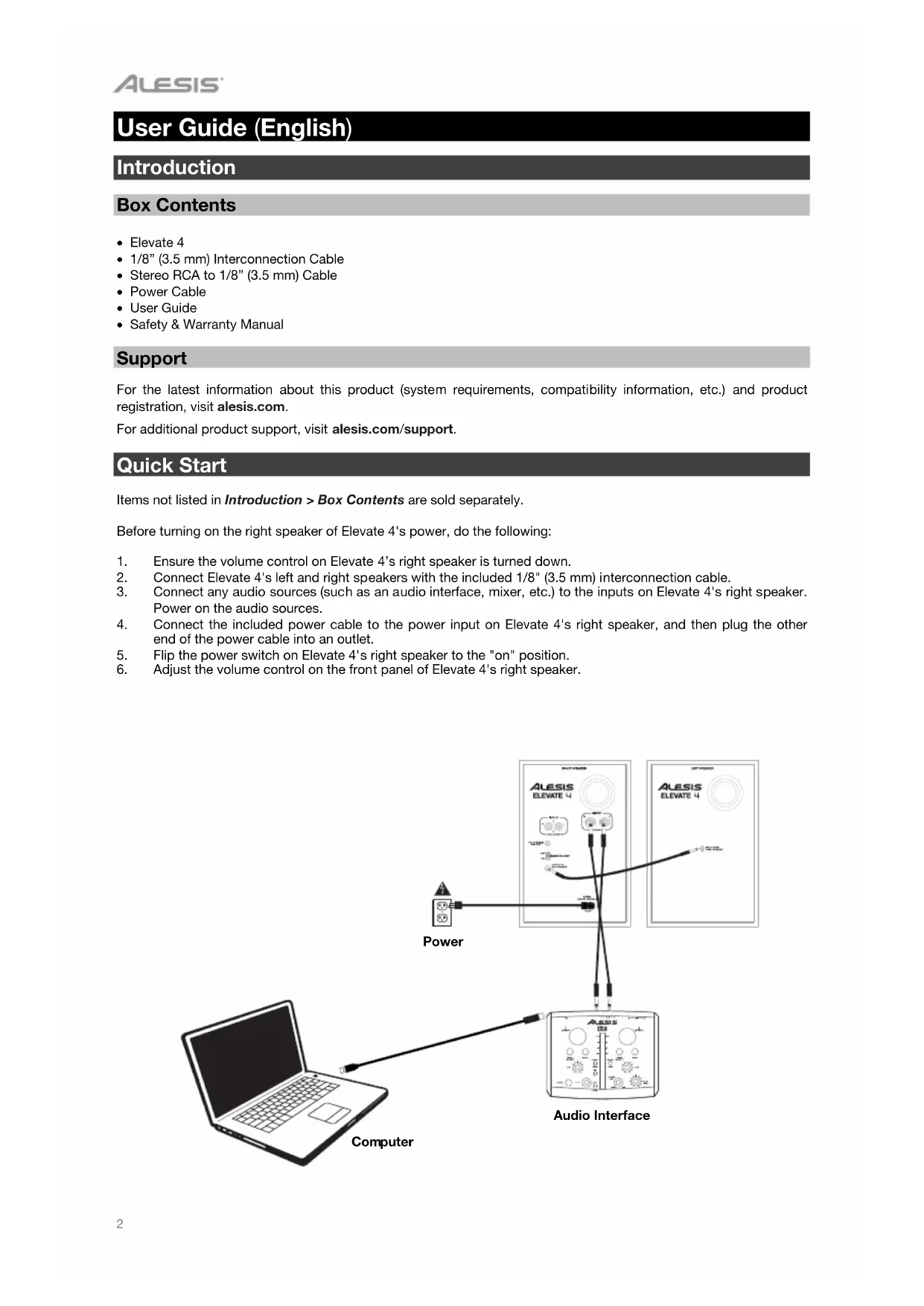
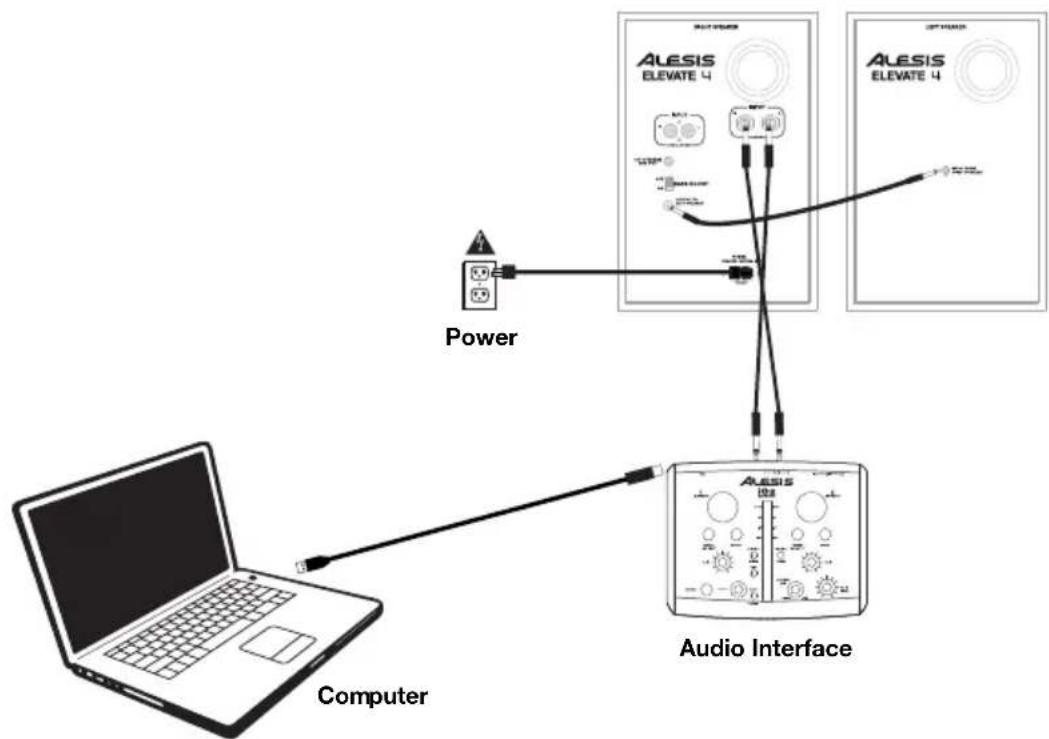
Before turning on the right speaker of Elevate 4's power, do the following:
- Ensure the volume control on Elevate 4's right speaker is turned down.
- Connect Elevate 4's left and right speakers with the included 1/8'' (3.5 mm) interconnection cable.
- Connect any audio sources (such as an audio interface, mixer, etc.) to the inputs on Elevate 4's right speaker. Power on the audio sources.
- Connect the included power cable to the power input on Elevate 4's right speaker, and then plug the other end of the power cable into an outlet.
- Flip the power switch on Elevate 4's right speaker to the "on" position.
- Adjust the volume control on the front panel of Elevate 4's right speaker.
Features
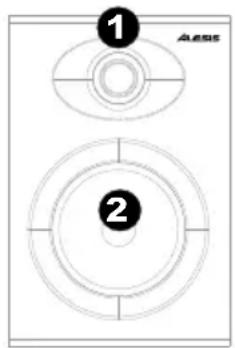
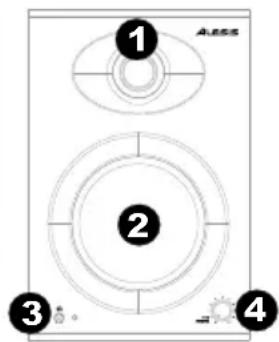
Front Panel
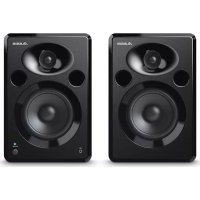
- Tweeter: This outputs the high frequencies.
- Woofer: This outputs the low frequencies.
- Headphones: Connect your 1/8 (3.5 mm) headphones to this output to hear the mix through your headphones. Note that while headphones are connected to Elevate 4, you will not be able to hear sound out of your speakers until the headphones are disconnected.
- Volume / Power On/Off Switch: This knob is used to turn the speakers on and adjust their volume. To turn on, simply turn up the knob. You will feel a click when the speakers turn on. A LED on the left side of the speaker will illuminate. To turn off, simply turn the volume all the way down; the LED will turn off to let you know that the speakers are off. To save energy, Elevate 4 will automatically power off after 30 minutes of not receiving an audio signal from its inputs. Once Elevate 4 detects an audio signal from its inputs, it will automatically power on again.
Rear Panel
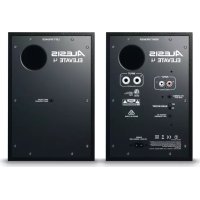
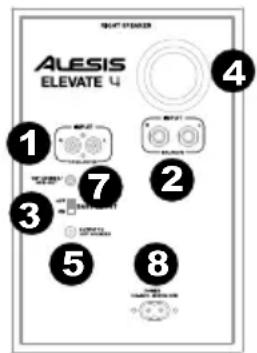
- RCA Inputs: Use RCA cables (sold separately) to connect an external sound source to these inputs.
- 1/4" Inputs: Use 1 / 4 (6.35 mm) cables (sold separately) to connect an external sound source to these inputs.
- Bass Boost: This switch allows you to boost the speakers' bass frequencies.
- Bass Port: The bass port augments the bass generated by the woofer to increase the low-frequency SPL over that of non-ported speakers. Make sure this hole is not obstructed since this will adversely affect bass response.
- Right Speaker Output: This is the audio connection to the left speaker. Use the included 1/8" (3.5 mm) interconnection cable to connect the right speaker to the left speaker.
- Left Speaker Input: This is the audio connection to the right speaker. Use the included 1/8'' (3.5 mm) interconnection cable to connect the left speaker to the right speaker.
- 1/8" Stereo/Subwoofer Output: This is a full range audio output which can be connected to a mixer, powered speakers, or an external recording device.
- Power Connector: Plug the included power cable here.

Setup
Speaker Placement
The placement of your speakers has a huge impact on how well they will perform in your studio. Although nearfield studio monitors are designed to be more forgiving when it comes to placement, you should do your best to make sure they form an equilateral triangle relative to your head. In other words, make sure that each speaker is equally distant from both your head as well as the other speaker. Once each speaker has been placed, rotate the speakers slightly so that the drivers are pointing toward the listener.
Take a look at the diagram on the right. Notice that the distance from the listener's head to each speaker is the same as the distance between the left and right speakers. Also note that the speakers are turned slightly so that the drivers are facing the listener. This is an ideal setup but if it is not practical (or possible) to do this, try to match this setup as closely as possible.
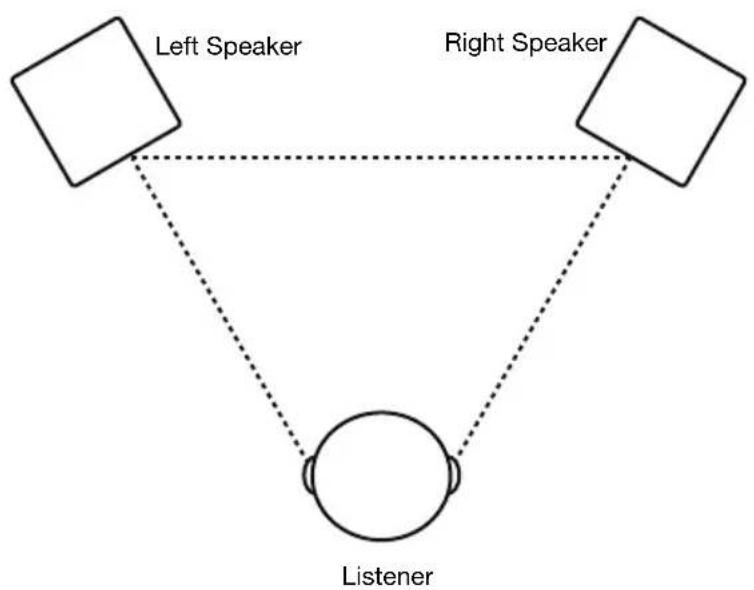
The speakers and listener should be at the three corners of a triangle having equal length sides.
Speaker Height
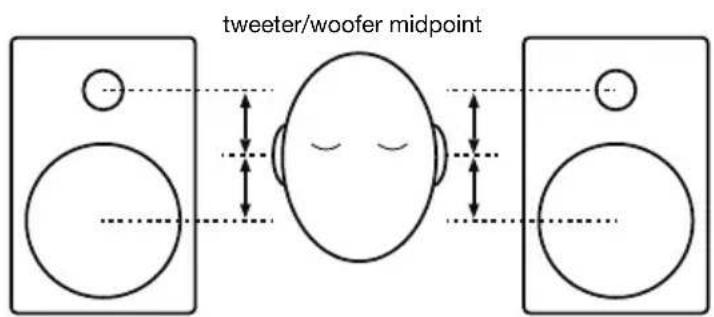
The ideal height for Elevate 4 is so that the speaker is parallel to the ground and that the midpoint of the woofer and tweeter is at ear-height.
The diagram to the right demonstrates the ideal placement height of the speakers relative to the listener. Notice that the listener's ears are directly between the woofer and tweeter.
Speaker Orientation
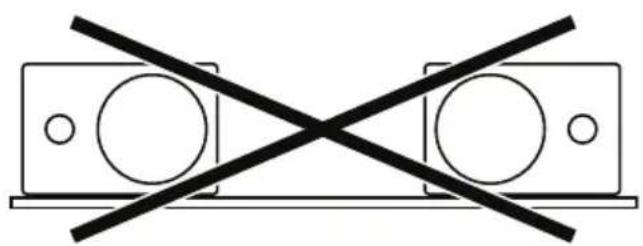
If possible, place the Elevate 4 monitors in their upright position and avoid laying the speakers on their sides. The Elevate 4 woofer and tweeter are vertically aligned and will provide the best performance when the speakers are placed upright. Placing them on their sides may create strong reflections from nearby surfaces resulting in spectrally unbalanced sound.
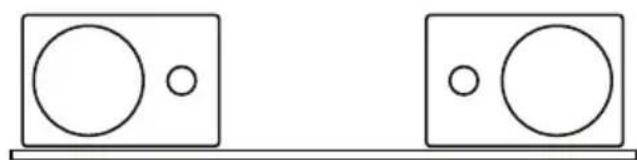
If your Elevate 4 monitors must be oriented horizontally due to space or line-of-sight considerations, place the speakers so that their tweeter is on the "inside" to improve imaging.
Technical Specifications
| Continuous Power | 25W x 2 |
| LF Driver | 4" (102 mm) woofer |
| HF Driver | 1" (25 mm), silk dome |
| Front Baffle Thickness | 0.59" (15 mm) |
| Audio Inputs | RCA and 1/4" (6.35 mm) (L+R) |
| Interconnection Cable | 1/8" (3.5 mm) |
| Subwoofer Output | 1/8" (3.5 mm), stereo |
| Headphone Output | 1/8" (3.5 mm), stereo |
| Frequency Response | 68 Hz – 20 kHz |
| Power Supply | 110-240V, 50/60 Hz |
| Dimensions (width x depth x height) | 7.20 x 6.18 x 9.25" 182.9 x 157 x 235 mm |
| Weight | 5.0 lbs. 2.3 kg |
Specifications are subject to change without notice.
Trademarks & Licenses
Alesis is a trademark of inMusic Brands, Inc., registered in the U.S. and other countries.
All other product or company names are trademarks or registered trademarks of their respective owners.