ManualGo.com
Deebot Slim 2 - Vacuum Cleaner ECOVACS - Free user manual and instructions
Find the device manual for free Deebot Slim 2 ECOVACS in PDF.



Frequently Asked Questions - Deebot Slim 2 ECOVACS
Download the instructions for your Vacuum Cleaner in PDF format for free! Find your manual Deebot Slim 2 - ECOVACS and take your electronic device back in hand. On this page are published all the documents necessary for the use of your device. Deebot Slim 2 by ECOVACS.
USER MANUAL Deebot Slim 2 ECOVACS
Manual de instrucciones ESCongratulations on the purchase of your ECOVACS ROBOTICS DEEBOT! We hope it brings you many years of satisfaction. We trust the purchase of your new robot will help keep your home clean and provide you more quality time to do other things. Live Smart. Enjoy Life. Should you encounter situations that have not been properly addressed in this Instruction Manual, please contact our Customer Service Center where a technician can address your specic problem or question. For more information, please visit the ECOVACS ROBOTICS official website: www.ecovacs.com The Company reserves the right to make technological and/or design changes to this product for continuous improvement. Thank you for choosing DEEBOT! Benutzerhandbuch
2. Package Contents and Technical Specications
3. Operating and Programming
Notes Before Cleaning
Cleaning Mode Selection
Programming the Robot
Status Indicator Light and Sounds
Dust Bin and Filters
Suction Intake and Side Brushes
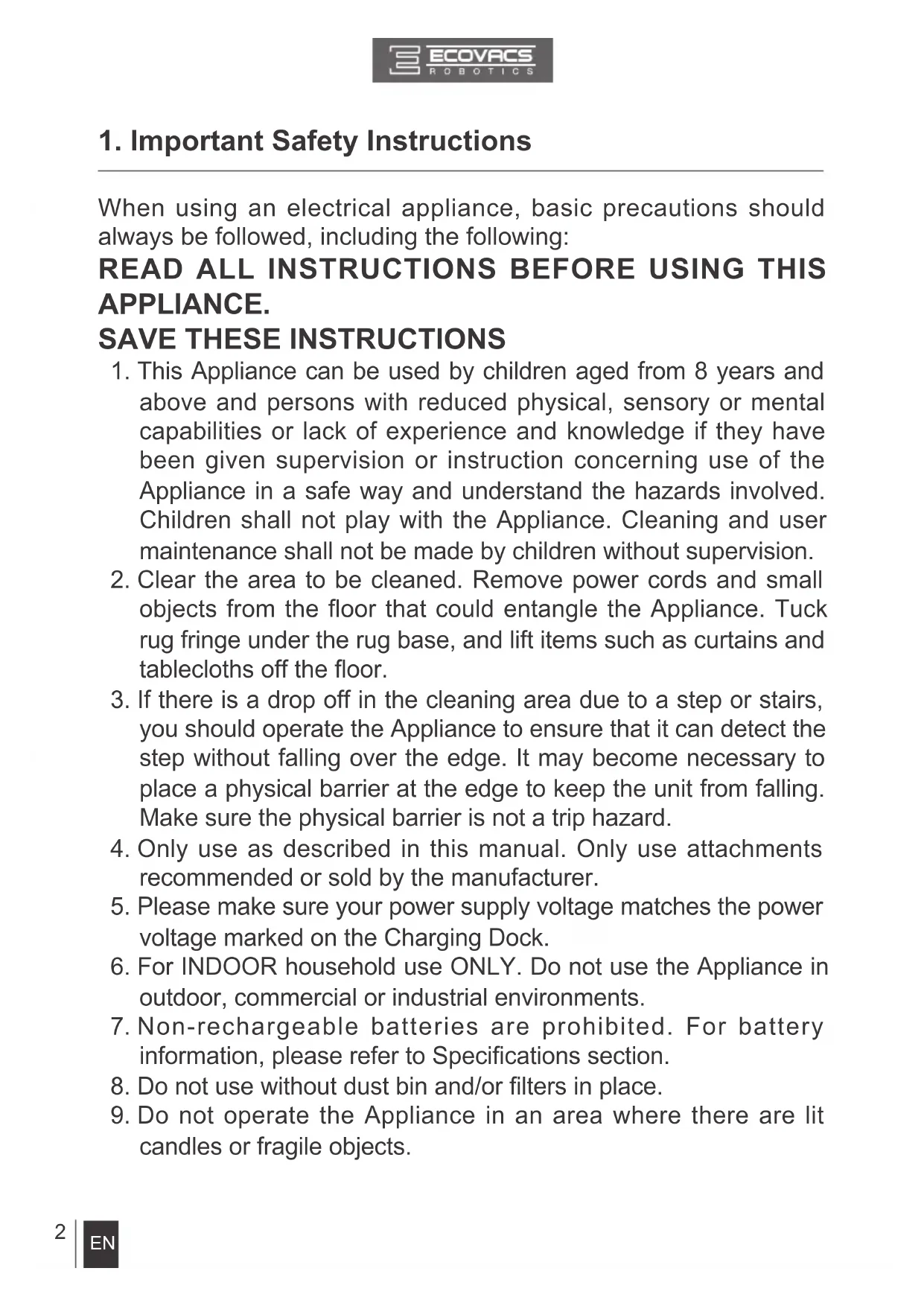
When using an electrical appliance, basic precautions should always be followed, including the following:
SAVE THESE INSTRUCTIONS
1. This Appliance can be used by children aged from 8 years and
above and persons with reduced physical, sensory or mental capabilities or lack of experience and knowledge if they have been given supervision or instruction concerning use of the Appliance in a safe way and understand the hazards involved. Children shall not play with the Appliance. Cleaning and user maintenance shall not be made by children without supervision.
2. Clear the area to be cleaned. Remove power cords and small
objects from the floor that could entangle the Appliance. Tuck rug fringe under the rug base, and lift items such as curtains and tablecloths off the oor.
3. If there is a drop off in the cleaning area due to a step or stairs,
you should operate the Appliance to ensure that it can detect the step without falling over the edge. It may become necessary to place a physical barrier at the edge to keep the unit from falling. Make sure the physical barrier is not a trip hazard.
4. Only use as described in this manual. Only use attachments
recommended or sold by the manufacturer.
5. Please make sure your power supply voltage matches the power
voltage marked on the Charging Dock.
6. For INDOOR household use ONLY. Do not use the Appliance in
outdoor, commercial or industrial environments.
7. Non-rechargeable batteries are prohibited. For battery
information, please refer to Specications section.
8. Do not use without dust bin and/or lters in place.
9. Do not operate the Appliance in an area where there are lit
10. Do not use in extremely hot or cold environments (below
-5˚C/23˚F or above 40˚C/104˚F).
11. Keep hair, loose clothing, fingers, and all parts of body away
from any openings and moving parts.
12. Do not operate the Appliance in a room where an infant or child
13. Do not use Appliance on wet surfaces or surfaces with standing
14. Do not allow the Appliance to pick up large objects like stones,
large pieces of paper or any item that may clog the Appliance.
15. Do not use Appliance to pick up flammable or combustible
materials such as gasoline, printer or copier toner, or use in areas where they may be present.
16. Do not use Appliance to pick up anything that is burning or
smoking, such as cigarettes, matches, hot ashes, or anything that could cause a re.
17. Do not put objects into the suction intake. Do not use if the
suction intake is blocked. Keep the intake clear of dust, lint, hair, or anything that may reduce air ow.
18. Take care not to damage the power cord. Do not pull on or
carry the Appliance or Charging Dock by the power cord, use the power cord as a handle, close a door on the power cord, or pull power cord around sharp edges or corners. Do not run Appliance over the power cord. Keep power cord away from hot surfaces.
19. If the power cord is damaged, it must be replaced by the
manufacturer or its service agent in order to avoid a hazard.
20. Do not use the Charging Dock if it is damaged.
21. Do not use with a damaged power cord or receptacle. Do not
use the Appliance or Charging Dock if it is not working properly, has been dropped, damaged, left outdoors, or come in contact with water. It must be repaired by the manufacturer or its service agent in order to avoid a hazard.4 EN EN
1. Important Safety Instructions
22. Turn OFF the power switch before cleaning or maintaining the
23. The plug must be removed from the receptacle before cleaning
or maintaining the Charging Dock.
24. Remove the Appliance from the Charging Dock, and turn OFF
the power switch to the Appliance before removing the battery for disposal of the Appliance.
25. The battery must be removed and discarded according to local
laws and regulations before disposal of the Appliance.
26. Please dispose of used batteries according to local laws and
27. Do not incinerate the Appliance even if it is severely damaged.
The batteries can explode in a re.
28. When not using the Charging Dock for a long period of time,
29. The Appliance must be used in accordance with the directions
in this Instruction Manual. ECOVACS ROBOTICS cannot be held liable or responsible for any damages or injuries caused by improper use.
30. The robot contains batteries that are only replaceable by skilled
persons. To replace or remove the battery, please contact Customer Service.
31. If the robot will not be used for a long time, fully charge the robot
and power OFF for storage and unplug the Charging Dock.
For the purposes of recharging the battery, only use the detachable supply unit CH1465A provided with this appliance.
33. The Remote Control pre-installs two non-rechargeable AAA
batteries. To replace the battery of the Remote Control, please turn over the Remote Control, press and remove its Battery Cover. Remove the batteries, and insert the new batteries with the correct polarity. Reassemble the Battery Cover.
34. Non-rechargeable batteries are not to be recharged.5
EN EN Correct Disposal of this Product This marking indicates that this product should not be disposed of with other household waste throughout the EU. To prevent possible harm to the environment or human health from uncontrolled waste disposal, recycle it responsibly to promote the sustainable reuse of material resources. To recycle your used device, please use the return and collection systems or contact the retailer where the product was purchased. They can safely recycle this product. For EU Countries
1. Important Safety Instructions
35. Different types of batteries or new and used batteries are not to
36. Batteries of the Remote Control are to be inserted with the
37. Exhausted batteries are to be removed from the Appliance and
38. If the Remote Control is to be stored unused for a long period,
the batteries should be removed.
39. The supply terminals are not to be short-circuited.6
EN EN Model DA5G Working voltage 10.8V DC Rated power 15W Battery Model ZJ1450 Darfon/ DA60 Darfon Battery Specication Lithium 10.8V DC, 2600mAh Charging Dock Model CH1465A Rated input voltage 100-240V AC Rated output voltage 20V DC Rated output current 1A Rated Power 20W Remote Control Model RC1633 Remote Control Input Voltage 3V DC Remote Control Battery Type Designation AAA Nominal voltage 1.5V DC Frequency bands 2412-2472MHz Maximum RF power transmitted in the frequency band Max PA output power at 72.2 Mbps: 17.5 dBm Max PA output power in 11b mode: 21.5 dBm
Technical and design specications may be changed in the course of continuous product improvement.
2. Package Contents and Technical Specications
2.1 Package Contents
Robot (4) Side Brushes Instruction Manual + Quick Start Guide Charging Dock Remote Control with Battery (2) Washable/ Reusable Microber Cleaning Cloths Cleaning Cloth Plate Replacement High Efciency Filter + Sponge Filter7 EN EN
2. Package Contents and Technical Specications
2. Charging Dock Pins
Wi-Fi Indicator Control Panel Charging Dock
4. Infrared Receiver for Remote Control
5. Mechanical Cushion Bumper and
9. Charging Contacts
2. Package Contents and Technical Specications
5. High Efciency Filter
3. Return to Charger Mode Button
Cleaning Cloth and Cleaning Cloth Plate
3.1 Notes before Cleaning
Before operating DEEBOT, take a few moments to survey the area to be cleaned and remove any obstacles. Remove power cords and small objects from the oor that could entangle the product. Please be aware that the robot needs at least a 6cm (2.4”) clearance to clean under furniture without complications. The product is not suitable for use on carpet. Before using the product near an area rug, please fold area rug edges under themselves. If there is a step or stairs in the cleaning area, please operate DEEBOT to ensure its Anti- Drop Sensors can detect the drop off. It may be necessary to place a physical barrier at the edge of the drop off to keep the unit from falling over the edge.
3. Operating and Programming10
Place the Charging Dock on a level floor surface against the wall with the base perpendicular to the ground. Keep the immediate area 1.5m (5') in front of the charger and 0.5m (1.6') on both sides of the charger clear of objects and reective surfaces. Plug the Charging Dock in. Charging Dock Placement
Install Side Brushes Attach Side Brushes to the bottom of DEEBOT by pressing a brush into each slot with the matching color until it clicks.
Power ON Turn the robot's Bottom Power Switch to the ON position. "I"=power ON; "O"=power OFF. DEEBOT is powered ON when the AUTO Mode Button glows a continuous BLUE.
When DEEBOT is not cleaning, it is suggested to keep it powered ON and charging instead of powered OFF.
3. Operating and Programming11
Place DEEBOT on the Charging Dock making sure the Charging Contacts on DEEBOT and the Charging Dock Pins make a connection. Charge DEEBOT for at least 4 hours before the rst use .
AUTO Mode Button blinks when DEEBOT is charging. AUTO Mode Button stops glowing after DEEBOT is fully charged.
3. Operating and Programming
When using the optional mopping feature, fold area rug edges under themselves so DEEBOT will avoid the rug. To use the robot's optional mopping feature, attach the provided Cleaning Cloth. Attach the Cleaning Cloth to the Cleaning Cloth Plate. Insert the Cleaning Cloth Plate tabs into the Cleaning Cloth Plate Slots on the bottom of the robot until you hear a click.12 EN EN Pause DEEBOT. Move the Bottom Power Switch to the OFF position. Power OFF
3. Operating and Programming
When DEEBOT is not cleaning, it is suggested to keep it powered ON and charging. Pause DEEBOT by pressing the AUTO Mode Button on DEEBOT or the START/ PAUSE Button on the Remote Control. Pause
The AUTO Mode Button on the robot’s Control Panel stops glowing after the robot is paused for more than 10 minutes. Press AUTO Mode Button on the robot or press any button on the Remote Control to wake up the robot. Start
Press the AUTO Mode Button on DEEBOT or the START/PAUSE button on the Remote Control. DEEBOT starts to work immediately in AUTO Cleaning Mode.
To choose another Cleaning Mode, please refer to section 3.3 Cleaning Mode Selection for details. DEEBOT can be directed using the Direction Control Buttons on the Remote Control when it is Paused.13 EN EN DEEBOT has several cleaning modes to choose from to effectively clean different floors. Cleaning modes are selected using the Remote Control or ECOVACS App.
3.3 Cleaning Mode Selection
AUTO Cleaning Mode Edge Cleaning Mode This mode is good for cleaning the edges and corners of a room. In Edge Cleaning Mode, DEEBOT cleans along a border (e.g. wall). This is the most commonly used mode. In AUTO Cleaning Mode, DEEBOT cleans in a straight line and changes direction when it meets an obstacle.
3. Operating and Programming
Spot Cleaning Mode (1.5-5 minutes) Return to Charger Mode When battery power gets low, DEEBOT automatically switches to Return to Charger Mode and returns to the Charging Dock to recharge itself. This mode is applicable for an area of highly concentrated dirt or dust. In Spot Cleaning Mode, DEEBOT focuses on a specic area to clean.
DEEBOT can also be sent back to the Charging Dock at any time by pressing the Return to Charger Button on the Remote Control. *14 EN EN
3. Operating and Programming
To automatically clean at another time, rst cancel the current Intelligent Scheduling, then set Intelligent Scheduling again at the desired time.
- If DEEBOT is turned OFF, Intelligent Scheduling is cancelled. Cancel Intelligent Scheduling
Double-Click the AUTO Mode Button on DEEBOT. The robot emits a descending tune, and AUTO Mode Button glows a continuous BLUE. Intelligent Scheduling is cancelled. Set Intelligent Scheduling Intelligent Scheduling DEEBOT has an Intelligent Scheduling and a Time Scheduling function to schedule cleaning times. DEEBOT can be programmed to automatically clean with Intelligent Scheduling using the robot’s Control Panel. DEEBOT can also be programmed with Time Scheduling using the App. DEEBOT can be scheduled to cleaning once per day at the same time, even if nobody is at home. Double-click the AUTO Mode Button on DEEBOT to set the current time as the scheduled cleaning time. Intelligent Scheduling is set when the robot emits an ascending tune and AUTO Mode Button glows a continuous BLUE. DEEBOT will automatically clean at the set time every day. For example: Set Intelligent Scheduling successfully at 9:00am, and DEEBOT automatically cleans at 9:00am every day.
3. Operating and Programming
3.5 Status Indicator Light and Sounds
If DEEBOT detects a problem and needs your assistance, it emits alarm beeps and the AUTO Mode Button ashes red. Alarm Sound Problems Solution One Beep Driving Wheel Malfunction Check Driving Wheels for tangled hair or debris and clean. Three Beeps Driving Wheel Malfunction Turn over the robot. Press Driving Wheels to check for a clicking sound. If they do not click, please contact Customer Service. Four Beeps Dust Bin Malfunction Remove the Dust Bin and re-install it properly. If the robot still emits the alarm, please contact Customer Service. Five Beeps Low Battery Manually place the robot on the Charging Dock to charge. Seven Beeps Anti-Drop Sensor Malfunction Check Anti-Drop Sensors for dust and clean. Time Scheduling Set Intelligent Scheduling DEEBOT can be programmed weekly to clean multiple times per day at specic times using the ECOAVCS App.
Before performing cleaning and maintenance, power OFF DEEBOT and unplug the Charging Dock. Open the robot’s Top Cover and remove the Dust Bin. Open the Dust Bin Cover and empty the Dust Bin. Remove the filters. Pat the High Efficiency clean. Do not rinse the High Efciency Filter under water. Rinse the Dust Bin, Sponge Filter and Filter Net under running water. Dry the Dust Bin and lters completely before reinstalling.
4.1 Dust Bin and Filters
Remove the Cleaning Cloth Plate from the robot and remove the Cleaning Cloth.
Wash and dry the Cleaning Cloth. Wipe the Cleaning Cloth Plate with a dry cloth. Wipe the Suction Intake with a dry cloth. Remove the Side Brushes. Wipe the Side Brushes and their slots with a clean dry cloth.
4.3 Suction Intake and Side Brushes18
4.4 Other Components
Clean the Universal Wheel by removing any hair tangled around it. Wipe the Anti-Drop Sensors with a dry cloth to maintain their effectiveness. Wipe the Charging Contacts and Charging Dock Pins with a dry cloth.19 EN EN
4.5 Regular Maintenance
To keep DEEBOT running at peak performance, perform the maintenance and replacement according to the following frequency. Robot Part Maintenance Frequency Replacement FrequencyCleaning Cloth After each use Every 50 washingsDust Bin After each useSide brush Once every 2 weeks Every 3-6 monthsSponge Filter/ High Efciency FilterOnce per week (twice per week with pets in home)Every 4-6 monthsUniversal WheelAnti-Drop SensorsCharging ContactsCharging Dock PinsOnce per week Note: ECOVACS manufactures various replacement parts and assemblies. Please contact Customer Service for more information on replacement parts.20 EN EN Please use this chart to troubleshoot common problems using DEEBOT. No. Malfunction Possible Causes Solutions
DEEBOT will not charge. DEEBOT is not powered ON. Move the robot’s Bottom Power Switch to the ON position. DEEBOT has not made a connection with the Charging Dock. Be sure that the robot’s Charging Contacts have made a connection with the Charging Dock Pins. You may move the robot manually to make the connection if necessary. Charging Dock is unplugged while DEEBOT is powered ON, which causes battery consumption. Plug in the Charging Dock and ensure DEEBOT is powered ON. Keep DEEBOT on the Charging Dock to make sure it has full battery to work at any time. The battery is completely discharged. Re-activate the battery. Place DEEBOT on the Charging Dock by hand, remove after charging for 3 minutes, repeat 3 times; then charge normally.
DEEBOT gets into trouble while working and stops. DEEBOT is tangled with something on the oor (electrical cords, drooping curtains, area rug fringe etc.). DEEBOT will try various ways to get itself out of trouble. If it is unsuccessful, manually remove the obstacles and restart.
DEEBOT returns to the Charging Dock before it nishes cleaning. When battery power gets low, DEEBOT automatically switches to Return to Charger Mode and returns to the Charging Dock to recharge itself. This is normal. No solution necessary. Working time varies according to oor surface, room complexity and the selected Cleaning Mode. This is normal. No solution necessary.
No. Malfunction Possible Causes Solutions
DEEBOT will not clean automatically at scheduled time. Intelligent Scheduling function is cancelled. Please refer to section 3.4 Intelligent Scheduling for details. DEEBOT is powered OFF. Power ON DEEBOT. The robot’s battery is low. Keep DEEBOT powered ON and on the Charging Dock to make sure it has full battery to work at any time. The robot’s Suction Intake is blocked and/or its components are tangled with debris. Turn the robot’s power OFF, clean the Dust Bin and invert the robot. Clean the robot’s Suction Intake and Side Brushes.
Remote Control failure (effective control range of Remote Control is 5m (16'). The batteries in the Remote Control need to be replaced. Replace with new batteries making sure they are installed correctly. DEEBOT is powered OFF or the robot’s battery is low. Make sure DEEBOT is powered ON and fully charged. The infrared signal cannot be transmitted because the Infrared Emitter on Remote Control or the Infrared Receiver on DEEBOT is dirty. Use clean dry cloth to wipe the Infrared Emitter on Remote Control and the Infrared Receiver on DEEBOT. There is other equipment interfering with the infrared signal to DEEBOT. Avoid using the Remote Control near other equipment using infrared signals.DE