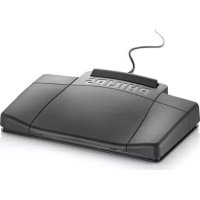
LFH2310 - Controller PHILIPS - Free user manual and instructions
Find the device manual for free LFH2310 PHILIPS in PDF.


| Product Type | Controller (foot pedal) |
| Brand | Philips |
| Model | LFH2310 |
| Connection | USB |
| Power Supply | Via USB port (5V) |
| Number of pedals | 3 (rewind, play, fast forward) |
| Main functions | Play, fast forward, rewind |
| Play mode | Mode N (hold) or T (toggle) selectable via switch under the pedal |
| Customization | Device Configuration Tool provided on CD |
| Compatible operating system | Windows (with administrator rights for driver installation) |
| Installation | Connect to USB port, insert CD and run autorun.exe or setup.exe |
| Maintenance and cleaning | Clean with a dry, soft cloth. Do not use abrasive products. |
| Safety | Use only with compliant USB ports. Disconnect before cleaning. |
| Spare parts and repairability | Not applicable: device not user-serviceable. Contact Philips customer service. |
| General information | Foot pedal for hands-free transcription. Compatible with Philips transcription software. |
Frequently Asked Questions - LFH2310 PHILIPS
User questions about LFH2310 PHILIPS
0 question about this device. Answer the ones you know or ask your own.
Ask a new question about this device
Download the instructions for your Controller in PDF format for free! Find your manual LFH2310 - PHILIPS and take your electronic device back in hand. On this page are published all the documents necessary for the use of your device. LFH2310 by PHILIPS.
USER MANUAL LFH2310 PHILIPS
natural_image
Black Philips computer mouse with a visible cord and cable, isolated on white background (no text or symbols on device body)Foot control
LFH 2210
LFH 2310
LFH 2320
LFH 2330
natural_image
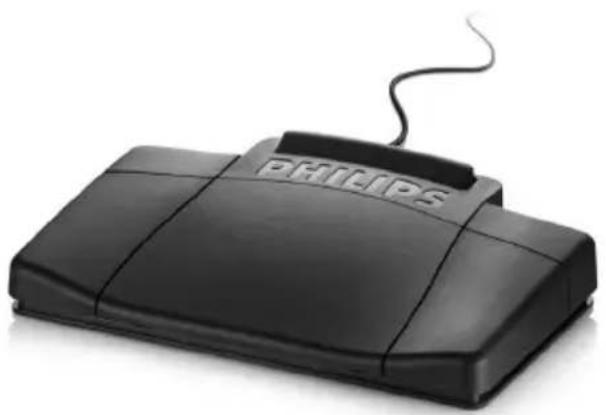
Black electronic device with a lit fuse and 'PHILIPS' label on the top (no other text or symbols visible)www.philips.com/dictation
PHILIPS
EN User manual 3
Welcome to the growing family of owners of Philips products. The Philips foot control is designed to offer an ergonomic, hands-free tool for playback of files for transcription.
Overview1.1
natural_image
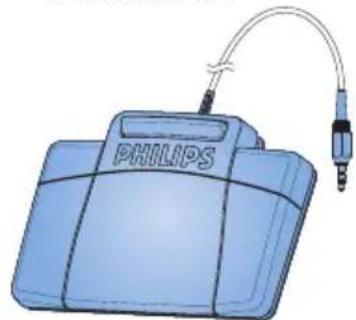
Illustration of a Philips medical device with attached tubing (no text or symbols on the device itself)Foot control 2210 with analog connector
natural_image
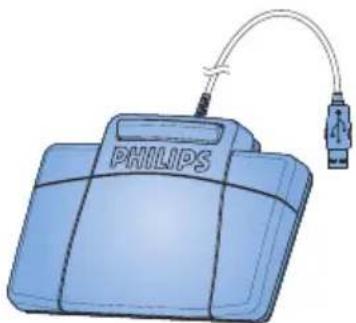
Illustration of a Philips medical device with attached cable and connector (no text or symbols on the device itself)Foot control 2310 / 2330 with USB connector
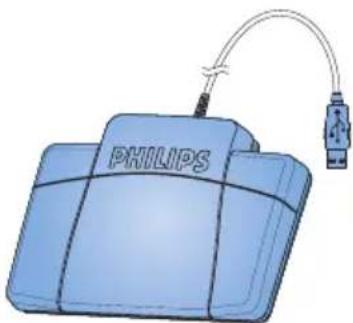
natural_image
Illustration of a Philips medical device with attached cable and connector (no text or symbols on the device itself)Foot control 2320 with USB connector
Installation2
Foot control 2210 with analog 2.1 connector
Connect the plug of the foot control to the foot control socket of the transcription unit.

Tip
The foot control 2210 also can be connected to a PC in combination with the optional Philips USB adapter 6220.
Foot control 2310 / 2320 / 2330 with 2.2 USB connector
Connect the foot control to a free USB port 1 on the PC.
Insert the installation CD in the CD-ROM drive. The set-up program should start automatically. If it does not, open the CD contents in Windows Explorer and double-click the autorun.exe file.
Click the 3 Install button.
Follow the on-screen instructions of the 4 set-up program to install the driver software on the PC.

Note
Administrator rights are required to install the software. For more help, contact your administrator.
Use the foot control3
Foot control 2210 / 2310 / 23203.1 The foot control has three pedals: fast rewind ①, fast forward ② and playback ③.
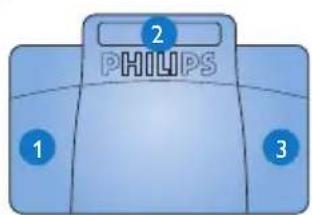
LFH 2210 / 2310 LFH 2320
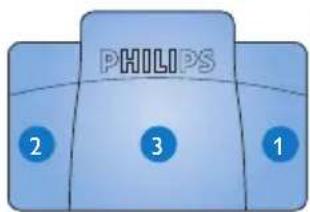
1 Press and hold the pedal for fast rewind. When rewinding reaches the desired position, release the pedal.
2 Press and hold the pedal to fast forward. When forwarding reaches the desired position, release the pedal.
3 The pedal starts playback. The behavior for starting and stopping playback depends on the setting of the playback switch on the underside of the foot control:
N (Neutral) position:• Press and hold the right pedal for playback. When the pedal is released, playback is stopped.
T (Toggle) position: • Press and release the right pedal to start continuous playback. Press the right pedal again to stop playback.
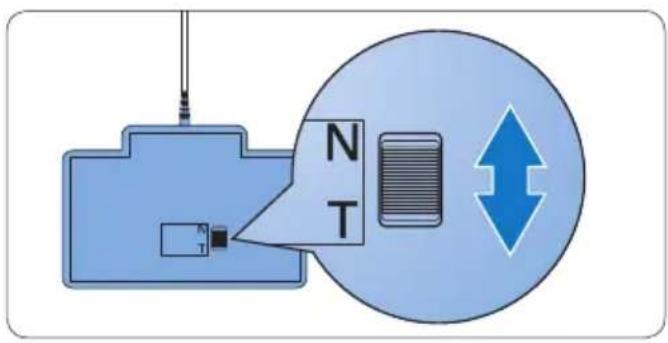
Foot control 23303.2
The foot control has four pedals: a left 1, a middle 2, a right 3 and a top 4 pedal.
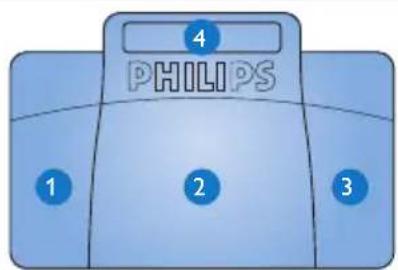
1 Press and hold the left pedal to fast forward. When forwarding reaches the desired position, release the pedal.
2 Press and release the middle pedal to start continuous playback. Press the middle pedal again to stop playback.
3 Press and hold the right pedal for fast rewind. When rewinding reaches the desired position, release the pedal.
4 Press and release the top pedal to finish a dictation.
Tip
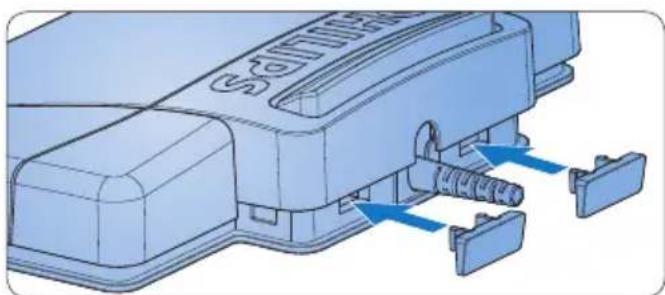
If the middle pedal has been disabled with the Device Configuration Tool (see next chapter), it can be secured with the plastic locking tabs (included).
natural_image
Technical illustration of a mechanical component with blue arrows indicating assembly or connection points (no text or symbols present)Advanced configuration4
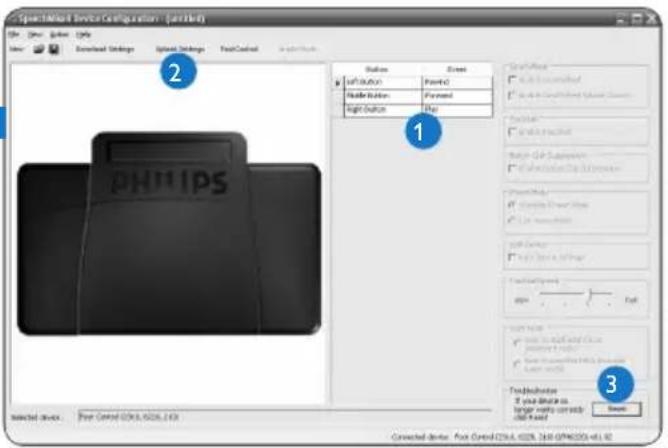
Use the Device Configuration Tool to change the pedal functions of foot controls with USB connector.
Install the Device Configuration Tool4.1
Insert the installation CD in the CD-ROM drive.
Open the CD contents in Windows 2
Explorer and double-click the setup.exe file in the folder CD Drive\Tools\Device Configuration Tool.
Follow the on-screen instructions of the set-up program to install the software on the PC.
Use the Device Configuration Tool4.2
Connect the foot control to a free USB port on the PC.
Start the Device Configuration Tool 2 by opening the Windows start menu and selecting All Programs > Device Configuration Tool > Device Configuration Tool.
Change the function of the pedals according to your preferences. 1
Click the 4 Upload settings button to save the new settings.

Note
The foot control can be reset to its factory default configuration by clicking the Reset button 3. Click the Upload settings button 2 to save the default settings.
natural_image
Illustration of a Philips medical device with attached tubing (no text or symbols on the device itself)natural_image
Illustration of a Philips medical device with attached cable and connector (no text or symbols on the device itself)natural_image
Illustration of a Philips medical device with attached cable and connector (no text or symbols on the device itself)natural_image
3D diagram of a mechanical component with blue arrows indicating assembly or connection points (no text or symbols present)Hinweis
natural_image
Illustration of a Philips medical device with attached tubing (no text or symbols on the device itself)natural_image
Illustration of a Philips medical device with attached cable and connector (no text or symbols on the device itself)natural_image
Illustration of a Philips medical device with attached cable and connector (no text or symbols on the device itself)natural_image
Diagram of a mechanical device with blue arrows indicating assembly or connection points (no text or symbols present)Configuration avancée4
natural_image
Illustration of a Philips medical device with attached tubing (no text or symbols on the device itself)natural_image
Illustration of a Philips medical device with attached cable and connector (no text or symbols on the device itself)natural_image
Illustration of a Philips medical device with attached cable and connector (no text or symbols on the device itself)natural_image
Technical illustration of a mechanical component with blue arrows indicating assembly or connection points (no text or symbols present)Note
natural_image
Illustration of a Philips medical device with attached tubing (no text or symbols on the device itself)natural_image
Illustration of a Philips medical device with attached cable and connector (no text or symbols on the device itself)natural_image
Illustration of a Philips medical device with attached cable and connector (no text or symbols on the device itself)natural_image
3D diagram of a mechanical component with blue arrows indicating assembly or connection points (no text or symbols present)Opmerking
natural_image
Illustration of a Philips medical device with attached tubing (no text or symbols on the device itself)natural_image
Illustration of a Philips medical device with attached cable and connector (no text or symbols on device body)natural_image
Illustration of a Philips medical device with attached cable and connector (no text or symbols on the device itself)natural_image
Technical illustration of a mechanical component with blue arrows indicating assembly or connection points (no text or symbols present)Note
Declaration of Conformity
Tested to comply with FCC standards
FOR HOME OR OFFICE USE
Model Number: LFH 2210 / LFH 2310 / LFH 2320 / LFH 2330
Trade Name: Philips Foot Control
Responsible Party: Philips Speech Processing, 64 Perimeter Center East, Atlanta, GA 30346, USA, Tel. 888-260-6261
This device complies with Part 15 of the FCC Rules. Operation is subject to the following two conditions:
1) This device may not cause harmful interference.
2) This device must accept any interference received, including interference that may cause undesired operation.

The CE mark confirms that the device corresponds to the relevant guidelines of the European Union.

The cardboard used for packaging can be recycled. This electronic device contains recyclable material.

Discover the comprehensive range of high-end dictation products from Philips www.philips.com/dictation
Specifications are subject to change without notice.
Trademarks are the property of Royal Philips Electronics or their respective owners.
© 2008 Royal Philips Electronics. All rights reserved.
Document version 2.0, 27/03/2008.
5103 109 9701.2

- Foot control
- Installation2
- Foot control 2210 with analog 2.1 connector
- Tip
- Foot control 2310 / 2320 / 2330 with 2.2 USB connector
- Note
- Use the foot control3
- Foot control 23303.2
- Advanced configuration4
- Install the Device Configuration Tool4.1
- Use the Device Configuration Tool4.2
- Hinweis
- Configuration avancée4
- Back
- Close
- Follow
- Opmerking
- Declaration of Conformity
Brand : PHILIPS
Model : LFH2310
Category : Controller