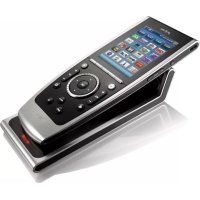
TSU9400 - Controller PHILIPS - Free user manual and instructions
Find the device manual for free TSU9400 PHILIPS in PDF.


| Product type | Universal controller with touch screen |
| Brand | Philips |
| Model | TSU9400 (Pronto) |
| Display | 3.5" color TFT LCD screen (portrait), QVGA resolution 320x240 pixels, 65,536 colors |
| Touch interface | Capacitive touch screen, finger or stylus operation |
| Infrared range | Up to 12 m (36 ft) |
| Infrared angle | 45° at 5 m (15 ft) |
| Wireless connectivity | 2.4 GHz WiFi |
| RAM | 64 MB SDRAM |
| Flash memory (storage) | 48 MB NAND |
| Battery | Rechargeable lithium-polymer, 1700 mAh |
| Battery life | 1 to several days depending on usage and configuration |
| Dimensions (controller) | 199.3 x 78 x 23.5 mm (7.9 x 3.1 x 0.9 in) |
| Dimensions (docking station) | 175.7 x 75.5 x 43 mm (6.9 x 3.0 x 1.7 in) |
| Power supply | AC adapter 100-240 V AC, 50/60 Hz, output 5 V DC / 2 A |
| Operating temperature | 5°C to 45°C (41°F to 113°F) |
| Storage temperature | -25°C to 70°C (-13°F to 158°F) |
| Main functions | Home theater control, customizable touch screen, dedicated mechanical keys (volume, channel, menu, etc.), backlighting, touch calibration, timeout |
| Care and cleaning | Soft damp cloth; for the screen, diluted glass cleaner solution. No corrosive detergent or abrasive sponge. Avoid excess water. |
| Safety | Do not expose to rain or moisture; avoid shocks; use only the provided stylus or finger; do not open the device. |
| Included accessories | Docking station, AC adapter, quick start guide |
| Repairability / spare parts | Contact your installer for battery replacement or any repair |
| Warranty | Refer to Philips general terms and conditions |
Frequently Asked Questions - TSU9400 PHILIPS
User questions about TSU9400 PHILIPS
0 question about this device. Answer the ones you know or ask your own.
Ask a new question about this device
Download the instructions for your Controller in PDF format for free! Find your manual TSU9400 - PHILIPS and take your electronic device back in hand. On this page are published all the documents necessary for the use of your device. TSU9400 by PHILIPS.
USER MANUAL TSU9400 PHILIPS
Concept and realisation of the Guide:
Using the Control Panel
Manual de inicio
Getting to Know Your Pronto Control Panel 1
Taking a First Look 2
Charging the Control Panel 3
Enjoying Your Pronto Control Panel 3
Controlling Your Home Theater 3
Changing the Pronto Settings 5
Support 6
Maintaining the Control Panel 6
Troubleshooting 7
Specifications 8
IFU Approbation / Safety Content TSU9400
FCC Compliancy
Regulations According to R&TTE
Getting to Know Your Pronto Control Panel
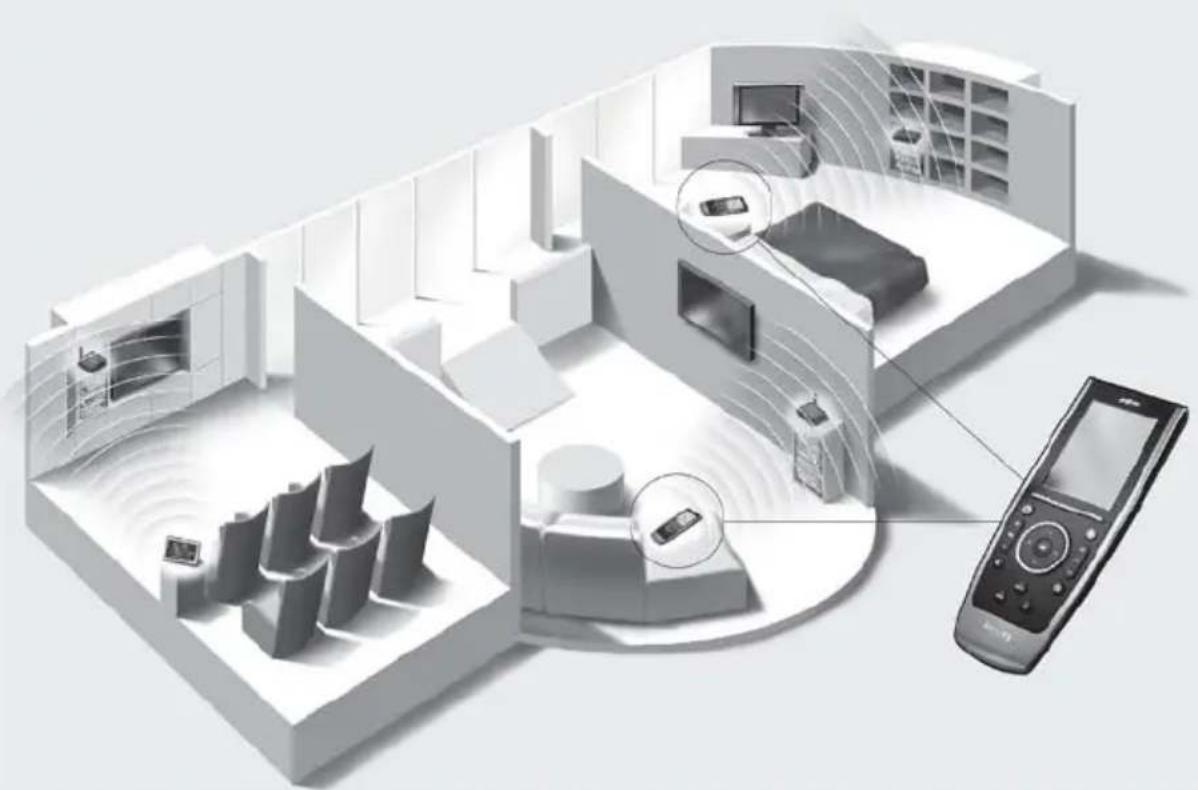
Your TSU9400 Control Panel is designed and manufactured with great care to offer you a reliable and easy operation of your home theater system. It has been preprogrammed by your installer and contains a so-called configuration file that contains all the codes, graphical buttons and navigation behaviour.

Taking a First Look
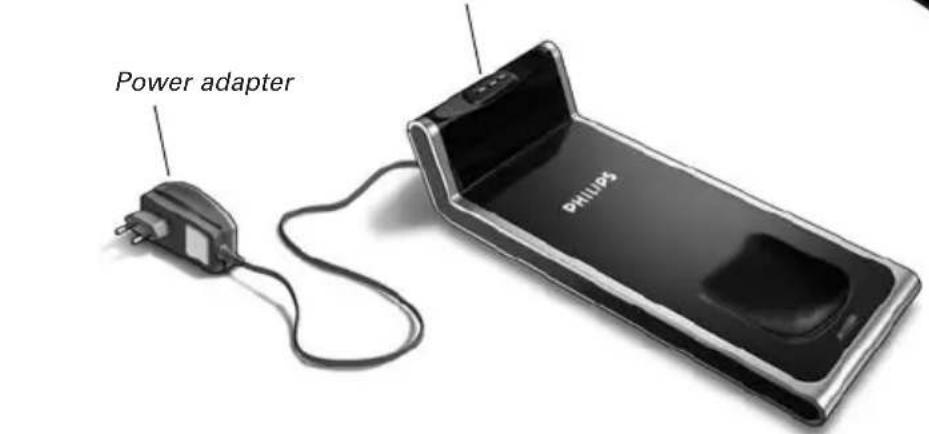
Charging the Control Panel
When the Battery level icon on your screen turns red, it is time to charge the Control Panel. Depending on how your installer has configured the Control Panel, it can be operated for one to several days.
Note The lifetime of the battery depends on the time out settings and the settings of the wireless network configured by your installer. If you notice that the battery is deteriorating, please contact your installer.
When you place the Control Panel in the docking station, the red Charging LED on the front of the docking station lights up.
When the Charging LED fades out, the Control Panel is fully charged. This can take 3 to 4 hours.
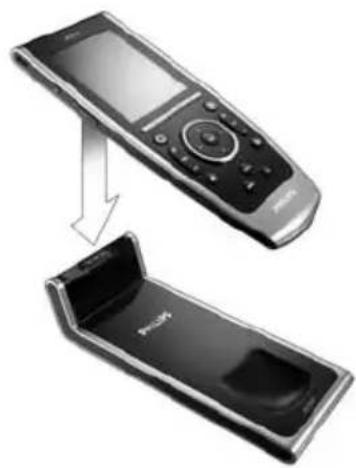
When the battery is low and the Charging LED does not light up, make sure that:
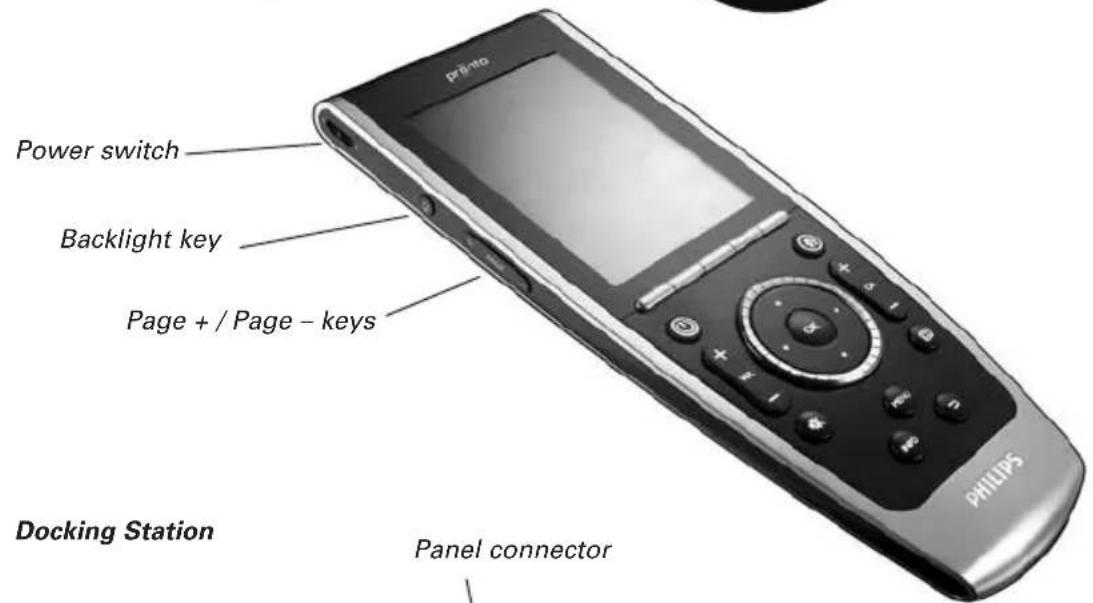
- the power switch on the left side of the Control Panel is switched to "1".
- the docking station is plugged in the wall outlet. When it is plugged in, the docking station glows.
- the Control Panel is placed properly in the docking station.
- the connector in the docking station is clean and free of obstructions.
Tip It is advised to place the Control Panel in the docking station after use. Even when the screen of the Control Panel turns black, the Control Panel is still using power.
Enjoying Your Pronto Control Panel
Controlling Your Home Theater
Activating the screen of the Control Panel
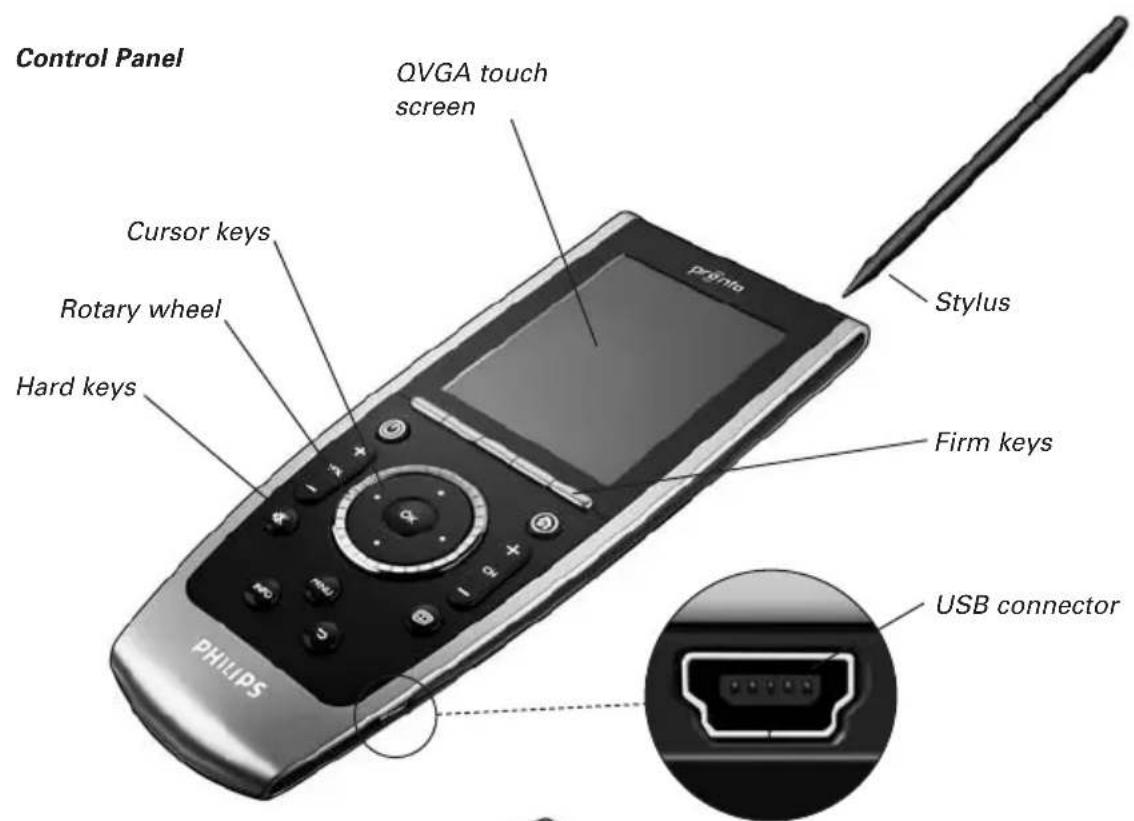
- Tap the touch screen with the stylus enclosed or with your finger. -0r-
- Press the Backlight key.
Depending on the settings made in the Screen Settings page, the screen is also activated when you:
- tilt the Control Panel sufficiently towards you.
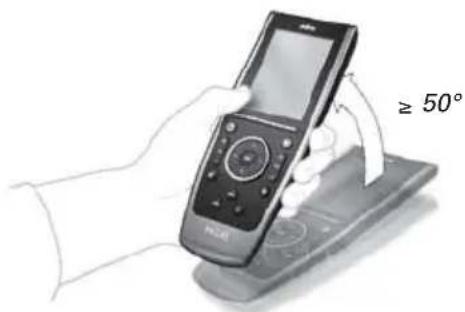
-or-
- press one of the 5 firm keys below the screen or one of the hard keys.
Note The following hard keys send out commands to your equipment without activating the screen: Channel Up/Down, Volume Up/Down, Menu, Guide, Power, Mute, Info, Back.
Operating the Control Panel
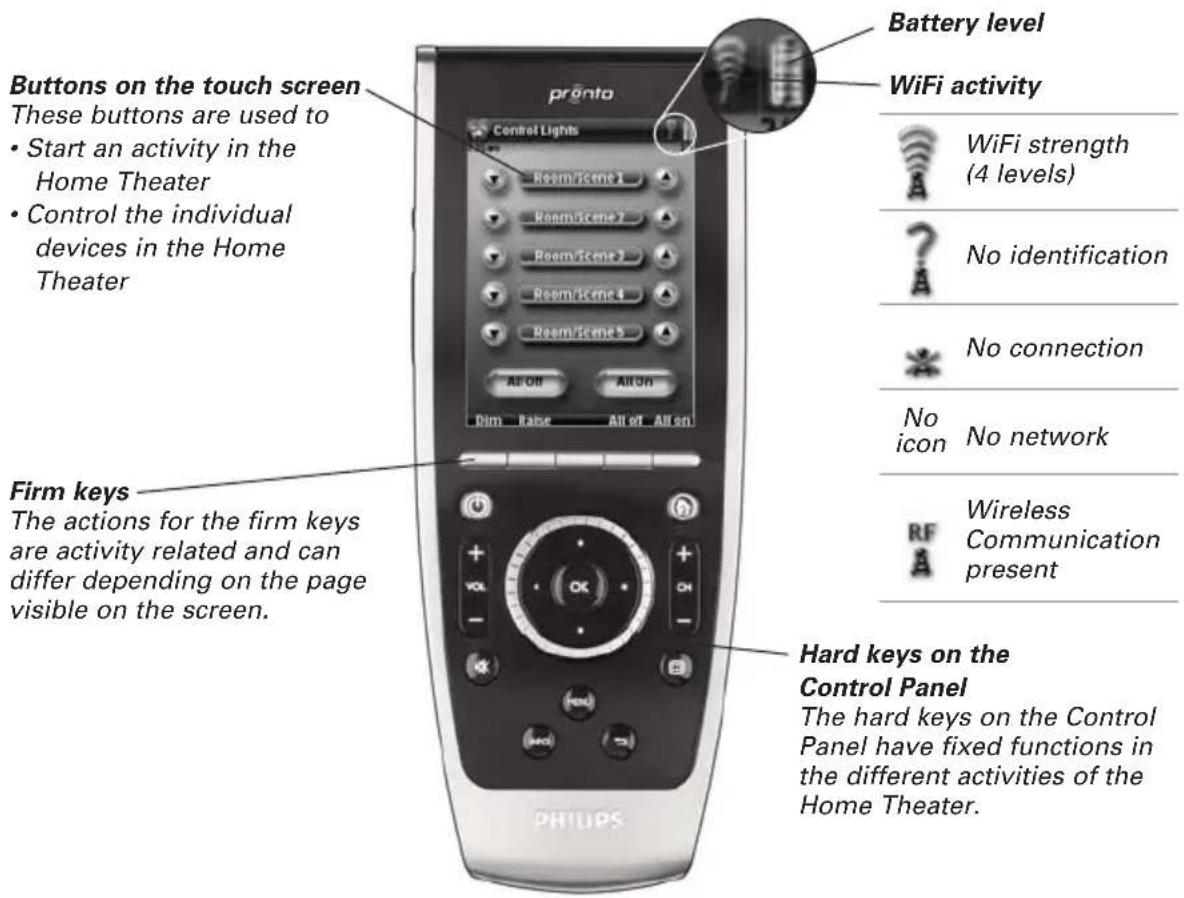
Note The screens of your Control Panel are customized by your installer and could look different from the one on the image above.
Turning the Control Panel On/Off
Power switch
The Power switch on the left side of the Control Panel turns the Control Panel on and off.
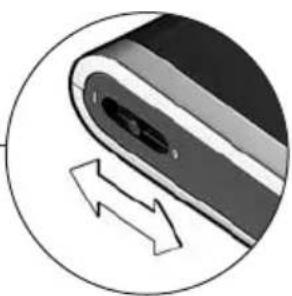
Tip Always switch off the Control Panel during transport to avoid the activation of the touchscreen and battery draining.
Changing the Pronto Settings
Notes It is possible that your installer has blocked the access to the Settings pages. Normally, your installer has fully programmed your Control Panel and no changes are required.
To open the Settings pages:
- Press and hold the Settings icon for more than 3 seconds.
General
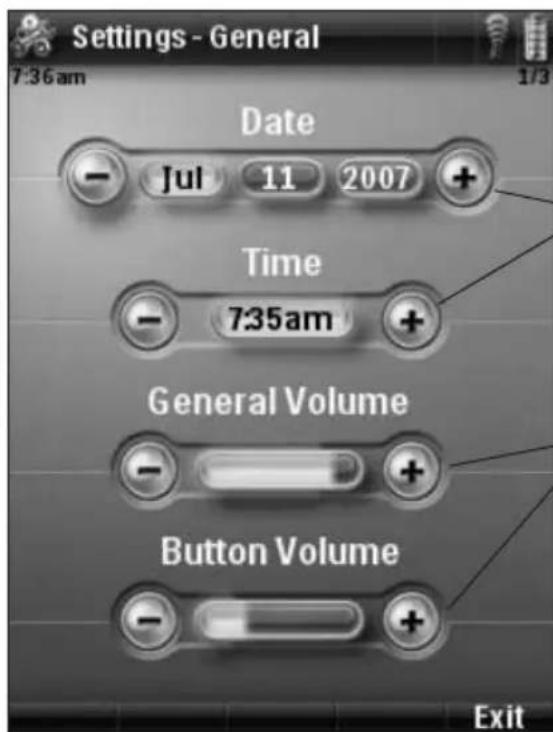
To access the other Settings pages:
- Tap the Page +/Page - key.
On the Info Page you can find the version and network information and memory status.
To change Date & Time settings
1 Tap the Month, Day, Year, or Time button. The button is highlighted.
2 Tap the - and +^ buttons to adjust the date or time.
To change the Volume settings
- Tap the - and +^ buttons to adjust the volume settings.
The General volume refers to all sounds you hear when you operate the Control Panel.
The Button volume specifically refers to the default sound you hear when you press a button.
Tip Press and hold the ^+ and - buttons to decrease or increase the setting faster.
Screen
To change the Activation Settings:
- Tap the buttons to toggle between the different Activation settings:
Pick up sensor: the Control Panel switches on when it is tilted.
Firm keys: the Control Panel switches on and/or sends out IR when a firm key is pressed.
Cursor keys: the Control Panel switches on and/or sends out IR when one of the cursor keys is pressed.
To calibrate the touch screen:
1 Tap the Calibrate button.
2 Follow the on screen instructions to tap the 4 corners of the screen.
The touch screen is calibrated.
Note The screen is calibrated in the factory. Do not use this function unless you experience problems with the touch screen.
- Tap the - and +^ buttons to adjust the settings.
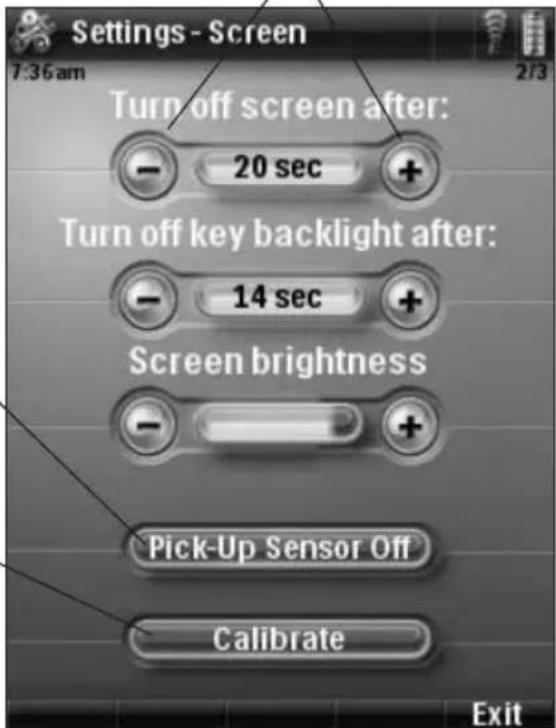
To exit the Settings pages:
- Press the right firm key labeled Exit.
Support
Maintaining the Control Panel
Take care not to damage the touch screen
- Do not drop the Control Panel or subject it to any strong impact.
- Use the stylus enclosed or your finger to tap the touch screen.
Attention Never use an actual pen, pencil or other sharp object on the touch screen to avoid scratching the touch screen.
Protect the Control Panel from temperature extremes
Keep the Control Panel away from heaters and other heat sources.
The Control Panel is not waterproof
The Control Panel should not be exposed to rain or moisture.
Do not store or use the Control Panel in any location that is extremely damp or wet.
When you have spilled water on the Control Panel, you have to turn it off by switching the Power switch to "0".
Place the Control Panel in a clean environment to dry.
Cleaning the Control Panel
- Use a soft, damp cloth to clean the Control Panel.
- If the touch screen is dirty, clean it with a soft cloth moistened with a diluted window-cleaning solution.
- Do not use a corrosive detergent or an abrasive sponge.
- Avoid the use of abundant water.
Troubleshooting
The buttons on the touch screen of my Control Panel do not work properly
When you find that tapping a button activates one of the adjacent buttons, or when you have to tap next to a button to activate it, it is advised to recalibrate the touch screen as described in 'Changing the Pronto Settings' on page 5.
Calibrating is a way of adjusting the touch screen to reobtain accuracy and reliability.
The Control Panel goes to stand-by mode automatically
This is the time out feature of the Control Panel to save power. You can adjust the time that the Control Panel stays active in the Settings-Screen page, as described in 'Changing the Pronto Settings' on page 5.
My AV-equipment does not respond to commands from the Control Panel
- Check the status of the battery on the screen. If the Battery level icon is red, recharge the Control Panel as described in 'Charging the Control Panel' on page 3.
- When your Control Panel works in a WiFi environment, bear in mind that it may take the network a few seconds to wake up and start transmitting codes.
- You may be out of reach of the WiFi network. The WiFi activity icon that normally indicates the WiFi strenght changes into
Please refer to the next paragraph.
The WiFi activity icon shows no WiFi strength
Note The WiFi activity icon may not be visible on the screen, depending on the settings made by your installer.
If the Control Panel shows one of the following icons:
| ※ | No connection ·The Wireless Access Point is powered down ·The Control Panel is out of range of the Wireless Access point ·There is an encryption problem |
| ? | No identification ·There occurred an IP problem. If the problem comes up regularly, contact your installer to change the settings. |
My Control Panel runs out of power fast
- When the Control Panel works in a WiFi environment, bear in mind that the Control Panel is still using power even when its screen is black. It is advised to place the Control Panel in the docking station each time after use.
- When the battery runs out of power constantly, it may be time to replace the battery. Contact your installer for more information.
Specifications
| Display 3.5" TFT color display with touch screen QVGA (320 x 240 pixels) resolution portrait LCD 65,536 colors |
| Infrared (IR) Operating distance = max. 36 ft (12 m) Operating angle = 45° at max 15 ft (5 m) |
| Wireless System WiFi based technology operating at 2.4 GHz |
| Memory 64 MB SDRAM 48 MB NAND Flash |
| Power Management Power on by tilting, tapping the screen, pressing the bac tapping the keys Power off automatically by time out Battery status indication |
| Dimensions Control Panel: 7.9 x 3.1 x 0.9 inch (199.3 x 78 x 23.5 mm) Docking Station: 6.9 x 3.0 x 1.7 inch (175.7 x 75.5 |
| Operating Temperature 41°F – 113°F (5°C - 45°C) |
| Storage temperature -13°F – 158°F (-25°C - 70°C) |
| Battery Lithium polymer battery, 1700 mAh |
| Power Adapter 100 V-240 VAC / 50-60 Hz Power adapter (5 VDC / 2 A output) |
| Accessories - Power adapter - Docking station - Starter's Guide |
| IR code database information Designed with UEI Technology Licensed under U.S. Patent 5,689,353 Portions © UEI 1999 |
Pronto Control Panel Starter's Guide
Copyright 2007 Royal Philips Electronics, Interleuvenlaan 74-76, 3001 Leuven (Belgium)
Remarks:
All rights are reserved. Reproduction in whole or in part is prohibited without prior consent of the copyright owner. Royal Philips Electronics is not liable for omissions or for technical or editorial errors in this manual or for damages directly or indirectly resulting from the use of the Pronto Control Panel. The information in this Starter's Guide may be subject to change without prior notice. All brand or product names are trademarks or registered trademarks of their respective companies or organizations.
Contenido
Introduccional Panel de Control Pronto 1
Visiion general 2
Carga del Panel de Control 3
IFU Approbation / Safety Content TSU9400
FCC Compliancy
Regulations According to R&TTE
Introduccional Panel de Control Pronto
IFU Approbation / Safety Content TSU9400
FCC Compliancy
Regulations According to R&TTE
This device complies with Part 15 of the FCC Rules. Operation is subject to the following two conditions:
- This device may not cause harmful interference.
- This device must accept any interference received, including interference that may cause undesired operation.
This equipment has been tested and found to comply with the limits for a Class B digital device, pursuant to part 15 of the FCC rule.
These limits are designed to provide reasonable protection against harmful interference in residential installations. This equipment generates, uses, and can radiate radio frequency energy and, if not installed and used in accordance with the instructions, may cause harmful interference to radio communications.
However, there is no guarantee that interference will not occur in a particular installation. If the equipment does cause harmful interference to radio or television reception, which can be determined by turning the equipment off and on, the user is encouraged to try to correct the interference by one or more of the following measures:
- Reorient or relocate the receiving antenna.
- Increase the separation between the equipment and receiver.
- Connect the equipment into an outlet on a different circuit from the receiver.
- Consult the dealer or an experienced radio/TV technician for help.
CAUTION The user changes or modifications not expressly approved by the party responsible for compliance could void the user's authority to operate the equipment.
This class B digital apparatus complies with Canadian ICES-003.
Your device contains lithium polymer batteries. Do not open the battery compartment.
Batteries may only be replaced by the service centre or a trained installer, never by the end-user.
Regulations According to R&TTE
Declaration
Hereby, Philips Consumer Electronics, BL Home Control declares that TSU9400 is in compliance with the essential requirements and other relevant provisions of Directive 1999/5/EC:
Radio:ETSI EN 300 328
EMC:ETSI EN 301489-1,ETSI EN 301489-17
Safety: EN60950-1
Bulgarian C hactoTaeTo Philips Consumer Electronics, BL Home Control eknappa, ye TSU9400 e B cbOTBeCTBnE C OCHOBHnTe n3NCKBaHnI N OCTaHaJIte npuIOxIMn pa3npoe6n Ha DnpeKtNBa 1999/5/EC.
| Czech | My, Philips Consumer Electronics, BL Home Control, prohlasujeme ze vyrobek TSU9400 splnjuje základní požadaky a ostatní príslušné ustanovení Směrnice 1999/5/EC. |
| Danish | Philips Consumer Electronics, BL Home Control, erklærer herved, at følgende udstyr TSU9400 overholder de væsentlige krav og øvridge relevante krav i direktiv 1999/5/EF. |
| Dutch | Hierbij verklaart Philips Consumer Electronics, BL Home Control, dat deze TSU9400 in overeenstemming is met de essentiële eisen en de andere relevante bepalingen van richtlijn 1999/5/EG. |
| Finnish | Philips Consumer Electronics, BL Home Control, vakuuttaa täten etta TSU9400 tyyppinen laite on direktivin 1999/5/EY oleellisten vaatimusten ja sitä koskevien direktivin muiden ehtojen mukainen. |
| French | Par laprésente Philips Consumer Electronics, BL Home Control, déclare que les apparèils du type TSU9400 sont conformes aux exigences essentielles et aux autres dispositions pertinentes de la directive 1999/5/CE. |
| German | Hiermit erklärt Philips Consumer Electronics, BL Home Control, dass sich desses Gerät (TSU9400) in Übereinstimmung mit den grundlegenden Anforderungen und den anderen relevanten Vorschriften der Richtlinie 1999/5/EG befindet". (BMW). |
| Greek | ME THN ΠΑΥΟΥΣΑ Philips Consumer Electronics, BL Home Control ΔΗΛΩNEI OTI TSU9400 ΣΥΜΜΟΦΩNETAI ΠΙΝΟ ΠΙΕ ΘΙ ΑΝΑΙΤΗΕΙΣ ΚΑΙ ΑΟΙΝΕΣ ΕXΕΤΙΚΕΣ ΔΙΑΤΑΕΙΣ ΘΣ ΕΔΗΠΑΣ 1999/5/EK. |
| Hungarian | A gyártó Philips Consumer Electronics, BL Home Control, kijelenti, hagy ez a TSU9400 megfelel az 1999/5/EK irányelv alapkövetelményeinek és a kapcsolórodu rendelkezéseknek. |
| Italian | Con la presente Philips Consumer Electronics, BL Home Control, dichiara che dato TSU9400 è conforme ai requisiti essenziali ed alle autres disposizioni pertinenti stabilite alla direttiva 1999/5/CE. |
| Polish | Niniejszym firma Philips Consumer Electronics, BL Home Control, oświadczna, ze TSU9400 spelnia wzystkie istotne wymogi i klauzule zawarte w dokumencie „Directive 1999/5/EC". |
| Portuguese | Philips Consumer Electronics, BL Home Control, declara que este TSU9400 está conforme com os requisitos essenciais e'autres disponções da Direcita 1999/5/CE. |
| Romanian | Prin preventa, Philips Consumer Electronics, BL Home Control declară că TSU9400 respectă cerințele esentțale precum și alte prevederi relevante ale Direcitaei 1999/5/EC. |
| Slovak | Philips Consumer Electronics, BL Home Control, támto prehlasuje ze vyrobok TSU9400 splnujé základné požiadavyk a iné zodpovedajúce ustanovenia Smernice 1999/5/EC. |
| Slovenian | Philips Consumer Electronics, BL Home Control izjavlja da TSU9400 ustreza zahtevam in ostalim pogojem v skladu z direktivo 1999/5/EC. |
| Spanish | Por medio de la presente Philips Consumer Electronics, BL Home Control, declara que TSU9400 cumple con los requisitos esencias y cualesquiera或其他 disposiciones aplicables o exigibles de la Direcita 1999/5/CE. |
| Swedish | Härmed intygår, Philips Consumer Electronics, BL Home Control, attenna TSU9400 stär i överensstammelse med deväsentliga egenskapskrav och övriga relevanta beställmelse som framgår av direktiv 1999/5/EG. |
Declaration of Conformity (DoC)
The Declaration of Conformity of this product can be found at: http://www.pronto.philips.com/products/DoC.
Marking
In line with CE marking regulations: the CE mark and the class 2 identifier are added to the equipment.

| This device can be used in the following countries: | |||||||||||
| AT | BE | BG | CH | DE | DK | GR | ES | FI | FR | IE | IT |
| LU | NL | NO | PT | SE | UK | PL | CZ | HU | RO | SI | SK |
Bulgarian N3xBbPnHa He cTapOTo Bn n3dJeHne
BaWeTo n3dene e KOHCTpyuPAHO n PPOUN3BeDEHO C BNCOKOKAeCTBHe MATEPnAIn N KOMNOHEHTN, KOnTO MORaT da ce peuKnnpat n 3nON3BaT NOBtOpHO. Korato KbM n3deneTe e npKpehen To3n CNMBON Ha 3aepKnat KOHTNEHep, TOBA O3NaHabA, Ye n3denneto Ce nokpnao AT Ebponecka DnpekTNBa 2002/96/EC. MoIy, INΦOpMpaTe ce oTHOCHe MeCTHa TcNCTema 3a pa3dENo Cb6paHae HA OTNaDbHn EneKTpnueckn I eneKTPoHNn n3dEINr. Cn3BaIte MeCTHnte pa3npoe6n Hne n3XbPnIte CTapnte cn n3dEINr C oBnIOBHeNTe bOtBOv OTnAbu. IpabuHnTO n3XBpLnHe Ha cTAPOTo BN n3deneJe cnoomOrhe 3a pndOBtpaTaBAHe Ha eBEHTyAnHn OTPuAtenHn NocnEDTBn 3a OKONHATA cpeaN 3dpABeTo Ha HaceneHneTO.
Czech Likvidace stareho vyrobku

- Getting to Know Your Pronto Control Panel
- Taking a First Look
- Charging the Control Panel
- Enjoying Your Pronto Control Panel
- Controlling Your Home Theater
- Activating the screen of the Control Panel
- Operating the Control Panel
- Turning the Control Panel On/Off
- Changing the Pronto Settings
- General
- To access the other Settings pages:
- To change Date & Time settings
- To change the Volume settings
- Screen
- To change the Activation Settings:
- To calibrate the touch screen:
- To exit the Settings pages:
- Support
- Maintaining the Control Panel
- Take care not to damage the touch screen
- Protect the Control Panel from temperature extremes
- The Control Panel is not waterproof
- Cleaning the Control Panel
- Troubleshooting
- The buttons on the touch screen of my Control Panel do not work properly
- The Control Panel goes to stand-by mode automatically
- My AV-equipment does not respond to commands from the Control Panel
- The WiFi activity icon shows no WiFi strength
- My Control Panel runs out of power fast
- Specifications
- Pronto Control Panel Starter's Guide
- Remarks:
- Contenido
- Introduccional Panel de Control Pronto
- Regulations According to R&TTE
- Declaration
- Declaration of Conformity (DoC)
- Marking
- Bulgarian N3xBbPnHa He cTapOTo Bn n3dJeHne
- Czech Likvidace stareho vyrobku
Brand : PHILIPS
Model : TSU9400
Category : Controller