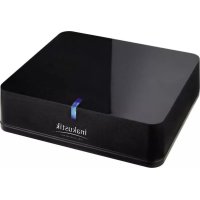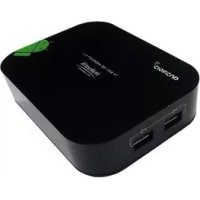
Internet TV Box - Media player In-akustik - Free user manual and instructions
Find the device manual for free Internet TV Box In-akustik in PDF.


| Product type | Media player |
| Brand | In-akustik |
| Model | Internet TV Box |
| Operating system | Android 4.2 |
| Processor | A20 Dual Core A7 2 x 1.0 GHz |
| RAM memory | 1 GB DDR3 |
| Internal storage | 2 GB (expandable via USB/SD) |
| Network connectivity | Wi-Fi 802.11b/g, Ethernet RJ45 |
| USB ports | 2 x USB 2.0 |
| Card reader | SD/MMC |
| Video outputs | HDMI, AV composite |
| Audio output | HDMI, Optical SPDIF, AV |
| Maximum resolution | 1080p (Full HD), supports 2160p and 3D |
| Supported video formats | MKV, TS, TP, M2TS, RM/RMVB, BD-ISO, AVI, MPG, VOB, DAT, ASF, TRP, FLV, etc. |
| Supported audio formats | AAC, AAC+, eAAC+, AMR, MP3, WMA, WAV, MIDI, M4A |
| Power supply | 5 V / 2 A (power adapter included) |
| Cleaning | Disconnect, use a soft dry cloth |
| Safety | Do not open, avoid moisture, use in a dry place |
| Applications | Downloadable via Google Play Store |
Frequently Asked Questions - Internet TV Box In-akustik
User questions about Internet TV Box In-akustik
0 question about this device. Answer the ones you know or ask your own.
Ask a new question about this device
Download the instructions for your Media player in PDF format for free! Find your manual Internet TV Box - In-akustik and take your electronic device back in hand. On this page are published all the documents necessary for the use of your device. Internet TV Box by In-akustik.
USER MANUAL Internet TV Box In-akustik
line
| Time | Value | |------|-------| | 0 | 0 | | 1 | 0 | | 2 | 0 | | 3 | 0 | | 4 | 0 | | 5 | 0 | | 6 | 0 | | 7 | 0 | | 8 | 0 | | 9 | 0 | | 10 | 0 | | 11 | 0 | | 12 | 0 | | 13 | 0 | | 14 | 0 | | 15 | 0 | | 16 | 0 | | 17 | 0 | | 18 | 0 | | 19 | 0 | | 20 | 0 | | 21 | 0 | | 22 | 0 | | 23 | 0 | | 24 | 0 | | 25 | 0 | | 26 | 0 | | 27 | 0 | | 28 | 0 | | 29 | 0 | | 30 | 0 | | 31 | 0 | | 32 | 0 | | 33 | 0 | | 34 | 0 | | 35 | 0 | | 36 | 0 | | 37 | 0 | | 38 | 0 | | 39 | 0 | | 40 | 0 | | 41 | 0 | | 42 | 0 | | 43 | 0 | | 44 | 0 | | 45 | 0 | | 46 | 0 | | 47 | 0 | | 48 | 0 | | 49 | 0 | | 50 | 0 | | 51 | 0 | | 52 | 0 | | 53 | 0 | | 54 | 0 | | 55 | 0 | | 56 | 0 | | 57 | 0 | | 58 | 0 | | 59 | 0 | | 60 | 0 | | 61 | 0 | | 62 | 0 | | 63 | 0 | | 64 | 0 | | 65 | 0 | | 66 | 0 | | 67 | 0 | | 68 | 0 | | 69 | 0 | | 70 | 0 | | 71 | 0 | | 72 | 0 | | 73 | 0 | | 74 | 0 | | 75 | 0 | | 76 | 0 | | 77 | 0 | | 78 | 0 | | 79 | 0 | | 80 | 0 | | 81 | 0 | | 82 | 0 | | 83 | 0 | | 84 | 0 | | 85 | 0 | | 86 | 0 | | 87 | 0 | | 88 | 0 | | 89 | 0 | | 90 | 0 | | 91 | 0 | | 92 | 0 | | 93 | 0 | | 94 | 0 | | 95 | 0 | | 96 | 0 | | 97 | 0 | | 98 | 0 | | 99 | 0 | | Note: The actual values in the CSV data will vary each time the code is run due to the random nature of the data generation. The provided values are just an example. | |text_image
SD/MMC Card Readertext_image
Make yourself at home You can put your favorite apps here. To see all your apps, touch the circle.TVDLAUNCHER
natural_image
Desktop screen with blue abstract background and floating purple light spots (no readable text or symbols)6. HAUPTMENÜ (TVdLauncher Modus)
text_image
Screenshot showing a macOS desktop with an icon and its corresponding home screen showing app icons and status bar.text_image
Screenshot showing a desktop notification dialog and its corresponding image, with a red circle highlighting the notification.8.1 DRAHTLOSNETZWERKE / WIRELESS & NETWORKS
8.1.1 WLAN / WI-FI
8.2.2 DISPLAY / DISPLAY
text_image
Screenshot of a macOS desktop with application icons and a red circle highlighting a folder or folder symbol.
text_image
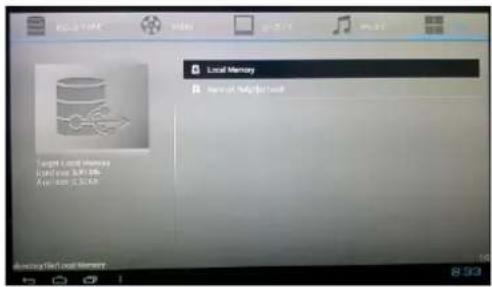
Local Memory Target Local Memory Local Memory: 8.000000 Access: 12.000000 Local Memory Tech Local Memory10. WEB-BROWSER
natural_image
Desktop monitor with illuminated icons and a red circle highlighting a blue button (no readable text or symbols)
text_image
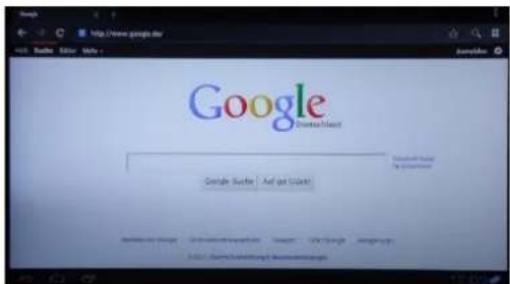
Google Create Island Google Search | And get Search! Search for by visitors!11. APPS
Thank you for choosing this product. For optimum performance and safety, please read these instructions carefully before connecting, operating or adjusting this product. Please keep this manual in a safe place.
The Premium Android TV box is a small computer with the Android operating system which, for example, is used in many smart phones and tablet PCs. You can use it to surf the internet, view pictures, films and music, or download and play games from the Google Play Store for example.
CONTENTS
- Safety instructions
- Connections
- Remote control
- Scope of delivery
- Menu navigation
- Main menu (TVdLauncher mode)
- Applications
- Settings
- File browser
- Web browser
- Apps
- Specifications
- Troubleshooting
1. SAFETY INSTRUCTIONS
General
Read, observe and adhere to the following safety instructions. Please keep the operating manual. Observe all the warning notices on the components and in the operating manual.
Proper use
The components are solely designed for operation indoors. Connect them as specified in the operating instructions. Only use accessories which have been recommended by the manufacturer.
Humidity
Select an installation location for the components which does not have a high level of relative humidity and is free of moisture. Never use the components near water. Moisture can bypass the electrical insulation and pose a lethal danger, as it can for all products not specially designed to be water-resistant. The components may not be exposed to dripping or sprayed water.
Product protection
Do not under any circumstances expose the components to high levels of humidity. Extreme temperature fluctuations, humidity and extended exposure to light can damage the components and alter their appearance. Make sure that no foreign objects or liquids enter the components.
Positioning
The components are solely designed for use indoors.
Do not position the components near sources of heat, heaters, heating valves, ovens or other heat-producing devices. The components may only be stored and operated in the temperature range stated. The components heat up during operation.
Connection
The components must only be connected to the specified rated voltage!
All cables must be positioned in such a way that there is no danger of them being damaged (e.g. being stepped on, placed under furniture etc.). Never remove cables by pulling the cable; instead, always hold the plug when disconnecting.
In stand-by mode, the components are not completely disconnected from the mains supply. To avoid any unnecessary hazards or energy consumption during longer absences, the components should be disconnected from the mains supply.
Maintenance
Maintenance on the product may only be performed by persons qualified to do so. Maintenance is necessary in all cases of damage, i.e. in the case of damaged cables and plugs, as well as after liquid spills or objects falling on the components, components falling down, foreign bodies entering the components, exposure of components to rain or humidity, or other influences impairing the functioning of the components.
Looking after the product
Disconnect the components from the power supply before cleaning them Always clean the components with a soft, dry and lint-free cloth, or with a brush. Do not under any circumstances use scouring powder, alcohol, benzine, furniture polish or similar substances.
Data backup:
The Premium TV box is a technical device and can still become faulty despite great care being taken during manufacture. Just like with any computer, you should therefore regularly back up data, e.g. on a USB stick or an external hard drive.
Note: We accept no liability for lost or damaged data due to hardware or software faults and errors, or due to incorrect operation!
CE

Note: All product images similar. We reserve the right to make changes.
2. CONNECTIONS
Back
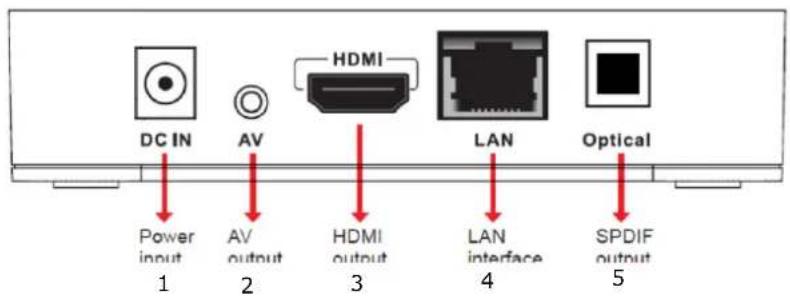
text_image
DC IN AV HDMI LAN Optical Power input 1 AV output 2 HDMI output 3 LAN interface 4 SPDIF output 5Left/right side
text_image
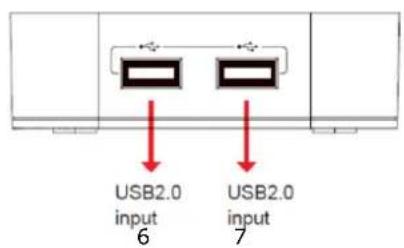
USB2.0 input 6 USB2.0 input 7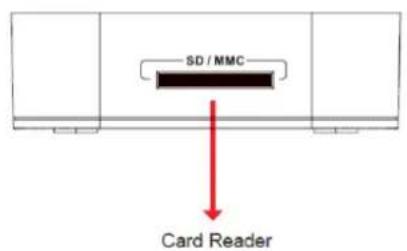
text_image
SD / MMC Card Reader8
1 = Connection for plug-in power adapter
Connect the power adapter included here (5V/2000mA)
2 = AV connection (audio/video)
You can connect older TVs without an HDMI input here. Use the AV cable supplied for this
3 = HDMI output
Connect your TV here. To do so, use a High Speed HDMI cable (not supplied)
4 = LAN network connection
Connect the TV box to the network here. Alternatively, you can connect the TV box wirelessly to the network using Wi-Fi. However, connection via cable is faster and more stable.
5 = Digital audio output (optical)
You can, for example, connect an AV amplifier here. To use the optical audio output, you must activate it in the menu
Settings" → "Sound" → "Audio Output Mode" → "SPDIF".
6 = USB 2.0 port
7 = USB 2.0 port
There are two USB ports allowing you to connect external devices such as USB sticks, wireless keyboards, external hard drives, etc.
8 = SD/MMC card reader
You can insert a memory card here and, for example, use the file browser to look at photos or films on the card.
3. REMOTE CONTROL
| Button | Function | Button | Function |
 | 1. Press the power button to switch the device on or to standby.2. Press the power button for 3 seconds to switch off the device. |  | Press this button to mute. |
 | Number buttons |  | Choose function menu of corresponding application in video / music / photo / website |
 | Fast key to Browser page |  | Shortcut to return to the main menu |
 | Back to previous menu / page |  | Press this button to move the selection cursor up, down, left or right. Press the OK button to confirm your selection. |
 | Press this button to decrease the volume |  | Press this button to increase the volume |
 | Use to go to next file (Audio / Video / Photo) |  | Use to go to previous file (Audio / Video / Photo) |
 | Press to Play / Pause |  | Press to stop playback |
 | Press to repeat one file |  | Press to fast forward the current file |
 | Press to fast rewind the current file |  | Press to access web search page |
 | Fast key to application page |  | Fast key to switch HDMI / AV out |
 | Fast key to mouse / up/down/left/right mode |  | Fast key to select audio track on a media file |
 | Choose subtitles when playing movies |  | Press to zoom in/out on web pages |
 | Fast key to movie archive |  | Fast key to music archive |
 | Fast key to foto archive |  | Fast key to system set up |
4. SCOPE OF DELIVERY
- Media player
- Remote control
- Power adapter
- AV cable
- Operating manual
5. MENU NAVIGATION
To open a menu or start an APP, move the mouse pointer over the particular symbol using the control buttons and press the OK button.
There are two different user interfaces (Launcher and TVdLauncher).
If you check the "Always use this app" box, this menu item is skipped when switching on or if the "Home" button is pressed on the remote control and you go straight to the selected interface.
LAUNCHER MODE
If you select the "Launcher", you go to the classic ANDROID user interface:
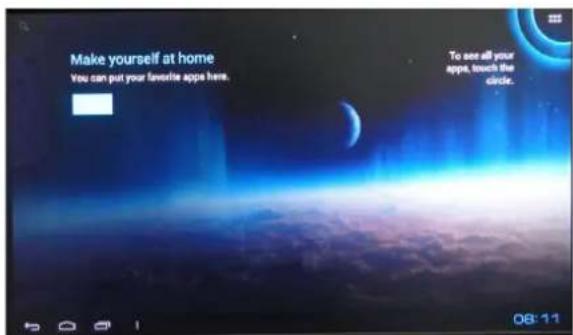
text_image
Make yourself at home You can put your favorite apps here. To see all your apps, touch the circle.TVDLAUNCHER
In TVdLauncher mode the user interface is optimised for use on TVs:
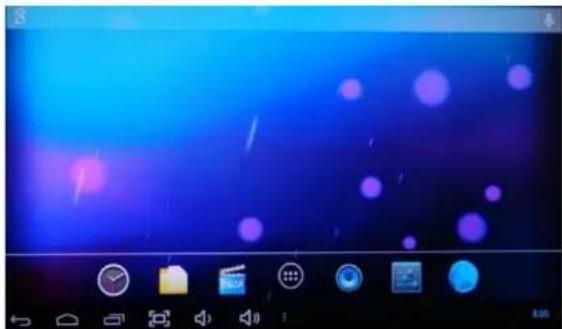
natural_image
Desktop interface with blue background and floating purple light spots, no visible text or symbols on the main screen6. MAIN MENU (TVDLAUNCHER MODE)
7. APPLICATIONS
From here you can go to the standard applications or the APPs that you have installed.
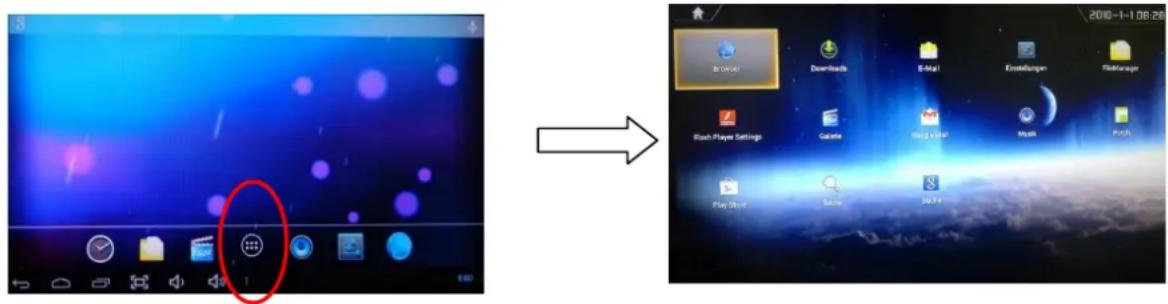
text_image
2010-1-1 06:28 In Ochol Downloads E-mail Enstellungen Risiknungen Flash Player Settings Galerie Gazg kolar Music Play Store Sales Splice8. SETTINGS
Here you can perform the basic settings for the Premium TV box.
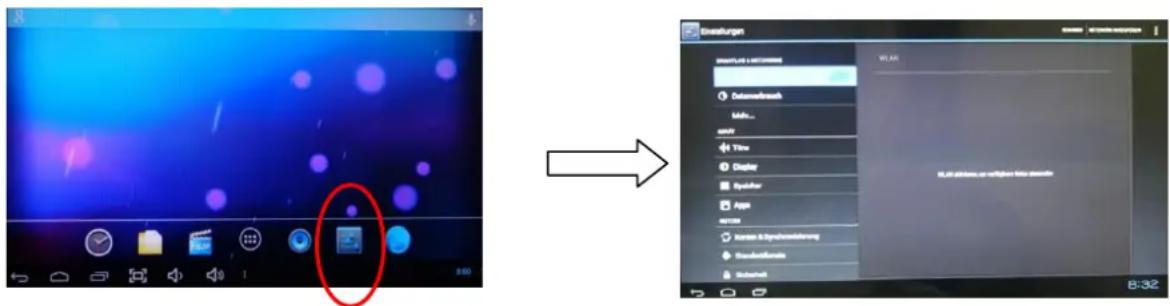
text_image
Screenshot showing a device screen with a highlighted button and a presentation slide with 'WLAN' status.8.1 WIRELESS NETWORKS
8.1.1 WI-FI
Here you create a connection to a Wi-Fi network. To do this you may need the network key of your Wi-Fi network.
With an external Wi-Fi dongle only the Realtek 8188 model is supported.
For quick and stable data transmission we recommend a network connection with a LAN cable.
8.1.2 DATA USAGE
This menu displays statistics on the data quantity (data usage) sent over the network.
8.2 DEVICE
8.2.1 SOUND
This menu item lets you set the volume, button sounds and audio outputs.
8.2.2 DISPLAY
Here you can adapt the screen settings such as the resolution, font size, brightness, background image, etc.
8.2.3 STORAGE
This menu lets you manage the memory and see how much memory is available on your Premium TV box.
8.2.4 APPS
Here you can manage, stop, install and uninstall your APPs.
8.3 PERSONAL
8.3.1 ACCOUNTS & SYNC
You need to create a user account with Google to use the Google Play Store. You can also use an existing account and synchronise your TV box with the Google user account.
8.3.2 LOCATION SERVICE
The location service, for example, lets you adapt web searches to your location.
8.3.3 SECURITY
Here you manage device passwords, certificates, etc.
8.3.4 LANGUAGE & INPUT
Here you set the menu language, keyboard and mouse
8.3.5 BACKUP & RESET
Here you are able to back up your data on the Google servers or reset your TV box to the factory settings.
CAUTION: Resetting to the factory settings deletes all the data on the TV box.
8.4 SYSTEM
8.4.1 DATE & TIME
8.4.2 ACCESSIBILITY
Users with impaired vision can, for example, use the "talkback" function to assist them when operating the tv box. The settings for this are performed here.
8.4.3 DEVELOPER OPTIONS
Advanced settings are performed in this menu.
8.4.4 ABOUT DEVICE
Here you get information about the TV box software and hardware.
9. FILE BROWSER
Here you can search the TV box, a USB stick, an external hard drive or an SD/MMC card for videos, music & photos.
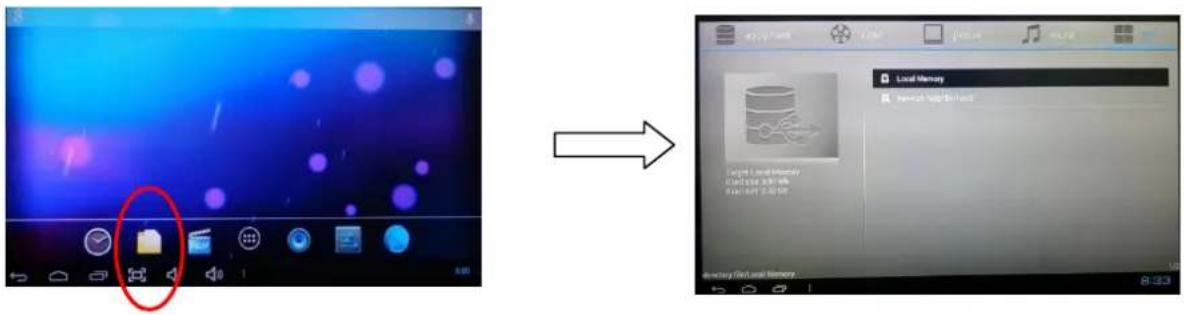
10. WEB BROWSER
You can go to a web site directly from here.
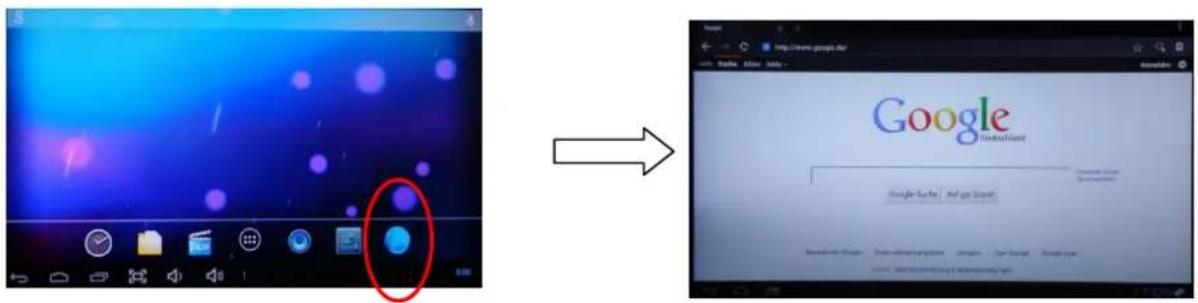
11. APPS
The Google Play Store has a multitude of programs (applications = apps) and media that you can download. Some of them are free and for some there is a charge. To use other apps, etc., the Premium TV box must be connected to the internet and you must have an account set up with Google (see Settings → Users → Accounts & sync).
To download and install additional apps, click the "Play Store" symbol in the "Applications" menu and follow the instructions.
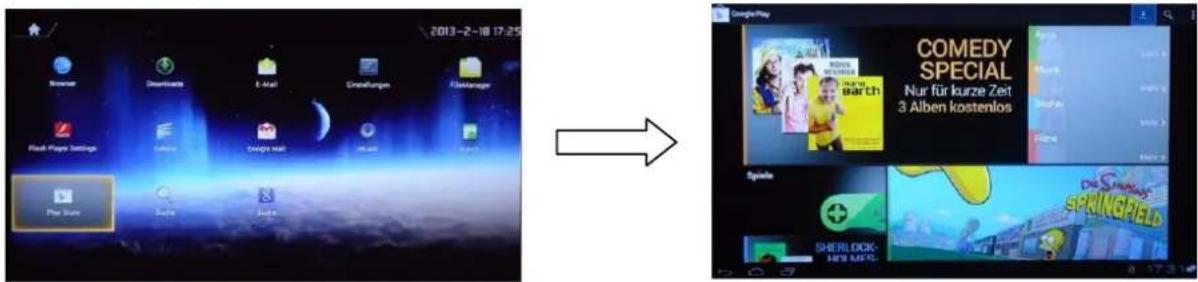
Note: You may be charged extra for downloading and using apps and media. Pay attention to the information in the Play Store! We will not accept responsibility for any additional costs that may occur!
DELETING APPS
example. To do this, go to the "Settings" menu and then "Apps".
Find the particular app under the "ALL" tab and click it. Then click "Uninstall" to delete the selected program.
Pay attention to the notes for the installation.
12. SPECIFICATIONS
| Item no. | 00415200 |
| CPU | A20 Dual Core A7 2 x 1.0GHZ CPU |
| GPU | 2D/3D/OpenGL ES2.0(AMD Z430)/OpenVG1.1 (AMDz160)@27M Tri/sec |
| Operating system | Android 4.2 |
| DDR RAM | 1GB DDR3 DRAM |
| NAND flash | 2 GB (4 GB/8 GB/16 GB also possible) |
| Network device | Wireless 802. 11b/g, WAPI (Ralink 8188)/RJ45 |
| Memory device | Supports external storage device such as USB host/SD/MMC card |
| Android APP | Youtube, Twitter, Angry Birds, Office, Gmail, Browser, Skype, Youku, Tudou, QQ*** |
| Language | Several languages |
| USB interface | USB 2.0 host*2, USB memory card |
| Video | Video decoding Mpeg1/2/4, H.264, VC-1, Divx, Xvid, RM8/9/10, VP6 video formats: MKV, TS, TP, M2TS, RM/RMVB, BD-ISO, AVI, MPG, VOB, DAT, ASF, TRP, FLV, etc. (complete formats) |
| Video formats | WMV/ASF/MP4/3GP/3G2M4V/AVI/MJPEG/RV10/DivX/VC-1/MPEG-2/MPEG-4/H.263/H.264/1280*720P HDfps, 1080P/720*480 D1 30fps |
| Audio formats | AAC, AAC+, eAAC+, AMR-NB, AMR-WB, QCP, MP3, WMA, WAVMIDI, M4A |
| Video output | 1920*1080P, 720P, 576P, 480P, Super HD 2160P, 3D film |
| Interfaces | Video: HDMI/AV/SPDIF/RJ45 Memory: 2USB HOST, SD/MMC |
| Voltage supply | 5 V/2 A |
13. TROUBLESHOOTING
Warning: Under no circumstances should you attempt to repair the device as this will invalidate the warranty. Do not open the device because there is a risk of an electric shock. Before sending the device to customer service, use the following table to see if you can rectify the fault yourself. If the fault still cannot be remedied, contact your dealer.
| FAULT | REMEDY |
| No power | Ensure that the mains adapter is plugged in and connected to the device. Check whether the mains adapter is faulty. |
| No picture is shown on the TV screen | Connect the HDMI or AV cable once again. Connect the mains adapter once again; ensure that the device and TV are set to the same input or output mode. Ensure that your TV is switched on. |
| No sound or only distorted noise can be heard | Check the volume controller and that the device is connected correctly to the TV. Check that the loudspeakers are connected correctly. |
| No sound or picture signal | Check that the cable is connected correctly. Ensure that the amplifier is set correctly. Connect the mains adapter once again. Ensure that the device and TV are set to the same input or output mode. |
| The remote control does not work | Point the remote control exactly at the sensor on the front of the device. Ensure that the remote control is not too far away from the device. Replace the batteries in the remote control. |
| When playing back, the device does not respond to some of the operating commands. | Some functions may not be available. Consult the owner's manual for more information. If the system is stopped, restart the device (reconnect to the power supply). |
| When playing films no sound can be heard. | The audio codec may not be supported by the player. You can change the audio settings in the playback menu. Check the volume settings. Check that the cable is connected correctly. Ensure that the device and TV are set to the same input or output mode. |
| The USB stick & SD/MMC card cannot be read | The format of the USB stick is not compatible with the device. If only the USB stick cannot be read, please restart the device. |
| No sound with HDMI connection | Ensure that the device and TV are set to the same input or output mode. Check the TV settings. Check the volume settings. |
| No picture is shown on the TV screen and the player LED flashes. | Switch the device off, wait 30 seconds and switch it back on. Check the HDMI connection or replace the HDMI cable if necessary. Set the output resolution of the device to 720P. |
| Button | Function | Button | Function |
 | Press the power button to switch the device on or to standby. Press the power button for 3 seconds to switch off the device. |  | Press this button to mute. |
 | Number buttons |  | Choose function menu of corresponding application in video / music / photo / website |
 | Fast key to Browser page |  | Shortcut to return to the main menu |
 | Back to previous menu / page | 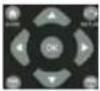 | Press this button to move the selection cursor up, down, left or right. Press the OK button to confirm your selection. |
 | Press this button to decrease the volume |  | Press this button to increase the volume |
 | Use to go to next file (Audio / Video / Photo) |  | Use to go to previous file (Audio / Video / Photo) |
 | Press to Play / Pause |  | Press to stop playback |
 | Press to repeat one file |  | Press to fast forward the current file |
 | Press to fast rewind the current file |  | Press to access web search page |
 | Fast key to application page |  | Fast key to switch HDMI / AV out |
 | Fast key to mouse / up/down/left/right mode | [TH7S] | Fast key to select audio track on a media file |
 | Choose subtitles when playing movies |  | Press to zoom in/out on web pages |
 | Fast key to movie archive |  | Fast key to music archive |
 | Fast key to foto archive |  | Fast key to system set up |