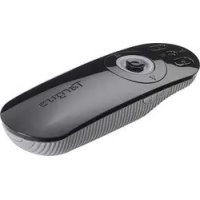
AMP09EU - Wireless pointer TARGUS - Free user manual and instructions
Find the device manual for free AMP09EU TARGUS in PDF.



| Product type | Multimedia presentation remote with laser pointer |
| Brand | Targus |
| Model | AMP09EU |
| Connection technology | 2.4 GHz wireless |
| Maximum range | 15 meters |
| Power supply | 1 AAA battery (included) |
| Main functions | Laser pointer, slide control (next/previous), slideshow start/stop, white screen, key lock, volume control, mouse mode with joystick |
| Compatible operating systems | Windows 2000/XP/Vista/7/8, Mac OS X 10.4 to 10.8 |
| Interface | Mini USB receiver |
| Dimensions (estimated) | 12 x 3 x 2 cm |
| Weight (estimated with battery) | 50 g |
| Laser safety | Do not point the beam at eyes or reflective surfaces; keep out of reach of children |
| Maintenance and cleaning | Wipe with a soft, dry cloth; do not use chemicals |
| Spare parts | AAA batteries (standard), USB receiver (contact Targus support if lost) |
| Box contents | Remote control, mini USB receiver, 1 AAA battery, user manual |
Frequently Asked Questions - AMP09EU TARGUS
User questions about AMP09EU TARGUS
0 question about this device. Answer the ones you know or ask your own.
Ask a new question about this device
Download the instructions for your Wireless pointer in PDF format for free! Find your manual AMP09EU - TARGUS and take your electronic device back in hand. On this page are published all the documents necessary for the use of your device. AMP09EU by TARGUS.
USER MANUAL AMP09EU TARGUS
Targus Multimedia Presentation Remote
CONTENTS
GB-English,Targus Multimedia Presentation Remote 1
BG-Блгарский (e3nk), Дuctанциону уравлике за пешистуни Targus. 11
CZ-Ceştna, Multimedialní dalkový prezentér Targus 21
DE-Deutsch,Targus Multimedia Presenter 31
DK-Dansk,TargusMultimedia Praesentationsfjernbetjing 41
EE-Eesti,Targus multimeedia esitluspult 51
ES-Espanol, Presentador Mutimedia de Targus 61
FI-SuomiTelecommande de presentation multimédia Targus. 71
FR-FrançaisTélécommande de presentation multimédia Targus 81
GR - EAnvikaIAnpoopoe TnExeiptipio Tns Targus yia napouaaceis toluuowv. 91
HR-HrvatskiTargus multimedjsk daljinski upravlajc prezentacjama 101
HU-MagyarTargus multimedias prezentacio-tavpezierlo. 111
IT - ItalianoTelecomando multimedia per presentazioni Targus 121
LT-Lietuviskai,Targus"multimedijos nuotolinis prezentacjos jrankis 131
LV-LatviešuTargus multivides prezentaciju pults 141
NL - Nederlands, Targus Multimedia Presentation Remote (Targus Afstandsbediening voor Multimediapresentaties) 151
NO - Norsk, Targus fjernkontroll for multimediapresentasjoner 161
PL-Polski,Pilot do prezentaci multimedialnych Targus 171
PT - Portugues, Remoto de Apresentacao Multimedia Targus 181
RO - Roman, Dispositiv de commande la distance pour prezentari multimedia Targus 191
RU - PyccknHOpMaun, YcTpoNCTBO nIy dIcTHaHOnHO ynpabHeMybTmEeHNo np3eHTaue (np3eHTep) Targus ....201
SE - Svenska, Targus presentations multimedia fjärkontroll 211
SI-Slovensko,Daljinski upravljalnik Targus za multimedjske predstavitve. 221
SK-Slovencina, Multimedialne prezentacné dialkové ovladanie Targus 231
TR - Türkçe, Targus Multimedya Uzaktan Sunum Araci 241
AR-ooaalbglg joe aee eae Targus. 251
GB - Introduction
Thank you for your purchase of the Targus Multimedia Presentation Remote. This combination remote, with laser pointer and cursor control, works with both Microsoft PowerPoint® and Apple Keynote®. This cordless remote also offers true plug and play capability with no need for software drivers, while the long-range 2.4 GHz technology allows for effective presentations up to 50 feet (15 m).
Contents
- Targus Multimedia Presentation Remote
- Mini USB Receiver
- 1 x AAA battery
- User Guide
System Requirements
Hardware
- USB port
Operating System
- Microsoft Windows® 2000
- Microsoft Windows® XP
- Microsoft Windows Vista®
Microsoft Windows® 7
Microsoft Windows® 8
Mac OS® X 10.4 - 10.8
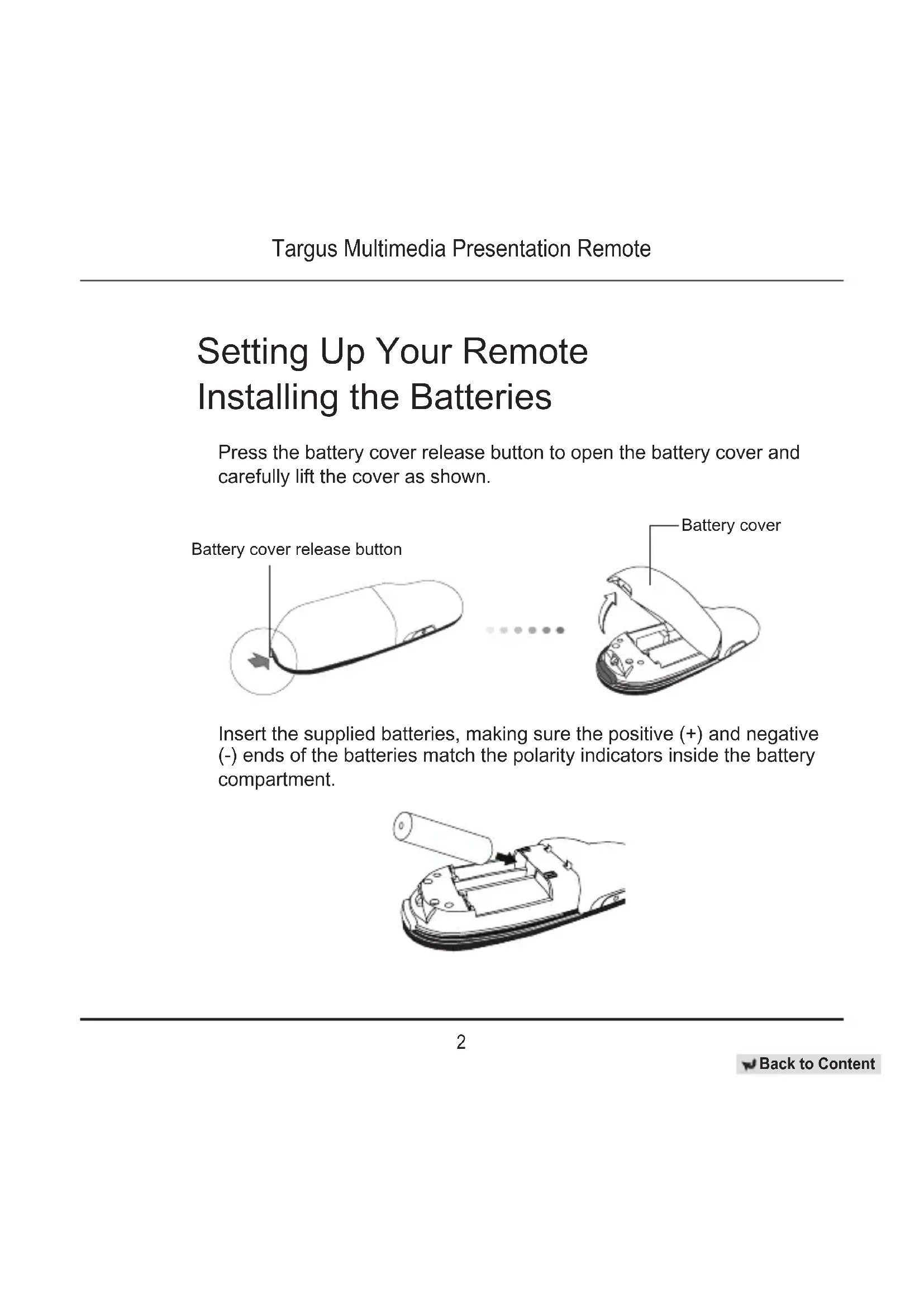
Setting Up Your Remote Installing the Batteries
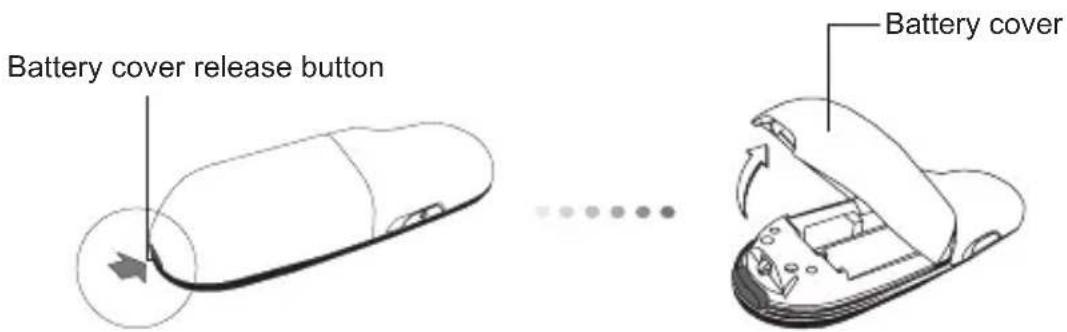
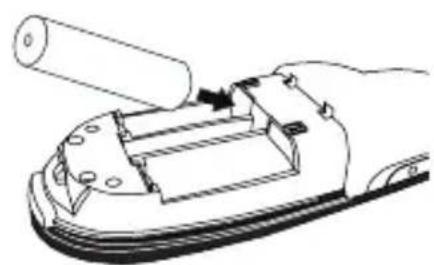
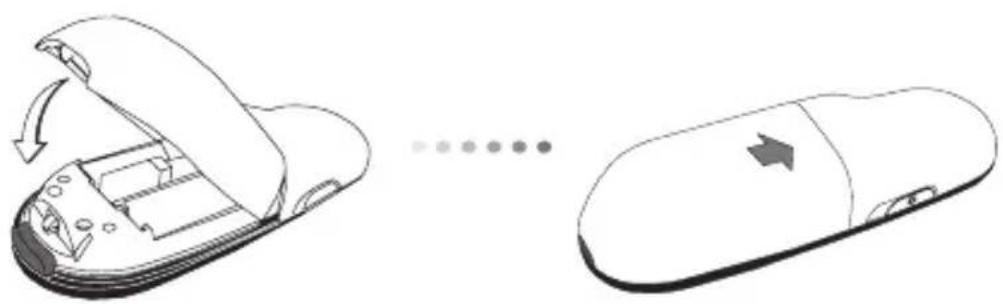
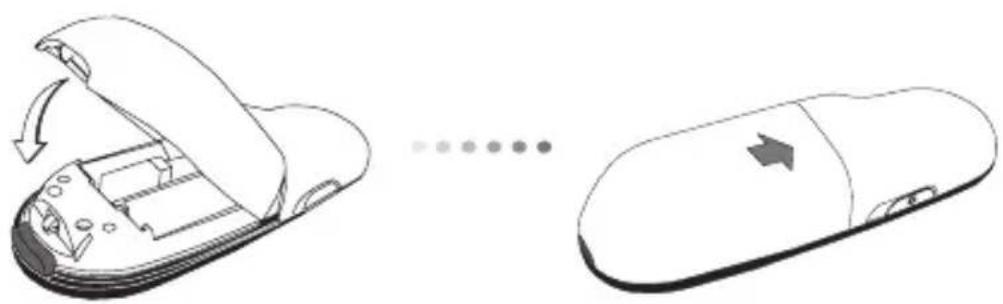
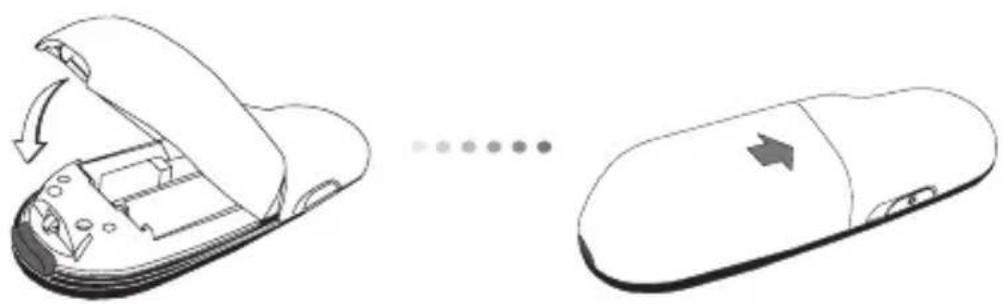
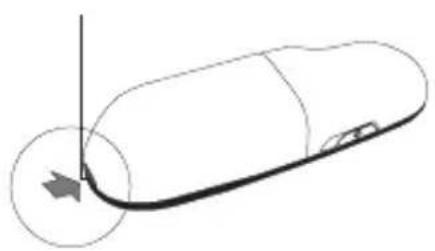
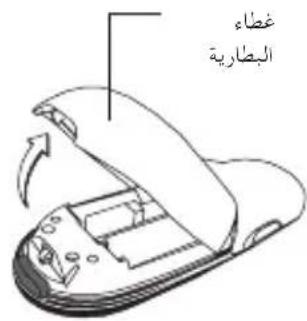
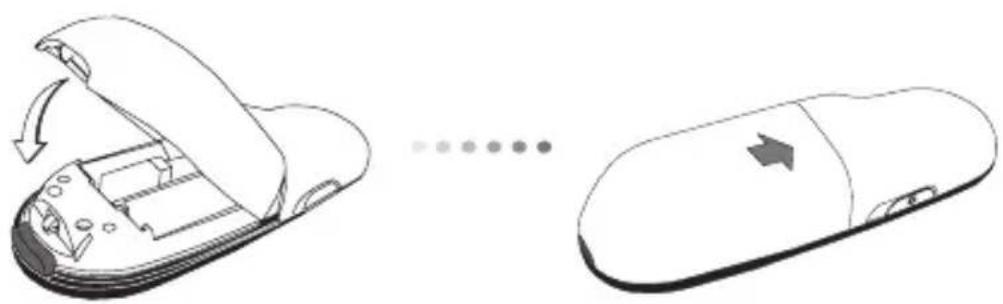
Press the battery cover release button to open the battery cover and carefully lift the cover as shown.
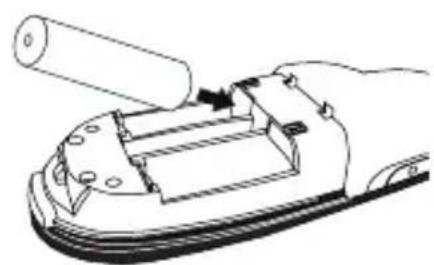
Insert the supplied batteries, making sure the positive (+) and negative (-) ends of the batteries match the polarity indicators inside the battery compartment.
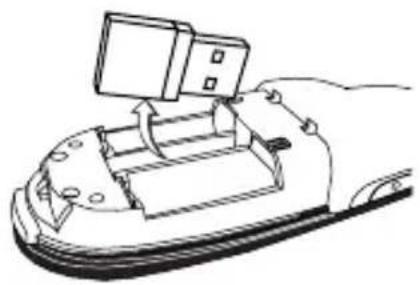
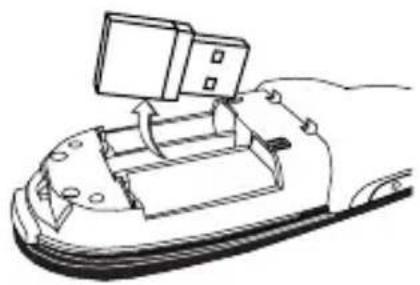
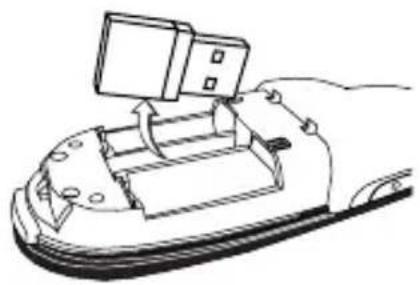
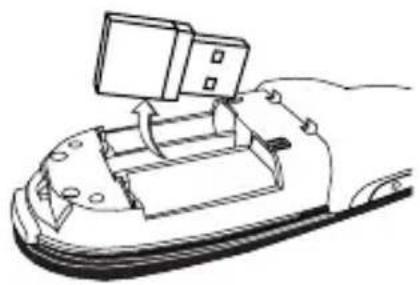
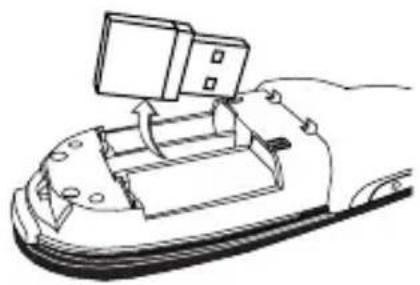
Remove the mini USB receiver stored inside the center compartment.
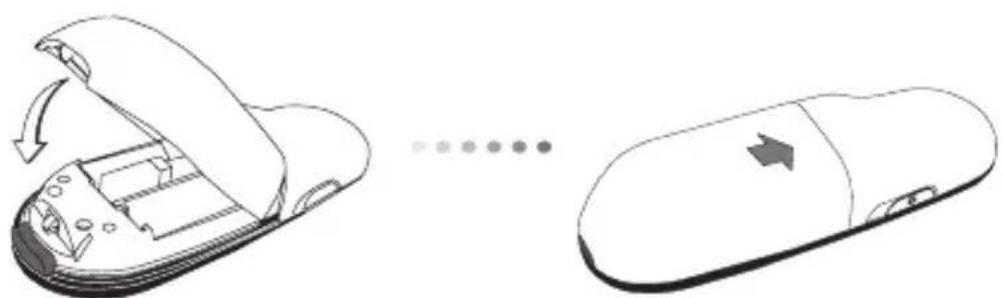
Slide the battery cover back into position until it "clicks" firmly into place.
Using Your Remote
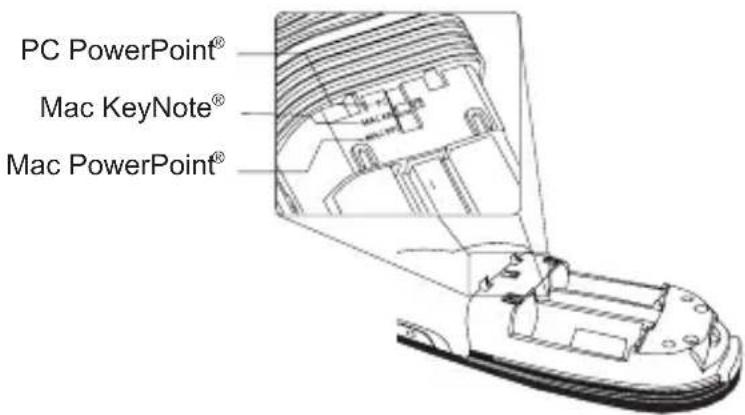
Before using the remote, please select your computer type and preferred presentation software. Locate the switch inside the battery compartment as shown.
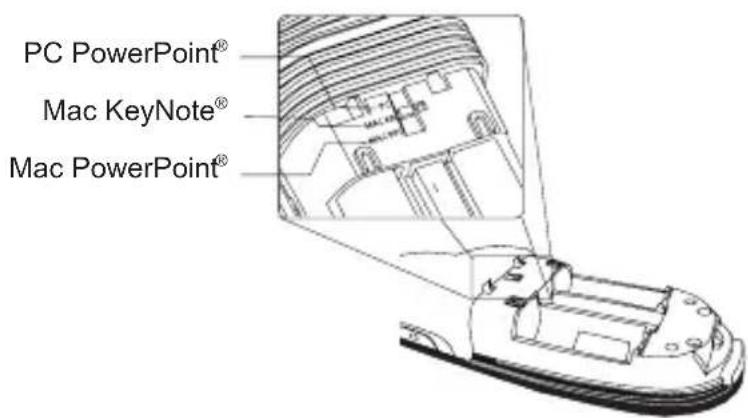

NOTE: SELECT "PC POWERPOINT" IF YOU USE A COMPUTER MADE BY: HP/COMPAQ, DELL, TOSHIBA, GATEWAY, PANASONIC, FUJITSU, SONY, IBM/LENOVO, ACER, ASUS, ETC.
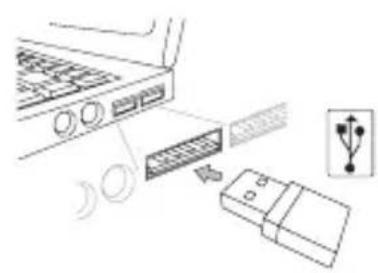
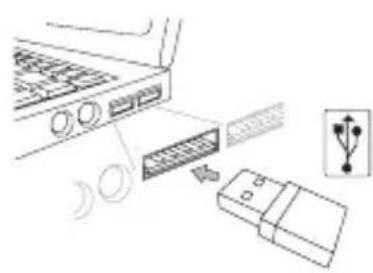
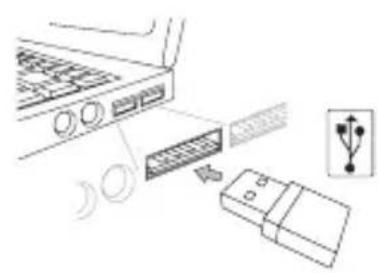
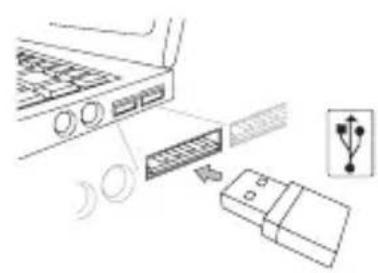
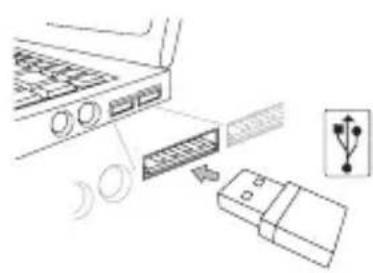
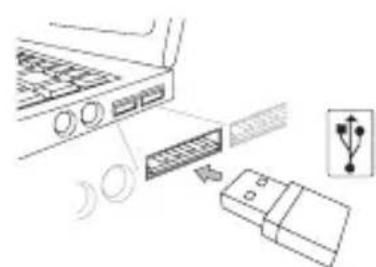
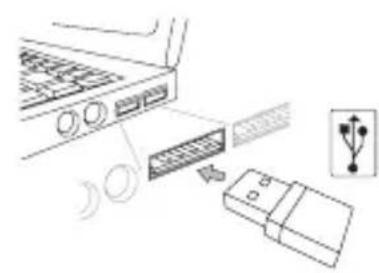
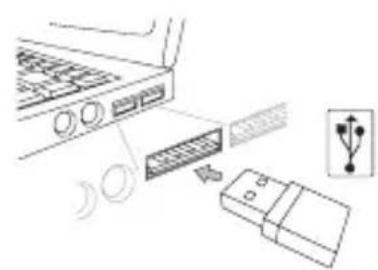
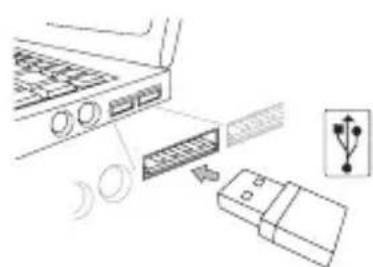
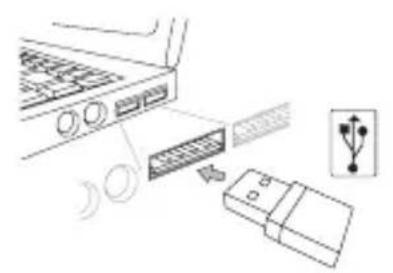
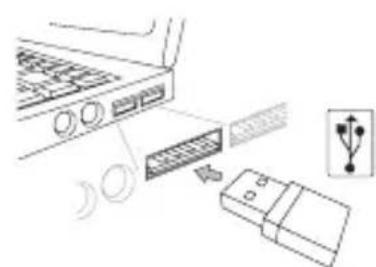
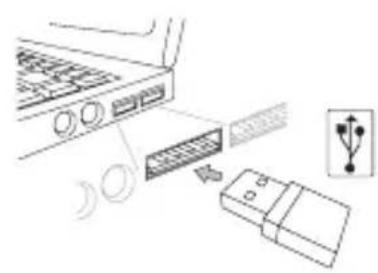
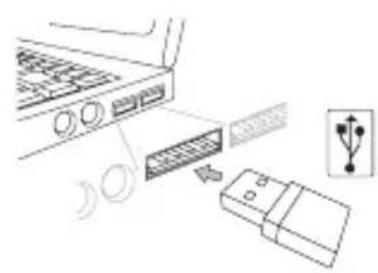
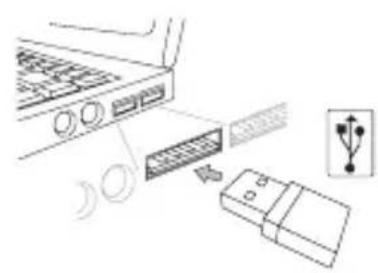
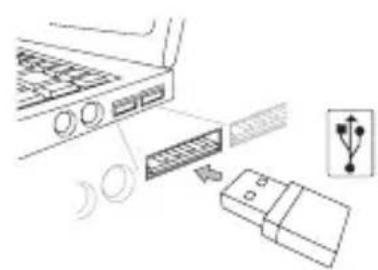
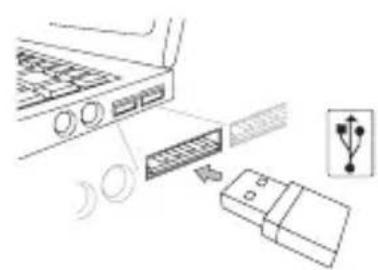
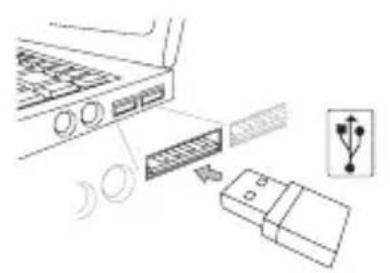
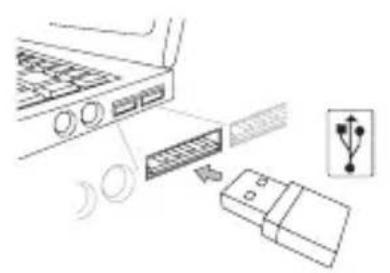
This remote is a plug and play device. It will automatically operate when the USB receiver is connected to the computer. Plug the mini USB receiver into any available USB port on your computer.
Targus Multimedia Presentation Remote
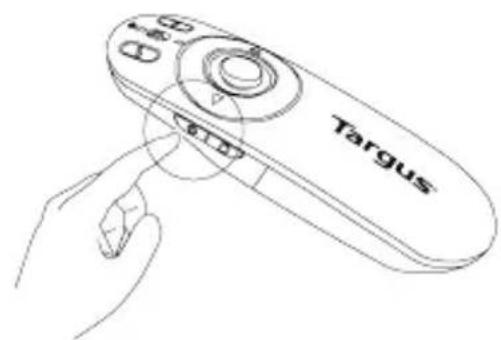
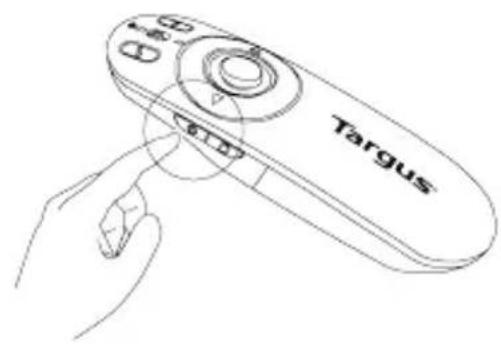
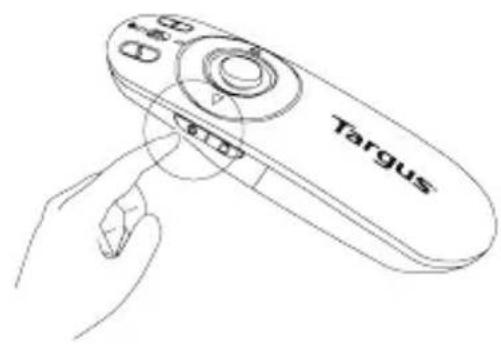
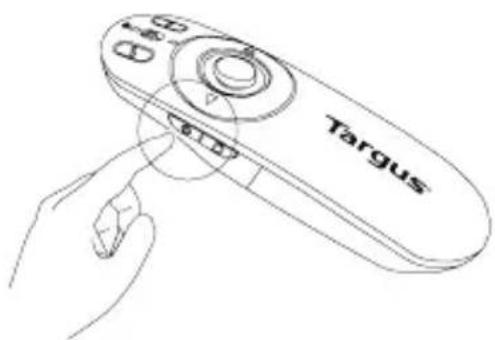
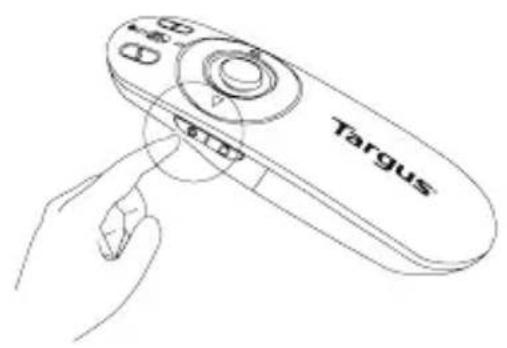
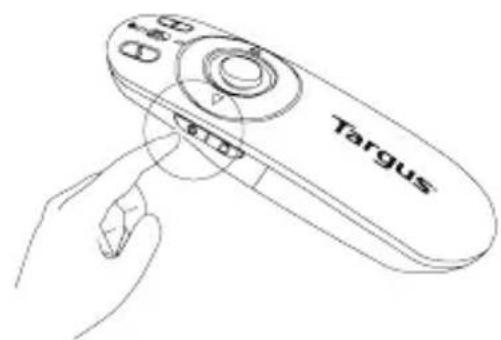
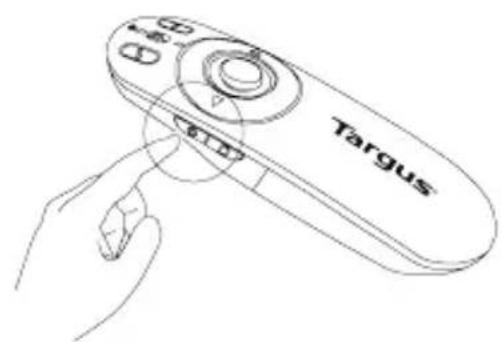
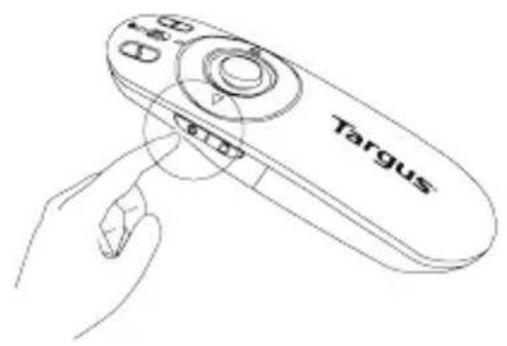
Turn on the remote by pressing and holding the On/Off power button for 3 seconds.
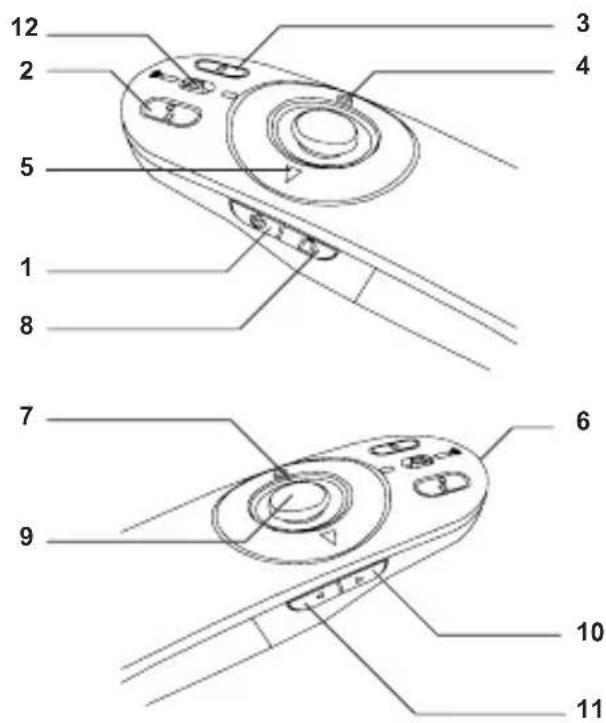
Keys and Functions
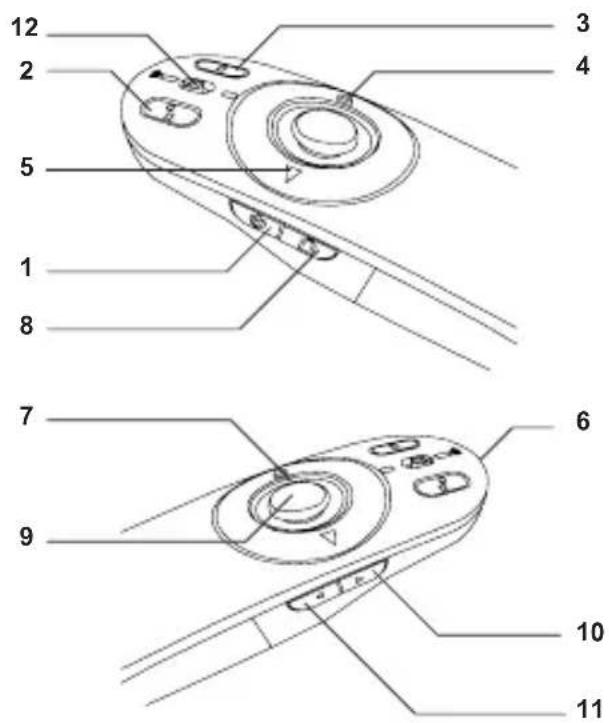
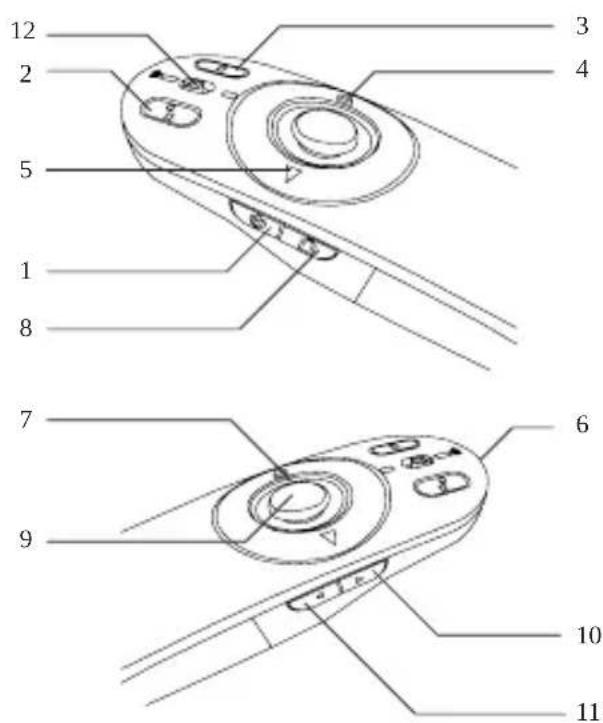
This device can function as a presenter or a wireless mouse by using the mode switch (12).
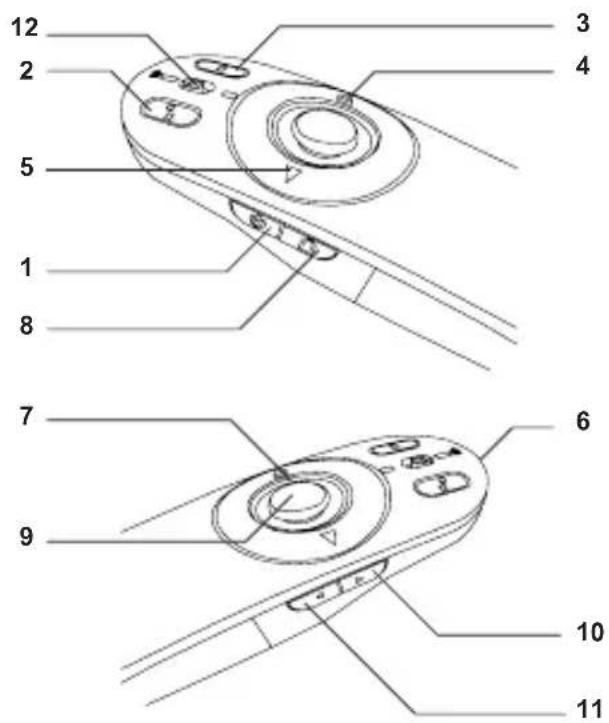
| 1 | Power button | Press and hold for 3 seconds to turn on the remote. LED ring will turn green. |
| Press and hold for 3 seconds to turn off the remote. LED ring will shut off. |
Using the Device — Presenter Mode
| 2 | Blank screen button The | screen will become blank/dark. |
| 3 | Slide show | Start - Press once to begin. |
| Stop - Press and hold for 2 seconds to stop the slide show. | ||
| 4 | Page Forward/Next slide Press once to go to next slide. | |
| 5 | Page Backward/Previous slide | Press once to go back one slide. |
| 6 | Laser pointer Laser light is emitted from the opening. | |
| 7 | LED ring Power and KeyLockTM indicator. | |
| 8 | KeyLock button | Press once to enable KeyLock function. - Enables all keys except the laser, page forward/next slide and page backward/previous slide buttons. - LED ring will become RED. |
| Press once to exit the KeyLock function. - LED ring will return to GREEN. | ||
| 9 | Laser pointer button Press and hold to activate the laser pointer. | |
| 10 | Volume up button Press to increase the volume. | |
| 11 | Volume down button Press to decrease the volume. | |
Using the Device — Mouse Mode
| 4 | Right mouse click Right mouse click. |
| 5 | Left mouse click Left mouse click. |
| 7 | LED ring Power indicator. |
| 8 | KeyLock button Disabled in mouse mode. |
| 9 | Joystick Pressing the joystick resembles left mouse click.Moves the mouse cursor. |
| 10 | Volume up button Press to increase the volume. |
| 11 | Volume down button Press to decrease the volume. |
Safety Measures
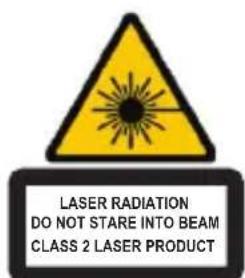
- To avoid possible eye damage, never point the remote's laser at people, especially their faces, or look directly into the remote's laser beam.
- Avoid pointing the remote's laser beam at a mirror or other highly-reflective surface.
- Keep the remote away from young children.
- Never view the remote's laser beam using telescopic devices, such as a microscope or binoculars.
- Any attempt to disassemble, adjust or repair the remote may result in exposure to laser light or other safety hazards.
Troubleshooting
What do I do if the response time of the remote is slow or it intermittently stops working?
- Make sure that the remote is within 50 feet (15 m) of the mini USB receiver and computer.
- Increase the distance between the remote's receiver and the base units of other wireless devices.
- Turn off any wireless devices and their base units that are near the remote's receiver.
- Replace the battery.
Targus Multimedia Presentation Remote
Complies with EN 60825-1: 1994+A1+A2
and Complies with 21 CFR 1040.10 and
1040.11 except for deviation pursuant to
Laser Notice No.50,dated July 26,2001.
AVOID EXPOSURE — HAZARDOUS ELECTROMAGNETIC RADIATION EMITTED FROM THIS APERTURE.
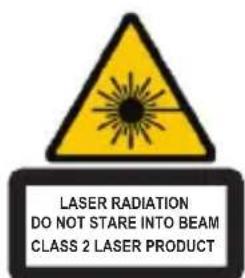
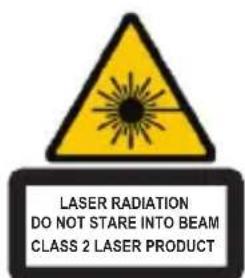
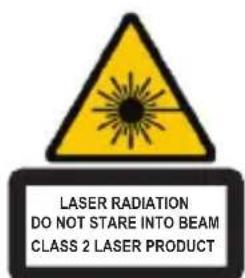
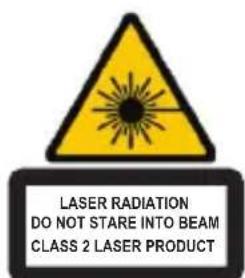
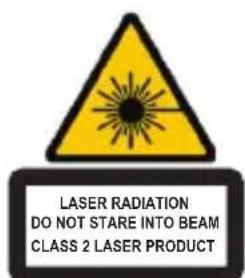
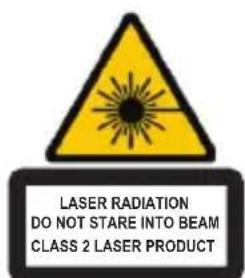
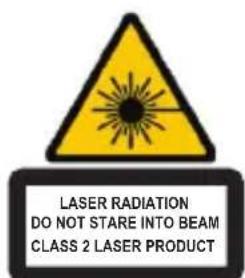
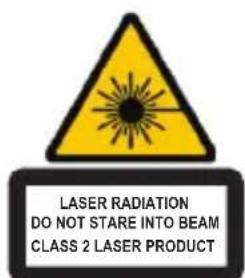
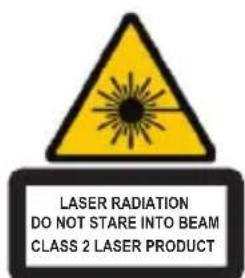
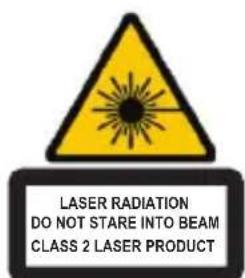
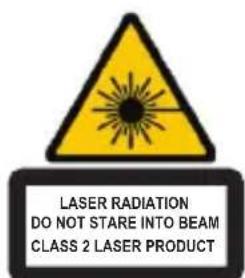
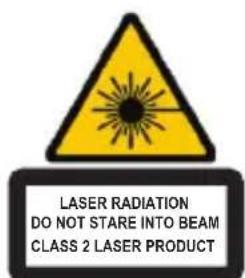
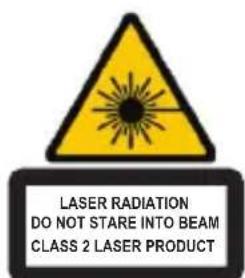
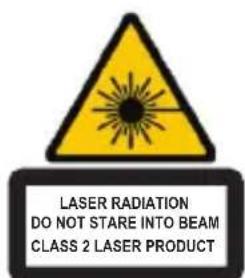
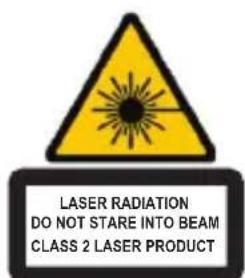
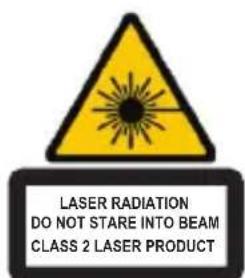
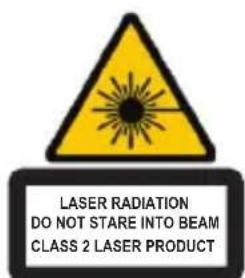
LASER RADIATION. DO NOT STARE INTO THE BEAM OR VIEW DIRECTLY WITH OPTICAL INSTRUMENTS. CLASS 2 LASER PRODUCT.
NEVER POINT A LASER BEAM INTO A PERSON'S EYES OR VIEW A LASER BEAM DIRECTLY, AS PROLONGED EXPOSURE CAN BE HAZARDOUS TO THE EYES.
MOMENTARY EXPOSURE FROM A LASER POINTER, SUCH AS AN INADVERTENT SWEEP OF THE LIGHT ACROSS A PERSON'S EYES, MAY CAUSE TEMPORARY FLASH BLINDNESS SIMILAR TO THE EFFECT OF A CAMERA FLASH BULB. ALTHOUGH THIS CONDITION IS TEMPORARY, IT CAN BECOME MORE DANGEROUS IF THE EXPOSED PERSON IS ENGAGED IN A VISION-CRITICAL ACTIVITY SUCH AS DRIVING.
CAUTION: ANY CHANGES OR MODIFICATIONS NOT EXPRESSLY APPROVED BY THE PARTY RESPONSIBLE FOR COMPLIANCE COULD VOID THE USER'S AUTHORITY TO OPERATE THE EQUIPMENT.
THIS DEVICE AND ITS ANTENNA(S) MUST NOT BE CO-LOCATED OR OPERATING IN CONJUNCTION WITH ANY OTHER ANTENNA OR TRANSMITTER. YOUR DEVICE CONTAINS A LOW POWER TRANSMITTER. WHEN DEVICE IS TRANSMITTED IT SENSDS OUT RADIO FREQUENCY (RF) SIGNAL. NOTE: THE MANUFACTURER IS NOT RESPONSIBLE FOR ANY RADIO OR TV INTERFERENCE CAUSED BY UNAUTHORIZED MODIFICATIONS TO THIS EQUIPMENT. SUCH MODIFICATIONS COULD VOID THE USER'S AUTHORITY TO OPERATE THE EQUIPMENT.
BG-BbVeJeHne
Targus Multimedia Presentation Remote
OTctpaHeTe MmHaTOpHnA USB npneMnK, cBxpaHraBaH B cpeHOTO OTdJeHHe.
Плб3нete калaka Ha OTdeJeHneTo 3a 6aTePn,doKaTo цpaKHe Ha MЯCTO.
Targus Multimedia Presentation Remote
BknHcyTe dncTahnOHHOTynpaBHeHne, KaTO hATNCHeTe n 3aDbpxNte 6yToHa 3a BKnIOUbaHe/N3KlIOUBaHe Ha 3axpaHbAeTO 3a TpN CeKyHdN.
KluyoBe nФункциN
UcTpoiCTBOTo MoKe Da pa6OTn KaTo Ipe3eHTaCNoHEn MOyI NII KATO 6e3KnUHa MmUka, Upe3 HATnCKaHe Ha IpeBKnUoyBaTeJr 3a peXm (12)
| 1 | Бутон 3a 3axpanbahe | Натиchnete и 3адръжte 3a 3 секунд, 3a за вклочтete Дистанцононо управленье. Пьъстеньт на Светлини под Д. Натиchnete и 3адръжte 3a 3 секунд, 3a за вклочтete Дистанцононо управленье. Пьъстеньт на Светлини под Д. Натиchnete и 3адръжte 3a 3 секунд, 3a за вклочtete Дистанцононо управленье. Пьъстеньт на Светлини под Д. Натиchnete и 3адръжte 3a 3 секунд, 3a за вклочтete Дистанцононо управленье. Пьъстеньт на Светлини照样 Д. Натиchnete и 3адръжte 3a 3 секунд, 3a за вклочтete Дистанцононо управленье. Пьъстеньт на Светлини照样 Д. Натиchnete и 3адръжte 3a 3 секунд, 3a за вкelihoodа Дистанцононо управленье. Пьъстеньт на Светлини照样 Д. Натиchnete и 3адръжte 3a 3 секунд, 3a за вкelihoodа Дистанцононо управленье. Пьъстеньт на Светлини照样 Д. NATICHETE AND THE HONORAL HOTELLOD HOTELLOD HOTELLOD HOTELLOD HOTELLOD HOTELLOD HOTELLOD HOTELLOD HOTELLOD HOTELLOD HOTELLOD HOTELLOD HOTELLOD HOTELLOD HOTELLOD HOTELLOD HOTELLOD HOTIELLOD HOTIELLOD HOTIELLOD HOTIELLOD HOTIELLOD HOTIELLOD HOTIELLOD HOTIELLOD HOTIELLOD HOTIELLOD HOTIELLOD HOTIELLOD HOTIELLOD HOTIELLOD HOTIELLOD HOTIELLOD HOTIELLOD |
пpeэнтационец ржим
Targus Multimedia Presentation Remote
Complies with EN 60825-1: 1994+A1+A2
and Complies with 21 CFR 1040.10 and
1040.11 except for deviation pursuant to
Laser Notice No.50,dated July 26,2001.
I36YBAITE I3NAFAHE--BPEDAEIEKTPOMAHHTA PAIAUCAIyCE I3JIbYBA OT TO3N OTBOP.
JIa3EPHA PAIINAUJ. HE CE B3NPAITE B JbU A N HE IJIeAITE INPEKTHO B ONTNUHIA OTBOP.
JI3EPHA PAIIAUNHE CE B3NPAIe B Jbua H HE TNEAITE INPEKTHO C ONTNUH INHTPYMEHTNIJ3EPEH IPODyKT KJAC 2.
HINKORA HE HACOVAITE JIA3EPEH JbU B OYITE HA Dpyr, KAKTO I HE TLEDAITE INPEKTHO B JIA3EPEH JbU, TbN KATO NPODbJXNTENHOTO N3JIaTAE MOJE DA E BPEIDHO 3A OYITE.
MOMEHTHOTO I3JIAGAHE HA CBETJINHATA OT JIA3EPHA NOKA3AJKA, KATO HANPIMEP CJUYAHOTO INPEMHABAHGE HA JbUa INPE3 OYNTE INPNOTPE6A, MOXE DA INPUCHINB PBEMEHHO 3ACJENRAHE, NOIO6HO HA EΦEKTA OT CBETKABUNA HA FOTOAPAPAT. BbIPKEKN YE TOBA CbCTOJHNE E BPEMEHNO, TO MOXE DA E ONACHO, AKO JIUCETO I3LOXJEHO HA JbUa I3BbPbWA DEHOCCT, 3A KOAYTO POJRTA HA 3PEHNETO E KPITNUHA, KATO HANPIMEP YNPABJIEHNE HA ABTOMOBN.
BHIMAHNE: BCSKAKBNI 3MEHEHNI MOINΦIKAUNI, KOINTO HE CA N3PNUHO OIOBPEHIOTCTPAHATA OTTOBAPRA 3A CbOTBETCTBNETO, MOrAT AHyIINPAT PPABOMOJIYATAHA NOTPBSENTIA DA N3NOJ3BA OBOPUDBAHETO. TOBA YCTPOINCTBO IN HEGOBATA AHTEHA(N) HE TPRIBBA DA CE HAMINA HA EINHO IN CbSO MRCTO IINI DA PABOTN 3AEIDNOC DpyTA AHTEHA INI INPEIABATEEN BAWEO YCTPOINCTBO CbINPXA TPAHCMTEP CHNCKA MOUHOCT. KORATO YCTPOINCTBO TPEDABA, TO IN3PAA PAINOCHECTOTEH (RF) CNIHAI. BELEXKA: INON3BOINTEJIAT HE HOCN OTTOBOPHOCT 3A PAINIO INIINTELEBNI3NOHHN CMUSSHEN, INPEIN3BNIKAHN OT HEPERIAMEHTIPAHNI MOINΦIKAUNI HA TOBA OBOPUDBAHIE. INODSHN MOINΦIKAUNI MOIT AHYINPAT PPABOMOJIYTA HA NOTPBSENTIA DA IN3NOJ3BA OBOPUDBAHETO.
CZ - Üvod
Targus Multimedia Presentation Remote
Targus Multimedia Presentation Remote
Complies with EN 60825-1: 1994+A1+A2
and Complies with 21 CFR 1040.10 and
1040.11 except for deviation pursuant to
Laser Notice No.50,dated July 26,2001.
VYHNETE SE KONTAKTU - ZARIZENI EMITUJE NEBEZPECNE ELEKTROMAGNETICKE ZARENI.
LASEROVÉ VYZAROVÁNÍ. NEDIVEJTE SE DO PAPRSKU ANI POMOCÍ OPTICHEO ZARIZENÍ.
LASEROVE VYZAROVÁNÍ. NEDIVEJTE SE DO PAPRSKU ANI POMOCÍ OPTICKÉHO ZARIZENÍ. PRODUKT LASEROVE TRÍDY 2.LASEROVÍM PAPRSKEM NIKDY NEMIRTE DO OCI JINE OSOBY ANI SE NEDIVEJTE PRÍMO DO PAPRSKU, PROTOZE DELSI KONTAKT MÜZE BYT OCÍM NEBEZPEÇNÍ. CHVILKOVÍ KONTAKT S LASEROVÍM UKAZOVÁTKEM, JAKO JE NAPR.
NAHODNÉ PREJETI OCI LASEREM, MUZE ZPUSOBIT DOCASNE ZÁBLESKY PODOBNÉ BLESKU FOTOAPARATU. MUZE BYT NEBEZPEČNEJSI, POKUD SE TATO OSOBA VENEUJE CINNOSTI NAROCNÉ NA SLEDOVÁNI, NAPR. RIZENI. UPOZORNÉNÍ: ZMÉNY NEBO UPRAVY, KTERÉ NEBYLY VYSLOVNE POVOLENY STRANOU ZODPOVEDNOU ZA SHODU, MOHOU VEST KE ZTRÂTE
OPRAVINENI UZIVATELE POUZIVAT ZARIZENI. TOTO ZARIZENI A JEUHO ANTENA (ANTENY) NESMI BYT UMISTENY POBLIZ NEBO NESMI BYT VE SPOJENI S JINOU ANTENOU CIV VYSILACEM. VASE ZARIZENI OBSAHUJE PRENASEC S NIZKYM VYKONEM. POKUD ZARIZENI VYSILA, ODESILA RADIOFREKVENCNI (RF) SIGNAL. POZNAMKA: VYROBCE NENESE ODPOVEDNOST ZA RUSENI RADIA NEBO TELEVIZE, KTERE BYLO ZPUSOBENO NEAUTORIZOVANOU UPRAVOU TOHOTO ZARIZENI. TYTO UPRAVY BY MOHLY VEST KE ZTRATE OPRAVNENI UZIVATELE POUZIVAT ZARIZENI.
DE - Einführung
Targus Multimedia Presentation Remote
Targus Multimedia Presentation Remote
Targus Multimedia Presentation Remote
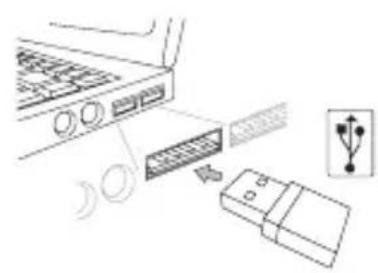
Targus Multimedia Presentation Remote
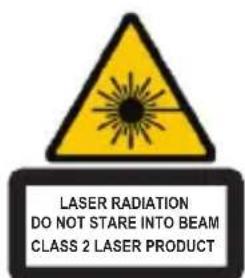
Complies with EN 60825-1: 1994+A1+A2
and Complies with 21 CFR 1040.10 and
1040.11 except for deviation pursuant to
Laser Notice No.50,dated July 26,2001.
DAS GERÄT NICT ÖFFNEN! DAS GERÄT ERZEUGT GEFÄHRLICHE ELEKTROMAGNETISCHE
STRAHLUNG. LASERSTRAHLUNG. NICT IN DEN STRAHL BLICKEN ODER MIT DEM STRAHL DIREKT AUF OPTISCHE GERÄTE ZEIGEN. DIES IST EIN LASERPRODUKT DER KLASSE 2.
Targus Multimedia Presentation Remote
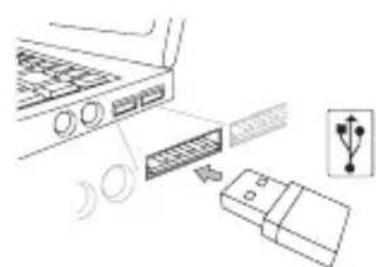
Targus Multimedia Presentation Remote
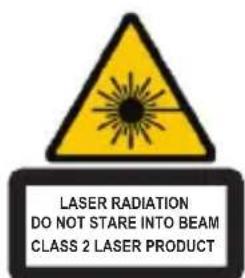
Complies with EN 60825-1: 1994+A1+A2
and Complies with 21 CFR 1040.10 and
1040.11 except for deviation pursuant to
Laser Notice No.50,dated July 26,2001.
UNDGÄ UDSÄETTALSE -- FARLIG ELEKTROMAGNETISK STRÄLING FRA DETTE APPARAT LASERSTRÄLING. SE IKKE DIREKTE PÅ STRÄLEN ELLER MED OPTISK UDSTYR. KLASSE 2 LASERPRODUKT.
PEG ALDRIG LASERSTRÄLEN DIREKTE PÄ EN PERSONS ØJNE ELLER SE DIREKTE PÄ LASERSTRÄLEN, DA VEDVARENDE UDSæTTELSE KAN SKADE ØJNENE.
KORT UDSæTTELSE FRA EN LASERPEGEPIND, SOM VED AT FEJE LYSET HEN OVER ØJNENE VED EN FEJL, KAN GIVE MIDLERTIDIG BLINDHED, SOM SVARER TIL EFFEKTEN AF EN BLITZ. SELV OM DET KUN ER MIDLERTIDIG BLINDHED, ER DET MERE FARLIGHT, HVIS PERSONEN ER I GANG MED F.EKS. AT KØRE, HVOR HAN BRUGER ØJNENE. ADVARSEL: AENDRINGER FORETAGET SOM IKKE ER GODKENDT AF DEN FOR OVERHOLDELSE ANSVARLIGE KAN RESULTTERE I, AT BRUGEREN IKKE LAENGERE TILLADES AT BRUGE UDSTYRET. DETTE APPARAT OG DETS ANTENNE(R) MÅ IKKE SAMMENSTITLES ELLER BRUGES I FORBINDELS MED EN ANDEN ANTENNE ELLER SENDER. DIT APPARAT INDEHOLDER EN LAVKRAFTSSENDER. NAR APPARATET SENDER, SENDER DEN RADIOFREKVENSSIGNAL (RF) NB: PRODUCENTEN ER IKKE ANSVARLIG FOR RADIO ELLER TV INTERFERENS SOM ER ET RESULTAT AF UAUTORISEREDE AENDRING AF DETTE UDSTYR. SADANNE AENDRINGER KAN RESULTTERE I, AT BRUGEREN IKKE LAENGERE TILLADES AT BRUGE UDSTYRET.
EE - Sissejuhatus
Targus Multimedia Presentation Remote
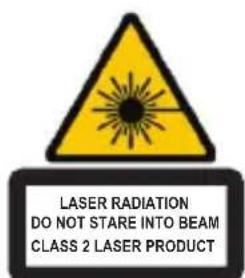
Complies with EN 60825-1: 1994+A1+A2
and Complies with 21 CFR 1040.10 and
1040.11 except for deviation pursuant to
Laser Notice No.50,dated July 26,2001.
VÄLTIGE KOKKUPUUDET--SELLEST SEADMEST ERALDUB OHTLIKU ELEKTROMAGNETKIIRGUST.
LASERKIIRGUS. ARGE VAADAKE LASERKIIRT EGA VAADAKE OTSE OPTILISTE INSTRUMENTIDEGA. KCLASS 2 LASERTOODE.
ARGE SUUNAKE LASSERKIIRT TEISE INIMESE SILMA EGA VAADAKE LASERKIIRT OTSE, SEST PIKEM KOKKUPUUDE VOIB SILMI KAHJUSTADA. HETKELINE KOKKUPUUDE LASEROSUTAJAGA, NAGU TAHTMATU VALGUSE SUUNAMINE ULE TEISE INIMESE SILMADE, VOIB POHJUSTADA AJUTIST PIMEDUST SARNASELT FOTOAPARAADI VALGULE. KUIGI SEE SEISUND ON AJUTINE, VOIB SEE MUUTUDA OHTLIKUMAKS, KUI PIMESTATUD INIMENE TEGELEB NAGEMISVAJADUSEGA TEGEVUSEGA NAGU AUTOGA SOITMINE.
ETTEVAATUST! VASTAVUSE EEST VASTUTAVA OSAPOOLE SELGESONALISE NOUSOLEKUTA MUUDATuste TEGEMINE VOIB TUHISTADA KASUTAJA OIGUSE VARUSTUST KASUTADA. SEADE JA SELLE ANTENN(ID) EI TOHI ASUDA EGA TOOTADA KOOS TEASTE ANTENNIDE VOI SAATJATEGA TEIE SEADMES ON MADALPINGESAATJA. SEADE SAADAB TOOTADES VALJA
RAADIOSAGEDUSEL (RF) SIGNAALE.
MÄRKUS: FOOTJA EI VASTUTA RAUDIO EGA TV HÄIRETE EEST, MIDA POHJUSTAVAD SELLE VARUSTUSE VOLITAMATA TEHTUD MUUDATUSED. SELLISED MUUDATUSED VOIVAD TÜHISTADA KASUTAJA ÖIGUSE VARUSTUST KASUTADA.
ES - Introduccion
Targus Multimedia Presentation Remote
Targus Multimedia Presentation Remote
Targus Multimedia Presentation Remote
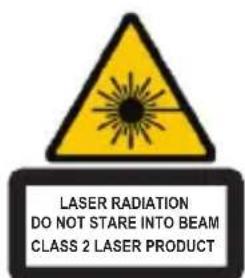
Complies with EN 60825-1: 1994+A1+A2
and Complies with 21 CFR 1040.10 and
1040.11 except for deviation pursuant to
Laser Notice No.50,dated July 26,2001.
EVITE LA EXPOSICN A RADIACION ELECTROMAGNETICA PELIGROSA EMITIDA POR ESTA ABERTURA.
RADIACION LASER. NO MIRE FIJAMENTE AL HAZ NI DIRECTAMENTE CON INSTRUMENTOS OPTICOS.PRODUCTO LASER CLASE 2.
NUNCA APUNTE EL HAZ DE LÁSER DIRECTAMENTE HACIA LOS OJOS NI MIRE DIRECTAMENTE AL HAZ DE LÁSER YA QUE LA EXPOSICION PROLONGADA PUEDE SER PELIGROSA PARA LOS OJOS.
EXPOSICION MOMENTANEA DEL PUNTERO LASER, COMO MOVIMIENTO INVOLUNTARIO DE LA LUX A TRAVES DE LOS OJOS DE LAS PESONAS PUEDE PROVOCAR CEGUERA TEMPORARIA SIMILAR AL EFFECTO DE LA BOMBILLA DE FLASH DE LA CAMARA. AUNQUE ESTA CONDICION ES TEMPORARIA, PUEDE SER MÁS PELIGROSA SI LA PERSONA EXPUESTA ESTÁ OCUPADA EN UNA ACTIVIDAD DECISIVA DE LA VISIONcomo LA CONDUCCION. PRECAUCION: CUALQUIER CAMBIO O MODIFICACION NO AUTORIZADOS EXPRESAMENTE POR LA PARTE RESPONSABLE PARA CONFORMIDAD PUEDEN ANULAR LA AUTORIDAD DEL USUARIO PARA MANEJAR EL EQUIPO. Este DISPOSITIVO Y SU (S) ANTENA (S) NO DEBE (N) COLOCARSE O MANEJARSE CONJUNTAMENTE CON CUALQUIER OTRA ANTENA O TRANSMISOR.
Targus Multimedia Presentation Remote
Targus Multimedia Presentation Remote
Complies with EN 60825-1: 1994+A1+A2
and Complies with 21 CFR 1040.10 and
1040.11 except for deviation pursuant to
Laser Notice No.50,dated July 26,2001.
VÄLTÄ ALTISTUMISTA -- TÄMÄ LAITE SÄTEILEE HAITALLISTA SÄHKÖMAGNEETTISTA SÄTEILYÄ LASER SÄTEILYÄ. ALÄ KATSO SUORAAN LASERSÄTEESEEN TAI TARKASTELE OPTISILLA VALINEILLÄ. TOISEN LUOKAN LASERTUOTE. ALÄ KOSKAAN OSOITA LASERSÄDETTÄ SUORAAN KENENKÄÄN SILMÄÄN TAI KATSO SÄDETTÄ, KOSKA PIKTÄAIKAINEN ALTISTUMINEN LASERVALOLLE SAATTAA VAHINGOITTAA SILMIÄ. LYHYT ALTISTUMINEN LASERVALOLLE, KUTEN SÄTEEN TAHATON PYYHKÄISY SILMÄN OHI, SAATTAA SOKAISTA HETKELLISESTI SAMOIN KUIN ESIMERKIKSI KAMERAN SALAMAN VALO. VAIKKAKIN KYSEINEN TILA ON VALIAIKAINEN, SAATTAA SE KUITENKIN VAARANTAA SOKAISTUN HENKILÖN TURVALLISUUDEN, JOS HENKILÖSATTUU USIMERKIKSI AJAMAAN AUTOA TAI HÄNEN TURVALLISUUTENSA MUUTEN RIIPPUU HÄNEN NAKÖKYVYSTÄAN JUURI SOKAISTUMISEN HETKELLÄ. VAROITUS: SÄDÖKSISTÄ VASTUSSA OLEVAN OSAPUOLEN HYVÄKSYMÄTTOMÄT MUTFOKSET LAITTEESEEN SAATTAVAT POISTAA LAITTEEN KAYTTÖOIKEUDEN SEN KAYTTÄJALTÄ. TÄTA LAITETTA JA SEN ANTENNIA/ANTENNEJA EI TULISI SÄLYTTÄA TAI KAYTTÄA TOISTEN ANTENNIEN TAI LAHETIMIEN LAHEISYYDESSÄ. LAITTEESI SISALTAA HEIKON LÄHETTIMEN. LAITTEEN OLLESSA KAYTÖSSÄ SE LAHETTÄA RADIOAALTOSIGNAALIA. HUOMIO: LAITTEEN VALMISTAJA EI OTA MINKÄÄNLAISTA VASTUuta LAITTEELLE LUVATTOMASTI TEHTYJEN MUUTOSTEN AIHEUTTAMASTA RADIO JA TELEVISIO HAIRINNÄSTÄ.SELLAISET MUUTOKSET LAITTEESEEN SAATTAVAT POISTAA KAYTTÄJALTÄ LAITTEEN KAYTTOOIKEUDEN.
FR - Introduction
Targus Multimedia Presentation Remote
Targus Multimedia Presentation Remote
Targus Multimedia Presentation Remote
Complies with EN 60825-1: 1994+A1+A2
and Complies with 21 CFR 1040.10 and
1040.11 except for deviation pursuant to
Laser Notice No.50,dated July 26,2001.
ÉVITEZ L'EXPOSITION - RADIATION ÉLECTROMAGNETIQUE DANGEREUSE ÉMISE DE CETTE OUVERTURE.
RADIATION LASER. NE REGARDEZ PAS LE RAYON - DIRECTEMENT OU A L'AIDE D'INSTRUMENTS OPTIQUES. PRODUIT LASER DE CLASSE 2.
NE DIRIGEZ JAMAIS UN RAYON LASER VERS LES YEUX D'UNE PERSONNE ET NE REGARDEZ PAS UN RAYON LASER DIRECTEMENT, CAR L'EXPOSITION PROLONGEE PEUT ETRE DANGEREUSE POUR LES YEUX. L'EXPOSITION MOMENTANEE A UN INDICATEUR LASER, TELLE QU'UN PASSAGE INATTENDU DE LUMIÈRE À TRAVERS LES YEUX D'UNE PERSONNE, PEUT CAUSER LA CÉCITÉ PROVISOIRE SEMBLABLE À L'EFFET D'UN FLASH D'APPEARIL PHOTO. BIEN QUE CETTE CONDITION SOIT PROVISOIRE, ELLE PEUT DEVENIR PLUS DANGEREUSE SI LA PERSONNE EXPOSEE EST ENGAGÉE DANS UNE ACTIVITE CRITIQUE DE VISION COMME LA CONDUITE.
AVERTISSEMENT : CHAQUE CHANGESMENTS OU MODIFICATIONS NON EXPRESSEMENT APPROUVEES PAR LA PARTIE RESPONSABLE DE LA CONFORMITE POURRAIT ANNULER L'AUTORISATION DE L'UTILISATEUR DE FAIRE FONCTIONNER L'ÉQUIPEMENT. CE DISPOSITIF ET SON ANTENNE(S) NE DOIVENT PAS ÉTRE PLACES OU EXPLOITÉS ENSEMBLE AVEC UNE AUTRE ANTENNE OU UN ÉMETTEUR. VOTRE DISPOSITIF CONTIENT UN ÉMETTEUR A BASSE PUISSANCE. QUAND LE DISPOSITIF EST EN TRANSMISSION IL ENVOIE UN SIGNAL DE FREQUENCY RADIO (FR). NOTE : LE FABRICANT N'EST PAS RESPONSABLE D'AUCUNE RADIO OU TV L'INTERFERENCE CAUSEE PAR DES MODIFICATIONS NON AutorISEES DE CET ÉQUIPEMENT. DETELLES MODIFICATIONS PEUVENT ANNULER L'AUTORISATION DE L'UTILISATEUR DE FAIRE FONCTIONNER L'ÉQUIPEMENT.
GR - Eiσayωyn
Zac Euyapiotoue Tnou ayopaoate To nlexeiipntnpio Tng Targus yia Tnapouiaeaicnou. To ouyekpiévo tnlexeiipntnpio ouvduaεi δiektn λεizep kai ελeyxo ebpouea kai ouvepyaζetai too oe to Microsoft PowerPoint® oso kai μe to Apple Keynote. Eπiα, to aupmuato auto tnlexeiipntnpio ppoapeptai yia totoθettnon kai aμeon λietoupyia xwipc va xpeiaζetai Tpoypaumata odynonç loiyikou kai, Tnpaalna, μe tnv texvoia maekac eβεiaac 2,4 GHz divei th duvatotnta yia atotelaeapatikec Tnapouiaeaic aTTOAOTaON eWc kai 15 μεtpwv (50 Todiwv).
περιεχόμενα
TnExeiopio Tcargus ia npouiaoeic nouueow
MivI USB
- 1 μπταριες AAA
- Ośnyóć xρnóltn
Targus Multimedia Presentation Remote
ApaipéoTe tov miv iEktn USB nou eivai qualayevoc meo a oTo kevtpiKo diapépiσμa.
ETTAVATOTTOEITNOTE OUPTA TO KAUUMa TOWV MTTAPiWv, WOOTOU KOUPTIWOE I OTN OWTN EON KAI AKOUATEIOXAPAKTNPIOTIKOC NxOCS.
Targus Multimedia Presentation Remote
EvpyoioiTo TnExeiopnpio TIOvTac KkpatovTac Tatnevo yia 3 dEutepoAeTTa To koupi EvpyoioanC/ATevpyoioanC.
Targus Multimedia Presentation Remote
Complies with EN 60825-1: 1994+A1+A2
and Complies with 21 CFR 1040.10 and
1040.11 except for deviation pursuant to
Laser Notice No.50,dated July 26,2001.
ANO TO ANOIRMA EKNIEMNETAI ENIKINADYNH HAEKTPOMAIGNHTIKH AKTINOBOIAA --ANOYETE THN EKOEESH.
AKTINOBOIAA AEIZEP.ANOYETE NA KOITAETE 2TH DEsMH THS AKTINA H N A TH DEITE ANEYGEIAZ ANO TO ANOIRMA ONTIKQN OPRANQN.AKTINOBOIAA EIZEP.
ANOYETE NA KOITAETE 2TH DEsMH THS AKTINA H N A TH DEITE ANEYGEIAZ ME ONTIKA OPRANA. IPOION AEIZEP KATHROPIA2. NOTE MH STPEFETE THN AKTINA AEIZEP 2TA MATIA KANOIOY KAI MHN TH BAENETE ME TYMNO MATI, IATI H NAPATETAMENH EKoEsH 120 ANOBEI ENIKINADYNH TIA THN OPASH ZA. H STITMIIAE KOEESH 2E AEIKTH AEIZEP, ME MIA DEsMH FOJTOZ NOY PNETEI TYXAIA 2TA MATIA MA, MNOPEI NA POKAAESEIP INPOsQPINO PPOBAHMA OPAzHS, ZAN AYTO IOY IPOKYITEI ANO TO FAAZ QOTOPARKHZ MHXANHS. NAPOAO IOY TO PPOBAHMA AYTO EINAI POKOSQPINO, 120 ZINEI NIO ENIKINADYNO AN AYTOZ IOY EKTIGETAI 2THN AKTINOBOIAA ASXoAEITAI ME DPASTHPIOTHTA IOY ANAITEI APISTH OPAsh, ONOZ H OAHGHSH. PPOSOxH: AAAAREH TPOONOOIHZEIE NOY DEN EINAI PHTA ERKEKPIMENEANO TO MEPOZ NOY POPEI THN EGYYNH TIA TH SYMMOPQ0sH OA MIOPOYsAN NA KATASTHOYN AKYPH THN EKPIZH AEITOYPFIAZ TOY EONIAMOY ANO TO XPHETH. H SYSEYHKAI H KEPAIA (HOI KEPAIEZ THS) DEN NPERNEI NA EINAI TOIOeTHMENEZ 2TO IAIO SHMEIO OYTE NA AEITOYPROYN ZE SYNDAZMO ME AALAH KEPAIA H AVOI NOMNO. H SYSEYH ZA ZNEPIEXE ENAN NOMNO XAMHAH 12XYOZ.KATA TH METAIOEH EKNIEMNEI sHMA PADIOOSYXNOTHTQN (RF). SHEMIQSH: O KATAZKEYA2THZ DEN POPEI EGYYNH TIA PADIOQNIKH H THAEONTIKH PAPEMBOAH NOY POKAAETAI AOTMQ MH EEOYSIOAOHMENQN TPONONIOIH2EQN 2TON EONIAMO. O I TPOONIOIHSEIZ AYTOY TOY EIAOYZ OA MNOPOY5AN NA KATAZTHSOYN AKYPH THN EKPIZH AEITOYPFIAZ TOY EONIAMOY ATO TO XPHSTH.
HR - Uvod
Zahvaljemo na kupnji Targus multimedijskog daljinskog upravljaca prezentacijama. Ova kombinacija daljinskog upravljaca s laserskimPokazivačem i kontrolom kursora kompatibilna je i s Microsoftvim PowerPoint® i Appleovim Keynoteom ®. Ovaj bežićni urećaj u potpunosti funkcionira na principu uklujci-i-radi, bez potrebe za instaliranjem pogonskih programa, dok 2,4 GHz tehnologija omogucuje efikasno upravljanje prezentacijama na udaljenosti do 50 ft (15 metara).
Sadržaj
- Targus multimedijski daljinski upravljač za prezentacije
- Mini USB prijamnik
- 1 x AAA baterija
Korisnicke upute
Zahtjevi sustava
Hardver
- USB sučelje
Operativni sustav
Microsoft Windows 2000
- Microsoft Windows® XP
- Microsoft Windows Vista®
- Microsoft Windows® 7
Microsoft Windows® 8
Mac OS® X 10.4 - 10.8
Podešavanje vašeg daljinskog upravljača Umetanje baterija
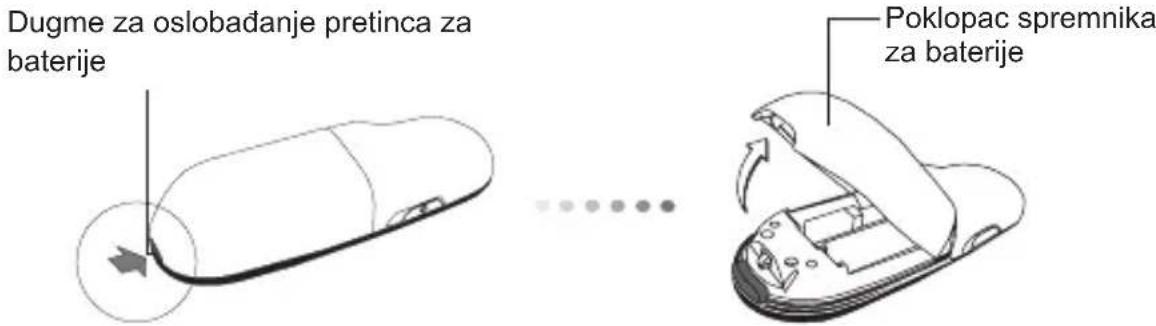
SkinitePoklopac spremnika za baterije takod pritisnete dugme za oslobaadanje i zatim pažljivo podignitePoklopac prema gore.
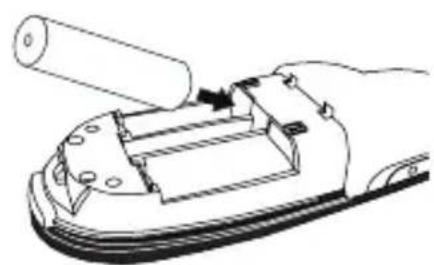
Umetnite priložene baterije pazeci da se positivni (+) i negativni (-) polovi svake baterijePoklapaju s indicatorima polova u spremniku za baterije.
Targus Multimedia Presentation Remote
Targus Multimedia Presentation Remote
Complies with EN 60825-1: 1994+A1+A2
and Complies with 21 CFR 1040.10 and
1040.11 except for deviation pursuant to
Laser Notice No.50,dated July 26,2001.
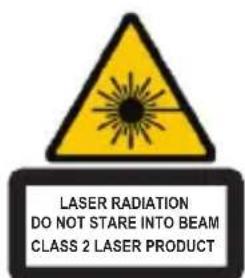
IZBJEGNITE IZLAGANJE - IZ OVE LECE EMITIRA SE OPASNO ELEKTROMAGNETNO ZRAÇENJE. LASERSKO ZRAÇENJE. NE GLEDAJTE U ZRAKU ILI IZRAVNO UZ OPTICKE INSTRUMENTE. LASERSKO ZRAÇENJE. NE GLEDAJTE U ZRAKU ILI IZRAVNO UZ OPTICKE INSTRUMENTE. KLASA 2 LASERSKI PROIZVOD. NIKADA NE UPIRITE LASERSKU ZRAKU OSOBAMA U OCI I NE GLEDAJTE IZRAVNO U ZRAKU, JER PRODULJENO IZLAGANJE MOZE BITI OPASNO PO OCI. TRENUTACNA IZLOZENOST LASERSKOJ ZRACI, KAO STO JE NENAMJERNI PRIJELAZ ZRAKE SVJETLA PREKO OCIJU NEKE OSOBE, MOZE PROUZROCITI PRIVREMENU ZABLJESTENOST OCIJU, SLIÇNO EFEKTU BLICA NA FOTOAPARATU. IAKO JE OVO STANJE PRIVREMENO, ONO MOZE POSTATI I OPASNIJE UKOLIKO IZLOZENA OSOBA OBAVLJA VIZUALNO KRITICNU AKTIVNOST, KAO STO JE VOZNJA. OPREZ: PROMJENE ILI IZMJENE NA OPREMI, KOJE NIJE ODOBRILA STRANA KOJA JE ODGOVORNA ZA SUKLADNOST, MOGU PONISTITI PRAVO VLASNIKA NA KORISTENJE OVE OPREME. OVAJ UREDAJ I NJEGOVA/E ANTENA/E NE SMIJU BITI POSTAVLJENI U BLIZINI NITI RADITI SKUPA S DRUGIM ANTENAMA ILI PRIJENOSNICIMA VAS UREDAJ SADRŽI PRIJENOSNIK MALE SNAGE. KADA UREDAJ OBAVLJA PRIJENOS, ON ŠALJE RADIOFREKVENCİSKI (RF) SIGNAL. NAPOMENA: PROIZVODAC NIJE ODGOVORAN ZA BILO KAKVE RADIJSKE ILI TV SMIJETNJE KOJE MOZE PROUZROCITI NEOVLASTENO OBAVLJANJE IZMJENA NA OVOJ OPREMI. TAKVE IZMJENE MOGU PONISTITI PRAVO VLASNIKA NA KORISTENJE OVE OPREME.
HU - Bevezétés
Targus Multimedia Presentation Remote
Targus Multimedia Presentation Remote
Complies with EN 60825-1: 1994+A1+A2
and Complies with 21 CFR 1040.10 and
1040.11 except for deviation pursuant to
Laser Notice No.50,dated July 26,2001.
KERÜLJE A KITETTSÉGET - A BERENDEZÉS NYÍLÁSA VESZÉLYE S ELEKTROMAGNESES SUGÁRZÁST BOCSÁT KI LEZER SUGÁRZÁS KÖZVETLENÜL, VAGY OPTIKAI NYÍLÁSSAL NE NÉZZEN BELE A SUGÁRNYALÁBBA. LEZER SUGÁRZÁS KÖZVETLENÜL, VAGY OPTIKAI ESZKÖZZEL NE NÉZZEN BELE A SUGÁRNYALÁBBA. 2. OSZTÁLYU LEZER TERMÉK SOSE MUTASSON A LEZERNYALÁBBAL VALAMELY SZEMÉLY SZEMÉBE, VALAMINT NE NÉZZEN KÖZVETLENÜL A SUGÁRNYALÁBBA, MIVEL A HOSSZAN TARTÓ SUGÁRZÁSNAK VALO KITETTSEG KÁROSITJA A SZEMET. A LEZER MUTATONAK VALO PILLANATNYI KITETTSEG, MINT PL. A SUGÁR VALAKI SZEME ELÖTT TORTENO ELHÜZÁSKOR TORTENO NEM SZANDEKOS BELEVILAGITAS ATMENETI LATASKIESEST OKOZHAT, HASONLOAN A FENYKEPEZÖGEP VAKU ÁLTAL ELOIDEZETT HATASHOZ. ANNAK ELLENÈRE, HOGY EZ AZ ÀLLAPOT ATMENETI, VESZÉLYES LEHET, HA KITETT SZEMÉLY ÉPPEN OLYAN TEVEKENYSÉGET VEGEZ, PL. AUTÔT VEZET AMINÉL A LATASKIESÉS VESZÉLYES HELYZET TEREMT FIGYELEM: A MEGFELELOSEGERT FELELOS FEL KIFEJEZETT ENGEDÉLYE NELKÜL VEGREHAJTOTT MODOSITASOKA FELHASNZALÓ BERENDEZÉS MUKÖDTETÉSÉRE VONATKOZO JOGÁNAK MEGVONÁSÁVAL JARHATNAK. AZ ESZKÖZT ES ANTENNAJAT MAS ESZKÖZÖK ANTENNAIT, VAGY ADOVEVÖIT NEM ZAVARVA KELL ELHELYEZNI ES MUKÖDTETNI AZ ESZKÖZ KISTELJESİTMENYÜ ADOVEVÖT TARTALMAZ. ADAS KÖZBEN AZ ESZKÖZ RADIÖ FREKVENCIAS JELEKET (RF) BOCSÁT KI. MEGJEGYZÉS: A GYÁRTÜ NEM VALLAL FELELOSSÉGET A BERENDEZÉS JOGOSULATLAN MODOSITASABOL ADÖDÖ RADIÖ, VAGY TV JELZAVARÁSERT. AZ ILYEN MODOSITAS FELFÜGGESZTHETI A FELHASNZALÓ BERENDEZÉS MUKÖDTETÉSÉRE VONATKOZO JOGÁT.
IT - Introduzione
Targus Multimedia Presentation Remote
Targus Multimedia Presentation Remote
Complies with EN 60825-1: 1994+A1+A2
and Complies with 21 CFR 1040.10 and
1040.11 except for deviation pursuant to
Laser Notice No.50,dated July 26,2001.
EVITARE L'ESPOZIONE--DA QUESTA APERTURA VENGONO EMESSE RADIAZIONI ELETTRAMAGNETICHE NOCIVE.
Targus Multimedia Presentation Remote
Targus Multimedia Presentation Remote
Complies with EN 60825-1: 1994+A1+A2
and Complies with 21 CFR 1040.10 and
1040.11 except for deviation pursuant to
Laser Notice No.50,dated July 26,2001.
VENKITE TIESIOGINES - PAVOJINGOS ELEKTROMAGNETINES RADIACIJOS SKLINDANCIOS IS SIOS ANGOS.
LAZERIO RADIACIJA. NESPOKSOKITE AR SU OPTIKOS PRIETAISAS
TIESIOGIAI NEZIUREKITE [SPINDUL]. 2 KLASÉS LAZERIO PRODUKTAS. NIEKADANENUKREIPKITE LAZERIO SPINDULIO [AKIS AR NEZIUREKITE TIESIOGIAI [SPINDUL], KADANGI ILGESNIS ZIUREJIMAS GALI BUTI PAVOJINGAS AKIMS.
MOMENTINIS ZVILGTERÉJIMAS | LAZERIO ZYMIKLI, KAIP PAVYZDžIUI NETYCINIS MOSTELEJIMAS PRIES ZMOGAUS AKIS, GALI LAIKINAI
APAKINTI, SUKELDAMAS PANASU POVEIKI KAIP KAMEROS BLYKSTE. NORS SI BUSENA YRA LAIKINA, TAI GALI TAPTI PAVOJINGA, JEIGU APAKINTAS ASMUO ATLIEKA DARBA, KUR LABAI SVARBI REGEJIMO FUNKCIJA, KAIP PAVYZDZIUI, VAIRAVIMAS.
ISPEJIMAS: PAKEITIMAI AR PERDARYMAI, NEPATVIRTINTI ATSAKINGOS SALIES DEL SUDERINAMUMO, GALI ANULIUOTI VARTOTOJO TEISES NAUDOTIS SIUO IRENGINIU. SIS PRIETAISAS BEI JO ANTENA(OS) NEGALI BUTI PERKELIAMOS AR VEIKTI BENDRAI SU KOKIA KITA ANTENA AR SIUSTUVU.
JUSU PRIETAISE YRA MAZASROVIS SIUSTUVAS. PERDAVIMO METU
PRIETAISAS SIUNCIA RADIJO DAZNIU (RD) SIGNALA. PASTABA: GAMINTOJAS NERA ATSAKINGAS UZ JOKIA RADIJO AR TELEVIZIJOS SAVEIKA, ATSIRADUSIA DEL NETEIsETU SIO IRENGINIO PAKEITIMU. SIE PAKEITIMAI GALI PANAIKINTI VARTOTOJO TEISES NAUDOTIS SIUO IRENGINIU.
LV - levads
Targus Multimedia Presentation Remote
lesledziet prezentaciju puli, nospiezot un turot nospiestu ieslegsanas/ izslegsanas pogu 3 sekundes.
Targus Multimedia Presentation Remote
Complies with EN 60825-1: 1994+A1+A2
and Complies with 21 CFR 1040.10 and
1040.11 except for deviation pursuant to
Laser Notice No.50,dated July 26,2001.
IZVAIRIETIES NO APZILBINASANAS - SITIERICE IZSTARO ELEKTROMAGNETISKORADIACIJU.
LAZERA RADIACIJA. NESKATIETIES STARAVAI TIESI AR OPTISKAJEM INSTRUMENTIEM. 2.KLASES LAZERA PRODUKTS.
NEKAD NESPIDINIET STARU TIESI KADA CILVEKA ACIS UN NESKATIETIES TIESI UZ LAZERA STARU, JO ILGSTOŠA SKATISANAS VAR BUT BISTAMA ACIM.
NEKAVEJOTIES NOVERSIETIES NO LAZERA RADITAJA, KARINEJAUSI NEIESPIDINIET LAZERA STARU CITA CILVEKA ACIS, JO TAS VAR IZRAISIT PAGAIDU AKLUMU,
LIDZIGU KAMERAS ZIBSPULDZES RADITAJAM. LAI GAN SIS STAVOKLIS IR ISLAICIGS, TAS VAR BUT LOTI BISTAMS, JA APZILBINATA PERSONA NODARBOJAS AR REDZEI
SVARIGU DARBIBU, PIEMERAM, BRAUKSANU. UZMANIBU: JEBKADAS IZMAINAS VAI MODIFIKACIJAS, KO NAV APSTIPRINJUSI ATBILDIGA PUSE, VAR SABOJAT IERICI.
SITIERICE UN TAS ANTENA(S) NEDRIKST NOVIETOT BLAKUS VAI IESLEGT, JA TAM IR SASKARE AR JEBKADU CITU ANTENU VAI RAIDITAJU.
JUSU IERICE SATUR MAZAS JAUDAS RAIDITAJU. KAD IERICE IR IESLEGTA, TARIAIDARADIO FREKVENCES (RF) SIGNALU. IEVEROJIET: RAZOTAJS NEUZNEMAS ATBILDIBUPAR RADIO VAI TELEVIZIJAS IEJAUKSANOS, KO IZRAISIJUSAS NEAUTORIZETAS SISIERICES Izmainas. SIS MODIFIKACIJAS VAR SABOJAT IERICI.
NL - Introductie
Targus Multimedia Presentation Remote
Targus Multimedia Presentation Remote
Targus Multimedia Presentation Remote
Complies with EN 60825-1: 1994+A1+A2
and Complies with 21 CFR 1040.10 and
1040.11 except for deviation pursuant to
Laser Notice No.50,dated July 26,2001.
VOORKOM BLOOTSTELLING--GEVAARLIJKE ELEKTROMAGNETISCHE STRALING UITGESTRAALD DOOR DEZE OPENING. LASERSTRALING. KIKK NIET IN DE LASERSTRAAL OF BEKIKK OOK NIET DIRECT MET OPTISCHE INSTRUMENTEN. KLASSE 2 LASERPRODUCT.
RICT NOOIT EEN LASERSTRAAL IN DE OGEN VAN IEMAND EN KIJK NIET RECHTSTREEKS
IN EEN LASERSTRAAL; DOOR LANGDURIGE BLOODSTELLING KAN DIT GEVAARLIJK ZIJN VOOR DE OGEN. KORTSTONDIGE BLOODSTELLING UIT EEN LASERAANWIJZER, ZOALS EEN ONVERHOEDSE ZWAAI VAN HET LICH OVER DE OGEN VAN IEMAND, KAN TIJDELIJKE FLITSBLINDHEID VEROORZAKEN GELIK AAN HET EFFECT VAN EEN CAMERA FLITSLAMPJE. HOEWEL DEZE TOESTAND TIJDELIJK IS, KAN HET GEVAARLIJKER WORDEN WANNEER DE BLOODGESTELDE PERSOON BETROKKEN IS BIJ EEN GEZICHTSKRITISCHE BEZIGHEID ZOALS AUTORIJDEN. WAARSCHUWING: ENIGE VERANDERING OF WIJZIGING DIE NIET UITDRUKKELIJK IS GOEDGEKEURD DOOR DE VERANTWOORDELIJKE PARTIJ ZOU DE GEBRUIKERS TOESTEMMING OM DE APPARATUUR TE KUNNEN BEDIENEN ONGELDIG KUNNEN MAKEN. DEZE APPARATUUR EN HAAR ANTENNE(S) MOET NIET GEPLAATST OF BEDIEND WORDEN IN COMBINATIE MET ENIGE ANDERE ANTENNE OF ZENDER.
UW APPARATUUR BEVAT EEN ZENDER MET LAAG VERMOGEN. WANNEER MET DE APPARATUUR WORDT GEZONDEN ZENDT ZIJ EEN RADIOFREQUENCY (HOOGFREQUENCY) SIGNAL AUIT. AANTEKENING: DE FABRIKANT IS NIET VERANTWOORDELIJK VOOR ENIGE RADIO OF TV INTERFERENTIE VEROORZAAKT DOOR NIET-GEAUTORISEERDE WIJZIGINGEN IN DEZE APPARATUUR. EEN DERGELIJKE WIJZIGING ZOU DE TOESTEMMING AAN DE GEBRUIKER OM DE APPARATUUR TE BEDIENEN ONGELDIG KUNNEN MAKEN.
NO - Introduksjon
Targus Multimedia Presentation Remote
Complies with EN 60825-1: 1994+A1+A2
and Complies with 21 CFR 1040.10 and
1040.11 except for deviation pursuant to
Laser Notice No.50,dated July 26,2001.
UNNGA EKSPONERING - FARLIG ELEKTROMAGNETISK STRÄLING AVGIS FRA DENNE LYSAPNINGEN. LASERSTRÄLING. IKKE STIRR INN I STRÄLEN ELLER SE DIREKTE PÄ DEN MED OPTISKE INSTRUMENTER. LASERPRODUKT KLASSE 2.
PEK ALDRI EN LASERSTRÅLE INN I ØYNENE PÅ NOEN ELLER SE DIREKTE PÅ EN LASERSTRÅLE, DA VEDVARENDE EKSPONERING KAN VÆRE FARLIG FOR ØYNENE. MIDLERTIDIG EKSPONERING FRA EN LASERPEKER, SLIK SOM UAKTSOM STREIFING AV LYS OVER EN PERSONS ØYNE, KAN FORÁRSAKE MIDLERTIDIG BLINDHET LIK EFFEKTEN AV EN KAMERABLITZ. SELV OM DENNE TILSTANDEN ER MIDLERTIDIG, KAN DEN VÆRE FARLIG DERSON DEN EKSPONERTE PERSONEN UTFØRER EN AKTIVITET DER SYNET ER AVGJØRENDE, SLIK SOM Å KJØRE BIL ADVARSEL: FORANDRINGER ELLER MODIFISERINGER SOM IKKE ER EKSPLISITT GODKJENT AV PARTIET SOM ER ANSVARLIG FOR TILPASNING,
KAN UGYLDIGGJORE BRUKERENS AUTORITET TIL Å BRUKE UTSTYRET. DETTE APPARATET OG DETS ANTENNER MÅ IKKE FLYTTES ELLER OPERERES SAMMEN MED NOEN ANNEN ANTENNE ELLER EN ANNEN SENDER APPARATET DITT INNEHOLDER EN LAVYTHENSESSENDER. NÄR APPARATET OVERFÖRES, SENDER DET UT RADIOFREKVENSSIGNALER (RF). MERK: FORHANDLEREN ER IKKE ANSVARLIG FOR EV. RADIO- ELLER FJERNSYNSINNVIRKING SOM FØLGE AV UAUTORISERTE MODIFIKASJONER AV DETTE UTSTYRET. SLIKE MODIFIKASJONER KAN UGYLDIGGJORE BRUKERENS AUTORITET TIL Å OPERERE UTSTYRET.
PL - Wstep
Targus Multimedia Presentation Remote
Targus Multimedia Presentation Remote
Targus Multimedia Presentation Remote
Complies with EN 60825-1: 1994+A1+A2
and Complies with 21 CFR 1040.10 and
1040.11 except for deviation pursuant to
Laser Notice No.50,dated July 26,2001.
UNIKAc PRZEDLUZONEGO KONTAKTU - URZADZENIE EMITUJE NIEBEZPIECZNE PROMIENIOWANIE ELEKTROMAGNETYCZNE PROMIENIOWANIE LASEROWE. NIE PATRZEc BEZPOsREDNIO LUB PRZY POMOCY INSTRUMENTOW OPTYCZNYCH W PROMIEN LASERA. URZADZENIE LASEROWE KLASY 2.
NIGDY NIE KIEROWAC PROMIANA LASERA W OCZY INNEJ OSOBY ANI NIE PATRZEc BEZPOsREDNIO W PROMIEN LASERA, GDYZ DlugotrwaLE NARAZENIE NA JEGO DZIALANIE MOZE BYC SZKODLIWE DLA WZROKU. CHWILOWE SPOJRZENIE WE WSKAzNIK LASEROWY, NA PRZYKlad W WYNIKU PRZYPADKOWEGO RUCHU WSKAzNIKA W CZASIE PREZENTACJI MOZE WYWOaC CHWILOWA SLEPOTE, PODOBNA DO REAKCJI NA BLYSK FLESZA. CHOCIAZ JEST TO STAN CHWILOWY, TO MOZE BYC GROZNY, JESLI DANA OSOBA WYKONUJE DZIAlania WYMAGAJACE UZYWANIA WZROKU, NP. PROWADZI SAMOCHOD. OSTRZEZENIE: WSZELKIE ZMIANY LUB MODYFIKACJE NIE ZATWIERDZONE PRZEZ STRONE ODPOWIEDZIALNA ZA ZGODNOSC URZADZENIA Z NORMAMI MOGA
POZBAWINIC UZYTKOWNIKA PRAWA DO KORZYSTANIA Z PRODUKTU. URZADZENIA I JEGO ANTEN(Y) NIE MOZNA UZYWAC W POBLIZU ANI W POlaczeniu Z INNYMI ANTENAMI LUB PRZEKAzNIKAMI. URZADZENIE JEST WYPOSAZONE W PRZEKAzNIK O NISKIEJ MOCY. PRZEKAzNIK WYSYLAsyGNALy RADIOWE (RF). UWAGA: PRODUCENT NIE PONOSI ZADNEJ ODPOWIEDZIALNOSCI Z AZAKLOCENIA RADIOWE CZY TV WYNIKAJACE Z NIEAUTORYZOWANEJ MODYFIKACJI URZADZENIA. WPROWADZENIE TAKICH ZMIAN MOZE UNIEWAzNIC PRAWO UZYTKOWNIKA DO KORZYSTANIA Z URZADZENIA.
PT - Introdução
Targus Multimedia Presentation Remote
Complies with EN 60825-1: 1994+A1+A2
and Complies with 21 CFR 1040.10 and
1040.11 except for deviation pursuant to
Laser Notice No.50,dated July 26,2001.
Targus Multimedia Presentation Remote
Targus Multimedia Presentation Remote
Complies with EN 60825-1: 1994+A1+A2
and Complies with 21 CFR 1040.10 and
1040.11 except for deviation pursuant to
Laser Notice No.50,dated July 26,2001.
EVIATI EXPUNEREA LA RADIATIILE ELECTROMAGNETICE PERICULOASE EMISE PRIN DIAFRAGMA DISPOZITIVULUI.
RADIATII LASER. NU PRIVI DIRCT IN LUMINA LASER CU OCHIUL LIBER SAU CU INSTRUMENTE OPTICE.
RADIATII LASER. NU PRIVITI DIRECT IN LUMINA LASER CU OCHIUL LIBER SAU CU INSTRUMENTE OPTICE.PRODUS LASER CLASA 2
NUINDREPTATI NICIODATA LUMINA LASER DIRECT INSPRE OCHII
DUMNEAVOASTRA SAU AI ALTOR PERSOANE, DEOARECE EXPUNEREA INDELUNGATA POATE FI PERICULOASÀ PENTRU OCHI. EXPUNEREA TEMPORARÀ LA LUMINA LASER, DE EXEMPLÉN CAZUL INDREPTÁRII DIN NEGLIJENTÀ A RAZEI SPRE OCHI UNEI PERSOANE, POATE CAUZA UN DISCONFORT AL VEDERII ASEMANÁTOR EFFECTULUI PRODUS DE BLITUL UNUI APARAT FOTO. CHIAR DACA ACEST EFECT Este TEMPORAR, POATE DEVENI PERICULOS DACÁ PERSOANA EXPUSÀ ESTE ANGAJATA INTR-O ACTIVITE IN CARE VEDEREA Este ESENTIALA, CUM AR FI SOFATUL. ATENTIE: ORICE SCHIMBARI SAU MODIFICÁRI NEAPROBATE DE CATRE PARTEA RESPONSABILÀ CU CONFORMITATEA PRODUSULUI POATE ANULA AUTORITATEA UTILIZATORULUI DE A FOLOSI ECHIPAMENTUL. ACEST DISPOZITIV ŞI ANTENA (ANTENELE) COREPUNZÁTOARE NU TREBUIE MONTATE SAU UTILIZE IMPREUNÁ CU ALTE ANTENE SAU TRANSMITÁTOARE CEST DISPOZITIV CONTINE UN TRANSMITÁTOR DE TENSIUNE REDUSA. IN TIMPUL TRANSMISIEI, DISPOZITIVUL EMITE SEMNALE RF (FRECVENTÀ RADIO). NOTÀ: PRODUÇÁTORUL NU ESTE RÁSPUNZÁTOR PENTRU EVENTUALELE INTERFERENTE RADIO SAU TV CAUZATE DE MODIFICÁRI NEAUTORIZE ALE PRODUSULUI. ASTFEL DE MODIFICÁRI AR PUTEA ANULA DREPTUL UTILIZATORULUI DE A FOLOSI ECHIPAMENTUL.
RU - Велини
Targus Multimedia Presentation Remote
BbInbTe MmH USB-pecnBep, KOtOpbI XpaHITcB HByTpN cHTpaIbHorO OTdeneHn.
3aBnHbTe KpbIshky otceka dny 6atapeh Ha MeTo do uenuKa.
Targus Multimedia Presentation Remote
Haxmnte u ydepxnbaiTe KhONky BkN/ByIKn (on/off) nITaHna B TeueHne 3 ceKyHd, YTO6bI BkNIOuHTb Ipe3eHTep.
KhoPknNΦyHKcnn
YcTpaHHe HeNCnPaBHOCTeI
YTO DeIaTb, ecn Bpemr OTKInka npe3eHtepa dOnbwe o6bUHoro nn yctpoiCTBO nepnoDnueckn nepectaet pa6oTaTb?
- Y6eIntecb, YTO npe3eHTep haoDTcH na pacCToHn H he 6oJee 50 cyTob (15 M) ot mHNu USB-pecnBepa n KOMNbIoTepa.
- YBeJIuHbTe paCCToHnE MeKdI peCnBepOM Ipe3eHTepa I npINHMaOuIMM 6a3amN dpynx 6ecnpoBOdHbIX yCTpOiCTB.
- BbiknIOuHTe BCE 6ecnpoBOHbIe ycTpoNCTBa, HaxOJaUneCpaJOM c peCNBepOM npE3eHTepa, INx pInHmAoUcne 6a3bl.
- 3aMeHnTe 6aTapeIo.
Targus Multimedia Presentation Remote
Complies with EN 60825-1: 1994+A1+A2
and Complies with 21 CFR 1040.10 and
1040.11 except for deviation pursuant to
Laser Notice No.50,dated July 26,2001.
I36E7AEBO3ENCTBNAJ3EPHBIXNUYEIN-OTBEPCTNEJA3EPANCNYCKAET BPEHHOE 3NEKTPOMAHHTHOE N3NJYEHNE.
JI3EPHOE I3JyueHHe. HE CMOTPTE IPRMOB JIA3EPHbI JIyU
HEBOOPYJXEHbIM IJIa3OM NJIY CEPE3 OINTUeCKNE INHCTPYMEHTbI. JIA3EPHOE YCTPOIcTBO KJIACCA 2. HE HANPABNJIte Ia3EPHbI JIyB IJIa3A YJIOBEKA I HE CMOTPITe IPRMO HA JIy, TAK KAK ETO IPOJOJIXTEJIbHOE BO3JEICTBNE MOKET bItb BPeDHO IINr IJIa3..
KPATKOBPEMEHHA BCbIiKA CBETA OT JIA3EPHOYUKA3KN, HANPIMEP, INP N ECLNYAHOM HANPABJIENB B IIA3A YEJIOBEKA, MOXET INPIBECTN K BPEMEHHOMYOCJIENJIEHNO, CXOHNOMY C BO3DEINCTBnEM BCblIKN FOOTOKAMEPbI. HECMOTPAHA TO, YTO DAHNbI 3ΦΦEKT YBnETCR BPEMEHHbIM, OH MOXET bblt b ONACHbIM, ECNI IOBVEPIEEcR BO3DEINCTBnIO JINIO BblNOJHReT BND JEATEJbHOCTN, BKOTOPOM 3PEHNE KPITNUeCKN BAXHO, HAPPMER, UNPABJIaR ET ABTEMOBUNEM.BHIMAHNE: IIO5bIE N3MEHEHNA INN MOINΦNKAUIN, 3A INCKIIQUEHNEMOOBPHHBIX OTBETCTBEHHo 3A COOTBETCTBnA CTPOHOH, MOY T INPBECTNKOTMEHE INPABA INB3OBATEJRA HA 3KCNPLYATAUINO DAHHORO OBOPUDOBAHINDAHHOE YCTPOINCTBO IN ETO ANTEHHA (ANTEHBI) DIONKHBl Bblt b YCTAHOBJIENbIHIN PABOTATCb CYETOM INPCyTCTBnI DpyTNX AHTEHN INI INPEDATUHKOB BAWEYCTPOINCTBO OBOPUDBOHO INPEDATUHKOM HN3KOJ MOUHOCTN. B INPOUCEPCPABOTb YCTPOINCTBO INPEDAET PAINOUCACTOTHbI CNHGAL. INPMEUAHINE:IPON3BOINTEJB HE HECET OTBETCTBEHHOCTb 3A INIOBIE IOMEXN INPIEMYPAIDIO INI TEJEBN3IOHHbIX CINHAIOB IOD BO3DEINCTBnEM HEPA3PEUHEHbIXMOINΦNKAUIN DAHHORO OBOPUDOBAHN INOIOBHe MOnINΦNKAUIN MOYTPINPBECTN K OTMEHE INPABA INOJIb3OBATEJRA HA 3KCIPLYATAUINO DAHHOROOBOPUDOBAHN
SE - Introduktion
Targus Multimedia Presentation Remote
Targus Multimedia Presentation Remote
Complies with EN 60825-1: 1994+A1+A2
and Complies with 21 CFR 1040.10 and
1040.11 except for deviation pursuant to
Laser Notice No.50,dated July 26,2001.
UNDVIK EXPONERING--SKADLIG ELEKTROMAGNETISK STRALNING SANDS UT FRAN OPPNING. LASERSTRALNING. STIRRA INTE IN I STRALEN OCH TITTA INTE DIREKT IN I STRALEN MED OPTISKT INSTRUMENT. KLASS 2 LASERPRODUKT. PEKA ALDRIG MED EN LASERSTRALEN MOT NAGONS ÖGON ELLER TITTA INTE DIREKT PÄ EN LASERSTRÅLE, EFTERSOM FÖRLÄNGD EXPONERING KAN VARA SKADLIG FÜR ÖGONEN. TILLFÄLLIG EXPONERING FRÄN EN LASERPEKARE, SASOM VID EN SVEPANDE RÖRELSE AV LJUSET OVER EN PERSONS ÖGON, KAN FÜRORSAKA TILLFÄLLIG BLIXTBLINDHET LIKNANE DEN EFFEKT SOM EN KAMERABLIXT FÜRORSAKAR. AVEN OM DE HÄR FÖRHALLANDENA AR TILLFÄLLIGA, KAN DET VARA FARLIGHT OM DEN EXPONERADE PERSONEN AR MITT I EN VISIONKritISK AKTIVITET SASOM BILKÖRNING. VARNING: ANDRINGAR ELLER MODIFIERINGAR EJ DIREKT GODKÄNDA AV DEN ANSVARIGA PARTEN FOR ÖVERENSSTÄMMELSE KAN FÜRORSAKA ATT ANVÄNDAREN INTE KAN ANVÄnda UTRUSTNINGEN. DEN HÄR UTRUSTNINGEN OCH DESS ANTENN(ER) KAN INTE PLACERAS TILLSAMMANS ELLER ANVÄNDAS TILLSAMMANS MED ANDRA ANTENN(ER) ELLER SÄNDARE. DIN APPARAT INNEHÄLLER EN LÄGENERGISÄNDARE. NÄR APPARATEN SÄNDER UT SKICKAR DEN UT RADIOFREKVENSSIGNALER (RF). OBSERVERA: TILLVERKAREN AR INTE ANSVARIG FÜR RADIO ELLER TVSTÖRNINGAR FÜRORSAKADE AV EJ AUKTORISERADE MODIFIERINGAR PÄ DEN HÄR UTRUSTNINGEN. SÄDANA MODIFIERINGAR KAN FÜRORSAKA ATT ANVÄNDAREN INTE KAN ANVÄnda UTRUSTNINGEN.
SI - Uvod
Targus Multimedia Presentation Remote
Targus Multimedia Presentation Remote
Vkljucite daljinski upravljalnik, tak o da pritisnete in 3 sekunde drzite gumb za vklop/izklop.
Tipke in funkcjje
Targus Multimedia Presentation Remote
Complies with EN 60825-1: 1994+A1+A2
and Complies with 21 CFR 1040.10 and
1040.11 except for deviation pursuant to
Laser Notice No.50,dated July 26,2001.
IZOGNITE SE IZPOSTAVLJANJU - TA NAPRAVA SEVA NEVARNO ELEKTROMAGNETNO ZARCENJE. LASERSKO SEVANE. NE GLEJTVE V LASERSKI ZAREK DIREKTNO ALI Z OPTICINI INSTRUMENTI. IZDELEK VSEBUJE LASER RAZREDA 2. LASERSKEGA ZARKA NIKOLI NE USMERJAJE V OCI LJUDI IN SAMI NE GLEJTPE NARAVNOST V LASERSKI ZAREK, KER LAHKO POSKODUJE VASE OCI. KRATKOTRAJKNI STIK Z LASERSKIM KASZALNIKOM IN NENAMORNO USMERJANJE V OCI LJUDI LAHKO - TAKO KOT PRI BLISKOVKI FOTOAPARATA - PREHODNO VZDRAZI OCI. CEPRAV JE TO DRAZENJE PREHODNO LAHKO POSTANE NEVARNO, CE OSEBA OPRAVLJA DEJAVNOST, KJER POTREBUJE VID - KOT NA PRIMER VOZNJA Z AVTOMOBILOM. OPOZORILO: VSAKRSNE SPREMEMBE ALI PREDELAVE, KI NI IZRECNO DOVOLILA STRANKA, ODGOVORNA Z SKLADNOST, LAHKO RAZVELJAVI UPORABNIKOVO DOVOLJENJE Z DELO Z NAPRAVO. NAPRAVA IN NJEGOVA ANTENA NE SMETA BITI NAMESCENI ALI DELOVATI SKUPAJ Z DRUGIMI ANTNAMEI ALI ODDAJNIK. NAPRAVA VSEBUJE ODDAJNIK Z NIZKO MOCJO. KO NAPRAVA ODDAJA, IZHAJAJO IZ NJE SIGNALI Z RADIJSKO FREKVENCO (RF). POMNITE: IZDELOVALEC NE ODGOVARJA Z MOREBITNE MOTNJE PRI RADIU ALI TV, KI SOP POSLEDICA NEPOOBLASCHENIH SPREMEMB TE OPREME. TAKSNE SPREMEMBE LAHKO POVZROCIJO PRENEHANJE UPORABNIKOVIH PRAVIC Z UPRAVLJAJE OPREME.
SK - Üvod
Targus Multimedia Presentation Remote
Pre vypnutie zariadenia na 3 sekundy podržte stlačené tlacidlo napájania on/off (zap./vyp.).
Tlačidlá a ich funkcie
Toto zariadeniemöze fungovat'ako prezentacné zariadenie alebo bezdrótoyá mys použitím prepínača režimu (12).
| 1 | Tlačidlo napájania | Podržte stlăcené 3 sekundy pre zapnutie zariadenia. LED prstenec bude svietit' nazeleno. |
| Podržte stlăcené 3 sekundy pre vypnutie zariadenia. LED prstenec zhasne. |
Targus Multimedia Presentation Remote
Complies with EN 60825-1: 1994+A1+A2
and Complies with 21 CFR 1040.10 and
1040.11 except for deviation pursuant to
Laser Notice No.50,dated July 26,2001.
VYHYBAJTE SA VYSTAVENIU NEBEZPECNEJ ELEKTROMAGNETICKEJ RADIACII VYZAROVANEJ TYMTO ZARIADENIM. LASEROVE ZIARENIE. NEPOZERAJTE SA NA LUC A NEVYSTAVUJTE PRIAMEMU ZIARENIU OPTICKE ZARIADENIA. LASEROVE ZARIADENIE 2 TRIEDY NIKDY NESMERUJTE LASEROVY LUC NA OCI A NEPOZERAJTE SA NA LUC, PRETOZE DLHOTRVAJUCE VYSTAVOVANIE SA LUCU MOZE SPOSOBIT POSKODENIE OCI. KRATKODOBE VYSTAVENIE SA ZIARENIU Z LASEROVHO UKAZOVATELA, NAPRIKLAD NEUMYSELNE OSVETLENIE OCI OSOB MOZE SPOSOBIT DOCASNE OSLEPENIE PODOBNE AKO PRI BLESKU FOTOAPARATU. AJ KED JE TENTO STAV DOCASNY, MOZE BYT VELMI NEBEZPECNY V PRIPADE, ZE ZASIAHNUTA Osoba VYKONÁVA AKTIVITU, KTORA SI VYZADUJE POZORNE SLEOVANIE, NAPRIKLAD SOFEROVANIE. UPOZORNENIE: ZMENY ALEBO MANIPULÁCIA SO ZARIADENIM, KTORA NIE JE V SULADES PREDPISMI, ZBAVUJE POUZIVATELA PRAVA NA PRIPADNU REKLAMÁCIU VYROBKA. TOTO ZARIADENIE A JEUHO ANTÉNA(Y) NESMÜ BYT UMISTNENE ALEBO PREVADZKOVANE V BLIZKOSTI INYCH ANTEX ALEBO VYSIELACOV. TOTO ZARIADENIE OBSAHUJE NIZKO VYKONOV Y VSYELAC. KED ZARIADENIE PRENÁSA UDAJE, VYSIELA RÁDIO FREKVENCNY (RF) SIGNAL. POZNÁMKA: VYROBCA NIE JE ZODPOVEDNY ZA AKÉKOLVEK RÁDIOVE ALEBO TELEVIZNE RUSENIE SPOSOBENE NEOPRAVINENOU MODIFIKÁCIOU TOHTO ZARIADENIA. TAKÉTO ZMENY ZBAVUJU POUZIVATELA PRAVA NA PRIPADNU REKLAMÁCIU VYROBKA.
TR - Giris
Targus Multimedia Presentation Remote
Targus Multimedia Presentation Remote
Complies with EN 60825-1: 1994+A1+A2
and Complies with 21 CFR 1040.10 and
1040.11 except for deviation pursuant to
Laser Notice No.50,dated July 26,2001.
ISIGA MARUZ KALMAYI KAÇININ--BU AYGITTAN TEHLİKELI ELEKTROMANYETIK RADYASYON YAYILIYOR. LZAER RADYASONU OPTİK ALETLERLE ISINA VEYA GÖRÜSE KARŞİ DOGRUDAN SABIT BAKMAYIN 2. SINIF LAZER ÜRUNU. BIR LAZERİ ASLA KİSINİN GOZÜNE DOGRULTAMYIN VEYA BIR LAZERİN ISININA DOGRUDNA BAKMAYIN, SUREKLİ ISIK TUTMAK GOZLERİNC IN TEHLİKELI OLABİR. BIR LAZERİ SARETÇIGINDEN ANI.ISIK TUTMA, KİSINİN GOZLERİNCIN DİKKATSİZ TARAMA GIBİ, FOTOğRAF MAKINESİ FLASINA BENZER GEÇİCI FLASH KÖRLÜGÜNE SEBEP OLABİR. ANCAK BU DURUM NEKADAR GEÇİCI OLSA DA, ISINLANAN KİSI ARAC SÜRMEK GIBİ GÖRMEYE BAGLI BIR AKTIVITE YAPIYORSA, COK DAHA TEHLİKELI OLABİR UYARI KULLANICININ CIHAZY KULLANMASINA ENGEL OLACAK HER HANGİ DEGIŞIKLIK VEYA MODİFIKASYON UYUMDAN SORUMLU EKIP TARAFINDAN KESİNLİK ONAYLANMAZ. BU AYGITIN ANTEN(LER)i HER HANGİ BASKA ANTEN VEYA VERİÇ ile BIRLIKTE BULUNMAMALİ VE ÇALISMAMALI AYGITINIZ DUSUK GüCLSü BIR VERİÇ ICERİYOR. AYGIT ileTTIGINDE DISARIYA RADYO FREKANS (RF) SINYALLERİ GÖNDERİYOR. NOT: AYGITIN ZINSIZE DEGIŞTİRLMESİNDEN DOLAYI DOGAN HER HANGİ RADYO VEYA TV KARISIKLIGINDAN DOLAYI ÜRETICI SORUNLU DEGIIDLIR. BU TÜR DEGIŞTİRMELER KULLANICININ AYGITI KULLANMA YETKISINI IPTAL EDEBILIR.
AR
Sauu yu Luy. Targus 10000000000000000000000000000000000000000000000000000000000000000000000000000000000000
l2 = 12l1
Targus
USB
AAA 1
p#
pIi
0
USB
j
Microsoft Windows 2000
Microsoft Windows XP
Microsoft Windows Vista
Microsoft Windows 7
Microsoft Windows® 8
Mac OS® X 10.4 - 10.8
1,2,3,4,5,6,7,8 1,2,3,4,5,6,7,8
15
.
1
0gaa 12 aaiai () (+)aaiiiaaiiaaiiaaiiaaiiaaiiaai
Targus Multimedia Presentation Remote
UBS
i
jolol jolol jolol
gog 1. jaiil jololj g yagla aegi d s jy jalal jao jao jao jao
HP/COM-:JFJQJHJGJLJHJLJHJLJHJLJHJLJHJLJHJLJHJLJHJLJHJLJHJLJHJLJHJLJHJLJHJLJHJLJHJLJHJLJHJL

USB Jusu Jusu Jusu Jusu Jusu Jusu Jusu Jusu Jusu Jusu Jusu Jusu Jusu Jusu Jusu Jusu Jusu Jusu Jusu Jusu Jusu Jusu Jusu Jusu Jusu Jusu Jusu Jusu Jusu
Targus Multimedia Presentation Remote
J 1
a
(12)
| 1 | العربية | العربية |
| العربية |
jglg-1pdl
Targus Multimedia Presentation Remote

LASER RADIATION DO NOT STARE INTO BEAM CLASS 2 LASER PRODUCT
Complies with EN 60825-1: 1994+A1+A2 and Complies with 21 CFR 1040.10 and 1040.11 except for deviation pursuant to Laser Notice No.50, dated July 26, 2001.
J 1 J 1 J 1 J 1 J 1 J 1 J 1 J 1 J 1 J 1 J 1 J 1 J 1 J 1 J 1 J 1 J 1 J 1 J 1 J 1 J 1 J 1 J 1 J 1 J 1 J 1 J 1 J 1 J 1 J 1 J 1 J 1 J 1 J 1 J
Technical Support
For technical questions, please visit: www.targus.com/support.asp
Internet
English http://www.targus.com/uk/support.asp
German http://www.targus.com/de/support.asp
Spanish http://www.targus.com/sp/support.asp
Italian http://www.targus.com/it/support.asp
Telephone
Austria +43 1-795-676-42 Norway +47 022577729
Belgium +32 (0)2-717-2451 Portugal +351 21-415-4123
Denmark +45 35-25-87-51 Spain +34 91-745-6221
Finland +358 (0)922948016 Sweden +46 (0)8-751-4058
France +33 (0)1-6453-9151
Switzerland +41 44-212-0007
Germany +49 (0)211-6579-1151
United Kingdom +44 (0)20-7744-0330
Italy +39 02-4827-1151
Netherlands +31 (0)20-504671
Eastern Europe & others
+44 (0)20-7744-0330
Product Registration
Targus recommends that you register your Targus accessory shortly after purchasing it. Go to:
http://www.targus.com/registration.asp
You will need to provide your full name, email address, country of residence and product information.
Warranty
Targus warrants this product to be free from defects in materials and workmanship for one year. If your Targus accessory is found to be defective within that time, we will promptly repair or replace it. This warranty does not cover accidental damage, wear and tear, or consequential or incidental loss. Under no conditions is Targus liable for loss of, or damage to devices; nor loss of, or damage to, programs, records, or data; nor any consequential or incidental damages, even if Targus has been informed of their possibility. This warranty does not affect your statutory rights.
Targus Multimedia Presentation Remote
Regulatory Compliance
This device complies with Part 15 of the FCC Rules. Operation is subject to the following two conditions: (1) This device may not cause harmful interference, and (2) this device must accept any interference received, including interference that may cause undesired operation.
FCC Statement Tested to Comply
This device complies with Part 15 of the FCC Rules. Operation is subject to the following two conditions:
- This device may not cause harmful interference, and
- This device must accept any interference received, including interference that may cause undesired operation. Warning: Changes or modifications not expressly approved by the party responsible for compliance could void the user's authority to operate the equipment.
NOTE: This equipment has been tested and found to comply with the limits for a Class B digital device, pursuant to Part 15 of the FCC Rules. These limits are designed to provide reasonable protection against harmful interference in a residential installation.
This equipment generates uses and can radiate radio frequency energy and, if not installed and used in accordance with the instructions, may cause harmful interference to radio communications. However, there is no guarantee that interference will not occur in a particular installation. If this equipment does cause harmful interference to radio or television reception, which can be determined by turning the equipment off and on, the user is encouraged to try to correct the interference by one or more of the following measures:
- Reorient or relocate the receiving antenna.
- Increase the separation between the equipment and receiver.
- Connect the equipment into an outlet on a circuit different from that to which the receiver is connected.
- Consult the dealer or an experienced radio/TV technician for help.
RF warning statement
The device has been evaluated to meet general RF exposure requirement. The device can be used in portable exposure condition without restriction
Declaration of Conformity
Targus Group International hereby declares that this device is in compliance with the essential requirements and other relevant provisions of Directives 1999/5/EC.
Features and specifications are subject to change without notice. Microsoft and Windows are registered trademarks of Microsoft Corporation in the United States and/or other countries. All trademarks and registered trademarks are the property of their respective owners. ©2013 Targus Group International, Inc.

©2013 Manufactured or imported by Targus Europe Ltd., Hounslow, Middlesex, TW4 5DZ, UK. All rights reserved. Targus is either a registered trademark or trademark of Targus Group International, Inc. in the United States and/or other countries. Features and specifications are subject to change without notice. All trademarks and registered trademarks are the property of their respective owners.