USER MANUAL Cuda 300 Portable EAGLE
Installation and Operation Instructions
Copyright © 2008 Navico All rights reserved.
No part of this manual may be copied, reproduced, republished, transmitted or distributed for any purpose, without prior written consent of Eagle Electronics. Any unauthorized commercial distribution of this manual is strictly prohibited.
Eagle® and Cuda® 300 are registered trademarks of Navico.
Eagle Electronics may find it necessary to change or end our policies, regulations, and special offers at any time. We reserve the right to do so without notice. All features and specifications subject to change without notice. All screens in this manual are simulated.
For free owner's manuals and the most current information on this product, its operation and accessories, visit our web site:
www.eaglesonar.com
Eagle Electronics P.O.Box 669 Catoosa,OK USA 74015 Printed in USA.
Table of Contents
Specifications: CudaTM 300 & CudaTM 300 Portable iii
Preparations 1
Transducer Installation 1
Selecting a Transducer Location 2
How low should you go? 4
Transom Transducer Assembly And Mounting 4
Trolling Motor Bracket Installation (single-frequency only) ....10
Transducer Orientation and Fish Arches. 11
Power Connections (permanent mount only) 13
Mounting the Sonar Unit: In-Dash, Bracket or Portable 14
Bracket Installation 15
Portable Sonar Installation 17
Installing the Batteries. 17
Mounting the Unit 18
Portable Transducer Assembly 19
Operation 21
Keyboard Basics 21
Memory 21
Display 22
FullChart 22
Depth Range. 23
Zoom 24
Sensitivity. 25
Grayline 25
Chart Speed 26
Fish I.D. TM 27
FishTrackTM 28
Fish Alarm 28
Depth Alarms 29
Shallow Alarm 29
Deep Alarm 30
Battery Alarm. 31
Noise Reject and ASPTM 32
Depth Display 32
Voltage 33
Temperature Display 33
Units. 33
Backlight. 34
Contrast 34
Simulator 35
Set Language. 35
Software Information. 35
Reset Options. 35
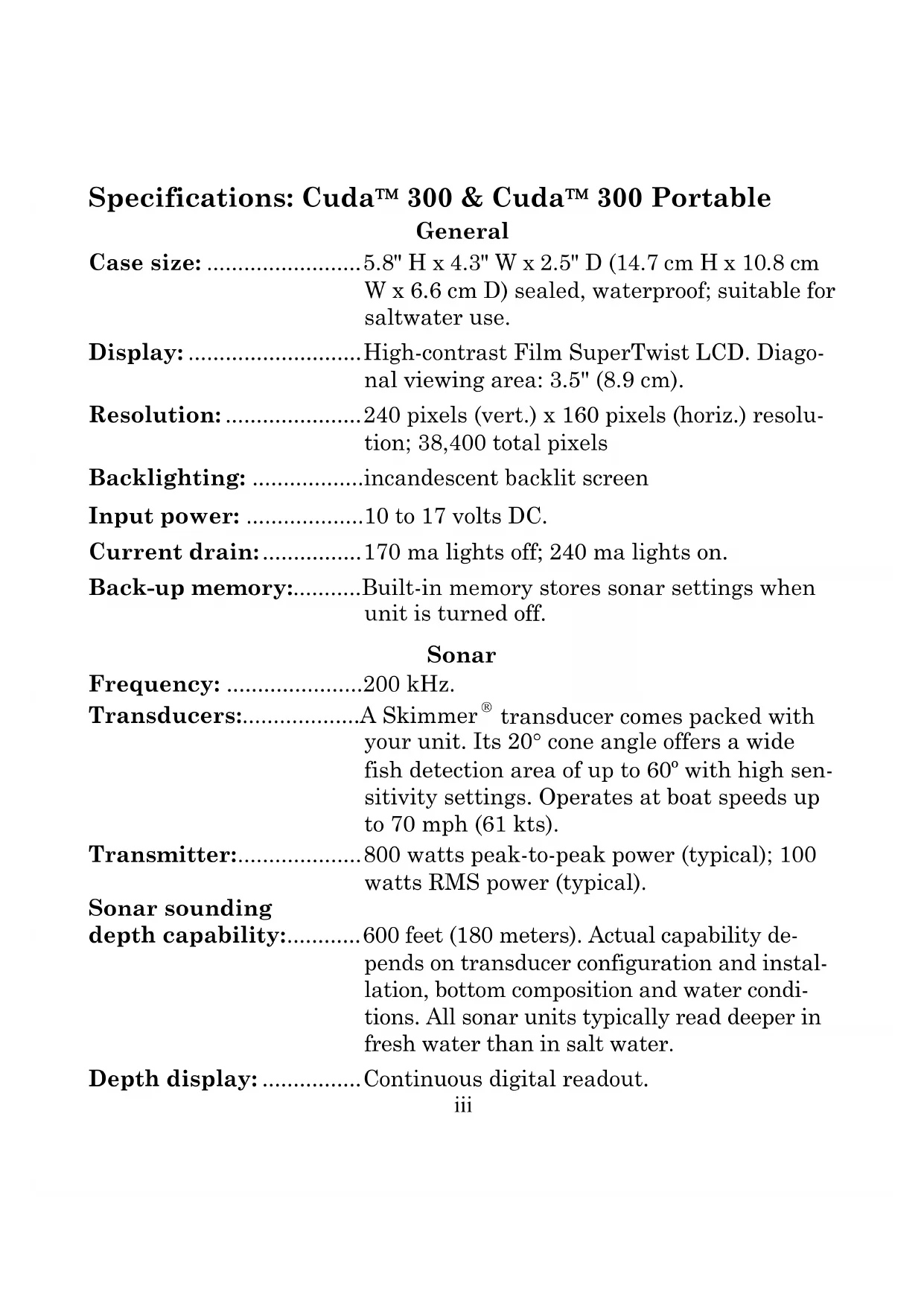
Specifications: Cuda™ 300 & Cuda™ 300 Portable General
Case size: 5.8" H x 4.3" W x 2.5" D (14.7 cm H x 10.8 cm W x 6.6 cm D) sealed, waterproof; suitable for saltwater use.
Display: . High-contrast Film SuperTwist LCD. Diagonal viewing area: 3.5'' (8.9 cm).
Resolution: 240 pixels (vert.) x 160 pixels (horiz.) resolution; 38,400 total pixels
Backlighting: incandescent backlit screen
Input power: 10 to 17 volts DC.
Current drain: 170 ma lights off; 240 ma lights on.
Back-up memory:......Built-in memory stores sonar settings when unit is turned off.
Sonar
Frequency: 200 kHz.
Transducers: A Skimmer® transducer comes packed with your unit. Its 20° cone angle offers a wide fish detection area of up to 60° with high sensitivity settings. Operates at boat speeds up to 70 mph (61 kts).
Transmitter: 800 watts peak-to-peak power (typical); 100 watts RMS power (typical).
Sonar sounding
depth capability: 600 feet (180 meters). Actual capability depends on transducer configuration and installation, bottom composition and water conditions. All sonar units typically read deeper in fresh water than in salt water.
Depth display: ......... Continuous digital readout.
Audible alarms:............Deep/shallow/fish.
Automatic ranging: ....Yes, with instant screen updates.
Auto bottom track: .......Yes.
Zoom bottom track:......Yes.
Split-screen zoom: ....No.
Surface water temp: ....Yes, built into transducer. Optional external temperature sensor or combo speed/temp sensor available.
NOTICE!
The storage temperature for your unit is from -4 degrees to +167 degrees Fahrenheit (-20 degrees to +75 degrees Celsius). Extended storage in temperatures higher or lower than specified will damage the liquid crystal display in your unit. This type of damage is not covered by the warranty. For more information, contact the factory's Customer Service Department; phone numbers are inside the manual's back cover.
Transducer Installation
Preparations
You can install the sonar in some other order if you prefer, but we recommend this installation sequence:
Caution:
You should read over this entire installation section before drilling any holes in your vehicle or vessel!
- Determine the approximate location for the sonar/GPS unit, so you can plan how and where to route the cables for the transducer and power. This will help you make sure you have enough cable length for the desired configuration.
- Determine the approximate location for the transducer and its cable route.
- Determine the location of your battery or other power connection, along with the power cable route.
- Install the transducer and route the transducer cable to the sonar/GPS unit.
- Install the power cable and route it to the sonar/GPS unit.
- Mount the sonar/GPS unit to the bracket.
Transducer Installation
These instructions will help you install your Skimmer® transducer on a transom, on a trolling motor or inside a hull. These instructions cover both single- and dual-frequency Skimmer transducers. Please read all instructions before proceeding with any installation.
The smaller single-frequency Skimmers typically use a one-piece, stainless steel mounting bracket. The larger dual-frequency Skimmers typically use a two-piece, plastic mounting bracket. The trolling motor mount uses a one-piece plastic bracket with an adjustable strap.
These are all "kick-up" mounting brackets. They help prevent damage if the transducer strikes an object while the boat is moving. If the transducer does "kick-up," the bracket can easily be pushed back into place without tools.
Read these instructions carefully before attempting the installation. Determine which of the mounting positions is right for your boat. Remember, the transducer installation is the most critical part of a sonar installation.
NOTE:
The following installation types also call for these recommended tools and required supplies that you must provide (supplies listed here are not included):
Single-frequency transom installations
Tools include: two adjustable wrenches, drill, #29 (0.136") drill bit, Phillips head screwdriver. Supplies: high quality, marine grade above-or below-waterline sealant/adhesive compound.
Dual-frequency transom installations
Tools: two adjustable wrenches, drill, #20 (0.161") drill bit, Phillips head screwdriver. Supplies: four, 1" long, #12 stainless steel slotted wood screws, high quality, marine grade above- or below-waterline sealant/adhesive compound.
Single-frequency trolling motor installations
Tools: two adjustable wrenches, Phillips head screwdriver. Supplies: plastic cable ties.
Selecting a Transducer Location
-
The location must be in the water at all times, at all operating speeds.
-
The transducer must be placed in a location that has a smooth flow of water at all times. If the transducer is not placed in a smooth flow of water, interference caused by bubbles and turbulence will show on the sonar's display in the form of random lines or dots whenever the boat is moving.
NOTE:
Some aluminum boats with strakes or ribs on the outside of the hull create large amounts of turbulence at high speed. These boats typically have large outboard motors capable of propelling the boat at speeds faster than 35mph . Typically, a good transom location on aluminum boats is between the ribs closest to the engine.
- The transducer should be installed with its face pointing straight down, if possible.
- If the transducer is mounted on the transom, make sure it doesn't interfere with the trailer or hauling of the boat. Also, don't mount it closer than approximately one foot from the engine's lower unit. This will prevent cavitation (bubble) interference with propeller operation.
- If possible, route the transducer cable away from other wiring on the boat. Electrical noise from engine wiring, bilge pumps and aerators can be displayed on the sonar's screen. Use caution when routing the transducer cable around these wires.
CAUTION: Clamp the transducer cable to transom near the transducer. This will help prevent the transducer from entering the boat if it is knocked off at high speed.


Good and poor transducer locations.
How low should you go?
For most situations, you should install your Skimmer transducer so that its centerline is level with the bottom of the boat hull.
This will usually give you the best combination of smooth water flow and protection from bangs and bumps.
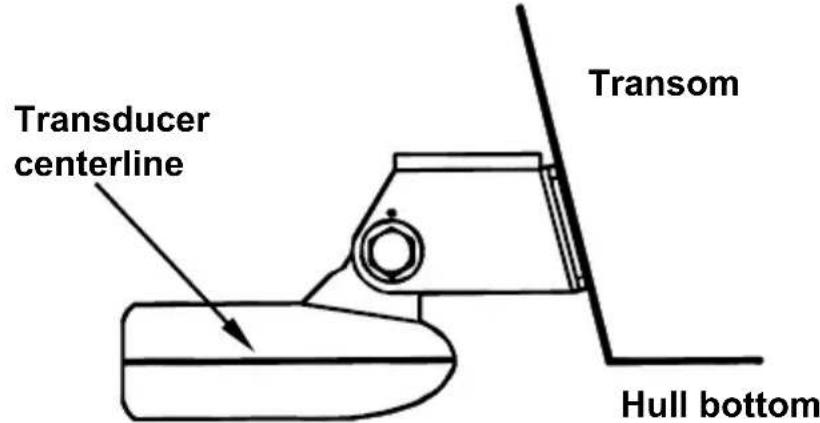
Align transducer centerline with hull bottom.
However, there are times when you may need to adjust the transducer slightly higher or lower. (The slots in the mounting brackets allow you to loosen the screws and slide the transducer up or down.) If you frequently lose bottom signal lock while running at high speed, the transducer may be coming out of the water as you cross waves or wakes. Move the transducer a little lower to help prevent this.
If you cruise or fish around lots of structure and cover, your transducer may be frequently kicking up from object strikes. If you wish, you may move the transducer a little higher for more protection.
There are two extremes you should avoid. Never let the edge of the mounting bracket extend below the bottom of the hull. Never let the bottom – the face – of the transducer rise above the bottom of the hull.
Transom Transducer Assembly And Mounting
The best way to install these transducers is to loosely assemble all of the parts first, place the transducer's bracket against the transom and see if you can move the transducer so that it's parallel with the ground.
The following instructions sometimes vary depending on the mounting bracket that came with your transducer. Single-frequency Skimmers come with a one-piece stainless steel bracket, while dual-frequency Skimmers come with a two-piece plastic mounting bracket. Use the set of instructions that fits your model.
1. Assembling the bracket.
A. One-piece bracket: Press the two small plastic ratchets into the sides of the metal bracket as shown in the following illustration. Notice there are letters molded into each ratchet. Place each ratchet into the bracket with the letter "A" aligned with the dot stamped into the metal bracket. This position sets the transducer's coarse angle adjustment for a 14° transom. Most outboard and stern-drive transoms have a 14° angle.

B. Two-piece bracket: Locate the four plastic ratchets in the transducer's hardware package. Press two ratchets into the sides of the plastic bracket and two on either side of the transducer as shown in the following illustrations. Notice there are letters molded into each ratchet.
Place the rackets into the bracket with the letter "A" aligned with the alignment mark molded into the bracket. Place the rackets onto the transducer with the letter "A" aligned with the 12 o'clock position on the transducer stem. These positions set the transducer's coarse angle adjustment for a 14° transom. Most outboard and stern-drive transoms have a 14° angle.

Add ratchets to bracket and transducer.
2. Aligning the transducer on the transom.
To align the transducer to the transom, side the transducer between the ratchets. Look at the transducer from the side and adjust it so that its face is parallel to the ground. The alignment letters on either side of the bracket need be the same.
If the transducer's face isn't parallel with the ground, remove the transducer and ratchets from the bracket. Place the ratchets into the holes in the bracket with the letter "B" aligned with the dot stamped in the bracket.
Reassemble the transducer and bracket and place them against the transom. Again, check to see if you can move the transducer so it's parallel with the ground. If you can, then go to step 3A.
3. Assembling the transducer.
A. One-piece bracket: Once you determine the correct position for the ratchets, assemble the transducer as shown in the following figure. Don't tighten the lock nut at this time.
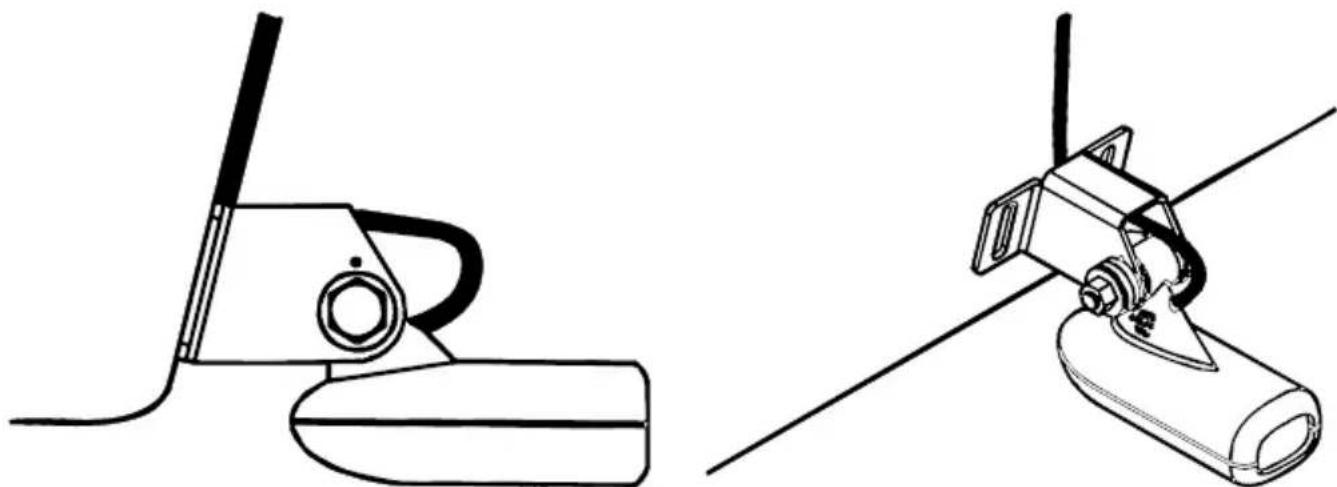
Position transducer mount on transom and mark mounting holes. Side view shown, left, and seen from above at right.

Assemble transducer and bracket.
B. Two-piece bracket: Once you determine the correct position for the ratchets, assemble the transducer as shown in the figure in step 2B. Don't tighten the lock nut at this time.

Assemble transducer and bracket.
4. Drilling mounting holes.
Hold the transducer and bracket assembly against the transom. The transducer should be roughly parallel to the ground. The transducer's centerline should be in line with the bottom of the hull. Don't let the bracket extend below the hull!
Mark the center of each slot for the mounting screw pilot holes. You will drill one hole in the center of each slot.
Drill the holes. For the one-piece bracket, use the #29 bit (for the #10 screws). For the two-piece bracket, use the #20 bit (for the #12 screws).
5. Attaching transducer to transom.
Both bracket types: Attach the transducer to the transom. Slide the transducer up or down until it's aligned properly with the bottom of the hull as shown in the preceding and following figures. Tighten the bracket's mounting screws, sealing them with the sealant.
Adjust the transducer so that it's parallel to the ground even if you have a Deep-"vee" hull. Tighten the nut until it touches the outer washer, then add 1/4 turn. Don't over tighten the lock nut! If you do, the transducer won't "kick-up" if it strikes an object in the water.

Align transducer centerline with hull bottom and attach transducer to transom. Rear view of dual-frequency Skimmer shown.
- Route the transducer cable through or over the transom to the sonar unit. Make sure to leave some slack in the cable at the transducer.
If possible, route the transducer cable away from other wiring on the boat. Use caution when routing the transducer cable around these wires.
WARNING:
Clamp the transducer cable to the transom close to the transducer. This can prevent the transducer from entering the boat if it is knocked off at high speed.
Caution:
If you need to drill a hole in the transom to pass the connector through, the required hole size be 1 . If you drill the hole, make sure it is located above the waterline. After installation, be sure to seal the hole with the same marine grade above- or below-waterline sealant used for the mounting screws.
- Make a test run to determine the results. If the bottom is lost at high speed, or if noise appears on the display, try sliding the transducer bracket down. This puts the transducer deeper into the water, hopefully below the turbulence causing the noise. Don't allow the transducer bracket to go below the bottom of the hull!
Trolling Motor Bracket Installation (single-frequency only)
-
Attach the optional TMB-S bracket to the transducer as shown in the following figure, using the hardware supplied with the transducer. (Note: The internal tooth washer is supplied with the TMB-S.)
-
Slide the adjustable strap supplied with the TMB-S through the slot in the transducer bracket and wrap it around the trolling motor. Position the transducer to aim straight down when the motor is in the water. Tighten the strap securely.

Attach motor mounting bracket to transducer.
- Route the transducer cable alongside the trolling motor shaft. Use plastic ties (not included) to attach the transducer cable to the trolling motor shaft. Make sure there is enough slack in the cable for the motor to turn freely. Route the cable to the sonar unit and the transducer is ready for use.

Transducer mounted on trolling motor, side view.
Transducer Orientation and Fish Arches
If you do not get good fish arches on your display, it could be because the transducer is not parallel with the ground when the boat is at rest in the water or at slow trolling speeds.

Transducer angles and their effects on fish arches.
If the arch slopes up – but not back down – then the front of the transducer is too high and needs to be lowered. If only the back half of the arch is printed, then the nose of the transducer is angled too far down and needs to be raised.
NOTE:
Periodically wash the transducer's face with soap and water to remove any oil film. Oil and dirt on the face will reduce the sensitivity or may even prevent operation.
Power Connections (permanent mount only)
The unit works from a 12-volt battery system. You can attach the power cable to your boat's accessory or power buss (or directly to the battery). If you use an accessory buss but have problems with electrical interference, attach the power cable directly to the battery. If the cable is not long enough, splice #18 gauge wire onto it.
CAUTION:
When using the unit in a saltwater environment, we strongly recommend that you shut off the power supply to the power cable when the unit is not in use. When the unit is turned off but still connected to a power supply, electrolysis can occur in the power cable plug. This may result in corrosion of the plug body along with the electrical contacts in the cable and the unit's power socket.
In saltwater environments we recommend you connect the power cable to the auxiliary power switch included in most boat designs. If that results in electrical interference, or if such a switch is not available, we recommend connecting direct to the battery and installing an inline switch. This will let you shut off power to the power cable when the unit is not in use. When you are not using the unit, you should always shut off power to the power cable, especially when the power cable is disconnected from the unit.
If possible, keep the power cable away from other boat wiring, especially the engine's wires. This will provide the best isolation from electrical noise. The power cable has two wires, red and black. Red is the positive lead, black is negative or ground. Make sure to attach the inline fuse holder to the red lead as close to the power source as possible.

Power connections for the Cuda 300 sonar unit (direct battery connection shown).
For example, if you have to extend the power cable to the battery or power buss, attach one end of the fuse holder directly to the battery or power buss. This will protect both the unit and the power cable in the event of a short. It uses a 3-amp fuse.
Caution:
Do not use this product without a 3-amp fuse wired into the power cable! Failure to use a 3-amp fuse will void your warranty.
This unit has reverse polarity protection. No damage will occur if the power wires are reversed. However, the unit will not work until the wires are attached correctly.
Mounting the Sonar Unit: In-Dash, Bracket or Portable
You can install the sonar unit on the top of a dash with the supplied bracket. This unit can be installed in a dash with the optional FM-6 indash adapter kit. The FM-6 kit includes an instruction sheet, part 988-0147-631, which contains a template for cutting out the mounting hole. This document can be downloaded free from the www.eaglesonar.com web site.
Bracket Installation
Recommended tools for this job include: drill, 1'' (25.4 mm) drill bit, screwdriver. Required supplies for this job include: high quality, marine grade above- or below-waterline caulking compound, three #10 stainless steel screws. Screw length and type should be suitable for the material on which you intend to mount the bracket.
Mount the unit in any convenient location, provided there is clearance when it's tilted for the best viewing angle. You should also make sure there is enough room behind the unit to attach the power/transducer cable. (See the following drawings, which show the dimensions of a gimbal-mounted Cuda 300 sonar unit.)

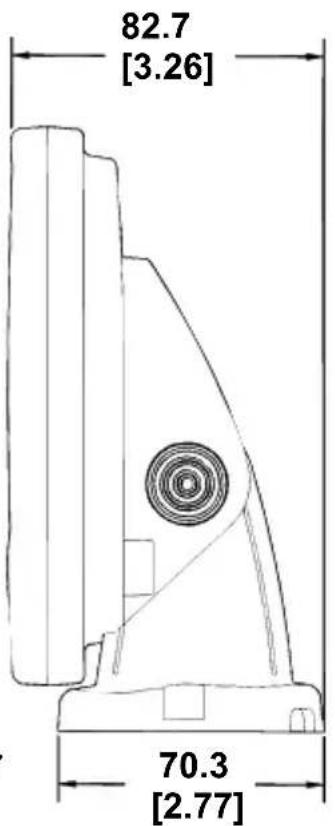
Front view (left) and side view (right) showing dimensions of the Cuda 300 when mounted on quick release bracket.
Holes in the bracket's base allow wood screw or through-bolt mounting. You may need to place a piece of plywood on the back side of thin panels to reinforce the panel and secure the mounting hardware.
Drill a 1" (25.4 mm) hole in the dash for the power/transducer and accessory cables. The best location for this hole is immediately under the gimbal bracket location. This way, the bracket can be installed so that it covers the hole, holds the cables in position and results in a neat installation. Some customers, however, prefer to mount the bracket to the side of the cable hole — it's a matter of personal preference.
After drilling the hole, pass the connectors up through the hole from under the dash. If you wish, you can fill in the hole around the cable with a good marine caulking compound. (Some marine dealers stock cable hole covers to conceal the opening.)
Using the Quick Release Mounting Bracket
These units use a quick release mounting bracket. When you run the cables through the bracket's cable slots, make sure you allow enough slack for tilting the unit and attaching the connector. (The snug fit of the push-on waterproof connector requires some force to attach.)
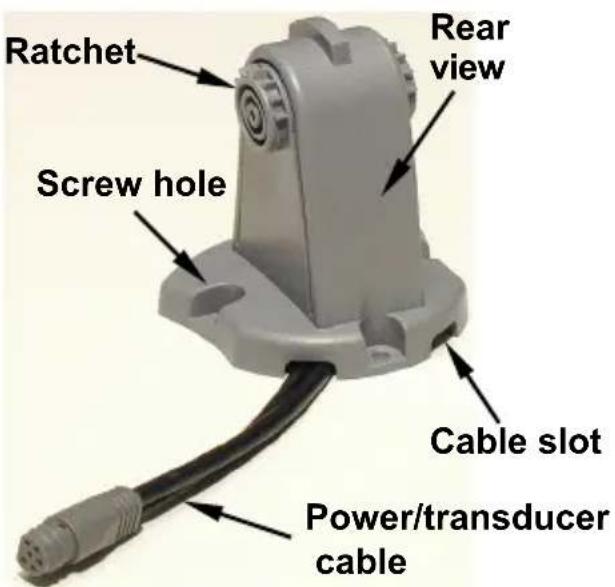

Cuda 300 quick release mounting bracket (left). Adjusting the viewing angle of a display unit (right).
Attach the unit to the bracket by first connecting the power/transducer and accessory cables. Then, hold the sonar unit vertically and slide it onto the bracket from above. (The back of the unit should be touching the front of the bracket as you lower it into position.) As you push down, the unit will lock into place with a distinct click.
To adjust the viewing angle, pinch the ratchets with one hand, then tilt the unit with your other hand. Release the ratchets and the unit locks into the new position. To dismount the unit for storage, press the ratchets and lift the unit off the bracket.
Portable Sonar Installation
Like many Eagle products, the Cuda 300 sonar is capable of portable operation. It uses the optional PPP-12 portable power pack.
The PPP-12 package includes the power pack, battery adapter and a portable transducer. The transducer can be stored inside the power pack. The PPP-12 requires eight AA alkaline batteries. Batteries are not included.
To use a portable power pack, you install the batteries and then attach the sonar unit to the power pack's bracket. Plug in the power/transducer cable and you're ready to fish.
The PPP-12 has a quick-release mounting bracket built into the case.
Installing the Batteries
Open the case and lay it flat. (The latch is located below the handle.) Insert eight "AA" size batteries into the battery adapter and place it in the battery compartment. Slip the battery cover tabs into the slots in the case wall, then close the battery cover with the thumb screw.
Plug the cable's power (dog bone-shaped) connector into the socket on the battery compartment cover. Route the cable's unit connector and about 6 inches (15.2cm) of cable through the opening under the sonar mount. Close the case bottom, using the slot in the case wall to avoid pinching the cable. Turn the unit over to mount the sonar.
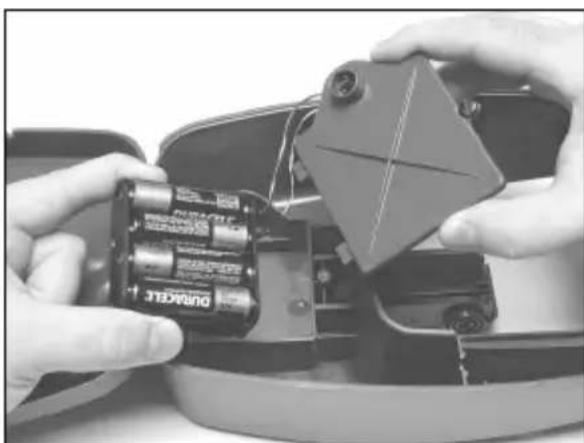

Install batteries in battery compartment (left). Attach power cable, and route wires as shown (right).
CAUTION:
When using the sonar in a saltwater environment, we strongly recommend that you unplug the power connector from the battery socket when the unit is not in use. When the unit is turned off but still connected to a power supply, electrolysis can occur in the power cable plug. This may result in corrosion of the plug body along with the electrical contacts in the cable and the unit's power socket.
Mounting the Unit
A quick-release mount is built into the top of the portable power pack. To attach the unit, first plug in the cable connector. Then, hold the sonar unit vertically and slide it onto the bracket from above. (The back of the unit should be touching the front of the bracket as you lower it into position.) As you push down, the unit will lock into place with a distinct click.
To adjust the viewing angle, pinch the quick-release mount's ratchets with one hand, then tilt the unit with your other hand. Release the ratchets and the unit locks into the new position. To remove the unit from the PPP-12, press the ratchets and lift the unit off the bracket.

To mount the sonar, slide the unit onto the bracket from above (left). To adjust the view, press and release spring-loaded ratchets while tilting the unit (right).
Portable Transducer Assembly
Make sure there is one washer on each side of the transducer, inside the bracket. Slide the other washer over the end of the bolt and screw on the nut.
Screw the suction cup onto the bracket using the supplied screw and flat washer. Tie the nylon cord through the hole in the top of the bracket. When using the transducer, tie the other end of the nylon cord to the boat. This will help prevent losing the transducer if it comes off. Clean the chosen area of the hull before attaching the suction cup. Locate the transducer on the hull as shown in the following figure. Don't let the bracket extend below the hull, because water pressure against it can cause the suction cup to come off at speed.

Portable transducer installed on boat transom.

Portable transducer assembly: rear view (left) and side view (right).
NOTE:
For optimum operation, the portable transducer should be adjusted so that it is parallel to the ground. For more information on this, see the segment in the unit's operation manual on Transducer Orientation and Fish Arches.
Moisten the suction cup, then press it onto the hull as firmly as possible. Tie the nylon cord to the boat and set the power pack and sonar unit in a location for easy viewing. Your portable sonar is now ready for use.
Operation
Keyboard Basics
The Cuda 300 has five buttons including, Power/Clear, Menu Up, Menu Down and two arrow keys.

Eagle Cuda 300 keyboard.
PWR/CLEAR
Press the PWR key to turn the unit on and off. It also clears menus and menu selections from the screen.
The MENU UP key cycles forward through the menus. The MENU DOWN key moves backward through the menus. To scroll through the unit's menus, repeatedly press a MENU key.
The UP and DOWN ARROW keys are used to adjust features and functions.
Memory
This unit has an internal backup battery that saves the following user settings when power is turned off: Units of Measure, Temp Size, Depth
Size, Fish I.D. mode, Noise Reject mode, Range mode, Zoom, Sensitivity, Grayline, Chart Speed, Battery Alarm, Display Contrast, Backlight, Language, Fish Alarm, Battery Alarm and Shallow and Deep alarms.
Display
When the unit is turned, the backlight menu will appear. Use the ARROW keys to turn the backlight on or off. Press PWR to clear the menu from the screen.
Depth range will be displayed on the left side of the screen. In the following figure, the screen shows a depth range from 0 to 80 feet and the bottom depth is 36.9 feet, shown by the digital sonar. The water temperature is 34.5°F .
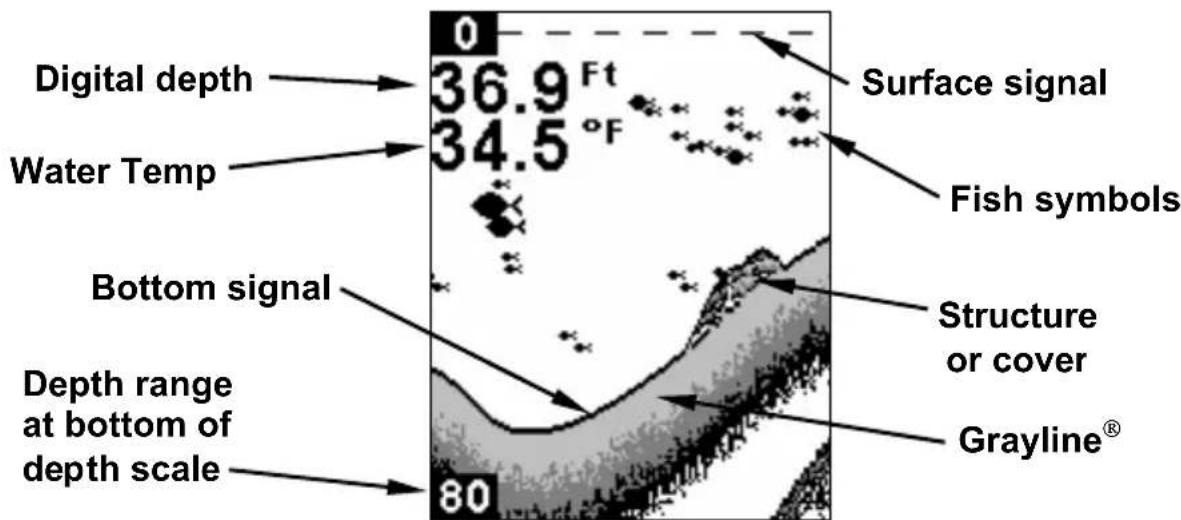
Full Chart page. Fish I.D. (fish symbols) is on by default.
Full Chart
On the Full Chart page, the bottom signal scrolls across the screen from right to left. The line at the top of the screen represents the surface. The bottom depth is shown in the upper left-hand corner.
If the transducer with a built-in temperature sensor is connected, the water temperature also will be shown.
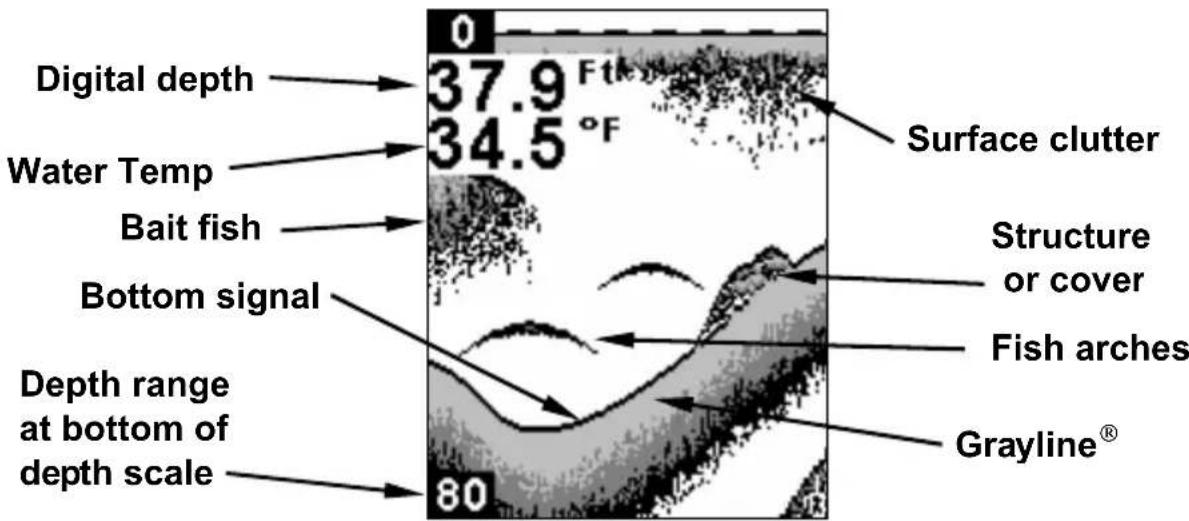
Full Chart page with Fish I.D. turned off.
Depth Range
Depth Range has two modes: Automatic and Manual. In auto range mode, the unit always keeps the bottom displayed in the lower portion of the screen. If you want to manually select a depth range, you can override automatic depth range control.


Depth Range menu with Manual setting selected (left). Range Size menu with 0-80 ft highlighted (center). Zoom Range menu with the 40-80 foot zoom selected.
To turn off Auto Depth Range:
- Repeatedly press MENU until the Depth Range menu appears. Press to select MANUAL, then press MENU UP to display the RANGE SIZE menu.
- Use the arrow keys to select a desired depth range. Press PWR to clear the menu from the display.
Zoom
The zoom feature enlarges all images on the screen by doubling the size of the echoes (a 2X zoom).
To turn on the Zoom feature:
- Press the MENU key until the ZOOM menu appears. Press to select ON, then press PWR to clear the menu.
You can tell when the display is in Zoom mode because the top depth scale on the left of the screen will no longer show zero. If the current range is 0 to 80 feet, turning on the zoom feature will magnify the water column between 40 feet to 80 feet.
To turn off the zoom feature:
- Press the MENU key until the Zoom menu appears. Press to select OFF, then press PWR to clear the menu. The top of the depth range scale returns to zero.
NOTE:
You can select from these zoom size ranges: 0-10, 5-15, 10-20, 15-30, 20-40, 30-60, 40-80, 50-100, 75-150, 100-200, 150-300, 200-400, 300-600, 400-800, 500-1000, 750-1500 and 1000-2000.
To select a zoom range:
- Make sure Depth Range is set to manual mode. Press MENU until the ZOOM menu appears. Press ↑ to select ON, then press MENU UP to display the ZOOM RANGE menu.
- Use the arrow keys to select a desired zoom size. Press PWR to clear the menu from the display.
Sensitivity
Sensitivity adjusts the way echoes will be displayed on the screen. If you want to see more detail, try increase sensitivity. If your unit is picking up a lot of clutter, decrease the sensitivity to reduce the amount of clutter displayed on the screen.
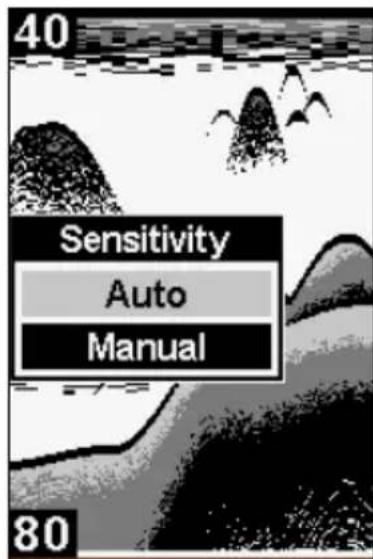

Sensitivity set to manual mode (left). Sensitivity control bar (right).
To adjust sensitivity in Auto Mode:
-
Press MENU until the SENSITIVITY control bar appears. Press ↑ to increase the sensitivity, ↓ to decrease it.
-
Press PWR to clear the menu. If you reach the maximum or minimum sensitivity level, a tone will sound.
To turn on Manual mode:
- Repeatedly press Menu to display the Sensitivity menu. Highlight MANUAL and press PWR to clear the menu.
Grayline
Grayline® helps you tell the difference between a hard and a soft bottom by coloring weaker sonar returns (soft, muddy or weedy bottom) with a narrow gray line or no gray line at all. A strong sonar return (hard bottom) will be displayed as a wide gray line.


Sensitivity at 71 percent (left). Sensitivity at 100 percent (right).
To change the Grayline level:
- Press MENU until the GRAYLINE control bar appears.
- Press to increase the level of Grayline or press to decrease it. If you reach the maximum or minimum level, a tone will sound. Press PWR to clear the menu.


A small amount of Grayline indicates a soft bottom (left), probably sand or mud. More Grayline indicates a harder, rocky bottom (right).
Chart Speed
The rate that echoes scroll across the screen is called the chart scroll speed. The default for this unit is the maximum, 100 percent.

Chart Speed control bar.
NOTE:
When you are stationary or traveling slowly and using a higher chart speed, a fish swimming through the sonar signal will be displayed as a long line instead of a fish arch. You can counteract this by decreasing the chart speed to match the speed of your boat, which will shorten the line, making it look more like a fish arch.
To adjust Chart Speed:
-
Press MENU until the CHART SPEED control bar appears. Press ↑ to increase the speed of the chart. Press ↓ to decrease it.
-
Press PWR to clear the menu.
Fish I.D. TM
The Fish I.D. feature displays fish symbols on the screen in place of the actual fish echoes. There are three symbol sizes: small, medium and large. These show the relative size between targets.
To see what's under your boat in maximum detail, we recommend you turn off Fish I.D. and begin learning to interpret fish arches.
To turn Fish I.D. on/off:
-
Press MENU until the FISH ID menu appears. Press to select ON/OFF.
-
Press PWR to clear the menu from the display.

Underwater scene in normal fish arch mode (left). Fish I.D. menu with the feature turned on (right).
FishTrackTM
The FishTrack™ feature shows the depth of a fish symbol when it appears on the display.
To turn on/off FishTrack:
- Press MENU until the FISH ID menu appears. Press to select TRACK or OFF.
- Press PWR. (If you want to turn off FishTrack depths but leave Fish I.D. on, press to select ON, then press PWR.) Remember, Fish I.D. must be on in order to use the FishTrack feature.
Fish Alarm
The Fish Alarm sounds a tone when a fish symbol appears on the screen. The Fish I.D. feature must be turned on for fish alarms to work.
To turn on/off the fish alarm:
- Press MENU until the FISH ALARM menu appears. Press ↑ to select ON/OFF.
- Press PWR to clear the menu from the screen
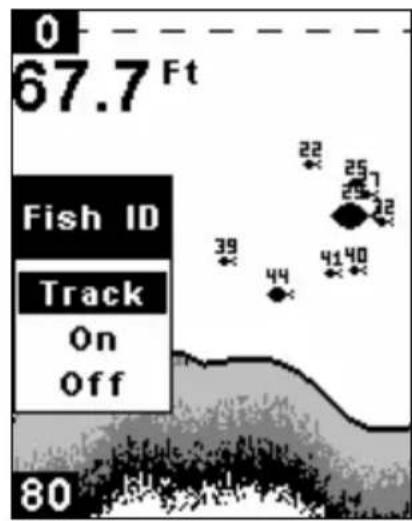

Fish ID menu and symbol with FishTrack on (left). Fish Alarm menu (right).
Depth Alarms
The depth alarms consist of a shallow and a deep alarm. The shallow alarm sounds an alarm tone when the bottom is shallower than the alarm's setting. The deep alarm sounds a tone when the bottom is deeper than the alarm's setting.
Shallow Alarm
To set the shallow alarm:
-
Press MENU repeatedly until SHALLOW ALARM appears.
-
Press to SET VALUE. Use to enter the first number in the dialog box, then press DOWN MENU to move to the next digit. Repeat those steps until the desired depth has been entered in the dialog box. To move the cursor back to any of the previously entered numbers, press UP MENU.
-
Press PWR to return to the Shallow Alarm menu. Use to select ON, which will turn on the alarm, then press PWR to clear the menu. When the alarm goes off a message will appear and a tone will sound. Press PWR to silence the alarm.
To turn off the alarm:
-
Repeatedly press MENU until the SHALLOW ALARM menu appears. Press to OFF.
-
Press PWR to clear the menu.

Shallow Alarm Value Dialog box (left). Shallow Alarm menu (right).
Deep Alarm
To set the deep alarm:
-
Press MENU repeatedly until DEEP ALARM appears.
-
Press to SET VALUE. The Deep Alarm Value dialog box will appear. Use to enter the first number in the dialog box, then press DOWN MENU to move to the next digit. Repeat those steps until the desired depth has been entered in the dialog box. To move the cursor back to any of the previously entered numbers, press UP MENU.
-
Press PWR to return to the Deep Alarm menu. Use to select ON. Press PWR to clear the menu. When the bottom depth becomes deeper than the alarm's setting, an alarm will sound and a message will appear on the screen.
To turn off the alarm:
- Repeatedly press MENU until the DEEP ALARM menu appears. Press ↓ to OFF. Press PWR to clear the menu.
Battery Alarm
To set the Battery alarm:
-
Press MENU repeatedly until BATTERY ALARM appears.
-
Press the to SET VALUE. The Low Battery Alarm Value dialog box will appear. Input a voltage value between 7 and 18 volts. Use the keys to enter the first number in the dialog box, then press DOWN MENU to move to the next digit. Repeat those steps until the desired value has been entered in the dialog box. To move the cursor back to any of the previously entered numbers, press UP MENU.

Low Battery Alarm Value (left). Battery Alarm menu (right).
- Press PWR to return to the Battery Alarm menu. Use ↑ to select ON, which will turn on the alarm, then press PWR to clear the menu. If the voltage value falls below the alarm's setting, the alarm will sound and a message will appear on the screen.
To turn off the alarm:
-
Repeatedly press MENU until the BATTERY ALARM menu appears. Press to OFF.
-
Press PWR to clear the menu.
Noise Reject and ASPTM
The ASPTM (Advanced Signal Processing) feature is a noise rejection system that constantly evaluates the effects of boat speed, water conditions and electrical interference and automatically gives you the best display possible under most conditions. The ASP feature has three settings — Off, Low and High.
To change the ASP setting:
- Press MENU until the NOISE REJECTION menu appears. Use to select the desired setting.
- Press PWR to clear the menu.
Depth Display
Depth may be displayed in a small, medium or large size, or can be turned off completely.
To display Depth:
- Repeatedly press MENU until the Depth menu appears. Use to select the size of the depth display.
- Press PWR to clear the menu.

Depth display set to large (left). Voltage display set to small (right).
Voltage
The Voltage menu allows you to display battery voltage in a small or medium size, or can be turned off completely.
To display battery voltage:
-
Repeatedly press MENU until the VOLTAGE menu appears. Use to select the size of the voltage display.
-
Press PWR to clear the menu.
Temperature Display
Temperature may be displayed in a small or medium size, or can be turned off completely.
To display Temperature:
- Repeatedly press MENU until the TEMPERATURE menu appears. Use ↑ ↓ to select the size of the temperature display.
- Press PWR to clear the menu.
Units
This unit can show the depth in feet or meters and temperature in Celsius or Fahrenheit.

The Backlight menu with backlight turned on.
To change units of measure:
- Press MENU until the UNITS menu appears. Use the arrow keys to select the desired unit of measure.
- Press the PWR key to clear the menu.
Backlight
Turning on your unit's backlight will allow you to use it at night.
To turn the backlight on/off:
- Press MENU repeatedly until the BACKLIGHT menu appears. Press ↑ to turn the light on or ↓ to turn it off.
- Press PWR to clear the menu.
Contrast
The unit's display contrast is adjustable to suit different lighting conditions. It will help you see the screen from different angles or at various times of the day.
To adjust the contrast:
- Press MENU until the CONTRAST control bar appears. To decrease screen contrast, press . Press to increase screen contrast.
- Press the PWR key to clear the menu.

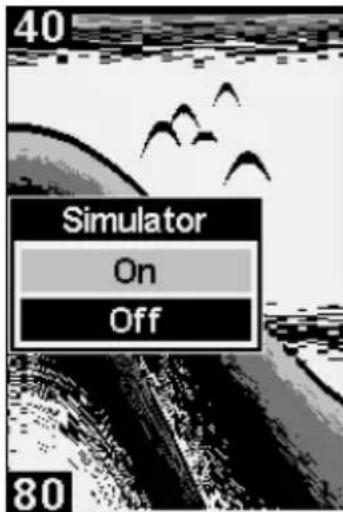

Contrast control bar (center). Simulator menu (center). Languages menu with English selected (right).
Simulator
This unit has a simulator that displays a simulated bottom signal with fish signals.
To turn on/off the simulator:
-
Repeatedly press MENU until the SIMULATOR menu appears. Press to turn it on or off.
-
Press PWR to clear the menu.
Set Language
This unit's menus are available in 11 languages: English, French, German, Spanish, Italian, Danish, Swedish, Russian, Czech, Dutch and Finnish.
To select a language:
-
Repeatedly press MENU until the Languages menu appears.
-
Use to select the desired language. All menus now appear in the language you selected. Press PWR to clear the menu.
The Software Information screen shows what version of software your unit is using.
-
Press MENU until the SOFTWARE INFORMATION menu appears.
-
Press PWR to clear the screen.
Reset Options
This command is used to reset all features, options and settings to their original factory defaults.
To Reset Options:
-
Turn the unit off. Press and hold and the MENU DOWN key at the same time while pressing the PWR key.
-
Release the keys as the unit powers up. The unit will turn on with factory settings restored.
Notes
Table des Matieres
Informations Techniques: Cuda™ 300 & Cuda™ 300 Portable......1
Preparations 3
Installation Portative 22
Installation des Files 23
Installer l'Appareil 24
Installation Portative
"We," "our," or "us" refers to EAGLE ELECTRONICS, a division of NAVICO, the manufacturer of this product. "You" or "your" refers to the first person who purchases this product as a consumer item for personal, family, or household use.
We warrant this product against defects or malfunctions in materials and workmanship, and against failure to conform to this product's written specifications, all for one (1) year from the date of original purchase by you. WE MAKE NO OTHER EXPRESS WARRANTY OR REPRESENTATION OF ANY KIND WHATSOEVER CONCERNING THIS PRODUCT. Your remedies under this warranty will be available so long as you can show in a reasonable manner that any defect or malfunction in materials or workmanship, or any non-conformity with the product's written specifications, occurred within one year from the date of your original purchase, which must be substantiated by a dated sales receipt or sales slip. Any such defect, malfunction, or non-conformity which occurs within one year from your original purchase date will either be repaired without charge or be replaced with a new product identical or reasonably equivalent to this product, at our option, within a reasonable time after our receipt of the product. If such defect, malfunction, or non-conformity remains after a reasonable number of attempts to repair by us, you may elect to obtain without charge a replacement of the product or a refund for the product. THIS REPAIR, OR REPLACEMENT OR REFUND (AS JUST DESCRIBED) IS THE EXCLUSIVE REMEDY AVAILABLE TO YOU AGAINST US FOR ANY DEFECT, MALFUNCTION, OR NON-CONFORMITY CONCERNING THE PRODUCT OR FOR ANY LOSS OR DAMAGE RESULTING FROM ANY OTHER CAUSE WHATSOEVER. WE WILL NOT UNDER ANY CIRCUMSTANCES BE LIABLE TO ANYONE FOR ANY SPECIAL, CONSEQUENTIAL, INCIDENTAL, OR OTHER INDIRECT DAMAGE OF ANY KIND.
Some states do not allow the exclusion or limitation of incidental or consequential damages, so the above limitations or exclusions may not apply to you.
This warranty does NOT apply in the following circumstances: (1) when the product has been serviced or repaired by anyone other than us; (2) when the product has been connected, installed, combined, altered, adjusted, or handled in a manner other than according to the instructions furnished with the product; (3) when any serial number has been effaced, altered, or removed; or (4) when any defect, problem, loss, or damage has resulted from any accident, misuse, negligence, or carelessness, or from any failure to provide reasonable and necessary maintenance in accordance with the instructions of the owner's manual for the product.
We reserve the right to make changes or improvements in our products from time to time without incurring the obligation to install such improvements or changes on equipment or items previously manufactured.
This warranty gives you specific legal rights and you may also have other rights which may vary from state to state.
REMARKER: You must retain the sales slip or sales receipt proving the date of your original purchase in case warranty service is ever required.
EAGLE ELECTRONICS PO BOX 669, CATOOSA, OK 74015 (800) 324-1354
How to Obtain Service...
...in the USA:
We back your investment in quality products with quick, expert service and genuine Eagle replacement parts. If you're in the United States and you have technical, return or repair questions, please contact the Factory Customer Service Department. Before any product can be returned, you must call customer service to determine if a return is necessary. Many times, customer service can resolve your problem over the phone without sending your product to the factory. To call us, use the following toll-free number:
800-324-1354
8 a.m. to 5 p.m. Central Standard Time, M-F
Eagle Electronics may find it necessary to change or end our shipping policies, regulations, and special offers at any time. We reserve the right to do so without notice.
...in Canada:
If you're in Canada and you have technical, return or repair questions, please contact the Factory Customer Service Department. Before any product can be returned, you must call customer service to determine if a return is necessary. Many times, customer service can resolve your problem over the phone without sending your product to the factory. To call us, use the following toll-free number:
800-661-3983
905-629-1614 (not toll-free)
8 a.m. to 5 p.m. Eastern Standard Time, M-F
...outside Canada and the USA:
If you have technical, return or repair questions, contact the dealer in the country where you purchased your unit. To locate a dealer near you, visit our web site, www.eaglesonar.com and look for the Dealer Locator.
To order Eagle accessories such as power cables or transducers, please contact:
1) Your local marine dealer or consumer electronics store. Most quality dealers that handle marine electronic equipment or other consumer electronics should be able to assist you with these items.
To locate an Eagle dealer near you, visit our web site, www.eaglesonar.com and look for the Dealer Locator. Or, you can consult your telephone directory for listings.
2) U.S. customers: LEI Extras Inc., PO Box 129, Catoosa, OK 74015-0129
Call 1-800-324-0045 or visit our web site www.lei-extras.com.
3) Canadian customers can write:
Lowrance/Eagle Canada, 919 Matheson Blvd. E. Mississauga, Ontario L4W2R7 or fax 905-629-3118.
If it becomes necessary to send a product for repair or replacement, you must first receive a return authorization number from Customer Service. Products shipped without a return authorization will not be accepted. When shipping, we recommend you do the following:
- Please do not ship the knobs or mounting bracket with your unit.
- If you are sending a check for repair, please place your check in an envelope and tape it to the unit.
- For proper testing, include a brief note with the product describing the problem. Be sure to include your name, return shipping address and a daytime telephone number. An e-mail address is optional but useful.
- Pack the unit in a suitable size box with packing material to prevent any damage during shipping.
- Write the Return Authorization (RA) number on the outside of the box underneath your return address.
- For your security, you may want to insure the package through your shipping courier. Eagle does not assume responsibility for goods lost or damaged in transit.

www.eaglesonar.com
Eagle Pub. 988-0143-96A
All Rights Reserved
Printed in USA
Copyright 2008
Navico