KW 6000 - Keyboard Cherry - Free user manual and instructions
Find the device manual for free KW 6000 Cherry in PDF.



| Product Type | Bluetooth Keyboard |
| Brand | Cherry |
| Model | KW 6000 |
| Connectivity | Bluetooth |
| Compatibility | Apple iPad |
| Power Supply | Rechargeable lithium-ion polymer battery (3.7 V / 100 mAh) |
| Operating consumption | 2 mA typical |
| Charging consumption | 100 mA |
| Operating temperature | 0 °C to +40 °C |
| Storage temperature | -20 °C to +60 °C |
| Main features | Ultra slim, ultra compact, rechargeable via USB cable |
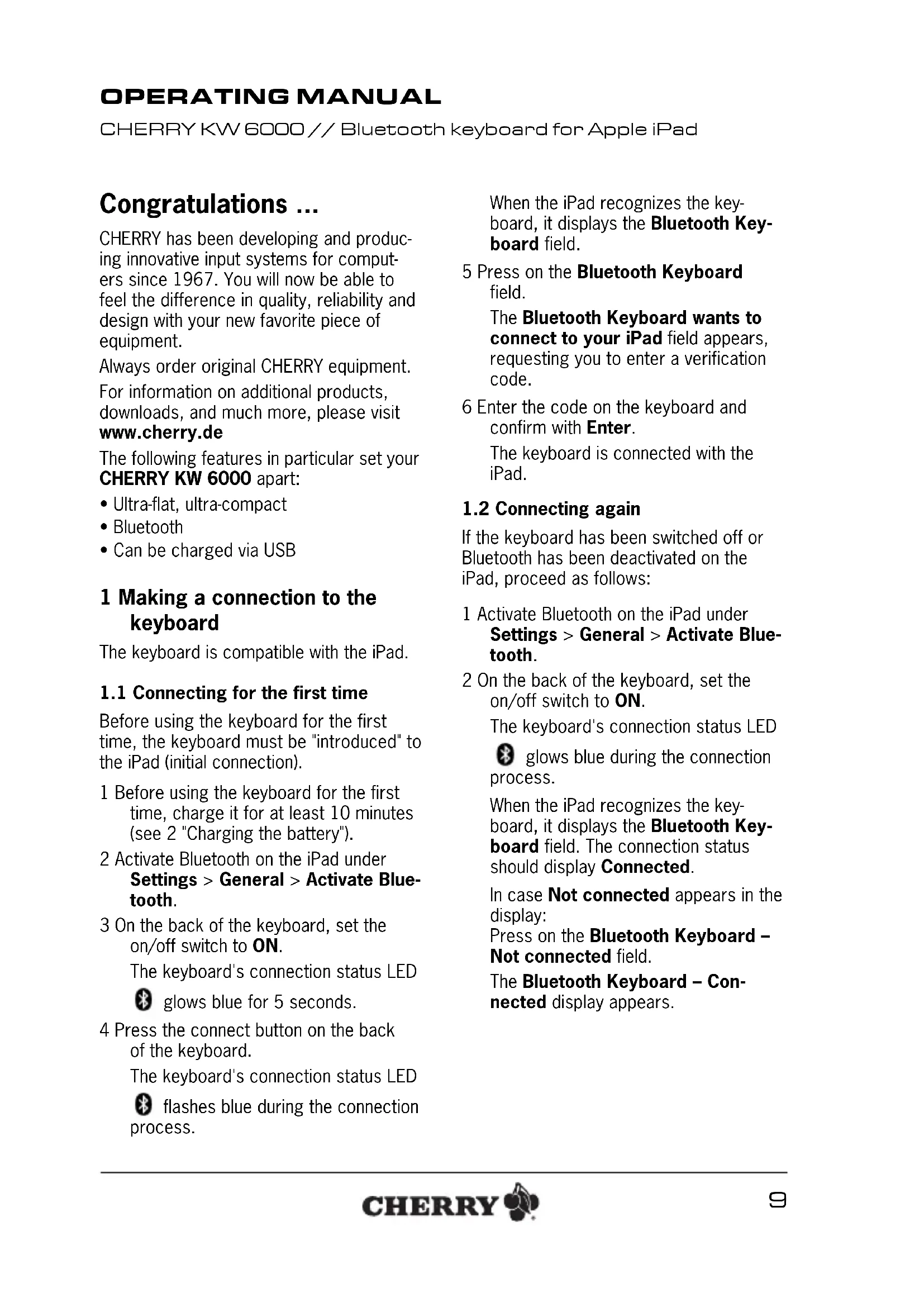
| Function keys (Hotkeys) | Home, Search, Previous track, Play/Pause, Next track, Mute, Volume -, Volume +, On-screen keyboard on/off |
| Battery LED indicator | Flashes red every 5 seconds if battery low; steady red while charging; turns off when charged |
| Connection LED indicator | Steady blue for 5 seconds at power on; flashes blue during pairing |
| Maintenance and cleaning | Clean with a slightly damp cloth and mild detergent; do not use solvents or remove key caps |
| Safety | Avoid liquid penetration; turn off keyboard when not in use |
| Disposal | Device and battery to be recycled via an electronic waste collection point |
| Warranty | Legal warranty; contact the retailer |
| General information | Trademark of ZF Friedrichshafen AG; continuously optimized |
Frequently Asked Questions - KW 6000 Cherry
User questions about KW 6000 Cherry
0 question about this device. Answer the ones you know or ask your own.
Ask a new question about this device
Download the instructions for your Keyboard in PDF format for free! Find your manual KW 6000 - Cherry and take your electronic device back in hand. On this page are published all the documents necessary for the use of your device. KW 6000 by Cherry.
USER MANUAL KW 6000 Cherry
Bluetooth keyboard for Apple iPad
CHERRY has been developing and producing innovative input systems for computers since 1967. You will now be able to feel the difference in quality, reliability and design with your new favorite piece of equipment.
Always order original CHERRY equipment.
For information on additional products, downloads, and much more, please visit www.cherry.de
The following features in particular set your CHERRY KW 6000 apart:
- Ultra-flat, ultra-compact
- Bluetooth
- Can be charged via USB
1 Making a connection to the keyboard
The keyboard is compatible with the iPad.
1.1 Connecting for the first time
Before using the keyboard for the first time, the keyboard must be "introduced" to the iPad (initial connection).
1 Before using the keyboard for the first time, charge it for at least 10 minutes (see 2 "Charging the battery").
2 Activate Bluetooth on the iPad under Settings > General > Activate Bluetooth.
3 On the back of the keyboard, set the on/off switch to ON.
The keyboard's connection status LED

glows blue for 5 seconds.
4 Press the connect button on the back of the keyboard.
The keyboard's connection status LED

flashes blue during the connection process.
When the iPad recognizes the keyboard, it displays the Bluetooth Keyboard field.
5 Press on the Bluetooth Keyboard field.
The Bluetooth Keyboard wants to connect to your iPad field appears, requesting you to enter a verification code.
6 Enter the code on the keyboard and confirm with Enter.
The keyboard is connected with the iPad.
1.2 Connecting again
If the keyboard has been switched off or Bluetooth has been deactivated on the iPad, proceed as follows:
1 Activate Bluetooth on the iPad under Settings > General > Activate Bluetooth.
2 On the back of the keyboard, set the on/off switch to ON.
The keyboard's connection status LED

It glows blue during the connection process.
When the iPad recognizes the keyboard, it displays the Bluetooth Keyboard field. The connection status should display Connected.
In case Not connected appears in the display:
Press on the Bluetooth Keyboard - Not connected field.
The Bluetooth Keyboard - Connected display appears.
OPERATING MANUAL
CHERRY KW 6000 // Bluetooth keyboard for Apple iPad
2 Charging the battery
The keyboard contains a lithium ion polymer battery which needs to be charged after several weeks of use. As the battery has no memory effect, you can recharge it at any time.
You can continue working while it is charging. The keyboard is switched on when the charging cable is connected and also if the switch is in the OFF position.
Charge the keyboard when the battery status LED ases red at intervals of 5 seconds.
1 On the back of the keyboard, set the on/off switch to ON.
2 Connect the mini USB cable with the socket on the back of the keyboard and to a USB connection or a USB network adapter.
The battery status LED or the keyboard lights up red while it is charging.
When the battery status LED goes out, the keyboard battery has been fully charged.
3 Hotkeys
You activate the functions of the hotkeys, by pressing the button with the corresponding symbol.
The symbols have the following functions:
| Symbol | Function |
| □ | iPad Home Screen |
| Q | Search |
| ▲▲ | Previous title |
| Symbol | Function |
| ▲▼ | Play/Pause |
| ▲▼ | Next title |
| ▲ | Mute |
| ▲) | Volume down |
| ▲) | Volume up |
| On-screen keyboard on/off |
4 Tips
4.1 Extending the battery life
When you are not using the keyboard:
- On the back of the keyboard, set the on/off switch to OFF.
4.2 Cleaning

CAUTION: Damage may be caused by harsh cleaning agents or liquids in the keyboard
- Do not use solutions such as gasoline or alcohol and scouring agents or scouring sponges for cleaning.
- Prevent fluids from entering the devices.
- Do not remove the keycaps of the keyboard.
1 Switch off the PC.
2 Clean the keyboard with a slightly damp cloth and some mild cleaning agent (e.g.: dishwashing liquid).
3 Dry off the devices with a soft, lint-free cloth.
4.3 RSI syndrome

RSI stands for "Repetitive Strain Injury". RSI arises due to small movements continuously repeated over
a long period of time.
Typical symptoms are discomfort in the fingers or neck. For further information see: www.cherry.de/english/service/ servicedownload_rsi.htm
- Set up your workspace ergonomically.
- Position the keyboard and mouse in such a manner that your upper arms and wrists are outstretched and to the sides of your body.
- Take several short breaks, with stretching exercises if necessary.
- Change your posture often.
4.4 Troubleshooting
1 Check whether the keyboard is switched on with the switch on the bottom (switch is set to ON).
2 Check that the battery is charged.
3 Check the connection to the iPad under Settings > General > Devices.
The Bluetooth Keyboard - Connected display appears.
If not: See 1 "Making a connection to the keyboard".
4 To make sure that the keyboard is not defective, if possible, test it with another iPad.
5 Consult your specialist dealer.
5 Disposal
5.1 Disposal of the old unit

Dispose of the old unit via a collecting point for electronic scrap or via your dealer.
5.2 Disposal of the battery
The device contains a rechargeable lithium ion polymer battery. If the battery can no longer be charged at the end of its service
life, do not dispose of it with household waste. Batteries may contain pollutants that can pose a danger to the environment and public health. Please return the battery together with the device to the specialist dealer or hand it in at your community recycling center. Returning the battery is mandatory under law and free of charge.
All standard and rechargeable batteries are recycled, which enables valuable raw materials, such as iron, zinc and nickel to be recovered. Recycling batteries is the easiest way to contribute toward protecting the environment.
Thank you for your cooperation.
OPERATING MANUAL
CHERRY KW 6000 // Bluetooth keyboard for Apple iPad
6 TechnicaI d a t a8 General advice
| Designation Value | |
| Supply voltage | Typ.: 3.7 V/DC During the charging process: 5.0 V/DC |
| Current consumption | Typ.: 2 mA During the charging process: 100 mA |
| Battery type Lithium ion polymer battery (100 mAh) | |
| Battery status | Battery status LED starts flashing: 3.2 V ±5 % Keyboard switches off: 3.0 V ±5 % |
| Storage temperature | -20 °C ... +60 °C |
| Operating temperature | 0 °C ... +40 °C |
7 Contact
ZF Friedrichshafen AG
Electronic Systems
CherrystraBe
91275 Auerbach
Germany
Please provide the following information about the device when you make an enquiry:
- Item and serial no. of the product
- Name and manufacturer of your system
- Operating system and, if applicable, installed service pack version
CHERRY, a brand of ZF Friedrichshafen AG, continuously optimizes its products as new technologies are developed. For this reason we reserve the right to make technical alterations. The evaluation of product reliability and the definition of the product's technical performance are carried out according to our own requirements in order to meet internationally recognized regulations and standards. Requirements in addition to these can be met through mutual cooperation. Improper usage, handling, storage and external influences could lead to faults and defects during use.
We do not accept warranty for defects caused by alterations to our product by the user and shall not be held liable for unauthorized modifications. All repairs must be made by us or an officially appointed organization or person.
Possible compensation claims against ZF Friedrichshafen AG or its nominated officers – whatever the legal justification including physical or stress related injuries – are excluded. Exceptions to this exist in the case of intent or gross negligence on the part of ZF Friedrichshafen AG infringements of Product Liability Law or in cases of injury, bodily harm or risk to health. These operating instructions only apply to the accompanying product.
Full details can be obtained from your distributor or direct from us.
9 W a r r a n t y
The statutory warranty applies. Please contact your specialist dealer or contractual partner. You can find more information on the warranty under www.cherry.de.
10 Certifications
10.1 CE Declaration of Conformity

Hereby, ZF Friedrichshafen AG, Electronic Systems business area, Auerbach/Opf., Germany, declares that this Radio-Fre
quency peripheral is in compliance with the essential requirements and other relevant provisions of Directive 1999/5/EC. The CE Declaration of Conformity can be retrieved by accessing the following internet address:
Once accessed, click on the relevant product name to retrieve the CE Declaration of Conformity.
10.2 Federal Communications Commission (FCC) Radio Frequency Interference Statement
Information to the user: This equipment has been tested and found to comply with the limits for Class B digital device, pursuant to Part 15 of the FCC Rules. These limits are designed to provide reasonable protection against harmful interference in a residential installation. This equipment generates, uses and can radiate radio frequency energy and, if not installed and used in accordance with the instructions, may cause harmful interference to radio communications. However, there is no guarantee that interference will not occur in a particular installation. If this equipment does cause harmful interference to radio or television reception, which can be determined by turning the equipment off and on, the user is encouraged to try to correct the interference by one or more of the following measures:
-
Reorientate or relocate the receiving antenna.
-
Increase the separation between the equipment and receiver.
- Connect the equipment into an outlet on a circuit different from that to which the receiver is connected.
- Consult the dealer or an experienced radio/TV technician for help.
Caution: Any changes or modifications not expressly approved by the party responsible for compliance could void the user's authority to operate the equipment.
10.3 For UL
For use with Listed Personal Computers only!
The recharging cable is only connecting to USB 1.x or 2.x for power supplying and charging the mouse.

CAUTION: Risk of explosion if batteries are replaced by an incorrect type.
- Dispose of used batteries according to these instructions.
MODE D'EMPLOI
CHERRY KW 6000 // Bluetooth keyboard for Apple iPad
Felicitations ...

- Making a connection to the keyboard
- Connecting for the first time
- Connecting again
- OPERATING MANUAL
- Charging the battery
- Hotkeys
- Tips
- Extending the battery life
- Cleaning
- RSI syndrome
- RSI stands for "Repetitive Strain Injury". RSI arises due to small movements continuously repeated over
- Troubleshooting
- Disposal
- Disposal of the old unit
- Disposal of the battery
- TechnicaI d a t a8 General advice
- Contact
- W a r r a n t y
- Certifications
- CE Declaration of Conformity
- Federal Communications Commission (FCC) Radio Frequency Interference Statement
- For UL
- CAUTION: Risk of explosion if batteries are replaced by an incorrect type.
- MODE D'EMPLOI
- Felicitations ...
Brand : Cherry
Model : KW 6000
Category : Keyboard