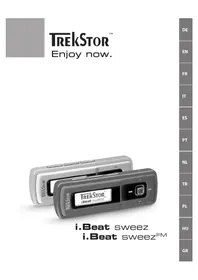
I.Beat sweez FM - Mp3 player TrekStor - Free user manual and instructions
Find the device manual for free I.Beat sweez FM TrekStor in PDF.


Frequently Asked Questions - I.Beat sweez FM TrekStor
User questions about I.Beat sweez FM TrekStor
0 question about this device. Answer the ones you know or ask your own.
Ask a new question about this device
Download the instructions for your Mp3 player in PDF format for free! Find your manual I.Beat sweez FM - TrekStor and take your electronic device back in hand. On this page are published all the documents necessary for the use of your device. I.Beat sweez FM by TrekStor.
USER MANUAL I.Beat sweez FM TrekStor
Please charge thei. Beat sweez as described in these operating instructions for at least 3 to 4 hours before initial use.
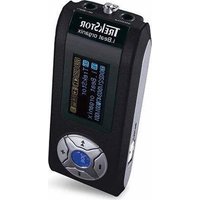
1) Controls for the TrekStor i. Beat sweeze
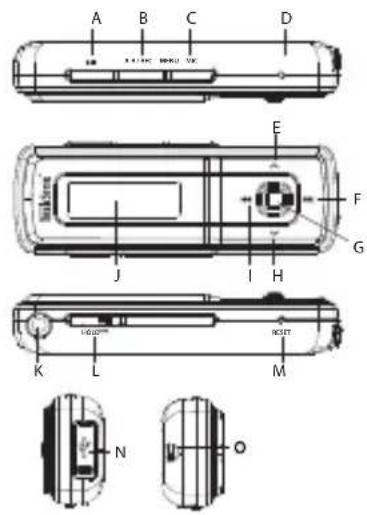
Note: To reset, carefully press the RESET button with a pointed object (such as an unbent paperclip). The reset button is recessed deeply in the housing.
2) Connecting the TrekStor i. Beat sweeez to a PC
Note for users of Windows®98: First install the driver from the accompanying CD before connecting the i. Beat sweeze to your PC.
Use the included USB cable to connect the i.Beat sweeze to a USB port of your PC. Your operating system will immediately recognize the i.Beat sweeze and will add a "Mtp-coMpAtible MediA pI Ayer" to "Audio devices" under "My CoMputer".
Note for users of Windows® 98/2000: Your operating system will immediately recognize the i.Beat sweeze and will add a "DEVICE WITH REMOVABLE STORAGE" under "MY COMPUTER".
3) Load the TrekStori. Beat sweeze
The i.Beat sweez starts charging as soon as you connect it to a PC. The battery is charged after a maximum of three to four hours; charging automatically stops to prevent overcharging.
Note: The maximum battery life is only reached after approximately 10 charging cycles.
4) Exchanging data with the TrekStor i. Beat sweeze
Files that are not copy-protected
Microsoft Windows XP with an installed Windows Media Player uses the "MediA transter protocol" (MTP), to copy files with copyrights to the i.Beat sweeze. You can therefore also use Windows Explorer to copy files.
To do so, proceed as follows:
a) Connect the i. Beat sweeez to an available USB port of your PC using the mini USB port with the included USB cable.
b) The "Mtp MediA pIAyer" window is displayed.
c) Select "do not perform Any Actions" and click "oK".
d) Open My Computer.
e) Select the desired files on the hard disk with your mouse.
f) Click it with your right mouse button, and select "pAste" to start copying.
g) In My Computer, select the "Sweez" under "Audio devices" and change to the directory "MediA".
WMA DRM9 and DRM10-protected files
To copy DRM9 or DRM10-protected files, you need to use the Windows Media Player 10 or newer.
a) Connect the i. Beat swee z to an available USB port of your PC using the mini USB port with the included USB cable.
b) Start the Windows Media Player 10.
c) In the task bar of the Media Player, click "Synchronize".
Note: If the task bar is hidden, go to "VIEW" "MENUBAR OPTIONS" "HIDE TASK BAR" and remove the check by clicking on it. As an alternative you can activate the required dialog window as follows: "FILE" "CDs AND DEVICES" "SYNCHRONIZE..."
d) Drag the desired files using Drag&Drop to the list "select files to be synchronized..." on the left.
e) In the pulldown menu at the top right, select the Beat sweeze under "Supported portAble devices And drivers..."
f) Then click the "sArt synchronizAtion" button at the top left.
g) The selected files will then be automatically copied to the i.Beat sweeze.
h) Please wait until synchronization has been completed.
Note: Do not under any circumstances disconnect the USB connection during data transfer!
Exchanging data under Windows® 98 / 2000 / ME
a) Select the desired files (such as MP3) with the mouse. Copy these files by clicking them with your right mouse button ("copy").
b) Under "My CoMputer", select the device with removable storage, "treKStor i.beAt sweeze".
c) Click it with your right mouse button, and select "pAste" to start copying. After copying is over, the data will be available on the i.Beat sweeze.
5) Logging off and disconnecting the TrekStor i. Beat sweez from the PC
Windows® 98 (SE) / 2000 / ME: Click in the lower right of the task bar, on the symbol "SAfely reMove hArdwAre". In the "SAfely reMove hArdwAre" window, select the i.Beat sweeze and click on the "yes" button. You can now disconnect the i.Beat sweeze from the PC.
Windows® XP: The i.Beat sweeez can be disconnected from a PC without logging off.
Note: Please follow the recommended logoff procedure to prevent damage to the device or data loss.
6) Firmware update for the TrekStor i. Beat sweeez
Warning: Please read all the instructions, and follow the update procedures exactly to keep from damaging the i.Beat swee.
a) Connect the i. Beat swee z to a USB port of your PC.
b) Back up all the important files on your i.Beat sweeze onto your PC.
c) You can update the i.Beat sweez with the most current firmware from the internet (on the TrekStor homepage at http://www.trekstor.de).
d) Insert the provided CD into your CD / DVD drive. If the startup function of your system is activated, a menu showing all the contents of the CD will open.
Note: If the startup function of your system is deactivated, you can access the CD/DVD drive via "MY COMPUTER" and start the program "MENUXE" in the main directory of the CD.
e) Select "f irMwAre" and follow the instructions. Your internet browser opens, and the TrekStor homepage is loaded.
f) Download the firmware (*.zip-file), and unzip it to a folder of your choice.
g) Start the "setup.exe" file to install the software for the firmware update on your PC. Follow the installation instructions.
h) Select "s tArt" "progARMs" "tReKStor I.BeAt sweeZ" to run the "firMwAre updAte". Follow the instructions of the update program.
i) Please wait until the update procedure is completely finished.
j) Next disconnect the i.Beat sweeez from the USB port of your PC.
7) Using the TrekStor i. Beat sweeez
Turning the device on and off
Turn the i.Beat sweeze on by pressing the button for approximately 1 second. To turn the i.Beat sweeze off, hold the button for approximately 3 seconds.
Note: Make sure that the HOLD switch has been moved to the left position, i.e., that the button lock is turned off. If the button lock is activated, the button lock symbol or a corresponding message will appear.
Different modes
The i.Beat sweeze has different modes. To go to a mode, hold the 念 joystick button for approximately 1 second. Push the joystick to the left (or right) to select the desired mode, and confirm by pressing the 念 joystick. Leave the menu by pushing the joystick up (or pulling it down).
Mode: Music
Switch to the "Music" mode.
-Playback
Briefly press the button to play an audio file.
- Pause
Briefly press the 11 button to stop playback. Repress the 11 button to continue playback.
- Change track
Push the joystick briefly to the right >> to select the next track. Press the joystick briefly to the left << to switch to the previous track.
- Rewind / fast-forward within a track
You can rewind or fast-forward within a track by continuously pressing the joystick to the right or left.
Note: The longer you hold the joystick in one direction, the faster the device will go forward or rewind.
- Increase / lower volume
Briefly press the joystick up or down to increase or decrease the volume.
- Displaying the time
The current time is displayed when you continuously press the joystick up A.
- Play speed
Pull the joystick down continuously to display the play speed of audio files. You can change the play speed by pushing the joystick to the right or left . Confirm the setting by pressing the joystick.
Note: The setting "1.00" corresponds to the normal play speed.
Folder navigation
You get to folder navigation in "Music" mode by briefly pressing the joystick. Select the next or previous file by pushing the joystick to the right (回) or left (回) . To play the selected file, briefly press the joystick. To change to a subfolder, press the joystick briefly if the folder is marked. To return to the main directory, push the joystick up (回) . To leave folder navigation when you are in the main directory, push the joystick up (回) .
- Deleting a file
Select the file you want to delete using folder navigation, and briefly press the A-B/REC button. To confirm the deletion of the file, push the joystick to the left or right to switch to "yes", and then press the joystick.
Mode: Recording
Switch to the "recordings" mode.
In this mode, you can play voice recordings and optionally FM radio recordings.
The operation and functions are like the "Music" mode.
Mode: FM radio (optional)
Switch to the "fM rAdio" mode.
Note: Always connect your earphone or headphone to the headphone jack of the i.Beat sweez FM since the.
earphone / headphone cable serves as an antenna for the internal radio.
- Switching between manual station selection and memory mode
Briefly press the joystick to switch between manual station selection "scAn" and memory mode "stAtion".
Automatic memory assignment / automatic station search
To start the automatic station search, switch to the "stAtion" mode and briefly press the A-B/REC button. The i.Beat sweeez FM now automatically searches for the radio stations with the strongest reception and saves them in 15 memory locations.
- Switching between saved stations
In memory mode "stAtion", you can switch between available presets by briefly pressing the joystick to the left or to the right.
- Manually change frequency / manual search
In manual station selection mode "scAn", you can change the reception frequency by 0.1 MHz by briefly pushing the joystick to the left (or to the right). If you hold the joystick to the left or right long enough, the i.Beat sweeez FM automatically scans the upper and lower frequencies for stations.
- Saving individual stations
In memory mode "stAtion", select a memory that you want to assign a frequency to. Change to manual station selection "scAn". Select the desired frequency, and briefly press the A-B/REC button. The frequency is now assigned to the selected memory.
- Recording FM radio
Hold the A-B/REC button for approximately 2 seconds to start recording the radio. To pause the current recording, briefly press the >> button. To restart the current recording, briefly press the >> button again. Briefly press the A-B/REC button to stop recording.
Note: All radio recordings are saved in the "FM" folder of the iBeat sweez FM.
Mode: Recording using the microphone (or FM radio).
The i.Beat sweeez only has one recording mode: Voice recorder.
The i.Beat sweeez FM has two recording modes: FM radio schedule, voice recorder.
Switch to "Mic-record" mode or "fM+Mic-record".
Push the joystick to the left (←) or right (→) to select the desired recording mode, and confirm by briefly pressing the joystick.
Voice recording
Select menu item "Voice recorder" to start recording voice with the integrated microphone. To pause the current recording, briefly press the button. To restart the current recording, briefly press the button again. Briefly press the A-B/REC button to stop recording.
To start another voice recording, press the A-B/REC button for approximately 1 second.
Note: All voice recordings are saved in the "VOICE" folder of the i.Beat sweeez (FM).
FM radio schedule (optional)
Select the menu item "fM schedule" to program timed radio recording. Select the desired recording start time, the length of recording, the desired radio frequency and the recording cycle.
Note: Timed radio recording only starts when the i.Beat sweeez FM is turned off. All radio recordings are saved in the "FM" folder of the i.Beat sweeez FM.
Mode: Time setting
Switch to the "time settings" mode.
In this mode, you can set the time and alarm of the i.Beat sweez.
Settings
First switch to the "Music" mode or "recordings". Briefly press the MENU button to retrieve the settings menu. Here you can configure the equalizer under "equAlizer", the display settings under "dispAy", recording settings under "record settings", play settings under "pI Ay Mode" and performance settings under "power settings", and set the menu language of the i.Beat sweez under "IAnguAge".
Push the joystick to the left l or right l to select the desired setting, and confirm by pressing the joystick. Leave the menu by pushing the joystick up l or pulling it down l .
Equalizer
You can select from 6 preset equalizers under the menu item "equAlizer".
- Display
LCD backlight: You adjust the display background lighting in various ways under the menu item "Icd bAcLight".
Backlight action: Under the menu item "bAcklight Action", you can set if the backlighting is to be activated only when you press a button, or when a new track starts and you press a button.
Scroll speed: Under the menu item "text scroll speed", you can adjust how fast you scroll through the text.
Visual setup: Under the menu item "VisuAI setup", you can determine which information is shown on the display.
Contrast: Under the "Contrast" menu item, you can adjust the contrast of the LC display.
- Recording settings
Voice recording: You can set the recording quality for the integrated microphone under the menu item "Mic quAlity".
FM radio recording (optional): You can set the recording quality for the integrated radio under the menu item "fM record quality".
-Playbackmode
You can select from 6 preset play modes under the menu item "pIay Mode".
Performance management
Energy-saving mode: Under the menu item "power sAve", you can set how long the player should wait when it is not used before it automatically shuts off.
Sleep Timer: Under the menu item "Sleep timer", you can set how long the player should wait before it automatically shuts off.
Language
Under the menu item "IAnguAge", you can select the menu language of the i.Beat sweeze.
Notes:
This MP3 player is optimized for the provided headphones (32 Ohm impedance). Using other earphones with a lower impedance can damage the MP3 player or earphone, especially MP3 players with 2 earphone jacks.
- Exposing the unit to an electrostatic discharge, may interrupt the data transfer between the unit and the computer. If this occurs, the unit should be unplugged from the USB port and then plugged in again.
Note: This device can produce high volumes. To prevent hearing loss, do not listen to high volumes for long periods. If you notice a ringing noise in your ears, lower the volume immediately or stop using the MP3 player. Please keep in mind that using earphones or headphones at loud volumes may result in permanent hearing loss. While you become accustomed to higher volumes over time, so that they may seem normal to you, your sense of hearing can still be impaired. The higher you adjust the volume, the faster your sense of hearing can be damaged.
Note: Using earphones while driving a motor vehicle is not recommended and is prohibited in some countries. Always drive carefully and with full concentration. Stop using your MP3 player if you become distracted or interrupted by it when driving a motor vehicle or during other activities that require your full attention.
Do not use USB cables longer than 3 meters.
The manufacturer retains the right to continually improve the product. These changes may be made without being directly described in these operating instructions. For this reason, the information provided in these operating instructions may not reflect the current state of the art.
The manufacturer only guarantees suitability for the product's intended purpose. In addition, the manufacturer is not responsible for damages or loss of data and subsequent consequences.
Copyright © 2006 TrekStor GmbH & Co. KG. All rights reserved. Other cited product or company names may be trademarks or brand names of the respective owner.
NOTICE D'UTILISATION
Valtson at "zene" uzemmodba.
Lejatszás
- 14 Cent/Min. aus dem deutschen Festnetz der DTAG
** Please check with your local telephone provider for connection costs.