D1 - Piano KORG - Free user manual and instructions
Find the device manual for free D1 KORG in PDF.



Frequently Asked Questions - D1 KORG
User questions about D1 KORG
0 question about this device. Answer the ones you know or ask your own.
Ask a new question about this device
Download the instructions for your Piano in PDF format for free! Find your manual D1 - KORG and take your electronic device back in hand. On this page are published all the documents necessary for the use of your device. D1 by KORG.
USER MANUAL D1 KORG
Thank you for purchasing the Korg D1 digital piano.
To help you get the most out of your new instrument, please read this manual carefully.
Using the unit in the following locations can result in a malfunction.
- In direct sunlight
- Locations of extreme temperature or humidity
- Excessively dusty or dirty locations
- Locations of excessive vibration
- Close to magnetic fields
Power supply
Please connect the designated AC adapter to an AC outlet of the correct voltage. Do not connect it to an AC outlet of voltage other than that for which your unit is intended.
Interference with other electrical devices
Radios and televisions placed nearby may experience reception interference. Operate this unit at a suitable distance from radios and televisions.
Handling
To avoid breakage, do not apply excessive force to the switches or controls.
Care
If the exterior becomes dirty, wipe it with a clean, dry cloth. Do not use liquid cleaners such as benzene or thinner, or cleaning compounds or flammable polishes.
Keep this manual
After reading this manual, please keep it for later reference.
Keeping foreign matter out of your equipment
Never set any container with liquid in it near this equipment. If liquid gets into the equipment, it could cause a breakdown, fire, or electrical shock. Be careful not to let metal objects get into the equipment. If something does slip into the equipment, unplug the AC adapter from the wall outlet. Then contact your nearest Korg dealer or the store where the equipment was purchased.
THE FCC REGULATION WARNING (for USA)
NOTE: This equipment has been tested and found to comply with the limits for a Class B digital device, pursuant to Part 15 of the FCC Rules. These limits are designed to provide reasonable protection against harmful interference in a residential installation. This equipment generates, uses, and can radiate radio frequency energy and, if not installed and used in accordance with the instructions, may cause harmful interference to radio communications. However, there is no guarantee that interference will not occur in a particular installation. If this equipment does cause harmful interference to radio or television reception, which can be determined by turning the equipment off and on, the user is encouraged to try to correct the interference by one or more of the following measures:
- Reorient or relocate the receiving antenna.
- Increase the separation between the equipment and receiver.
- Connect the equipment into an outlet on a circuit different from that to which the receiver is connected.
- Consult the dealer or an experienced radio/TV technician for help.
If items such as cables are included with this equipment, you must use those included items.
Unauthorized changes or modification to this system can void the user's authority to operate this equipment.
SUPPLIER'S DECLARATION OF CONFORMITY (for USA)
Responsible Party: KORG USA INC.
Address: 316 SOUTH SERVICE ROAD, MELVILLE, NY
Telephone: 1-631-390-6500
Equipment Type: DIGITAL PIANO
Model:D1
This device complies with Part 15 of FCC Rules. Operation is subject to the following two conditions:
(1) This device may not cause harmful interference, and (2) this device must accept any interference received, including interference that may cause undesired operation.
Notice regarding disposal (EU only)

When this "crossed-out wheeled bin" symbol is displayed on the product, owner's manual, battery, or battery package, it signifies that when you wish to dispose of this product, manual, package or battery you must do so in an approved manner. Do not discard this product, manual, package or battery along with ordinary house
hold waste. Disposing in the correct manner will prevent harm to human health and potential damage to the environment. Since the correct method of disposal will depend on the applicable laws and regulations in your locality, please contact your local administrative body for details. If the battery contains heavy metals in excess of the regulated amount, a chemical symbol is displayed below the "crossed-out wheeled bin" symbol on the battery or battery package.
Table of Contents
Introduction-3
Main features- 3
Parts and their functions 4
Preparation and demo performances ---5
Before you begin playing- 5
Listening to demo performances-7
Playing the D1-8
Playing a single sound (Single mode) 8
Playing two sounds at the same time (Layer mode) 8
Using a damper pedal- 9
Effects 9
The metronome- 9
Other functions 11
Touch control settings- 11
Transpose 11
Function mode 11
MIDI 14
What is MIDI? 14
What can you do with MIDI? 14
Connections 14
MIDI function mode 14
Appendix 16
Troubleshooting 16
Specifications 16
When using the ST-SV1 optional keyboard stand (sold separately) 17
MIDI Implementation Chart 66
Introduction
Main features
Thirty high-quality sounds
The D1 provides 30 built-in expressive high-quality sounds, including a stereo concert grand piano. You can use Layer mode to simultaneously play two sounds at once.
Effects
The D1 provides 3 built-in digital effects. These effects can adjust the brightness of the tone (Brilliance), simulate the natural ambience of a concert hall (Reverb) and add richness to the sound (Chorus).
Metronome
The built-in metronome allows you to select the time signature, tempo, and volume, and you can even choose a bell sound as the accent.
Touch control
You can choose from five different settings to adjust how the sound will respond to your keyboard playing dynamics.
Temperaments
For authentic performance of a wide range of music, the D1 allows you to select from nine temperaments, including the equal temperament, pure temperaments (major and minor), classical temperaments (Kirnberger and Werckmeister) as well as temperaments used with Middle Eastern and Indian folk music. When an acoustic piano sound is selected, the stretched tuning used on pianos is automatically selected.
Adjustable pitch
The Transpose function lets you change the pitch of the piano, and the Pitch Control function allows you to make finely tuned adjustments.
MIDI capabilities
The D1 supports the MIDI protocol, the standard that allows music data to be transferred between musical instruments and computers. MIDI allows two or more devices to control or be controlled by each other, and also allows you to use the D1 as a 16-part multitimbral tone generator.
Parts and their functions
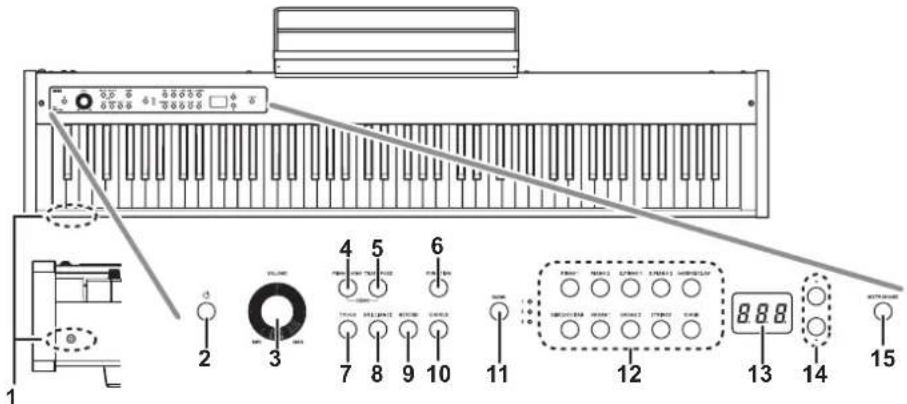
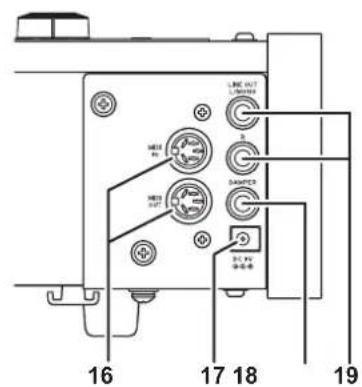
Control panel Rear panel
- Headphones jack:
A stereo mini plug for headphones can be inserted here.
- Power button:
This button turns the D1 on or off.
- VOLUME Knob:
This knob adjusts the volume for the LINE OUT and the headphones jack.
- PIANO SONG button:
This button is used to enter the Piano song mode, after which the button lights up. Simultaneously pressing this button and the TRANSPOSE button enters the Sound demo song mode.
- TRANSPOSE button:
This button is used to adjust transposition. While transposing, the button lights up. Simultaneously pressing this button and the PIANO SONG button enters the Sound demo song mode.
- FUNCTION button:
This button is used to enter the Function mode, where pitch, temperament and other settings can be specified. Hold down the button to enter the MIDI function mode, where MIDI settings can be specified. The button lights up when the D1 enters the Function mode and blinks when it enters the MIDI function mode.
- TOUCH button:
This button lets you select the keyboard sensitivity.
- BRILLIANCE button:
This button is used to adjust the brightness of the tone.
- REVERB button:
This button is used to turn on/off the reverb, which adds ambience to the sound. When this effect is on, the button will be lit up.
- CHORUS button:
This button is used to turn on/off the chorus, which adds richness to the sound. When this effect is on, the button will be lit up.
- BANK button/LEDs:
This button is used to select the desired sound bank. The LED for the bank that's currently selected will light up.
- Sound buttons:
This button is used to select from 30 sounds (10 × 3 banks). Two buttons can be pressed to play two sounds simultaneously (Layer mode).
- Display:
The display shows settings, for example, for the Function mode and the metronome.
- +_t -buttons:
These buttons are used to select a value for the various settings.
15.METRONOME button:
This button is used to start/stop the metronome. While the metronome is being used, the button lights up. In addition, hold down the button to enter the Metronome settings mode, where various metronome settings can be specified.
- MIDI (IN, OUT) connectors:
These are connectors that are used to connect other MIDI devices (sequencer, keyboards, etc.).
IN: Data input
(to be connected to the MIDI OUT connector of another MIDI device).
OUT: Data output
(to be connected to the MIDI IN connector of another MIDI device).
- DC 9V jack:
Connect the included AC adapter here.
- DAMPER jack:
Connect the damper pedal included with the D1, or a DS-1H damper pedal (sold separately).
- LINE OUT (L/MONO, R) jack:
These are the main audio output jacks. Use an audio cable with a standard phone jack to connect the D1 to the input jacks of a speaker with amplifier or to the AUX IN of other audio equipment.
Use the VOLUME knob to set the output volume.
Preparation and demo performances
Before you begin playing
About the stand
This instrument does not include a stand. Refer to page 17 if you wish to use the ST-SV1 optional keyboard stand (sold separately) with the D1.
Connecting the included AC adapter
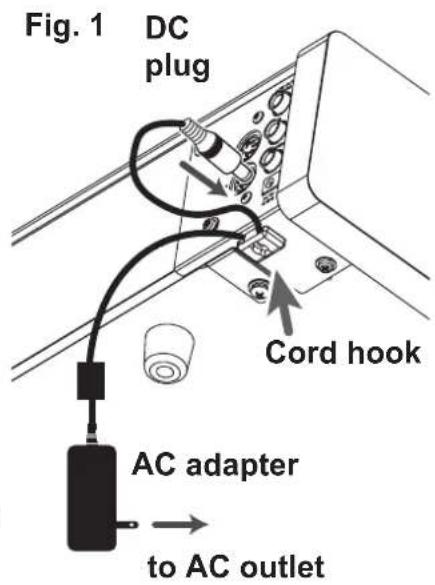
Insert the DC plug end of the AC adapter into the DC 9V jack on the rear panel, and connect the plug of the AC adapter to an AC outlet.
Pass the AC adapter cord through the cord hook so that the plug won't be removed from the jack accidentally (Fig. 1). When you unhook the cord, don't pull on the cord with force.
A Be sure to use the AC adapter that came with your unit. Using other AC adapters may cause the malfunctions or other unforeseen events.
2 Be sure to plug the unit into an AC outlet of the appropriate voltage.
Connecting a audio equipment and headphones
The D1 does not have built-in speakers. In order to hear the sound of your performance, you'll need to connect the LINE OUT of the D1 to other audio equipment such as a monitor amplifier, a mixer or a stereo set, or connect a pair of headphones to the headphones jack.
You must only connect devices with the power turned off. Careless operation may damage the D1 or the device where it's connected, or malfunctions may be caused.
Connection cables are sold separately. You will need to obtain the appropriate commercially-available cables for your equipment.
Using a monitor amp or mixer
To use a monitor amp or mixer, use the LINE OUT jacks.
Plug in audio cables from the D1 to the input jack of a monitor amp or other audio equipment.
The D1's audio output is designed to produce a signal level that is higher than ordinary consumer audio equipment such as CD players. For this reason, playing at an excessive volume may damage the connected speakers or audio equipment, so use caution with the volume level.
- Minimize the volume of all connected equipment, and turn off the power.
- Connect the D1's LINE OUT jacks to the input jacks of your monitor amp or mixer.
If you're playing back through your stereo audio system or an audio player that has external input jacks, connect the D1 to the jacks that are marked LINE IN, AUX IN, or external input. (You might need to obtain the appropriate adapter plug or conversion cable.)
Using the headphones
Use the headphones jacks when connecting headphones.
Use stereo headphones with a stereo 1 / 8'' mini plug.
Use headphones at night or when you don't want disturb others.
To protect your hearing, do not listen to loud, high-volume sounds for extended periods of time through headphones.
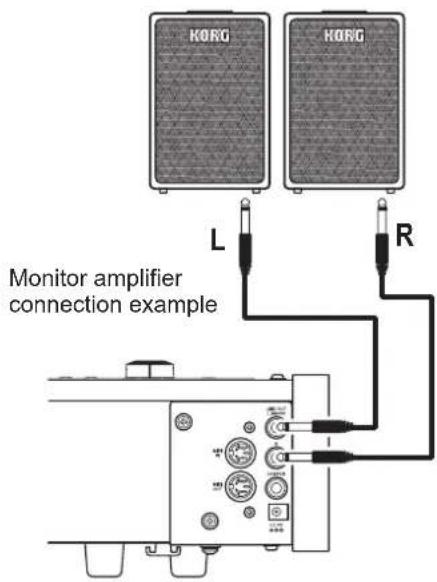
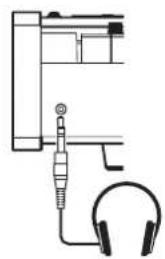
Headphones connection example
Turning the instrument on
Press the power button to turn on the D1. (Fig. 2)
When the instrument is turned on, the buttons on the control panel will light up (the power button will not light up).
To turn the instrument off, press the power button again.
When the instrument is turned off, all functions and parameters, except the auto power off function return to their factory default settings.
Auto power-off function
When 4 hours have passed without user input or demo performance, the instrument will be automatically turned off. To disable this function, turn off the auto power off function (see page 13).
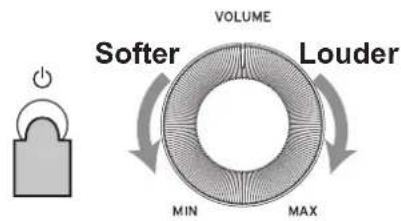
Fig. 2
Adjust the volume
Rotate the VOLUME knob that's located next to the power switch toward "MAX" to raise the volume level. Rotate it left toward "MIN" to lower the level. (Fig. 2)
The VOLUME knob controls the output level of the headphones jack and the LINE OUT jacks.
It is always better to start with a low volume and then increase gradually.
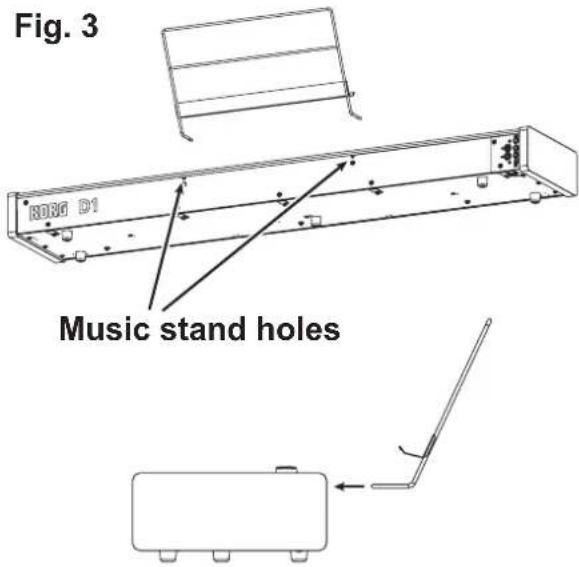
Using the music stand
Attach the sheet music stand as shown in Fig. 3.
Listening to demo performances
The D1 contains a total of 30 demo performances (10 sound demo songs using 10 high-quality sounds and 20 familiar piano songs using the piano sounds).
During playback of a sound demo song, you can play using the keyboard; however, the sound cannot be changed by using the sound buttons.
During playback of a sound demo song, the settings for effects (reverb and chorus) cannot be changed.
Listening to a sound demo song
- Simultaneously press the PIANO SONG button and the TRANSPOSE button.
The PIANO SONG button blinks, and the sound buttons blink sequentially.
In addition, the number for the sound demo song (d01) appears in the display.

- After about 3 seconds, the PIANO1 button will blink, and playback of the sound demo song corresponding to that button will begin.
When playback of the PIANO1 demo song is finished, playback continues sequentially with PIANO2, E.PIANO1, etc. When playback of the CHOIR demo song is finished, playback begins again with the PIANO1 demo song.
Listening to a specific sound demo song
When the sound buttons are blinking sequentially, press the sound button for the demo song that you want to hear.
If a different sound button is pressed, even while a song is being played, playback of the corresponding sound demo song will begin after a few seconds.
In addition, a sound demo song can be selected by pressing the + or - button beside the display.
- To stop playback of a sound demo song, press the PIANO SONG button again.
Sound demo song list
| display | Sound button | Song title | Composer |
| d01 | PIANO1 | À la Manière de Boro-dine | M.Ravel |
| d02 | PIANO2 | Someone To Watch Over Me | G.Gershwin |
| d03 | E.PIANO1 | Jam Session | Naoki Nishi |
| d04 | E.PIANO2 | In Memory | Michael Geisel |
| d05 | HARPSI/CLAV | La Joyeuse | J.P.Rameau |
| d06 | VIBES/GUITAR | Jazz in Spain | KORG original |
| d07 | ORGAN1 | Improvisation | Michael Geisel |
| d08 | ORGAN2 | Prelude and Fugue in C Major, BWV 553 | J.S.Bach |
| d09 | STRINGS | Scoring Interlude | Michael Geisel |
| d10 | CHOIR | Autumn Flares | Michael Geisel |
Listening to a piano song
- Press the PIANO SONG button.
The PIANO SONG and PIANO1 buttons will light up, and the number for the piano song (001) will appear in the display.

- After about 3 seconds, the PIANO1 button will blink, and playback of the piano song will begin.
When playback of the first piano song is finished, playback continues sequentially with second, third, etc. When playback of the twentieth piano song is finished, playback begins again with the first piano song.
Listening to a specific piano song
The number for the piano song that you want to hear can be selected by pressing the + or - button beside the display. If a different number is selected by pressing the buttons, even while a song is being played, playback of the corresponding piano song will begin after a few seconds.
- To stop playback of a piano song, press the PIANO SONG button again.
Piano song list
NoisplaySongtitleComposer
| 1 001 Etude Op.10-12 F.Chopin | |||
| 2 002 Claire de lune C.Debussy | |||
| 3 | 003 | Fantaisic-Impromptu Op.66 | F.Chopin |
| 4 004 | Waltz No.6 Db-major Op.64-1 | F.Chopin | |
| 5 005 | "Prelude 1" The Well-Tempered Clavier, Book 1 | J.S.Bach | |
| 6 006 | "Turkish March" Sonata K.331 | W.A.Mozart | |
| 7 | 007 | Arabesque No.1 | C.Debussy |
| 8 | 008 | Für Elise | L.v.Beethoven |
| 9 | 009 | Liebesträume Nr.3 | F.Liszt |
| 10 | 010 | La Campanella | F.Liszt |
| 11 | 011 | Nocturne Op.9-2 | F.Chopin |
| 12 | 012 | Spring Song Op.62-6 | F.Mendelssohn |
| 13 | 013 | Reflets dans l'eau | C.Debussy |
| 14 | 014 | Gymnopédie No.1 | E.Satie |
| 15 | 015 | Etude Op.10-3 | F.Chopin |
| 16 | 016 | Old Feather Blues | KORG original |
| 17 | 017 | La fille aux cheveux de lin | C.Debussy |
| 18 | 018 | The Entertainer | S.Joplin |
| 19 | 019 | Sunflowers | KORG original |
| 20 | 020 Amazing Grace | Hymn | |
Playing the D1
Playing a single sound (Single mode)
You can select a sound from the thirty sounds supplied with the instrument (10 sounds x 3 banks).
| Sound button Bank | Sound name # | |
| PIANO1 1 Concert | Piano 3 | |
| 2 Grand Piano 3 | ||
| 3 Pop Piano 2 | ||
| PIANO2 1 Jazz Piano | 3 | |
| 2 Honky-tonk Piano 2 | ||
| 3 Electric Grand Piano 1 | ||
| E.PIANO1 | 1 | Stage Electric Piano 1 |
| 2 Bright Electric Piano 2 | ||
| 3 Tremolo Electric Piano 1 | ||
| E.PIANO2 | 1 | Digital Electric Piano 2 |
| 2 Digital Electric Piano 2 | ||
| 3 60's Electric Piano 1 | ||
| HARPSI/CLAV | 1 Harpsichord 2 | |
| 2 Clay 1 | ||
| 3 Synth Clav 2 | ||
| VIBES/GUITAR | 1 Vibraphone 1 | 1 |
| 2 Marimba 1 | ||
| 3 Acoustic Guitar 2 | ||
| ORGAN1 | 1 Jazz Organ1 | 2 |
| 2 Jazz Organ2 | ||
| 3 Jazz Organ3 | ||
| ORGAN2 | 1 Pipe Organ1 | 2 |
| 2 Pipe Organ2 | ||
| 3 Positive Organ 2 | ||
| STRINGS | 1 Strings 2 | 2 |
| 2 Cinema Strings 2 | ||
| 3 Analog Strings 2 | ||
| CHOIR | 1 Aah Choir | 2 |
| 2 Ooh Voices 2 | ||
| 3 Classical Choir 3 |
(#) These columns show the number of oscillators per voice that are used by each sound. (refer to "About maximum polyphony" on page 16.)
- Press the sound button for the sound that you want to play.
The selected button will light up.
- Press the BANK button to select one of the three sounds.
Each press of the BANK button switches the bank in the order 1, 2, 3, 1, ..., and the corresponding LED to the right of the BANK button will light up.
For example, to select the electric grand piano sound, press the PIANO2 button, after which its button lights up.
Then, press the BANK button twice to select bank 3 (Electric Grand Piano); the LED below and to the right of the BANK button will light up.
In addition, the bank selected for a sound button re
mains the same, even if a different sound button is pressed.

Each time the D1 is turned on, the sound in bank 1 is selected for all sound buttons.
Playing two sounds at the same time (Layer mode)
You can play two sounds at the same time on the keyboard. This is called the Layer mode.
Simultaneously press the two sound buttons for the sounds to be played at the same time.
The two selected sound buttons will light up.

The leftmost or uppermost selected sound button is layer 1, and the other (rightmost or lowermost) one is layer 2 (see the diagram at the below).
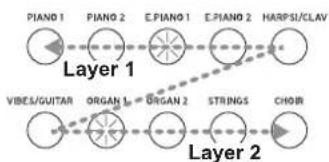
For example, if E.PIANO1 and ORGAN1 are selected, E.PIANO1 is layer 1 and ORGAN1 is layer 2. In order to use sounds in different banks, first select the banks in the Single mode for the sound buttons to be pressed.
For example, to play by layering the grand piano and jazz organ 2 sounds, select bank 2 (grand piano) for the PIANO1 button and bank 2 (jazz organ 2) for the ORGAN1 button, and then press both buttons simultaneously.
When selecting Layer mode, the total number of voices that can play at the same time is reduced, depending on the total number of oscillators used by the selected sounds. (refer to "About maximum polyphony" on page 16.)
Sounds in different banks for the same sound button (concert piano and grand piano for the PIANO1 button) cannot be selected.
Returning to the Single mode
To return to Single mode, just press a single sound selection button.
Layer mode settings
In Layer mode, the volume balance between sounds can be adjusted, the octave for each sound can be shifted, and the damper pedal can be enabled or disabled for each sound. (refer to "Function mode" on page 11.)
Using a damper pedal
You can use the pedal to make your playing more expressive and realistic.
Pressing this pedal will sustain the sound, producing a richly resonant decay. You can also add the damper resonance to the concert piano, the grand piano and the jazz piano sound (bank 1 and 2 of Piano1, bank 1 of Piano2). Using the optional damper pedal DS-1H will let you vary the amount of damper that's applied according to how deeply you press the pedal ("half-pedaling").
In Layer mode, you can select the sound(s) where you want to apply the damper effect. (refer to "Pedal of layer mode" on page 12)
Effects
Brilliance
This effect changes the brightness of the sound.
The setting can be changed by holding down the BRILLIANCE button and pressing the ^+ or - button beside the display.

The setting appears in the display with 3 producing a brighter sound and 1 producing a less bright sound.
The same setting is applied to all sounds and remains applied until the D1 is turned off. When the instrument is turned on, the default setting 2 is selected.
Brilliance cannot be turned off.
Reverb
This effect adds ambience and depth to the sound, producing the sense of performing in a concert hall. As a factory default, the on/off setting for this effect as well as this effect's setting are saved with each sound.
Each press of the REVERB button turns the reverb on (button lights up) or off (button turns off).
To change this setting, hold down the REVERB button and press the + or - button beside the display.

The setting appears in the display with 3 producing a deep reverber effect and 1 producing a light reverber effect.
If a different sound is selected or if the D1 is turned off, the on/off setting for this effect as well as this effect's setting return to their factory defaults (default settings).
Chorus
Chorus adds modulation to the sound, producing an expansively rich sound. As a factory default, the on/off setting for this effect as well as this effect's setting are saved with each sound.
Each press of the CHORUS button turns the Chorus effect on (button lights up) or off (button turns off).
To change this setting, hold down the CHORUS button and press the + or - button beside the display.

The setting appears in the display with 3 producing a deep chorus effect and 1 producing a light chorus effect.
If a different sound is selected or if the D1 is turned off, the on/off setting for this effect as well as this effect's setting return to their factory defaults (default settings).
The metronome
The D1 is equipped with a metronome, which can be changed to a bell sound, which is convenient for practicing.
Turning on/off the metronome
Press the METRONOME button. The button lights up, and the metronome starts.
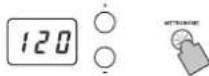
To stop the metronome, press the METRONOME button again. The button turns off.
Specifying the tempo
When the tempo appears in the display (default setting of 120), regardless of whether the metronome is turned on or off, the tempo can be specified
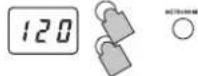
with the + and - buttons beside the display (The tempo can also be specified in Metronome Settings mode.). The setting range is = 40 - 240 .
To return to the default setting, simultaneously press the + and - buttons.
Specifying the Time Signature, Volume, Accent Sound, Tempo and Sound
Use Metronome Settings mode to set the various functions of the metronome.
- Hold down the METRONOME button until the Metronome Settings Mode is entered.
The METRONOME button blinks.
- Push the button to which the function you wish to set is assigned.
The value will appear on the display.
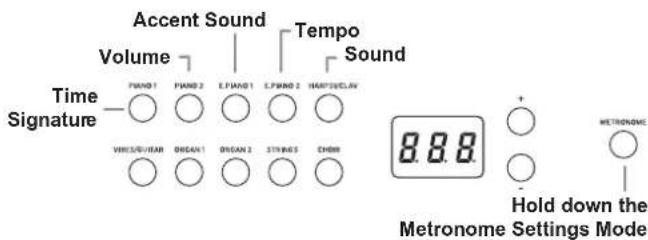
| Setting (Button) | Setting Range | Default setting |
| Time Signature (Piano1) | 02 (2/4), 03 (3/4), 04 (4/4), 06 (6/4) 04 | |
| Volume (Piano2) | 01-13 10 | |
| Accent Sound (E.PIANO1) | oFF (no accent sound), on1 (emphasized sound for the accent beat), on2 (bell sound for the accent beat) | oFF |
| Tempo (E.PIANO2) | 40-240 (same as tempo setting) 120 | |
| Sound (HARPSI/CLAV) | 1 (acoustic), 2 (electronic) | 1 |
3. Use the +_r - buttons to set the value.
Pressing the + and - buttons simultaneously, the following settings can be restored to the default settings.
Volume
- Tempo
Sound
4. After changing the setting, press the METRONOME button to exit the Metronome Settings Mode.
When the Metronome Settings Mode is exited, the METRONOME button returns to its lighting status (lit or not lit) before the Metronome Settings Mode was entered.
Other functions
Touch control settings
The keyboard sensitivity, or touch, can be programmed. To change the setting, hold down the TOUCH button and press the + or - button beside the display.
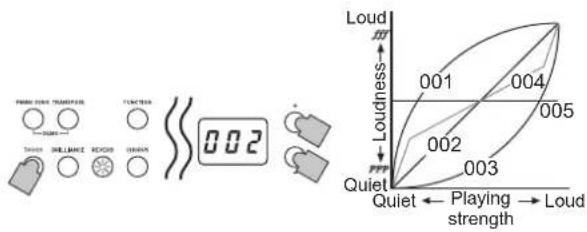
| Display | Touch control settings |
| 001 Light. Loud notes can be produced even by playing lightly. | |
| 002 Normal. Normal piano touch. | |
| 003 Heavy. Loud notes can be produced only by play-ing very hard. | |
| 004 Stable. Sensitivity variations are reduced, and a relatively stable sound is produced. | |
| 005 Steady. Steady notes are produced, like with an organ, regardless of the force used to press the key. | |
When the instrument is turned on, the touch setting is reset to 002 (Normal).
The settings are applied to all sounds.
Transpose
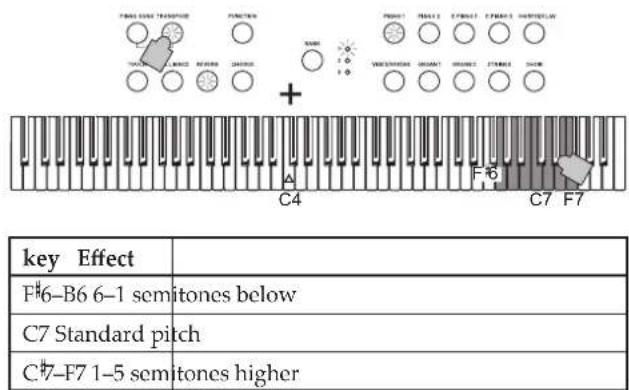
In some cases, a song may be written in a difficult key (e.g., many black keys), or you may wish to shift the pitch to match another instrument or vocalist. In such cases, you can transpose (shift the pitch) so that you can use an easier fingering, or use the same familiar fingering to play at a different pitch. This is called the Transpose function. You can shift within a range of 11 semitones so that when transposing upward by one semitone, playing the notes shown at the left produces the pitches shown at the right.

When the instrument is turned on, the transposing is reset.
While holding down the TRANSPOSE button, press the keyboard key (F#6-F7) for the desired transposition.
If a keyboard key other than C7 is pressed, the TRANSP-POSE button lights up to indicate that the keyboard is transposed.
The pitch of the entire keyboard is transposed according to the pitch of the pressed keyboard key in relation to C7. To return to the original pitches, hold down the TRANSPOSE button and press the C7 key. The TRANSPOSE button turns off, and transposition is canceled.
Function mode
The temperament as well as other pitch settings can be specified from the Function mode.
Setting procedure for functions in the Function mode
- Press the FUNCTION button.
The FUNCTION and PIANO1 buttons light up.
- Press the appropriate button shown below to select a parameter.
The pressed button lights up, and the current setting appears in the display.
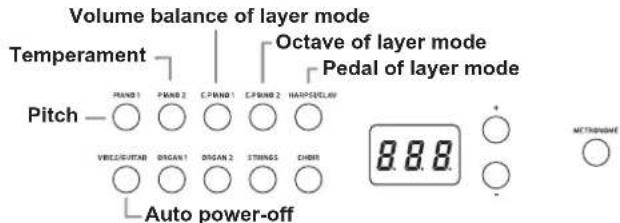
- Press the + or - button to select a setting.
Pressing the + and - buttons simultaneously, the following settings can be restored to the default settings.
- Pitch
Volume balance of layer mode -
Octave of layer mode
-
After specifying the desired settings, press the FUNCTION button to return to the mode for playing. The FUNCTION button turns off.
When the D1 is turned off, all functions, except the auto power-off function, return to their default settings.
List of functions
| Button Function | Setting Display | |
| Description [default setting] | ||
| PIANO1 | Pitch 27.5...52.5 | |
| 427.5...440.0...452.5Hz [40.0:440.0Hz] | ||
| In order to adapt the D1 pitch to that of an- other instrument, you can adjust the pitch in steps of 0.5 Hz.The standard pitch is A=440Hz, and the de- fault setting is 40.0. | ||
| PIANO2 | Temperament *1 00...08 | |
| Equal...Pelog scale [00: Equal] | ||
| Nine different tunings are selectable, in- cluding equal temperament, Kirnberger and Werckmeister temperaments and so on. | ||
| E.PIANO1 | Volume balance of layer mode | 1-9...9-1 |
| 1-9 (Layer 1 min.)...9-9 (Both max.)... 9-1 (Layer 2 min.) [9-9] | ||
| Adjust the volume balance between the sounds for layer 1 and layer 2.The setting range is 1-9...9-9...9-1, with the number on the left for layer 1 and the num- ber on the right for layer 2. | ||
| E.PIANO2 | Octave of layer mode (L1, L2) *2 | -01, 00, 01 |
| ±1 Octave [00] | ||
| Specify the sound range for layer 1 and layer 2.The setting range is ±1 octave for each sound, and -01, 00 and 01 appear in the dis- play. | ||
| HARPSI/CLAV | Pedal of layer modc o-_, _o, | o-o |
| Only 1, Only 2, Both layers [o-o] | ||
| Select the layer that the damper effect is ap- plied to.The settings are only for the layer 1 sound (o-), only for the layer 2 sound (- - o) and for both sounds (o - o). | ||
| VIBES/ GUITAR | Auto power-off *3 | oFF, on |
| Disable, 4 hours [on] | ||
Additional Functions and Descriptions
*1: Temperament
Temperament types
| Display | Temperament |
| 00 | Equal temperament (default setting): Spacing all semitones at equal pitch intervals, this temperament is the most widely used. |
| 01 | Pure temperament [major]: Major chords in the key (C) are perfectly tuned. |
| 02 | Pure temperament [minor]: Minor chords in the key (C) are perfectly tuned. |
| 03 | Arabic: This scale includes the quarter-tone inter-vals used in Arabic music. |
| 04 | Pythagorean: This ancient Greek scale is espe-cially effective for playing melodies. It consists of perfect fifths; however, other intervals – the major third in particular – is out of tune. |
| 05 | Werckmeister: The Werckmeister III scale was created in the later Baroque period to allow rela-tively free transposition. |
| 06 | Kirnberger: The Kirnberger III scale is used mainly for tuning harpsichords. |
| 07 | Slendro scale: This is an Indonesian gamelan scale with five notes per octave. |
| 08 | Pelog scale: This is an Indonesian gamelan scale with seven notes per octave. |
About stretched tuning
In order to produce the most natural resonance, PIANO1 and PIANO2 sounds use a "stretched tuning" that makes the notes of the lower range slightly flatter than equal temperament, and the upper range slightly sharper. This is how an acoustic piano is normally tuned by professional tuners.
*2: Octave of layer mode (L1, L2)
- Select the layer with the + or - button beside the display.
L1 appears for layer 1, and L2 appears for layer 2.
- Press the BANK button.
The octave setting (00) appears in the display.
- Select the octave setting with the + or - button beside the display.
To return to the default setting, simultaneously press the + and - buttons.
To select the octave for the other layer, press the E.PIANO2 button to select the layer.
If the sound is in the Single mode, - - - appears in the display, and a setting cannot be specified.
*3: Specifying the auto power-off function
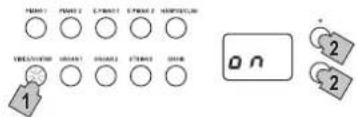
When 4 hours have passed without a key pressed on the keyboard or without an automatic performance played, the instrument is automatically turned off. To disable this function, turn off (oFF) this function. The default setting is this function turned on. If this setting is changed, the new setting is saved and remains selected, even if the D1 is turned off.
- Enter the Function mode, and then press the VIBES/GUITAR button.
The VIBES/GUITAR sound button lights up, and the setting (on) appears in the display.
- Select the on/off setting with the + or - button beside the display.
MIDI
What is MIDI?
MIDI, is the abbreviation of Musical Instrument Digital Interface. It is an international standard that was created to connect and transfer data between electronic musical instruments, computers and other devices.
What can you do with MIDI?
Thanks to MIDI, you can use the D1 to control other instruments, use other instruments to control the D1, and use a sequencer to create complex musical pieces. When you use the D1 keyboard or pedal, or select a sound, the notes, pedal activation and change in sound are transmitted to another instrument, or are recorded by a sequencer.
Connections
Commercially available MIDI cables are used to transfer MIDI data. Connect these cables from the MIDI connectors of the D1 to the MIDI connectors of the external MIDI device that you want to exchange data with. There are two types of MIDI connector.
MIDI IN connector
This connector receives MIDI messages. The MIDI IN connector lets you play the D1's sounds from an external MIDI device (e.g., MIDI keyboard or sequencer). Use a MIDI cable to connect the D1's MIDI IN connector to your external MIDI device's MIDI OUT connector.
MIDI OUT connector
This connector transmits MIDI messages. The MIDI OUT connector lets you control an external MIDI device using the MIDI messages transmitted from the D1. Use a MIDI cable to connect the D1's MIDI OUT connector to your external MIDI device's MIDI IN connector.
MIDI function mode
When the D1 is turned on, the MIDI parameters are set to transmission channel 1, all reception channels (1-16), Local On and Omni Off. These settings can be changed from the MIDI function mode.
Setting procedure for parameters in the MIDI function mode
- Hold down the FUNCTION button (for at least 3 seconds). The FUNCTION button blinks and the PIANO1 button lights up.
- Press the appropriate button shown below to select a parameter. The pressed button lights up, and the current setting appears in the display.
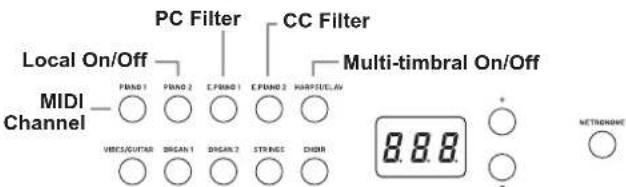
- Press the + or - button to select a setting.
- To exit Function Mode, press the FUNCTION button. The FUNCTION button goes dark.
All MIDI settings are applied to all sounds.
When the D1 is turned off, all parameters return to their factory default settings.
List of MIDI functions
| Button | Function | Setting Display |
| Description [default setting] | ||
| PIANO1 | MIDI Channel *1 C01...C16 | |
| 1...16 [C01] | ||
| Specify the transmission channel for MIDI data. | ||
| PIANO2 | Local On/Off | on, oFF |
| Enabling (turn on)/disabling (turn off) the D1 sound source [on] | ||
| With the Local On setting, playing the D1's keyboard produces the sounds of the performance as well as transmits MIDI data. With the Local Off setting, playing the D1's keyboard does not produce the sounds of the performance; MIDI data is only transmitted. Normally this parameter is set to Local On (default setting: on). Disable this (set to "oFF") in order to prevent echo back (two sounds playing unintentionally at the same time). | ||
| E.PIANO1 | PC Filter *2 | on, oFF |
| Enabling/disabling program change transmission/reception filtering [oFF: transmission/reception] | ||
| The programs on a connected MIDI device can be changed by sending a MIDI change number from the D1. In addition, the programs on the D1 can be changed by receiving a MIDI change number from a connected MIDI device. If an incompatible program change number is received, the D1 sound is not changed. | ||
| E.PIANO2 | CC Filter | on, oFF |
| Enabling/disabling control change transmission/reception filtering [oFF: transmission/reception] | ||
| Messages, such as usage of the D1's damper pedal, can be transmitted to a connected external MIDI device to control it, and these messages can be received from the external MIDI device to control the D1. | ||
| HARPSI/CLAV | Multi-timbral On/Off | on, oFF |
| Operating as a 16-part multi-timbral sound module [on: operating] | ||
| The D1 can operate as a 16-part multi-timbral sound module when an external MIDI device is used to control its internal sound generator. | ||
*1: MIDI channel
In Layer Modc, this setting will be the transmission channel for layer 1, and the transmission channel for layer 2 will automatically be set to the following channel. For example, if MIDI channel C07 is selected for layer 1, MIDI channel C08 will automatically be specified for layer 2. If MIDI channel C16 is selected for layer 1, MIDI channel C01 will be specified for layer 2.
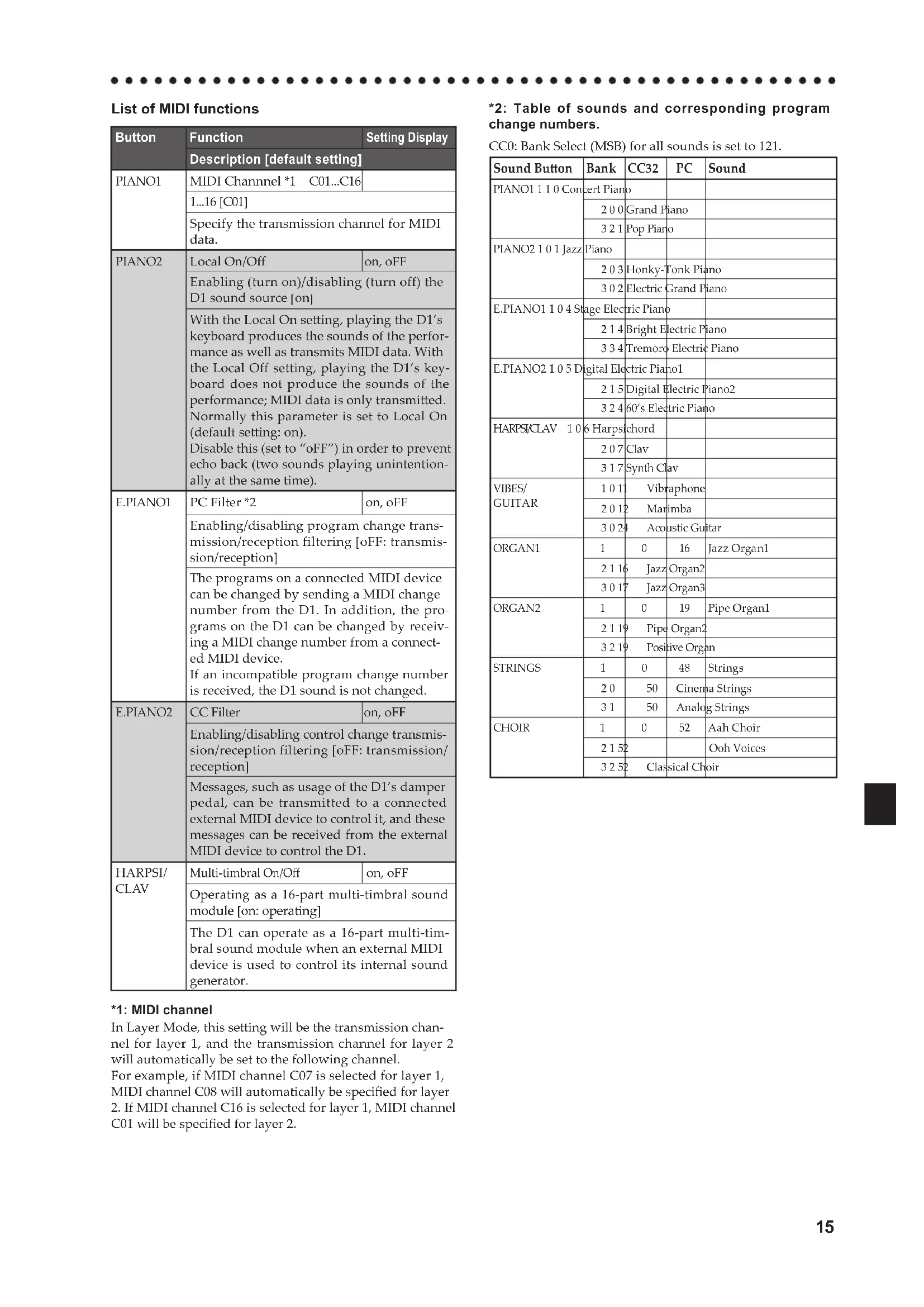
*2: Table of sounds and corresponding program change numbers.
CC0: Bank Select (MSB) for all sounds is set to 121.
| Sound Button | Bank | CC32 | PC | Sound |
| PIANO1 1 1 0 Concerto | cert Piano | |||
| 2 0 0 | Grand Piano | |||
| 3 2 1 | Pop Piano | |||
| PIANO2 1 0 1 Jazz | Piano | |||
| 2 0 3 | Honky-Tonk Piano | |||
| 3 0 2 | Electric Grand Piano | |||
| E.PIANO1 1 0 4 Stage Electric Piano | ||||
| 2 1 4 | Bright Electric Piano | |||
| 3 3 4 | Tremoro Electric Piano | |||
| E.PIANO2 1 0 5 Digital Electric Piano | ||||
| 2 1 5 | Digital Electric Piano2 | |||
| 3 2 4 | 60's Electric Piano | |||
| HARPSI/CLAV 1 0 Harpsichord | ||||
| 2 0 7 | Clav | |||
| 3 1 7 | Synth Clav | |||
| VIBES/GUITAR | 1 0 11 | Vibraphone | ||
| 2 0 12 | Marimba | |||
| 3 0 24 | Acoustic Guitar | |||
| ORGAN1 | 1 | 0 | 16 | Jazz Organ1 |
| 2 1 16 | Jazz Organ2 | |||
| 3 0 17 | Jazz Organ3 | |||
| ORGAN2 | 1 | 0 | 19 | Pipe Organ1 |
| 2 1 19 | Pipe Organ2 | |||
| 3 2 19 | Positive Organ | |||
| STRINGS | 1 | 0 | 48 | Strings |
| 2 0 | 50 | Cinema Strings | ||
| 3 1 | 50 | Analog Strings | ||
| CHOIR | 1 | 0 | 52 | Aah Choir |
| 2 1 52 | Ooh Voices | |||
| 3 2 52 | Classical Choir | |||
Appendix
Troubleshooting
If during use any of the following problems should occur, carefully examine the instrument to see if you can find out what the problem is, and try resolving it by following the suggestions below. If the instrument still does not function properly, please contact your dealer.
The instrument will not turn on
- Check that the AC adapter is correctly connected to the piano and the outlet.
No sound
Make sure that the volume is not set on MIN. If it is, bring it up to an adequate level.
Make sure that the MIDI Local function is not set on OFF. If it is, set it to ON (or turn the instrument off and then on again).
Notes are interrupted
- You have exceeded the maximum polyphony. See "About maximum polyphony."
The pitch or tone of the piano sounds wrong in some key regions
- The D1's piano sounds replicate the sound of an actual piano as faithfully as possible. This means that in some regions of the keyboard, you may feel that the overtones seem stronger, or that the tone or pitch seems wrong. This is not a malfunction.
The connected MIDI device does not respond to transmitted MIDI data
Make sure that all MIDI cables are correctly connected. Make sure that the D1 is receiving MIDI data on the same channel as the MIDI device.
About maximum polyphony
If the number of notes being played simultaneously exceeds the maximum polyphony, some notes will be lost since the D1 is equipped with a mechanism that stops the first note being played to give priority to notes played with keys pressed later. Some D1 sounds, although they may be a single sound, are generated by two or more oscillators (one note of a sound-generating circuit). Sounds using just one oscillator, such as those in banks 1 and 2 of VIBES/GUITAR, have a maximum polyphony of 120 notes. Sounds using two oscillators, such as those in banks 3 of PIANO1 and in banks 1 and 2 of E.PIANO2, have a maximum polyphony of 60 notes.
120 + Number of sound oscillators = Maximum polyphony Keep the maximum polyphony in mind and carefully choose sounds when using Layer mode to play two sounds simultaneously or when using the damper pedal.
Specifications
Keyboard RH3 (Real weighted hammer action 3) keyboard:88 note A0-C8
Touch control Five available
Pitch Transpose, Fine tuning
Temperament Nine kinds
Sound generation Stereo PCM System
Polyphony 120 notes (max)
Sounds 30 sounds (10 x 3 banks)
Effects Brilliance,Reverb,Chorus (3 levels each)
Demo 30 (Sound demo song x 10, Piano Song x 20)
Metronome Tempo, Time signature, Accent, sound and Volume controls
Pedal Damper
half-pedaling supported (when using the optional DS-1H)
Connections
LINE OUT (L/MONO, R), MIDI (IN, OUT), Headphones jack, DAMPER jack, DC 9V jack
Controls
Power, VOLUME, PIANO SONG, TRANSPOSE, FUNCTION, TOUCH, BRILLIANCE, REVERB, CHORUS, BANK, Sound × 10 , +, -, METRONOME
Power supply DC 9V, AC adapter (included)
Power consumption 1.5 W
Dimensions (W× D× H)
1327× 263× 128mm
52.24 × 10.35 × 5.04 inches
(including protrusions on the instrument; not including sheet music stand)
Weight
16kg / 35.27 lbs.
Included items
AC adapter, Music stand, Damper pedal, Owner's Manual
Accessories (sold separately)
ST-SV1 Keyboard Stand, DS-1H Damper Pedal
- Specifications and appearance are subject to change without notice for improvement.
When using the ST-SV1 optional keyboard stand (sold separately)
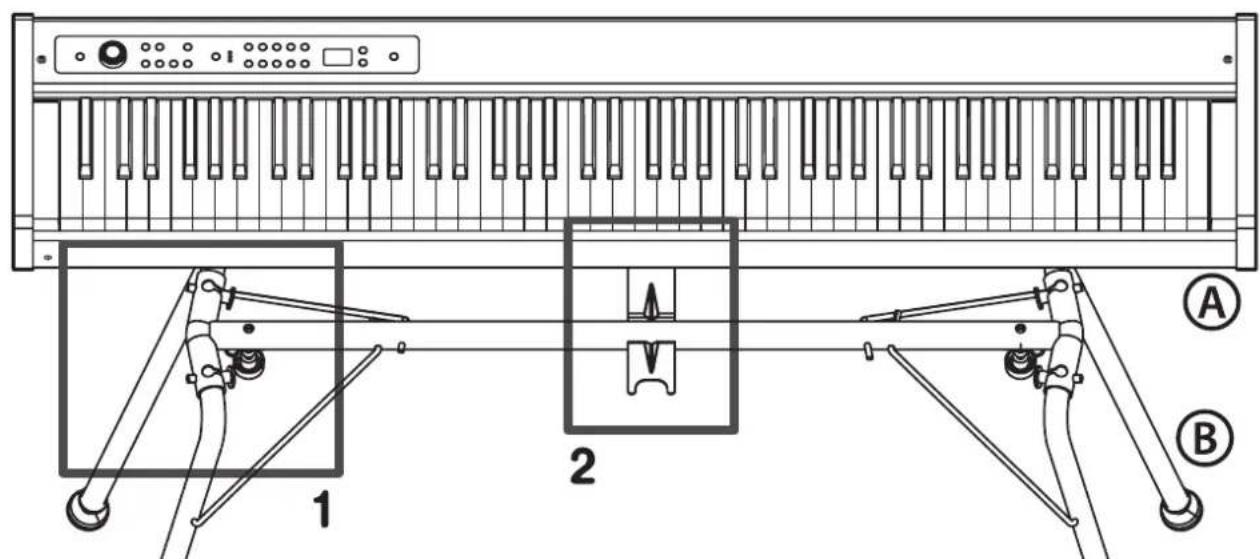
The D1 can be used with an ST-SV1 keyboard stand (the ST-SV1 BK model, sold separately). For the D1, use the instructions shown below instead for step 8 when assembling the ST-SV1 BK.
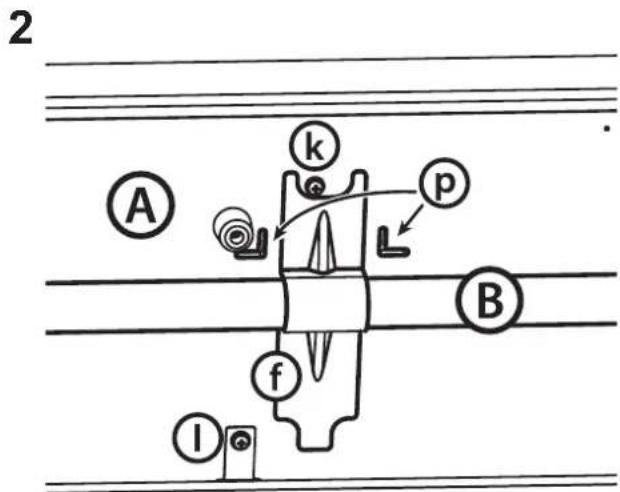
Using two people, lift the D1 (A), and attach it to the STSV1 stand (B).
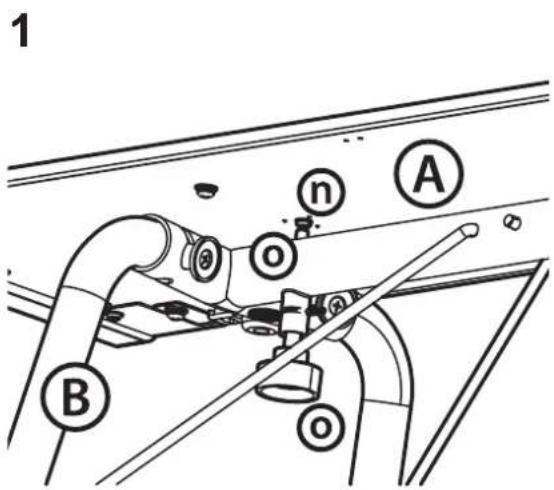
While one person prevents the D1 from falling down, The other person lines up the screws (o) on the left and right of the ST-SV1 with the screw holes (n) on the bottom of the D1. As a guide, the plate (f) should fit right between the two grooves (p) on the center of the bottom of the D1. Be careful that the plate does not touch the screw (k) at center front of the bottom of the D1 and the head of the screw (l) in the center towards the back.
Align the holes (n) under the D1 to match the screws (o) of the ST-SV1.
Remove the included AC adapter before assembling
the ST-SV1.
Be very careful not to pinch your fingers during lifting and attaching the D1 to the ST-SV1.
Make sure that the D1 is firmly secured to the ST-SV1 before playing. Failure to secure the ST-SV1 may cause the D1 to fall off and injure you, or cause damage to the D1.
Précautions
Emplacement
- Prises MIDI (IN, OUT):
- Conectores MIDI (IN, OUT):
| Function... | Transmitted Recognized Remarks | ||
| Basic Channel | Default | 1 | 1 |
| Changed | 1-16 | 1-16 | |
| Mode | Default | X | 3 |
| Messages | X | X | |
| Altered | ********** | X | |
| Note Number | True voice | 3-125 | 0-127 |
| ********** | 0-127 | ||
| Velocity | Note On | O 9n, V=1-127 | O 9n, V=1-127 |
| Note Off | X 8n, V=64 | X | |
| After Touch | Key's | X | X |
| Channel | X | O | |
| Pitch Bend | X | O | |
| Control Change | 0, 32 | O | O |
| 1 | X | O | |
| 5 | X | O | |
| 6 | X | O | |
| 7 | O | O | |
| 10 | X | O | |
| 11 | X | O | |
| 38 | X | O | |
| 64 | O | O | |
| 65 | X | O | |
| 66, 67 | X | O | |
| 71 | X | O | |
| 72, 73 | X | O | |
| 74 | X | O | |
| 75, 76, 77, 78 | X | O | |
| 91, 93 | X | O | |
| 100, 101 | X | O | |
| 120 | X | O | |
| 121 | O | O | |
| Program Change | True Number | O 0-52 | O 0-52 |
| ********** | 0-52 | ||
| System Exclusive | O | O | |
| System Common | Song Position | X | X |
| Song Select | X | X | |
| Tune Request | X | X | |
| System Real Time | Clock | X | X |
| Commands | X | X | |
| Aux Messages | Local On/Off | X | O |
| All Notes Off | O | O (123-127) | |
| Active Sensing | O | O | |
| System Reset | X | X | |
| Notes *1: Transmitted and received when the MIDI filter is disabled. *2: Includes Inquiry and GM Mode On. Though GM Mode On is recognized, not all GM sounds are supported. | |||
Mode 1: Omni On, Poly
Mode 2: Omni On, Mono
O: Yes
Mode 3: Omni Off, Poly
Mode 4: Omni Off, Mono
X: No
Consult your local Korg distributor for more information on MIDI implementation.
IMPORTANT NOTICE TO CONSUMERS
This product has been manufactured according to strict specifications and voltage requirements that are applicable in the country in which it is intended that this product should be used. If you have purchased this product via the internet, through mail order, and/or via a telephone sale, you must verify that this product is intended to be used in the country in which you reside.
WARNING: Use of this product in any country other than that for which it is intended could be dangerous and could invalidate the manufacturer's or distributor's warranty.
Please also retain your receipt as proof of purchase otherwise your product may be disqualified from the manufacturer's or distributor's warranty.
