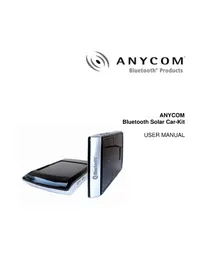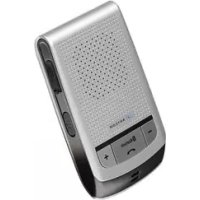
HCC250 - Built-in kit Anycom - Free user manual and instructions
Find the device manual for free HCC250 Anycom in PDF.



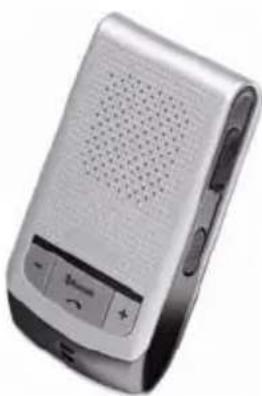
Frequently Asked Questions - HCC250 Anycom
User questions about HCC250 Anycom
0 question about this device. Answer the ones you know or ask your own.
Ask a new question about this device
Download the instructions for your Built-in kit in PDF format for free! Find your manual HCC250 - Anycom and take your electronic device back in hand. On this page are published all the documents necessary for the use of your device. HCC250 by Anycom.
USER MANUAL HCC250 Anycom
- Using your Handsfree 3
2.1. Battery Charging 3
2.2. Mounting your Handsfree 4
2.3. Turn On/Off Handsfree 4
2.4. Pairing/Connecting your Handsfree with Bluetooth Device 5
2.4.1. Pairing your Handsfree with Bluetooth handset 5
2.4.2.Erase all Paired Records 5
2.4.3. Connecting/Disconnecting your Handsfree with Bluetooth Device 5
2.5 Call Functions 6
2.5.1 Basic Call Operations 6
2.5.2 Call Mute 6
2.5.3 Transferring Calls to/from your Handset 6
2.5.4 Voice Dialing 6
2.5.5 Advanced Call Functions 6
2.6 AV-Functions 6
2.6.1 Using Handset AV Function 6
2.6.2 AV Operations 7
2.7 Volume Adjustment 7
2.8 Pairing/Connecting your Handsfree with Other Bluetooth Device.... 7
- Quick User Guide 7
3.1. LED Indicator Patterns 7
3.2. Quick User Guide.. 8
Troubleshooting 11
Additional Information 11
Safety 12
1. INTRODUCTION
Bluetooth Car-Kit
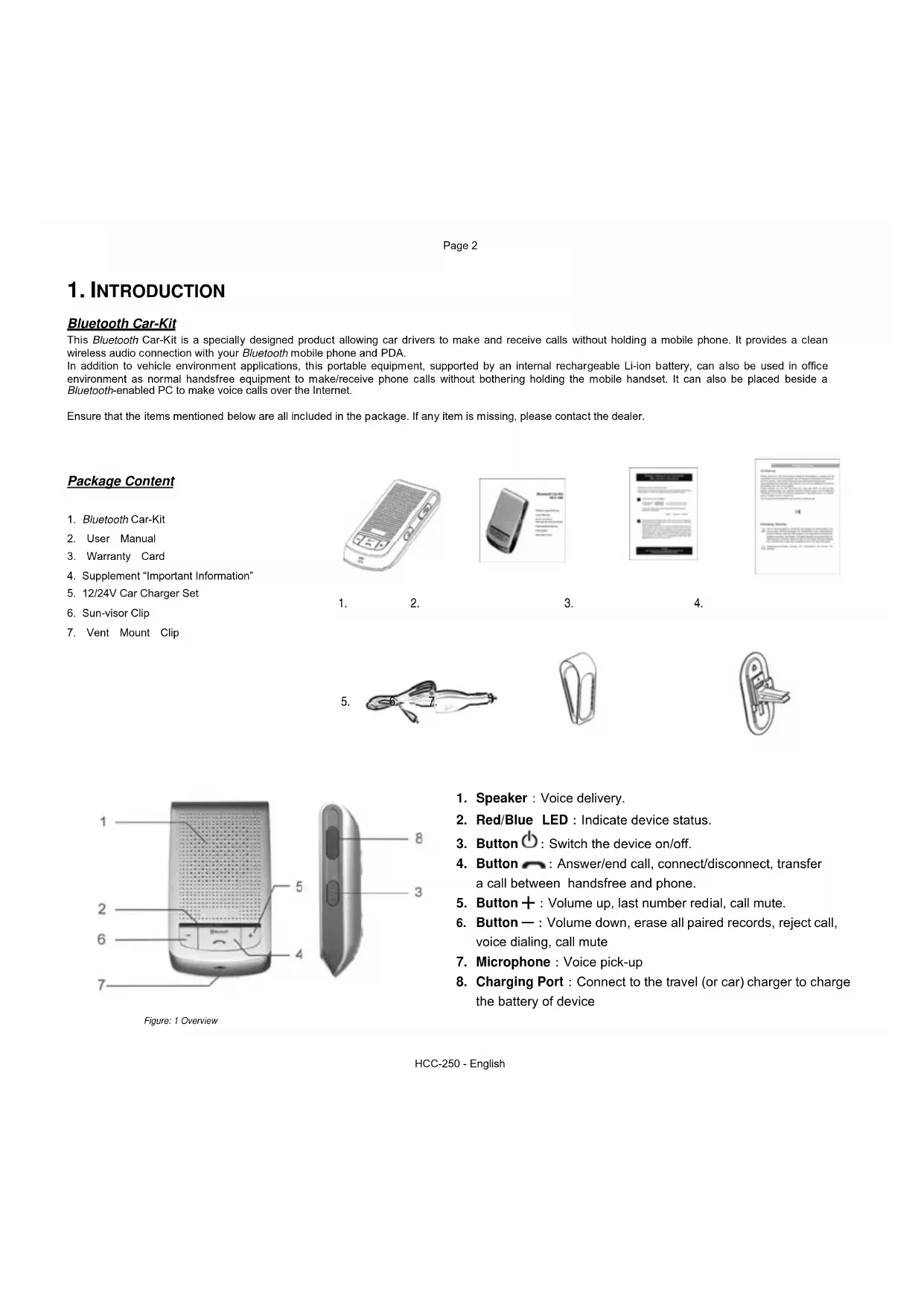
This Bluetooth Car-Kit is a specially designed product allowing car drivers to make and receive calls without holding a mobile phone. It provides a clean wireless audio connection with your Bluetooth mobile phone and PDA. In addition to vehicle environment applications, this portable equipment, supported by an internal rechargeable Li-ion battery, can also be used in office environment as normal handfree equipment to make/receive phone calls without bothering holding the mobile handset. It can also be placed beside a Bluetooth-enabled PC to make voice calls over the Internet.
Ensure that the items mentioned below are all included in the package. If any item is missing, please contact the dealer.
Package Content
- Bluetooth Car-Kit
- User Manual
- Warranty Card
- Supplement "Important Information"
- 12/24V Car Charger Set
- Sun-visor Clip
- Vent Mount Clip
1. 2.
3.
4.
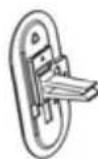
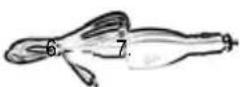
5.
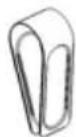
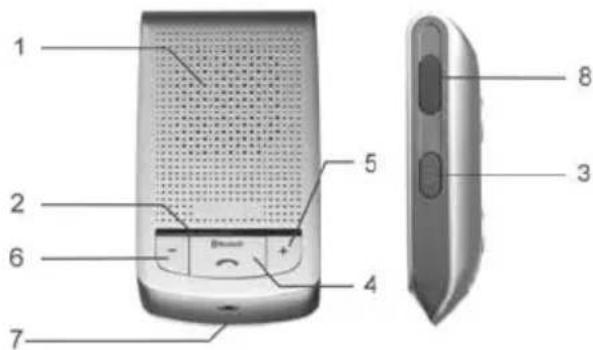
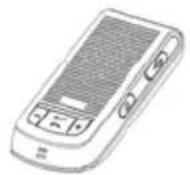
Figure: 1 Overview
- Speaker : Voice delivery.
- Red/Blue LED : Indicate device status.
- Button : Switch the device on/off.
- Button : Answer/end call, connect/disconnect, transfer a call between handsfree and phone.
- Button + : Volume up, last number redial, call mute.
- Button — : Volume down, erase all paired records, reject call, voice dialing, call mute
- Microphone : Voice pick-up
- Charging Port : Connect to the travel (or car) charger to charge the battery of device
2. USING YOUR HANDSFREE
Battery Charging and Usage
2.1 Battery Charging
This Car-Kit contains a rechargeable Li-Polymer battery. First-time charging time is about 4 hours. Later-on recharging time is around 2-3 hours. Detailed charging procedures as follows:
- Connect the car charger to the cigarette lighter, or plug the USB cable in PC.
- Referring to Figure 2, plug the connector of the charger to Car-Kit's charging port to start charging. Both the Red and Blue LEDs will be on during charging. Once the Red LED turns off, the battery is fully charged and you should disconnect the charger from the Car-Kit and the power outlet.
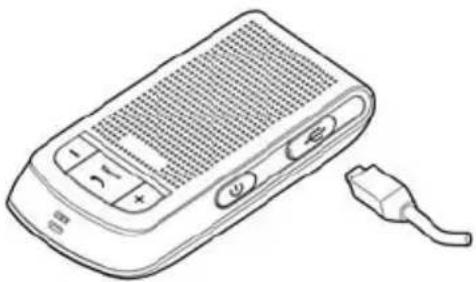
Figure: 2 Battery Charging
Note:
It is recommended to charge your Car-Kit when it is not in use.
Please note that "inserting" charger will cause a device reset. However, when the Car-Kit is in charging (the charger has been inserted), the Car-Kit is in normal operation.
During a call, the existing connection between the Car-Kit and the mobile phone will be reset after "inserting" the charger. The call will be transferred back to the mobile phone momentary. The Car-Kit will try to re-establish the connection automatically. Sometimes, the user needs to short-push button to reconnect the device.
Battery Information
Once fully charged, the battery supports continuous talk time up to 14 hours and standby (i.e. the device is power on but without connection) time about 25 days.
When the battery is low, the Car-Kit beeps once every 20 seconds and the Blue and Red LEDs alternate every 3 seconds, charge the battery as described above.
Note: Over-charging will reduce battery life. If a fully charged battery is left unused, it will lose power over If a fully charged battery is left unused, it will lose power over time. Extreme temperature (either too hot or too cold) will also affect its ability to charge, capacity, and lifetime.
Please recharge your headset or car-kit only if your car stands still. During recharging the headset or car-kit cannot be used.
2.2 Mounting your Handsfree
The HCC-250 Car-Kit can be easily mounted inside the car by either using the companion Sun-Visor Clip to fix the product on the sun-visor over the driver's seat, or inserting the Vent Mount Clip into the vent in front of the driver's seat.
As shown in Figures 3 and 4, there are two magnetic tips on the backside of the device. You can attach the Sun-Visor Clip or the Vent Mounting Clip to them. For better mounting the device, please clip the Sun-Visor Clip to the sun visor first, and then properly attach the Car-Kit to the Sun-Visor Clip.
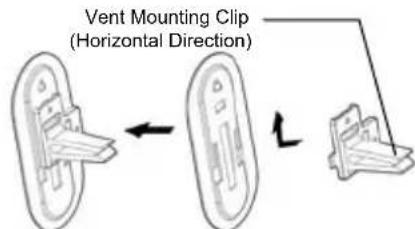
To use the Vent Mounting Clip, you may adjust the clip direction according to your car vent, as shown in Figure 5.
Note: The microphone of the HCC-250 Car-Kit must aim at the sound bearing.
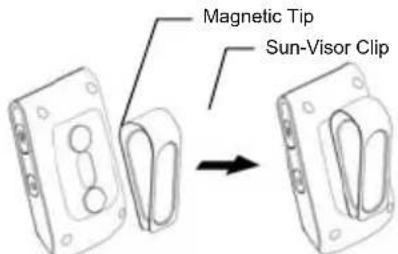
Figure 3: Attach Sun-visor Clip to Magnetic Tips
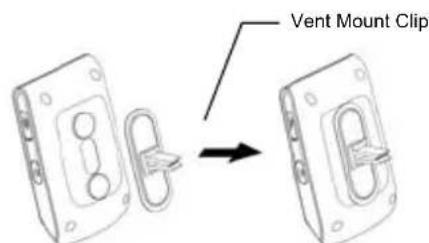
Figure 4: Attach Vent Mount Clip to Magnetic Tips
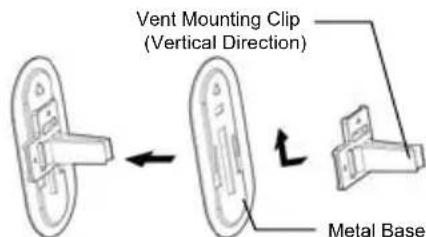
Figure 5: Adjust Vent Mounting Clip Direction (Vertical or Horizontal)
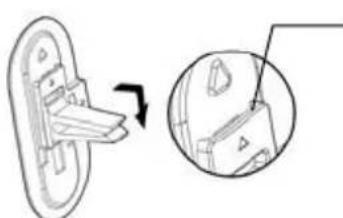
Pull out a little and push down from here
Figure 6: Detach Clip from metal base
With great portability and flexibility, this Car-Kit can also be used outside of such car environment such as in office and/or at home.
2.3 Turn On/Off the HCC-250 Car-Kit
Turn on the Handsfree: Press and hold button for at least 3 seconds, you will hear 2 power-up tones, the Blue LED gives 3 quick blinks following by 1 blink per 3 seconds; the Red LED is off. This indicates the handsfree is power on.
Turn off the HCC-250: Press and hold button for at least 3 seconds, you will hear 2 power-down tones, the Red LED will blink 3 times then all LEDs are off. This indicates the Car-Kit is power off.
2.4 Pairing/Connecting your Handsfree with Bluetooth Device
2.4.1 Pairing your HCC-250 with Bluetooth mobile phone (or other device)
Before making and answering calls, you must pair your HCC-250 and phone. Paring sets up a unique relationship between your Car-Kit and your mobile phone. The mobile phone will memorize the HCC-250's unique ID (or passkey). This ensures that a unique and encrypted wireless link between your Car-Kit and mobile phone will be used during calls.
Detailed operation procedures are as follows:
- Place your HCC-250 close to your Bluetooth enabled mobile phone, and ensure your Car-Kit is power off, your mobile phone is power on
- Press and hold button for at least 6 seconds until the Blue and Red LEDs alternate continuously. You will hear 2 power-up tones and a pairing tone to indicate that the Car-Kit has successfully entered the paring mode
- Following your phone user guide to active Bluetooth device search on the phone side, on your phone screen you will see a list of Bluetooth equipment found by the phone at the end of the searching process.
- Select this Bluetooth Car-Kit HCC-250 from the list and initiate pairing following handset's on-screen prompts.
- Continue to follow on-screen prompts to enter passkey "0000" and confirm to pair the HCC-250 with your mobile phone. Once the pairing procedure is completed, you will hear a connecting tone, and then Blue LED gives 3 quick blinks per 2 seconds. It indicates that the Car-Kit device and the mobile phone are paired and connected.
Note:
If pairing is successful, Car-Kit's Red LED is off. The Blue LED gives 3 quick blinks per 2 seconds. If your mobile phone shows that paring is failed and the Car-Kit is still in the paring mode, you need to go back to above steps 3-5 to repeat the paring process.
Your Car-Kit will remain in the pairing mode for about 2 minutes. If paring cannot be finished within 2 minutes, the HCC-250 will enter into the standby mode (without Bluetooth connection in this case). You need to turn the Car-Kit off and then repeat the above steps 2-5 to restart the pairing process.
2.4.2 Erase all Paired Records
This Car-Kit can be paired with up to 8 Bluetooth devices. When in the paring mode, press and hold - button for at least 3 seconds will allow you to erase all paired bluetooth device profiles stored in the Car-Kit. The Car-Kit will then quit from the pairing mode. The Blue LED will give 1 blink per 3 seconds.
2.4.3 Connecting/Disconnecting your HCC-250 Car-Kit with a Bluetooth Device
When the Car-Kit communicates with a Bluetooth equipment thru Handsfree Profile, the Bluetooth connection between two equipments shall be established in advance. If two Bluetooth equipments have been paired once, you can simply reconnect them.
Connecting your HCC-250 with a Bluetooth mobile phone
Initiating a request from either the Car-Kit or the mobile phone can set up Bluetooth connection. The detailed operations are as follows:
- Initiating connection request from the Car-Kit: Place the Car-Kit close to the Bluetooth mobile phone and then press button
- Initiating connection request from the Bluetooth mobile phone: Place the Car-Kit close to the Bluetooth mobile phone and then follow the phone's user guide to find the Car-Kit and send connection request.
After connecting, you will hear a connecting tone, and then Blue LED gives 3 quick blinks per 2 seconds
Disconnecting your HCC-250 from your Bluetooth mobile phone:
When the Car-Kit is connected with Bluetooth mobile phone (or in the connected mode), you can disconnect them as follows:
- Pressing and holding button for at least 3 seconds.
- Following the mobile phone's user guide and initiating disconnection from the phone side.
After disconnecting, you will hear a disconnecting tone, and then Blue LED gives 1 blink per 3 seconds.
2.5 Call Functions
2.5.1 Basic Call Operations
Before dialing, both your HCC-250 Car-Kit and mobile phone must be powered on. And you also need to ensure your Car-Kit and phone has been linked with Bluetooth connection.
Answer Call: Press button
Reject Call: Press and hold button - for at least 3 seconds.
End Call: Press button
Redial: Press and hold button + for at least 3 seconds
For the above operations, the Blue LED gives 3 quick blinks per 2 seconds and the Red LED is off.
2.5.2 Call Mute
You can mute or un-mute an ongoing call by simultaneously quick pressing button + and button -. The Blue LED gives 3 quick blinks per 2 seconds and the Red LED is off.
2.5.3 Transferring Calls to/from your mobile phone
Transferring calls to your mobile phone: Press and hold button for at least 3 seconds, the Blue LED gives 1 blink per 3 seconds; Red LED is off.
Transferring calls from your mobile phone: Press button , and the Blue LED gives 3 quick blinks per 2 seconds.
2.5.4 Voice Dialing
If the connected phone supports voice dialing, you can press and hold button - for at least 3 seconds to activate voice dialing. The Blue LED gives 3 quick blinks per 2 seconds. Before using voice dialing, you must record voice tags in your mobile phone. Please refer to your mobile phone manual for detailed descriptions on how to set up voice dialing and recording voice tags.
When voice dialing is progress, you can quick press button - to cancel voice dialing. The Blue LED gives 3 quick blinks per 2 seconds and the Red LED is off.
2.5.5 Advanced Call Functions
If your mobile phone has call waiting/conference functions, your HCC-250 Car-Kit can support the function by following operations:
- When a new call comes in while you are in talk:
1) Press and hold button + for at least 3 seconds to hold active call and accept incoming call.
2) Press button to end active call and answer new call.
- When two calls in progress, one is active and the other is on hold:
1) Press and hold button + for at least 3 seconds to toggle hold call and active call.
2) Press button to end active call and accept hold call.
3) Press and hold button - for at least 3 seconds to make conference.
For the above operations, the Blue LED gives 3 quick blinks per 2 seconds and the Red LED is off.
2.6 A2DP Functions
This Car-Kit supports the Bluetooth A2DP Profile to play back music in high quality. When connecting with a Bluetooth-enabled multimedia/music player or a mobile phone with A2DP compatibility, the product allows users to enjoy and remotely play stereo music from the player.
2.6.1 Using mobile phone's A2DP Function
For mobile phones supporting Bluetooth A2DP profiles, you can establish an audio connection between the mobile phone and the Car-Kit to enjoy music played by the phone. Depending on the phone's capability, the audio connection could be established automatically when you start playing music.
If your mobile phone does support Bluetooth A2DP profiles but you fail to get an audio connection when you start playing music, you must follow your phone user guide to establish an Aaudio connection before playing music.
2.6.2 AVRCP Operations
The following operations can be used for remotely control your Bluetooth capable phone or media player to play music:
Play: Press button
Pause: Press button
Stop: Press and hold button for at least 3 seconds.
Forward: Press and hold button + for at least 3 seconds.
Backward: Press and hold button - for at least 3 seconds.
2.7 Volume Adjustment
When in the connected or talk/play mode, you can adjust sound volume up or down by pressing buttons + or -, respectively. You can repeat the above operation until the speaker volume reaches at a desirable level.
Note:
For most Bluetooth volume control of the Car-Kit will synchronize with the phone. That is, the sound volume of your HCC-250 can be controlled by your phone and vice versa. However, this may not be always true due to variations on implementations chosen by different phone manufactures.
2.8 Pairing/Connecting your Handsfree with Other Bluetooth Device
In addition to Bluetooth phone, your Car-Kit can also pair with other Bluetooth devices for realizing short distance wireless communications. Similar pairing procedures described in the previous Section 2.4 can be used. You can also follow the user guide of the Bluetooth device to complete paring operations on the device side.
This Car-Kit can be paired with up to 8 Bluetooth devices (including mobile phones). The corresponding 8 sets of pairing information are recorded by the Car-Kit. Each paired device can wireless communicated with the Car-Kit after setting up a Bluetooth connection. Please check Section 2.4.3 on procedures to set up a Bluetooth connection.
3. QUICK USER GUIDE
3.1 LED Indicator Patterns
LED Pattern 1: Blue LED gives 1 blink per 3 seconds; Red LED is off.
LED Pattern 2: Blue LED gives 3 quick blinks per 2 seconds; Red LED is off.
LED Pattern 3: Blue and Red LEDs alternate continuously.
LED Pattern 4: Blue and Red LEDs alternate every 3 seconds.
LED Pattern 5: All LEDs are off.
3.2 Quick User Guide
You can follow the instructions listed in Table 1-7 below to operate your HCC-250 Car-Kit devices. (Please refer to section 1 for details of key and key press duration definitions.)
Note: Your Car-Kit devices can only talk to paired Bluetooth devices. For devices supporting only the Handsfree Profile (HFP), you also need to establish Bluetooth connection between your Car-Kit and your phone before making and answering calls.
Table 1: Power on/off
| FUNCTION | CURRENT STATUS HCC-250 INDICATOR | OPERATION | ||
| PHONE | HCC-250 | AUDIO TONE LED INDICATOR | ||
| Turn On Power Off | Press and hold button for at least 3 seconds | 2 power-up tones LED Pattern 1 | ||
| Turn Off Standby | Press and hold button for at least 3 seconds | 2 power-down tones LED Pattern 5 | ||
Table 2: Pairing/Connections
| FUNCTION | CURRENT STATUS HCC-250 INDICATOR | OPERATION | |||
| PHONE | HCC-250 | AUDIO TONE LED INDICATOR | |||
| Enter pairing mode | Power | Press and hold button for at least 6 seconds | 2 power-up tones, and then 1 pairing tone | LED Pattern 3 | |
| Erase all paired profiles | Paring | Press and hold button – for at least 3 seconds | LED | ||
| Pair Car-Kit with phone | Power on Paring mode | Follows your phone's user guide to complete pairing procedure.Passkey is "0000" | 1 connecting tone LED Pattern 2 | ||
| Connect (CarKit with phone) | Standby (disconnected) | Standby (disconnected) | Press button or set up connection from the phone | 1 connecting tone LED Pattern 2 | |
| Disconnect | Standby (connect) | Standby (connect) | Press and hold button for at least 3 seconds or refer to phone manual to initiate the connection from the phone side. | LED | |
Table 3: Call Functions
| FUNCTION | CURRENT STATUS HCC-250 INDICATOR | OPERATION | |||
| PHONE | HCC-250 | AUDIO TONE LED INDICATOR | |||
| Answer Call Incoming call Incoming call Press button LED Pattern 2 | |||||
| Reject Call Incoming call Incoming call | Press and hold button - for at least 3 seconds | LED | |||
| End Call | Talk | Talk | Press button | LED Pattern 2 | |
| Redial | Standby | Standby | Press and hold button + for at least 3 seconds | Key Tone | LED Pattern 2 |
| Voice Dialing Standby | Standby | Press and hold button - for at least 3 seconds | Key Tone | LED Pattern 2 | |
| Cancel Voice Dialing | Voice Dialing Voice | Dialing | Press button - | Key Tone | LED Pattern 2 |
| FUNCTION | CURRENT STATUS HCC-250 INDICATOR | OPERATION | |||
| PHONE | HCC-250 | AUDIO TONE LED INDICATOR | |||
| Volume up Talk Talk | Press button + | LED | |||
| Volume down | Talk Talk | Press button - | LED | ||
| Mute | Talk | Talk | Press button - and button + Together | Key Tone | LED Pattern 2 |
| Unmute | Talk | Mute | Press button - and button + Together | Key Tone | LED Pattern 2 |
Table 4: Transfer Functions
| FUNCTION | CURRENT STATUS | OPERATION | HCC-250 INDICATOR | ||
| PHONE | HCC-250 | AUDIO TONE | LED INDICATOR | ||
| Call Transfer (Car-Kit to phone) | Talk | Talk | Press and hold button for at least 3 seconds | Key Tone | LED Pattern 1 |
| Call Transfer (Phone to Car-Kit) | Talk | Talk | Press button | Key Tone | LED Pattern 2 |
Table 5: Low Power Indication
| FUNCTION | CURRENT STATUS | OPERATION | HCC-250 INDICATOR | ||
| PHONE | HCC-250 | AUDIO TONE LED INDICATOR | |||
| Low Power Warning | Except power off | Beep every 20 seconds | LED Pattern 4 | ||
Table 6: Advanced Call Functions
| FUNCTION | CURRENT STATUS HCC-250 IN | DICATOR OPERATION | |||
| PHONE | PHONE | AUDIO TONE LED INDICATOR | |||
| Held Active Call and Accept Incoming Call | Talk | Call | Press and hold button + for at Waiting least 3 seconds | LED | |
| End Active Call and Answer New Call | Talk | Call | Waiting Press | button | LED |
| Toggle Held Call and Active Call | Talk Call On Hold | Press and hold button + for at least 3 seconds | LED | ||
| End Active Call and Accept Hold Call | Talk Call On Hold Press button | LED | |||
| Conference Calls Talk Call On Hold | Press and hold button - for at least 3 seconds | LED | |||
Patten
Patten
Table 7: Work in with Media Player
| FUNCTION | CURRENT STATUS HCC-250 IND | CATOR OPERATION | |||
| PHONE/PLAYER | HCC-250 | AUDIO TONE LED INDICATOR | |||
| Play | Press button | ||||
| Pause | Press button | ||||
| Stop | Press and hold button for at least 3 seconds | ||||
| Volume up | Press button + | ||||
| Volume down | Press button - | ||||
| Forward | Press and hold button + for 3 seconds | ||||
| Backward | Press and hold button - for 3 seconds | ||||
Troubleshooting
In case the Car-Kit does not function correctly, please follow the corrective action given in the table below. If the problem is not solved even after performing the corrective actions, please contact the dealer from whom Car-Kit was purchased.
| Status To Check Corrective Action | ||
| Car-Kit does not turn on | Check whether the battery of Car-Kit is charged | Charge the battery |
| Unable to communicate using Car-Kit | Check whether your mobile phone supports the "headset" and/or "hands-free" profile(s) | In order to use the Car-Kit, it is essential that your mobile phone should support the "headset" and/or "hands-free" profile(s) (You might need to search for option such as headset, audio device, etc in case your mobile phone does not contain the hands-free option; these options however are subject to the model of the mobile phone being used) |
| Check whether the battery is fully charged | Charge the battery if the battery power is low | |
| Unable to pair Car-Kit with a Bluetooth mobile phone | Check whether Car-Kit is on | Press for 3 s to turn on Car-Kit |
| Check whether Car-Kit is in the pairing mode | With power off, press and hold for at least 6 s to place Car-Kit in the pairing mode | |
| Extremely low or loud speaker volume Check the speaker volume Press either + or - to control the volume accordingly | ||
Additional Information (Please read also the supplement "Important Information")
The cover range of wireless communication is within a maximum range of 30 feet (10 m) and the conditions vary according to obstacles.
The Car-Kit can be connected only to those mobile phones that support the Bluetooth headset or hands-free profile(s). (Subject to different models of mobile phone, it will show you different options such as audio device etc.) This product is not compatible with the standard cordless phones used in homes.
As it operates in the same frequency range, the Car-Kit can be affected by the devices that operate in the ISM band (2.402 GHz ~ 2.480 GHz), for example, wireless LAN, microwave devices, medical appliances, etc. Therefore, in order to ensure proper operation, the hands-free car kit should be away from these devices.
If handled properly, a rechargeable battery can have a long service life. A new battery or one that has not been used for a long period of time could have reduced capacity the first few times it is used.
The standard usage time of the battery can vary depending on the usage condition of the mobile phone and Car-Kit.
Safety
- Use the charger that comes with package.
-
Caution, risk of explosion if battery is replaced by an incorrect type.
Check the laws and regulations on the use of mobile phones and hands-free equipment in the areas where you drive. Always give full attention to driving and pull off the road and park before making or answering a call if driving conditions require.
Do not allow children to play with your Car-Kit since it contains small parts that could become detached and create a choking hazard.
This device contains a Li-polymer battery. Please keep it away from fire anytime (including discarding the device) or the battery may explode.
The Car-Kit, especially the embedded battery must be properly disposed or may be recycled, contacts your local recycling centres for disposal methods.
Please turn off your Car-Kit in an area with a potentially explosive atmosphere (oil warehouse, explosive warehouse, etc.). In rare occurrences, this product could generate sparks. This could lead to an explosion or fire, which could result in bodily injury. Therefore follow the warning notices in those areas carefully. -
Do not drop this unit from a height.
- Do not modify, repair or take apart this unit.
Do not expose this unit directly to water, alcohol, benzene, etc, for cleaning. - Do not expose this unit directly to flammable.
- Do not place this unit near flammables.
- Protect this unit from humidity and dust.
- Do not place a heavy object on this unit.
Please recharge your headset or car-kit only if your car stands still. During recharging the headset or car-kit cannot be used.
MANUEL DE L'UTILISATEUR
Kit auto Bluetooth HCC-250
SOMMAIRE
- Introduction 2
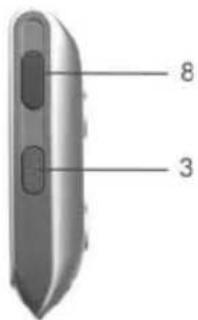
Figure 1: Vista general