Rider 200 - Meter Bryton - Free user manual and instructions
Find the device manual for free Rider 200 Bryton in PDF.



| Product Type | GPS Bike Computer |
| Brand | Bryton |
| Model | Rider 200 |
| Dimensions | Approximately 50 x 70 x 20 mm |
| Weight | Approximately 60 g |
| Power Supply | Rechargeable lithium battery via USB cable |
| Battery Life | Up to 16 hours in GPS mode |
| Display | Backlit LCD screen |
| Main Features | GPS, route recording, laps, speedometer, distance, time, calories, altimeter (via GPS), ANT+ sensor compatibility (heart rate, speed, cadence) |
| Connectivity | Bluetooth Smart, GPS |
| Built-in Sensors | GPS, accelerometer (estimated) |
| Included Accessories | USB cable, bike mount |
| Optional Accessories | Heart rate strap, speed sensor, cadence sensor |
| Care and Cleaning | Clean with a soft, dry cloth. Avoid solvents and immersion in water. |
| Safety | Do not use underwater or in extreme environments. Use the provided mount for secure attachment. |
| Spare Parts and Repairability | Spare parts available from the manufacturer: USB cable, mount, battery (not user replaceable). Repair by authorized center. |
| General Information | Manual available in multiple languages. Bryton mobile app for data synchronization and analysis. |
Frequently Asked Questions - Rider 200 Bryton
User questions about Rider 200 Bryton
0 question about this device. Answer the ones you know or ask your own.
Ask a new question about this device
Download the instructions for your Meter in PDF format for free! Find your manual Rider 200 - Bryton and take your electronic device back in hand. On this page are published all the documents necessary for the use of your device. Rider 200 by Bryton.
USER MANUAL Rider 200 Bryton
Rider 210 is equipped with barometer which shows the real time altitude.(Rider 210 only)
This device has three keys that are used for multiple functions.
Key Functions

BACK
- Press to return to the previous page or cancel an operation.
- When recording, press to pause recording. Press it again to stop recording.

LAP/OK()
Press and hold to turn the device on/off.
In Menu, press to enter or confirm a selection.
- In free cycling, press to start recording.
- When recording, press to mark the lap.
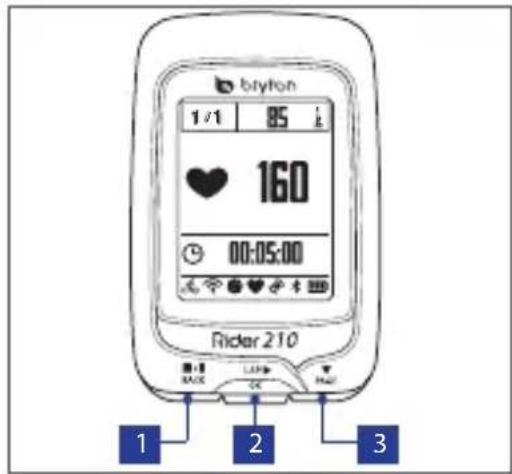

PAGE
- In Menu, press to move down to scroll through menu options.
- In Meter view, press to switch meter screen page. Press and hold to enter Shortcut page.
Note: To adjust the altitude settings on Rider 210, go to Setting > Altitude > press
Accessories
The Rider 210/200 comes with the following accessories:
- USB cable - Bike mount
Optional items: - Heart rate belt - Dual sensor - Speed sensor - Cadence sensor

Icons
| IconDescriptionIconDescriptio | |
| Bike Type | |
| 16 | Bike 1 Cadence Sensor Active |
| 26 | Bike 2 Speed Sensor Active |
| GPS Signal Status | |
| 7 | Weak signal Log Record is |
| 8 | Strong signal Recording |
| Power Status | |
| 10 | Full battery |
| WD/□ | Half battery |
| □ | Low battery |
Note: Only the active icons are displayed on the screen.
Step 1: Charge your Rider 210/200
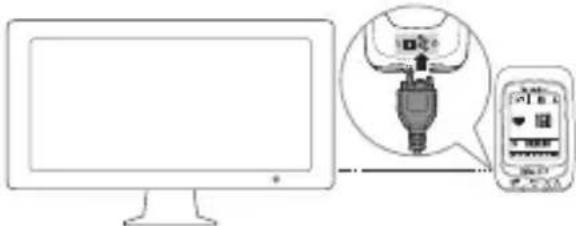
Connect Rider 210/200 to a PC to charge the battery for at least 3 hours. Unplug the device when it is fully charged.
Z
Step 2: Turn On Rider 210/200
Press and hold to turn on the device.
Step 3: Initial Setup
When turning Rider 210/200 on for the first time, the setup wizard appears on screen. Follow the instructions to complete setup.
- Select the display language.
- Select the daylight saving time.
-
Select the unit of measurement.
-
Enter your "user profile".
The "user profile" includes the following data settings:
- Gender - Height - Weight
It is recommended to input the data. The data accuracy will highly affect your training analysis.
- Scan the QR code with your phone to download the Bryton Mobile APP.
Note:
- The Rider 210/200 was designed to wirelessly sync your data in the background using Bluetooth Smart.
-
For more instructions, please refer to "Share Your Records" section. Bluetooth Smart and WiFi-enabled mobile phone is required. Android 4.3 or above.
-
Read and accept the Safety Agreement.
Step 4: Acquire Satellite Signals
Once the Rider 210/200 is turned on, it will automatically search for satellite signals. It may take 30 to 60 seconds to acquire signals.
The GPS signal icon ( / ) appears when GPS is fixed.
- iftheppeaeqian thesteefend,an
- Please avoid the obstructed environments since they might affect the GPS reception.
| Tunnels Inside rooms, building, or underground | Under water High-voltage wires or television towers | Construction sites and heavy traffic |
Step 5: Ride Your Bike with Rider 210/200
Free ride:
Select Meter from the menu list and start free ride.
- Start an exercise and record your data:
In meter view, press to start recording, press to pause, press again to stop.
Start a training:
Select Train from the menu list. Training can be based on time, distance, calories burn, or the saved workouts.
Reset Rider 210/200
To reset the Rider 210/200, long press all three keys (AAX) at the same time.
Share Your Records
When using the device for the first time, please download Bryton Mobile APP and pair your mobile phone with Rider 210/200.
Note:
- You can also scan QR code here or go to corp.brytonsport.com/app/sports to download Bryton APP.
- You need to install the Bryton APP to enable the notification feature.
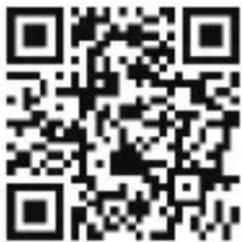

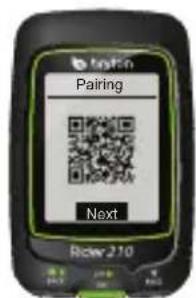
a. Go to Settings > General > Bluetooth > QR Code.
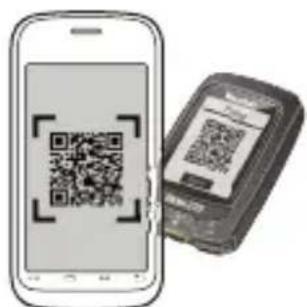
b. Use mobile phone to scan QR code to download Bryton APP.
c. Install the Bryton APP.
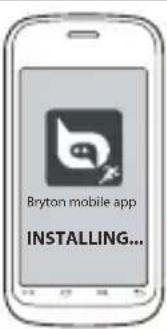
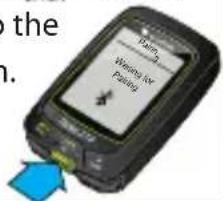
d. Press and leave Rider 210/200 device with the "Waiting for pairing". Then press BACK and use
PAGE key to scroll to the Pairing menu item.
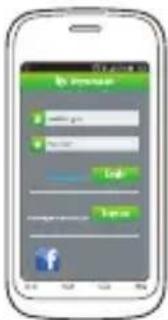
e. Sign up/log in on Bryton APP Register a new account or use your current Bryton Account to log in.
Note: Bryton Account is the email address that you used to register a member of brytonsport.com.
f. Make sure Bluetooth on mobile phone and Rider 210/200 are turned on.
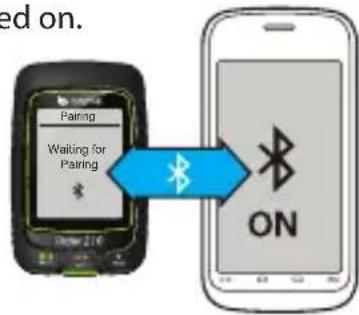
g. Pairing your mobile phone with Rider 210/200. Select Setting > Bluetooth > Setting > Scan. Once Rider 210/200 appears on the list, select it to pair.
Note: The pairing process is required only one time. Once completed, Rider 210/200 and mobile phone will remain paired.
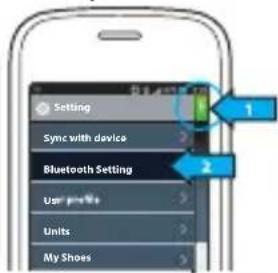
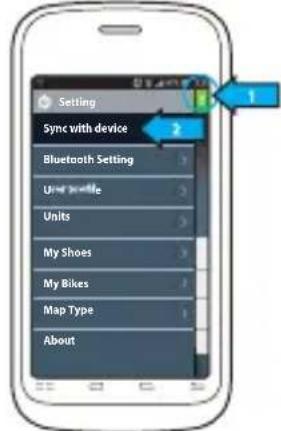
h. Later, tap Sync with device, the
workout records will sync to Bryton APP.
Z
Note:
- Please go to corp.brytonsport.com > Support > Tutorial for more instructions.
- Please go to http://corp.brytonsport.com/products/support_sdownload?lang=eng to download User's Manual.
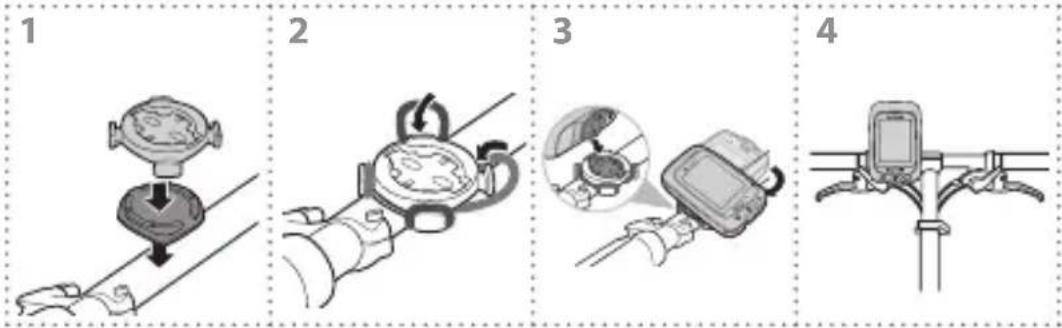
Bike Mount Installation
To mount Rider 210/200 onto your bike, do the following:
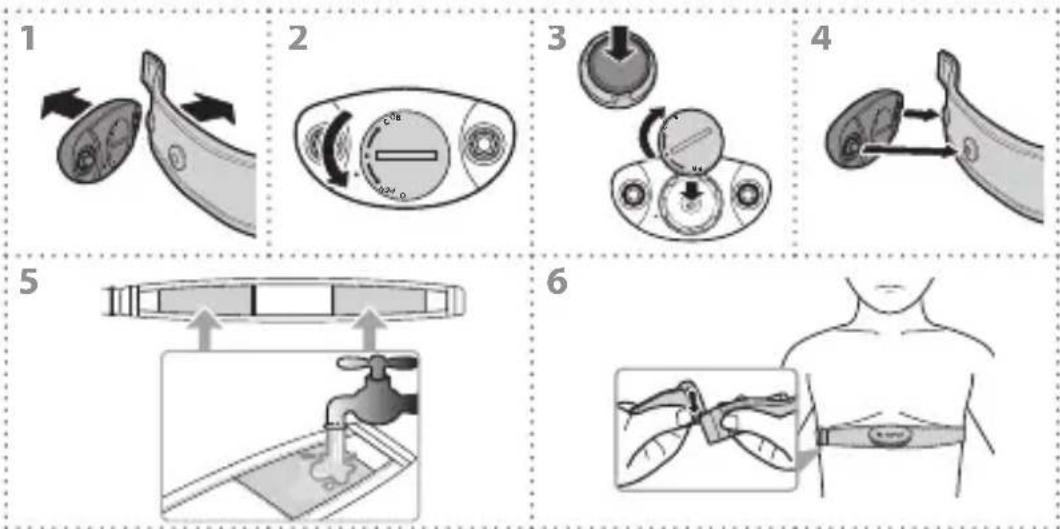
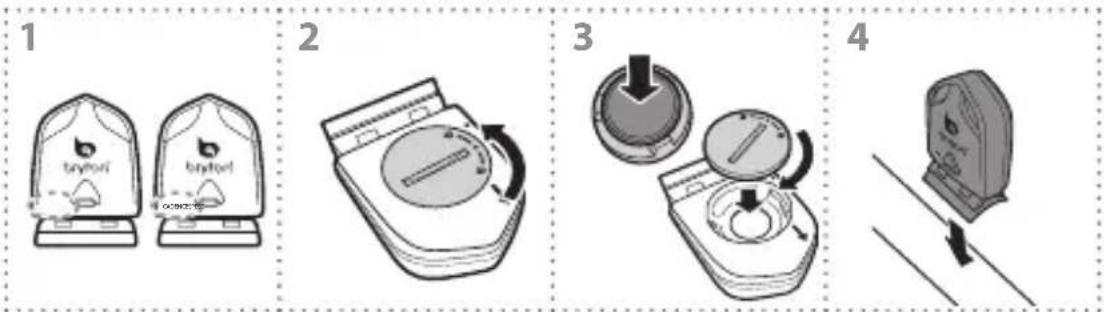
Accessories Installation (Optional)
Heart Rate Monitor
盈
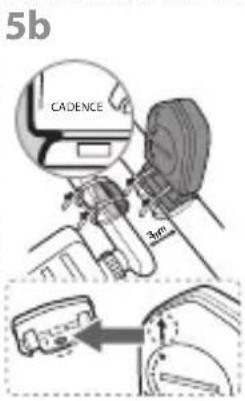
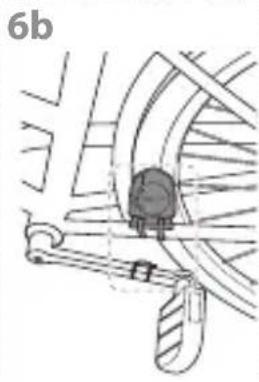
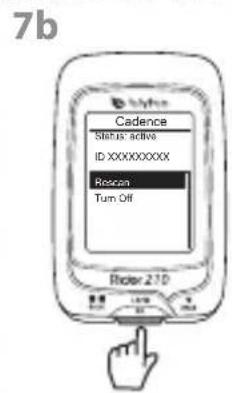
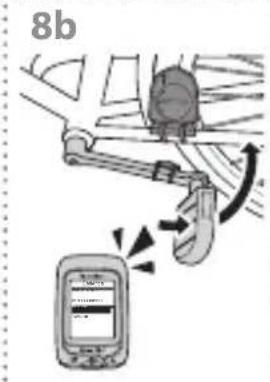
Speed/Cadence/Combo Sensor
Z
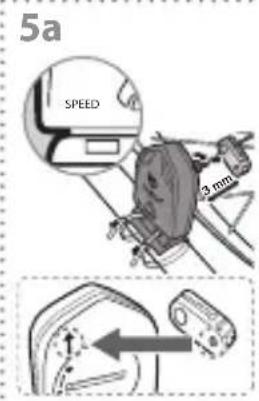
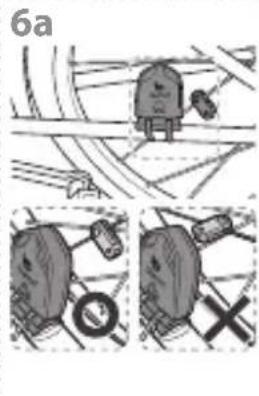
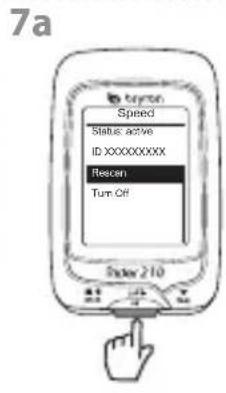
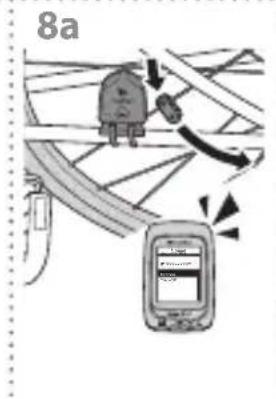
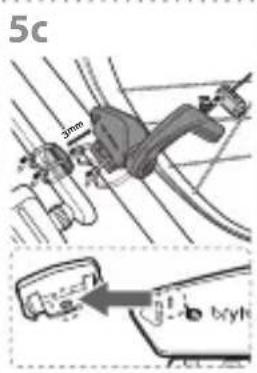
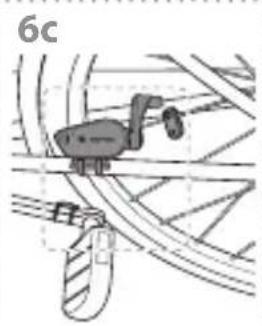
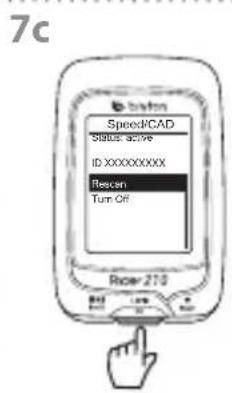
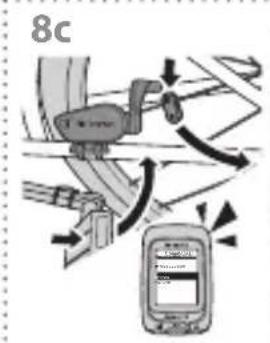
Rider 210/200
- Start an exercise and record your data(登录时长及代码执行):
MiTe Bofi eep 1APL 10K 10k 10k 10k 10k 10k 10k 10k 10k 10k 10k 10k 10k 10k 10k 10k 10k 10k 10k 10k 10k 10k 10k 10k 10k 10k 10
- Start a training(複練)
遍不同默默里Train(在)是,
Rider 210/200 産業種類
Rider 210/200 = J#e#y#3K /PAGE)
hiokongy
Bryton 210/200
相卫:



- KEY FUNCTIONS
- BACK
- LAP/OK()
- PAGE
- ACCESSORIES
- ICONS
- STEP 1: CHARGE YOUR RIDER 210/200
- STEP 2: TURN ON RIDER 210/200
- STEP 3: INITIAL SETUP
- NOTE
- STEP 4: ACQUIRE SATELLITE SIGNALS
- STEP 5: RIDE YOUR BIKE WITH RIDER 210/200
- RESET RIDER 210/200
- SHARE YOUR RECORDS
- Z
- BIKE MOUNT INSTALLATION
- ACCESSORIES INSTALLATION (OPTIONAL)
- RIDER 210/200
- START A TRAINING(複練)
- RIDER 210/200 産業種類
- HIOKONGY
Brand : Bryton
Model : Rider 200
Category : Meter