MPS - Projection screen Duronic - Free user manual and instructions
Find the device manual for free MPS Duronic in PDF.


| Product Type | Manual Projection Screen |
| Brand | Duronic |
| Model | MPS |
| Screen Material | PVC |
| Deployment Mechanism | Manual retractable with auto-lock |
| Mounting Options | Wall, ceiling (with eye bolt or spacer bracket), tripod (two tripods needed) |
| Included Accessories | Wall plugs for brick wall, Allen key |
| Required Tools (not included) | Phillips screwdriver, spirit level, drill (for wall mounting) |
| Warranty | 1 year (by Shine-Mart Ltd) |
| Screen Maintenance | Dry or damp cloth with mild soap; avoid abrasive chemicals |
| Case Maintenance | Dusting with dry cloth or feather duster |
| Assembly Safety | Requires two people for certain steps |
| Operating Conditions | Indoor, avoid high temperatures |
| Troubleshooting | Contact Duronic if mechanism jams |
| Compliance | CE, WEEE (Waste Electrical and Electronic Equipment) |
| After-Sales Service | Shine-Mart Ltd, RM3 8SB, United Kingdom |
Frequently Asked Questions - MPS Duronic
User questions about MPS Duronic
0 question about this device. Answer the ones you know or ask your own.
Ask a new question about this device
Download the instructions for your Projection screen in PDF format for free! Find your manual MPS - Duronic and take your electronic device back in hand. On this page are published all the documents necessary for the use of your device. MPS by Duronic.
USER MANUAL MPS Duronic
Creative Consumer Electronics
MPS - Manual Projector Screen
PLEASE READ ALL THE INSTRUCTIONS BEFORE USE

duronic.com

duronic

@duronicmedia

Duronic

@duronicmedia
DURONIC
Contents
English Manual 5
- Clear a large enough area to assemble the screen. Make sure the area is larger than the sides of the screen.
- Assembly of the screen requires at least two people for some of the steps.
- Do not assemble the screen in areas of high temperature to avoid incurring any damage to the screen.
- Ensure that you read through this manual entirely before beginning to assemble the screen.
Tools Required for Assembly
• Phillips screwdriver
- Allen key (included in the box)
- Spirit level
- Drill (if installing onto a wall)
Assembly Instructions
- Ensure your assembly area is clean and completely clear.
- Unpack all of the parts from the box and lay them out in an orderly way. Do not unroll the screen yet.
- Place the screen on the flat even surface. In order to protect the screen from getting marked or stained, ensure that the screen is kept away from dust and dirt.
- Decide on a location for your screen. The MPS screen can be installed in three ways:
Wall Mounted:
Using the holes on the back of the brackets to guide you, hold the screen up onto the wall where you wish to install it and mark the two places where you need to put the screws.
a. Use a spirit level to check that the screen will be level and straight on the wall.
b. Set the screen aside.
c. Use a drill to make two holes in the places you marked, ensuring they are the same size to correspond with your raw plugs. Then insert raw plugs.
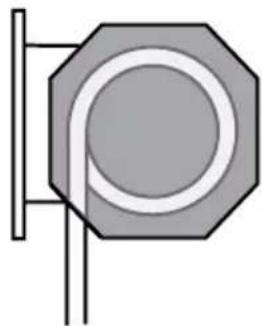
natural_image
Pure geometric diagram of a hexagonal shape with concentric circles and vertical lines, no text or symbols present.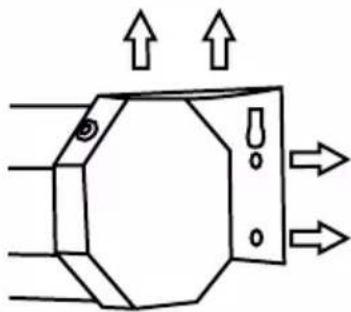
natural_image
Pure diagram of a mechanical component with arrows indicating upward flow, no text or symbols presentNote: The MPS comes with some standard raw plugs for brick walls; however you may need to find suitable alternatives depending on the material of your wall.
d. Lift the projector screen into place, and using a screwdriver, insert the screws through the brackets and into the aligning holes. Tighten in place.
e. Check to make sure the screen is level on the wall.
Ceiling Mounted:
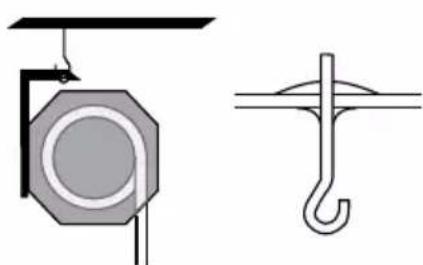
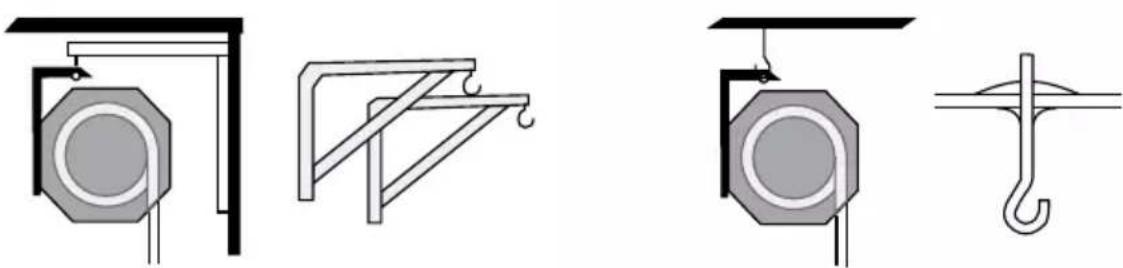
You can hang your projector from ceiling-height in two ways: directly from the ceiling using eyebolt screws, or from the top of the wall using spacer brackets. For both kinds of installation, you may also need S-shaped hooks.
As ceilings can be made of different materials - some weaker than others - you will need to assess if your ceiling is capable of holding the weight of the screen and if it's safe to do so. Then, make sure you choose the right fixings for your type of ceiling.
natural_image
Four technical diagrams showing mechanical or structural components with no visible text or symbolsSpacer brackets Eyebolt screws
Tripod Mounted:
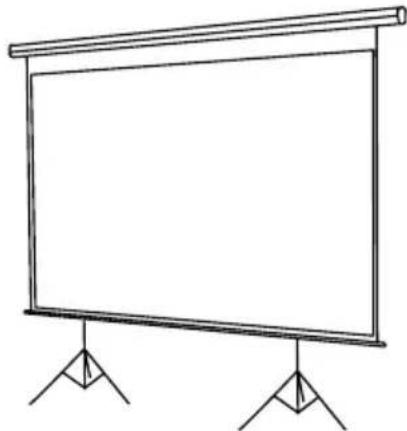
The brackets have holes to allow the screen to be mounted on to tripods. In most cases, you will need two tripod stands (one for each end of the screen). Usually you will need two hooks and/or two S-shaped hooks.
Please note: The only fixings included in the box are raw plugs for brick walls. If you require alternative fixings such as tripod stands, spacer brackets or eyebolt screws you will need to buy these separately.
natural_image
Simple line drawing of a blank projector screen with two stand supports (no text or symbols)Operating Instructions
Extending the Screen
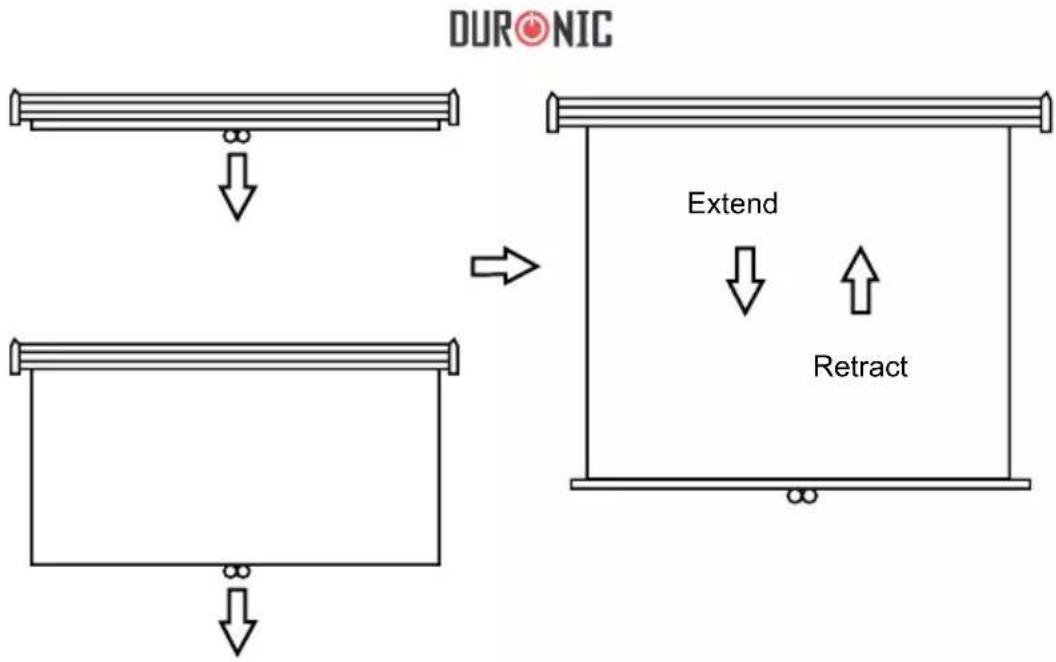
Use the handle to slightly extend the screen out from the case, then continue to extend until you reach the desired height. Gently tug the screen downwards a little to automatically lock the screen into place.
Note: If the screen fails to lock in place, repeat the gentle tugging motion until it is locked.
Retracting the Screen
To retract the screen back into the case, use the handle to pull the screen down slightly and release the internal locking catch of the roller. The screen will automatically roll back up into the case by itself. Do not let go of the screen while it rolls back up, instead hold it and slowly guide it back into the case. This will take care of the screen and prevent any damage occurring.
Cautions:
• Make sure that the screen is extended from the casing gently.
- Make sure that the screen is retracted back into the casing after each use. Failure to do so may result in damage to the locking catch and can also allow the screen to gather dust.
flowchart
graph TD
    A["DURONIC"] --> B["Top Block"]
    B --> C["Bottom Block"]
    C --> D["Extension"]
    D --> E["Retract"]
    style A fill:#f9f,stroke:#333
    style B fill:#ccf,stroke:#333
    style C fill:#cfc,stroke:#333
    style D fill:#fcc,stroke:#333
    style E fill:#ffc,stroke:#333
Cleaning
When not in use, keep your screen rolled up to keep it dust-free. If the screen or casing gather dust, simply clean with a dry cloth or duster.
The screen is made of PVC. If the screen has a mark or stain that needs to be removed, use a wet cloth with a mild soap to gently clean the screen. Use minimal pressure to prevent damaging the fabric.
Do not use any abrasive chemicals or cleaning agents on any part of the screen or casing.
Troubleshooting
| Problem Solution | |
| The screen does not go up or down | If the screen is jammed and is stuck either fully retracted or fully extended, then you will need to contact Duronic directly for further advice. |
| Screen does not extend to the correct length | If the screen does not extend to the correct length, try rolling the screen back up fully, then try again to extend the screen. |
| Screen does not completely retract | If the screen does not retract fully into the projector casing, try to gently pull the screen down completely and then try again to roll it back up into the casing. |
DURONIC
Warranty
1 Year Guarantee from Shine-Mart Ltd, Trademark owners of Duronic Products. NOTE: THESE STATEMENTS DO NOT AFFECT YOUR STATUTORY RIGHTS AS A CONSUMER
This product has been manufactured under the strictest or quality control procedures, and using the highest quality of materials, to ensure excellent performance and reliability. It will give very good and long lasting service, provided it is properly used and maintained. The product is guaranteed for 1 years from the date of original purchase. If any defect arises due to a faulty materials or poor workmanship, the faulty product must be returned to the original place of purchase. Refund or replacement is at the discretion of that company. Duronic Products are offered with a 1 year guarantee under the following conditions:
- The product must be returned to the retailer with original proof of purchase.
- The product must be installed and used in accordance with the instructions contained in this operating manual.
- It must be used only for domestic purposes.
- It does not cover wear and tear, malicious damage, misuse, neglect, inexpert repairs or consumable parts.
- Shine-Mart Ltd has no responsibilities for accidental or consequential loss or damage.
- Shine-Mart Ltd are not liable to carry out any type of servicing work, under the guarantee
- Valid in the UK only
This product is fitted with CE:1363 plug and fuse Imported by Shine-Mart Ltd, RM3 8SB

Information on waste Disposal for Consumers of
Electrical & Electronic Equipment.
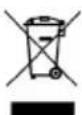
This mark on a product and/or accompanying documents indicates that when it is to be disposed of, it must be treated as Waste
Electrical & Electronic Equipment, (WEEE).
Any WEEE marked products must not be mixed with general household waste, but kept separate for the treatment, recovery and recycling of the materials used.
For proper treatment, recovery and recycling; please take all WEEE marked
waste to your Local Authority Civic waste site,
where it will be accepted free of charge.
If customers dispose of Waste Electrical & Electronic Equipment correctly, they will be helping to save valuable resources and preventing any potential negative effects upon human health and the environment, of any hazardous materials that the waste may contain.
Follow Us

duronic.com

duronic

@duronicmedia

Duronic

@duronicmedia
natural_image
Technical diagram showing a mechanical component with an octagonal housing and directional arrows indicating flow or movement (no text or symbols present)natural_image
Four technical diagrams showing different mechanical or structural configurations with no visible text or symbols.natural_image
Simple line drawing of a blank projector screen with two stand supports (no text or symbols)Mode d'emploi
natural_image
Pure geometric diagram of a hexagonal shape with concentric circles and vertical lines, no text or symbols present.natural_image
Pure technical diagram of a mechanical component with directional arrows indicating flow or movement (no text or symbols)natural_image
Four technical diagrams showing mechanical or structural components with no visible text or symbolsnatural_image
Simple line drawing of a blank projector screen with two stand supports (no text or symbols)Bedienungsanleitung
Leinwand ausfahren
natural_image
Simple geometric diagram showing a circle inscribed in an octagon with vertical lines extending outward (no text or symbols)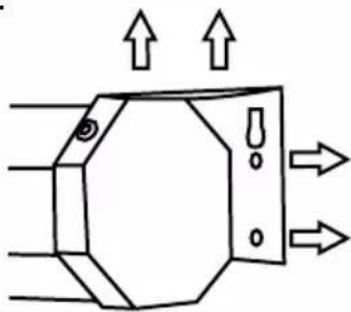
natural_image
Pure technical diagram of a mechanical component with directional arrows indicating flow or movement (no text or symbols)natural_image
Technical line drawing showing two mechanical or structural components: a circular component mounted on a bracket and a support frame with curved supports (no text or symbols)