ManualGo.com
 Smart Spy Autofocus SL6845 - Webcam Speed-Link - Free user manual and instructions
Find the device manual for free Smart Spy Autofocus SL6845 Speed-Link in PDF.



Frequently Asked Questions - Smart Spy Autofocus SL6845 Speed-Link
Download the instructions for your Webcam in PDF format for free! Find your manual Smart Spy Autofocus SL6845 - Speed-Link and take your electronic device back in hand. On this page are published all the documents necessary for the use of your device. Smart Spy Autofocus SL6845 by Speed-Link.
USER MANUAL Smart Spy Autofocus SL6845 Speed-Link
Important! Before using this product please read all the safety and warning notices given in the manual. Please also keep this manual in a handy place for future reference. Disclaimer of Liability Jöllenbeck GmbH accepts no liability whatsoever for any product deficiencies or injuries caused to people due to careless, improper or incorrect use of the product or use of the product for purposes not recommended by the manufacturer. Troubleshooting/Repairs Do not attempt to service or repair the product yourself; leave any repairs to qualified personnel. Do not attempt to modify the product in any way as doing so will invalidate the warranty. Moisture/Heat Do not use the product near water (e.g. sinks, bath tubs etc.), and keep it away from damp conditions; areas where liquids are likely to drip, splash or be sprayed; as well as rain. Do not expose the product to high temperatures, high humidity or direct sunlight. Cleaning Use a soft, dry cloth to clean the product. Do not allow the product to come into contact with benze- ne, paint thinners or other such chemicals. Intended Use This product is intended solely for transmitting moving and static images on a standard computer. The product must only be used in conjunction with the original parts intended for it. The product must only be used in dry, interior rooms. Intended use includes adherence to the specified installation instructions. CE Conformity This product meets the relevant CE guidelines of the European Union. You can request a copy of the conformity declaration in its entirety at http://www. speed-link.com.DE
Disposal The markings on the product and on the associ- ated literature show that this product must not be disposed of together with normal household waste at the end of its useful life. Please dispose of this device separately from other waste in order not to cause harm to the environment or human health through uncontrolled refuse disposal. Recycle the device to facilitate the su- stainable recycling of material resources. Private users should contact the dealer from whom the product was bought, or the authorities responsible for recycling, to find out how to recycle the device in an environmentally friendly way. Commercial users should ask their suppliers and consult the sales contract terms. This product must not be disposed of together with other commercial waste. Software Jöllenbeck GmbH retains full intellectual property rights to the supplied software. Direct or indirect reworking, decompiling or reverse engineering of the software is not permitted. Any form of copying or distribution of the software to third parties is also not permitted. Warranty We provide a manufacturer’s guarantee of 2 (two) years on this product in respect of workmanship and all built-in components. Technical Support Our Technical Support team is there for you in the event of any questions or problems and can be contacted either by phone or e-mail: Tel: +49 (0) 4287 92 44 690 E-mail: support@speed-link.com Mo-Fr 8am-5pmDE
- User manual System requirements
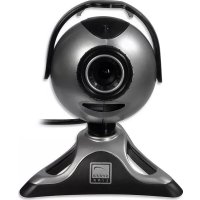
- Free USB 2.0 port Connecting the Webcam Plug the mini USB connector on the USB connec- tor cable into the port on the base of the webcam. Clamp the webcam onto the edge of your notebook’s screen and plug the USB connector into any free USB port on your notebook. Windows will automatically detect that a new device has been connected and will install the necessary driver itself. You do not need to install any additional drivers. NOTE: Only plug the webcam directly into the notebook or into a separately powered USB hub.
Taking pictures on Windows Click on “My Computer” and double click on “USB Video Device”. After the device has been initialised you will now see live images from the webcam. To take a picture, click on “Take new picture” in the upper left of the window. A miniature preview of the picture that has been taken will now appear below in the file bar. You can now copy this image and paste it into any directory of your choice. Installing the photo and video software The SmartSpy Webcam is supplied with the photo and video editing software package from Arcsoft. Using Arcsoft VideoImpression 2, you can record videos and make different adjustments to them. Arcsoft PhotoImpression is designed for managing images. With this program you can also edit the pictures that have been taken and remove red eye, for example. Arcsoft Magic-i creates numerous effects for your videos which you can also use in your messenger program. Please refer to the help section of each respective program for information on how to use the software. Insert the supplied software CD into your CD-ROM drive. The installation menu will launch automati- cally. If this does not happen then open Windows Explorer and double click on the symbol for your CD-ROM drive. Installing Arcsoft VideoImpression 2: Click on Arcsoft VideoImpression in the installation menu to start the installation process. Follow the on-screen instructions. Installing Arcsoft PhotoImpression 5: Click on Arcsoft PhotoImpression in the installation menu to start the installation process. Follow the on-screen instructions. Installing Arcsoft Magic-i 3: Click on Arcsoft Magic-i in the installation menu to start the installation process. Follow the on-screen instructions.DE
Using the Magic-I virtual camera Launch Arcsoft Magic-i 3 and select the desired ef- fect. Click on Activate Effect and exit the program. A camera icon will appear in the notification area in the lower right-hand side of the screen which shows that a virtual camera has been set up. Now launch your messenger program and select “Magic-i Virtual Capture” as the video source. Uninstalling the programs Open the Windows Control Panel and double click on “Add or Remove Programs” (“Programs and Functions” under Windows Vista). Click on the program that you would like to uninstall and then click on “Remove”. Troubleshooting If your webcam is not detected then reconnect it and, if necessary, try a different USB port. Make sure that the webcam is not connected to a USB hub without its own separate power supply. If your messenger program does not display the webcam output then check to see that you have set it as the video source. To do that, go to Op- tions in the messenger program and set the video source to “USB Video Device”.DE