ManualGo.com
 Magnetic Mic SL6841 - Webcam Speed-Link - Free user manual and instructions
Find the device manual for free Magnetic Mic SL6841 Speed-Link in PDF.



Frequently Asked Questions - Magnetic Mic SL6841 Speed-Link
Download the instructions for your Webcam in PDF format for free! Find your manual Magnetic Mic SL6841 - Speed-Link and take your electronic device back in hand. On this page are published all the documents necessary for the use of your device. Magnetic Mic SL6841 by Speed-Link.
USER MANUAL Magnetic Mic SL6841 Speed-Link
Important! Before using this product, read the instruction manual for important safety information. Please retain this manual for future reference and warranty information. Excemption from Liability No liability will attach to Jöllenbeck GmbH if any damage, injury or accident is attributable to inattentive, inappropriate, negligent or incorrect operation of the machinery whether or not caused deliberately. Troubleshooting & Servicing Do not attempt to service or repair the device yourself. Refer all servicing to qualied service personnel. Do not attempt to modify the device in any way. Doing so could invalidate your warranty. Moisture and heat sources Do not use this apparatus near water (for example, sinks, baths, pools) or expose it to rain, moisture, or dripping or splashing liquids. Do not expose the unit to high temperatures, high humidity or direct sunlight. Cleaning When cleaning the device, please use a soft, dry cloth. Never use benzine, paint thinner, or other chemicals on the device. Location Place the device in a stable location, so it will not fall causing damage to the device or bodily harm. Intended use The product may only be used with the original parts intended for it. The product may only be used in closed and dry rooms. The intended use includes adherence to the specied installation instructions. The manufacturer accepts no liability for damage arising due to improper use. important Safety informationGB
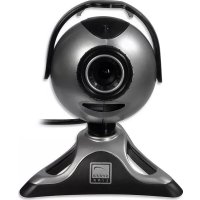
Introduction Thank you for purchasing the Magnetic Webcam. With this Webcam you can take photos, record video, create video emails and even send pictures of yourself live over the Internet to your friends. Features
1.3 megapixel photo-quality resolution in
a picture format up to 1280 x 1024 pixels Video transfer with no delay thanks to USB 2.0 (USB 1.1 and 1.0 backwards compatible) VGA quality video (1280 x 1024 pixels) with a frame rate of 30fps Focus-free lens (30mm to innity) – allowing you to capture the nest details of nearby objects Wide base for secure positioning on any level surface Integrated microphone for clear voice chat Simple USB connection Including drivers for Windows XP SP2 / Vista Installation under Windows XP SP2 / Vista Connect the USB connector on the camera to any free USB port on your PC. Insert the supplied driver CD into the CD-ROM drive of your computer. The Speed-Link driver installation menu will load automatically (if this doesn’t happen, open Windows Explorer, navigate to your CD-ROM drive and then double click on the le “Setup.exe”). Click on the button according to your operating system. The InstallShield Wizard will now guide you through the software installation process. Follow the on-screen instructions. If Windows asks if the installation should continue despite not passing WindowsGB
Logo testing click on Continue Anyway. Windows will now ask you if it should search for a Windows Update on the Internet. Select No, not this time and then click on Next. Select Install the software automatically and click on Next. If Windows asks if the installation should continue despite not passing Windows Logo testing click on Continue Anyway. Click on “Finish” once the les have been installed. Click on OK and reboot your computer Using the Microphone In order to use the integrated microphone, you are required to set this microphone as standard recording device in the Windows Control Panel under Sounds and Audio De- vices. The messenger programs normally use the standard Windows settings, though you may be required to manually set the micro- phone in your messenger. Recording a Video Open the capture program from the Start Menu by navigating to Start > All Programs > Webcam > VideoView. If you are unable to see the live camera picture in the program window you can turn this feature on under Options > Preview. Before recording video you rst have to cre- ate a le where the video can be stored: Click on File > Set Capture File..., select the directory where you would like to save your video and then enter a lename. The lename should be based on the following format: Filename.avi If you would like to limit the size of the video le then click on File > Allocate File Space... and enter the required maximum size of the video le. Other settings can be adjusted under Options > Video Capture Filter. Change the contrast, brightness and other settings to suit your individual requirements. You can now record a video by clicking on Capture > Start Capture and then pressing OK in the ensuing window.GB
To stop video capture, click on Capture > Stop Capture. Now save the le by clicking on File > Save Captured Video... and enter the required directory and lename. Please ensure that you add the le extension “.avi” to the end of your lename. You can view the video that you have cre- ated using Windows Media Player or any other player which supports the AVI le format. Taking a Photo You have to open the program VideoView in order to take a photo with the webcam. Press the button on the top of the webcam to open the program. Press the button again to take a photo. The photo will be display- ed in a separate window and can now be saved. Using the Webcam with Chat and VoIP Programs You can use the Webcam with a variety of different chat and VoIP programs for video chat or video telephony. In the following we have included a selection of the most popu- lar programs together with details on how to congure them for use with your webcam. Using the Webcam with Skype™ Start Skype™ and then click on Tools > Op- tions... On the “Video” tab, tick the check- box Enable Skype Video provided that this is not already enabled. From cameras listed under Select webcam select: WEB13AB. Click on Test Webcam. You should now see the picture transmitted by your webcam in the Skype™ window. If you would like to change the video settings then click on Webcam Settings. It is recommended that automatic white balancing is deactivated and adjusted manually.GB
Using the Webcam with MSN® Messenger 7.5 Note: Please note, the contact who you would like to invite to a video conversation must also have a video-capable version of MSN® Messenger. Right click on the person you want to contact from your contact list and click on Voice/Vi- deo > Start a Video Conversation. MSN® Messenger will now guide you through con- guring your webcam. Follow the on-screen instructions. Wait until your contact accepts the video conversation. To change webcam settings, click on the small arrow in the lower right-hand corner of your webcam image and click on Web Camera Settings. Click on Advanced. It is recommended that automatic white balancing is deactivated and adjusted ma- nually. Using the Webcam with ICQ® 5 In the ICQ window, right click on the contact who you would like to start a video conver- sation with and then click on ICQ Video. Wait until the contact accepts the video conversation. ICQ will automatically detect if you and your contact have a webcam. If you have already commenced with a con- versation and would like to transmit your webcam image then click on the camera symbol on the left of the conversation win- dow and wait until your partner accepts your request for a video conversation. Using the Webcam with Yahoo!® Messenger 7.5 Right click on the person you want to con- tact from your contact list and click on More Actions > Invite to View My Webcam. A se- parate window with the webcam image will open. Yahoo! ® Messenger will now ask you if you would like to activate Super Webcam mode. Click on Yes, always. To change the camera settings click on File > Preferences. In the window that opens, click on the tab “Webcam” and then on Ca- mera Settings... and adjust the properties to suit your individual requirements. It is re- commended that automatic white balancing is deactivated and adjusted manually.GB
Warranty We guarantee this product to be free of de- fects in workmanship and materials for a period of two years from the original date of purchase. Technical Support Our Technical Support team is there for you in the event of any questions or problems. Visit our website at http://www-speed-link. com or send an email to: support@speed- link.comFR