
AMW5011EU - Mouse TARGUS - Free user manual and instructions
Find the device manual for free AMW5011EU TARGUS in PDF.



| Product type | Wireless Bluetrace Mouse |
| Brand | Targus |
| Model | AMW5011EU |
| Detection technology | Bluetrace Optical |
| Connection type | 2.4 GHz wireless via USB receiver |
| Power supply | 2 AA batteries (included) |
| Estimated battery life | Up to 6 months depending on usage |
| Weight (with batteries) | Approximately 100 g |
| Dimensions (L x W x H) | Approximately 100 x 60 x 35 mm |
| System compatibility | Windows 2000/XP/Vista, Mac OS X 10.4 and later |
| Plug & Play | Yes, no driver required for basic functions |
| Advanced functions | Programmable scroll wheel (optional driver to download) |
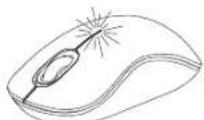
| Low battery indicator | Visible light beam between left and right buttons |
| Box contents | Mouse, mini USB receiver, 2 AA batteries, user manual |
| Receiver storage | Compartment under the mouse |
| Maintenance | Clean with a soft, dry cloth. Do not use solvents. |
| Safety | Do not expose to moisture or extreme temperatures. |
| Repairability | Spare parts not available. In case of malfunction, contact customer service. |
Frequently Asked Questions - AMW5011EU TARGUS
User questions about AMW5011EU TARGUS
0 question about this device. Answer the ones you know or ask your own.
Ask a new question about this device
Download the instructions for your Mouse in PDF format for free! Find your manual AMW5011EU - TARGUS and take your electronic device back in hand. On this page are published all the documents necessary for the use of your device. AMW5011EU by TARGUS.
USER MANUAL AMW5011EU TARGUS
1 YEAR LIMITED WARRANTY: We pride ourselves on inequality of our products. For complete warranty details and a list of our worldwide offices, please visit www. largus.com. Features and specifications are subject to change without notice. Microsoft, Windows and Windows Vista are registered trademarks or trademarks of Microsoft Corporation in the United States and/or other countries. Media is a trademark of Apple Inc., registered商标 for use in the United States and/or registered trademark of Logitech International in the United States and other countries. All trademarks and registered trademarks are the property of their respective owners. ©2011 Taurus Group International, Inc.

User Guide
Targus Wireless Bluetrace Mouse
Table of Contents
GB-English
Targus Wireless Bluetrace Mouse 6
BG-BbIrapckn(e3nk)
Bluetrace 6e3xuHa Mmua Targus 12
CZ-Cestina
Bezdralova Bluetrace mys Targus 18
DE-Deutsch
Targus Drahtlose Bluetrace Maus 24
DK-Dansk
Targus Tradlos Bluetrace Mus 30
EE-Eesti
Targus traadita Bluetrace hir 36
ES-Espanol
Raton Bluetrace Inalambrico Targus 42
Targus Wireless Bluetrace Mouse
FI-Suomi
Targus langaton Bluetrace hiiri 48
FR-Frççais
Souris Bluetrace sans fil de Targus 54
GR-EAAnvikAnnpoopieC
Aogpuato Bluetrace movri Targus 60
HR-Hrvatski
Targus bezicni Bluetrace mis 66
HU-Magyar
Targus gezetek nelkuli Bluetrace eger 72
IT-Italiano
Mouse Bluetrace Wireless Targus 78
LT-Lietuviškai
Targus" bevièle Bluetrace peIe 84
LV-Latviesu
Targus bezvadu Bluetrace pele 90
Targus Wireless Bluetrace Mouse
Targus Wireless Bluetrace Mouse
NL-Nederlandlands
Targus Wireless Bluetrace Mouse (Targus Draadloze Bluetrace Muis) ..
96
NO-Norsk
Targus tradios Bluetrace mus 102
PL-Polski
Thank you for your purchase of the Targus Wireless Bluetrace Mouse. The USB receiver conveniently attaches to the mouse for ease of use while traveling or on the go. This is a plug and play device so no additional software is required.
Contents
Targus Wireless Bluetrace Mouse
-2xAA Batteries
·Mini USB Receiver
-User Guide
System Requirements
Hardware
- USB port
Operating System
Microsoft Windows® 2000
Microsoft WindowsXP
Microsoft Windows Vista®
MacOSX10.4or later
Installing the Batteries
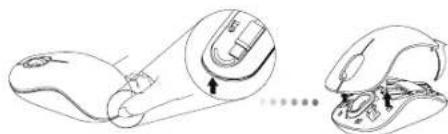
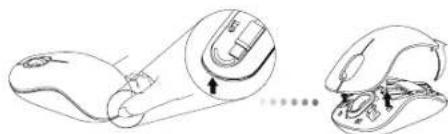
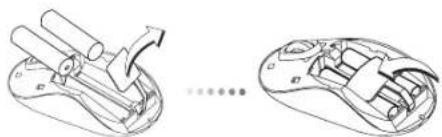
- Remove the battery cover from the top of the mouse by using the notch on the back. Carefully lift the cover up as shown in the diagram.
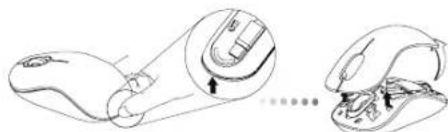
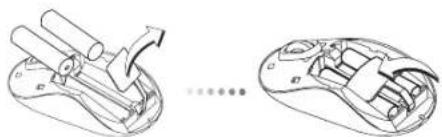
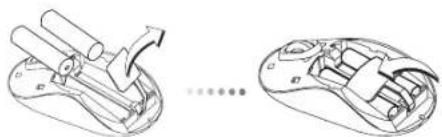
- Remove the battery safety clip by squeezing the center of the clip and sliding it back, towards the rear of the mouse. Lift up and rotate the clip out of the way.
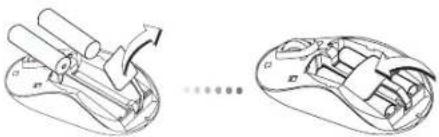

NOTE: THE BATTERY SAFETY CLIP WILL NEED TO BE IN THE SECURE, LOCKED POSITION BEFORE THE BATTERY COVER CAN BE PUT BACK IN PLACE.
Targus Wireless Bluetrace Mouse
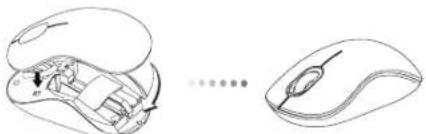
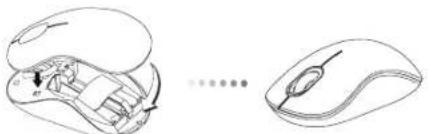
- Insert two AA-size batteries, making sure that the positive (+) and negative (-) ends of each battery match the polarity indicators inside the battery compartment.
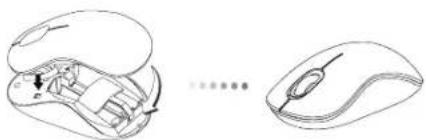
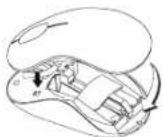
- Replace the battery cover, carefully fit the cover until it clicks into place.
Establishing the Connection
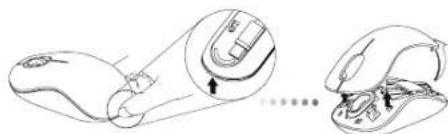
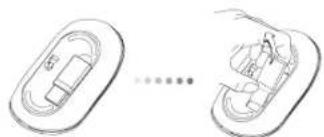
(A) Remove the USB receiver from the bottom of the mouse.
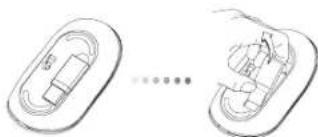
Targus Wireless Bluetrace Mouse
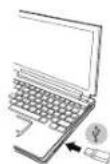
(B) Plug the USB receiver into an available USB port on your computer.
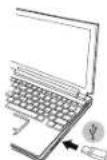
(C) This mouse is a plug and play device. It will automatically operate when the USB receiver is connected to the computer.
Low Battery Power Indicator
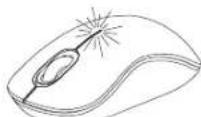
The light illuminates from the seam between the left and right buttons. It will turn on when the power is low and batteries need to be replaced.
Targus Wireless Bluetrace Mouse
Targus Wireless Bluetrace Mouse
Programming Your Mouse
(Windows)
To access the advanced scroll wheel features you will need to download and install the software driver. This can be downloaded from the following location:
Visit www.targus.com to download and install the driver.
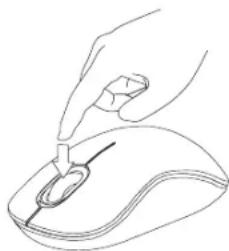
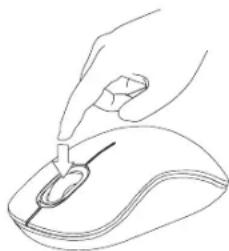
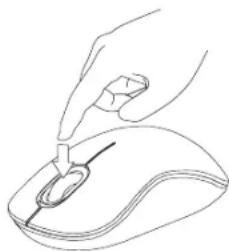
Once installation is complete, open the driver software and select the desired setting for the scroll-wheel button. Close the driver software application and you're ready to go. Activate your selected feature by pressing down on the scroll wheel.
BG-BbBedeHne
Bnaoradapm, Ye 3aaynxte Bluterace 6e3xHnHa Mmka Targus. Mmkaata ce cBp3ba ydo6ho c USB npneMHNk 3a neKota npn bTyBaHe nnn KOrato c BdBKeHe. PnpedanBra plug and play ycTpoiCTBO n He n3NCKBa DOnbIHTenEcoFyep.
CbDpbXaHne
- Bluetrace 6e3KmHa Mmka Targus
-2xAA6aTeepn - MHHN USB npHEmHHK
PbkoBcTBOHaNTpe6nte
CNCTeMHN 3nCKBaHn
Xapnyep
- USB nopT
OnepaHnHa cnCTema
Microsoft Windows® 2000
Microsoft WindowsXP
Microsoft Windows Vista®
Mac OS® X 10.4 mnn no-HOBA
HCTaIIpaHe Ha 6aTepeInTe
- OCTpaHETe KANAKA ha 6atepHnTA OT rOpHATA CTpaH a MMUKaTAt, KATO hON3BATE 6yToHa 03ad.BHNMaTeHNO NOBnHHTe KANAKA, KAKTo E NOK3AHO HA CXEMATA.
- NtctpaHete cKb6ata Ha 6atepe3 npntnckaHe Ha eHTbpaN, Hn3Hete KbM 3aHaT auct Ha MInkata. NobnHETe n 3abpTe cKb6ata, 3 da JnBADnTe.

3AEJEKKA: OBE3OACNTIENHATA CKOBA HA MATEPIRTA TPR5BA DA BbDE B 3AXBAHATO, BLOKIPAPOH NIOIOKEHE, PEPDN DA BbPHTE KANAKA HA MCTO KANIKA HA OTJEEHEMETO 3A BATEPN.
Targus Wireless Bluetrace Mouse
- NocTabete DBe 6aepm Cpa3mep AA, KaTo cna3BaTe nonpaTeTa (+) n(-) Ha otDeneHMeTO 3a 6aepm.

4.BbPHTe BnHmATEIHO HA MRCTO KANAKA HA OTIDENEHMeTO 3a BatePN I ce yBepTe, Ye IpaKaBa HA MRCTo.
YctaHOBBAHe Ha Bpb3Ka
(A)OTctpaHete USB npmEHnKa OT dONHaTcPaHa Ha MMKata.
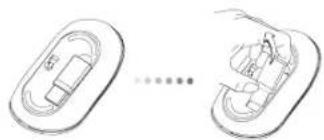
Targus Wireless Bluetrace Mouse
(5) CbpgkTe USB npmEmnka KbM USB nopt Ha KOMNIOBpa.
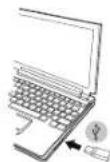
(C) MnKkata npedctabnaB plug and play yctpoNCTBO. 3anOyba pa6ota ABTOMATUHO npn BKNIOUbaHe Ha USB npneMHNK kMb KOMNIOTp..
HДиKaTOp 3a HnCKO HnBO Ha 6aTePnTa
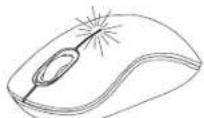
CBeTINHATA Ce H3JIbYBa MEKdy JIeBn I DeceH 6yToHN. BKnIOUba ce npn HnCKO 3axpaHbAne HnyXda OT CMHa Ha 6aTePmTE.
Повторно поррампане на мшкata (Windows)
3aДа IMATEdoCTbIyOcBbPueHCTBaHNTeФHyKIMN HnPnDmBkXBAHe HA KONJIOTO ue Tp86Ba da 3apeJnte N INCHTAPATE COdTYepen dAapBBer. ToT MoKe Da ce 3apeJOn t cIeHOTo MRCTO:
Docetete www.targus.com, 3a da 3apeiTe n HcTanpaTe dpaiBepa
CnEaKATO HNCTAANHATAe E pRKNIOUeHa, CTApTImpaIte COPTyeepa n36peTe KeJAnHMe HAcTPOKn HA pINDBuKBAe. 3aTbOpTe NPINOJOEHMe HcTe TOTOBN 3a pa6ToA.
AKnBvIpaIte n36paHATA qHyKlIa Ype3 HATnckAHe HA KOJIeNTo 3a npBeBpTaHE.
CZ- Uvod
Dekujeme vam, ze jste si zakoupili bezdratovou Bluetrace mys od spolecnosti Targus. Prijima USB je practicky pifpevné k mysi pro snadne pouziti na cestach. Toto je zaflzeni tipo plug und play, proto neni tbreba dalsi software.
Obsah
Anainnoeic ouoTmuToC
YAIKO
- Upa USB
AeIoupyiko ouotnma
Microsoft Windows® 2000
Microsoft Windows XP
Microsoft Windows Vista®
Mac OSX 10.4 n eTayevTeep Ekoan
ToTOnTmV mTataiWv
1.ApaapeTe To KALUUMu Tu TATAPiWv ATO To TAVW MEPOc TO IVOTIKIOU XpOIOJIOVUaTc IVY EKOTn OTo TIaW ePOc. EKnwote TIPoEKtKa To KALUUMe To VTOPTOu TUTODEIKVUETAo DIDayPAMu.
2.ApaapeTo auovetnpa aopaaiae tauv pitatapuiv niieovtac ato Kevto Tou kai oupvotav to npoc to maw epos tou novtkio. Sknwote to kaluaupa kai teripatpeite yia va toydaete.

HMEIΩH: IPOTOY ΕANABAΛETE ΕTH ΘEΘH TOY KAIYMMA TQN MNATAPIΩN ΣX PEXIAZTEI NA ΕPEHT ΤYNΔETHPA ΣAΦAηAIZ ΣTN MNATAPIΩN ΣTHN ΣAΦAH ΣEΘH KAEIΔMATOΩ
Targus Wireless Bluetrace Mouse
- TOnoBTeTne Tc 5uo mtapiee AAs povriOvIac o BetIKoc (+) kai o apnTikos (-) IaoLns KaBeiua vAs aKoAouBouV nC avAooyes EvEieic e mea sto diaepiapu Touc.
4.ETAVATOTTOBHTOte KALUJuaTuvuTTAPaIOW TPOEKTIAWOTe VAKouTWOe10nEoTouKaiVakouateiOxapaktnpiTIKOsNOS
Anioupyia nS ouvOeOns
AnnapaTHbIe CpeDCTBa
USB-nopt
OnepaounHnA cnTeMa
Microsoft Windows® 2000
Microsoft WindowsXP
Microsoft Windows Vista®
Mac OSX 10.4 mnn 6one no3dne Bepcnn
YctaHOBka 6aTapeek
1.CHMMTE KpIbIKy OTeKcA DnB 6BaTaeP C BepXHeN Chtn KOpIyCa Mblu n cnooBHO na3a CzADn. AkkypaTHO NDoHMMe T KpbIbIKy, KaK NOKa3Ha HO pncYHke.
2.HaxMnTe Ha cpeHIOO qactb npEIOxpaHNTeBHO 3aKIMMa DnB 6atapeH nCDBHBe erO B CTOPOHy 3aHHe HcTnMbIu. PNOHMnTE N NOEPaTHe 3aKIMB C bTOPOH.

PIMMEAHNE:PEPEDYCTAHOBKOHMA MECTO KPBILIKNOTCEKA DIA BATAPENE HEOBXODIMO YCTAHOBITN 3AΦIKCIPOBATB N PABAVIBHOM NIOJOKEHINI PDEIQXPAHNTEHBN3AXIM.
Targus Wireless Bluetrace Mouse
3.BCTabte DBe 6aPatekn Tnna AA, y6eDITcB, YTO KONTAKbTI NIOC (+) INMHyc(-) KaKdoB 6aPaten COOTBeTCTBYIOT 3HaKaAM NOIAPHOCTN BOTCEK DnE 6aPaten.
4.YctahOBHTeHaMeTOKpbIuKyOTcKaDn8BaTapeN3aФHKpnyTe COUENKOM.
YctahOBka coeHHeHHa
(A) BbHbTe USB-pecBep n3 HmKHeu qactn MbIaM.
Targus Wireless Bluetrace Mouse
(6)Поклоче USB-pecnBep KdocTyHOMy USB-nopTy KOMnIbOtepa.
(C)Даннь Мьшьpb6aToTЯNot pinnmny plug-n-play(BkNIOHnИnpa).ОддONKHA abOMATMHeckn HAcTPOITbCHa naPbOtyNoceNoDknKNoeHnUSB-PecBeBa K KomnBtopey.
HndkaTOp Hn3KOrO 3apJa6atapei
Bue Meky npabOB Hneob KhoNkAMM 3aoropTcR CBeOTHMdkaTOp. OH BKNIOUaTeC, KOra 3apd 6aTaapeek nadaet, INx Heo6XODIMO 3aMeHnltb.
PporpaMMnpoBaHneMbIiIN
(Windows)
TObb BOCNIOB0BaTbCpaCunpeHHbMn DfHKmM KOnecnKa npokpyKn, Heo6xOIMNO 3aRpyNTb N yCTAHOBNT b CneMaJIbHbI dpAbeP.
Ero moXHO 3aIpy3nTb no cIeDyIOUeMy aIpecy:
3aInte Ha caiT: www.targus.com, yTo6b3 aRpy3nTb n yCTaHOBNTb dpaiBep.
IIO KOHuaHH yCTaHOBkM OTKPOITe NpOrpaMMbI dpAEBep H bIb6epnTe Heo6xOJHMbIE HACTOeHN DOKeJIKA pOKpyTK. 3AkpoTHe npINQKeHneD PAJHBepa. YCTPOITcTB OTOBKO KaPote.AKTINBpuTyHeo6xOJHMbIE PHyHKmH HAKaTNeH Ma KONEChKO pOKpyTK.
SE-Introduktion
Tack for ditt kop av Targus tradlosa Bluetrace mus. USB mottagaren fester enkelt pa musen for latthanterlig anvandning, da du befinner dig pa resande fot. Detta ar en plug and play enhet som gor alt ingen extra programvara kravs.
Innehåll
Targus tradiola Bluetrace mus
-2xAAbatterier
·Mini USB mottagare
- Anvandarhandbok
Systemkrav
Hardvara
USBingang
Operativsystem
Microsoft Windows® 2000
Microsoft WindowsXP
Microsoft Windows Vista®
MacOSX10.4eller senare version
gaiyai all aie jayalalal 1y jai yaiy gaiy caiy