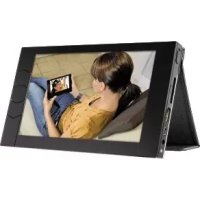
00090925 - Digital photo frame HAMA - Free user manual and instructions
Find the device manual for free 00090925 HAMA in PDF.


| Product type | Digital photo frame |
| Brand | Hama |
| Model | 00090925 |
| Dimensions | 195 x 113 x 142 mm |
| Weight | 408 g |
| Screen | LCD 7 inches (17.78 cm), 800 x 480 pixels, 130 ppi/dpi |
| Internal memory | 4 GB NAND flash |
| Supported image formats | JPEG (JPG) |
| Interfaces | USB host (external device, camera), USB slave (computer), SD/MMC card slot |
| Power supply | AC adapter 100-240 V, rechargeable internal battery |
| Battery life | Approximately 2.5 hours (full charge, normal brightness) |
| Main functions | Slideshow, copy, delete, advanced settings, PC connection, album-to-album connection, power saving, favorites management |
| Storage capacity | Up to 20,000 optimized photos |
| Maintenance and cleaning | Dry cloth, do not use chemical detergents or water |
| Safety | Do not expose to prolonged sunlight, repairs by qualified personnel, unplug during thunderstorms |
| Spare parts and repairability | Use only original spare parts |
| Environmental information | Do not dispose of with household waste, recycle according to WEEE and D3E directives |
| Certifications | CE, FCC |
Frequently Asked Questions - 00090925 HAMA
User questions about 00090925 HAMA
0 question about this device. Answer the ones you know or ask your own.
Ask a new question about this device
Download the instructions for your Digital photo frame in PDF format for free! Find your manual 00090925 - HAMA and take your electronic device back in hand. On this page are published all the documents necessary for the use of your device. 00090925 by HAMA.
USER MANUAL 00090925 HAMA
natural_image
Black-and-white photo of a modern office building (no signage)natural_image
Pure horizontal gray textured surface with no visible text, symbols, or markingsGB User's guide
Digital Album - DETAILS
1.User's guide....15
1.1 Before using....15
1.2 Switching the Album on and off....15
1.3 Language setting....15
1.4 Start screen....15
1.5 Buttons....15
1.6 Viewing the photographs....16
1.7 Control menu 16
1.8 Connecting a USB memory device, a digital camera, or an SD card....17
1.9 ADVANCED SETTINGS 18
1.10 Connecting the Album to a computer 19
1.11 Connecting the Album to another Album 19
-
Data backup....19
-
Album maintenance....19
-
Specifications....19
-
Frequently asked questions....19
5.1 The display does not show the whole photograph, why? 19
5.2 Is downloading photographs from the digital camera slow?......20
5.3 Can the Album keep the original size (resolution) of photographs? 20
5.4 Is it possible to play short videos using the Album?......20
5.5 The Album does not work with my camera, why? 20
5.6 Photographs from the Album cannot be saved to the connected USB memory or an SD card, why? 20
5.7 The Album does not react to the connection of a USB disk or an SD card, why? 21
5.8 Does your camera use a micro SD card? 21
5.9 Is it possible to connect an XD card to the Album? 21
5.10 Is the battery-powered operation time short? 21
5.11 The computer does not work with the connected Album, why? 21
5.12 Is it possible to store data other than photographs in the Album? 21
5.13 Can I display other formats in the Album than JPG? 21
5.14 Which type of cameras does the Album work with? 21
5.15 How to prepare a photograph selection on the computer to view them with the Album in a required order? .....22
5.16 How to create another directory (gallery) of selected photographs? 22
5.17 How to save photographs from the Internet to the Album or vice versa?......22
5.18 Are the photographs from the connected external memory device to be displayed immediately? 22
5.19 What about using the Album with a mobile phone? 23
5.20 Is it possible to perform the compression of photographs stored in the Album in high resolution? 23
5.21 The Album does not display photographs immediately when switched on, why? 23
5.22 It is impossible to save other photographs in my Album, why? 23
5.23 The Album seems not working, why? 23
5.24 Do the previously saved photographs repeat in the Album? 24
The ALBUM will allow you to show all your photographs in excellent quality whenever and wherever.
The ALBUM is able to download (load) photographs directly from digital cameras without the use of a computer. It can store more than 20 thousand photographs optimized for displaying on the built-in LCD screen which has very fine resolution (130 DPI). The optimization (compression) of the photographs is made automatically by the device itself while downloading the pictures.
1. User's guide
1.1 Before using
- Pull out the red blocking tape from the Album (this will connect the internal battery).
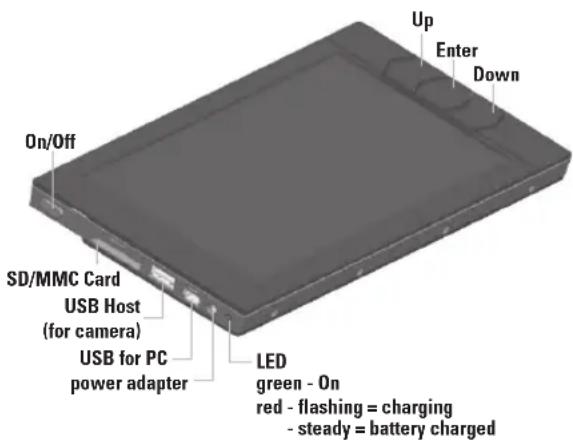
- Plug in the power adapter and charge the battery (the red indicator on the left-hand side of the Album blinks). It is possible to switch on the Album and use it while charging.
- Remove the screen protection foil off the Album.
1.2 Switching the Album on and off
The Album is switched on using the switch on the left-hand side (slide the switch up). The switched-on status of the Album is indicated by the green indicator on the left-hand side of the Album. When switched on, the Album first loads data (indicated by the "ALBUM" on the screen) and then the start screen containing the overview of photographs stored in the Album is displayed.
The Album is switched off using the switch (slide the switch down). You can switch it off whenever, even if a function is active (loading of photographs, cleaning of the memory, etc.). Such a function is then cancelled.
1.3 Language setting
The factory setting of the Album is to communicate in English. To set a different language:
- switch on the Album, the start screen appears, press and hold both arrow buttons at the same time,
- when the language setting appears, release both arrow button,
- use the arrow buttons to select the required language and confirm by pressing the middle button.
1.4 Start screen
The start screen displays the miniaturized reviews of the photographs. The horizontal row of five previews represents the directory of the photographs (a so-called group of photographs loaded into the Album at the same time).
Each directory (horizontal row of previews) shows its name and the number of photographs in the directory (e.g. GALLERY 1 - 100 PHOTOS). The five miniature previews show the first photograph out of each fifth of the total number of photographs in the particular directory (i.e. if a directory contains 100 photographs, the previews of the photographs no 1, 21, 41, 61, and 81, etc).
The start screen opens on the directory called FAVO-RITES (marked with a red frame) to which you can easily store your favorite photographs from other directories or from a connected external memory device.
The Album automatically creates new directories while downloading the photographs from a digital camera or from an external memory device. Another new directory (a row of miniature previews) is created with each download and all photographs transferred during this particular download session are stored there. The Album itself names the directories - GALLERY 1 to GALLERY
- The word GALLERY without a number signifies the so-called main directory. This directory stores photographs which are copied to the Album from an external memory device individually (by means of the COPY PHOTO command).
The factory setting includes demo photographs which you can use to test the functions of the Album.
1.5 Buttons
Arrow buttons are used to move in individual directories (rows of previews), to move between photographs inside directories (single photographs), or the move in the menu.
The Middle button is used to open the directory of photographs, to enter the menu, and to confirm the selection in the menu.
1.6 Viewing the photographs
- Use the arrow buttons on the start screen to select a directory (row of previews) which you want to view.
- Open the directory using the middle button – the first photograph in the directory appears.
- Use arrow buttons to move among the photographs in the directory.
- To return to the start screen, press the middle button twice (the first stroke opens the control menu and the second one confirms the offered BACK to TOP option).
1.7 Control menu
If you press the middle button while viewing a photo-graph, the control menu opens. It contains the following:
- VIEW PHOTOS from CONNECTED – changes to the start screen of photographs stored in the external USB memory device, a digital camera, or an SD card (if connected). When viewing photographs from an external memory device, the VIEW PHOTOS from ALBUM option is offered at the same position.
- COPY – opens the copy options:
- ALL PHOTOS BEYOND THIS PHOTO – this allows downloading a directory, while viewing photographs from an external memory device, into the Album in a way that it will contain the photograph now being viewed and all photographs beyond this one. This can easily result in avoiding the repetition of photographs in the Album which have been downloaded from the digital camera earlier but have not been erased after the completion of the download. This option is not available while viewing the photographs from the internal memory of the Album.
- ENTIRE FOLDER – this copies the whole directory (where the photograph being viewed comes from) to a connected external memory device. If you are viewing a photograph from an external memory device, its directory will be copied to the Album.
- PHOTO – this copies the photograph being viewed to a connected external memory device (to the main directory). If you are viewing a photograph from an external memory device, it will, conversely, copy to the Album (to the main directory marked "GALLERY").
- PHOTO TO FAVORITES – this copies the photograph being viewed to the FAVORITES directory which appears on the start screen and to which favorite photographs can be copied.
A photograph being copied is added to the FAVORITES directory on the last position. It is possible to copy photographs to the FAVORITES directory while viewing the photographs from the internal memory of the Album as well as from an external memory device. A photograph may also be copied to the FAVORITES directory using the ADD PHOTO to FAVORITES option which is right in the user menu and has the same function.
- BACK – no photographs will be copied and the Album resumes viewing the current photograph.
Caution: in case the RESIZE PHOTOS while DOWN-LOADING function is ON in the Album – see ADVANCED SETTINGS – then there also occurs the compression of the photograph size while copying them to the Album so that the photographs had an optimum size for the Album's screen (factory setting is ON).
- SLIDE SHOW – this launches automatic showing of photographs. Both arrow buttons can interrupt the showing process (a "PAUSE" symbol is displayed during this interruption). The UP arrow button can step showing back and the DOWN arrow button is used to resume showing. Pressing the middle button during the slide show opens the SLIDESHOW menu featuring I WANT to:
- CONTINUE SLIDE SHOW – the slide show will continue
- STOP SLIDE SHOW – the slideshow stops and photographs can be viewed manually
- ADD PHOTO to FAVORITES – this copies the currently displayed photograph to the directory of FAVORITES and the slide show continues
- COPY PHOTO to CONNECTED – this copies the currently displayed photograph to a connected USB memory device (or an SD card) and the slide show continues. The photograph is saved to the main directory of the external memory device (GALLERY). If the photographs are being shown from the external memory device, there is the COPY PHOTO to ALBUM option – the photograph is copied to the main directory (GALLERY) in the Album.
- CHANGE SLIDESHOW TIMING – this enables changing the speed of showing
- BACK to TOP – this returns the Album to the start screen
- BACK – this closes the menu and returns the Album to photograph viewing
- DELETE – this opens the DELETE menu which contains the following options:
- BACK – nothing is deleted, the Album returns to photograph viewing
- THIS PHOTO – this deletes the currently displayed photograph
- ALL PREVIOUS PHOTOS – this deletes all photographs in the directory which precede the currently displayed photograph. The currently displayed photograph and all the following photographs are kept (those which can be displayed using the DOWN arrow button).
- FOLDER – this deletes the whole directory of the currently displayed photograph
- ADD PHOTO to FAVORITES – this copies the currently displayed photograph to the directory of the favorite ones
- ADVANCED SETTINGS – this opens the menu which is used to set the Album's options – see ADVANCED SETTINGS
1.7.1 Information in the head of the control menu
If you enter the control menu, the first line in the head of the screen provides the following information:
| Name of the current directory | name (number) of the current photograph | date of taking the photograph |
| e.g. GALLERY 23 | e.g. PHOTO 43 (if saved by a digital camera) |
1.7.2 Symbols on the screen
Besides the previews of photographs, directories, and menus, the screen displays symbols indicating the operation mode or the Albums status:
| symbol description | |
| a time-consuming operation is in progress, wait | |
| photographs from a connected external memory device (digital camera) are being viewed (or copied) | |
| the battery is running low – plug in the power adapter (when this symbol appears, the brightness of the screen is reduced to a minimum level) | |
| pause – showing was stopped | |
| acomputer(or another Album)is connectedto the Album | |
| ALBUM lights in white – data is being prepared(after switching on, disconnecting a computer or an external memory device). The more photographs there are in the Album, the longer this process takes (approx. 30 seconds with 20,000 photographs stored in the Album) | |
| ALBUM blinks in red – battery saving mode, press any button to resume functioning | |
1.8 Connecting a USB memory device, a digital camera, or an SD card
Upon the connection of an external device, the I WANT to menu appears:
- DOWNLOAD ALL from CONNECTED – this creates a new directory in the Album (GALLERY) where all photographs found in the external memory device will be saved (from all directories found). The photographs are shown on the screen while being downloaded along with the download process status indicator. In case the RESIZE PHOTOS while DOWNLOADING function is ON (see ADVANCED SETTINGS), there takes place the compression of the photograph size while downloading them to the Album so that the photographs had an optimum size for the screen's resolution and saved the memory space, too (factory setting is ON). The photographs downloaded to the Album can automatically be deleted from the connected device (see ADVANCED SETTINGS). The automatic deletion of photographs while downloading can prevent downloading the same photographs during the next download (factory setting is OFF).
- VIEW PHOTOS from CONNECTED – this displays the start screen of previews of the photographs found in the connected external memory device. If there are more directories containing photographs in the connected device, it is possible to move among the previews using the arrow buttons. If the connected device contains other data than just photographs, the Album ignores them. A red symbol of a digital camera is displayed while viewing the photographs from the connected device.
- BACK – this returns the Album to the mode of viewing the photographs stored in the Album.
Caution: in case only the DOWNLOAD ALL from CONNECTED option is offered upon the connection of a digital camera, this concerns a camera which uses the USB transfer by means of the so-called PTP protocol. We recommend you to check whether the USB connector of the camera can be switched to the MASS STORAGE DEVICE mode (in this mode, the Album offers all the above-mentioned options).
1.9 ADVANCED SETTINGS
From the control menu, it is possible to enter the ADVANCED SETTINGS menu which offers the following:
- LANGUAGE – this selects the language of the Album's control. The language is selected using the arrow buttons and the selection is confirmed by pressing the middle button. The language selection can also be accessed by holding both arrow buttons at the same time (in case you select a language you do not understand by mistake).
- FULL SCREEN – if ON, this enlarges and crops, or turns, the currently displayed photograph to fit the screen (factory setting is ON)
- AUTO SLIDESHOW – if ON, this always automatically starts showing the photographs after the selection of a directory using the middle button (factory setting is OFF)
- POWER SAVING – if ON, this brings the Album in the energy saving mode after about 2 minutes of inactivity while working on the battery power supply (the screen turns off and just a red "ALBUM" word blinks at times). Press any button to resume regular operation (factory setting is ON).
- BACK – this closes the menu and returns the Album to photograph viewing
- BRIGHTNESS – this allows setting the brightness of the screen. Be careful – high brightness decreases the battery-powered operation time. If the battery is running low, the brightness is reduced automatically.
-
LOCK – if ON, it is not possible to delete or copy the photographs being viewed. The lock can be disabled from the ADVANCED SETTINGS menu (factory setting is OFF).
-
RESIZE PHOTOS while DOWNLOADING – if ON, there takes place the adjustment of the photograph size while downloading or copying them from the external memory device (or a digital camera) to the Album so that the photographs had an optimum size for the Album's screen and saved the memory space. Be careful, the compression is irreversible (factory setting is ON).
- DELETE PHOTOS while DOWNLOADING – if ON, this deletes the photographs from a connected digital camera (or an SD card) while downloading them to the Album. This can prevent downloading the same photographs during the next download. This function is applied only while downloading, not while copying photographs or directories (factory setting is ON).
- CLEAN-UP – this starts the process of cleaning the memory so that is could store as many photographs as possible. During this process, all data other than photographs are deleted from the Album (if such data was previously saved from a computer). If the RESIZE PHOTOS while DOWNLOADING function is ON at the same time (it is recommended to turn it on to achieve higher efficiency of cleaning), the size of all photographs in the Album is also checked, and if there is a too large photograph, it is compressed. The photographs are shown while compressing. Be careful, if there are many photographs in the Album, the cleaning process will take a long time (even several hours).
Therefore it is recommended to perform cleaning with the power adapter plugged in order not to interrupt cleaning by the battery running flat. The process of cleaning the memory keeps all the photographs in the Album. If it is necessary to interrupt cleaning in progress, just switch off the Album using the button. - RESET – this returns the Album to the factory settings and deletes all stored photographs (except for demo ones). It takes about a minute to reset the Album.
1.9.1 Information in the head of the ADVANCED SETTINGS menu
If you enter the ADVANCED SETTINGS menu, the first line in the head of the screen provides the following information:
| Total number of photographs in the Album | Internal memory capacity use | Software version of your Album |
| e.g. 22008 PHOTOS in ALBUM | e.g. 68% e.g. | FW 2.4 |
1.10 Connecting the Album to a computer
If you connect a switched-on Album to a computer using a USB cable, the Album displays the symbol of the computer connection.
From the computer viewpoint, the Album behaves like an external USB disk (with FAT32 format). It is possible to view directories of photographs from the Album from the computer. Also, it is possible to save, copy or delete any data like when working with a common USB disk.
1.11 Connecting the Album to another Album
If you link two switched-on Albums using a USB cable, they will behave as follows:
- The Album which is connected by means of the small connector of the cable serves as the slave and behaves like a USB disk (computer connection symbol appears on the screen).
- The Album which is connected by means of the large connector serves as the master and enables viewing, copying, saving and deleting of photographs in the slave Album (which behaves like an external memory device).
2. Data backup
If you store important photographs in your Album, we recommend you to perform their backup to a USB disk or an SD card, and to have such a backup saved in a location different from the Album. It is also possible to back the photographs up in a computer.
Caution: The Album is a technical device whose failure might cause the loss of the data stored in it.
3. Album maintenance
The Album requires no special maintenance. Protect its surface against scratching. The screen may be cleaned using a dry fine cloth (e.g. the one designed for cleaning spectacles). Do not clean the Album with any chemical agent or clean it with water.
Do not leave the Album exposed to the intensive sunshine for a long time (e.g. behind a car window), there is a risk of overheating a permanent damage.
- Specifications
| dimensions 19 | 5 x 113 x 142mm |
| weight 408 g | |
| screen LCD, 7 | 0 (= 17,78cm), 800 x 480 pixels, 130 DPI |
| internal memory | Flash Nand 4GB |
| connecting interfaces | USB master – for connecting an external memory device or a digital cameraUSB device – for connecting a computer SD (MMC) memory card slot |
| energy supply | power adapter or internal battery power adapter is included and may be used for the voltage range of 100 to 240V |
| battery operation time | approx. 2.5 hours (when fully charged, in room temperature, with normal level of screen brightness) |
| operating conditions | designed for class II environments – interior, universal (according to EN 50131-1) |
| certification CE, FCC | |
5. Frequently asked questions
5.1 The display does not show the whole photograph, why?
If the FULL SCREEN function of the Album is ON, the format of photographs is adjusted to fit the screen. This means that:
- if the photograph is in the portrait orientation, it is turned 90 degrees (counter-clockwise),
- if the photograph has a different width or height that the screen, the Album enlarges the photograph to fit its smaller dimension exactly in the screen. Its larger dimension will be equally cropped on both sided. This may make the edges of the photographs hidden,
- as the photographs in the Album are always stored in their original formats (width and height ratio), this means that if you wish to display photographs in the original format, turn off the FULL SCREEN function in the ADVANCED SETTINGS menu. Then the photographs are displayed as they were taken (unused screen space remains black).
5.2 Is downloading photographs from the digital camera slow?
Image data processing is time-consuming. The Album optimizes the photographs being downloaded to achieve faster and high quality viewing and therefore it need a certain period of time to process each photograph.
The processing time depends also on how fast the digital camera is able to transfer photographs from its memory by means of the cable, and on how large individual photographs are. To speed up the transfer of photographs, we recommend the following:
- if your digital camera allows various modes of operating the USB connector, select the MASS STORAGE (DATA STORAGE) mode
- if your digital camera features an SD or an MMC memory card, do not connect it using the cable but insert the camera card right into the Album; this is specifically effective with cameras which have low speed of data transfer using the USB cable.
- set your digital camera in a way to take photographs in lower resolution. To view the photographs in the Album well, it is enough to set the resolution of e.g. 1600 x 1200 (or 1280 x 960); this will considerably increase the speed of processing the photographs, but you will also be able to store more photographs in your digital camera memory. Be careful when setting lower resolution of photographs – it will not be possible to resize them to large formats in future.
Tip: Prefer to download photographs to the Album more frequently to have no more than about 200 photographs per directory (a new directory is created for every downloading session). If you have more than 200 photographs in your camera, the download time will be long, and viewing such a large directory in the Album will be uncomfortable.
5.3 Can the Album keep the original size (resolution) of photographs?
The factory setting is that there takes place the compression (resolution adjustment) while downloading photographs to fit the screen of the Album (larger dimension is calculated for the size of 800 pixels and the shorter one is calculated to keep the photograph ration). This reduces the data size and the quality of screen view remains unchanged. In this mode, the Album can typically store more than 20 thousand photographs.
If you want to keep the original resolution of photographs (their data size), turn off the RESIZE PHOTOS while DOWNLOADING function in the ADVANCED SETTINGS menu. Be careful, the larger photographs you download to the Album, the fewer photographs can be stored. If you download photographs that are too large, viewing such photographs may be significantly slower (extremely large photographs are not displayed at all).
5.4 Is it possible to play short videos using the Album?
No, the Album can display only photographs in a suitable JPG format. Short videos use various formats in different cameras and the Album ignores them entirely.
5.5 The Album does not work with my camera, why?
The Album is able to work with most digital cameras which have the USB connection cable and behave like a USB Mass Storage Device (flash disk) or use the USB image interface with the PTP protocol. If your camera gives you a choice, select the Mass Storage mode. To connect the camera, always use the original USB connection cable supplied with the camera.
If the Album does not react to the camera connection using the cable:
- check if the camera is switched on (or switch it off and on again),
- check if the camera enables setting the USB connector operation mode to any of the abovementioned formats (Mass Storage or PTP),
- if the camera uses an SD or an MMC memory card, you can insert it directly into the Album and you do not have to use the connection cable,
- if your camera does not have a suitable USB connector operation mode and does not use an SD or an MMC memory card, you can transfer the photograph to the Album using a computer.
5.6 Photographs from the Album cannot be saved to the connected USB memory or an SD card, why?
Check whether there is some free space in the connected memory device (SD card), or if the memory device is not protected against saving data. The memory device (SD card) must be formatted (FAT32 format).
If the Album does not offer the option of saving photographs to the connected memory device (SD card) at all, these functions may be disabled – see ADVANCED SETTINGS.
5.7 The Album does not react to the connection of a USB disk or an SD card, why?
If you connect an SD card as well as a USB disk to the Album, the USB disk has a higher priority and the SD card is ignored.
To work with a USB disk or an SD card, the memory device must be formatted (FAT32 format). The factory setting of such memory devices usually includes such formatting. It is possible to format a memory device by means of a computer or a digital camera.
5.8 Does your camera use a micro SD card?
Some cameras (especially in mobile phones) use an SD card which has smaller physical dimensions. Such a card can be connected to the Album using a reduction piece which is either included with the micro SD card or can be bought separately.
5.9 Is it possible to connect an XD card to the Album?
Unfortunately, it is not possible to connect an XD card to the Album. Its use is restricted by the license policy of the Fuji (Olympus) company. There are XD card to USB interface reductions on the market. However, such reduction pieces usually have no Fuji license and their use is not guaranteed.
The cameras which use XD cards must be connected to the Album using the USB cable.
5.10 Is the battery-powered operation time short?
To work correctly in the battery-powered mode, the Album's battery must be fully charged. Check the battery condition by plugging in the power adaptor. If the indicator located next to the adapter connector blinks in red, the charging is in progress. The battery is fully charged as soon as the red indicator lights permanently. The battery-powered operation time is becomes shorter with the higher level of the screen brightness that you set. T The battery-powered operation time gets also shorter while operating the Album at low temperatures (in winter).
If the battery is running low, the screen will display the red battery symbol and the screen brightness is reduced. In such a case, we recommend you to connect the power adapted.
5.11 The computer does not work with the connected Album, why?
If the switched-on Album does not appear as a USB disk (mass storage device) after a while when connected to a computer using a USB cable, your computer might not have the necessary software support installed.
5.12 Is it possible to store data other than photographs in the Album?
The album operates like a standard USB disk. It can be used to store any data (e.g. by means of a computer) similarly to a USB disk. The Album ignores all data other than JPG photographs.
Be careful, if you store large volume of other data in the Album, the capacity for photographs will be reduced. If you perform a CLEAN-UP (see ADVANCED SETTINGS menu) in the Album, all data other than JPG photographs (even if marked "read only") is deleted.
5.13 Can I display other formats in the Album than JPG?
If you want to view photographs or documents in other formats (e.g. TIFF, GIF, BMP, etc.), use a suitable program in your computer to convert them into the JPG format (saving must be done in classic JPG format, not the progressive one). Only then transfer the photographs to the Album. Perform the conversion to have the final photographs of about 1 MB in size maximum.
5.14 Which type of cameras does the Album work with?
The Album works with photographs of the JPG format (classic, not progressive). Be careful, this format has historically had many standards and not all of them are compatible. If the Album displays a question mark instead of a photograph, this means you have a data-in-compatible photograph format or the data in that file has been damaged.
It is not recommended to use photographs of much larger size than 1 MB in the Album. Processing very large photographs may be slow, or they will be ignored by the Album.
5.15 How to prepare a photograph selection on the computer to view them with the Album in a required order?
If you are preparing a directory of photographs on the computer to be viewed in a specific sequence, it is necessary to respect that the Album sorts the photographs by their names (numbers) in an upward order. Be careful, you must always use a fixed number (name) format while numbering the photographs, i.e. the same number of characters.
Examples of the correct numbering logic of photographs displayed in a sequence: 001, 002, 003, ... or PIC0001, PIC0002, ..., etc. Some computer programs are able to number such an ordered group of photographs automatically (e.g. Total Commander).
5.16 How to create another directory (gallery) of selected photographs?
The Album features a directory called FAVORITES which is available to store your favorite photographs. You can copy the photographs being viewed from other directories one by one (using the ADD PHOTO to FAVORITES command in the menu).
If you already have too many photographs in the FAVORITES directory and you do not want to delete them, you can save this directory among the other galleries and create a new directory of FAVORITES.
The most comfortable way is to connect the Album to a computer and rename the FAVORITES directory to e.g. FAVORITES 1. A new directory of FAVORITES is created automatically by the Album upon the first use of the ADD PHOTO to FAVORITES command.
If you do not have a computer available, it is possible to proceed as follows:
- prepare an external memory device (a USB disk or an SD card) with enough free space,
- connect the memory device to the Album and when connected, enter the mode of viewing photographs in the Album – use the BACK option,
- display a photograph from the FAVORITES directory, open the menu (press the middle button) and use the COPY ENTIRE FOLDER command to copy the FAVORITES directory to the external memory device,
- check if the FAVORITES directory is really saved in the external memory device and disconnect it,
-
open the FAVORITES directory in the Album again and delete it; deleting the whole FAVORITES directory is blocked in the Album, but you can continue as follows:
-
after the first photograph of the FAVORITES directory opens, use the arrow buttons to move onto the last photograph of the directory,
- use the middle button to open the menu and use the DELETE ALL PREVIOUS PHOTOS command,
- delete the last photograph of the FAVORITES directory using the DELETE command; then the whole directory of FAVORITES disappears,
- now find the first photograph to start your new FAVORITES directory and use the ADD PHOTO to FAVORITES command; this creates a new FAVORITES directory which you can use in future,
- connect an external memory device to the Album and choose the VIEW PHOTOS from CONNECTED option; open any photograph in the original FAVORITES directory and transfer the original favorite photographs using the COPY ENTIRE FOLDER menu to the Album (they are stored in a new gallery).
5.17 How to save photographs from the Internet to the Album or vice versa?
If you want to save photographs from the Internet to the Album, connect the Album to the computer. It will behave like a standard USB disk.
You can transfer photographs from the Album to the Internet by copying selected photographs from the Album to a specific destination location.
To save photographs from the Internet to the Album, first create a new directory to save such photographs one by one. If the photographs are to be viewed in a requested sequence, name them in a way that the first one is named 001, the second is named 002, etc.
Note: To transfer photographs from a computer to the Album, we recommend you to save them first to a USB disk (or an SD card). Connect such an external memory device to the Album and perform downloading or copying of a directory to transfer photographs. The advantage of this procedure is that the Album automatically checks the size of the photographs and may perform their compression (see the ADVANCED SETTINGS menu).
5.18 Are the photographs from the connected external memory device to be displayed immediately?
If the photographs from a USB disk (or an SD card) are to be displayed immediately (without the dialogue which the Album usually offers upon the connection of a memory device), name such a USB disk (or an SD card) on your computer using the name of ALBUM (volume name).
Thanks to this, it is, for example, possible to send a SD card with photographs of your children to your friends in a way that the photographs are immediately displayed after the insertion of the card in the Album. This feature may also be used when distributing offers of products, services, package tours, etc.
5.19 What about using the Album with a mobile phone?
If you have a mobile phone with a built-in digital camera, it is, in most cases, possible to view or download the photographs taken by the mobile directly with the use of the Album. Proceed as follows:
- connect a switched-on mobile phone to a switched-on Album using a USB cable,
- if the mobile phone displays a selection of USB connection modes, choose Data Storage, or Printing & Media (PTP protocol),
- the Album then offers the same dialogue as when connecting a common digital camera. Thanks to this, it is possible to view or download the photographs from the mobile phone to the Album, or save the photographs from the Album to the mobile phone.
If you cannot connect your mobile phone in the above-mentioned way, there is a possibility to transfer the photographs from the phone to eh Album by means of a computer.
Note: Some mobile phones use SD cards to store photographs. In such a case, it is possible to transfer photographs to the Album using the card. If the phone SD card is of smaller dimensions, it can be connected using a reduction piece which is either supplied with the phone or can be bought as a separate accessory.
5.20 Is it possible to perform the compression of photographs which were stored in the Album in high resolution?
If there are photographs in the Album which were stored in high resolution (from a computer, or by copying from an external memory device), it is possible to perform the compression using the CLEAN-UP function along with the turned-on option of RESIZE PHOTOS while DOWNLOADING. See the description of functions in the ADVANCED SETTINGS section.
5.21 The Album does not display photographs immediately when switched on, why?
Upon the start, the Album needs some time to create the internal map of photographs. While this is going on, a white "ALBUM" logo appears on the screen. The time necessary to create such a map gets longer depending on how many photographs you store in the Album. If there are about 20 thousand photographs in the Album, the process of creating the map may take up to 30 seconds.
With some operations (e.g. disconnecting the computer, disconnecting an external memory device, after downloading a new directory, etc.), the Album must update the map. In such cases, the white "ALBUM" logo appears on the screen similarly to the start-up of the Album. When the internal map update is completed, the Album resumes normal operation.
5.22 It is impossible to save other photographs in my Album, why?
If the Album reports full memory and it is impossible to save more photographs, try to perform the CLEAN-UP process along with the turned-on option of RESIZE PHOTOS while DOWNLOADING, see the ADVANCED SETTINGS menu. If there was other data than photographs in the Album, or if some of the saved photographs were too large, this process will free the space for saving new photographs.
5.23 The Album seems not working, why?
If you turn on a function which takes more time to complete, it is not possible to initiate any other functions during that time.
While processing a function, the Album indicates this with a symbol of a clock (a red circle with a sector in the left-hand bottom part of the screen). If a function selected from the menu is in progress, its name is displayed in the white field all the time it is active.
A function in progress cannot be interrupted using any buttons. However, it is possible to cancel it by switching off the Album (e.g. when you initiate a function by mistake).
If the white "ALBUM" logo appears on the screen for some time (similarly to the start-up of the Album), this means that the Album is creating (updating) its internal map of photographs – see 5.21.
5.24 Do the previously saved photographs repeat in the Album?
If you download photographs from a digital camera to the Album one by one and do not delete such photographs from the camera, the same photographs will repeat in individual directories of the Album. This can be prevented in any of the following ways:
A. select the VIEW PHOTOS from CONNECTED option upon the connection of the camera (a memory card), use arrow buttons to choose a photograph from which the photographs are to be copied to the Album and choose the COPY ALL PHOTOS BEYOND THIS PHOTO option to download only the selected photographs to the Album,
B. the easiest method to avoid the problem of repeated photographs is to turn on the DELETE PHOTOS while DOWNLOADING function in the ADVANCED SETTINGS menu. This guarantees that the photographs transferred to the Album will be automatically deleted in the camera, and will not repeat next time you download.
Safety notes
Observe the following safety instructions to ensure safe handling of the device:
- Visually inspect the device before using it to make sure that there is no external damage. Do not operate the device if it is damaged.
- Only have the device repaired by specialists. Improper repair work invalidates any warranty claims.
- Faulty components may be replaced with original spare parts only. Only original spare parts can guarantee that applicable safety requirements are adhered to.
- Disconnect the power supply adapter before cleaning the device, during thunderstorms, and in the event of malfunctions.
- Keep the device away from moisture and protect it from being penetrated by liquids or objects.
- Disconnect the power supply adapter immediately if the device comes into contact with liquids.
- Do not place any objects on top of the device.
- Place the device on a flat, level surface.
- Do not place the device in a hot, wet, or very humid environment.
- The device requires adequate air circulation in order to function properly. During operation, do not place the device on soft surfaces, carpets, or other materials that might block air circulation.
- The socket must be easily accessible so that it is easy to disconnect the power supply adapter in case of an emergency.
natural_image
Pure horizontal gray bar with no text, numbers, or symbolsGB Note on environmental protection:

After the implementation of the European Directive 2002/96/EU and 2006/66/EU in the national legal system, the following applies: Electric and electronic devices as well as batteries must not be disposed of with household waste. Consumers are obliged by law to return electrical and electronic devices as well as batteries at the end of their service lives to the public collecting points set up for this purpose or point of sale. Details to this are defined by the national law of the respective country. This symbol on the product, the instruction manual or the package indicates that a product is subject to these regulations. By recycling, reusing the materials or other forms of utilising old devices/Batteries, you are making an important contribution to protecting our environment.
Class A information technology equipment GB
Warning! This device is categorized as class A
equipment. This equipment can cause radio interference in living spaces. If this is the case, you can request the operator to undertake appropriate measures to prevent such interference.
D-86651 Monheim/Germany
www.hama.com
All listed brands are trademarks of the corresponding companies. Errors and omissions excepted, and subject to technical changes. Our general terms of delivery and payment are applied.

- GB User's guide
- Digital Album - DETAILS
- User's guide
- Before using
- Switching the Album on and off
- Language setting
- Start screen
- Buttons
- Viewing the photographs
- Control menu
- Information in the head of the control menu
- Symbols on the screen
- Connecting a USB memory device, a digital camera, or an SD card
- ADVANCED SETTINGS
- Information in the head of the ADVANCED SETTINGS menu
- Connecting the Album to a computer
- Connecting the Album to another Album
- Data backup
- Album maintenance
- Frequently asked questions
- The display does not show the whole photograph, why?
- Is downloading photographs from the digital camera slow?
- Can the Album keep the original size (resolution) of photographs?
- Is it possible to play short videos using the Album?
- The Album does not work with my camera, why?
- Photographs from the Album cannot be saved to the connected USB memory or an SD card, why?
- The Album does not react to the connection of a USB disk or an SD card, why?
- Does your camera use a micro SD card?
- Is it possible to connect an XD card to the Album?
- Is the battery-powered operation time short?
- The computer does not work with the connected Album, why?
- Is it possible to store data other than photographs in the Album?
- Can I display other formats in the Album than JPG?
- Which type of cameras does the Album work with?
- How to prepare a photograph selection on the computer to view them with the Album in a required order?
- How to create another directory (gallery) of selected photographs?
- How to save photographs from the Internet to the Album or vice versa?
- Are the photographs from the connected external memory device to be displayed immediately?
- What about using the Album with a mobile phone?
- Is it possible to perform the compression of photographs which were stored in the Album in high resolution?
- The Album does not display photographs immediately when switched on, why?
- It is impossible to save other photographs in my Album, why?
- The Album seems not working, why?
- Do the previously saved photographs repeat in the Album?
- Safety notes
- GB Note on environmental protection:
Brand : HAMA
Model : 00090925
Category : Digital photo frame