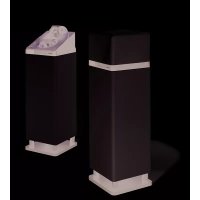
Living LV33 - Loudspeaker AUDIO PRO - Free user manual and instructions
Find the device manual for free Living LV33 AUDIO PRO in PDF.



| Type | Active wireless speaker system with DSP, 3-way bass reflex |
| Amplifier | 100W + 35W + 35W digital Class D |
| Speakers | Tweeter: 3 x 1" silk dome, Midrange: 4.5", Woofer: 6.5" |
| Frequency range | 30 - 24000 Hz |
| Crossover frequency | 300 / 3000 Hz (24/24 dB/octave HP/LP) |
| Dimensions (HxWxD) | 750 x 220 x 220 mm |
| Weight | Approximately 10 kg (per speaker) |
| Power supply | 230 V AC, 50/60 Hz |
| Wireless connectivity | 2.4 GHz RF band, proprietary protocol |
| Radio range | Indoor same room: up to 50 m, between rooms: up to 20 m, outdoor: up to 100 m |
| Bass adjustment | Bass equalizer +/-10 dB (room adaptation) |
| Transmitter TXD200 inputs | USB, Line In (combined optical/analog) |
| Functions | Wireless playback from computer, multi-zone (3 zones A/B/C), pairing, house code (3 channels) |
| Operating temperature | 5 to 40°C |
| Operating humidity | 30% to 90% (non-condensing) |
| Care and cleaning | Clean with a dry cloth, do not block ventilation openings |
| Safety | Do not expose to water, do not insert objects into grilles, unplug during thunderstorms |
| Spare parts | Contact the manufacturer's authorized after-sales service |
| Repairability | Repairs only by qualified personnel |
Frequently Asked Questions - Living LV33 AUDIO PRO
User questions about Living LV33 AUDIO PRO
0 question about this device. Answer the ones you know or ask your own.
Ask a new question about this device
Download the instructions for your Loudspeaker in PDF format for free! Find your manual Living LV33 - AUDIO PRO and take your electronic device back in hand. On this page are published all the documents necessary for the use of your device. Living LV33 by AUDIO PRO.
USER MANUAL Living LV33 AUDIO PRO
Audio Pro AB Sweden AudioPro, the Audio Pro logotype, the 'a' symbol, and ace-basis are all registered trademarks of Audio Pro AB, Sweden. All rights reserved. Audio Pro follows a policy of continuous advancement in development. Specifications may be changed without notice.


The lightning flash with arrowhead symbol, within an equilateral triangle, is intended to alert the user to the presence of uninsulated "dangerous voltage" within the product's enclosure that may be of sufficient magnitude to constitute a risk of electric shock to persons.

The exclamation point within an equilateral triangle is intended to alert the user to the presence of important operating and maintenance (servicing) instructions in the literature accompanying the appliance.
WARNING:
TO REDUCE THE RISK OF FIRE OR ELECTRIC SHOCK,DO NOT EXPOSE THIS APPARATUS TO RAIN OR MOISTURE.
IMPORTANT SAFETY INSTRUCTIONS
- Read these instructions.
- Keep these instructions.
- Heed all warnings.
- Follow all instructions.
- Do not use this apparatus near water.
-
Clean only with dry cloth
-
Do not block any ventilation openings. Install in accordance with the manufacturer's instructions.
- Do not install near any heat sources such as radiators, heat registers, stoves, or other apparatus (including amplifiers) that produce heat.
- Protect the power cord from being walked on or pinched particularly at plugs, convenience receptacles, and the point where they exit from the apparatus.
- Only use attachments/accessories specified by the manufacturer.
- Unplug this apparatus during lightning storms or when unused for long periods of time.
-
Refer all servicing to qualified service personnel. Servicing is required when the apparatus has been damaged in any way, such as power-supply cord or plug is damaged, liquid has been spilled or objects have fallen into the apparatus, the apparatus has been exposed to rain or moisture, does not operate normally, or has been dropped.
-
Damage Requiring Service
Unplug the apparatus from the wall outlet and refer servicing to qualified service personnel under these following conditions A. When the power-supply cord or plug is damaged, B. If liquid has been spilled, or objects have fallen into the apparatus.
C. If the apparatus has been exposed to rain or water, D. If the apparatus does not operate normally by following the operating instructions. Adjust only those controls that are covered by the operating instructions as an improper adjustment of other controls may result in damage and will often require extensive work by a qualified technician to restore the apparatus to its normal operation.
E If the apparatus has been dropped or damaged in any way, and F When the apparatus exhibits a distinct change in perforance this indicates a need for service - Object and Liquid Entry
Never push objects of any kind into the apparatus through openings as they may touch dangerous voltage points or short-out points that could result in a fire or electric shock. The apparatus shall not be exposed to dripping or splashing and no objects filled with liquids, such as vases shall be placed on the apparatus. Don't put candles or other burning objects on top of this unit. - Batteries
Always consider the environmental issues and follow local regulations when disposing of batteries. - The power supply and power cord for this apparatus is intended for indoor use only.
ENGLISH
SPECIFICATIONS
Type:
Powered wireless loudspeaker system with DSP, 3-way bass reflex
Amplifier:
100W + 35W + 35W digital Class D, left and right speaker
Tweeter: 3 × 1 silk dome
Midrange: 4.5"
Woofer: 6.5
Frequency range:
30-24.000Hz
Crossover frequency:
300/3000Hz (24/24dB/octave L/R)
Dimensions HxWxD:
750x220x220mm
FEATURES
Built-in wireless receiver in each speaker
- Wireless full CD quality sound
- Wireless range room to room: Up to 20 meters
- Wireless range same room: Up to 50 meters
- Wireless range open field: Up to 100 meters
- No interference or delays
- Works with both Mac and PC
RF band: 2.4GHz
- Sample rate: 48 KHz
Dedicated proprietary protocol
- Room adaptation, adjust bass
OVERVIEW
REMOTEREAR PANEL
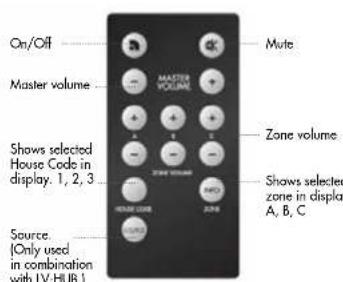
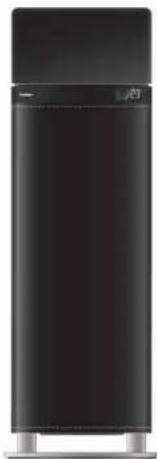
OVERVIEW continued
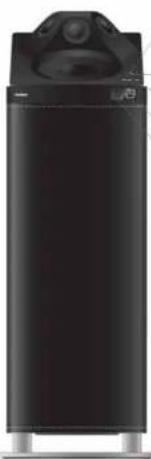
LED, steady blue for established wireless connection Flashing blue if wireless connection is lost. Red for no wireless connection or no transmission. Green for paired connection.
Volume control
House Code and Zone/Pair buttons
Display
IR receiver for remote
To use remote, aim at IR-eye.
[Only speaker set to RIGHT or MONO Master can be used via remote.]
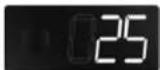
The displays shows: volume level, chosen channel
(House Code), chosen zone, and mute (-)
Note: Display shows information for 3 seconds
after adjustment
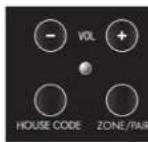
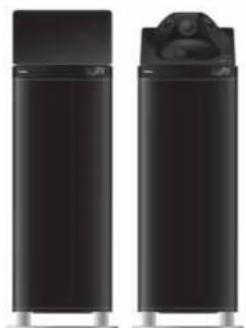
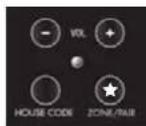
Beneath the grille on LV33 top is LED status indicator, buttons for volume, button for House Code selection, button for Zone selection.
- Volume, + to increase, - to decrease.
Each speaker can be set separately to adjust balance.
- House Code channel, one push displays chosen channel [1, 2, 3].
Further pushes changes channel 1 > 2 > 3 and back to 1.
- Zone, one push displays chosen volume zone (A, B, C)
Further pushes changes channel A>B>C and back to A
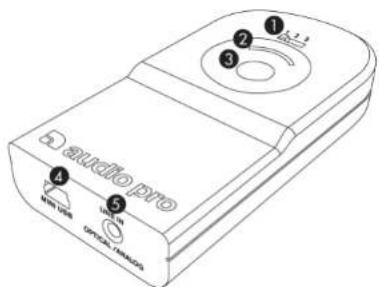
TXD200 TRANSMITTER
- House Code selector.
Choose channel for transmitter.
- LED, Blue for connection. Red for no connection.
Green for paired connection.
-
Pairing button. Press on transmitter and speakers to pair.
-
USB in. To connect to computer
Or to connect power supply when using audio
source connected to line in.
- Line in. Combined optical and analog. Use to
connect transmitter to other audio device than
computer
BASIC CONFIGURATION
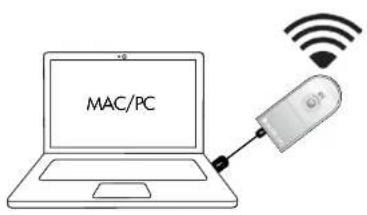
Before connecting to computer, see Mac or PC setup.
-
Connect the TXD200 transmitter to the computer.
-
Connect both LV33 speakers to 230V outlet.
Done! Play your music on your computer.
WIRELESS STATUS:
LED lights up blue on speakers and transmitters when wireless connection is established.
LED lights up red on speakers and transmitters when no wireless connection is established.
LED lights up green on speakers and transmitters when paired wireless connection is established.
Note:
- Make sure that both speakers and transmitter are using same House Code (channel 1, 2 or 3).
- If speakers are in automatic standby mode, LED is red even though wireless connection is established. Turns blue when speakers receive audio signal.
MAC SETUP
- Connect TXD200 transmitter to a free USB socket.
- Go to System Preferences, choose Sound under Hardware.
- Click Output in menu, choose "USB Headset".
Done! You can now send audio from your computer.
PC SETUP
Please do following setup before using music playing software (for example iTunes or Spotify).
- Connect TXD200 transmitter to a free USB socket. Wait until software has been installed.
(See lower right hand corner, message window will open when sound device is ready to use.) Done! You can now send audio from your computer.
For some PC computers ( i e Windows 7) you may need to perform these settings:
2. Click Start button, go to Control Panel and choose Sound & Sound devices.
3. Under playback of audio, default unit, choose "USB Headset".
Done! You can now send audio from your computer.
PAIRING LV33 SPEAKERS WITH TRANSMITTER
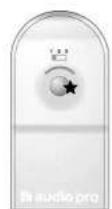
By pairing, you lock your Audio Pro network from other peoples Audio Pro Wireless networks. In unpaired mode, the TXD200 and LV33 will work with all Audio Pro Living wireless products.
PAIR YOUR LV33 SPEAKERS WITH TXD200 TRANSMITTER
- Press Pairing button on transmitter for 2 seconds. LED starts to flash Green.
- Press and hold ZONE/PAIR button on LV33 speaker for 3 seconds.
(Lift of cloth grille to access buttons.) LED starts to flash Green - When LEDs on both transmitter and speaker goes to steady green, the system is paired.
Note:
- Pairing will not work with older Living speakers
- To unpaill system (all speakers in some volume zone will be unpaired)
- Disniched 1xD200 frem power. While opening the printing but
- While pressing the pairing button, reconnect TxD200 to power, end hold pairing button for 6 seconds.
- On LV33 speaker; turn speaker off with main switch on rear panel. While turning the
speaker on again, hold the House Code button pressed.
The transmitter and speakers will now be unpoired.
PLAY WIRELESS FROM OTHER SOUND SOURCES
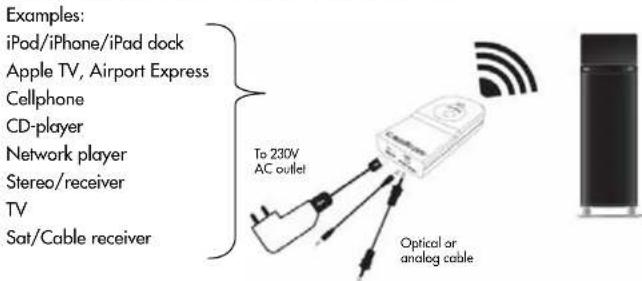
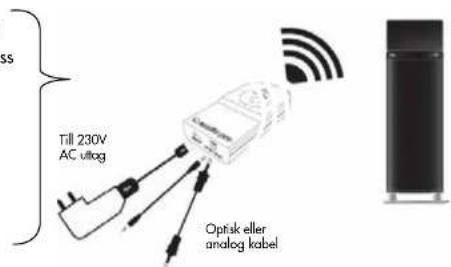
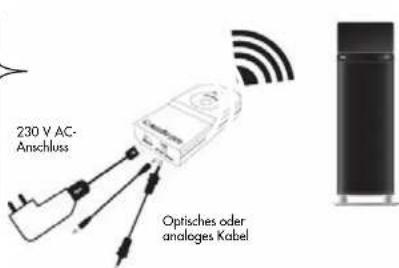
The TXD200 transmitter has a combined analog/optical sound input on its end. You can connect any device with sound output, optical or analog, to the transmitter. Computer, mp3-player, iPod/iphone/iPad dock, cellphone, stereo/receiver, cd-player, radio, etc. TXD200 contains an advanced Burr-Brown A/D converter for best sound reproduction. The transmitter TXD200 must be powered by Audio Pro USB power adaptor if connected by cable (sold separately).
Connect any device with sound output, optical or analog.
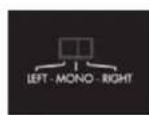
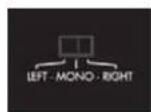
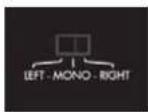
LEFT, MONO AND RIGHT
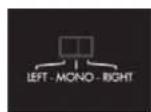
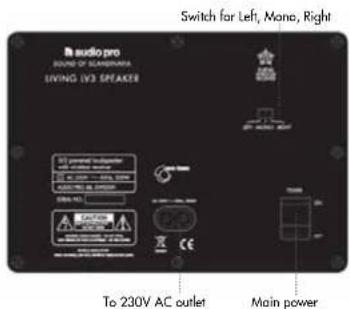
On the rear of LV33 is a switch for left, mono and right. Normally two LV33 speakers are used in one room for stereo sound. Set one speaker to RIGHT, the other to LEFT. NOTE: Only speaker set to RIGHT can receive commands from remote.
MONO is used if you have only one LV33 in one room, and the other in another room. Or very large room, or reception hall where all speakers play in mono. Note that the speakers will reproduce sound in mono, not stereo.
MONOMASTER
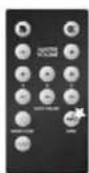
If you have your LV33 speakers set to MONO, you will need to make one of them MONO MASTER to be able receive commands from the remote.
Setting one speaker as MONO MASTER:
- Aim remote at desired speakers, push Zone INFO button for 5 seconds.
- Display will show "111". Now the speaker is mono master speaker.
To change back to slave mode mono speaker, push Zone info button on remote again for 5 seconds, display shows "000".
MORE OR LESS BASS (ROOM ADAPTATION)
When placing LV33 in your home, you may experience too much or too little bass, depending on where you place the speakers. To solve this, LV33 has built in room adaptation [+10 / - 10 dB bass equalizer]. By adjusting bass levels, you can find a good bass balance that suits your room.
Generally, placing LV33 in a corner will reproduce more bass, placing LV33 in the middle of your room less bass. With room adaptation you can place LV33 anywhere you like, and then adjust bass levels to your liking.
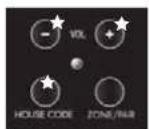
ADJUST BASS EQ:
-
Use buttons on speaker (not remote)
-
Press button "House Code" and hold it pressed
-
While holding "House Code" button pressed, adjust bass EQ with
VOL + and -. Press + to increase bass, - to decrease bass
Display will show your settings: -10, -9, -8 ... 0 ... 8, 9, 10
RESET SPEAKER
Returning to factory settings (volume 17, bass EQ 0):
Turn off speakers with remote. Turn on again and press MUTE on remote while LED flashes. Push Mute once more. Now speaker pair (or all speakers in same Zone) are in default setting.
OPERATIONS WITH LV-HUB
With the Living LV-HUB (sold separately) you get convenient features such as listening to different sources in different rooms. You can also change sources connected to LV-HUB on the speakers with the remote.
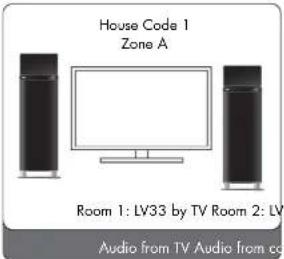
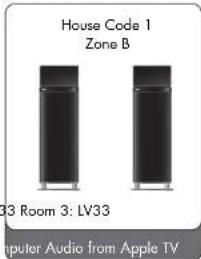
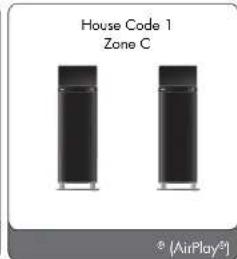
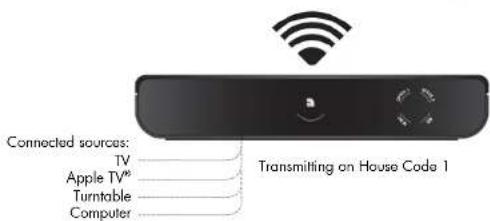
- Set all speakers and LV-HUB to same House Code.
- Set speakers in each room to Zone A, B or C.
- Pair LV-HUB with all speakers (See Pairing in specific speaker manual.)
- Connect up to 4 sources to LV-HUB.
Now you can play from any source connected to LV-HUB to any speakers in different zones. Changing source: use remote aimed to speaker to change source. You can change source in each room on the speakers with the remote, and listen to different sources at the same time in different room. Example:
- Watch movie with wireless sound in Room 1.
- Listen to music on computer in Room 2.
- Listen to music via AirPlay® (via Apple TV®) in Room 3.
Speaker display will show this for sources: USB-LI-OP1-OP2
Note:
- When in paired mode, the LV-HUB can be hidden away. No commands from remote works on the LV-HUB. All commands are done on the speakers.
- Choosing source will follow the ZONE, all speakers set to some Zone will play some source.
- If you add a TXD200 transmitter, and this is paired, you can also change House Code on speakers to choose different transmitter (Example: HC1 on LVHUB and HC2 on TXD200.)
USE MULTIPLE TRANSMITTERS AND SPEAKERS SIMULTANEOUSLY WITH THE HOUSE CODE 1, 2 OR 3
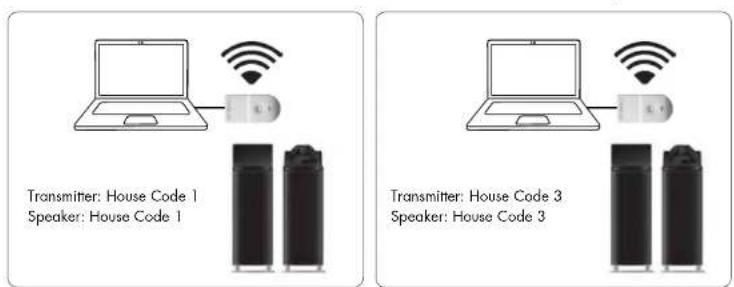
By using the House Codes (channels) you can share the wireless network for up to two separate networks. Then you can simultaneously play music from various audio sources (from two different transmitters) to different pairs of LIVING speakers.
ADJUST VOLUME SEPARATELY IN THREE DIFFERENT ZONES
In order to be able to have the same music at different volumes in different rooms/areas, you can divide each House Code into 3 different volume zones. Each zone can have a different volume. This is very handy if, for example, you want to have one volume level in the living room and a lower volume in the kitchen. You can have as many LIVING speakers in each zone as you want, or just one pair. The zone volume is easily controlled with the remote unit.
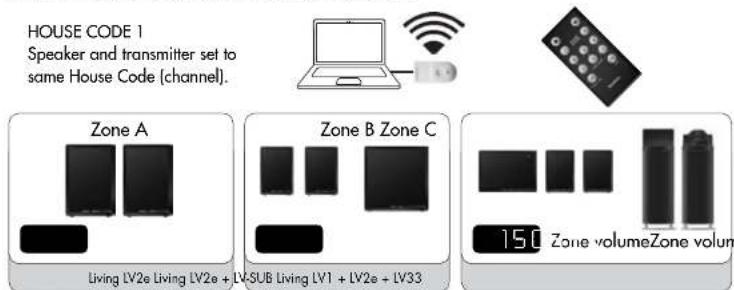
Note:
- All LV33 speakers are default Zone A, and volume level 17.
- Each House Code (1, 2 and 3) can be split into up to 3 zones (A, B and C).
- You can have as many speakers you like on each House Code, and as many as you want in each zone.
A zone does not have to be one room, can be whole floor in house.
TROUBLESHOOTING
THE SPEAKERS PLAY AT DIFFERENT VOLUMES
Use the zone-volume buttons for the zone that is set on the speakers, adjust the volume up or down with the remote, and all speakers will be synchronised to the same volume level in the entire zone.
ONE SPEAKER IS ON, THE OTHER OFF
If one of the speakers is disconnected from the power supply whereas others are connected to the power supply, the On/Off function may get out of sync. Proceed as follows in such cases: switch off the main power switch on the left speaker. Depending on the status, switch on or off the right speaker (main speaker with receiver for remote control). Then switch on the power switch on the left speaker again and start up the system with the remote control on the right speaker (while doing this, you should play music so that the speakers are receiving an audio signal).
NETWORK TROUBLESHOOTING
Is the LED light on the transmitter blue?
If the light is red, try moving the transmitter and receiver closer together. Does this turn the LED blue?
Are you using more than one TX100/TXD200 transmitter?
Make sure that the TX100/TXD200's aren't running on the same House Code. If more than one TX100/TXD200 uses the same House Code, interference may occur. Disconnect one transmitter, or change the House Code
Are you using the same House Code on transmitter and receiver?
Make sure the same House Code is set on both the transmitter and the receiver.
How far apart are the transmitter and receiver?
If distance between the transmitter and receiver is too far, the connection might be lost.
Try placing the transmitter and receiver in closer proximity, does this help?
Are there walls between the transmitter and receiver?
If your home has thick concrete walls, or walls of plaster with wire lath, the wireless range will
decrease. Try placing transmitter and receiver in the same room, does this help?
Are there more wireless networks in the area?
If there are many wifi networks running in the area, wireless range can decrease. There are useful apps for iP hone/iPad/iPod touch and Android to detect local wifi networks, and see which channel might be crowded. You can also try to change the channel on your wireless router to improve Audio Pro network range and your own home network wi performance. [Audio Pro network transmits on channel 1, 6 or 11.]
Is your computer connected to the internet via cable or wifi?
The Audio Pro network can weaken a local wifi network (but not weaken itself). If possible, you should change channel on your wireless router, the Audio Pro network transmits on channel 1, 6, or 11. Choose a new channel on your router, for example 3, 8 or 13. (In total there are 13 channels on the 2.4 GHz band.) There are useful apps for iPhone/iPad/iPod touch and Android to detect local wifi networks, and see which channel might be crowded. If you cannot change the channel on your wireless router, try connecting computer via Ethernet cable instead. Does this help?
AvthetheBluetooth units active in the area?
Shut down all active Bluetooth devices. Does this help?
Windows 7 and Mac OS, sound output
When connecting the TX100 transmitter to a computer using Windows 7 or Mac OS, you need to select the sound output. Go to: system settings, find sound settings, and select USB HEADSET as your sound output. (In older Windows OS there is no need for this, TX100 will take over automatically as the sound output device.)

100W + 35W + 35W digital Class D
TXD200 TRADLOSSANDARE
PARALV33 HOGTALARNA MED SANDAREN
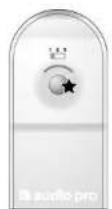
Genom parning laser du ditt Audio Pro naverk fr anandra nariggande Audio Pro tradloa naverk. I oparat lage fungarer LV33 och TXD200 med alla Audio Pro tradloa Living-produker.
PARALV33MEDTXD200 SANDAREN
iPod/iPhone/iPad docka
Apple TV, Airport Express
Smartphone
CD-spelare
Nätverksspelare
Stereo/receiver
TV
Satellittmottagare
LEFT, MONO AND RIGHT
HÖGTALARNA SPELAR PÁ OLKA VOLYM
iPod-/iPhone-iPad-Dock
Apple TV, Airport Express
Mobiltelefon
CD-Player
Netzwerk-Player
Stereosanlage/Receiver
Fernseher
Satelliten-/Kabel-Receiver
LINKS, MONO UND RECHTS
station iPod/Phone/IPad
Apple TV, Airport Express
Telephone mobile
Lecteur de CD
Lecteur en reseau
Stereo/recepteur
Téléviseur
Apple TV, Airport Express
Telefonomovil
Reprodctor de CD
Reproducor en red
Miirange,4,5'
Wolfer,6,5'
Dock per iPod/iPhone/iPad
Apple TV, Airport Express
Telefoni cellulari
Lettori CD
Apple TV, Airport Express
Matkapuhelin
CD-soitin
Verkkosoitin
Stereo/vastacinotin
Televisio
VASEN, MONO JA OIKEA
- WARNING
- IMPORTANT SAFETY INSTRUCTIONS
- ENGLISH
- SPECIFICATIONS
- FEATURES
- OVERVIEW
- TXD200 TRANSMITTER
- BASIC CONFIGURATION
- WIRELESS STATUS
- MAC SETUP
- PC SETUP
- PAIRING LV33 SPEAKERS WITH TRANSMITTER
- PAIR YOUR LV33 SPEAKERS WITH TXD200 TRANSMITTER
- PLAY WIRELESS FROM OTHER SOUND SOURCES
- LEFT, MONO AND RIGHT
- MONOMASTER
- MORE OR LESS BASS (ROOM ADAPTATION)
- ADJUST BASS EQ
- RESET SPEAKER
- OPERATIONS WITH LV-HUB
- USE MULTIPLE TRANSMITTERS AND SPEAKERS SIMULTANEOUSLY WITH THE HOUSE CODE 1, 2 OR 3
- ADJUST VOLUME SEPARATELY IN THREE DIFFERENT ZONES
- NOTE
- TROUBLESHOOTING
- TXD200 TRADLOSSANDARE
- PARALV33 HOGTALARNA MED SANDAREN
- PARALV33MEDTXD200 SANDAREN
- HÖGTALARNA SPELAR PÁ OLKA VOLYM
- LINKS, MONO UND RECHTS
- VASEN, MONO JA OIKEA
Brand : AUDIO PRO
Model : Living LV33
Category : Loudspeaker