LET19T1000H - TV HAIER - Free user manual and instructions
Find the device manual for free LET19T1000H HAIER in PDF.



| Product type | LED LCD TV 19\" |
| Brand | Haier |
| Model | LET19T1000H |
| Screen size (diagonal) | 19 inches (48 cm) |
| Resolution | HD Ready (1366 x 768 pixels) |
| TV systems | PAL B/G, I, D/K ; SECAM B/G, D/K, L, L' |
| Power supply | 100-240 V ~ 50/60 Hz |
| Power consumption (operating) | 30 W |
| Power consumption (standby) | < 0.5 W |
| Audio power | 2 x 3 W |
| Audio system | NICAM, Stereo |
| Connections | 1 HDMI, 1 VGA, 1 YPbPr, 1 Peritel, 1 USB, 1 Antenna, 1 Headphone, 1 S/PDIF, 1 CI, 1 AV |
| USB file formats | Photo: JPEG, BMP, PNG ; Audio: MP3, WAV ; Video: AVI, TS ; Text: TXT |
| PVR function | USB recording and Timeshift |
| Teletext | Yes |
| Wall mount | VESA 100 x 100 mm (estimated) |
| Weight (approx.) | 2.5 kg |
| Dimensions (without stand, approx.) | 450 x 290 x 60 mm |
| Color | Black |
| Supplied accessories | Remote control, AAA batteries x2, stand, SCART cable, user guide, quick start guide |
| Safety | Auto power off 4h, parental lock, password |
| Maintenance | Unplug before cleaning; use a soft dry cloth |
Frequently Asked Questions - LET19T1000H HAIER
User questions about LET19T1000H HAIER
0 question about this device. Answer the ones you know or ask your own.
Ask a new question about this device
Download the instructions for your TV in PDF format for free! Find your manual LET19T1000H - HAIER and take your electronic device back in hand. On this page are published all the documents necessary for the use of your device. LET19T1000H by HAIER.
USER MANUAL LET19T1000H HAIER
Please read this manual carefully before using your television and keep this manual in a good place for future reference.
MODEL:
LET19T1000H
LET22T1000HF
LET24T1000HF
LET26T1000HF
Contents
01 Safety and warnings
Welcome P.02
Important information P.02
Safety notice P.03
Warnings and cautions P.04
02 Introduction
Main Parameter P.05
Base Stand Assembly Instruction P.07
Wall Mounting Installation Guidelines P.09
Control Panel P.11
Rear/Side Sockets P.11
Connecting your TV .P.12
Common interface P.13
03 Remote Control
Remote Control P.14
04 Operation
Installation Guide P.16
05 Trouble shooting
Trouble shooting P.27
Specification 28
01 Safety andWarnings
WELCOME
Thanks for buying this 19"/22"/24"/26" LED LCD TV . This guide will help you set up and begin using your TV.
First, check the contents of your box with the parts check list below:
19" HD Digital LED
LCD TV
Remote control
AAA battex2
Instruction Manual
Quick start guide
Scart cable x1
Stand
22" Full HD 1080P Digital
LED LCD TV
Remote control
AAA battery2
Instruction Manual
Quick start guide
Scart cable x1
Stand
24" Full HD 1080P Digital
LED LCD TV
Remote control
AAA battery2
Instruction Manual
Quick start guide
Scart cable x1
Stand
26" Full HD 1080P Digital
LED LCD TV
Remote control
AAA batted
Instruction Manual
Quick start guide
Scart cable x1
Stand
Now you can get started!
IMPORTANT INFORMATION
READ ALL INSTRUCTIONS BEFORE USE AND KEEP FOR FUTURE REFERENCE.


CAUTION
TO REDUCE THE RISK OF ELECTRIC SHOCK, DO NOT REMOVE COVER (OR BACK).NO USER SERVICEABLE PARTS INSIDE. FOR ANY PROBLEMS, REFER SERVICING TO THE CUSTOMER HELP LINE. THERE IS A LIGHTNING ARROW SYMBOL IN THE TRIANGLE: THIS SYMBOL INDICATES HIGH VOLTAGE IS PRESENT INSIDE. IT IS DANGEROUS TO MAKE ANY KIND OF CONTACT WITH ANYINSIDE PART OF THIS PRODUCT.
THERE IS A EXCLAMATION MARK IN THE TRIANGLE: THIS SYMBOL ALERTS YOU THAT IMPORTANT LITERATURE CONCERNING OPERATION AND MAINTENANCE HAS BEEN INCLUDED WITH THIS PRODUCT.

CAUTION:TO REDUCE THE RISK OF ELECTRIC SHOCK AND FIRE, DO NOT PUT THE TV SET NEAR SOURCES OF HUMIDITY. DO NOT USE ANY ABRASIVE CLEANERS WHICH MAY SCRATCH OR DAMAGE THE LCD SCREEN. AVOID CONTACT WITH OBJECTS THAT MAY SCRATCH THE LCD SCREEN.

NOTE: SERVICING THE UNIT YOURSELF IS UNAUTHORIZED AND COULD LEAD TO INJURY OR PRODUCT DAMAGE. REFER ALL SERVICING TO THE CUSTOMER HELPLINE.
SAFETY NOTICE
- Warning: To reduce the risk of electric shock, do not remove the cover or back. There are no user-serviceable parts inside. Refer servicing to qualified personnel.
- Warning: To prevent fire or electric shock hazard, do not expose the unit to rain or moisture.
- Do not expose the Adaptor and product to water (dripping or splashing) and no objects filled with liquids, such as vases, should be placed on the unit.
- Keep the product away from direct sunlight and heat source such as radiators or stoves.
- Do not block the ventilation openings. Slots and openings on the unit are provided for ventilation. The openings should never be blocked by placing your product on a cushion, sofa or other similar surface.
- Do not place the product on unstable cart, stand, tripod, bracket or table. The unit may fall, resulting in possible damage or injury.
- Never place heavy or sharp objects on the panel or frame.
- Unplug the Power from the outlet when the unit is not in use.
- Attention should be drawn to the environmental aspects of battery disposal.
WARNING: The battery shall not be exposed to excessive heat such as sunshine, fire or the like. - WARNING: Excessive sound pressure from earphones or headphones can cause hearing loss.
- WARNING: Only use the attachments/accessories specified provided by the manufacturer.

This marking indicates that this product should not be disposed with other household wastes throughout the EU. To prevent possible harm to the environment or human health from uncontrolled waste disposal, recycle it responsibly to promote the sustainable reuse of material resources. To return your used device, please use the return and collection systems or contact the retailer where the product was purchased. They can take this product for environmental safe recycling.

WARNING AND CAUTIONS
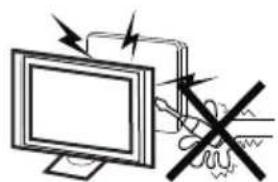
Warning
High voltages are used in the operation of this television receiver. Do not remove the cabinet back from your set. Refer servicing to qualified service personnel.
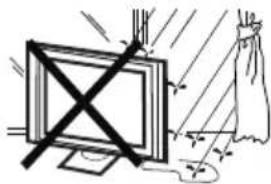
Warning

To prevent fire or electrical shock hazard, do not expose the television receiver to rain or moisture.

Warning

Do not drop or push objects into the television cabinet slots or openings. Never spill any kind of liquid on the television receiver.
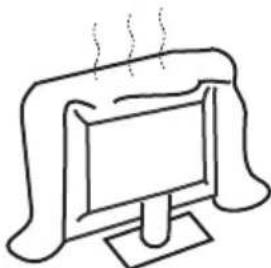
Caution

Do not block the ventilation holes in the back cover. Adequate ventilation is essential to prevent failure of electrical components.
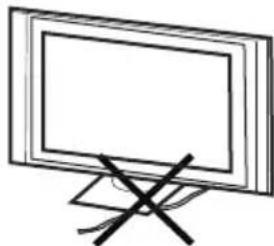
Caution

Do not trap the power supply cord under the television receiver.
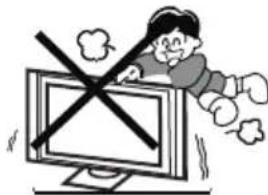
Caution

Never stand on, lean on, or suddenly push the television or its stand. You should pay special attention to children. Serious injury may result if it should fall.
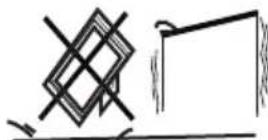
Caution

Do not place your television on an unstable cart, stand, shelf or table. Serious injury to an individual, and damage to the television, may result if it should fall.
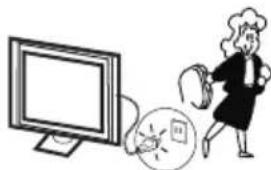
Caution

When the television receiver is not used for an extended period of time, it is advisable to disconnect the AC power cord from the AC outlet.
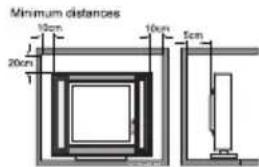
Caution

If the television is to be built into a compartment or similar enclosure, the minimum distances must be maintained. Heat build-up can reduce the service life of your television, and can also be dangerous.
Never tamper with any components inside the TV, or any other adjustment controls not described in this manual. All LED-TV's are high voltage electrical equipment.
When you clean dust or any water drops off the SCREEN or CABINET or around any of the buttons or connectors, the power cabled should be removed from the power socket.
Wipe the TV with a soft, dry, dust free cloth. During thunderstorms, unplug the power cable and aerial / antenna cable to prevent damage to your TV and any other devices connected to it.
All repairs to this TV should only be performed by qualified TV service personnel.
Main features
① Used as Television, display terminal, PC display;
② High luminance, wide viewing angle;
③ HDMI interface and SCART Interface;
Main parameter
| Panel | 19" | 22" | 24" | 26" |
| TV System | PAL-B/G、I、D/K SECAM-B/G、D/K、L、L' | |||
| Video Signal System PAL/SECAM | ||||
| Input Power Voltage | AC 100-240V 50/60Hz | |||
| Power consumption | 30W | 38W | 40W | 55W |
| Standby Power consumption | <0.5W | |||
| Audio Output Power (THDS7%) | 2x3W | |||
| Signal Input | Analog RGB(PC)x1; PC audio x1 High-Definition Multimedia Interface (HDMI)x2 Video Input x1 Audio Input x1 YPb Prx1 SCARTx1 CI x1 USB x1 RF Co-Ax x1 | |||
| Signal output | Headphone x1 S/PDIF x1 | |||
| Horizontal definition (TV line) | Composite Video input >=350 YPbPr >=400 | |||
INSTALLATIONCAUTION
Locate the TV in the room where light does not strike the screen directly.
Total darkness or a reflection on the picture screen can cause eyestrain. Soft and indirect lighting is recommended for comfortable viewing.
Allow enough space between the TV and the wall to permit ventilation.
Avoid excessively warm locations to prevent possible damage to the cabinet or premature component failure.
*Do not cover the ventilation openings when using theTV.
④ NICAM;
⑤ T;ime-shift
PC
PRESET MODE
| RESOLUTION | V.Freq.(Hz) H.Freq.(KHz) | ||
| 1 | 640x480 | 60 | 31.47 |
| 2 | 800x600 | 60 | 37.88 |
| 3 | 1024x768 | 60 | 48.36 |
| 4 | 1360x768 | 60 | 47.7 |
| 5 | 1280x1024 | 60 | 63.98 |
| 6 | 1920x1080 (except for 19") | 60 | 66.64 |
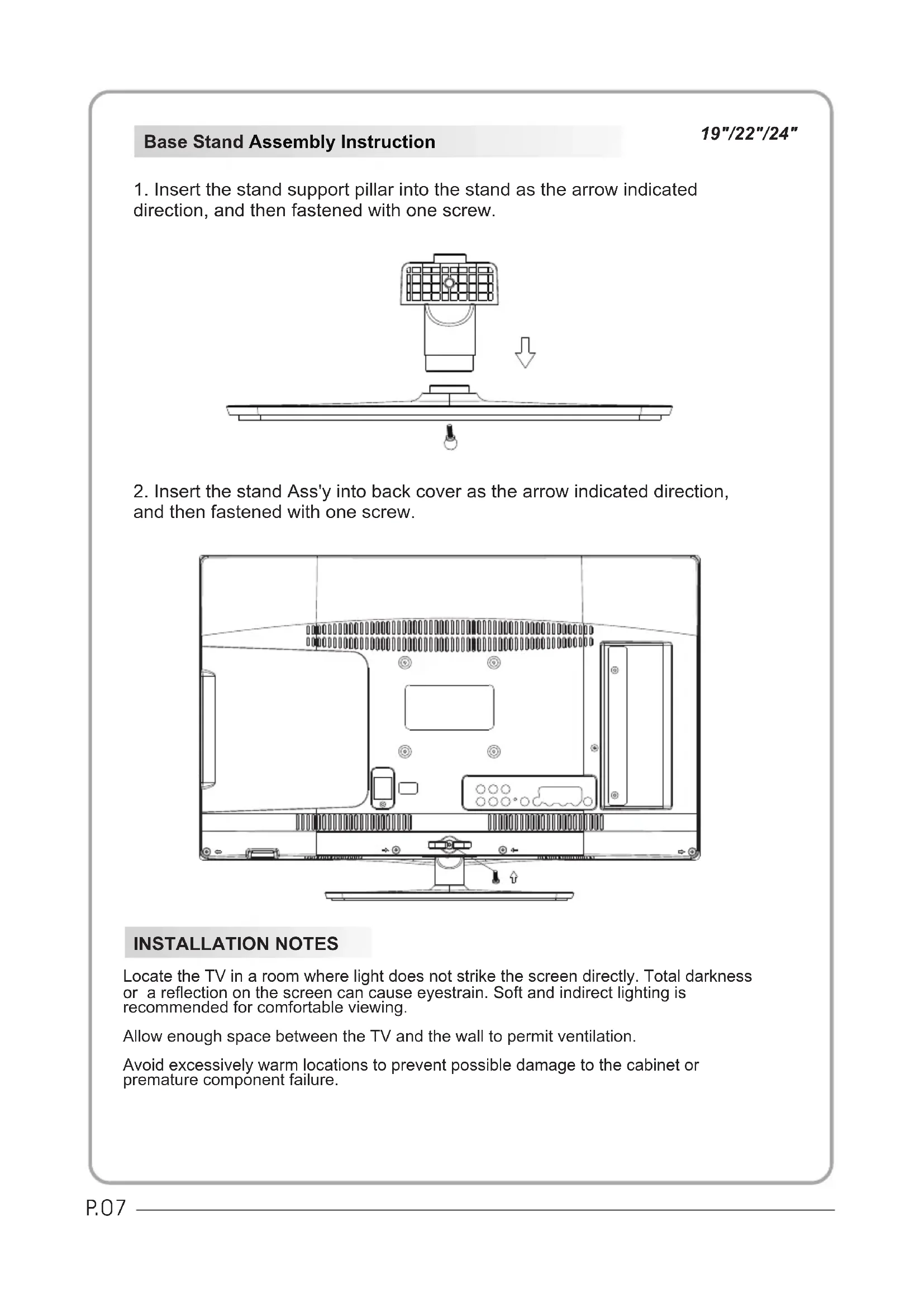
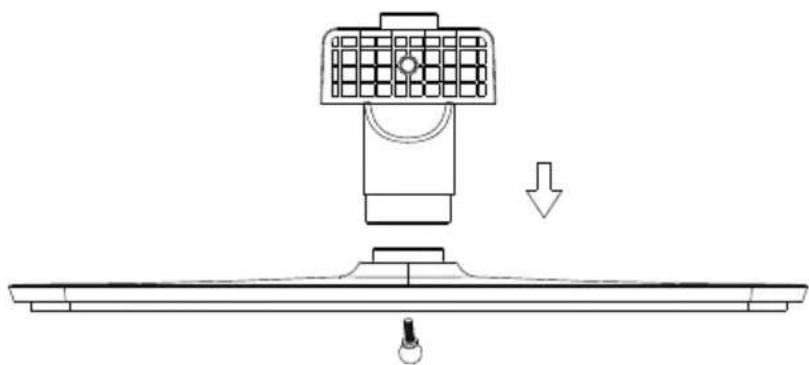
- Insert the stand support pillar into the stand as the arrow indicated direction, and then fastened with one screw.
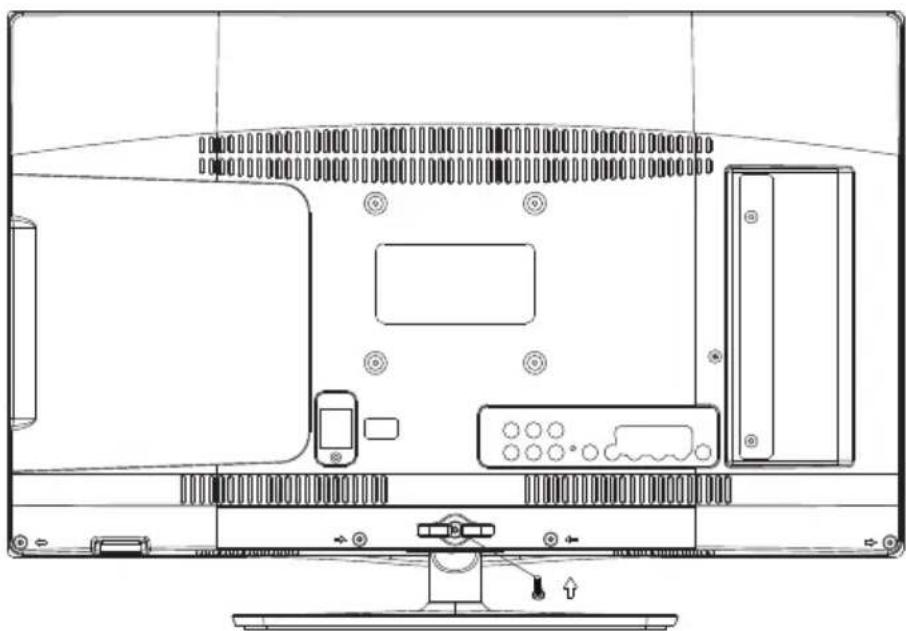
- Insert the stand Ass'y into back cover as the arrow indicated direction, and then fastened with one screw.
INSTALLATION NOTES
Locate the TV in a room where light does not strike the screen directly. Total darkness or a reflection on the screen can cause eyestrain. Soft and indirect lighting is recommended for comfortable viewing.
Allow enough space between the TV and the wall to permit ventilation.
Avoid excessively warm locations to prevent possible damage to the cabinet or premature component failure.
Base Stand Assembly Instruction
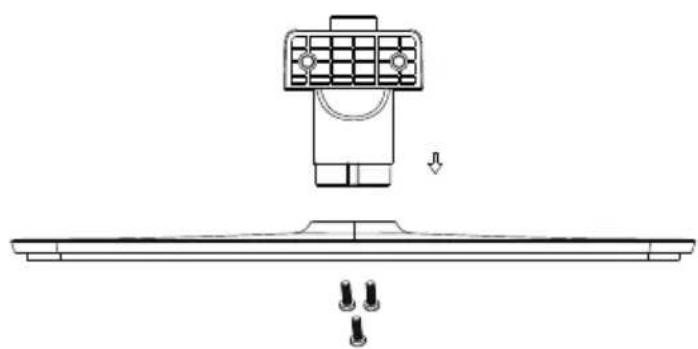
- Insert the stand support pillar into the stand as the arrow indicated direction, and then fastened with three screws.
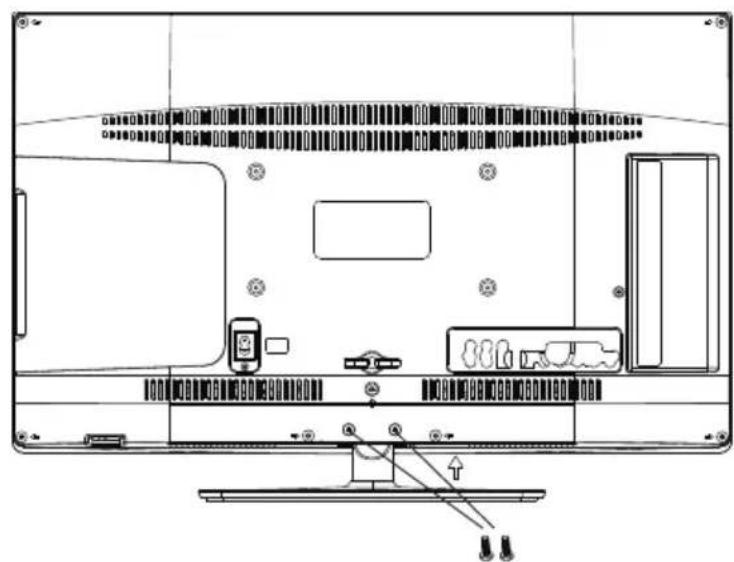
- Insert the stand Ass'y into back cover as the arrow indicated direction, and then fastened with two screws.
INSTALLATION NOTES
Locate the TV in a room where light does not strike the screen directly. Total darkness or a reflection on the screen can cause eyestrain. Soft and indirect lighting is recommended for comfortable viewing.
Allow enough space between the TV and the wall to permit ventilation.
Avoid excessively warm locations to prevent possible damage to the cabinet or premature component failure.
WALL MOUNTING INSTALLATION GUIDELINES
19"22"24
This television can be wall mounted as follows:
- Place the LED LCD Television onto a solid surface. Please place some soft material over the front of the screen to protect it from any damage.
2.Remove the screws from the lower part of the television, where the base joins to the TV, and take away the stand (put the stand somewhere safe for future use).
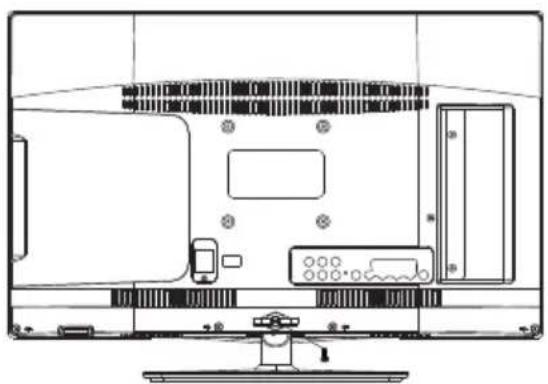
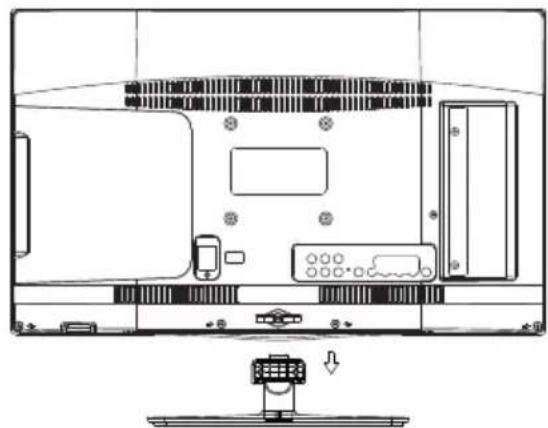
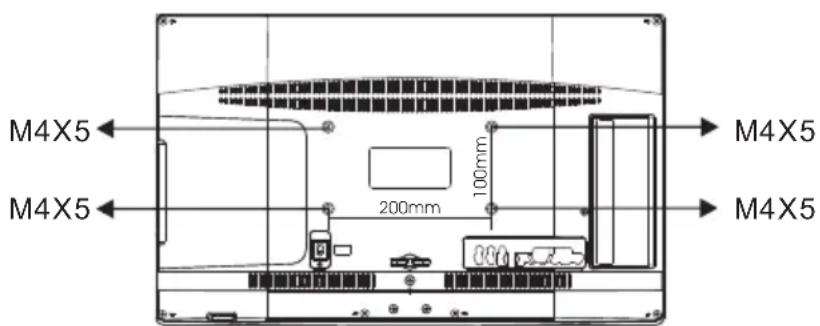
3.Use the four screws provided to fix the TV onto a wall mounting bracket (not included) via the four VESA standard holes on the back of the television.
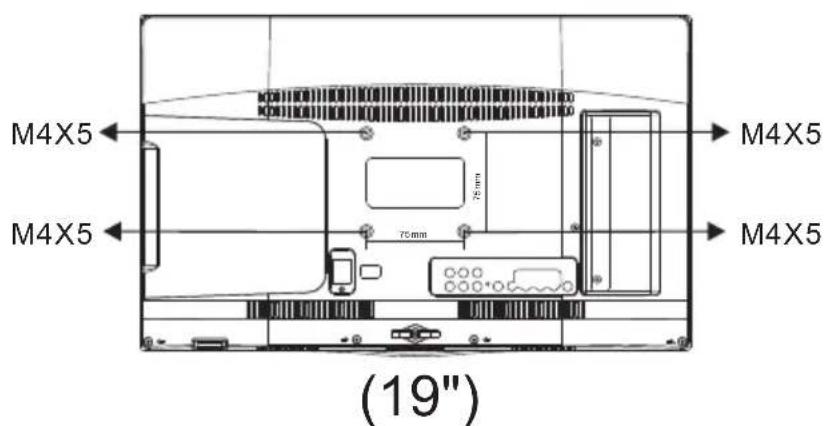
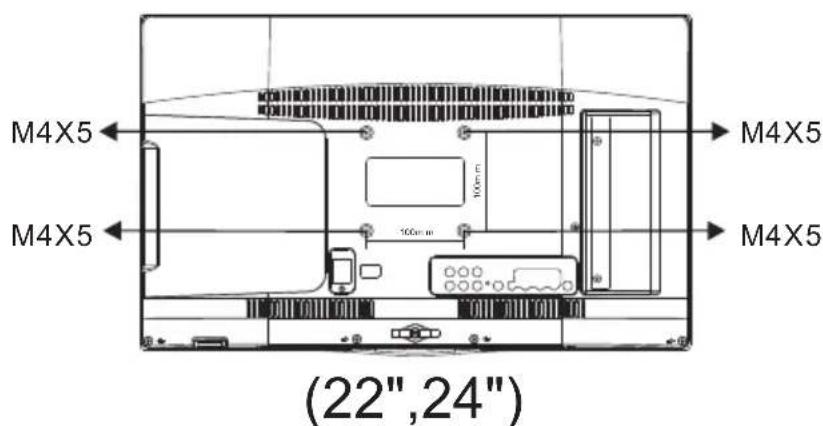
WALL MOUNTING INSTALLATION GUIDELINES
26"
This television can be wall mounted as follows:
- Place the LED LCD Television onto a solid surface. Please place some soft material over the front of the screen to protect it from any damage.
2.Remove the screws from the lower part of the television, where the base joins to the TV, and take away the stand (put the stand somewhere safe for future use).
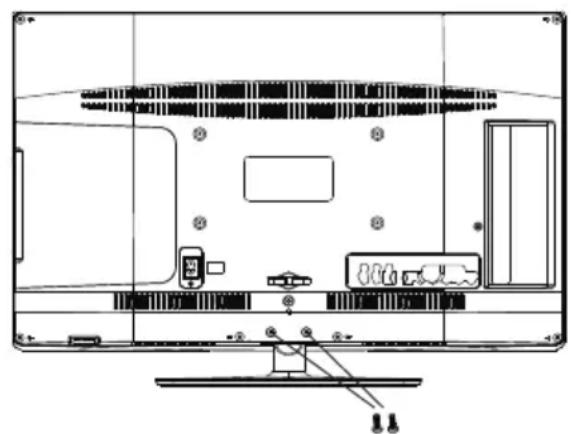
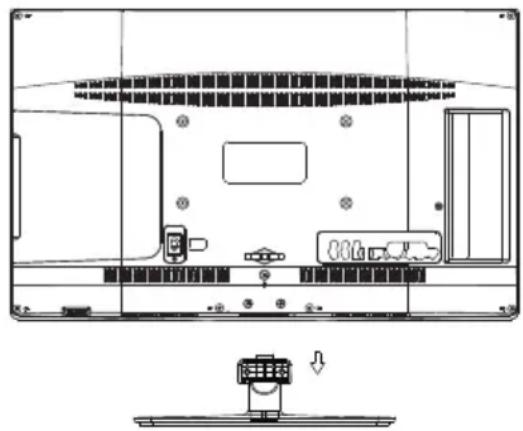
3.Use the four screws provided to fix the TV onto a wall mounting bracket (not included) via the four VESA standard holes on the back of the television.
Front control panel
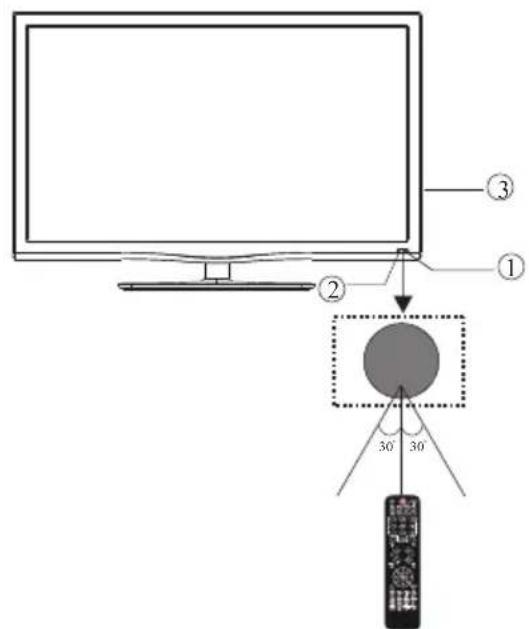
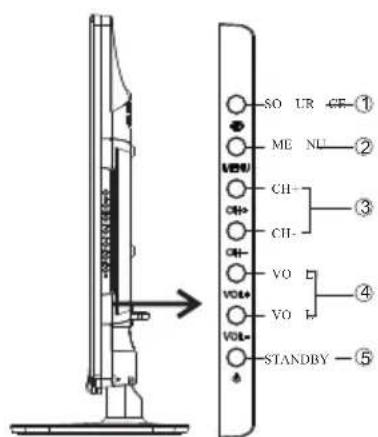
Remote control sensor.
2 Indicator LED:
BLUE: POWER ON. RED: STAND BY.
3 Key board.
1 SOURCE Display the input source menu.
2 MENU Display main MENU.
3 CH+/CH- In TV mode,press CH+ or CH- to change the channel up and down.
In MENU, press CH+ or CH- to select items.
In standby mode, it can Turn on the TV.
4 VOL+VOL- Adjust sound level.
In MENU, adjust the item that you Selected.
5 STANDBY
Rear/Side Sockets
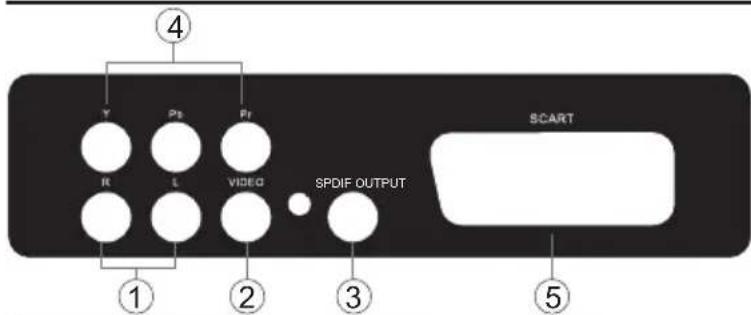

1 L/R AUDIO input
2VIDEO input
3 S/PDIF digital audio output
4 YPbPr input
5 SCART input
6 USB input
7 HDMI2 input
| 8 | HDMI1 input | |
| 9 | HEADPHONE | analogue audio output |
| 10 | COMMON INTERFACE(CI) | input |
| 11 | PCAUDIO | input |
| 12 | VGA | input |
| 13 | RF | input |
CONNECTING YOUR
Haier TV
ANTENNA CONNECTION
Connect your aerial to the back of the TV into the ANT IN socket.
IMPROVE YOUR SIGNAL
To improve picture quality in a poor signal area, use a signal amplifier (not supplied).
CONNECT YOUR PC TO THE TV
You can use your TV as a monitor for your personal computer by connecting it with a VGA cable (not supplied).
1 Read your computer user guide and check it has a VGA connector.
Turn the power off on your TV and PC.
3 Connect a D type 15-pin VGA interface cable to the VGA video interface connector on the PC. Connect the other end of the cable to the PC interface connector on the TV. Tighten the screws on the VGA connectors and connect the audio cable (not supplied) to the audio input socket on the back of the TV.
4 Turn on the power of the TV firstly and then the PC.
Press the button on the TV or TV remote control to set the video input mode to VGA.
6 Once the image shows, if there is noise present, change the VGA mode to another resolution, change the refresh rate to another rate or adjust the brightness and contrast on the menu until the picture is clear.
CONNECT A DVD PLAYER OR VCR TO YOUR TV
There are two ways in which you can connect a DVD player or VCR to your TV. Make sure that both the TV and DVD player or VCR are switched off before you connect them.
0 Connect the AV DVD/VCR outputs to the AV IN socket on your TV.
Connect the AV audio L & R to the audio input (8) Press the SOURCE button on the TV to set the video input mode to AV.
SCART INPUT
Connect the scart lead from the external device (DVD player, Set-top box or games console) to the TV scart socket.
Press the SOURCE button to select SCART mode.
Press the PLAY button on the external device.
HDMI INPUT
Connect the cable from the HDMI device to the TV HDMI socket.
Press the SOURCE button to select HDMI mode.
Refer to the HDMI device user guide for how to operate.
HEADPHONE OUTPUT
Insert the plug of the earphone into the earphone jack on the unit HEADPHONE. The speakers are now muted.
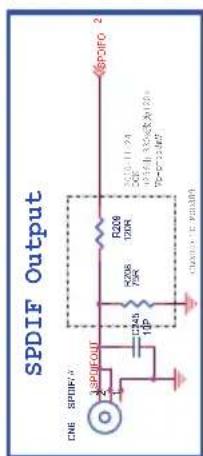
S/PDIF OUTPUT
S/PDIF is a digital audio connection used to connect audio equipment, for example home theatres and other digital HiFi systems over short distances. The signal is transmitted over either a coaxial cable with RCA connectors.
Make sure that both TV and the device are switched off before connecting.
Make sure that both TV and the device are switched off before connecting.
Connect the AV cables (not supplied) from the S/PDIF socket on the TV to the Home Theater sound system or digital HiFi system etc.
COMMON INTERFACE
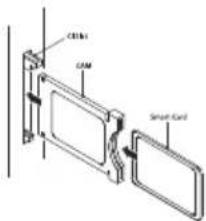
The common interface (CI) slot is designed to accept the conditional Access (CA) Module and Smart card in order to view the pay TV programmes and additional services. Contact your Common Interface service provider to get more information about the modules and subscription.
Please noted that CA modules and smart cards are neither supplied nor optional accessories from us.
Warning
- Switch off your TV before any module is inserted in the Common Interface slot.
Insert the CAM correctly, then Smart Card to the CI slot that is located at the side of the TV.
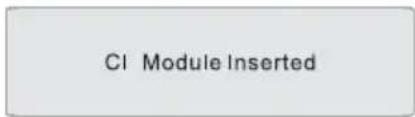
Turn on the TV and it will display the below message if the CI module is detected. Wait for few moments until the card is activated.
Press the MENU button then press button to select CI Information option.
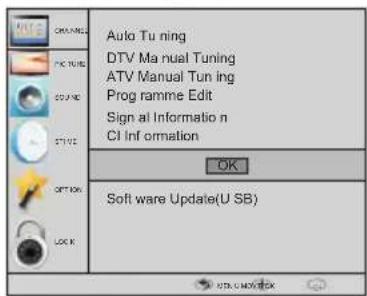
Detailed information on the CI card in use is displayed.
Press OK button to access the card menu. Refer to the module instruction manual for setting details.
6 When module is removed, the following message will appear on the screen.
CI Module Removed
03 Remote control
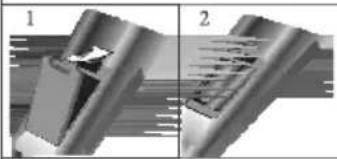
Insert Batteries Into the Remote Control
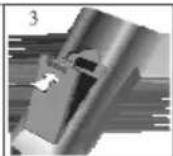
- Remove the battery cover.
- Inserting the 2 AAA 1.5V batteries making sure the polarity (+ or -) of the batteries matches the polarity marks inside the unit.
- Mount the battery cover. Replace with new batteries when the TV set begins to show the following symptoms: Operation is unsteady or erratic. Sometimes the TV set does not function with Remote Control Unit.
Remark:
1) Alkaline Battery Recommended.
2) Remove batteries when they are exhausted or if the remote control is not to be used for Long time.
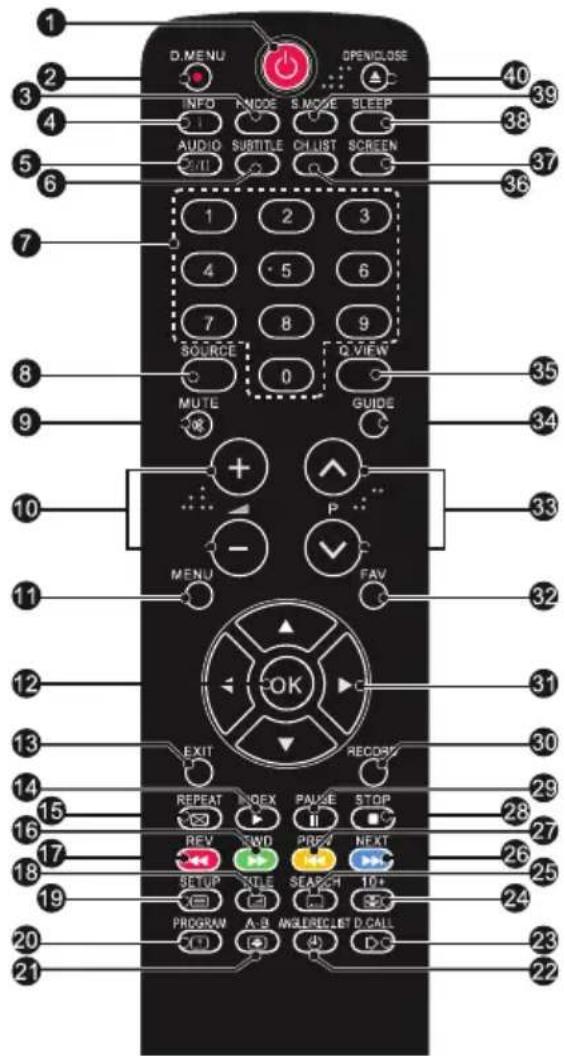
- POWER:Press to turn on the TV.
2.D.MENU:No function.
3.P.Mode:To switch picture mode. - INFO:Press to display the current signal status, including input source and channel audio mode.
5.AUDIO I/II: Press to select MONO,Nicam stereo for ATV channel. Select Audio language for DTV channel.
6.SUBTITLE:Press to turn the subtitle On or Off.
7.Number Buttons:For direct access to channels.
8.SOURCE:To select input source.
9.MUTE:To disable or enable the sound output.
10.Volume Control:To adjust sound level.
11.MENU:To display TV menu.
12.OK:To confirm selection. - EXIT: To return to the previous menu or exit menu.
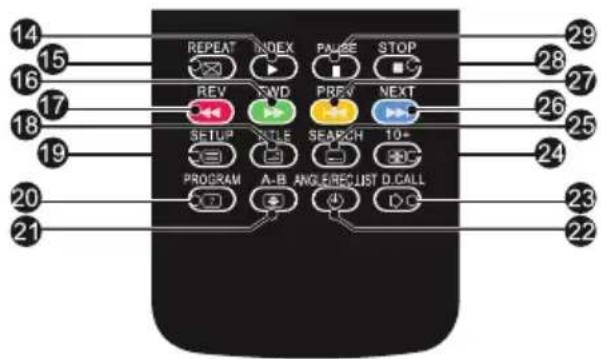
14.Teletext Index/USB PLAY
15.REPEAT:No function
16.Teletext Green Button / USB Fast Forward
17.Teletext Red Button / USB Fast Rewind
18.Teletext Mix
19.Teletext Text
20.Teletext Reveal
21.Teletext Size
22.Teletext Time/ANGLE/REC.LIST(teletext time is no function)
23.Teletext Mode:No function
24.Teletext Hold
25.Teletext Subcode:Teletext Subpage
26.Teletext Blue Button / USB Next File
27.Teletext Yellow Button / USB Previous File
28.USB STOP
29.USB PAUSE - START RECORD
31.UP,DOWN,LEFT,RIGHT Cursor:Press to navigate your selection.
32.Fav:To access your favourite channels list in TV or DTV mode. - Select Programme:Press /A Button to select the next or previous TV channel.
34.GUIDE:Press to display electronic programme guide in TV mode.
35.Q.View:To access the previously viewed channel.
36.CH.LIST: Press to display the channel list.
37.Screen:To change picture aspect ratio.
38.Sleep :Set timer to turn off the TV.
39.S.Mode:To switch sound mode.
40 OPEN/CLOSE:No Function
5614161718192021222425
26 27 28 29 :No DVD function
REMOTE CONTROL
TELETEXT
Teletext is an information system broadcast by certain channels which can be consulted like a newspaper. It also offers access to subtitles for viewers with hearing problems or who are not familiar with the transmission language(cable networks, satellite channels, etc.)
| Press: | You will obtain : |
| TEXT | This is used to call or exit teletext modes. The summary appears with a list of items that can be accessed. Each item has a corresponding 3 digit page number. If the channel selected does not broadcast teletext, theindication 100 will be displayed and the screen will remain blank (in this case, exit teletext and select another channel). |
| SELECTING A PAGE | Enter the number of the page required using the 0 to 9 up/down. Example: page 120, enter 120. The number is displayed top left, the counter turns and then the page is displayed. Repeat this operation to view another page. If the counter continues to search, this means that the page is not transmitted. Select another number. |
| DIRECT ACCESS TO THE ITEMS | Coloured are as are displayed at the bottom of the screen. The 4 coloured keys are used to access the items or corresponding pages. The coloured areas flash when the item or the page is not yet available. |
| INDEX | This returns to the contents page (usually page 100). |
| SUB PAGE | Certain pages contain sub-pages which are automatically displayed successively. This key is used to stop or resume sub-page acquisition. The indication appears top left. |
| HOLD | To freeze the page. |
| REVEAL | To display or hide the concealed information (games solutions). |
| LIST | The user can set four favorite pages to be directly linked to the four color keys. While list mode is activated, it is not possibility to use TOP or FLOF navigation with the colorkeys. The favorite page numbers should be stored and restored to/from nonvolatile memory for each channel by the system software. |
Installation Guide
The installation guide only appear when the TV first time turn on or reset to factory set.
WELCOME!
Thank you for choosing
Haier
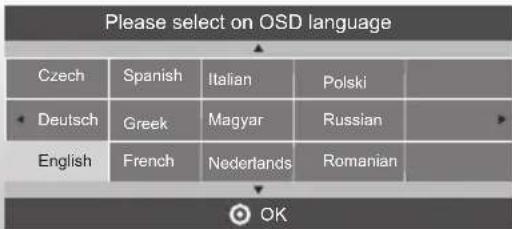
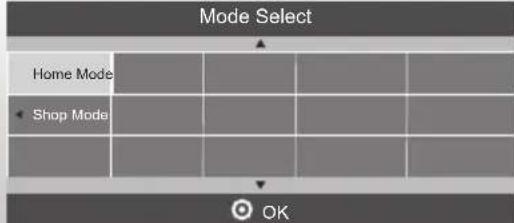
1).Press the buttons to navigate the menu and change the settings. Press the OK button to confirm. Select your desired language,Home/Shop Mode to be displayed on the menu. The default password is 6666.
HOME or SHOP modes
- Home Mode is an energy-saving Mode. Home Mode is recommended for normal viewing setting and is set as default during manufacturer.
- Shop Mode is an option for retailers for Advertising or product presentation.
Shop Mode has a brighter image than Home Mode. - You may switch between Home or Shop Mode as you choose. If you choose Shop Mode, it will enter HDMI1 source automatically, and you will press Exit key to exit POP menu.
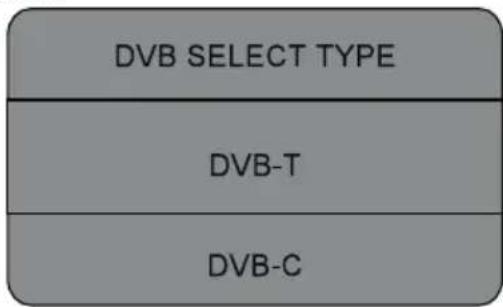
2). Press the buttons to select DVB-T/DVB-C and then press the OK button to confirm.
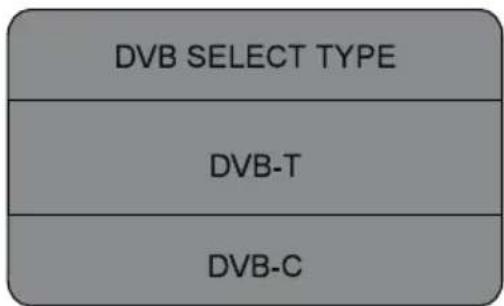
a. If you select DVB-T, the next step is to select the Tune type and country then press the OK button to start tuning.
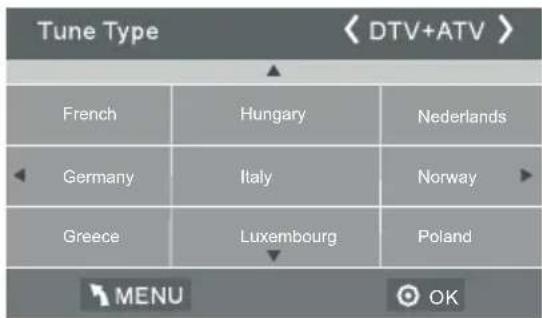
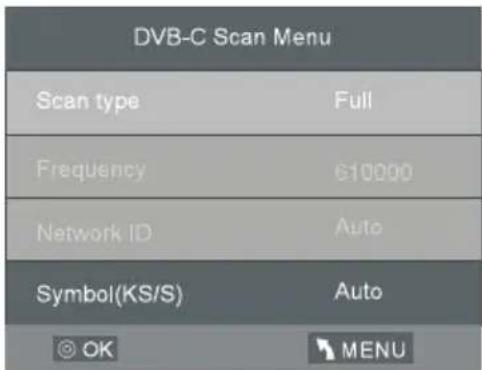
b. If you select DVB-C, the next step is to config
the DVB-C system like (scan type / Frequency/
Network ID/Symbol(KS/S) then press OK
button to into the tune type and country select
menu, this step is the same as DVB-T, select the
tune type (DTV/ATV).
Choose the right country, press OK button to
start tuning.
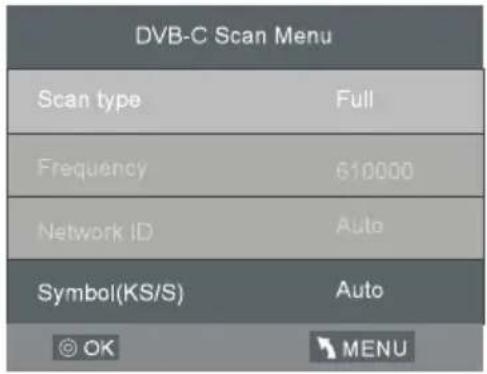
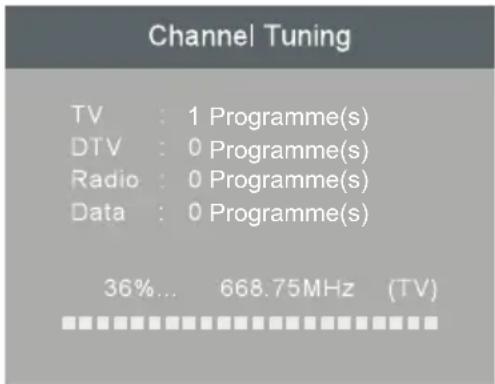
3). Channel tuning will commence. This operation may take up to 6 minutes. The display will show the progress of the tuning and the number of channels found.
4). If you want to skip the ATV tuning, press the MENU button to interrupt the tuning half way. A pop-up screen will be displayed, press the < button to select YES to
confirm. You will then go straight to DTV tuning. You may repeat the above step if you also want to skip the DTV tuning. An installation reminder will appear the next time you turn on the TV.
5). After tuning is complete, the channels are arranged in a preset order. If you wish to skip channels, modify the preset order or rename channels, select Programme Edit under the Channel menu.
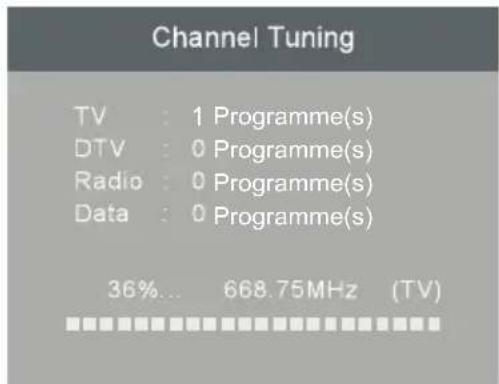
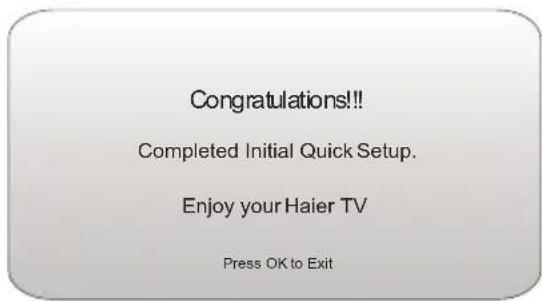
6) Congratulations
1.CHANNEL MENU
1.1 Auto Tuning (DVB-T)
1). Press the MENU button and then press the buttons to select the CHANNEL menu and then press the OK button.
2). Press the buttons to select Auto Tuning and then press the OK button.
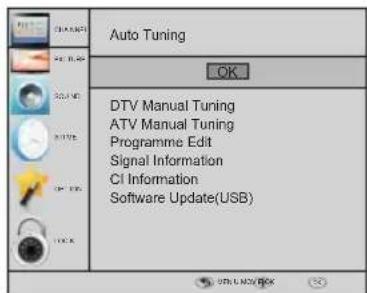
3). Press the buttons to select DVB-T/ DVB-C Press select DVB-T and then press the OK button to confirm.
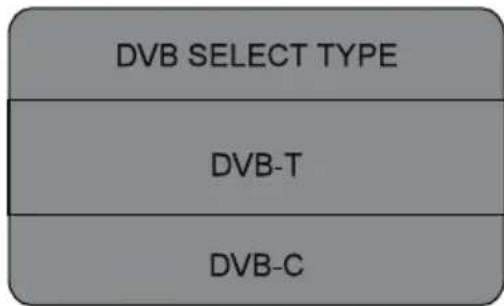
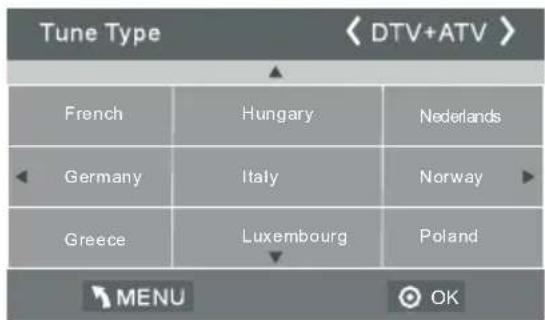
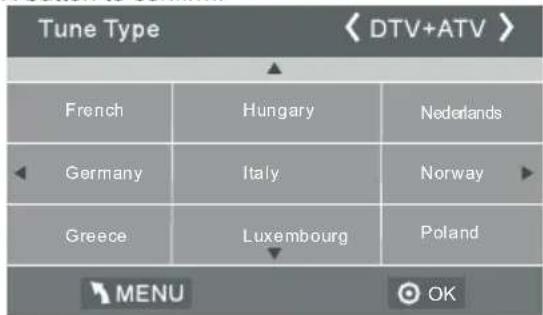
4). In the Tune Type menu, press the▶buttons to select ATV / DTV / DTV + ATV. Press the▼ button and then press the▶▼▲ buttons to select the country where you will operate the TV. Press the OK button to confirm
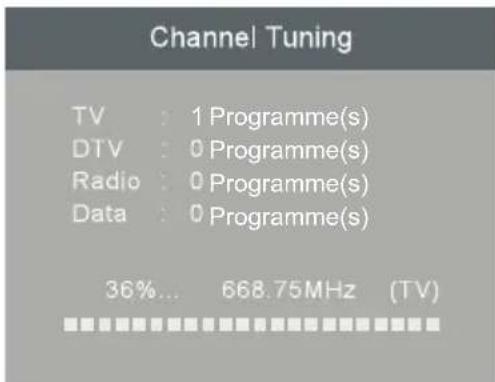
5). Channel tuning will commence. This operation may take up to 6 minutes. The display will show the progress of the tuning and the number of channels found.
6). If you want to skip the ATV tuning, press the MENU button to interrupt the tuning half way. A pop-up screen will be displayed, press the button to select YES to confirm. You will then go straight to DTV tuning. You may repeat the above step if you also want to skip the DTV tuning. An installation reminder will appear the next time you turn on the TV.
7). After tuning is complete, the channels are arranged in a preset order. If you wish to skip channels, modify the preset order or rename channels, select Programme Edit under the channel menu.
1.2 Auto Tuning (DVB-C)
1). Press the MENU button and then press the buttons to select the CHANNEL menu and then press the OK button.
2). Press the buttons to select Auto Tuning and then press the OK button.
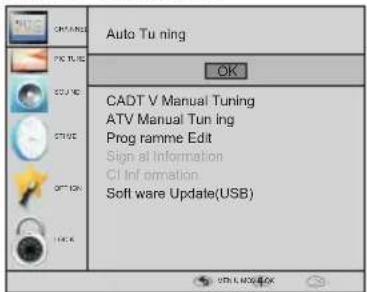
3). Press the buttons to select DVB-T/DVB-C Press select DVB-C and then press the OK button to confirm.
4). Press buttons to select Scan type/Symbol (Ks/S) press the OK button to confirm.
5). In the Tune Type menu, press the buttons to select ATV/DTV/DTV+ATV. Press the button and then press the buttons to select the country where you will operate the TV. Press the OK button to confirm.
6). Channel tuning will commence. This operation may take up to 6 minutes. The display will show the progress of the tuning and the number of channels found.
7). If you want to skip the ATV tuning, press the MENU button to interrupt the tuning half way. A pop-up screen will be displayed, press the button to select YES to confirm. You will then go straight to DTV tuning. You may repeat the above step if you also want to skip the DTV tuning. An installation reminder will appear the next time you turn on the TV.
8). After tuning is complete, the channels are arranged in a preset order. If you wish to skip channels, modify the preset order or rename channels, select Programme Edit under the channel menu.
NOTE:
All the channels including ATV, DTV and Radio can be tuning by one time, if the Tune Type is DTV+ATV.
All the stored channels will be disappear after auto tuning.
After auto tuning, the channel will skip to the first DTV channel.
2.1 DTV Manual Tuning (DVB-T)
1). Press the MENU button and then press the buttons to select the CHANNEL menu and then press the OK button.
2). Press the buttons to select DTV Manual Tuning and then press the OK button.
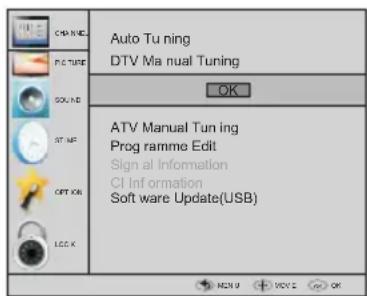
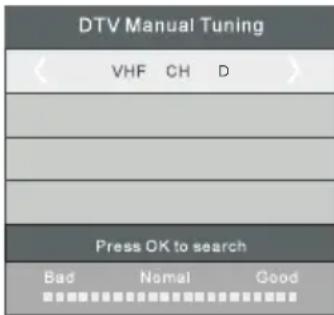
3). The DTV Manual Tuning screen will pop up. Press the buttons to select the desired UHF channel and then press the OK button to commence the search of that channel. When the signal has been tuned, the picture and signal strength will be displayed on the screen.
4). Press the MENU button to return back to the main menu.
5). Press the EXIT button to exit the menu.
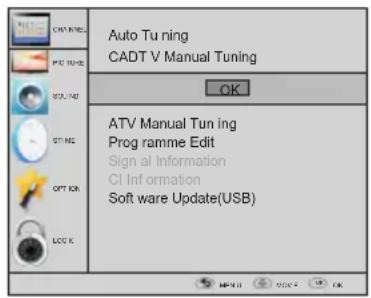
2. 2 DTV Manual Tuning (DVB-C)
1). Press the MENU button and then press the buttons to select the CHANNEL menu and then press the OK button.
2). Press the buttons to select CADTV Manual Tuning and then press the OK button.
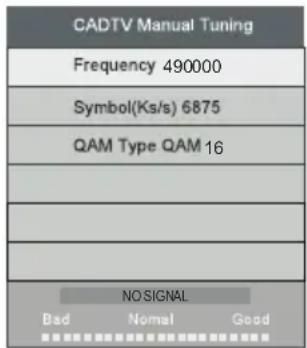
3). The CADTV Manual Tuning screen will pop up. Press the buttons to select(Frequency /Symbol (ks/s/QAM Type QAM) press the OK button to commence the search of that channel. When the signal has been tuned, the picture and signal strength will be displayed on the screen.
4). Press the MENU button to return back to the main menu.
5). Press the EXIT button to exit the menu.
3.1 ATV Manual tuning :
You can change the sound system to search the analog TV channels and fine tune the channels, then storage the channels you selected.
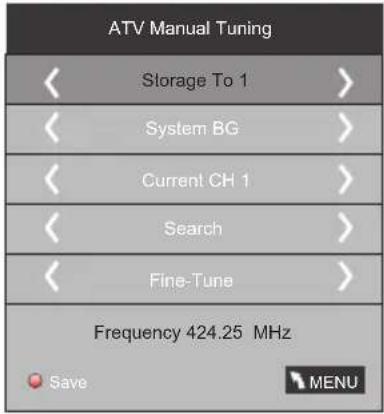
NOTE:
Press teletext red button to storage to channels after manual tuning.
1). Program edit:
You can Delete, Rename, Move, Skip, FAV any programs.

Delete
Press teletext red button, the program in cursor will delete.

Rename:
Only can rename ATV programs
Move the cursor to the program, press teletext green button to rename the program.
Press to choose the character. Press to move the cursor.
Press MENU button to exit edit, Press EXIT to exit the menu.
Note: ATV programs name only can be 5 character, DTV programs name can be 25 character.

Move
Use the Arrow Buttons to select the channel you wish to move. Then press the Yellow Button to select Move function. Once active use the Arrow Buttons to move and then press OK to confirm.

Skip
Press to choose the program, press teletext blue button to skip this program, The will show on the right side of the program. Choose the skipped program, press blue button again, you can cancel the skip, The will disappear.

Favourite
Press to choose the program, press FAV button, it will show on the right side of the program. Choose the FAV program, press FAV button again, you can cancel the FAV, the will disappear.
Once your favorite group is created, you can press the FAV key to quickly access your favorite channel.
2). CI information: (optional)
This menu can display the Cl card's information.
2.PICTURE MENU
The second item of the MENU is PICTURE MENU. You can adjust picture effect here, such as contrast, brightness, etc. Press OK to move, press OK to adjust.
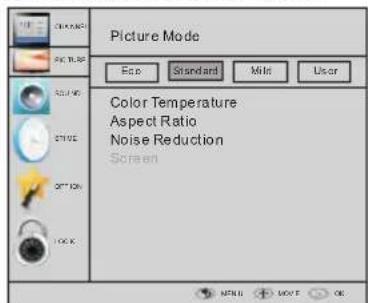
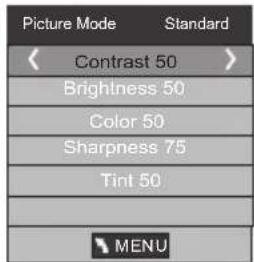
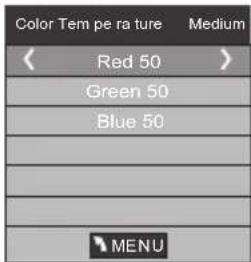
NOTE:
1).Tint is available in NTSC system only.
2). There are four colors temperature modes can be selected medium, warm, cool, user
3).Screen is available in PC mode only which can adjust Horizontal position, vertical position, size and phase.
3.SOUND MENU
The third item of the MENU is the SOUND MENU.
You can adjust the sound effect here such as treble, bass, balance etc.
Press to move, press OK to adjust.
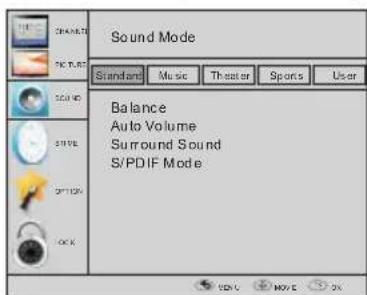
Note:
Auto volume: only available when the input signal volume is too large or distortion.
4.TIME MENU
The forth item of the menu is the TIME MENU. You can adjust the clock, power on/off time, sleep time etc Press to move, press OK to adjust.
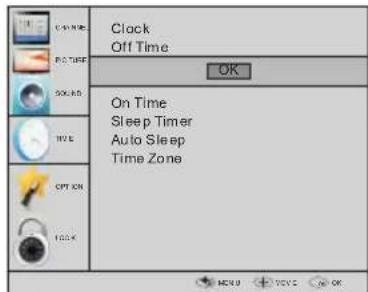
NOTE: Within 15 minutes there is no signal, the TV will auto sleep , if Auto Sleep is set ON. The clock time can get from the DTV system auto.
5.OPTION MENU
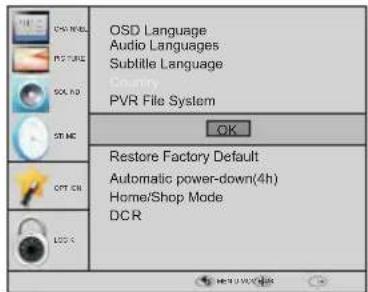
The fifth item of the MENU is the OPTION MENU. You can adjust the Menu language, Audio language, Subtitle language etc.
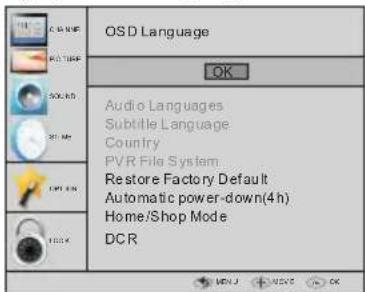
Automatic Power-down
1.If after 4 hours from switch on and no changes have been made to the TV, for example no channel or volume changes, the TV will start the automatic power down sequence.
And pop-up window will appear on screen.
XXX's to automatic power-down Please press any Key to Cancel
After 150 seconds the TV will automatically switch to standby. To override the automatic shutdown press any button on the remote control. 2. To cancel the automatic power-down On the Option Menu select Automatic powerdown(4H)
Press OK. A pop-up message will appear "Are you sure you want to enable automatic power-down?"
Use the right arrow key to select NO The TV screen returns to the Option Menu and the Automatic power-down(4H) option will display. Automatic power-down(4H) OFF
To return to auto shutdown after 4 hours repeat the above except use the left arrow key to select YES
In PVR File system menu you can set up USB disk for PVR.
NOTE: Restore factory default will clear all the programs and password.
6. LOCK MENU
The sixth item of the menu is the LOCK MENU. You can lock system, set password, block program and set parental guidance Once you set the lock system on you can not search the channels or change any programs.
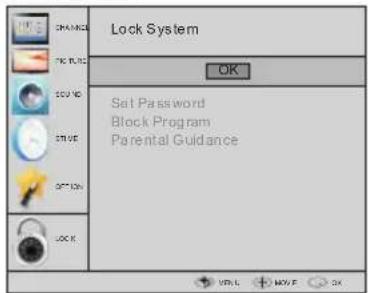
NOTE: The default pass word is 0000, If you forget the password, you can use the super password:9443. Block program: Press to choose the program,press teletext green button to block the program. If you want unblock the program, pls enter the main menu , input the password, then press green button again.Parental guidance: Press to choose rating.
7.EPG Menu(Electronic Program Guide).
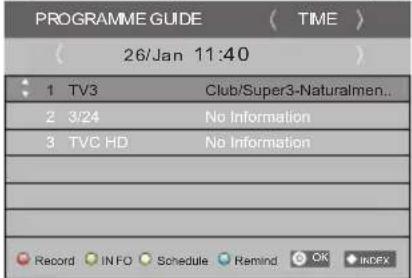
The EPG menu is used to look at what is being broadcasted on DTV or Radio channel in the day. To access the EPG menu, press the EPG botton, the following menu will be displayed:
-
INFO Use to choose the programs, Press INFO key, you can display the highlight program's information.
-
Schedule Press the teletext yellow key, It can list all the reminder schedule, press to choose the list, press red key DELETE to delete the schedule list.
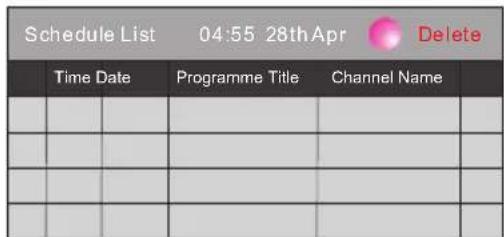

Record
Press the red key, It can set the program to be recorded.

Remind
Press the blue key to choose one program and set up one reminder time, the TV screen will skip to the chosen program in the reminder time automatically.
| Reminder | |
| 1 TV3 | |
| 37 Minute | |
| 11 Hour | |
| Jan Month | |
| 26 Date | |
| Once Mode | |
| OK | BACK |
8.PVR function
1.Prepare to record the program
PVR function only works in DTV. From OPTION MENU enter into PVR File System In "OPTION MENU", please choose "check PVR File System". Click "OK", until "checking" change into "Success".
Note: please check the term "speed". If it is "HD support", that means the speed of USB device is available for time shift and record. If not, please format the device, to make sure the device available. The default "Free Record Limit" is 6 hour, if the space on the disk is big enough. If the space is not big enough, the record time should be shorter, depends on the room on the device. During the "check PVR File System" checking, please do not take any other operation until it finished.
The recordings must be done with the TV PVR system. It can only be played in the same TV, not in any other kind of device (computer, DVD, etc.) which is not compatible with. TS. file format.
Please note that in order to carry out any kind of recording, the TV will require you to format the connected USB device to store the recording.
WARNING. WHEN YOU FORMAT, THE EXTERNAL USB DEVICE YOU WILL LOSE ALL THE FILES AND INFORMATION YOU HAVE STORAGE ON THE DEVICE.
The USB file system will limit the size of the storage size.
File system: NTFS up to 2TB
FAT32 with up to 192GB
FAT16 with up to 2GB
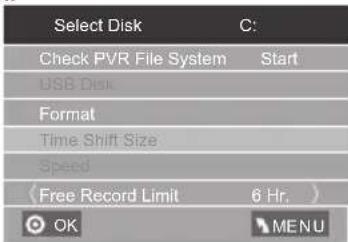
From OPTION MENU enter into PVR File System as below:
| Select Disk | C: |
| Check PVR File System | Start |
| USB Disk | |
| Format | |
| Time Shift Size | |
| Speed | |
| Free Record Limit | 6 Hr. |
Select Disk:select which disc to save the record file.
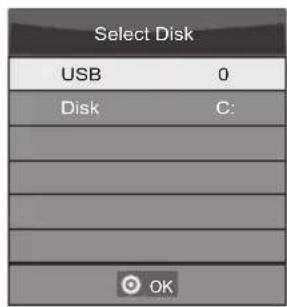
Check PVR File System: check if the PVR File System set up in the USB device or not.
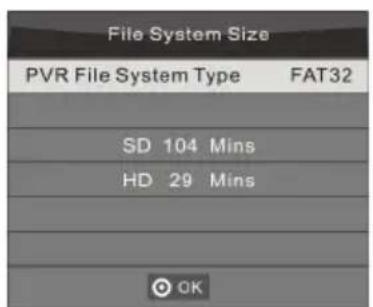
Format:
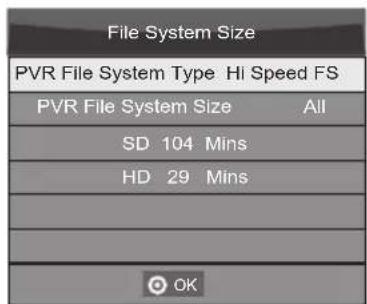
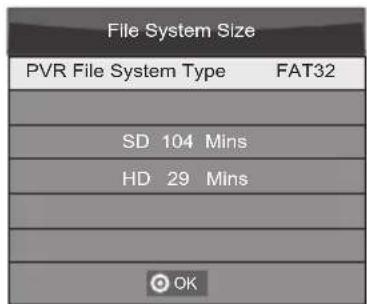
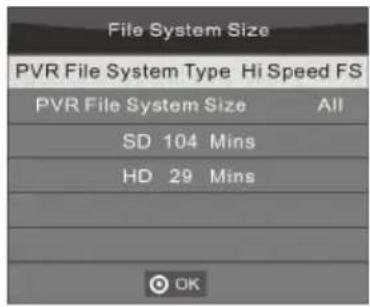
(Suggest to format the format the device by "High Speed Fs...", which can speed up the record.)
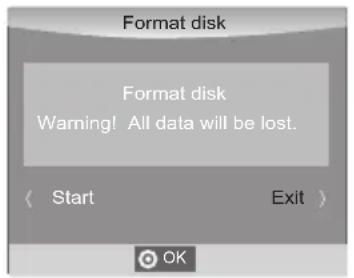
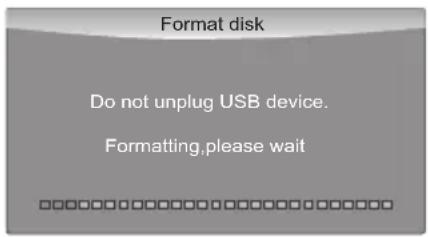
below menu appear after Format finish:
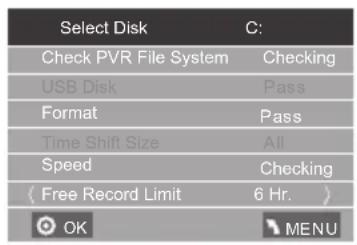
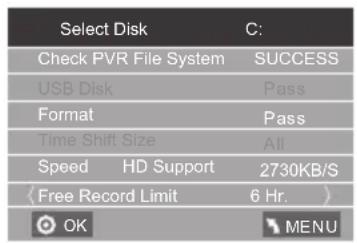
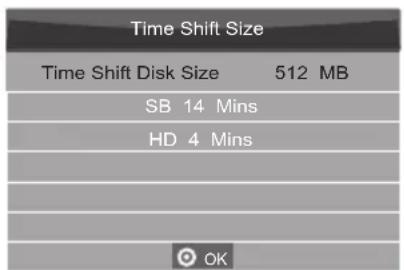
If you select the "Hi Speed FS" format mode, then you can change the time shift size:
2. Record the program
As playing the DTV source, choose the channel and click "record", the record frame will pop up. Click "record" again, the record frame will disappear and the "REC" icon still on the left top. It will disappear until you click "stop".
3.Play the record
The program recorded on the "USB"will be saved in the folder "MSTPVR" on the device.
- The USB storage size can be between 128MB and 500GB in size, but for practical use 2GB to 500GB is recommended.
- Video may become pixelated when Video bit rate is too low. This can be caused by connecting a USB extension cable instead of plugging the USB directly into the TV
- Not all USB devices are compatible. Below is a list of recommended USB drives. Models that are not listed may be compatible, but it is not guaranteed to work. The USB support list are the same as Timeshift function, see the following pages for details.
9.Timeshift function
1.Prepare to record the program
This TV allows you to pause and record the currently watched digital program to a USB storage device, and to resume to the point where it was paused.
NOTE:
- Formatting a USB 2.0 storage device will be needed. Save your original data before formatting. All the data stored in the USB device will be erased after formatting.
USB Drive Storage Format
Select to format the USB device and allocate the amount of space for the Time Shift function.
NOTE:
- The format process will take at least 2 minutes. Please do not turn off the power or remove the USB device during formatting.
- During formatting, a speed test will be done on the USB device. If it fails, it means the USB device may not support the Time Shift function.
Record a paused DTV program to USB storage device
- While in the DTV input source, insert USB storage device to the USB port on the side of your TV.
- Press PAUSE 29 to start Time Shift function. The TV program paused. The Time Shift OSD appears, and starts recording.
- Press STOP 28 to stop Time Shift function and stop recording program.

NOTE:
- Please do not unplug the USB storage device when the Time Shift function is activated.
Approximately 4GB of memory buffers about offer 140 minutes.
Time Shift limitations:
- When the Time Shift feature is activated, only the PLAY/PAUSE/STOP/FWD/REV/VOL+/VOL-/MUTE keys and some basic operation keys (ENTER/EXIT/navigation keys) are available.
- Video playback may not be smooth and skip if USB recording speed does not meet the minimum requirements.
- Do Not remove USB disk or switch off the power during Time Shift operations. It will abort once the signal is lost.
- Do Not remove the signal source during Time Shift operations.
- Do Not quickly and repeatedly change operations between PLAY/PAUSE/FWD/REV.
- Video may become pixelated when Video bit rate is too low.
-
Not all USB devices are compatible, The USB hard disk drive electricity should be < 500MA Below is a list of recommended USB drives. Models that are not listed may be compatible, but it is not guaranteed to work.
-
SanDisk Extreme® Contour™ USB Flash Drive - 8GB SDCZ8-8192-E75
- SanDisk Extreme® Contour™ USB Flash Drive - 16GB SDCZ8-016G-A75
Kingston DataTraveler 410 USB 2.0 Flash Drive - 8GB DT410/8GB
Kingston DataTraveler 410 USB 2.0 Flash Drive - 16GB DT410/16GB - OCZ Technology Rally2 USB 2.0 Flash Drive - 4GB OCZUSBR2DC-4GB
- OCZ Technology ATV USB 2.0 Flash Drive - 8GB OCZUSBATV-8GB
-
OCZ Technology Rally2 USB 2.0 Flash Drive - 8GB OCZUSBR2DC-8GB
SAMSUNG-HM500JI-500G -
This feature is not available for all digital TV,such as scrambled or audio only channels.
10.USB Player
Press source key, and selsct USB in sourl list, press OK button to enter the USB menu.
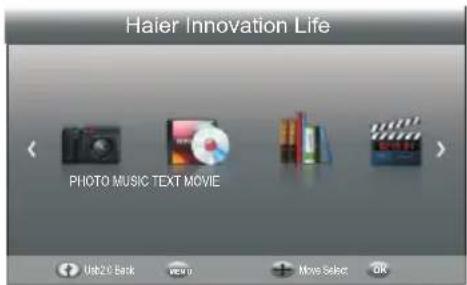
Please make sure that the USB device have plugged in the slot.There are four type media item can be selected, such as photo, music, Movie,and text. Select the type media item by pressing ,press OK button to enter the disk selection menu.
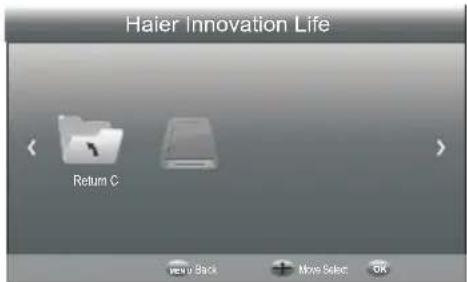
Press the to select the right disk and press OK to display media files and folder list or choose Return to back to the media type selection menu.
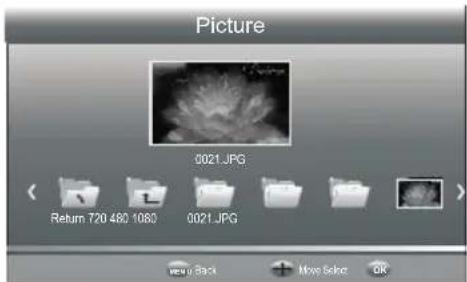
Select the media file by pressing pr then the preview frame will pop up. Press the button to play the media file in full screen.When the media file (photo,music, Movie, or text type) is playing, press the OK or Info button can display the control bar.

Press to select the function icon, press OK button to confirm the function. Press or EXIT button to exit the control bar. NOTE:
You can adjust the audio track, or program in the Info menu while Playing the video file. Choose the Info icon and press OK can display the Info MENU.
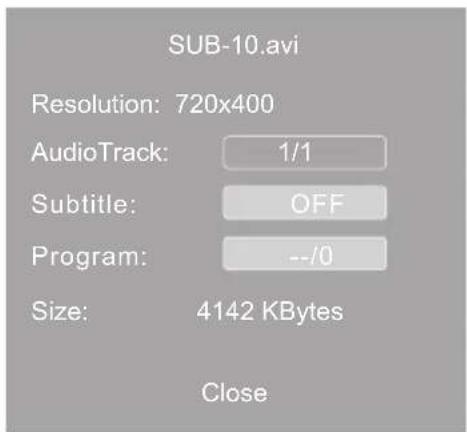
USB playback is supported for the following photo file formats:
-JPEG(JPEG format, files with the extension ".jpg")
-BMP (files with the extension ".bmp")
-PNG (files with the extension ".png")
USB playback is supported for the following music file formats:
-MP3 (files with the extension ".mp3")
-WAV (files with the extension ".wav")
USB playback is supported for the following text file formats:
-TXT (files with the extension ".txt")
USB playback is supported for the following movie file formats:
-AVI (file with the extension".avi")
-TS (MPEG2 & H.264)
05 Trouble shooting
| Trouble phenomenon Symptom | Inspection Check | |
| Picture Audio | ||
| Snow Noise | Normal audio | antenna position, direction or connection |
| Ghost | Noise | antenna position, direction or connection |
| Interference | Mute | electronic equipment,car/motorcycle,fluorescent light |
| Normal Picture | Mute | Volume(check if mute is activated or if the audio system connections are not correct) |
| No picture Mute | Power cord is not inserted Power switch is not opened Contrast and brightness/volume setup Press standby key on the remote control for inspecting | |
| No colour Normal audio Colour control | ||
| Picture breaking up | Normal audio or weak | retune channel |
| No colour | Noise | TVsystem |
| There is black bar on top and bottom | Normal audio | Change aspect to zoom |
Specification
| Colour system | PAL-B/G, I, D/K SECAM-B/G, D/K, L, L' | ||
| Sound system BG, DK, I, L,L' | |||
| Video input | SCART,YPbPr,AV, VGA, HDMI, USB. | ||
| Y/Pb/Pr | 480i/p, 576i/p, 720p, 1080i,1080p | ||
| HDMI | 480i/p, 576i/p, 720p, 1080i, 1080p | ||
| Power requirements | 100-240V~ 50/60Hz | ||
| Power consumption | 30W(19") | 40W(24")38W(22") 55W(26") | |
| Audio output 2x3W | |||
| Standby Power Consumption | <0.5W | ||
| Environment conditions | Working temperature: +5°C - +35°C Working humidity: 20% - 80% Storage temperature: -15°C - +45°C Storage humidity: 5% - 90% | ||
| Accessory | User manual Remote control Battery (x2) Quick start guide | ||
- The part specifications of this TV set provided here are for reference only.
Differences may occur as product technology is updated.
Design and specifications are subject to change without notice.
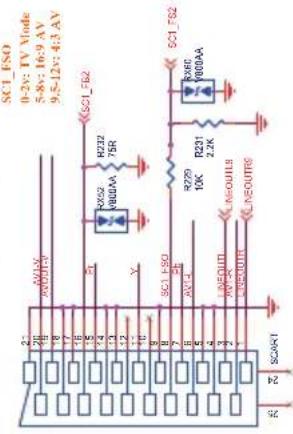
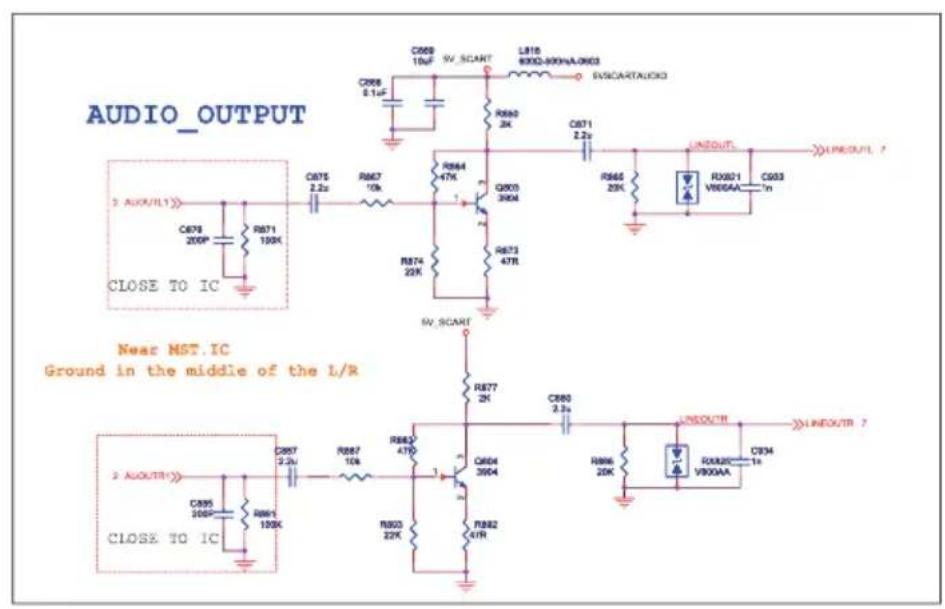
Scart Output description :
- When current source is ATV/AV/SCART, scart output signal is ATV.
- When current source is DTV, scart output signal is DTV.
- Other source have no scart output signal.
Haier
Haier
LCD-FERNSEHER
BEDIENUNGSANLEITUNG
XXX's to automatic power-down Please press any Key to Cancel
Installation Murale P.09
RISQUES D'LECTROCUTION
NE PAS OUVRIR

XXX's to automatic power-down
Please press any Key to Cancel
XXX's to automatic power-down Please press any Key to Cancel
CONECTE UN REPRODUCTOR DVD O VCR A SU TV
XXX's to automatic power-down Please press any Key to Cancel
Common interface P. 15
03 Telekomando
Telecomando P.16
04 Operatività
Format (formattare):
Keep AGND trace with signal
CON:5 Keep spacing for L/R
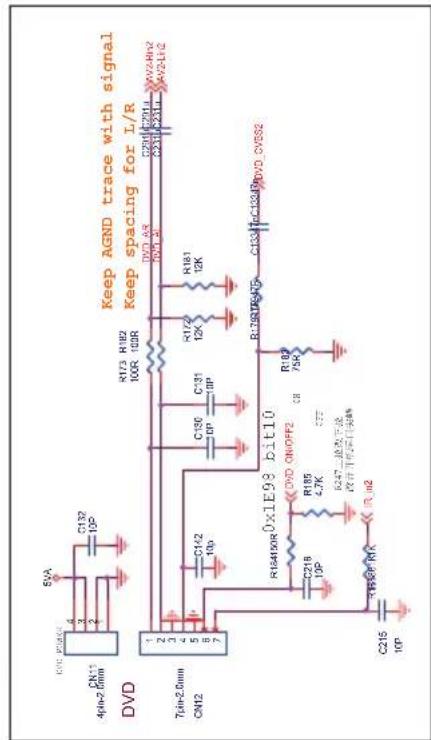
FB10710Ω-0402FB10710Ω-0402
FB10810Ω-0402FB10810Ω-0402
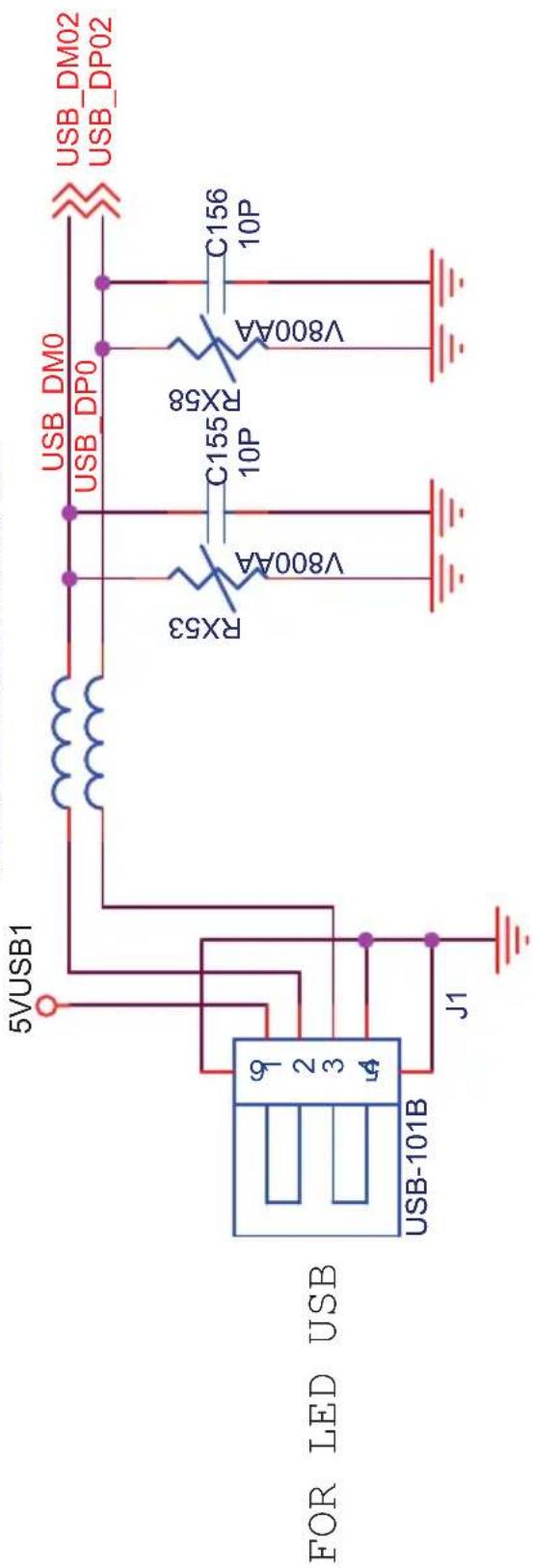
USB Interface
Haier
- Contents
- Safety and warnings
- Introduction
- Remote Control
- Operation
- Trouble shooting
- Safety andWarnings
- WELCOME
- IMPORTANT INFORMATION
- SAFETY NOTICE
- WARNING AND CAUTIONS
- Warning
- Caution
- Main features
- INSTALLATIONCAUTION
- PC
- INSTALLATION NOTES
- Base Stand Assembly Instruction
- WALL MOUNTING INSTALLATION GUIDELINES
- Front control panel
- Rear/Side Sockets
- CONNECTING YOUR
- Haier TV
- ANTENNA CONNECTION
- IMPROVE YOUR SIGNAL
- CONNECT YOUR PC TO THE TV
- CONNECT A DVD PLAYER OR VCR TO YOUR TV
- SCART INPUT
- HDMI INPUT
- HEADPHONE OUTPUT
- S/PDIF OUTPUT
- COMMON INTERFACE
- P Warning
- REMOTE CONTROL
- TELETEXT
- Installation Guide
- HOME or SHOP modes
- 1.CHANNEL MENU
- Auto Tuning (DVB-T)
- Auto Tuning (DVB-C)
- NOTE:
- DTV Manual Tuning (DVB-T)
- 2 DTV Manual Tuning (DVB-C)
- ATV Manual tuning :
- 1). Program edit:
- Delete
- Rename:
- Move
- Skip
- Favourite
- 2.PICTURE MENU
- 3.SOUND MENU
- 4.TIME MENU
- 5.OPTION MENU
- Automatic Power-down
- LOCK MENU
- 7.EPG Menu(Electronic Program Guide).
- Record
- Remind
- 8.PVR function
- 1.Prepare to record the program
- Format:
- Record the program
- 3.Play the record
- 9.Timeshift function
- USB Drive Storage Format
- Record a paused DTV program to USB storage device
- Time Shift limitations:
- 10.USB Player
- Scart Output description :
- Haier
- LCD-FERNSEHER
- BEDIENUNGSANLEITUNG
- RISQUES D'LECTROCUTION
- NE PAS OUVRIR
- CONECTE UN REPRODUCTOR DVD O VCR A SU TV
- Telekomando
- Operatività
- Format (formattare):
Brand : HAIER
Model : LET19T1000H
Category : TV