GPS GS520N - Browser DANEW - Free user manual and instructions
Find the device manual for free GPS GS520N DANEW in PDF.


User questions about GPS GS520N DANEW
0 question about this device. Answer the ones you know or ask your own.
Ask a new question about this device
Download the instructions for your Browser in PDF format for free! Find your manual GPS GS520N - DANEW and take your electronic device back in hand. On this page are published all the documents necessary for the use of your device. GPS GS520N by DANEW.
USER MANUAL GPS GS520N DANEW
natural_image
Row of seven battery icons with red and white segments, no text or symbols presentPleine
Déchargée

Please read this manual before you start using this device
Thanks for purchasing our product. Please read this manual carefully before starting to use this device. When you use this device, you are supposed to learn well of this product.
The information in this manual has been verified for its accuracy. But no liability will be applied for the correctness of mapping data of navigation, technical and/or editorial interpretation or illustration, or the printing and translation of this manual, nor liable for any consequence or incidental damages caused by using this manual.
This device is a complicated technical product consisting of OS and third party software. The manufacturer has paid sufficient attention to and fulfill its duty in its hardware manufacture processing and in development and/or application of the software so as to ensure the device work properly. If there is any malfunction or defective of the device, the manufacturer will provide a warranty for the congenital quality problem, but not covering for any loss or damage of property, or any consequence caused by or related to using this device.
The navigation software and mapping data is provided by a third party. Its copyright is protected by laws. A User can only use on this device, any copying or application of the software for other purpose is not allowed.
- No explicit and/or implicit guarantee or assurance will be applicable for the validity, integrity, correctness, accuracy of mapping data for navigation used on this device, nor liability for any loss, damage, and/or any consequence caused by or related to defective mapping data or software used on this device.
The copyright of this manual is owned by the company and protected by laws. Any copy or translation of whole or part of its content, including words, figures, signs, phonetic index, etc., is only allowed for the individual customer's reference, but not for public circulation, or other legal and/or commercial purpose. The company reserves the right for final interpretation of this manual.
Catalog
Function Description
- Illustrations on screen display----3
Battery
Battery Status Icon 4
Charging 4
Power On/OFF the device
Power On the device 5
Sleeping mode 5
Power Off 5
Function & Operation
System Setting 6
Language Setting 6
Backlight setting 7
Power Management 7
Coordinates Calibration 8
USB 9
Bluetooth Function 10
-@ FM Transmission 14
Services
Troubleshooting 15
Function Description
Illustrations on screen display:
System UI
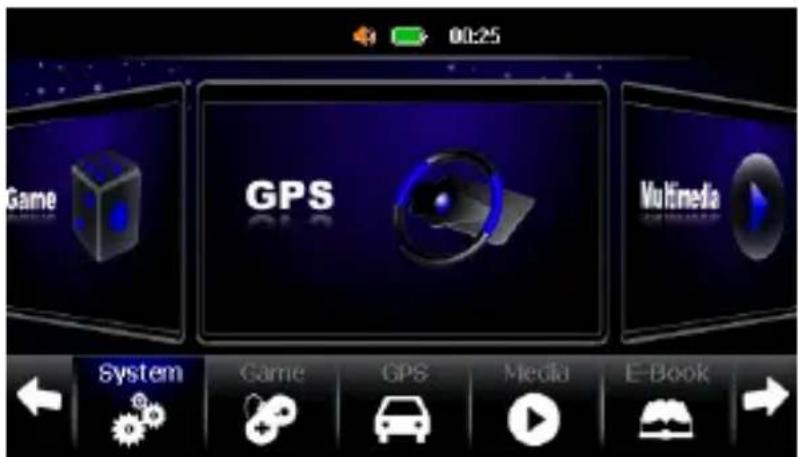
text_image
00:25 Game GPS Multimedia System Game GPS Media E-BookOn this menu click on «Settings» button to enter the function settings page.
Click on «GPS» to launch the navigation software.
Click on «Multimedia» to enter on the multimedia menu.
Secondary UI
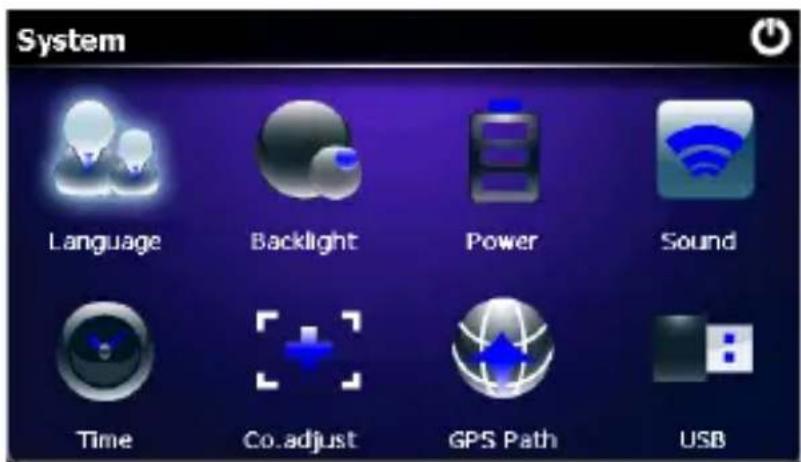
text_image
System Language Backlight Power Sound Time Co.adjust GPS Path USBIn this interface, click the icons on the screen to enter the corresponding functions
Battery
Battery Status Icon:

text_image
Full Drained
When the battery is at low power level, please charge it immediately to ensure the device work normally

Charging:
Warnings for charging:
- A new battery may be empty and not charged before you get the device.
- To achieve the best performance of the battery, it is better to charge it up to 8 hours in the first three times, but not over 16 hours.
- In normal charging with DC charger, please make sure to charge it for 2 – 2.5 hours to get it fully charged.

- A new battery will reach its best performance after a number cycles of charging and discharging.
- If the device is not used for long time, it is better to charge it to full capacity every 2 or 3 months during storage.
- If not using the device for a long time, it is wise to take out the battery.
Power ON/OFF the device
Power On the device
In power off status, slide the power switch to "ON" position to turn on the device, then the OSD will be displayed on screen.
Sleeping & Power-off
In power-on mode, press the power button on the device for 3-5 seconds then the sleeping mode or confirmation for power-off screen will display as follows:
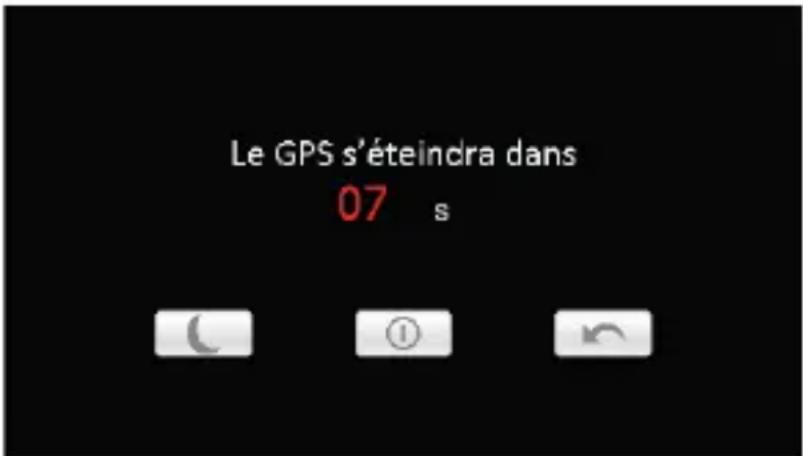
In this UI click the button will be in sleeping mode, click the button
① will power off; click the button to exit the UI and back to normal operation.
Waking -up from the sleeping
When in sleeping mode, a short press on the power-on button of the device will wake up the system.

When in sleeping mode, all the procedure in operation will pause but will back to normal status after waking up.
Function & Operation
System Setting
This is for system setting to change default setting of the system to your personal preference.
Operation:
On system main menu, click icon to enter into system setting. Screen display is shown as the illustration below:
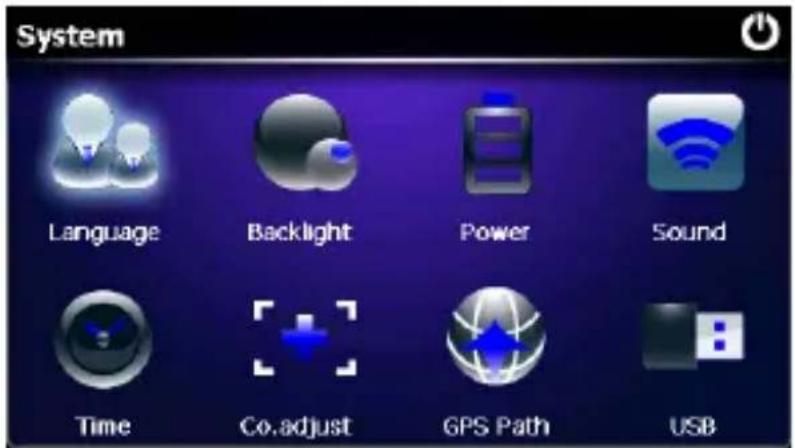
text_image
System Language Backlight Power Sound Time Co.adjust GPS Path USBIn system setting, there 8 items for setting, click directly each item to change setting for it. Details will be described below.
Language Setting
This is for setting of system language, screen display is shown as the illustration below:
Click the icons of the corresponding language in this interface or choose the interface project, the system will save the setup automatically when the
setup is closed, and return to the previous menu. (The system will be required to restart after the interface project is changed.)
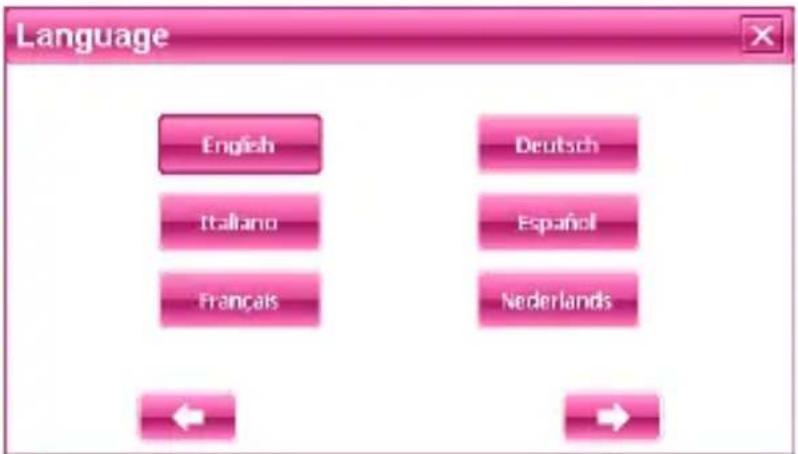
text_image
Language English Deutsch Italiano Español Français NederlandsFunction & Operation
Backlight setting
This is for changing backlight brightness of the device screen display, and time to start screen saver when no operation on the device.
Screen display is shown as the illustration below:
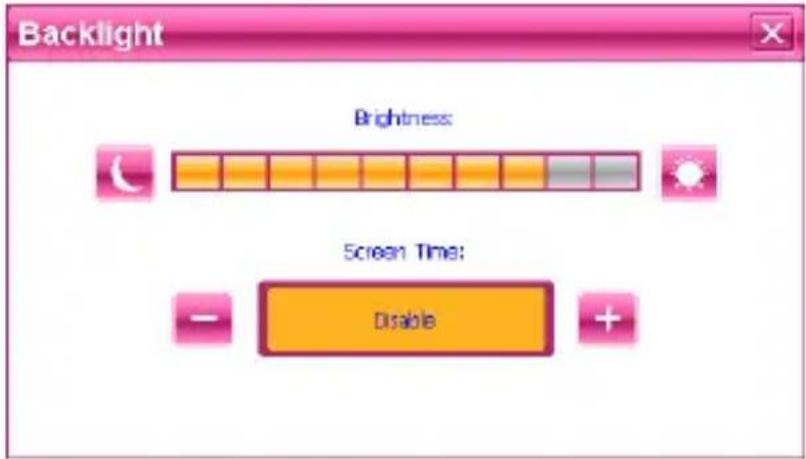
text_image
Backlight Brightness: Screen Time: DisableThen, drag the slide block to set. Select No Screen Saver, then the screen saver will be disabled. After setting, close the current window to save.
Power Management
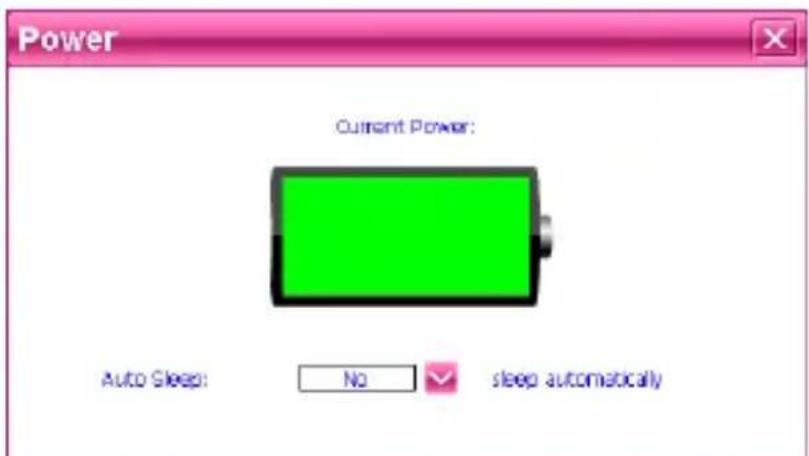
This is for setting auto power off and/or power saving mode, and time to start power off and/or power saving when no operation on the device.
text_image
Power Current Power: Auto Sleep: No sleep automaticallyIn drag menu to select time, select "No" for disabling this feature. After setting, close the current window to save.
Function & Operation
Coordinates Calibration
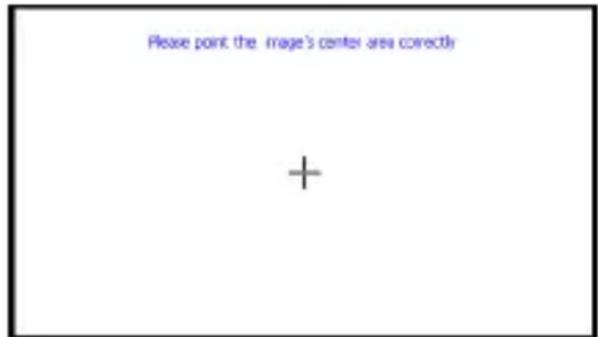
This is for calibrating the stylus coordinates on touch screen. After entering into this UI, screen display is shown as the illustration below:
text_image
Please point the image's center area correctly +On this UI, use stylus to tap at the center of the cross, then tap on other crosses which will move after each tapping until finish and “Touch Screen Calibration Completed” is shown.
Function & Operation
USB
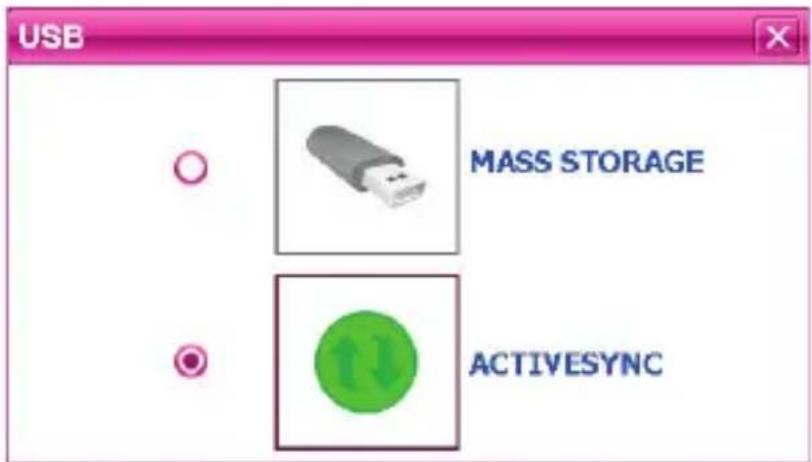
This is to set the mode when the USB interface of the device is connected to the computer, in which “MASS STORAGE” is to set the device as a memory, and “ACTIVESYNC” is to use the device for program debug. Pictures are shown as below:
text_image
USB MASS STORAGE ACTIVESYNCClick the desired connection mode and close the window to save the chosen mode.
Function & Operation
Bluetooth Function
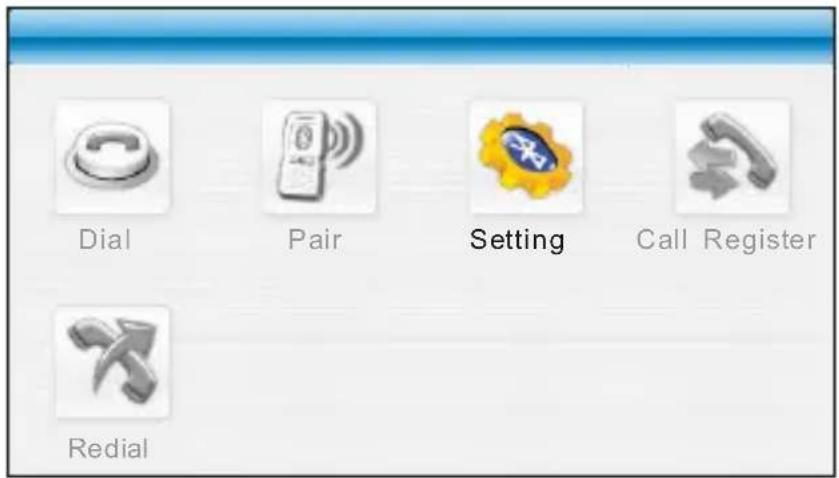
The Bluetooth function is used for communication purpose. After the device is connected to a mobile phone with Bluetooth capability, you can operate the mobile phone functions on this system. He can dial or
receive a call, view the call record of the mobile phone or perform other functions. Click the Bluetooth icon on the main interface and enter the following interface:
text_image
Dial Pair Setting Call Register RedialEnabling Bluetooth Function
In the first use of the Bluetooth function, you will see the interface shown above. Only Bluetooth Setting is available. Other functions are all
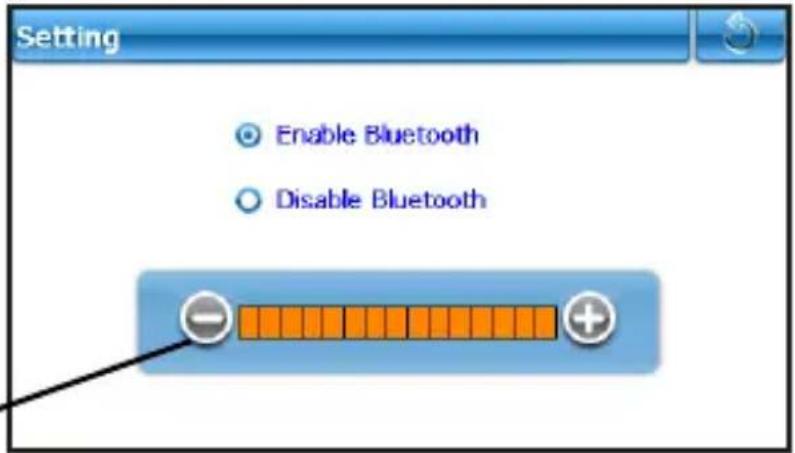
unavailable in the gray-out state. At this time, enable the Bluetooth function. Click Bluetooth Setting to enter the setting interface, as shown in the following diagram:
text_image
Setting Enable Bluetooth Disable BluetoothHands-free volume control
Select by ticking the check box ahead of the Enable Bluetooth Function to enable the function. The return to the upper-level menu please click
on this icon :

At this time, as the mobile phone is not connected, other mobile phone functions are unavailable.
Function & Operation
○ Connecting Mobile Phone
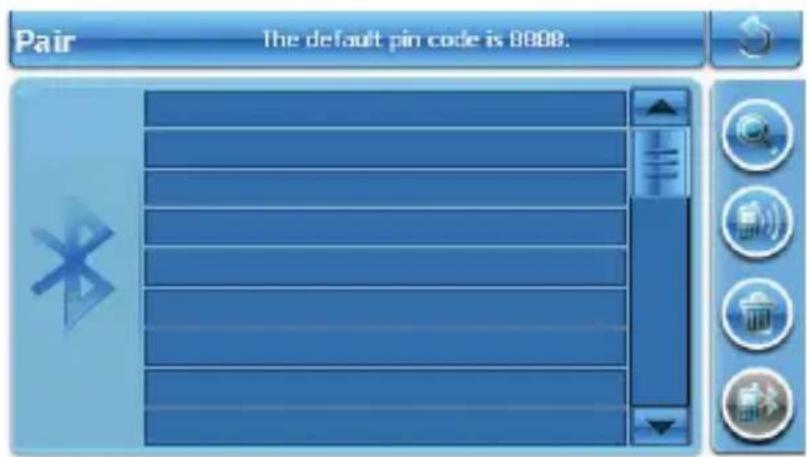
After the Bluetooth function is enabled, on the Bluetooth function interface, click the Pair icon to enter the Bluetooth equipment matching function, as shown in the following diagram:
text_image
Pair The default pin code is 8888.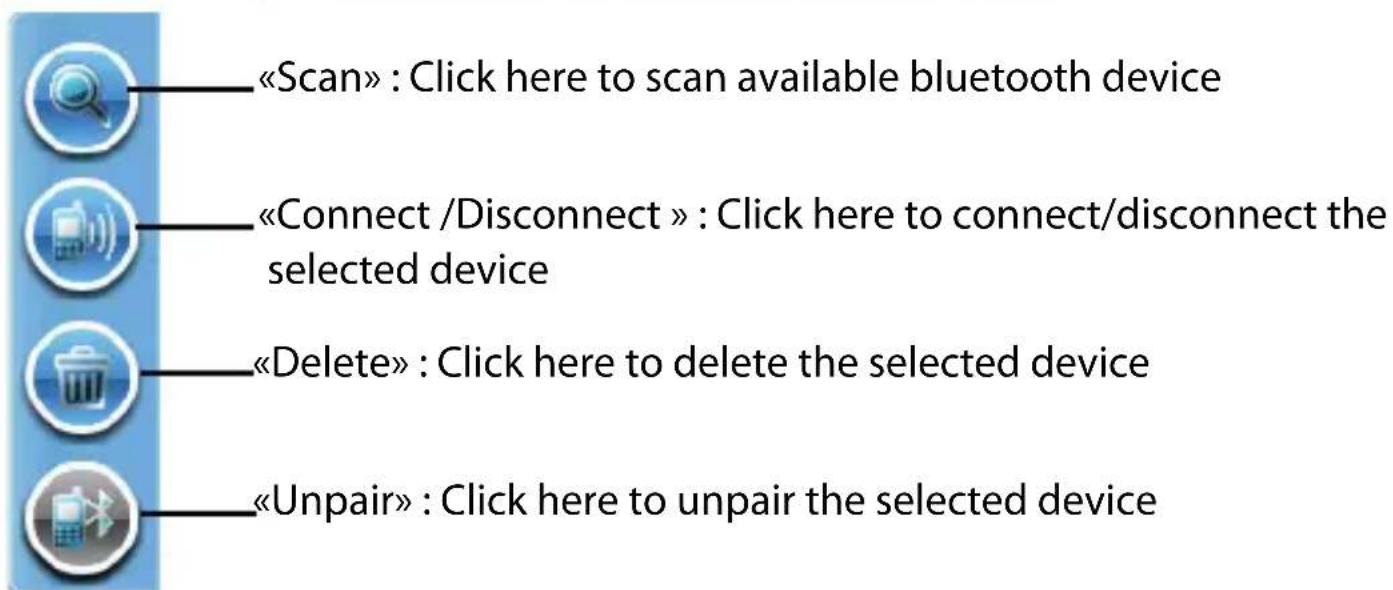
text_image
«Scan» : Click here to scan available bluetooth device «Connect /Disconnect » : Click here to connect/disconnect the selected device «Delete» : Click here to delete the selected device «Unpair» : Click here to unpair the selected deviceIf connection has been established in the past, the interface will list all devices that have been connected in the past.
If there is no device on the list please click on the «Scan» button to search your bluetooth mobile device.
Select a device from the list and click on «Connect» button. After check your bluetooth device and enter the PIN code 8888 and wait for the connection.
Note : Press on the «disconnect» button and after press on the «Unpair» button before searching a new device
Function & Operation
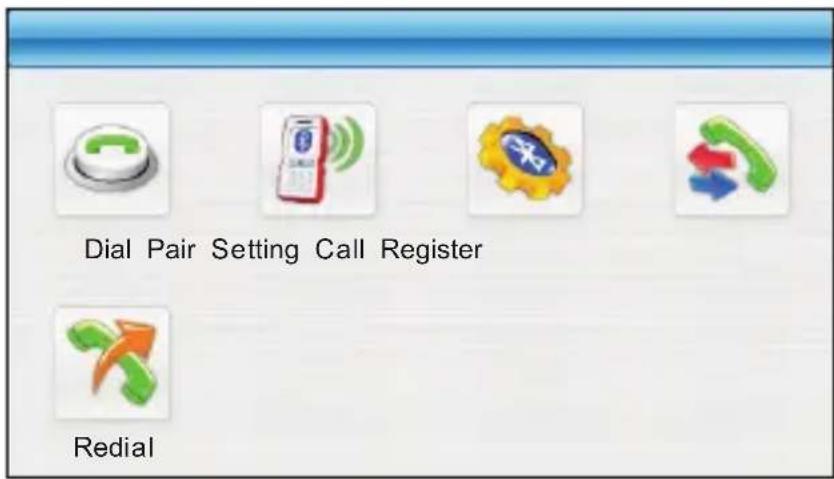
At this moment, click OK to return 📄 to the upper-level interface. You’ll see that all functions are available now, as shown in the following diagram:
text_image
Dial Pair Setting Call Register RedialDial Keypad
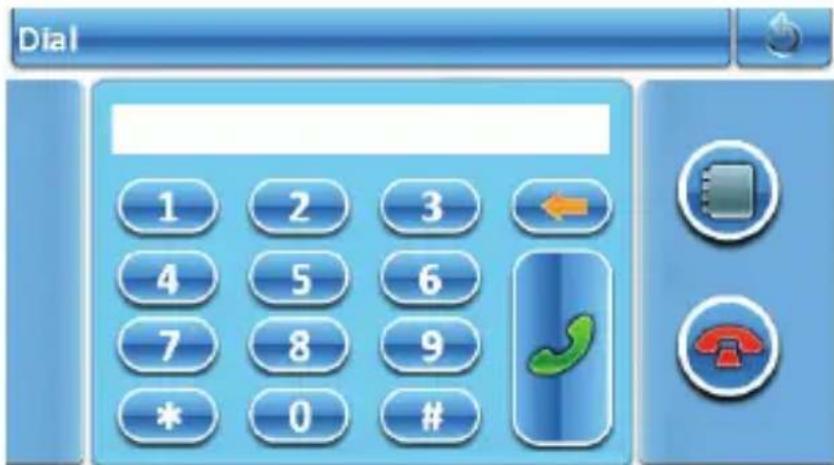
On the Bluetooth function interface, click the Dial icon to enter the Dial Keypad:
text_image
Dial 1 2 3 4 5 6 7 8 9 * 0 #At this time, click the number keypad to enter the telephone number to be dialed, and then click the Dial button at the right lower corner to dial the number. Click to return to the upper-level function.

Function & Operation
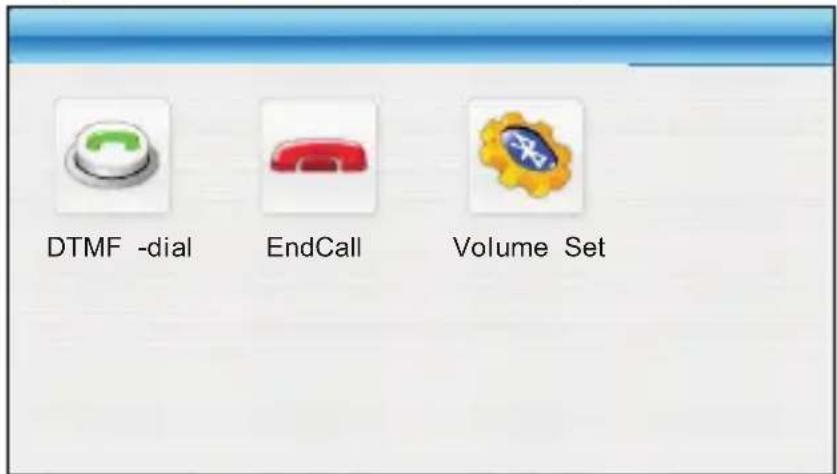
After the Dial button is clicked, the mobile phone enters the call state. The screen display is shown in the following diagram:
text_image
DTMF -dial EndCall Volume SetDuring the call, click "DTMF-dial" to open dial keyboard then you can enter some numbers when necessary during your call. Click the "EndCall" button to end the call.
View Call Record of Mobile Phone
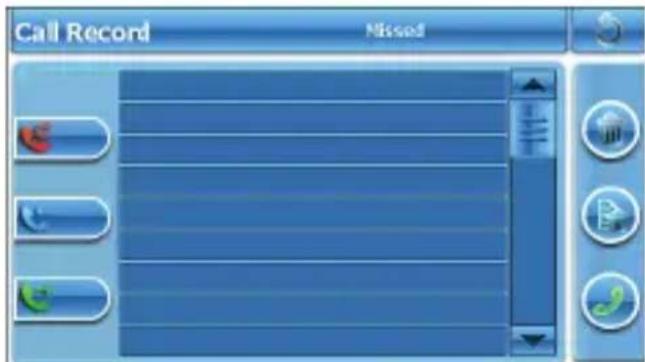
On the Bluetooth function interface, click the Call Register icon to enter the Call Record. To read the information of the mobile phone with this function, it may take some time. The screen display is shown in the following diagram:
text_image
Call Record MissedAt this time, click the three relevant buttons on the left of the screen to view incoming calls, received calls and dialed calls. Select an option, and click the Dial button in the lower part of the screen to dial the selected number.
Function & Operation
FM Transmission
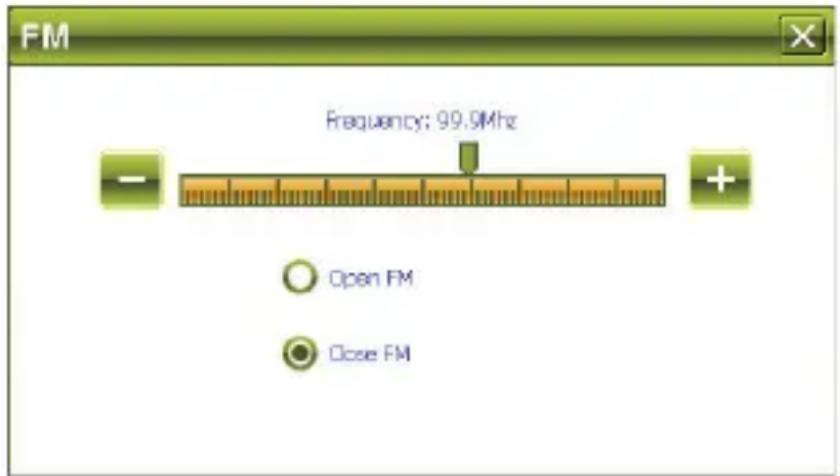
This feature is designed for transmitting the sound of this device at a set frequency to your car FM radio receiver, then you can hear from your car stereo system, and get it at volume set by the car stereo system.
- In the system interface open the activate FM.
It will be illustrated like below:

then find the icon to

Then you may select
"Open FM or
"Close FM".
When you select
"Open F M", the speaker of the device is
automatically turn off
text_image
FM Frequency: 99.9MHz Open FM Close FMPress + or - button, or directly drag the slide bar to set FM transmission frequency, then turn on car radio FM receiver and tune it to the same frequency as the transmission, then you may get the sound from the device.
Staus Display:
When FM transmission is on, you may see an icon on the main menu screen:

FM transmission is on, the device speaker is off

FM transmission is on, the device speaker is on

FM transmission is off, the device speaker is on
Also on main menu, if you click these icon you may enter into FM transmission mode directly.

Warning: Remember to get the device charged to enhance its performance when you activate FM.
Services
Troubleshooting
| No. | Fault | Possible Cause | Solutions |
| No power on | Battery drained (The screen has no further display after a blink when pressing power on button.) | Please refer to the description of battery charging in this manual, only use the enclosed charger to charge the device. | |
| Dead Unit | The start interface stays on the screen for long time without changing. | Take out the battery, then put it back, start the device again. | |
| No display of the screen, or display on screen is frozen as any button is pressed. | Press and hold the power on button for 5 seconds, then release it to power on. | ||
| Take out the battery, then put it back, start the device again. | |||
| Error in upgrade | Dead or frozen during upgrade, display on the screen is frozen and no button works. | This fault can only be fixed by the manufacturer. Please return for repair. | |
| Impossible to recharge | During charging, the green LED indicator of the device has no light or no charging sign displayed on the screen. | If the charger is connected properly and powered. | |
| Charger is damaged. | |||
| Battery is damaged or full charged. | |||
| It is normal when the green LED is lit on but the charging sign is not on the screen at the same time during charging. |