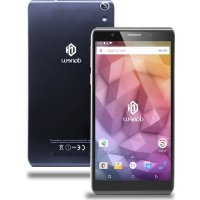
Konnect 555 - Mobile Phone DANEW - Free user manual and instructions
Find the device manual for free Konnect 555 DANEW in PDF.


| Product type | Mobile phone |
| Brand | Danew |
| Model | Konnect 555 |
| Operating system | Android (version unspecified) |
| Display | Capacitive touch, 5.5 inches (estimated) |
| Processor | Quad-core (estimated) |
| RAM | 1 GB (estimated) |
| Internal storage | 8 GB (estimated), expandable via microSD |
| Rear camera | 5 MP with LED flash (estimated) |
| Front camera | 2 MP (estimated) |
| Battery | Lithium-ion, 2000 mAh (estimated), charging via micro USB |
| Connectivity | Wi-Fi 802.11 b/g/n, Bluetooth, GPS, 4G (estimated) |
| SIM | Dual nano-SIM |
| Ports | Micro USB (charging/synchronization), 3.5 mm headphone jack |
| Sensors | Light, proximity |
| Weight | Approximately 150 g (estimated) |
| Dimensions | Approximately 154 x 77 x 8 mm (estimated) |
| Power supply | AC charger 5V/1A (included) |
| Care and cleaning | Soft dry cloth, avoid liquids and abrasive products |
| Security | Screen lock: swipe, PIN code, password |
| Spare parts and repairability | Battery, screen, charger available at www.danew.com |
| General information | Limited warranty, recycling via local channels, SAR ≤ 2 W/kg |
Frequently Asked Questions - Konnect 555 DANEW
User questions about Konnect 555 DANEW
0 question about this device. Answer the ones you know or ask your own.
Ask a new question about this device
Download the instructions for your Mobile Phone in PDF format for free! Find your manual Konnect 555 - DANEW and take your electronic device back in hand. On this page are published all the documents necessary for the use of your device. Konnect 555 by DANEW.
USER MANUAL Konnect 555 DANEW
GUIDE DE PRISE EN MAIN KONNECT 555

natural_image
Close-up of a black smartphone with a green circular highlight on the side (no text or symbols visible)natural_image
Illustration of a smartphone with a green arrow pointing to its screen (no text or symbols present)natural_image
Illustration of a smartphone with a green arrow pointing to its left side (no text or symbols present)Charger la batterie
natural_image
Hand cursor clicking a circular button with an orange highlight (no text or symbols)MAINTIEN
natural_image
Illustration of two fingers pointing at a circular button with an arrow (no text or symbols)DÉPLACEMENT
natural_image
Hand pointing at a circular orange button with sound waves (no text or symbols)DOUBLE CLIQUE
natural_image
Hand with index finger pointing at a circular button with an arrow (no text or symbols)DÉFILEMENT
natural_image
Illustration of a hand holding two red arrows pointing upward (no text or symbols)ZOOM
natural_image
Abstract geometric logo with interlocking shapes (no text or symbols)danew
Thank you for purchasing a Danew product. Your Device has been designed to offer you a unique gaming experience on a smartphone. Before using the device, read carefully the operation instructions presented in this manual. It aims at familiarizing you with the technical features of your device in order to make operation easier.
NOTE : All information presented in this manual and on the box were current at the time of printing. However, as we are permanently enhancing our products through software updates, this manual and the box might not present all the functions of your actual product.
Pictures are for illustration purpose only and are not contract-binding.
Table of Contents
Getting started
4 Device layout
5 Remove the back case
6 Insert the SIM card & memory card
7 Charge the battery
7 Turning the device on and off
Basics
8 Using the touch screen
9 Home screen layout
11 Notifications panel
12 Opening apps
12 Installing or uninstalling apps
Network connectivity
13 Mobile data
13 Wi-fi
13 Bluetooth
13 Dual SIM
Phone
14 Making calls
14 Receiving calls
Messages & email
15 Messages
15 Email
Camera
16 Basic shooting
Google apps
17 Google Apps
Device & data manager
18 Upgrading the device
18 Transfering files between the device and a computer
18 Backing up and restoring data
19 Performing a data reset
Security information
21 Security information
Getting started
Device layout
To Turn on the device, press and hold the On/Off button for few seconds.


Remove the sim card tray

natural_image
Close-up of a black smartphone with a green circular highlight on the side (no text or symbols visible)Find the hole of the sim card tray on the side of your smartphone.

natural_image
Illustration of a smartphone with a green arrow pointing to its screen (no text or symbols present)Then with the SIM eject tool or paper clip, press inside. The tray is now open.
Insert the SIM card & memory card.
Insert your nano SIM card, and/or the microSD card.

Replace the tray.

natural_image
Illustration of a smartphone with a green arrow pointing to its left side (no text or symbols present)Charge the battery
To power or charge the phone, use only the universal charger supplied in the box (5 V 2A model). The use of unapproved charger presents the risk of electric shock or burns. if the device is damaged due to improper use, the warranty will be void.
We recommend that you fully charge the battery for the first three charge times.
The battery should never be allowed to discharge fully, full discharges (under 10%) cause damage to the battery and wears is off prematurely.
Since the battery is lithium-ion, you can charge it partially without a risk of damage.
Note: To avoid electrical damage, use only the universal charger supplied or a genuine Danew charger to charge the device.
Turning the device on and off
Press and hold the Power button for a few seconds to turn on the device. When you turn on your device for the first time or after performing a data reset, follow the onscreen instructions to set up your device.
To turn off the device, press and hold the Power button, and then tap Power off.
Locking and unlocking the screen
Pressing the Power button turns off the screen and locks it. Also, the screen turns off and automatically locks if the device is not used for a specified period.
To unlock the screen, press the Power button or the Home button and flick your finger in any direction within the unlock screen area.
Basics
Using the touch screen
Your device is equipped with a fully touch interface. The basic movements are explained below.

natural_image
Hand cursor clicking a circular button on a plain background (no text or symbols)SELECT
Click once on an application, menu or option to run or select them.
natural_image
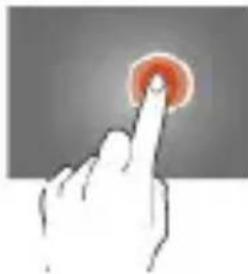
Hand cursor clicking a circular button with an orange highlight (no text or symbols)HOLD
Maintain your finger pressing a selected item on the screen for more than 2 seconds.

natural_image
Illustration of two fingers pointing at a circular button with an arrow (no text or symbols)MOVE
Move a selected item on the screen.

natural_image
Hand pointing at a circular button with sound waves (no text or symbols)DOUBLE-CLICK
Click twice and quickly on an item on the screen.

natural_image
Hand pointing at a button with a red curved arrow icon (no text or symbols)SCROLL
Move the finger quickly in the direction of the desired movement.
natural_image
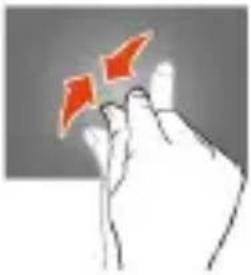
Illustration of a hand holding two red arrows pointing upward (no text or symbols)ZOOM
Place your thumb and forefinger on the screen. Separate to zoom in and bring closer to zoom out.
Home screen layout
HOME SCREEN
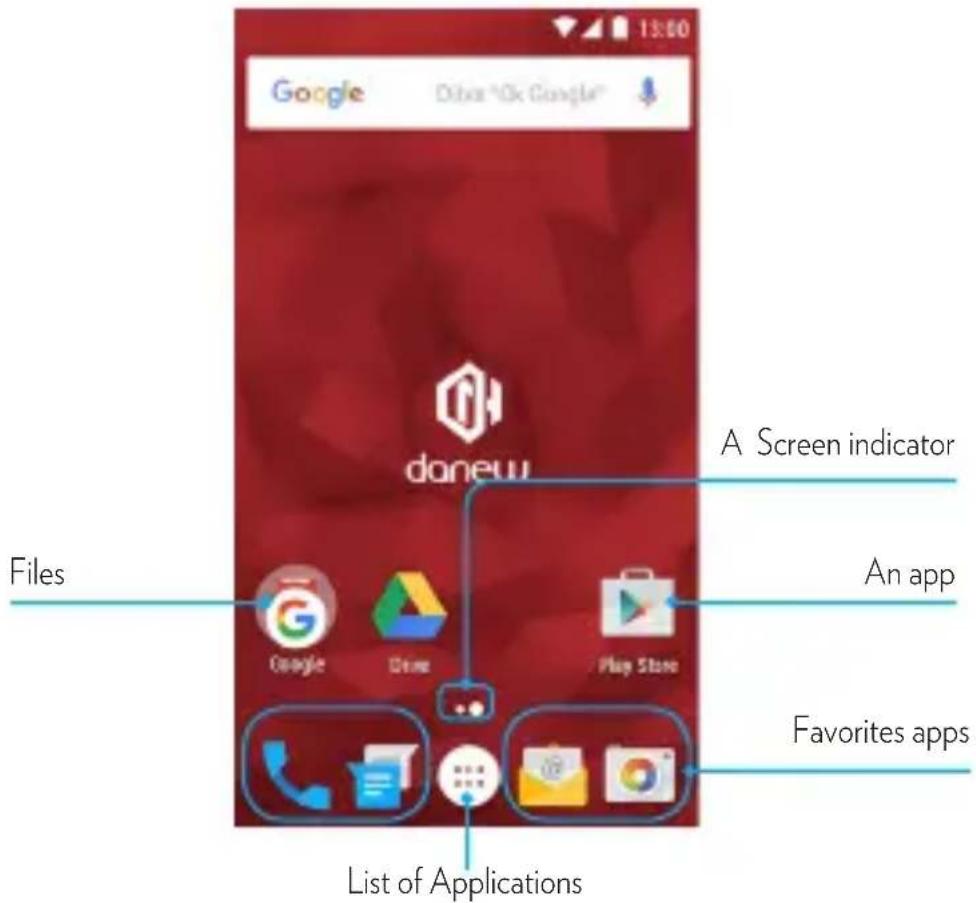
The Home screen is the starting point for accessing all of the device's features. It displays widgets, shortcuts to apps, and more. Widgets are small apps that launch specific app functions to provide information and convenient access on your Home screen.
To view other panels, scroll left or right, or tap one of the screen indicators at the bottom of the screen.
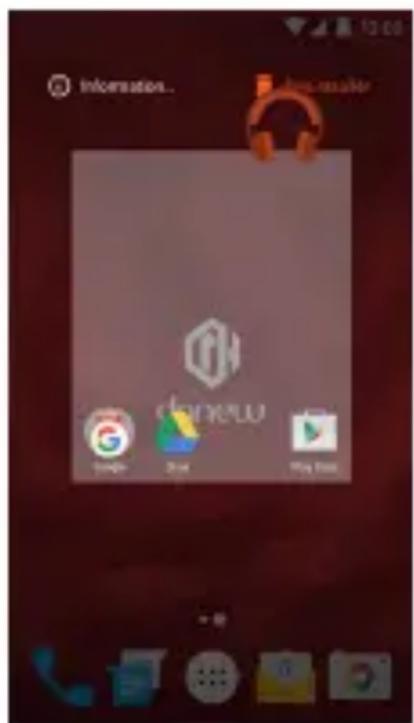
HOME SCREEN OPTIONS
On the Home screen, tap and hold an empty area to access the available options.

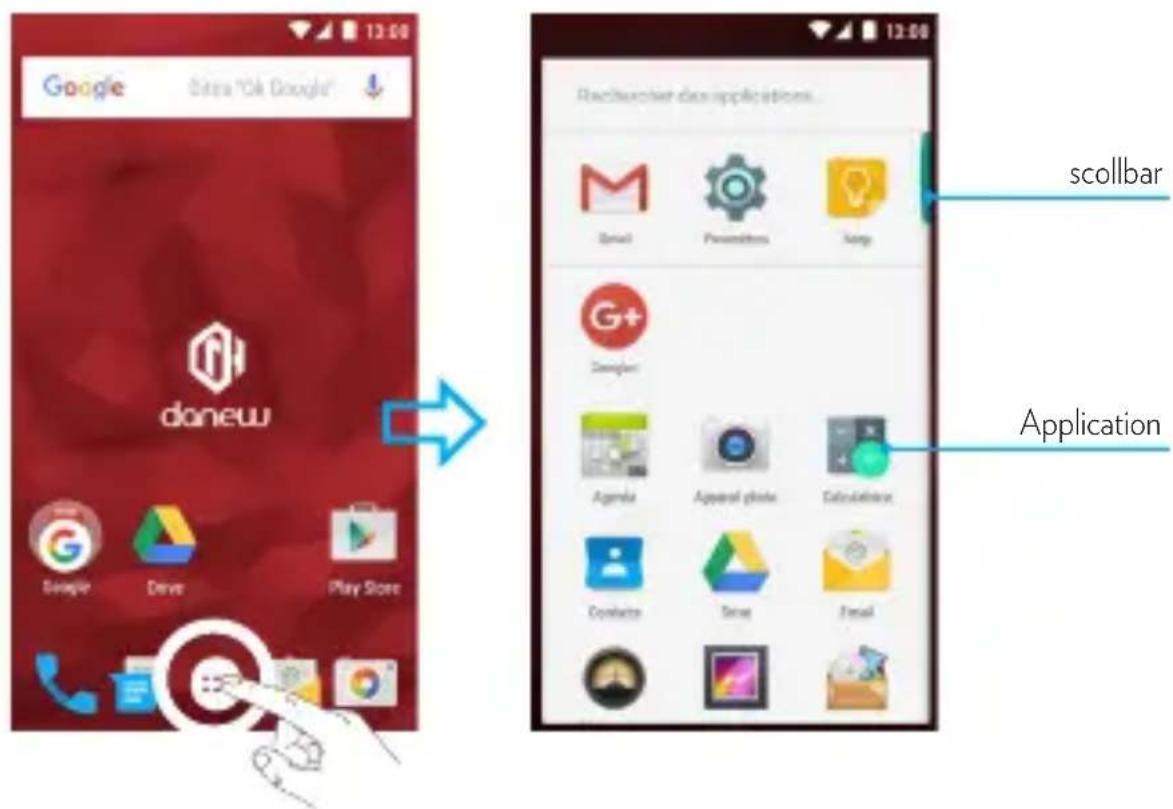
APPS SCREEN
The Apps screen displays icons for all apps, including newly installed apps. On the Home screen, tap 🙏 to open the Apps screen. To view other panels, scroll up or down.
Notifications panel
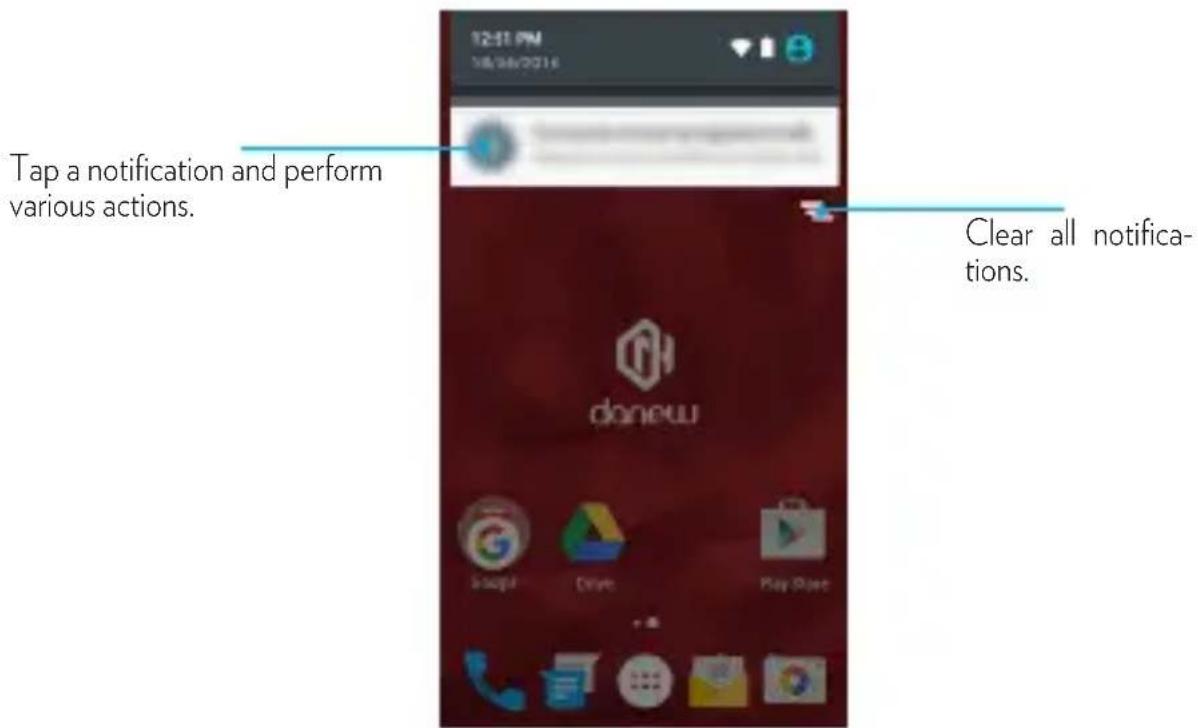
When you receive new notifications, such as messages or missed calls, indicator icons appear on the status bar. To see more information about the icons, open the notifications panel and view the details.
To open the notifications panel, drag the status bar downwards.
To close the notifications panel, drag the bar from the bottom of the screen upwards.
To open the quick settings, drag the status bar downwards again.

Opening apps
On the Home screen or the Apps screen, select an app icon to open it.
To open the list of recently-used apps, tap □ and select an app icon to open.
CLOSING AN APP
Tap □ and drag an app icon to the left or right to close it. To close all running apps, tap X.
Installing or uninstalling apps
PLAYSTORE
Use this app to purchase and download apps.
Tap Play Store on the Apps screen.
INSTALLING APPS
Browse apps by category or tap 🔒 to search for a keyword.
Select an app to view information about it. To download free apps, tap INSTALL.
To purchase and download apps where charges apply, tap the price and follow the on-screen instructions.
UNINSTALLING APPS
To uninstall downloaded apps, open the Apps screen and tap and hold the app that you want to uninstall, then drag it to the Trash icon.
Network connectivity
Mobile data
Connect the device to a mobile network to use the Internet or share media files with other devices. Keep track of your data usage amount and customise the settings for the limitation.
Wi-fi
Connect the device to a Wi-Fi network to use the Internet or share media files with other devices
To view WIFI settings, click on ⏻ > 🎩 > Wireless and networks tab > Wi-Fi
Enable the Wi-Fi to view available networks. The list of nearby detected networks is displayed. Select the Wi-Fi network corresponding to your router by clicking on its name, an icon indicates the power of the signal.
Once the network name selected, a new window is displayed and prompts for a manual entry of the password.
Once the connection established, the Wi-Fi icon ▼ appears in the task bar.
Bluetooth
To configure Bluetooth.
Click on 📋 > 🎲 > Wireless and networks tab > Bluetooth
Enable Bluetooth to view the list of enabled and detected devices, the bluetooth icon ✗ will appear in the task bar.
Select the desired device to start Bluetooth pairing.
Dual SIM
Your device can operate 2 SIM cards. You can now be reached at two numbers at once! You may choose your favorite SIM for calls, outgoing SMS and MMS, and even internet access.
You can configure and modify services associated to each SIM through the «Double Sim Settings» menu.. To do so, click on 🧑️ > 🎋 > Wireless and networks tab > SIM cards.
Phone
Making calls
Tap Phone on the Apps screen

Tap Keypad 📋, enter a phone number, and then tap 📋 to make a voice call, or tap to make a video call. You can also make calls to phone numbers listed in Logs, Favourites, and Contacts.

Receiving calls
When you receive a call, drag the

phone icon to the right.
Messages Send SMS and MMS
You can create and send text (SMS) or multimedia (MMS) messages.
This feature may not be available depending on your service provider.
Sending or receiving messages outside your service provider's coverage area may result in additional fees depending on
the plan you have subscribed to.
For more information, contact your service provider.
- Open the messaging application
- Create a new message by adding recipients and type the text of your message (for SMS go to step 4).
- To add an item to your message, select the corresponding option, then select the element.
- Send the message.
Find the function : Applications


Gmail or

to add personal Email accounts, follow the prompts when you first open the app, or touch Apps > Settings, go to the Accounts section, then touch +Add account > Email.
Camera
Basic shooting
To access at your camera, press on 🏠 Applications > 📷 Camera
- Take a photo : touch anywhere on the screen to focus, then press on 📄 to take a photo.
- Take a video : press on to record a video.
- View the photo: swipe the screen left to view a photo or video from your gallery
- Share it: view a photo or video from your gallery, then press on share

Google Apps
Google Apps
Google provides entertainment, social network, and business apps. You may require a Google account to access some apps.
CHROME
Search for information and browse webpages.
GMAIL
Send or receive emails via the Google Mail service.
MAPS
Find your location on the map, search for locations, and view location information for various places.
YOUTUBE
Watch or create videos and share them with others.
DRIVE
Store your content on the cloud, access it from anywhere, and share it with others.
PLAY MUSIQUE
Discover, listen to, and share music on your device.
PLAY FILMS
Watch videos stored on your device and download various content to watch from Play Store.
HANGOUTS
Chat with your friends individually or in groups and use images, emoticons, and video calls while you are chatting.
Device & data manager
Upgrading the device
The device can be upgraded to the latest software.
From the Apps screen ☐, press on update > Update.
Settings > about device > Software
Transferring files between the device and a computer
Move audio, video, image, or other types of files from the device to the computer, or vice versa.
1 Connect the device to the computer using the USB cable.
2 Open the notifications panel, and then tap Connected as a media device → Media device (MTP).
Tap Camera (PTP) if your computer does not support Media Transfer Protocol (MTP) or not have any appropriate driver installed.
3 Transfer files between your device and the computer.
Backing up and restoring data
Keep your personal information, app data, and settings safe on your device. You can back up your sensitive information to a backup account and access it later.
1 Tap Settings on the Apps screen.


2 Tap Backup and reset and tick Back up my data.
3 Tap Backup account and select an account as the backup account.
To restore data, you must sign in to your Google account via the setup wizard. You can launch and open the setup wizard by performing a factory data reset on the device.
If you do not sign in to your Google account via the setup wizard, you cannot restore the backup data.
Performing a data reset
Delete all settings and data on the device. Before performing a factory data reset, ensure you back up all important data stored on the device. Refer to Backing up and restoring data for more information.
Apps screen, tap
Settings.
Backup and reset
Factory data reset
Reset device
Erase everything.
On the


The device automatically restarts.

natural_image
Abstract geometric logo with interlocking shapes (no text or symbols)danew
Security Information
Battery Charging
Charge your Danew mobile device using a compatible Danew charger, or a high-power USB port on a PC. Chargers that do not comply with these standards may be unsafe, and may cause slow charging, product damage, or reduced device performance.
- Your mobile device will not charge if the temperature is too high or low.
- Only use Danew-approved batteries, which contain safety circuitry and are designed to give the best performance in your Danew mobile device.
Seizures, Blackouts, Eyestrain, & Discomfort
Prolonged use of any device may cause discomfort in hands, fingers, arms,-neck, and other parts of your body, and may cause eyestrain and headaches. It is good practice to use your device in a safe area with comfortable ambient lighting, and take frequent breaks if you feel discomfort. Seek medical advice if symptoms persist.
In rare cases, flashing patterns or lights, for example in video games or movies, may cause seizures or blackouts. If you suffer any seizures or blackouts, or have a history of seizures, stop using your device and seek medical advice.
Caution about High Volume Usage

Warning: Exposure to loud noise from any source for extended periods of time may affect your hearing. The louder the sound, the less time is required before your hearing could be affected. To protect your hearing:
- Limit the amount of time you use headsets or headphones at high volume.
- Avoid turning up the volume to block out noisy surroundings.
- Turn the volume down if you can't hear people speaking near you. If you experience hearing discomfort, including the sensation of pressure or fullness in your ears, ringing in your ears, or muffled speech, you should stop listening to the device through your headset or headphones and have your hearing checked.
Children
Keep your mobile device and its accessories away from small children.
These products are not toys and may be hazardous to small children. For example, a choking hazard may exist for small, detachable parts. Supervise access. If a child does use your mobile device and accessories, monitor their access to help prevent loss of data or unexpected charges for data or application purchases.
Glass Parts
Glass Parts Some parts of your mobile device may be made of glass. If the glass breaks, don't attempt to service the device yourself. Stop using your mobile device until the glass is replaced by a qualified service center..
Use & Care
Use & Care To care for your Danew mobile device, please observe the following:
- Liquids: Don't expose your mobile device to water, rain, extreme humidity, sweat, or other liquids.
- Drying: Don't try to dry your mobile device using a microwave oven, conventional oven, or dryer.
- Extreme heat or cold: Don’t store or use your mobile device in temperatures below -10°C or above 60°C. Don’t recharge your mobile device in temperatures below 0°C or above 45°C.
- Dust and dirt: Don't expose your mobile device to dust, dirt, sand, food, or similar materials.
- Cleaning: To clean your mobile device, use only a dry soft cloth. Don't use alcohol or other cleaning solutions.
- Shock and vibration: Don’t drop your mobile device or expose it to strong vibration.
- Protection: To help protect your mobile device, always make sure that any available connectors, compartments and removable covers are closed and secure, and avoid carrying it with hard objects such as keys or coins.
Operational Warnings
Obey all posted signs when using mobile devices in public areas.
Potentially Explosive Areas
Potentially explosive areas are often, but not always, posted and can include blasting areas, fueling stations, fueling areas (such as below decks on boats), fuel or chemical transfer or storage facilities, or areas where the air contains chemicals or particles, such as grain dust, or metal powders.
Turn off your mobile device before entering such an area, and do not charge batteries. In such areas, sparks can occur and cause an explosion or fire.
Symbol Key
Your charger, mobile device, device display, user's guide, or packaging may contain symbols, defined as follows:
| Symbol Definition | ||
 | Important safety information follows. | |
 |  | Your battery or mobile device may require recycling in accordance with local laws. Contact your local regulatory authorities for more information. |
 | Don’t dispose of your battery or mobile device with your household waste. See “Disposal & Recycling” for more information. | |
 | For indoor use only. | |
 | Listening at high volume to music or voice through a headset or headphone may damage your hearing. | |
 | Only use your charger indoors. | |
Radio Frequency (RF) Energy Exposure to RF Energy & Device Operation
Your mobile device contains a transmitter and receiver of RF energy. It is designed to comply with regulatory requirements concerning human RF exposure.
For optimal device performance, and to stay within the RF exposure guidelines:
- Hold your mobile device normally at your ear when talking on it.
- When using the mobile device next to your body (other than in your hand or against your head), maintain a distance of 1.5 cm (3/4 inch) from your body to be consistent with how the mobile device is tested for compliance with RF exposure requirements.
- If you use your mobile device with a non-Danew accessory case or holder, make sure the accessory maintains the required separation distance and has no metallic parts.
Follow Instructions to Avoid Interference Problems
Turn off your mobile device in any location where posted notices instruct you to do so, such as hospitals or health care facilities.
In an aircraft, turn off your mobile device whenever instructed to do so by airline staff. If your mobile device offers an airplane mode or similar feature, consult airline staff about using it in flight.
Medical Devices
If you use an implantable pacemaker or defibrillator, or other medical device, consult your healthcare provider and the device manufacturer's directions before using this mobile device. Persons with a pacemaker or defibrillator should observe the following precautions:
- ALWAYS keep the mobile device more than 20 centimeters (8 inches) from the pacemaker or defibrillator when the mobile device is turned ON.
- Use the ear opposite the pacemaker or defibrillator to minimize the potential for interference.
- Turn OFF the mobile device immediately if you have any reason to suspect that interference is taking place.
Regulatory Information
Regulatory Information Your Danew mobile device is designed to comply with national regulatory requirements and international standards. For full compliance statements and details, please refer to the regulatory information in your product guides.
European Union Directives Conformance Statement
The following CE compliance information is applicable to Danew mobile devices that carry one of the following CE marks:

Hereby, Danew declares that this product is in compliance with:
- The essential requirements and other relevant provisions of Directive 1999/5/EC
• All other relevant EU Directives
For products that support Wi-Fi 802.11a/ac (as defined in your product information): Outside the United States, this device is restricted to indoor use when operating in the 5.15 to 5.25 GHz (802.11a/ac) Wi-Fi frequency band.
Location Services
Location Danew mobile devices can provide information about their approximate location to applications, using sources including GPS, AGPS, and Wi-Fi. GPS (Global Positioning System) uses government-operated satellites that are subject to changes implemented in accordance with Department of Defense policy and the Federal Radio Navigation Plan. These changes may affect the performance of location technology on your mobile device. AGPS (Assisted Global Positioning System) uses your wireless service provider's network to improve GPS performance. Airtime, data fees, and/or additional charges may apply in accordance with your service plan. Contact your wireless service provider for details. Your mobile device can also use Wi-Fi signals to determine your approximate location, using information from known and available Wi-Fi networks.
Mobile devices transmit location-based information when connected to a wireless network or when using other location technologies like GPS. If you use applications that require location-based information such as driving directions, your mobile device will provide location information to them. These applications may share location information with third parties, including your wireless service provider, applications providers, Danew, and other third parties providing services.
Emergency Calls
When you make an emergency call, the cellular network may activate the AGPS technology in your mobile device to tell the emergency responders your approximate location. AGPS has limitations and might not work in your area. Therefore:
- Always tell the emergency responder your location to the best of your ability.
- Remain on the call for as long as the emergency responder instructs you.
Privacy & Data Security
Privacy & Data Security Danew understands that privacy and data security are important to everyone. Because some features of your mobile device may affect your privacy or data security, please follow these recommendations to enhance protection of your information:
- Monitor access: Keep your mobile device with you and don't leave it where others may have unmonitored access. Use your device's security and lock features, where available.
- Keep software up to date: If Danew or a software/application vendor releases a patch or software fix for your mobile device that updates the device's security, install it as soon as possible.
- Secure Personal Information: Your mobile device can store personal information in various locations, including a SIM card, memory card, and phone memory. Be sure to remove or clear all personal information before you recycle, return, or give away your device. You can also backup your personal data to transfer to a new device.
Note: For information on how to backup or wipe data from your mobile device, go to www.Danew.com/support
- Online accounts: Some mobile devices provide a Danew online account.
Go to your account for information on how to manage the account, and how to use security features such as remote wipe and device location (where available). - Applications and updates: Choose your apps and updates carefully, and install from trusted sources only. Some apps can impact your mobile device's performance and/or have access to private information including account details, call data, location details, and network resources.
- Wireless: For mobile devices with Wi-Fi features, only connect to trusted Wi-Fi networks. Also, when using your device as a hotspot (where available), use network security. These precautions will help prevent unauthorized access to your device.
- Location-based information: Mobile devices enabled with location-based technologies such as GPS, AGPS or Wi-Fi, can transmit location-based information. See “Location Services” for more details.
Disposal & Recycling
Mobile Devices & Accessories

Please don't dispose of mobile devices or electrical accessories (such as chargers, headsets, or batteries) with your household waste. Warning: Never dispose of batteries, either separately or within a mobile device, in a fire because they may explode. Mobile devices or electrical accessories should be disposed of in accordance with the national collection and recycling schemes
operated by your local or regional authority. Or, you may return unwanted Danew mobile devices and electrical accessories to any Danew Approved Service Center in your region
This product is RoHS compliant.
Packaging & Product Guides
Product packaging and product guides should only be disposed of in accordance with national collection and recycling requirements. Please contact your regional authorities for more details.
Support & warranty\*
For firmware updates, please visit our website www.danew.com and the Support and Drivers & Manuals section. Visit the website www.danew.com the Product registration section.
For customer service requests, you should first contact the technical support in order to get the Return Merchandise Authorization RMA number. Returns without RMA number previously obtained will not be accepted. Danew reserves the right to verify that device malfunction is not a result of improper use or manipulation by the user.
TECHNICAL SUPPORT
0899 782 278 (France),
Our technical support team will answer your questions from : - Monday to Thursday, from 9h00 to 13h00, from 14h00 to 18h - Friday from 9h00 to 13h00, from 14h00 to 17h.
*Product with 1 year warranty and accessories with 1 month warranty starting from the purchase date.
How to Obtain Service or Other Information
- Please access and review the online Customer Support section of Danew's consumer website prior to requesting warranty service.
- If the Product is still not functioning properly after making use of this resource, please contact the Warrantor listed at the Danew website or the contact information for the corresponding location.
- To obtain warranty service, as permitted by applicable law, you are required to include: (a) a copy of your receipt, bill of sale or other comparable proof of purchase; (b) a written description of the problem; (c) the name of your service provider, if applicable; (d) your address and telephone number. In the event the Product is not covered by the Danew Limited Warranty, Danew will inform the consumer of the availability, price and other conditions applicable to the repair of the Product.
What will we do if you make a claim under this Limited Warranty?
If you make a valid claim under this Limited Warranty, Danew will, at its discretion, either (1) repair the Product using new, used, or reconditioned replacement parts; or (2) replace the Product with a new or ‘like new’ re-conditioned Product that is the same or similar to the warranted Product; or (3) refund the purchase price. Repaired or replaced products will be returned to you in their original factory configuration, plus any applicable software updates, which may affect use and/or compatibility with third party applications (for which Danew shall have no liability). Any refunded or replaced Product shall become the property of Danew. To obtain service under this Limited Warranty, the claim should be made in the country where the Product was intended for sale; otherwise repair services are limited to the options available in the country where the service is requested.
What is not covered?
This Limited Warranty does not cover the following unless they occurred because of a defect in materials or workmanship: (a) Normal wear and tear due to the normal aging of the Product, including parts that are expected to deteriorate over time, such as batteries, lens liners, or protective coatings.
(b) Cosmetic damage, including scratches, dents, and cracks to the Products. (c) Damage caused by the use of non-Danew branded or approved products, accessories or software. (d) Damage caused beyond the reasonable control of Danew, including damage caused by (i) accident, abuse, misuse; (ii) operating a Product outside its permitted or intended uses as defined in the Products' User Manual, Quick Start Guide, Online Tutorials, and other documentation provided to you, including use of the Products for commercial purposes; (iii) improper care and handling (e.g. subjecting the Product to extreme temperatures), abuse or neglect (e.g. broken or bent connectors, ports, or SIM/SD card slots); impact damage (e.g. dropping the Product); (iv) contact with liquids, water, rain, extreme humidity, unusually heavy perspiration or other moisture; sand, food, dirt or similar substances (except for Products sold as resistant to such substances), but then only to the extent the damage was not caused by incorrectly securing the phone's protective elements (e.g. failing to properly close a seal), or such protective elements are damaged or missing (e.g. a cracked back cover), or subjecting a Product to conditions beyond its stated specifications or limits (e.g. IPx7, 30minutes in 1 meter of fresh water); or (v) flood, fire, earthquake, tornado or other acts of God not within Danew's reasonable control.
(e Unauthorized service. Defects or damage resulting from someone other than Danew or a Danew authorized service center servicing, testing, adjusting, installing, maintaining, altering, or tampering with the Products.
(f) Products that have been modified in any manner without the written permission of Danew, including Products (i) with serial numbers or other manufacturer codes that have been removed, altered or obliterated; (ii) with mismatched or duplicated serial numbers; (iii) with broken seals or other evidence of tampering; or (iv) which have been modified to alter functionality or capability, or show evidence of attempts to modify them.
- WARNING AGAINST UNLOCKING THE BOOTLOADER OR ALTERING A PRODUCT'S OPERATING SYSTEM SOFTWARE: ALTERING A PRODUCT'S OPERATING SYSTEM, WHICH INCLUDES UNLOCKING THE BOOTLOADER, ROOTING A DEVICE OR RUNNING ANY OPERATING SOFTWARE OTHER THAN THE APPROVED VERSIONS ISSUED BY Danew AND ITS PARTNERS MAY PERMANENTLY DAMAGE YOUR PRODUCT, CAUSE IT TO BE UNSAFE AND/OR MALFUNCTION AND ANY DAMAGE THAT IS CAUSED THEREFROM WILL, UNLESS OTHERWISE STATED BY Danew, NOT BE COVERED BY THIS LIMITED WARRANTY.
- IMPORTANT: IT IS ILLEGAL TO USE THIS PRODUCT IF IT CEASES TO COMPLY WITH THE GOVERNMENT AUTHORIZATIONS THAT APPROVED ITS RELEASE. THEREFORE, YOU MUST NOT MAKE CHANGES TO THE PRODUCT AFFECTING ITS EMISSION, MODULATION, TRANSMISSION CHARACTERISTICS, INCLUDING POWER LEVELS, OPERATING FREQUENCIES AND BANDWIDTHS, SAR LEVELS, DUTY-CYCLE, TRANSMISSION MODES AND THE INTENDED METHOD OF THE PRODUCT.
(g) Defects, damages, or the failure of the Product due to any third party communication service or network you subscribe to or use with the Product. (h) Software, either embedded in, downloaded to, or accompanied with the Products.
• TO THE EXTENT PERMITTED BY APPLICABLE LAW, Danew SPECIFICALLY DISCLAIMS ANY AND ALL STATUTORY OR IMPLIED WARRANTIES, INCLUDING, WITHOUT LIMITATION, WARRANTIES OF MERCHANTABILITY, FITNESS FOR A PARTICULAR PURPOSE, NONINFRINGEMENT, ALL WARRANTIES AGAINST HIDDEN ORLatENT DEFECTS, AND Danew DOES NOT WARRANT THAT THE OPERATION OF ANY PRODUCTS OR SOFTWARE COVERED UNDER THIS LIMITED WARRANTY WILL MEET YOUR REQUIREMENTS, WORK IN COMBINATION WITH ANY HARDWARE OR SOFTWARE APPLICATIONS OR THIRD PARTY SERVICES, BE UNINTERRUPTED, ERROR-FREE, OR WITHOUT RISK TO, OR LOSS OF, ANY INFORMATION, DATA, SOFTWARE OR APPLICATIONS CONTAINED THEREIN, OR THAT DEFECTS IN THE PRODUCTS OR SOFTWARE WILL BE CORRECTED. WHERE SUCH STATUTORY OR IMPLIED WARRANTIES CANNOT LAWFULLY BE DISCLAIMED, THEN TO THE EXTENT PERMITTED BY LAW, ALL SUCH WARRANTIES SHALL BE LIMITED IN DURATION TO THE DURATION OF THE EXPRESS LIMITED WARRANTY CONTAINED HEREIN AND THE REMEDIES OF REPAIR, REPLACEMENT, OR REFUND AS DETERMINED BY Danew IN ITS SOLE DISCRETION SHALL BE THE EXCLUSIVE REMEDY OF THE CONSUMER. NO ORAL OR WRITTEN REPRESENTATIONS MADE BY Danew OR ANY SELLER, RESELLER OR DISTRIBUTOR OF THE PRODUCTS, INCLUDING EMPLOYEES AND AGENTS THEREOF, SHALL CREATE ANY ADDITIONAL WARRANTY OBLIGATIONS, INCREASE THE SCOPE, OR OTHERWISE MODIFY IN ANY MANNER THE TERMS OF THIS LIMITED WARRANTY.
• TO THE EXTENT PERMITTED BY APPLICABLE LAW, Danew SPECIFICALLY DISCLAIMS ANY AND ALL LIABILITY, WHETHER IN CONTRACT, TORT OR UNDER OTHER LEGAL THEORY (INCLUDING NEGLIGENCE), FOR DAMAGES IN EXCESS OF THE PURCHASE PRICE OF THE PRODUCTS, OR FOR ANY INDIRECT, INCIDENTAL, SPECIAL OR CONSEQUENTIAL DAMAGES OF ANY KIND, OR LOSS OF REVENUE OR PROFITS; LOSS OF BUSINESS; BUSINESS INTERRUPTION;
LOSS OF OPPORTUNITY; LOSS OF GOODWILL; LOSS OF REPUTATION; LOSS OF, DAMAGE TO, OR CORRUPTION OF INFORMATION, DATA, SOFTWARE OR APPLICATIONS (INCLUDING ANY COSTS ASSOCIATED WITH RECOVERING, PROGRAMMING, OR REPRODUCING ANY INFORMATION, DATA, SOFTWARE OR APPLICATIONS STORED ON OR USED WITH Danew PRODUCTS, OR ANY FAILURE TO MAINTAIN THE CONFIDENTIALITY OF ANY INFORMATION OR DATA STORED ON THE PRODUCTS); OR OTHER FINANCIAL LOSS ARISING OUT OF OR IN CONNECTION WITH THE ABILITY OR INABILITY TO USE THE PRODUCTS OR SERVICES PROVIDED UNDER THIS LIMITED WARRANTY. BY MAKING A CLAIM UNDER THIS LIMITED WARRANTY YOU ACKNOWLEDGE THAT YOU UNDERSTAND THAT.
- SOME STATES OR JURISDICTIONS DO NOT ALLOW THE LIMITATION OR EXCLUSION OF INCIDENTAL OR CONSEQUENTIAL DAMAGES, OR THE EXCLUSION OR LIMITATION ON THE LENGTH OF AN IMPLIED WARRANTY, OR THE LIMITATION OR EXCLUSION OF DAMAGES FOR PERSONAL INJURIES CAUSED BY NEGLIGENCE, SO THE ABOVE LIMITATIONS OR EXCLUSIONS MAY NOT APPLY TO YOU. THIS WARRANTY GIVES YOU SPECIFIC LEGAL RIGHTS, AND YOU MAY ALSO HAVE OTHER RIGHTS THAT VARY FROM STATE OR JURISDICTION.
My Product needs service, what should I do?
- Before attempting to diagnose or repair any Product, please backup all software, applications, and other data, including contacts, photos, music, games, which will be erased during the repair process and cannot be reinstalled by Danew and Danew shall have no liability therefore.
- Review the online Danew customer support website at www.Danew.com for troubleshooting information.
- If the Product is still not functioning properly after you have followed troubleshooting instructions suggested on this website, please contact Danew using the contact details provided on the customer support page of www.Danew.com.
- If your Product is covered by this Limited Warranty, you may be required to download, or otherwise obtain and accept software updates. You are responsible for any third party data costs incurred when obtaining the downloads. Before we can provide any further support under this Limited Warranty you must first comply with the warranty processes outlined above, and any repair instructions provided by Danew.
SAR
YOUR MOBILE DEVICE MEETS FCC AND IC LIMITS FOR EXPOSURE TO RADIO WAVES.
Your mobile device is a radio transmitter and receiver. It is designed not to exceed the limits for exposure to radio waves (radio frequency electromagnetic fields) adopted by the Federal Communications Commission (FCC) and Industry Canada (IC). These limits include a substantial safety margin designed to assure the safety of all persons, regardless of age and health.
The radio wave exposure guidelines use a unit of measurement known as the Specific Absorption Rate, or SAR. The SAR limit for mobile devices is 2 W/kg. Tests for SAR are conducted using standard operating positions with the device transmitting at its highest certified power level in all tested frequency bands. The highest SAR values under the FCC and IC guidelines for your device model are listed below::
| Highest SAR values for this device | ||
| Head SAR | W/kg | |
| Body SAR | W/kg | |
During use, the actual SAR values for your device are usually well below the values stated. This is because, for purposes of system efficiency and to minimize interference on the network, the operating power of your mobile device is automatically decreased when full power is not needed for the call. The lower the power output of the device, the lower its SAR value.
If you are interested in further reducing your RF exposure then you can easily do so by limiting your usage or simply using a hands-free kit to keep the device away from the head and body.
Copyright & trademarks
Certain features, services and applications are network-dependent and may not be available in all areas; additional terms, conditions and/or charges may apply. Contact your service provider for details.
All features, functionality and other product specifications, as well as the information contained in this guide, are based upon the latest available information and believed to be accurate at the time of printing. Danew reserves the right to change or modify any information or specifications without notice or obligation.
Note: The images in this guide are examples only.
Android, Google and other trademarks are owned by Google Inc.
The Android robot is reproduced or modified from work created and shared by Google and used according to terms described in the Creative Commons 3.0 Attribution Licence. All other product or service names are the property of their respective owners.
© 2016 DN Electronics. All rights reserved.
Caution: Danew does not take responsibility for changes/modification to the transceiver.



- GUIDE DE PRISE EN MAIN KONNECT 555
- Charger la batterie
- MAINTIEN
- DÉPLACEMENT
- DOUBLE CLIQUE
- DÉFILEMENT
- ZOOM
- danew
- Table of Contents
- Getting started
- Basics
- Network connectivity
- Phone
- Messages & email
- Camera
- Google apps
- Device & data manager
- Security information
- Device layout
- Remove the sim card tray
- Insert the SIM card & memory card.
- Charge the battery
- Turning the device on and off
- Locking and unlocking the screen
- Using the touch screen
- SELECT
- HOLD
- MOVE
- DOUBLE-CLICK
- SCROLL
- Home screen layout
- HOME SCREEN
- HOME SCREEN OPTIONS
- APPS SCREEN
- Notifications panel
- Opening apps
- CLOSING AN APP
- Installing or uninstalling apps
- PLAYSTORE
- INSTALLING APPS
- UNINSTALLING APPS
- Mobile data
- Wi-fi
- Bluetooth
- Dual SIM
- Making calls
- Receiving calls
- Messages Send SMS and MMS
- Basic shooting
- CHROME
- GMAIL
- MAPS
- YOUTUBE
- DRIVE
- PLAY MUSIQUE
- PLAY FILMS
- HANGOUTS
- Upgrading the device
- Transferring files between the device and a computer
- Backing up and restoring data
- Performing a data reset
- On the
- Battery Charging
- Seizures, Blackouts, Eyestrain, & Discomfort
- Caution about High Volume Usage
- Children
- Glass Parts
- Use & Care
- Operational Warnings
- Potentially Explosive Areas
- Symbol Key
- Radio Frequency (RF) Energy Exposure to RF Energy & Device Operation
- Follow Instructions to Avoid Interference Problems
- Medical Devices
- Regulatory Information
- European Union Directives Conformance Statement
- Location Services
- Emergency Calls
- Privacy & Data Security
- Disposal & Recycling
- Mobile Devices & Accessories
- Packaging & Product Guides
- Support & warranty\*
- TECHNICAL SUPPORT
- How to Obtain Service or Other Information
- What will we do if you make a claim under this Limited Warranty?
- What is not covered?
- My Product needs service, what should I do?
- SAR
- Copyright & trademarks
Brand : DANEW
Model : Konnect 555
Category : Mobile Phone