Billy 4.7 - Smartphone YEZZ - Free user manual and instructions
Find the device manual for free Billy 4.7 YEZZ in PDF.



| Product Type | Smartphone |
| Brand | YEZZ |
| Model | Billy 4.7 |
| Operating System | Windows Phone |
| SIM Cards | Dual SIM (2 slots) |
| External Memory | microSD card up to 128 GB |
| Connectivity | Wi-Fi, Bluetooth, USB 2.0 |
| Camera | Built-in, with autofocus and flash |
| Power Supply | Rechargeable battery, travel adapter included |
| Included Accessories | Battery, USB cable, earphones, user manual |
| Maintenance | Avoid contact with liquids, extreme temperatures (from -10°C to 55°C) |
| Safety | Do not use while driving, in gas stations, hospitals, airplanes; keep at 1.5 cm from the body |
| SAR (head) | 0,327 W/kg (EGSM 900) to 0,139 W/kg (WCDMA 2100) |
| SAR (body) | 0,529 W/kg (EGSM 900) to 0,228 W/kg (WCDMA 2100) |
| Standards | Compliant with European Directive 1999/5/EC and FCC Part 15 |
Frequently Asked Questions - Billy 4.7 YEZZ
User questions about Billy 4.7 YEZZ
0 question about this device. Answer the ones you know or ask your own.
Ask a new question about this device
Download the instructions for your Smartphone in PDF format for free! Find your manual Billy 4.7 - YEZZ and take your electronic device back in hand. On this page are published all the documents necessary for the use of your device. Billy 4.7 by YEZZ.
USER MANUAL Billy 4.7 YEZZ
(1616 NW, 84TH Ave. Miami, Florida U.S.A.
Luis Sosa / President
(Date)
(1616 NW, 84TH Ave. Miami, Florida U.S.A. 33126)
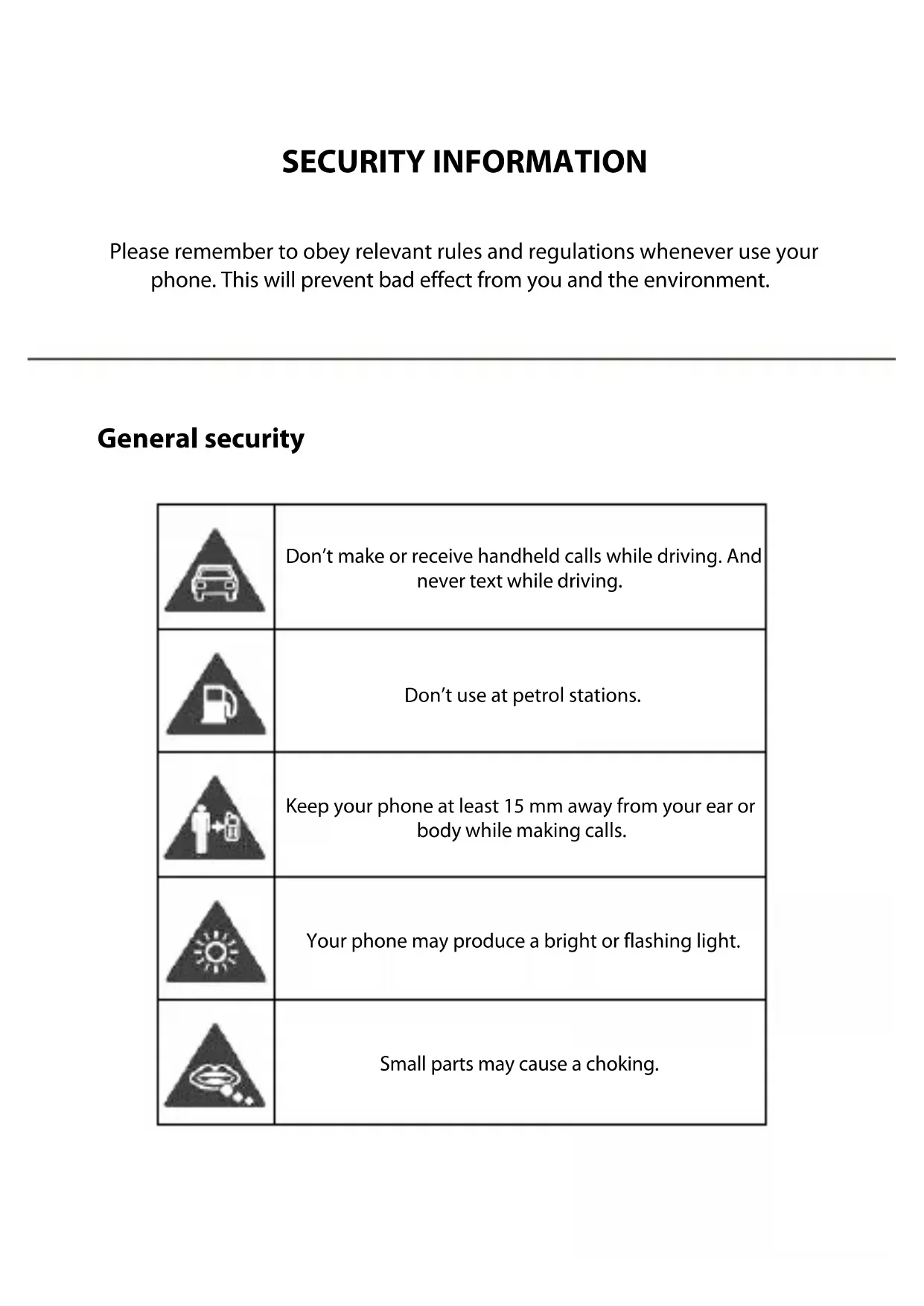
Please remember to obey relevant rules and regulations whenever use your phone. This will prevent bad effect from you and the environment.
General security
| Don't make or receive handheld calls while driving. And never text while driving. | |
| Don't use at petrol stations. | |
| Keep your phone at least 15 mm away from your ear or body while making calls. | |
| Your phone may produce a bright or flashing light. | |
| Small parts may cause a choking. | |
| Don't dispose of your phone in fire. | |
| Your phone can produce a loud sound. | |
| Avoid contact with anything magnetic. | |
| Keep away from pacemakers and other electronic medical devices. | |
| Avoid extreme temperatures. | |
| Switch off when asked to in hospitals and medical facilities. | |
| Avoid contact with liquids. Keep your phone dry. | |
| Switch off when told to in aircrafts and airports. |

| Don't take your phone apart. | |
| Switch off when near explosive materials or liquids. | |
| Only use approved accessories. | |
| Don't rely on your phone for emergency communications. | |
| Warning electrical hazard! To avoid serious injury do not touch charger pins. Unplug the charger when not in use. To unplug a charger or an accessory, hold and pull the plug, not the cord. The power adaptor is the switch off device of the equipment. The wall power socket should be located near the equipment and easily accessible. |
INTRODUCING YOUR MOBILE PHONE
Learn about your mobile phone's layout, keys, display and icons.
Unboxing
Check the product box for the following items:
- Mobile Phone
- Battery
- Charger
USB Cable - Travel Adapters
- Headphones
- User Manual
The supplied accessories perform best for your phone.
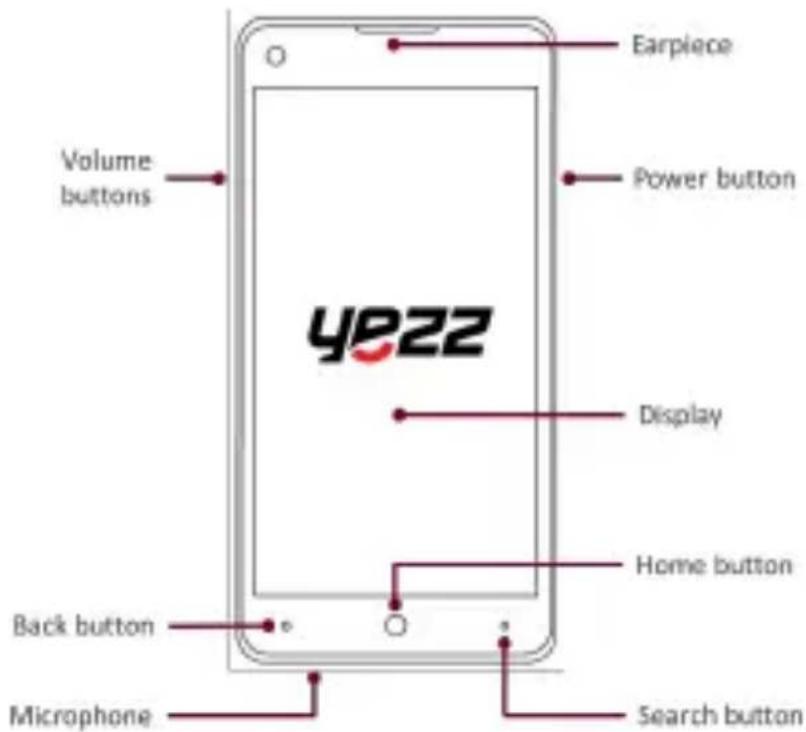
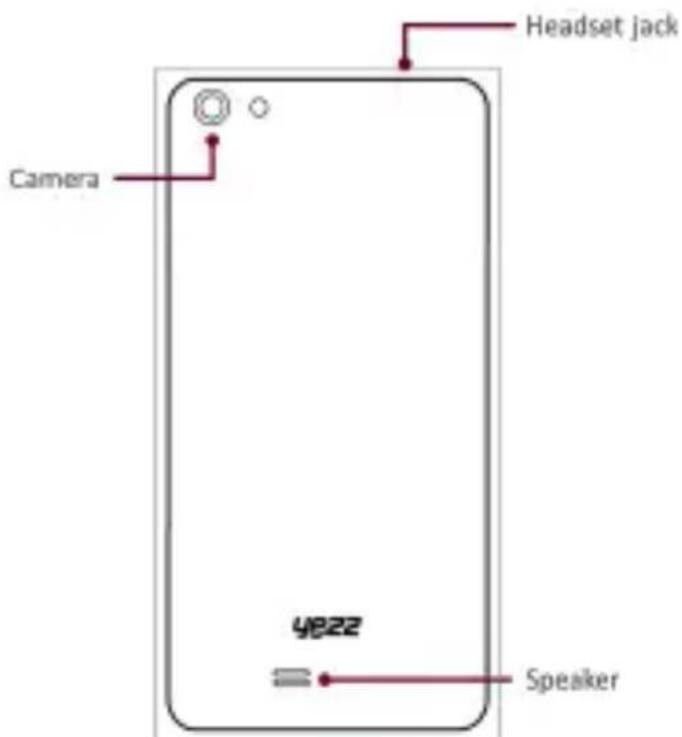
Phone Layout
From the front view of your phone you will observe the following elements:
From the back view of your phone you will observe the following elements:
Keys
The following table offers you a quick description about the phone's keys:
| Key Function | |
| Power Button | Allows you to turn on/off the device and to lock the screen. |
| Volume | Allows you to adjust the volume of ringing and notifications. Also allows you to adjust the volume of multimedia content playback. |
| Back | Allows you to return to the previous menu or screen. Also allows you to close some applications. Press and hold to switch between open applications. |
| Home | Takes you directly to the home screen, leaving any application open. |
| Search | Open the web search application or open the digital assistant, Cortana, if enabled. |
Screen
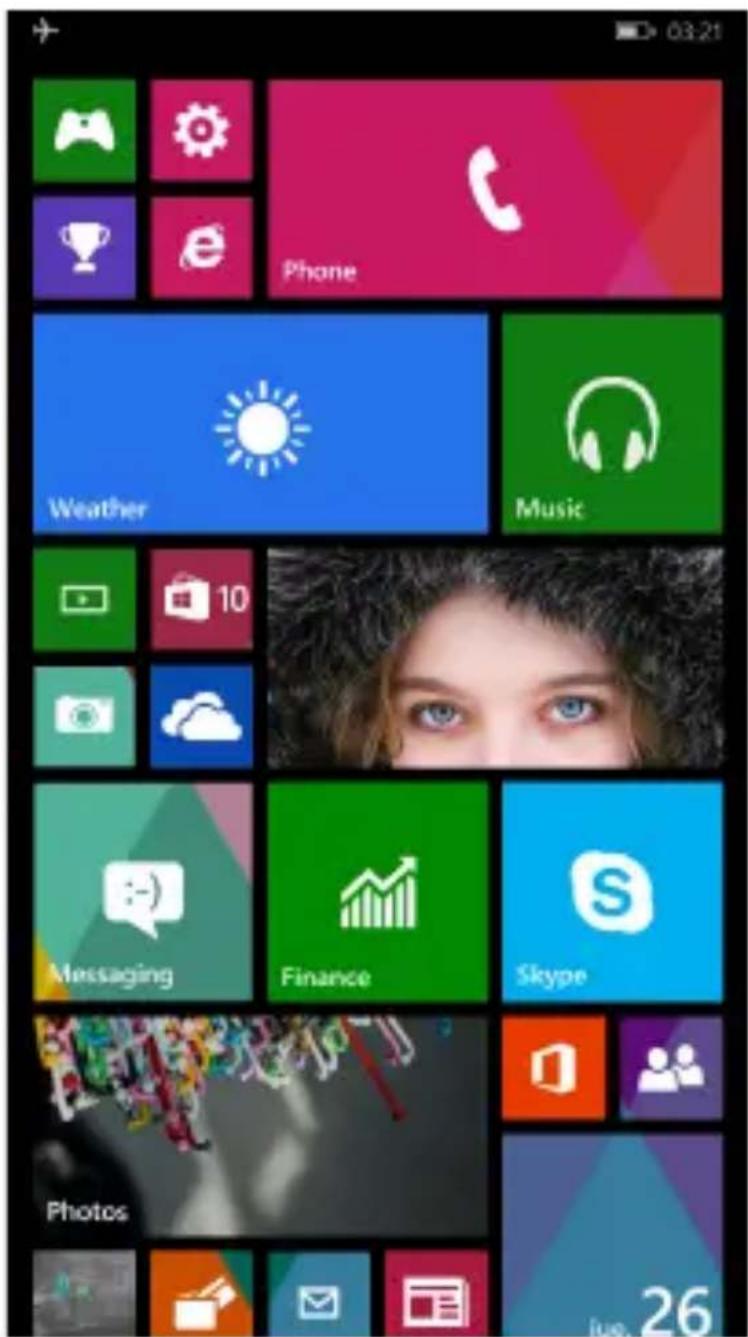
The start screen of your mobile phone is designed as follows, showing you live tiles that continuously update with what's most personal to you. You'll see your photo album, how many new text and email messages you have, and more.
Icons
The status bar at the top of the screen tells you the current time, battery and signal strength, and much more.
| Signal Strength | Wi-Fi Connection | ||
| Bluetooth On | New Notifications | ||
| Battery Meter | Vibration Enabled | ||
| Battery Saver Active | Roaming Network | ||
| Airplane Mode Active | Silence Mode Active |
Z
PREPARED YOUR MOBILE PHONE
Get started setting up your mobile phone for its first use.
Install the SIM card
When you subscribe to a cellular service, you will receive a Subscriber Identity Module (SIM) card, with subscription details, such as your personal identification number (PIN) and optional services.
To install the SIM card:
- Remove the battery cover.
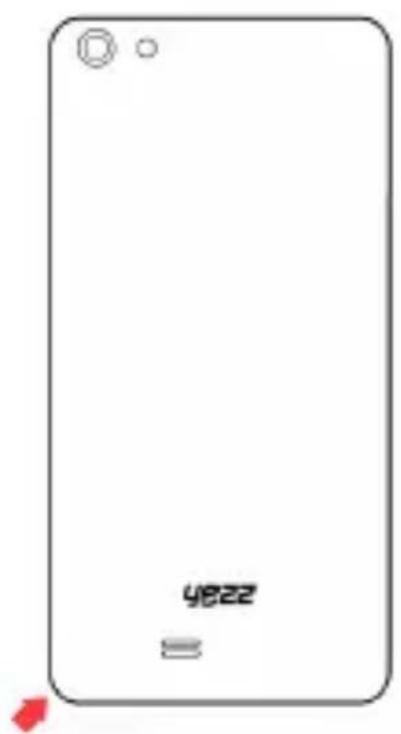
- Insert the SIM card.
Your phone has two SIM card slots allowing you to use two SIM cards and switch between them.
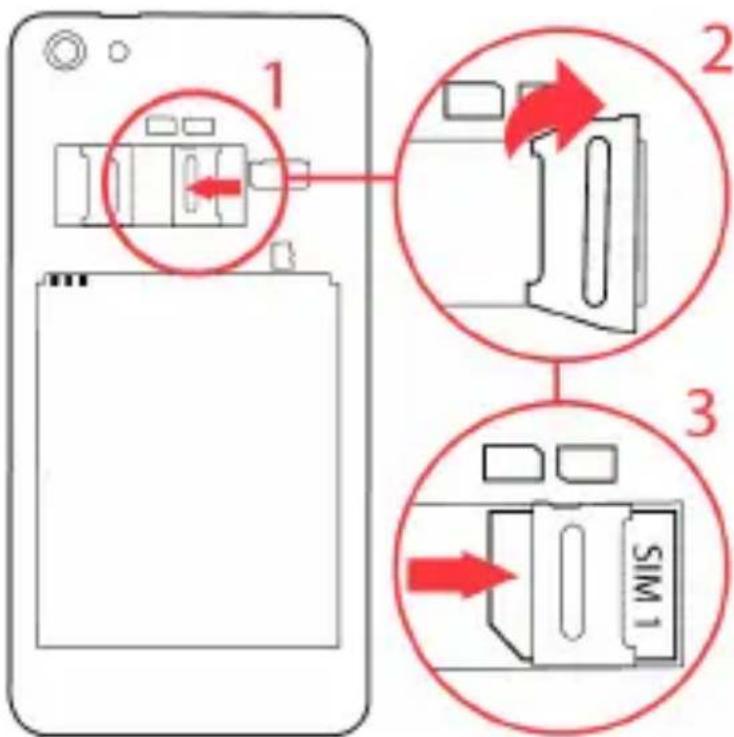
Repeat these steps for the other side to add a second SIM card.
Without inserting a SIM card, you can use your phone's non-network functions and access almost all menus.
- Replace the battery cover

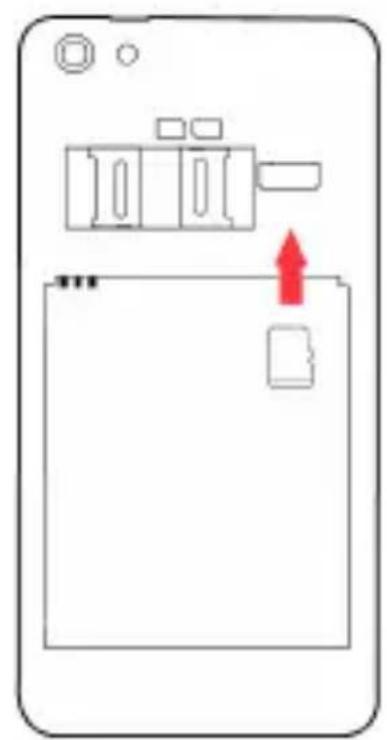
Insert a Memory Card (optional)
Use a storage card to store additional photos, videos, music, and more.
Your phone supports memory cards up to 128 GB MicroSD cards.
Formatting the memory card on a PC may cause incompatibility with your phone. Format the memory card only on the phone.
To insert the memory card:
- Remove the battery cover.
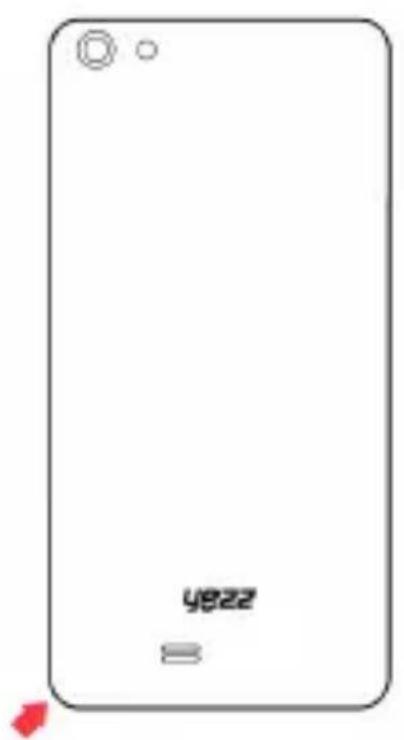
- Insert a memory with the label side facing up.
USING BASIC FUNCTIONS
Learn how to perform the basic operations of your mobile phone like make calls, find your contacts, listen to music and more.
Turning Your Phone On and Off
To turn your phone on,
- Hold down the power button on the right side of your phone.
Type in your PIN number or unlock code (if it is needed).
To shut down your phone,
- Hold down the power button on the right side of your phone until you see the message "slide down to power off."
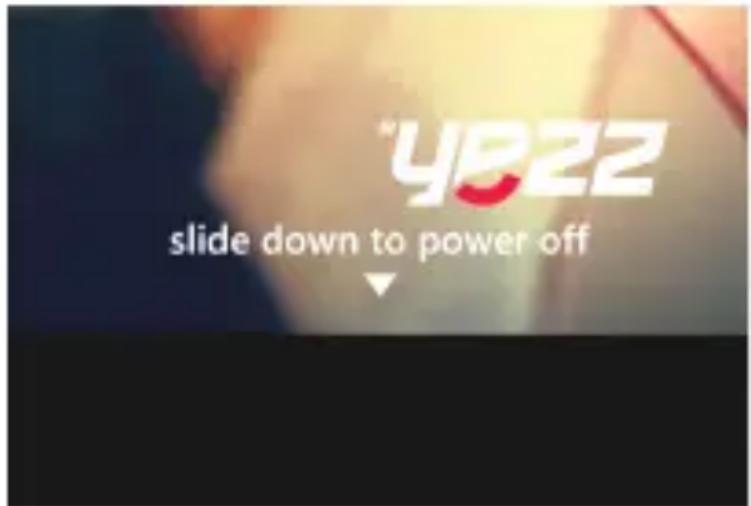
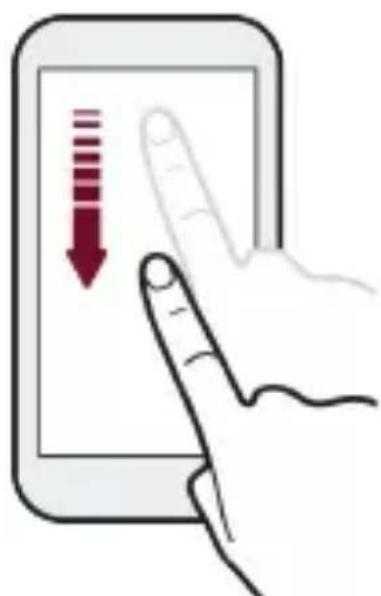
- Swipe your finger down the screen.
Applications and Tiles
To access the Applications in your Start Screen simply swipe your finger up or down to scroll through the tiles.
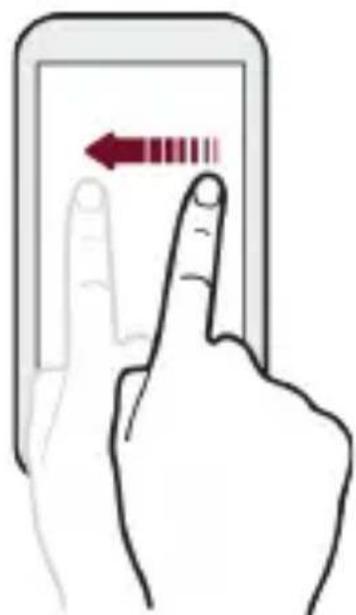
Also, you can swipe your finger left to access more Applications and settings.
If you see letter tiles in your app list, tap a letter tile to see all of the alphabet tiles then tap a letter to quickly jump to the corresponding section in the app list.
To return to the Start screen from any screen, press the Home button.
Phone
Learn to make or answer calls on your new phone and talk to your friends.
Make a Call:
- Tap the to open the phone application.
- Dial the area code and phone number.
- Tap 1 2 to switch the SIM Card.
- Touch to start a call.
- Touch end call to end a call.
To Answer a Call:

Z
- Touch end call to finish the call.
- Also, you can tap text reply to reject the call and send a preset text message.
Messages
Stay in touch with your friends and send them:
- Text Messages (SMS).
Multimedia Message (MMS).
Steps to Send Text and Multimedia Messages:
- While you are in the Start Screen, tap to open the Messages application then tap to send a new SMS or MMS.
- Type in the phone number or contact name on the field "To:" or tap to access your contacts list.
- Tap to switch the SIM Card.
- Type your message in.
To send a text message tap . - To attach a multimedia object tap and select the object. You can send pictures, videos, voice notes, contacts and also share your location.
- Tap to send the multimedia message.
People
The People hub is more than just an address book, you can save and organize your friends' phone numbers, addresses, and other contact information.
To view your contacts tap . To view the details like phone numbers or email address, tap the name in the list.
Add a new contact:
In the contact list, tap and fill the details of your new contact.
- Fill the details of your contact like name, last name and phone number. You can add more details such as, email, address or even set a custom ringtone.
- Tap on the bottom of the screen to save your contact.
Search for a contact
In the contact list, tap to open the search field.
- In the search bar, enter the first few letters of the first or last name of the contact you're looking for.
- Tap the contact to view the details.
Music
Use your phone to enjoy music and video tracks from the Store, or from your own collection. Also you can sign up for an Xbox Music Pass to enjoy millions of tracks.
Listen Music:
Tap to open Music then you can select a category to view your stored music.
- Tap on the category that you want to play:
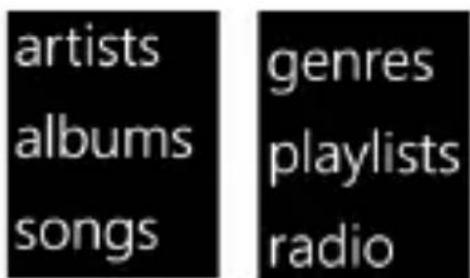
- Choose the music you would like to hear.
Use the buttons to control the playback.
Music Store:
Tap to open Music then swipe your finger to the left side to view the Store tab.
Use the Search function or the Top music button to find music.
Add Music to Your Phone:
You can add your own personal music to your phone using the Windows Phone app, Windows Phone app for desktop, Windows Phone app for Mac, or Windows File Explorer to sync music between your computer and your phone
Internet Explorer
You can use Internet Explorer 11 Mobile in your phone to catch up on the news and visit your favorite websites.
To Search or Open a Web Page:
-
Tap the Internet Explorer tile to open the web browser.
-
You can use the address bar to perform searches or go directly to a web site typing the site address then pressing Go on the keyboard.
To Switch Between Tabs
-
Tap the Internet Explorer tile to open the web browser.
-
Tap to view your open Tabs. In this screen you can switch, open or close tabs.
Add or Open Favorites
-
Tap the Internet Explorer tile to open the web browser.
-
Tap to access the Menu then tap on favorites to view your saved favorites.
To save a web page as a favorite, open the page then tap to access the Menu and tap on add to favorites add to favorites
CAMERA
Learn the basic functions to capture photos, videos or view photos.
Stop carrying a separate camera, your phone camera can easily take photos and record videos.
Take Photos
- Tap to open the camera application.
- Your phone comes with an Autofocus feature but if you want to manually focus your target, you can tap it on the screen.
- Tap to take the picture.
Record videos
- Tap to open the camera application.
Tap to switch to video mode.
Tap once to start recording. When you finish your video, tap to stop recording.
Photos
You can browse and view the photos you've taken or videos you've recorded with the Photos Hub application.
To View Your Photos:
- Tap to open the Photos Hub.
- Tap the photo you want to view. Also, you can swipe left to view the next photo or right to view the previous photo taken.
To Play Your Videos:
- Tap to open the Photos Hub.
- Tap the video you want to view then tap to start playing. Also, you can swipe left to view the next video or right to view the previous video recorded.
CONNECTING TO THE INTERNET
Learn the basic functions to configure your phone and connect to your network operator's Internet.
You can use the Internet connection of your carrier to browse the web, listen to music, send messages and more. If after you insert your carrier's SIM card and your phone does not have Internet connectivity:
Add a New Connection
-
In the Start Screen, swipe left to access the full applications list then tap Settings.
-
Tap on cellular + SIM option. cellular + SIM
-
Tap on SIM 1 settings or SIM 2 settings to configure the network carrier associated.
You can set a custom name to your SIM cards to identify each one.

-
Tap on "Edit Internet APN" to open the configuration interface.
-
Type the necessary parameters that your carrier uses to connect to the Internet: If you need more information about this parameter, contact technical support of your carrier.
The basic parameters used by most carriers are:
APN
- User Name
- Password
Other carriers also use Proxy Servers. Please refer to your carrier's configuration for more information:
- Tap the save button on the bottom bar to save your parameters.
If you change your SIM card to another carrier and the connection is not active, you will need to repeat these steps for your new carrier.
Also, if after the setup of your Internet connection is not active, check that the "Data Connection" option is enabled at the top of the screen:

Switch Your Internet Connection Between Carriers (SIM Cards)
If you use two SIM cards and want to switch to your other carrier connection, follow these steps:
- In the Start Screen, swipe left to access the full applications list then tap
Settings

cellular + SIM
- Tap on cellular + SIM option
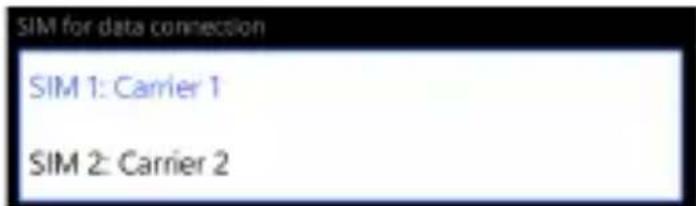
- Tap on "SIM for data connection" and select the SIM card of your choice.
USING THE BLUETOOTH
Send your photos to compatible phones or to your computer connecting wirelessly to compatible devices.
The Bluetooth devices must be within 10 meters (33 feet) of each other, although the connection may be subject to interference from obstructions
Turn on the Bluetooth Wireless Feature
- In the Start Screen, swipe left to access the full applications list then tap
Settings

- Tap on the Bluetooth option.
Bluetooth
- Turn on Bluetooth by tapping on the switch.
When you turn the Bluetooth on, the list will show all the available devices near you. Remember to set your other device as "Discoverable" to view them on the list.
Find and Pair with Other Bluetooth Enabled Devices
- Tap on the device that you want to connect
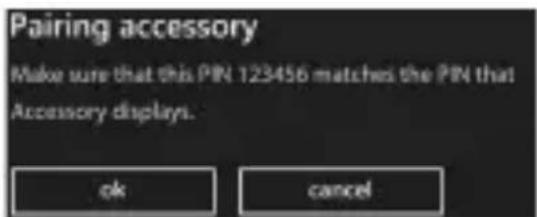
- Enter a PIN for the other device's Bluetooth or compare if it is the same PIN and tap OK.
If the device is connected successfully, "connected" will appear under the Accessory name connected
Send Images Using the Bluetooth Wireless Feature
Tap to open the Photos Hub.
Tap on the bottom bar to open Share.
Tapon

- Tap the device where you want to transfer the photo to.
Accept the file on the other device and check the top bar for progression:



USING THE Wi-Fi
Learn to use the phone's wireless capabilities to connect to any compatible network
Connecting to a Wi-Fi network is a handy way of accessing the Internet. To use Wi-Fi, you need access to a wireless access point or "hotspot":
Connect to a Wireless Network
- In the Start Screen, swipe left to access the full applications list then tap
- Tap on Wi-Fi option

- Turn on Wi-Fi tapping on the
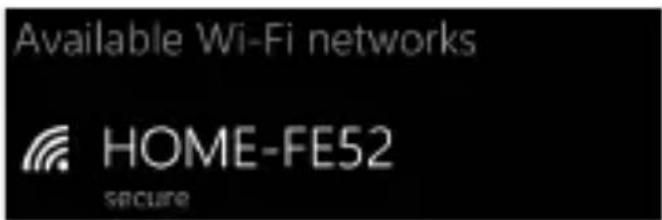
- Tap your desired wireless network in the available networks list:
- Type the password if is protected in the password field:
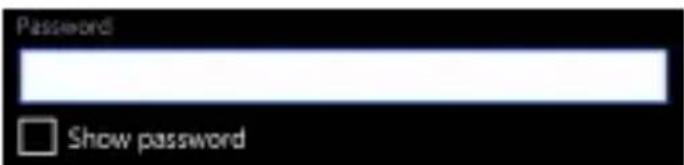
Check the box if you want to make visible the password you are entering.
Disconnect from a Wireless Network
-
In the Start Screen, swipe left to access the full applications list then tap Settings.
-
Tap the Wi-Fi option

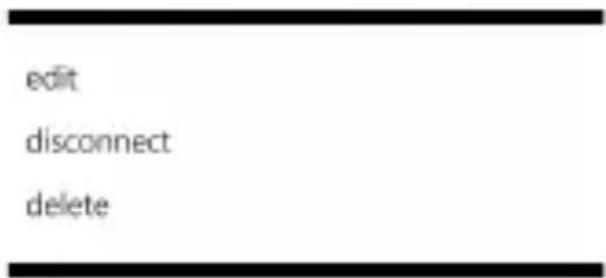
- Tap and keep tapping the wireless network for about two seconds to open the options menu then tap disconnect.
View the Technical Details of a Wireless Network
- In the Start Screen, swipe left to access the full applications list then tap Settings.
- Tap on the Wi-Fi option Wi-Fi
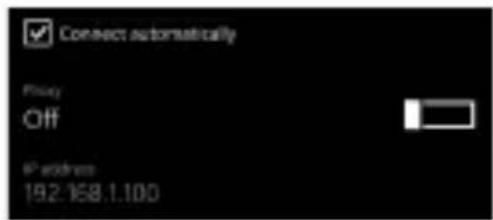
- Tap the wireless connection that you are connected to, to view the details.
EU WEEE
Information to consumers in application of EU WEEE.
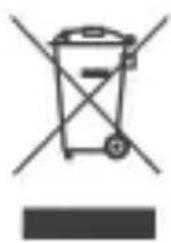
This product is subject to European Union regulations that promote the re-use and recycling of used electrical and electronic equipment. This product required the extraction and use of natural resources and may contain hazardous substances. The symbol above, on the product or its packaging, indicates that this product must not be disposed of with your other household waste. Instead, it is your responsibility to dispose of your waste equipment by handing it over to a designated collection point for the recycling of waste electrical and electronic equipment.
The separate collection and recycling of your waste equipment at the time of disposal will help to conserve natural resources and ensure that it is recycled in a manner that protects human health and the environment.
For more information about where you can drop of your waste equipment for recycling, please contact your local city office, your household waste disposal service, or the store from which you purchased the product.
RADIO WAVES
Proof of compliance with international standards (ICNIRP) or with European Directive 1999/5/EC (R&TTE) is required of all mobile phone models before they can be put on the market. The protection of the health and safety for the user and any other person is an essential requirement of these standards or this directive.
THIS DEVICE MEETS INTERNATIONAL GUIDELINES FOR EXPOSURE TO RADIO WAVES
Your mobile device is a radio transmitter and receiver. It is designed not to exceed the limits for exposure to radio waves (radio frequency electromagnetic fields) recommended by international guidelines. The guidelines were developed by an independent scientific organization (ICNIRP) and include a substantial safety margin designed to assure the safety of all persons, regardless of age and health.
The radio wave exposure guidelines use a unit of measurement known as the Specific Absorption Rate, or SAR. The SAR limit for mobile devices is 2W / kg .
Tests for SAR are conducted using standard operating positions with the device transmitting at its highest certified power level in all tested frequency bands.
Body-worn SAR testing has been carried out at a separation distance of 1.0cm to meet RF exposure guidelines during body-worn operation, the device should be positioned at least this distance away from the body. If you are not using an approved accessory, ensure that whatever product is used is free of any metal and that it positions the phone the indicated distance away from the body.
For more information you can go to www.sayyezz.com
Additional information about electromagnetic fields and public health are available on the following site: http://www.who.int/peh-emf.
Your telephone is equipped with a built-in antenna. For optimal operation, you should avoid touching it or degrading it.
As mobile devices offer a range of functions, they can be used in positions other than against your ear. In such circumstances the device will be compliant with the guidelines when used with headset or USB data cable. If you are using another accessory, ensure that whatever product is used, is free of any metal and that it positions the phone at least 1.0cm away from the body.
LICENCES
The Bluetooth word mark and logos are owned by Bluetooth SIG, Inc. and any use of such marks by DDM Brands LLC and its affiliates is under license. Other trademarks and trade names are those of their respective owners.
RADIO WAVES
Proof of compliance whit international standards (ICNIRP) or with European Directive 1999/5/EC (R&TTE) is required of all mobile phone models before they can be put on the market. The protection of the health and safety for the user any other person is an essential requirement of these standards or this directive.
THIS DEVICE MEETS INTERNATIONAL GUIDELINES FOR EXPOSURE TO RADIO WAVES
Your mobile device is a radio transmitter and receiver. It is designed not to exceed the limits for exposure to radio waves (radio frequency electromagnetic fields) recommended by international guidelines. The guidelines were developed by an independent scientific organization (ICNIRP) and include a substantial safety margin designed to assure the safety of all persons, regardless of age and health.
EU Regulatory Conformance
Hereby, this device is in compliance with the essential requirements and other relevant provisions of Directive 1999/5/EC.
For the declaration of conformity, visit the Web site www.sayyezz.com/certifications.
Notice: Observe the national local regulations in the location where the device is to be used. This device may be restricted for use in some or all member states of the European Union (EU)
Notes:
- Due to the used enclosure material, the mobile phone shall only be connected to a USB Interface of version 2.0 or higher. The connection to so called power USB is prohibited.
- The adapter shall be installed near the equipment and shall be easily accessible.
- Do not use the mobile phone in the environment at too high or too low
temperature, never expose the mobile phone under strong sunshine or too wet environment. The suitable temperature for the phone and accessories is -10°C-55°C.
-
When charging, please place the phone in an environment that has a normal room temperature and good ventilation. It is recommended to charge the phone in an environment with a temperature that ranges from 5^ 25^ . Please ensure to use only the charger offered by the manufacturer. Using unauthorized charger may cause danger and violate the authorization of the phone and the guarantee article.
-
CAUTION: RISK OF EXPLOSION IF BATTERY IS REPLACED WITH AN INCORRECT TYPE. DISPOSE USED BATTERIES ACCORDING TO THE INSTRUCTIONS
-
Excessive sound pressure from earphones and headphones can cause hearing loss.
For more information you can go to www.sayyezz.com
Additional information about electromagnetic fields and public health are available on the following site. http://www.who.int/peh-emf.
Your telephone is equipped whit a built-in antenna. For optimal operation, you should avoid touching it or degrading it.
As mobile devices offer a range of functions, they can be used in positions other than against your ear. In such circumstances the device will be compliant whit the guidelines when used with headset or USB data cable. If you are using another accessory ensure that whatever product is used is free of any metal and that it positions the phone at least 1.5cm away from the body.
LICENCES
Bluetooth SIG, Inc. owns the Bluetooth word mark and logos and any use of such marks by DDM Brands LLC and its affiliates is under license. Other trademarks and trade names are those of their respective owners.
We, DDM BRANDS LLC
(1616 NW, 84TH Ave. Miami, Florida U.S.A. 33126)
Hereby declares that:
YEZZ compiles with the standards and provisions of the directives. The certificate of conformity procedure defined in article IV of directive 1999/5/EC has been under the control of the following organization:
PHOENIX TESTLAB GmbH
Königswinkel 10 D-32825 Blomberg, Germany
www.phoenix-testlab.de
Phone: +49(0)5235-9500-24 Fax: +49(0)5235-9500-28
The full text of the certificate of conformity of the device is available upon request by mail at the following address: DDM BRANDS LLC - 1616 NW 84 ^TH Ave. Miami, Florida U.S.A. 33126.
06/27/2014
(Date)
Luis Sosa / CEO
(Name and signature of authorized person)
| Maximum SAR for this model and conditions under which it was recorded: | |
| EGSM 900 | 0.327 W/kg 10g Head SAR – 0.529 W/kg 10g Body SAR |
| DCS 1800 | 0.199 W/kg 10g Head SAR – 0.355 W/kg 10g Body SAR |
| WCDMA 900 | 0.187 W/kg 10g Head SAR – 0.287 W/kg 10g Body SAR |
| WCDMA 2100 | 0.139 W/kg 10g Head SAR – 0.228 W/kg 10g Body SAR |
| WCDMA 850 | 0.173 W/kg 10g Head SAR – 0.243 W/kg 10g Body SAR |
During use, the actual SAR values for this device are usually well below the values stated above. This is because, for purposes of system efficiency and to minimize interference on the network, the operating power of your mobile device is automatically decreased when full power is not needed for the call. The lower the power output of the device, the lower its SAR value.
FCC
Please take time to read this important section.
FCC Caution
Any Changes or modifications not expressly approved by the party responsible for compliance could void the user's authority to operate the equipment.
Before a new model phone is available for sale to the public, it must be tested and certified to the FCC that it does not exceed the exposure limit established by the FCC. Tests for each phone are performed in positions and locations (e.g. at the ear and worn on the body) as required by the FCC.
This device complies with part 15 of the FCC Rules. Operation is subject to the following two conditions: (1) This device may not cause harmful interference, and (2) this device must accept any interference received, including interference that may cause undesired operation.
Note: This equipment has been tested and found to comply with the limits for a Class B digital device, pursuant to part 15 of the FCC Rules. These limits are designed to provide reasonable protection against harmful interference in a residential installation.
This equipment generates, uses and can radiate radio frequency energy and, if not installed and used in accordance with the instructions, may cause harmful interference to radio communications. However, there is no guarantee that interference will not occur in a particular installation. If this equipment does cause harmful interference to radio or television reception, which can be determined by turning the equipment off and on, the user is encouraged to try to correct the interference by one or more of the following measures:
- Reorient or relocate the receiving antenna.
- Increase the separation between the equipment and receiver.
- Connect the equipment into an outlet on a circuit different from that to which the receiver is connected.
- Consult the dealer or an experienced radio/TV technician for help.
INFORMACAO DE SEGURANCA
| Maximum SAR for this model and conditions under which it was recorded: | |
| EGSM 900 | 0.327 W/kg 10g Head SAR – 0.529 W/kg 10g Body SAR |
| DCS 1800 | 0.199 W/kg 10g Head SAR – 0.355 W/kg 10g Body SAR |
| WCDMA 900 | 0.187 W/kg 10g Head SAR – 0.287 W/kg 10g Body SAR |
| WCDMA 2100 | 0.139 W/kg 10g Head SAR – 0.228 W/kg 10g Body SAR |
| WCDMA 850 | 0.173 W/kg 10g Head SAR – 0.243 W/kg 10g Body SAR |
(1616 NW, 84TH Ave. Miami, Florida U.S.A. 33126)
Declaram ca:
OΦopMJIeHnE Ha TeIeΦoHa
Or npednata ctpaHa Ha Baunr TelefoH ue Bndnte cneHNte elementn:
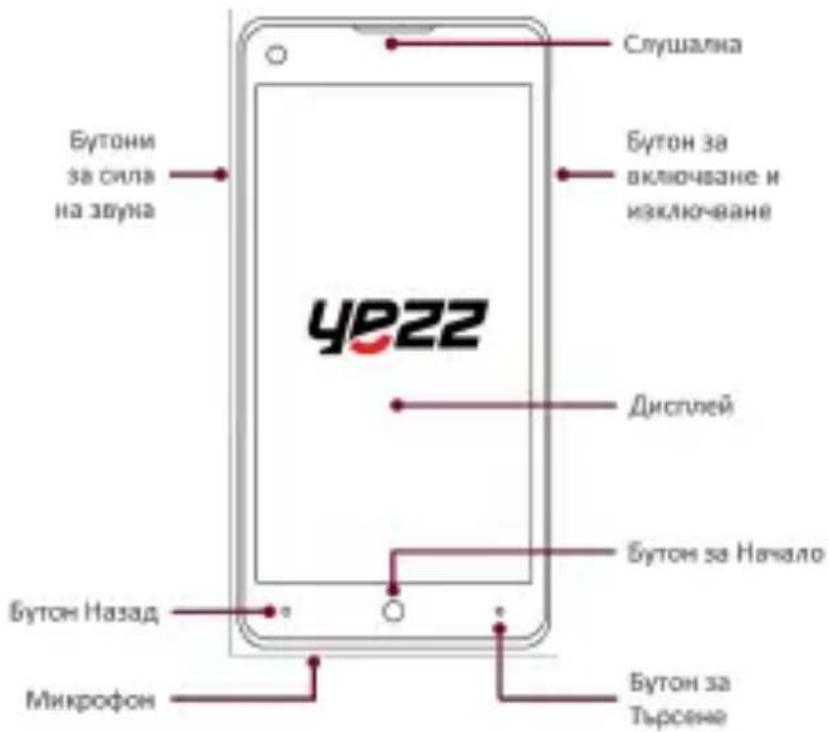
Or 3aHaTa cTpaHa Ha Baunr TelefoH ue Bnnte cneHNte enemEni:
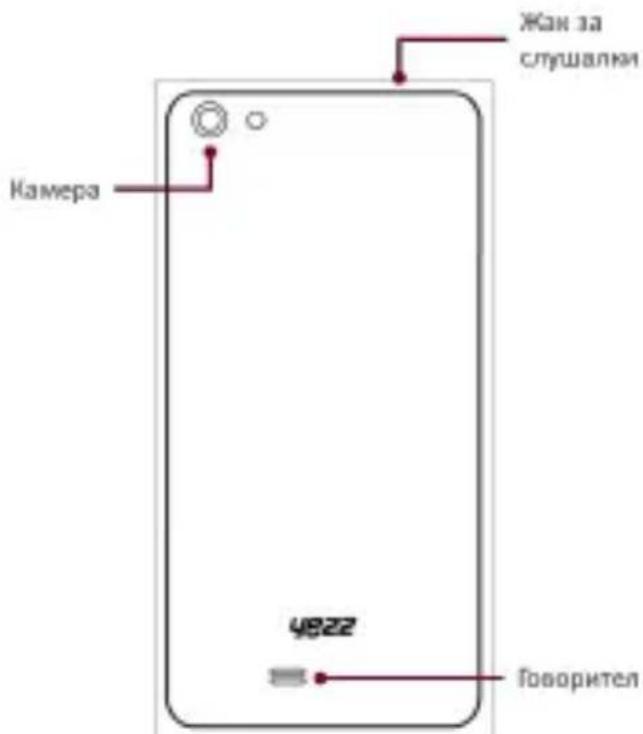
Бутон
DolHaTa Ta6nla Cn npedna 6b3o Onncahne Ha 6yToHnTe Ha TeJefoHa:
OchOBHnTe npaMeTpN, n3NoJ3BaHn OT NOBeYeTo DoCTaBnCi ca:
APN
- Notpe6nteKo nme
- Napolana
Дугntedoctabuии n3noJ3BaT proxy cbpBbpn. MoЯ BuxTe KOHfngypaunraHa Baunia doctabuNK 3a NObeue INΦopMaun:
I36epTe 6yToHa 3a 3aNa3BaHe BdoHataJeHTa,3a Da 3aNa3nTe BaunTe npametpn.
Ako cmeHnte BaWata SIM KapTa C dpyr DoCTaBUnK n Bpb3KaTHe e aKTnBHa, tep6Ba Da NOBTopnte Te3n CTbPKn 3a Baunr HOB DoCTaBUnK.
OcBeH ToBa, aKo cIeI NaCTpoiKaTa BaIaTa INHTepHET Bpb3Ka He e aKTINBHa, npOBepTe dJIH OnIyTa Mo6nIH N daHH e pa3peWeHa B TropHaT aacr Ha ekpaHa:

3a DeKlapaunra 3a CbOTBeTCTBnE, NocTeTe INHTepHeT CTpaHncaTa www.sayyezz.com/certifications.
3a6eJekka: Cna3BaIte HaunohHnTe n MeCTHnTe pa3nope6n Ha MxCTOTO, KbJeTo ce npedBnKda yctpoiCTBOTo da 6bDe n3No13BaHO.ToBa ycTPOiCTBO MoKe da 6bDe orpaHnueHo 3a yNtpe6a B HAKOIN Nn BCNUCKn DbpXkABN-NeHKn Ha EBponecknca bIO3 (EC).
3a6eJekn:
-Поради n3ползваня MaTeрнал 3a 3arpaжденue,MOБингТ Teleфон ТрябВа дa
ce CBbp3Ba cAmO c USB nHTeppeic c Bercn 2.0 nn no-BncoKa. Cbbp3BaHeTo KbM T. Nap. 3axpaHbaio USB e 3a6paHeHo.
-
AdaTepbT Tp6Ba Da 6bJe INHCTaIIpaH B 6IIN3OcT Do o6OpyDbaHeTo n Da 6bJe IecHO DOCTbNeH.
-
He u3no13BaIte Mo6uHn8 Telefoh B cpea C npeKaIeHO BvcoKa IIN npeKaIeHO HnCKa TempepaTpa, HnKora He u3laarTe Mo6uHn8 Telefoh Ha CInHa CnBHeBa CBetlnHa IIN npeKaIeHO BlaxHa cpea. PoDxoJaTa TempepaTpa 3a TelefoHa n akcecoapnte e -10°C-55°C.
-
По врeme Ha 3apeжданeto, моля, поставete TelefoHa B cpeda, когTo e C HopmaJHa CTaHa TemnepaTpa N do6pa BeHTnlaucn. ПpenOpbUHTeHNo e da 3apejdaTe TelefoHa B cpeda C TemnepaTpa, kogTo bapupa ot 5^ 25^. MoJa, yBepTe ce, ye n3POn3BaTe cMo 3apdHOTo yCTpoiCTBO, ppeIIOxHeO ot PpOn3BoDInTeJI. I3POn3BaHTo Ha Hepa3peSeHo 3apdHOb yCTpoiCTBO Moke da DoBede Do onaCHOt N HapyuShaBaHe pa3peSeHHeTo Ha TelefoHa N YJIeHa 3a rapaHcIy.
-BHIMAHNE: PICK OT EKCPIIO3NIA, AKO BATEPNA 5bDE 3AMEHEA C HENOXODIa. N3XBbPJIaTE I3NOJ3BAHNTE BATEPNB CbOTBETCTBNE C INHCTPYKUINTE
Bluetooth SIG, Inc. owns the Bluetooth word mark and logos and any use of such marks by DDM Brands LLC and its affiliates is under license. Other trademarks and trade names are those of their respective owners.
HneOT DDM BRANDS LLC
(1616 NW, 84TH Ave., Maamy, Φοριδα, CAU 33126)
C HactoToTO 3aYBaMe, Ye:
YEZZ CbOTBeTCTBa Ha CTaHdApTnTe n pa3nope6nTe Ha DnpeKtNBte. IpoceDypata Ha cepTnΦHKata 3a CbOTBeTCTBnE, NocOueHa B yI. 10.5 Ha DnpeKtNbA 1999/5/EO ce pbkOBoJN ot CneiHaTa OprHaHn3aun:
PHOENIX TESTLAB GmbH
Königswinkel 10 D-32825 Blomberg, Germany www.phoenix-testlab.de
Phone: +49(0)5235-9500-24 Fax: +49(0)5235-9500-28
ПьлниТTekт Ha cepTuФиКаТа 3a CBOTBETCTBue Ha yCTpoIcTBOTO e HaNuHNo npn NOINCKBaHe no noцаTa Ha cIeHNHa aDpec: DDM BRANDS LLC, 1616 NW, 84th Ave, Maamn, Φлорпda, CAU 33126

06/27/2014
(DaTa)
Lync Coca /ИзпьнHTeHENДиpeKTop
(Име и подес на упьномошени)
| Мakсимална SAR стойост (спесифоча стойост на польuchaе) за този мodyел и усань, пи КочTO e записна. | |
| EGSM 900 | 0.327 W/kg 10g SAR ot главата - 0.529 W/kg 10g SAR ot посяно до тялOTO |
| DCS 1800 | 0.199 W/kg 10g SAR ot главATA - 0.355 W/kg 10g SAR ot посяно до тялOTO |
| WCDMA 900 | 0.187 W/kg 10g SAR ot главATA - 0.287 W/kg 10g SAR ot посяно до тялOTO |
| WCDMA 2100 | 0.139 W/kg 10g SAR ot главATA - 0.228 W/kg 10g SAR ot посяно до тялOTO |
| WCDMA 850 | 0.173 W/kg 10g SAR ot главATA - 0.243 W/kg 10g SAR ot посяно до тялOTO |
IIO npHcHn IO BpeMe Ha n3NOJ3BaHe DeIcTBInHIne SAR cToHocTH 3a TOBa yCTPOINCTBO ca DOCTa NOI cTOnHOCTHTe, NOCOeHN IIO-rope. ToBa e TaKa, 3aIoTO 3a IeJIte 3a eΦeKTHBHOCT Ha CNCTeMaTa I MNHMn3npaHc HcMyUeHNrTa BbpXy MpeXaT, ONepaTNbHaT MoUHOCT Ha BaSeTO MObUNHO YcTPOINCTBO ABTOMATuHc Ce HamaJIbA, KOrato 3a ObaXJaHETo He e HyXHa IIbJIHa MoUHOCT. KOJIKOTo IIO-HNCKa e IN3XoJHaT MaOuHOCT Ha yCTPOINCTBO, TOLKOBA IONHcKa e SAR cToHocTTa.
Преупекдени FCC (Ферална komсия по komунке Unte Ha CAU)
Bcra Ka npomHa nn MoDnKau, KOnto He ca n3pHNO oO6peHn OT npOn3BOAnTeIa, ige DOBeDaT Do o6e3CnIbAHe Ha npaBTo Ha nOTpe6nteJr da pa6OTn cOBOpyDbAHeTO.
Ipei Da 6bJe nychat 3a npoJaX6a HOB moen TelefoH, Toi Tp8Ba da 6bJe TectBaH n cepTnphiuPAH B cBoTBcTbNE C FCC B yBepEnHe Ha TOBA, ye Toi Hma Da IpeBnI rpaHnIte, 3aIOxKeHN OT FCC. TectOBeTe 3a BCEKN TelefoH 6NBaT N3BbPswBaHn Ha peaHn Po3uIN (HaNPmEp Ha yXOTO INN HOCEN Bbpxy TAnoto) Cnopei N3NCKBaHnraHa FCC.
ToBa yCtpoiCTBO e npOn3BeDeHO cbrIacHo n OTroBapra Ha qact 15 ot o6uHte npaBnla Ha FCC. Pn yNoTpe6bata My Baxkat cneHNite dBe ycNobn: (1) ToBa yCtpoiCTBO He Tp8Ba Da npuHnRa BpeHN 3a 3dpaBeTo emncn, n (2) YcTpoiCTBOTo Tp8Ba Da MoKe Da yHKUOHnpa DOpn NOD Bb3dEICTBneto Ha HexeJahn YecTOTn.
3a6eJkKa: yCTpoiCTBOTo e TeCTBaHO n OTROBapn Ha cTOnHocHTte 3a KlaC B 3a
eNEKTPoHHO yCTpoiCTBO CbIlnacHO n3NCKBaHnraHa pa3dien 15 Ha cTaNdApTa FCC.
Te3n n3NcKBaHnna ZeJIaT Da OcnrypT 3aunTa CpeuY BpeHN cMyueHnna B
0bntaBaHnTe ot Xopa NOMeHnna.
Toba yctpoiCTBO reHepnpa, n3noJ3Ba n MoKe da n3JIbUba paIIOueCTOTHa eHepnna, aKO He e HNCTaIIpaHO n n3NOJ3BaHO CbflacHO IHCTpyKcUNTe, MoKe da npuHHn cMyeHn B paIIOKOMyHnKaCUnTe. DOpn npn npabINHaTa My yNoTpe6a He e n3KIOUeHO Da Ce IPOBt EHNuHn CnyuaH Ha TAKNBa CmySeHn. AKO yCTpOoiCTBOTo npuHHn cMyeHn B paIIO N/INn TeJeBn3IOHnN CnHaN, KoEt MOKe da 6bnde UCTaHOBeHO upe3 BkIIOUBAHeTO n n3KIOUVAHeTo My, Notpe6nteJrT pr6Ba da ONHTa Da rN OTCTpaHn, PpeInpneMaIKn EdHa OT CNeDHNTE MEPKn:
- Ппесхетроване На стetedа Илп НOTО пемecтванe.
- YBéniucaBaHe Ha pa3CTOJHnETo Mejky UcTPOIcTBOTOn I npneMHnKa.
- Bключване на устюпсвOTOВ коHTаКТ, КОЛTO e чaСТ OT OTДeЛHа OT Ta3N Ha npиемнika Мpeжа.
- KoHcyItpaHe c npOdaBaHa yCTpOiCTBOTO nIn KBaIIuΦnUpaH paIIO nIN TB TexHnK 3a CbBeT.



- Luis Sosa / President
- INTRODUCING YOUR MOBILE PHONE
- Unboxing
- Phone Layout
- Keys
- Screen
- Icons
- PREPARED YOUR MOBILE PHONE
- Install the SIM card
- Insert a Memory Card (optional)
- USING BASIC FUNCTIONS
- Turning Your Phone On and Off
- Applications and Tiles
- Phone
- Make a Call:
- To Answer a Call:
- Messages
- Steps to Send Text and Multimedia Messages:
- People
- Add a new contact:
- Search for a contact
- Music
- Listen Music:
- Music Store:
- Add Music to Your Phone:
- Internet Explorer
- To Search or Open a Web Page:
- To Switch Between Tabs
- Add or Open Favorites
- CAMERA
- Take Photos
- Record videos
- Photos
- To View Your Photos:
- To Play Your Videos:
- CONNECTING TO THE INTERNET
- Add a New Connection
- Switch Your Internet Connection Between Carriers (SIM Cards)
- USING THE BLUETOOTH
- Turn on the Bluetooth Wireless Feature
- Bluetooth
- Find and Pair with Other Bluetooth Enabled Devices
- Send Images Using the Bluetooth Wireless Feature
- USING THE Wi-Fi
- Connect to a Wireless Network
- Disconnect from a Wireless Network
- View the Technical Details of a Wireless Network
- EU WEEE
- RADIO WAVES
- LICENCES
- EU Regulatory Conformance
- PHOENIX TESTLAB GmbH
- Luis Sosa / CEO
- FCC
- FCC Caution
- INFORMACAO DE SEGURANCA
- OΦopMJIeHnE Ha TeIeΦoHa
- Бутон
- Преупекдени FCC (Ферална komсия по komунке Unte Ha CAU)
Brand : YEZZ
Model : Billy 4.7
Category : Smartphone