
Classic C50 - Smartphone YEZZ - Free user manual and instructions
Find the device manual for free Classic C50 YEZZ in PDF.


| Type de produit | Smartphone |
| Brand | YEZZ |
| Model | Classic C50 |
| Display Size | 5.0 inches (approx.) |
| Display Resolution | 480 x 854 pixels (approx.) |
| Dimensions | 145 x 73 x 10 mm (approx.) |
| Weight | 180 g (approx.) |
| Battery Capacity | 2000 mAh (removable) |
| Operating System | Android (likely Go edition) |
| Processor | Quad-core 1.2 GHz |
| RAM | 1 GB |
| Internal Storage | 8 GB (expandable via microSD) |
| Rear Camera | 5 MP |
| Front Camera | 2 MP |
| Connectivity | Wi-Fi, Bluetooth, 3G |
| SIM Card | Dual SIM (Micro-SIM) |
| Main Functions | Calling, SMS, Camera, Internet, GPS |
| Cleaning Instructions | Wipe with a soft dry cloth; avoid liquids. |
| Safety Precautions | Do not expose to extreme temperatures; use approved charger. |
| Spare Parts Availability | Contact YEZZ support for replacement parts. |
Frequently Asked Questions - Classic C50 YEZZ
User questions about Classic C50 YEZZ
0 question about this device. Answer the ones you know or ask your own.
Ask a new question about this device
Download the instructions for your Smartphone in PDF format for free! Find your manual Classic C50 - YEZZ and take your electronic device back in hand. On this page are published all the documents necessary for the use of your device. Classic C50 by YEZZ.
USER MANUAL Classic C50 YEZZ
Please remember to obey relevant rules and regulations whenever use your phone. This will prevent bad effect from you and the environment.
General security
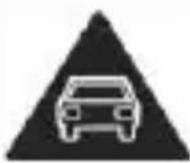 | Don’t make or receive handheld calls while driving. And never text while driving. |
 | Don’t use at petrol stations. |
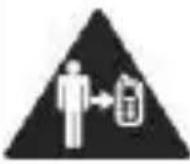 | Keep your phone at least 15 mm away from your ear or body while making calls. |
 | Your phone may produce a bright or flashing light. |
 | Small parts may cause a choking. |
 | Don’t dispose of your phone in fire. |
 | Your phone can produce a loud sound. |
 | Avoid contact with anything magnetic. |
 | Keep away from pacemakers and other electronic medical devices. |
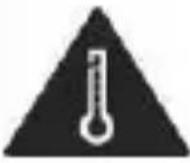 | Avoid extreme temperatures. |
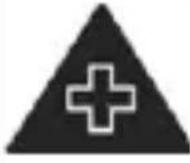 | Switch off when asked to in hospitals and medical facilities. |
 | Avoid contact with liquids. Keep your phone dry. |
 | Switch off when told to in aircrafts and airports. |
 | Don’t take your phone apart. |
 | Switch off when near explosive materials or liquids. |
 | Only use approved accessories. |
 | Don’t rely on your phone for emergency communications. |
 | Warning electrical hazard!To avoid serious injury do not touch charger pins.Unplug the charger when not in use.To unplug a charger or an accessory, hold and pull the plug, not the cord.The power adaptor is the switch off device of the equipment. The wall power socket should be located near the equipment and easily accessible. |
Look at the adapter regularly, specifically at the plug and the layer to detect any damages. If the adapter is damaged, you can't use it until it's fixed.
Plug in the adapter to a power outlet which is easily accessible. Always unplug the adapter after using it.
Use only the adapter provided with the device.
Do not expose your device to direct sunlight, like on your car's dashboard, for example.
In case of overheating do not use the device.
Be careful when using the device while walking.
Do not subject the device to severe impact or drop it from high position, it could cause damages or malfunctions.
Do not disassemble, modify or fix the device by yourself.
To clean the device use a clean and soft rag. Do not use any chemical product or detergent.
INTRODUCING YOUR MOBILE PHONE
Learn about your mobile phone's layout, keys, display and icons.
Unpacking
Check the product box for the following items:
- Mobile phone
- Battery
- Travel adapter (charger)
- User manual
The supplied accessories perform best for your phone.
Phone layout
From the front view of your phone you will observe the following elements:
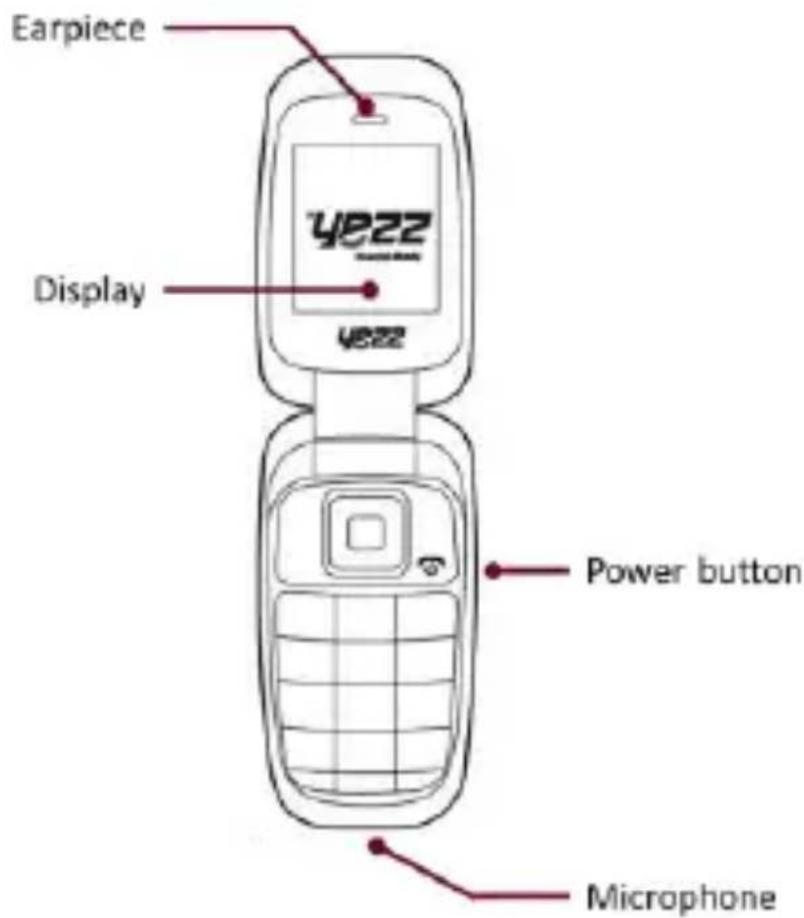
From the back view of your phone you will observe the following elements:

Keys
The following table offers you a quick description about the phone's keys:
| Key | Function |
| Function | Perform the action indicated in the bottom of the screen. |
| Navigation | In standby mode, you can access the user-defined functions, in menu mode, scroll through menu options. |
| Central Button | In standby mode, press and hold the button to turn on the flashlight, in menu mode, select the highlighted menu option or confirm an action. |
| Call | Open the list of recent calls or make a call to the displayed number. You can answer an incoming call. |
| Hang up | Ends a call or reject an incoming call. Hold down for 3 seconds to turn on / off the phone. |
| 1......0 | Enter numbers, text and / or special characters. |
Screen
The screen of your mobile phone is designed as follows:

Icons
Learn about the icons that are displayed on the top of the screen, indicating the status of the phone:
| Icon | Function description |
| Represent current SIM1 and SIM2 network signal. The more bars, the stronger the signal | |
| Flight modeBattery status , more bars indicate more battery capacity leftUnread SMS | |
| Clock has set | |
| Bluetooth function is activatedProfile has set as Silent Mode | |
| Profile has set as Meeting Mode | |
| Profile has set as Indoor Mode | |
| Profile has set as Outdoor Mode |
PREPARING YOUR MOBILE PHONE
Get started setting up your mobile phone for its first use.
Install the SIM card and battery
When you subscribe to a cellular service, you will receive a Subscriber Identity Module (SIM) card, with subscription details, such as your personal identification number (PIN) and optional services.
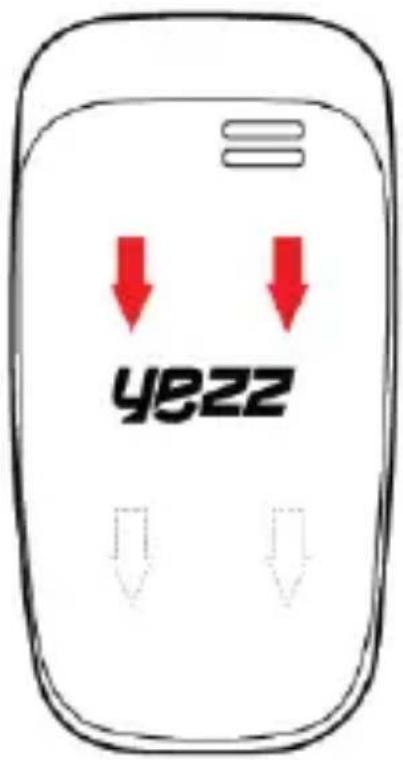
To install the SIM card and battery,
- Remove the battery cover.
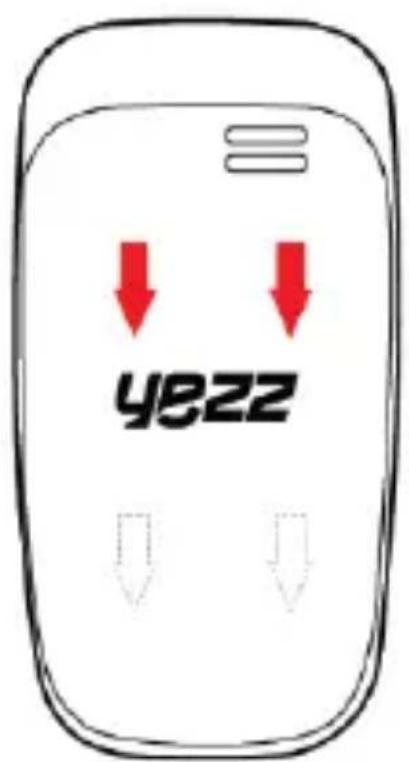
- Insert the SIM card.
Your phone has 2 SIM card slots to allow you use 2 SIM cards and switch between them.

Z
- Place the SIM card in the phone with the gold-colored contacts facing down.
- Without inserting a SIM card, you can use your phone's non-network services and some menus.
- Insert the battery.

natural_image
Top-down schematic of a device casing with two white arrows indicating left-side flow, no text or symbols present- Replace the battery cover
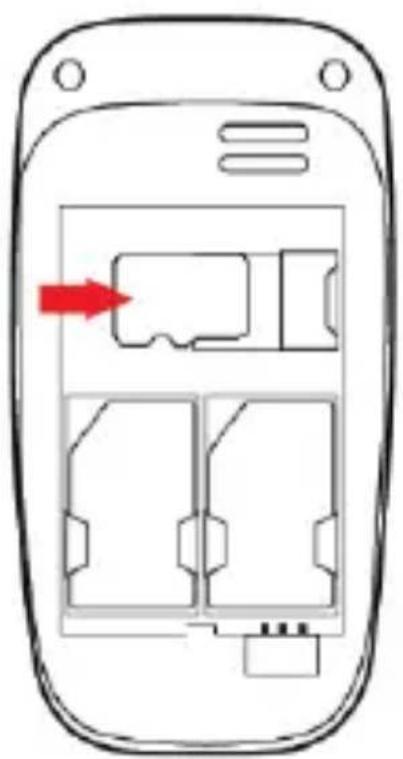
Insert a memory card (optional)
To store additional multimedia files, you must insert a memory card.
Your phone accepts memory cards up to 32 GB (depending on memory card manufacturer and type).
- Formatting the memory card on a PC may cause incompatibility with your phone. Format the memory card only on the phone.
- Remove the battery cover.
- Insert a memory holder with the label side facing up.
natural_image
Diagram of a mobile phone front panel showing internal layout and a red arrow pointing to a device (no text or symbols present)Z
USING BASIC FUNCTIONS
Learn how to perform basic operations of your mobile phone.
Turn your phone on and off
To turn your phone on,
- Long press the power button [ ]
- Type in your PIN number and press OK (if it is needed).
To shut down your phone, go to step 1 above.
Access menus and applications
To get access to the Menu and Applications,
To access your phone's menus,
- In Idle mode, press the left soft key < Menu > to access Menu mode.
- Use the Navigation key to scroll to a menu or option.
- Press < Select>, < OK>, or the Confirm key to confirm the highlighted option.
- Press
to move up one level; Press [ ] to return to Idle mode.
Use basic call functions
Learn to make or answer calls in this section
Make a call:
- In Idle mode, enter an area code and a phone number.
- Press [ ] to dial the number.
- To end the call, press [ ].
Answer a call:
- When a call comes in, press [ ].
- To end the call, press [ ]
Send and view messages
In this section, learn to send and view text (SMS).
To send a text message:
- In Menu mode, select Messages → Create new message → Message.
- Enter a destination number and scroll down.
- Enter your message text.
- Press < Options> → Send to send the message.
Add contacts
Learn the basics of using the phonebook feature.
Add a new contact:
- In Idle mode, enter a phone number and press
. - Select Save → a memory location (phone, SIM1, or SIM2) → New.
- Select a number type (if necessary).
- Enter contact information.
- Press < Options > → Save to add the contact to memory.
Find a contact
- In Menu mode, select Phonebook.
- Enter the first few letters of the name you want to find.
- Select the contact's name from the search list.
Once you have found a contact, you can call the contact by pressing [ ]
Listen to music
Learn how to listen to music via the music player or FM radio.
Listen to the FM radio:
- Plug the supplied headset into the phone's multifunction
jack.
- In Menu mode, select FM radio.
- Press the Confirm key to start the radio.
- Control the FM radio using the following keys:
| Key | Function |
| NAVIGATION | In standby mode, you can access the user-defined functions, In Menu mode, scroll through menu options. |
Listen to music files:
After transferring music files to the "My Music" folder of your phone or memory card,
- In Menu mode, select Multimedia → Audio Player.
- Select a music category → a music file.
- Control playback using the following keys:
| Key | Function |
| NAVIGATION | In standby mode, you can access the user-defined functions, In Menu mode, scroll through menu options. |
Using the flashlight
To turn on or off the flashlight, press and keep pressing the center button for about 3 seconds.
Browse the web
Learn to access your favorite web pages.
Browse web pages:
- In Menu mode, select Browser → Home → a SIM card (if necessary) to launch your service provider's homepage.
- Navigate web pages using the following keys:
| Key | Function |
| NAVIGATION | In standby mode, you can access the user-defined functions, In Menu mode, scroll through menu options. |
USING THE CAMERA
Learn the basics to capture and view photos.
Capture photos
- In Menu mode, select Camera to turn on the camera.
- Aim the lens at the subject and make any adjustments.
- Press the Confirm key to take a photo. The photo is saved automatically.
- Press < Back> to take another photo (step 2).
View taken photos
Z
Press the left soft key then choose Photos to access to the photos gallery quickly.
Camera options
Entering in the Camera options you will be able to configure the following options:
Camera settings:
Select a shutter sound every time you take a picture.
Change the exposure value to adjust the photo brightness.
Change the Anti-flicker value to eliminate the fluorescent effect on the photos.
Adjust the contrast to differentiate dark and light areas.
Modify the delay timer to take self-photos.
Change the continuous shot number to take a series of photos.
Image settings:
You can change the image size.
You can adjust the image quality.
White balance:
Chose a color scheme according to the ambient.
Scene mode:
Allow you to select the night mode (extra light) or let the phone to choose the best mode.
Effect settings:
Add a color effect to the photos taken.
Storage:
Let you choose where to store the photos taken.
CONNECTING TO INTERNET
Learn the basics to configure your phone and connect to Internet.
Add a new connection
- In Menu mode, select Settings → Connectivity → Data account.
- Press < Options > then Add Data account.
- Set the parameters according to your carrier.
The basic parameters are:
- Account name
- APN
- Username
- Password
• SIM selection (if necessary)
Some carriers use Proxy Servers, refer to your carrier configuration for more information.
- Once the needed parameters are set, press < OK > and confirm the new connection pressing < Yes >.
To use the connection as default, press < Options > then Change default.
To add another connection, repeat all the steps.
Configure the browser
Once the connection is added, you need to configure the Internet browser:
- In Menu mode, select Services → Internet service → Settings → Data account, select the SIM card (if necessary) and choose the connection created in the previous step.
Switch between carriers (SIM cards)
If you use multiple SIM cards and want to switch to another one, follow this steps:
-
Configure the connection for both SIM cards (refer to “Add a new connection”).
-
In Menu mode, select Services → Internet service → Settings → Select profile and choose SIM1 or SIM2 according your necessities.
Is possible to select Always ask, then the browser will ask which SIM you want to use before start the Internet session.
Recommendations:
- Do not disassemble, open or tear up the device or the batteries.
- Do not expose the product or the battery to heat or fire. Avoid storage the device directly to the sunlight.
- Do not short-circuit a battery. Do not stock batteries in a drawer where it could short-circuit between each other or get in contact by any other metallic objects.
- Do not cause mechanical shocks to batteries.
- In case of the leak, do not let the liquid get in contact with your eyes or skin. If that happens wash with clear water the affected zone and seek medical advice.
- Follow the marks plus (+) and minus (-) on the battery and the device and ensure that the use is correct.
- Do not use any accessories or batteries that are not made to be used with the device.
- Monitor the use of batteries by children.
- Consult a doctor immediately in case of ingestion of an element or a battery.
- Always buy the battery recommended by the manufacturer of the device.
- Always maintain the product and the battery clean and dry.
- Wipe the terminals of the product or the battery, if it became dirty, with a clean and dry rag.
- It is necessary to charge the battery before its use. Always use the charger and read the manufacturer instructions or the manual of the device for the instructions regarding charging.
- Do not leave a battery charged when it's not going to be used.
- After long periods of storage, it may be necessary to charge and discharge the battery several times in order to achieve maximum performance.
- Always keep the original documentation of the device, you might need it later for future reference.
- If it's possible, take out the battery of the device when it's not used.
- Do not store your device in extremely hot or cold places like inside of a car during the summer. It might damage the device and cause explosion of the battery. It's recommended to use the device in a range of temperatures between 5°C and 35°C.
RADIO WAVES
Proof of compliance whit international standards (ICNIRP) or with European Directive 1999/5/EC (R&TTE) is required of all mobile phone models before they can be put on the market. The protection of the health and safety for the user any other person is an essential requirement of these standards or this directive.
THIS DEVICE MEETS INTERNATIONAL GUIDELINES FOR EXPOSURE TO RADIO WAVES
Your mobile device is a radio transmitter and receiver. It is designed not to exceed the limits for exposure to radio waves (radio frequency electromagnetic fields) recommended by international guidelines. The guidelines were developed by an independent scientific organization (ICNIRP) and include a substantial safety margin designed to assure the safety of all persons, regardless of age and health.
The radio wave exposure guidelines use a unit of measurement known as the Specific Absorption Rate, or SAR. The SAR limit for mobile devices is 2 W/kg.
Tests for SAR are conducted using standard operating positions with the device transmitting at its highest certified power level in all tested frequency bands.
Body-worn SAR testing has been carried out at a separation
distance of 1.0 cm. to meet RF exposure guidelines during body-worn operation, the device should be positioned at least this distance away from the body. If you are not using an approved accessory ensure that whatever product is used is free of any metal and that it positions the phone the indicated distance away from the body.
For more information you can go to www.sayyezz.com
Additional information about electromagnetic fields and public health are available on the following site. http://www.who.int/peh-emf.
Your telephone is equipped whit a built-in antenna. For optimal operation, you should avoid touching it or degrading it.
As mobile devices offer a range of functions, they can be used in positions other that against your ear. In such circumstances the device will be compliant whit the guidelines when used with headset or USB data cable. If you are using another accessory ensure that whatever product is used is free of any metal and that it positions the phone at least 1.0 cm away from the body.
Notes:
- Due to the used enclosure material, the mobile phone shall only be connected to a USB Interface of version 2.0 or higher. The connection to so called power USB is prohibited.
- The adapter shall be installed near the equipment and shall be easily accessible.
- Do not use the mobile phone in the environment at too high
or too low temperature, never expose the mobile phone under strong sunshine or too wet environment. The suitable temperature for the phone and accessories is -10^-55^ .
- When charging, please place the phone in an environment that has a normal room temperature and good ventilation. It is recommended to charge the phone in an environment with a temperature that ranges from 5°C\~25°C. Please ensure to use only the charger offered by the manufacturer. Using unauthorized charger may cause danger and violate the authorization of the phone and the guarantee article.
- CAUTION: RISK OF EXPLOSION IF BATTERY IS REPLACED WITH AN INCORRECT TYPE. DISPOSE USED BATTERIES ACCORDING TO THE INSTRUCTIONS
- Excessive sound pressure from earphones and headphones can cause hearing loss.
For more information you can go to www.sayyezz.com
Z
Additional information about electromagnetic fields and public health are available on the following site. http://www.who.int/peh-emf.
Your telephone is equipped whit a built-in antenna. For optimal operation, you should avoid touching it or degrading it. As mobile devices offer a range of functions, they can be used in positions other that against your ear. In such circumstances the device will be compliant whit the guidelines when used with headset or USB data cable. If you are using another accessory ensure that whatever product is used is free of any metal and that it positions the phone at least 1.5 cm away from the body.
FCC
Please take time to read this important section.
FCC Caution
Any Changes or modifications not expressly approved by the party responsible for compliance could void the user's authority to operate the equipment.
Before a new model phone is a available for sale to the public, it must be tested and certified to the FCC that it does not exceed the exposure limit established by the FCC, Tests for each phone are performed in positions and locations (e.g. at the ear and worn on the body) as required by the FCC.
This device complies with part 15 of the FCC Rules. Operation is subject to the following two conditions: (1) This device may not cause harmful interference, and (2) this device must accept any interference received, including interference that may cause undesired operation.
Note: This equipment has been tested and found to comply with the limits for a Class B digital device, pursuant to part 15 of the FCC Rules. These limits are designed to provide reasonable protection against harmful interference in a residential installation.
This equipment generates, uses and can radiate radio frequency energy and, if not installed and used in accordance
with the instructions, may cause harmful interference to radio communications. However, there is no guarantee that interference will not occur in a particular installation. If this equipment does cause harmful interference to radio or television reception, which can be determined by turning the equipment off and on, the user is encouraged to try to correct the interference by one or more of the following measures:
- Reorient or relocate the receiving antenna.
- Increase the separation between the equipment and receiver.
- Connect the equipment into an outlet on a circuit different from that to which the receiver is connected.
- Consult the dealer or an experienced radio/TV technician for help.



- INTRODUCING YOUR MOBILE PHONE
- Unpacking
- Phone layout
- Keys
- Screen
- PREPARING YOUR MOBILE PHONE
- Install the SIM card and battery
- Insert a memory card (optional)
- USING BASIC FUNCTIONS
- Turn your phone on and off
- Access menus and applications
- Use basic call functions
- Make a call:
- Answer a call:
- Send and view messages
- To send a text message:
- Add contacts
- Add a new contact:
- Find a contact
- Listen to music
- Listen to the FM radio:
- Listen to music files:
- Using the flashlight
- Browse the web
- Browse web pages:
- USING THE CAMERA
- Capture photos
- View taken photos
- Camera options
- Camera settings:
- Image settings:
- White balance:
- Scene mode:
- Effect settings:
- Storage:
- CONNECTING TO INTERNET
- Add a new connection
- Configure the browser
- Switch between carriers (SIM cards)
- Recommendations:
- RADIO WAVES
- THIS DEVICE MEETS INTERNATIONAL GUIDELINES FOR EXPOSURE TO RADIO WAVES
- Notes:
- FCC
- FCC Caution
Brand : YEZZ
Model : Classic C50
Category : Smartphone