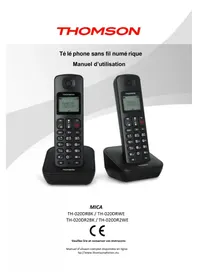
Mica TH020DR2WE - Phone THOMSON - Free user manual and instructions
Find the device manual for free Mica TH020DR2WE THOMSON in PDF.


| Product type | DECT cordless phone with answering machine |
| Brand | Thomson |
| Model | Mica TH020DR2WE |
| Number of handsets | 2 |
| Maximum outdoor range | 300 meters |
| Maximum indoor range | 50 meters |
| Talk time | Approximately 9 hours |
| Standby time | Approximately 100 hours |
| Battery type | Ni-MH rechargeable 1.2 V - 300 mAh |
| Number of batteries supplied | 4 |
| Base power supply | AC adapter 6 V / 500 mA |
| Charger power supply | AC adapter 6 V / 150 mA |
| Answering machine capacity | 12 minutes recording |
| Directory capacity | 50 contacts |
| Main functions | Hands-free, three-way calling, call transfer, redial, call log, alarm, shortcut keys (direct memory) |
| Maximum number of handsets | 4 |
| Display | Screen with icons (signal, battery, messages, etc.) |
| Keypad | Lockable (long press on *) |
| Ringer | Adjustable volume 5 levels, can be turned off |
| DECT standard | GAP compatible |
| Care and cleaning | Soft dry cloth, no solvents |
| Safety instructions | Do not expose to moisture, do not disassemble, unplug during thunderstorms |
| Spare parts and repairability | Replaceable batteries, specific power adapter (S003GV0600015/50) |
| General information | Indoor use only, analog PSTN or PABX line |
Frequently Asked Questions - Mica TH020DR2WE THOMSON
User questions about Mica TH020DR2WE THOMSON
0 question about this device. Answer the ones you know or ask your own.
Ask a new question about this device
Download the instructions for your Phone in PDF format for free! Find your manual Mica TH020DR2WE - THOMSON and take your electronic device back in hand. On this page are published all the documents necessary for the use of your device. Mica TH020DR2WE by THOMSON.
USER MANUAL Mica TH020DR2WE THOMSON
text_image
THOMSON THOMSON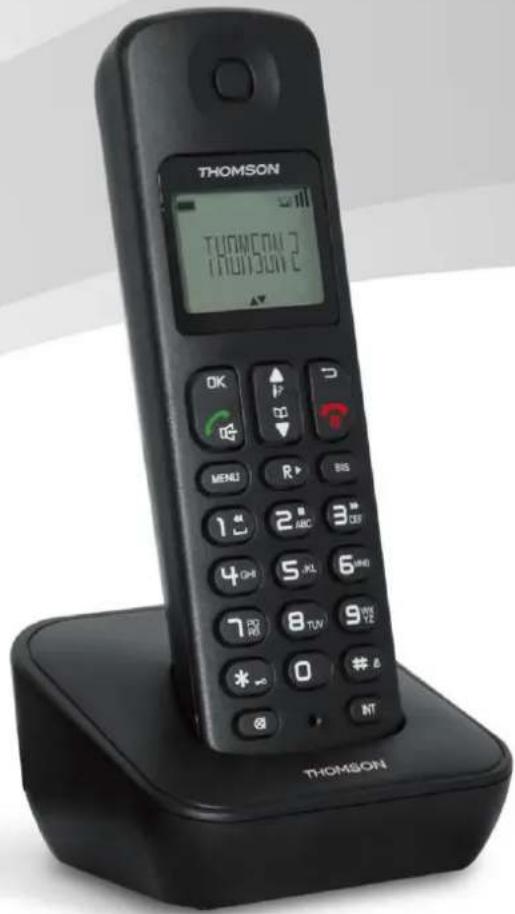
text_image
THOMSON THOMSON 2 THOMSON 2MICA
text_image
Collection of icons representing media, audio, video, and navigation controls with standard symbols like 'OK', '▲▼', and directional arrows.natural_image
Simple curved arrow diagram with no text or symbolsREPERTOIRE
NOUVEAU
LISTE
MODIFIER
SUPPRIMER
SUPPRIMER TOUT
MEM DIRECTE
PERSONNALISE
NOM COMBINE
MELODIES
LANGUE
RACCROC AUTO
HORLOGE& REVEIL
DATE & HEURE
CHOIX FORMAT
REVEIL
MELODIE REVEIL
REGL AVANCES
CHANGER PIN
SOUSCRIPTION
DESOUSCRIRE
REINITIALIS
PREFIXE AUTO
DUREE RAPPEL
MODE NUMEROT
PREM SONN
REPONDEUR
ECOUTER
SUPPRIM TOUT
REP ON/OFF
ENREG ANNONCE
MODE REPONDEUR
REGLAGES
NBR SONNERIE
ACCES A DIST
LANGUE REP
Digital Cordless Telephone
User Manual
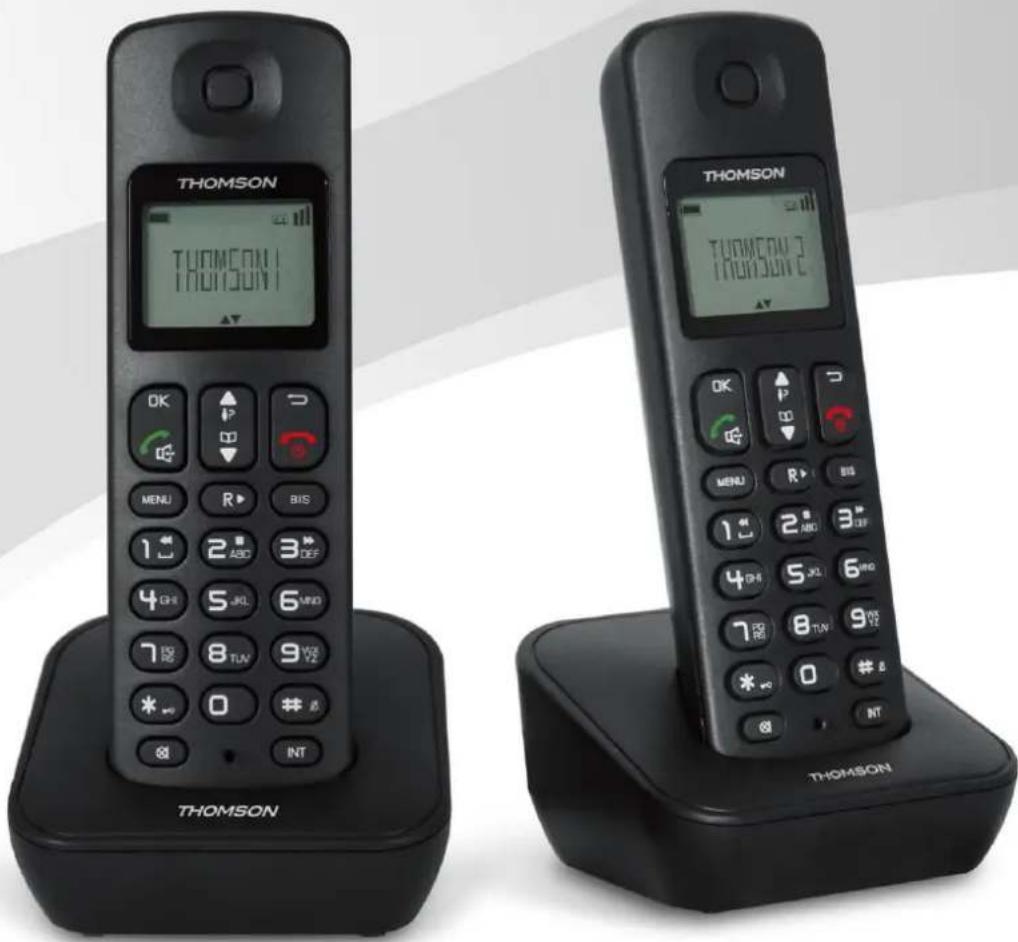
text_image
THOMSON THOMSON 1 THOMSON 2 THOMSONMICA
Please read and retain this instrucon
For instrucon manual in another language, check online at
hp://www.thomsonphones.eu
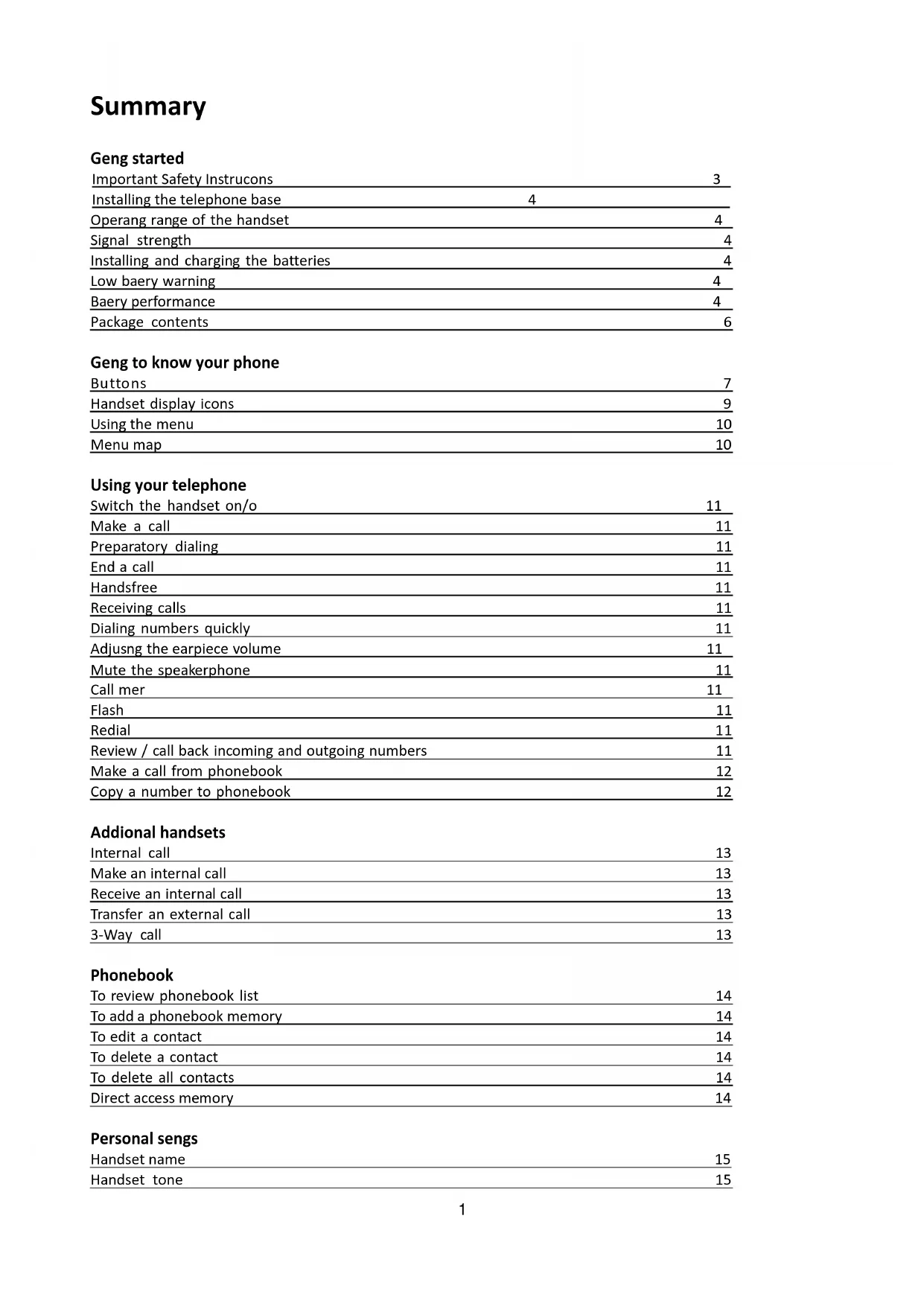
Summary
Geng started
Important Safety Instrucons 3
Installing the telephone base 4
Operang range of the handset 4
Signal strength 4
Installing and charging the batteries 4
Low baery warning 4
Baery performance 4
Package contents 6
Geng to know your phone
Buttons 7
Handset display icons 9
Using the menu 10
Menu map 10
Using your telephone
Switch the handset on/o 11
Make a call 11
Preparatory dialing 11
End a call 11
Handsfree 11
Receiving calls 11
Dialing numbers quickly 11
Adjusng the earpiece volume 11
Mute the speakerphone 11
Call mer 11
Flash 11
Redial 11
Review / call back incoming and outgoing numbers 11
Make a call from phonebook 12
Copy a number to phonebook 12
Additional handsets
Internal call 13
Make an internal call 13
Receive an internal call 13
Transfer an external call 13
3-Way call 13
Phonebook
To review phonebook list 14
To add a phonebook memory 14
To edit a contact 14
To delete a contact 14
To delete all contacts 14
Direct access memory 14
Personal sengs
Handset name 15
Handset tone 15
Language 15
Auto Hang-up 15
Clock & Alarm
Date & me 16
Set date & me format 16
Set the alarm 16
Set the alarm tone 16
Advanced sengs
Change system PIN 17
Registration 17
De-registraon 17
Restore factory default 17
Set prex number 17
Flash me 18
Dial mode 18
First ring 18
Using the answering machine (TAM)
Switch the answering machine on/o 19
Set an answer mode 19
Play, record and delete OGMs 19
Listening to your messages 19
Delete an answering messages 19
Delete all answering messages 20
Ring delay 20
Remote access 20
Select a language for answering machine 20
Trouble shoong 21
Declaraon of conformity 22
Important safety instrucons
Important
To reduce the risk of re, electric shock and injury, always observe the following basic precautions when using your telephone:
- This appliance is intended for indoor use only.
- Observe all markings on the product.
- Do not expose your telephone to moisture and avoid contact with liquids.
• To prevent electric shock, do not disassemble the handset or the telephone base. - Avoid interposing any metal objects (clip, buon, etc.) between the baery contacts and charging contacts.
- Your telephone may have a slight chance of being damaged by lightning. Unplug the telephone base from the mains and disconnect the telephone line during a thunderstorm.
- Do not use the telephone in the vicinity of a gas leak.
- Do not use the handset near any intensive care medical equipment. People with pacemakers should consult their doctor or cardiologist before using this telephone.
- Clean your telephone with a dry. So, lint-free cloth. Do not use any cleaning agents or solvents, especially aggressive ones.
- Exchanges between the telephone base and handset being carried out by radio signals, wearers of hearing aids may be bothered by a small buzz.
- Your telephone may interfere with other electrical appliances such as answering machine, television, radio, clock radio or computer when it is suciently close to such equipment. To avoid this, place the telephone base at least one meter away from other electrical appliances.
- The receiver of the handset may aract small metal objects (staples, pins, etc). Be careful when placing the handset near these items.
- Your telephone does not work in case of power failure and by consequence cannot be used for emergency calls. To avoid such inconvenience, always keep a traditional corded telephone in your home.
- To prevent electric shock, do not use your telephone during a thunderstorm. Refer to the informaon printed on your telephone directory.
- You can connect this product to a PSTN telephone line or an analog PBX extension port. Warning: Connecng this telephone to a digital PBX extension port may cause damage.
- Do not overload wall outlets and extension cords as this may cause a re or electric shock.
• To eliminate any voltage within the telephone, unplug the power cord from the mains.
- Observe the polarity indicated while installing the baeries.
- It is dangerous to use other baery types or non-rechargeable baeries: they can cause interference and/or damage to the product. The manufacturer shall not be liable for any damages caused by such non-compliance.
- Do not immerse a baery in water and do not throw it in a re.
- The socket-outlet shall be installed near the equipment and shall be easily accessible.
• If the appliance is not use for a period of me, please unplug the adapter in order to save electricity.
- The external exible cable of the adapter cannot be replaced, if the cord is destroyed, the adapter should be destroyed.
CAUTION
Please use the bundle adaptor for operates the device only.
Failure to observe the correct polarity or voltage of the adapter may cause damage to the telephone base.
For phone models TH-020DRBK and TH-020DRWE:
Adapter for the telephone base: S003GV0600050
Input: 100-240V\~ 50/60Hz 150mA
Output: DC 6V 500mA
For phone models TH-020DR2BK and TH-020DR2WE:
Adapter for the telephone charger: S003GV0600015
Input: 100-240V\~ 50/60Hz 150mA
Output: DC 6V 150Ma
Installing the telephone base
The telephone base should be placed at least 1 meter away from other electrical appliances in order to avoid interference. The handset exchanges radio signals with the telephone base. The strength of these signals depends on the position of the base. You can obtain a stronger signal by placing the base higher.
▶ Operating range of the handset
The operang range of your telephone is 300 meters outdoors without obstrucons between the telephone base and handset. Obstrucons reduce the operang range. When the telephone base is located indoors, while the handset is indoors or outdoors, the operang range is reduced to 50 meters. Thick concrete walls reduce the operang range significantly.
▶ Signal strength
When the handset is within the operang range of the telephone base, it appears on the screen. If the handset is out of range of range, the symbol ashes on the display. Get closer to the telephone base to turn o this indicator.
▶ Installing and charging the batteries
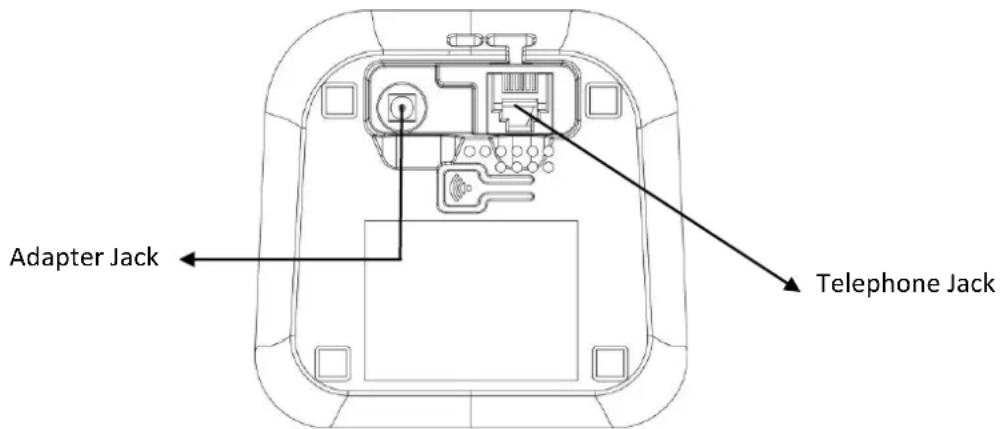
text_image
Adapter Jack Telephone Jack- Insert the plug of the supplied adapter to the back of the telephone base and the other end into an electrical outlet.
- Plug the telephone line cord to the back of the telephone base and the other end into a telephone wall jack.
- Insert the rechargeable Ni-MH baeries supplied into the handset by following the correct polarity as indicated. Close the baery compartment.
- Place the handset on the telephone base and let the baeries charge for 24 hours before using it for the rst me.
▶ Low battery warning
When the baeries are very low, ashes on the handset screen to prompt you to recharge the baeries.
▶ Battery performance
When fully charged, the baeries oer approximately 9 hours of talk me and 100 hours of standby me under ideal conditions. Please note that a new baery reaches its full capacity aer several days of normal use. The baery capacity decreases over me, reducing the talk me and standby me. Replace the baeries if necessary.
The baeries and the handset will become hot during charging. This is normal.
Tip
When you are not using your handset, place it on the charger so that you can always have fully charged baeries.
WARNING
DO NOT USE STANDARD OR ALKALINE BATTERIES. THEY MAY EXPLODE AND CAUSE INJURY. ONLY USE RECHARGEABLE NI-MH BATTERIES AS INDICATED IN THIS USER MANUAL.
Risk of explosion if you use incompatible baeries
Never use non-rechargeable baeries. Use only baeries that are identical to the ones supplied with your telephone.
- Never use alkaline or lithium baeries.
- Do not throw a baery into a re.
- Do not open or damage baeries. Electrolyte is corrosive and can cause irritation to eyes and skin. It is also toxic and must not be swallowed.
- If you must handle the baeries, avoid them from coming into contact with metal objects. This may cause short circuit or overheang and you may burn yourself.
- Do not aempt to recharge the baeries by heang. The baery electrolyte may leak, and may irritate your eyes or skin.
- Observe the polarity indicated. Reversing the polarity of the baery may result in electrolyte leakage and explosion.
- Remove the baeries if you do not intend to use your phone for several months.
- Do not use any other telephone base for charging the handset – the baeries can be damaged.

Warning: Danger of explosion if baeries are incorrectly installed.
Use only Ni-MH baeries. The autonomy for the handsets indicated is based on the original capacity of the baeries.
Dispose of used baeries according to the instrucons of your local authorities.
Package contents
The box of phone model TH-020DRBK / TH-020DRWE contains the following:
| Quantity | |
| Telephone base | 1 |
| Cordless handset | 1 |
| AC adapter | 1 |
| Telephone cable | 1 |
| User manual | 1 |
| Rechargeable 1.2V Ni-MH baery (300mAh) | 2 |
The box of duo phone model TH-020DR2BK / TH-020DR2WE contains the following:
| Quantity | |
| Telephone base | 1 |
| Charger | 1 |
| Cordless handset | 2 |
| AC adapter | 2 |
| Telephone cable | 1 |
| User manual | 1 |
| Rechargeable 1.2V Ni-MH baery (300mAh) | 4 |
Important:
YOU ARE USING A BROADBAND OR ADSL LINE
To ensure proper functioning of your telephone, you need to install a liter (not supplied) between the telephone wall jack and the telephone base. Without this liter, you may experience interference to the phone and loss of broadband signal. Consult the instrucons to install the liter properly.
Buttons
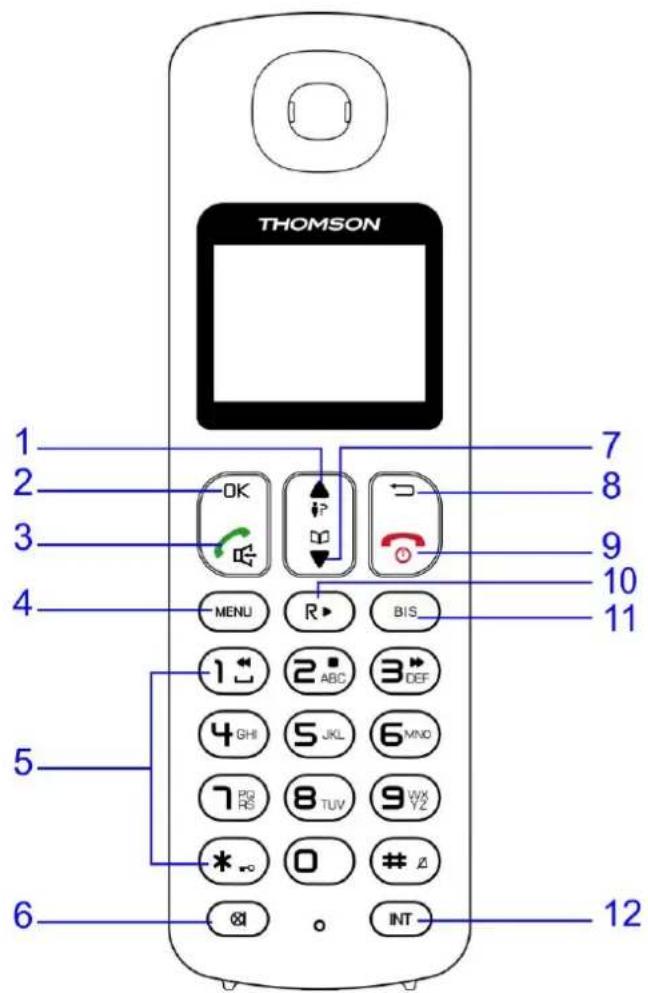
text_image
THOMSON 1 2 3 4 5 6 7 8 9 10 11 2 3 4 MENU R BIS 1 2 ABC 3 DEF 4 GHI 5 JKL 6 VNO 7 PG RS 8 TUV 9 WX YZ * *o 0 # # ⊗ ⊙ INT 12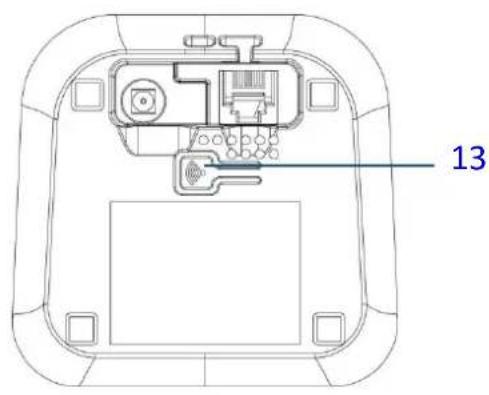
text_image
13-
UP
-
MUTE
-
BIS – REDIAL NUMBER
-
OK
-
DOWN
-
INTERCOM-TRANSFER
-
TALK / HANDSFREE
-
BACK/DELETE
-
PAGE
-
MENU
-
END / ON/OFF
-
NUMERIC BUTTONS
-
R-FLASH / PLAY MESSAGE
1. UP/INCOMING
In standby mode, press to enter the incoming call list.
Scroll up through menu opons, call lists and phonebook entries.
During a call, press this buon to increase the earpiece volume.
2. OK
Press to select menu opons and to conrm a displayed opon.
3. TALK / HANDSFREE
Press to dial, to answer a call and press twice to use the handsfree funcon.
4. MENU
Press to open the menu.
5. NUMERIC BUTTONS, \* (ASTERISK), # (HASH) BUTTONS
Press to enter a number/character, * sign or # sign.
* (ASTERISK) button: in standby mode, long press to lock/unlock the keypad.
# (HASH) buon: in standby mode, long press to acvate/deacvate the ringer.
During playing answering machine messages:
Press 1 to skip back to the previous message.
Press 3 to skip forward to the next message.
Press 2 to stop playing.
6. MUTE
During a call by base, press this buon to switch Mute on/o. When mute on, your caller cannot hear your voice.
7. DOWN
In standby mode, press this buon to enter the phonebook.
Scroll down through menu opons, call lists and phonebook entries.
During a call, press this buon to decrease the earpiece volume.
8. BACK / DELETE
In menu mode, press this buon to return to the previous menu.
In enter/edit mode, press to delete characters and digits.
9. END / ON/OFF BUTTON
Press to end calls.
Press and hold to switch the handset on/o.
When viewing the redial/call lists or when eding, press to exit and return to standby mode.
10. R - FLASH / PLAY MESSAGE
Press the R buon to use special funcons provided by your telephone service provider such as call waing and call forwarding.
In standby mode, press this buon to play TAM message when there the new message is received.
11. BIS-REDIAL NUMBER
In standby mode, press this buon to check the last 5 dialed numbers.
12. INTERNAL / TRANSFER
Use to make internal calls or transfer calls to other handsets registered, or establish a three-way call.
13. PAGE
Press the PAGE buon to locate the handset. The handset will ring.
Press and hold to for registraon of base and handset.
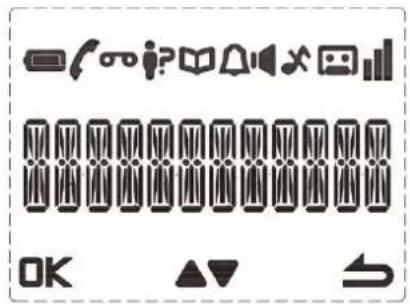
text_image
Collection of icons representing media and information symbols, including camera, speaker, video, and UI elements. | Displays steadily when the baery is full.Flashes when the baery is almost empty. |
| [WHBC] | Displays steadily when having an external call.Flashes when having an internal call. |
 | Displays when there is a new voice message is received from the network. |
 | Displays when a new coming call and hasn't been viewed yet. |
 | Displays when phonebook is open. |
 | Displays when an alarm clock is set. |
 | Displays when handsfree mode is acvated. |
 | Displays when ringer is set to o. |
 | Displays steadily when answering machine is ON.Flashes when there are new answering machine messages.Flashes quickly when answering machine message is full. |
 | Indicates for signal strength.Flashes when handset is not registered to the base or if you go out of range. |
 | Indicate a conrmaon of selected menu. |
 | Indicate more menu opons or increase/decrease volume during a call. |
 | Indicate to return to previous menu or delete a wrong entry. |
▶ Using the menu
◆ Press MENU buon to open the menu.
◆ Press ▲ or ▼ button to scroll the menu opon.
✿ Press OK button to conrm menu selecon or the seng displayed.
◆ Press ←buon to return to previous menu.
✿ Press 🔒 to exit a menu or cancel an operaon at any me to return to standby mode.
Menu map

natural_image
Simple curved arrow diagram with no text or symbolsPHONE BOOK
NEW ENTRY
LIST
EDIT ENTRY
DELETE
DELETE ALL
DIRECT MEMORY
PERSONAL SET
HANDSET NAME
HANDSET TONE
LANGUAGE
AUTO HANG-UP
CLOCK & ALARM
DATE & TIME
SET FORMAT
ALARM
ALARM TONE
ADVANCE SET
CHANGE PIN
REGISTRATION
UNREGISTER
RESET
AUTO PREFI
RECALL TIME
DIAL MODE
FIRST RING
ANSWERING MACHINE
PLAY
DELETE ALL
ANSWER ON/OFF
RECORD OGM
ANSWER MODE
SETTINGS
RING DELAY
REMOTE
LANGUAGE
Using your telephone
▶ Switch the handset on/off
When your handset is o, press and hold
unl the screen turns on. unl the screen turns o.
To switch o the handset, press and hold
Make a call
Press . When you hear the dial tone, dial the phone number.
▶ Preparatory dialing
-
Enter the phone number rst. The number is shown on the display. If you make a mistake, press ←buon to delete a digit.
-
Press to dial the number.
▶ End a call
- Press 🔒 or place the handset back on the base/charger.
▶ Handsfree
- You can press twice to make or answer a call in handsfree mode.
- You can press 📋 each me you wish to switch between handset and handsfree mode.
▶ Receiving calls
- If the handset is on the base or charger, simply li it to answer the call.
- If the handset is not on the base or charger, when the phone rings, press to answer the call.
▶ Dialing numbers quickly
Numbers can also be dialed directly from the phonebook, the calls list or the redial list.
▶ Adjusting the earpiece volume
During a call, press ▲ or ▼ button to increase or decrease the handset volume.
▶ Mute the speakerphone
You can 'Mute' you handset to stop your caller from hearing you while you talk to someone else close by.
-
During a call, press Ⓧ. The handset microphone is muted and the display shows MUTE ON.
-
Press ✉ again to resume your call.
▶ Call timer
Aer the rst 10 seconds of your call, the talking me is to display.
Flash
If the service such as call waiing or forwarding is supported, when having a call and you want to make second call, press R buon and dial the second phone number. The rst call will be put on hold.
Redial
- Press
- Press BIS button, the last dialed number will be dialed.
▶ Review/call back incoming and outgoing numbers
-
Review: In standby mode, press ▲buon once to enter the incoming list or press BIS buon for the dialed list (the last 5 numbers). Then scroll ▲ or ▼ buon to view the records.
-
Call back: When the desired number is shown, press buon to dial the number.
▶ Make a call from phonebook
- In standby mode, press ▼ button and scroll ▲ or ▼ button through the phone list to the entry you want.
- Press the buon to dial the number.
▶ Copy a number to phonebook
- In standby mode, press ▲ button or BIS buon once and scroll ▲ or ▼ button through the list to the entry you want.
- Press OK buon. The display shows SAVE NUMBER. Press OK button.
- The display shows ENTER NAME. Use the keypad to enter the name, and then press OK. The display shows SAVED. The number is saved to the phonebook.
Additional handsets
Up to 4 handsets can be registered and to the base.
If you buy new handset to use with your base they will have to be registered to be base before you can use them.
▶ Internal call
If you have more than one handset registered to your base, you can:
- Make an internal calls between handsets
- Transfer an external call from one handset to another
- Hold a conference call between two internal handsets and an external call
▶ Make an internal call
- In standby mode, press INT buon then enter the handset number (1-4) you want. If there are only 2 handsets registered to the base, only need to press INT buon and the other handset will ring.
Receive an internal call
- INTERCOM and the number of the handset are displayed to indicate an internal call.
- Li the handset or press the buon to answer the call.
▶ Transfer an external call
You can transfer an external call to another handset registered to your base.
- During an external call, press INT button. You caller is put on hold.
- Enter the number of the handset you want to transfer the call to.
If the other handset user does not answer:
You can reconnect to your external caller by pressing INT buon.
Or, if the other handset user does not answer aer 1 minute, you will be automatically reconnected to your external caller.
- When the other handset answers press ☐ buon.
3-Way call
You can hold a three-way conversaon between an external caller and another handset user.
- During an external call, press INT buon. You caller is put on hold.
- Enter the handset number you want to invite.
-
When the handset answers, press the OK buon to connect all three callers.
If the other handset does not answer, press INT buon to return to you external caller. -
Press 📞 button to quit the party conference, and other 2 pares can also connue communicaon.
Phone book
You can store up to 50 name and number entries on each handset registered to your base. Each name can be up to 12 characters long and each number up to 24 digits long.
▶ To review phonebook list
- Press MENU button, the display shows PHONE BOOK. Press OK buon to conrm.
- Scroll ▲ or ▼ buon to select LIST. Press OK button and ▲ or ▼ button to view the record, or search alphabetically by entering the rst leer of the name. The rst name that starts with this leer or the nearest leer in the alphabet will be displayed.
▶ To add a phonebook memory
- Press MENU button, the display shows PHONE BOOK. Press OK buon to conrm.
- Scroll ▲ or ▼ buon to select NEW ENTRY. Press OK buon to conrm.
- The display shows ENTER NAME. Use the keypad to enter the name and press ← buon to delete the wrong entry. Press OK buon to conrm.
- The display shows ENTER NUMBER. Use the keypad to enter the number and press OK buon to save it.
▶ To edit a contact
- Press MENU button, the display shows PHONE BOOK. Press OK button to conrm.
- Scroll ▲ or ▼ buon to select EDIT ENTRY. Press OK buon to conrm.
- Scroll ▲ or ▼ button to select the desired record to change. Press OK buon.
- Press ← buon to delete the name if needed, enter new name and press OK buon.
- Edit the number in the same way, and OK button to conrm.
▶ To delete a contact
- Press MENU button, the display shows PHONE BOOK. Press OK button to conrm.
- Scroll ▲ or ▼ buon to select DELETE, press OK buon.
- Scroll ▲ or ▼ buon to scroll through the list unl you see the contact you want to delete.
- Press OK buon and the display will show CONFIRM?. Press OK again to conrm.
▶ To delete all contacts
- Press MENU button, the display shows PHONE BOOK. Press OK button to conrm.
- Scroll ▲ or ▼ buon to select DELETE ALL, then press OK button and the display will show CONFIRM?
- Press OK again to conrm. All contacts in your phonebook will be deleted.
▶ Direct access memory
There are 2 direct access memories (Buons 1 & 2) in addition to the phonebook memory. A long press on these 2 buons in standby mode will dial the preset phone number automacally.
- Press MENU button, the display shows PHONE BOOK. Press OK buon to conrm.
- Scroll ▲ or ▼ buon to select DIRECT MEM, press OK buon.
- Scroll ▲ or ▼ buon to select KEY 1 or KEY 2. Press OK buon.
- Press MENU button and scroll ▲ or ▼ button to edit or delete a direct memory number. Press OK buon to edit the name and number and press OK buon again to conrm.
Personal sengs
▶ Handset name
- Press MENU buon. Scroll ▲ or ▼ button to select PERSONAL SET.
- Press OK buon. Scroll ▲ or ▼ buon to select HS NAME.
- Press OK buon. The display shows the current handset name.
- Use the keypad to enter the new keypad name, press ← buon to delete the wrong entry.
- Press OK buon to conrm.
▶ Handset tone
- Press MENU buon. Scroll ▲ or ▼ button to select PERSONAL SET.
- Press OK buon. Scroll ▲ or ▼ buon to select HANDSET TONE.
-
Press OK buon. Scroll ▲ or ▼ buon to select RING VOLUME, RING TONES and KEY BEEP.
a. If select RING VOLUME, press OK buon and scroll ▲ or ▼ button to adjust the volume.
b. If select RING TONES, press OK buon and scroll ▲ or ▼ buon to select the melody.
c. If select KEY BEEP, press OK buon and scroll ▲ or ▼ buon to turn it ON or OFF. -
Press OK buon to conrm.
Note: If you select ring volume to OFF, there will be a ringing o icon 📋 display on display. When there is an incoming call, the handset will not ring. (Press and hold buon # to switch the handset external call ring on/o).
Language
- Press MENU buon. Scroll ▲ or ▼ button to select PERSONAL SET.
- Press OK buon. Scroll ▲ or ▼ buon to select LANGUAGE.
- Press OK buon. Scroll ▲ or ▼ buon to select the desired language.
- Press OK buon to conrm.
▶ Auto Hang-up
Auto hang-up allows you to select end the call automacally by pung the handset back to base or rather pressing the End call key.
- Press MENU buon. Scroll ▲ or ▼ button to select PERSONAL SET.
- Press OK buon. Scroll ▲ or ▼ buon to select AUTO HANG-UP.
- Press OK buon. Scroll ▲ or ▼ buon to select ON or OFF.
- Press OK buon to conrm.
Date & time
- Press MENU button. Scroll ▲ or ▼ button to select CLOCK & ALARM.
- Press OK button. Scroll ▲ or ▼ buon to select DATE & TIME.
- Press OK button. The screen displays the current date. Use the keypad to edit the year, month and date.
- Press OK button to conrm. The screen displays the current me. Use the keypad to edit the me.
- Press OK button to conrm.
Note: The date and me will be automatically set when the rst caller ID message is received.
▶ Set date & time format
- Press MENU button. Scroll ▲ or ▼ buon to select CLOCK&ALARM.
- Press OK button. Scroll ▲ or ▼ buon to select SET FORMAT.
- Press OK button. Scroll ▲ or ▼ buon to select TIME FORMAT or DATE FORMAT.
- Press OK button.
a. If select TIME FORMAT, scroll ▲ or ▼ button to select 24 HOURS or 12 HOURS.
b. If select DATE FORMAT, scroll ▲ or ▼ button to select MM(month)/DD(date) or DD/MM.
- Press OK button to conrm.
▶ Set the alarm
- Press MENU button. Scroll ▲ or ▼ buon to select CLOCK&ALARM.
- Press OK button. Scroll ▲ or ▼ buon to select ALARM.
- Press OK button. Scroll ▲ or ▼ buon to select ON ONCE, ON DAILY or OFF.
- If the alarm is set to ON, use the keypad to adjust the alarm me and scroll ▲ or ▼ buon to select AM or PM if me format is 12 hours.
- Press OK buon to conrm. The icon will show on standby display.
Note: once the alarm is triggered, press any key to stop it.
▶ Set the alarm tone
- Press MENU button. Scroll ▲ or ▼ buon to select CLOCK&ALARM.
- Press OK button. Scroll ▲ or ▼ buon to select ALARM TONE.
- Press OK button. Scroll ▲ or ▼ buon to select the desired melody for alarm.
- Press OK button to conrm.
▶ Change system PIN
The system PIN is required for handset registraon and de-registraon, and for accessing the answering machine remotely. The default Master PIN code is 0000.
- Press MENU buon. Scroll ▲ or ▼ buon to select ADVANCED SET.
- Press OK button. Scroll ▲ or ▼ button to select CHANGE PIN.
- Press OK button. The display shows PIN----. Enter the current PIN code by keypad.
- Press OK buon to conrm. The display shows NEW----. Enter the new PIN code and press OK to conrm.
▶ Registration
Registraon is the process to link a new handset to the base. A maximum of 4 handsets can be associated with the base. This base is compatible with Thomson's handset and other GAP-compatible handsets. Handset baeries must be fully charged and you must be closed to the base to register.
Handset that supplied inside this package is already registered.
- At the base: Press and hold the PAGE button for 5\~6 seconds.
- At the handset:
a. Press MENU buon. Scroll ▲ or ▼ button to select ADVANCED SET
b. Press OK button. Scroll ▲ or ▼ buon to select REGISTRATION.
c. Press OK buon, the display shows PIN----. Enter the 4 digit PIN code (default 0000) for the base.
d. Press OK button to conrm. The display shows WAITING.
- Aer few seconds, there will a conrmaon sound from the handset. The handset and base have registered successfully. It will automatically assign a number which is displayed on the handset and must be used for internal calls.
Notes:
1) If the PIN code is incorrect, the handset returns to standby aer 2 minutes. Try registering again.
2) If no base is found in 2 minutes, an error tone to indicate failed registraon and the handset returns to standby mode. Try registering again.
De-registration
- Press MENU buon. Scroll ▲ or ▼ buon to select ADVANCED SET.
- Press OK button. Scroll ▲ or ▼ button to select UNREGISTER.
- Press OK button. The display shows PIN----. Enter the 4 digit PIN code (default 0000).
- Press OK button. Scroll ▲ or ▼ buon to select the handset you want to de-register.
- Press OK button to conrm.
- Press MENU buon. Scroll ▲ or ▼ buon to select ADVANCED SET.
- Press OK button. Scroll ▲ or ▼ button to select RESET.
- Press OK button. The display shows CONFIRM?
- Press OK button. All the sengs would be restored to factory default (the phonebook memory and answering machine messages will not be removed).
▶ Set prefix number
Note: This opon is not applied for France.
This allows you to denote a prex number (PREDIX NB.) being added to the beginning of any pre-dialed number, and to denote a detect string (DETECT DIGIT) to prevent the prex number being added unless the detect string matches the first digits of the pre-dialed number, in which case the prex number will replace the detect string digits. If no detect string number is entered, the prex number will be automatically added to the pre-dial number aer the Talk buon is pressed.
You can enter up to 5 digits for the detect string and up to 10 digits for the auto prex number.
Flash time
- Press MENU button. Scroll ▲ or ▼ buon to select ADVANCED SET.
- Press OK buon. Scroll ▲ or ▼ button to select RECALL TIME.
- Press OK buon. Scroll ▲ or ▼ button to select among MEDIUM(270ms), LONG(600ms) and SHORT(100ms).
- Press OK buon to conrm.
Dial mode
- Press MENU button. Scroll ▲ or ▼ buon to select ADVANCED SET.
- Press OK buon. Scroll ▲ or ▼ buon to select DIAL MODE.
- Press OK buon. The display shows TONE. Scroll ▲ or ▼ button to select TONE or PULSE.
- Press OK buon to conrm.
▶ First ring
Note: This opon is not applied for France.
This opon allows the incoming ring to start from the second ring in order to show the caller ID for some countries and operators.
Using the answering machine (TAM)
This product can digitally record up to 12 minutes of message.
You can operate your answering machine from the handset, or remotely from other telephones.
You will need to set the correct date and me (if you have not already done so) so that you will know when each message was received. If you subscribe to Caller display service, the date and me would be set on the handset automacally. If you need to set is manually, please reset it under CLOCK & ALARM > DATE & TIME.
The PIN code for remote access to answering message is same as the system PIN (default as 0000). If you change to your own system PIN code, the remote access PIN code need to be changed accordingly.
▶ Switch the answering machine on/off
- Press MENU buon. Scroll ▲ or ▼ buon to select ANSW MACHINE.
- Press OK buon. Scroll ▲ or ▼ buon to select TAM ON/OFF.
- Press OK buon. Scroll ▲ or ▼ buon to select ON or OFF.
- Press OK buon to conrm.
▶ Set an answer mode
- Aer switching the answering machine on, scroll ▲ or ▼ buon to select ANSWE MODE.
- Press OK buon. Scroll ▲ or ▼ buon to select ANSW & RECORD or ANSWER ONLY.
- Press OK buon to conrm.
Outgoing messages (OGMs)
The outgoing message is the message a caller rst hears when the answering machine picks up their call. This product has two pre-recorded outgoing messages, one is for answer & record and one is for answer only. You can also record your own. If you record you own outgoing messages, the original OGM will be replaced. If you delete you own message, the original OGM will be re-instated.
▶ Play, record and delete OGMs
- Press MENU buon. Scroll ▲ or ▼ buon to select ANSW MACHINE.
- Press OK buon. Scroll ▲ or ▼ buon to select RECORD OGM.
- Press OK buon. Scroll ▲ or ▼ buon to select ANSW & RECORD or ANSWER ONLY. Press OK button.
a. Scroll ▲ or ▼ button to select PLAY OGM. The OGM will be played.
b. Scroll ▲ or ▼ buon to select RECORD OGM. Press OK buon. The display shows RECORDING...Speak your own OGM to the handset and press OK to conrm.
c. Scroll ▲ or ▼ buon to select DELETE. Press OK buon. The recorded OGM will be deleted and the default OGM will be played.
▶ Listening to your messages
- Press MENU buon. Scroll ▲ or ▼ buon to select ANSW MACHINE.
- Press OK buon. The display shows PLAY. Press OK button. The answering machine messages will be played from the latest received ones to the old messages.
During message playing, press ▲ or ▼ button to adjust the speakerphone volume, and
a. Press 1 to skip back to the previous message.
b. Press 3 to skip forward to the next message.
c. Press 2 to stop playing.
Note: when there are new answering messages, you can also press R buon directly in standby mode to listen to the messages.
▶ Delete an answering message
- Press MENU buon. Scroll ▲ or ▼ buon to select ANSW MACHINE.
- Press OK buon. The display shows PLAY. Press OK button. The answering machine messages will be played from the latest received ones to the old messages.
- During message playing, press OK button. The display shows REPEAT.
- Scroll ▲ or ▼ buon to select DELETE. Press OK buon. The current playing message will be deleted.
▶ Delete all answering messages
-
Press MENU button. Scroll ▲ or ▼ button to select ANSW MACHINE.
-
Press OK buon. Scroll ▲ or ▼ buon to select DELETE ALL.
-
Press OK buon. The display shows CONFIRM? Press OK button then all old the messages will be deleted. The new messages can't be deleted.
Ring delay
Ring delay sets the number of mes your product will ring before the answering machine picks up your call and starts playing the outgoing message.
You can change this seng to between 2-7 rings or economy. The default seng is 5 rings.
-
Press MENU button. Scroll ▲ or ▼ buon to select ANSW MACHINE.
-
Press OK buon. Scroll ▲ or ▼ buon to select SETTINGS.
-
Press OK buon. Scroll ▲ or ▼ buon to select RING DELAY.
-
Press OK buon. Scroll ▲ or ▼ button to select the number of rings required and press OK buon to confirm.
Economy
When you call from another phone to access your messages remotely, if your answering machine is set to Economy, and you have new messages it will answer aer 3 rings, if you do not have any new messages, it will ring aer 5 rings. This means you can hang up aer 3 rings knowing you have no new messages, saving you me and the cost of the call.
Remote access
You can operate your answering machine from other phone by calling your phone and entering the TAM PIN code (default as 0000). Using a PIN code prevents other people from accessing your answer machine and messages without permission.
To check the answering machine message remotely, please make sure MENU> ANSWERING MACHINE > SETTINGS > REMOTE is acvated.
- Dial your telephone number. When you hear your outgoing message, press # buon and enter the PIN code quickly. The TAM messages will be played.
a. If the security code is correct, the new answering messages will be played from the latest received one to the oldest.
b. If you enter an incorrect PIN code or there is no message, you will hear a prompt sound and the phone will be disconnected aer few seconds.
-
When messages are playing. Simply follow the instrucon as indicated below:
-
Press 1 to skip back to the previous message.
- Press 2 to restart the current message.
- Press 3 to skip forward to the next message
- Press 6 to delete current playing message.
- Press 8 to stop playback
When in the remote control while not playing messages, you can press keys for below funcons:
- Press 7 to switch the answer machine ON
- Press 9 to switch the answer machine OFF
▶ Select a language for answering machine
- Press MENU buon. Scroll ▲ or ▼ button to select ANSW MACHINE.
- Press OK buon. Scroll ▲ or ▼ button to select SETTINGS.
- Press OK buon. Scroll ▲ or ▼ buon to select LANGUAGE.
- Press OK buon. Scroll ▲ or ▼ button to select the OGM language (French, English, German and Dutch).
Trouble shoong
✨ No signal icon displayed on the display
√ The handset is out of range. Move it closer to the base.
✨ No dialing tone
√ Check your phone connecons.
√ The handset is out of range. Move it closer to the base.
✨ No docking tone
√ The handset is not placed properly on the base / charger.
√ The charging contacts are dirty. Disconnect the power adaptor rst and clean the contact with proper damp cloth.
✨ The handset on the charger does not charge
√ Make sure the baeries are inserted correctly.
√ Make sure the handset is placed properly on the base / charger
√ The charging contacts are dirty. Disconnect the power adaptor rst and clean the contact with proper damp cloth.
√ Baeries are defective. Purchase new ones for replacement.
No display
√ Make sure the baeries are charged.
√ Make sure there is power input and the phone is connected.
✨ The handset has no ring
√ Long press # buon to turn on the ringer.
✨ Keypad is no use
√ Check if keypad is locked. Long press * button to unlock the keypad.
✨ The volume is too low when taking a call
√ Press ▲ buon to increase the volume.
✨ Remote Control failed
√ Check if the caller press # buon and input TAM PIN code (default as 0000) aer hearing outgoing message.
✨ PIN code is lost
√ You can restore the PIN code to the default value (0000) via Menu>Advanced set>Reset. The PIN code for remote access can be restored in the same way.
Most of the funcons failed
√ If the baery icon is ashing, charge the baeries.
√ Remove the battery, unplug the lines and reinstall aer 10 minutes.
Note:
If none of the above suggestions solves your problems, try unplugging the telephone base from the mains and removing the baeries from all handsets. Wait 15 minutes and then reconnect everything.
This appliance complies with the essenal requirements and other provisions of Direcve 1995/5/EC.
The declaraon of conformity is available at: hp://www.thomsonphones.eu

The European direcve 2012/19/EU on Waste Electrical and Electronic Equipment (WEEE), requires that old household electrical appliances must not be disposed in the normal unsorted municipal waste stream. Old appliances must be collected separately in order to optimize the recovery and recycling of the materials they contain and reduce the impact on human health and the environment.
The crossed out “wheeled bin” symbol on the product reminds you of your obligaon, that when you dispose of the appliance it must be separately collected.
Consumers should contact their local authority or retailer for informaon concerning the correct disposal of their old appliance
Imported by ADMEA, 12 Rue Jules Ferry, 93110 Rosny sous bois, France.
THOMSON is a trademark of Technicolor SA used under license by ADMEA.