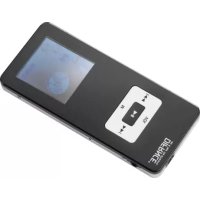
MP1010 - Mp3 player Difrnce - Free user manual and instructions
Find the device manual for free MP1010 Difrnce in PDF.



| Product type | MP3 Player |
| Brand | Difrnce |
| Model | MP1010 |
| Dimensions | 70 x 40 x 17 mm |
| Power | Lithium rechargeable battery |
| Supported audio formats | MP3, WMA, WAV |
| Supported video formats | AMV |
| Supported image formats | JPEG, BMP |
| Storage capacity | 256 MB / 512 MB / 1 GB / 2 GB (depending on version) |
| Display | 1.5" CSTN LCD screen |
| Signal-to-noise ratio (SNR) | 85 dB |
| Built-in microphone | Yes |
| Connectivity | High-speed USB 2.0 |
| Compatible operating systems | Windows 98 SE/ME/2000/XP/Vista |
| Additional functions | Voice recording, e-book, games, lyric display |
| Care and cleaning | Do not immerse in water; avoid moisture |
| Safety | Do not throw into fire, do not disassemble the battery, do not overcharge |
| Included accessories | USB cable, earphones (depending on version) |
Frequently Asked Questions - MP1010 Difrnce
User questions about MP1010 Difrnce
0 question about this device. Answer the ones you know or ask your own.
Ask a new question about this device
Download the instructions for your Mp3 player in PDF format for free! Find your manual MP1010 - Difrnce and take your electronic device back in hand. On this page are published all the documents necessary for the use of your device. MP1010 by Difrnce.
USER MANUAL MP1010 Difrnce
9.1 Play set (speel set af) 18
9.2 Delete File (Wis bestand) 19
9.3 Delete All (wis alles) 19
- GAME MODUS 19
10.1 BoxMan 19
10.2 Bricks 20
10.3 Winmine 20
10.4 Color Bead 20
10.5 Puzzle 20
10.6 Afsluiten 20
PROBLEMOMPOSSING. 21
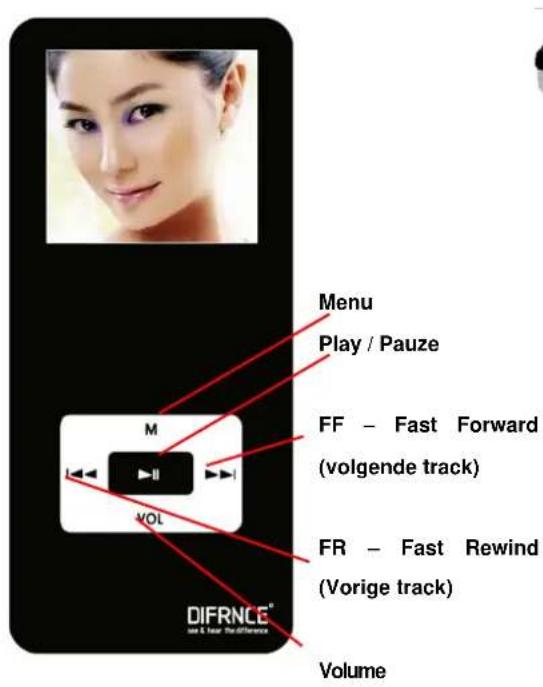
Toetsfunties
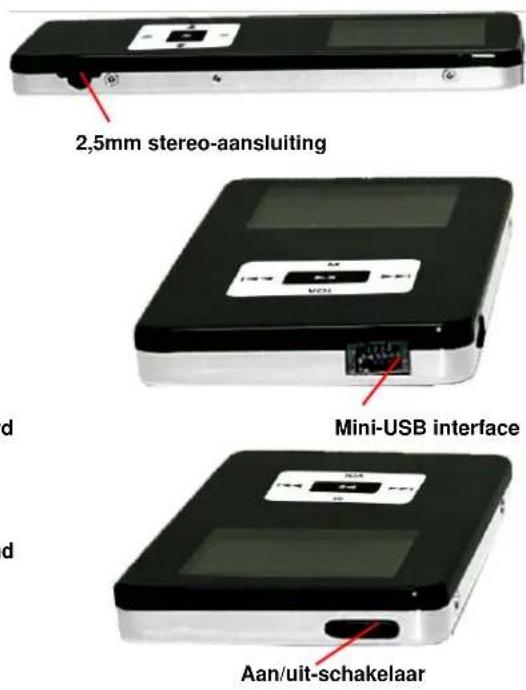
Eigenschappen
2.4.1 Local folder (lokale map):
2.4.2 Delete file (wis bestand):
2.4.3 Delete all (wis alles):
Delete all (wisalles):
7.2 Delete File (Wis bestand)
7.3 Delete All (wis alles)
8.3. Taal instelling.
Hier kunt u de taal instellen.
8.9 Firmware upgrade
9.2 Delete File (Wis bestand)
9.3 Delete All (wis alles)
7.1 Play Set 15
7.2 Delete File 16
7.3 Delete All.. 16
8 SYSTEM SETTING 16
8.1 Record time 16
8.2 LCD set 16
8.3 Language setting 16
8.4 Power off setting 17
8.5 Replay mode setting 17
8.6 Online mode 17
8.7 Memory info 17
8.8 Firmware version 18
8.9 Firmware upgrade 18
8.10 Exit 18
9.E-BOOK MODE 18
9.1 Play set 18
9.2 Delete File 18
9.3 Delete All. 19
10.GAME MODE 19
10.1 BoxMan 19
10.2Bricks 19
10.3 Winmine 19
10.4 Color Bead 20
10.5 Puzzle 20
10.6 Exit 20
TROUBLESHOOTING 21
Key Functions
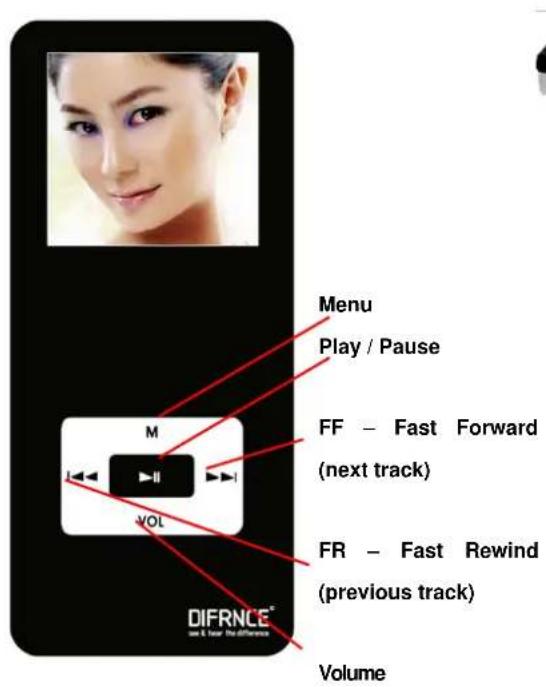
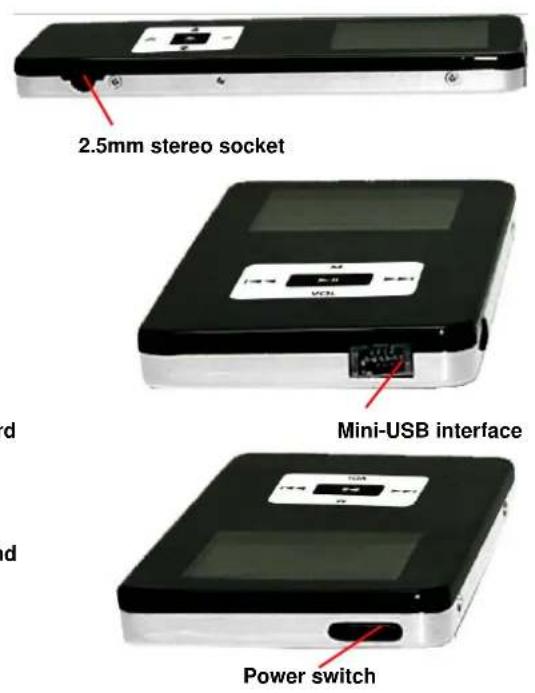
Features
Support MP3, WMA, WAV format music
View JPEG format picture
Supports AMV video format.
- Image folder function
- USB storage, for above WIN98, plug & play by cable
Built in MIC
- Save energy mode, auto off set
- Various EQ, repeat modes
Support multi-languages
Support Win98 SE/ME, Win2000, Win XP system, Windows Vista
USB 2.0 High speed
Technical specification
| Music format MP3. WMA. | WAV |
| Video format AMV | |
| Picture format.JPG, BMP | |
| Storage capacity 256MB/5 | 12MB/1GB/2GB/4GB |
| Display | 1.5" CSTN LCD display |
| SNR | 85dB |
| Record mode MIC internal | record |
| Record format/time WAV | 20 hours for 256MB |
| Output frequency range | 20HZ-22KHZ |
| Size | 70*40*17mm |
| Battery specification | Rechargeable lithium battery |
| PC slot USB2.0 | |
| System requirement | Win98SE/ME,Win2000,Win XP, Windows Vista |
Notice
- Do not throw the product into fire to avoid danger of explosion.
- Do not immerse into water or get soaked since the battery charging function will be lost.
- When charge the battery, the Power Switch should be in the ON position.
- Do not charge rechargeable battery longer than specified to prevent danger of fire.
- Do not take the batteries apart.
Overcharging & over-discharging rechargeable batteries may shorten their life span. - To prolong the life of a rechargeable battery, completely discharge it before fully charging it again.
-
Recharge battery with below status:
-
Low battery
-
System auto off.
-
Operation key not working
-
When charging the battery with the adapter, a red light lights up showing that the battery is being charged, when the battery is completely charged, the light will light up green.
- The "copying Files" windows appears on your PC please don't Remove USB from computer.
- Do not unplug the USB cable during file downloading, it may cause malfunction to your PC and player.
- Do not plug in an earphone or audio cable during file downloading.
- Downloading can be delayed if there are too many folders or files.
The order of music files displayed on the Windows Explorer is not the order of actual music playback. - When it is connect with PC, the player start charging.
- Do not open the player; any questions just contact your retailer.
- Please make sure that the version of the Direct X in the computer must be Direct X 8.0 or above when converting the format of the video file. For the update of DirectX, please visit www.microsoft.com and read the concerned information carefully.
- Please Make sure the version of the media player should be media player 9.0 or above.
- If the video file converted into AMV cannot be played in your computer, it is also cannot be played in the MP4 player.
Operation Manual
1. Turn on/off
Please switch the Power switch to the ON position and then long press PLAY button to turn on player.
Long press PLAY key to turn off.
2. Music Mode
After turn on the player, select Music in the main menu and press M key to enter and then press PLAY key to play the music.
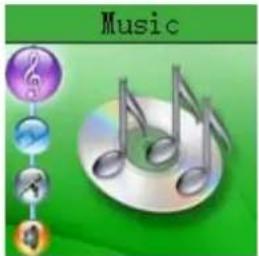
2.1 Interface Introduction
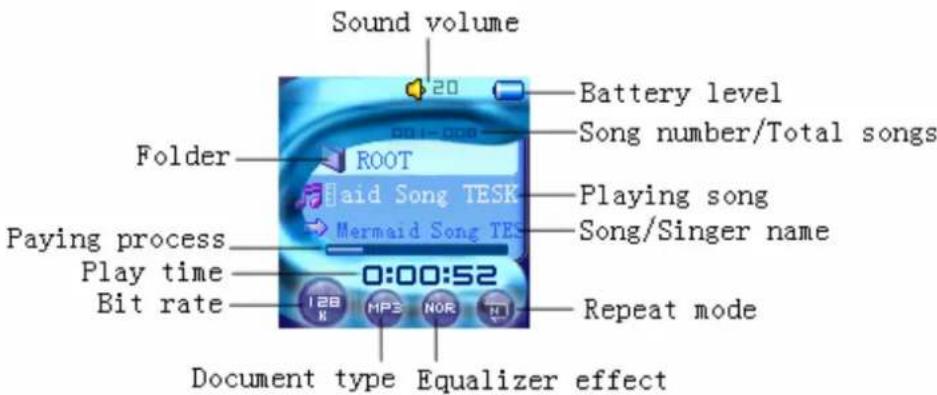
If there is corresponding lyric file, it will display
2.2 Music play mode
1) While playing, short press PLAY key to pause, and then short press PLAY key again to
continue.
2) In the play/pause mode, short press VOL key to enter the "volume adjust" mode, and then press / to adjust the volume.
3) In the music play/pause mode, short press / to skip to the next or previous song, long press / to fast forward or fast backward.
4) While playing, short press M key to enter the music setting mode.
5) Long press M key to return to the main menu.
2.3 Music setting
In the music playing mode, short press M key to enter music setting mode,
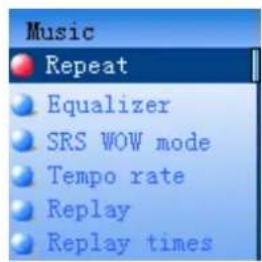
2.3.1 Repeat Setting
In the music setting mode, select Repeat and then press M key to enter. And then press / to select the mode you prefer and press M key confirm. There are the following modes: Normal, Repeat One, Folder, Repeat Folder, Repeat All, Random and Intro.
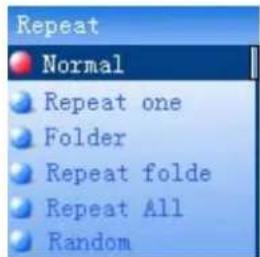
- Normal: After finishing playing the music under the current menu, it will play the music under the next menu continuously until it finishes playing all files.
- Repeat One: Play one song repeatedly.
- Folder: Play all music inside the folder one time.
- Repeat Folder: Play all music inside the folder repeatedly.
- Repeat All: Play all music repeatedly.
- Random: Play all music under the current folder randomly.
- Intro: Play the first 10 sec. of all music under the current file sequentially.
2.3.2 Equalizer setting:
Under MUSIC setting mode, get into the Equalizer submenu first, press / to choose the EQ Mode, there are 7 modes as follows: Natural, Rock, Pop, Classical, Soft,
Jazz and DBB.
2.3.3 SRS WOW Mode
In the option, you can set the voice effect of the music.
2.3.4 Tempo rate setting:
Under music setting mode, get into the tempo rate setting, press 山 / 山 to set the rate of playing. There are 16 levels from -8 to +8, -8 is the lowest, +8 is the fastest and 0 means natural.
Notes: only MP3 music can be set tempo rate
2.3.5 Replay setting:
A-B Repeat: Under music playing mode, choose Replay, now "A" start to flickers. Press H to fix replay start point "A", "A" stops flickers, and "B" starts to flicker
Press to fix replay ending point B, "A-B" stops flicker and now it starts to replay the sounds from A to B.
Now, if you want to change the replayed file, just press , then "A" start to flickers, other steps same as above.
Following: If you want to follow the repeated file, just press again, you can see the icon "on the screen, now it is start to record.
Contrast: After recording, press the key and it will show "sign, it will play the repeated file and then", it is will play the recorded file. It is contrast.
Under any step of the above, if you want to exit from it, just short press M key.
2.3.6 Replay times setting:
Replay times means the times the replay file will be played. There is 1-10 to choose, press / to set the times, and press M to confirm.
2.3.7 Replay gap setting:
Repeat gap decides the pause time between first replay time and next replay time. (Unit: Second). There are 1-10 for chosen, press / to set the time, and then press M to confirm.
2.3.8 Exit
Exit from MUSIC setting.
2.4 Music Pause mode
While playing music, short press PLAY key to pause.
- In the pause mode, short press PLAY key to continue to play.
- In the pause mode, long press PLAY key to turn off the player.
- In the pause mode, short press M key to enter the submenu of music.
2.4.1 Local folder:
Select local folder and then press /to choose the folder and press M key to confirm.
2.4.2 Delete file:
Select Delete file and press M key to confirm. Press / to select the file you want to delete and then press M key to confirm. Press / to select "Yes" or "No", If choose "Yes" and press M key to confirm, it will delete the file selected, If choose "No", it will exit the delete mode.
2.4.3 Delete all:
Select Delete all and press M key to confirm
Press / to select "Yes", and press M key to confirm.
2.4.4 Exit: exit from the menu
2.5 Lyric display
Under MUSIC playing mode, if there is suited lyric file for the current playing song. It will display the icon . Long press M key to enter the lyric mode, in this mode, you can see the lyric for the current track.
Lyric
The MP4 player supports **. LRC" lyric file, it will execute the lyric display simultaneously. Just make sure the lyric file and the song file have the same file name.
Example:
Song file name is: sky.mp3 Lyric file name is: sky.lrc
2.6 Directory function
It can support two levels - Root Directory and subdirectory.
The order of the directory is the order in the root directory.
- No matter what you enter the MUSIC mode; just enter into the stop mode, and the song will come back to the song you played last time, and the directory is also. If the music is not exit now, it will go to the first file of the current directory, if the directory is not exit, it will go to the next directory.
The sequence of the directory is the sequence in the sub-directory.
The player can support 100 folders and in these folders, it can save 999 files in each
folder.
3. Movie Mode
In the main menu, select MOVIE and press M key to confirm.
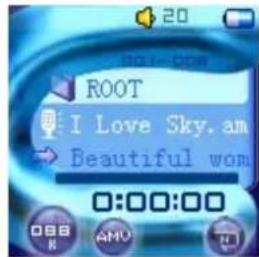
Remark: 1. The video file format that can be played in the player is AMV, and the formats that can be converted directly into AMV are MPG, ASF, AVI, WMV and so on by the convert tooling saved in the CD.
- Please make sure that the video converted can be played in your computer, if not, it is also can not be played in the MP4 player.
- Install the AMV convert tooling in your computer and in the interface of the AMV convert tooling, please click to into the HELP mode, please read the content before starting converting.
3.1Playback mode
In the main menu, select MOVIE and press M key to confirm.
1) Press PLAY key to play the movie.
2) While playing, short press VOL key to enter the "volume adjust" mode, and then press / to adjust the volume.
3) In the music play mode, short press / to skip to the next or previous song, long press / to fast forward or fast backward.
4) Long press M key to return to the main menu.
3.2 Pause mode
While movie playback mode, short press PLAY key to pause.
1) In the pause mode, short press PLAY key to continue to play.
2) Long press PLAY key to turn off the player.
3) Short press / to skip to the next or previous song, long press / to fast forward or fast backward.
4) Short press VOL key to enter the "Volume Adjust" mode, and then press /to adjust the volume.
5) Short press M key to enter the movie delete mode.
6) Long press M key to return to the main menu.
3.3 Delete movie file
In the movie pause mode, short press M key to enter the delete mode, and then the next operations are the same with the operations introduced in the music mode. Please refer to that.
4. Record Mode
In the main menu, select Record and press M key to enter the record mode.
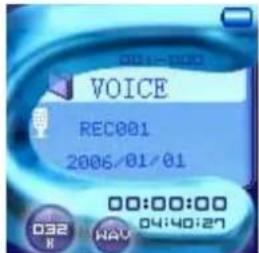
Before recording, short press M key to enter the submenu of the record.
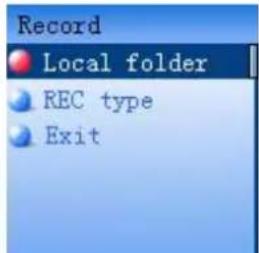
Local folder: users can choose the folder here.
REC type: choose the record type in this menu.
There Fine REC, Long REC, Fine VOR, Long VOR for you to choose
Fine REC: The record time is shortest, but the record quality is better. (WAV format)
Long REC: record with longer time, but the record quality is lower. (ACT format)
Fine VOR: WAV format (Sound control record, it will pause recording if there is no sound.)
Long VOR: ACT format. (Sound control record, it will pause recording if there is no sound.)
Exit: turn back the record standby interface.
Start Record
Under record standby condition, short press the "PLAY" key, the record will start.
Short press the "PLAY" key: pause recording, when in the pause mode, the record time will be flicker.
Long press the M key to save the current recorded file and return back to the main menu.
Low battery:
When recording, if in short of power, System will save the current recorded file, stop recording and show LOW BATTERY, now please charge the battery.
Abnormal display of record mode
1、Record file is full
When recording file reaches 99 units or the flash space is full, it will show the notice. At this moment, it must delete some MP3 songs or other recording files to have more space and continue recording.
2、Total files are full
This player can save maximum 200 record files (ideal amount), and the maximum amount is relative with the file name. (Usually, it will be less than 200) The system will judge if it reaches the maximum amount automatically; if it is, then, the record will be stopped. User must delete some record files to have more space and continue recording.
3、Disk space is full
When the disk has no more space to save the record files, the system will notice that "disk full". It must delete some MP3 songs or other record files to have more space and continue recording.
4、Disk error
When the disk has the error area, the system will find the area and save the current record file, then show "Disk error". It needs to do the low end format to avoid this error. (Note: It is possible to have disk error if use the low end format to format the player completed. Therefore, try not to format the player completed.)
5. VOICE mode
In the main menu, select VOICE and press M key to enter the voice mode.
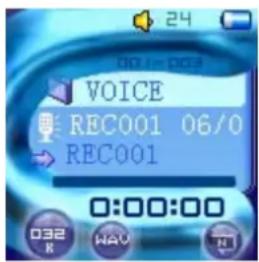
5.1 Under Voice stop mode:
Long press the PLAY key to turn off the player
Short press M key to the submenu of VOICE Setting
Long press M key to back to the Main menu
Short press / to select next/previous recorded file
Press VOL key to enter the volume adjust mode, and then press / to adjust the volume.
Local folder:
In the voice stop mode, select Local Folder, press / to select the folder you want, press M key to confirm. (Only the folder under VOICE folder can be chosen).
Delete file:
In the voice stop mode, short press M key to enter the submenu, select Delete file smf press M key to confirm. Press / to select the file you want to delete and then press M key to confirm. Press / to select YES or No, and then press M key to confirm.
Delete all:
Same as delete file, but is will delete all files in the folder. After delete all files, it will back the standby mode of VOICE interface.
Exit:
Exit from this menu.
5.2 Under Voice playing mode
Press PLAY to stop the playing
Long press PLAY to turn off the player
Short press M key to the submenu of Voice playing
Long press M key to back the Main menu
Short press / to select next/previous file
Short press VOL key to enter the volume adjust mode.
Submenu of voice playing:
Repeat:
In the repeat menu, press / to select the repeat mode. There are 7 choices:
Normal, Repeat One, Folder, Repeat Folder, Repeat All, Random and Intro.
Tempo rate:
In the tempo rate submenu, press /to set the rate of playing. There are 16
levels from -8 to +8, -8 is the lowest, +8 is the fastest and 0 means natural.
Notes: only MP3 music can be set tempo rate
Replay:
In the submenu of voice playing: choose Replay, now "A" start to flickers. Press to fix replay start point "A", "A" stops flickers, and "B" starts to flicker
Press to fix replay ending point B, "A-B" stops flicker and now it starts to replay the sounds from A to B.
Exit: exit from the submenu.
5.3 VOICE mode error display
,1 、No record file
It will show the notice when the player doesn't have the record file or record file had been deleted.
己 _ 2 、No files
The record file name has the format, thus, when user change the record file name, the player can find the record file according to the rule. But, it will show the notice when the file name can't match the rule under the play mode.
3、Illegal file
When the record file is damaged or the file is not a record file, the player can't play the file and it will show the notice.

Attention: For the WAV file play, the player can only play WAV format with a recording file from this player. It cannot play WAV files copied from a PC.
7. Photo Mode
This function supports all JPEG format pictures
- In the main menu, press / button to choose the "Photo" option.
- Press the M key to enter picture selection menu
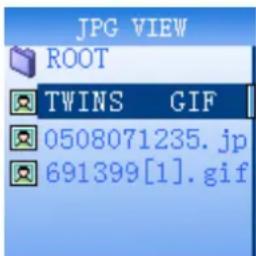
- Press / button to choose desired picture and press PLAY key to display:
- Press / button to browse pictures in sequence ( only suitable for "Manual play")
7.1 Play Set
- In the picture list, short press M key to enter picture submenu,
- Press / button to select the "play set" option.
- Press M key to enter the following interface.
-
Press / (button to choose "Manual play" or "auto play" options, press M button to confirm.
-
Press / button to adjust "auto play" speed. Press the M key to confirm.
7.2 Delete File
- In the picture list, short press M key to enter submenu.
- Press / to choose "Delete file" option:
- Press M key to enter this option.
- Press / to choose the file you want to delete and press M key to confirm.
- Press / to choose Yes or No, and press M key to confirm.
7.3 Delete All
- In the picture list, short press M key to enter submenu.
- Press / to choose "Delete All" option:
- Press M key to enter this option.
- Press / to choose Yes or No, if choose Yes, it will delete all the E-book files.
Note: when viewing pictures, long press M key to fast exit from picture interface and return to the main menu. Additionally, Pressing Play key will exit from the picture interface.
8 System setting
Choose Setup in the main menu.
Short press / to select the setting option and short press M to the confirm.
Long press M will back to the main menu. Long press PLAY to power off the player.
8.1 Record time
Short press the "VOL" key, the year is selected, press /key to modify the year. Press VOL again, then the Month will be selected, press /to modify the month, and then date, hour, minute and seconds follow the same step.
At last please press M key to confirm the setting and exit from the system time menu.
8.2 LCD set
Main menu select: In the mode, you can select the picture for the main interface.
Black set: Set fixed period of time (unit: second) so that when no key operation is performed, the players screen will turn black automatically. If "0" is selected, function is invalid.
8.3 Language setting
Users can choose the language under this mode.
In the interface of language, press / to choose the language and press M key to confirm the selection and exit from the language setting at the same time.
8.4 Power off setting
There are two choices: off time and sleep time.
Off time: means that if no any operation during the pre-set time, the system will power off automatically.
(Unit: second), there are 0-60 for choice, 0 means do not use this function
Sleep time: it means that after working for xxx minutes (xxx=preset time), the system will power off automatically. There is 0-240 for choice, 0 means do not use this function
Note: Sleep mode is only valid once when it is been set. The system will delete the setting automatically after it works. If you need this function, please reset once more.
8.5 Replay mode setting
There are two choices: Manual reply, Auto reply
"Manual replay": when use A-B repeat function, it cannot break automatically.
"Auto replay": it is used in the English learning; the system can pause between the first sentence and the second sentence automatically.
8.6 Online mode
Users can set the online modes here,
Some operating systems (under Windows 2K SP4) cannot support two driver letters in one USB disk. Thus, if "Private Space" function is on, choose the which disk you are going to use, i.e., "single ordinary disk" or "single encrypted disk" in order for correct display of selected disk after connecting to PC.
Multi driver: you can see the Normal section and Encrypted section in My Computer.
Normal only: only the Normal section shown in My Computer
Encrypted only: only the Encrypted section shown in My Computer
8.7 Memory info
Users can check the memory information here.
E.g.: 3911 means the total capacity of the player, 47% means 47% part of the total capacity has been used.
8.8 Firmware version
Users can check the firmware of the player here.
8.9 Firmware upgrade
Under this mode, users can upgrade the MP4 if new version comes out.
Wrong operation may cause damage to the player, please consult professional person before operation.
8.10 Exit
Exit back to the Main menu.
9. E-book Mode
This function supports all TXT file.
- Enter the main menu, press / 卡 button to choose"E-Book"
- Press M button to enter the mode.
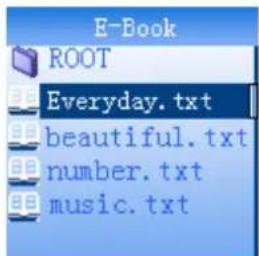
- Press / button to select desired text file to read. Press Play button to enter text interface
- Press 串 / 串 button to turn the pages in sequence ( only suitable for "Manual play")
- While reading, short press M key to enter theBookmark setting mode.
9.1 Play set
- In the E-book list, short press M key to enter submenu.
- Press / button to choose "play set" option:
- Press M key to enter this option, or press PLAY key to exit.
- Press (button to choose "Manual play" or "auto play" options. Press M key to confirm.
- Press / / button to adjust "auto play" speed. Press MENU button to confirm.
9.2 Delete File
- In the E-book list, short press M key to enter submenu.
-
Press / to choose "Delete file" option:
-
Press M key to enter this option.
- Press / to choose the file you want to delete and press M key to confirm.
- Press / to choose Yes or No, and press M key to confirm.
9.3 Delete All
- In the E-book list, short press M key to enter submenu.
- Press / to choose "Delete all" option:
- Press M key to enter this option.
- Press / to choose Yes or No, if choose Yes, it will delete all the E-book files.
10. Game Mode
Short press M key to enter the Game mode, and then press 串 /to select the game and press M key to confirm.
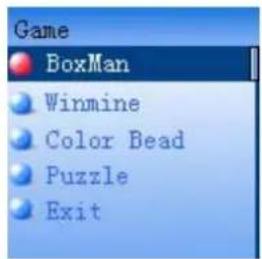
10.1 BoxMan
Select Boxman and press M key to enter.
- Start: Short press M key to start the game.
Map: Enter the option, you can select new game or enter the next game directly. - Help: Display the help for the current game.
- Return: Return to the Game main interface.
10.2 Bricks
Select Bricks and press M key to enter.
- Start: Short press M key to start the game.
- Speed: In the speed mode, you can adjust the speed.
- Open Grid: Open the gridding line of the game interface.
- Close Grid: Close the gridding line of the game interface.
- Help: Display the help for the current game.
- Return: Return to the Game main interface.
10.3 Winmine
Select Winmine and press M key to enter.
- Start: Short press M key to start the game.
Line Number : Set the line for the current game. - Row Number : Set the row for the current game.
Mine Number : Set the mine number for the current game. - Help: Display the help for the current game.
- Return: Return to the Game main interface.
10.4 Color Bead
Select Winmine and press M key to enter.
- Start: Short press M key to start the game.
- Highest Score : Display the highest score.
- Help: Display the help for the current game.
- Return: Return to the Game main interface.
10.5 Puzzle
Select Winmine and press M key to enter.
- Start: Short press M key to start the game.
- Level: Set the complicated level for the current game.
- Select Picture: Select the picture for the game interface display.
- Help: Display the help for the current game.
- Return: Return to the Game main interface
10.6 Exit
Select Exit to exit the mode.
Trouble Shooting
- when I press on "play", No display?
Cause/ Solution : Please connect the player on the computer for recharging. Try to restart it 10 minutes later.
- When I want to play files, no sound?
Cause/ Solution : volume is too low , turn up the volume , inspect the connection of the.
earphone or if it is broken.
- Why does my computer go wrong when I disconnect the player?
Cause/ Solution : mostly because of taking off the player when it is transferring file , We advise you not to disconnect the player while transferring.
- Why can't I download files while MP3 player is connected to the PC?
Cause/ Solution : The USB Driver hasn't been installed correctly, Please install the USB driver again follow the operation instruction, or your computer's motherboard does not support USB equipment, you need update your motherboard driver.
- Why can't I see the files which have been stored in the player?
Cause/Solution: The player just can save 100 folders or 2 directories (including the root directory). And in the folder, just can save 999 files. If more than 100 folders or 2 directories, we just can see superfluous folders or files or directories in the computer. Please delete the superfluous files and make sure that the folders should be less than 100 and the directories should be less than 2 and the files in each folders should less than 999.