S430 Shotsaver - Browser SNOOPER - Free user manual and instructions
Find the device manual for free S430 Shotsaver SNOOPER in PDF.


| Product type | GPS golf navigator |
| Brand | Snooper |
| Model | S430 Shotsaver |
| Power supply | Rechargeable lithium-ion battery, up to 16 hours standby |
| Main features | GPS golf with over 4500 preloaded courses, distance measurement, score tracking, optional road navigation, optional GPS radar detection |
| Screen | Touchscreen LCD, adjustable backlight |
| Internal memory | Storage capacity up to 20,000 golf courses |
| Connectivity | USB for data transfer, Micro SD card for images and road navigation |
| Box contents | S430 system, quick start guide, USB cable, CD-ROM with software and full guide |
| Course updates | Free via Internet after registration at www.snooperneo.co.uk |
| Available languages | French, English, German, Spanish, Dutch and others |
| Maintenance and cleaning | Clean with a soft dry cloth, avoid liquids and moisture |
| Safety | Do not open the chassis, avoid extreme temperatures, use only approved chargers |
| Warranty | Standard one-year manufacturer's warranty |
| Software compatibility | Windows 2000, XP, Vista (32-bit); not compatible with Mac, Windows 95/98, 64-bit |
Frequently Asked Questions - S430 Shotsaver SNOOPER
User questions about S430 Shotsaver SNOOPER
0 question about this device. Answer the ones you know or ask your own.
Ask a new question about this device
Download the instructions for your Browser in PDF format for free! Find your manual S430 Shotsaver - SNOOPER and take your electronic device back in hand. On this page are published all the documents necessary for the use of your device. S430 Shotsaver by SNOOPER.
USER MANUAL S430 Shotsaver SNOOPER
Calibrate the screen
Power save
Information
Picture 7
Satellite Navigation & GPS Speed Trap locator
Troubleshooting 8
Snooper Accessories & Additional Software 10
Service under Warranty 11
Important Safety Information
- Please read this carefully before using S430.
- Do not open the cabinet of S430
• Always treat your product with care and keep it in a clean and dust-free place - Do not expose S430 to moisture or humidity.
- Do not expose S430 to extreme high or low temperature.
- Do not attempt to disassemble your product.
- Use only the chargers and batteries approved by Performance Products Limited. The use of any other type may invalidate any approval and warranty. No reverse charging with other chargers, they may have inverse polarity.
- Never use the charger if the plug is damaged.
- Never touch the charger if your hands/ feet are wet.
- Do not expose the charger to water, it may cause electrical fires.
- Do not repair the charger yourself for your safety.
- To reduce the risk of fire or burns, do not disassemble crush or puncture the battery.
- Do not let the metal contacts on the battery touch other metal object, it could lead to short-circuit and damage the battery.
Copyright
Copyright @2009 SNOOPER. All rights reserved.
Product specifications and features are for reference only and are subject to change without prior notice.
Declaration
This User Manual is published by SNOOPER without any warranty. Improvement and changes to this User Manual necessitated by typographical errors, inaccuracies of current information, or improvements to programs and/or equipment, may be made by Performance Products Limited any time and without notice. Such changes will, however, be incorporated into new editions of this User Manual.

SHOTSAVER
S430
Components Included
The following components come as standard with your Shotsaver S430:
1 x Snooper Shotsaver S430 system
1 x Quick Start Guide
1 x USB PC connection lead
1 x Download Software Disc, including the full user manual

natural_image
Side view of a cylindrical object with a black horizontal band and a small circular mark at the top (no visible text or symbols)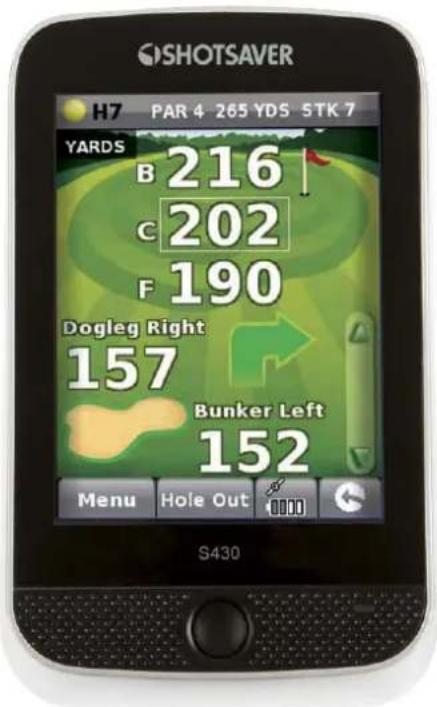

natural_image
Side view of a black rectangular object with a metallic silver top, no visible text or symbols.PLEASE NOTE
Due to our desire to continually improve our products, the specification may change without notice.
S430
QUICK START GUIDE
Basic Operation and downloading golf courses
- Register Shotsaver FREE at www.snooperneo.co.uk
- Charge unit with charger provided until the LED on the front of the unit changes from red to green.
- Power the unit on by pressing and holding the button below the LCD until the Shotsaver launch screen is displayed. Next slide the on-screen power button from left to right.
- Launch Shotsaver software by pressing the golf icon.
5. Start game.
Your S430 is already pre-loaded with over 4500 golf courses. Press the Search button to find a course to play and/or to add a course to your Favourites folder. Select Country and County or just press Search. Using the keyboard enter the name of the golf course and then click on it to select it. Press OK to play the course or Route if you have sat nav software installed and would like your S430 to navigate you to the course. Finally select the appropriate Tee colour and/or Add, if you would like to add the selected course to your Favourites folder so that it is easier to access next time you play there.
- The hole selected will be displayed something like this. To refresh the distances displayed tap on the screen at any time.
Details of current hole
Distance to back of the green
Distance to centre of the green
Distance to front of the green
Distance to hazards
Main menu
Scroll through hazards
Return
End hole
Battery & GPS strength
Note: ensure that Shotsaver has GPS connectivity before you start or the distance information displayed will not be accurate.
7. Edit players.
Click here to add players names and handicap. This information must be added prior to starting play if you want Shotsaver to save your score and calculate your Stableford points.
8. View club distances.
Click here to view any club distances previously recorded.
9. History.
View previous scores saved here.
10. Scoring.
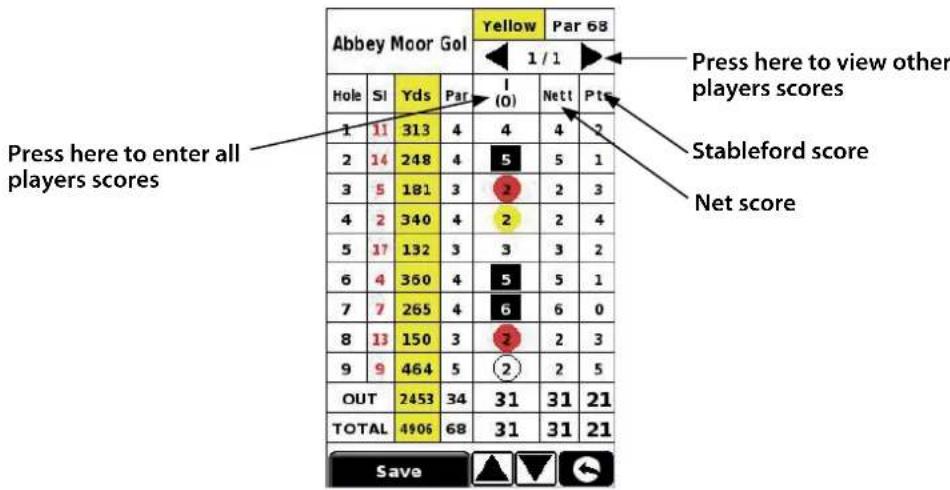
To enter your score press Menu and then Scorecard. Then press here to enter all players scores(Show scorecard graphic and indicate where to press to enter the score and where to press to change the players score displayed. Also indicate net score and Stableford score) Press here to change players score.
11. Record club distance.
Press Menu and then Record club distance. Select the club you want to record. Stand as near to your ball as possible and press Start. Hit the ball and once you have walked up to it again, stand as close as possible to it and press End. The distance that the ball was hit will automatically be displayed.
SHOTSAVER
S430
Settings
To change the settings of your device press the Settings' button in the main menu.
BRIGHTNESS
To adjust the brightness of the display press the brightness button in the Menu. Use the + and - buttons to increase or decrease the brightness of the screen. Press the X button to confirm and exit the setting.
VOLUME
To adjust the volume press the volume button in the menu. Use the + and - buttons to increase or decrease the volume. Press the X button to confirm and exit the setting.
LANGUAGE
To change the language press the language button in the menu and then the language you require. Press the X button to confirm and exit the setting.
CALIBRATE THE SCREEN.
To re-calibrate the screen press the Calibrate button in the menu and then follow the on-screen instructions.
POwER SAVE
The battery life of your S430 will vary depending on what settings you use.
Backlight permanently on - up to 6 hours
With the backlight permanently on the battery will last up to approximately 6 hours.
Backlight auto off setting - up to 11 hours
Extend the battery life up to 11 hours by setting the backlight to automatically switch off after a short period of activity (similar to most mobile phones) Go to the SETTING section in the Main Menu of the device displayed when you first power the unit on. Click on POwER SAVE and choose your preferred BACKLIGHT OFF TIME - 1min, 30 sec, 20 sec, 10 sec.
Sleep mode - up to 16 hours
Extend the battery life up to 16 hours using the Sleep Mode. Go to SETTING, then POWER SAVE and change POWER DOWN TIME to 2 mins. After 2 mins of inactivity the screen will go blank. Wake up the unit by briefly pressing the button beneath the LCD.
INFORMATION
Press the information button for information on the software and hardware version of your device.
PICTURE
View pictures on SD card
To view pictures on this device first put the images you want to view on suitable micro SD card. Put the SD card in to the SD card slot on the underside of the unit. Press the Picture icon and to view the pictures on the SD card tap SDMMC Card. The images you have placed on the SD card will be shown in the Preview section. Scroll up or down using the arrows and tap the 'thumbnail' of the image you want to view. Use the back and forwards arrows to scroll through your images. Tap the 'X' button to exit the Picture at any time.
Slide show
First select the speed of the slides to be viewed. You can select the images to be displayed for 1, 2, 3, 4, 5 or 10 seconds. Once you have selected the time you require, press the play button and all your images will be displayed in rotation. To exit the slide show at any time tap anywhere on the screen.
DOWNLOADING NEW COURSES
Your Shotsaver S430 is preloaded with over 4500 golf courses and has the capacity to store up to 20,000 courses in total. As and when new courses are plotted you can download them on to your unit - FREE OF CHARGE. To download new courses put the CD ROM included with your S430 in to the CD drive of your PC and follow the on-screen instructions.
SATELLITE NAVIGATION & GPS SPEED TRAP LOCATOR
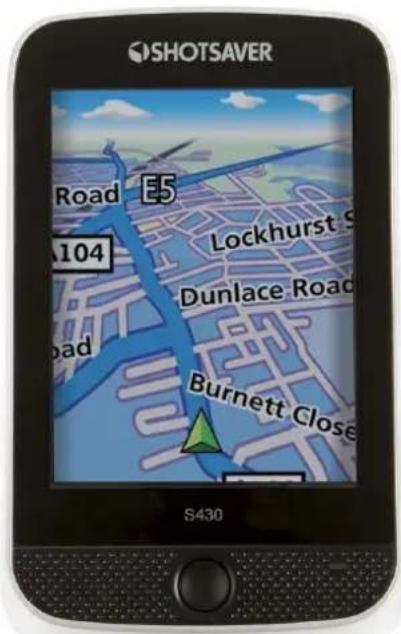
It is also possible to use your device as a satellite navigation and GPS speed trap locator. There are two sat nav packages available, the Sapphire Plus S280 sat with either UK & Ireland mapping or Western Europe. Please visit www.snooper.eu for further details. Sapphire Plus S280 sat nav comes preloaded on a micro SD card. To install the sat nav software simply take the micro SD card and insert it in to the SD card slot on the bottom of the unit. To operate the sat nav function simply power the unit in the normal way and press the Navi button in the main menu. The Sapphire Plus S280 sat nav software will automatically launch. For further information on how to use this software refer to the operating instructions provided with it.
Troubleshooting Shotsaver
DOWNLOADS
If you are having difficulty performing a download to your Shotsaver you should consult the following checklist first before contacting technical support. If you are still unable to perform a download after following this checklist then please contact our Technical Helpline on 0870 787 0700 and select Option 3. There is also additional help available on the www.snooperneo.co.uk website.
This guide is in two sections; the first section is a list of things to check before performing a download and the second section consists of possible reasons and solutions to error messages encountered while trying to perform a download.
SECTION ONE
- Have you registered your Shotsaver?
You will not be able to download the database unless the Shotsaver is registered. Please register online at www.snooperneo.co.uk.
- Is the USB computer cable supplied with the Shotsaver connected correctly?
Please check that the USB lead is plugged into the USB socket on the Shotsaver and is fully plugged in as far as possible. Check the computer USB connection is secure.
- Have you installed the USB drivers correctly for the USB cable?
After installing the USB driver from the Software Disc the computer requires rebooting. Once rebooted the Shotsaver needs to be connected to the USB lead. The 'Found New Hardware' wizard will eventually launch and you need to select 'Install the software automatically (Recommended)' and the wizard will complete the USB driver installation.
- What operating system are you using on your computer?
The Snooper download software will only work on the following Windows 32 bit operating systems: Windows 2000, Windows XP and Windows Vista THE SOFTWARE WILL NOT WORK ON WINDOWS 95/98, 98SE and Millennium. Apple Macintosh is not supported. Windows XP and Vista 64bit systems are not supported.
To determine which operating system you have on your computer:
a) Right click on the 'My Computer' icon on your desktop and select 'Properties' from the drop down menu.
b) When the 'System Properties' dialogue box opens the 'General' tab is selected by default. Under the heading 'System' the operating system is displayed.
c) If you do not have a 'My Computer' icon on your desktop (common in Windows XP) click on 'Start' and two columns will appear. In the right hand column you will see the option of 'My Computer'. Right click on this option as instructed in (a) above.
- Have you installed the Snooper download software onto your computer?
If you have not installed the software you will not be able to perform a download to your Shotsaver. Once the software is installed there will be a new icon on your desktop: 'Shotsaver Updater'. Please check to see if you have the latest version of this software by visiting www.snooperneo.co.uk and clicking on the link 'Download software'.
- Have you connected the computer to the internet?
The computer needs to be connected to the internet before you can begin to download the database to your Shotsaver. Please make sure that your internet connection is established and that you have signed in to your broadband account (if required).
7. What version of Internet Explorer / Netscape Navigator are you using?
The software will only operate if you have Internet Explorer or Netscape Navigator 6 or above.
To check what version of Internet Explorer you have; open your browser, click on the 'Help' menu and select 'About Internet Explorer'. This should now display what version you currently have installed. If you have a version older than 6 (e.g. 5), open your browser, click on 'Tools' and select 'Windows Update'. This will take you to the Microsoft website where you can download the latest version of internet explorer.
To check what version of Netscape Navigator you have: open the browser, click on the 'Help' menu and select 'About Netscape Navigator'.
SECTION TWO
This section is for supplying possible reasons and solutions to problems you may be experiencing whilst trying to download the database to your Shotsaver. If after going through section one you are still experiencing difficulty or have received an error message please read through the following:
ERROR MESSAGE – 'Error 521 - There was a problem connecting to the Performance Products server'
If you get an error message similar to the one above this normally means there is something blocking communication between the software, most typically a firewall, and our server. Windows XP and Vista are supplied with a firewall as standard.
If you have a Firewall on your computer the software may appear to hang and your Firewall software will inform you that the Updater software is trying to access the internet. Please make sure that you grant/allow/permit /unblock access through the Firewall. Please read the messages supplied by your Firewall software carefully before choosing your option. If you do not allow the program to access the internet through the Firewall, the download process will fail.
If no message was prompted by the firewall software uninstall and then re-install the software and perform a download again.
Warning: We do not recommend disabling your firewall software in order to perform a download to your Shotsaver nor can we advise how to alter the settings on third party software nor can we be held responsible for any action taken by the computer user that makes the computer more vulnerable to viruses and computer hackers. Any changes made to the computer firewall settings are at the user's discretion. We would recommend contacting the third party software manufacturer for information of how to configure the firewall software.
OTHER PROBLEMS
The unit cannot be switched on
Check that the unit has been charged.
The unit cannot acquire satellite connection
Check that the Shotsaver's built in GPS antenna has a clear view of the sky above.
If this is the first time you have powered up your Shotsaver please remember that the first 'cold' start can take up to 30 minutes to acquire sufficient satellite connection. The unit requires time to calibrate and you will find that with subsequent use that the time for acquiring satellites will reduce. Eventually the unit should take approximately 90 seconds to acquire satellite connection.
Snooper Accessories & Additional Software
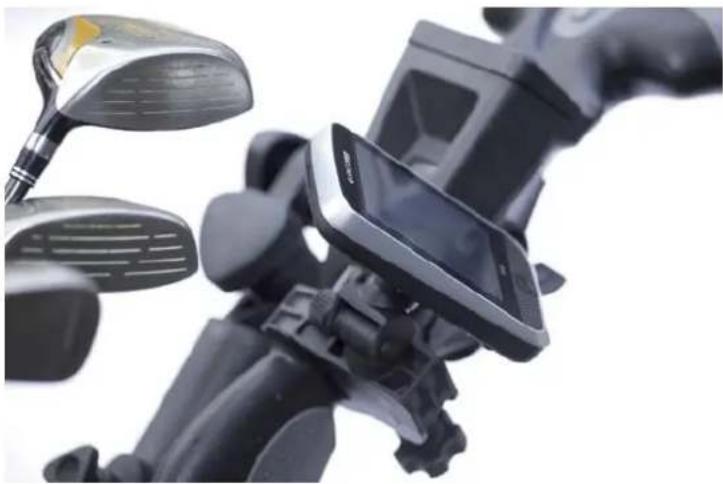
Mount your Shotsaver on this specially made golf trolley bracket. Fit's most golf trolleys.
natural_image
Close-up of a black motorcycle's steering wheel and camera module, no visible text or symbolsSAT NAV SOFTWARE
FROM ONLY £64.99!
Shotsaver will navigate you perfectly round a golf course but with the addition of Snooper's satellite navigation and speed camera location software, your Shotsaver can also navigate you in your car as well! Mapping covering the UK & Ireland is available for only £64.99 inc vat with the whole of Western Europe available for only £99.99 inc vat.
Visit www.snooper.eu for further details.
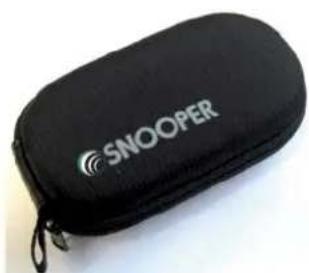
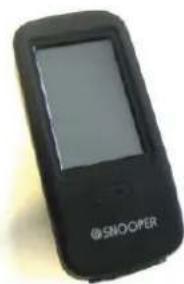
PROTECTIVE HARD CARRY CASE PROTECTIVE SILICON CASE BATTERY BACK-UP SILICON CASE
natural_image
Black SNOOPER case with logo, no visible text or symbols on the device itself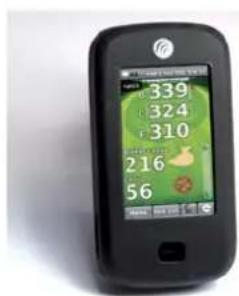
natural_image
Black SMOOPER mobile phone with visible screen and logo (no text or symbols on device body)Service under warranty
Your Shotsaver comes with a standard one year manufacturer's warranty.
If, for some reason, your unit requires service under warranty return your Shotsaver, via special delivery (insured) and in suitable packaging to:
The Returns Department
Performance Products Limited
Cleaver House
Sarus Court
Manor Park
Cheshire wA7 1UL
Enclose the following information:
(a) Your name, address and a full description of the problem.
(b) A telephone number where you can be reached during business hours.
(c) Your units' serial number.
natural_image
Symbol of a trash bin with crossed lines indicating no waste or restriction, accompanied by a solid black rectangle below (no text or symbols)DISPOSAL OF OLD ELECTRICAL & ELECTRONIC EQUIPMENT (APPLICABLE IN THE EUROPEAN UNION).
This symbol on a product or its packaging indicates that this product shall not be treated as household waste. It should be handed over to an applicable collection point for the recycling of electrical equipment.
By ensuring that this product is disposed of correctly you will help/prevent potential negative impact on the environment. The recycling of materials will help to conserve natural resources.
For further details about recycling please contact your local civic office or the shop where it was originally purchased.
Sommaire
Page
natural_image
Side view of a black rectangular object with a small hole, possibly a device or component (no visible text or symbols)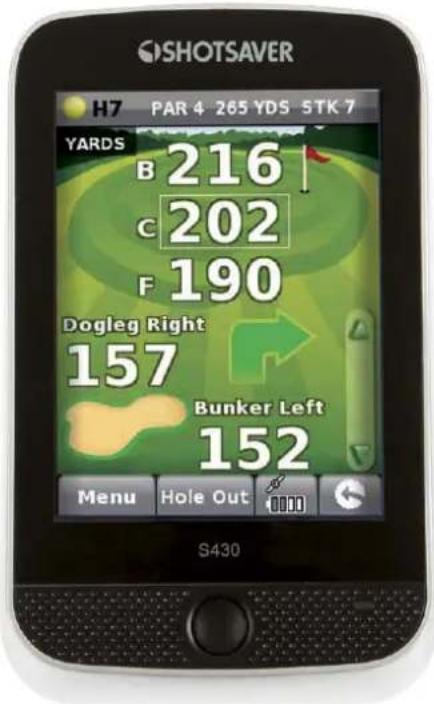

natural_image
Side view of a black rectangular object with a metallic silver top, resembling a device or panel (no text or symbols visible)REMARQUE
natural_image
Close-up of a black motorcycle's steering wheel and camera module (no visible text or symbols)LOGICIEL DE NAVIGATION PAR SATELLITE
natural_image
Black SNOOPER case with logo, no visible text or symbols on the device itself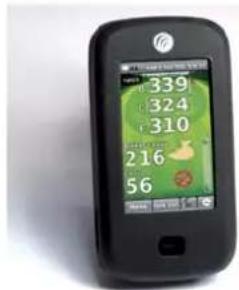
natural_image
Black SNOOPER mobile phone with visible screen and logo (no text or symbols on device body)natural_image
Symbol of a trash bin crossed with two diagonal lines, no text or labels presentÉLIMINATION DES ANCIENS APPAREILS ÉLECTRIQUES OU ÉLECTRONIQUES (EN VIGUEUR DANS L'UNION EUROPÉENNE)
natural_image
Exterior view of a modern office building (no signage)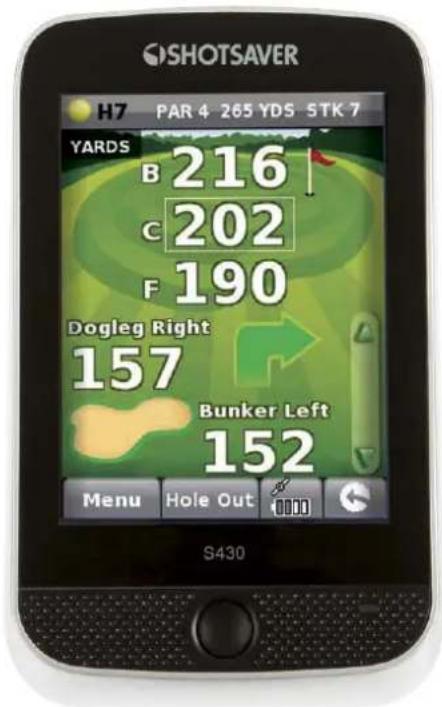

natural_image
Side view of a black and silver cylindrical device (no visible text or symbols)OPMERKING
FOUTBERICHT - 'Error 521 - There was a problem connecting to the Performance Products server'
natural_image
Close-up of a black motorcycle's steering wheel and camera module (no visible text or symbols)SATELLIETNAVIGATIESOFTWARE
natural_image
Black SNOOPER case with logo, no visible text or symbols on the device itself
natural_image
Black SNOOPER mobile phone with visible screen and logo (no text or symbols on device body)Garantie
natural_image
Symbol of a trash bin crossed with diagonal lines, no text or labels presentVERwIJDERING VAN OUDE ELEKTRISCHE EN ELEKTRONISCHE APPARATUUR (VAN TOEPASSING BINNEN DE EUROPESE UNIE)
natural_image
Side view of a black rectangular object with a small hole, possibly a device or component (no visible text or symbols)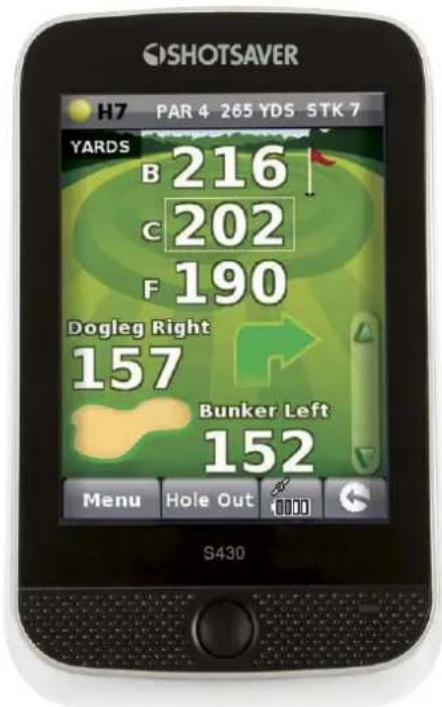

natural_image
Side view of a black and silver cylindrical device (no visible text or symbols)NOTA
natural_image
Close-up of a black motorcycle's steering wheel and camera mount, showing front and rear views (no text or symbols visible)natural_image
Black SNOOPER case with logo, no visible text or symbols on the device itself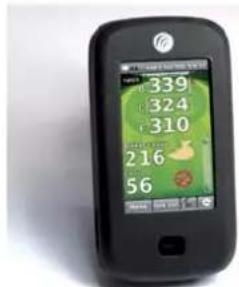
natural_image
Black SNOOPER mobile phone with visible screen and logo (no text or symbols on device body)natural_image
Symbol of a trash bin crossed with two diagonal lines, no text or labels presentnatural_image
Side view of a black rectangular object with a small hole, possibly a device or component (no visible text or symbols)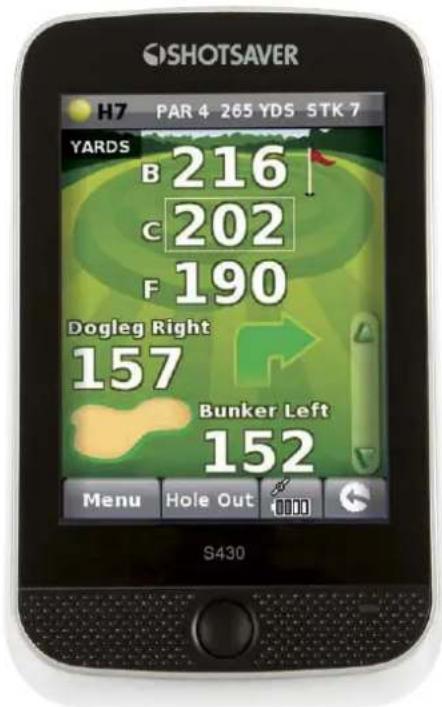

natural_image
Side view of a black and silver cylindrical device (no text or symbols visible)Bitte beachten
heatmap
| | Yellow | Par 68 | 1 / 1 | |---|---|---|---| | Abbey Moor Gol | 1 | 0 | 0 | | Si | 4 | 2 | 0 | | Yds | 5 | 3 | 0 | | Par | 2 | 4 | 0 | | | 3 | 2 | 0 | | | 4 | 2 | 0 | | | 5 | 2 | 0 | | | 6 | 2 | 0 | | | 7 | 2 | 0 | | | 8 | 2 | 0 | | | 9 | 2 | 0 | | OUT | 31 | 21 | 0 | | TOTAL | 31 | 21 | 0 | Save ▲ ▼ ▼natural_image
Close-up of a black motorcycle's steering wheel and camera module (no visible text or symbols)SATELLITEN-NAVIGATIONS-SOFTWARE
natural_image
Black SNOOPER case with logo, no visible text or symbols on the device itself