Truckmate Pro S2500 - Browser SNOOPER - Free user manual and instructions
Find the device manual for free Truckmate Pro S2500 SNOOPER in PDF.


User questions about Truckmate Pro S2500 SNOOPER
0 question about this device. Answer the ones you know or ask your own.
Ask a new question about this device
Download the instructions for your Browser in PDF format for free! Find your manual Truckmate Pro S2500 - SNOOPER and take your electronic device back in hand. On this page are published all the documents necessary for the use of your device. Truckmate Pro S2500 by SNOOPER.
USER MANUAL Truckmate Pro S2500 SNOOPER
S2500, S5000 & 6 Series
Portable Satellite Navigation System

User manual

text_image
MOORHOUSE AVENUE. NOW WARNING 14.6 14.6 Eduwards W East Court NOW 30 29 W 46 Miles 14:07 PM MPH LINLEY LANE SNOOPER
text_image
210006EB 30 WbH Sa M ПИГЕА ГУИЕ ДР WU82 T1:03 5W MOMSNOOPER
Introduction
Congratulations on buying the Snooper Portable Navigator and Fixed Speed Camera location system.
This user guide comprises of three models: S2500, S5000 and S6500, some features and functions are not available on all models – these will be highlighted in the appropriate sections of this user guide.
This PND (Portable Navigation Device) utilises the very latest Global Positioning Satellite (GPS) technology to provide you with accurate street level navigation via clear and precise voice prompts as well as alerting you to potentially hazardous stretches of road, accident black spots and fixed speed safety cameras.
The most accurate digital mapping available is provided by NAVTEQ whilst the geographical coordinates of all 'fixed' speed monitoring systems and many officially designated accident 'hotspots' have been stored on a database provided by AURA™. The AURA™ Database is the most comprehensive available, providing cover, not only in the UK and Ireland, but throughout Western Europe and North America. The database is constantly monitored and updated by the AURA™ data collection team, ensuring that you are alerted to every potentially hazardous stretch of road and all fixed speed safety cameras.
This PND comes with an SD Card that contains the navigation software. The SD Card can be activated in seconds by inserting the card into the SD slot on the left hand side of the unit. When necessary, upgrades to this mapping data will be made available for you. Mapping updates are chargeable, please visit www.snooperneo.co.uk for further details.

text_image
AURA™ Camera & Driving Hazard DatabaseAs the AURA™ camera database changes daily, regular updates to your device are required. Snooper connects quickly and easily to your PC so that you can download the database in a matter of minutes (internet connection required). Please note: In order for the software to be installed successfully, there are certain minimum hardware and software requirements needed; see the section 'System Requirements & Downloading' later in this manual.
Once the database has been downloaded your Snooper compares your position using its built-in GPS antenna, with the position of every known 'fixed' speed monitoring system and accident 'hotspot' alerting you both audibly and visually with voice alerts and full colour graphics on the units LCD screen ensuring your highest concentration at all times.
Please note that AURA™ updates are subject to a subscription charge. Please refer to the subscription and download section of this manual for further details or visit www.snooperneo.co.uk.
Drive Safely with Snooper!
Snoopers camera location technology has been designed and manufactured to help enhance road safety and is in no way a licence to speed nor has it been designed as a substitute for concentration. Driving within the speed limit, whilst carefully observing current road conditions is essential.
Truvelo

Gato
DigitalWatchman

SPECs

Schools

Accident Blackspots

Congestion Charge

Mobile Laser/DS2
Contents
Page
4 What's included?
5 Overview
6 Registering
7 Quick Start Guide to Navigation
9 Start Up – Installing the SD Card
System Requirements and Downloading
10 Downloading the AURA™ Camera Database
11 Installing Snooper
12 Power Connection & Charging
13 Charging the internal battery Powering Snooper using the built-in battery
15 Satelite Navigation
16 Easy Setup
Screen Settings
18 Volume
-
Setting Vehicle Parameters Ventura
-
Setting Vehicle Parameters Truckmate
22 Planning a Route
By Full Postcode
23 Find by City
24 Home
25 Office
Recent Route or Clear Route
26 Multi-route
29 Find by Favourites
Recent Destinations
30 Find by Points of Interest (POI)
32 Find by Nearest POI
33 User POI
36 Find by Map
37 Find by coordinate
Re-Route
38 Avoid by Road Name
Avoid by Range
39 Clear Avoided Road
40 Your Route
41 Route Description
TMC
44 Campsite Search Ventura ONLY
45 My Favourite Menu
Favourites
47 Recent Destination
48 Home
49 Office
50 Configure Menu
51 Truckmate Setting up vehicle perameters
52 Ventura Setting up vehicle perameters
53 Volume
Change Language
Setup
2D/3D/North
Page
54 Speed/Time MPH/KMH
Arrival Time/Remaining Time
56 Show POI Auto Scale
57 Camera Alert Display Cameras Alert Sound
58 School Alert
59 Touch Tone Route Alert My Speed
60 Change Map Colour Qwerty Keyboard
61 TMC
62 GPS Status System Security Code Configuration Security Code
63 Route Timer
64 Version (Hardware & Software) Route Option
Shortest Time Shortest Distance
65 Avoid Tollway Avoid Motorway Navigate Avoiding Road Avoid by Road Name Avoid by Range
66 Clear Avoided Road Navigate via Location
67 Change Start Position Summary Screen Quick Access Menu
68 Volume Scroll Map
Day or Night Settings Camera Alerts
Magnify or Reduce Function
69 Understanding the Mapping Screen
70 Bluetooth NOT S2500 Pairing
71 Dialing Phonebook Call History
72 A2DP Short Message Service
Dialup Networking Profile (DUN)
74 Troubleshooting Snooper Downloads
77 Specification S2500
79 Specification S5000T
80 Specification 6 Series
83 Accessories
Service Under Warranty

SNOOPER
What's included?
1 x Snooper satellite navigation system
1 x Micro-SD Card
1 x Windscreen Mounting Bracket
1 x Home Charger
1 x In-car Charger
1 x USB Cable with USB Host Cable
1 x USB Download Cable
1 x TMC/Video in cable (NOT S2500)
1 x CD ROM
This user guide explains the functionality of all 3 variants of the Snooper, these symbols will illustrate if the feature is relevant to your device

Truckmate

Ventura

Syrius
PLEASE NOTE
Due to our desire to continually improve our products, the specification may change without notice.
SNOOPER
Overview
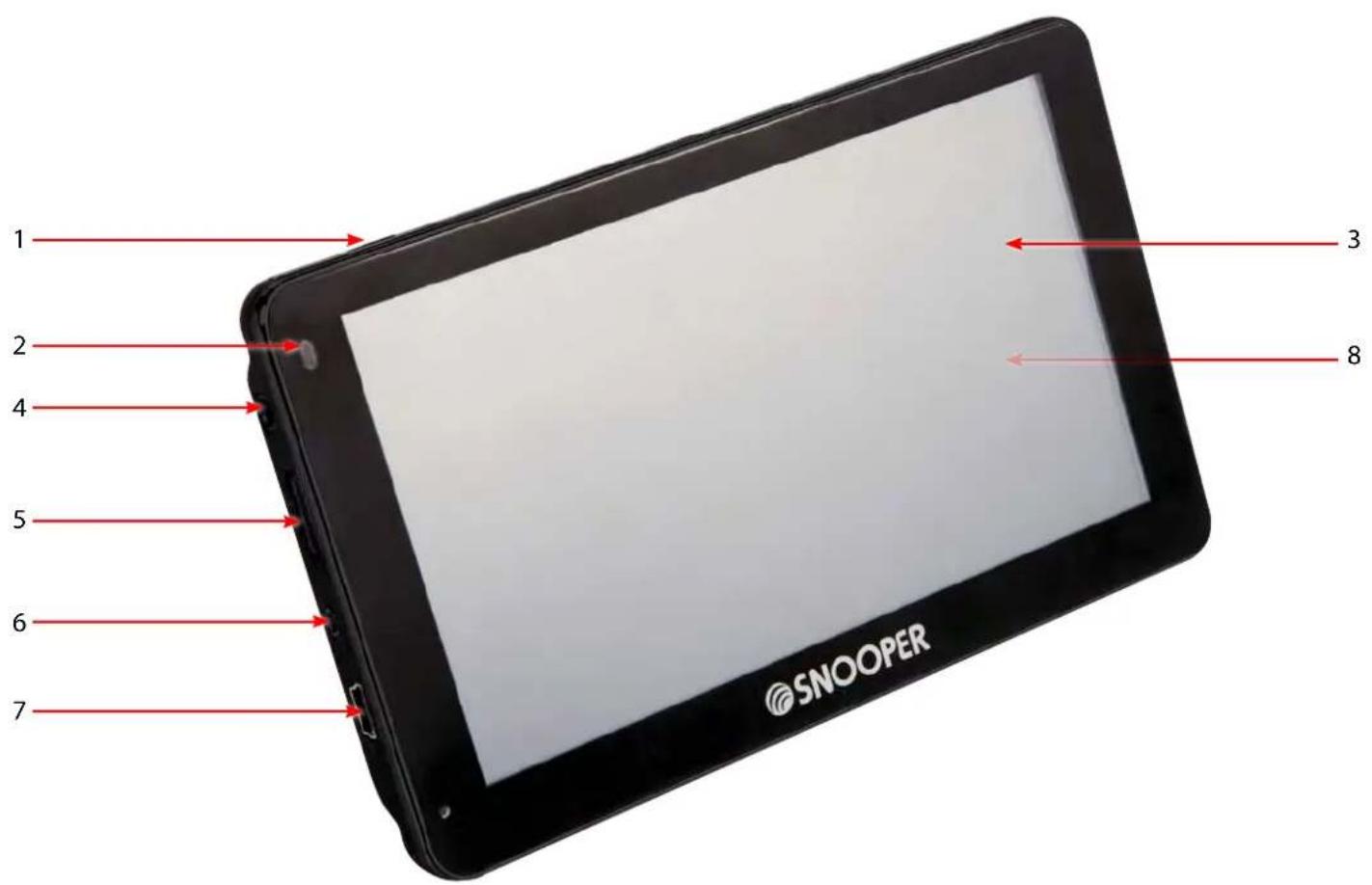
text_image
1 2 4 5 6 7 3 8 SNOOPER- Power Button
Press and hold to switch on or off.
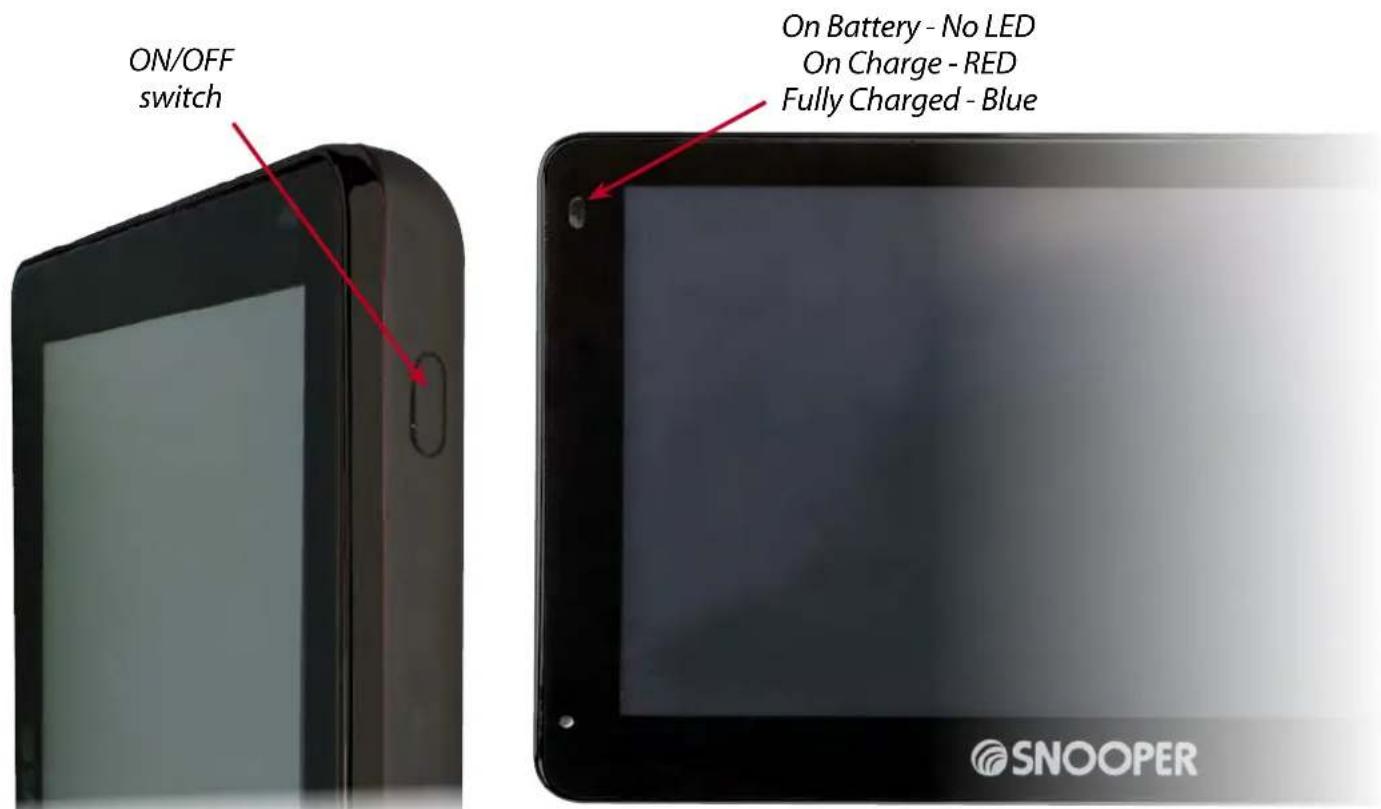
- LED Power indicator
Status LED
Powered by internal battery - no LED
Charging: Red
Fully Charged: Blue.
3 Touch screen LCD
-
Earphone jack (Earphones not included)
-
Micro-SD Card Slot
-
TMC/Video In socket **
-
USB Socket
-
Speaker (on the back of the unit)
Video In The S5000 & 6 series has a video-in connection this is for connecting a rear view or reversing camera (not supplied) to the unit. The socket on the device is a 2.5mm jack, a short 2.5mm jack male to 2.5mm jack female 'Y' connector is supplied in the box, this small extension cable allows for the easy connection and disconnection of the camera and TMC antenna.
The unit will automatically switch the screen image to show the image from the rear camera once the device receives a video signal from the rear camera - please refer to the camera fitting/wiring instructions for details on connecting the camera to the vehicle.
Rear view cameras are designed as a guide only and drivers should still be aware of their surroundings and take care when reversing.
Registering
IMPORTANT! PLEASE READ BEFORE USING.
To enable to locate Fixed Speed Cameras and Accident Black spots you will have to register and download the AURA™ Camera Database.
Register Online
Go to the official website www.snooperneo.co.uk and register your unit online. Your unit should normally be activated within 30 minutes of registration.
Please Note: To register, you will need the serial number of your unit which can be found on the back of the device.
Monthly Debit or Credit Card payment of £2.99 inc VAT*
Quarterly Debit or Credit Card payment of £7.99 inc VAT*
Annual Debit or Credit Card payment of £29.99 inc VAT
*Minimum subscription term of 12 months.
Quick Start Guide to Navigation
- Take the Snooper outside so that the GPS receiver can locate your position. This may take between 15 - 30 minutes the first time. When satellite lock is achieved, the screen will display your current position on its map in a '3D' navigation view. Your position (and direction) is indicated by the icon.
Tip: To reduce the 'cold start' GPS time remain stationary
- Bring up the main navigation menu by touching the centre of the display.
Select Find by Post Code
Tip: The silicon always means that there are more options to see on the next screen
- You will see a standard browser screen, used for entering postcodes. Enter the full UK postcode using the keyboard and press OK
IMPORTANT: Use the key to separate the two segments of the postcode.

text_image
Country UK Post Code WA15 8LZ Street WOBURN DRIVE House No. Calculate Map Route Option
text_image
HOLFORD A38(M) Aston expressway M6 0 0 MPH N ASTON EXPRESSWAY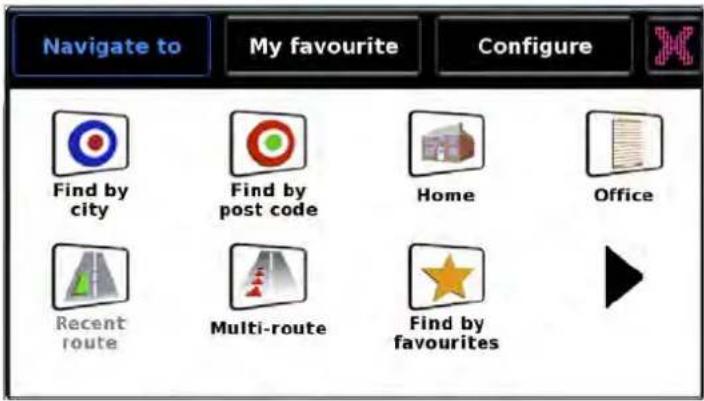
text_image
Navigate to My favourite Configure Find by city Find by post code Home Office Recent route Multi-route Find by favourites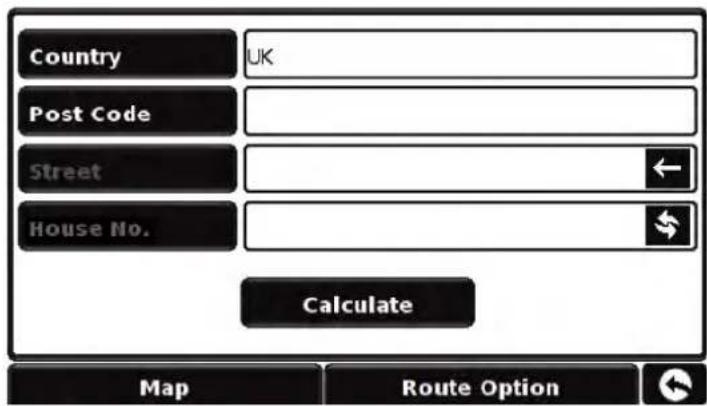
text_image
Country UK Post Code Street House No. Calculate Map Route Option
text_image
Post Code WA15 8_. 1 2 3 4 5 6 7 8 9 0 Q W E R T Y U I O P A S D F G H J K L Z X C V B N M OK ←TTip: The default route options are set to Quickest Route. To change the route options refer to Section 6 in this user manual.
- Press Calculate and Snooper will calculate the fastest route from your current position to your destination.
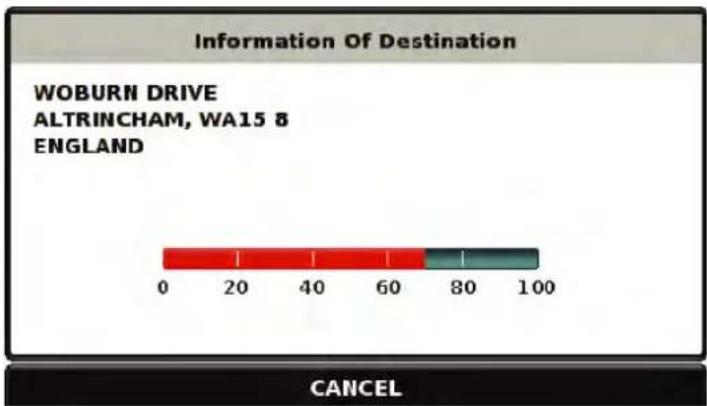
This should only take a short time and a progress bar is shown on the screen.
text_image
Information Of Destination WOBURN DRIVE ALTRINCHAM, WA15 & ENGLAND CANCEL- A journey summary screen will then be displayed
Please note: The summary screen is only displayed for approximately 10 seconds before the unit automatically begins to provide you with turn-by-turn instructions.

text_image
Final Destination Estimated arrival Time WOBURN DRIVE 17:10 PM GO ENGLAND START: TUN YARD DISTANCE: 203 MILES ESTIMATED TIME: 03:10 Your current location Distance to destination Estimated journey time Refer to section 6.0 on page 63 for details Simulation Route Option Guide- Press
GO
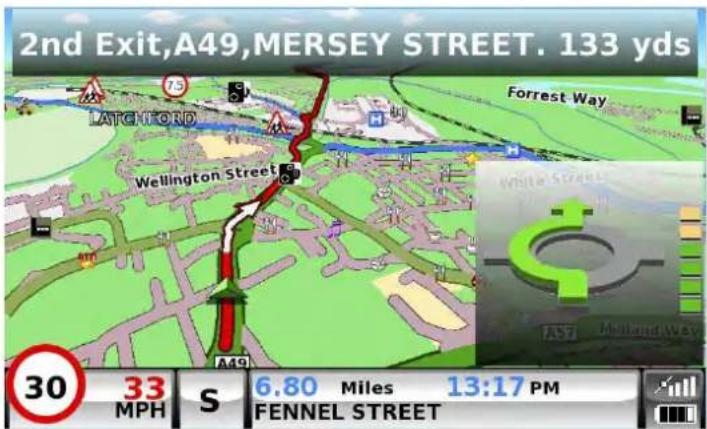
The navigation view will now be displayed, but with the route now highlighted for you. As you approach a specific turn in the calculated route, Snooper will advise you what to do. For example, "After 200 yards, turn left", followed by "Now turn left". As you proceed along your journey, following the voice instructions, you will notice that the navigation view is updated constantly, always showing approaching roads and junctions and presenting the best route to you.
Tip: If you miss a turn or drive down the wrong road, a new fastest route will be calculated automatically, based on your new position and direction of travel, a tone will be heard to confirm re-routing. Snooper will always give you clear instructions that will take you to your chosen destination.
text_image
2nd Exit,A49,MERSEY STREET. 133 yds LATCHFORD Forrest Way Wellington Street A49 30 33 S 6.80 Miles 13:17 PM FENNEL STREETStart Up – Installing the SD Card
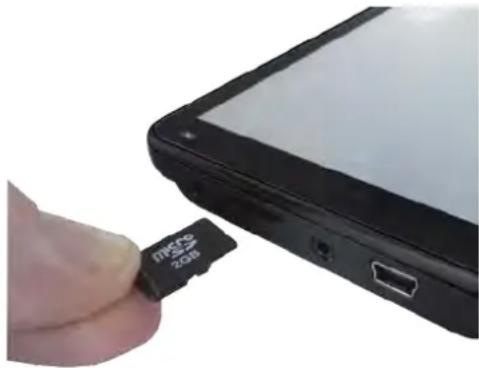
Before using the Snooper, you will need to install the Micro-SD Card included with the device. The Micro-SD Card comes complete with digital mapping and is also where the AURA™ camera database is stored if you choose to subscribe and download it.
Start by removing the Micro-SD Card from its packaging and insert it into the Micro-SD Card slot as indicated. Switch on the device by pressing and holding the standby power button located on the top left hand side of the unit for 2 seconds. The Snooper will automatically synchronise with the Micro-SD Card. Once the synchronisation is completed, the Micro-SD Card will not function with any other device. Snooper is now ready to navigate and the camera database can be downloaded if necessary.
natural_image
Close-up of a hand inserting a 100% USB into a device (no visible text or symbols)Please note that if the unit does not activate when you press and hold the standby power button for 2 seconds it may require charging. Refer to the section 'Charging the internal battery' later in this manual.
System Requirements and Downloading
Before you can begin to download the database onto Snooper, you will need to install the Snooper Updater software provided on the software CD.
In order for the software to be installed successfully, there are certain minimum hardware and software requirements needed.
Minimum Hardware Requirements
The computer must have an Intel Pentium Class processor or equivalent, a minimum of 32MB of RAM, a monitor with 256 (8-bit) colours or greater, a CD ROM drive, 20MB of free disc space and a spare USB connection.
Minimum Software Requirements
The software will only operate on the following Windows based operating systems:
Windows XP (32 bit)
Windows Vista
Windows 7
and, in addition, will only work with Internet Explorer 6 or Netscape Navigator 6 or above.
NOTE: Snooper Updater software does not support Windows 95, 98, Millennium, 2000 or Apple Macintosh operating systems. Windows XP (64 bit) systems is also not supported.
Software Installation Instructions
Place the Software CD into a CD ROM or DVD drive. Your PC should automatically open a window displaying the instructions for installing the software. Follow the instructions onscreen to install the speed camera updater software.
To launch the CD manually: Click on 'Start' and then 'Run'. In the dialogue box that opens click on 'Browse' – another dialogue box will open. Locate your CD ROM or DVD drive (drive letter is normally D) using the 'Look in' option and select 'Snooper' from the lower portion of the dialogue box. Once you have selected 'Snooper' click on 'Open' on the explorer box and then 'OK' on the Run dialogue box.
Please make sure that the operating system installs the new hardware first before installing the Camera Updater software. Once the updater software has been installed click 'Finish' and then close the CD auto run window. After installing the software, double click the camera updater program icon on your desktop to start it. Select your 'Language','Vehicle Type' (if applicable) and 'Download Settings' when prompted.
Any updates to the speed camera updater software can be obtained from www.snooperneo.co.uk/software.cfm. If you have any problems using this software please call 0333 240 1000 during office hours and select Option 3.
Once the software is installed, you are ready to download the speed camera database onto Snooper. Once the initial setup is completed the speed camera updater software window is displayed on your desktop.
Downloading the AURA™ Camera Database
Please Note: You must register Snooper before you can perform a download.
Performing a download is simple.
- Power up Snooper by pressing and holding the power button for 2 seconds and ensure that the computer is connected to the Internet.
2*. Double click on the camera updater icon on your desktop and left click 'Menu' and then 'Download Settings'.
3*. Select the files you wish to download (UK Cameras is selected by default). Once you have selected the files you wish to download left click the 'OK' button.
-
Connect the Snooper using the USB cable provided. Please ensure that you do not use the lead with the USB host connection as the download will not work.
-
The updater software will then start to run automatically and download the database files that you have selected onto your unit. The download process is as follows:

text_image
Plug the USB cable into the USB socket on the left hand side of the Snooper● The software will display the serial number of the Snooper and a green progress bar will start to progress across the screen.
- The software will then connect to our database server and then download** the speed camera database.
● The Snooper will then save the data received.
- The software will indicate that the download is complete and will instruct you to disconnect the Snooper from your PC. Close the camera updater program by clicking the 'x' situated in the top right hand corner of the updater window.
*You only need to do these steps if you wish to change the data that is downloaded onto the Snooper. If you want the download settings to be the same as the previous download ignore these two steps.
**If you have a Firewall on your computer, the Firewall software may inform you that the updater software is trying to access the internet. Please make sure that you grant/allow/permit access to the updater program through the Firewall.
Please read the messages supplied by your Firewall software carefully before choosing your option. If you do not allow the program to access the internet through the Firewall, the download process will fail.
Installing
Snooper comes with a windscreen bracket so that the unit can be mounted onto your vehicles windscreen.
When installing Snooper please ensure that:
- The unit, with its built in GPS antenna has a clear view of the sky*
- It is located in a position where you can easily view the LCD display without having to take your eyes too far from the road ahead and that you can reach the controls safely.
- Does not interfere with the vehicles controls
- Does not jeopardise the drivers or passengers safety
- You will be able to remove the device to perform downloads.
PLEASE NOTE: Be careful to choose a location that does not block the drivers view or where it might endanger the driver or passengers should your vehicle suddenly come to a stop or be involved in an accident.
Installing Snooper using the Windscreen Suction Cup bracket
You can mount Snooper to the inside of your vehicles windscreen using the windscreen bracket provided.
Clean the area where you wish to position the bracket thoroughly with a good quality glass cleaner. This allows a more secure seal on the windscreen.
- Place the suction cup and bracket on the windscreen and push the locking lever towards the windscreen to secure the bracket.
- Adjust the angle of the bracket so that when the unit is attached to it you can view the display and operate the controls safely.
- Position Snooper onto the bracket, by inserting the bottom of the unit first and finally clipping the top of the bracket into the slot on the top of the unit. To remove Snooper, simply unclip the unit by pushing the top of the bracket and taking the unit from the holder.
- Snooper can be powered directly either from the internal battery if it is fully charged or powered from the cigarette lighter socket. To use the cigarette lighter socket, plug the USB connector on one end of the power cable into the USB socket on the left hand side of Snooper and plug the larger plug into the cigarette lighter socket of your vehicle.

text_image
Bracket adjusters Locking lever
natural_image
Close-up of a hand holding a black rectangular device mounted on a car's front, with green foliage visible in the background (no text or symbols)Please Note: Only use the cigarette lighter power cable provided with Snooper. Snooper operates on 5V and using any other cigarette lighter power cable will damage your device and void the warranty.
Power Connection & Charging
Powering and charging Snooper from the cigarette lighter socket
Snooper comes with a power cable designed to plug into your vehicles cigarette lighter socket. The power cable is suitable for both 12v DC and 24v DC vehicles. This lead will power the device but will also charge Snooper's internal battery.
- Plug the smaller end of the lead into the USB socket on the right hand side of Snooper
- Plug the other end of the cigarette lighter adaptor into your vehicles cigarette lighter socket.
If Snooper is powered using the cigarette lighter socket a Red LED will illuminate on the left hand side of the unit. When the battery is fully charged, the Red LED will turn Blue.
- Press and hold the standby power switch on the top left hand side for two seconds to switch the device ON.
Please Note: Do not leave Snooper plugged into the cigarette lighter socket when you start your vehicle. The cigarette lighter socket is prone to power surges as the vehicle is started and this may cause damage to your unit.
If Snooper does not power up please check that the cigarette lighter socket is clean of any debris, remembering not to insert metal objects into the socket. Check that the cigarette lighter adaptor is inserted all the way into the socket and check that the fuse in the cigarette lighter adaptor is operational. If Snooper will still not power up, please check that the cigarette lighter in your vehicle is functioning correctly.
Replacing the Fuse
If Snooper stops operating, the fuse in the cigarette lighter plug may have blown. If it has blown, follow these steps and replace it with a 3 amp, 5mm x 20mm fast acting fuse.
Caution: Using a fuse that does not meet these ratings or defeating fuse protection can damage your unit, the power cable, or the vehicles electrical system.
- Grasp the ring near the tip of the cigarette lighter plug, and then carefully unscrew the ring by turning it counter clockwise.
Caution: If you must use pliers to loosen the ring, be careful not to crush the tip. Never use pliers or other tools to retighten the ring on the cigarette lighter plug. - Pull the ring straight out, then remove the metal tip and old fuse.
- Check the fuse to see if it has blown. If it has, replace it.
- Replace the metal tip inside the ring, then place the fuse inside the cigarette lighter plug and screw the ring back onto the plug. Make sure the metal tip is visible when you reassemble the cigarette lighter plug.
Charging the internal battery
Although Snooper can be charged using the cigarette lighter in your vehicle, a complete charge is more easily achieved by using the 240V AC mains charger included. When new, the battery contains a nominal charge.
To charge the unit fully, connect the 240V AC mains charger as indicated in the picture on the right. The battery light on Snooper will illuminate and will take approximately 3 hours to charge. When the internal battery is fully charged, the red LED will switch turn blue.
Note: The new battery's full performance is only achieved after two or three complete charges and discharges.

text_image
Plug the charger cable into the USB socket on the left hand side of the Snooper Plug the charger into a 240V AC mains socketPowering Snooper using the built-in battery
Once Snooper is fully charged, it is ready for use. Press and hold the standby/power switch on the top left hand side of the unit for 2 seconds to switch on the device.
text_image
ON/OFF switch On Battery - No LED On Charge - RED Fully Charged - Blue SNOOPERLow Battery Warning
If Snooper is powered from the internal battery and the 'Battery Low – Please Recharge' warning is displayed on the screen, the unit has a few minutes of battery power remaining. You should either connect the cigarette lighter adaptor lead to the unit whilst in the vehicle or recharge the battery from the mains adapter supplied.

text_image
Battery low - please recharge MS4 Daresbury Lane BS356 A26 Beeckmoore The lake Hub/Lane 40 33 MPH SW 4.31 Miles 13:10 PM CHESTER ROADWARNING: PLEASE DO NOT USE OR LEAVE Snooper IN EITHER WET OR HUMID CONDITIONS, OR IN EXTREME TEMPERATURES, AS THIS COULD PERMANENTLY DAMAGE THE UNIT AND THE BATTERY. WHEN NOT IN USE DO NOT LEAVE THE UNIT ATTACHED TO THE WINDSCREEN, ESPECIALLY WHEN THE WEATHER IS WARM, TO AVOID DAMAGE TO THE UNIT AND ALSO REDUCE THE RISK OF THEFT.
CAUTION: THERE IS A RISK OF EXPLOSION IF THE BATTERY IS REPLACED WITH AN UNAPPROVED TYPE. USING THE WRONG TYPE OF BATTERY MAY DAMAGE YOUR UNIT AND INVALIDATE YOUR WARRANTY. ONLY SNOOPER AUTHORISED PERSONNEL SHOULD REPLACE THE BATTERY. PLEASE DISPOSE OF USED BATTERIES ACCORDING TO LOCAL WASTE MANAGEMENT RULES AND REGULATIONS. FURTHER INFORMATION CAN BE FOUND LATER IN THIS USER MANUAL.
PLEASE NOTE
Due to our desire to continually improve our products, the specification may change without notice.
Satellite Navigation
1.Starting Up
Once you have synchronised the Micro-SD Card and performed a download as necessary it is time to perform the first Start Up. First make sure your vehicle is parked in as open a space as possible, clear of tall trees and buildings so that the built in GPS antenna has a clear view of the sky above. Next switch ON the unit by pressing and holding the standby power switch on the top left hand side of the unit for 2 seconds.
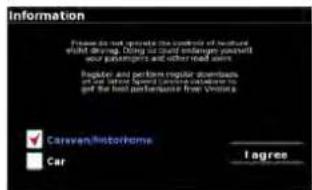
The following warning will be displayed.
Please read the warning and select the relevant vehicle type (where applicable).
Press "I Agree" to continue.

text_image
Information Please do not speak the result of Truckrader while driving during so mild endanger you must. your passengers and other tired spots. Impater and certain repair boards/ack of the time speed during a noticeable to go the best performance from Truckrader ✓ Truck Car I agree

text_image
Information Please do not approve the website of Trustmark yields driving. Being to build endanger yourself, your participants and other risk costs. Register and certain repair components of your home's gear and/or defense in get the past performance from Trustmark I agree
text_image
Information Please do not operate the controls of logged build driving. Using car cloud engine, you will your passengers and other read ads. Register and perform regular downloads of car window speed (minutes) to get the best performance free vehicle. Canvex/Motorhome Car I agree
Whilst Snooper software is loading a start-up display will be shown for just a few seconds and then the screen will show a section of a map. Snooper needs to acquire a minimum of four satellites in order to work. Once this has been achieved Snooper will ascertain your position and this will be indicated by a green arrow icon on the on-screen map and the GPS signal strength will be shown in the bottom right hand corner of the display. Snooper is now ready to navigate.
As the GPS engine and antenna have never been used before, the first 'Cold' start can take anywhere from 15 – 30 minutes to establish a satellite connection. Once initialised, subsequent start ups will take less time and eventually should take only a matter of minutes.
2. Easy Set Up
2.1 Screen settings
There are a number of map views or different types of information that can be displayed on the screen at any one time:-

text_image
Nams Lane Marsh Lane A4597 The Growside Washaw Lane M42 3.03 Miles 60 13:01 S 27 Miles 13:36 PM PM M6 TOLL
text_image
A440 M417 Marsh Lane M42 2.17 Miles 60 13:02 S 26 Miles 13:38 PM PM M6 TOLL all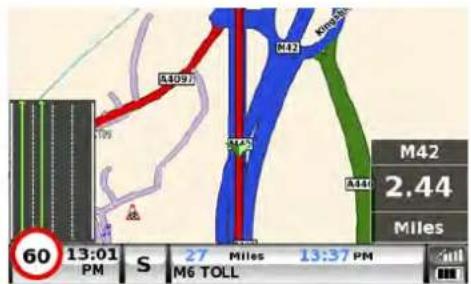
text_image
A409 M42 M42 2.44 Miles 60 13:01 S 27 Miles 13:37 PM M6 TOLLScreen views
3D 2D North
text_image
06:59 11 Hams Lane Marsh Lane A4097 The greaves Wishaw Lane M42 Kingsbury Road M42 M6 TOLL M42 3.03 Miles 60 13:01 S 27 Miles 13:38 PM PM M6 TOLL 2 3 4 5 7 81
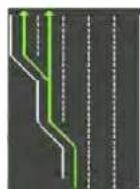
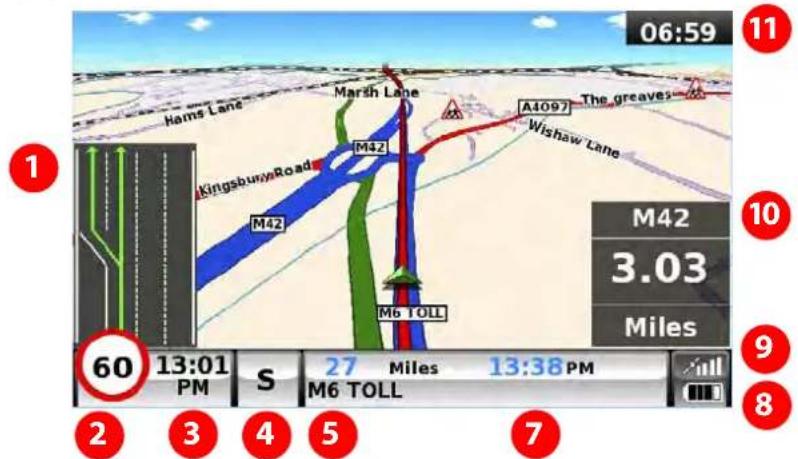
Lane Guidance.
Snoopers' advanced lane guidance will assist the driver by clarifying which lane the vehicle should be using. Snooper has extensive coverage of motorway, complex junctions, some dual carriage way exits and some inner city junctions. The criteria for lane guidance is that the turning lanes or exit lanes will have more than ONE lane to be included.
2
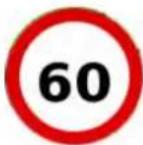
My Speed
The speed limit of nearly every road across Europe can now be clearly displayed on your Snooper at all times. Choose between speed limits for cars and advisory speed limits for trucks from 3.5t and over. In addition, My Speed can also be set to alert you if you accidentally exceed the speed limit at any time. Inappropriate speed is often responsible for many road accidents resulting in serious injuries which some times can even be fatal. MY-SPEED will ensure that you know what the speed limit is on every road you travel on so you can drive safely at all times.
The text will show RED when the speed limit is exceeded

My Speed sounds an audible alert speed limit is exceeded and the current speed Indicator will change from Black to RED text. Refer to page 60 for full details and settings
PLEASE NOTE: These are advisory speed limits ONLY. Always check local road side speed limit signs and abide by local driving regulations and laws of the country you are driving in. It is the responsibility of the driver of the vehicle to ensure that they are driving within the posted speed limit at ALL times
3


4

Press to change the displayed information.
5
Current road name or road number.
6

7

text_image
23 Miles 13:36 PM M42 or
text_image
24 Miles 0:33 Left M42Displays the Estimated Time of arrival or remaining journey time. Press to change the displayed information.
8


10

This pop up box will be displayed when
the driver needs to take 'action' eg move to the left in 0.59 miles.

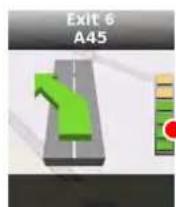
The indicator will count down the distance.
11

Route timer. Set Route timer to alert you when you need to take a break. Set the maximum driving time allowed and set the advanced warning time you require before your next break is due. The Route timer clock will keep you advised of the driving time you have left and will automatically alert you when it's time to take a break. Refer to page 64 for details.
Additional warning or information pop ups will appear at the bottom left hand corner of the screen. If lane guidance is displayed then, the warning pop ups will be displayed at the top left hand side of the screen.

text_image
Cley Road 90° Ms TOLL B41 3rd Exit PROGRESS DRIVE LOW BRIDGE 13ft Littlwe NOW 30 33 MPH SE 2.40 Miles 13:08 PM WATLING STREET 452 ydsRestrictions

Height

Width

Length

Weight

No trucks allowed

No trailers

No U-turn for trucks

No right turn for trucks

No left turn for trucks

Trucks with hazardous goods forbidden

Trucks with natural goods harmful to water forbidden
Warning

Steep road up ahead

Steep road down ahead

Tight bend ahead

Side winds

Risk of grounding

or

ONLY - Restriction and warnings will be displayed in the bottom left hand side of the screen, if lane guidance is also d the restriction and/or warning will be displayed in the top left hand corner of the screen.
Junction view
Full screen images of main motorway junctions are displayed in advance to help you navigate more safely. These junction view images will be displayed on the screen for approximately 5 seconds

text_image
M42 THE SOUTH WEST LONDON (S & W) COVENTRY (S & W) BIRMINGHAM (S)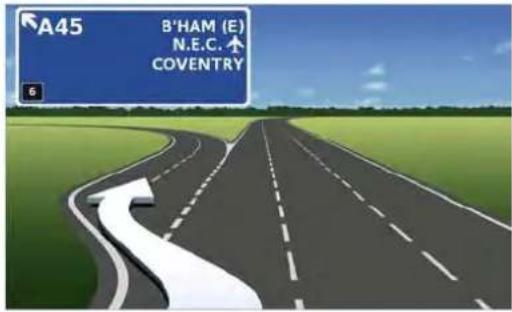
text_image
A45 B'HAM (E) N.E.C. 小 COVENTRYExamples of Junction view.
To modify the information shown:
- Press the centre of the screen to access the menu.
- Press the 'Configure' button.
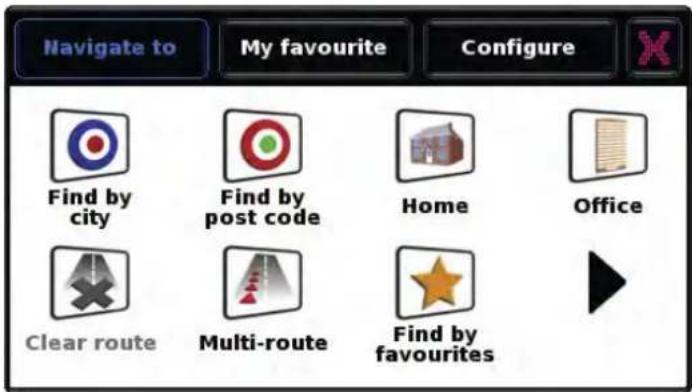
text_image
Navigate to My favourite Configure Find by city Find by post code Home Office Clear route Multi-route Find by favourites
- Press the icon where you will see the list of options below.
- Select the option you wish to change on the left.
● To change a setting, simply press on the tick box to indicate which option you would like to choose. - Continue to select each option and select your preference.
- Press 'OK' at the bottom of the screen to save your preferences.
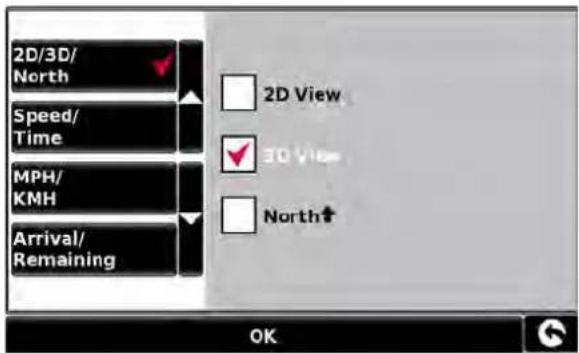
text_image
2D/3D/ North Speed/ Time MPH/ KMH Arrival/ Remaining 2D View 3D View North↑ OK
text_image
2D/3D/ North Speed/ Time MPH/ KMH Arrival/ Remaining Display time Display speed 2AH 12H AM/FM OK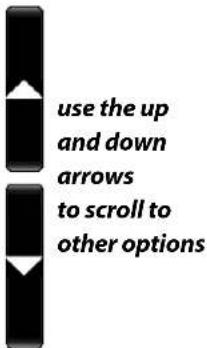
text_image
use the up and down arrows to scroll to other optionsYour chosen settings will now be saved and will appear on the screen each time you use Snooper. If you want to switch between your Current Speed and the Atomic Clock or the Estimated Time of Arrival and Time to Destination during your journey simply touch the screen where either piece of information is displayed and the unit will display the alternate setting and vice versa. However each time you power the device up the original setting will be displayed.

2.2 Volume Control
The volume can be adjusted using this function within the 'Configure' menu. To adjust the volume:
- Press the centre of the screen to access the 'Menu'.
- Press 'Configure'.
- Press the 'Volume Control' icon.
● To increase the volume press the icon.
● To decrease the volume press the icon. - To test the volume before saving, press the 'Test' icon.
- To reset the volume to the factory default press the 'Reset' icon.
- Press 'OK' at the bottom of the screen to save your setting.
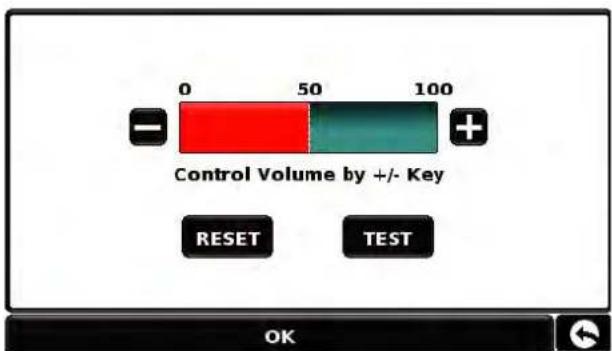
text_image
0 50 100 Control Volume by +/- Key RESET TEST OKNote: The arrow icon in the bottom right hand corner of the display will return you to the 'Configure' menu if pressed but will not store any changes you have made. You need to select the 'OK' button in order to save your changes.
Setting up vehicle parameters

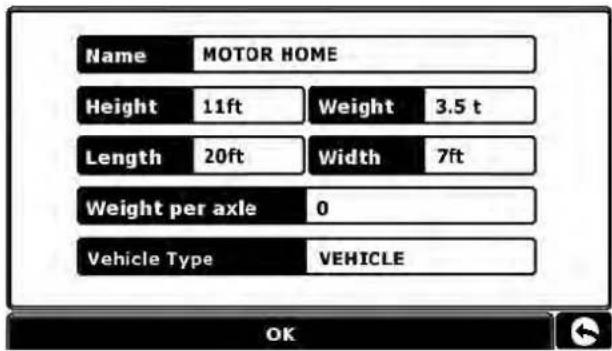
For Ventura to calculate a route suitable for your vehicle it needs to know certain information about the vehicle itself such as its height, weight and width. It is possible to save the settings of 10 different vehicles. Follow these instructions to enter your vehicles details.
Press the centre of the screen to access the menu, press 'Configure' and then press the 'Caravan/Motorhome' icon.
Name: Enter the name here.
Height: Enter the height of the vehicle here.
Length: Enter the length of the vehicle here.
Weight: Enter the weight of the vehicle here.
Width: Enter the width of the vehicle here.
Weight per axle: Enter the weight per axle of the vehicle here
text_image
Name MOTOR HOME Height 11ft Weight 3.5 t Length 20ft Width 7ft Weight per axle 0 Vehicle Type VEHICLE OKVehicle type:
● Fixed Axle: Standard setting for fixed axle vehicles.
- Trailer: Specific traffic rules exist for vehicles towing caravans. For example, there are roads that are forbidden for towing vehicles. These will be avoided.
Setting up vehicle parameters

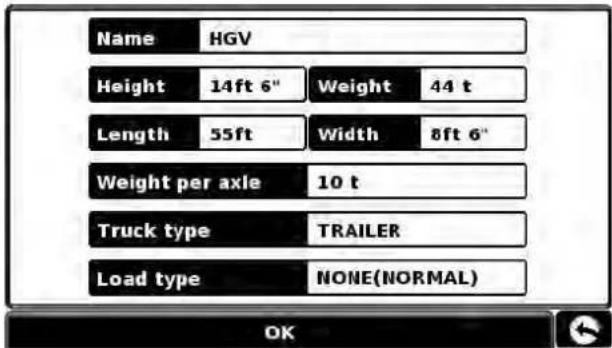
For Truckmate to calculate a route suitable for your vehicle it needs to know certain information about the vehicle itself such as its height, weight and width. It is possible to save the settings of 10 different trucks. Follow these instructions to enter your vehicles details.
Press the centre of the screen to access the menu, press 'Configure' and then press the 'Truck' icon.
Name: Enter the name here.
Height: Enter the height of the vehicle here.
Length: Enter the length of the vehicle here.
Weight: Enter the weight of the vehicle here.
Width: Enter the width of the vehicle here.
text_image
Name HGV Height 14ft 6" Weight 44 t Length 55ft Width 8ft 6" Weight per axle 10 t Truck type TRAILER Load type NONE(NORMAL) OKWeight per axle: Enter the weight per axle of the vehicle here
Truck type:
● Truck: Standard setting for fixed axle vehicles.
● Trailer: Specific traffic rules exist for trucks with trailers. For example, there are roads that are forbidden for vehicles with trailers. These will be avoided.
● Delivery: Specific traffic rules exist for delivery vehicles. For example, trucks are only allowed in certain areas if they are delivering goods.
● Public: Certain vehicles are allowed to use the traffic rules of public vehicles such as buses and money transport vehicles.
Load type:
● None (Normal)
● Hazardous: Hazardous goods that are not explosive or harmful for water.
● Explosive and Flammable
● Harmful for water
Tunnel Category
ADR Tunnel Codes:
- Select one of the applicable tunnel codes, by default 'Normal' is selected
- The tunnel category codes consist of an individual letter from "A" to "E" this will be indicated by the use of road signs and or signals. Restrictions will not apply to category "A" tunnels as these are unrestricted and will not require any signage.
● Tunnel category A or Normal
● Tunnel category B
● Tunnel Category B1000C
● Tunnel Category B/D
● Tunnel Category B/E
● Tunnel Category C
● TUNNEL CATEGORY C/D
● Tunnel Category C/E
● Tunnel Category D
● Tunnel Category D/E
● Tunnel Category E
B Most restrictive Passage forbidden through tunnels of category B, C, D and E
B1000C Carriage where the total net explosive mass per transport unit exceeds 1000 kg: Passage forbidden through tunnels of category B, C, D and E; does not exceed 1000 kg: Passage forbidden through tunnels of category C, D and E
B/D Tank carriage: Passage forbidden through tunnels of category B, C, D and E; Other carriage: Passage forbidden through tunnels of category D and E
B/E Tank carriage: Passage forbidden through tunnels of category B, C, D and E; Other carriage: Passage forbidden through tunnels of category E
C Passage forbidden through tunnels of category C, D and E
C5000D Carriage where the total net explosive mass per transport unit exceeds 5000 kg: Passage forbidden through tunnels of category C, D and E; does not exceed 5000 kg: Passage forbidden through tunnels of category D and E
C/D Tank carriage: Passage forbidden through tunnels of category C, D and E; Other carriage: Passage forbidden through tunnels of category D and E
C/E Tank carriage: Passage forbidden through tunnels of category C, D and E; Other carriage: Passage forbidden through tunnels of category E
D Passage forbidden through tunnels of category D and E
D/E Bulk or tank carriage: Passage forbidden through tunnels of category D and E; Other carriage: Passage forbidden through tunnels of category E
E least restrictive Passage forbidden through tunnels of category E
NORMAL Passage allowed through all tunnels (For UN Nos. 2919 and 3331, see also ADR 8.6.3.1).
For mixed loads choose the MOST restrictive category
Disclaimer
This content gives general guidance only and should not be regarded as a complete or authoritative statement of the law. The user guide will be updated to reflect any developments in new legislation or case law.
3. Planning a route
There are several ways to plan a route on Snooper.

3.1 Find by post code
- Press the centre of the screen to access the 'Navigate to' menu.
- Press the 'Find by post code' icon.
- If you have the European version of Snooper, you will need to select the 'Country' first BEFORE typing the postcode. (If the correct country is already displayed, go to the next step). Use the arrow keys on the right of the display to scroll up and down the country options. Select the country with your finger.
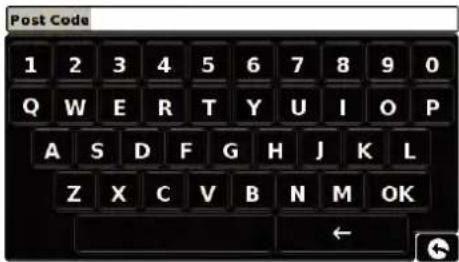
- Press 'Post code' and enter the full postcode using the onscreen keyboard.
- Press the 'OK' button on the keyboard.
text_image
Post Code 1 2 3 4 5 6 7 8 9 0 Q W E R T Y U I O P A S D F G H J K L Z X C V B N M OK
text_image
Post Code WA15 8... 1 2 3 4 5 6 7 8 9 0 Q W E R T Y U I O P A S D F G H J K L Z X C V B N M OK
text_image
Navigate to My favourite Configure Find by city Find by post code Home Office Clear route Multi-route Find by favourites
text_image
Country UK Post Code WA15 BLZ Street WCBURN DRIVE House No. Calculate Map Route OptionPlease Note: The button on the keyboard with no character on it is the 'Space' key. A space between the two parts of the postcode MUST be entered in order for the postcode to be recognised.
If the following message is displayed 'Please, input correct postcode', the postcode has been entered incorrectly. Press OK and retype the postcode.
● Snooper will display a screen showing the postcode and the street name.
- If you know the house/property number of your destination, press the House No.
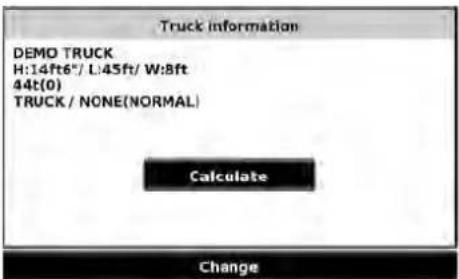
- Once you have entered the house number press the 'OK' button. NOTE: For Truckmate or Ventura models you can select the vehicle type before the journey is calculated.
● Alternatively, if you do not have a house or building number, you can navigate to a point where two roads meet instead.
Press the 'Intersection' button and select the road
Intersection
text_image
Truck information DEMO TRUCK H:14ft6"/ L:45ft/ W:8ft 44t(0) TRUCK / NONE(NORMAL) Calculate Change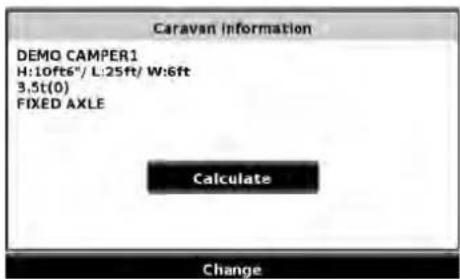
text_image
Caravan information DEMO CAMPER1 H:10ft6"/ L:25ft/ W:6ft 3.5t(0) FIXED AXLE Calculate Change- Press the 'Calculate' button.
Once the calculation is complete you can either press 'Go' to start navigation, 'Simulation' to see the actual route that will be taken, 'Route Option' to change the parameters of the route or 'Guide' which will list the turn by turn instructions of the journey. The 'Summary Screen' will tell you the distance to your destination, estimated time of arrival and the estimated time it will take to complete your journey.
Please note: The summary screen is only displayed for approximately 10 seconds before the unit automatically begins to provide you with turn-by-turn instructions.
User advice
By subscribing to and downloading the AURA™ Speed Camera database you will automatically be alerted to all 'Fixed' Speed Cameras and other Accident Hotspots during your journey ensuring that you are always aware of the correct speed limit whilst travelling along any particularly hazardous stretches of road.

text_image
AURA™ Camera & Driving Hazard Database
3.3 Find by city
If you do not know the postcode but have the street name and the town or city that you would like to navigate to, then select this option.
- Press the centre of the screen to enter the 'Navigate to' menu.
- Press the 'Find by city' icon.
- Select the 'Country' first BEFORE typing the city. (If the correct country is already displayed, go to the next step). Use the arrow keys on the right of the display to scroll up and down the country options. Select the country with your finger.
- Next press 'City' and enter the city name using the keyboard displayed.
As you begin to input the city name, Snooper will automatically prompt you with a list of possible matches. If you can see the name of the destination you are searching for in the lower window, you can select it easily by pressing that name with your finger. If you wish to view the list of possible destinations in full, press the down arrow to the top right hand corner of the display and a list of cities will be displayed then select your destination by touching on it. Use the arrow keys on the right hand side of the display to scroll through the list.
- Press 'Street' and use the keyboard displayed to type in the street name.
As you begin to input the road or street name, Snooper will automatically prompt you with a list of possible matches similar to when searching for 'City' described above. When you see the road you require select it by pressing it with your finger.
- If you wish, you can enter the property number by pressing 'House No.' and then typing the house number on the keyboard. Once the house number has been selected, press the 'OK' button. Note: Truckmate & Ventura-After the OK button is pressed an additional screen will be displayed where you can choose the relevant vehicle. Press 'Change' to edit the vehicle choice or 'OK' to to continue.
- Press the 'Calculate' button.
Once the calculation is complete you can either press 'Go' to start navigation, 'Simulation' to see the actual route that will be taken, 'Route Option' to change the parameters of the route or 'Guide' which will list the turn by turn instructions of the journey. The 'Summary Screen' will tell you the distance to your destination, estimated time of arrival and the estimated time it will take to complete your journey

text_image
Country All Countries City Street House No. Calculate Map Route Option City MANC_ MANCETTER (ATHERSTONE) MANCHESTER 1 2 3 4 5 6 7 8 9 0 Q W E R T Y U I O P A S D F G H J K L Z X C V B N M ← Country UK City MANCHESTER Street House No. Calculate Map Route Option St. AMBLES_ AMBLESIDE CLOSE AMBLESIDE ROAD 1 2 3 4 5 6 7 8 9 0 Q W E R T Y U I O P A S D F G H J K L Z X C V B N M ← Country UK City MANCHESTER Street AMBLESIDE CLOSE House No. Calculate Map Route OptionPlease note: The summary screen is only displayed for approximately 10 seconds before the unit automatically begins to provide you with turn-by-turn instructions.

3.3.1 Home
You can navigate easily and quickly from a previous journey or destination to your home, by personalising Snooper so that a route can be calculated by pressing just a few buttons.
3.3.2 Setting the 'Home' Destination
- Press the centre of the display to enter the 'Navigate to' menu.
- Press the 'Home' icon.
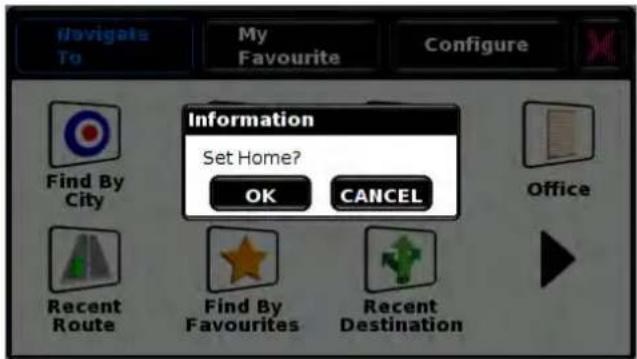
The first time the 'Home' function is used an information screen is displayed saying 'Set Home? Press 'OK' in the information window to continue, press 'CANCEL' to exit. If 'Home' has already been set it can be edited in My Favourites – refer to section 4.4 on page 48

text_image
Navigate To My Favourite Configure Information Set Home? OK CANCEL Find By City Office Recent Route Find By Favourites Recent Destination● You can search for your address by using one of the following options:
'Find address by city' or 'Find address by post code'. Please refer to 3.1 and 3.2 above on how to use these functions.
- Once you have entered the 'Home' destination, a new field is available for you to 'Name' the destination.
- Press 'Name' and a keyboard will be displayed with the road name you selected.
- Press the 'Arrow' key to erase this data then input the new name using the keyboard.
Please note: You can enter a new name for the home destination using up to a maximum of sixteen characters.
- Press 'Save' once you have entered the name.
- Once your home address has been saved, Snooper will be able to calculate a route to this address.
3.3.3 Using the 'Home' Function
● To calculate a route:
- Press the centre of the display to enter the 'Navigate to' menu.
- Press the 'Home' icon.
Snooper will display details of the destination and offer a 'Go' button and a 'Route Option' button. Press 'Go' to begin your journey.
3.4 Office
You can navigate easily and quickly from a previous journey or destination to your office or place of work, by personalising Snooper so that a route can be calculated by pressing just a few buttons.
3.4.1 Setting the 'Office' Destination
- Press the centre of the display to enter the 'Navigate to' menu.
- Press the 'Office' icon.
The first time the 'Office' function is used an information screen is displayed saying 'Set Office? Press 'OK' in the information window to continue, press 'CANCEL' to exit. If 'Office' has already been set it can be edited in My Favourites – refer to section 4.0 on page 49.
text_image
Navigate To My Favourite Configure Information Set Home? OK CANCEL Find By City Office Recent Route Find By Favourites Recent Destination● You can search for your address by using one of the following options:
'Find address by city' or 'Find address by post code'. Please refer to 3.1 and 3.2 above on how to use these functions.
Once you have entered the 'Office' destination, a new field is available for you to 'Name' the destination.
- Press 'Name' and a keyboard will be displayed with the road name you selected.
- Press the 'Arrow' key to erase this data then input the new name using the keyboard.
Please note: You can enter a new name for the office destination using up to a maximum of sixteen characters.
- Press 'Save' once you have entered the name.
Once your office address has been saved, Snooper will be able to calculate a route to this address.
3.4.2 Using the 'Office' Function
To calculate a route:
Press the centre of the display to enter the 'Navigate to' menu.
- Press the 'Office' icon.
Snooper will display details of the destination and offer a 'Go' button and a 'Route Option' button. Press 'Go' to begin your journey.

3.5 Recent Route or Clear route
Snooper automatically stores the last route that has been calculated, so that if you wish to return to that address you do not have to re-input all the details again.
● To use this function:
- Press the centre of the screen to enter the 'Navigate to' menu.
- Press the 'Recent Route' icon.
Snooper will now calculate the route to your selected location.
Once a route has been calculated, the 'Recent Route' icon is replaced with a 'Clear Route' icon. To cancel a route that you have calculated:
- Press the centre of the screen to enter the 'Navigate to' menu.
- Press the 'Clear Route' icon.
The route will then automatically be deleted.
Please Note: For the 'Clear Route' feature to operate you will need to have entered and calculated a route. If the 'Recent Route' icon is displayed a route has NOT been entered.
3.6 Multi route
With Snooper you have the facility to enter more than one destination at a time (for instance if you wish to visit other locations before reaching your ultimate destination). You can store up to seven multi-routes, with up to sixteen destinations within each multi-route. The unit will process and calculate the destinations in the following order: A to B, B to C, and C to D etc. When entering the destinations you are able to review the routes and change the order of the routes before pressing 'Go'.
3.6.1 Create a Multi-route
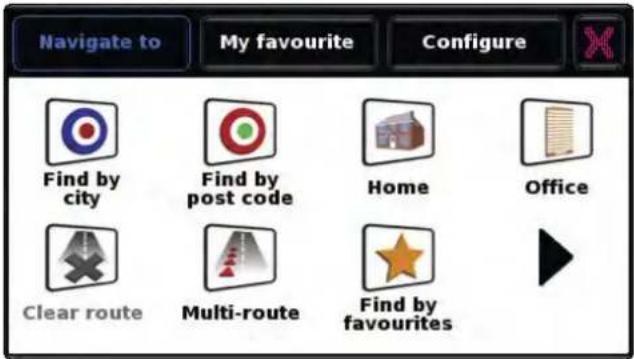
- Press the centre of the display to enter the 'Navigate to' menu.
- Press the 'Multi-route' icon.
You will then see the 'Multi-route screen' that allows you to:
- Create a multi-route
● Use or edit a previously stored multi-route - Delete a multi-route.
- Press 'Create multi-route'.
A screen is displayed where you can:
'Edit' the name of the multi-route
Change the start point of the multi-route
'Add' your destinations.
'Save' your destinations
'Calculate' your multi-route
- Press 'Edit Name' to create a name for your new multi-route.
Please note: You can enter a new name for the multi-route using up to a maximum of sixteen characters.
- Press the 'Arrow' key to delete the current name for your multi-route.
● Type the new name of your multi-route using the keyboard. - Press the 'Save' button in the top right hand corner.
If you wish to change the start position of the multi-route, press 'Change Start' to change it. You are provided with several options to select your start position. To find out how to use these options please refer to the applicable sections earlier in this user manual.
text_image
Navigate to My favourite Configure Find by city Find by post code Home Office Clear route Multi-route Find by favourites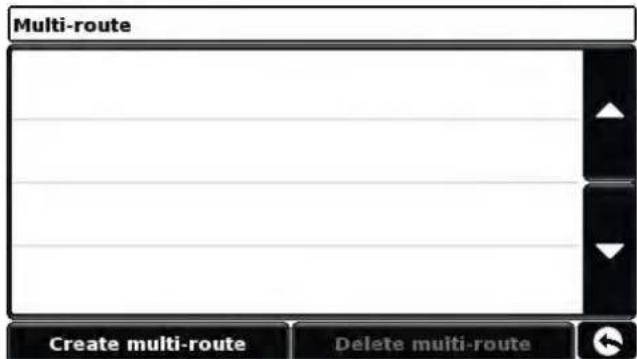
text_image
Multi-route Create multi-route Delete multi-route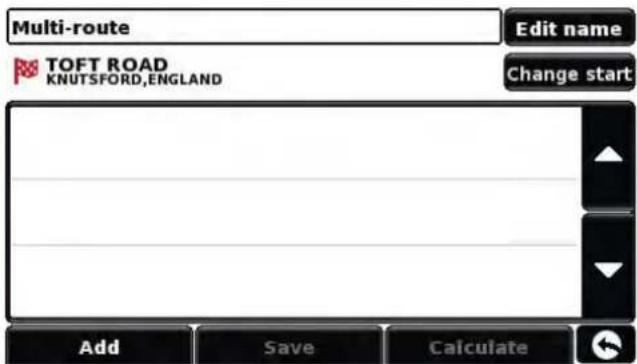
text_image
Multi-route Edit name TOFT ROAD KNUTSFORD,ENGLAND Change start Add Save CalculateIf you are happy with the start position, you can now begin to enter the data of your first destination.
- Press 'Add' – you are provided with several options to find your destination stage:
Find address by city
Find address by post code
Find by POI
Find by recently used
Find by favourites
To find out how to use these options please refer to the applicable sections in this user manual.
- Once you have entered the data press 'Set'.
● The destination stage will now appear in the multi-route screen. - Press "Add" to enter additional destination stages.
- Once you have entered all your destination stages press 'Save'.
3.6.2 Editing a Multi-route
If you wish to change the order or delete any of the stages in the multi-route:
- Press the centre of the display to enter the 'Navigate to' menu.
- Press the 'Multi-route' icon.
● Press the name of the multi-route destination you wish to edit - Press one of the stages listed and some new options will appear near the bottom of the display.
To move the selected stage press the 'UP' or 'Down' arrow.
To delete the stage press the 'Bin' icon.
To return to the stage list press the 'Return Arrow'.
Note: These functions only apply to the stage that you have selected. To edit the other stages in the list press the 'Return Arrow' in the bottom right hand corner of the screen and select the new stage.
Once you have made your desired changes press 'Save'.
3.6.3 Using the Multi-route function
To use a saved multi-route:
- Press the centre of the screen to enter the 'Navigate to' menu
- Press the 'Multi-route' icon.
● Press the name of the multi-route destination you wish to use
- Press 'Calculate'.
Snooper will calculate the route to each destination stage and provide a new summary screen with the distance to each destination stage along with the estimated duration of the journey to each destination stage from the start point.
- If you wish to view the calculated route on a map, press 'Map'.
- If you wish to start using the Multi-route, press 'Go'.
Please Note: If you press one of the stages listed before pressing 'Go', you will see a summary screen where you can either press 'Go' to start navigation, 'Simulation' to see the actual route that will be taken or 'Guide' which will list the turn by turn instructions for that stage of the journey. The 'Summary Screen' will also display the distance to your destination, estimated time of arrival and the estimated time it will take to complete that stage of the journey.
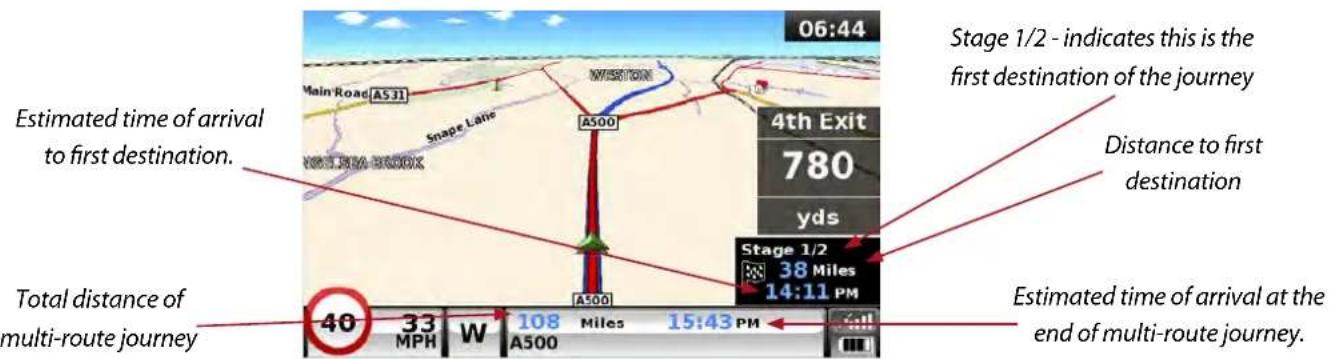
Once you have pressed 'Go' Snooper will now display your current map position along with a small summary screen located in the bottom left hand corner. The following information is displayed on the summary screen:
text_image
06:44 Main Road A531 Snape Lane A500 WISSTON 4th Exit 780 yds Stage 1/2 - indicates this is the first destination of the journey Distance to first destination Total distance of multi-route journey 40 33 MPH W 108 Miles 15:43 PM A500 Estimated time of arrival at the end of multi-route journey.If, during the journey, you wish to cancel the current stage and begin travelling to the next stage in your multi-route journey press the summary screen in the bottom left hand corner of the display and the message 'Delete current stage?' will be displayed. Press 'OK' and the unit will calculate your route to the next stage in the multi-route from your current position.
Note: If Snooper is turned 'OFF' and then 'ON' during a multi-route journey the device will retain the current route and ask you if you wish to continue with the current destination or with the next stage of the destination or to cancel the multi-route.

3.6.4 Auto arrange Multi-route
Once you create a multi-route Snooper can arrange the multi-route into a logical order by pressing the icon

text_image
Before DEMO Edit name TOFT ROAD KNUTSFORD,ENGLAND Change start SARUS COURT MANOR PARKRUNCORN,ENGLAND 10 DOWNING STREET SWILLONDON,ENGLAND CLOWS TOP ROAD ABBERLEY.WORCESTER,ENGLAND DEMO Edit name TOFT ROAD KNUTSFORD,ENGLAND Change start SARUS COURT MANOR PARKRUNCORN,ENGLAND CLOWS TOP ROAD ABBERLEY.WORCESTER,ENGLAND 10 DOWNING STREET SWILLONDON,ENGLAND Add Save CalculateOnce the route has been arranged press the 50% in press
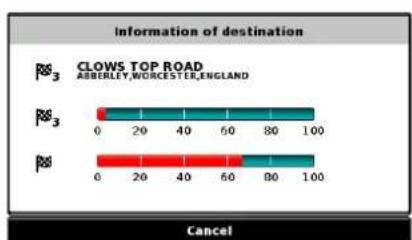
Snooper will now calculate the multi-routes estimated time and distances
bar
Information of destination | Destination | 0 | 20 | 40 | 60 | 80 | 100 | | :--- | :--- | :--- | :--- | :--- | :--- | :--- | | CLOWS TOP ROAD ASBERLEY, WORCESTER, ENGLAND | Red bar (approx) | Green bar (approx) | Teal bar (approx) | Teal bar (approx) | Teal bar (approx) | Teal bar (approx) | | Target | 0 | 20 | 40 | 60 | 80 | 100 | CancelThen displays the route summary
text_image
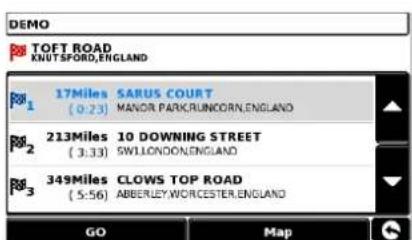
DEMO P01 TOFT ROAD KNUTSPORD,ENGLAND P01 17Miles SARUS COURT (0:23) MANOR PARKRUNCORN,ENGLAND P02 213Miles 10 DOWNING STREET (3:33) SWILLONDON,ENGLAND P03 349Miles CLOWS TOP ROAD (5:56) ABBERLEY.WORCESTER,ENGLAND GO MapPress GO to continue or map on a map
3.7 Find by favourites
Snooper has the capacity to store up to 150 user locations. To add your favourite locations see Section 4.1.1 on page 45.
To navigate to one of your stored locations:
- Press the centre of the screen to enter the 'Navigate to' menu.
- Press the 'Find by favourites' icon.
- Select the favourite you wish to navigate to from the list provided.
The information about your chosen favourite is displayed.
● To start the journey press 'Calculate'
- To change the route parameters press 'Route Option' (see Section 6.0: Route Options on page 65 for specific instructions).
● To view the location of the favourite, press 'Map'.
● To return to the previous page press the return arrow left located in the bottom right hand corner of the display.
Once the calculation is complete you can either press 'Go' to start navigation, 'Simulation' to see the actual route that will be taken, 'Route Option' to change the parameters of the route or 'Guide' which will list the turn by turn instructions of the journey. The 'Summary Screen' will tell you the distance to your destination, estimated time of arrival and the estimated time it will take to complete your journey.
Please note: The summary screen is only displayed for approximately 10 seconds before the unit automatically begins to provide you with turn-by-turn instructions.
Press ▶ to move to the next screen

3.8 Recent destination
Snooper is capable of storing the last 40 routes that have been calculated, so that if you wish to return to an address you do not have to re-input the details again.
To calculate a route using the 'Recent destination' function:
- Press the centre of the screen to enter the 'Navigate to' menu.
- Press the black arrow once.
- Press the 'Recent destination' icon.
- Select the recent route you wish to navigate to from the list provided*.
*A list of your most recent routes will be shown in chronological order. Use the arrows on the right hand side of the display to scroll up and down through the list and select the destination you would like.
To start the journey press 'Calculate'
● To change the route parameters press 'Route Option' (see Section 6.0: Route Options on page 65 for specific instructions).
- To view the location of the recent destination, press 'Map'.
● To return to the previous page press the return arrow ↕ located on the bottom right hand corner of the display.
Once the calculation is complete you can either press 'Go' to start navigation, 'Simulation' to see the actual route that will be taken, 'Route Option' to change the parameters of the route or 'Guide' which will list the turn by turn instructions of the journey. The 'Summary Screen' will tell you the distance to your destination, estimated time of arrival and the estimated time it will take to complete your journey.
Please note: The summary screen is only displayed for approximately 10 seconds before the unit automatically begins to provide you with turn-by-turn instructions.
3.9 Find by POI (points of interest)
If you would like to calculate a route to a hotel, airport, restaurant or even a golf course Snooper can calculate a route using its extensive database of POI's (Points of Interest).
To navigate using this database:
- Press the centre of the screen to access the 'Navigate to' menu.
- Press the black arrow once.
- Press the 'Find by POI' icon.
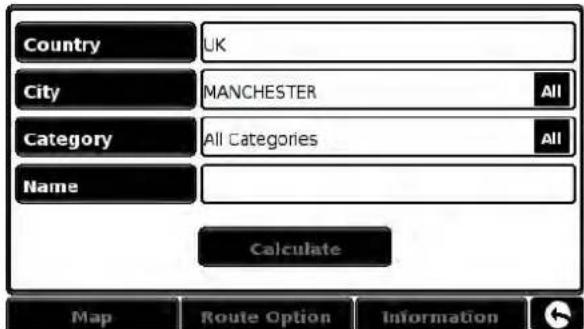
- Press 'Country' and select the country where you would like to find the POI. (If the country is already displayed, go to the next step). Use the arrow keys on the right to scroll up and down the options.
- Next press 'City' and enter the city name using the keyboard displayed.
As you begin to input the city name, Snooper will automatically prompt you with a list of possible matches. If you can see the name of the destination you are searching for in the lower window, select it by pressing that name with your finger. If you wish to view the list of possible destinations in full, press the down arrow to the top right hand corner of the display and a list will be displayed then, select your destination. Use the arrow keys on the right hand side of the display to scroll through the list.
text_image
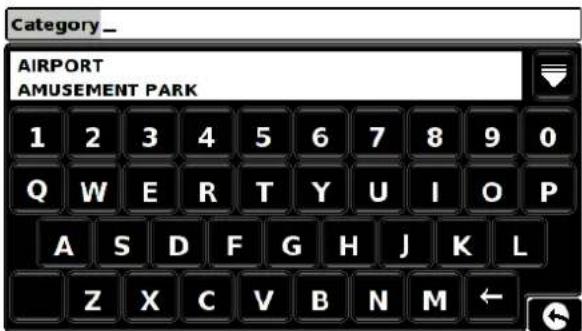
Country UK City MANCHESTER All Category All Categories All Name Calculate Map Route Option Information- Press 'Category' and enter the category type using the keyboard displayed.
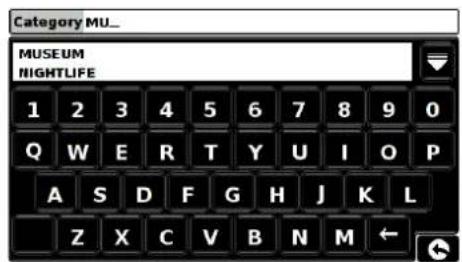
If you do not know which category to type you can press the down arrow to the right of the lower window and all the category types will be displayed in alphabetical order. Use the arrows to the right of the display to scroll up and down through the category options. Once you find the category you are looking for select it with your finger.
- Press 'Name'. If the name of your POI is displayed in the lower window select it with your finger. Alternatively you can start typing the name to narrow the options and then select it.
All the fields are now filled in for your chosen POI.
● To start the journey press 'Calculate'
- To view the location of the POI, press 'Map'.
- To change the route parameters press 'Route Option' (see Section 6.0: Route Options on page 65 for specific instructions).
- Press 'Information' to see more details about the POI.
- To return to the previous page press the return arrow is located on the bottom right hand corner of the display.
text_image
Category_* AIRPORT AMUSEMENT PARK 1 2 3 4 5 6 7 8 9 0 Q W E R T Y U I O P A S D F G H J K L Z X C V B N M ←
text_image
Name IM_ IMPERIAL WAR MUSEUM NORTH IRLAM 1 2 3 4 5 6 7 8 9 0 Q W E R T Y U I O P A S D F G H J K L Z X C V B N M ←Once the calculation is complete you can either press 'Go' to start navigation,
'Simulation' to see the actual route that will be taken, 'Route Option' to change the parameters of the route or 'Guide' which will list the turn by turn instructions of the journey. The 'Summary Screen' will tell you the distance to your destination, estimated time of arrival and the estimated time it will take to complete your journey.
Please note: The summary screen is only displayed for approximately 10 seconds before the unit automatically begins to provide you with turn-by-turn instructions.

3.10 Find by nearest POI
This function will help you to find the nearest POI from either your 'Current Position' or a 'Different Position' within a certain radius which can be specified up to a maximum of 60 miles.
3.10.1 To navigate using the 'Current Position'
- Press the centre of the screen to enter the 'Navigate to' menu.
- Press the black arrow once.
- Press the 'Find by nearest POI' icon.
- Select 'Current Position'
- Select the maximum radius you wish the unit to search for (the default setting is 30 miles) and then press 'OK'
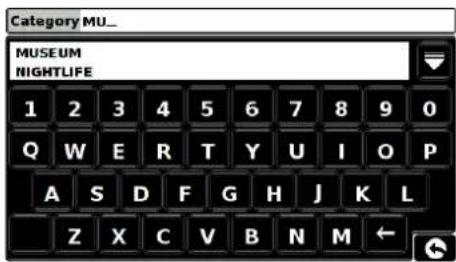
- Press 'Category' and enter the category type using the keyboard displayed.

text_image
Current position Different position Along Route
text_image
Select Radius 10 MILES 40 MILES 20 MILES 50 MILES 30 MILES 60 MILES OKIf you do not know which category to type, you can press the down arrow to the right of the lower window and all the category types will be displayed in alphabetical order. Use the arrows to the right of the display to scroll up and down through the category options. Once you find the category you are looking for select it with your finger.
text_image
Category MU_ MUSEUM NIGHTLIFE 1 2 3 4 5 6 7 8 9 0 Q W E R T Y U I O P A S D F G H J K L Z X C V B N M ←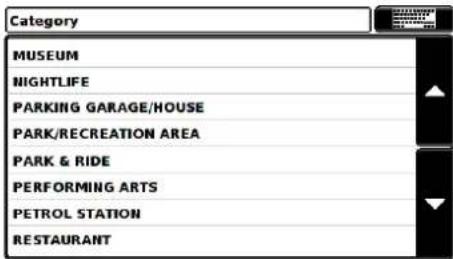
text_image
Category MUSEUM NIGHTLIFE PARKING GARAGE/HOUSE PARK/RECREATION AREA PARK & RIDE PERFORMING ARTS PETROL STATION RESTAURANT
text_image
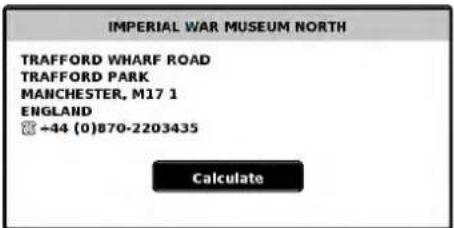
MUSEUM MANCHESTER MUSEUM : 6mile MANCHESTER UNITED MUSEUM : 6mile DUNHAM MASSEY HALL : 6mile METROPOLITAN GALLERIES : 6mile ORDSALL HALL MUSEUM : 6mile IMPERIAL WAR MUSEUM NORTH : 7mile THE LOWRY : 7mile NATIONAL MUSEUM OF LABOUR HISTORY : 7mileA list of POI's within the specified radius and category will be displayed. Use the arrows to the right hand side of the screen to scroll up and down through the options. When you find the POI that you are looking for, select it with your finger
● To start the journey press 'Calculate'
● To view the location of the POI, press 'Map'.
- To change the route parameters press 'Route Option' (see Section 6.0: Route Options on page 65 for specific instructions).
- To return to the previous page press the return arrow is located on the bottom right hand corner of the display.
Once the calculation is complete you can either press 'Go' to start navigation, 'Simulation' to see the actual route that will be taken, 'Route Option' to change the parameters of the route or 'Guide' which will list the turn by turn instructions of the journey. The 'Summary Screen' will tell you the distance to your destination, estimated time of arrival and the estimated time it will take to complete your journey.
text_image
IMPERIAL WAR MUSEUM NORTH TRAFFORD WHARF ROAD TRAFFORD PARK MANCHESTER, M17 1 ENGLAND +44 (0)870-2203435 Calculate
text_image
IMPERIAL WAR MUSEUM NORTH 00:17 AM GO FALE STOCKWORM E-FADLE TRIN-FAY WINGLOW ALDERLEY EDGE START: FINNEY LANE DISTANCE: 12.0 MILES ESTIMATED TIME: 00:17 Simulation Route Option GuidePlease note: The summary screen is only displayed for approximately 10 seconds before the unit automatically begins to provide you with turn-by-turn instructions.
3.10.2 To navigate using a 'Different Position'
- Press the centre of the screen to enter the 'Navigate to' menu.
● Press the black arrow once. - Press the 'Find by nearest POI' icon.
- Select 'Different Position'
- Press 'Country' and select the country where you would like to find the POI. (If the country is already displayed, go to the next step). Use the arrow keys on the right to scroll up and down the options.
- Next press 'City' and enter the city name using the keyboard displayed.
As you begin to input the city name, Snooper will automatically prompt you with a list of possible matches. If you can see the name of the destination you are searching for in the lower window, you can select it easily by pressing that name with your finger. If you wish to view the list of possible destinations in full, press the down arrow to the top right hand corner of the display and a list of cities will be displayed then select your destination by touching on it. Use the arrow keys on the right hand side of the display to scroll through the list.
- Press 'Street' and use the keyboard displayed to type in the street name.
As you begin to input the road or street name, Snooper will automatically prompt you with a list of possible matches similar to when searching for 'City' described above. When you see the road you require select it by pressing it with your finger.
Once all fields have been completed you can view the new position by pressing 'Map' at the bottom of the screen.
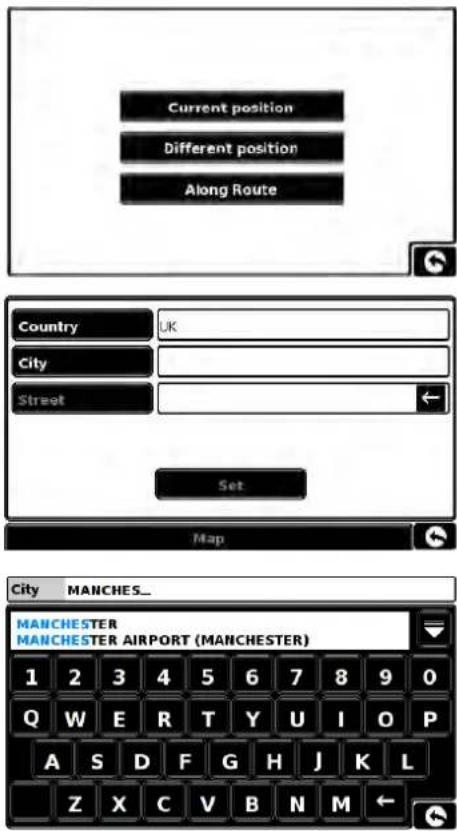
text_image
Current position Different position Along Route Country UK City Street Set Map City MANCHES_ MANCHESTER MANCHESTER AIRPORT (MANCHESTER) 1 2 3 4 5 6 7 8 9 0 Q W E R T Y U I O P A S D F G H J K L Z X C V B N M ←- Press 'Set'
- Select the maximum radius you wish the unit to search for (the default setting is 30 miles) and then press 'OK'
- Press 'Category' and enter the category type using the keyboard displayed. If you do not know which category to type, you can press the down arrow to the right of the lower window and all the category types will be displayed in alphabetical order. Use the arrows to the right of the display to scroll up and down through the category options. Once you find the category you are looking for select it with your finger.

text_image
Select Radius 10 MILES 40 MILES 20 MILES 50 MILES 30 MILES 60 MILES OK
text_image
Category MU_ MUSEUM NIGHTLIFE 1 2 3 4 5 6 7 8 9 0 Q W E R T Y U I O P A S D F G H J K L Z X C V B N M ←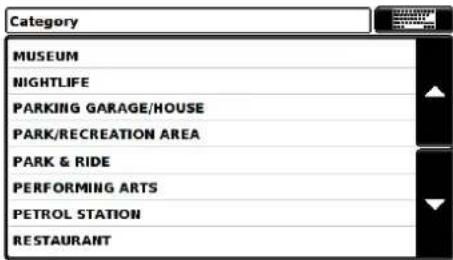
text_image
Category MUSEUM NIGHTLIFE PARKING GARAGE/HOUSE PARK/RECREATION AREA PARK & RIDE PERFORMING ARTS PETROL STATION RESTAURANT
text_image
MUSEUM MANCHESTER MUSEUM : 6mile MANCHESTER UNITED MUSEUM : 6mile DUNHAM MASSEY HALL : 6mile METROPOLITAN GALLERIES : 6mile ORDSALL HALL MUSEUM : 6mile IMPERIAL WAR MUSEUM NORTH : 7mile THE LOWRY : 7mile NATIONAL MUSEUM OF LABOUR HISTORY : 7mileA list of POI's within the specified radius and category will be displayed. Use the arrows to the right hand side of the screen to scroll up and down through the options. When you find the POI that you are looking for, select it with your finger.
● To start the journey press 'Calculate'
- To view the location of the POI, press 'Map'.
- To change the route parameters press 'Route Option' (see Section 6: Route Options on page 65 for specific instructions).
● To return to the previous page press the return arrow ↕ located on the bottom right hand corner of the display.

text_image
IMPERIAL WAR MUSEUM NORTH TRAFFORD WHARF ROAD TRAFFORD PARK MANCHESTER, M17 1 ENGLAND +44 (0)870-2203435 CalculateOnce the calculation is complete you can either press 'Go' to start navigation, 'Simulation' to see the actual route that will be taken, 'Route Option' to change the parameters of the route or 'Guide' which will list the turn by turn instructions of the journey. The 'Summary Screen' will tell you the distance to your destination, estimated time of arrival and the estimated time it will take to complete your journey.
Please note: The summary screen is only displayed for approximately 10 seconds before the unit automatically begins to provide you with turn-by-turn instructions.

text_image
IMPERIAL WAR MUSEUM NORTH 00:17 AM GO FALE STOCKWORT TRIN-FAY CHEADLE WINSLOW ALBERTY EDGE START: FINNEY LANE DISTANCE: 12.0 MILES ESTIMATED TIME: 00:17 Simulation Route Option Guide3.10.3 To navigate using 'Along Route'
Choose to search from our extensive list of Point's of Interest using our new 'Corridor Search' facility. The "Corridor Search" search function enables you to search specifically along your pre-programmed route.
The instructions to use this facility are the same as above (see Section 3.10.2) but select 'Along Route' to open the search.

3.11 User POI
The Snooper comes pre loaded with a number of 'User POI's'. You can add additional POI (Points Of Interest) by downloading them to the device via a PC. The User POI Updater program can be downloaded from: https://www.snooperneo.co.uk/Software.cfm. Once the program is installed it will be possible to select additional POI lists for the Snooper.
To navigate using User POI:
- Press the centre of the screen to enter the 'Navigate to' menu.
- Press the black arrow once.
- Press the User POI' icon.
- A list of installed User POI's will appear, select the one you want to navigate to by pressing the name.
● The option to:
Find around current position
Find around different position will be displayed.
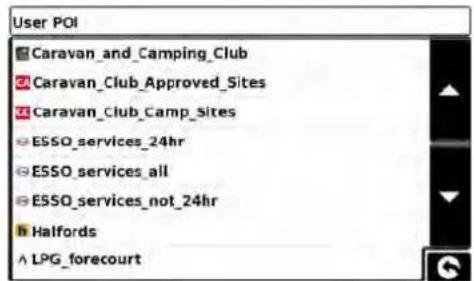
text_image
User POI Caravan_and_Camping_Club Caravan_Club_Approved_Sites Caravan_Club_Camp_Sites ESSO_services_24hr ESSO_services_all ESSO_services_not_24hr Halfords ^ LPG_forecourt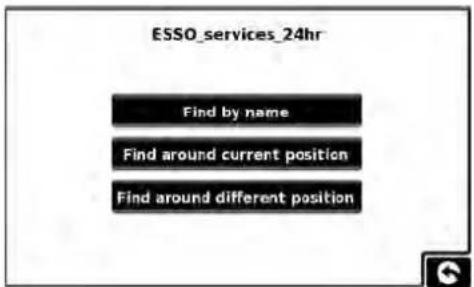
text_image
ESSO_services_24hr Find by name Find around current position Find around different position3.11.1 Find by name
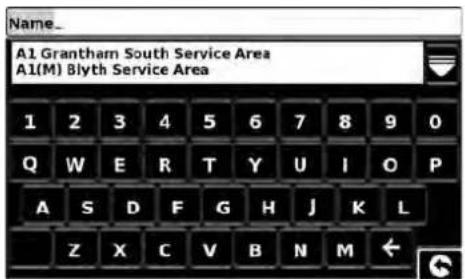
- If you know the name of the POI you are looking for select 'Find by name' and then type the name of the POI.
Press to reveal more locations
text_image
Name_ A1 Grantham South Service Area A1(M) Blyth Service Area 1 2 3 4 5 6 7 8 9 0 Q W E R T Y U I O P A S D F G H J K L Z X C V B N M ←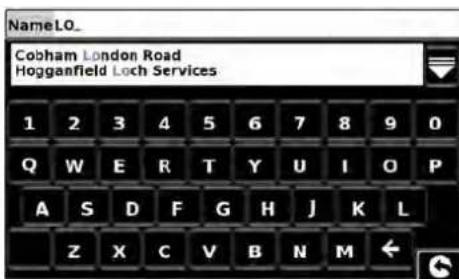
text_image
NameLO_ Cobham London Road Hogganfield Loch Services 1 2 3 4 5 6 7 8 9 0 Q W E R T Y U I O P A S D F G H J K L Z X C V B N M ←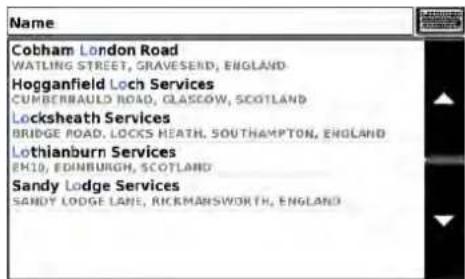
text_image
Name Cobham London Road WATLING STREET, GRAVESEND, ENGLAND Hogganfield Loch Services CURBERRAULD ROAD, GLASCOLV, SCOTLAND Locksheath Services BRIDGE ROAD, LOCKS HEATH, SOUTHAMPTON, ENGLAND Lothianburn Services BK10, EDINBURGH, SCOTLAND Sandy Lodge Services SANDY LODGE LANE, RICKMANSWORTH, ENGLANDSelect the POI with your finger; an information screen will be displayed. Press 'OK' if the POI is correct, press 'Map' to view the POI location on the map, press 'Route options' to change start position or press to return to the previous screen.
Press 'Calculate' and a journey summary screen will be displayed. Press 'GO' to start navigation.
3.11.2 Find around current position
- Press the centre of the screen to enter the 'Navigate to' menu.
- Press the black arrow once.
- Press the 'User POI' icon.
● Press the POI you wish to look for - Select 'Find around current position'
- Select the maximum radius you wish the unit to search for (the default setting is 30 miles) and then press 'OK'

text_image
Select Radius 10 MILES 40 MILES 20 MILES 50 MILES 30 MILES 60 MILES OK
text_image
ESSO_services_all Chalk Farm Services [1 mile] HAWLEY STREET, NW1, LONDON, ENGLAND Camden Express [1 mile] CAMDEN NEWS, NW1, LONDON, ENGLAND Maida Vale Express [2 mile] W9, LONDON, ENGLAND Nine Elms Services [2 mile] WAIDSWORTH ROAD, SWB, LONDON, ENGLAND Nine Elms Services (Market Side) [2 mile] WAIDSWORTH ROAD, SWB, LONDON, ENGLAND Battersea Services [2 mile] NINE ELMS LANE, SWB, LONDON, ENGLAND Thames Services [2 mile] CLAPHAR ROAD, SWB, LONDON, ENGLAND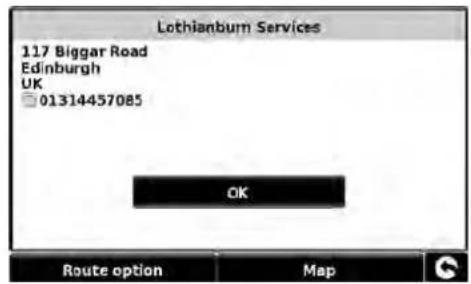
text_image
Lothianburn Services 117 Biggar Road Edinburgh UK 01314457085 OK Route option Map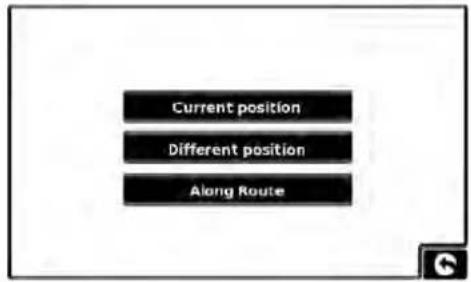
text_image
Current position Different position Along Route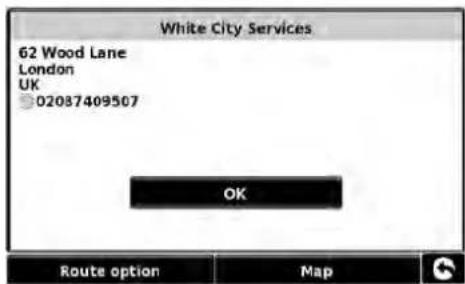
text_image
White City Services 62 Wood Lane London UK 02037409507 OK Route option MapA list of POI's within the specified radius and category will be displayed. Use the arrows to the right hand side of the screen to scroll up and down through the options. When you find the POI that you are looking for, select it with your finger
● To start the journey press 'OK' followed by 'Calculate'
- To view the location of the POI, press 'Map'.
- To change the route parameters press 'Route Option' (see Section 6: Route Options on page 65 for specific instructions).
- To return to the previous page press the return arrow is located on the bottom right hand corner of the display.

text_image
White City Services 13:18 PM GO Start: WHITEMALL Distance: 5.4 Miles Estimated Time: 00:15 Simulation Route option GuideOnce the calculation is complete you can either press 'Go' to start navigation, 'Simulation' to see the actual route that will be taken, 'Route Option' to change the parameters of the route or 'Guide' which will list the turn by turn instructions of the journey. The 'Summary Screen' will tell you the distance to your destination, estimated time of arrival and the estimated time it will take to complete your journey.
Please note: The summary screen is only displayed for approximately 10 seconds before the unit automatically begins to provide you with turn-by-turn instructions.
3.11.3 Find around different position
- Press the centre of the screen to enter the 'Navigate to' menu.
- Press the black arrow once.
- Press the 'User POI' icon.
● Press the POI you wish to look for - Select 'Find around different position'
- Press 'Country' and select the country where you would like to find the POI. (If the country is already displayed, go to the next step). Use the arrow keys on the right to scroll up and down the options.
- Next press 'City' and enter the city name using the keyboard displayed.
As you begin to input the city name, Snooper will automatically prompt you with a list of possible matches. If you can see the name of the destination you are searching for in the lower window, you can select it easily by pressing that name with your finger. If you wish to view the list of possible destinations in full press the down arrow to the top right hand corner of the display and a list of cities will be displayed then select your destination by touching on it. Use the arrow keys on the right hand side of the display to scroll through the list.
- Press 'Street' and use the keyboard displayed to type in the street name.
As you begin to input the road or street name, Snooper will automatically prompt you with a list of possible matches similar to when searching for 'City' described above. When you see the road you require select it by pressing it with your finger.
Once all fields have been completed you can view the new position by pressing 'Map' at the bottom of the screen.
- Press 'Set'
- Select the maximum radius you wish the unit to search for (the default setting is 30 miles) and then press 'OK'
text_image
Category MU_ MUSEUM NIGHTLIFE 1 2 3 4 5 6 7 8 9 0 Q W E R T Y U I O P A S D F G H J K L Z X C V B N M ←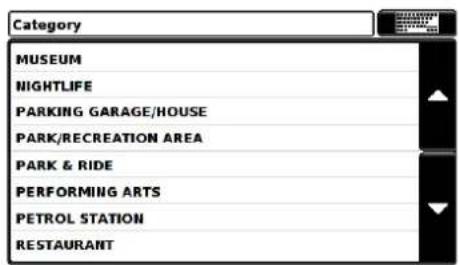
text_image
Category MUSEUM NIGHTLIFE PARKING GARAGE/HOUSE PARK/RECREATION AREA PARK & RIDE PERFORMING ARTS PETROL STATION RESTAURANTA list of POI's within the specified radius and category will be displayed. Use the arrows to the right hand side of the screen to scroll up and down through the options. When you find the POI that you are looking for, select it with your finger
● To start the journey press 'OK' followed by 'Calculate'
- To view the location of the POI, press 'Map'.
- To change the route parameters press 'Route Option' (see Section 6: Route Options on page 65 for specific instructions).
● To return to the previous page press the return arrow ↕ located on the bottom right hand corner of the display.
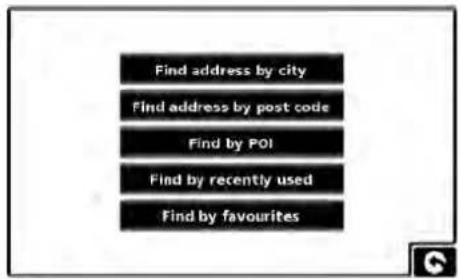
text_image
Find address by city Find address by post code Find by POI Find by recently used Find by favourites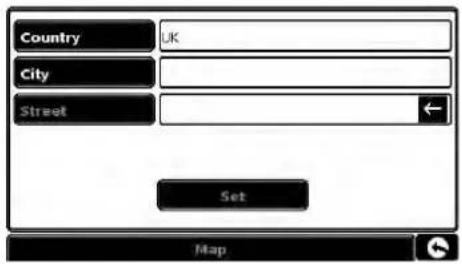
text_image
Country UK City Street Set Map
text_image
City MANCHES_ MANCHESTER MANCHESTER AIRPORT (MANCHESTER) 1 2 3 4 5 6 7 8 9 0 Q W E R T Y U I O P A S D F G H J K L Z X C V B N M ←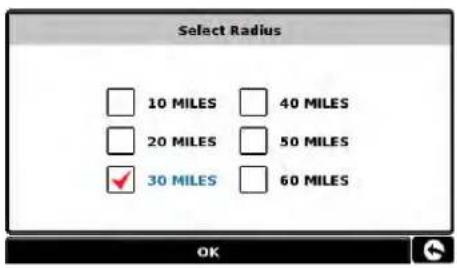
text_image
Select Radius 10 MILES 40 MILES 20 MILES 50 MILES 30 MILES 60 MILES OK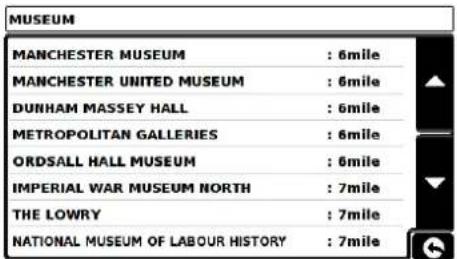
text_image
MUSEUM MANCHESTER MUSEUM : 6mile MANCHESTER UNITED MUSEUM : 6mile DUNHAM MASSEY HALL : 6mile METROPOLITAN GALLERIES : 6mile ORDSALL HALL MUSEUM : 6mile IMPERIAL WAR MUSEUM NORTH : 7mile THE LOWRY : 7mile NATIONAL MUSEUM OF LABOUR HISTORY : 7mile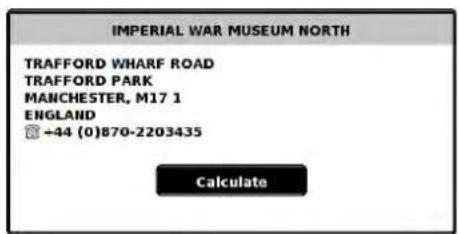
text_image
IMPERIAL WAR MUSEUM NORTH TRAFFORD WHARF ROAD TRAFFORD PARK MANCHESTER, M17 1 ENGLAND +44 (0)870-2203435 CalculateOnce the calculation is complete you can either press 'Go' to start navigation, 'Simulation' to see the actual route that will be taken, 'Route Option' to change the parameters of the route or 'Guide' which will list the turn by turn instructions of the journey. The 'Summary Screen' will tell you the distance to your destination, estimated time of arrival and the estimated time it will take to complete your journey.
Please note: The summary screen is only displayed for approximately 10 seconds before the unit automatically begins to provide you with turn-by-turn instructions.

text_image
IMPERIAL WAR MUSEUM NORTH 00:17 AM GO START: FINNEY LANE DISTANCE: 12.0 MILES ESTIMATED TIME: 00:17 Simulation Route Option Guide
3.12 Find by map
This function allows you to select a destination by simply selecting any road on any area of the map stored within your unit or alternately you can navigate to motorway junction numbers.
To navigate using this facility
- Press the centre of the screen to access the 'Navigate to' menu.
- Press the black arrow once.
- Press the 'Find by map' icon.
The screen will show a section of the map (usually of your current position with a road selected in red).
● To see a larger section of the map press the button to zoom out.
- If you would like to see the map in more detail, use the + button to zoom in.
- By pressing and moving your finger on the screen you can move the map around until you find your desired location.
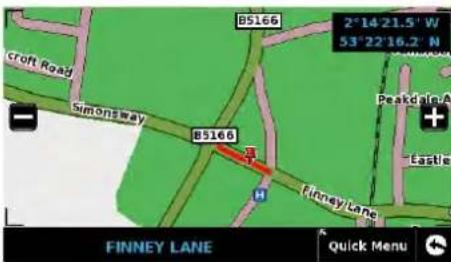
text_image
Croft Road Simonsway B5166 B5166 H Finney Lane 2°14'21.5" W 53°22'16.2" N Peakdale A Eastie FINNEY LANE Quick Menu
text_image
85166 SimOnsway 85166 Continue Close FINNEY LANE Quick Menu
text_image
B5166 Brown Lane Peakdale Avenue B5166 Troy/Lane STREET Quick Menu B5166 Peakdale Avenue Simonsway B5166 Finney Lane Eastlinga Outwood STREET Quick Menu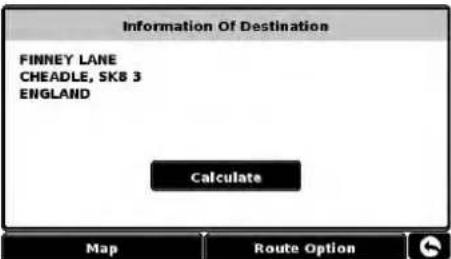
text_image
Information Of Destination FINNEY LANE CHEADLE, SKB 3 ENGLAND Calculate Map Route Option- When you can see the required destination, simply press on the road of the map you would like to navigate to and the road name selected will be displayed at the bottom of the screen.
- Press 'Quick Menu' and then press 'Continue'.
● To start the journey press 'Calculate'
● To view the location of the POI, press 'Map'. - To change the route parameters press 'Route Option' (see Section 6: Route Options on page 65 for specific instructions).
● To return to the previous page press the return arrow ↕ located on the bottom right hand corner of the display.
Once the calculation is complete you can either press 'Go' to start navigation, 'Simulation' to see the actual route that will be taken, 'Route Option' to change the parameters of the route or 'Guide' which will list the turn by turn instructions of the journey. The 'Summary Screen' will tell you the distance to your destination, estimated time of arrival and the estimated time it will take to complete your journey.
Please note: The summary screen is only displayed for approximately 10 seconds before the unit automatically begins to provide you with turn-by-turn instructions.

3.13 Find by coordinate
To navigate to a location using a coordinate:
Press the centre of the screen to access the 'Navigate to' menu Press the black arrow once Press the 'Find by coordinate' icon
Enter the coordinate using the key pad and press the 'OK' button.
You can enter the coordinate in three different formats. For example.
Decimal Degrees
Latitude (N): 53.462968° Longitude (W): -2.291367°
Please note: when inputting the Longitude you ignore the minus symbol (-). The degree symbol MUST be used in order for this function to work (see image on the right).
Degrees, Minutes, Seconds
Latitude (N): 53°27′45.95″N Longitude (W): 2°17′28.16″W
Please note: when inputting the Longitude and Latitude you ignore the letters 'N' and 'W'. You MUST use the degrees, minutes and seconds symbols when using this function (see image on the right).
Degrees, Decimal Minutes
Latitude (N): 53° 27.766'N Longitude (W): 2° 17.469'W
Please note: when inputting the Longitude and Latitude you ignore the letters 'N' and 'W'. The degree and minute symbols MUST be used when using this function (see image on the right).
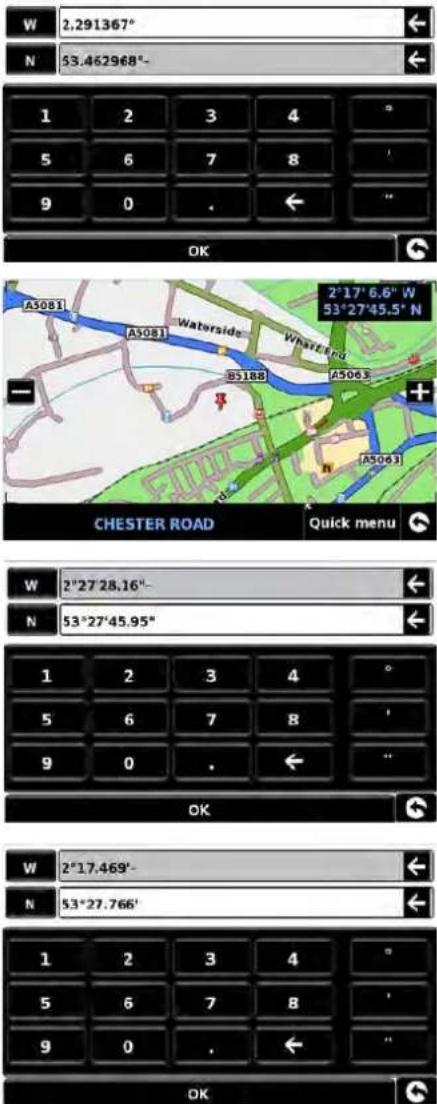
text_image
W 2,291367° N 53.462968°- 1 2 3 4 5 6 7 8 9 0 . ← " OK A5081 Waterside Wharfou B5188 A5063 CHESTER ROAD Quick menu W 2°27'28.16" N 53°27'45.95" 1 2 3 4 ° 5 6 7 B 9 0 . ← " OK W 2°17.469°- N 53°27.766° 1 2 3 4 " 5 6 7 8 9 0 . ← " OKAfter pressing OK, the location of the coordinates will be shown on the map. If correct press 'Quick menu' and then 'Continue' and follow the on screen instructions to calculate a route.

3.14 Re-route
Snooper can recalculate your route by avoiding certain roads or redirecting you by distance. This facility only becomes available once you have calculated a route.
To perform a re-route: Press the centre of the screen to enter the 'Navigate to' menu. Press the black arrow once. Press the 'Re-route' icon.
You can then choose how you would like to re-route your journey from the selections shown on the display.
In order to use this function on Snooper you will need to have entered and calculated a route. If the 'Re-Route' icon is greyed out a route has NOT been entered.
3.14.1 Avoid By Road Name
If you know the road name or road number you wish to avoid, then select this option.
- Press 'Avoid by Road Name'.
You will be provided with the turn by turn instructions of the route that you are currently following. If the road you are looking for is not visible, press the down arrow on the right hand side of the display to see further turn by turn instructions.
- Once you have found the road that you wish to avoid, select it with your finger.
Once the calculation is complete you can either press 'Go' to start navigation, 'Simulation' to see the actual route that will be taken, 'Route Option' to change the parameters of the route or 'Guide' which will list the turn by turn instructions of the journey. The 'Summary Screen' will tell you the distance to your destination, estimated time of arrival and the estimated time it will take to complete your journey.
Please note: The summary screen is only displayed for approximately 10 seconds before the unit automatically begins to provide you with turn-by-turn instructions.
3.14.2 Avoid by Range
If you wish to avoid several roads from the selected route calculated by Snooper, then this function allows you to re-calculate a route over a user defined distance, ranging from 1 mile up to a maximum of 100 miles.
● To use this function:
- Press the 'Avoid by range' button - the 'Select avoided range' page will be displayed.
- Select the distance of the range you wish to avoid using your finger.
If you wish to view more range distances then press the down arrow on the right hand side of the display. Once you have selected the range you wish to avoid Snooper will automatically re-calculate your route.
Once the calculation is complete you can either press 'Go' to start navigation, 'Simulation' to see the actual route that will be taken, 'Route Option' to change the parameters of the route or 'Guide' which will list the turn by turn instructions of the journey. The 'Summary Screen' will tell you the distance to your destination, estimated time of arrival and the estimated time it will take to complete your journey.
Please note: The summary screen is only displayed for approximately 10 seconds before the unit automatically begins to provide you with turn-by-turn instructions.
3.14.3 Clear Avoided Road
If you do not wish to use the alternative routes offered by Snooper and you wish to return to the original calculated route, press the 'Clear Avoided Road' button and the original route plotted by Snooper will be restored.
Once the re-calculation of the original route is complete the summary screen is displayed. Once the calculation is complete you can either press 'Go' to start navigation, 'Simulation' to see the actual route that will be taken, 'Route Option' to change the parameters of the route or 'Guide' which will list the turn by turn instructions of the journey. The 'Summary Screen' will tell you the distance to your destination, estimated time of arrival and the estimated time it will take to complete your journey.
Please Note: If you have already travelled some of the re-calculated route, Snooper may produce a slightly different route from what was originally plotted.
The summary screen is only displayed for approximately 10 seconds before the unit automatically begins to provide you with turn-by-turn instructions.
If the 'Avoid by Road' and 'Avoid by Range' have not been used, this feature is unavailable and the button will be greyed out. Clear Avoided Road
3.15 Your route
Create and save your own bespoke routes. Use the map view to select the roads you would like to travel on or search road by road. Use 'Your route' to build your own personal, tailored routes.
To use this facility:
Press the centre of the screen to enter the 'Navigate to' menu
Press the black arrow twice
Press 'Your route'
3.15.1 Creating a route.
- Press 'Create' - the screen will display your current location, illustrated by a 'push pin'
- If you wish to use this as your start position press the + or to change the start position press the 🔒 button. You can now search by Country, City & Street.
- Press Map to continue or the button to return to the previous screen.
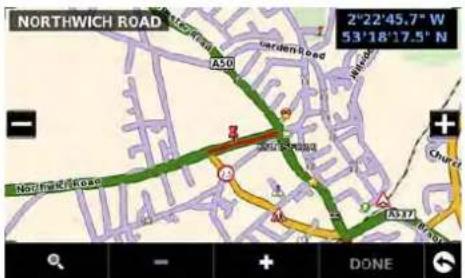
text_image
NORTHWICH ROAD 2°22'45.7" W 53'18'17.5" N A50 A30 Northwich Road + Church A377 DONE
text_image
Country UK City CANNOCK All Street WATLING STREET(WS11 1) Map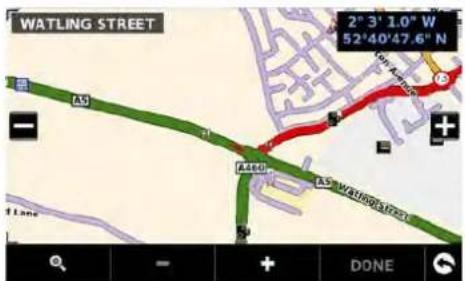
text_image
WATLING STREET 2° 3' 1.0" W 52°40'47.6" N A30 A480 A5° 47°00'17'31 1 Lane DONE- To add the location as the start position press the + button a will appear on the map to indicate the start position.
- To add additional roads or the journey end either select another road in the current map view, zoom out using the 🧑 then scroll the map or press the 🔒 button to search by Country, City & Street. Once the correct road has been highlighted press as each link in the route is added a 🧑 appear on the map.
To remove a link press the
To calculate a route which is appropriate for your vehicle, once a second link has been added the following screen will be displayed:

text_image
Truck information DEMO 44T H:12ft6"/ L:43ft/ W:8ft 44t(0) TRAILER / NONE(NORMAL) Calculate Change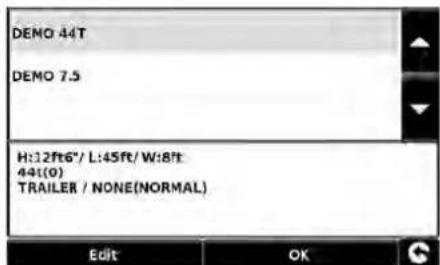
text_image
DEMO 44T DEMO 7.5 H:12ft6"/ L:45ft/ W:8ft 44(0) TRAILER / NONE(NORMAL) Edit OK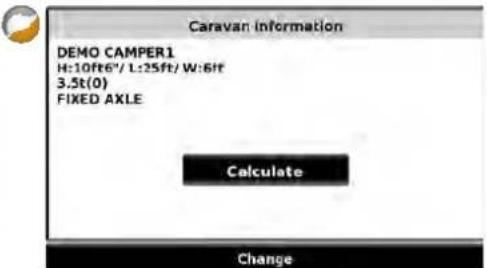
text_image
Caravan information DEMO CAMPER1 H:10ft6"/ L:25ft/ W:6ft 3.5t(0) FIXED AXLE Calculate Changeif this is the correct vehicle press 'Calculate' or if you need to change the vehicle press 'Change'.
- Continue adding roads to 'Your route' until you have constructed your desired routing. For accurate routing select small 'links'

text_image
WELLINGTON DRIVE 2° 2'57.8" W 52°41' 3.5" N A460 S DONE
text_image
BROOKFIELD DRIVE 2° 1'29.2" W 52°40'48.4" N T7/T7 DONE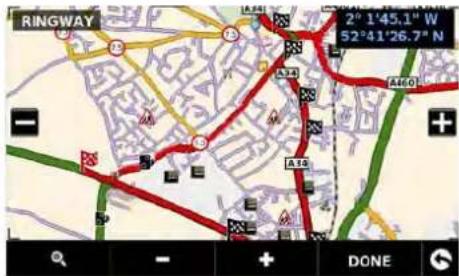
text_image
RINGWAY 2° 1'45.1" W 52°41'26.7" N A34 A40 + DONE-
Once the journey has been built press 'Done'. A summary of the journey is displayed and you now have the option to 'Save' (by pressing the 'Save' button) or start navigating by pressing 'GO'.
-
If you choose to save your route you can now change the name of your route. Once the name has been edited press 'Save'.
-
Additional 'My Routes' can be created, saved and added by following steps #1-9
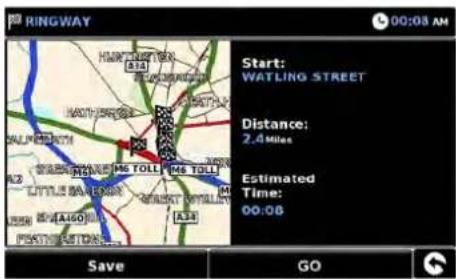
text_image
RINGWAY Start: WATLING STREET Distance: 2.4 Miles Estimated Time: 00:08 Save GO
text_image
Change favourite name DEMO ROUTE1_ Save 1 2 3 4 5 6 7 8 9 0 Q W E R T Y U I O P A S D F G H J K L Z X C V B N M & AEO ←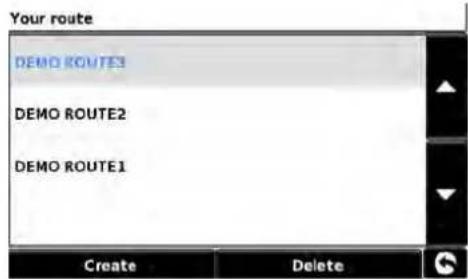
text_image
Your route DEMO ROUTE3 DEMO ROUTE2 DEMO ROUTE1 Create Delete3.15.2 Navigating using My route
Press the centre of the screen to enter the 'Navigate to' menu
Press the black arrow ▶ twice
Press 'Your route'
Select which My Route you want to use by pressing on the name; a summary screen will appear. To start navigating press 'Go'.

text_image
Your route DEMO ROUTE3 DEMO ROUTE2 DEMO ROUTE1 Create Delete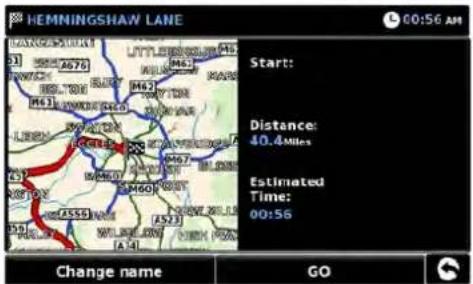
text_image
HEMNINGSHAW LANE 00:56 AM Start: Distance: 40.4 Miles Estimated Time: 00:56 Change name GO
3.16 Route Description
After a route has been calculated and the journey has commenced, you can access the summary display again by using this function.
To view the summary screen:
- Press the centre of the screen to enter the 'Navigate to' menu.
- Press the black arrow twice.
- Press the 'Route description' icon.
In order to use this function on Snooper you will need to have entered and calculated a route. If the 'Route description' icon is greyed out a route has NOT been entered.

From the summary display you can either press 'Go' to start navigation, 'Simulation' to see the actual route that will be taken, 'Route Option' to change the parameters of the route or 'Guide' which will list the turn by turn instructions of the journey. The 'Summary Screen' will tell you the distance to your destination, estimated time of arrival and the estimated time it will take to complete your journey.
The summary screen is only displayed for approximately 10 seconds before the unit automatically returns to providing you with turn-by-turn instructions.
3.17 TMC (Traffic Message Channel)
Mounting the Antenna: The antenna is connected to Snooper via the TMC socket on the left hand side of the unit, the antenna should be attached to the windscreen using the suckers provided.
The positioning of the antenna will affect the reception of TMC 'alerts' (see diagrams below for positioning guidance)
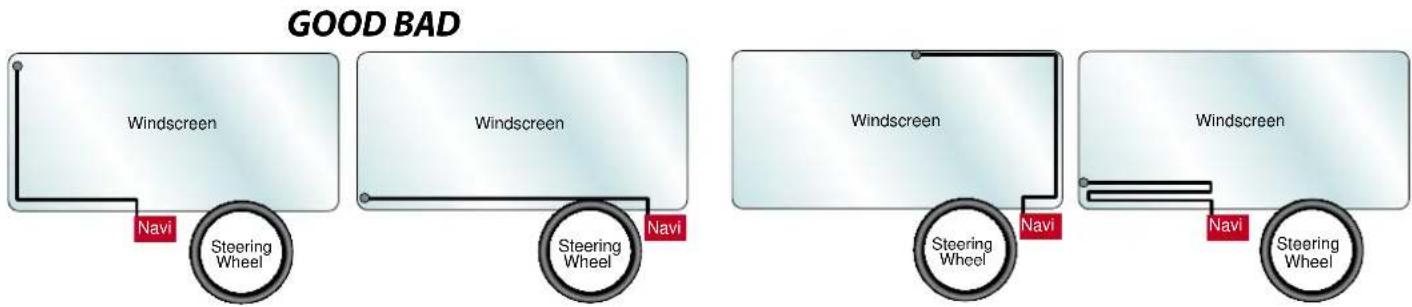
text_image
GOOD BAD Windscreen Navi Steering Wheel Windscreen Navi Steering Wheel Windscreen Navi Steering Wheel Windscreen Navi Steering WheelTMC Options
The type of alerts you receive whilst using TMC can be edited in the configuration menu of Snooper. To access the menu press the centre of the display, then press Configure then twice and then.
The following options are displayed:

text_image
TMC All CLOSURES CONGESTIONS ACCIDENTS ROADWORKS Channel OK Using the 'down arrow' will reveal more options TMC LANE RESTRICTIONS OBSTRUCTION HAZARDS OTHERS Channel OKThe options can be deselected by pressing the √ – the box will be displayed with the red tick removed. To finalize your selection press OK
TMC Icon
Once the unit starts to receive TMC alerts one of the two following icons will appear on the main screen

This icon appears if Snooper has received TMC information but the delay or incident is not on your route.

This icon appears if the Snooper has received TMC information and the delay or incident affects your plotted route.
To show the TMC incident press the

icon and the following screen is displayed:
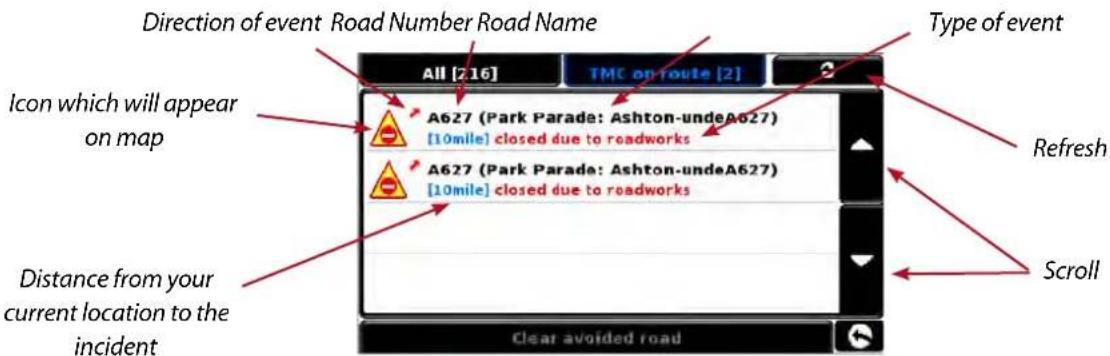
text_image
Direction of event Road Number Road Name All [216] TMC on-route [2] Icon which will appear on map A627 (Park Parade: Ashton-undeA627) [10mile] closed due to roadworks A627 (Park Parade: Ashton-undeA627) [10mile] closed due to roadworks Distance from your current location to the incident Type of event Refresh Scroll Clear avoided roadTo show TMC events which are NOT on your route press
All [216]

text_image
All [216] TMC on route [2] A54 (St Michael's Way: MiddIA54) [8.1mile] lanes closed A54 (St Michael's Way: MiddIA54) [8.1mile] lanes closed A34 (Mancunian Way: ManchA34) [13mile] closed due to roadworks M60 (J16 Pendlebury → J14 Swinton) [15mile] traffic congestion, average speed of 25 mph Clear avoided roadTo see a more detailed description press the TMC warning:
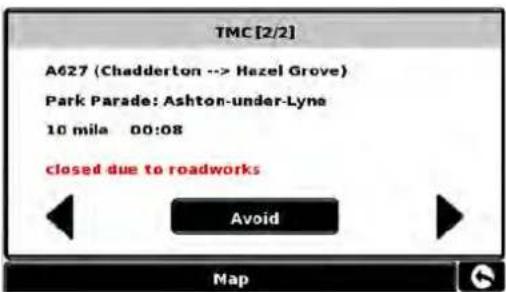
text_image
TMC [2/2] A627 (Chadderton --> Hazel Grove) Park Parade: Ashton-under-Lyne 10 mila 00:08 closed due to roadworks Avoid MapTo avoid the incident press how calculate an alternative route.
To view the incident press

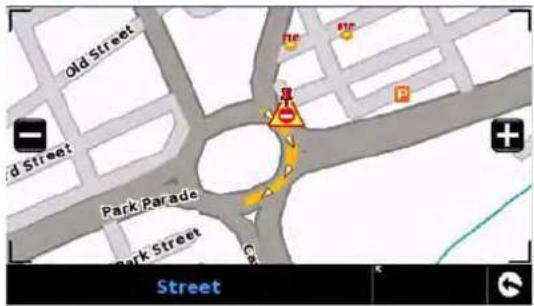
text_image
old Street Park/Parade Park Street StreetTo return to the previous screen press

If you want to return to the original route (not avoiding the incident) then press the TMC Icon originally wanted to avoid and then press Clear avoided road Snoope

select the TMC alert you ecalculate the original route
Note: TMC data is transmitted simultaneously by commercial FM radio stations - the reception of TMC data can be affected by geographical and environmental conditions.

3.18 Campsite Search (Ventura ONLY)
Ventura can search from over 20,000 caravan and motor home sites and rest stops. This unique, content rich, data is supplied by some of the biggest camping organizations in Europe: ASCI , Bordatlas and Camperstop (by Facile en Route).
Additional campsite data for Caravan Club and The Camping and Caravanning Club can be found in the User POI - refer to page 32 for User POI details.

Advanced campsite search
Ventura can search campsites and camper stops based on different criteria:
3.18.1 Find by name
If you know the name of the site you are looking for you can select 'Find by name' Enter the country and the city, if the city is not known select 'All'
Press 'Search'
Type in the name of the campsite/camperstop, once you start to enter the name a list of possible matches will be displayed. To expand the list press the ▼ select the campsite/camperstop by pressing on the name.
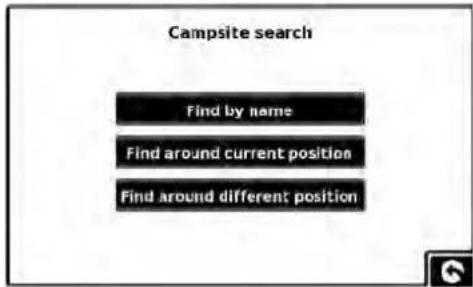
text_image
Campsite search Find by name Find around current position Find around different position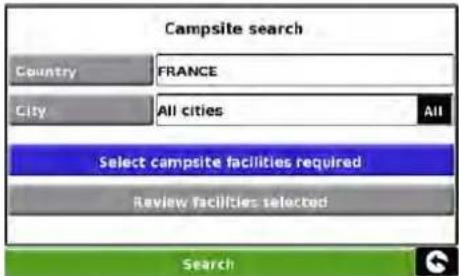
text_image
Campsite search Country FRANCE City All cities All Select campsite facilities required Review facilities selected Search
text_image
Name V. Aire Naturelle de Villemarin (LIEU-DIT VILLEMARIN) Airotel Les Viviers [Camping Airotel Les Viviers] (AVENUE I 1 2 3 4 5 6 7 8 9 0 Q W E R T Y U I O P A S D F G H J K L Z X C V B N M ←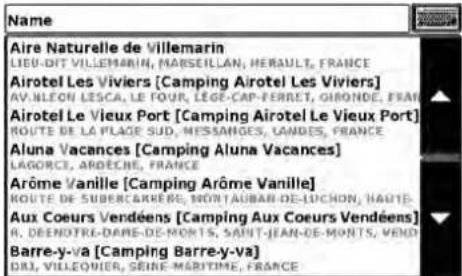
text_image
Name Aire Naturelle de Villemarin LIEU-DIT VILLEMARIN, MARSEILLAN, HERAULT, FRANCE Airotel Les Viviers [Camping Airotel Les Viviers] AV. VLEON LESCA, LE FOUR, LÈGE-CAP-FERRET, GIBONDE, FRANCE Airotel Le Vieux Port [Camping Airotel Le Vieux Port] ROUTE DE LA PLAGE SUD, MESSACHES, LANDES, FRANCE Aluna Vacances [Camping Aluna Vacances] LAGORCE, ARDECHE, FRANCE Arôme Vanille [Camping Arôme Vanille] ROUTE DE SUBERCARRERE, NORTAUBAN-DE-LUCHON, HAUTE- Aux Coeurs Vendéens [Camping Aux Coeurs Vendéens] R. DEENDTRE-DARE-DE-MORTS, SAINT-JEAN-DE-MONTS, VEND Barre-y-va [Camping Barre-y-va] D&I, VILLEQUIER, SEINE-MARITIME, FRANCEUse the arrows to scroll through the list
A summary screen is now displayed listing the campsite/camperstop contact details and general information including any facilities and/or restrictions they may have (the example shown to the right is from the ACSI data)
You now have the option to:
View a photograph (where available)
Save, this will save the campsite/camper stop to your favourites, see section 4.0 Favourites for details.
Route this will commence the navigation to the selected campsite/camper stop
If you do not know the name of the campsite/camper stop you can search for a suitable location by using either 'Find around current position' or 'Find around different position'.
3.18.2 Find around current position
Ventura can search for a suitable location based on the following: Distance from your current position - selectable
Campsite facilities Use the arrows to scroll through the list.
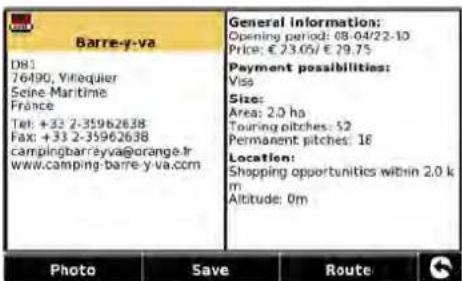
text_image
Barre-y-va D81 76490, Virequier Seine-Maritime France Tel: +33 2-35962638 Fax: +33 2-35962638 campingbarreyya@orange.tr www.camping-barre-y-va.com General Information: Opening period: 08-04/22-10 Price: € 23.05/ € 29.75 Payment possibilities: Visa Size: Area: 2.0 ha Touring pitches: 52 Permanent pitches: 16 Location: Shopping opportunities within 2.0 km Altitude: 0m Photo Save Route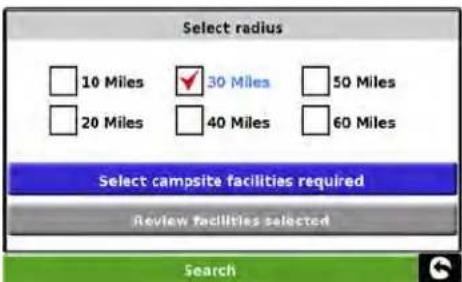
text_image
Select radius 10 Miles 30 Miles 50 Miles 20 Miles 40 Miles 60 Miles Select campsite facilities required Review facilities selected Search
text_image
Facilities Location Recreation and Wellness Shops and restaurants Water recreation General Miscellaneous Regulations Sports and play OK
text_image
Miscellaneous ATM available Barbecuing permitted - charcoal Barbecuing permitted - Gas Barbecuing permitted - Electricity Communal barbecue area Special facilities for motorhames Exchanging of gas cylinders Advance booking not possible Clear selection OK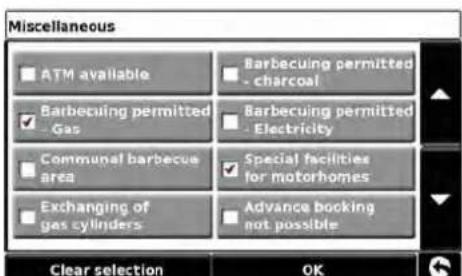
text_image
Miscellaneous ATM available Barbecuing permitted - charcoal Gas Barbecuing permitted - Electricity Communal barbecue area Special facilities for motorhomes Exchanging of gas cylinders Advance booking not possible Clear selection OKYou can select as many or as few options as you require to narrow or expand the search.
Press OK to continue
Press 'Review facilities selected' to show a summary of the facilities chosen. If required, you can remove some of the facilities. On this screen you can edit the selected facilities.
Select OK to continue.
A list of campsites/ camper stops will be displayed - press on the 'destination' to continue
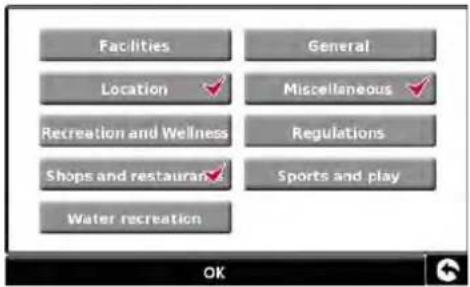
text_image
Facilities Location ✓ Miscellaneous ✓ Recreation and Wellness Regulations Shops and restauran ✓ Sports and play Water recreation OK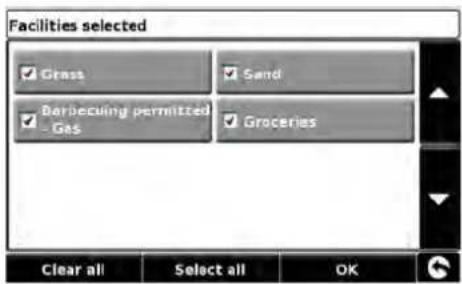
text_image
Facilities selected Grass Sand Barbecuing permitted Gas Groceries Clear all Select all OK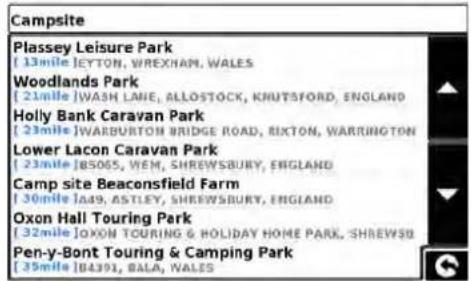
text_image
Campsite Plassey Leisure Park [13mile] IYTON, WREXHAM, WALES Woodlands Park [21mile] WASH LANE, ALLOSTOCK, KNUTSFORD, ENGLAND Holly Bank Caravan Park [23mile] WARBURTON BRIDGE ROAD, RIXTON, WARRINGTON Lower Lacon Caravan Park [23mile] BS065, VEM, SHREWSBURY, ENGLAND Camp site Beaconsfield Farm [30mile] IA49, ASTLEY, SHREWSBURY, ENGLAND Oxon Hall Touring Park [32mile] OXON TOURING & HOLIDAY HOME PARK, SHREWSB Pen-y-Bont Touring & Camping Park [35mile] B4391, BALA, WALESUse the arrows to scroll through the list.
A summary screen is now displayed listing the campsite/camper stop contact details and general information including any facilities and/or restrictions they may have (the example shown to the right is from the ACSI data)
You now have the option to:
View a photograph (where available)
Save, this will save the campsite/camper stop to your favourites, see section 4.0 Favourites for details.
Route this will commence the navigation to the selected campsite/camper stop
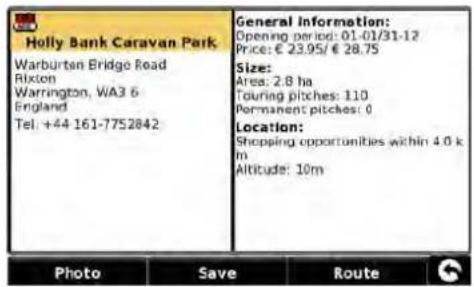
text_image
Holly Bank Caravan Park Warburten Bridge Road Rixton Warrington, WA3 6 England Tel: +44 161-7752842 General Information: Opening period: 01-01/31-12 Price: € 23.95/ € 28.75 Size: Area: 2.8 ha Touring pitches: 110 Permanent pitches: 0 Location: Shopping opportunities within 4.0 k m Altitude: 10m Photo Save Route G3.18.3 Find around different position
It is possible for Ventura to search for campsites/camper stops in a different location, this allows you to plan ahead. The instructions are similar to '3.18.2 Find around current position' with the exception that there is an additional step to determine the area of the search.
Press 'Find around different position'
Either search by 'All countries' or press 'Country' to enter the country details.
Press 'City' to enter the city details or press 'All' to search all cities.
Press 'Map' to search using the map or press 'Set' to continue

text_image
Country All countries City BARCELONA All Street Set Map4.0 My Favourite
The 'My Favourite' menu allows you to store destinations that you visit frequently, retrieve recently visited destinations, modify user points and edit or store your 'Home' and 'Office' details without having to enter the destination details each time.
4.1 Favourites
This function allows you to store a number of your more common destinations. You can store up to a maximum of 150 different destinations.

text_image
Navigate To My Favourite Configure Favourites Recent Destination User Points Home Office4.1.1 Add a favourite destination
- Press the centre of the screen to access the 'Navigate to' menu.
- Press 'My Favourite' at the top of the display.
- Press the 'Favourites' icon.
- Press 'Add'.
You can now search for the destination using the following options displayed:
● Find address by city
● Find address by post code
● Find by POI
● Find by recently used
- Save using current point
To find out how to use these options please refer to the applicable sections in this user manual.
Once you have entered your destination details you also have the facility to name your destination to make it easier to find.
- Press 'Name' and a keyboard will be displayed with the road name of the destination you selected.
- Press th ← key to erase this data then input the new name using the keyboard.
- Press 'Save' once you have entered the name.
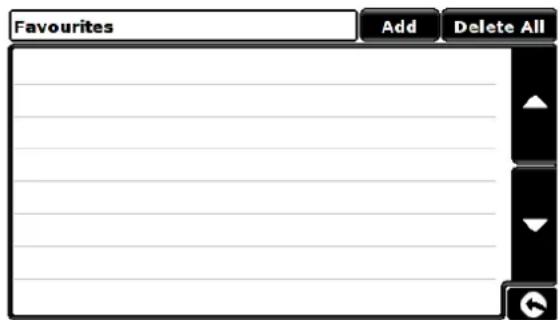
text_image
Favourites Add Delete All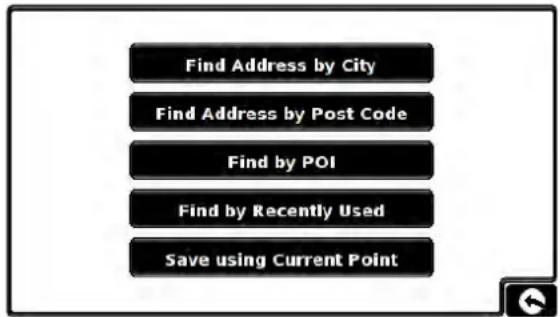
text_image
Find Address by City Find Address by Post Code Find by POI Find by Recently Used Save using Current PointPlease note: You can enter a new name for the favourite using up to a maximum of sixteen characters.
4.1.2 Using a favourite destination
- Press the centre of the screen to access the 'Navigate to' menu.
- Press the 'Find by favourites' icon.
- Select the favourite destination you wish to use.
4.1.3 Editing/Deleting a Favourite
- Press the centre of the screen to access the 'Navigate to' menu.
- Press 'My Favourite' at the top of the display.
- Press the 'Favourites' icon.
- Select the favourite destination you wish to edit/delete.
4.1.4 To delete ALL favourites
- Press the centre of the screen to access the 'Navigate to' menu.
- Press 'My Favourite' at the top of the display.
- Press the 'Favourite' icon.
- Press the 'Delete All' button – an information box will be displayed with 'Delete All?' and the options of 'OK' and 'Cancel'.
- Press the 'OK' button and ALL the favourites will be deleted.

4.2 Recent destination
This function can be used to delete any or all of the recent destinations that are stored on Snooper. Snooper can store up to a maximum of 40 recent destinations.
4.2.1 To delete individually stored recent destinations
- Press the centre of the screen to access the 'Navigate to' menu.
- Press 'My Favourite' at the top of the display.
- Press the 'Recent Destination' icon.
- Select the recent destination you wish to delete.

text_image
Recent Destination [Recent Departure] WOBURN DRIVE IMPERIAL WAR MUSEUM NORTH THACKERAY ROAD ASTMOOR ROAD VINCENT CLOSE ALPENSTRASSE SHANGANAGH ROAD Delete AllYou can scroll through the list of recent destinations using the up, down arrows located on the right hand side of the display, and select the destination you wish to delete with your finger.
The information relating to that destination is displayed.
- Press the 'Delete' button at the bottom of the display.
If the destination selected is not the one you wish to delete you can press the arrow located in the bottom right hand corner of the display to go back to the list and reselect the correct destination for deletion.
4.2.2 To delete ALL stored recent destinations
- Press the centre of the screen to access the 'Navigate to' menu.
- Press 'My Favourite' at the top of the display.
- Press the 'Recent destination' icon.
- Press the 'Delete All' button – an information box will be displayed with 'Delete All?' and the options of 'OK' and 'Cancel'.
- Press the 'OK' button and ALL the recent destinations will be deleted.
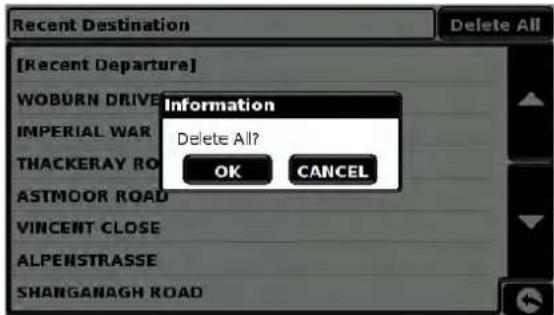
text_image
[Recent Departure] WOBURN DRIVE IMPERIAL WAR THACKERAY RO ASTMOOR ROAD VINCENT CLOSE ALPENSTRASSE SHANGANAGH ROAD Information Delete All? OK CANCEL4.4 Home
To set up and use this function was explained in Section 3.3 earlier in the manual. When this function is accessed from the 'My Favourite' menu, you are able to change the 'Home' location (for example if you move house) or to delete the 'Home' location.
4.4.1 To change the home location
- Press the centre of the screen to access the 'Navigate to' menu.
- Press 'My Favourite' at the top of the display.
- Press the 'Home' icon.
- Press the 'Change' button.
You can now search for the new 'Home' location using the following options displayed:
● Find address by city
● Find address by post code
● Find by POI
● Find by recently used
- Save using current point
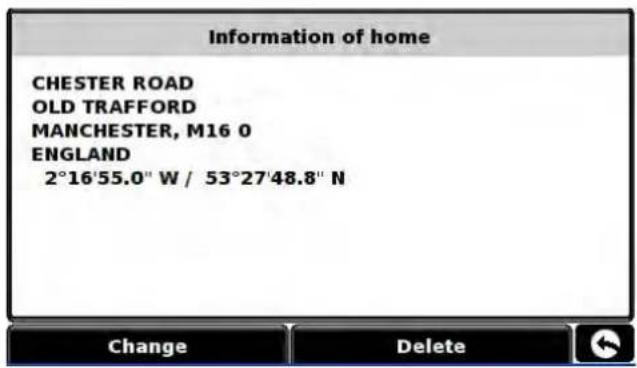
text_image
Information of home CHESTER ROAD OLD TRAFFORD MANCHESTER, M16 0 ENGLAND 2°16'55.0" W / 53°27'48.8" N Change DeleteTo find out how to use these options please refer to the applicable sections in this user manual.
Once you have entered your 'Home' location details you also have the facility to name your destination.
- Press 'Name' and a keyboard will be displayed with the road name of the destination you selected.
- Press the 'Arrow' key to erase this data then input the new name using the keyboard.
- Press 'Save' once you have entered the name.
Please note: You can enter a new name for the favourite using up to a maximum of sixteen characters.
4.4.2 To delete the home location
- Press the centre of the screen to access the 'Navigate to' menu.
- Press 'My Favourite' at the top of the display.
- Press the 'Home' icon.
- Press the 'Delete' button – an information box will be displayed with 'Delete home?' and the options of 'OK' and 'Cancel'.
- Press the 'OK' button and the 'Home' location will be deleted.
4.5 Office
To set up and use this function was explained in Section 3.4 earlier in the manual. When this function is accessed from the 'My Favourite' menu, you are able to change the 'Office' location (for example if you move house) or to delete the 'Office' location.
4.5.1 To change the office location
- Press the centre of the screen to access the 'Navigate to' menu.
- Press 'My Favourite' at the top of the display.
- Press the 'Office' icon.
- Press the 'Change' button.
You can now search for the new 'Office' location using the following options displayed:
● Find address by city
● Find address by post code
● Find by POI
● Find by recently used
- Save using current point

text_image
Information of office PRINCESS STREET MANCHESTER, M1 3 ENGLAND 2°14'16.0" W / 53°28'30.2" N Change DeleteTo find out how to use these options please refer to the applicable sections in this user manual.
- Once you have entered your 'Office' location details you also have the facility to name your destination.
- Press 'Name' and a keyboard will be displayed with the road name of the destination you selected.
- Press the 'Arrow' key to erase this data then input the new name using the keyboard.
- Press 'Save' once you have entered the name.
Please note: You can enter a new name for the favourite using up to a maximum of sixteen characters.
4.5.2 To delete the office location
- Press the centre of the screen to access the 'Navigate to' menu.
- Press 'My Favourite' at the top of the display.
- Press the 'Office' icon.
- Press the 'Delete' button – an information box will be displayed with 'Delete Office?' and the options of 'OK' and 'Cancel'.
- Press the 'OK' button and the 'Office' location will be deleted.
4.6 Advanced - Setting your Home or Office address using 'Save using current point'
It is also possible to create a 'Home' and 'Office' location using your current coordinates if you are situated at your home or office whilst setting up your unit.
- Press the centre of the screen to access the 'Navigate to' menu.
- Press 'My Favourite' at the top of the display.
- Press the 'Home' or 'Office' icon.
- Press the 'Change' button.
- Press 'Save using current point'.
A map will displayed with a road highlighted in red closest to your current position. The name of the road selected will be displayed at the bottom of the display. If this is not correct, select the correct road with your finger.

text_image
B5166 Brown Lane Peakdale Avenue B5166 H Finney Lane STREET Quick Menu- Press 'Quick Menu' and 'Continue'.
- Press 'OK'
Snooper will automatically save this location as your 'Home' or 'Office' destination.
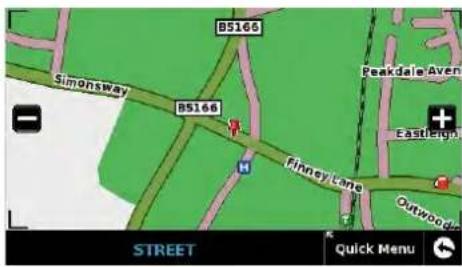
text_image
B5166 Simonsway B5166 Finney Lane Peakdale Avenue Eastleigh Outwood STREET Quick Menu
text_image
B5166 Simonsway B5166 A Ashbrook Peakdale A Castler Continue Close Quick Menu FINNEY LANE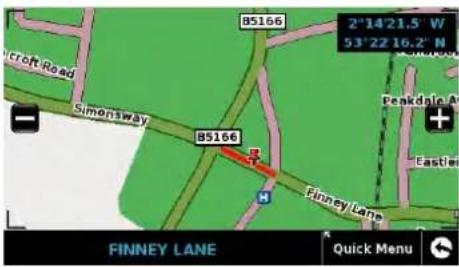
text_image
2°14'21.5" W 53°22'16.2" N B5166 Simonsway Finney Lane Easter FINNEY LANE Quick Menu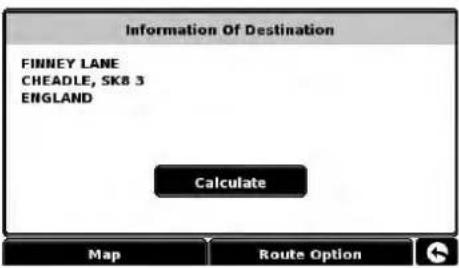
text_image
Information Of Destination FINNEY LANE HEADLE, SK8 3 ENGLAND Calculate Map Route Option5.0 Configure
The 'Configure' menu is used to customise the operation and appearance of your unit. To access the 'Configure' menu
- Press the centre of the screen to enter the 'Navigate to' menu
- Press the 'Configure' button at the top of the display.
● Depending on the model the following screen (s) will be displayed

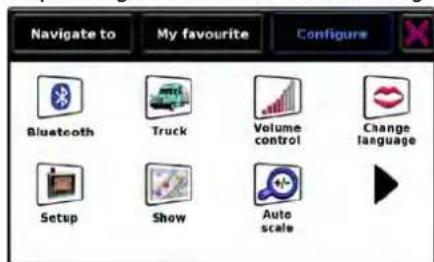
text_image
Navigate to My favourite Configure Bluetooth Truck Volume control Change language Setup Show Auto scale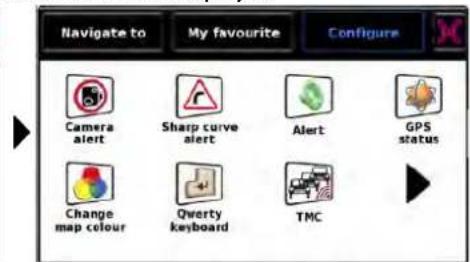
text_image
Navigate to My favourite Configure Camera alert Sharp curve alert Alert GPS status Change map colour Qwerty keyboard TMC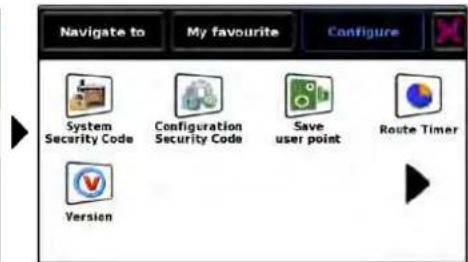
text_image
Navigate to My favourite Configure System Security Code Configuration Security Code Save user point Route Timer Version

text_image
Navigate to My favourite Configure Bluetooth Caravan/ Motorhome Volume control Change language Setup Show Auto scale
text_image
Navigate to My favourite Configure Camera alert Sharp curve alert Alert GPS status Change map colour Qwerty keyboard TMC
text_image
Navigate to My favourite Configure System Security Code Configuration Security Code Save user point Route Timer Version
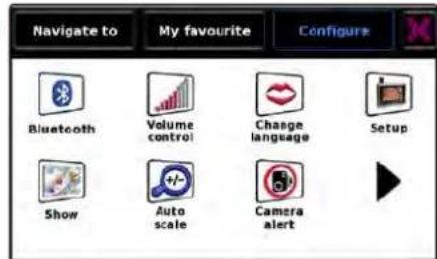
text_image
Navigate to My favourite Configure Bluetooth Volume control Change language Setup Show Auto scale Camera alert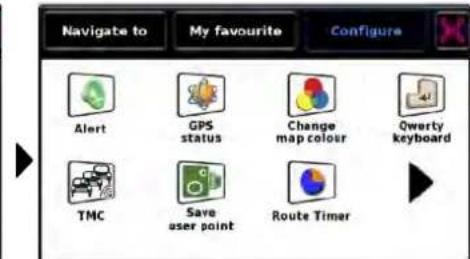
text_image
Navigate to My favourite Configure Alert GPS status Change map colour Qwerty keyboard TMC Save user point Route Timer
text_image
Navigate to My favourite Configure Version
5.1 Bluetooth
Please refer to Section 10 for further details.
5.2 Truck
Setting up vehicle perameters
For Truckmate to calculate a route suitable for your vehicle it needs to know certain information about the vehicle itself such as its height, weight and width. It is possible to save the settings of 10 different trucks. Follow these instructions to enter your vehicles details.
Press the centre of the screen to access the menu, press 'Configure' and then press the 'Truck' icon.
Name: Enter the name here.
Height: Enter the height of the vehicle here.
Length: Enter the length of the vehicle here.
Weight: Enter the weight of the vehicle here.
Width: Enter the width of the vehicle here.
Weight per axle: Enter the weight per axle of the vehicle here
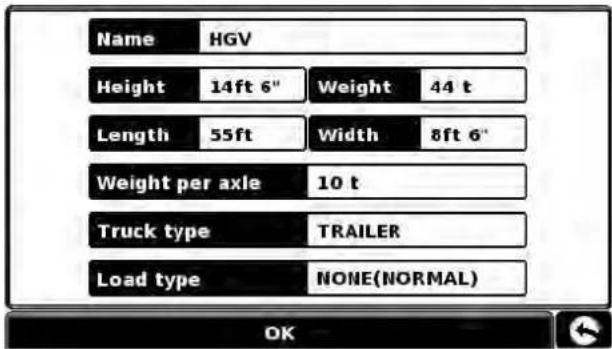
text_image
Name HGV Height 14ft 6" Weight 44 t Length 55ft Width 8ft 6" Weight per axle 10 t Truck type TRAILER Load type NONE(NORMAL) OKTruck type:
Truck: Standard setting for fixed axle vehicles.
Trailer: Specific traffic rules exist for trucks with trailers & semi trailers. For example, there are roads that are forbidden for vehicles with trailers. These will be avoided.
Delivery: Special traffic rules rules exist for delivery vehicles. For example, trucks are only allowed in certain areas if they are delivering goods.
Public: Certain vehicles are allowed to use the traffic rules of public vehicles such as buses and money transport vehicles.
Load type: None (Normal)
Hazardous: Hazardous goods that are not explosive or harmful for water.
Explosive and Flammable Harmful for water
5.3 Caravan/Motorhome
Setting up vehicle perameters
For Ventura to calculate a route suitable for your vehicle it needs to know certain information about the vehicle itself such as its height, weight and width. It is possible to save the settings of 10 different vehicles. Follow these instructions to enter your vehicles details.
Press the centre of the screen to access the menu, press 'Configure' and then press the 'Caravan/Motorhome' icon.
Name: Enter the name here.
Height: Enter the height of the vehicle here.
Length: Enter the length of the vehicle here.
Weight: Enter the weight of the vehicle here.
Width: Enter the width of the vehicle here.
Weight per axle: Enter the weight per axle of the vehicle here
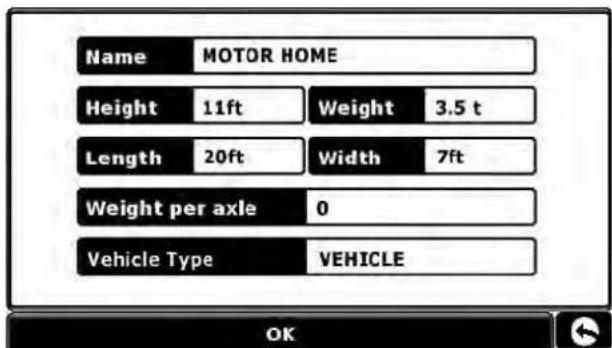
text_image
Name MOTOR HOME Height 11ft Weight 3.5 t Length 20ft Width 7ft Weight per axle 0 Vehicle Type VEHICLE OKVehicle type:
● Fixed Axle: Standard setting for fixed axle vehicles.
- Trailer: Specific traffic rules exist for vehicles towing caravans. For example, there are roads that are forbidden for towing vehicles. These will be avoided.

5.4 Volume Control
Snooper volume can be adjusted using this function within the 'Configure' menu. To adjust the volume:
- Press the centre of the screen to enter the 'Navigate to' menu.
- Press 'Configure'.
- Press the 'Volume Control' icon.
● To increase the volume press the + icon.
● To decrease the volume press the icon.
● To test the volume before saving, press the TEST.
● To reset the volume to the factory default press the RESET icon. - Press 'OK' at the bottom of the screen to save your setting.

5.5 Language
Snooper comes with a choice of voice prompts and alerts in several languages. Changing the language also changes the language of the menu items as well on the unit. To use this facility:
- Press the centre of the screen to enter the 'Navigate to' menu.
- Press 'Configure'.
- Press the 'Change Language' icon.
● Using the left and right arrows search for the voice you require. - If you would like to listen to a sample of any voices simply press the 'Test' button.
- Press 'OK' to save your setting.
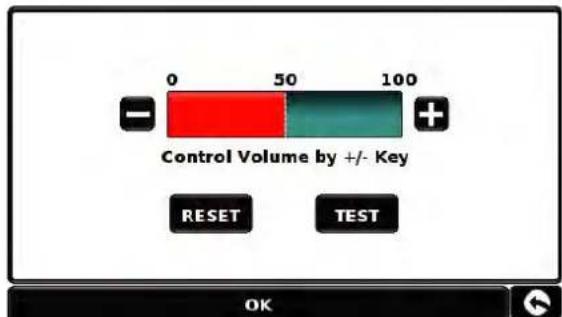
text_image
0 50 100 Control Volume by +/- Key RESET TEST OK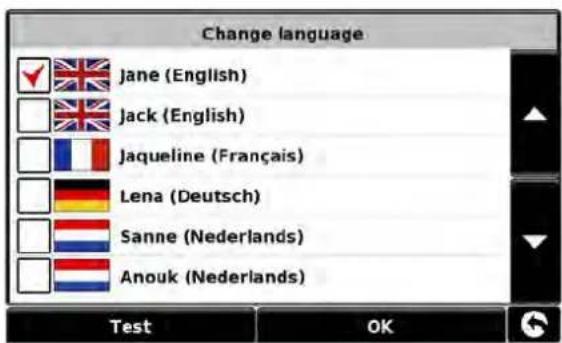
text_image
Change language Jane (English) Jack (English) Jaqueline (Français) Lena (Deutsch) Sanne (Nederlands) Anouk (Nederlands) Test OK
5.6 Setup
The 'Setup' function allows you to customise the visual information provided by the navigation screen. To alter any of these settings:
- Press the centre of the screen to enter the 'Navigate to' menu.
- Press the 'Configure' button.
- Press the 'Setup' icon where you will see the list of options below.
- Select the option you wish to change on the left.
There are number of different pieces of information that you can have displayed on the navigation screen at any one time as follows:

text_image
2D/3D/ North Speed/ Time MPH/ KMH Arrival/ Remaining 2D View North↑ Map text size Small Medium Large OK OKUse the up & down arrows to scroll through the menu options
5.6.1 2D/3D or North
This option allows you to select the view of the map that you would like to have displayed. The 3D navigation view is displayed as the factory default and displays the map, calculated routes, Points Of Interest and safety camera data (if subscribed to) from a 3D perspective.
This facility customises the map view between

text_image
Harms Lane North Lane A3597 The greenway Wishaw Lane M42 3.03 Miles 60 13:01 S 27 Miles 13:38 PM PM M6 TOLL
text_image
60 13:02 PM S 26 Niles 13:38 PM M42 2.17 Miles
text_image
60 13:01 PM S 27 Miles 13:37 PM M42 M6 TOLL M42 2.44 Miles3D 2D North
To make your selection, touch the relevant tick box with your finger.
5.6.2 Speed/Time
This option allows you to change the information displayed in the bottom left hand side of the navigation screen between the vehicle speed and the current time. You can also specify if you want to display a twelve or twenty-four hour clock and whether to display 'am' and 'pm'.
To make your selection, touch the relevant tick box with your finger.

text_image
2D/3D/ North Speed/ Time MPH/ KMH Arrival/ Remaining Display Time Display Speed 24H 12H AM/PN OK5.6.3 MPH/KMH
This option allows you to switch the information on Snooper between imperial and metric measurement.
To make your selection, touch the relevant tick box with your finger.
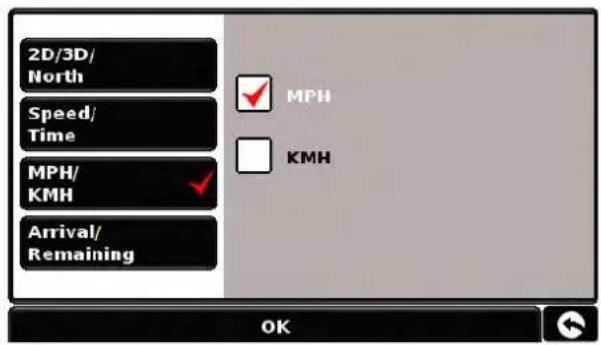
text_image
2D/3D/ North Speed/ Time MPH/ KMH Arrival/ Remaining MPH KMH OK5.6.4 Arrival/Remaining
This option allows you to display either the estimated time of arrival (ETA) or the estimated remaining time left for your journey towards the bottom of the navigation screen.
To make your selection, touch the relevant tick box with your finger.
To save any of the changes press the 'OK' button at the bottom of the display.

text_image
2D/3D/ North Speed/ Time MPH/ KMH Arrival/ Remaining Arrival Time Remaining Time OKIf you wish to keep the settings unchanged you can exit the 'Setup' menu by pressing the return arrow ↩ located in the bottom right hand corner of the display.
Your new settings will now be saved and will appear on the screen each time you use Snooper.
5.6.5 Map Text Size
This option allows you to increase or decrease the size of the road and place name text which appears on the map screen
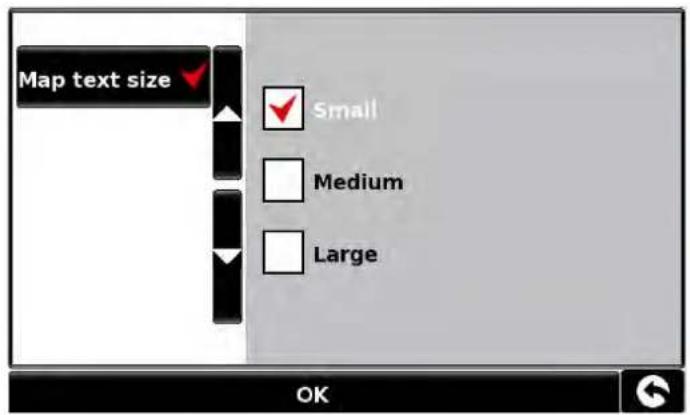
text_image
Map text size Small Medium Large OK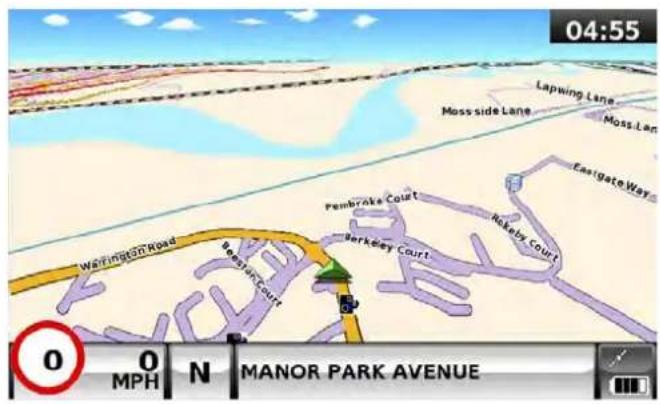
text_image
04:55 Lapwing Lane Moss side Lane Moss Lane Eastgate Way Pembroke Court Berkeley Court Relaby Court Warrington Road Beefin Court MANOR PARK AVENUE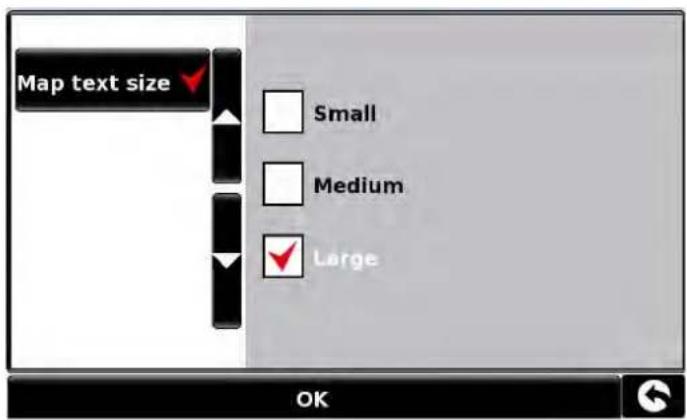
text_image
Map text size Small Medium Large OK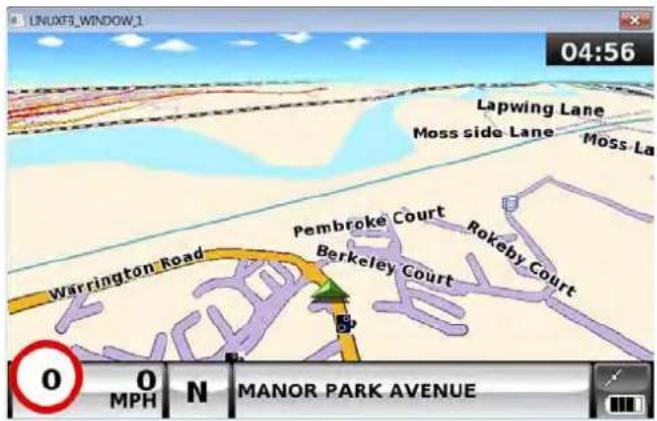
text_image
Lapwing Lane Moss side Lane Moss La Pembroke Court Rokeby Court Berkeley Court Warrington Road 0 MPH N MANOR PARK AVENUE 0 0 N MANOR PARK AVENUESelect the text size then press OK to save and exit
5.6.6 Car Icon
This option allows you to choose the icon which appears on the navigation screen.
Press the required icon then press OK to save
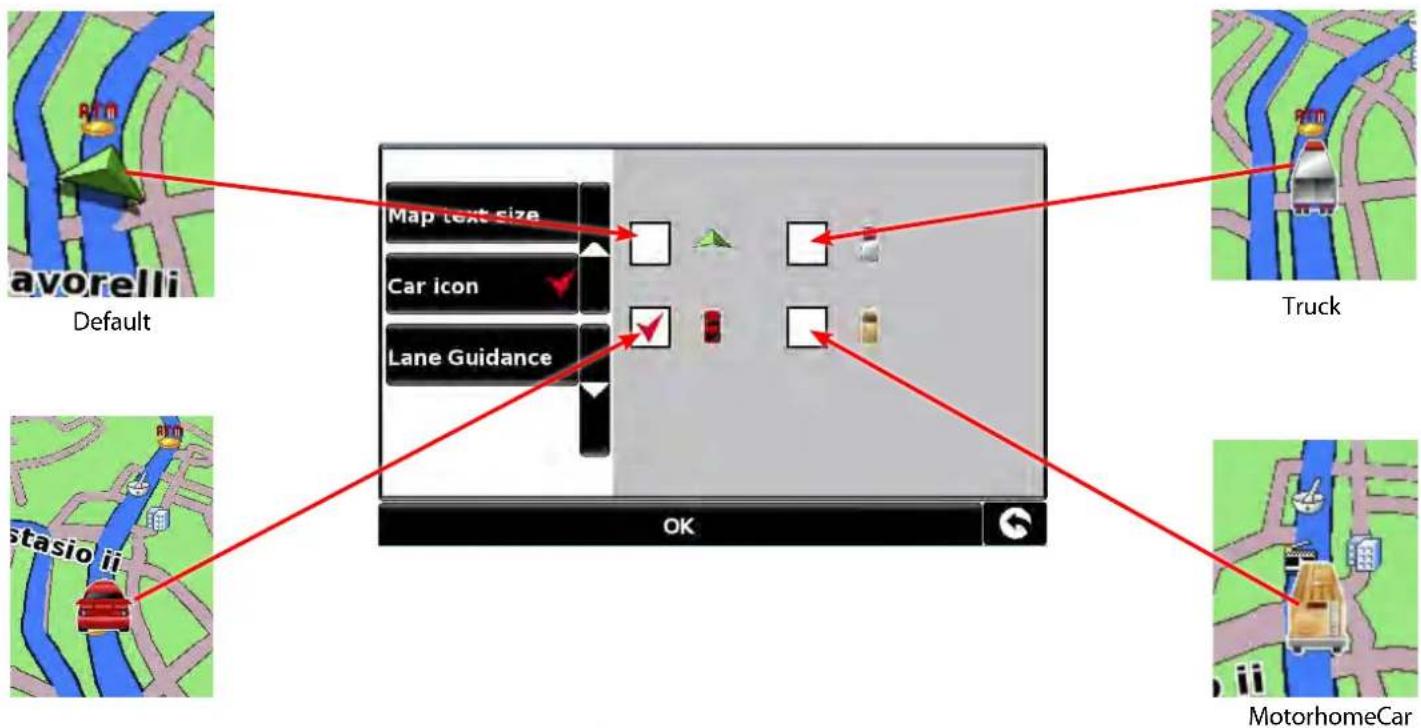
text_image
avorelli Default Map text size Car icon Lane Guidance OK Truck MotorhomeCar5.7 Show POI
Snooper comes complete with a comprehensive list of POI's (Point's of Interest). You can search for addresses using POI's and save POI's in your list of favourites. You can also choose which of the POI's you would like to have indicated on your map. As standard ALL POI's are shown, however this list can be edited within the POI Menu.
- Press the centre of the screen to enter the 'Navigate to' menu.
- Press the 'Configure' button.
- Press the 'Show POI' icon.
The screen will now show a list of POI's stored on your unit with a 'tick' box to the left of each type of POI. Simply press the tick box to select or deselect the POI. A red tick in the box indicates that the POI will appear on your map, an un-ticked box will remove the POI from the map view. To scroll through the list of POI's you can press either the up or down arrows located on the right hand side of the display.
To deselect all POI's from the map un-tick the 'ALL' tick box at the top of the list of POI's
To save the changes press the 'OK' button at the bottom of the display.
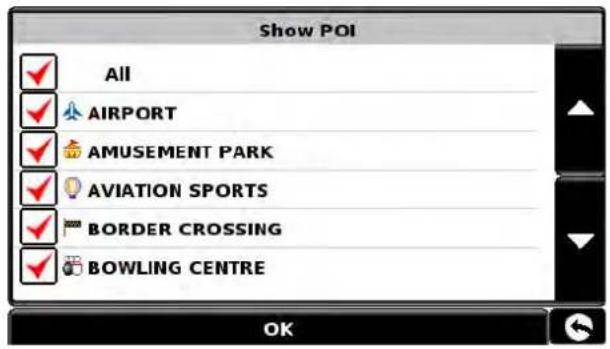
text_image
Show POI All AIRPORT AMUSEMENT PARK AVIATION SPORTS BORDER CROSSING BOWLING CENTRE OK
text_image
Show POI All AIRPORT AMUSEMENT PARK AVIATION SPORTS BORDER CROSSING BOWLING CENTRE OKIf you wish to exit the 'Show POI' list without saving any changes press the return arrow ↩ located in the bottom right hand corner of the display.

5.8 Auto Scale
Auto Scale is switched 'On' by default during manufacture. Auto Scale automatically magnifies the map as you approach a junction or roundabout, where you may need to make a turning, so that you can see it in more detail.
Auto Scale can be turned on and off as you wish. To change this setting:
- Press the centre of the screen to enter the 'Navigate to' menu.
- Press the 'Configure' button.
- Press the 'Auto scale' icon.
The screen will now show two options 'Yes' and 'No'. To make your selection, touch the relevant tick box with your finger.

text_image
Auto Scale Yes No OKTo save the changes press the 'OK' button at the bottom of the display.
If you wish to exit the 'Auto scale' menu without saving any changes press the return arrow located in the bottom right hand corner of the display.
5.9 Camera alert
In order for this feature to operate you will need to subscribe to and download the AURA™ Camera Database onto Snooper. See 'Registering Snooper' (Page 4) and 'System Requirements & Downloading' (page 8) for further details.
This function allows you to personalise the camera alert settings that you will receive during operation. To alter the camera alert settings:
- Press the centre of the screen to enter the 'Navigate to' menu.
- Press the 'Configure' button.
- Press the 'Camera alert' icon.
A list of options is displayed on the left hand side of the screen. To change any of the settings select the relevant option on the left and a tick will appear next to the option to confirm your selection.
5.9.1 Display Cameras
You can choose between the following options:
Yes: A safety camera visual warning will be displayed on the left hand side of the navigation screen as they are approached.
No: No fixed speed safety camera warnings are displayed on the navigation screen.
To make your selection, touch the relevant tick box with your finger.
5.9.2 Alert Sound
You can choose between the following options:
Yes: The unit will emit an audible alert when you approach a fixed speed safety camera
No: No audible alert is emitted.
Beep Tone
This function allows you to change the audible camera alert tone to either a 'Hard' or a 'Soft' tone.
To make your selection, touch the relevant tick box with your finger.

text_image
Display Cameras Alert Sound Mute School Yes No OK
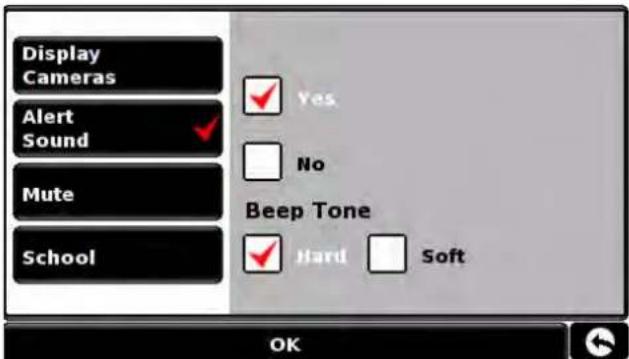
text_image
Display Cameras Alert Sound Mute School Yes No Beep Tone Hard Soft OK5.9.4 School
You can choose between the following options:
Yes: Provided you have selected the option to download schools on Snooper updater software, this feature enables the unit to alert you when you are near a primary school*.
No: The unit will not provide alerts of Primary schools. Schools are indicated on Snooper display by the icon.

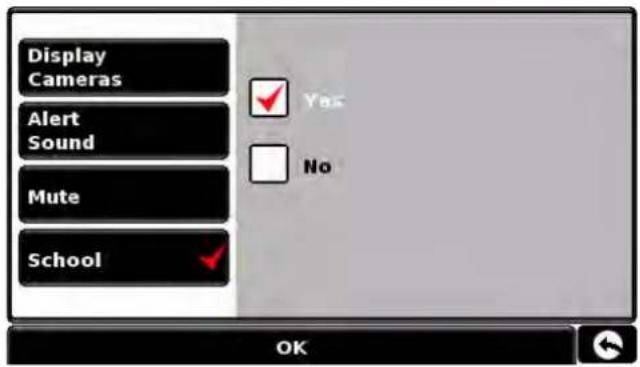
text_image
Display Cameras Alert Sound Mute School Yes No OK*Please note: Snooper will only provide alerts to Primary Schools at the following specified times: 08:30 – 09:30; 12:00 – 13:00 and 15:30 – 16:30.
To make your selection, touch the relevant tick box with your finger.
To save any of the changes press the 'OK' button at the bottom of the display.
If you wish to keep the settings unchanged, you can exit the 'Camera alert' menu by pressing the return arrow located in the bottom right hand corner of the display.

5.10 Sharp curve alert


This will show or hide the on screen alerts for sharp bends.

5.11 Alert
This function allows you to alter the audible alerts provided during navigation and to turn the audible beeps on or off whilst selecting functions on the display. By default, both these options are switched 'ON'. To alter these settings:
- Press the centre of the screen to enter the 'Navigate to' menu.
- Press the 'Configure' button.
- Press the black arrow once.
- Press the 'Alert' icon.
A list of options is displayed on the left hand side of the screen. To change any of the settings select the relevant option on the left and a tick will appear next to the option to confirm your selection.
5.11.1 Touch Tone
You can choose between the following options:
Yes: The unit emits a confirmation tone each time the screen is touched.
No: This will turn off the confirmation beep when the screen is touched.
To make your selection, touch the relevant tick box with your finger.

text_image
Touch tone Route alert My Speed No OK5.11.2 Route Alert
If you deviate from the calculated route, Snooper will automatically recalculate a route without any user intervention. To indicate rerouting is in progress Snooper will emit an audible tone.
You can choose between the following options:
Yes: The re-route tone will be emitted during recalculation.
No: No re-route tone will be emitted.
To make your selection, touch the relevant tick box with your finger.
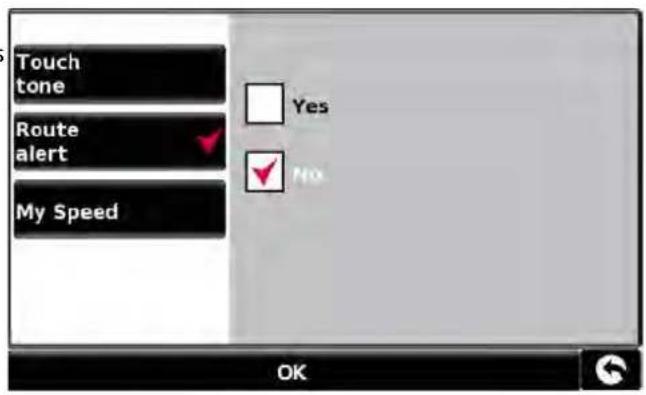
text_image
Touch tone Route alert My Speed Yes No OKTo save any of the changes press the 'OK' button at the bottom of the display.
If you wish to keep the settings unchanged, you can exit the 'Alert' menu by pressing the return arrow located in the bottom right hand corner of the display.
5.11.3 My Speed
The speed limit of nearly every road across Europe can now be clearly displayed on your Snooper at all times.
To select the correct speed limits for your vehicle type:
Car - Advisory speed limits for a vehicle will be displayed
Caravan - Advisory speed limits for a vehicle towing a caravan will be displayed
Motorhome - Advisory speed limits for motor homes will be displayed
Truck 3.5t - 7.5t - Advisory speed limits for vehicles from 3.5T to 7.5T will be displayed
Truck 7.5t - 12t - Advisory speed limits for vehicles from 7.5T to 12T will be displayed
Truck > 12t - Advisory speed limits for vehicles greater than 12T will be displayed Select the option you require by pressing the white box next to the vehicle type. Press 'OK' to save the setting and exit My Speed.
WARNING: These are advisory speed limits and are subject to change. It is the responsibility of the driver to check the road side speed limit signs and abide by local driving regulations.
5.11.4 Over speed
It is possible for My Speed to alert the driver, via an audible warning, that they have exceeded the speed limit. To set the over speed warning:
Press the to increase or decrease the over speed warning Press OK to save and exit My Speed
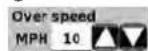
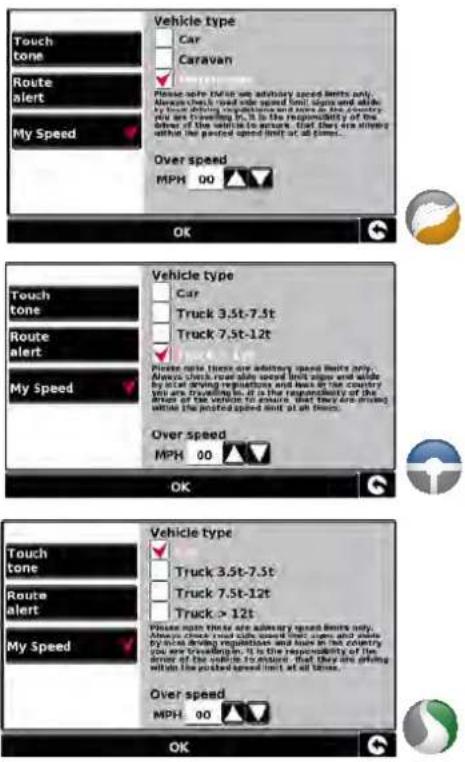
text_image
Touch tone Route alert My Speed Vehicle type Car Caravan Please select EVs for advisory speed limits only. Always check the speed limit stop and walk by the driving expectation and move in the country view the leading position. It is the responsibility of the side of the leading position. That there are always without the posted speed limit at all times... Over speed MPH 00 OK Touch tone Route alert My Speed Vehicle type Car Truck 3.5t-7.5t Truck 7.5t-12t Please note that these are advisory speed limits only. Always check the speed limit stop and walk by the driving expectation and move in the country view the leading position. That there are always without the posted speed limit at all times... Over speed MPH 00 OK Touch tone Route alert My Speed Vehicle type Truck 3.5t-7.5t Truck 7.5t-12t Truck > 12t Please note these are advisory speed limits only. Always check the speed limit stop and walk by the driving expectation and move in the country view the leading position. That there are always without the posted speed limit at all times... Over speed MPH 00 OK5.12 Map Colour
This function allows you to choose between the alternative colour schemes that are available for the maps used in Snooper system (several of which are most suitable for use at night). To access this facility:
- Press the centre of the screen to enter the 'Navigate to' menu.
- Press the 'Configure' button.
- Press the black arrow once.
- Press the 'Change map colour' icon.
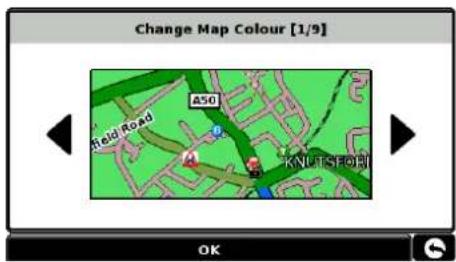
text_image
Change Map Colour [1/9] Field Road A50 KNUTS FORI OK
text_image
Change Map Colour [6/9] Field Road A50 KNUTSFORM OK
text_image
Change Map Colour [9/9] Field Road ASO KNL-TSE ORW OKUse the arrows to the left and right hand side of the map display to cycle through the different colour schemes. There are nine colour schemes to choose from.
To save the changes press the 'OK' button at the bottom of the display.
If you wish to keep the settings unchanged, you can exit the 'Change map colour' menu by pressing the return arrow located in the bottom right hand corner of the display.

5.13 Qwerty Keyboard
This function allows you to switch between a 'Qwerty' keyboard which is the keyboard selected as the factory default setting or a keyboard arranged in alphabetical order.
- Press the centre of the screen to enter the 'Navigate to' menu.
- Press the 'Configure' button.
● Press the black arrow once. - Press the 'Qwerty keyboard' icon.
- Select 'Yes' or 'No' depending on the keyboard preferred.
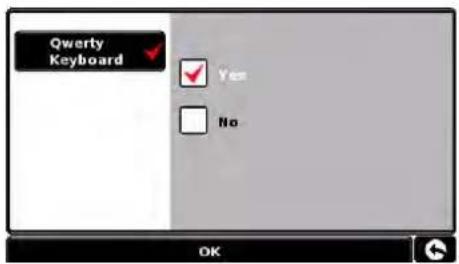
text_image
Qwerty Keyboard Yes No OK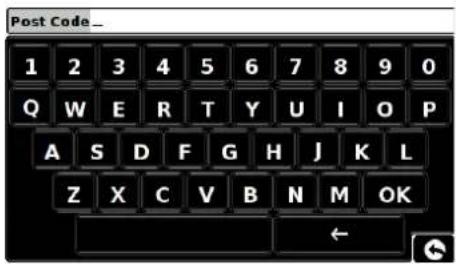
text_image
Post Code _ 1 2 3 4 5 6 7 8 9 0 Q W E R T Y U I O P A S D F G H J K L Z X C V B N M OK
text_image
Post Code__ 1 2 3 4 5 6 7 8 9 0 A B C D E F G H I J K L M N O P Q R S T U V W X Y Z OK ←To save the changes press the 'OK' button at the bottom of the display.
If you wish to keep the settings unchanged, you can exit the 'Qwerty keyboard' menu by pressing the return arrow located in the bottom right hand corner of the display.
5.14 TMC
This feature allows you to configure the type of TMC alerts you receive along with the facility to view the radio tuner that searches for TMC transmissions when the TMC aerial is plugged into the TMC socket. To access this facility:
- Press the centre of the screen to enter the 'Navigate to' menu.
- Press the 'Configure' button.
● Press the black arrow once. - Press the 'TMC' icon.

text_image
TMC All CLOSURES CONGESTIONS ACCIDENTS ROADWORKS Channel OKUse the arrows to scroll up and down
All TMC alerts are switched on by default. The screen will now show a list of TMC alert types with a 'tick' box to the left of each type. Simply press the tick box to select or
deselect the TMC alert type. A red tick in the box indicates that the TMC alert will appear when you access the TMC alert box that appears on the map display, an un-ticked box will remove the TMC alert type from the TMC alert box.
● To scroll through the list of TMC alerts you can press either the up or down arrows located on the right hand side of the display.
- To deselect all TMC alerts from the TMC alert box un-tick the 'ALL' tick box at the top of the list of TMC alert types.
If you wish to manually adjust the radio frequency the unit is using to obtain TMC alerts you can select the 'Channel' option at the bottom.
Please note: In order to utilise this facility the TMC aerial must be plugged into the unit first BEFORE you go into the navigation software.
At the top of the display, in the middle, a radio frequency will be displayed. If you just see five dashes then either the unit is currently changing frequencies or the TMC aerial is not plugged in or has not been detected.
<< - Press this to search to the next available frequency. Pressing this will search down the FM frequency band.
- Press this to adjust the radio frequency by one increment at at time. Pressing this will move down the FM frequency band.
- Press this to adjust the radio frequency by one increment at at time. Pressing this will move up the FM frequency band.
- Press this to search to the next available frequency. Pressing this will search up the FM frequency band.
√ AF - This is the auto tune facility. This is switched ON by default and will scan through the FM frequency band looking for a TMC signal. Once a signal is established the unit will then collects packets of data. If you want to tune the frequency manually then you need to remove the red tick from the AF box. □ AF
To save the changes press the 'OK' button at the bottom of the display.
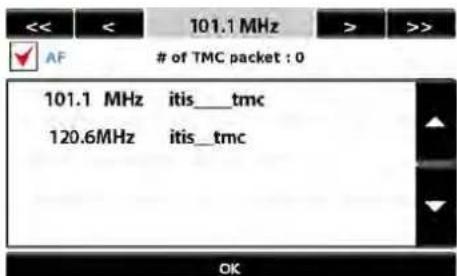
text_image
101.1 MHz itis__tmc 120.6MHz itis__tmcIf you wish to exit the TMC function without saving any changes press the return arrow located in the bottom right hand corner of the display.

5.15 GPS status
You can check the health of the GPS connection of your unit at any time as well as being able to see the exact coordinates of your current position by using this feature.
- Press the centre of the screen to enter the 'Navigate to' menu.
- Press the 'Configure' button.
- Press the black arrow once.
- Press the 'GPS status' icon.
Your current GPS status will then be displayed. If you wish to revert the GPS engine to the factory default, press the 'Reset' button.

text_image
UTC Date: 2006 09 04 UTC Time: 12:32:36 Health: Very Good(6) HDOP: 1.4 Speed: 45 MPH Latitude: N 53°21'57.7" Longitude: W 2°16'16.8" Altitude: 72mIf you wish to exit the 'GPS status' menu press the return arrow ↩ located in the bottom right hand corner of the display.

5.16 System Security Code


(on Truckmate or Ventura this icon will NOT be visible if the unit is in CAR mode).
Snooper incorporates pin code security protection so that only users with access to the pin code can use and operate the device. To activate the security code press the centre of the display to access the menu, press 'Configure', press the black arrow twice and then press the 'System Security Code' icon. Select 'Yes' to switch the function on. Press the 'Enter Code' button and enter the 4 digit code that you would like to use to protect your Snooper and press 'OK'. Once this setting has been activated you will need to enter this code each time you power on your Snooper or you will not be able to operate the device.
NB. It is important that you do not lose or forget this code. If you forget this code you will need to return your Snooper so that the unit can be reset.

5.17 Configuration Security Code


(on Truckmate or Ventura this icon will NOT be visible if the unit is in CAR mode).
It is also possible to protect the configuration settings using a security pin code. To activate the security configuration code press the centre of the display to access the menu, press 'Configure', press the black arrow twice and then press the 'Configuration Security Code' icon. Select 'Yes' to switch the function on. Press the 'Enter Code' button and enter the 4 digit code that you would like to use to protect the configuration settings and press 'OK'. Once this setting has been activated you will need to enter this code each time you want to amend the configuration settings on your Snooper.
NB. It is important that you do not lose or forget this code. If you forget this code you will need to return your Snooper so that the unit can be reset.

5.19 Route Timer
This function allows you to set an alert for when you need to take a break. Set the maximum driving time allowed and set the advanced warning time you require before your next break is due. The Route timer clock will then keep you advised of the driving
time you have left and will automatically alert you when it's time to take a break.
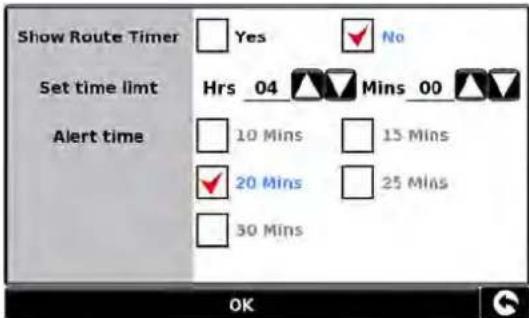
text_image
Show Route Timer Yes No Set time limt Hrs 04 Mins 00 Alert time 10 Mins 15 Mins 20 Mins 25 Mins 30 Mins OKTo access this function:
- Press the centre of the screen to enter the 'Navigate to' menu.
- Press the 'Configure' button.
● Press the black arrow twice.
- Press the 'Route Timer' icon.
The following screen will be displayed. In this screen you can:
- Activate the route timer function so that it is shown in the map display. Note: If 'Yes' is not selected then you cannot amend the 'Set time limit' and 'Alert time' options
- Set the duration of the time limit in hours and minutes - use the arrows to increase or decrease the time. The default setting is four hours.
- Before the time limit is up you can configure the unit to provide you with an alert to remind you that you are nearing your break period. The default period is 20 minutes.
Once you have set your desired preferences press 'OK' to confirm the settings.
If you wish to keep the setting unchanged, you can exit the menu by pressing the return arrow located in the bottom right hand corner of the display.
5.20 Version
This option allows you to view the hardware and software version numbers of your unit. To view this information:
- Press the centre of the screen to enter the 'Navigate to' menu.
- Press the 'Configure' button.
- Press the black arrow twice.
- Press the 'Version icon.
The following screen will be displayed.

text_image
H/W Displays the hardware version S/W Displays the current software version Map Displays the current map version Warn Displays the date the AURA™ camera database was last downloaded*. S/N Displays the unit serial number*If you do not subscribe to the AURA™ camera database or the unit has never been downloaded the message 'No camera data available' will be displayed.
Advanced Navigation Options
6.0 Route option
If you would like to personalise your route, press the 'Route option' button, before pressing the 'Calculate' button. This will give you a choice of calculating a route that takes the shortest time or the shortest distance and will also allow you to calculate a route that avoids any Toll Roads and Motorways if necessary.
There are a number of different options available to enable you to select either the most efficient route for you to take or to enable you to personalise the route calculated. The following options are available every time you program a route, whether you search by Post Code, City or by a POI.
Simply check the tick box with your finger the feature you would like to activate.
The choices are as follows:
6.1.1 Shortest Time

This option will calculate a route based on time using a combination of Motorways, 'A Roads' and 'B Roads' as necessary. The route is calculated by Snooper to navigate you to your destination in the shortest time possible whilst adhering to the national speed limits.
6.1.2 Shortest Distance

This option will navigate you to your destination using a combination of roads calculated to cover the least number of miles possible. It may be the most direct route but it could take you longer to arrive!
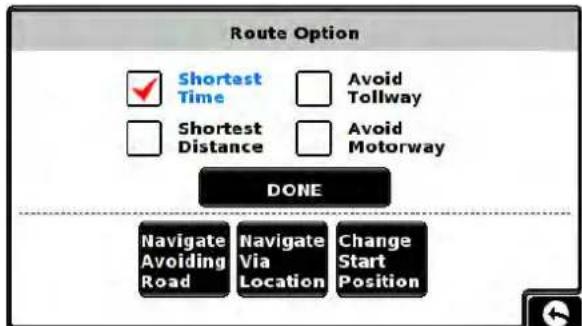
text_image
Route Option Shortest Time Avoid Tollway Shortest Distance Avoid Motorway DONE Navigate Avoiding Road Navigate Via Location Change Start Position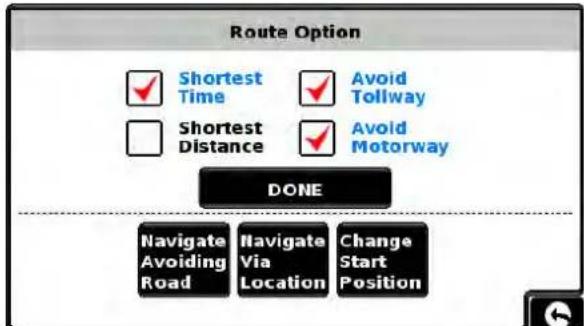
text_image
Route Option Shortest Time Avoid Tollway Shortest Distance Avoid Motorway DONE Navigate Avoiding Road Navigate Via Location Change Start Position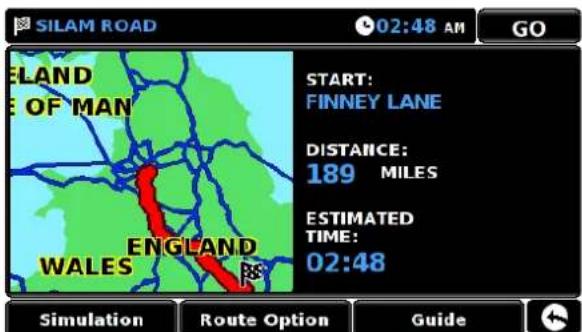
text_image
SILAM ROAD 02:48 AM GO ELAND E OF MAN START: FINNEY LANE DISTANCE: 189 MILES ESTIMATED TIME: 02:48 ENGLAND WALES Simulation Route Option GuidePlease note: Of the two options described above only ONE option can be selected during the Route Option configuration.
6.1.3 Avoid Tollway

Avoid Tollway
If you want to calculate a route avoiding any type of Toll Roads, select this feature before calculating your route. Press again to deselect.
6.1.4 Avoid Motorway

Avoid Motorway
If you would like to take a more leisurely journey with the chance of a more picturesque view then select the 'Avoid Motorway' option and your route will be calculated accordingly. Press again to deselect.

text_image
Avoid By Road Name Avoid By Range Clear Avoided RoadPlease note: The 'Avoid Tollway' and 'Avoid Motorway' options can be used in conjunction with each other.
Other routing options are:
6.2 Navigate Avoiding Road
Please note: This option can only be used once a route has been calculated. If a route has not been calculated then this is indicated by the button being greyed out. Navigate
6.2.1 Avoid by Road Name
If you know the road name or road number you wish to avoid, then select this option.
- Press 'Avoid by Road Name'.
You will be provided with the turn by turn instructions of the route that you are currently following. If the road you are looking for is not visible, press the down arrow on the right hand side of the display to see further turn by turn instructions.
● Once you have found the road that you wish to avoid, select it with your finger.
Once the calculation is complete you can either press 'Go' to start navigation, 'Simulation' to see the actual route that will be taken, 'Route Option' to change the parameters of the route or 'Guide' which will list the turn by turn instructions of the journey. The 'Summary Screen' will tell you the distance to your destination, estimated time of arrival and the estimated time it will take to complete your journey.
Please note: The summary screen is only displayed for approximately 10 seconds before the unit automatically begins to provide you with turn-by-turn instructions.
6.2.2 Avoid by Range
If you wish to avoid several roads from the selected route calculated by Snooper, then this function allows you to re-calculate a route over a user defined distance, ranging from 1 mile up to a maximum of 100 miles.
To use this function:
- Press the 'Avoid by range' button - the 'Select avoided range' page will be displayed.
- Select the distance of the range you wish to avoid using your finger.
If you wish to view more range distances then press the down arrow on the right hand side of the display. Once you have selected the range you wish to avoid Snooper will automatically re-calculate your route.

text_image
Select avoided range 1 Mile 2 Miles 3 Miles 4 Miles 5 Miles 10 Miles 20 Miles 30 MilesOnce the calculation is complete you can either press 'Go' to start navigation, 'Simulation' to see the actual route that will be taken, 'Route Option' to change the parameters of the route or 'Guide' which will list the turn by turn instructions of the journey. The 'Summary Screen' will tell you the distance to your destination, estimated time of arrival and the estimated time it will take to complete your journey.
Please note: The summary screen is only displayed for approximately 10 seconds before the unit automatically begins to provide you with turn-by-turn instructions.
6.2.3 Clear Avoided Road
If you do not wish to use the alternative routes offered by Snooper and you wish to return to the original calculated route, press the 'Clear Avoided Road' button and the original route plotted by Snooper will be restored.
Once the re-calculation of the original route is complete the summary screen is displayed. Once the calculation is complete you can either press 'Go' to start navigation, 'Simulation' to see the actual route that will be taken, 'Route Option' to change the parameters of the route or 'Guide' which will list the turn by turn instructions of the journey. The 'Summary Screen' will tell you the distance to your destination, estimated time of arrival and the estimated time it will take to complete your journey.
Please Note: If you have already travelled some of the re-calculated route, Snooper may produce a slightly different route from what was originally plotted.
The summary screen is only displayed for approximately 10 seconds before the unit automatically begins to provide you with turn-by-turn instructions.
If the 'Avoid by Road' and 'Avoid by Range' have not been used, this feature is unavailable and the button will be greyed out.
Clear Avoided Road
6.3 Navigate Via Location
If you would like to calculate a route to a destination but want to go via a specific location along the way you can use this function. Simply input the details of your final destination as usual but press the 'Route Option' button in the summary screen and then select the 'Navigate Via Location' button. You are provided with the following search options:
● Find address by City
● Find address by post code
● Find by POI
● Find by recently used
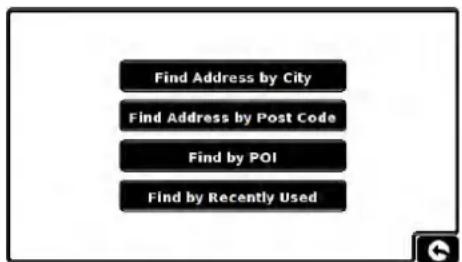
text_image
Find Address by City Find Address by Post Code Find by POI Find by Recently UsedTo find out how to use these options please refer to the applicable sections in this user manual.
Once you have found the address or location you would like to go to via your route, press the 'Set' button. A red tick is now displayed on the 'Navigate Via Location' button.
Now press the 'Done' button followed by the 'Calculate' button.
If you would like to check the route calculated prior to departure press the 'Guide' button on the Summary screen which will give you a list of each turn by turn instruction from the start of your journey to the end.

text_image
Route Option Shortest Time Avoid Tollway Shortest Distance Avoid Motorway DONE Navigate Avoiding Road Navigate Via Location Change Start Position6.4 Change Start Position
You can use this function if you would like to calculate a route but from a different location to the one you are currently at. First input your destination address as normal but when you reach the Summary page, press the 'Route Option' button.
Now press the 'Change Start Position' icon. You are provided with the following search options:
● Find address by City
● Find address by post code
● Find by POI
● Find by recently used
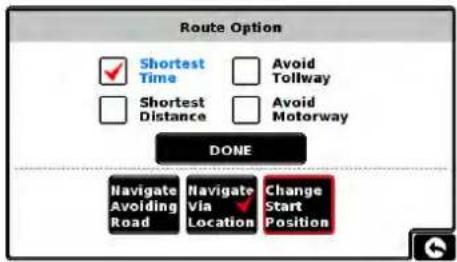
text_image
Route Option Shortest Time Avoid Tollway Shortest Distance Avoid Motorway DONE Navigate Avoiding Road Navigate Via Location Change Start PositionTo find out how to use these options please refer to the applicable sections in this user manual.
Once you have found the new starting point, press the 'Set' button.
The 'Change Start Position' is now highlighted with a red box. Now press the 'Done' button followed by the 'Calculate' button.
6.5 Summary Screen
The summary screen provides you with the information of your intended route such as distance to destination and estimated time of arrival for example and gives you the option of making any changes or viewing the route prior to commencing your journey.
6.5.1 Simulation
Press the 'Simulation' button and Snooper will take you through the calculated journey step by step with full on screen and voice instructions.

text_image
SILAM ROAD 02:48 AM GO ELAND OF MAN START: FINNEY LANE DISTANCE: 189 MILES ESTIMATED TIME: 02:48 ENGLAND WALES Simulation Route Option GuidePlease Note: If at any time you wish to cancel the simulation press the return arrow is located in the bottom right hand corner of the display.
6.5.2 Route Options
The 'Route Option' function can be accessed from this page, this allows you to tailor your journey using options such as 'Shortest Time' or 'Shortest Distance' Please refer to the 'Route Option' section of this manual for more details.
6.5.3 Guide
If you would like to check the turn by turn instructions of the route calculated prior to departure press the 'Guide' button on the Summary screen.
7.0 Quick Access Menu
A small on-screen Menu can be launched by touching the screen anywhere along the top 10mm of the display. See diagram on the right.
The quick access menu will drop down automatically. If no other button on the drop down box are pressed the drop down box disappears after approximately three seconds.
● From this Menu you can:
- Zoom closer in, or zoom further out from the map.
● Mute or alter the audio level
- By pressing the ✝ icon you can manipulate the map
● Switch between the 2D, 3D and North views.
● Switch between day and night settings
● Switch off the speed camera location facility.

text_image
05:00 3D Bayes View Drive Fairway B4156 C:\MARCH\HOUSE 30 33 MPH W A4607.1

Volume Setting
Selecting this option opens the Volume menu whereby you can increase or decrease the audio level of the unit. Press the 'Volume Control' icon. To adjust the volume, use your finger to press either the + button to increase the volume or the - button to decrease the volume.

text_image
Media player control bar with speaker, battery, and progress button iconsPlease note that this new setting is only temporary and if Snooper is switched off and then back on the audio level returns to either the factory default or your personalised setting.
If you press the speaker icon ◀ you can turn off the audio on the unit completely. A symbol is displayed in the top left hand corner of the display to indicate that the sound has been switched off. If Bluetooth is activated the symbol is not visible.
To switch the sound back on press the screen near the top of the display and select the 'Volume Control' icon. Press either the speaker icon or the volume controls to restore audio on the unit.

text_image
05:00 440Z High Street A440 Coppice Lane Hays View Drive M6 TOLL Farkway B4156 Littlewood Lane B4156 50 33 MPH W A4607.2

Scroll Map
By pressing this icon you can manipulate the map by touching and moving your finger on the screen.
7.3


Day or Night Settings
Bright colours are normally used for the mapping display so that you can see the map more clearly, even in bright sunlight. When it is dark outside however, you may want to switch to the Night Mode 🤊 as the daytime setting will be too bright.
The navigation view will then be displayed using dark and subdued colours that will not interfere with your night vision.
Use Day

to revert to the original colour scheme.
Please note: If you switch the unit off and then back on the display reverts to your previous personalised setting.

a Alerts (Only applicable if you have subscribed to the AURA Camera Database)
This function allows you to temporarily disable the safety camera alerts. If you press the camera icon 📁, you can turn the camera alert on or off. A symbol is displayed in the top right hand corner of the display to indicate that the alert has been switched off.
To restore the camera alerts press the top of Snooper's display to show the drop down menu and then press the camera icon.
Please note that if the unit is switched off and then switched back on the camera alerts are automatically enabled.
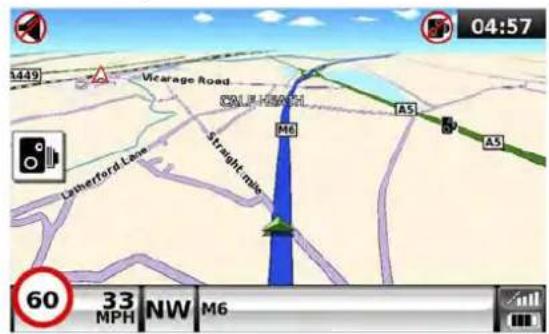
text_image
1449 Vicarage Road CALE HAWK M6 AS AS Lathertford Lane Straight mile 60 33 MPH NW M6 04:577.5


Magnify or Reduce Function
The map on the display can be magnified or reduced by pressing on the + or - buttons displayed when the drop down menu. This will also show the quick menu at the base of the display.
8.0 Understanding the Mapping Screen
Distance to next junction or instruction
Whilst navigating a calculated route the Snooper display will show an information box. This box will tell you the next road you should be travelling on and the distance to that turn. The screen will also show you either the expected time of arrival or the time left to go. The distance left to your destination will also be displayed.
The red line on the map indicates the route you will be taking, clearly and precisely.

text_image
The red line indicates the route you will be taking Next motorway exit or road you are due to travel on Distance left to next instruction Estimated time of arrival (If you would like to change this to Time left to arrival simply tap the screen on time left to change it) Distance left to travel 60 13:01 PM S 27 Miles 13:38 PM M6 TOLL Miles M42 M42 Kingsburg Road M42 The greaves M4097 Wishaw Lane M42 2.88Next turning or instruction
As you approach the next turning or instruction, a window will indicate the exact action that you need to take.

text_image
Distance to next road A62,OLDHAM WAY. 192 yds Indicates that you are approaching a filter lane and you need to keep LEFT Wellington Street 50 33 E 4.58 Miles 13:19 PM OLDHAM WAY Current road
10. Bluetooth (NOT S2500)
This unit is equipped with Bluetooth functionality. You can use it as a hands free system for a mobile phone that is equipped with Bluetooth.
- Press the centre of the screen to enter the 'Navigate to' menu.
- Press the 'Configure' button.
● Mute or alter the audio level - Press the black arrow ▶ once.
- Press the 'Bluetooth' icon.
The phone menu screen is displayed:
Dialing Opens the keypad for dialing
Phonebook Displays contact list of paired phonebook (not compatible with all phone types).
Call History Displays current call history.
A2DP Advance Audio Distribution Profile.
For steaming music via Bluetooth (supported devices only).
SMS View SMS messages (supported phones only).
DUN Bluetooth Dial Up Networking allows tethering to a compatible mobile phone.
Pair/connect Shows paired, connected devices and menu for adding new devices.
Pairing
Please ensure that Bluetooth is active and that the phone is in 'discovery mode' (refer to the mobile phone user guide for instructions) before starting the pairing process.
Not all mobile devices are compatible will all of the features of the S5000
To switch Bluetooth On press the BT icon.
Note If this icon is shown then BT is Off press to switch BT On

if this icon is shown then BT already On

text_image
Navigate to My favourite Configure Bluetooth Brightness control Volume control Change language Setup Show POI Auto scale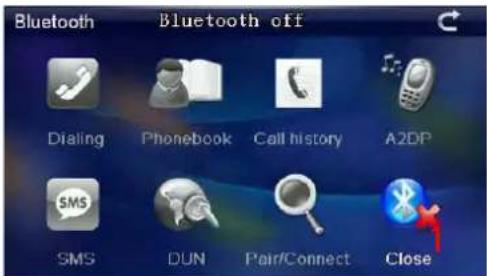
text_image
Bluetooth Bluetooth off Dialing Phonebook Call history A2DP SMS DUN Pair/Connect Closemain page showing Bluetooth OFF
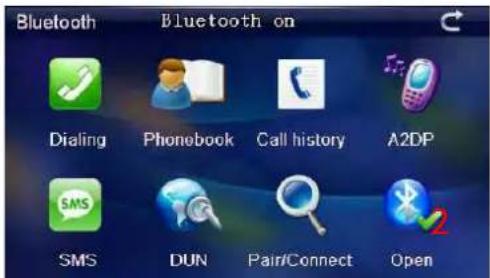
text_image
Bluetooth Bluetooth on Dialing Phonebook Call history A2DP SMS DUN Pair/Connect Openmain page showing Bluetooth ON and paired

Press Pair/Connect: the following screen will be displayed.
1 State: Paired or Unpaired. This shows if the device is currently paired with a BT device
2 Device name: Shows the name of the navigation device.
3 This can be changed by pressing the Modify the name button.
4 PIN: Displays the current PIN number
5 This can be changed by pressing the Modify the PIN button
Press Search to discover compatible BT devices
A list of 'discovered' Bluetooth devices will be shown.
Click the device you wish to pair with (6) followed by the Connect button.
Enter the 4 digit (5) PIN number on the BT device to complete the pairing process. Additional steps may be required on the BT device to compete the process (refer to the manufacturer for specific instructions)
Once pairing has completed press the return button (8)
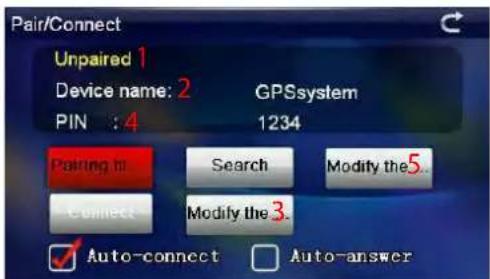
text_image
Pair/Connect Unpaired 1 Device name: 2 GPSsystem PIN : 4 1234 Pairing to Search Modify the5. Connect Modify the 3. ✓ Auto-connect □ Auto-answer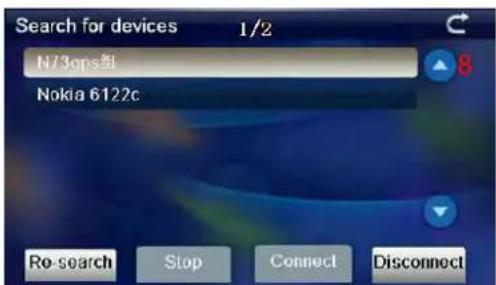
text_image
Search for devices 1/2 N73ops组 Nokia 6122c 8 Ro-search Stop Connect DisconnectAfter the pairing is successful the Snooper will revert back to the 'Phone Menu' screen but the icons are no longer 'greyed out'.
Press (6) to return to the Navigation menu.
Dialling (1)
To dial a number press 'Dialling' then enter the number, using the keypad, press Green button (a) to make the call.
To end the call press button (b)
The change the speaker volume during the call use plus (c) and minus buttons (d).
To transfer the call to the mobile phone press button (e)
Phonebook (2)
The contact list on the mobile phone (phonebook) can be synchronized with the Snooper. For Caller ID and speed dial to operate the phonebook needs to be synchronised.
To synchronise the phone book, click the button 'Phone Book' (7) to open the phone book interface.
Press (2) to start synchronisation.
Press Synchronize to populated the phone book in the navigation device.
To dial numbers from the phone book scroll through the list, using the up and down buttons, once you have found the entry you are looking for, highlight it by pressing on the name then press Dialling.
Call History (3)
Displays a list of dialled and received calls. To change the view from:
Received, Dialled or Missed numbers press the requisite button at the bottom of the screen.
Use the up and own arrows to scroll through the list.
To dial any of the numbers, highlight the number and press Dialling.

text_image
Bluetooth Bluetooth on 1 Dialing 2 Phonebook 3 Call history 4 A2DP 5 SMS 6 DUN Pair/Connect Open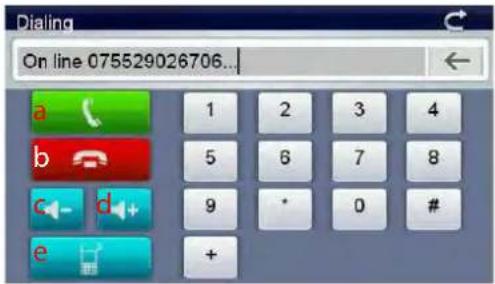
text_image
Dialing On line 075529026706... a b c d e 1 2 3 4 5 6 7 8 9 * 0 # +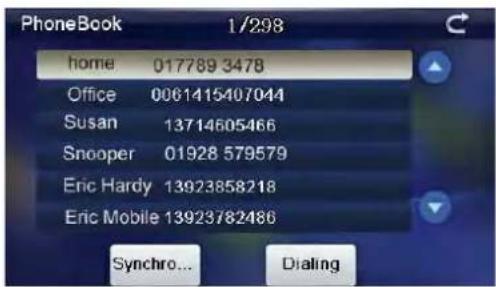
text_image
PhoneBook 1/298 home 017789 3478 Office 0061415407044 Susan 13714605466 Snooper 01928 579579 Eric Hardy 13923858218 Eric Mobile 13923782486 Synchro... Dialing
text_image
Call history 1/30 Unknown 075529026717 Unknown 075529026863 Unknown 075529026732 Unknown 075529026810 Unknown 075529026869 Unknown 075529026755 Recei... Dialed Missing Dialing Synch...A2DP (4)
The Advanced Audio Distribution Profile is a Bluetooth profile that allows for the wireless transmission of stereo audio from an A2DP source (typically a phone or computer) to an A2DP receiver.
This device also supports AVRCP
The Audio/Video Remote Control Profile is a Bluetooth profile that allows Bluetooth devices to control media playback on remote devices. AVRCP can control next/previous track selection and pause/play functions.
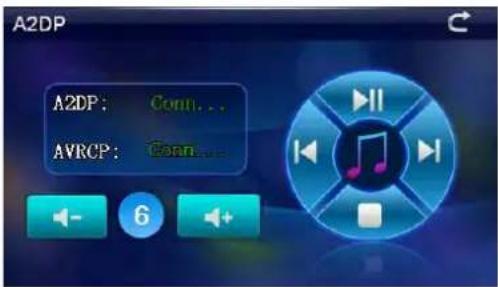
text_image
A2DP A2DP: Conn... AVRCP: Conn... 6*** A compatible Bluetooth device is required not all features are supported on all devices**
Short Message Service (5)
SMS message can be accessed on the navigation device
Displays a list of SMS messages.
Unread Single click to view the unread SMS
Read Single click to view the read SMS
Sent Single click to view the sent out SMS
Unsent Single click to view the unsent SMS
Synchronize Single click to activate e the SMS synchronization with mobile phone
Single click the selected number to dial the number
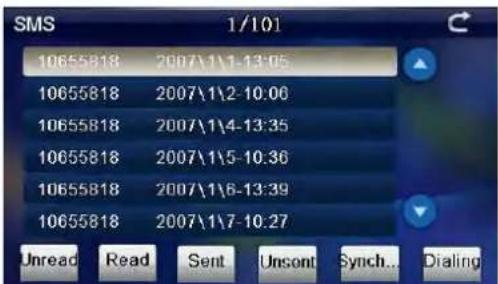
text_image
SMS 1/101 10655818 2007\1\1-13:05 10655818 2007\1\2-10:06 10655818 2007\1\4-13:35 10655818 2007\1\5-10:36 10655818 2007\1\6-13:39 10655818 2007\1\7-10:27 Unread Read Sent Unsont Synch... DialingDial-up Networking Profile (DUN) (5)
This profile provides a standard to access the Internet and other dial-up services over Bluetooth.. It is based on Serial Port Profile (SPP), and provides for relatively easy conversion of existing products, through the many features that it has in common with the existing wired serial protocols for the same task.
These include the AT command set specified in European Telecommunications Standards Institute (ETSI) 07.07, and Point-to-Point Protocol (PPP).
DUN distinguishes the initiation (DUN Terminal) of the connection and the provider (DUN Gateway) of the connection.
The gateway provides a modem interface and establishes the connection to a PPP gateway. The terminal implements the usage of the modem and PPP protocol to establish the network connection. In standard phones, the gateway PPP functionality is usually implemented by the access point of the Telco provider. In “always on” smartphones, the PPP gateway is often provided by the phone and the terminal shares the connection.
*** Compatible handset, data contact and tethering required - not all phones are compatible with this profile**.
If the connection is successful this screen will be displayed To activate DUN press the DUN icon then press Connect

text_image
DUN Connect Time for connection: 00:00:09 Disconnect Browser
text_image
DUN Disc... Time for connection: Connect BrowserTo open the browser press 'Browser'
Back Forward Refresh Stop

text_image
Welcome to Microsoft Pocket Internet Explorer Microsoft Windows CE © 2004 Microsoft Corporation. All rights reserved. Terms of use.To exit the browser and close the DUN connection press close on the browser task bar then on the DUN screen press DISCONNECT
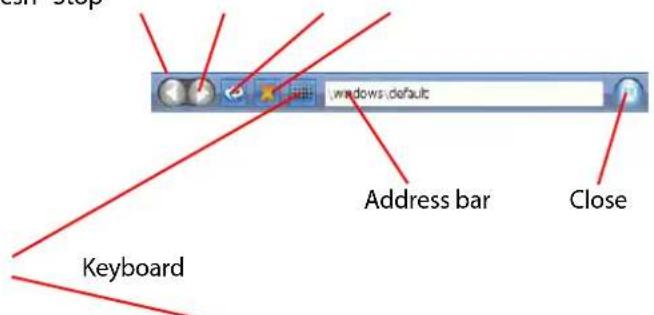
text_image
Cash-Stop windows default Address bar Close Keyboard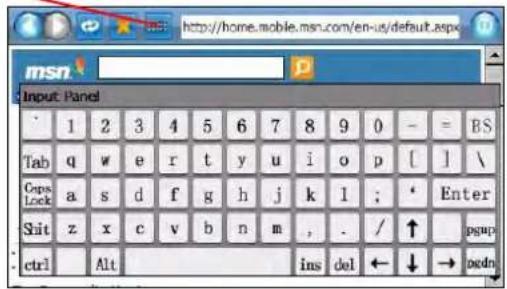
text_image
http://home.mobile.msn.com/en-us/default.aspx msn Input Panel 1 2 3 4 5 6 7 8 9 0 - = BS Tab q w e r t y u i o p [ ] \ Cops Lock a s d f g h j k l ; ' Enter Shit z x c v b n m , . / ↑ pgup ctrl Alt ins del ← ↓ → padnTroubleshooting Snooper Downloads
If you are having any difficulty in performing a download onto the Snooper unit it is advisable to refer to the checklist in Section A first before contacting us.
If you are still unable to perform a download after following all of this checklist then please send an email to Support@snooper.eu stating the nature of your difficulty. To expedite your enquiry please supply as much detail as possible including your contact details, Snooper serial number, PC operating system, error codes and any other relevant information. One of our technicians will reply as soon as possible.
Alternatively you can contact our Technical Helpline on 0333 240 1000 and select Option 3.
This troubleshooting guide is in two sections; Section A is in the form of a checklist that will assist you with resolving common download problems. Section B consists of a few possible reasons and possible solutions to error messages that may be displayed by the operating system or the software whilst you are trying to perform a download.
SECTION A
1. Have you registered the Snooper unit?
You will not be able to download the database unless Snooper is registered. If the unit has not been registered, a message will appear on the software informing you that the device is not enabled. Please register online at www.snooperneo.co.uk.
2. What operating system are you using on your computer?
Snooper download software will only work on the following Windows operating systems:
Windows XP (32 bit), Windows Vista and Windows 7.
The software will not work on Windows 95, 98, 98SE, Millennium and Windows 2000; Apple Macintosh operating systems are not supported. Windows XP (64bit) systems is not supported.
To determine which operating system you have on your computer:
Right click on the 'My Computer' icon on your desktop and select 'Properties' from the drop down menu.
When the 'System Properties' dialogue box opens, the 'General' tab is selected by default. Under the heading of 'System' the operating system is displayed.
If you do not have a 'My Computer' icon on your desktop you can find this information by going to the 'Control Panel' and double left clicking the 'System' icon. The 'System Properties' window will then be displayed as outlined in 'b' above.
3. Is the USB cable supplied with Snooper connected correctly?
Please make sure the USB lead has a secure connection to the PC and is fully plugged in. Ensure the smaller connector is plugged into the USB socket on the side of the unit. Only plug the USB lead into Snooper once you see the 'Menu Screen' after turning Snooper 'ON'.
Please Note: Do not use the USB cable that comes with the USB Host connection as this lead is not compatible for speed camera updates.
4. Have you installed Snooper download software onto your PC?
If you have not installed the download software you will not be able to perform a download to Snooper. Once the software is installed there will be a new icon on your desktop . The icon is similar to this

Please check to see if you have the latest version of the software by visiting http://www.snooperneo.co.uk/software.cfm to check what software version you have, double left click Snooper icon, look at the top of the window that opens and you will see the version number in brackets.
5. Have you connected the computer to the internet?
The download software has to download a file directly from our server and this can only be done if an internet connection is present. Therefore make sure that your PC is connected to the internet by either establishing a dial up connection or signing in to your broadband internet account before you begin to download the database to Snooper.
7. What version of Internet Explorer / Netscape Navigator are you using?
The software will only operate if you have Internet Explorer or Netscape Navigator 6 or above.
To check what version of Internet Explorer you have; open your browser, click on the 'Help' menu and select 'About Internet Explorer'. This should now display what version you currently have installed. If you have a version older than 6 (e.g. 4.5), open your browser, click on 'Tools' and select 'Windows Update'. This will take you to the Microsoft website where you can download the latest version of internet explorer.
To check what version of Netscape Navigator you have: open the browser, click on the 'Help' menu and select 'About Netscape Navigator'.
SECTION B
This section is for supplying possible reasons and solutions to problems you may be experiencing whilst trying to down load the database to Snooper. If after completing all the checks in Section A and you are still experiencing difficulty or have received an error message please read through the following:
1. ERROR MESSAGE – 'The device has not been enabled yet.'
Please refer to Step 1 in section A for further details.
2. ERROR MESSAGE - 'Error 521: There was a problem connecting to the Performance Products server...'
If you get an error message as described above this normally means that there is something blocking communication between the software, most typically a firewall, and the AURA™ server. Windows XP, Vista and Windows 7 are supplied with a built in 'Internet Connection Firewall'. Depending upon which firewall software you have you will need to access the firewall settings and allow access for the Snooper update software.
If you do have a Firewall on your computer Snooper Updater software may appear to stop and it is at this point that your Firewall software will inform you that Snooper Updater software is trying to access the internet. Please make sure that you grant/allow/permit access through the Firewall.
Please read the messages supplied by your Firewall software carefully before choosing your option. If you do not allow the program access to the internet through the Firewall, the download process will fail.
If no message was prompted by the firewall software uninstall and then re-install the software and perform a download again.
Warning: We do not recommend disabling your firewall software in order to perform a download to Snooper, nor can we provide advice on how to alter the settings on third party software, nor can we be held responsible for any action taken by the PC user that makes the PC more vulnerable to malicious viruses, software and computer hackers. Any changes made to the PC firewall settings are solely at the PC user's discretion. We would recommend contacting the third party software manufacturer for further information of how to configure the firewall software.
SECTION C
1. Can't receive a GPS signal
Please avoid places such as between buildings, overpass and tunnels and check the signal reception in a suitable place with a good view of the sky.
When the battery is completely discharged or turning off and then on the battery switch, the initial acquisition time may be delayed.
2. There is no screen display, even though the power is turned on.
Please connect the AC adapter and cigarette lighter adapter to the device and turn on the power switch as the battery may be discharged.
3. Can't play MP3/video/photo
Please check the file format from the manual.
4. The unit is automatically shut down during operation
Please check the power control setting in the Setting menu.
5. Can't hear anything from speaker or earphone
Please check the volume level.
Please check the Mute status.
For earphone, please check if the jack is inserted properly.
6. Screen is dark.
Adjust the LCD brightness from the Setting menu.
7. Broadcast cannot be scanned./Broadcast is stopped.
Pull out the antenna and move to a good place for reception or adjust the antenna position.
8. Can't read the SD card
Please remember that this device supports Micro-SD type or Micro-SDHC class 6 type card with max. 8GB.
Please check if the file system is of FAT16 or FAT32.
Please check if the surface of the card is stained with dirt.
10. Can't write on the SD card
Please check if SD card is properly inserted.
Please check if the surface of the card is dirty.
11. Touch function does not work well.
Please touch the screen accurately because it cannot be recognized if you touch the screen with fingernails only or with less pressure.
Please perform Touch Calibration.
12. Can't charge the battery
Please check if the AC adapter/cigarette lighter adapter is connected correctly.
Please check if the contact area is dirty.
If you operate the unit during USB charging, the charging may not be completed. So please turn off the unit to charge or charge the unit by using AC/cigarette lighter adapter.
13. Can't recognize USB cable from PC
Inserting SD card enables to recognize it as UMS and to be seen as a directory from PC. Please check the SD card insertion.
Please check if the USB cable is normal and make sure it is connected properly.
14. Can't mount the cradle
Please remove the dust from the place you want to mount.
Please wash and dry the suction-cup in running water and try again.
SPECIFICATION S2500
1.1 Product Specification S2500
1.1.1 Environmental parameters Operating temperature range: -10^ +60^ Storage temperature range: -20^ +70^ Operating Humidity Range: 45% 80% RH Storage humidity range: 30% 90% RH Atmospheric pressure: 860MBar 1060Mbar
*Note: Only the SD card supplied will work with Snooper once synchronisation of the card and the unit has been completed. Replacement cards are available from Performance Products Limited. Please refer to Accessories & Price List for further details.
1.1.2 System parameters Frequency : 468 MHz Main chip Model : MTK MT3351C RAM : 128MB(DDR) Flash Memory : 128MB Supports SLC/MLC NAND Navigation Software Storage : MICRO SD/SDHC OR NAND FLASH Operating system : WINCE 6.0 Software-Compiled Type : ARMV4I
1.1.3 Multimedia parameters and performance : Audio Support Type : MP3/WMA Video Support Type : MP4/ASF/WMV/AVI/DIVX/XVID Video decoding performance : WVGA (480X272)
1.1.4 Images and text browser : Support Image Type : BMP/JPG
1.1.5 Basic parameters Display Size : 4.3" Display Resolution : 480*272
Sound Output : Dual-channel CD quality Sound power : two-channel headphones 65mW/CHANEL, Single-channel 8Ω/1W Average Power : 1.5W Standby Power : <20mW
1.1.6 GPS Hardware Parameters Chipset : MT3328 Frequency : 1.575GHz C/A CODE : 1.023 MHz chip rate Channels : 66 Channel (location search) / 22 Channel (tracking) Tracking Sensitivity : -165dBm Positioning accuracy : 10m, 2D RMS 5m, 2D RMS, WAAS enable Speed : 0.1m/s Data update rate : 1HZ Re-capture time : Average 1s Hot start-up time : Average 2s Warm start-up time : Average 32s Cold start time : Average 45s Maximum Positioning Height : 18,000m Maximum rate : 515m/s Acceleration : < 4g Built-in antenna type : Built-in passive ceramic antenna
1.1.7 Built-in TMC Chipset : SI4703 Frequency range : 87.5MHz\~ 108MHz Sensitivity : RDS -90DBm
1.1.9 USB 5 PIN Mini-USB port USB Device controller 1.1, USB High speed 2.0; USB Connection : Mass storage OR Microsoft ActiveSync;
430M-C Product Technical Specification Sheet V1.1
Charging Interface: Working current ≤ 2000mA; (including charge and machine consumption) Universal USB cable charging current ≤ 150 mA, when the charge does not start, its USB interface definition as follows,
For reference :
PIN Definition :
- 5V Output to PND (+5V +/-0.2V, 2A);
- D-
- D+
- NC
- GND;
Dedicated USB charge current ≤ 700 mA, the USB interface is defined as follows, for reference :
PIN definition :
- +5V Output to PND (+5V ±0.2V, 2A);
- NC
- NC
- NC
- GND;
1.2 Expansion card : Micro SD/ SDHC slot (up to 16GB)
1.3 Audio Mono 8 Ω/ 1.0W (MAX) speaker; High-fidelity stereo 16 Ω or 32 Ω headphone jacks (Φ 3.5); Plug in your headphones automatically turn off external sound (non-reversing rear). 430M-C Product Technical Specification Sheet V1.1
1.4 Push button Switches : POWER key : for on / off or sleep / wake-up machine Reset button : reset the machine, press POWER key to re-start;
1.5 GPS antenna : Antenna use : 18.4 * 18.4 * 2mm built-in passive ceramic antenna.
1.6 Video Player : Support MPEG4, Divx 5.0, 4.0, Xvid and MPEG2, as well as wmv, asf, and avi file format; Micro SD/ SDHC card automatically identify all of the directories of video files; Play, pause, stop, full-screen playback, fast forward, volume adjustment schedule selection, file selection
1.7 Audio Player : Supported audio file formats : MP3, WMA; Micro SD/ SDHC card automatically identify all of the directories under the audio files; Functional operations : play, pause, stop, previous, next, volume adjustment, file selection; Sequence settings : loop play, random play.
1.8 Photo browse : Supported image file formats : BMP / JPG, automatically identify T-FLASH card available to all directory. Browse file support automatic browsing operation : the choice of one, the next one, automatic playback, rotate canvas, enlarge, and reduce the file selection.
1.9 E-book Reader Support e-book file format : TXT; Automatic Identification MicroSD/SDHC card available to all directory files, Previous, Next, select pages Selection, chapter selection, folder selection; Prior to the use of electronic features, please your text file (TXT format) copied to the any one folder of SD card.
1.10 System Settings : Background light settings : background brightness adjustment, regulate the use of the battery automatically shut down when the backlight time, adjust to with an external power supply automatically turn off the backlighting time; 430M-C Product Technical Specification Sheet V1.1
SPECIFICATION S5000
Processor (CPU) MTK MT3351 468 MHZ
OS WinCE 5.0
Memory 64MB (SLC)
SDRAM 64MB (DDR2)
Memory Card Micro SD Card upto 8GB
GPS Receiver MTK MT3328
Frequency: 1.575GHz
C/A CODE: 1.023 MHZ chip rate
Channels: 66 Channel (location search) / 22 Channel (tracking)
Tracking Sensitivity: -165dBm
Positioning accuracy: 10m, 2D RMS 5m, 2D RMS, WAAS enable
Speed: 0.1m/s
Data update rate: 1HZ
Re-capture time: Average 1s
Hot start-up time: Average 2s
Warm start-up time: Average 32s
Cold start time: Average 35s
Maximum Positioning Height: 18,000m
Maximum rate: 515m/s
Acceleration: < 4g
GPS Antenna Built-in passive ceramic antenna
LCD Display Display size: 5"
Display Resolution: 480x272
16:9 TFT LCD
Bluetooth
Chipset : MT6622 Frequency range : 2402MHz 2480MHz Sensitivity : -90DBm
Transmit Power : 4DBm
User Interface Touch Screen & 1 Power/Menu Button
Speaker
Mono 8Ω / 1.0W (MAX) speaker
High-fidelity stereo 16Ω or 32Ω headphone jacks (φ 2.5)
Microphone
40dB
Battery
Li-ion battery 900 mAh
Power
12-24V DC OUTPUT: 5.2V DC 1.5A
Current
400-450 mAh 60 mA (4.2V) (Normal) in Operation
800 mA (4.2V) (Normal) in Charging
800 mA (4.2V) (Normal) in Operation & Charging
Operating Temperature range.
-10^. +60^.
Storage Temperature range.
-20^. +70^.
Operating Humidity range.
45%\~80%RH
Atmospheric pressure.
860MBar.1060Mbar.
*Note: Only the SD card supplied will work with Snooper once synchronisation of the card and the unit has been completed. Replacement cards are available from Performance Products Limited. Please refer to Accessories & Price List for further details.
SPECIFICATION 6 SERIES
Dimensions: W180mm x H110mm x D15mm
OS - WinCE
Display Size: 7" TFT LCD Display Resolution : 800x480
Operating temperature range: -10^ +60^
Storage temperature range: -20^ +70^
CPU(Core): 500 MHz
RAM : 128MB(DDR)
Flash Memory: 128MB
Software Storage: MICRO SD
Expansion card: Micro SD/ SDHC slot (up to 16GB)
Operating system: WINCE 5.0
Audio Mono 8 Ω/ 1.0W (MAX) speaker; High-fidelity stereo 16 Ω or 32 Ω headphone jacks (Φ 3.5);
GPS Antenna type: Built-in passive ceramic antenna
Channels: 66 Channel (location search) / 22 Channel (tracking)
Tracking Sensitivity : -165dBm Positioning accuracy : 10m, 2D RMS 5m, 2D RMS, WAAS enable Speed : 0.1m/s Data update rate : 1HZ
Hot start - Average 0.1s
Warm start - Average 2s
Cold start - Average 32s
Built-in TMC: Frequency range : 87.5MHz \~ 108MHz
Sensitivity : RDS -90DBm
USB - Mini-USB port
Video-In - supports parking camera with auto switch function
5V Charging Interface : Working current ≤ 2000mA; (including charge and machine consumption) Universal USB cable charging current ≤ 150 mA.
Music player: MP3/WMA
Video player : MP4/MPEG4/MPEG2/ASF/WMV/AVI/DIVX/XVID.
Video decoding performance: WVGA (800X480)
Photo viewer : BMP / JPG,
E-book Reader: TXT
Bluetooth Chipset : MT6622 Frequency range : 2402MHz 2480MHz Sensitivity : -90DBm Transmit
Power : 4DBm
*Note: Only the SD card supplied will work with Snooper once synchronisation of the card and the unit has been completed. Replacement cards are available from Performance Products Limited. Please refer to Accessories & Price List for further details.
Recommendations for safe use of product (Snooper, Battery, AC Mains Charger and other accessories)
● Always treat your product with care, keep it in a clean, and dust free environment.
● Warning! May explode if disposed of in fire.
- Do not expose your product to liquid or moisture or humidity.
- Do not expose your product to extreme high or low temperatures.
- Do not expose the battery to temperatures above +60°C (+140°F).
- Do not expose your product to naked flames or lit tobacco products.
- Do not drop, throw or try to bend your product.
- Do not paint your product.
- Do not attempt to disassemble or modify your product. Only Snooper authorised personnel should perform service.
- Do not place your product in the area above your cars airbag.
CHILDREN
KEEP OUT OF CHILDRENS REACH. DO NOT ALLOW CHILDREN TO PLAY WITH Snooper OR ITS ACCESSORIES. THEY COULD HURT THEMSELVES OR OTHERS, OR COULD ACCIDENTALLY DAMAGE YOUR UNIT OR ACCESSORY. Snooper CONTAINS SMALL PARTS THAT COULD BE DETACHED AND CREATE A CHOKING HAZARD.
AC Mains Charger
Connect the AC power adaptor only to designated power sources as marked on the product. Make sure the USB cord is positioned so that it will not be subjected to damage or stress. To reduce the risk of electric shock, unplug the unit from any power source before attempting to clean it. The AC mains adaptor must not be used outdoors or in damp areas. Never alter the power cord or plug. If the plug will not fit into the outlet, have a proper outlet installed by a qualified technician.
Only use Snooper approved chargers intended for use with Snooper. Other charges may not be designed to the same safety or performance standards.
Battery
We recommend that you fully charge the battery before you use Snooper for the first time. A new battery or one that has not been used for a long time could have a reduced capacity the first few times it is used.
Use only Snooper approved original batteries intended for use with Snooper. We recommend that only Snooper authorised personnel replace the battery in your unit. Using other batteries and chargers could be dangerous.
Battery charge time can vary depending on different conditions such as operating temperature, application usage patterns, features selected and voice transmissions when using the Bluetooth functionality.
Disposing of the Battery
Please check with your local waste management service authority regarding regulations for the safe disposal of the battery. The battery should never be placed in municipal waste. Use a battery disposal facility if available.
Disposal of Old Electrical or Electronic Equipment
This symbol on the product indicates that this product shall not be treated as household waste. Instead, it shall be handed over to the applicable collection point for the recycling of electrical or electronic equipment. By ensuring this product is disposed of correctly, you will help prevent potential negative consequences for the environment and human health, which could otherwise be caused by inappropriate waste handling of this Snooper product. The recycling of materials will help to conserve natural resources. For more detailed information about recycling of this product, please contact your local waste authority.
Touch Screen
● To avoid scratching the touch screen, do not use sharp tools.
- Do not allow the touch screen to come into contact with other electrical devices. Electrostatic discharges can cause the touch screen to malfunction.
- Do not allow the touch screen to come into contact with water. The touch screen may malfunction in humid conditions or when exposed to water.
- Do not allow heavy objects to press against the LCD display. This can cause damage to the LCD screen
- Do not twist the casing of the unit as this can cause damage to the LCD screen
- Do not press too hard when operating the touch screen. If the touch screen is unresponsive please clean the screen with an approved cleaning solvent first and then try again. Pressing too hard on the touchscreen can cause the LCD screen to break.
- Do not drop the device as this may result in damage to the LCD screen.
- Do not strike the LCD screen with a pointed or sharp object. Whilst no visible damage may be observed the LCD display may be weakened and prone to crack if exposed to low and high temperatures.
PLEASE NOTE: Damage to the LCD is not covered under warranty where: willful or accidental damage has occurred. Use of the device otherwise than in accordance with the user instructions; any tampering with, or alteration of, the device is made by anyone other than us.
Accessories & Price list
The following accessories are available from your local Snooper dealer. For further details please contact our sales department on 0333 240 1000 (Option 1).
Replacement European Mapping Micro-SD Card £149.99
In-car charger (24v/12v DC) adaptor (with USB Host lead) £19.99
Straight hard wire lead with fuse (24v/12v) £19.99
Windscreen mounting bracket, excluding unit holder £24.99
USB PC Connection lead £9.99
Custom Pro Fit Bracket, including fixing plate * £21.99
Snooper to Pro Fit Bracket attachment** £7.99
240v to 5vDC mains charger
£19.99
Snooper Snooper soft protective carry case £14.99
*Pro Fit brackets are a custom made bracket that usually attaches to an air vent and are designed specifically for each make and model of vehicle. Therefore you should contact Performance Products, on 0333 240 1000 (Option 1), to check the availability and specification of the bracket for your vehicle.
** This attachment must be purchased to enable you to attach Snooper to a Pro Fit bracket.
Service under warranty
Snooper comes with a standard 12 month manufacturer's warranty.
If, for some reason your unit requires service under warranty return Snooper by special delivery and in suitable packaging to:
The Returns Dept.,
Performance Products Limited,
Cleaver House,
Sarus Court,
Stuart Road,
Manor Park,
Runcorn WA7 1UL.
Tel: 0333 240 1000
Fax: 0333 240 1100
Enclose the following information:
(a) Your name, address and a full description of the problem.
(b) A telephone number where you can be reached during business hours.
(c) Serial number of your unit.
PLEASE NOTE: We cannot process any warranty claims unless proof of purchase is provided.
Please retain your receipt as a precaution.
Full terms and conditions of warranty are available on request.