Bike 250 Memory-Map - Browser SNOOPER - Free user manual and instructions
Find the device manual for free Bike 250 Memory-Map SNOOPER in PDF.


User questions about Bike 250 Memory-Map SNOOPER
0 question about this device. Answer the ones you know or ask your own.
Ask a new question about this device
Download the instructions for your Browser in PDF format for free! Find your manual Bike 250 Memory-Map - SNOOPER and take your electronic device back in hand. On this page are published all the documents necessary for the use of your device. Bike 250 Memory-Map by SNOOPER.
USER MANUAL Bike 250 Memory-Map SNOOPER
text_image
memory-map®Bike 250
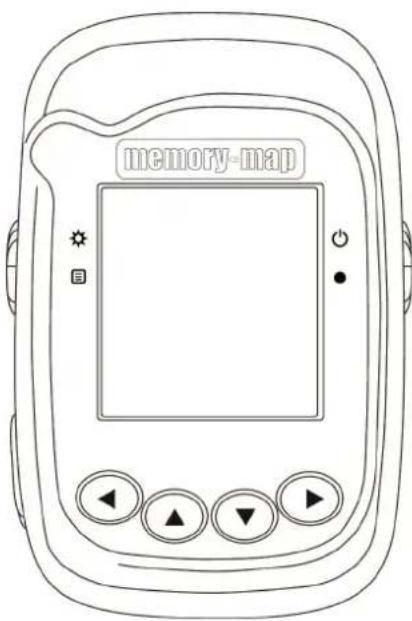
text_image
memory-mapUser Manual
Safety Precautions
- Use the power adapter included with the package, using power adapters other than the one provided will result in malfunction and could prove dangerous.
-
About the power adapter:
-
Do not use the power adapter in a wet environment. When hands and feet are wet, do not touch the power adapter.
- While using the power adaptor, ensure that the area is well ventilated. Do not let paper or other material cover the power adaptor, as this will interfere with cooling. Do not use the power adaptor whilst it is in a bag.
- Do not attempt to repair the device. If device is damaged or is in a wet environment, replace the device immediately.
- It is not recommended to charge from a PC because the PC power voltage is not enough to supply the device.
Warranty Information
- This warranty applies to parts and services that are manufactured and sold through SNOOPER. The warranty length is one year from date of purchase (starting from the date on the sales receipt). Under normal user operation, SNOOPER provides free repair services.
- SNOOPER is not responsible for providing repairs or replacements of any software; SNOOPER does not provide any warranty service for third party software/hardware.
-
Important instructions
-
Note: This warranty does not cover damage or malfunction from the below causes: unauthorized disassembly/modification of unit, abuse or incorrect usage, accidental and other unpreventable causes, operation under variables mentioned that are different from those in this product user manual, using parts not made or sold by SNOOPER, or repairs done by anyone other than SNOOPER and authorized retail/service providers.
- Expendable parts are not covered in the warranty.
- SNOOPER is not responsible for any program, data, or portable storage media damages or loss. Please contact your local SNOOPER authorized service provider to learn more about geographical limitations, proof of purchase requests, response time agreements, and other specific maintenance service requests.
Copyright Information
No part of this manual, including the products and software described in it, may be reproduced, transmitted, transcribed, stored in a retrieval system, or translated into any language in any form or by any mean, without the express written permission of SNOOPER Technology, Inc.
Copyright, All Rights Reserved.
RF Exposure Warning
This equipment must be installed and operated in accordance with provided instructions and the antenna(s) used for this transmitter must be installed to End-users and installers must be provided with antenna installation instructions and transmitter operating conditions for satisfying RF exposure compliance.
Table of Contents
TABLE OF CONTENTS 4
GETTING STARTED....1
FEATURES 1
UNIT OVERVIEW....2
BUTTONS....3
ACCESSORIES. 4
CHARGING THE BATTERY....5
CONNECTING TO A PC....6
INSTALLING BIKE MOUNT. 7
USING THE MEMORY-MAP BIKE 250. 9
FUNCTIONS AND OPERATIONS....14
SPORT MODE. 14
HISTORY....15
ALERT....17
GENERAL SETTING....18
SETTING....22
Initial setup....24
TROUBLESHOOTING....27
SPECIFICATIONS....29
Getting Started
Congratulations on purchasing the Memory-Map Bike 250.
The Memory-Map Bike 250 is a compact, lightweight device with GPS finder and calorie calculation designed for sporting use, plus GPS coordinates record storage to calculate CO_2 emissions saved and calories expended from not driving.
Features
- GPS positioning
- Auto flip page
• Automatic shutdown within set time when no signal is detected. - 'Place Finder' function capable of leading the user to up to 5 recorded locations.
• 3 Sport modes for calorie calculation - Auto Log function starts log as soon as the satellite signal is fixed
• One touch POI recording
• Multi-language support
• Support both metric and imperial unit
• Support time zone setting
• Support both 12:00 and 24:00 time format
Unit Overview.
Front View
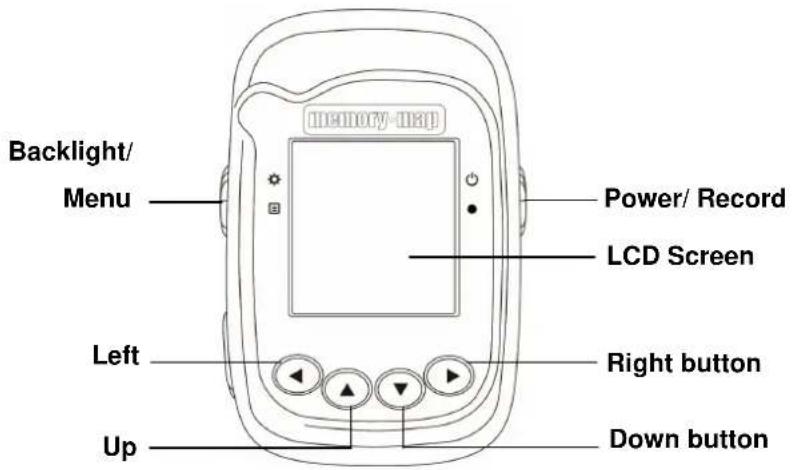
text_image
Backlight/ Menu Power/ Record LCD Screen Left Right button Up Down buttonRear View
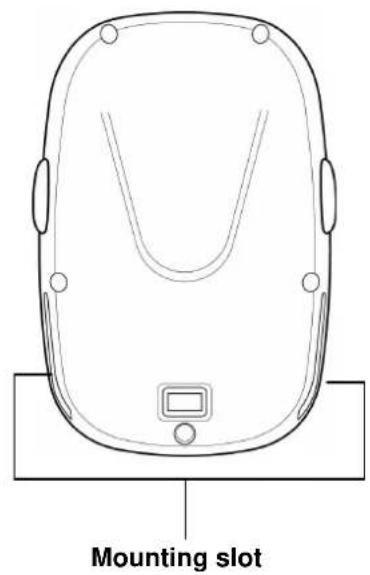
text_image
Mounting slotLeft View

text_image
Mini USB PortButtons.
Use the Buttons for basic functions.
| Icon | Main Menu Menu Mode | |
| Power/ Record OK | ||
| Turns the unit on and off. Press this button to start recording; press it again to pause recording. | ||
| Backlight/ Menu Exit | ||
| Long press to activates the backlight; short press to enter menu mode. | Exits the submenu. | |
| POI | Select/ Rig | |
| Press the key to set a POI. | Press the key to confirm and save. Press to move the cursor to the right. | |
| Save | Exit/ Left | |
| Press the key to save. Press | the key to exit. Press to move the cursor to the left. | |
| Page Down Down | ||
| Flip page down. Press to move the cursor to the down | ||
| Page Up Up | ||
| Flip page up. Press to move the cursor to the up. | ||
Accessories.
Check the box for the following supplied accessories. If any is missing, contact your supplier immediately.
| Memory-Map Bike250 | USB cable Quick Guide | |
 | 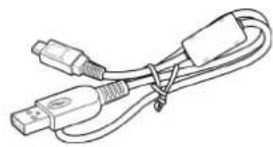 |  |
| Bike mount kit | ||
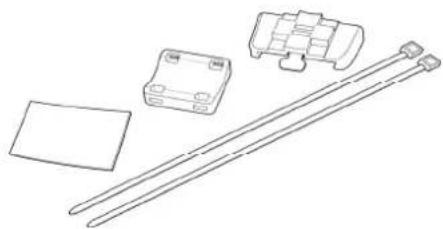 | ||
Charging the Battery.
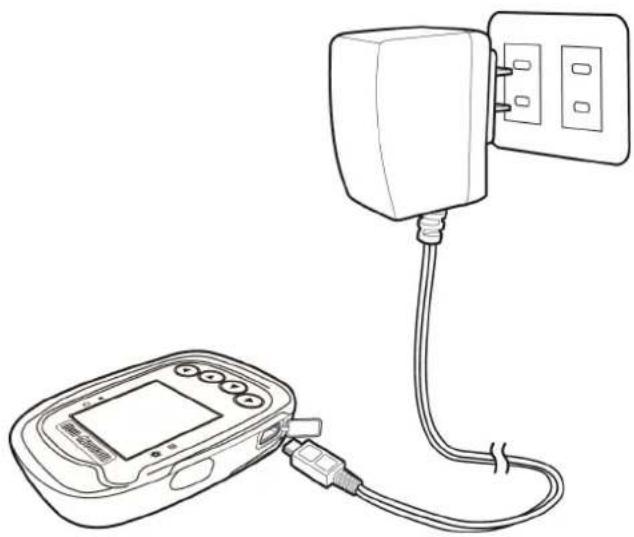
Using the AC Charger (Not included. Available as an optional extra)
- Plug the mini USB plug of the AC charger into the mini USB port on the top of the handset.
- Plug the AC charger into a wall outlet.
natural_image
Line drawing of a medical device connected to a wall-mounted electrical outlet (no text or symbols)When charging, the Power indicator shows ⚠. After charging is complete, the Power indicator shows

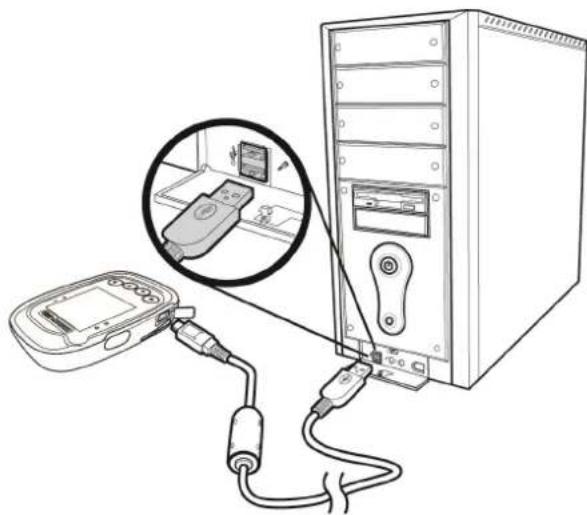
Connecting to a PC.
- Connect the mini USB plug (smaller) of the USB cable to the mini USB port on the top of the system.
- Connect the USB plug (larger) or the USB cable to a USB port on your computer.
natural_image
Line drawing of a desktop computer setup with connected cables and a device, no text or symbols presentInstalling Bike Mount.
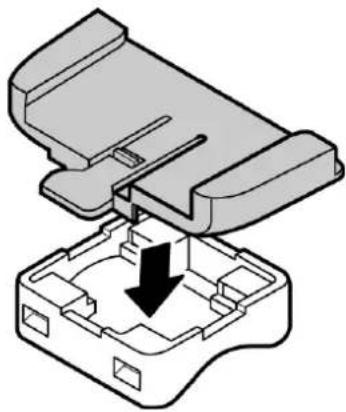
You can install the bike mount and the GPS on the left or right side of the handlebar or on the stem.
- Attach the bracket to the bracket holder.
natural_image
3D diagram of a mechanical component with a downward arrow indicating a process or assembly (no text or symbols present)- Thread the two cable ties through the slots of the bracket holder.

natural_image
Pure mechanical assembly diagram showing two parallel rods with directional arrows indicating motion (no text or symbols)- Place the rubber pad under the bike mount and attach the bike mount securely to the bike stem using the two cable ties.

text_image
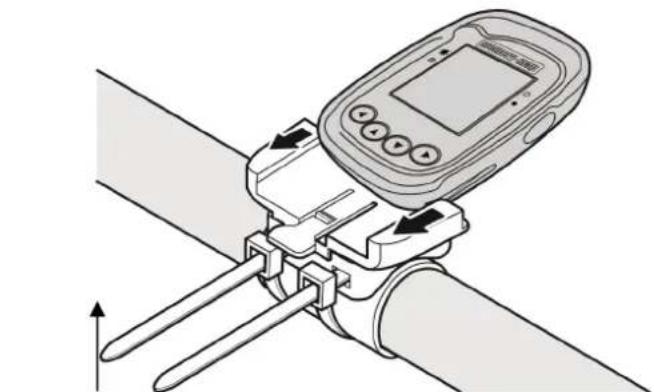
Diagram illustrating vehicle steering wheel and steering wheel assembly with labeled components A and B, showing gear shift mechanism.- Slide in the GPS on top of the bike mount until it snaps into place.
natural_image
Diagram of a wristwatch with digital display and lever mechanism (no text or symbols)Push here to release
※Cable ties are reusable.
Using the Memory-Map Bike 250.
Turning on/ off the system.
Press and hold the Power button until the opening screen appears on the LCD screen.
Press the Power button until the LCD screen turns off.
Menu.
This section explains how to open and navigate the menu. Press the Menu button to open or exit the menu.
Main Menu: the Main Menu consists of 5 options. Use the Up/Down button to move to the option and press SEL▶ button to enter the submenu.
Submenu: press the SEL▶ button to move up, or down within the menu to select an item or adjust an item and press SEL▶ button to accept the selected item.

text_image
Menu Sport Mode History Alert General Setting ◀=EXIT ▲▼ ▶=SELOn screen display.
The on-screen display changes to show different navigation information when you flip the pages by pressing the Up▲/Down▼ page button or by enabling the automatic flip function.

text_image
9.0 NOW 106.2 KMH DST km ◄= ►=POI ●=PAUSESpeed and Distance: displays current speed and distance.
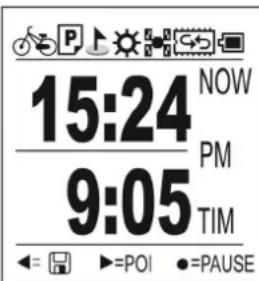
text_image
15:24 NOW 9:05 PM 9:05 TIM ◄= ►=POI ●=PAUSETime and Running Time: displays current time and running time.
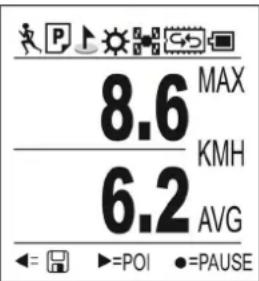 | Max and Average Speed: displays your max and average speed. |
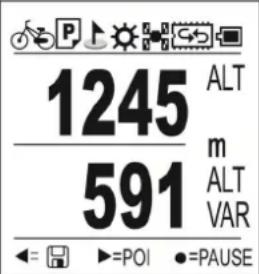 | Altitude: displays altitude variation. |
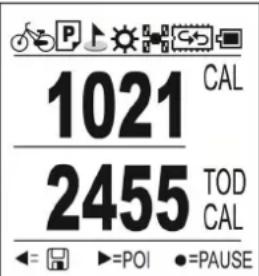 | Calorie information: displays lap calorie and today calorie consumed. |
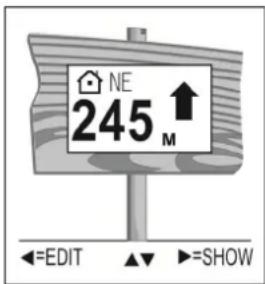
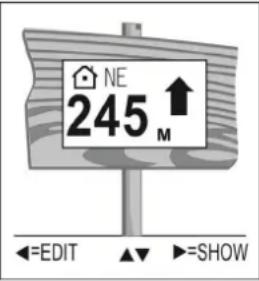 | Place Finder: display the direction and distance to the stored coordinates.The user may use this function as a tool for “geocaching”, when activated, it will display the direction and distance to the hidden “geocaches”. |
Finder Usage:
User A uses the Finder function to record the location of his or her hotel during a trip. After sightseeing, user B easily finds the location of and return to his or her hotel.
text_image
NE 245 M ←=EDIT ▲→=SHOWFinder List
Press the Left ◀ button in the Place Finder function to configure the Finder list, with 5 fields for coordinates.
-
Use the Up▲/Down▼ button to select the desired item.
-
Press the SEL▶ key to enter the coordinate page.
● Inside the coordinate page, use the
| Finder List1. Home2. Parking3. Entrance4. Meeting5. Exit←=EXIT ▲▼ ►=SEL | Down▼ button to edit the coordinate name. |
| 1. HomeN 00°00'00.00"E 000°00'00.00"←=EXIT▼=EDIT ►=SET | |
| 1. HomeN 00°00'00.00"E 000°00'00.00"Home▲▼◄► ☐=EXIT ●=OK | ● During the editing function, use the Up/Down/Left/Right button to edit the name; English letters only.● Press OK ● key to save the setting.● Select "Yes" and press the SEL►key to enter the 'set coordinates' page. |
| GPS FinderNOYESSet Point?←=EXIT ▲▼ ►=SEL | |
| 1. HomeN 24°46'21.10"E 121°00'08.59"←=EXIT▼=EDIT ►=SET |

text_image
NE 245 M ←=EDIT ▲→=SHOW
text_image
Current Point N 24° 46' 26.42" E 121° 00' 00.19" 1. Home N 24° 46' 20.96" E 121° 00' 08.70" ◀=EXIT ▲▼ ►=EDIT
text_image
Edit Point N 00°00'00.00" E 000°00'00.00" ▲▼◀▶ @=EXIT ●=OKEdit Coordinates
Press Right▶ Key to display the current coordinates and the specified coordinates from the Finder list.
- Use the Up▲/Down▼ button to switch between points in the Finder list.
- Press EDIT ▶ button to enter edit point page, you can edit the coordinates stored in the Finder List.
- Use the Left ◀/ Right ▶ button to change between list coordinates. Use the Up ▲/Down ▼ button to change between numbers.
- Press OK ● key to save the setting.
Status icons.

Status icons show sport mode, auto flip page, POI, backlight, satellite status, memory mode, and battery information.
Sport mode for calorie calculation. It also indicates that Log is started. When sport mode icon disappeared, the Log is stopped or paused.
Sport mode icons:
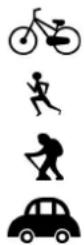
Biking mode
Running mode
Walking mode
Vehicle mode
Auto fliip icons:

Auto flip function is on
POI icon:

POI has been recorded; it will be on for five seconds and then disappear
Backlight icon:

Backlight switch is on
Satellite mode icons:

Satellites is fixed

The device is trying to fix the satellites
Memory status icons:

Memory mode: indicates the memory is in overwrite mode

Full stop mode: indicates the remaining memory capacity
Battery status icons:

Battery is in full status

Battery is in charging status

Battery is done charging

battery low message appears every 5 minutes. Press any key to disable the alert
Functions and Operations.
Read this section to learn how to set up and use the GPS.
Sport Mode.
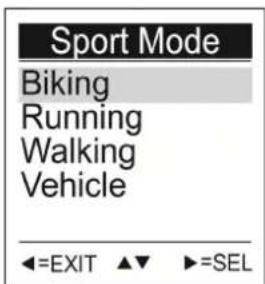
There are Biking, Running, Walking and Vehicle mode for choosing.

text_image
Menu Sport Mode History Alert General Setting ◀=EXIT ▲▼ ▶=SEL- Press the Menu button ☑ to enter Main Menu. Press SEL▶ button to enter Sport mode.
- Use the Up ▲/Down ▼ button to move to the desired sport mode.
- Press SEL▶ button to confirm and save.
text_image
Sport Mode Biking Running Walking Vehicle ◀=EXIT ▲▼ ▶=SEL※ In Vehicle mode, calorie calculation is disabled.
History.
History function allows you to review log status for odometer, distance, time, maximum speed, average speed, calorie burned, and altitude variation. Maximum 10 records can be saved in device memory.
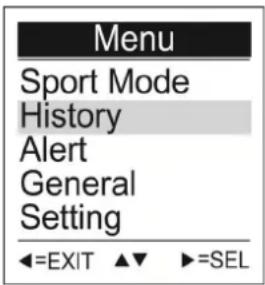 | 1. Press the Menu button ☑ to enter Main Menu.2. Use the Up▲/Down▼ button to move to History. Press SEL► button to enter History function.3. Press the Up▲/Down▼ button to switch between menu pages. |
 | OdometerDisplays Odometer 1, Odometer 2 and the total mileage.※ Resetting each of Odometer 1 or 2 does not affect the total mileage. |
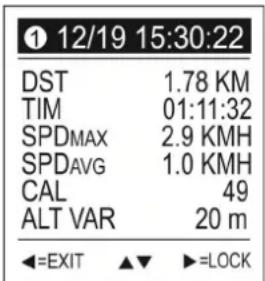 | History Record1 indicates which record the user is currently viewing.Maximum 10 records can be saved in device memory.Use the Up▲/Down▼ button to switch between data pages. |
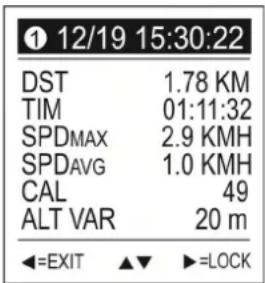 | To write-protect specific records:1. On the history recode page, press LOCK ► button.2. Select “Yes” and press SEL► to confirm.3. When the screen shows 🔒 means the recode is write-protected. |
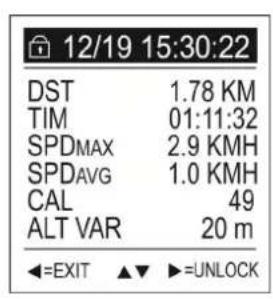
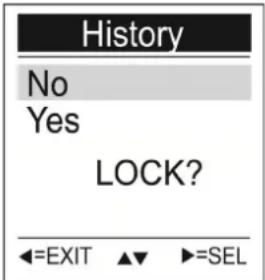 | To unlock write-protect:1. On the lock history recode page, press UNLOCK ► button.2. Select “Yes” and press SEL► to confirm. |
text_image
12/19 15:30:22 DST 1.78 KM TIM 01:11:32 SPDMAX 2.9 KMH SPDAVG 1.0 KMH CAL 49 ALT VAR 20 m ←=EXIT ▲▼ ►=UNLOCK
text_image
History NO YES UNLOCK?Alert.
The Alert function can be set for Time, Speed, Distance and Reset Alert. The asterisk on the right side indicates this option has been set.
The following indicators will appear on the message bar
● Time Alert appears only when the pre-determined time is due.
- Distance Alert appears only when the pre-determined distance is due.
● Speed Alert appears only when the pre-determined speed is due.
| MenuSport ModeHistoryAlertGeneralSetting◀=EXIT ▲▼ ▶=SEL | 1. Press the Menu button ☑ to enter Main Menu.2. Use the Up▲/Down▼ button to move to Alert. Press SEL▶ button to enter Alert function.3. Select Time, Speed, or Distance item. Press SEL▶ button to enter submenu. |
| AlertTime *SpeedDistanceReset Alert◀=EXIT ▲▼ ▶=SEL | |
| Time Alert00:00:00▲▼◀▶ ☐=EXIT ●=OK | To setup Time Alert:1. Press the Left◀/ Right ▶button to move to left/ right.2. Press the Up▲/Down▼ button to adjust the value. |
| Speed Alert000 KMH▲▼◀▶ ☐=EXIT ●=OK | To setup Speed Alert:1. Press the Left◀/ Right ▶button to move to left/ right.2. Press the Up▲/Down▼ button to adjust the value. |
| Distance Alert000.00 km▲▼◀▶ ☐=EXIT ●=OK | To setup Distance Alert:1. Press the Left◀/ Right ▶button to move to left/ right.2. Press the Up▲/Down▼ button to adjust the value. |
text_image
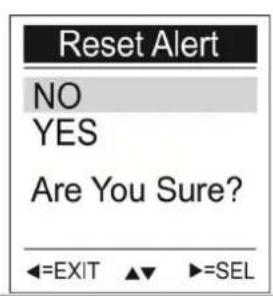
Reset Alert NO YES Are You Sure? ◀=EXIT ▲▼ ▶=SELTo Reset Alert:
- Press the Up ▲/Down ▼ button to move to NO/ YES.
- Press the SEL ▶ button to confirm.
General Setting.
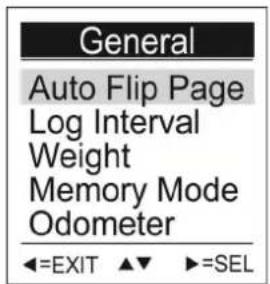
General submenu contains auto flip page, log interval, weight, memory mode, odometer, unit, and delete all log.

text_image
Menu Sport Mode History Alert General Setting ◀=EXIT ▲▼ ▶=SEL- Press the Menu button ☐ to enter Main Menu.
- Use the Up▲/Down▼ button to move to General. Press SEL▶ button to enter General setting.
text_image
General Auto Flip Page Log Interval Weight Memory Mode Odometer ◀=EXIT ▲▼ ▶=SEL
text_image
General Unit Delete All Log ◀=EXIT ▲▼ ▶=SEL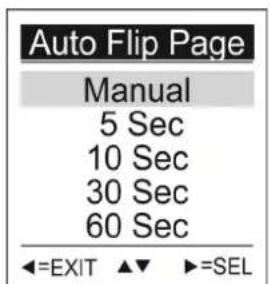
text_image
Auto Flip Page Manual 5 Sec 10 Sec 30 Sec 60 Sec ◀=EXIT ▲▼ ▶=SELAuto Flip Page
- Use the Up▲/Down▼ button to move to the desired time interval or Manual for manual page flip.
- Press the SEL ▶ button to confirm and save.
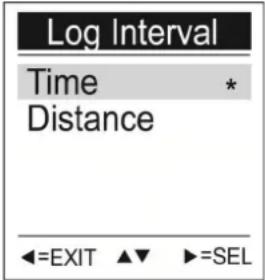 | Log IntervalSelect either time or distance for your log interval.Use the Up▲/Down▼ button to move to Time or Distance.Press SEL► button to enter the setting. |
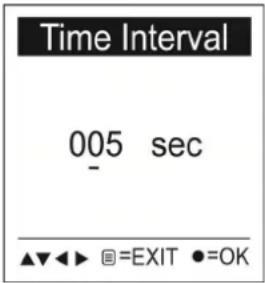 | To setup Time IntervalPress the Left◄/ Right ►button to move to left/right.Press the Up▲/Down▼ button to adjust the value.Press OK ● key to save the setting. |
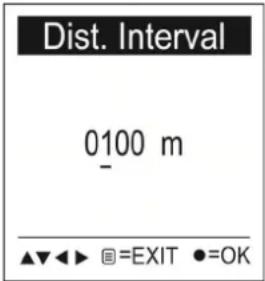 | To setup Distance IntervalPress the Left◄/ Right ►button to move to left/right.Press the Up▲/Down▼ button to adjust the value.Press OK ● key to save the setting. |
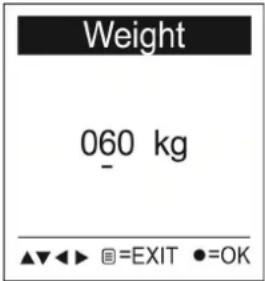 | WeightPress the Left◄/ Right ►button to move to left/right.Press the Up▲/Down▼ button to adjust the value.Press OK ● key to save the setting. |
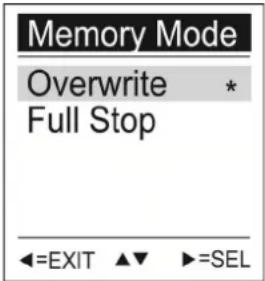 | Memory ModeOverwrite: When the memory capacity has been reached; the device will continue to record and overwrite the oldest information on the memory.Full Stop: When the memory capacity has been reached, the device will stop recording.1. Use the Up▲/Down▼ button to move to Overwrite or Full Stop.2. Press SEL► button to enter the setting. |
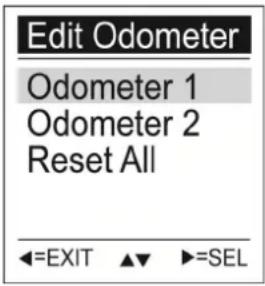 | OdometerThe device is able to accumulate mileage in Odometer 1 or Odometer 2, identical to how motor vehicles store mileage data.Odometer will be accumulated when one of the following conditions exists:(1) On main menu, press “save □◀button”.(2) When the device is turned off.(3) When battery power is low.1. Press the Up▲/Down▼ button to select the odometer to erase or edit.2. Press the SEL► button to enter the submenu.Edit Odometer1 or 2 |
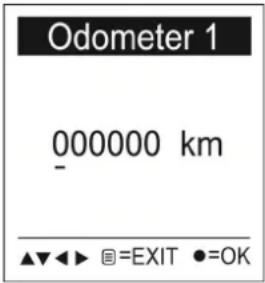 | Odometer can be edited manually.1. Press the Left◀/ Right ► button to move to left/ right.2. Press the Up▲/Down▼ button to adjust the value. |
 | Reset Odometer1. Select “YES” means Reset All to release all odometer.2. Press the SEL ► button to confirm. |
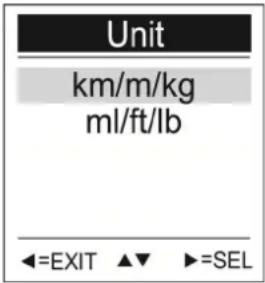 | UnitChoose the type of units to display on the screen.1. Use the he Up▲/Down▼ button to move to km/m/kg or mi/ft/lb.2. Press the SEL ► button to confirm and |
| save. | |
 | Delete All Log1. Select “YES” means delete all log.2. Press the SEL▶ button to confirm and delete. |
Setting.
Setting submenu contains GPS cold start, Backlight, LCD contrast, Auto power off, Time format, Time zone, Language and Reset device.
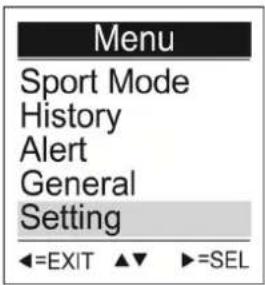 | 1. Press the Menu button ☑ to enter Main Menu.2. Use the Up▲/Down▼ button to move to General. Press SEL► button to enter General setting. |
 | |
 | |
 | GPS Cold StartIf it takes too long for Memory-Map Bike 250 to fix position, say when moving away 300 KM or the device is powered off more than 2 hours; perform cold start to reset data in chip to shorten fix time.1. Select “YES” means the system will restart.2. Press the SEL► button to confirm. |
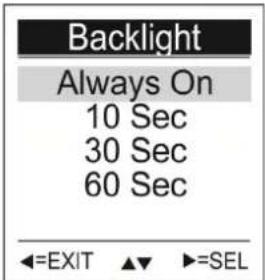 | Backlight1. Use the Up▲/Down▼ button to select the desired setting.2. Press the SEL► button to confirm and save. |
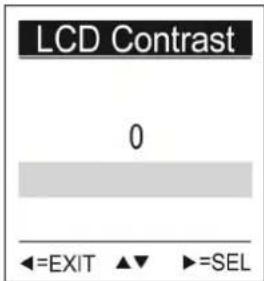 | LCD ContrastChoose the LCD Contrast on the screen.1. Use the Up▲/Down▼ button to move to the desired LCD Contrast value.2. Press the SEL► button to confirm and save. |
 | Auto Power Off1. Use the Up▲/Down▼ button to move to the desired time interval or Manual for Auto Power Off.2. Press the SEL► button to confirm and save. |
 | Time FormatChoose the time format to display.1. Use the Up▲/Down▼ button to move to 12:00:00 or 24:00:00.2. Press the SEL► button to confirm and save. |
 | Time ZoneChoose your time zone.1. Use the Up▲/Down▼ button to move to the desired time zone.2. Press the SEL► button to confirm and save. |
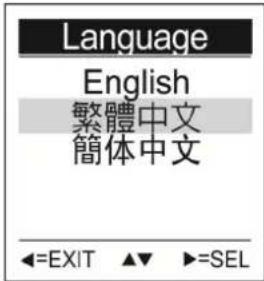 | LanguageChoose the language displayed on the screen.1. Use the Up▲/Down▼ button to move to the desired language.2. Press the SEL► button to confirm and save. |

text_image
Reset Device NO YES Reset to factory setting. ◀=EXIT ▲▼ ▶=SELReset Device
Reset device to the factory setting.
- Select "YES" means the device reset to factory setting.
- Press the SEL▶ button to confirm.
※ Once the device is reset to factory setting, all history will disappear, but log will be kept.
Initial setup
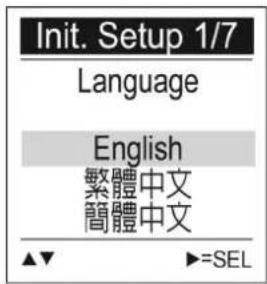
When you reset the device, the initial setup menu will appear on the screen. Follow the step-by-step procedures to setup the common settings in the device: Language, Unit, Time Format, Time Zone, Auto Flip Page, Weight and Sport mode.
text_image
Init. Setup 1/7 Language English 繁體中文 簡體中文 ▲▼ ▶=SELLanguage
- Use the Up ▲/Down ▼ button to move to the desired language.
- Press the SEL▶ button to confirm and save.
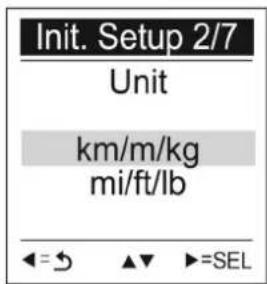
「Unit」setup appears.
text_image
Init. Setup 2/7 Unit km/m/kg mi/ft/lb ←=→ ▲▼ ►=SELUnit
- Use the Up▲/Down▼ button to move to the desired unit.
- Press the SEL▶ button to confirm and save.
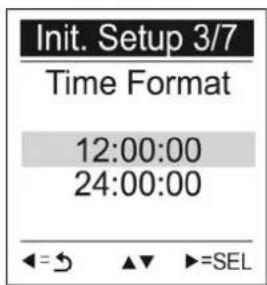
「Time Format」setup appears.
text_image
Init. Setup 3/7 Time Format 12:00:00 24:00:00 ←=→ ▲▼ ►=SELTime Format
- Use the Up▲/Down▼ button to move to the desired time format.
- Press the SEL▶ button to confirm and save.
「Time Zone」setup appears.

text_image
Init. Setup 4/7 Time Zone UTC +06:00 UTC +07:00 UTC +08:00 ←=→ ▲▼ ►=SEL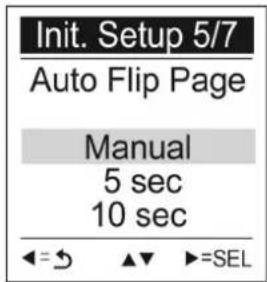
text_image
Init. Setup 5/7 Auto Flip Page Manual 5 sec 10 sec ←=→ ▲▼ ►=SEL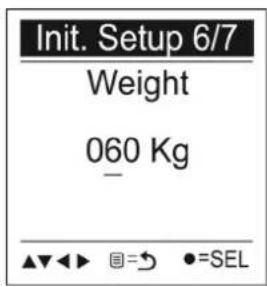
text_image
Init. Setup 6/7 Weight 060 Kg ▲▼◀▶ □=→ ●=SEL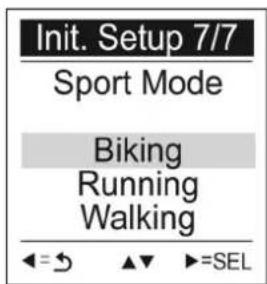
text_image
Init. Setup 7/7 Sport Mode Biking Running Walking ←=→ ▲▼ ►=SEL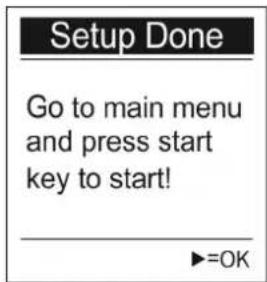
text_image
Setup Done Go to main menu and press start key to start! ►=OKTime Zone
- Use the Up▲/Down▼ button to move to the desired time zone.
- Press the SEL▶ button to confirm and save.
「Auto Flip Page」setup appears.
Auto Flip Page
- Use the Up▲/Down▼ button to move to the desired setting.
- Press the SEL▶ button to confirm and save.
「Weight」setup appears.
Weight
- Use the Left◄/ Right ►button to move the cursor to the digit you want to edit.
- Press the Up▲/Down▼ button to adjust the value.
- Press OK ● key to save the setting.
「Sport Mode」setup appears.
Sport Mode
- Use the Up▲/Down▼ button to move to the desired sport setting.
- Press the SEL▶ button to confirm and save.
Initial setup is now completed. Press OK ▶ button to start.
Sport mode also indicates that Log is started. When sport mode icon disappeared, the Log is paused or stopped.
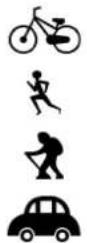
Biking mode: calculate calories burned when bike riding.
Running mode: calculate calories burned when running.
Walking mode: calculate calories burned when walking.
Vehicle mode: calorie calculation is disabled in Vehicle mode.
Troubleshooting.
Use this section to solve problems with your GPS. If you are unable to solve your problem, visit www.snooperneo.co.uk or call 0333 240 1000.
| Problem Solution | ||
| Power | Cannot start Insufficient battery charge, please connect to the adapter and restart system. | |
| Screen | No screen displayed After powering up, if the system does not respond, try the following:1. Connect adapter, restart system.2. Hard reset system by pressing both [power] + [right arrow] keys. | |
| Display speed is too slow | Check if the battery is low on power.Hard reset system by pressing both [power] + [right arrow] keys. | |
| Screen has no response | Hard reset system by pressing both [power] + [right arrow] keys. | |
| GPS | GPS cannot display my current location | Make sure your current location is not obstructed by buildings or other interferences. |
Normal Care and Maintenance.
To ensure the unit's normal operation and extended life span, please note the following while using and storing:
- Do not drop the unit
If violently impacted or shocked, serious damage may be caused.
- Avoid sudden temperature changes
Condensation may occur when entering a warm room on a cold day. To prevent condensation from damaging the unit, please place into an airtight plastic bag before sudden temperature changes.
- Keep away from strong magnetic fields
When using or storing, please keep away from strong electromagnetic/ radioactive or magnetic field equipment.
- Operating temperature
The products operating temperature is between -10^ 60^ ; please do not operate under extreme temperatures.
- Avoid exposure to sunlight
Please avoid long periods of sunlight or high temperature exposure.
- Cleaning the screen
Using a soft clean cloth to wipe the screen is recommended; do not use ordinary tissue to wipe the screen.
- Do not disassemble
Please do not disassemble the product, this may void the warranty and damage the unit.
- Storage
When the product is not being used for a long period, store the device in a cool and dry place. For long-term storage, keeping the unit in a dry box is recommended.
Please do not keep the product in the following environments:
■ Unventilated and humid locations.
In a car window that is exposed to excessive amounts of sunlight.
■ In an environment where humidity is over 90%.
Specifications.
| GPS chip | High Sensitivity GPS Chip |
| Memory | ROM: 512K + 4MBRAM: 64KRecord up to 200,000 waypoints. |
| Display | High-contrast electro luminescent back light display 4 level gray scale LCD.Size: 33.5 × 33.5 mm, 1.8"Resolution: 128 ×128 pixels |
| Dimension | 81.7x 54x 22 mm |
| Weight | <72g |
| Battery | Rechargeable 1050mAh Li-ion battery5hrs charging time. 18hrs working time (Backlight ON); 28hrs working time(Backlight Off) |
| Key | Six buttonsMenu/ Backlight, Left, Up, Down, Right, Power/ Record |
| IO interface | Mini-USB |
| Environment Temperature | Operating Temp: -10°C to 60°CStorage Temp: -20°C to 70°C |
| Language Support | Multi-Language (English/French/ German/Spain/Italian/Dutch/Portuguese/Traditional Chinese/ Simplified Chinese/Japanese/Czech/ Slovakian) |
| Waterproof | IPX-6 |
Service under Warranty.
Your device comes with a standard one year manufacturer's warranty.
If, for some reason, your unit requires service under warranty return your device, via special delivery (insured) and in suitable packaging to:
The Returns Department, Performance Products Limited, Cleaver House, Sarus Court, Manor Park, Cheshire WA7 1UL
Enclose the following information:
(a) Your name, address and a full description of the problem.
(b) A telephone number where you can be reached during business hours. (c) Your units' serial number.
Disposal of Old Electrical & Electronic Equipment.
(Applicable in the European Union).
This symbol on a product or its packaging indicates that this product shall not be treated as household waste. It should be handed over to an applicable collection point for the recycling of electrical equipment. By ensuring that this product is disposed of correctly you will help/prevent potential negative impact on the environment. The recycling of materials will help to conserve natural resources.
For further details about recycling please contact your local civic office or the shop where it was originally purchased.
Performance Products Ltd, Cleaver House, Sarus Court, Manor Park, Runcorn WA7 1UL. Tel 0333 240 1000 Fax 0333 240 1100 www.snooper.co.uk