WINGSTABI RX16DR pro MLINK - Remote control toy MULTIPLEX - Free user manual and instructions
Find the device manual for free WINGSTABI RX16DR pro MLINK MULTIPLEX in PDF.


User questions about WINGSTABI RX16DR pro MLINK MULTIPLEX
0 question about this device. Answer the ones you know or ask your own.
Ask a new question about this device
Download the instructions for your Remote control toy in PDF format for free! Find your manual WINGSTABI RX16DR pro MLINK - MULTIPLEX and take your electronic device back in hand. On this page are published all the documents necessary for the use of your device. WINGSTABI RX16DR pro MLINK by MULTIPLEX.
USER MANUAL WINGSTABI RX16DR pro MLINK MULTIPLEX
WINGSTABI-12-Channel
WINGSTABI-16-Channel
- Safety information 21
1.1. CE declaration of conformity 21
1.2.Guarantee and limitation of liability 22
1.3.Disposal 22 - Product and function description 23
3.Contents 24 - Specification 25
5.Terminal assignment 27 - Configuration 30
7.Installation 30
8.Start screen 31
9. Servo settings 32
10. Flight phases 33
11. Gain (sensitivity) 34
12. Important remarks before first flight 34
13. Overview screen 35
14. Telemetry 36
15. Optimisation 37
16. Binding 38
17. Accessories 59

1. Safety information
These operating instructions are part of the product. They contain important information and safety advice. It should therefore be kept at hand and passed on when selling the product to third parties. Please read carefully before initial use. For intended use only.
Use a sufficient power supply dimension. Observe installation instructions. Conduct range tests regularly. Please also note the extended manual that you get installed with the WINGSTABI software on your computer.
1.1. CE declaration of conformity
The device was evaluated according to directives harmonized with European legislation. You are therefore in possession of a product whose construction satisfies the protection objectives of the European Community for the safe operation of devices.
You can find the exhaustive CE declaration of conformity as a PDF documentonline at wwwultiplex-rc.de in the DOWNLOADS section under PRODUKT-INFOs.
MULTIPLEX
1.2. Guarantee and limitation of liability

MULTIPLEX Modellsport GmbH & Co.KG does not assume any liability for loss, damage or costs which arise through the improper use and operation of our products, or which are connected with such operation in any way. As far as is legally permissible, the obligation of MULTIPLEX Modellsport GmbH & Co.KG to provide compensation for damages, on whatever legal basis, is limited to the invoice amount of the quantity of MULTIPLEX Modellsport GmbH & Co.KG goods that were directly affected by whatever incident gave rise to the damage. This does not apply if MULTIPLEX Modellsport GmbH & Co.KG is obliged to accept unlimited liability in accordance with mandatory law for deliberate or gross negligence.
Our products are covered by the currently valid statutory guarantee regulations. If you wish to make a claim under guarantee, please contact the model shop where you purchased the product. The guarantee does not cover malfunctions caused by the following:
1.3. Disposal
Electrical and electronic equipment which has the crossed out wheelie bin symbol should not be disposed along with household waste, but rather via a suitable disposal system. In countries belonging to the EU (European Union), electrical or electronic equipment may not be disposed of along with general household waste (WEEE - Waste of Electrical and Electronic Equipment, Directive 2002/96/EC).
- Improper operation
- Maintenance that was performed incorrectly, late or not at all, or performed by a non-authorized body
- Incorrect connections
- Use of non-original MULTIPLEX accessories
- Modifications/repairs that were not carried out by MULTIPLEX or a MULTIPLEX Service Centre
- Accidental or deliberate damage
- Faults due to normal wear and tear
Operation outside the technical specifications or in connection with components from other manufacturers.
MULTIPLEX Modellsport GmbH & Co.KG
You can dispose of your old equipment at public municipal collection points (e.g. recycling facilities) free of charge. The equipment will be properly disposed of free of charge here. By returning your old equipment, you are making a valuable contribution towards environmental protection!
MULTIPLEX
2. Product and function description
Freely programmable triple-axis gyro system for all RC fixed-wing model aircraft. Having complete control over your model at all times is the dream of any pilot. The WINGSTABI makes this dream achievable, and ticks every possible box for beginners and pro-standard flyers alike in terms of handling, adjustment and functionality.
- The WINGSTABI makes any simple radio control set into a fully programmable RC system
Gain (sensitivity) on all three axes can be varied separately or jointly from the transmitter - Variation factor can be set separately for each axis
- 7, 9 channels, or 12, 16 channels Pro versions with integrated battery backer
The gyro function is freely assignable for each servo,
i.e. the unit caters for every model application - Delta mixer, V-tail mixer and flap support
Flaps can be set to amplify aileron response
Real-time sensor diagram in the PC software
Four flight phases:
- On/Off
- Stabilisation for flying in windy conditions
- Aerobatics and 3D flying
- Torque-rolling (rock'n'roll at the flying site)
The WINGSTABI is also compatible with all current RC systems:
Graupner, Futaba, M-LINK, Jeti, HiTEC, Weatronic and others.
It supports the following types of signals:
PPM, Futaba S.Bus*, MULTIPLEX SRXL, Graupner SUMD and SUMO, Jeti UDI, JR XBUX Mode B and S-BUS signal many other systems, such as HiTEC and FrSky.
The latest generation of ultra-precise triple-axis MEMS sensors ensures that the sensation of flying remains realistic even at extremely high rates of stabilisation, and the pilot never has the impression of flying a robot. The sleek case, made of anodised aircraft aluminium, can be installed in any orientation of the model. The WINGSTABI is straightforward and swift to program using a PC or an APP with any smartphone or tablet.
Functional description
Heading Hold (HH) is a mode of operation for one or several axes which is stabilised by means of the gyro, during which signals from the gyro sensors are evaluated in order to maintain the current flight attitude. The model maintains the last commanded flight attitude and must be actively commanded into the next one.
MULTIPLEX
3. Contents

WINGSTABI-7-Channel
WINGSTABI-7
- Instructions
- 320 mm patch-leads
- 2 x adhesive pad, 32 x 52 mm
- USB-PC-lead (UNI)
WINGSTABI-RX-7-DR M-LINK
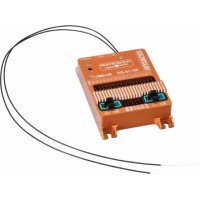
WINGSTABI-RX-7-DR M-LINK with integral receiver
7-channel
- Instructions
· 2× adhesive pad, 32× 52mm
- USB-PC-lead (UNI)
WINGSTABI-9-Channel
WINGSTABI-9
- Instructions
- 320 mm patch-leads
2× adhesive pad, 32× 52mm
- USB-PC-lead (UNI)
WINGSTABI-RX-9-DR M-LINK
WINGSTABI-RX-9-DR M-LINK with integral receiver
-9-channel
- Instructions
- 2 x adhesive pad, 32 x 52 mm
- USB-PC-lead (UNI)
WINGSTABI-12-Channel
WINGSTABI-12
- Instructions
- 320 mm patch-leads
- 4x Grommets with screw and Mounting Eyelets for attaching the model
- USB-PC-lead (UNI)
WINGSTABI-RX-12-DR pro M-LINK
WINGSTABI-RX-12-DR pro M-LINK with integral receiver
-12-channel
- Instructions
- 4x Grommets with screw and Mounting Eyelets for attaching the model
- USB-PC-lead (UNI)
WINGSTABI-16-Channel
WINGSTABI-16
- Instructions
- 320 mm patch-leads
- 4x Grommets with screw and Mounting Eyelets for attaching the model
- USB-PC-lead (UNI)
WINGSTABI-RX-16-DR pro M-LINK
WINGSTABI-RX-16-DR pro M-LINK with integral receiver
-16-channel
- Instructions
- 4x Grommets with screw and Mounting Eyelets for attaching the model
- USB-PC-lead (UNI)
MULTIPLEX
4. Specification
| WINGSTABI 7/9 | |
| Channels 7 or 9 | |
| Weight excl. integral receiver 27 g | |
| Weight incl. integral receiver 35 g | |
| Dimensions (L x W x H) | approx. 54 x 34 x 15 mm |
| Operating voltage 3.5 to 9.0 V | |
| Power supply 4 - 6 NiXX cells, 2S LiPo/Lilo | |
| Operating temperature range -20°C to +55°C | |
| WINGSTABI RX-7/9-DR M-LINK | |
| Receiving system M-Link 2.4 GHz | |
| Servo channel count 7/9 | |
| Aerial length 2 x 16 cm | |

WingStabi LED codes:
- flashing green/red: firmware update -green continuous: everything OK,
- flashing green: system startup
- flashing red: error:
- No configuration available
- No RC signal
- Stick moves when the WingStabi is switched on
- Model moves when switched on
- Critical error, hardware failure
MULTIPLEX
4. Specification
| WINGSTABI 12/16 | |
| Channels 12 or 16 | |
| Weight excl. integral receiver 92 g | |
| Weight incl. integral receiver 100 g | |
| Dimensions (L x W x H) | approx. 74 x 58 x 16 mm |
| Operating voltage | 6.0 to 9.0 V, Power supply only permitted by using the two battery terminals. |
| Power supply 5 NiXX cells, 2S LiPo/Lilo/LiFe | |
| Operating temperature range -20°C to +55°C | |
| WINGSTABI RX-12/16-DR M-LINK | |
| Receiving system M-Link 2.4 GHz | |
| Servo channel count 12/16 | |
| Aerial length 2 x 37 cm | |
WingStabi LED codes:
- flashing green/red: firmware update -green continuous: everything OK,
- flashing green: system startup
- flashing red: error:
- No configuration available
- No RC signal
- Stick moves when the WingStabi is switched on
- Model moves when switched on
- Critical error, hardware failure
MULTIPLEX
5. Terminal assignment
1 Aileron 1
2 Elevator
3 Rudder
4 Throttle output
5 Aileron 2
6 Flap 1
7 Flap 2
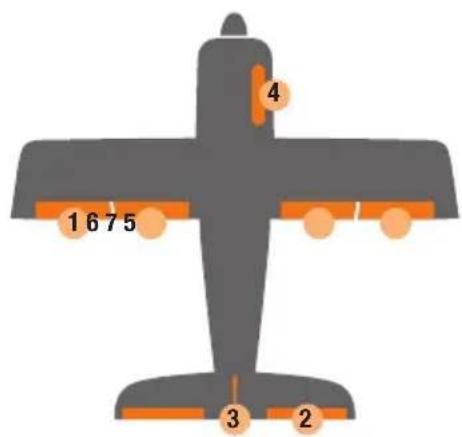
1 Aileron 1
2 V-tail 1
3 V-tail 2
4 Throttle output
5 Aileron 2
6 Flap 1
7 Flap 2
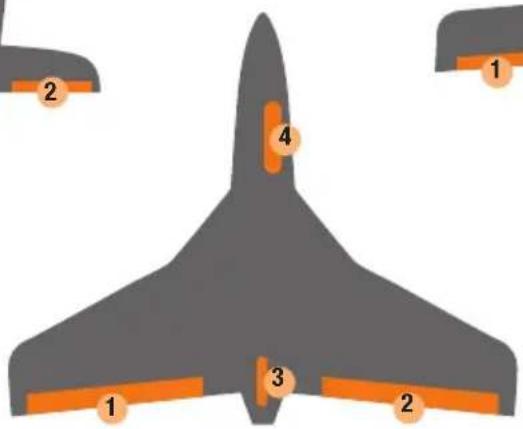
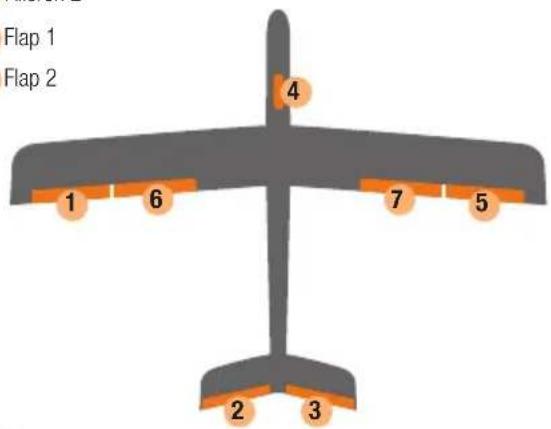
MULTIPLEX

5. Terminal assignment
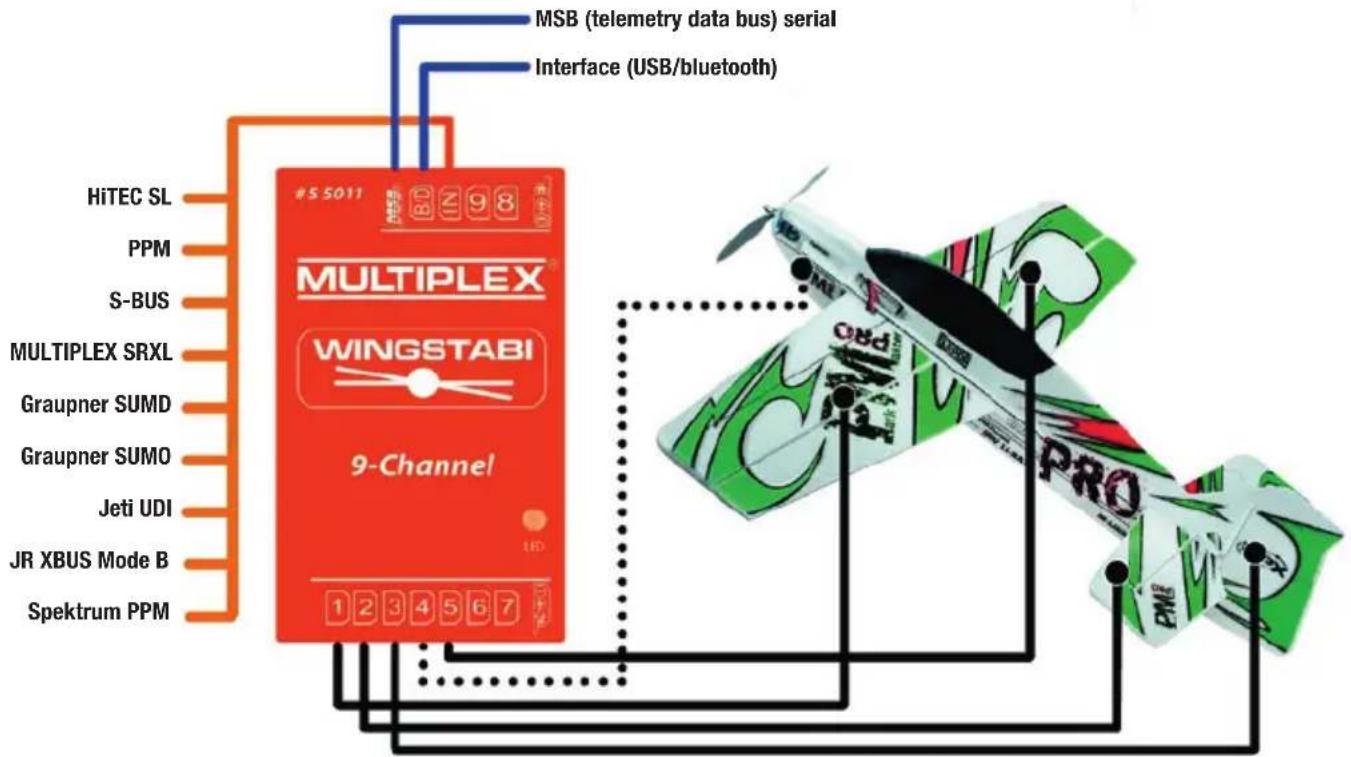
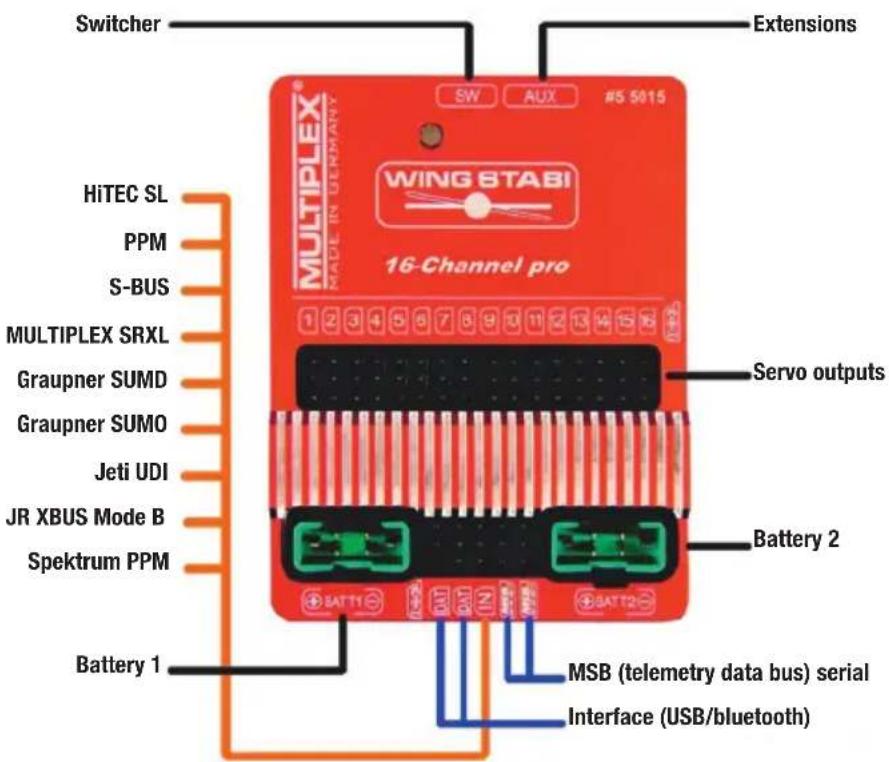

MULTIPLEX
6. Configuration

The following steps are required in order to configure the WINGSTABI:
- Download the MULTIPLEX Launcher from the download section of the MULTIPLEX homepage and install it on your PC.
- The driver for the USB-PC-lead RX+S+Telemetry (UNI) with article number # 85149 will be installed automatically as well.
- Launch the software after completing the installation.
- If necessary, manually select the COM-port USB lead. However, this is usually recognized automatically.
- Connect the WINGSTABI to the USB lead with the B/D connection.
- Connect WINGSTABI with power (4.8 or 6 to 9 volts).
- Use the assistant to configure the WINGSTABI for the first time and follow it step by step.
If instead of the USB PC interfaces the optional Bluetooth module is used, please select the COM port manually by paragraph 4.
Note the blinking codes of the BT-module:
1 Hz: the module is ready and waiting for a connection
10 Hz: The module is in command mode
Duration: The module is connected via BT
Connecting an external receiver:
At WINGSTABI without integrated M-Link receiver connect your own receiver via enclosed patch cable to the IN slot. Your receiver must be set to the sum signal output. Please refer to the instructions of the respective manufacturer. If you are using a WINGSTABI RX-7-DR, WINGSTABI RX-9-DR, WINGSTABI RX-12-DR pro or WINGSTABI RX-16-DR pro (with integrated receiver) the IN slot has no function. You could not connect a second receiver for the multiplex two-receiver mode.
7. Installation
MULTIPLEX
8.Start screen
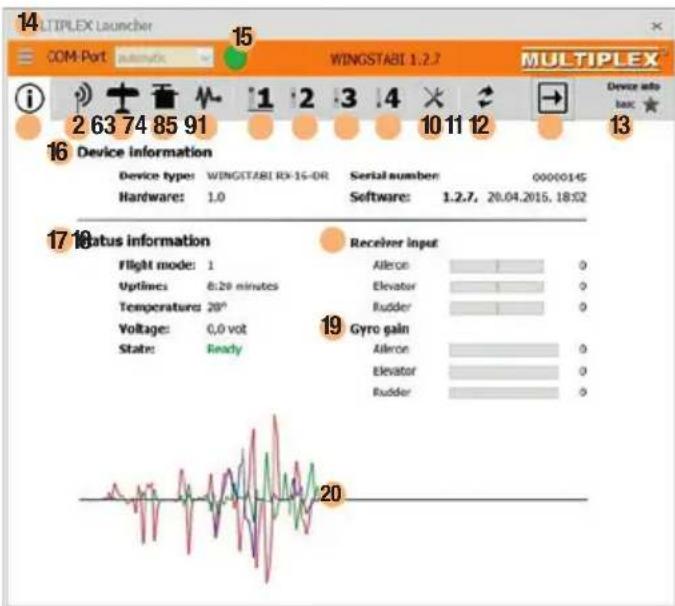
1 Start screen (device information)
4 Servo settings
2 Receiver and channel overview
5 Sensor
3 Model
6 Flightmode 1 (values can be applied to other flight modes by drag&drop)
7 Flightmode 2 (values can be applied to other flight modes by drag&drop)
8 Flightmode 3 (values can be applied to other flight modes by drag&drop)
9 Flightmode 4 (values can be applied to other flight modes by drag&drop)
10 Tools
11 Firmware update
12 Applying the settings to the WINGSTABI (Symbol flashes red if the settings must be re-applied because they have changed)
13 Selection between basic and advanced settings
14 Menu (restart WINGSTABI, reset WINGSTABI to default settings, import WINGSTABI settings, export WINGSTABI settings, launcher settings, launcher information, end launcher)
15 Selection of the automatic recognition or of a preset COM port (red = not connected, orange = searching, green = connected)
16 Device information
17 Status information
18 Receiver input
19 Gyro gain
20 Oscilloscope sensor
MULTIPLEX
9. Servo settings

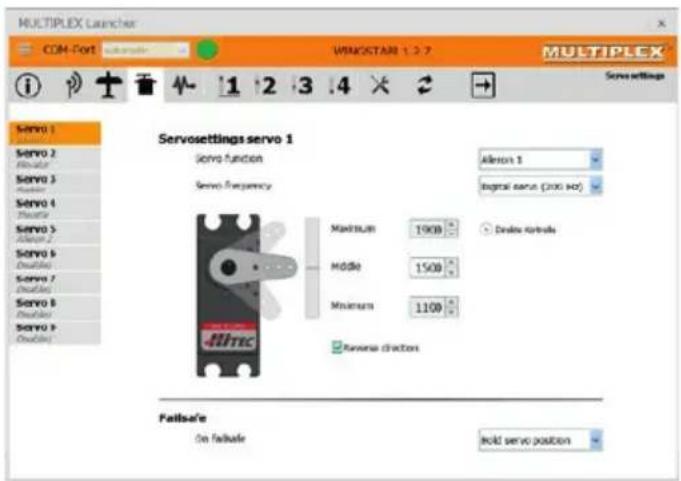
It must be ensured that all servo settings are made on the WINGSTABI and not the transmitter. The trim on the transmitter must remain neutral or zero. Mixers must be deactivated at all times at the transmitter.
Dual rate and expo may be used on the transmitter as normal. Servo center or neutral rudder position must be set mechanically on the model.
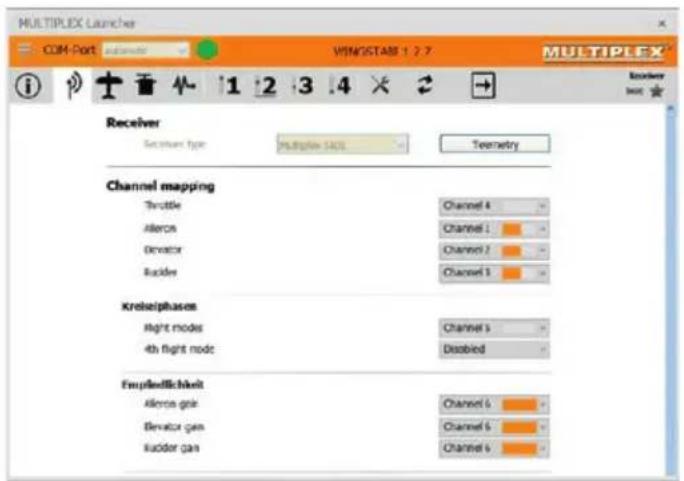
Advanced servo mapping
For models which use more servos than those shown on page 21 of these instructions in the standard wiring diagrams, map them in the servo window. Each servo output is freely assignable in its function. It is however recommended that servos which have already been assigned be left alone.
The servo output for the throttle must not be reassigned. This would pose a danger of undesired engine start-up during programming.
MULTIPLEX
10. Flight phases
The WINGSTABI has 4 individually usable flight phases.
Flight phase off (Flight phase 1)
The WINGSTABI is switched off and forwards control commands directly from the transmitter to the servos.
Damping mode (flight phase 2)
For normal flying. External influences such as crosswinds and landing are minimized. Here we are referring to a type of "wind canceling" functionality.
Full Heading Hold (Flight phase 3)
For elaborate acrobatics. This mode can only be used to a limited extent during landing and take-off, as it demands a certain level of experience in flying the WINGSTABI. Stalls are often detected too late by the pilot here. The advantage is that the model remains absolutely consistent even with heavy winds. What makes the WINGSTABI special here is that control over the rudder is specially optimised, thus ensuring a realistic airborne appearance.
Torque-rolls! (flight phase 4)
Extreme heading hold mode. This mode is unsuitable for normal flying. The model would soar upwards.
How do you activate the fourth flight phase, which cannot be activated in the standard configuration?
In the software, switch to the receiver settings window "assign fourth flight phase". An additional channel with 2-stage switch must be assigned.
This switch is overriding and switches off your WINGSTABI when pressed in flight phase 1. The previously assigned 3-stage switch for the flight phases now switches between phases 2, 3 and 4.
MULTIPLEX
11. Gain (sensitivity)

Basic settings for WINGSTABI stabilisation
The default settings selected by MULTIPLEX for the stabilising behavior of the gyro generally tend to err on the safe side, meaning the sensitivity is set rather low. The sensitivity can be significantly increased on most models.

Dual rate and expo may be used on the transmitter as normal. Servo center or neutral rudder position must be set mechanically on the model.
12. Important remarks before first flight
Procedure for the first flight with the newly installed WINGSTABI in the model:
- Control the WINGSTABI effective directions of the individual axes
- Operate the directional controls
- Select flight phase 1, gyro off, and also do not switch to other flight phases during the first flight
- Launch the model and quickly climb to a safe altitude
- Use the trim at the transmitter until the model is in neutral flight
- Land the model
After the first landing, the affected trim settings must be transferred to and thus programmed in the WINGSTABI by quickly toggling the flight phase switch
Adjusting the sensitivity of the gyro via transmitter
First of all, assign a channel in the receiver window. Then, in the respective flight phase adjust the "sensitivity via transmitter" function from deactivated to the desired value range. Select + - 30 when using the device for the first time.
Agility of the model: Here you can change the rotational speed of the model. For first time flyers, we recommend using the default settings.

Move the flight phase switch to and for 4 to 5 times quickly. This will enable the trim settings on the transmitter gained through flying to be programmed in the WINGSTABI as the neutral position. You can control the programming of the trim settings by switching to flight phase 3 or 4. It must merely be ensured that the trimmed rudders do not "stray" out of the neutral position.
- Perform a final test on the programmed trim settings
- Switch to flight phase 3, heading hold. The rudders must not stray or move by themselves into end position.
The WINGSTABI is now ready for the first flight with assisted stabilisation. It is advisable to always take off in flight phases 1 or 2. Particularly during the early flights, flight phases 3 and certainly 4 should only be selected at a safe altitude.
MULTIPLEX
13. Overview screen
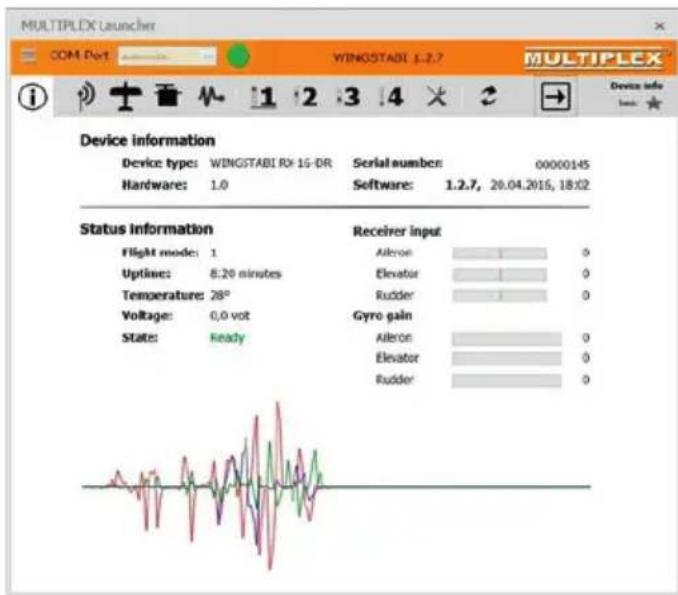
The overview screen (see also page 23) displays the individual menu items with all the default settings. You can adjust the default settings to suit your personal flying style.
Beginners are advised to leave the default settings unchanged at least for the first few flights.
Import function
This enables you to import settings files to your WINGSTABI which have previously been exported using the MULTIPLEX Launcher. When you click the "Import" button, a window opens automatically. Browse for the file path of your WINGSTABI files and click "OK". The MULTIPLEX Launcher now imports the selected file into your WINGSTABI.
MULTIPLEX
14. Telemetry

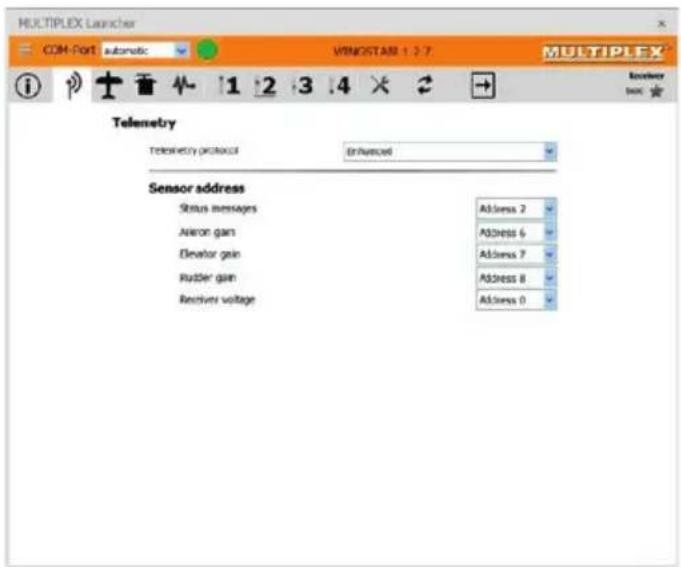
As well as the standard "Deactivated" setting, the Telemetry menu gives you two options for the data transfer via MSB: M-LINK standard and PROFI-TX as well as Telemetry-Display. The M-LINK standard is the correct setting for all cockpit and royal transmitters. Profi-TX and telemetry-display provide more advanced display options. The sensor addresses required for this can be freely selected. Avoid double assignments at all costs. Address 1 is assigned by default to transmission quality (LQI) and should therefore not be assigned differently.

Multiplex Sensor Bus (MSB)
The Multiplex Sensor Bus (MSB) system is a development from Multiplex. It allows to connect the sensors supporting the MSB in cascades or parallel.
MULTIPLEX
15. Optimisation
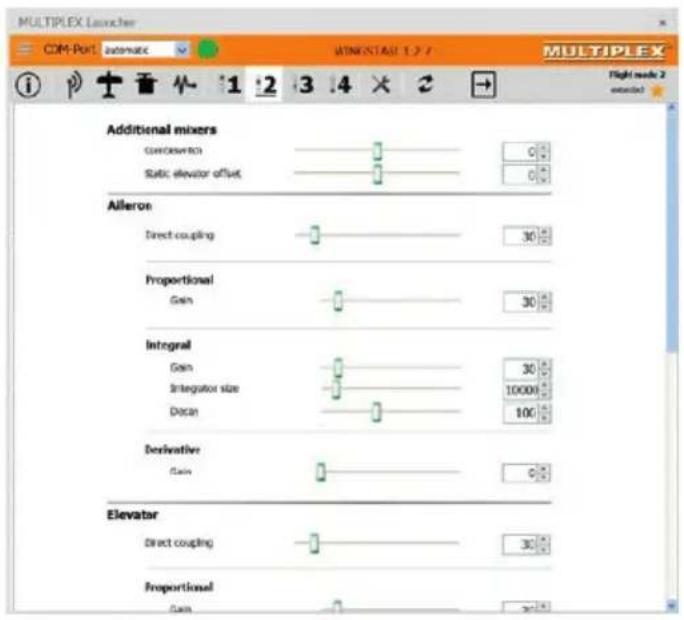
Once you have successfully acquired the basic settings of the assistant or the mode template through flight, you can - if required - then perform optimizations in "Advanced settings". To help you with this, the WINGSTABI clearly displays all default settings in all flight phases. Start by right clicking the page header for each phase in order to select the standard settings for purely damping mode, for an optimised damping mode, for fully stabilised mode or even aerobatics mode. By looking at the differences in the settings, you can gain a greater insight into the various modes and carefully work in some changes of your own. The modifications should be as minimal in severity and as few in number as possible, so that they can be recognized during test flights. Step by step optimisation leads to success more quickly than too many changes at the same time that are too extreme. Re-save the settings file with a new name after every change, in order to always have the possibility of returning to the previous settings.
MULTIPLEX
16. Binding

If you are using a WINGSTABI with an integral receiver, this must be programmed to the transmitter. This procedure is referred to as "Binding".
The pulse output at the servo output sockets remains switched off during the binding procedure. This means the servos do not move and are soft; in modern electric motors, the motor remains switched OFF due to the absence of an impulse. Even so, please secure the model and maintain an adequate safety distance!
The binding procedure is necessary in the following situations:
- Initial setup of the receiver
After resetting the receiver - After the setting relating to "Fast Response" was changed on the transmitter. You can find information concerning this from the operating instructions of your M-LINK transmitter or M-LINK synthesizer RF module
- After the setting for the transmitted frequency range has been changed. You can find more information on this in the operating instructions of your transmitter or M-LINK synthesizer RF module ("France mode")
- If the receiver is to be operated with a different M-LINK transmitter
Binding procedure
Step 1: In order to bind, the transmitter and receiver must be brought into binding mode:
- Bring the transmitter and receiver aerials into close proximity with one another.
- Switch ON the transmitter in binding mode (refer to the operating instructions of your M-LINK transmitter or M-LINK synthesizer RF module).
- Switch on the M-Link Telemetry Receiver in binding mode: Press and hold the SET button on the top of the receiver using a sharp object.
- Plug in the receiver/battery: When the binding procedure is running, the LED on the receiver flashes rapidly.
- Let go of the SET button now.
When the receiver is used for the first time or after being reset, the binding procedure begins automatically, even if the SET button is not pressed.
MULTIPLEX
Step 2: After the transmitter and the receiver are connected, both switch to normal operation and the LED on the receiver flashes slowly.
The Binding procedure usually only takes a few seconds.
Troubleshooting: Binding
Error:
The LED on the receiver flashes rapidly during the binding procedure and for several seconds after.
Reason:
Unable to find an M-LINK signal of sufficient strength.
Solution:
- Reduce the distance between your transmitter and the receiver aerials.
- Ensure that your transmitter is connected in binding mode.
- Repeat the binding procedure.
LED codes
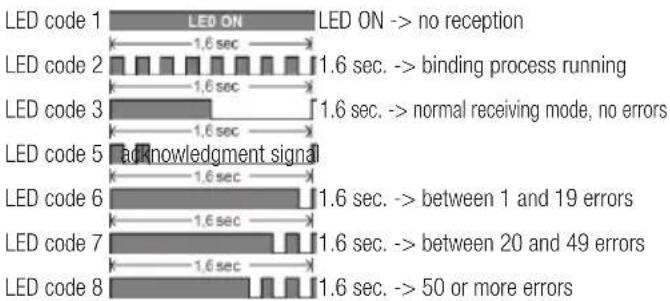
Functions of the SET button
If the SET button on top of the receiver is pressed when being turned on, the binding procedure begins. In receiving mode, two additional functions can be triggered using the SET button. Which function is selected depends on how long the button is pressed:
- Save error counter or FAIL-SAFE position:
Press the SET button for between 0.5 and 1 second.
- RESET the receiver to default settings:
Press the SET button for longer than 10 seconds.
While the SET button is being pressed, the LED emits timestamps indicating the length of time the button has been pressed.
| Press and hold the SET button for | < 2 seconds | Between 2 and 10 seconds | > 10 seconds |
| LED: OFF ON | OFF | ||
| Task: | Save error counter/FAIL-SAFE | RESET to default settings |
Please note: After saving, the LED emits the acknowledgment signal.
MULTIPLEX
Sommaire