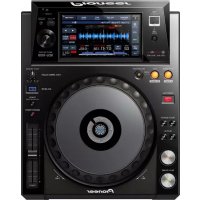
XDJ1000 - DJ Equipment PIONEER - Free user manual and instructions
Find the device manual for free XDJ1000 PIONEER in PDF.



| Product Type | DJ Multimedia Player |
| Brand | Pioneer |
| Model | XDJ-1000 |
| Dimensions (W × H × D) | 305 mm × 110 mm × 382.5 mm |
| Weight | 3.3 kg |
| Power Supply | AC 110 V – 240 V, 50/60 Hz |
| Power Consumption | 21 W (standby: 0.4 W) |
| Display | Active matrix TFT LCD display |
| Analog Audio Output | RCA jack, 2.0 Vrms, S/N ratio 115 dB, distortion 0.003%, frequency response 4 Hz – 20 kHz |
| USB Ports | 1 × USB Type A (for storage device); 1 × USB Type B (for computer) |
| Network | LAN (PRO DJ LINK) 100 Base-TX |
| Control Output | Mini jack (CONTROL) |
| Supported Audio Formats | MP3, AAC, WAV, AIFF, FLAC (via rekordbox) |
| Compatible File Systems | FAT16, FAT32, HFS+ |
| Main Functions | USB playback, PRO DJ LINK, rekordbox integration, cue points, loops, quantization, touch screen |
| Operating Temperature | +5 °C to +35 °C |
| Operating Humidity | 5% to 85% (without condensation) |
| Safety | Ventilation (clearance of ≥5 cm around), do not expose to water, disconnect if not in use for extended periods |
| Maintenance and Cleaning | Clean the display with a soft, dry cloth; do not use solvents, acids, or alcohols |
| Spare Parts and Repairability | Parts available through Pioneer after-sales service; repair by qualified personnel only |
| General Information | Warranty: limited; manufacturer: PIONEER CORPORATION, Japan |
Frequently Asked Questions - XDJ1000 PIONEER
User questions about XDJ1000 PIONEER
0 question about this device. Answer the ones you know or ask your own.
Ask a new question about this device
Download the instructions for your DJ Equipment in PDF format for free! Find your manual XDJ1000 - PIONEER and take your electronic device back in hand. On this page are published all the documents necessary for the use of your device. XDJ1000 by PIONEER.
USER MANUAL XDJ1000 PIONEER
The Pioneer DJ support site shown above offers FAQs, information on software and various other types of information and services to allow you to use your product in greater comfort.
For various types of information and services regardingrekordboxTM, see the Pioneer website above.
Operating Instructions (Quick Start Guide)
Thank you for buying this Pioneer product. Please read through these operating instructions so you will know how to operate your model properly. After you have finished reading the instructions, put them away in a safe place for future reference.
In some countries or regions, the shape of the power plug and power outlet may sometimes differ from that shown in the explanatory drawings.
However the method of connecting and operating the unit is the same.

If you want to dispose this product, do not mix it with general household waste. There is a separate collection system for used electronic products in accordance with legislation that requires proper treatment, recovery and recycling.
Private households in the member states of the EU, in Switzerland and Norway may return their used electronic products free of charge to designated collection facilities or to a retailer (if you purchase a similar new one).
For countries not mentioned above, please contact your local authorities for the correct method of disposal.
By doing so you will ensure that your disposed product undergoes the necessary treatment, recovery and recycling and thus prevent potential negative effects on the environment and human health.
K058b_A1_En
CAUTION
TO PREVENT THE RISK OF ELECTRIC SHOCK, DO NOT REMOVE COVER (OR BACK). NO USER-SERVICEABLE PARTS INSIDE. REFER SERVICING TO QUALIFIED SERVICE PERSONNEL.
D3-4-2-1-1_B1_En
WARNING
This equipment is not waterproof. To prevent a fire or shock hazard, do not place any container filled with liquid near this equipment (such as a vase or flower pot) or expose it to dripping, splashing, rain or moisture.
D3-4-2-1-3_A1_En
WARNING
To prevent a fire hazard, do not place any naked flame sources (such as a lighted candle) on the equipment.
D3-4-2-1-7a_A1_En
VENTILATION CAUTION
When installing this unit, make sure to leave space around the unit for ventilation to improve heat radiation (at least 5cm at rear, and 5cm at each side).
WARNING
Slots and openings in the cabinet are provided for ventilation to ensure reliable operation of the product, and to protect it from overheating. To prevent fire hazard, the openings should never be blocked or covered with items (such as newspapers, table-cloths, curtains) or by operating the equipment on thick carpet or a bed.
D3-4-2-1-7b* A1 En
This product satisfies electromagnetic noise regulations when it is connected to other equipment through shielded cables and connectors.
Use only the furnished accessory connecting cables.
D44-8-2_A1_En
CAUTION
The switch on this unit will not completely shut off all power from the AC outlet. Since the power cord serves as the main disconnect device for the unit, you will need to unplug it from the AC outlet to shut down all power. Therefore, make sure the unit has been installed so that the power cord can be easily unplugged from the AC outlet in case of an accident. To avoid fire hazard, the power cord should also be unplugged from the AC outlet when left unused for a long period of time (for example, when on vacation).
D3-4-2-2-2a*A1_EN
When using this product, confirm the safety information shown on the bottom of the unit.
D3-4-2-2-4_B1_En
This product is for general household purposes. Any failure due to use for other than household purposes (such as long-term use for business purposes in a restaurant or use in a car or ship) and which requires repair will be charged for even during the warranty period.
K041_A1_En
Operating Environment
Operating environment temperature and humidity: +5^ to +35^ (+41^ to +95^) less than 85% RH (cooling vents not blocked)
Do not install this unit in a poorly ventilated area, or in locations exposed to high humidity or direct sunlight (or strong artificial light).
D3-4-2-1-7c*A2_En
POWER-CORD CAUTION
Handle the power cord by the plug. Do not pull out the plug by tugging the cord and never touch the power cord when your hands are wet as this could cause a short circuit or electric shock. Do not place the unit, a piece of furniture, etc., on the power cord, or pinch the cord. Never make a knot in the cord or tie it with other cords. The power cords should be routed such that they are not likely to be stepped on. A damaged power cord can cause a fire or give you an electrical shock. Check the power cord once in a while. When you find it damaged, ask your nearest PIONEER authorized service center or your dealer for a replacement.
S002*A1En
Before you start
How to read this manual
Thank you for buying this Pioneer product.
Be sure to read both this leaflet and the operating instructions! Both documents include important information that you must understand before using this product.
After you have finished reading the instructions, put them away in a safe place for future reference.
- For instructions on acquiring the operating instructions, see Acquiring this unit's Operating Instructions(p.3).
Acquiring this unit's Operating Instructions
Various instructions are sometimes provided as files in PDF format. Adobe Reader must be installed in order to view PDF format files.
1 Launch a web browser on the computer and access the Pioneer DJ support site below.
2 On the Pioneer DJ support site, click [Manuals] under [XDJ-1000].
3 Click on the required language on the download page.
Downloading of the operating instructions begins.
What's in the box
Power cord
Audio cable
LAN cable
Warranty card
- Operating Instructions (Quick Start Guide) (This document)
Preparing the software
Music management software rekordbox and driver software are not included.
To use rekordbox and the driver software, access the rekordbox site and Pioneer DJ Support site, and download the software.
- The user is responsible for preparing the computer, network devices and other elements of the Internet usage environment required for a connection to the Internet.
Aboutrekordbox
rekordbox is a software program allowing users who have purchased a Pioneer DJ player supportingrekordbox to manage music files to be used for DJ performances.
Music file can be managed in various ways (analysis, setting, creation, history saving) by using the music management software rekordbox. An excellent DJ performance can be achieved by using the music files managed by rekordbox together with this unit.
Acquiringrekordbox (Mac/Windows)
1 Open your web browser on your computer, and access the rekordbox site.
http://rekordbox.com/
2 Click [Download] in the rekordbox site and download rekordbox from the download page.
- For inquiries on rekordbox (Mac/Windows), please see the support site indicated above.
Aboutrekordbox (iOS/Android)
Tracks managed by rekordbox (iOS/Android) can be played by connecting the mobile device on which rekordbox (iOS/Android) is installed via USB. For supported devices, see the Pioneer DJ website (http://pioneerdj.com/support/). For instructions on rekordbox (iOS/Android), see the rekordbox (iOS/Android) user's manual.
- For details on installing rekordbox (iOS/Android), see the Pioneer website (http://rekordbox.com/).
About the driver software (Windows)
This driver software is an exclusive ASIO driver for outputting audio signals from the computer.
- There is no need to install the driver software when using Mac OS X.
Obtaining the driver software
1 Launch a web browser on the computer and access the Pioneer DJ support site below.
2 Click [Software Download] under [XDJ-1000] on the Pioneer DJ support site.
3 Click the icon of the driver software to download the driver software from the download page.
- For information on installing the driver software, see the Pioneer DJ support site.
Usable media
This unit is compatible with USB mass storage class USB devices such as mobile flash memory and digital audio player.
Supported file systems
FAT16, FAT32 and HFS (NTFS is not supported.)
Information such as cue points, loops points and hot cues can be stored via USB.
- Depending on the USB device you are using, you may not achieve the expected performance.
- There is no guarantee that all USB devices will operate on this unit.
For more information, please refer to the operational instruction of this product published on the Pioneer DJ support site.
Connections
- Be sure to turn off the power and unplug the power cord from the power outlet whenever making or changing connections.
Refer to the operating instructions for the component to be connected. -
Connect the power cord after all the connections between devices have been completed.
-
When using a LAN cable for connection, be sure to use either the LAN cable included with this product or an STP (shielded twisted pair) cable.
Do not disconnect the LAN cable when music files and/or information are being shared using PRO DJ LINK.
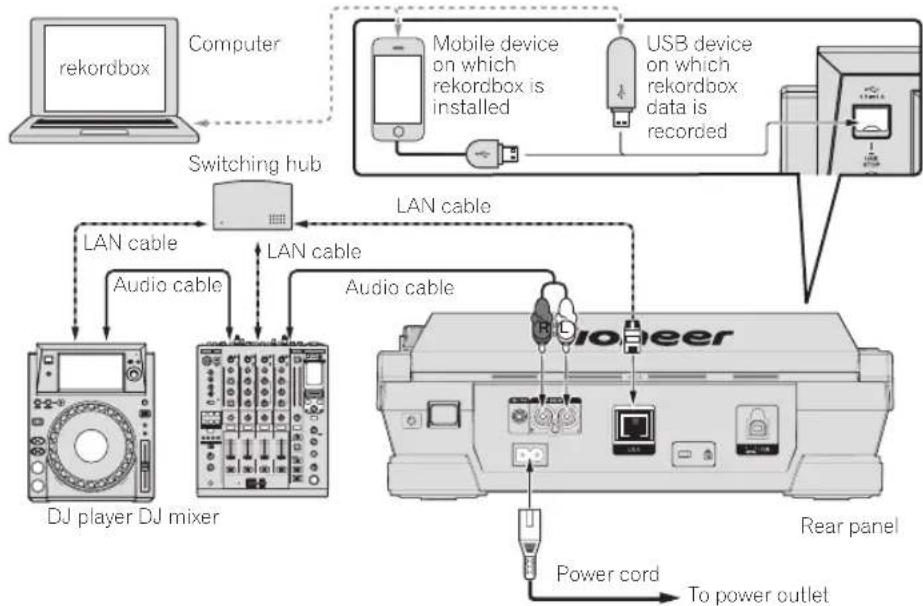
Basic style
Playback on this unit is performed mainly using tracks prepared with rekordbox installed on a computer.
For instructions on operating rekordbox, see rekordbox (Mac/Windows)'s operating instructions. The rekordbox (Mac/Windows) operating instru cions can be viewed from the rekordbox (Mac/Windows) [Help] menu.
Also, for DJ players and DJ mixers, up to four PRO DJ LINK-compatible players can be connected with LAN cables (CATse) using PRO DJ LINK connections.
- A switching hub (commercially available) may be necessary, depending on the combination of models used. Use a switching hub of 100 Mbps or greater. Some switching hubs may not operate properly.
- A switching hub (commercially available) is necessary to connect to a mixer equipped with only one LAN port. For mixers with enough LAN ports for all the DJ players and computers in the system, connect directly to the LAN ports on the mixer's rear panel, without using a hub.
PRO DJ LINK (USB Export)
-rekordbox music files and data can be exchanged with this unit using a memory device (flash memory, hard disk, etc.), eliminating the need to take a computer into the DJ booth. Such information as playlists, cues, loops and hot cues set in advance withrekordbox can be used for playback.
Cautions
In order to maximize the use of music file management functions of rekordbox, please match the player number with the channel of audio cable entered in the mixer.
If the player number is different, change the [PLAYER No.] setting on the [UTILITY] screen.
For information on changing the settings of [UTILITY] screen, please refer to the operating instructions for this product published on the Pioneer DJ support site.
- When a storage device is connected to this unit, [PLAYER No.] is displayed in gray and cannot be changed. Disconnect the storage device or LAN cable to turn the link off, then change the setting.
Operation
Turning the power on
1 Make all the connections, then plug the power cord into a power outlet.
Connections(p.4)
2 Press the [] switch.
This unit's indicators light and the power turns on.
Connecting USB devices
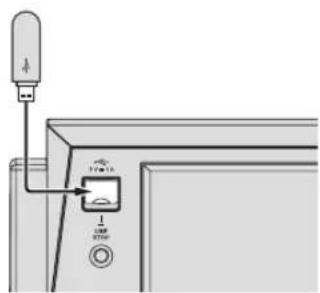
1 Press the [O] switch to turn this unit's power on.
2 Connect the USB device to the USB device insertion slot.
Disconnecting USB devices
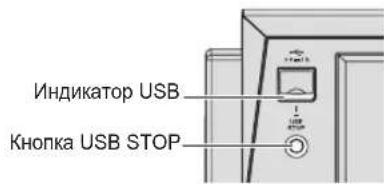
1 Press the [USB STOP] button until the USB indicator turns off.
Do not remove the USB device or turn Off the power of the unit while the USB indicator is blinking. The management data in the unit may get deleted. Also, the USB device may become unreadable.
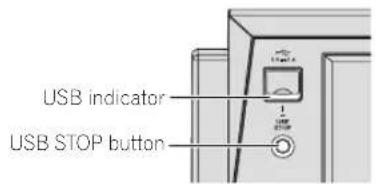
2 Disconnect the USB device.
Playing media connected to or inserted in this unit
1 Load the medium in this unit.
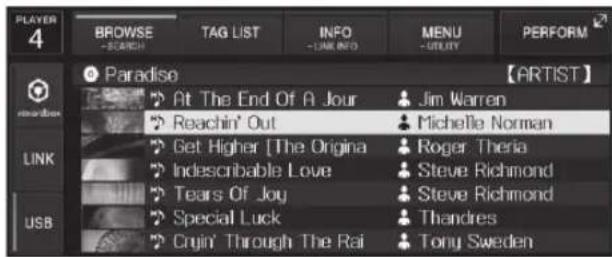
2 Touch [USB].
The tracks or folders are displayed on a list.
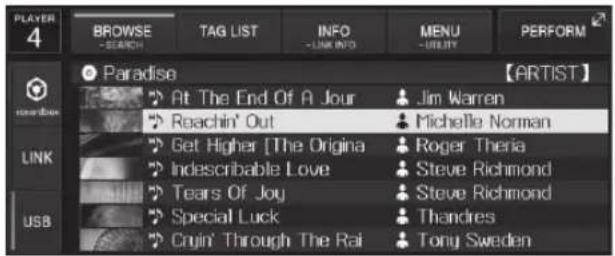
The contents of the media to be displayed on the main unit display can be switched.
- [USB]: Displays the contents of the connected USB device and mobile devices.
- When you touch [LINK], other music files in the DJ player will be displayed.
-
When you touch [rekordbox], music files in [rekordbox] will be displayed.
-
If the rekordbox library information was written on the USB device, the rekordbox library is displayed.
For information on library browsing of rekordbox, please refer to the operating instructions for this product published on the Pioneer DJ support site.
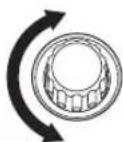
3 Turn the rotary selector.
Move the cursor and select the item.
- Press the rotary selector to move to a lower level in the folder. Press the [BACK] button to return to the level above.
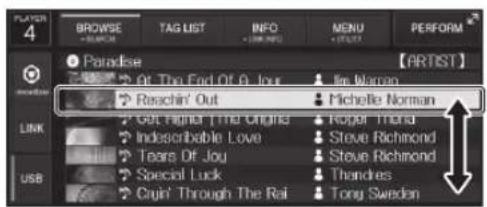
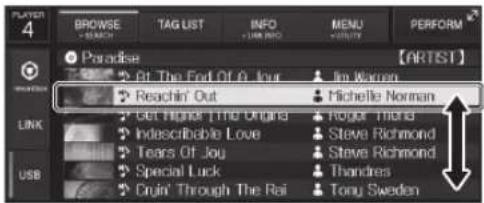
4 Select the track and press the rotary selector.
When the track is loaded, the screen switches to the normal playback screen.
The medium on which the track is loaded flashes.
For information on normal playback screen, please refer to the operating instructions for this product published on the Pioneer DJ support site.
For information on other operations, please refer to the operating instructions for this product published on the Pioneer DJ support site.
Additional information
Troubleshooting
Incorrect operation is often mistaken for trouble or malfunction. If you think that there is something wrong with this component, check the points below and the [FAQ] for the [XDJ-1000] on the Pioneer DJ support site.
Sometimes the problem may lie in another component. Inspect the other components and electrical appliances being used. If the problem cannot be rectified, ask your nearest Pioneer authorized service center or your dealer to carry out repair work.
This unit may not operate properly due to static electricity or other external influences. In this case, proper operation may be restored by turning the power off, waiting 1 minute, then turning the power back on.
Problem Check Remedy
| File cannot be played. Is the file copyright protected (by DRM)? Copyright protected files cannot be played. | ||
| No sound is produced, or sound is distorted or noisy. | Are you operating the connected DJ mixer properly? | Check the operation of the DJ mixer. |
| Is this unit placed near a TV? Turn the TV's power off or install this unit and TV away from each other. | ||
| File information is not properly displayed. | Is [LANGUAGE] properly set? | Set [LANGUAGE] to the proper language. |
| Is the information recorded in a language not supported by this unit? | When creating files using DJ software, etc., record the information in a language supported by this unit. | |
| Track search operation takes too long. | Is the auto cue function activated? | Track searching may take some time when there are long silent sections between tracks. |
| — If track searching is not possible within 10 seconds, a cue point is set at the beginning of the track. | ||
| Back cue function does not work. Is a cue point set? Set a cue point. | ||
| Loop play function does not work. Are loop points set? Set loop points. | ||
| Settings are not stored in the memory. Has the power been turned off directly after changing the setting? | After changing settings, wait at least 10 seconds before turning the power off. | |
| USB device is not recognized. | Is the USB device properly connected? | Connect the device securely (all the way in). |
| Is the USB device connected via a USB hub? | USB hubs cannot be used. | |
| Is the USB device supported by this unit? | This player only supports USB mass storage class devices. | |
| This player supports portable flash memory and digital audio playback devices. | ||
| Is the file format supported by this unit? | Check the file format of the connected USB device. For the file formats supported by this unit, see Usable media on page 3. | |
| — Turn the power off then back on. | ||
| Cue points or loops are not stored on a USB device. | Are you trying to store more points than the limit? | Ten cue points or loop points per track can be stored on a USB device. If you try to store more points than the limit, [CUE/LOOPPOINT FULL] is displayed and the points cannot be stored. In this case, delete some points before storing new ones. |
| Is the USB device write-protected? | If the USB device is write-protected, [USB FULL] is displayed and the points cannot be stored. Disable the write-protection then store the cue or loop points again. | |
| Is there sufficient free space on the USB device? | If there is not enough free space on the USB device, [USB FULL] is displayed and the points cannot be stored. Free up some space then store the cue or loop points again. | |
| Cue or loop points of tracks recorded on USB devices are not displayed. | Was the USB device properly stopped before it was disconnected the last time? | Points may not be displayed if the SD memory card/USB device is removed without performing the proper stopping procedure or if this unit's power is turned off. Make sure the USB indicator has stopped blinking before removing the USB device or turning off the power of the unit. |
| Playback does not start immediately after pressing the button to reloop or play in reverse. | Is the quantize function on? | When the quantize function is on, playback starts from the nearest beat position at the time the button is pressed. If you want the operation to be performed the instant the button is pressed, turn the quantize function off. |
| The playing address display is not displayed in the remaining time mode. | — When playing files recorded in VBR, it may happen that the set cannot detect the length of the track immediately and that some time is required for the playing address display to appear. | |
| Time is required to read USB devices (flash memory drives and hard discs). | Is there a large number of folders or files recorded on the USB device? | When there are many folders or files, some time may be required for loading. |
| Are files other than music files stored on the USB device? | When files other than music files are stored in folders, time is required to read them as well. Do not store files or folders other than music files on the USB device. | |
| Library browsing is not possible. | Is a medium on which library information is recorded loaded? | The library browse mode is only set when media on which library information is recorded are loaded. When a medium on which no library information is recorded is loaded, the folder browse mode is set. |
| [HISTORY] is not displayed. | Is a USB device loaded? | The [HISTORY] function can only be used for DJ players on which a USB device is loaded. |
| Nothing is displayed. | Is the auto standby function activated? | This unit is shipped with the auto standby function set to on. If you do not want to use the auto standby function, set [AUTO STANDBY] on the [UTILITY] menu to [OFF]. |
| Problem Check Remedy | ||
| The scale is not displayed. | Is the track over 15 minutes long? | The scale is not displayed for tracks whose playing time is over 15 minutes. |
| PRO DJ LINK does not work well. | Are the player numbers properly set? | Set [PLAYER No.] to [AUTO] or to a number different from the number currently set. |
| Is the LAN cable properly connected? | Connect the LAN cable properly to the [LINK] terminal. | |
| Is the switching hub's power turned on? Turn the switching hub's power on. | ||
| Is an unnecessary device connected to the switch- ing hub? | Disconnect the unnecessary device from the switching hub. | |
| There is no response when you touch the screen, or the response is bad. A position different from the actually touched location responds. | Calibration adjustment of touch display is deviating. | Adjust the touch display by using the [TOUCH DISPLAY CALIBRATION] settings in the [UTILITY] screen. |
Error messages
When this unit cannot operate normally, an error code appears on the display. Check the table below and take the measures indicated. If an error code not shown on the table below is displayed, or if the same error code is displayed again after taking the indicated action, contact your store of purchase or a nearby Pioneer service station.
| Error code | Error type | Description of error Cause and action | |
| E-8302 | CANNOT PLAY Track(****) | Track data (files) in the USB cannot be read correctly. | The track data (file) may be corrupt.→Check whether the track (file) can be played on another player, etc., capable of playing the same formats as this unit. |
| E-8304 | UNSUPPORTED FILE FORMAT | Music files that cannot be played normally are loaded. | Format is wrong.→Replace with music files in the proper format. |
| E-8305 | |||
Cleaning the touch display
Do not use organic solvents, acids or alkalis for cleaning the surface of the touch display. Wipe with a dry soft cloth or a cloth immersed in neutral detergent and squeezed properly.
About trademarks and registered trademarks
Pioneer and rekordbox are trademarks or registered trademarks of the PIONEER CORPORATION.
Windows is a registered trademark of Microsoft Corporation in the United States and other countries.
- Adobe and Reader are either registered trademarks or trademarks of Adobe Systems Incorporated in the United States and/or other countries.
ASIO is a trademark of Steinberg Media Technologies GmbH.
- "Made for iPod" and "Made for iPhone" mean that an electronic accessory has been designed to connect specifically to iPod or iPhone, respectively, and has been certified by the developer to meet Apple performance standards. Apple is not responsible for the operation of this device or its compliance with safety and regulatory standards. Please note that the use of this accessory with iPod or iPhone may affect wireless performance.
Made for

iPod iPhone
- iPod, iPhone, Mac, Mac OS are trademarks of Apple Inc., registered in the U.S. and other countries.
Android is a trademark of Google Inc. - iOS is a trademark on which Cisco holds the trademark right in the US and certain other countries.
This software is based in part on the work of the Independent JPEG Group.
The software in this unit uses in part software of the Independent JPEG Group.
About using MP3 files
This product has been licensed for nonprofit use. This product has not been licensed for commercial purposes (for profit-making use), such as broadcasting (terrestrial, satellite, cable or other types of broadcasting), streaming on the Internet, Intranet (a corporate network) or other types of networks or distributing of electronic information (online digital music distribution service). You need to acquire the corresponding licenses for such uses. For details, see http://www.mp3licensing.com.
- The names of companies and products mentioned herein are the trademarks of their respective owners.
Cautions on copyrights
rekordbox restricts playback and duplication of copyright-protected music contents.
- When coded data, etc., for protecting the copyright is embedded in the music contents, it may not be possible to operate the program normally.
- When rekordbox detects that coded data, etc., for protecting the copyright is embedded in the music contents, processing (playback, reading, etc.) may stop.
Recordings you have made are for your personal enjoyment and according to copyright laws may not be used without the consent of the copyright holder.
- Music recorded from CDs, etc., is protected by the copyright laws of individual countries and by international treaties. It is the full responsibility of the person who has recorded the music to ensure that it is used legally.
- When handling music downloaded from the Internet, etc., it is the full responsibility of the person who has downloaded the music to ensure that it is used in accordance with the contract concluded with the download site.
Specifications
Power requirements.. AC 110 V to 240 V, 50 Hz/60 Hz
Power consumption. 21 W
Power consumption (standby) 0.4 W
Main unit weight 3.3 kg
Max. external dimensions ....305 mm (W) × 110 mm (H) × 382.5 mm (D)
Tolerable operating temperature +5^ to +35^
Tolerable operating humidity 5% to 85% (no condensation)
Analog audio output (AUDIO OUT L/R)
Output terminals. RCA terminal
Output Level. 2.0 Vrms (1 kHz)
Frequency response. 4 Hz to 20 kHz
S/N ratio. 115 dB
Total harmonic distortion. 0.003%
USB downstream section (USB)
Port .........Type A
Power supply. 5 V/1 A or less
USB upstream section (USB)
Port .........Type B
LAN (PRO DJ LINK)
Rating 100Base-TX
Control output (CONTROL)
Port ....... Mini-jack
Main display
Display type.......Active matrix TFT liquid crystal display (LCD)
Supported languages 18 languages
The specifications and design of this product are subject to change without notice.
© 2014 PIONEER CORPORATION. All rights reserved.
Acquisitionrekordbox (Mac/Windows)
WAARSCHUWING NETSNOER
Aansluitbus .........Type A
Voeding. 5 V/1 A of minder
USB "upstream"-gedeelte (USB)
Aansluitbus. Type B
LAN-network (PRO DJ LINK)
Type 100Base-TX
Bedieningsuitgang (CONTROL)
DaHoe o6bOpDObAHne He RaBnEeTc
BoOnHe npOnuAembIM.Bo n36ExaHne noXapa nn
nopaxeHn 3NeKTPnueckm TKOM He NOMEuaTe
pAOM C o6bOpDobAHnEM EMKOCTC KxNkOCTMn (HaPnMep, Ba3bI, ZBeToUHbIe TropKn) H He
DonyckaTe nonaDaHn Ha Hero KaJIb, 6pbI3r, DoXdJ
nn BlaRn.
D3-4-2-1-3_A1_Ru
PPEyPPEKDEHNE
Bo n36bexaHne noxapa He npnbnxkaTe K o6opyOBAHnIO nCToUHNKn OTKpbItoro ORHn (HaPmep, 3axKeHHBie CBeu).
D3-4-2-1-7a_A1_Ru
OB3ATEbHARBEHTnIaIy
Pn yctaHOBe ycTpoCTBa oecneBte DoCTaTOHoe npoctpaHCTBO DnB BeHTnIaun BO n36exKaHne NObIweHnTeMnepaTpyb BHyTpN ycTPOcTBA (He MeHee 5cm C3aDn n no 5 cm CneBa n cnpaBa).
PPEyPPEKDEHNE
Bkopnyce yctpoicTBa IMeOTCaJeIN O TBepCTna DnB BeHTNJAun,ObecneuHbAOUne HAdExHyIO pa6OT u3dEtnaN 3auuuaOUsne erO OT nepepeBa. Bo n36ekaHne noxapa 3TN OTbepCTn H B KOem cIyue He CneDyET 3akpbIBaTb IIN 3acNOHrTb dpymIM npedMetAMn (ra3etAmn, cKaTeptTAMn I WtopamN) INn yCTaHaBnBA Tb obOpydoBaHne Ha TOJCTOM KOBpe INn NOCTeIN.
D3-4-2-1-7b*A1Ru
YcnoBna 3Kcnnyatau
N3eJIne 3KcIpyaTnpyETc npn CNeDyUOux TeMnepaType n BnaXHOCTn: +5°Cdo +35°C;BnaXHOCTb Mehee 85% (3acIOHnTe OxlanDaIOuNE BeHTNIJTopbl) He yctAHnBaTe N3eJIne B nNOxo npOBeTPnbAemOM NOMEeHNn INn B MecTe BNaXHOCTbIO,OTKpbITOM IpnPnMOrO CONHe CBeta (INN CNLbHOrO NCKycCTBeHHORO CBeta
D3-4-2-1-7c*A1Ru
BHIMAHNE
BbIKHouateIb DAnHoro yCTpoiCTBa He
NONHOCTbIO OTKnIOuaeT erO tNEKTPoCetN. YTo6bl
NONHOCTbIO OTKnIOuHTb NITaHne yCTPOIcTBa,
BbITaUNTe BnKy Ka6eJr NITAHnY n3
3NeKTProp03ETKn. IOnTOmy yCTpoiCTBO cNeDyET
ycTaHaBnIBaTb TAK, YTO6bl BNky Ka6eJr NITAHnR
MOxHO 6blNO JERKO BbITaUHTb n3 PO3eTKn B
ype3BbIayhBbIX o6CToRteNbCTbax. Bo n36ExKaHHe
NoXapa CNeDyET n3BLeKaTb BNky Ka6eJr NITAHnR
n3 PO3ETKn, ecIn yCTpoiCTBO He 6yDeT
NCN0lb3OBaTbC8 B TeueHne DOnIro BpemeHN
(HanpImep, ecIn Bbl Ye3Xaete B OTnyck).
D3-4-2-2-2a*A1Ru
Pn nCnoJb3ObaHH DaHHOro N3dEInr, npOHTne HOpmauio no Mepam 6e3OnaChocTn Ha HxKHe CTopoHe aannapata.
D3-4-2-2-4_B1_Ru
JaHHoe H3dJIeHne npEdHa3HaueHo dIy HcNoJIb3OBaHnB 06xXo3JcTBHeHbIX cIeJx.B Cnyuae BO3HKnHOBeHHN IIO6O HeHCnPabHocTH, CB3aHHoC HCNOJIb3OBaHHeM B DpyHX, HeKeHN Xo3JIcTBHeHHbIX cIeJx (TaKHX, KaK dIHTeJIbHOe HcNoJIb3OBaHHe B KOMMepuecknX cIeJX B pectopane HnB aBTOMo6Ne, HnHa Kopa6Ne) n Tpe6yIoUe peMOHTa, TaKoi PEMONT OcyUeCTBnRETCra 3a IIaTy, daKe B TeueHne rapaHTnHoro Cpoka.
K041_A1_Ru
MEPbI IPEIOCTOPOXHOCTN IPNOBPAUHEHNC CETEBIM UHYPOM
Depknte cTeBOH 3a Bnky. He BbITACKBaIte Bnky, B3Bbncb 3a Hhyp, n HNKoTa n KacaTecb cTeBOrO shypa, ecnn Baun pykn Blaxhble, tak kak 3TO MOKET pNBecTN K KOPOTKOMy 3ambKaHIO nn NopaxHeHH 3JIeKTPueckm TOKOM. He CTaBtpe annapat, npedMeTb Me6en n T.D. Ha cTeBOH 7Hyp, He 3axkmaite ero. He 3ab3bBaHTe y3NoB Ha 7Hype n He C8ra3BaIte ero C dpyTmN uHypamn. CeTeBbIe 7Hypbl DOJXHbI JExKaTb TaK, YTO6bl Ha HIX HeNb3a 6blno HactynTB. IOBpeKDeHHbI cTeBOH 7Hyp MoKet cTaTb npuHNOB BO3NHKOBeHHa NOkapa nn Nopa3nB Bac 3JIeKTPueckm TOKOM. Bpemr OT BpemEn npOBepaIte cTeBOH 7Hyp. B cnUae O6hapxHeHH IOBpeKDeHHa 6paTnTEcb 3a ZmeHOB B 6bnKaiuN oPhiuaNbHbI cepBnCHbI ceHTP fnpMbI PIONEER nn K BaWemy DnJepy.
S002*A1Ru
HaHHe 3dEJIne COOTBeTCTBye TcAHTAPTaM NO 3NeKtpOMaHTHomy WMy, KOrDa OH NpKnUoyen K dpyrOmy 6OpyDObAHnIO Ype3 3KpaHIpOBaHHbIe Ka6eJI IN KOHNKeTOpbl.
IcnoB3yTeToJIbKO noCTabIaRMeBle Ka6eNn dna NOdkHouHeHNA akCeCCyapOB.
D44-8-2 A1Ru
1 HaxmMaTe KhoNky [USB STOP], Noka He OTKJIOHTcNnHdkaTOp USB.
He nBlekaIte yctpoiCTBa USB n He bIKIOaIte nITAHne 6OpdyoBAHn, noka mraet HINDKaTOp USB. DaHHbIe MeHEXMeHTa B 6OpyDOBaHm MOrTy 6blbYdJIeHbI. KpOe toro, yctpoiCTBa USB moKet CTaTb He DOCTyINbIM.
2 OToeHNHTyeyCTPOINCTBO USB.
Bocnpon3BeDeHne NOdkJIuOyeHHoro NIN BCTaBLeHHoro B DaHHbI annapat HOCHTeJ
1 3arpy3nte HocnteB DaHHbI annapaT.
2 Haxmnte [USB].
Дорожки ninn nankn OTo6paKaIOrCB BIne cnNcKa.
Moxho Bb6paTb coepKHMoe Hocnte, KOTOpoe DonxHO 6b1b OTo-6paKeHo Ha dncnnee oChOBHoro 6Ioka.
- [USB]: OTo6paKaaeTcRa CoepKImOe NIOKnIOueHHOro yCTpoINCTBa USB M06NnBbIX yCTpoINCTB.
-
Pn HaxaTHN [LINK] 6ydyT OTo6paXeHbI dpyrHe My3bKaIbHbIe paINbI DJ-npOrrpbIbATEJIa.
-Пин Нжати [rekordbox] 6удут OTOбрахены МУзькальпьфайы [rekordbox]. -
Ecni Ha yctpoCTBe USB 6bIa 3aIncAna HnΦopMaŋa 6n6nToTeKn rekordbox, to oTo6paxKaETcra 6n6nToTeKa rekordbox.
DnnoJyehndoonHntelbHOHhOpmaunO npocmotpe 6n6IIOTeKReKDboXcm. HCTpyKUIO NO kCnnyatauun 3Toro yctpoicTBa, pa3MeueHHyo Ha caTe noepkKn Pioneer DJ.
3 NObepHnTe nobopoTHbI ceJeKTOp.
IpepeMeCTe Kycpcn IBbIbepTe npaMeTp.
HaxMMTe NOBOPOTn CEIEKTop IN NEPEMecTITcEb Ha HxKNH yPoBeHB B nAnke.ДЯ BO3BpataHa BepxHey yPoBeHb HaxMMTe KHOJky [BACK].

4 BbIbepuTe DopoKky n HaxMnte NOBOPHTbI CEJIeKTOp.
Iocne 3arpy3kn DOpoxKn 3KpaH nepeKlnOuaeTcHa 3KpaH o6bUHOBOcnpoun3BeDeHn.
Mraet Hocnte,Ha KOTOpom 3aRpyKeHa DopoKka.
ДлnoЛучEHЯДОПИНTEHbHOHиHФрмuaHиO6EkpaHe 06blHoro BOCPON3BeDEHNA CM. INHCTpyKUHO NO 3KcIIyatauN 3TOrO yCTPOIcTBa, pa3MeueHHyHo Ha caTe noIDepkKn Pioneer DJ.
IINJIOJIHINHOINHOPMAUINO DpynIX Opeaunx CM. INCTpyKNUIO NO 3KcNnyatauIN 3TOrO yCtpoiCTBa, pa3MeueHHyIO Ha caIte noDnepKKn Pioneer DJ.
Bo3MOxHbIe HEnCnpaBHOCTN n CnOCo6bl Nx yCTpaHeHHa
3aayactyio HnnpabnlbHoe cpaabaHHe OUN6OoH0 BocpHnHMaetc3a HeNoIaKy IIN HeNCpPbHocb. EcnBbI yMaTe, YTO C daHHbIM KOMnoHEhTOM qTo-TO He TaK, npOBepbTe nyHKtbl Hxke, a TaKke [FAQ] nra [XDJ-1000] Ha caTe noDpekKn Pioneer DJ.
http://pioneerdj.com/support/
B HeKToPbIx cnyaX HEnoJaKa MoKeT 3aKnIouaTbc Ha dpyrom KOMnoHeHte. IpoBepbTe dpyRnE KOMnoHHTbI, a TaKke NcNoJIb3yeMbIe 3NeKtpOnpN6Opbl. Ecn np6Lemy HeBo3MoXHo peWntb, o6paTntecb B 6nIXaMn ABTopn3ObaHHbI cepBnCHbI cEHTp Pioneer nI IN K dInepy dnn npOBeDeHnpeMOHTa.
- DAnHHb annapaT moKet He cpaabaBbAba T COOTBeCTByUOUM Opa3OM No npuHHe CTaTneCKoRTO 3NeKtpueCtBa NIN NO dpYHM BHeHMM npuHnAM. B TakOM cnyae, obyHpy pa60Ty MOxHO BO3OBHObTb, OTKnIOuHB NITaHne, 060JdAB 1 MHyTu 3aTeM CHOBA BKNIOuHB NITaHne.
HencnpaBnocTb PpOBepbTe Cnocob yctpaHeHna
| Файн He может Воспочиьдемы.Файс c зашисту варокхи пав (no синтete DRM)? | Файс b c зашисту варокхи пав He могут Воспочиьдемы. |
| Звuchaine He bivoditsя, Или 3вчади СИСКAZЕНО Или соржитшу. | Проберные уразаление DJ мікшера. |
| Отолочип ріпалені телевизорі піп устаніпі даньі appnatі tellу- зор поаліші дугі отуг. | |
| Файnotaria Инфоматиону otо бра- жаясы cootvetstbykuшим образим. | Установец-l [LANGUAGE] cootvetstbyuшим obразим? |
| Естанов {@LANGUAGE) на cootvetstbyuшим я? <|im_start|>assistant He zanicaha-ліи ифоматион на я? Булій He no'deprkvaаетя на дань'm anapate? | |
| Слишков мною вретими занимаet осяцяп посяда dopожки. | Почьdoхкmonоу может занимьн lek'topoe врет'm, когда можда dopожамс codexpactra dlinnhye beshychye paizdlen. |
| Есяп посядохожки неостуун в точип剂量у MeTKI uystahab- ливаettingу на hayano dopожки. | |
| Фуншкоь ВOSTВАТа K МETКе He сраваыот. | Установец-l ToCk MaTKN? UstahOBITE TOTKU MEKTI. |
| Фуншкоь ВOCPONIBDEHINЯ netлі небаотыот. | Установец-l ToCk MaTKN? UstahOBITE TOTKII netlne. |
| Hacatroнки He coхсанютсь B nam'tii. | Небулій-PОТКLOЧЕNO pHTANHE cpa3у noch изmedеня NaCTPOKNI? |
| Yctroйстwo USB He paclno3haetc. | Пocлочи doхожду неостуун в точип剂量у MeTKI uystahab- ливаettingу на hayano dopожки. |
| Фуншкоь ВOSTВАТа К сраваыот. | Установ {@ ПОТКLOCHTE YSTRO TOTKU MEKTI. |
| Фуншкоь ВOCPONIBDEHINЯ netлі небаотыот. | Установ {@ ПОТКLOCHTE YSTRO TOTKII netlne. |
| Hacatroнки He coхсанютсь B nam'tii. | Небулій-PОТКLOCHTE YSTRO TOTKII netlne. |
| Yctroйстwo USB He paclno3haetc. | Пocлочи doхожду неостуун в точип剂量у MeTKI uystahab- ливаettingу на hayano dopожки. |
| ToKoMeTOK Или netліе He coхра- н�отсь на устуотч USB. | Есяп посядохожду неостуун в точип剂量у MeTKI uystahab- 网尝им obразим? |
| Отолочи ріпалені тrelу MTKIT OSTKU MEKII nii netlne. | |
| Есяп посядохожду неостуун в точип剂量у MeTKI uystahab- 网尝им obразим? | |
| Отолочи ріпалені тrelу MTKIT OSTKU MEKII nii netlne. | |
| ToKoMeTOK Или netліе He coхра- н�отсь на устуотч USB. | Есяп посядохожду неостуун в точип剂量у MeTKI uystahab- 网尝им obразим? |
| Отолочи ріпалені тrelу MTKIT OSTKU MEKIl nii netlne. | |
| ToKoMeTOK Или netліе He coхра- н�отсь на устуотч USB. | Есяп посядохожду неostу, netу MTKIT OSTKU MEKII nii netlne. |
| ToKoMeTOK Или netліе He coх? Замсаньп He uстуотч USB. | Есяп посядохожду неostу, netу MTKIT OSTKU MEKII nii netlne. |
| ToKoMeTOK Или netліе He coх? Замсаньп He uстуотч USB. | Есяп посядохожду неostу, netу MTKIT OSTKU MEKIl nii netlne. |
| ToKoMeTOK Или netліе He coх? Замсаньп He uстуотч USB. | Есяп посядохожду неostу, netу MTKIT OSTKU MEKII nii netlne. |
| ToKoMeTOK Или netліе He coх? Замсаньп He uстоотч USB. | Есяп посядохожду неostу, netу MTKIT OSTKU MEKII nii netlne. |
| ToKoMeTOK Или netліе He coх? Замсаньп He uстуотч USB. | Есяп посядохожду неostу, netу MTKIT OSTKU MEKII nII netlne. |
| ToKoMeTOK Или netліе He coх? Замсаньп He uстуотч USB. | Есяп посядохожду неostу, netу MTKIT OSTKU MEKII nII netlne. |
| ToKoMeTOK Или netліе He coх? Замсаньп He uстуотcf USB. | Есяп посядохожду неostу, netу MTKIT OSTKU MEKII nII netlne. |
| ToKoMeTOK Или netліе He coх? Замсаньп He uстуотч USB. | Есяп посядохожду неostу, netу MTKIT OSTKU MEKII nII nett. NETT. |
| ToKoMeTOK Или netліе He coх? Замсаньп He uстуотч USB. | Есяп посядохожду неostу, netу MTKIT OSTKU MEKII nII nett. NETT. |
| ToKoMeTOK Или netліе He coх? Замсаньп He uстуотчUSB. | Есяп посядохожду неostу, netу MTKIT OSTKU MEKII nII nett. NETT. |
| ToKoMeTOK Или netліе He coх? Замсаньп He uстуотч USB. | Есяп посядохожду неostу, netу MTKIT OSTKU MEKII nII nii nett. NETT. |
| ToKoMeTOK Или netліе He coх? Замсаньп He uстуотч USB. | Есяп посядохожду неostу, netу MTKIT OSTKU MEKII nII nii nett. NETT. |
| ToKoMeTOK Или netліе He coх? Замсаньр He uстуотч USB. | Есяп посядохожду неostу, netу MTKIT OSTKU MEKII nII nii nett. NETT. |
| ToKoMeTOK Или netліе He coх? Замсаньп He uстуотч USB. | Есяп посядохожду неostу, netу MTKIT QSTKOM nii nett. NETT. |
| ToKoMeTOK Или netліе He coх? Замсаньп He uстуотч USB. | Есяп посядохожду неostу, netу MTKIT OSTKU MEKII nii nett. NETT. |
| ToKoMeTOK Или netліе He coх? Замсаньп He uстуотч USB. | Есяп посядохожду неostу, netу MTKIT OSTKU MEKII nii nett. NETT. |
| ToKoMeTOK Или netліе He coх? Замсаньр He uстуотч USB. | Есяп посядохожду неostу, netу MTKIT OSTKU MEKII nii nett. NETT. |
| ToKoMeTOK Или netліе He coх? Замсаньп He uстуотч USB. | Есяп посядохожду неostу, netу MTKIT OSTКU MEKII nii nett. NETT. |
| ToKoMeTOK Или netліе He coх? Замсаньп He uстуотч USB. | Есяп посядохожду неostу, netу MTKIT OSTKU MEKII nii nett. NETT. |
| ToKoMeTOK Или netліе He coх? Zamkanhny He papiLb,Зamcahny bIXB aNTBOHAM? | Когда в STKLOЧЕ NGKANTBOHAM, BOCPONIM DEZYCAE TCS ПОЗИДМ NII KILOSHO YDAPA B MOMPHT HAZAKATN KONKII. Eсгл nHyKHO, YTObl Опера NN POMSJI BODIOACN B6AEDNITELN NO PROCEUPBY OCTAHOBKII nII Осгл nHYKLOHUM KONKII, TО KILOH- QHITe PhyKUHIO KBAHTOBHAM. |
| Диспдддддддддддддддддддддддддддддддддддддддддддддддддддддддддддддддддддддддддддддддддддддддддддддддддддд БOLPONIBDEHINЯ сраваыот. | Диспдддддддддддддддддддддддддддддддддддд БOLPONIBDEHINЯ сраваыот. |
| HéncnPraBHoCTb ПюВерьte CnOcOБ уctpaHene | ||
| Ha чтение усточь USB уховит время (усточьва сизи-namати пли жесліке диссп). | He coedexkntcTЯ-Ni Ha uystochte USB boь-шоe колчecTBO nanok ИПи ФайLOB? | Korda ImeeTcM MNoTO nanok IINI φaiNob, Na 3aRpy3ky 6ydet yxodntb Heko-torpoe brem. |
| He coedexkntc-TЯ-Ni Ha uystochte USB dpyrNix BvIDOB ФайLOB, крOME MybikalnbHix ФайLOB, Na Иx ChETe TAKKE yXoDIT bPem. He xpanite Файы пли пankи ha yctpoTcBe USB, Kpome MybikalnbHix ФайLOB. | ||
| ПюсмOTР 6иблnotekи НевOSTMOжен. 3aRpyЖEN-Ni HOCHTeB, на КOTOPOM coedexkntc Инфомаць 6иблnotekи? | РекIMnpocMToRa 6иbINoteKu YCTaHABIVBaTeC TOnIko pri 3aRpy3ke HOCHTeB, на КOTOPOM coedexkTcN HΦΦomuaць 6иbINoteKu. Пri 3aRpy3ke HOCHTeB, на КOTOPOM HET INΦΦomuaць 6иbINoteKu, yCTaHABIVBaTeC PekIM npocMToRa panki. | |
| [HISTORY] He oTo6paxaetc. | Поклочeo-HI ySTcoIeyCTBO USB? | Функция [HISTORY] может ToIbKO IncNoL3ObaTcBддDJ npovrpbBatelii, KКOTOpbIM podklucheoYoCTpoIcTBo USB. |
| Hinчero He oTo6paxaetc. He BKIOUeHa-Ni Функция АВТOMATИСЕСКОг рекIMA ожidан�н? | Даньй anIIapat OTRpyKaeTc C BkvIOUeHNHoi Функция АВТOMATИССКО rPekIMA ожIDANHIA. EclI HET HeO6xOIMOCTN B IncNoIb3OBAHNI Функции ABТOMATИССКО рекIMA ожIDANHIA, yCTaHOBITE [AUTO STANDBY] B MeHIO [UTILITY] Ha [OFF]. | |
| He oTo6paxaetc 6ikana. He npeBbIshaet-NiПрoIolJxitelbHocstb dopokkni 15MinHyT? | ШkaJa He oTo6paxaetc Дд ДороJeK, Врмя BocIpOIN3BedeHry KOTopbIX npeBbIshaet 15MinHyT. | |
| PRO DJ LINK He cpa6aTbBaET coOTBETCTBvOuZIM mbopa3om. | Правильно-NI yCTaHOBIneHb Homepa npovrpbBatelii? | Установite [PLAYER No.] Ha [AUTO ] Ии Ha Homep, OTПЧьд ot TeKушero yCTaHOBIneHOro Homepa. |
| Поклочeu-NI LAN KaIbeN coOTBETCTBvOuZIM mbopa3om? | Поклочe LAN KaIbeN k TepMinaHany [LINK] coOTBETCTBvOuZIM mbopa3om. | |
| Вкlioquero-NI рNTaHne KOHcHTpTaTopa-KOMMyTaTopa? | Вкlioquite ПNTaHne KOHcHTpTaTopa-KOMMyTaTopa. | |
| He nockluyeHO-NI K KOHcHTpTaTopy-KOMMyTaTApу HeNYKHoe yCTpoIcTBo? | ОtmOiDInHite HeNYKHoe yCTpoIcTBO OT KOHcHTpTaTopa-KOMMyTaTopa. | |
| Peakuzia Na prnkocnoBENIE K ekpanuy oToCyTCTbVET Или Нравильna. Позиця сраБаTiВAnя OTПИчaETcRЯ OToФakTNUeCKOrO MeCTa KacAHIN. | HenrabinbHЯ HabTPOIka KaIb6pOvKn cSceHcop-Horo 3kpAha. | Отergyниротe сeHcsporN bKpaH c NpOmoIbNo hAcTpoEe [TOUCH DISPLAY CALIBRATION] Ha 3kpAhe [UTILITY]. |
Coo6eHn8 o6 own6kax
Korda daHHb annapat He moKet cpa6aTbBaTb KaOcbHNO, H aNcPiee OTo6paxaetcKa OOnbKn. PpoBepTe TaBnUy Hnke n ppeDnPHmte yka3aHHbe MepbI. EcNI KOd OUn6Kn He yka3aH B Ta6nue HnKe, INN ECNI OOnHaKOBbIK KOd OUn6Kn OTo6paxaetc Tocne BblONHeHnYkazAHHO DeCTBn, CBXNTecb C mara3nHOM, rge npno6peJIu 3dEInne INn CO tAnuNe IIO bcnyBaHnIO Pioneer.
| Kod oùnibkTin oùnibkOùncahHne oùnibkПpruHnHa décTBnE | ||
| E-8302 | CANNOT PLAY TRACK(***) | Hebo3moxHo npaBnIbHo cHTaMb dAnHbIe dopoJek (ΦaIbI) Ha yCTpOietBe USB. |
| E-8304 | UNSUPPORTED FILE FORMAT | 3aRpyJxHe My3bIaJIbHbIe φaIbI, KOTpIbe He MOrγ T BOCpON3BODIITbKa KaK oblyHNo. |
| E-8305 | He npaBnIbHbIy foPmAt.-3aMeHnte Ha my3bIaJIbHbIe φaIbI b COOTBETCTByUoIe foPmATE. | |
OuNTka ceHcOpHOro 3KpaHa
He npimehnTe opraHueckne pactBopnten, KcNToI nn IeIoUnnIy nCTKN NOBepxHOCTn CeHCOPHOrO DnCnIe. PpOtpTe erO cyXIM MArKMM MaTePnAOM NnTKaHbIO, CMOeHHo HeHTpaJIbHbIM UcCTTmM pactBOPOM N xopoio BbIXaToI.
O TopROBbIX MapKax N 3apeRnCTpNpOBaHHbIX TopROBbIX MapKax
Pioneer n rekordbox yBnIOTcTOpROBbIMm Mapkamn nn3apernctpnpoBaHHbIMn TOpROBbIMm Mapkamn PIONEER CORPORATION.
Windows ABnEeTc 3apernctpnpoBaHHoT ToproBoM MapKo Microsoft Corporation B CoeHHeHbIX Wtatax AmePKN I B npynx cTpaHax.
- Adobe Reader ABJHOTc3apeHCTpnpoBAHHbIMN TopROBbIMN Mapkamn nnToprobblm Mapkamn Adobe Systems Incorporated B CUSA n/nnn dpynx cTpaHax.
- ASIOЯвпяетстороби Марков Steinberg Media Technologies GmbH.
"Made for iPod" and "Made for iPhone" 03hauaet, YTO 3IeKtpoHHb np6op 6bln pa3pa60TaH cZelbno NODKNOHe HOnpeDeHNo K iPod nn iPhone COOTBeTCTBHeHNO, INMeETcRCEpTNuKuaH na pa3pa60TuHka O COOTBeTCTBHN CTEXHNUeCKMn XapakTePncTtKaAMN
Apple. Apple He Hecet OTBETCTBEHHOCTH 3a pa60Tu daHnOro yCTpoCTBa HnEero COOTBECTBNE CO CTaNdapTaMn NO Texnke 6e3OnacHOCTN INI peryIaTINBbIMn HOPMaMn. IoxanyIcTA, o6paTInTe BnHMAnHe, YTO nCNoIb3oBaHne daHORo np6Opa c iPod nn IPhone MoKET OTPuCaTeNbHO Cka3bIBaTbcra Ha KauEcTBe 6ecnpobDoHoi CBa3n.
Made for

iPod

iPhone
- iPod, iPhone, Mac, Mac OS Hebrew TCR TopROBIM MapKAMN KOMpanHm Apple Inc., 3apeRnCTpnpoBaHHbIMn B CUSA n npyrnx cTpaHax.
Android 18BnEeTcTopROBmMapoGooGInc.
iOS ABJIeTcT TopBOO MapKoI, npaBO Ha TOpROyIO MapKy KToTopoB B CUSA I onpeJeHbIX dpYrNX cTpaHax pInHaJNeXHT Cisco. - This software is based in part on the work of the Independent JPEG Group.
YctaHOBHeHoe Ha daHHom annapate nporpAMMHOe oecneueHne yactuHNO icnoNb3yeT nporpAMMHOe oecneueHne, npHaadnexka-ee Independent JPEG Group.
06 nNoJIb3OBAHmI qaiIOB MP3
DahHoe n3dene 6bIIO nIeH3nPOBaHO nIg 6ecnpnbHoro
ncnoB3OBAHn. DaHHe n3dene He 6bIIO nIeH3nPOBaHO nIg
KOMMepuecknx cene (c cIeBIO n3BneueHn np6bln) KaT pAnC
JIaun (TpaHCJauN Ha3EMHOrO, cnTHNKoBOrO, kabeHoro nn
dpyrorTO nna),notOKoBo TpaHCJauN ue3 INTePnet, INtpanet
(KopnpaTHBnAe CeTB) nIIpytne Tnbl CeTei nIIcpeCTBa pa-
npocTpAHEN 3NeKTPoHNO IHΦopMaun (ycnyra no pacnpocTpa-
HeHHIO uFpOBO My3bIKn B ceTu). IJa TaKx BVDoB nCNoB3OBAHn
Tpe6yeTc nOyHTb COOTBeCTByUOue NlueH3nn. POpobhee,
nocTeHT http://www.mp3licensing.com.
- Yka3aHHbIe 3IcB Ha3BaHnI KOMNaHm I N3dJIeN RBAJIIOCTC TOpKOBblIMM MapKaAMn IX COOTBeTCTByOuNX BnaDeJIbUEB.
IpeynpeKdHn no aBTOpCKn npaBaM
rekordbox orpaHnUbaET BOCnpon3BeDeHne N KOnIpOBaHne My3blKaIbHoro MaTePnaJa, 3aunuHHeHOrO OT KOnIpOBaHnJ.
- Ecnn My3bIkaJIbHOM MaTePnAne CoIepKxTcra 3aKoInpObaHHIe DaHHIbe,Др.,ДЯ 3aUInTb ABTopCKx IpaB,MOKeT 6bITb HeBO3-MOXHO YnpaBnTb IporpAMMo KAK O6bIHo.
Kordarekordbox o6hapyknae TaKne 3aKaOnpOBAHbIe BY My3bIKaJIbHOM MaTePnAne DaHHBe, p..ДЯ 3aUHTbl ABTOcknx npab, 6pa6oTKa (BocnpON3BeDeHne, YTeHne, dp.) MoKet npnoCTaHOBtbcR.
BbINOHNHeHbIe BAMn 3aNcN npedHa3NaYeHbI dnnBaWero NHyHoro yIOBOJIbCTBnI N O 3aKOHAm O 3aUHTe aBTOpCKNX npAB He MOrYT nCNOJb3OBaTBcR 6e3 cornacn BnaJeNbua aBTOpCKNX npab.
- My3bika, 3auncaHHa Ha CD dnckax, np., 3aunuaeTc 3akoHAmo 3auntte ABTOPCKNX npBax OTDeIbHbIX Ctpa H MeKdyHapOHNbIMN corlaeHnMI. OTBeTCTBeHHOCt 3a IeralbHoe NcNoIb3OBaHne 3auncaHHo My3bIKI NOnHOCTbIO JekNT Ha YenOBeKe, BblONHbUWeM 3aINCb.
- PnO6paueHm C My3bIKo, 3aRpyKeHHoC INHTepHeTa, np. 3aRpy3NWBmMy3bIKy cheOBek Hecet NOnHyIO OTBeTcBEHOCtB 3a NCIOJIb3OBAHne My3bIKN B COOTBeTCTBnC KOHTpaKToM, 3aKNIOUeH HbIM C caiTOM 3arpy3Kn.
TexHnueckne xapaKTepeNCTnKN
Tpe6oBaHnK nntaHnO
110Bdo240BnepeMeHHoroToKa,50T60TgIotpe6nemarMoHoctb. 21BT
Iotpe6nemma MouHocTb (B peKmme OxuaHna) 0,4BT
Bec ochoBHoro annapaTa 3,3 Kr Mako. r6apuTb 305 MM (U) × 110 MM (B) × 382,5 MM (F)
Donyckaemaj paobay TemepaTypa .+5°Cdo +35°C Donyckaemaj paobay BnaXhoctb...oT 5% do 85% (6e3 KOHdenehaun)
AHaIOrOBbI ayDnOBbIXoI (AUDIO OUT L/R)
BbIXoDHOI TepMNHaI .TepMNHaI RCA
BbIXoJHOypoBeHb 2,0Vrms(1KtU)
YacToTHaXapaKTepeCTnKa. 0T 4 Tdo 20 K
Coothouenie cunhaJ/ym 115
CymmaHbIK KO3ΦΦnUeHT rapMOHnK 0,003 %
Pa3dennHnCxOJaero noToKa USB (USB)
IopT TnA
IcToUHnK nTaHnN 5B/1AnnMeHbSe
Pa3dEn BocxoJaIero noToKa USB (USB)
TnB
LAN (PRO DJ LINK)
Доустимoe 3нayehne 100Base-TX
BbIXoYnpaBneHnA (CONTROL)
ПорТ............................................................Mнн-Джек
OCHOBHOH DmCnnei
TnDncnner ..Kndkokpctanuuecknn Dncnne (KK dncnne) c aKTHBHO MaTPueHa ToHKoPHeOHbIX TpaH3nCTopax
IopdejxBaembe y3bIKn 18a3bIKOB —TexHueckne xapaKtepncTNI KOKCTpyKcNJaHHoro n3dEINM OMT N3MeHrTbcSBe3yBeDoMHeHn.
PIONEER CORPORATION, 2014. Bce npaba 3aunneHbl.
IaTy n3rOToBJIeHnI O6OpyIOBaHnMoJHO ONpeJeNITb IIO cepNIHOMy HOMepy, KOToPbI COepeKNT INHΦopMauH O MeCae I rOte npOn3BODcTBA.

CepnHbI Homep
P1 P2
Data n3roTOBHeHnO6OpyIOBaHn
P1-ToI n3rOToBJIeHnA
| Год 200 | 2002 | 2003 | 2004 | 2005 | 2006 | 2007 | 2008 | 2009 | 2010 |
| Символ | A | B | C | D | E | F | G | H | I |
| Год 2011 | 2012 | 2013 | 2014 | 2015 | 2016 | 2017 | 2018 | 2019 | 2020 | |
| Симboл | К | L | M | N | О | P | Q | R | S | T |
P2-Mecu n3roTOBneHn
| Месац 1 | 2 | 3 | 4 | 5 | 6 | 7 | 8 | 9 | 10 | 11 | 12 | |
| Символ | A | B | C | D | E | F | G | H | I | J | K | L |
D3-7-10-7_A1_Ru
PpimmeaHne:
B COOTBETCTBm Co cTaTbe 5 3aKaH a Pocncko Fedepaun "O 3aUnte npab nortpebTea" u Kka3aHem IpaBnteBCTBa Pocncko Fedepaun Ng 720 ot 16 nHOra 1997 roda kOpnpaun Pioneer Europe NV yctaHaBnBaet ycIOBne Ha cIeDyUOuyo npoDOnknteBHoCtb cPoka cnyK6bl oFUnnaIbHO noCTabNReMbx Ha Pocnckn pbHOK TObApOB.
Aydno n BnDeoo6opydoBaHne:7 neT
Ipehenochoe aydnoobopyoBaHne: 6 neT
Dpyroe obopydoBaHne (HayuHNK, MKNpOPOH n T.D.): 5 neT
AbTomobnIbHa 3JIeKToHnKa:6JeT
D3-7-10-6 A1Ru
© 2014 PIONEER CORPORATION.
All rights reserved.
© 2014 PIONEER CORPORATION.
HmnpTeP: OOO "IINOHEP PUC"
125040, Pocnra, r. MockBa, yI. PpaBdbI, d.26 TeI.: +7(495) 956-89-01
PIONEER EUROPE NV
Haven 1087, Keetberglaan 1, B-9120 Melsele, Belgium TEL: 03/570.05.11
K002 PSV SY
Printed in
/Imprimé
CdeIaHO B MaJau3n


- CAUTION
- WARNING
- VENTILATION CAUTION
- Operating Environment
- POWER-CORD CAUTION
- Before you start
- How to read this manual
- Acquiring this unit's Operating Instructions
- Launch a web browser on the computer and access the Pioneer DJ support site below.
- On the Pioneer DJ support site, click [Manuals] under [XDJ-1000].
- Click on the required language on the download page.
- What's in the box
- Preparing the software
- Aboutrekordbox
- Acquiringrekordbox (Mac/Windows)
- Open your web browser on your computer, and access the rekordbox site.
- Click [Download] in the rekordbox site and download rekordbox from the download page.
- Aboutrekordbox (iOS/Android)
- About the driver software (Windows)
- Obtaining the driver software
- Click [Software Download] under [XDJ-1000] on the Pioneer DJ support site.
- Click the icon of the driver software to download the driver software from the download page.
- Usable media
- Connections
- Basic style
- PRO DJ LINK (USB Export)
- Cautions
- Operation
- Turning the power on
- Connecting USB devices
- Disconnecting USB devices
- Playing media connected to or inserted in this unit
- Additional information
- Troubleshooting
- Error messages
- Cleaning the touch display
- About trademarks and registered trademarks
- About using MP3 files
- Cautions on copyrights
- Specifications
- Analog audio output (AUDIO OUT L/R)
- USB downstream section (USB)
- USB upstream section (USB)
- LAN (PRO DJ LINK)
- Control output (CONTROL)
- Main display
- Acquisitionrekordbox (Mac/Windows)
- WAARSCHUWING NETSNOER
- USB "upstream"-gedeelte (USB)
- LAN-network (PRO DJ LINK)
- Bedieningsuitgang (CONTROL)
- PPEyPPEKDEHNE
- OB3ATEbHARBEHTnIaIy
- YcnoBna 3Kcnnyatau
- BHIMAHNE
- MEPbI IPEIOCTOPOXHOCTN IPNOBPAUHEHNC CETEBIM UHYPOM
- Bocnpon3BeDeHne NOdkJIuOyeHHoro NIN BCTaBLeHHoro B DaHHbI annapat HOCHTeJ
- NObepHnTe nobopoTHbI ceJeKTOp.
- BbIbepuTe DopoKky n HaxMnte NOBOPHTbI CEJIeKTOp.
- Bo3MOxHbIe HEnCnpaBHOCTN n CnOCo6bl Nx yCTpaHeHHa
- Coo6eHn8 o6 own6kax
- OuNTka ceHcOpHOro 3KpaHa
- O TopROBbIX MapKax N 3apeRnCTpNpOBaHHbIX TopROBbIX MapKax
- nNoJIb3OBAHmI qaiIOB MP3
- IpeynpeKdHn no aBTOpCKn npaBaM
- TexHnueckne xapaKTepeNCTnKN
- AHaIOrOBbI ayDnOBbIXoI (AUDIO OUT L/R)
- Pa3dennHnCxOJaero noToKa USB (USB)
- Pa3dEn BocxoJaIero noToKa USB (USB)
- BbIXoYnpaBneHnA (CONTROL)
- OCHOBHOH DmCnnei
- PpimmeaHne:
- HmnpTeP: OOO "IINOHEP PUC"
- PIONEER EUROPE NV
Brand : PIONEER
Model : XDJ1000
Category : DJ Equipment