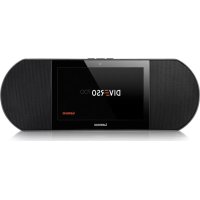
Diverso700GY - Media player LENCO - Free user manual and instructions
Find the device manual for free Diverso700GY LENCO in PDF.



| Product Type | Multimedia Player |
| Brand | Lenco |
| Model | Diverso700GY |
| Dimensions (W × H × D) | 350 × 117 × 120 mm |
| Net Weight | 1.0 kg |
| Screen | 7 inches, 1024 × 600 pixels, capacitive multi-touch |
| Internal Storage | 1 GB RAM / 8 GB ROM |
| External Storage | microSD card up to 32 GB (not included) |
| Supported Audio Formats | MP3, FLAC, AAC |
| Supported Video Formats | MPEG4, XVID, MOV, AVI |
| Supported Photo Formats | JPEG, BMP, PNG |
| Connectivity | Wi-Fi 2.4 GHz, HDMI, microUSB, microSD slot, line out |
| Power Supply | Lithium-ion battery 7.4 V / 1600 mAh; mains adapter 12 V / 1.5 A |
| Charging Time | About 3 hours |
| Standby Time | 72 hours |
| Audio Playback Time | 7 hours |
| Video Playback Time | 2.5 hours |
| Wi-Fi Browsing Time | 2.5 hours |
| Speakers | 2 × 5 W |
| Camera | User-facing VGA |
| Remote Control | Yes, infrared (battery not included) |
| Operating System | Android (custom interface) |
| Operating Temperature | 0 °C to 35 °C |
| Maintenance and Cleaning | Soft damp cloth; do not use alcohol or solvent |
| Safety | Do not open, avoid moisture, use supplied adapter |
| Spare Parts and Repairability | No user-serviceable parts; refer to qualified personnel |
| Warranty | According to European legislation, contact the retailer |
Frequently Asked Questions - Diverso700GY LENCO
User questions about Diverso700GY LENCO
0 question about this device. Answer the ones you know or ask your own.
Ask a new question about this device
Download the instructions for your Media player in PDF format for free! Find your manual Diverso700GY - LENCO and take your electronic device back in hand. On this page are published all the documents necessary for the use of your device. Diverso700GY by LENCO.
USER MANUAL Diverso700GY LENCO
USER MANUAL
HANDLEIDING
BENUTZERHANDBUCH
MODE D'EMPLOI
MANUAL DEL USUARIO
Index
English....3
Nederlands 20
Deutsch 37
Français....55
Español 72
To Our Valued Customers
Thank you for choosing Lenco Diverso-700GY. Before using any of our products, please read the user manual coming with the package to avoid any damage.

Important Safety Instructions
WARNING
RISK OF ELECTRIC SHOCK DO NOT OPEN

WARNING: TO REDUCE THE RISK OF ELECTRIC SHOCK, DO NOT REMOVE COVER OR DISASSEMBLE THE PRODUCT. NO USER-SERVICEABLE PARTS INSIDE. REFER SERVICING TO QUALIFIED SERVICE PERSONNEL.
The lightning flash with arrow head symbol, within an equilateral triangle is intended to alert the user that parts inside the product constitute a risk of electric shock to persons.

The exclamation point within an equilateral triangle is intended to alert the user that important operating and servicing instructions are in the papers with the appliance.
1 Read these instructions.
2 Keep these instructions.
3 Pay attention to all warnings.
4 Follow all instructions.
5 Do not modify the polarized or grounding-type plug. A polarized plug has two blades with one wider than the other. A grounding type plug has two blades and a third grounding prong. The wide blade or the third prong is provided for your safety. If the provided plug does not fit into your outlet, consult an electrician for replacement of the obsolete outlet.
6 Protect the power cord from being walked on or pinched.
7 Only use accessories specified by the manufacturer.
8 Refer all servicing to qualified service personnel. Servicing is required when the unit has been damaged in any way, such as power-supply cord or plug is damaged, liquid has been spilled on or objects have fallen into the unit, the unit has been exposed to rain or moisture, does not operate normally, or has been dropped.
9 Do not install the product near any heat sources such as radiators, stoves, or other appliances that produce heat.
10 Unplug this product during lightning storms or when unused for long periods of time.
Warning
- All packing materials such as internal bags, plastic collars, plastic films, and carton inserts are not part of this product and should be discarded.
- Do not try to disassemble the product.
- Only charge the product using the power adapter that came with the device.
- Do not expose the product to moisture or water.
- To prevent hearing damage, never use the product at excessive volume levels. Listening to loud sound for an extended period may cause temporary or permanent hearing loss.
- Never use the product while operating a motor vehicle or bicycle.
- If you feel discomfort in your hands or any pain using the product, please stop immediately.
• In case of long period of use, take frequent breaks. - If any small part is loosening, do not try to remove it. Keep it away from small children.
- Never force a connector into a port of the product. If a connector and a port do not join with reasonable force, make sure that the connector matches the port and that you have positioned the connector in the correct direction.
- To clean the screen, simply use a soft damp cloth. Do not use alcohol, solvent, aerosol spray or abrasive cleaners to clean the product.
-
The product and the adapter should be periodically examined for conditions that may result in the risk of fire, electric shock, or injury to persons and that, in an event of such conditions, the product or adapter should not be used until properly repaired.
-
Operate the product in temperature between 0° and 35°C (32° to 95°F). Low or high temperature might temporarily shorten battery life or cause the product to temporarily stop working properly. Avoid dramatic changes in temperature or humidity, as condensation may form on or within the product.
- Store the product in temperature between -20^ and 45^ (-4° to 113°F). Don't leave the product in a parked vehicle where temperatures can exceed this range.
- It is normal for the product to get mildly warm when it is in use or charging.
- The rechargeable battery in the product should be replaced only by the manufacture or its authorized agents.
- Do not expose installed batteries to excessive heat such as sunshine or fire.
- If you do not use the product frequently, we recommend keeping the battery level at around 50 percent and fully charge and discharge the battery every three months in order to maximize the battery lifespan.
- This device is restricted to indoor use when operating in the 2.4 to 2.483 GHz frequency band.
- Never remove or insert a microSD card while the product is powered on.
- The manufacturer is not responsible for any radio or TV interference caused by unauthorized modifications to this product. Such modifications could void the user's authority to operate the product.
1
Package Contents
The following items are included with the product:

NOTE
- Images throughout this User Manual are for illustrative purposes only and may differ from the actual product.
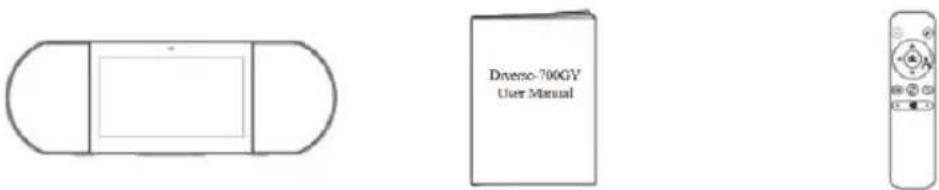
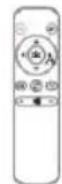
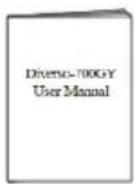
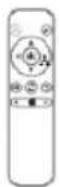
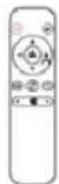
Diverso-700GY User Manual IR Remote Controller
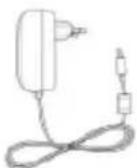
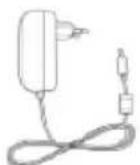
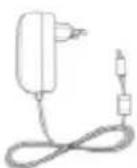
AC/DC Power Adapter


NOTE
• The power adapter may vary by country.
Product Specifications
| Model Diverso-700GY | |||
| Dimensions (mm) | 350 × 117 × 120 | ||
| Weight (KG) | 1.0 net, 1.5 gross | ||
| Storage (Ram & Rom) | 1GB/8 GB | ||
| Screen diagonal size (inch) | 7 | ||
| Screen resolution | 1024 × 600 (multi-touch) | ||
| Power supply | Battery | 7.4V, 1600mAh | |
| Adapter | DC 12V-1.5A adapter | ||
| Charging time | 3 hours | ||
| Standby time | 72 hours | ||
| Working time | video streaming (default volume) | 2.5 hours | |
| Music streaming (screen off) | 7 hours | ||
| Web viewing using Wi-Fi | 2.5 hours | ||
| Memory card | microSD 2-32GB (not included) | ||
| Environment Conditions | Working temperature 0 ° and 35°C | ||
Supported formats audio MP3, FLAC, AAC
Supported formats video MPEG4, XVID, MOV, AVI
Supported formats photo JPEG, BMP, PNG

NOTE
- Features, appearance and specifications are subject to change without notice.
3
Remote Control
Illustration
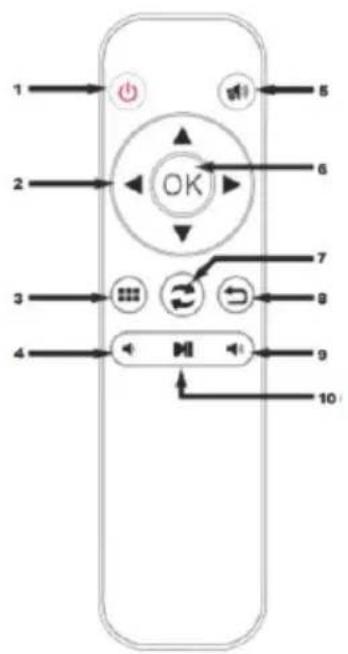
- On/ Off
- Navigation
- Edit/Home/unlock
- Volume –
- Mute
- OK-button
- Switch
- Back-button
- Volume +
- Play/Pause

NOTE
- The batteries shall not be exposed to excessive heat such as sunshine or fire.
- Remove depleted batteries immediately to prevent battery acid from leaking into the battery compartment.
- If you do not use the remote control for a long time, remove the batteries.
- Battery chemicals can cause a rash. If battery leaks, clean the battery compartment with a cloth. If chemicals touch your skin, wash immediately.
- Dispose batteries in a designated disposal area. Do not throw batteries into a fire.
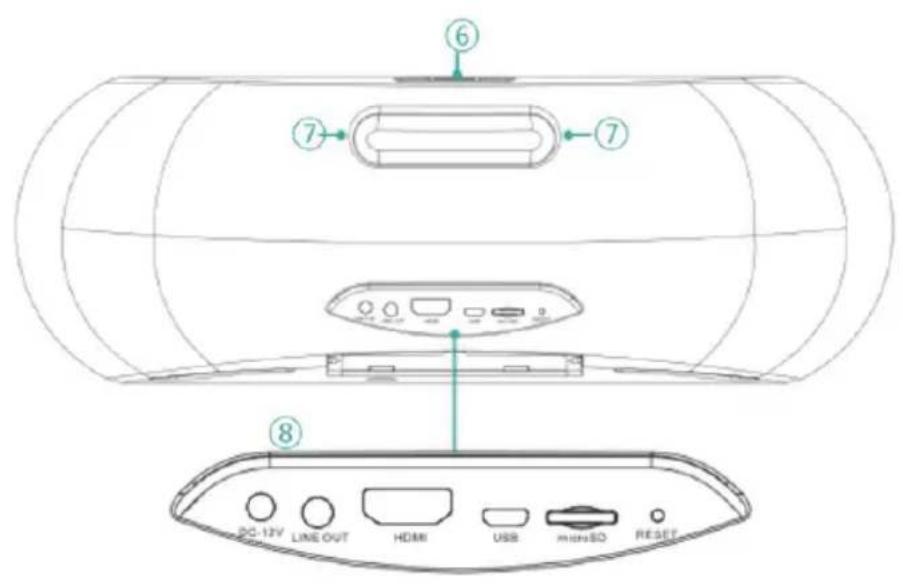
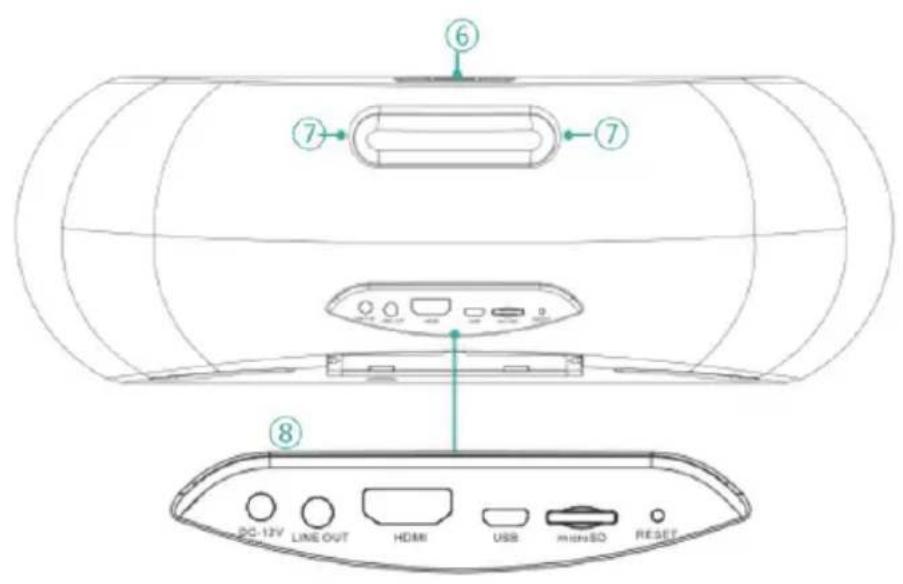
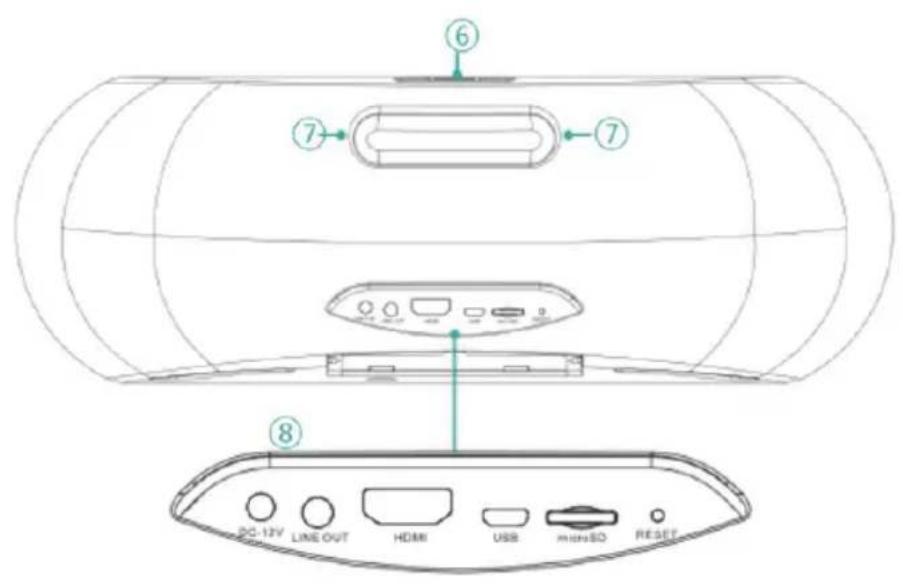
④ Understanding Your Diverso-700GY
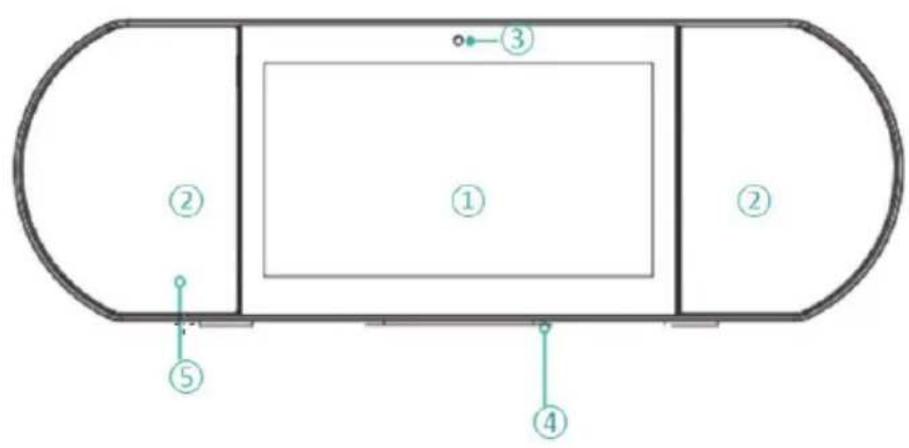
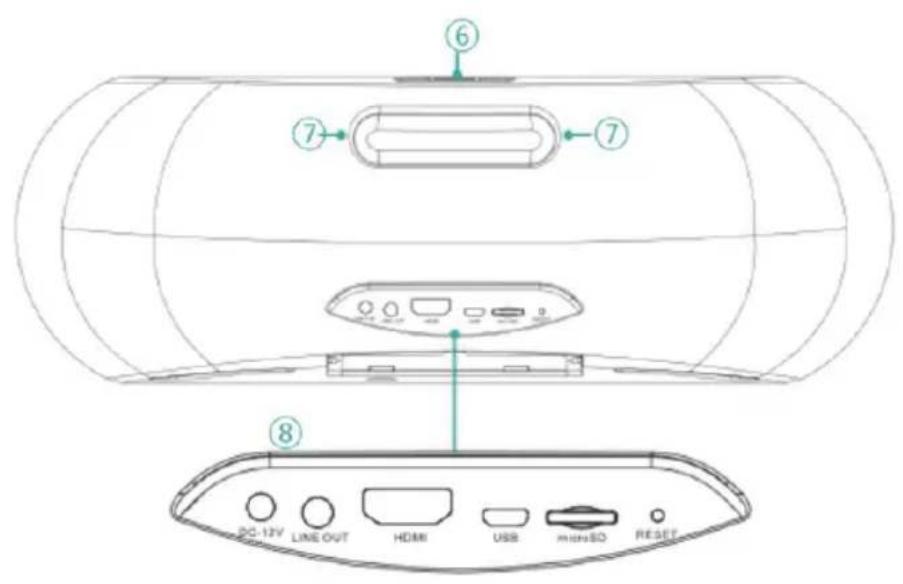
| No. | Item Description | ||
| 1 | Screen | 7 inch multi-touch screen. | |
| 2 | Speakers | Two 5W speakers. | |
| 3 | Camera | VGA front-facing camera. | |
| 4 | Microphone | ||
| 5 | IR receiver head | Receives remote signals from the remote control.☑NOTEDo not block the sensor. | |
| 6 | Power Button | Power On:Press for about 3 seconds.Power Off:When the device is on, press for 3 seconds, it pop up with “Do you want to shut down?”, choose “OK”.Lock the screen:Press Power On/Off buttonUnlock the screen:Press Power On/Off, the screen will be the way when you start the device. Slide the unlock button to left side to unlock the screen. Or press the Menu on in the IR remote controller to unlock. | |
| Volume + | Press to increase the volume. | ||
| Volume - | Press to reduce the volume. | ||
| 7 | Handle | ||
| 8 | Port | RESET | RESET the product |
| HDMI | Output through HDMI to other devices. | ||
| microSD | microSD port:Insert microSD card (up to 32G). | ||
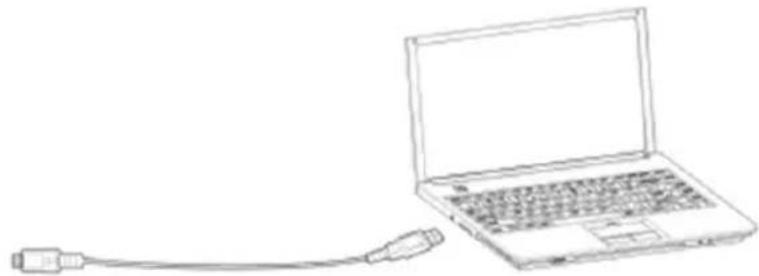
| USB | Connect to a computer, keyboard or other accessories with the included micro-USB cable or compatible 3rd-party USB hub or OTG cable. | ||
| LINE OUT | Audio output. | ||
| DC-12V | Power input | ||

Connections and Expansion
Connecting Power Adapter
Plug the included power adapter into a wall outlet and connect the other end to the DC input of the product.
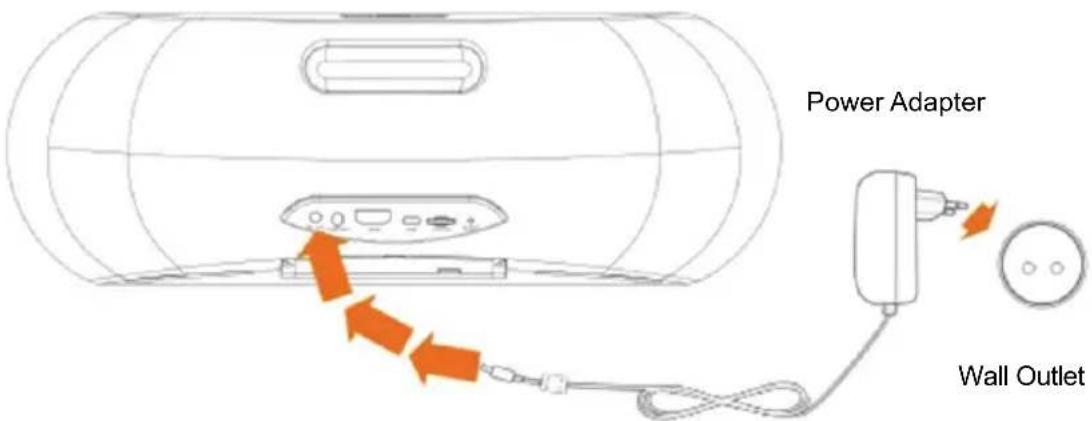
- The built-in battery will start charging and the product will show the battery level on the screen.
• For the first use, please fully charge the device.

NOTE
• To optimize for battery life, please charge the product before putting it away for long-term storage and recharge it every three months.
- If the product shuts down after low battery, you may need to wait a little while for the device to recharge before it restarts.
• The power adapter may vary by country.
Connecting HDMI
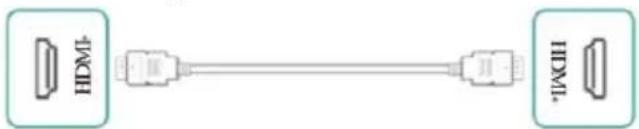
flowchart
graph LR
    A["HDM"] --> B["Server"]
    B --> C["Internet"]
    C --> D["Internet"]
    style A fill:#f9f,stroke:#333
    style D fill:#f9f,stroke:#333
Connect to an external TV or display using a standard HDMI cable (not included).
MicroSD card
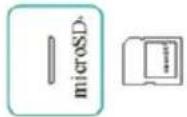
Insert a microSD card into the microSD port with the metal contacts facing down. To check the storage of the card, go to Settings > DEVICE > Storage.
Connecting USB
natural_image
Line drawing of a laptop connected to a USB cable (no text or symbols)Connect the product to a computer or other USB host devices using the included micro-USB cable.
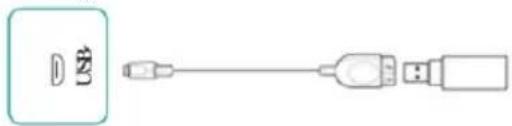
Connect the product to other USB accessories such as a mouse or USB storage using an USB OTG cable (not included).
LINE OUT
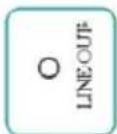
Connect external speakers.
RESET
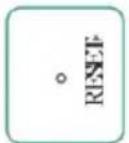
Forced shutdown and reset the product.
6
Basic Operations
Using Touch Navigation
Tap or Double Tap Press and Hold
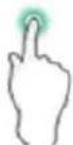
To select a feature or item, quickly touch the screen.
Double tap your finger quickly on an item to bring up more details.
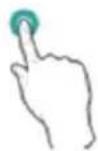
Touch the screen and hold it there for 2 seconds.
In many situations, pressing and holding will open a menu.
Slide or Drag Rotate

Touch the screen and slide your finger to another location.
Press and hold on an object and slide it to another location on the screen.
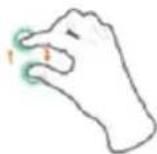
Place two fingers about an inch apart on the screen. Rotate them in clockwise or counter-clockwise.
Zoom

Place two fingers about an inch apart on the screen. Slide them together to 'zoom out'.
Slide your fingers apart to 'zoom in'. Place two fingers about an inch apart on the screen. Slide them together to 'zoom out'.
Slide your fingers apart to 'zoom in'.
Turning on Your Diverso-700GY for the First Time
To start, turn on the product by pressing and holding Power button until the LENCO logo appears. After the animation, follow the on-screen instructions to set up the device. Mostly importantly:
• As the first step, slide up and down to select your language.
- Connect to a Wi-Fi network. Tap a network name to see more details or connect to it, and enter the password.
- When prompted, sign in using your email address and password for your Google Account. If you don't have a Google account yet, follow Google's on-screen instructions to create one.
Unlock the Screen
Press Power On/Off, the screen will be the way when you start the device. Slide the unlock button to left side to unlock the screen. Or press the Menu key on the IR remote controller to unlock.
Diverso-700GY Customized Friendly User interface
Start the device and unlock the screen, you will come to Diverso-700GY customize friendly user interface as below, which contains of 6 apps play store, photos, YouTube, play music, video, chrome as default. You can easy access each apps by click them. On the other hand, you also change these apps to your favorites by long press the app, then it will lead you to the apps market, then press the app you want, and the chosen apps will be on this interface for your fast access.
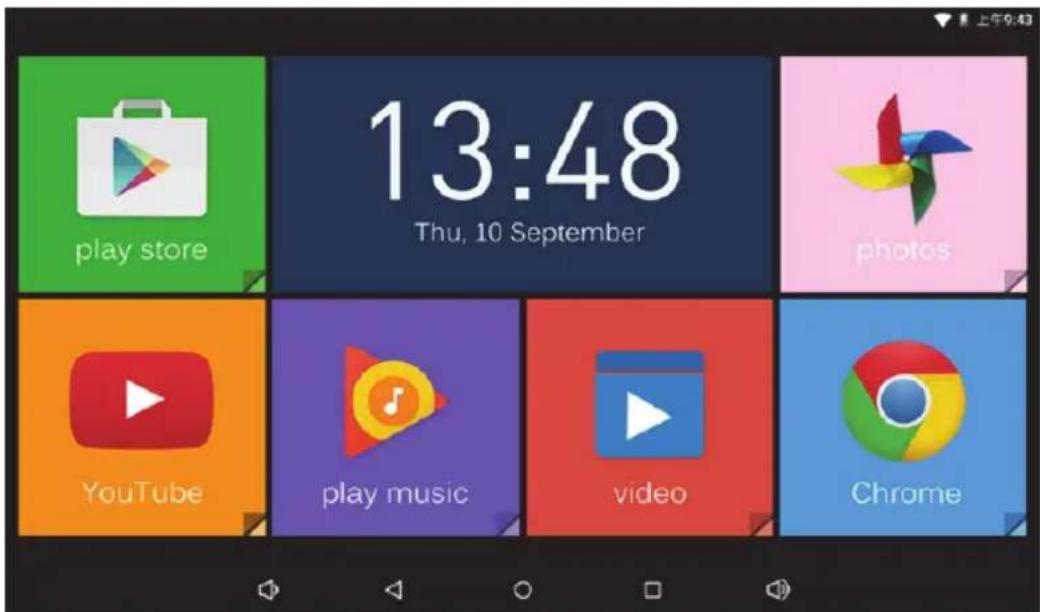
Alternatively, you will also have the android original user interface, you can easily switch by the home button in the center of toolbar or the switch knob of the remote control.
Android user interface
Start the device and unlock the screen, you will come to the home screen. Diverso-700GY comes with a standard set of popular Google apps such as Google Music, YouTube, Chrome. You can easily add your favorite Android apps such as Spotify, Pandora, Netflix from millions of choices on the Google Play store (the "shopping bag" icon on the home screen).
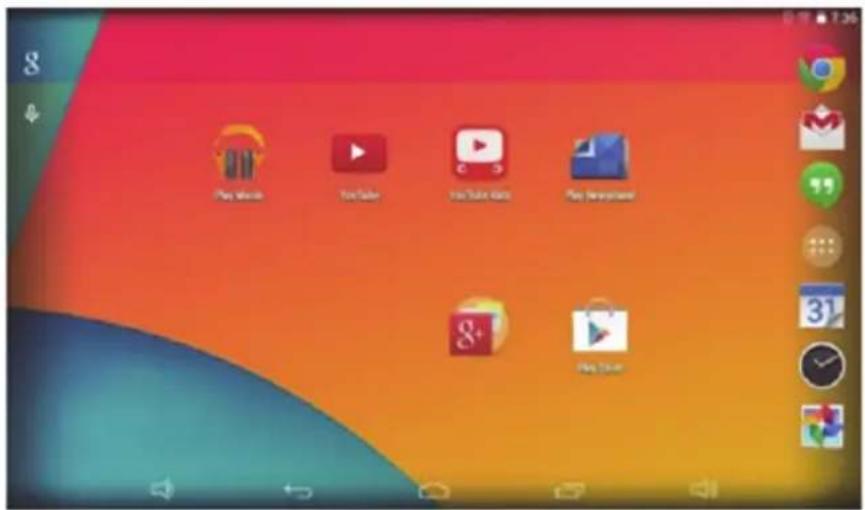
Notification and Status Bar
- At the top of the screen, you'll see indicators that inform you about the status of your device. You can open the Notification Tray or the Quick settings by pressing the Notification or Status bar and dragging it down.
- Notifications can come from the system or an app such as Google Music.
- The table below lists icons that appear frequently in the Notification and Status Bar.
| Icon | What it means | |
| Alarm | An alarm is set. | |
| Alert | Install/update/enable Google Play service. | |
| Downloaded | Received files | |
| Uploaded | Sent files | |
| Calendar | Task reminders. | |
| Music | Play Music application is running. | |
| Silent mode | Silent mode is on. |
| Icon What it means | |
| Wi-Fi | The device is connected to a Wi-Fi network. has a Wi-Fi Internet connection. The more bars, the stronger the connection. |
Back button
Tap this button to open the previous screen you were working in, even if it was in a different app. Once you go back to the Home screen, no further history will be available.
Home button
Tap this button to return to the Home screen.
Recent Apps
Tap this button to view recently used apps. Tap an app to use it again or close it.
Main menu
Press the Main Menu 🎨button to enter the Main Menu screen. This is where you can see all your apps, including those downloaded from Google Play. You can tap the app to open it or drag the app or widget to the Home.
⑦ Troubleshooting
When there appears to be an issue with your device, refer to the tips below for a resolution. If the problem still cannot be solved go to www.lenco.com for help or its local authorized Lenco agents.
• Device displays network or service error message
When you are located in places with poor wireless signals, the device may not be able to connect. Try to move to other places to get a stronger signal.
- Touch screen response is slow or incorrect
If the device's touch screen response is incorrect, please try the following:
- Remove any protective film of the touch screen. The protective film may prevent the device from recognizing input correctly.
• Make sure that your fingers are dry and clean.
- Restart the device to clear any temporary software issues.
- Make sure that the device's software has been upgraded to the latest version.
• Device is frozen or a serious error appears
- If the device is frozen or suspended, you may need to close the app, restart the device, or reset it.
• To reset the device, press and hold the RESET for 8 seconds.
• Device gets warm
When you use your device for a long period of time, it may get lukewarm. This is normal and will not affect the life or performance of the unit.
8 Warranty policy
GUARANTEE
Lenco offers service and warranty in accordance with the European law, which means that in case of repairs (both during and after the warranty period) you should contact your local dealer.
Important note: It is not possible to send products that need repairs to Lenco directly.
Important note: If this unit is opened or accessed by a non-official service center in any way, the warranty expires.
This device is not suitable for professional use. In case of professional use, all warranty obligations of the manufacturer will be voided.
DISCLAIMER
Updates to Firmware and/or hardware components are made regularly. Therefore some of the instruction, specifications and pictures in this documentation may differ slightly from your particular situation. All items described in this guide are for illustration purposes only and may not apply to particular situation. No legal right or entitlements may be obtained from the description made in this manual.
DISPOSAL OF THE OLD DEVICE
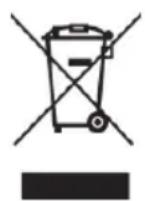
This symbol indicates that the relevant electrical product or battery should not be disposed of as general household waste in Europe. To ensure the correct waste treatment of the product and battery, please dispose them in accordance to any applicable local laws of requirement for disposal of electrical equipment or batteries. In so doing, you will help to conserve natural resources and improve standards of environmental protection in treatment and disposal of electrical waste (Waste Electrical and Electronic Equipment Directive).
CE MARKING

Products with the CE marking comply with the EMC Directive (2014/30/EU) and the Low Voltage Directive (2014/35/EU) issued by the Commission of the European Community.
Hereby, Lenco Benelux BV, Thermiekstraat 1a, 6361 HB Nuth, The Netherlands, declares that this product is in compliance with the essential requirements and other relevant provisions of Directive 2014/53/EU
The declaration of conformity may be consulted via techdoc@lenco.com
SERVICE
For more information and helpdesk support, please visit www.lenco.com Lenco Benelux BV, Thermiekstraat 1a, 6361 HB, The Netherlands.
Geachte klant
natural_image
Simple line drawing of a capsule-shaped object with a rectangular cutout (no text or symbols)Diverso-700GY
Handleiding
IR-afstandsbediening
AC/DC-voedingsadapter
OPMERKING
natural_image
Line drawing of a laptop connected to a USB cable (no text or symbols)natural_image
Simple line drawing of a USB cable connector with port labels (no text or symbols on the diagram itself)AFVOEREN VAN HET OUDE APPARAAT
natural_image
Simple line drawing of a capsule-shaped object with a central rectangle (no text or symbols)Diverso-700GY
Benutzerhandbuch
IR-Fernbedienung
AC/DC-Netzteil
HINWEIS
natural_image
Line drawing of a laptop connected to a USB cable (no text or symbols)natural_image
Pure diagram of a USB cable connector without any text or symbolsnatural_image
Simple line drawing of a capsule-shaped object with a rectangular cutout (no text or symbols)
natural_image
Line drawing of a laptop connected to a USB cable (no text or symbols)natural_image
Pure diagram of a USB cable connector without any text or symbols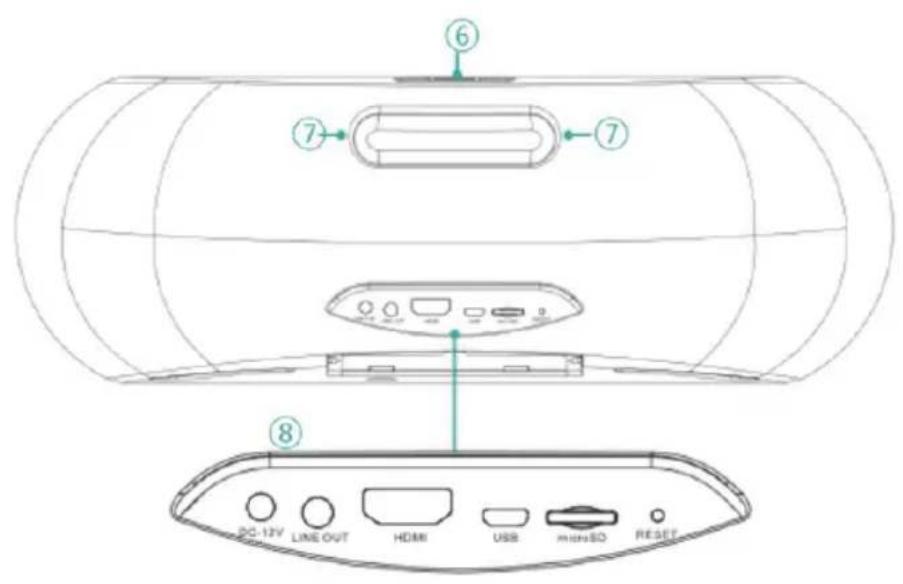
natural_image
Line drawing of a laptop connected to a USB cable (no text or symbols)natural_image
Pure diagram of a USB cable connector without any text or symbols
- Index
- To Our Valued Customers
- Important Safety Instructions
- WARNING
- 1
- Package Contents
- The following items are included with the product:
- NOTE
- 3
- Remote Control
- Illustration
- ④ Understanding Your Diverso-700GY
- Connections and Expansion
- Connecting Power Adapter
- Connecting HDMI
- MicroSD card
- Connecting USB
- LINE OUT
- RESET
- 6
- Basic Operations
- Using Touch Navigation
- Turning on Your Diverso-700GY for the First Time
- Unlock the Screen
- Diverso-700GY Customized Friendly User interface
- Android user interface
- Notification and Status Bar
- Back button
- Home button
- Recent Apps
- Main menu
- ⑦ Troubleshooting
- • Device displays network or service error message
- - Touch screen response is slow or incorrect
- • Device is frozen or a serious error appears
- • Device gets warm
- Warranty policy
- GUARANTEE
- DISCLAIMER
- DISPOSAL OF THE OLD DEVICE
- CE MARKING
- SERVICE
- Geachte klant
- OPMERKING
- AFVOEREN VAN HET OUDE APPARAAT
- HINWEIS
Brand : LENCO
Model : Diverso700GY
Category : Media player