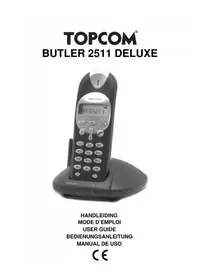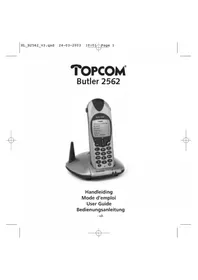
Butler 3501 - Phone TOPCOM - Free user manual and instructions
Find the device manual for free Butler 3501 TOPCOM in PDF.


User questions about Butler 3501 TOPCOM
0 question about this device. Answer the ones you know or ask your own.
Ask a new question about this device
Download the instructions for your Phone in PDF format for free! Find your manual Butler 3501 - TOPCOM and take your electronic device back in hand. On this page are published all the documents necessary for the use of your device. Butler 3501 by TOPCOM.
USER MANUAL Butler 3501 TOPCOM
To use 'Caller ID' (display caller), this service has to be activated on your phone line. Normally you need a separate subscription from your telephone company to activate this function. If you don't have the Caller ID function on your phone line, the incoming telephone numbers will NOT be shown on the display of your telephone.
!! Belangrijk !!
This product is in compliance with the essential requirements and other relevant provisions of the R&TTE directive 1999/5/EC. The Declaration of conformity can be found on :
http://www.topcom.net/support/declarations/
GB The features described in this manual are published with reservation to modifications.
- Only use the charger plug supplied. Do not use other chargers, as this may damage the battery cells.
- Only insert rechargeable batteries of the same type. Never use ordinary, non-rechargeable batteries. Insert rechargeable batteries so they connect to the right poles (indicated in the battery compartment of the handset).
- Do not touch the charger and plug contacts with sharp or metal objects.
The operation of some medical devices may be affected. - The handset may cause an unpleasant buzzing sound in hearing aids.
- Do not place the basic unit in a damp room or at a distance of less than 1.5m away from a water source. Keep water away from the handset.
- Do not use the telephone in environments where there is a risk of explosions.
- Dispose of the batteries and maintain the telephone in an environment-friendly manner.
- As this telephone cannot be used in case of a power cut, you should use a mains-independent telephone for emergency calls, e.g. a mobile phone.
This telephone uses rechargable batteries. You have to dispose of the batteries in an environment friendly manner according to your country regulations.

NiMH

CLEANING
Clean the telephone with a slightly damp cloth or with an anti-static cloth. Never use cleaning agents or abrasive solvents.
The CE symbol indicates that the unit complies with the essential requirements of the R&TTE directive.
1.DESCRIPTION OF TELEPHONE
1.1 HANDSET AND BASE BUTLER 3500 & 3501
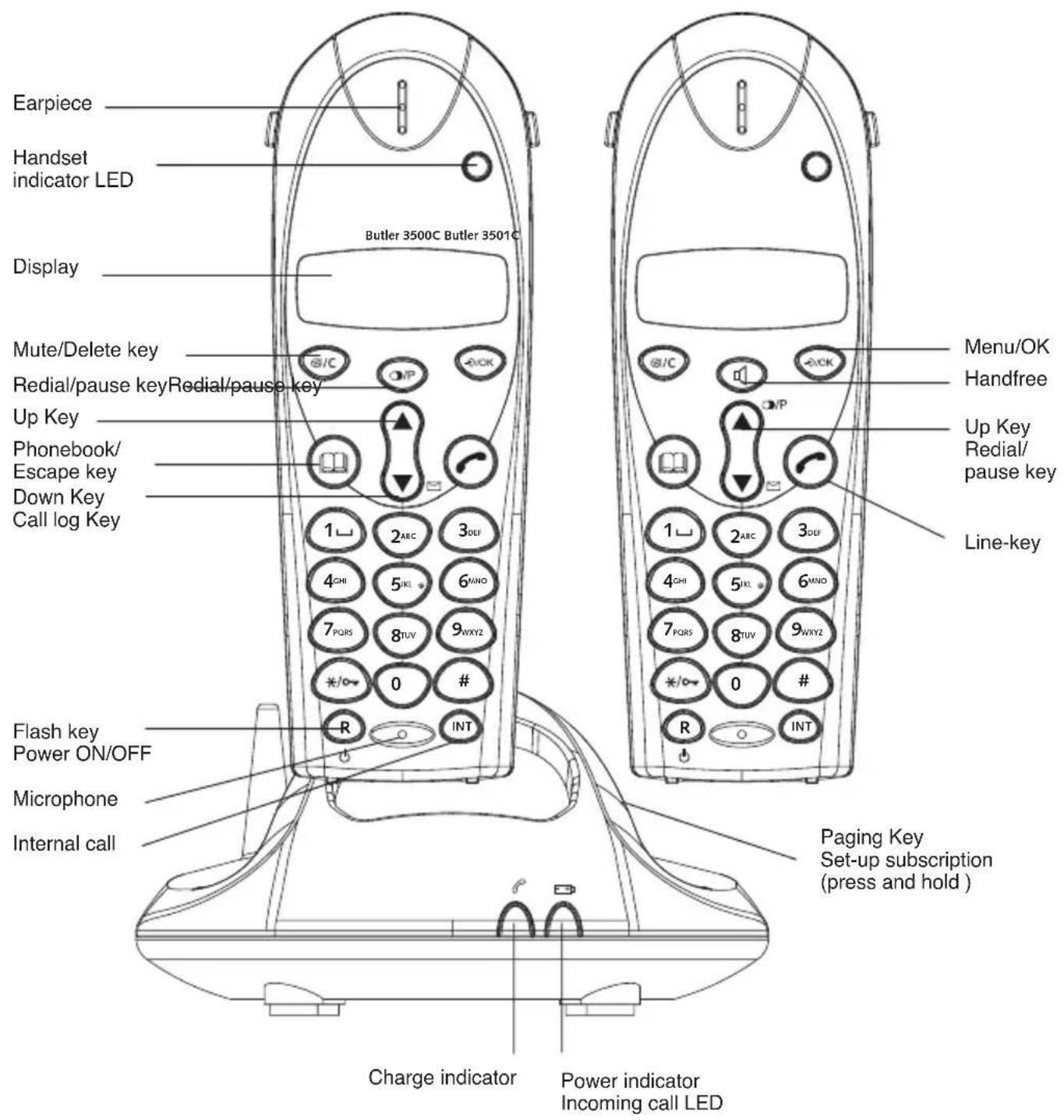
1.2 CHARGER BUTLER 3500 & 3501
1.2.1 Without alarm clock
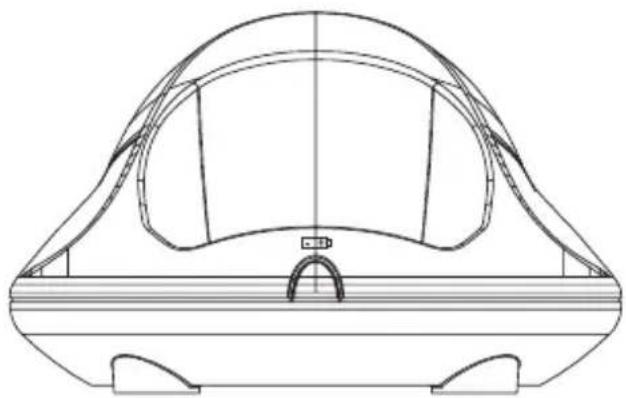
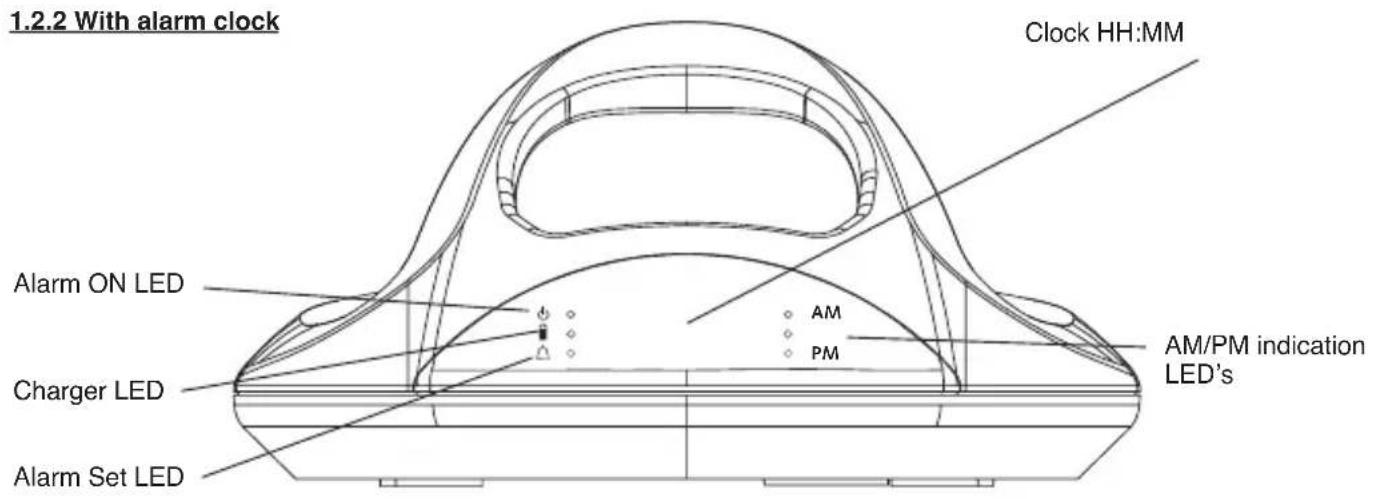

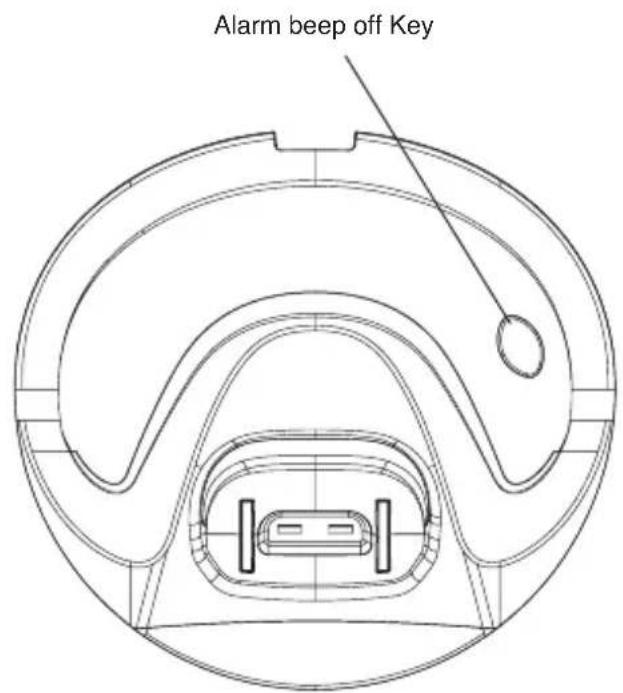
1.3 DISPLAY
Icon line Character display line.
(12 characters maximum)
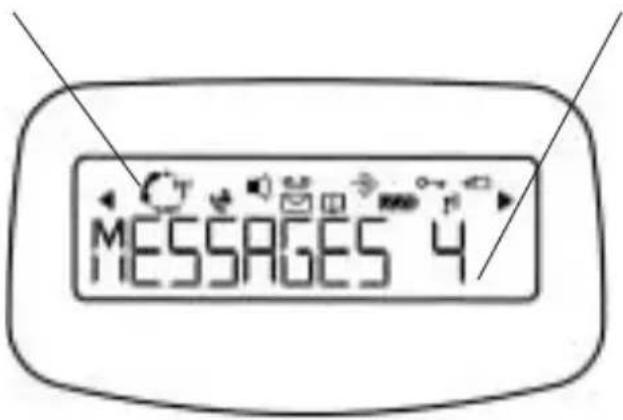
Each operation has an associated icon
Icon:Meaning:
You are online
EXT You are in external communication
INT You are in internal communication
New numbers in call list
Indicate answered call
Indicate unanswered call
Hands free mode activated (only B3501)
You are opening your address book.
You are in the menu.
rechargeable battery level indicator
1 segment: weak, 2 segments: medium, 3 segments: full.
The antenna indicates the quality of reception.
The antenna flashes when the handset is not
registered on the base.
Handset keypad locked
or Indicates that the displayed number is longer than the screen (12 digits)
or Possible scroll direction in the menu
1.3.1 Standby display
In stanby mode, the display shows the handset name and the handset number:
C350x HS1
1.4 HANDSET INDICATOR (LED)
The handset LED has following function:
ON when the external line is busy
OFF when all handset are in stanby mode
- Flashes on all handset when there is an incoming call
2. TELEPHONE INSTALLATION
2.1 CONNECTIONS
Back view
of BASE
Butler 350x
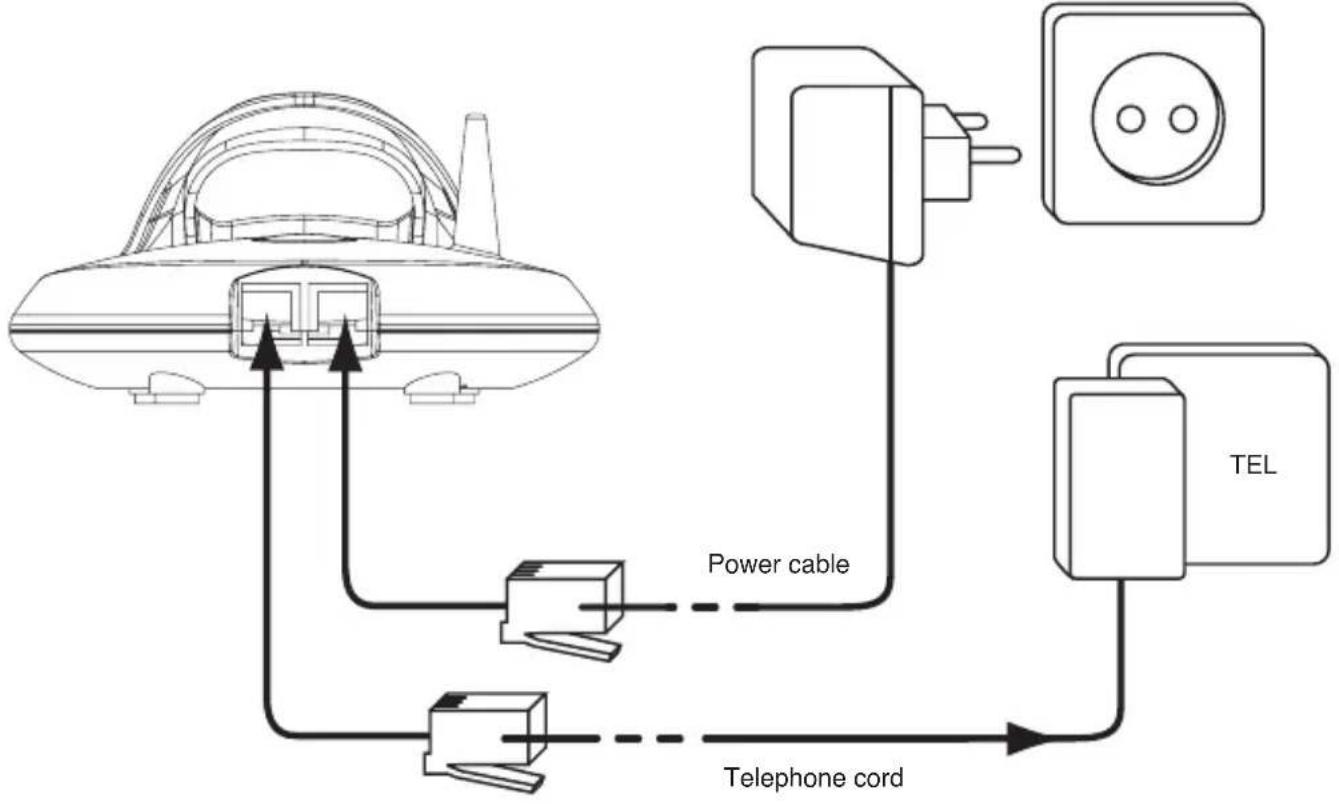
Back view
of CHARGER Butler 350x
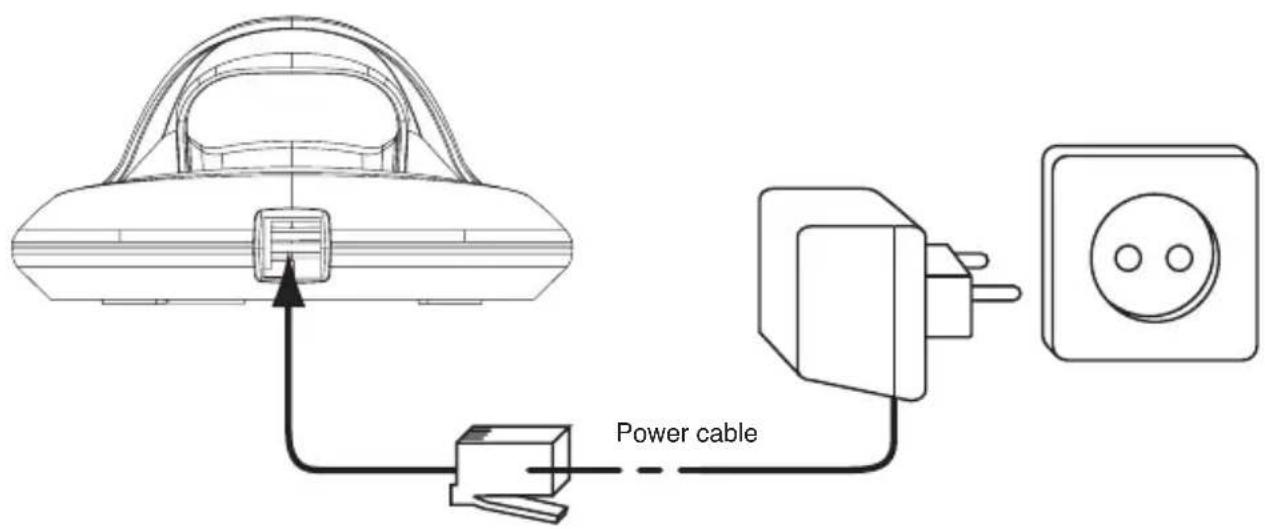
2.2 RECHARGABLE BATTERIES
Before you use your Butler 350x for the first time, you must first make sure that the batteries are charged for 6-8 hours. The telephone will not work optimally if not properly charged.
To change or insert a rechargeable battery:
- Slide the cover towards the bottom and then lift it up.
- Insert the batteries respecting the (+ and -) polarity.
- Replace the battery cover
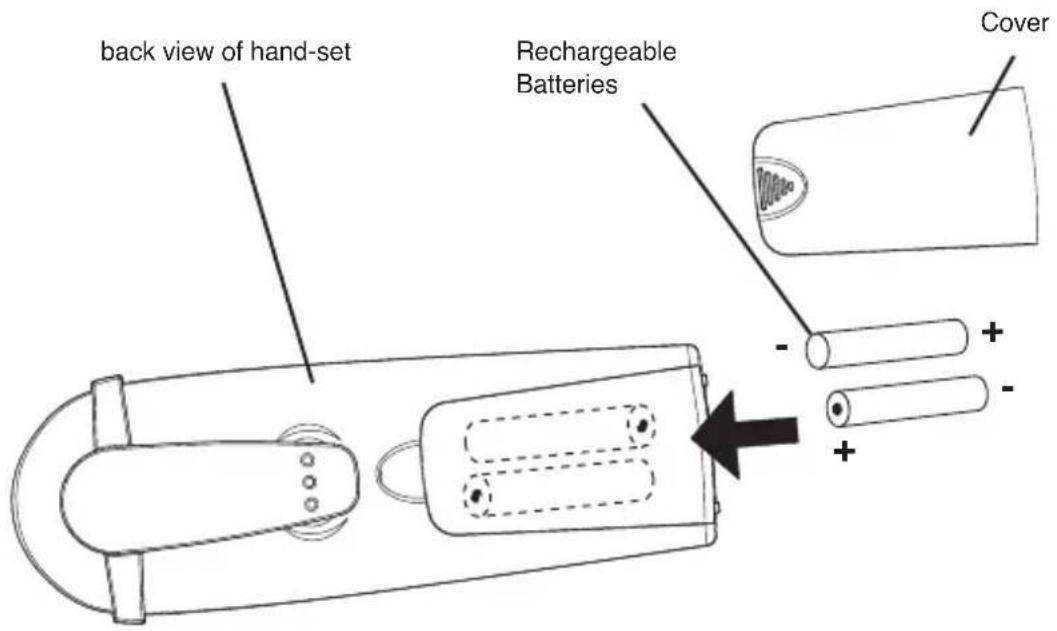
Note: The maximum standby time of the batteries is approx. 100 h and the maximum talk time is 10 hours! In the course of time the batteries will start to drain faster. The batteries must be replaced. 2 rechargeable batteries, type AAA NiMH!
2.3 ALARM CLOCK SETTINGS (ONLY VERSION WITH CLOCK IN THE MULTI CHARGER!!)
Depending on the model you bought, he multicharger of the 2nd handset could have a build-in clock with alarm. There are 3 keys at the bottom of the charger to set the time and alarm:
2.3.1 To set the time
- Press the MODE key ones. The hours will blink.
- Press the UP-key a few times until the correct hour is shown (1-12)
- Press the SET key to confirm the hours and to set the minutes
- Press the UP-key a few times until the correct minutes are shown
- Press the SET key again to confirm the minute
- Press the UP-key to choose AM (hours between midnight and noon) or PM (hours between noon and midnight)
- Press the SET key to confirm
- Press the MODE key twice to show the clock
2.3.2 To set the alarm
- Press the MODE key twice. The hours will blink and the Alarm Set LED will lit.
- Press the UP-key a few times until the correct hour is set (1-12)
- Press the SET key to confirm the hours and to set the minutes
- Press the UP-key a few times until the correct minutes are shown
- Press the SET key again to confirm the minute
- Press the UP-key to choose AM (hours between midnight and noon) or PM (hours between noon and midnight)
-
Press the SET key to confirm
-
Press the UP key to turn ON/OFF the alarm:
-
ON: ALARM On LED will blink
OFF: Alarm On LED doesn't lit
- Press the MODE key to confirm and to return to standby
2.3.3 Turn the alarm buzzer OFF
During alarm, the buzzer will ring for 60s unless you press the Alarm beep Off Key
3. USING THE TELEPHONE
3.1 SETTING MENU LANGUAGE
- Enter the menu by pressing OK
- Select HANDSET using the up and down keys
- Press OK
- Select LANGUAGE using the up and down keys
- Press OK
- Select the language of choice by means of the up and down keys.
- Press OK to validate
3.2 HANDSET ON/OFF
- Turn ON handset: Press the key on the handset. The handset will search the base.
- Turn OFF handset: Press for 3 sec. The display will go OFF.
3.3 RECEIVING A CALL
When the handset rings, press to answer. You are then connected to your correspondent. If the hand-set is on the base when the telephone rings, you just need to pick up the hand-set to answer the call (if the option autoanswer is activated: See 4.9. Automatic answer).
If you press when the telephone rings, you answer the call automatically and activates the handfree mode (only Butler 3501).
3.4 MAKING AN EXTERNAL CALL
Normal:
- Press
- Enter telephone number
Block dialling:
- Dial your correspondents number
- Press
To correct a number use the key to delete an entered digit
3.5 MAKING AN INTERNAL CALL
- Press INT
- Enter the number of the internal handset (1 to 2)
3.6 HAND FREE MODE (ONLY B3501 MODEL)
You can speak with your correspondent without picking up the handset.
To activate or deactivate the hands free mode, press the key during a call.
To adjust the volume, refer to the chapter "Personalisation - adjusting speaker volume.
3.7 INTERNAL CALL TRANSFER
When you want to transfer an external call to another handset:
- During a conversation, press INT
- Select the number of the internal handset, the external caller is put on hold.
- When the other handset picks up, press to hang up and transfer the call.
If the internal corespondent does not pick-up, press INT again to reconnect to the external caller on line.
3.8 DISPLAY OF CALL DURATION
The call duration is displayed after 15 seconds, in minutes - seconds.
At the end of each call, the total call duration is displayed for 5 seconds.
3.9 MICROPHONE MUTE
It is possible to mute the microphone during a conversation.
Press during the conversation, the microphone is then deactivated, you can talk freely without being heard by the calling party.
"MUTE" is displayed. Press again to return to normal mode.
3.10 PAUSE KEY
When dialling a number you can add a pause between two digits by pressing the redail/pause they for 2s.
3.11 CALLER IDENTIFICATION
Caller identification is only available if you have subscribed to this service with your telephone operator.
When you receive an external call, the callers number will appear on the display as the telephone rings.
If the network sends it, or if the name of the caller is in the address book, the caller is identified by his or her name.
The caller identity is replaced by the call duration after 15 seconds in communication. It is still possible to display the caller's identity after this time by pressing OK-key repeatedly for the name and number.
3.11.1 List of calls
Your telephone keeps a list in memory of the last 30 calls received. This function is only available if your are subscribed to the caller ID information. The correspondents that have called are identified by their telephone number or name in the same way as in caller identification.
The presence of new / unanswered calls is indicated by the flashing icon on the display. To consult the list of calls:
- Press . There are no calls in the list 'EMPTY' will appear.
- Scroll through the calls using the up or down arrows. The callers names will be shown if the name is send by the network or is stored in the phonebook. When is shown, this call is been answered. When is shown, the call is unanswered. If you are at the end of the list you will hear a beep tone.
- If you press OK, the telephone number will be shown. Note: if the telephone number is longer then 12 digits, press OK again to see the complete number.
- Press OK again to see the time and date when the call is received**
-
Pressing OK again will give you the option to add this entry in the phonebook if it's not already stored:
-
Press OK when 'ADD' is shown on the display. Enter or modify the name and press OK. Enter or modify the telephonenumber and press OK. Select the melody (1-3) which will be heard when this number is calling by means of the up/down keys and press OK. The entry will be stored in the phonebook.
-
To call back a correspondent, simply press the key when their telephone number or name are displayed.
If a caller is in the phonebook, they are identified by their name in the list of calls.
** ONLY WHEN THE NETWORK SEND THE TIME/DATE TOGETHER WITH THE TELEPHONE NUMBER!!! On networks with caller ID in DTMF, no time and date will be displayed.
3.11.2 Delete an entry or all entries in the call list
You can delete each entry separately or all entries at ones:
-
When scrolling through the calls, press:
-
the mute key short to delete this entry only. DELETE appears on the screen.
-
the mute key 空 (2 sec.) to delete all entries: DELETE ALL appears on the screen.
-
Press OK to delete current/all entr(y)(ies), or to cancel the delete operation.
3.12 REDIAL MEMORY
Your telephone keeps a list of the 5 last calls (of 32 digits) you have made in memory; The correspondents called are identified by their telephone number or by their name if they appear in the phonebook.
To consult the radial list:
- Press
- Scroll through the calls with the up and down arrows.
- To call by the selected correspondent, simply press when their telephone number or name is displayed.
Note: When name is displayed, you can toggle between name and number by pressing the OK key!
3.13 CALLING FROM THE PHONEBOOK
To call a correspondent whose name you have saved in the phonebook:
- Press to enter the phonebook
- Press the first letter of the name. The first name that starts with this letter or the nearest letter in the alphabet will be displayed.
- Go through the list of names with the up and down keys. The list scrolls in an alphabetical order.
- Press to dial the number of the correspondent whose name is displayed.
To see the number before dialling, carry out steps 1 to 3 from before and press Ok.
3.14 USING THE ALPHANUMERICAL KEYPAD
With your telephone you can also enter alphanumeric characters. This is useful for entering a name into the phonebook, giving a name to a hand-set, ...
To select a letter, press the corresponding key as many times as is necessary. For example to select an 'A', press '2' once, to select a 'B', press '2' twice and so on. To select 'A' and then B consecutively, select 'A', wait until the cursor moves on to the next character, then press '2' twice.
To select a space, press 1.
To select a dash, press '1' twice
The keypad characters are as follows:
| Key | First press | Second press | Third press | Fourth | Fifth | ||
| 1 | s | pace - 1 | |||||
| 2 | A | B | C | 2 | |||
| 3 | D | E | F | 3 | |||
| 4 | G | H | I | 4 | |||
| 5 | J | K | L | 5 | |||
| 6 | M | N | O | 6 | |||
| 7 | P | Q | R | S | 7 | ||
| 8 | T | U | V | 8 | |||
| 9 | W | X | Y | Z | 9 |
3.15 USING THE MENU
A wide range of telephone functions are accessible through a user friendly menu.
- To enter the menu, press OK
- Scroll through the selections using the up and down keys, the selections scroll in a loop ( you return to the first after the last).
- To validate a selection, press OK
- To return to the previous menu, press
4. PERSONALISATION
Note: Every programmation is confirmed at the end by a double or single long beep. A double bleep confirms the validation of your choice
A long bleep signifies that the modification has not been taken into account.
4.1 ADJUSTING THE RING VOLUME
4.1.1 Handset ringvolume External/internal calls
The handset ringvolume for internal or external calls can be set separately:
- Enter the menu by pressing OK
- Select HANDSET using the up and down keys
- Press OK
- Select INT RING VOL or EXT RING VOL using the up and down key
- Press OK
- Select the desired volume (OFF or 1 to 3)
- Press OK to confirm or to return to the previous menu.
4.1.2 Basering
- Enter the menu by pressing OK
- Select SETUP using the up and down key
- Press OK
- Select BASE VOLUME using the up and down keys
- Press OK
- Select the desired volume (OFF or 1 to 3)
- Press OK to confirm or to return to the previous menu.
4.2 CHOOSING THE RING MEODY
The base and each handset can ring with a different melody.
The handsets can ring with a different melody according to whether the call is internal or external.
4.2.1 Base melody
- Enter the menu by pressing OK
- Select SETUP using the up and down keys
- Press OK
- Select BASE MELODY using the up and down key
- Press OK
- Select the melody of your choice ( 1 to 3 ) using the up and down key
- Press OK to confirm or to return to the previous menu.
4.2.2 Handset melody, external call
- Enter the menu by pressing OK
- Select HANDSET using the up and down key
- Press OK
- Select EXT MELODY using the up and down keys
- Press OK
- Select the melody of your choice ( 1 to 3 ) using the up and down keys
- Press OK to confirm or to return to the previous menu.
4.2.3 Handset melody, internal call
- Enter the menu by pressing OK
- Select HANDSET using the up and down key
- Press OK
- Select INT MELODY using the up and down keys
- Press OK
- Select the melody of your choice ( 1 to 3 ) using the up and down key
- Press OK to confirm or to return to the previous menu.
4.3 SPEAKER VOLUME DURING CALL
During conversation, press the up or down key to change the volume accordingly.
Note: The handsfree volume is also adjust together with the receiver in the handset as above described (only B3501).
4.4 ACTIVATION / DEACTIVATION OF BEEPS
The handsets can emit beeptone when a key is pressed, when the batteries are low or when the handset is out of range.
4.4.1 Key pressed beeptone on/off
- Enter the menu by pressing OK
- Select HANDSET using the up and down key
- Press OK
- Select BEEP using the up and down keys
- Press OK
- Select KEYTONE using the up and down keys
- Press OK
- Select ON to activate, OFF to deactivate
- Press OK to confirm.
4.4.2 Low battery
Proceed as before, but select at point 6 "LOW BATTERY" instead of "KEYTONE".
4.4.3 Handset out of range
Proceed as before, but select at point 6 "OUT RANGE" instead of "KEYTONE".
4.5 HANDSET NAME
This function allows you to personalise each handset.
- Enter the menu by pressing OK
- Select HANDSET using the up and down key
- Press OK
- Select NAME using the up and down keys
- Press OK
- Enter the name
- Press OK to validate
While entering the name, press 'c' to delete a character and press and hold 出 exit the menu without taking any modifications into account.
4.6 CHANGING THE PIN CODE
Certain functions are only available to users who know the PIN code. By default this is PIN code = 0000.
To change the PIN code:
- Enter the menu by pressing /GK
- Select SETUP using the up and down keys
- Press OK
- Select PIN CODE using the up and down keys
- Press OK
- Enter the old 4 figure PIN code.
- Press OK
- Enter the new 4 figure PIN code
- Press OK
- Enter the new PIN code a second time.
- Press OK to validate
4.7 SETTING THE DIALLING MODE
There are two types of dialling mode:
DTMF/Tone dialling (the most common)
- Pulse dialling (for older installations)
To change the dialling mode:
- Enter the menu by pressing OK
- Select setup using the up and down key
- Press OK
- Select DIAL MODE using the up and down keys
- Press OK
- Select the dialling mode using the up and down keys
- Press OK to validate
- Enter the menu by pressing OK
- Select SETUP using the up and down keys
- Press OK
- Select RECALL using the up and down key
- Choose RECALL 1 for short flash time (100ms) or RECALL 2 for long flash time (250ms)
4.9 AUTOMATIC ANSWER
When there is a incoming call and the handset in on the base, the phone automatically takes the line when lifted. This is the default setting, but can be set OFF:
1 Enter the menu by pressing OK
2 Select HANDSET using the up and down keys
3 Press OK
4 Select AUTO ANSWER using the up and down keys
5 Select ON (for automatic answer) or OFF
6 Press OK
4.10 RESET
It is possible to return the phone to the original default configuration. This is the configuration which was installed when you first received the telephone.
To return to default settings:
- Enter the menu by pressing OK
- Select SETUP using the up and down keys
- Press OK
- Select DEFAULT using the up and down keys
- Press OK
- Enter the 4 digit PIN code (default =0000). Press OK.
- Press again OK to validate
DEFAULT PARAMETERS ARE:
Low battery beeps ON
Out of range warning beeps ON
Key click ON
Auto answer ON
Internal melody 1
Internal volume 2
External melody 3
External volume 2
Ear volume 3
Phonebook Empty
Call log list Empty
Redial list Empty
Pin code 0000
Dial mode DTMF
Keypad lock OFF
WARNING! Returning to default settings will delete all entries in the phonebook and call log.
The PIN code will also be reset to 0000
4.11 KEYPAD LOCK
The keypad can be locked so that no settings can be changed or no telephone number can be dialed. The icon will appear on the screen when keypad is locked.
4.11.1 Locking the keypad by Menu
1 Enter the menu by pressing OK
2 Select HANDSET using the up and down keys
3 Press OK
4 Select KEY LOCK? using the up and down keys
5 Press OK to lock the keypad
4.11.2 Locking the keypad by the * -key (quick lock)
Press and hold the * -key for 3 seconds. The keypad will be locked.
4.11.3 Unlock the keypad
1 Press any key
2 PRESS* will appear on the screen
3 Press the *key within 3 seconds to unlock the keypad
5. ADVANCED FUNCTIONS
5.1 PHONEBOOK
The Phonebook allows you to memorise (30 = B3500 / 50 = B3501) telephone numbers and names. You can enter names of up to 12 characters length and numbers of up to 20 digits length.
To call a correspondent whose number is stored in the phonebook, refer to the section 3.13
To enter alphanumeric characters, refer to the section 3.14.
5.1.1 Add an entry into the phonebook
- Enter the menu by pressing OK
- Select PHONE BOOK using the up and down keys
- Press OK
- Select ADD ENTRY using the up and down key
- Press OK
- Enter the name
- Press OK to validate.
- Enter the telephone number
- Press OK to validate
- Select the desired melody (1-3) by means of the up/down key
- Press OK to Validate
5.1.2 Modify a name or number
To modify a number in the phonebook:
1. Enter the menu by pressing OK
2. Select PHONE BOOK using the up and down keys
3. Press OK
4. Select MODIFY ENTRY using the up and down keys
5. Press OK
6. Move through the list of names with the up and down keys. The list scrolls in alphabetical order.
7. Press OK when you find the name to modify
8.Use the key to go back and enter the new name
9. Press OK to validate
10. Enter the new telephone number
11. Press OK to validate
Warning, if you enter the Phonebook first with the key and modify a telephone number with the @C key, the modification will be taken into account only for this call and will not be stored in the phonebook!
5.1.3 Deleting an entry
To delete an entry:
- Enter the menu by pressing OK
- Select PHONE BOOK using the up and down key
- Press OK
- Select DELETE ENTRY using the up and down keys
- Press OK
- Move through the list of names using the up and down key the list scrolls in alphabetical order.
- Press OK when you find the name you wish to delete
- CONFIRM appears, press OK to confirm or stop.
5.2 SEARCHING A HANDSET FROM THE BASE
When the paging button on the base is pressed all the handsets will ring. This ringing will help you locate a lost handset. By simply pressing one of the handset keys the ringing stops.
6. MANAGING MULTIPLE HANDSETS
6.1 SETTING UP AN ADDITIONAL HANDSET
!!! YOU ONLY NEED TO REGISTER A 2nd HANDSET IN CASE YOUR 2nd HANDSET DOES NOT LINK WITH THE BASE ANYMORE OR WHEN YOU HAVE BOUGHT A NEW ONE !!!
You can register new handsets on the base if these handsets support the DECT GAP protocol.
The base can support a maximum of 2 handsets. If you already have 2 handsets, and you wish to add another one or change one handset, you must first delete a handset, then associate the new handset.
To register any handset, the base must be put into a special registration mode:
-
Press and hold the paging key of the base for 6 seconds.
-
The base will then emit a beeptone. The base is now ready to register a new handset. You have 90 seconds after pressing the button to register a new handset.
After putting the base into registration mode, start the procedure on the new handset:
if your additional handset is a Butler 3500xC
- Enter the menu by pressing OK
- Select REGISTER using the up and down key
- Press OK
- Select REG BASE using the up and down keys
- Enter a base number (from 1 to 4). The flashing numbers are already in use.
- Enter the Base PIN code (0000 by default)
- Press OK. The handset will start searching for the DECT base
- If the handset has located the base, it will display the base identification number, validate the base registration by pressing OK or stop by pressing
- If the handset does not locate the base, it will return to the standby mode after a few seconds.
Try again by changing the base number and check that you are not in a environment where there is interference. Move closer to the base.
if your handset is another model
After starting the registration procedure on the base, refer to the handset manual to find out how to register the handset. The handset must be GAP compatible.
The icon and the text "NOT REG" flashes on the display when the handset is not associated with the base. When a handset is associated with a base, it is attributed a handset number by the base. It is this number that is displayed on the handset after the name and must be used for internal calls.
DECT GAP Profile only guarantees that basic calling-functions will work correctly between different brands/types. There's a possibility that certain services (like CLIP) will not work correctly.
6.2 REMOVING A HANDSET
You can remove a handset with a base to allow another handset to be registered
- Enter the menu by pressing OK
- Select SETUP using the up and down key
- Press OK
- Select DEL HANDSET using the up and down keys
- Press OK
- Enter the 4 digit base PIN code
- Press OK
- Select the handset to be removed
- Press OK to validate
6.3 SETTING UP A HANDSET ON ANOTHER BASE
If you want to use a Butler 350x handset with a base of another model. The base must be GAP compatible.
- To put the base in registration mode, refer to the base user manual.
- Carry out operations 3 to 10 from the paragraph 6.1.
6.4 SELECTING A BASE
The handsets can be registered up to 4 bases simultaneously.
To select a base:
- Enter the menu by pressing OK
- Select REGISTER using the up and down keys
- Press OK
- Select SELECT BASE using the up and down keys
- Press OK
- Select a base or select AUTO using the up and down keys
- Press OK
When selecting the base, the correct selected base in indicated by a blinking base number. If you select 'Auto' the handset will automatically search for another base when you are out of range!
6.5 SUBSCRIBING A TOPCOM BUTLER 300 DECT GAP HEADSET
Make sure that the base pin-code is set to '0000'! See 4.6 for changing the base pin-code.
Press and hold the paging key of the base for 6 seconds.
The base will then emit a beeptone. The line/charge indicator will blink quickly for one minute. During this minute,
the base unit is in subscribing mode and you must do the following to subscribe the headset:
- Turn ON the headset by pressing the ON/OFF button until you hear two beep tones. At the same time the red and green LED will lit ones.
- Remove the rubber cover of the power socket so that the hole of the power socket is free. Pull out the rubber cover from the headset so that the registration key hole is free also.
- Press the headset registration key. The red LED will flash rapidly.
- If after a few seconds the green LED flashes slowly, the registration is successful.
- If the red LED flashes slowly, the registration is failed. Repeat above procedure and make sure that the base pin-code is set to '0000'!
7. TROUBLESHOOTING
| Symptom Possible cause Solution | ||
| No display Batteries uncharged Check the position of the batteries | ||
| Recharge the batteries | ||
| Handset turned OFF Turn ON the handset | ||
| No tone Telephone cord badly connected | Check the telephone cord connection | |
| The line is occupied by another handset Wait until the other handset hangs up | ||
| The icon flashes | Handset out of range Bring the handset closer to the base | |
| The base has no power supply Check the mains connection to the base | ||
| The handset is not registered on the base Register the handset on the base | ||
| Base or handset do not ring The ringing volume is zero or low Adjust the ringing volume | ||
| Tone is good, but there is no communication | The dialling mode is wrong | Adjust the dialling mode (pulse/tone) |
| Not possible to transfer a call on PABX | The FLASH time is too short | Set the unit to Long Flash time |
| Telephone does not react to pressing the keys | Manipulation error | Remove the batteries and put them back in place |
8. TOPCOM WARRANTY
8.1.WARRANTY PERIOD
The Topcom units have a 24-month warranty period. The warranty period starts on the day the new unit is purchased. The warranty on batteries is limited to 6 months after purchase. Consumables or defects causing a negligible effect on operation or value of the equipment are not covered.
The warranty has to be proven by presentation of the original purchase receipt, on which the date of purchase and the unit-model are indicated.
8.2. WARRANTY HANDLING
A faulty unit needs to be returned to a Topcom service centre including a valid purchase note.
If the unit develops a fault during the warranty period, Topcom or its officially appointed service centre will repair any defects caused by material or manufacturing faults free of charge.
Topcom will at its discretion fulfil its warranty obligations by either repairing or exchanging the faulty units or parts of the faulty units. In case of replacement, colour and model can be different from the original purchased unit.
The initial purchase date shall determine the start of the warranty period. The warranty period is not extended if the unit is exchanged or repaired by Topcom or its appointed service centres.
8.3.WARRANTY EXCLUSIONS
Damage or defects caused by incorrect treatment or operation and damage resulting from use of non-original parts or accessories not recommended by Topcom are not covered by the warranty.
Topcom cordless phones are designed to work with rechargeable batteries only. The damage caused by the use of non-rechargeable batteries is not covered under warranty.
The warranty does not cover damage caused by outside factors, such as lightning, water and fire, nor any damage caused during transportation.
No warranty can be claimed if the serial number on the units has been changed, removed or rendered illegible. Any warranty claims will be invalid if the unit has been repaired, altered or modified by the buyer or by unqualified, non-officially appointed Topcom service centres.
9. TECHNICAL CHARACTERISTICS
- Standard: DECT (Digital Enhanced Cordless Telecommunications)
GAP (Generic Access Profile)
Frequency range: 1880 MHz to 1900 MHz
Number of channels: 120 duplex channels
Modulation: GFSK
- Speech coding: 32 kbit/s
- Emission power: 10 mW (average power per channel)
- Range: max 300 m in open space /10-50 m inhouse
- Base power supply: 230 V/50 Hz for the base
Handset Batteries: 2 rechargeable batteries AAA, NiMh 550mAh
Handset autonomy: 100 hours in standby
- Talk time: 10 hours
- Charging time: 6-8 hours
Normal conditions of use: +5^ to +45^
Dialling mode: Pulse / Tone
- Flash time 100 or 250 ms
1. BESCHRIJVING VAN DE TELEFOON 23
3. DE TELEFOON GEBRUIKEN 28
1.1 HANDSET EN BASISSTATION BUTLER 3500 & 3501 23
1.3 DISPLAY 25
1.4 HANDSETINDICATOR (LED) 25
2. TELEFOONINSTALLATIE 26
2.1 AANSLUITINGEN 26
2.2 HERLAADBARE BATTERIJEN 27
2.3 INSTELLINGEN WEKKER 27
3.1 MENUTAAL KIEZEN 28
3.2 HANDSET AAN/UIT 28
3.3 OPROEPEN ONTVANGEN 28
3.4 EEN EXTERNE OPROEP 28
3.5 EEN INTERNE OPROEP (INT) 28
3.6 HANDENVRIJE MODUS (ENKEL B3501 MODEL) 28
3.7 INTERNE OPROEP DOORSCHAKELEN 29
3.8 TONEN VAN DE GESPREKSDUUR 29
3.9 MICROFOON UITSCHAKELEN (MUTE) 29
3.10 PAUZE TOETS
3.11 IDENTIFICATIE VAN DE BELLER
3.12 HERKIES-GEHEUGEN
3.13 BELLEN VANUIT HET TELEFOONBOEK
3.14 HET ALFANUMERIEKE TOETSENBORD GEBRUIKEN
3.15 HET MENU GEBRUIKEN
4. PERSONALISERING
4.1 BELVOLUME AANPASSEN 31
4.2 BELMELODIE KIEZEN 31
4.3 LUIDSPREKERVOLUME Tijdens OPROEP 32
4.4 BIEPTONEN ACTIVEREN/DESACTIVEREN 32
4.5 NAAM VAN DE HANDSET WIJZIGEN 32
4.6 DE PIN-CODE WIJZIGEN 32
4.7 DE KIESMODUS INSTellenLEN 33
4.8 FLASHTIJD INSTELLLEN 33
4.9 AUTOMATISCH OPNEMEN 33
4.10 RESET 33
4.11 VERGRENDELING TOETSENBORD 34
5. GEAVANCEERDE FUNCTIONS 34
5.1 TELEFOONBOEK 34
5.2 EEN INTERN TOESTEL ZOEKEN VIA HET BASISTOESTEL 35
6. GEBRUIK VAN MEERDERE HANDSETS 35
6.1 EEN BIJKOMENDE HANDSET REGISTREREN 35
6.2 EEN HANDSET VERWIJDEREN 36
6.3 EEN BUTLER HANDSET INSTALLEREN OP EEN ANDER BASISTOESTEL 36
6.4 EEN BASISTOESTEL SELECTEREN 36
6.5 AANMELDEN VAN EEN TOPCOM BUTLER 300 DECT GAP HANDSET. 37
7. PROBLEMEN VERHELPEN 37
8. GARANTIE 38
8.1 GARANTIEPERIODE 38
8.2 AFWIKKELING VAN GARANTIECLAIMS 38
8.3 GARANTIEBEPERKINGEN 38
9. TECHNISCHE KENMERKEN 38
VEILIGHEIDSVOORSCHRIFTEN
GAP (Generic Access Profile)
3.7 TRANSFERT INTERNE D'UN APPEL
Each operation has an associated icon