
4Kids - Tablet BLAUPUNKT - Free user manual and instructions
Find the device manual for free 4Kids BLAUPUNKT in PDF.



| Product type | Tablet |
| Brand | Blaupunkt |
| Model | 4Kids |
| Operating system | Android 4.4.2 |
| Connectivity | Wi-Fi, Bluetooth |
| Expandable storage | Micro SD (card not included) |
| Front camera | Yes |
| Rear camera | Yes (rear camera) |
| Power supply | Power adapter (2.5 mm connector) |
| Battery | Rechargeable lithium-ion |
| Display | Capacitive touch screen |
| Dimensions | Approximately 19 x 12 x 1 cm (estimated) |
| Weight | Approximately 350 g (estimated) |
| Main functions | Web browsing, multimedia playback, games, camera |
| Maintenance | Clean with a soft dry cloth |
| Safety | Do not expose to moisture or shocks |
| Included accessories | Power cable, power adapter |
| Warranty | 24 months (subject to conditions) |
Frequently Asked Questions - 4Kids BLAUPUNKT
User questions about 4Kids BLAUPUNKT
0 question about this device. Answer the ones you know or ask your own.
Ask a new question about this device
Download the instructions for your Tablet in PDF format for free! Find your manual 4Kids - BLAUPUNKT and take your electronic device back in hand. On this page are published all the documents necessary for the use of your device. 4Kids by BLAUPUNKT.
USER MANUAL 4Kids BLAUPUNKT
You have made a wise choice.
Naturally, we will also provide you with after-sales service.
For technical queries and/or problems, contact us on + 49 (0) 511/270 496 90 by
telephone, or email us at support@first-servicecenter.de
You can get additional accessories for your Tablet PC at www.blaupunkt.de.
You can also download manuals for other languages and detailed
instructions at www.blaupunkt.de
1 Product view
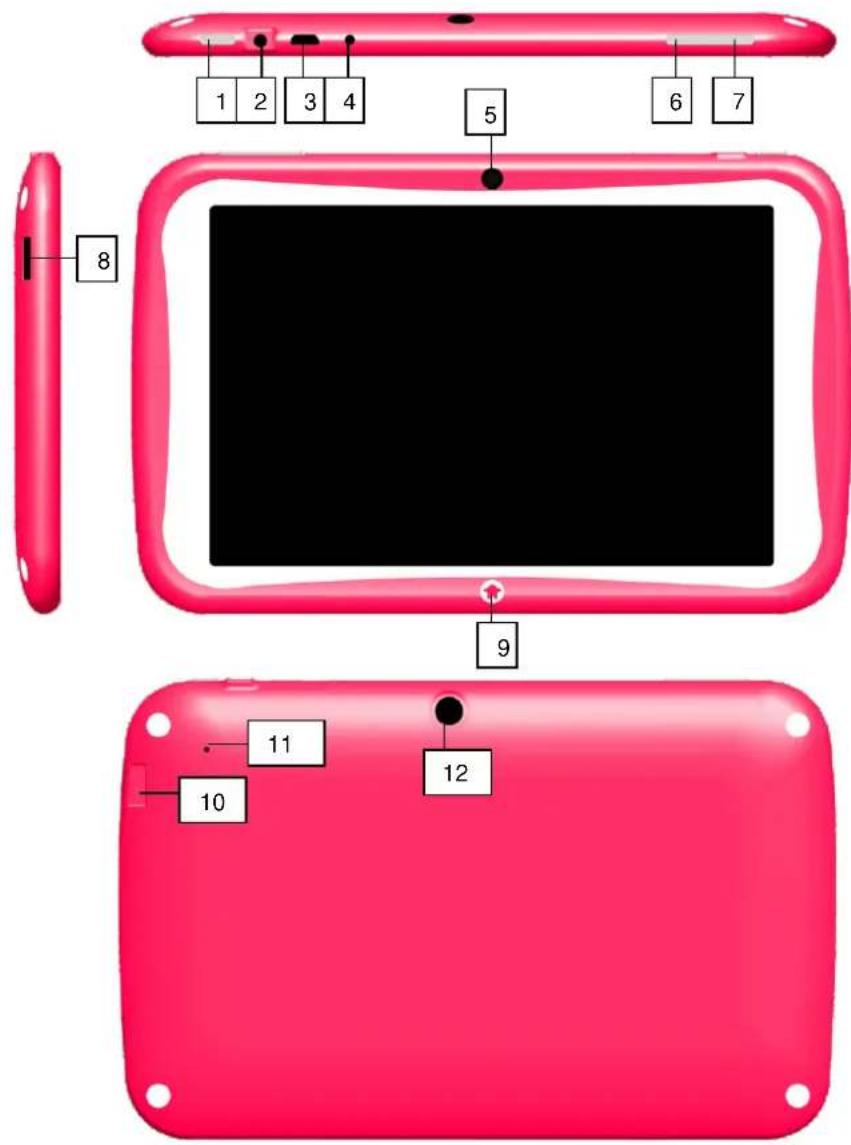
- On / Off
- Headphone jack
- Micro USB
- Power connection
- Front camera
- Volume +
- Volume -
- Micro SD card slot
- Home button
- Micro SD card slot
- Reset
- Reverse camera
2 Charging
Please follow these steps to charge your Tablet PC.
- Plug one end of the data cable into the power connector port (connector, 2.5 mm) of the tablet PC.
- Insert the AC end of the adapter into the wall outlet.
3 Power-On
The first time you turn on the tablet PC, you need to unlock the screen by dragging the lock icon out of the circle and enter the home screen, which makes it easy for you to access frequently used functions. (The screen may vary depending on the model you are using.)
Drag the lock icon right out of the circle to unlock.
3.1 Setup assistant
To make it easier for you to initially set up your tablet PC, our setup assistant helps you with the first important things (language, date/time, WLAN, display brightness, and location detection) in 5 steps.
If you cancel the assistant or do not run it through to the end, you can also call up and change or set up the individual settings at any time using the menu.
3.2 Explanation
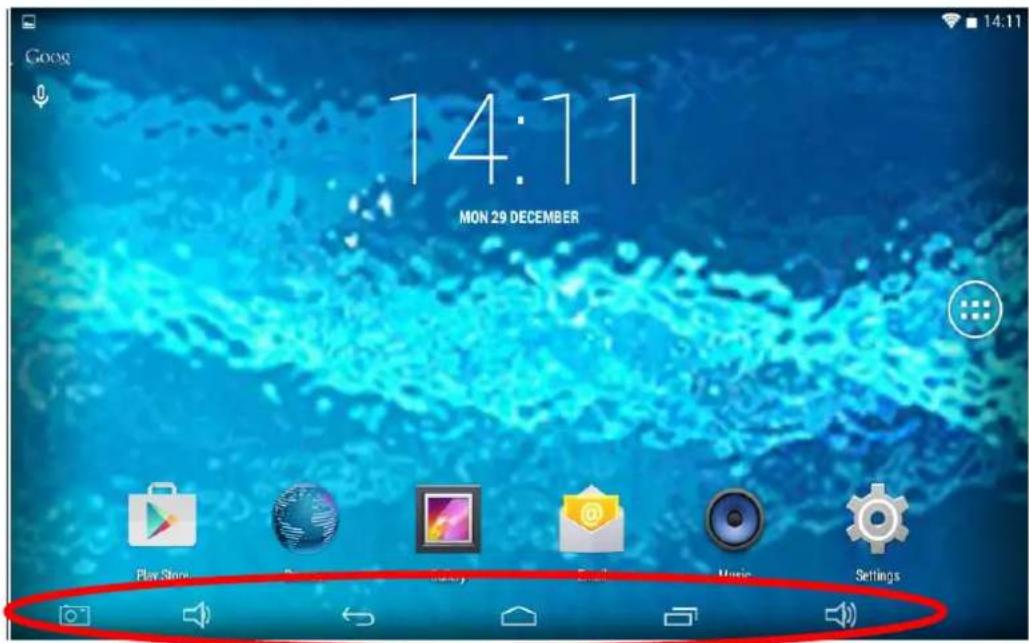

Touch to get back to previous page

Volume – (quieter) (Fig. may differ)

Touch to access home screen. Volume + (louder) (Fig. may differ)

Screenshot (Fig. may differ)

Touch to browse the track record of opened applications

Screenshot (Fig. may differ)

Touch to see the menu (Fig. may differ)
4 Turn off / Standby
To power your tablet PC down completely, hold the "On/Off switch" down until the window appears asking you whether you want to switch the device off. Confirm with "OK" if you want to power the device down completely. If you merely want to move the device into standby mode (for use soon and a fast start), simply tap the On/Off switch.
Please note that the tablet PC, when in standby mode, still consumes power, albeit very little, and in this mode the battery can also discharge over several days.
5 Starting Apps
Tap the App symbol down below in the middle on the main screen. Now tap on the icon for the App that you wish to start (e.g., music).
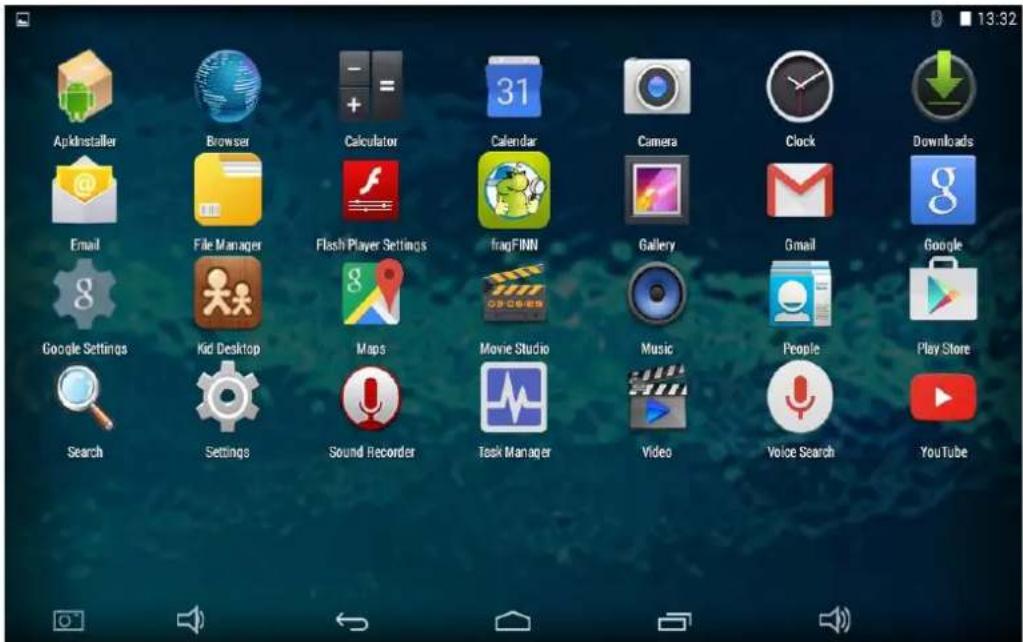
You can select apps (icons) and position them on the main screen by pressing and holding them (Fig. may differ).
6 Open settings
To open "Settings" tap on

You can adjust all the settings in this menu. The changes become effective immediately.
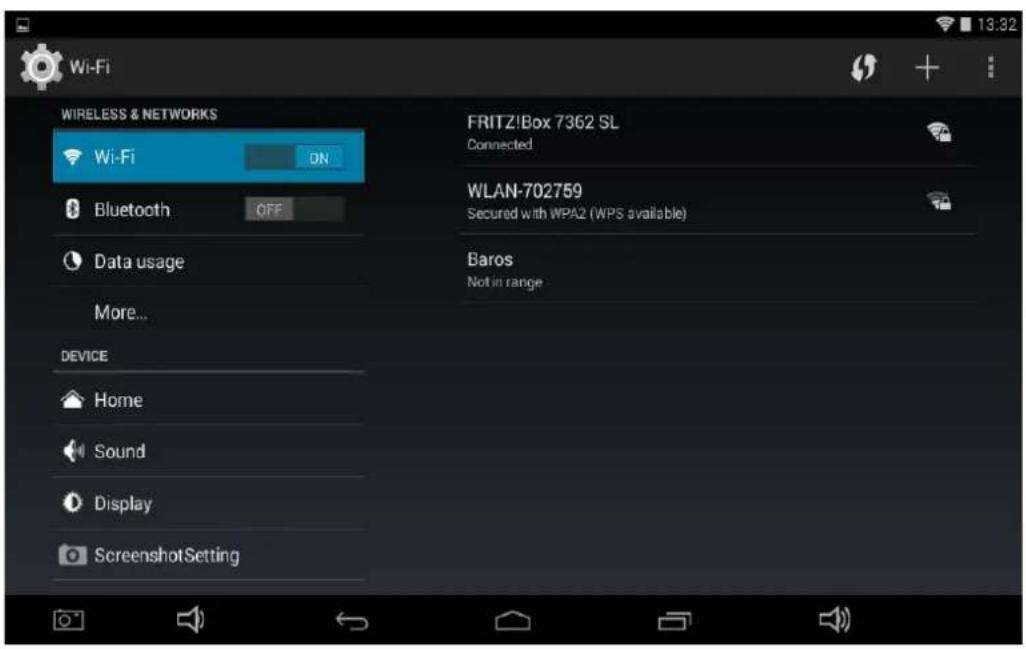
7 Bluetooth
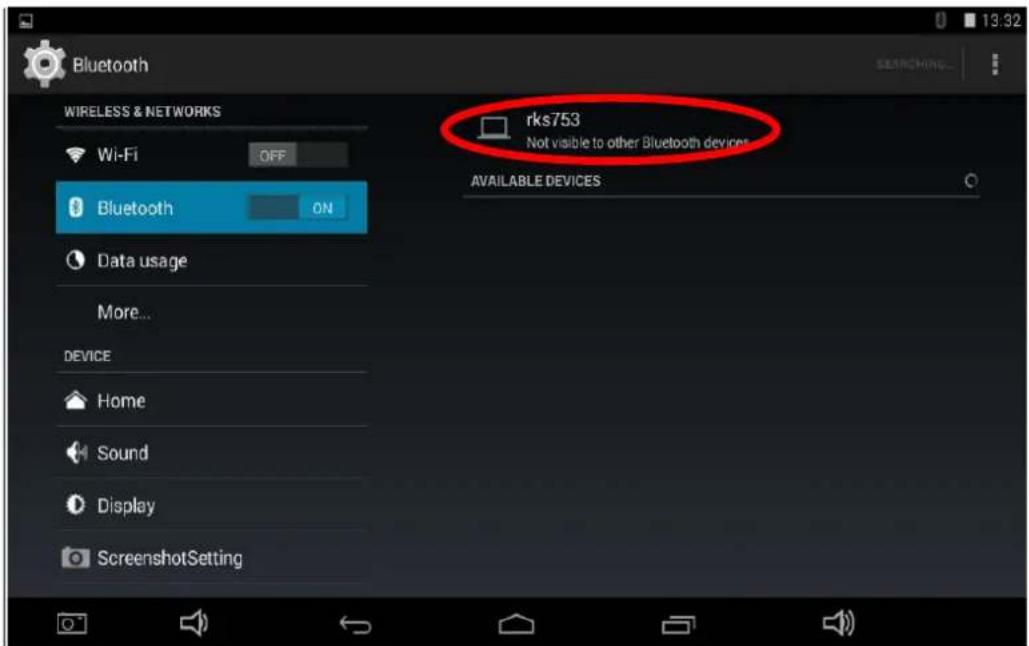
To connect your device via Bluetooth with another device, open Settings. Select Bluetooth in the "Wireless & Networks" field.
Now tap on "OFF" beside "Bluetooth". You have now enabled Bluetooth and the switch changes to ON.
After enabling Bluetooth, the device will search for and display all visible Bluetooth appliances in the immediate surroundings. To search again manually for Bluetooth devices, press on "Search for devices".
To couple your device with another, tap on the relevant device and confirm that you want to execute the coupling. If you want to make your device visible for other devices, tap on the name of your device.
The Standard name is the model number of the device or Blaupunkt (Fig. may differ).
Guarantee
Please keep the proof of purchase for this device for the entire duration of the guarantee period, as it must be produced in the event of any claim.
You (as the end user) receive a 24-month guarantee from the date of sale. The article has been manufactured using the most modern production methods and subjected to strict quality controls.
Please contact only the manufacturer (not the dealer where you purchased it) in the event of any defects during the guarantee period.
Hotline: +49 (0)511 - 270 496 90 or: support@first-servicecenter.de
The guarantee does not cover damage caused by improper use or external influence (water, falling, sunlight, breakage or impact).
Userinformation/Contact
If your device has a defect or you have problems with it, please contact our Service & Support Centre. If you need to send your device to us, please attend to the following points:
- Use only the original packaging
- Add a detailed error description
- Add your full name and address and a copy of your purchase receipt
- Stamp and send the package to us (sufficient postage)
Address of our Service Center:
First Service Center. Kleine Düwelstr 21. DE-30171 Hannover/Germany You can call also our hotline: +49 (0)511 - 270 496 90 or send a Fax to: +49 (0)511-161253 6 or contact us by eMail:support@first-servicecenter.de
Additional accessories for your Tablet PC are available at www.blaupunkt.de.
Handbooks in other languages and detailed instructions can also be downloaded from www.blaupunkt.de
Declaration of Conformity in accordance with the German Act on radio equipment and telecommunications terminal equipment (FTEG)
We,
declare under our sole responsibility that the product
Blaupunkt 4Kids / 7BPKD
is certified as conforming to the following standards and/or other normative documents:
Health and safety pursuant to § 3 (1) 1. (Article 3 (1) a))
EN 60950-1:2006+A11:2009+A1:2010+A12:2011
EN 62311:2008
Electromagnetic compatibility § 3 (1) 2, Article 3 (1) b))
The provisions of Directive 2004/108/EC in accordance with the following standards are met:
EN 301 489-1 V1.9.2 (2011-09), EN 301 489-17 V2.1.1 (2009-05),
EN 55022:2010, EN 55024:2010, EN 61000-3-2:2006+A1:2009+A2:2009, EN 61000-3-3:2008
Measures for the efficient use of the radio frequency spectrum
Air interface of radio systems pursuant to § 3 (2) (Article 3 (2))
ETSI EN 300 328 V.1.7.1 (2006-10)
Power supply: model PSEA050150V U2
Annex I to Directive 2006/95/EC is observed
EN 60950-1:2006+A11+A1+A12
EN 60065:2002+A1+A11+A2+A12
Eco-design conformity assessment
EC Regulation no. 278/2009 and Directive 2009/125/EC
We hereby declare that all essential test series have been carried out and that the product specified above conforms to the essential requirements of Directives 1999/5/EC and 2006/95/EC.
RoHS compliance
We hereby declare that all manufactured products are RoHS-compliant in accordance with Directive 2011/65/EU of the European Parliament and of the Council of 08.06.2011 on the restriction of the use of certain hazardous substances in electrical and electronic equipment.
Hannover, December 22, 2014
(Place, date of issue)

4Kids
Customer service/Contact


- PRODUCT VIEW
- CHARGING
- POWER-ON
- SETUP ASSISTANT
- EXPLANATION
- TURN OFF / STANDBY
- STARTING APPS
- OPEN SETTINGS
- BLUETOOTH
- GUARANTEE
- USERINFORMATION/CONTACT
- ADDRESS OF OUR SERVICE CENTER
- DECLARATION OF CONFORMITY IN ACCORDANCE WITH THE GERMAN ACT ON RADIO EQUIPMENT AND TELECOMMUNICATIONS TERMINAL EQUIPMENT (FTEG)
- BLAUPUNKT 4KIDS / 7BPKD
- ROHS COMPLIANCE
- KIDS
- CUSTOMER SERVICE/CONTACT
Brand : BLAUPUNKT
Model : 4Kids
Category : Tablet