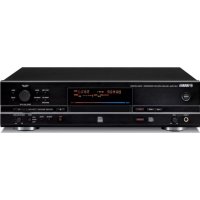
CDRHD1500 - Cd player/recorder YAMAHA - Free user manual and instructions
Find the device manual for free CDRHD1500 YAMAHA in PDF.

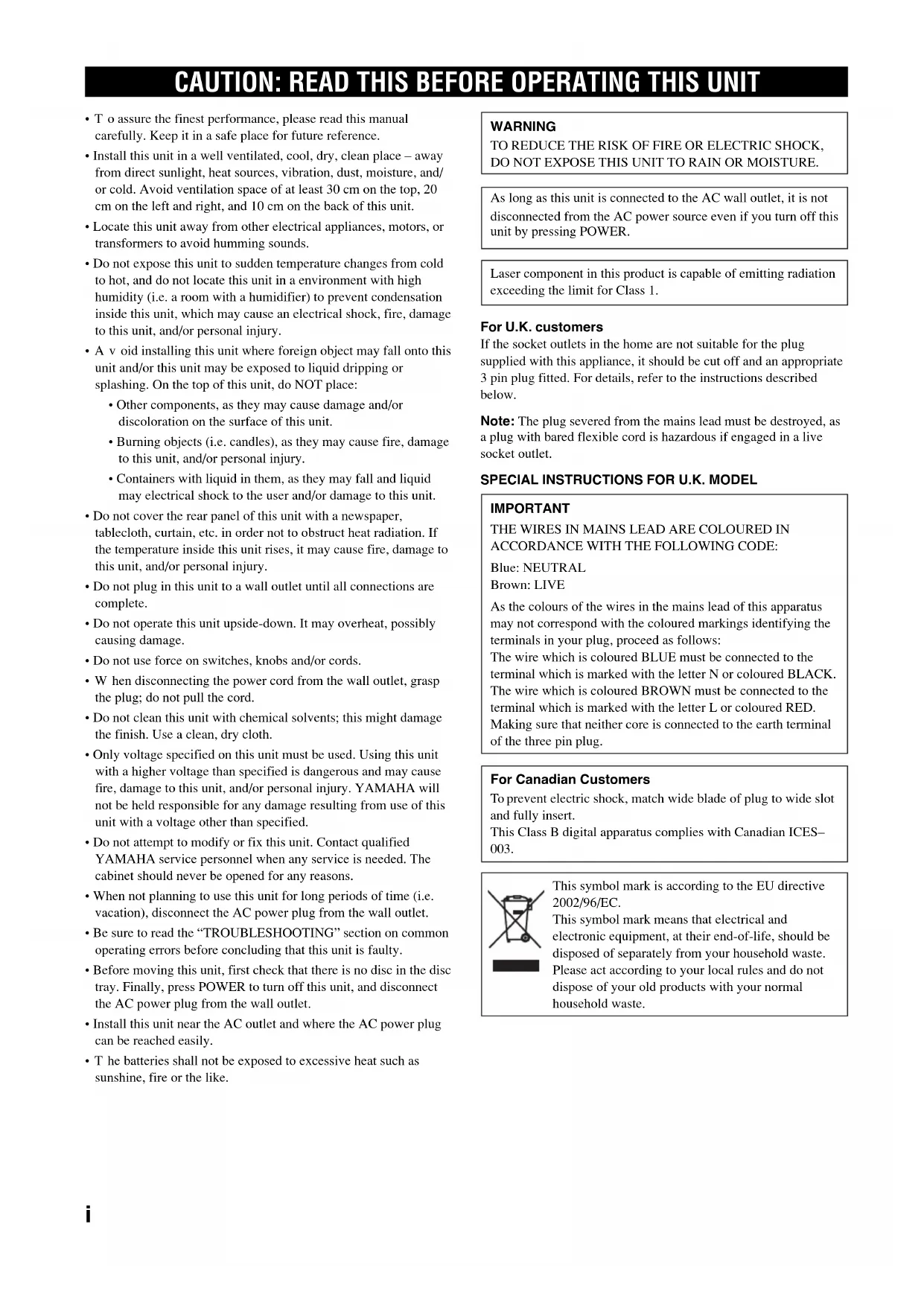


| Product Type | CD player/recorder with built-in hard disk |
| Brand and model | YAMAHA CDRHD1500 |
| Dimensions (W x H x D) | 435 x 115.5 x 414.5 mm |
| Weight | 8.2 kg (without hard disk) |
| Power supply | 120 V AC, 60 Hz (USA) / 230 V AC, 50 Hz (Europe, UK) / 240 V AC, 50 Hz (Australia) |
| Operating temperature | +5 to 35 °C |
| Operating humidity | 30 to 90% RH (no condensation) |
| Key functions | HDD recording, CD-R/CD-RW copying, CD playback, audio editing (album, track, disc), bookmark function, OSD display, timer clock, Audio Master Quality Recording mode |
| Compatible disc formats for recording | CD-R, CD-RW (for audio use only) |
| Supported hard disk capacity | 20 to 400 GB (IDE/ATA, 3.5-inch, Slave mode) |
| Recommended hard disk (March 2005) | Seagate Barracuda 7200.7/ST3160021A (160 GB) |
| Audio inputs | Analog (RCA), optical and coaxial digital |
| Audio outputs | Analog (RCA), optical and coaxial digital, headphones (6.35 mm jack) |
| Video outputs | S-Video, composite (RCA) |
| Maintenance and cleaning | Use a dry, clean cloth; do not use chemical solvents |
| Safety | Do not expose to rain or moisture; use only the specified voltage; do not open the casing; unplug during extended absence |
| Spare parts and repairability | For any repairs, consult qualified YAMAHA service |
Frequently Asked Questions - CDRHD1500 YAMAHA
User questions about CDRHD1500 YAMAHA
0 question about this device. Answer the ones you know or ask your own.
Ask a new question about this device
Download the instructions for your Cd player/recorder in PDF format for free! Find your manual CDRHD1500 - YAMAHA and take your electronic device back in hand. On this page are published all the documents necessary for the use of your device. CDRHD1500 by YAMAHA.
USER MANUAL CDRHD1500 YAMAHA

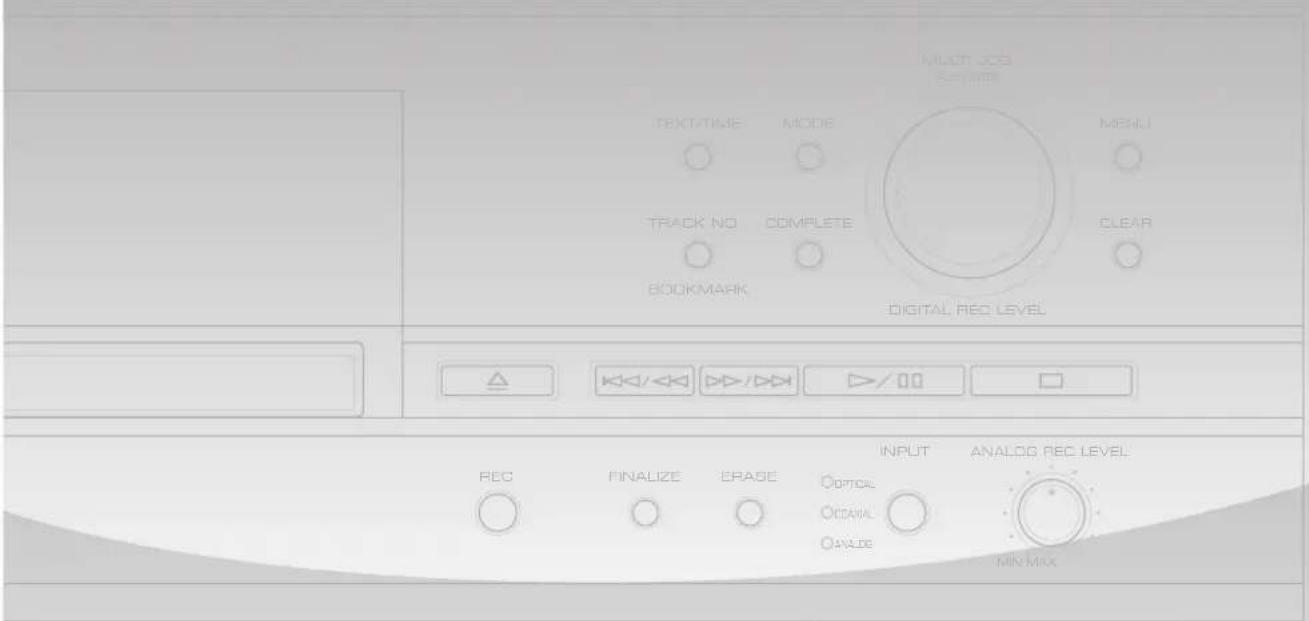
OWNER'S MANUAL
MODE D'EMPLOI
BEDIENUNGSANLEITUNG
BRUKSANVISNING
CAUTION: READ THIS BEFORE OPERATING THIS UNIT
- To assure the finest performance, please read this manual carefully. Keep it in a safe place for future reference.
- Install this unit in a well ventilated, cool, dry, clean place – away from direct sunlight, heat sources, vibration, dust, moisture, and/or cold. Avoid ventilation space of at least 30 cm on the top, 20 cm on the left and right, and 10 cm on the back of this unit.
- Locate this unit away from other electrical appliances, motors, or transformers to avoid humming sounds.
- Do not expose this unit to sudden temperature changes from cold to hot, and do not locate this unit in a environment with high humidity (i.e. a room with a humidifier) to prevent condensation inside this unit, which may cause an electrical shock, fire, damage to this unit, and/or personal injury.
- A void installing this unit where foreign object may fall onto this unit and/or this unit may be exposed to liquid dripping or splashing. On the top of this unit, do NOT place:
- Other components, as they may cause damage and/or discoloration on the surface of this unit.
- Burning objects (i.e. candles), as they may cause fire, damage to this unit, and/or personal injury.
- Containers with liquid in them, as they may fall and liquid may electrical shock to the user and/or damage to this unit.
- Do not cover the rear panel of this unit with a newspaper, tablecloth, curtain, etc. in order not to obstruct heat radiation. If the temperature inside this unit rises, it may cause fire, damage to this unit, and/or personal injury.
- Do not plug in this unit to a wall outlet until all connections are complete.
- Do not operate this unit upside-down. It may overheat, possibly causing damage.
- Do not use force on switches, knobs and/or cords.
- When disconnecting the power cord from the wall outlet, grasp the plug; do not pull the cord.
- Do not clean this unit with chemical solvents; this might damage the finish. Use a clean, dry cloth.
- Only voltage specified on this unit must be used. Using this unit with a higher voltage than specified is dangerous and may cause fire, damage to this unit, and/or personal injury. YAMAHA will not be held responsible for any damage resulting from use of this unit with a voltage other than specified.
- Do not attempt to modify or fix this unit. Contact qualified YAMAHA service personnel when any service is needed. The cabinet should never be opened for any reasons.
- When not planning to use this unit for long periods of time (i.e. vacation), disconnect the AC power plug from the wall outlet.
- Be sure to read the “TROUBLESHOOTING” section on common operating errors before concluding that this unit is faulty.
- Before moving this unit, first check that there is no disc in the disc tray. Finally, press POWER to turn off this unit, and disconnect the AC power plug from the wall outlet.
- Install this unit near the AC outlet and where the AC power plug can be reached easily.
- The batteries shall not be exposed to excessive heat such as sunshine, fire or the like.
WARNING
TO REDUCE THE RISK OF FIRE OR ELECTRIC SHOCK, DO NOT EXPOSE THIS UNIT TO RAIN OR MOISTURE.
As long as this unit is connected to the AC wall outlet, it is not disconnected from the AC power source even if you turn off this unit by pressing POWER.
Laser component in this product is capable of emitting radiation exceeding the limit for Class 1.
For U.K. customers
If the socket outlets in the home are not suitable for the plug supplied with this appliance, it should be cut off and an appropriate 3 pin plug fitted. For details, refer to the instructions described below.
Note: The plug severed from the mains lead must be destroyed, as a plug with bared flexible cord is hazardous if engaged in a live socket outlet.
SPECIAL INSTRUCTIONS FOR U.K. MODEL
IMPORTANT
THE WIRES IN MAINS LEAD ARE COLOURED IN ACCORDANCE WITH THE FOLLOWING CODE:
Blue: NEUTRAL
Brown: LIVE
As the colours of the wires in the mains lead of this apparatus may not correspond with the coloured markings identifying the terminals in your plug, proceed as follows:
The wire which is coloured BLUE must be connected to the terminal which is marked with the letter N or coloured BLACK. The wire which is coloured BROWN must be connected to the terminal which is marked with the letter L or coloured RED.
Making sure that neither core is connected to the earth terminal of the three pin plug.
For Canadian Customers
To prevent electric shock, match wide blade of plug to wide slot and fully insert.
This Class B digital apparatus complies with Canadian ICES-003.
This symbol mark is according to the EU directive 2002/96/EC.
This symbol mark means that electrical and electronic equipment, at their end-of-life, should be disposed of separately from your household waste. Please act according to your local rules and do not dispose of your old products with your normal household waste.
CD/CD-R/CD-RW COMPATIBLE WITH THIS UNIT
■ Discs that can be used for recording on this unit
Be sure to use only CD-R and CD-RW discs made by reliable manufacturers.
CD-R and CD-RW digital audio discs that display either of the following marks can be used with this unit.


FOR CONSUMER
FOR CONSUMER USE
FOR MUSIC USE ONLY
■ Discs that can be used for recording
- CD-R discs can only be recorded on once, and the recorded material cannot be erased.
- CD-RW discs can be recorded on, have the recorded material erased, and then recorded on again.
■ Discs that cannot be used for recording on this unit
• Discs bearing marks other than those shown above.
• Discs intended for recording computer data.
- Discs intended for professional use or labeled “FOR PROFESSIONAL USE ONLY”.
■ 79-minute CD-R disc
The actual recordable time of the CD-R disc with “80” written on its package is 79 minutes 57 seconds. This manual describes such CD-R disc as “79-minute CD-R disc”.
■ Finalization of CD-R/CD-RW discs
To play back CD-R discs on a standard CD player and CD-RW discs on CD-RW-compatible players, you need to perform the process known as “finalization”. In the finalization process, the Table of Contents (TOC) is written onto the discs.
Finalized CD-R discs
- CD-R discs can be played on a standard CD player.
• Further recording onto CD-R discs is not possible. - Some CD players may not play back the finalized CD-R discs properly due to differences in the playback system of different manufacturers.
Finalized CD-RW discs
- CD-RW discs cannot be played on a standard CD player. CD-RW discs can be played back on CD-RW-compatible players such as this unit.
- T racks written on CD-RW discs can be erased, and additional tracks can be recorded after the TOC has been erased.
■ Erasure or loss of data
Yamaha and suppliers accept no liability for the loss of data written on the HDD and CD-R or CD-RW discs, or any problems caused as a result of using this unit. As a precaution, it is recommended that the discs are tested after they have been recorded on. Furthermore, under no circumstances do Yamaha and suppliers guarantee the reliability of the discs. Also, under no circumstances do Yamaha and suppliers repair, restore or replicate the recorded data.
■ Discs that can be played back
In addition to CD-R and CD-RW digital audio discs described previously, commercially available CDs bearing the marks shown below can also be played on this unit. If you use the CDs that do not meet CD standards, this unit may operate properly.


■ Playback of the CD-R disc copied with the Audio Master Quality Recording mode
The Audio Master Quality Recording mode enables you to create a CD with high quality sounds by increasing the linear velocity when copying. The CD-R discs copied with this mode meet the CD standards and can be played on a standard CD player. However, some CD recorders may not play back these CD-R discs properly.
■ Playback on DVD players
Before playing back a finalized CD-R or CD-RW discs on a DVD player, please check whether the DVD player is compatible with CD-R or CD-RW discs or not. Refer to the owner's manual of the DVD player for more information. CD-R or CD-RW discs cannot be played on a DVD player that is not compatible with CD-R or CD-RW discs.
IMPORTANT
- Please check the copyright laws in your country to record from records, CDs, radio, etc. Recording of copyright material may infringe copyright laws.
NOTES ON DISCS
■ Handling of discs
Heed the following notes on handling of discs not to create any cause for a recording failure, a loss of the recorded data, or a malfunction of this unit.
- This compact disc recorder is designed for use with CDs (including 8cm [3"] discs) bearing the following marks only. Never attempt to load any other type of disc into this unit.




- CDs are not subjected to wear during play. However if the disc is handled improperly, damage may be created on the disc to adversely affect the disc's play.
- When writing on the label side of CD-R or CD-RW discs, use an oil-based felt-tipped pen.
- Do not use cleaning discs or warped discs. All of these could damage this unit.
-
Although playback of CDs is generally not affected by small particles of dust or fingerprints on their playing surface, dust, fingerprints, small scratches and direct sunlight on the recording surface of a CD-R or CD-RW disc may make recording impossible. Therefore, for optimal performance of the recorder and for long-term enjoyment of your CD collection, handle discs correctly as outlined in the following guidelines.
-
Hold discs by touching only the edges or center hole. When setting/removing a disc to/from the disc tray, be careful not to damage the disc surface.
- When a disc is not currently being used, remove it from the recorder and store in an appropriate case.
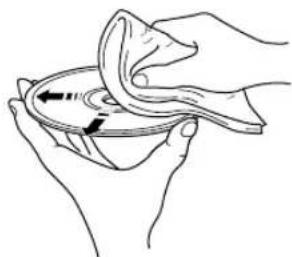
- With proper disc maintenance, cleaning should not be necessary. However, should cleaning be required, wipe by using a clean, dry cloth. Do not wipe with a circular motion; wipe straight outward from the center.
natural_image
Line drawing of hands holding a cloth over a tray with a paper (no text or symbols)- Do not try to clean the disc's surface by using any type of disc cleaner, record spray, antistatic spray or liquid, or any other chemical-based liquid, because such substances might irreparably damage the disc's surface.
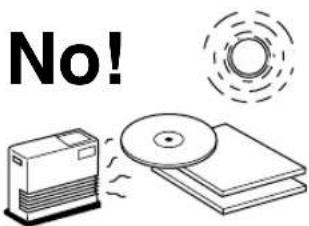
- Do not expose discs to direct sunlight, high temperature, or high humidity for a long period of time, because this might warp or otherwise damage the disc.
■ To prevent a malfunction of this unit
- Do not use any non-standard shaped CDs (heart, flower shaped, etc.) available on the market, because they are off-balance in their weight.
If a non-standard shaped CD is loaded into this unit, it may create problems such as improper playback, opening the disc tray, creating an usual noise, and this unit's failure.

- Be sure to use a felt-tip pen or similar writing tool when writing on the label side of the disc. Do not use a ball-point pen, pencil, or other hard-tipped writing tool, as these may damage the disc and may adversely affect further recording on the disc.
- Do not use the discs with glue left on their surface. It may get stuck in this unit or create damage to this unit.
- When using an 8cm (3") disc, do not place a normal 12cm (5") disc on top of it.
- Do not use the discs printed with commercially available label printers.
CONTENTS
1. GETTING STARTED
FEATURES 2
ABOUT THIS MANUAL 2
Structure 2
About this manual....2
SUPPLIED ACCESSORIES .... 3
NAMES OF BUTTONS AND CONTROLS 4
Front panel 4
Remote control 6
Display 8
Rear panel 9
CONNECTIONS 10
PREPARING THE REMOTE CONTROL .... 11
Installing batteries 11
Remote control operation range 11
2. BASIC OPERATIONS
BASIC OPERATIONAL FLOW 12
TURNING ON/OFF THE UNIT 14
SELECTING THE OPERATIONAL DRIVE (HDD/CDR) 14
SELECTING THE GROUP OR TRACK MODE .... 15
Data on the HDD 16
Data on CDs 17
SWITCHING DISPLAY INFORMATION .... 18
PLAYING BACK THE HDD OR CD 19
USEFUL PLAYBACK OPERATIONS .... 20
Searching by elapsed time (Time Search) 20
Setting the play style 20
Repeating playback of a track (Single Repeat) 21
Repeating playback of the selected group (Full Repeat) ..... 22
Playing back randomly (Random Play) 22
Playing back only the beginning parts of tracks (Intro Play) 23
USING THE BOOKMARK LIST 24
Adding tracks to the bookmark list 24
Playing back tracks in the bookmark list 24
Removing tracks from the bookmark list 24
USING ON-SCREEN DISPLAY (OSD).... 25
USING HEADPHONES 25
3. HDD RECORDING
COPYING FROM A CD ONTO THE HDD 26
Copying all tracks on a CD 26
Copying selected tracks on a CD.... 27
Selecting a target disc 28
Setting the HDD copy mode.... 28
Setting the HDD copy menu.... 29
RECORDING FROM AN EXTERNAL COMPONENT
ONTO THE HDD 31
Recording input audio source 31
Using an external timer to record 32
Adjusting the recording level 34
Setting the HDD recording mode 35
Adding track markers during recording (Manual track marking) 37
4. CD-R/CD-RW COPYING
COPYING FROM THE HDD ONTO A CD-R/CD-RW DISC 38
Copying all tracks in a group to a disc 38
Copying selected tracks on the HDD 40
Copying high quality sounds (Audio Master Quality Recording) 41
Setting the CDR copy mode 42
Setting the CDR copy menu 43
DUPLICATING A CD 45
Duplicating with high quality sounds (Audio Master Quality Recording) 46
FINALIZING A CD-R/CD-RW DISC.... 47
ERASING DATA ON A CD-RW DISC 48
Erasing last tracks 48
Erasing all tracks 48
Erasing TOC 48
Initializing a CD-RW disc 49
5. EDITING
LIST OF EDIT MENU 50
Cursor button operations in the edit menu 50
Entering characters in the edit menu 51
EDITING ALBUMS 52
EDITING TRACKS 58
EDITING DISCS 66
CANCELING EDIT OPERATIONS (UNDO) 70
6. OTHER FEATURES
CONVERTING DIGITAL/ANALOG OUTPUT SIGNALS (DAC MODE) 71
HDD UTILITY....72
Checking HDD information (HDD Info.) 72
Formatting the HDD (HDD Format) 72
SYSTEM UTILITY....73
Checking firmware version (Firm. Version) 73
Initializing settings (Initialize) 73
Setting the display brightness (Dimmer Setup) 74
Setting the video output (VIDEO Output).... 74
Starting playback automatically (Auto Play) 75
Updating the firmware version (Firm. Update) 75
7. APPENDIX
TROUBLESHOOTING 76
DISPLAY MESSAGES 78
GLOSSARY 80
LIST OF SYSTEM MENU 81
RULES OF DIGITAL RECORDING AND NOTES ON SYSTEM 82
Rules of digital recording 82
Notes on system 82
SPECIFICATIONS 83
FEATURES
◆ Beautiful design and easily-viewable front panel display
◆ Supporting 10x speed HDD recording, 8x speed CD-R copying, and 4x speed CD-RW copying
◆ Supporting high-capacity HDD (up to 400 GB HDD)
◆ Long continuous recording of external input source
◆ Digital (coaxial and optical) and analog input jacks
◆ Copying high-quality sounds with Audio Master Quality Recording (when copying onto CD-R discs)
◆ Bookmark feature for easy accesses to favorite tracks
◆ Timer playback (Auto Play) and timer recording features using a commercially available timer
◆ On-screen display feature for easy operations
♦ Various edit menus to customize music data on the HDD
ABOUT THIS MANUAL
■ Structure
This owner's manual is composed of following sections.
1. GETTING STARTED
This section explains necessary preparations such as remote control and connection. Please read this before using this unit.
2. BASIC OPERATIONS
This section explains frequently used operations such as group/track selection or playback features.
3. HDD RECORDING
This section explains how to copy data from CDs to the HDD or record external playback sources onto the HDD.
4. CD-R/CD-RW COPYING
This section explains how to copy data from the HDD to a CD-R or CD-RW disc, duplicate a CD (copy from a CD to a CD-R/CD-RW), or finalize a CD-RW disc.
5. EDITING
This section explains how to edit data (albums, tracks, and discs) on the HDD. For the guideline, please refer to “LIST OF EDIT MENU” (P.50).
6. OTHER FEATURES
This section explains how to check the HDD information or change the system settings.
7. APPENDIX
This section provides you with the information about system setting of this unit and troubleshooting.
■ About this manual
- This manual is printed prior to production. Design and specifications are subject to change in part for the reason of the improvement in operativity ability, and others. In this case, the product has priority.
- Some of the illustrations and names of the package contents etc written in this manual may differ from the actual products and the names written on the package etc.
SUPPLIED ACCESSORIES
Make sure the following items are included in your package.
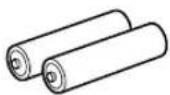
- Remote Control • Batteries (size AA, UM-3, or R6) (2)
- Audio Pin Cables (2)

natural_image
Illustration of two coiled cable or wire with multiple connectors (no text or symbols)• Optical Cable
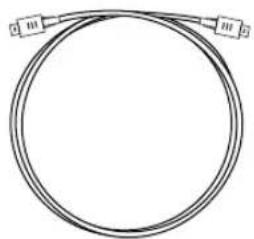
natural_image
Simple line drawing of a circular cable or wire with two labeled connectors (no text or symbols)• V ideo Pin Cable
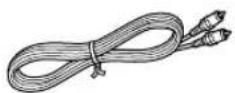
• Power Cable (for U.S.A. model)
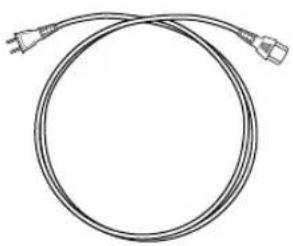
natural_image
Coiled electrical cable with two terminal connectors (no text or symbols)NAMES OF BUTTONS AND CONTROLS
■ Front panel
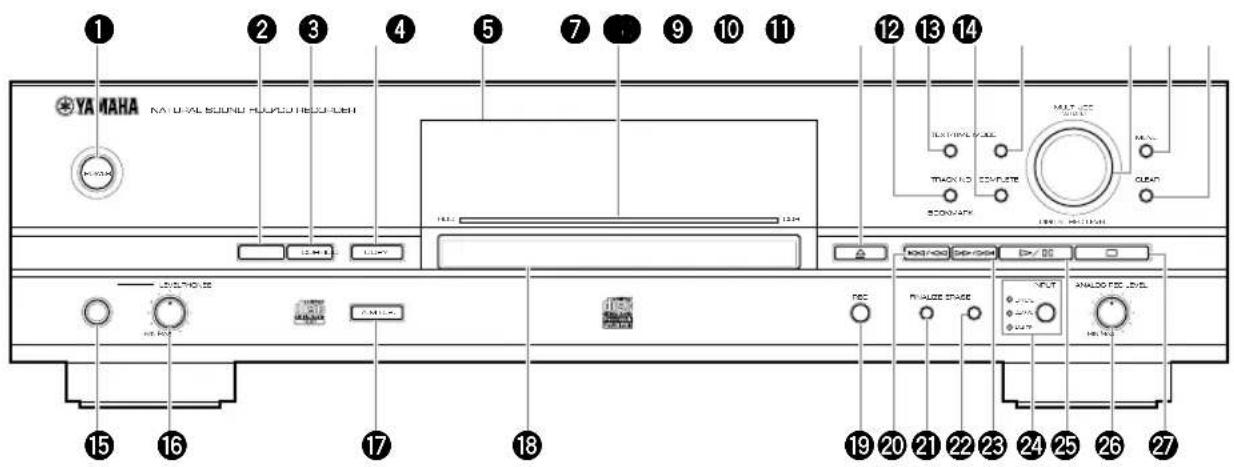
1 POWER
Turns on/off this unit (P.14).
② HDD
Sets the unit to the HDD operation mode (P.14).
③ CDR
Sets the unit to the CDR drive operation mode (P.14).
4 COPY
Sets the unit to the copy standby mode.
5 Front panel display
Displays information on the current playback or recording. You can switch information by pressing TEXT/TIME (P.18).
6 Illumination
Blinks or lights up in blue or red according to the operational status of this unit.
⑦ △ (Open/Close)
Opens or closes the disc tray.
8 TRACK NO./BOOKMARK
Adds track markers (P.37) or bookmarks (P.24) to favorite tracks.
⑨ TEXT/TIME
Switches display information (P.18).
10 COMPLETE
Confirms specified operations or selected items.
⑪ MODE
Press the button when configuring the settings of the playback, recording, and copy modes.
12 MULTI JOG knob/DIGITAL REC LEVEL control
Normally, press to switch between the GROUP and TRACK modes, and rotate to select a group (disc or album) or track. In the menu screen, rotate to select items or adjust parameters, and press to decide.
13 MENU
Displays the menu screen corresponding to the current status of the unit.
14 CLEAR
Deletes the selected item or clears the setting.
15 PHONES jack
Connect headphones (P.25).
16 PHONES LEVEL control
Adjusts the headphone volume when connecting headphone to the PHONES jack (P.25).
⑰ A.M.Q.R.
Turns on/off the Audio Master Quality Recording (P.41, 46) when copying data onto a CD-R disc.
18 Disc tray
Set a disc on here when playing a CD, recording track data from a CD to the HDD, or copying track data from the HDD to a CD-R or CD-RW disc.
19 REC
Sets the unit to the recording standby mode.
20 (Skip/Search)
Press to skip to the beginning of a current track (press repeatedly to skip to a previous track), and press and hold to fast-rewind the current playback (P.19).
21 FINALIZE
Starts to finalize a CD-R or CD-RW disc (P.47).
22 ERASE
Select items to be erased when erasing data (track data or TOC) from a CD-RW disc (P.48).
23 Search/Skip
Press to skip to a next track and press and hold to fast-forward the current playback (P.19).
24 INPUT
Switches input sources (OPTICAL, COAXIAL, and ANALOG) (P.31). The lamp for the selected input lights up.
25 ▷/□□ (Play/Pause)
Starts playback of the currently selected group or track. Pressing the button during playback stops the playback temporarily (P.19).
In the copy or recording standby mode, press the button to start recording.
26 ANALOG REC LEVEL control
Adjust the recording level when recording analog sources (P.34).
27 □ (Stop)
Stops playback (P.19).
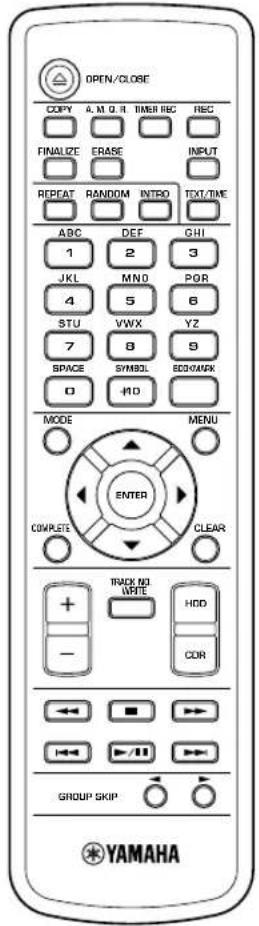
■ Remote control
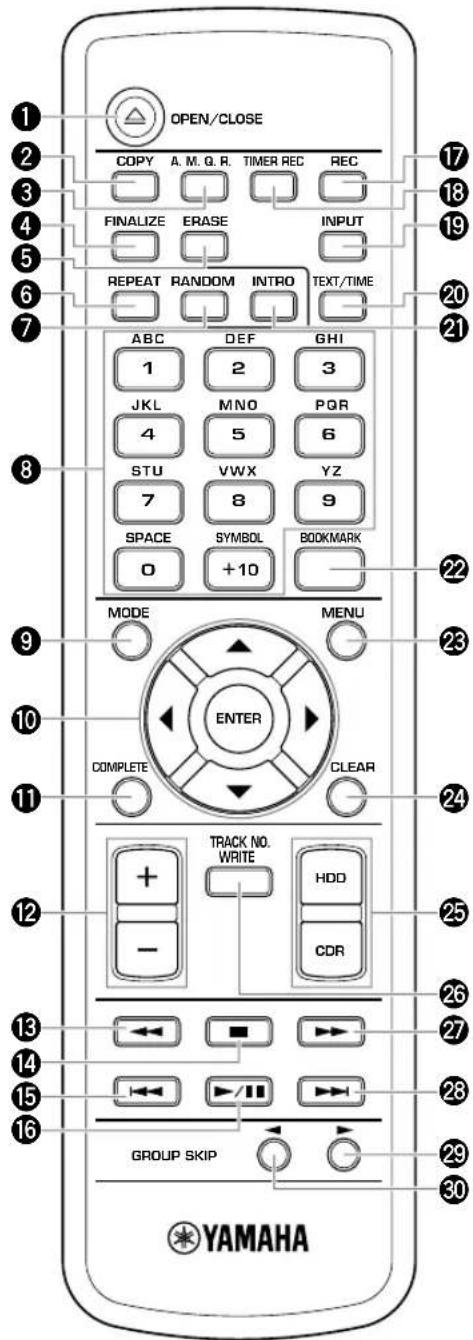
① △ OPEN/CLOSE
Opens or closes the disc tray.
② COPY
Sets the unit to the copy standby mode.
③ A.M.Q.R.
Turns on/off the Audio Master Quality Recording (P.41, 46) when copying data onto a CD-R disc.
4 FINALIZE
Starts to finalize a CD-R or CD-RW disc (P.47).
⑤ ERASE
Select items to be erased when erasing data (track data or TOC) from a CD-RW disc (P.48).
6 REPEAT
Turns on/off the Repeat Play (Single Repeat and Full Repeat) mode (P.21, 22).
7 RANDOM
Turns on/off the Random Play mode (P.22).
8 Alphabetical/numeric buttons
Selects track number to be played back or enters titles of albums or tracks.
⑨ MODE
Press the button when configuring the settings of the playback, recording, and copy modes.
⑩ Cursor buttons (▲, ▼, ◀, ►), ENTER
Normally, press ENTER to switch between the GROUP and TRACK modes. If the unit is in the GROUP mode, press ▲ or ▼ to select a group, and press ◀ or ▶ to select a track. If the unit is in the TRACK mode, press the cursor buttons to select a track.
In the menu screen, press the cursor buttons to select items or adjust parameters, and press ENTER to decide.
11 COMPLETE
Confirms specified operations or selected items.
12 +/-
Press + to move to the next menu and press - to move to the previous menu. Also, you can use these buttons to adjust parameters.
13 ← (Search)
Press and hold to fast-rewind the current playback (P.19).
14 ■ (Stop)
Stops playback (P.19)
15 |◀◀ (Track Skip)
Press to skip to the beginning of the current track (press repeatedly to skip to the previous track) (P.19).
16 ▶/II (Play/Pause)
Starts playback of the currently selected group or track.
Pressing the button during playback stops the playback temporarily (P.19).
In the copy or recording standby mode, press the button to start recording.
17 REC
Sets the unit to the recording standby mode.
18 TIMER REC
Press the button when configuring the time for timer recording (P.32).
19 INPUT
Switches input sources (OPTICAL, COAXIAL, and ANALOG) (P.31). The lamp for the selected input lights up.
20 TEXT/TIME
Switches display information (P.18).
21 INTRO
Turns on/off the Intro Play mode (P.23).
22 BOOKMARK
Adds bookmarks to favorite tracks (P.24).
23 MENU
Displays the menu screen corresponding to the current status of the unit.
24 CLEAR
Deletes the selected item or clears the setting.
25 HDD, CDR
Switches the unit between the HDD and CDR drive operation modes (P.14).
26 TRACK NO. WRITE
Adds track markers to tracks (P.37).
27 ▶▶ (Search)
Press and hold to fast-forward the current playback (P.19).
28 ▶▶ (Track Skip)
Press to skip to the next track (P.19).
29 GROUP SKIP ▶
Press to skip to the next group (P.19).
30 GROUP SKIP
Press to skip to the previous group (P.19).
■ Display
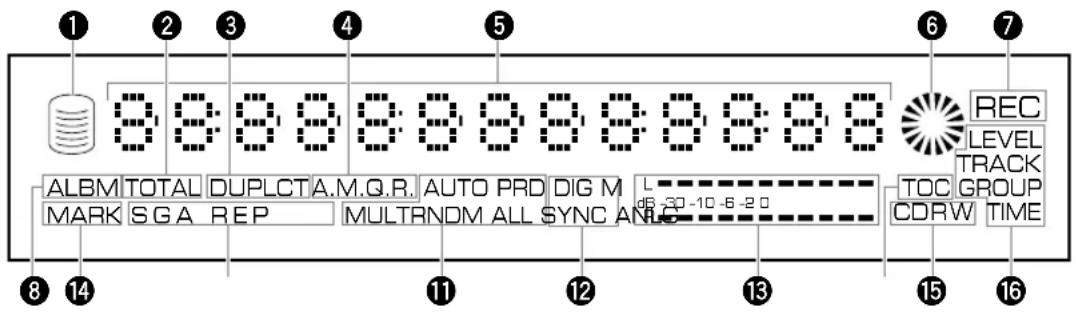
① HDD mark
Lights when the unit is in the HDD operation mode.
② TOTAL indicator
Lights when the total time (elapsed or remaining time) is displayed.
③ DUPLCT indicator
Lights when the unit is in the copy standby mode or copying process when duplicating a CD.
4 A.M.Q.R. indicator
Lights when the Audio Master Quality Recording is turned on.
⑤ Information display
Displays information (playback/recording time, titles, etc) on the selected drive. You can switch information by pressing TEXT/TIME (P.18).
6 CDR mark
Lights when a disc is set in the disc tray and the unit is in the CDR operation mode.
⑦ REC indicator
Lights when the unit is in the copy standby mode or copying process when recording/copying onto the HDD, CD-R disc, or CD-RW disc.
8 ALBM indicator
Lights when selecting an album.
9 MARK indicator
Lights when selecting a bookmarked track.
10 Playback mode/play style indicator
G indicator
Lights when "Style Group" is set as the play style.
A indicator
Lights when "Style All" is set as the play style.
REP indicator
Lights when the Repeat Play mode is turned on. When selecting the Single Repeat mode, "S REP" appears.
RNDM indicator
Lights when the Random Play mode is turned on.
Recording/copying mode indicator
AUTO indicator
Lights when any AUTO feature is turned on. When selecting the auto-period recording, "AUTO PRD" appears.
SYNC indicator
Lights when the unit is in a synchronized copying mode. When selecting the multi-synchronized copying, “MULT SYNC” appears, and when selecting the all-synchronized copying, “ALL SYNC” appears.
⑫ Copying method indicator
DIG indicator
Lights when the unit is in the digital copy process. When the unit is in the Digital Move process, “DIG M” appears.
ANLG indicator
Lights when the unit is in the analog copy process.
13 Level meter
Displays the recording level or the progress of an executed process (finalization, etc).
14 TOC indicator
Lights when a disc set in the disc tray has a TOC (disc information).
15 Disc indicator
Displays the type of a disc set in the disc tray.
16 MULTI JOG status indicator
Displays the currently selected MULTI JOG status (items or settings controlled by MULTI JOG knob operations).
■ Rear panel
For details about HDD installation, refer to “INSTALLING THE HDD” of the “HDD Installation Manual”. For details about how to connect other components, refer to “CONNECTIONS” (P.10).
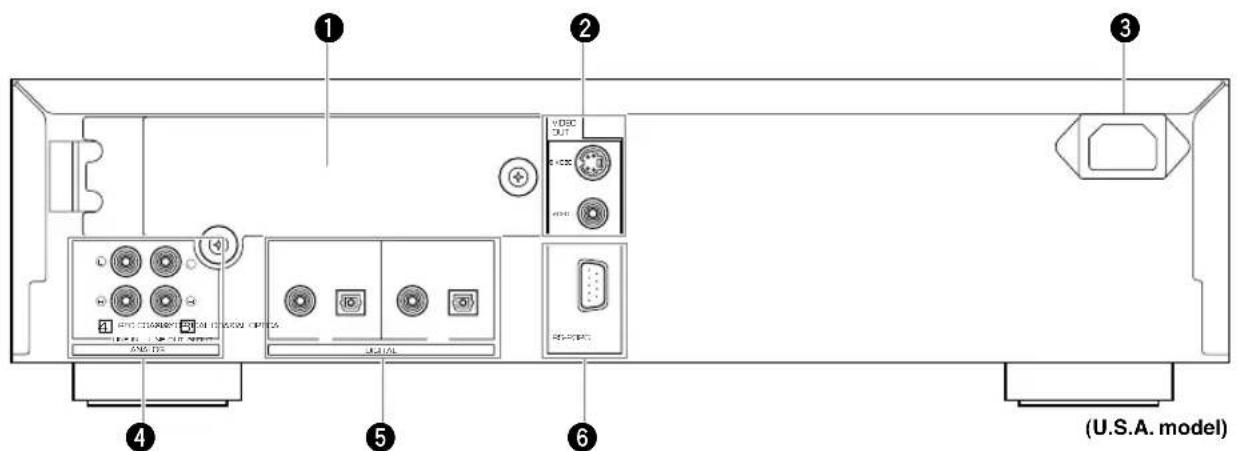
① HDD slot
Open the cover when replacing the HDD.
② VIDEO OUT jacks
S VIDEO jack
Outputs S-video signals.
VIDEO jack
Outputs composite video signals.
③ AC inlet (U.S.A. model only)
Plug the power cable to this inlet. (Be sure to connect the power cable after connecting all other cables.)
4 ANALOG jacks
ANALOG LINE IN (REC) jacks
Inputs analog signals.
ANALOG LINE OUT (PLAY) jacks
Outputs analog signals.
5 DIGITAL jacks
DIGITAL IN (COAXIAL) jack
Inputs digital signals.
DIGITAL IN (OPTICAL) jack
Inputs digital signals.
DIGITAL OUT (COAXIAL) jack
Outputs digital signals.
DIGITAL OUT (OPTICAL) jack
Outputs digital signals.
6 RS-232C terminal
This terminal is for connecting a personal computer. Information about the PC software (English version only) is to be announced on the YAMAHA Website (http://www.yamaha.co.jp/english/product/av/).
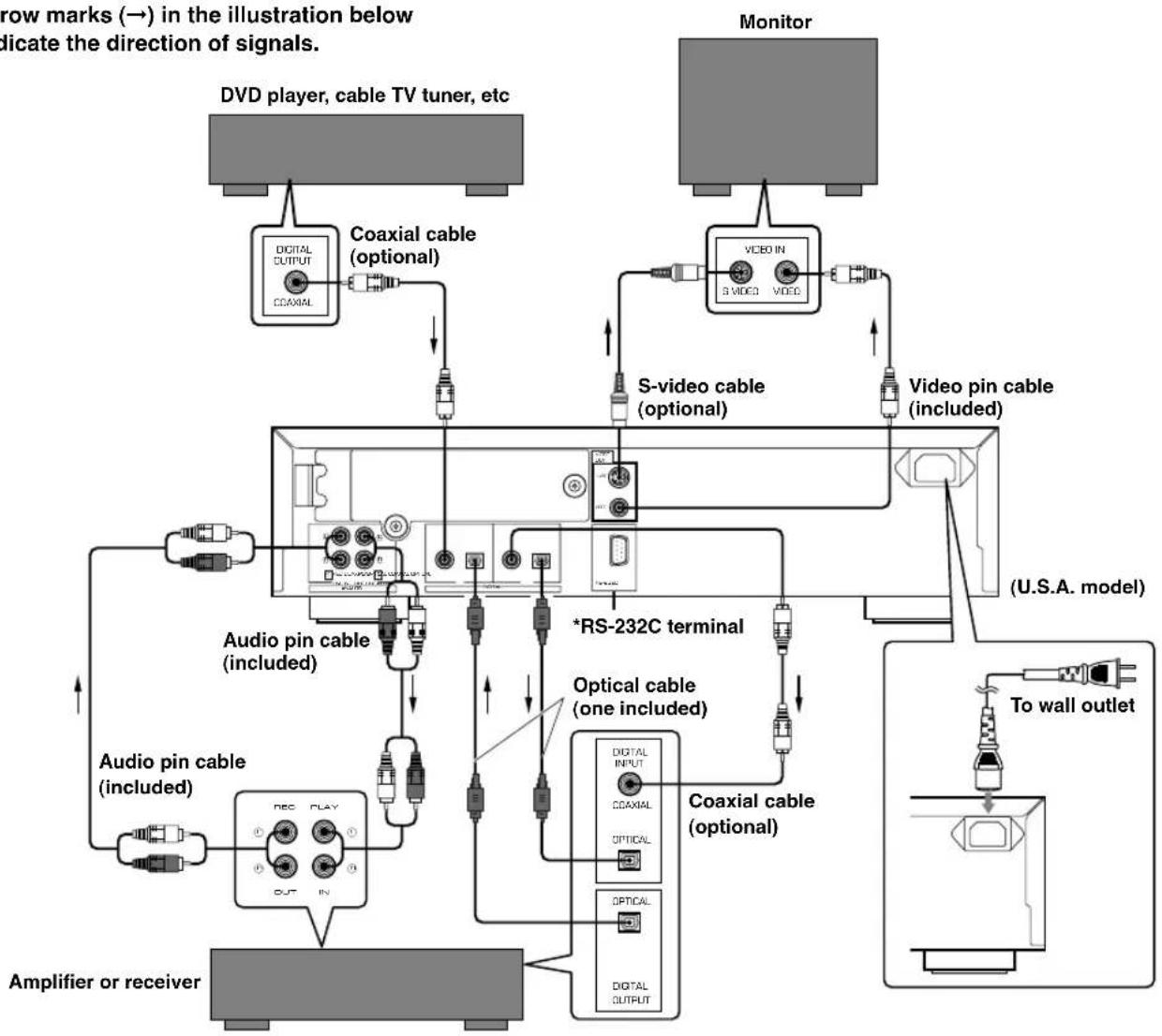
CONNECTIONS
Turn off the power of this unit and the other components, and unplug them from the wall outlet before making any connections. Follow the diagram below to make connections with proper cables.
Digital connections
- To output signals from this unit to an external component, connect DIGITAL OUT jack of this unit to the digital input jack of the external component. To input signals from an external component to this unit, connect DIGITAL IN jack of this unit to the digital output jack of the external component.
- This unit cannot input digital signals other than PCM signals.
Analog connections
- To output signals from this unit to an external component, connect ANALOG LINE OUT jack of this unit to the analog input jack of the external component. To input signals from an external component to this unit, connect ANALOG LINE IN jack of this unit to the analog output jack of the external component. Be sure to connect L (left) and R (right) jacks respectively
• To connect the turntable directly to this unit, first connect it to the phono equalizer and then connect to the ANALOG LINE IN (REC) jacks on this unit.
Memo
- When you play the data on the HDD or CDs, signals are output both from the ANALOG LINE OUT (PLAY) jack and from the DIGITAL OUT (OPTICAL/COAXIAL) jacks.
- Signals that are output through the DIGITAL OUT (OPTICAL) jacks or the DIGITAL OUT (COAXIAL) jacks while playing the data on the HDD do not have information about the track markers. Therefore if these signals are recorded by an MD player, the track markers may not be placed correctly on the recorded MD disc.
Arrow marks ( ) in the illustration below indicate the direction of signals.
flowchart
graph TD
    A["Monitor"] --> B["DVD player, cable TV tuner, etc"]
    A --> C["S-video cable (optional)"]
    A --> D["Video pin cable (included)"]
    A --> E["Audio pin cable (included)"]
    A --> F["Optical cable (one included)"]
    A --> G["Coaxial cable (optional)"]
    A --> H["Audio pin cable (included)"]
    A --> I["Amplifier or receiver"]
    B --> J["Coaxial cable (optional)"]
    C --> K["S-video cable (optional)"]
    D --> L["Coaxial cable (optional)"]
    E --> M["Audio pin cable (included)"]
    F --> N["Optical cable (one included)"]
    G --> O["To wall outlet"]
    H --> P["Amplifier or receiver"]
    style A fill:#f9f,stroke:#333
    style B fill:#ccf,stroke:#333
    style C fill:#cfc,stroke:#333
    style D fill:#fcc,stroke:#333
    style E fill:#cff,stroke:#333
    style F fill:#ffc,stroke:#333
    style G fill:#cfc,stroke:#333
    style H fill:#fcc,stroke:#333
    style I fill:#cfc,stroke:#333
* This terminal is for connection of the personal computer. Information about the PC software (English version only) is to be announced on the YAMAHA Website (http://www.yamaha.co.jp/english/product/av/).
Connecting a monitor
You can display the list of groups or tracks to be played, copying/recording settings or the list of setting items on the monitor by connecting the monitor to this unit. Connect the S VIDEO jack or the VIDEO jack whichever available on your monitor.
Connecting the power cable
[U.S.A. model]
Plug the power cable into the AC inlet when all connections are complete, and then plug in the power cable to the wall outlet.
[Europe, U.K. and Australia models]
Plug in this unit to the wall outlet when all connections are complete.
PREPARING THE REMOTE CONTROL
■ Installing batteries
- Press the hook (△) of the battery cover to remove it.
- Insert 2 batteries (AA, UM-3 or R6 type) according to the polarity markings on the inside of the battery compartment.
- Close the cover until it snaps into place.
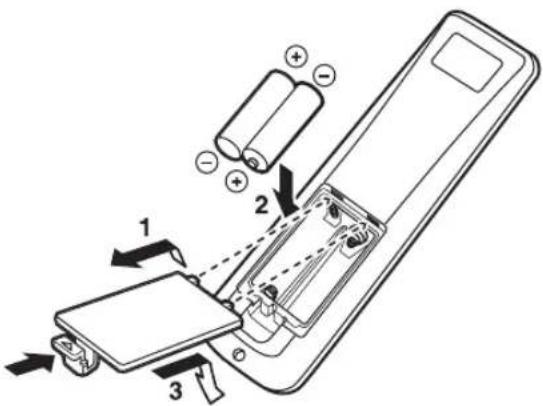
Battery replacement
If you find that the remote control must be used closer to this unit than usual, the batteries are weak. Replace both batteries with new ones.
Notes on batteries
- Use only AA, UM-3, or R6 type batteries for replacement.
- Do not mix a new battery with a used one.
• A rechargeable battery cannot be used. - Do not mix different types of battery.
- Do not attempt to short out the batteries by directly connecting the plus (+) and the minus (−) with a piece of metal.
- Remove the batteries if the remote control will not be used for an extended period of time.
- If the batteries leak, dispose of them immediately, taking care not to touch the battery fluid. If the battery fluid comes into contact with your eyes, mouth, or skin, rinse it off with water immediately, and consult a doctor. Clean the battery compartment thoroughly before installing new batteries.
■ Remote control operation range
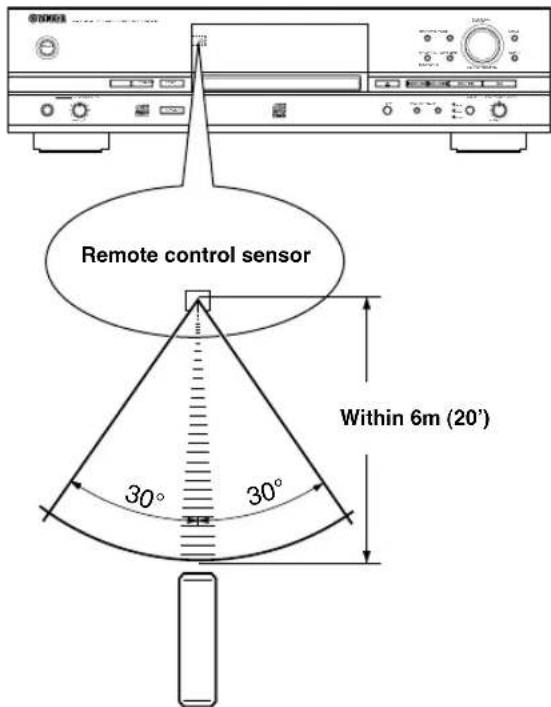
Notes
- If operation of this unit by the remote control creates any malfunction in any other components, change the placement of the component.
- Do not spill any liquid on or drop the remote control. Do not place it near a heater or in the bathroom where the temperature and humidity become high.
- Make sure the remote control sensor is not exposed to direct sunlight or strong lights. If it is, it may not function correctly.
BASIC OPERATIONAL FLOW
Once you have finished all connections (P.10) and prepared the remote control (P.11), please follow the procedure below to copy music data from a CD to the HDD and listen to it!
(In this procedure, we use a remote control to operate the unit although buttons on the unit control it in the same way.)
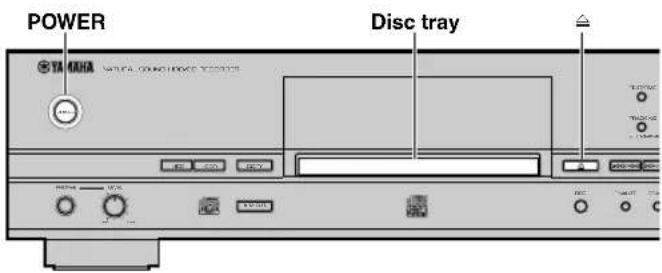
② Set a CD on the disc tray.
Press to open/close the disc tray.
Place a CD properly as aligned in the recess with its label side facing up.
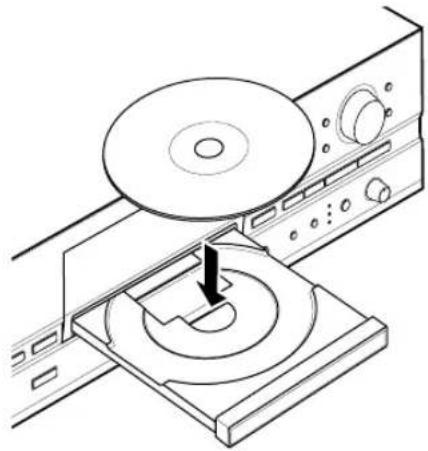
natural_image
Diagram of a CD/DVD assembly with an arrow indicating a component (no text or symbols present)The unit starts to read the disc information (disc type and disc capacity), then "Reading" appears in the display (the process may take 10 to 20 seconds depending on the disc condition).
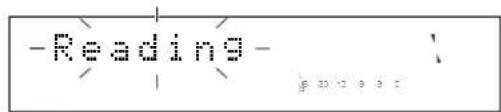
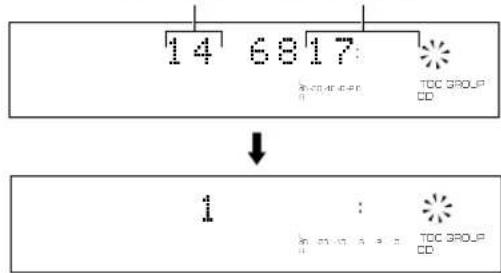
When the disc information is read completely, the display changes as follows, and the unit becomes ready to be operated.
Total number of tracks Total time
1 Press POWER on the unit to turn it on.
The display shows the "WELCOME" message, then the unit becomes ready to operate.
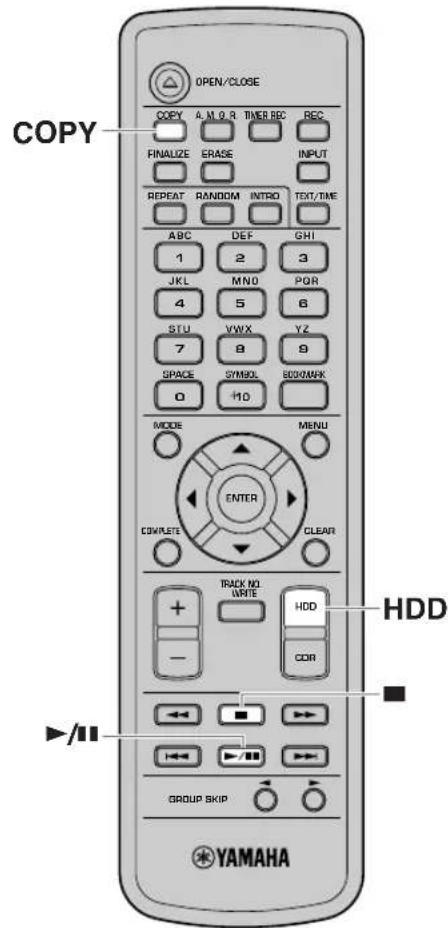
3 Press COPY once to set the unit to the copy standby mode.
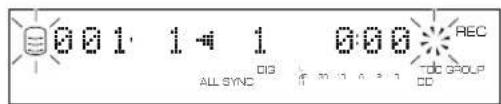
The HDD and CDR marks in the display start to blink.
4 Press ▶/II to start copy.
The display shows the progress of the copy process.

5 When copy is finished, press HDD to select the HDD.
The HDD mark in the display lights and HDD information appears.

6 Press ▶/II to start playback of the tracks you just recorded on the HDD.
To skip tracks or fast-rewind/-forward, refer to "PLAYING BACK THE HDD OR CD" (P.19).
7 To stop playback, press ■.
If you press ▶/■ again, playback starts from the beginning of the currently selected track.
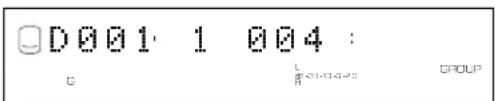
Now, please try various features of this unit!
•To enjoy playback with Repeat Play, Random Play, Intro Play features
"USEFUL PLAYBACK OPERATIONS" (P.20-23)
• To start playback automatically using external timer
"Starting playback automatically (Auto Play)" (P.75)
•To copy from the HDD to CD-R/CD-RW discs
"COPYING FROM THE HDD ONTO A CD-R/CD-RW DISC" (P.38-44)
•To record external sources on the HDD
"RECORDING FROM AN EXTERNAL COMPONENT ONTO THE HDD" (P.31-37)
• To edit the HDD data (albums, tracks and discs)
"5. EDITING" (P.50-70)
This unit equips various useful features other than those above.
Please read this manual carefully and enjoy pleasant music environment with this unit.
Press POWER on the front panel.
When the unit turns on, the message "WELCOME TO YAMAHA HDD/CD SYSTEM" appears on the front panel display, then the unit becomes ready to be operated.
For information on specifications such as power consumption, refer to "SPECIFICATIONS" (P.83).
Notes
- Do not turn off the unit during playback or recording. Doing so may damage the HDD or data.
- If the message "Wait" appears in the display for 20 seconds or more after turning on the unit, the HDD may not be installed properly. Refer to the "HDD Installation Manual" and check the connection.
SELECTING THE OPERATIONAL DRIVE (HDD/CDR)
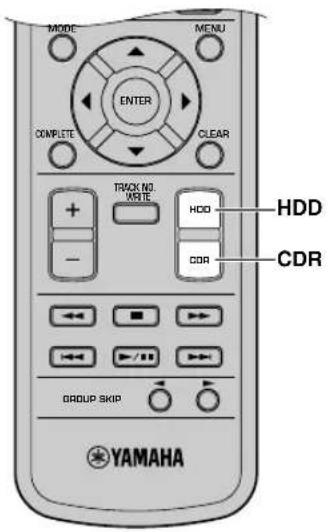
This unit equips the HDD and CDR drive. When operating the unit, you need to select HDD or CDR drive in accordance with your purpose.
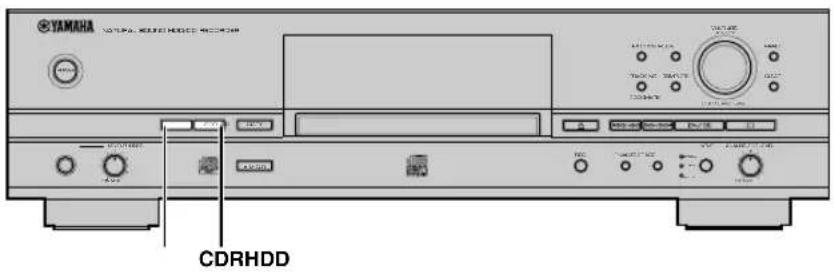
To operate the HDD drive, press HDD.
The HDD mark lights in the display, and the disc information appears.
To operate the CDR drive, press CDR.
The unit starts to read the information of a disc set in the disc tray. When the disc information is read completely, the CDR mark lights in the display, and the disc information appears.
When no disc is set in the disc tray, the message "No Disc" appears.
Memo
If you set a disc in the disc tray, the unit automatically switches to the CDR drive operation mode.
SELECTING THE GROUP OR TRACK MODE
When starting playback or recording, you need to select the group or track mode at first, and then select an item (disc, album, track, etc) to operate. The types of group you can select vary depending on the drives (HDD and CDR drive). For details, refer to "Data on the HDD" (P.16) and "Data on CDs" (P.17).
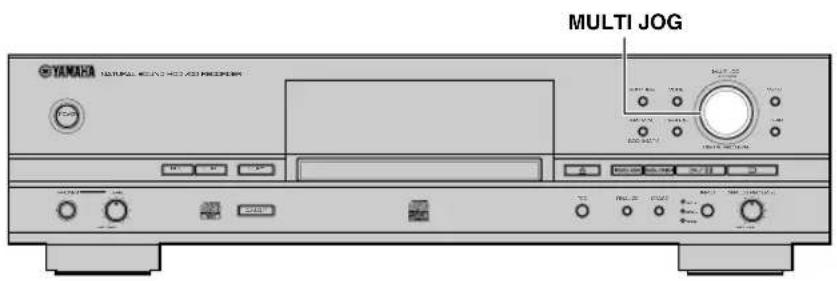
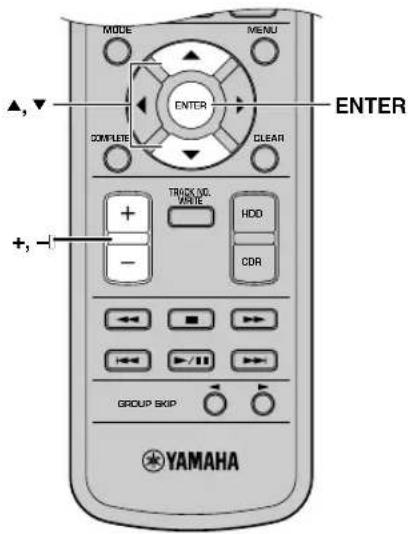
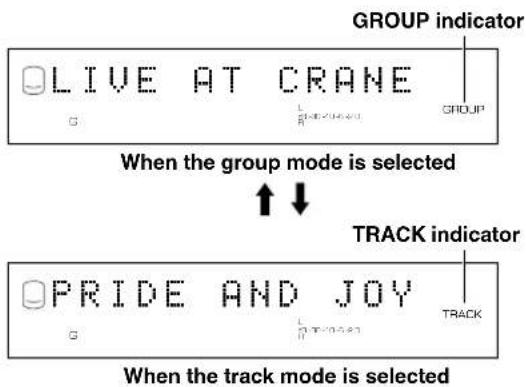
1. Press the MULTI JOG knob (ENTER on the remote control) to switch between the group and track mode.
When the group mode is selected, GROUP indicator lights. When the track mode is selected, TRACK indicator lights.
2. Rotate the MULTI JOG knob (press +/-, ▲ or ▼ on the remote control) to select an item to operate.
If you select the GROUP mode in step 1, the item changes as follows:
(When the unit is in the HDD operation mode)

(When the unit is in the CDR operation mode)
Disc Bookmark
If you select the TRACK mode in step 1, the item changes as follows:
Track1 Track2... Track99
3. Start operations (playback, recording, etc) for any purpose.
For details on playback operations, refer to "PLAYING BACK THE HDD OR CD" (P.19). For details on recording operations, refer to "3. HDD RECORDING" (P.26-37) or "4. CD-R/CD-RW COPYING" (P.38-49).
■ Data on the HDD
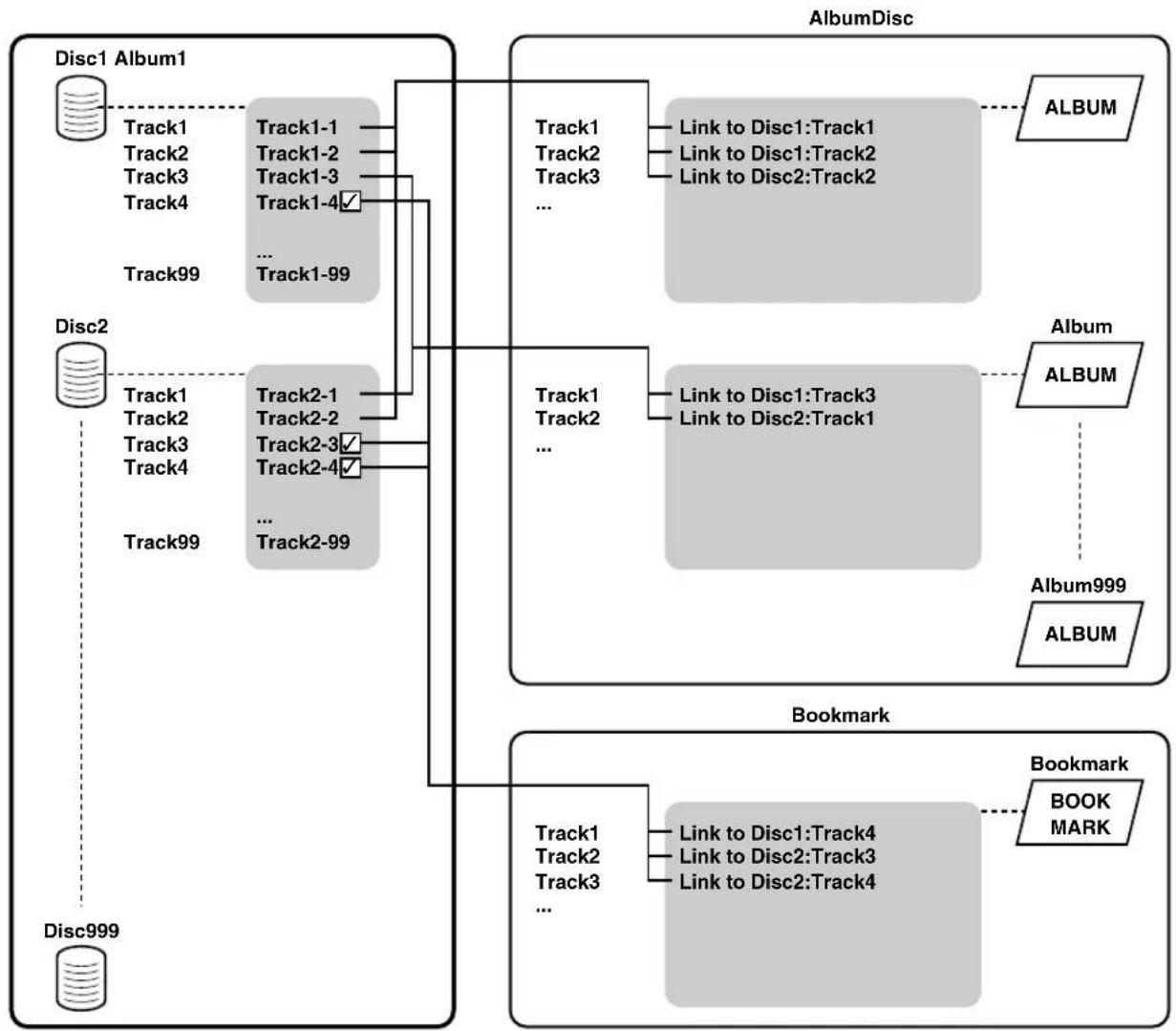
The data recorded onto the built-in HDD of this unit will be numbered and organized based on the following concept:
Group
A collection of disc(s), album(s), and a bookmark are generically called "group".
Disc
One consequent recording is counted and numbered as one unit of disc. The HDD of this unit can record 999 discs at maximum. (However, the number of discs to be created may be less than 999 for the space availability on the HDD.) The maximum length of one disc on the HDD is 179 minutes 59 seconds.
Album
A group of the source programs selected from different discs and recorded as the playlist is called “album”. “Album” corresponds to the “program” function (to play back favorite tracks in the desired order) of a standard CD player. This unit can record 999 albums at maximum onto the HDD.
Bookmark
This unit can make a temporary bookmark on a favorite track as playing back. The list of the program sources marked is called "bookmark". This marking is temporary and cannot be duplicated. However, an album can be easily created by copying the bookmarked tracks (P.54).
Track
99 tracks can be recorded onto a disc at maximum. (However the number of discs tracks to be recorded may be less than 99 for the space availability on the HDD.) One track must be 4 seconds at shortest and 179 minutes 59 seconds at longest.
flowchart
graph TD
    subgraph_Disc1_Architecture["Disc1 Album1"]
        A1["Track1"] --> A2["Track1-1"]
        A1 --> A3["Track1-2"]
        A1 --> A4["Track1-3"]
        A1 --> A5["Track1-4"]
        A2 --> A6["..."]
        A3 --> A7["Track1-99"]
    end

    subgraph_Disc2_Architecture["Disc2"]
        B1["Track1"] --> B2["Track2-1"]
        B1 --> B3["Track2-2"]
        B1 --> B4["Track2-3"]
        B1 --> B5["Track2-4"]
        B2 --> B6["..."]
        B3 --> B7["Track2-99"]
    end

    subgraph_Bookmark_Architecture["Bookmark"]
        C1["Track1"] --> C2["Track2"]
        C1 --> C3["Track3"]
        C1 --> C4["..."]
        C2 --> C5["Link to Disc1:Track4"]
        C2 --> C6["Link to Disc2:Track3"]
        C2 --> C7["Link to Disc2:Track4"]
    end

    subgraph_Bookmark_Brchitecture["Bookmark"]
        D1["Bookmark"] --> D2["BOOK MARK"]
    end

    A1 -.-> A2
    A2 -.-> A3
    A3 -.-> A4
    A4 -.-> A5
    A5 -.-> A6
    A6 -.-> A7
    A7 -.-> A8
    A8 -.-> A9
    A9 -.-> A10
    A10 -.-> A11
    A11 -.-> A12
    A12 -.-> A13
    A13 -.-> A14
    A14 -.-> A15
    A15 -.-> A16
    A16 -.-> A17
    A17 -.-> A18
    A18 -.-> A19
    A19 -.-> A20
    A20 -.-> A21
    A21 -.-> A22
    A22 -.-> A23
    A23 -.-> A24
    A24 -.-> A25
    A25 -.-> A26
    A26 -.-> A27
    A27 -.-> A28
    A28 -.-> A29
    A29 -.-> A30
    A30 -.-> A31
    A31 -.-> A32
    A32 -.-> A33
    A33 -.-> A34
    A34 -.-> A35
    A35 -.-> A36
    A36 -.-> A37
    A37 -.-> A38
    A38 -.-> A39
    A39 -.-> A40
    A40 -.-> A41
    A41 -.-> A42
    A42 -.-> A43
    A43 -.-> A44
    A44 -.-> A45
    A45 -.-> A46
    A46 -.-> A47
    A47 -.-> A48
    A48 -.-> A49
    A49 -.-> A50
    A50 -.-> A51
    A51 -.-> A52
    A52 -.-> A53
    A53 -.-> A54
    A54 -.-> A55
    A55 -.-> A56
    A56 -.-> A57
    A57 -.-> A58
    A58 -.-> A59
    A59 -.-> A60
    A60 -.-> A61
    B1 --> B2 --> B3 --> B4 --> B5 --> B6 --> B7 --> B8 --> B9 --> B10 --> B11 --> B12 --> B13 --> B14 --> B15 --> B16 --> B17 --> B18 --> B19 --> B20 --> B21 --> B22 --> B23 --> B24 --> B25 --> B26 --> B27 --> B28 --> B29 --> B30 --> B31 --> B32 --> B33 --> B34 --> B35 --> B36 --> B37 --> B38 --> B39 --> B40 --> B41 --> B42 --> B43 --> B44 --> B45 --> B46 --> B47 --> B48 --> B49 --> B50 --> B51 --> B52 --> B53 --> B54 --> B55 --> B56 --> B57 --> B58 --> B59 --> B60 --> B61 --> B62 --> B63 --> B64 --> B65 --> B66 --> B67 --> B68 --> B69 --> B70 --> B71 --> B72 --> B73 --> B74 --> B75 --> B76 --> B77 --> B78 --> B79 --> B80 --> B81 --> B82 --> B83 --> B84 --> B85 --> B86 --> B87 --> B88 --> B89 --> B90 --> B91 --> B92 --> B93 --> B94 --> B95 --> B96 --> B97 --> B98 --> B99 --> C00["AlbumDisc"]
    C00 -.-> C01["Album"]
    C01 -.-> C02["Album"]
    C02 -.-> C03["Album"]
    C03 -.-> C04["Album"]
    C04 -.-> C05["Album"]
    C05 -.-> C06["Album"]
    C06 -.-> C07["Album"]
    C07 -.-> C08["Album"]
    C08 -.-> C09["Album"]
    C09 -.-> C10["Album"]
    C10 -.-> C11["Album"]
    C11 -.-> C12["Album"]
    C12 -.-> C13["Album"]
    C13 -.-> C14["Album"]
    C14 -.-> C15["Album"]
    C15 -.-> C16["Album"]
    C16 -.-> C17["Album"]
    C17 -.-> C18["Album"]
    C18 -.-> C19["Album"]
    C19 -.-> C20["Album"]
Memo
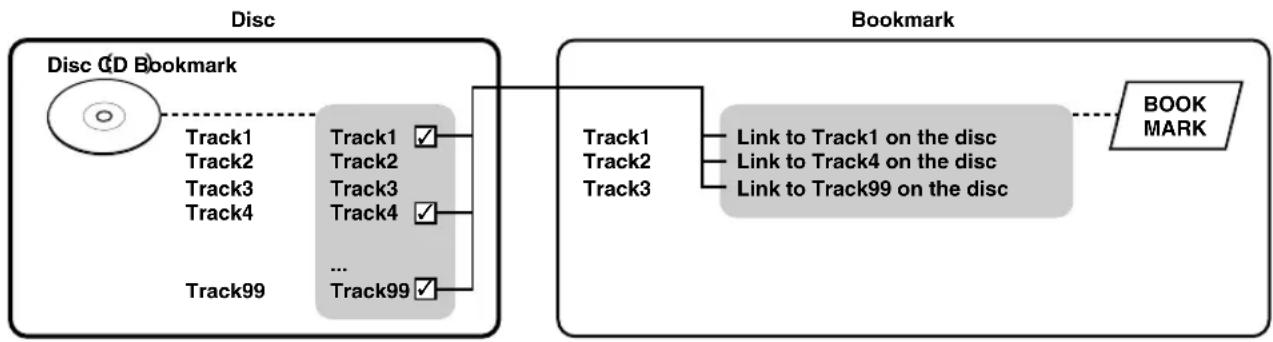
- Albums and bookmark list do not include any track data in themselves. They recall track data saved in discs using links.
- When playing the bookmark list, tracks are played in the order you added a bookmark.
Caution
- Should the HDD failed due to a certain cause, it is not possible to repair or restore the recorded data.
- The HDD is not suitable for a long period of data storage due to its properties. It should be used as a location for temporary data storage. To avoid losing important data, it is recommended to back up the HDD data in a CD-R disc.
■ Data on CDs
You can operate CDs (including CD-R and CD-RW) set in the CDR drive by group (disc or bookmark) or track.
Group
When operating CDs (including CD-R and CD-RW), you can select disc or bookmark as a group. Since the unit can only read one disc at a time, the number of discs available on a CD is always one. In addition, bookmarks on a CD will be erased if CD is removed from the unit or the unit is turned off.
Track
The number of tracks recorded onto a disc varies. Also, storage capacity varies depending types of discs. For details, refer to descriptions stated in each disc.
flowchart
graph LR
    A["Disc CD Bookmark"] --> B["Track1"]
    A --> C["Track2"]
    A --> D["Track3"]
    A --> E["Track4"]
    A --> F["..."]
    A --> G["Track99"]
    H["Bookmark"] --> I["Track1"]
    H --> J["Track2"]
    H --> K["Track3"]
    H --> L["Link to Track1 on the disc"]
    H --> M["Link to Track4 on the disc"]
    H --> N["Link to Track99 on the disc"]
    O["BOOK MARK"] -.-> H
SWITCHING DISPLAY INFORMATION
The display located in the center of this unit provides the information about the drive (HDD or CDR drive) selected. Each time TEXT/TIME is pressed, the display changes according to the operation.
Display while playing the data on the HDD
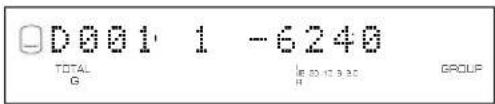
Group number, track number and elapsed time of the track being played
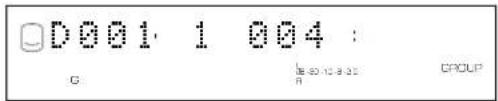
Group number, track number and remaining time of the track being played
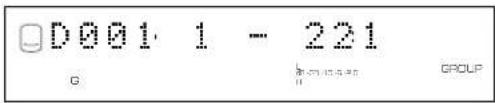
Group number and group total time
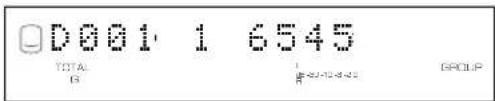
Group number and group remaining time
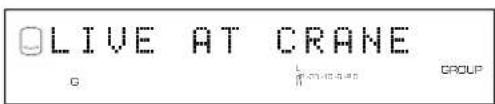
Group title or track title Group title
Track title
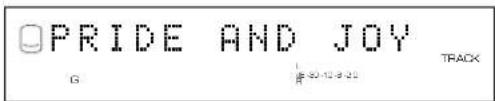
The group title with the GROUP indicator and the track title with the TRACK indicator are switched by pressing the MULTI JOG knob.
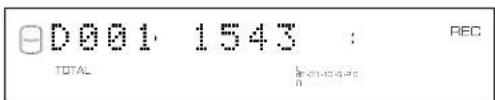
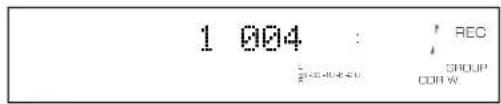
Display while recording onto the HDD
Disc number, track number and elapsed time of the track being recorded

Disc number and total recorded time on the disc
Display while playing a CD
Track number and elapsed time of the track being played
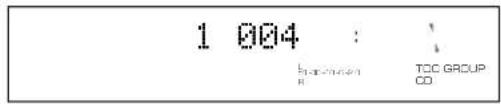
Track number and remaining time of the track being played

Disc total time
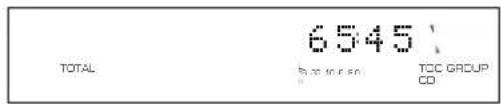
Disc remaining time

CD TEXT (when available) Disc title
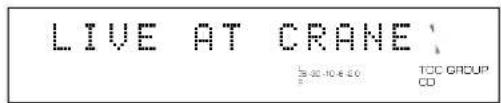
Track title
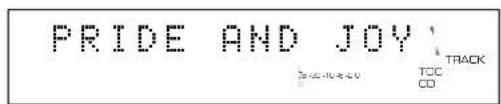
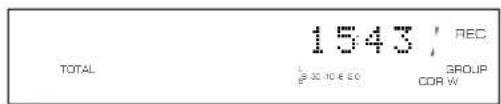
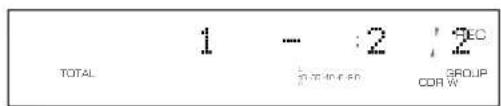
Display while recording onto a CD-R or CD-RW disc
Track number and elapsed time of the track being recorded
Total recorded time on a disc
Total recordable time on a disc
PLAYING BACK THE HDD OR CD
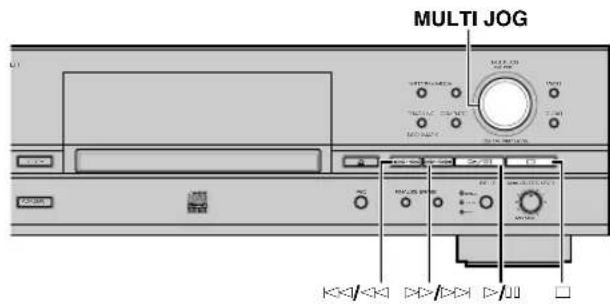
Follow the procedure below to carry out basic playback operations. This unit also provides various useful functions for playback. For details, refer to "USEFUL PLAYBACK OPERATIONS" (P.20-23).
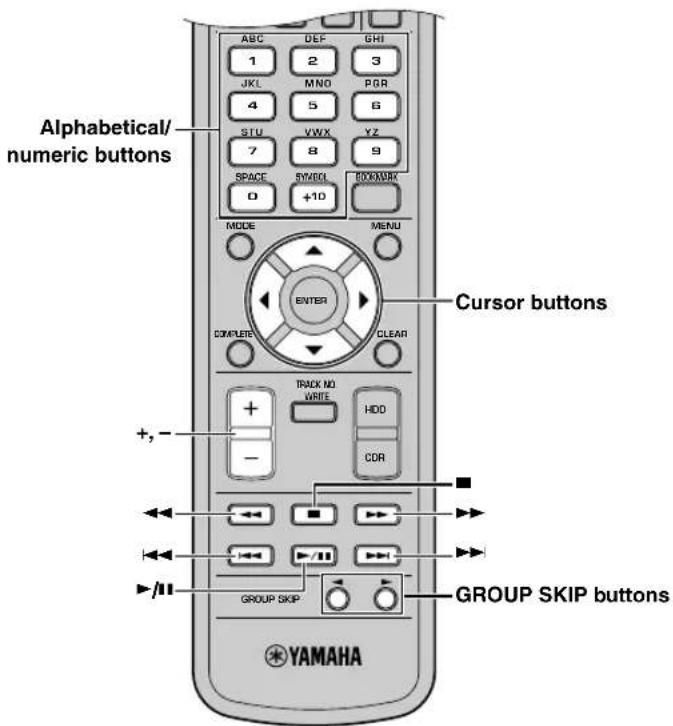
To start playback
After selecting a group or track (P.15), press ▷/□□.
To stop playback
Press □.
Memo
If you press ▷/□ after playback is stopped by pressing □, the unit automatically starts playback from the beginning of the track that has been stopped (Resume Play). To cancel the Resume Play feature, press □ while playback is stopped. In this case, the unit starts playback from the beginning of the first track recorded on a disc (or an album) or a CD.
To stop playback temporarily (Pause)
Press ▷/□ during playback. To restart playback, press ▷/□ again.
To fast-rewind or fast-forward
To fast-rewind, press and hold ◀◀/◀◀ (◀◀ on the remote control) during playback. To fast-forward, press and hold ▶▶/▶▶ (▶▶ on the remote control) during playback. To return to normal playback, release the button.
Memo
- Y ou can also use the search feature while playback pauses. In this case, the unit does not output any sounds while searching.
- Neither search nor pause is possible at the interval added by "Tr. Interval" in the album edit menu (P.57).
To skip tracks
To skip to beginning of the current track, press ◀◀/◀◀ (◀◀ on the remote control) once.
To skip to a previous track, press ◀◀/◀◀ (◀◀ on the remote control) twice.
To skip to a next track, press ▶/▶▶ (▶▶ on the remote control).
Memo
- You can also skip a track by rotating MULTI JOG knob (pressing +/- or the cursor buttons on the remote control) while the unit is in the track mode (P.15).
- Y ou can also directly select a track number by pressing alphabetical/numerical buttons.
To skip groups
To skip to a previous group, press GROUP SKIP ▶ on the remote control.
To skip to a next group, press GROUP SKIP ▶ on the remote control.
Memo
You can also skip a group by rotating MULTI JOG knob (pressing +/-, ▲ or ▼ on the remote control) while the unit is in the group mode (P.15).
USEFUL PLAYBACK OPERATIONS
You can enjoy playback with various useful features with this unit.
■ Searching by elapsed time (Time Search)
You can search the desired part by setting the time.
1. Press MODE to enter the playback mode setting.
"Time Search" appears on the display.
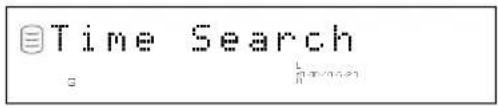
2. Press the MULTI JOG knob (ENTER on the remote control).
The following message appears on the display.
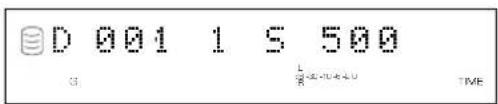
3. To switch between minute and second, press ××/×× or ××/×× ( ,, or on the remote control). To specify time, rotate the MULTI JOG knob (press +/-, or on the remote control).
If you stop rotating the MULTI JOG knob, this unit starts searching the set time and starts playback from the set time.
Memo
- You can skip to other tracks by pressing ◀◀ or ▶▶ on the remote control. When the track is skipped to another track, the set time will be reset to "0:00".
- You can skip to other groups by pressing GROUP SKIP ▶ or GROUP SKIP ▶ on the remote control. When the group is skipped to another group, the set time will be reset to "0:00".
- Y ou cannot search (P.19) during the time search mode.
- Y ou cannot search by time during the random play (P.22) or the intro play (P.23).
4. Press ▷/□ or MODE to return to the normal playback.
■ Setting the play style
Only when playing sources recorded on the HDD, you can set the play style. The play style setting changes the range of playback.
- While the unit is in the HDD operation mode, press MODE to display the playback mode setting.
- Rotate the MULTI JOG knob (press +/-, ▲ or ▼ on the remote control) to display "Play Style".
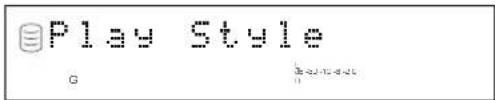
-
Press the MULTI JOG knob (ENTER on the remote control) to start the play style setting.
-
Rotate the MULTI JOG knob (press +/-, ▲ or ▼ on the remote control) to display "Style All" or "Style Group".
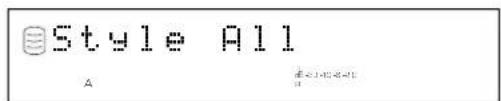
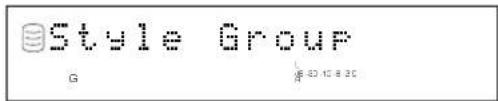
5. Press the MULTI JOG knob (ENTER on the remote control) to confirm the selection.
When selecting "Style All"
The A indicator lights on the display.

Random play, full repeat play, or intro play can be set for one of the group categories (disc, album, and bookmark) recorded on the HDD.

flowchart
graph TD
    A["Disc 1"] --> D["Group category for making a setting"]
    B["Disc 2"] --> D
    C["Album 1"] --> D
    E["Album 2"] --> D
    F["Bookmark"] --> D
- When random play is set, all tracks that belong to the selected group category are played in a random sequence.
- When full repeat play is set, all tracks that belong to the selected group category are repeatedly played.
- When intro play is set, the beginnings of all tracks that belong to the selected group category are played one after another.
For example, if full repeat play is set during the playback of disc 1, all tracks recorded to discs 1 and 2 are repeatedly played.
Memo
- If “Style All” is set and the title is shown on the display, the sound may be missing when this unit switches from one disc to another. To avoid this problem, switch the display to from the indication of time by pressing TEXT/TIME (P.18).
- Select “Style All” when sequentially playing the sources recorded for long hours extending several discs.
When selecting "Style Group"
The G indicator lights on the display.

Random play, full repeat play, or intro play can be set for one of the groups (disc, album, and bookmark) recorded on the HDD.
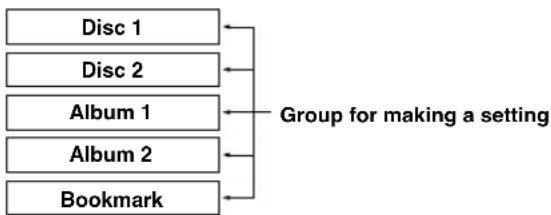
flowchart
graph TD
    A["Disc 1"] --> D["Group for making a setting"]
    B["Disc 2"] --> D
    C["Album 1"] --> D
    E["Album 2"] --> D
    F["Bookmark"] --> D
- When random play is set, all tracks that belong to the selected group are played in a random sequence.
- When full repeat play is set, all tracks that belong to the selected group are repeatedly played.
- When intro play is set, the beginnings of all tracks that belong to the selected group are played one after another.
For example, if full repeat play is set during the playback of disc 1, all tracks recorded to disc 1 are repeatedly played.
■ Repeating playback of a track (Single Repeat)
You can listen to a single desired track or to a track being played repeatedly.
- Press MODE to enter the playback mode setting, then rotate the MULTI JOG knob (press +/-, ▲ or ▼ on the remote control) to display "Repeat".
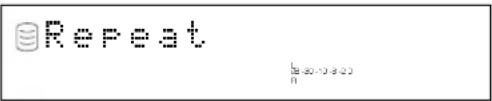
- Press the MULTI JOG knob (ENTER on the remote control) to enter repeat play setting.
- Rotate the MULTI JOG knob (press +/-, ▲ or ▼ on the remote control) to display "Repeat Single".
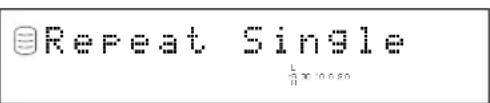
- Press the MULTI JOG knob (ENTER on the remote control) to confirm the selection.
The S REP indicator lights on the display.

Notes
- Single repeat play can be easily set by pressing REPEAT on the remote control once.
- The track being played is repeatedly played even during playback of an album or random play.
To cancel the Single Repeat setting
Select "Repeat Off" in step 3 or press REPEAT on the remote control until the S REP indicator turns off on the display.
■ Repeating playback of the selected group (Full Repeat)
You can repeatedly listen to all tracks recorded in a group (or a CD) or group category.
- Press MODE to enter the playback mode setting, then rotate the MULTI JOG knob (press +/-, ▲ or ▼ on the remote control) to display "Repeat".
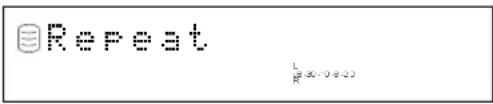
- Press the MULTI JOG knob (ENTER on the remote control) to enter repeat play setting.
- Rotate the MULTI JOG knob (press +/-, ▲ or ▼ on the remote control) to display "Repeat Full".
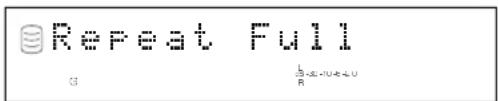
- Press the MULTI JOG knob (ENTER on the remote control) to confirm the selection.
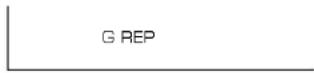
The REP indicator lights on the display.
Notes
- Full repeat play can be easily set by pressing REPEAT on the remote control twice.
- The tracks are repeatedly played in the same random order if played in the random play mode.
To cancel the Full Repeat setting
Select "Repeat Off" in step 3 or press REPEAT on the remote control until the REP indicator turns off on the display.
■ Playing back randomly (Random Play)
You can listen to all tracks recorded in a group on the HDD or on a CD in a random sequence.
- Press MODE to enter the playback mode setting, then rotate the MULTI JOG knob (press +/-, ▲ or ▼ on the remote control) to display "Random".
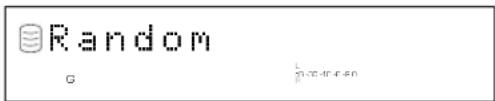
- Press the MULTI JOG knob (ENTER on the remote control) to enter random play setting.
- Rotate the MULTI JOG knob (press +/-, ▲ or ▼ on the remote control) to display "Random On".
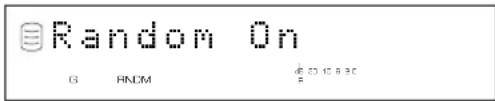
- Press the MULTI JOG knob (ENTER on the remote control) to confirm the selection.
The RNDM indicator lights on the display.
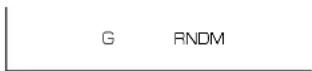
Notes
- Random play can be easily set by pressing RANDOM on the remote control.
- If random play is set during playback, the new setting applies to the next track.
To cancel the Random Play setting
Select "Random Off" in step 3 or press RANDOM on the remote control until the RNDM indicator turns off on the display.
■ Playing back only the beginning parts of tracks (Intro Play)
You can listen to the beginnings of the tracks for a set amount of time one after another.
- Press MODE to enter the playback mode setting, then rotate the MULTI JOG knob (press +/-, ▲ or ▼ on the remote control) to display "Intros Scan".
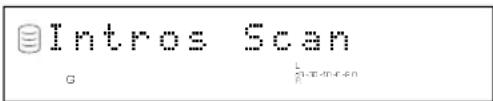
- Press the MULTI JOG knob (ENTER on the remote control) to enter intro play setting.
- Rotate the MULTI JOG knob (press +/-, ▲ or ▼ on the remote control) to set the amount of time to play the beginning of each track.
The playback time can be set in the 1 to 10 seconds range by 1 second steps and in the 10 seconds to 60 seconds range by 5 seconds steps.
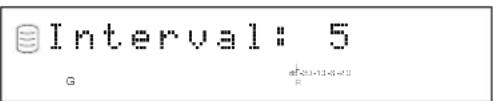
- Press the MULTI JOG knob (ENTER on the remote control) or ▶/□ to confirm the selection.
The unit starts intro play.
Memo
Intro play can be easily started by pressing INTRO on the remote control. In this case, the unit automatically applies the playback time setting adjusted last time.
To cancel the Intro Play setting
Press □ (INTRO on the remote control).
You can easily listen to a group of desired tracks by selecting a list of tracks with bookmarks.
■ Adding tracks to the bookmark list
Press TRACK NO./BOOKMARK (BOOKMARK on the remote control) during playback of the desired track until the MARK indicator turns on.
MARK G
Memo
- When the track with a bookmark is selected, the MARK indicator lights on the display regardless of whether it is during playback or stopped.
- You can create one list of the tracks with bookmarks on each the HDD and a CD.
- The list of the tracks on the HDD with bookmarks will be stored on the HDD. However, only one list of tracks with bookmarks can be stored. If you wish to have more than one list, copy the playlist in the album (P.54).
- The list of the tracks on a CD with bookmarks will be erased if the CD is taken out or the power of this unit is turned off.
- You can create a new album by copying the list of tracks with bookmarks. Select “Mark” as the group to be copied. See “Album Copy” (P.54).
■ Playing back tracks in the bookmark list
-
Press the MULTI JOG knob (ENTER on the remote control) to turn on the GROUP indicator on the display.
-
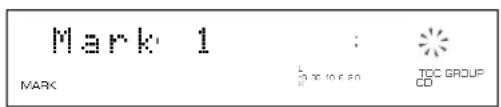
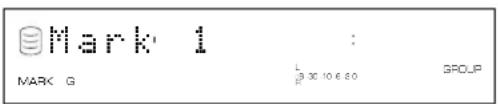
Rotate the MULTI JOG knob (press +/-, ▲ or ▼ on the remote control) to select "Mark".
When selecting "Mark" on a CD
When selecting "Mark" on the HDD
- Press ▷/□ to start playback.
Tracks are played in the order that bookmarks have been placed.
■ Removing tracks from the bookmark list
Press TRACK NO./BOOKMARK (BOOKMARK on the remote control) during playback of the desired track until the MARK indicator turns off.
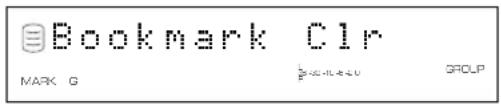
To clear the bookmark list of the selected drive
Press CLEAR as pressing TRACK NO./BOOKMARK on the front panel while this unit is in the stop mode. The following message appears on the display, and all bookmarks are canceled.
USING ON-SCREEN DISPLAY (OSD)
You can display the list of groups or tracks to be played, copying/recording settings and the list of the setting items on the monitor by connecting the monitor to this unit.
Memo
The unit does not output video signals when "VIDEO Output" (P.74) is set to "Video Off". To use the OSD, select "Video On".
List of groups or tracks
The numbers and titles of groups, or the numbers and titles of tracks are displayed. Press the MULTI JOG knob to switch the list displayed.
![Grp Tr. 1 0:00 Dsc 1: MV DISC 1 Dsc 2: MV DISC 2 Dsc 3: CLASSIC Alb 1: MV BEST Alb 2: MV BEST 2 Mark " [Bookmark] Grp Tr. 9 0:00 1- Jazz 1 2- Jazz 2 3- Classic 1 4- Classic 2 5- Rock 1 6- Rock 2 7- Rock 3 9- Pops 1 10- Pops 2 11- Hip Hop](/content/2026/02/385686/images/f2771ce7c8f1155b8beb73668a3ffa3b5d735922ae63b49ed3667ae1b37ea695.jpg)
Memo
An asterisk (*) shown on the left of a track name indicates that the track has been added to the bookmark list.
Display during copying
The settings for copying are displayed.
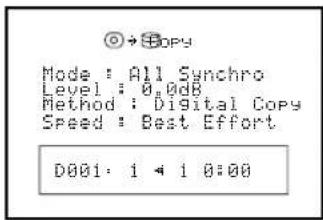
Example: when copying from a CD to the HDD
Display during recording
The setting for recording are displayed.
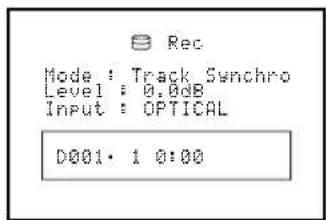
Example: when recording to the HDD
List of setting items
The names of items to be set are displayed.
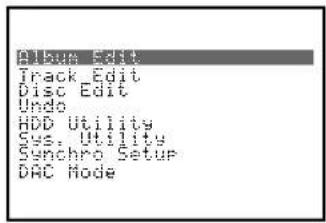
Example: when setting the menu
Display during titling
This is displayed while the title is being assigned to albums (P.55), tracks (P.65), or discs (P.69).
![Doc 3 Tr. 1 # BCDEFGHIJKLMNOPQRSTUVWXYZ YZabcdefghijklmnopqrstuvwxyz0123456789!"#$8%'()* +,-,*/;<=?@[\\]^-(i)](/content/2026/02/385686/images/dcdf27b5065f082c53887bc80bf0639f2474521bef43658059d4dae7f4f61eec.jpg)
Example: when titling the track
USING HEADPHONES
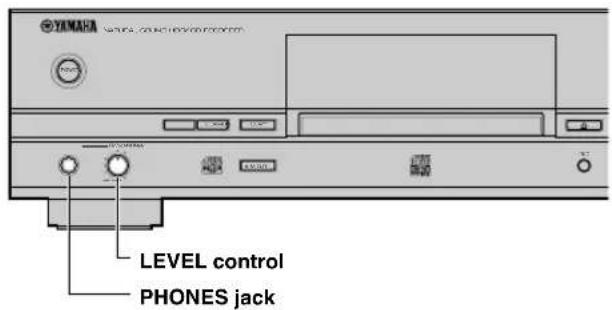
Connect your headphones to the PHONES jack and adjust the volume with the LEVEL control.
Note
If the power of other components such as an amplifier connected to this unit is not turned on, the sound of this unit may be distorted. If this occurs, use the headphones with the other component's power turned on.
COPYING FROM A CD ONTO THE HDD
■ Copying all tracks on a CD
You can copy all tracks on a CD onto the HDD.
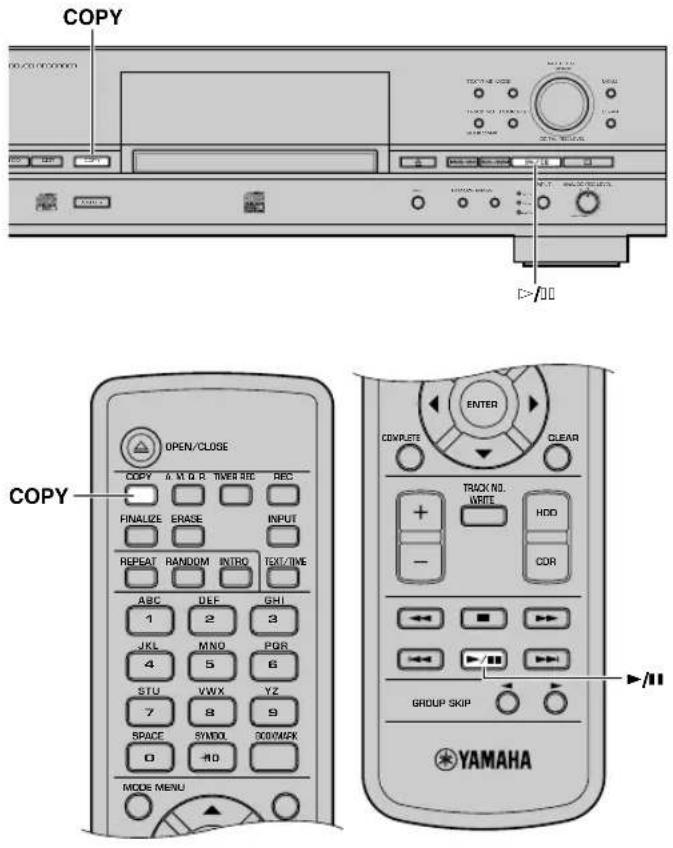
1. Set the CD in the disc tray.
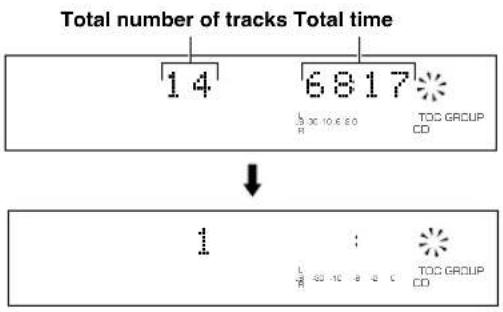
This unit starts reading the information (type and capacity of the CD) when the CD is loaded.
The following message appears during reading (the process may take 10 to 20 seconds depending on the disc condition).

When reading the information has been completed, the display changes as follows, and this unit becomes ready for operation.
2. Press COPY once.
The following message appears on the display, and this unit enters the HDD copy standby mode. Copying has not been started yet at this stage.
Memo
- In the HDD copy standby mode, you can specify the settings for HDD copy. For details, refer to "Setting the HDD copy mode" (P.28) and "Settings HDD copy menu" (P.29).
- Y ou can specify a disc to where data is copied. For details, refer to “Selecting a target disc” (P.28). (When no disc is specified, the unit automatically selects the smallest disc number that does not contain any data.)
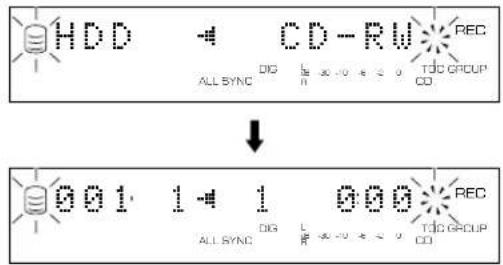
3. Press ▷/□ to start copying.
The progress of the copy process is shown in the display.

The unit applies the following settings (default) if the HDD copy menu settings (P.29) are never changed.
• Copy Method: “Digital Copy”
- Copy Level: 0dB
- Copy Speed: "Best Effort"
Memo
- It takes a few seconds for this unit to become ready to start copying after ▷/□□ has been pressed.
- This unit may create some vibration and rotation noise while performing the copying process by rotating a CD at high speed.
To cancel copying, press □.
When copying has been completed, the operation of the HDD and the CD automatically stops.
CD TEXT
If the CD to be copied contains CD TEXT that can be copied, CD TEXT is automatically copied when the CD is copied onto the HDD.
Output of the signals during copying
- During copying at 1x speed, signals are output both from the ANALOG LINE OUT (PLAY) jack and from the DIGITAL OUTPUT (OPTICAL/COAXIAL) jacks.
- During copying at 2x speed, signals are output only from the ANALOG LINE OUT (PLAY) jack.
- During copying at other than 1x or 2x speed, signals are output neither from the ANALOG LINE OUT (PLAY) jack nor the DIGITAL OUTPUT (OPTICAL/COAXIAL) jacks.
■ Copying selected tracks on a CD
You can copy your favorite tracks on a CD onto the HDD.
TRACK NO./BOOKMARKCOPY
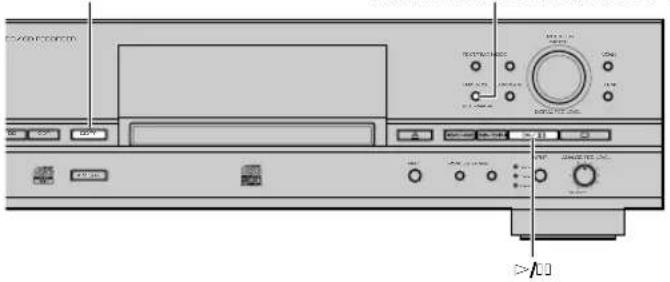
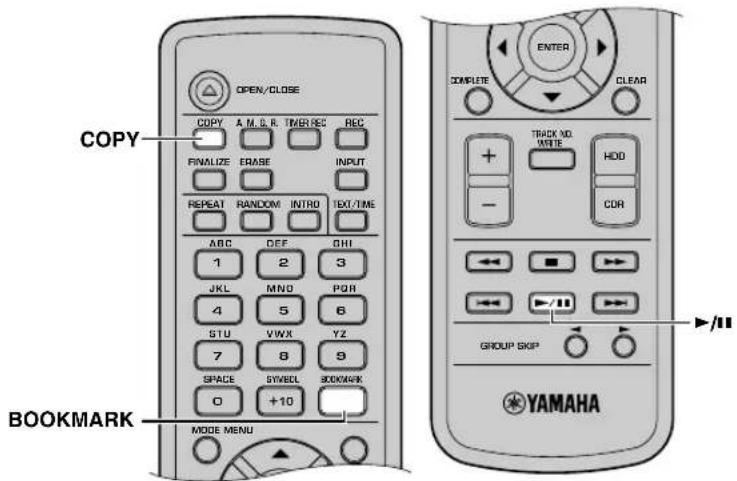
4. Press ▷/□ to start copying.
The progress of the copy process is shown in the display.
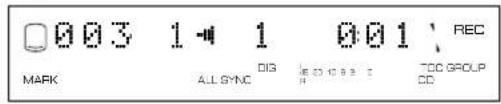
Memo
- It takes a few seconds for this unit to become ready to start copying after / has been pressed.
- This unit may create some vibration and rotation noise while performing the copying process by rotating a CD at high speed.
To cancel copying, press □.
When copying has been completed, the operation of the HDD and the CD automatically stops.
1. Set the CD in the disc tray, then add bookmarks to favorite tracks (P.24).
Tracks are listed and stored in order that the bookmarks have been placed.
Memo
The bookmark placed to the track on the CD will be canceled if the disc tray is open, or the power of this unit is turned off.
2. Press COPY once.
This unit enters the HDD copy standby mode. Copying has not been started yet at this stage.
Memo
- In the HDD copy standby mode, you can specify the settings for HDD copy. For details, refer to "Setting the HDD copy mode" (P.28) and "Settings HDD copy menu" (P.29).
- Y ou can specify a disc to where data is copied. For details, refer to "Selecting a target disc" (P.28). (When no disc is specified, the unit automatically selects the smallest disc number that does not contain any data.)
3. Press TRACK NO./BOOKMARK (BOOKMARK on the remote control).
The list of the track that the bookmark is placed to is selected as the group to be copied (the MARK indicator lights on the display). Press TRACK NO./BOOKMARK (BOOKMARK on the remote control) again to return to the normal copy standby mode.
■ Selecting a target disc
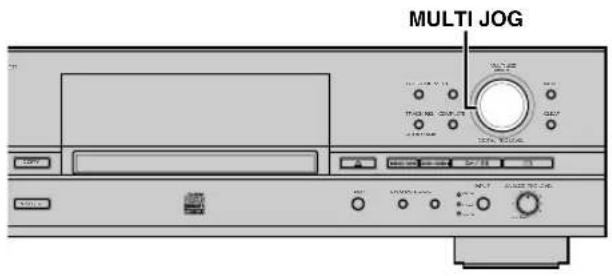
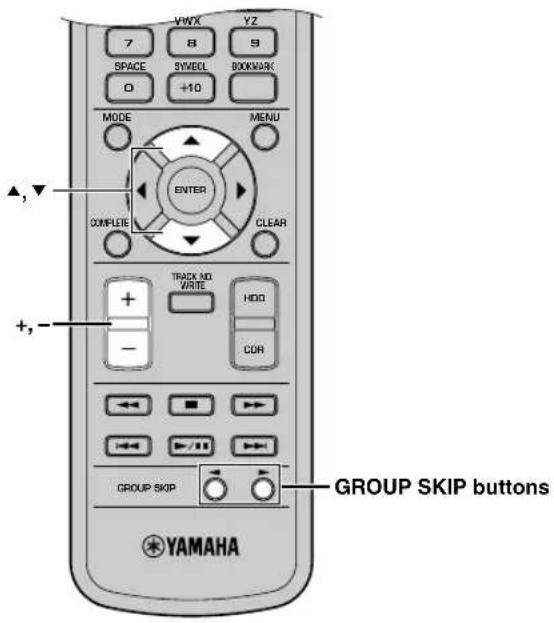
While this unit is in the HDD copy standby mode, rotate the MULTI JOG knob (press +/-, GROUP SKIP buttons, ▲ or ▼) to select the disc number to where the data is copied.
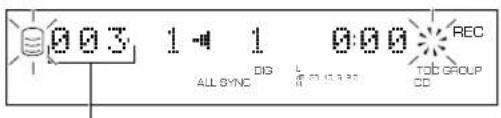
Disc number to make the copy on
Memo
When a disc number with recorded tracks is selected, new recordings will be added to the end of the last track that has been previously recorded.
■ Setting the HDD copy mode
In the HDD copy mode, you can specify the number of tracks to be copied on the HDD.
Initial setting: All Synchro
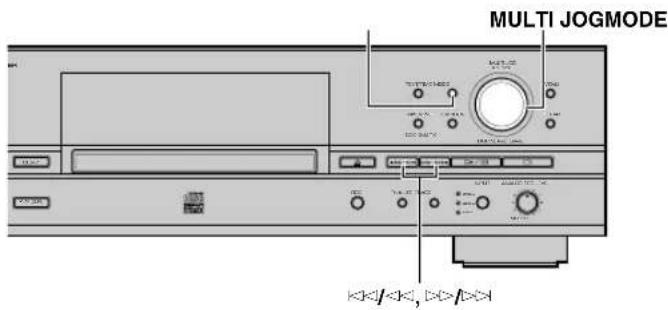
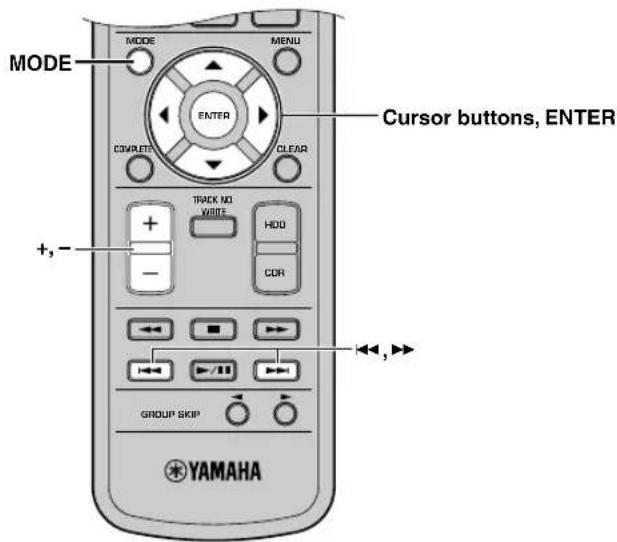
- Press MODE while this unit is in the HDD copy standby mode (P.26, 27).
You can select the copying mode.
- Rotate the MULTI JOG knob (press +/-, ▲ or ▼ on the remote control) to select the copying mode.
Choose one of the modes listed below.
All Synchro (All-synchronized copying mode)
This mode copies all of the material from a single audio source at the same time as the source programs are being played. Track markers are automatically placed between the tracks being recorded.
Multi Synchro (Multi-synchronized copying mode)
This mode copies the set number of tracks at the same time as the source programs are being played. The number of tracks to be recorded can be set in the range of 1 to 99 tracks. This mode is convenient to record a mix of tracks from different sources.
- Press the MULTI JOG knob (ENTER on the remote control) to confirm the copying mode selected.
If "All Synchro" is confirmed, this unit returns to the HDD copy standby mode.
If "Multi Synchro" is confirmed, the following message appears on the display. Go to step 4.
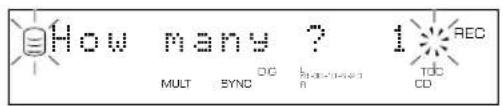
- Rotate the MULTI JOG knob (press +/-, ▲ or ▼ on the remote control) to select the number of tracks.
The number can be selected in the 1 to 99 tracks range.
- Press the MULTI JOG knob (ENTER on the remote control) to confirm the number selected.
This unit returns to the copy standby mode (P.26, 27).
- Press ×/× or / (◄◄, ►►, ◀ or ► on the remote control) to select the track to start copy from.
To start copying all tracks from a CD, follow step 3 in "Copying all tracks on a CD" (P.26).
To start copying selected tracks from a CD, follow step 3 in "Copying selected tracks on a CD" (P.27).
■ Setting the HDD copy menu
In the HDD copy menu, you can set the copy method, copy level, and copy speed.
- Press MENU while this unit is in the HDD copy standby mode (P.26, 27).
You can start setting the HDD copying menu.
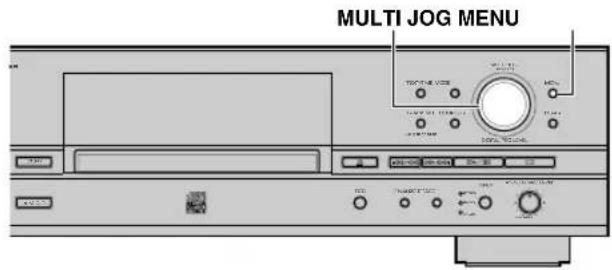
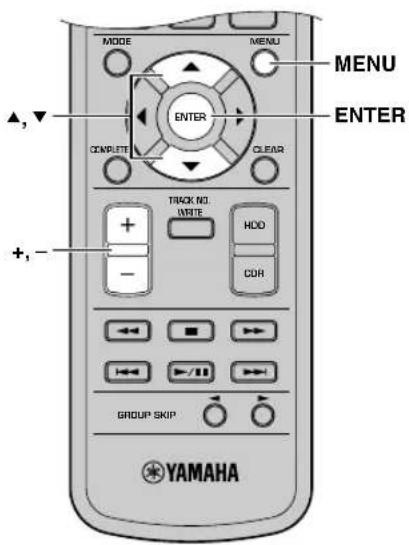
- Rotate the MULTI JOG knob (press +/-, ▲ or ▼ on the remote control) to select a HDD copy menu.
The copying menu (P.30) contains three items as follows:
- Copy Method
- Copy Level
-
Copy Speed
-
Press the MULTI JOG knob (ENTER on the remote control) to confirm the menu item to be adjusted.
- Rotate the MULTI JOG knob (press +/-, ▲ or ▼ on the remote control) to adjust the parameter.
- Press the MULTI JOG knob (ENTER on the remote control) to confirm the setting when adjustment has been completed.
- Press MENU to close the menu.
This unit returns to the HDD copy standby mode (P.26, 27).
Copy Method
Setting of the copying method. Copying may fail if the setting for "Copy Method" is not correctly made.
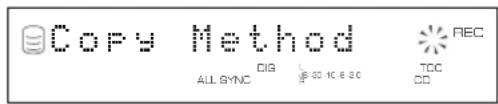
Initial setting: Digital Copy
Digital Copy
This method always makes digital copies. Copying is not possible if the tracks are copy protected by the SCMS standard (P.82).
Auto Dig/Anlg
Digital and analog copying are automatically switched depending on the track. If digital copying is prohibited by the SCMS standard (P.82), an analog copy is made. For those tracks that can be digitally copied, a digital copy is made.
Analog Copy
This method always makes analog copies.
Memo
- In analog copying, the data may be copied at a lower sound level.
- The setting is stored in the memory and applies to future copying.
Copy Level
Setting of the sound level for copying. Sound level adjustment is not normally necessary. However it is possible to adjust the copying sound level to suit you needs.
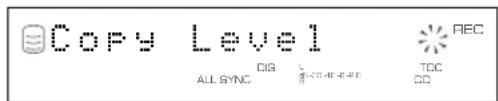
Adjustment is possible in the -12dB to +12dB range by 0.4dB steps.

Memo
- L evel adjustment is not possible during copying.
- If the red part on the peak level meter lights at the loudest sound levels, stop copying to adjust the copying level, and then resume copying.
- If the level is adjusted, copying is made at maximum 2x speed.
Copy Speed
Setting of the copying speed.
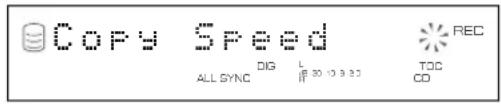
Initial setting: Best Effort
Best Effort
Copying is made at the maximum speed possible depending on the "Copy Method" and "Copy Level" settings.
- When "Digital Copy" is selected:
Max. 10x speed (2x speed when copy level is adjusted) - When "Auto Dig/Anlg" is selected: 2x speed
- When "Analog Copy" is selected: 2x speed
2x Copy
Copying is always made at 2x speed.
1x Copy
Copying is always made at 1x speed.
Memo
- If there are scratches or dust on the CD, the copy speed may drop automatically even when “Best Effort” is selected.
- The setting is stored in the memory and applies to future copying.
RECORDING FROM AN EXTERNAL COMPONENT ONTO THE HDD
■ Recording input audio source
You can make recordings from the component such as a cable TV tuner or DVD player connected to this unit.
Notes
- This unit cannot input digital signals other than PCM signals.
- Sources input from external components cannot be recorded on to a CD-R or CD-RW directly.
Memo
Recording onto the HDD is made in the unit called “disc”. The maximum length of one disc on the HDD is 179 minutes 59 seconds. If the recording has been made exceeding the maximum length, the recording will be made continuously to the next available disc.
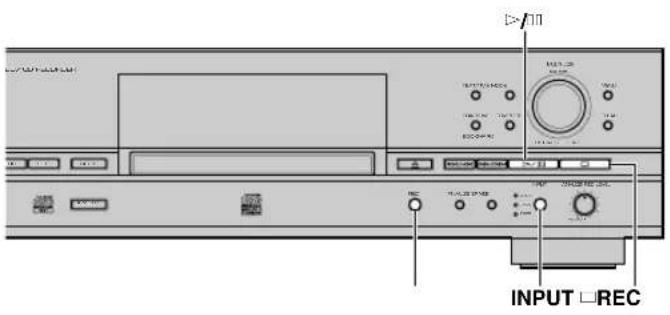
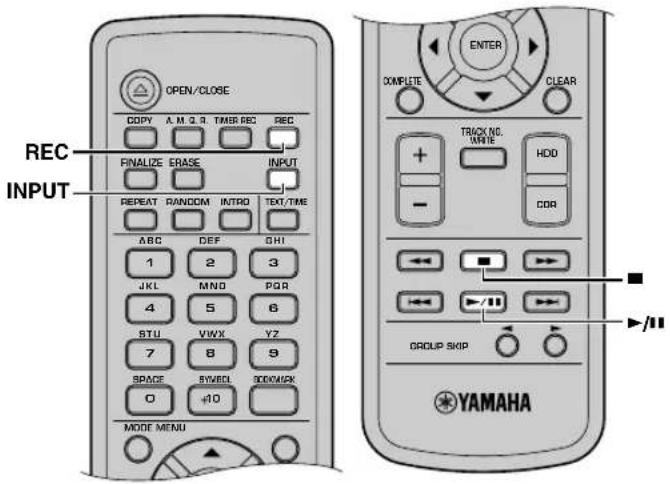
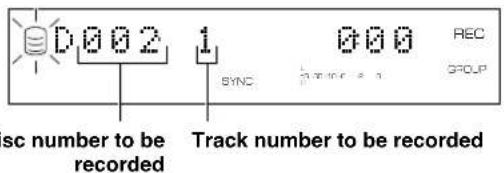
1. Press REC while the HDD is selected (P.14).
The HDD mark flashes, and the disc and track numbers to be recorded are indicated on the display. Recording has not been started yet at this stage. (HDD recording standby mode)
Memo
- In the HDD recording standby mode, you can specify the settings for HDD recording. For details, refer to “Setting the HDD recording mode” (P.35).
- Y ou can specify a disc to where data is copied. For details, refer to “Selecting a target disc” (P.28). (When no disc is specified, the unit automatically selects the smallest disc number that does not contain any data.)
2. Select the input source to be recorded.
The lamp for the selected input (OPTICAL, COAXIAL, or ANALOG) lights.
3. Adjust the recording level.
The adjustment of the digital recording level is not normally necessary. However it is possible to adjust the recording level (P.34) to suit your needs.
4. Press ▷/□ to start recording.
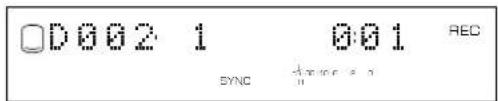
5. Start playing the source.
Press > / to stop recording temporarily. The HDD mark flashes and the track number is advanced to the next. Press > / to resume recording.
Memo
This unit automatically adds track markers to track data while recording external audio sources. To add track markers manually, refer to "Adding track markers during recording (Manual track marking)" (P.37).
6. Press □ to stop recording.
The first track number of the disc at which recording has been stopped is indicated on the display.
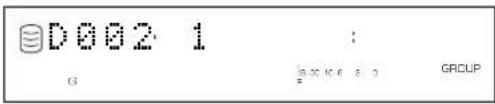
IMPORTANT
- N ever turn off the power of this unit during recording. Recording may not be correctly made, or the data on the HDD may be damaged.
- During recording, make sure that this unit is not subjected to shock or vibration as the HDD may be damaged.
■ Using an external timer to record
Notes on recording time setting
- This unit is not equipped with the clock function. Use an external timer when making a timer recording.
- It may take 30 seconds to 1 minute after the power of this unit is turned on by an external timer until an actual recording starts. (This length of time is subject to change depending on the condition.) During this time, no recording is made. Therefore set the time that is 2-minute earlier than the starting time of the program to be recorded for turning on this unit.
- As a characteristic of an HDD recorder, it is necessary to store information to control audio data as well as audio data itself. This information is normally recorded when recording is stopped. Therefore if the power of this unit is turned off before recording is stopped, no information to control audio data and no audio data are stored. Set the time that is longer than 3-minute after the program to be recorded finishes for turning off this unit by an external timer.
- Set the time that is 2-minute longer than actual recording time for the total recording time.
Following chart indicates the time flow when this unit makes timer recordings.
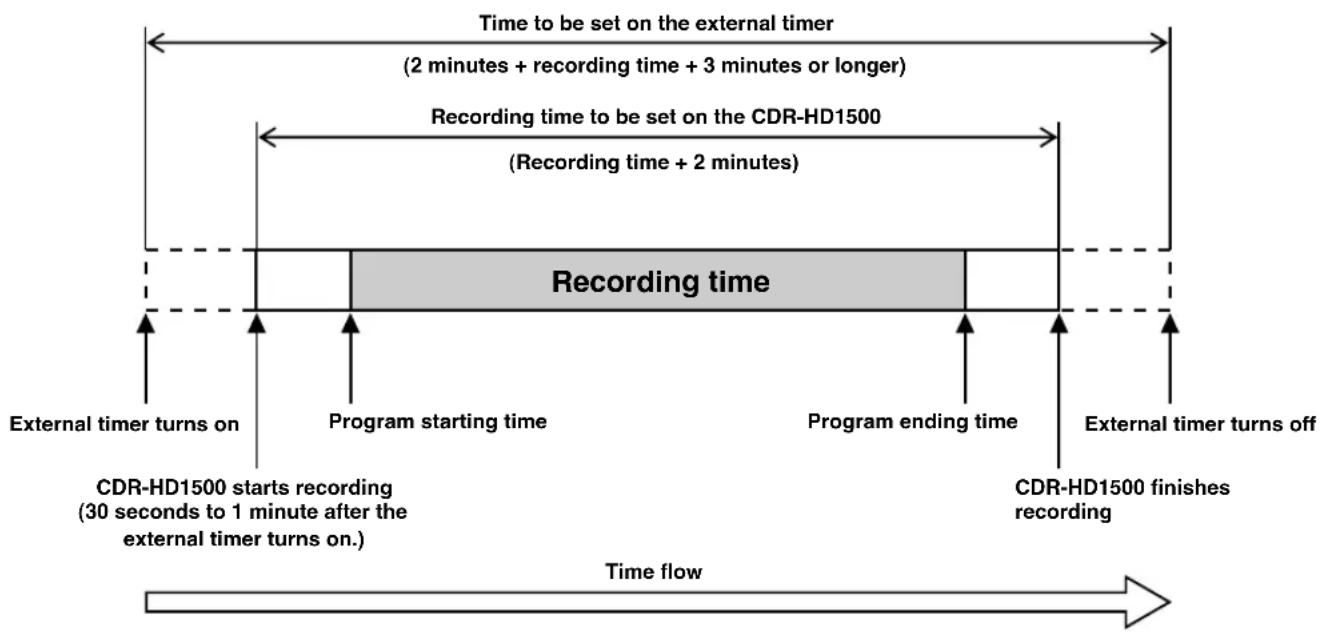
flowchart
graph LR
    A["External timer turns on"] --> B["CDR-HD1500 starts recording (30 seconds to 1 minute after the external timer turns on.)"]
    B --> C["Program starting time"]
    C --> D["Recording time"]
    D --> E["Program ending time"]
    E --> F["CDR-HD1500 finishes recording"]
    F --> G["External timer turns off"]
    G --> H["Recording time to be set on the CDR-HD1500"]
    H --> I["Recording time to be set on the external timer (2 minutes + recording time + 3 minutes or longer)"]
    I --> J["Recording time to be set on the CDR-HD1500 (Recording time + 2 minutes)"]
    J --> K["Recording time"]
    K --> L["Time flow"]
Example: To record the program that starts at 9:00 and ends at 10:00.
- Set the external timer to be turned on at 8:58.
- Set the external timer to be turned off after 10:03.
- Set 1 hour 2 minutes for the total recording time on this unit.
Memo
- Actual recorded material includes a little more than the set amount of time at both beginning and end of the recording. Delete unnecessary parts using the editing operation.
- Recording will be stopped if copy protected digital signals are input while timer recording is being made.
- If you set the total recording time over 179 minutes 59 seconds, recording will be made extending several discs. To play the recorded materials sequentially, select “Style All” as the play style (P.20).
Setting for a timer recording
Memo
- Y ou cannot set a timer recording for CD-R and CD-RW copying.
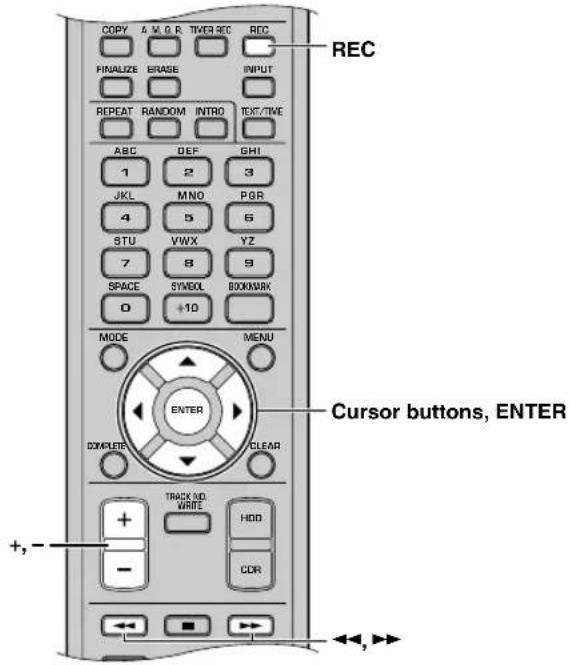
- You can skip to step 3 in the following procedure by pressing TIMER REC on the remote control.
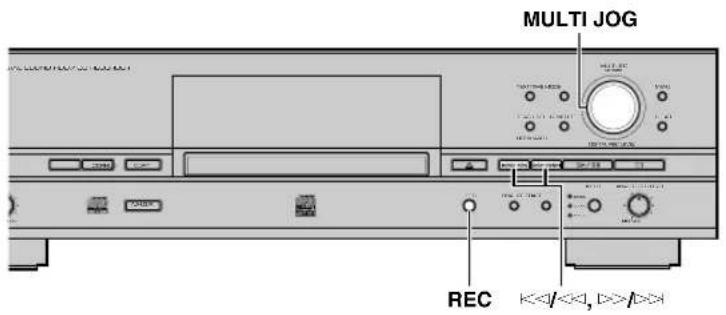
- Carry out steps 1 and 2 in "Recording input audio source" (P.31).
For the HDD recording mode (P.35), select one of "Manual" (manual recording), "Track Synchro" (track-synchronized recording) or "Auto Period" (auto-period recording). Other modes cannot be selected when timer recording is made.
- Press and hold REC for approximately three seconds (press TIMER REC on the remote control).
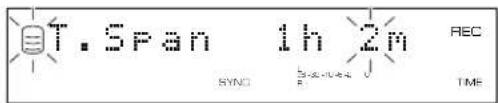
The following screen appears in the display.
-
Press ◀◀/◀◀ or ▶◀/▶◀ (press ◀◀, ▶◀, ◀ or ▶ on the remote control) to switch between hour and minute, then rotate the MULTI JOG knob (press +/-, ▲ or ▼ on the remote control) to adjust the total recording time.
-
Press the MULTI JOG knob (ENTER on the remote control) to confirm the total time of timer recording.
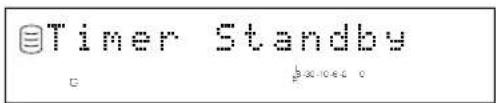
"Timer Standby" appears on the display.
To cancel timer recording setting, press □.
- Leave the power of this unit on. Turn off the power of this unit by the external timer.
If the power of this unit is turned on by the external timer, "Timer Standby" flashes for approximately five seconds. Then recording starts according to the setting.
Memo
- Once timer recording is set, recording starts every time the power of this unit is turned on. To cancel the setting, press □ while "Timer Standby" is flashing, or while recording is being made.
- Y ou can not set multiple total recording times with this unit. To record multiple programs the time lengths of which are different using an external timer, make settings referring to the setting examples shown below. If necessary, edit (partially erase or divide tracks) sources recorded on the HDD. For details, refer to “Part Erase” (P.60) and “Track Divide” (P.62).
Recording two programs: one starts at 9:00 - ends at 10:00 the other starts at 10:30 - ends at 11:00
(Setting method 1)
External timer: on 8:58 - off 10:03, on 10:28 - off 11:33
"T.Span": 1h 2m
(Setting method 2)
External timer: on 8:58 - off 11:03
"T.Span": 2h 2m
■ Adjusting the recording level
There is an adjusting procedure for each input source to be recorded as explained below. Choose the one for your input source and follow the steps.
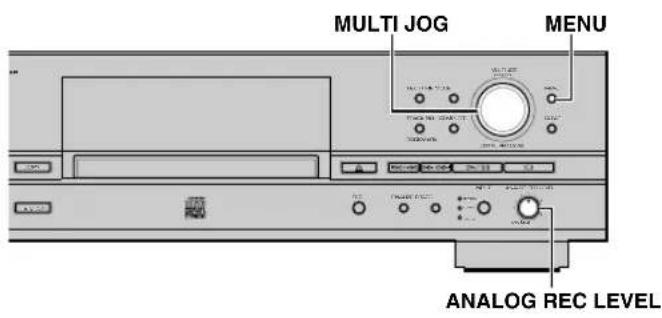
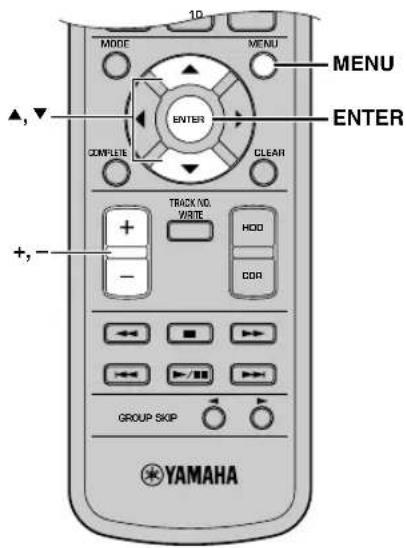
When recording a digital input source (OPTICAL, COAXIAL)
The digital recording level is set to 0dB, the level of the input source, as an initial setting. Further adjustment is not normally necessary. However it is possible to adjust the recording level to suit your needs.
- Press MENU while this unit is in the HDD recording standby mode (P.31).
The following screen appears on the display.
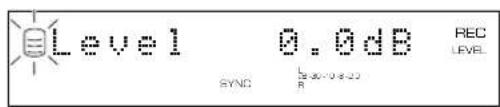
-
Play the loudest passage (highest sound level) of the source to be recorded.
-
Rotate the MULTI JOG knob (press +/-, ▲ or ▼ on the remote control) to adjust the recording level.
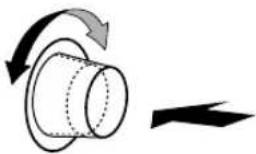
natural_image
Diagram showing a cylindrical object with internal dashed lines and directional arrows, no text or symbols present.Adjustment is possible in the -12dB to +12dB range by 0.4dB steps.
Adjust the recording level so that the red part on the peak level meter does not light at the loudest sound levels.
- Press the MULTI JOG knob (ENTER on the remote control) to return to the previous display.
Memo
- The recording level can be adjusted while this unit is in either the recording or recording standby mode. Once recording has been stopped, the recording level is reset to 0dB.
- Adjustment of the recording level can be canceled by pressing MENU when the level is adjusted in the recording standby mode.
- The recording level is set to 0dB by pressing CLEAR when the level is adjusted in the recording standby mode.
When recording an analog input source (ANALOG)
- Play the loudest passage (highest sound level) of the source to be recorded.
- Adjust the recording level by rotating the ANALOG REC LEVEL control.
Rotate the control clockwise to increase the level and counterclockwise to decrease the level.
Adjust the recording level so that the red part on the peak level meter does not light at the loudest sound levels.
Memo
The recording level can be adjusted while this unit is in either the recording or recording standby mode.
■ Setting the HDD recording mode
This unit provides various recording modes. Choose the mode that suits your needs.
Initial setting: Track Synchro
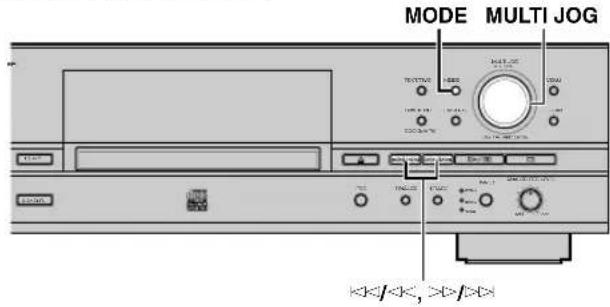
- Press MODE while this unit is in the HDD recording standby mode (P.31, 33).
The recording mode can be selected.
- Rotate the MULTI JOG knob (press +/-, ▲ or ▼ on the remote control) to select the HDD recording mode.
Choose one of the modes listed below.
Manual (Manual recording mode)
All the recording operations including starting, stopping and track marking are performed manually.
Track Synchro (Track-synchronized recording mode)
Starting and stopping are performed manually. Track markers are automatically placed between the tracks being recorded.
Multi Synchro (Multi-synchronized recording mode)
This mode records the set number of tracks at the same time as the source programs are being played. The number of tracks to be recorded can be set in the range of 1 to 99 tracks. This mode is convenient to record a mix of tracks from different sources.
All Synchro (All-synchronized recording mode)
This mode records all of the material from a single audio source at the same time as the source programs are being played. Track markers are automatically placed between the tracks being recorded.
Auto Period (Auto-period recording mode)
This mode makes recording for the set amount of time while placing track markers at the set time interval. The length between track markers can be adjusted in the 10 seconds to 30 minutes range by 10-second steps. This mode is convenient to search for material recorded from FM broadcasts.
- Press the MULTI JOG knob (ENTER on the remote control) to confirm the recording mode selected.
If "Manual", "Track Synchro" or "All Synchro" is confirmed, this unit returns the HDD recording standby mode.
If "Multi Synchro" is confirmed, following message appears on the display. Follow the "When Multi Synchro is selected" procedure below.
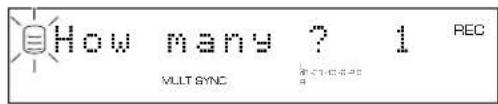
If "Auto Period" is confirmed, following message appears on the display. Follow the "When Auto Period is selected" procedure below.
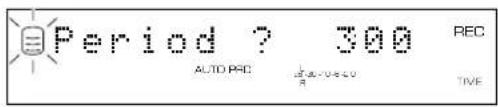
(When Multi Synchro is selected)
- Rotate the MULTI JOG knob (press +/-, ▲ or ▼ on the remote control) to specify the number of tracks.
The number can be set in the 1 to 99 tracks range.
- Press the MULTI JOG knob (ENTER on the remote control) to confirm the number of tracks to be set.
This unit returns to the HDD recording standby mode (P.31, 33).
(When Auto Period is selected)
- Press ◀/◄◄ or ▶/◄► (press ◀◄, ►►, ◀ or ► on the remote control) to switch between hour and minute, then rotate the MULTI JOG knob (press +/-, ▲ or ▼ on the remote control) to adjust the time length between track markers.
The time length can be set in the 10 seconds to 30 minutes range by 10-seconds steps.
- Press the MULTI JOG knob (ENTER on the remote control) to confirm the setting.
The following screen appears on the display.
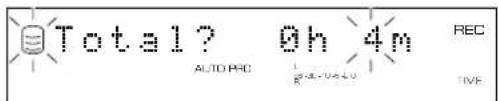
-
Press ◀◀/◀◀ or ▶◀/▶◀ (press ◀◀, ▶◀, ◀ or ▶ on the remote control) to switch between hour and minute, then rotate the MULTI JOG knob (press +/-, ▲ or ▼ on the remote control) to adjust the total recording time.
-
Press the MULTI JOG knob (ENTER on the remote control) to confirm the total recording time.
This unit returns to the HDD recording standby mode (P.31, 33)
Memo
- When recording to the HDD in the auto period recording mode, the recording will be performed continuously to the next available disc if the time length between selected track markers exceeds the group remaining time.
- In the auto period recording mode, a time error can occur in a frame unit. Therefore, the time of each track or the group total time may not match the confirmed time length between selected track markers or the total recording time.
Setting a condition for synchronized recording
This unit automatically detects track intervals when recording is made in track-synchronized recording mode, multi-synchronized recording mode, or all-synchronized recording mode. You can set the condition for detecting track intervals. Setting items are as follows.
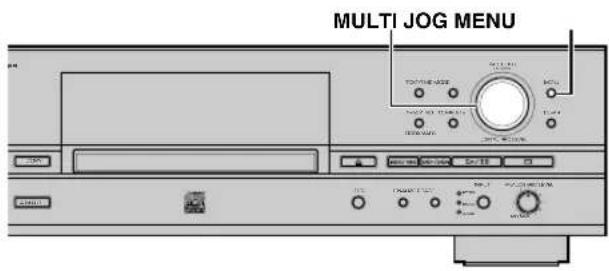
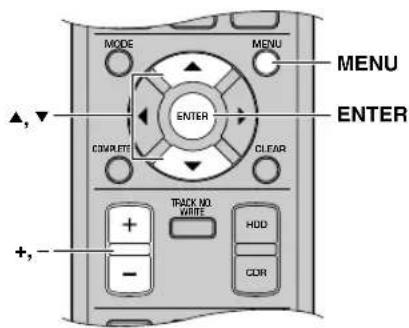
- Press MENU while this unit is in the stop mode.
Menu item selection appears on the display.
- Rotate the MULTI JOG knob (press +/-, ▲ or ▼ on the remote control) to select "Synchro Setup".
- Press the MULTI JOG knob (ENTER on the remote control).
Setting item selection appears on the display.
- Rotate the MULTI JOG knob (press +/-, ▲ or ▼ on the remote control) to select a setting item.
OPT TH Level
Sets the signal level that judges the signals input through the DIGITAL IN (OPTICAL) jack as "no signal".
Initial setting: -50dB, Control range: -90 to -20dB
COAX TH Level
Sets the signal level that judges the signals input through the DIGITAL IN (COAXIAL) jack as "no signal".
Initial setting: -50dB, Control range: -90 to -20dB
ANLG TH Level
Sets the signal level that judges the signals input through the ANALOG LINE IN (REC) jacks as "no signal".
Initial setting: -40dB, Control range: -60 to -20dB
Int. Time
Sets the length of silence (“no signal”) that judges track intervals. When the set amount of silence continues, this unit judges it as a track interval and places a track marker.
Initial setting: 2.0 seconds, Control range: 0.5 to 5.0 seconds
End Duration
Sets the length of silence (“no signal”) that judges the end of playback when recording in the all-synchronized recording mode. When the set amount of silence continues, recording will be stopped.
Initial setting: 12.0 seconds, Control range: 2.0 to 60.0 seconds
Memo
- If you set a TH (threshold) level, a signal less than the specified TH level is not input through the jack (considered as "no signal").
- Settings for "Int. Time" and "End Duration" apply to each input jack.
- Press the MULTI JOG knob (ENTER on the remote control) to confirm the setting item.
If "OPT TH Level", "COAX TH Level" or "ANLG TH Level" is confirmed, follow the "When OPT TH Level, COAX TH Level, or ANLG TH Level is selected" procedure below.
If "Int. Time" or "End Duration" is confirmed, follow the "When Int. Time or End Duration is selected" procedure below.
(When OPT TH Level, COAX TH Level, or ANLG TH Level is selected)
- Rotate the MULTI JOG knob (press +/-, ▲ or ▼ on the remote control) to adjust the level.
Level can be set by 1dB step.
Example: To set "ANLG TH Level"

- Press the MULTI JOG knob (ENTER on the remote control) to confirm the level.
Setting item selection appears on the display.
(When Int. Time or End Duration is selected)
- Rotate the MULTI JOG knob (+/-, ▲ or ▼ on the remote control) to set an interval.
“Int. Time” can be set by 0.5-second steps, and “End Duration” can be set by 1.0-second steps.
Example: To set "Int.Time"

- Press the MULTI JOG knob (ENTER on the remote control) to set an interval.
Setting item selection appears on the display.
Press MENU twice to close the menu and return to the normal stop mode.
■ Adding track markers during recording (Manual track marking)
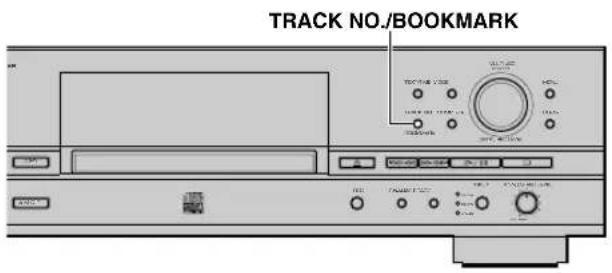
This unit can automatically place track markers. However you can also manually place track markers during recording. (Manual track marking)
Press TRACK NO./BOOKMARK (TRACK NO. WRITE on the remote control) during your recording.
- A new track number is added at the location on the disc corresponding to the time TRACK NO./BOOKMARK (TRACK NO. WRITE on the remote control) is pressed.
- Manual track marking is possible after the recording has been performed for 5 seconds from the beginning of the track, and a disc cannot contain more than 99 tracks. Even if there is time remaining on the disc, further recording is impossible once 99 track markers have been placed.
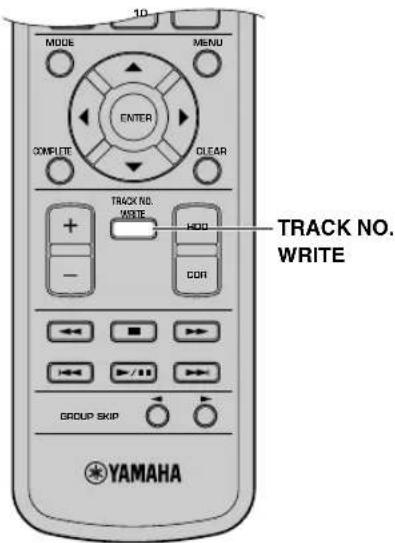
Memo
- The track markers may not be placed properly even if the recording has been performed in the synchronized recording according to the type of the source devices. To avoid this problem, place the track markers manually.
- Manual track marking is possible even during synchronized recording.
- Y ou can place the track markers to the tracks that have been recorded on the HDD by dividing the track. For details, refer to "Track Divide" (P.62).
COPYING FROM THE HDD ONTO A CD-R/CD-RW DISC
■ Copying all tracks in a group to a disc
You can copy all tracks in a whole group of discs, albums or bookmark list.
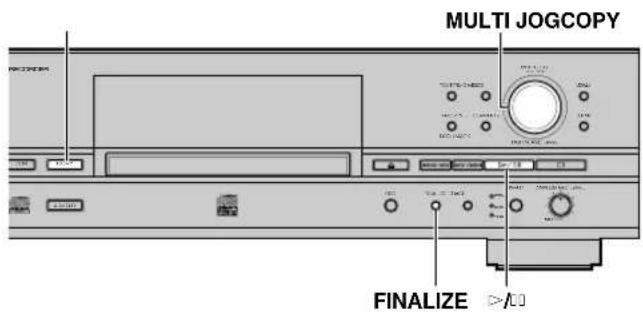
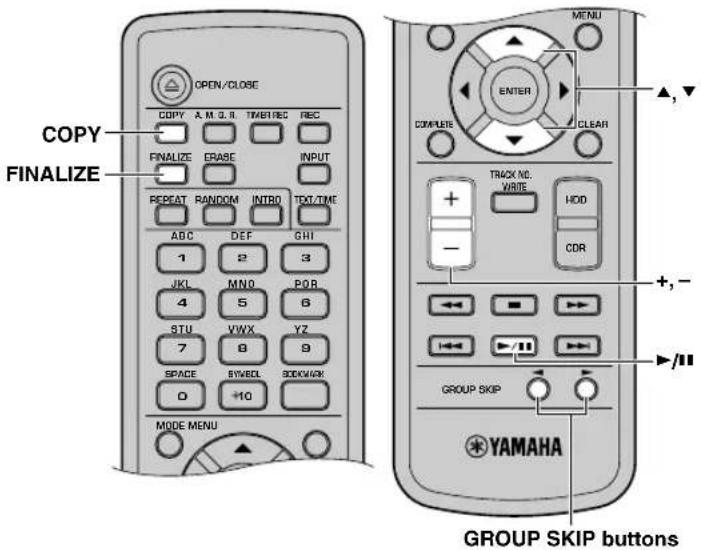
1. Set a new or not finalized CD-R (or CD-RW) disc in the disc tray.
This unit starts reading the information (type and capacity of a CD-R or a CD-RW disc) when a CD-R or a CD-RW disc is loaded.
The following message appears during reading (the process may take 10 to 20 seconds depending on the disc condition).
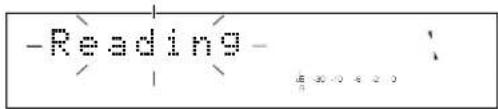
When reading the information has been completed, the display changes as follows, and this unit becomes ready for operation.
When copying onto a CD-R or CD-RW disc without finalization
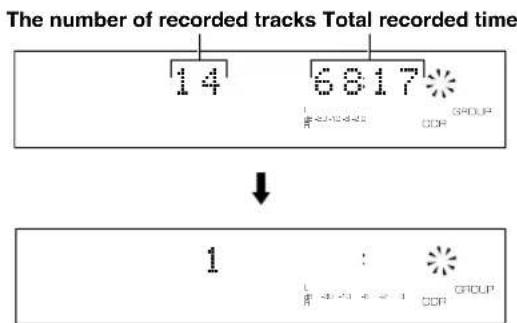
When copying onto a new CD-R or CD-RW disc
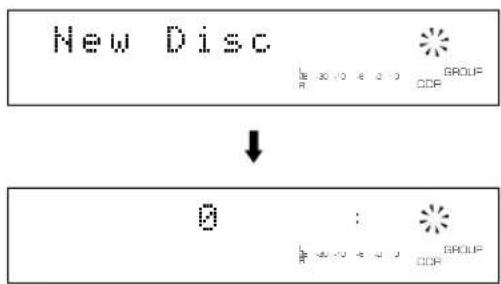
Memo
Futher recording onto finalized CD-R (or CD-RW) is not possible. For details about finalization, refer to “Finalization of CD-R/CD-RW discs” (P.ii) and “GLOSSARY” (P.80).
2. Press COPY twice.
The following message appears on the display, and this unit enters in the CDR copy standby mode. Copying has not been started yet at this stage.
Memo
In the CDR copy standby mode, you can specify the settings for disc copy. For details, refer to "Setting the CDR copy mode" (P.42) and "Setting the CDR copy menu" (P.43).
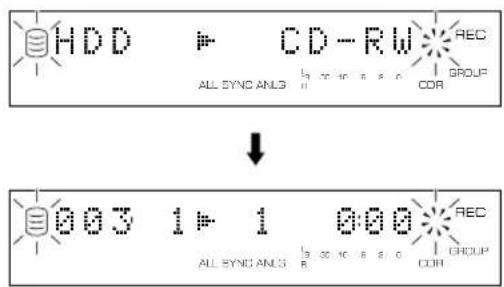
3. Rotate the MULTI JOG knob (press +/-, GROUP SKIP buttons, ▲ or ▼ on the remote control) to select a group to be copied onto the disc.
The following screen appears on the display depending on the type of group you selected.
Memo
You can create a CD with high quality sounds using the Audio Master Quality Recording feature. For details, refer to "Copying high quality sounds (Audio Master Quality Recording)" (P.41).
When a disc is selected:
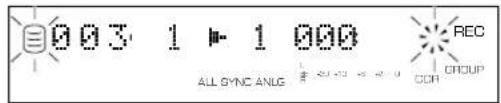
When an album is selected:
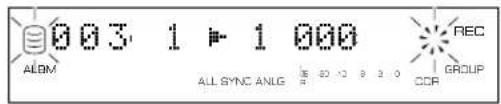
When a bookmark is selected:
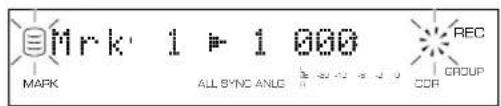
4. Press ▷/□ to start copying.
The progress of the copy process is shown in the display.
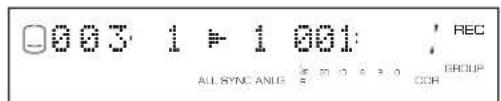
The unit applies the following settings (default) if the CDR copy menu settings (P.43) are never changed.
• Copy Method: "Digital Copy"
- Copy Level: 0dB
- Copy Speed: "Best Effort"
Memo
- The OPC (Optimum Power Control) feature may start automatically depending on disc conditions. In this case, the message "OPC Adjust" appears on the display until the adjustment is done (about 10 seconds) before the copy process starts.
- The progress of elapsed time for the track being copied may vary by the data processing inside this unit.
To cancel copying, press □.
Notes
- If copying is canceled by pressing , only the data that has been recorded on the CD-R or CD-RW disc before the cancellation remains on the disc. When "Digital Move" (P.43) is selected, the original data on the HDD that have already been copied to a CD-R or CD-RW disc will be deleted.
- CD TEXT is copied only when selecting "Full Auto" in the CDR copy mode for a new CD-R or CD-RW disc.
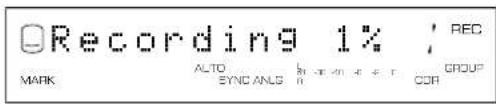
- When the Audio Master Quality Recording is set or the message "Recording" appears on the display, you cannot cancel the copy process by pressing □.
When copying has been completed, the operation of the HDD and the CD automatically stops.
5. To carry out the finalization process (P.47), press FINALIZE.
■ Copying selected tracks on the HDD
You can copy favorite tracks on the HDD to a CD-R or CD-RW disc.
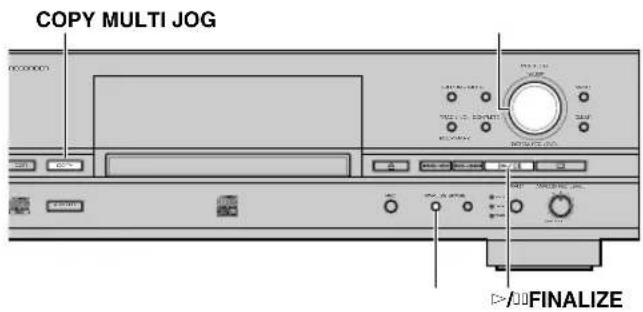
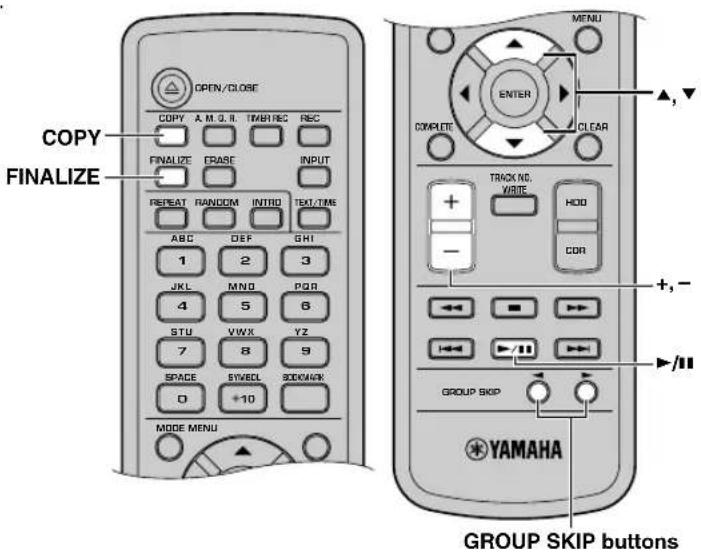
1. Set a new or not finalized CD-R (or CD-RW) disc in the disc tray, then select the HDD and add bookmarks to favorite tracks (P.24).
Tracks are listed and stored in order that the bookmarks have been placed.
Memo
Futher recording onto finalized CD-R (or CD-RW) is not possible. For details about finalization, refer to “Finalization of CD-R/CD-RW discs” (P.ii) and “GLOSSARY” (P.80).
2. Press COPY twice.
This unit enters the CDR copy standby mode. Copying has not been started yet at this stage.
Memo
In the CDR copy standby mode, you can specify the settings for disc copy. For details, refer to "Setting the CDR copy mode" (P.42) and "Setting the CDR copy menu" (P.43).
3. Rotate the MULTI JOG knob (press +/-, GROUP SKIP buttons, ▲ or ▼ on the remote control) to select "Mrk".
Memo
You can create a CD with high quality sounds using the Audio Master Quality Recording feature. For details, refer to "Copying high quality sounds (Audio Master Quality Recording)" (P.41).
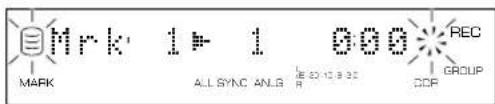
4. Press ▷/□ to start copying
The progress of the copy process is shown in the display.
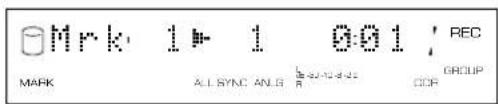
Memo
The OPC (Optimum Power Control) feature may start automatically depending on disc conditions. In this case, the message "OPC Adjust" appears on the display until the adjustment is done (about 10 seconds) before the copy process starts.
Note
CD TEXT is copied only when selecting "Full Auto" in the CDR copy mode for a new CD-R or CD-RW disc.
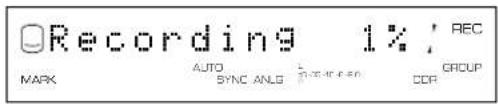
When copying has been completed, the operation of the HDD and the CD automatically stops.
5. To carry out the finalization process (P.47), press FINALIZE.
■ Copying high quality sounds (Audio Master Quality Recording)
You can make your own CD with high quality sound with the Audio Master Quality Recording feature.
Notes
- Audio Master Quality Recording can be used only for copying from the HDD on a new CD-R disc.
- Recordable time is 63 minutes for a 74-minute CD-R disc, and 68 minutes for a 79-minute CD-R disc.
- Since “Digital Move” is automatically selected for “Copy Method” (P.43), the group or track data copied to a CD-R disc will be erased after copying.

A.M.Q.R.
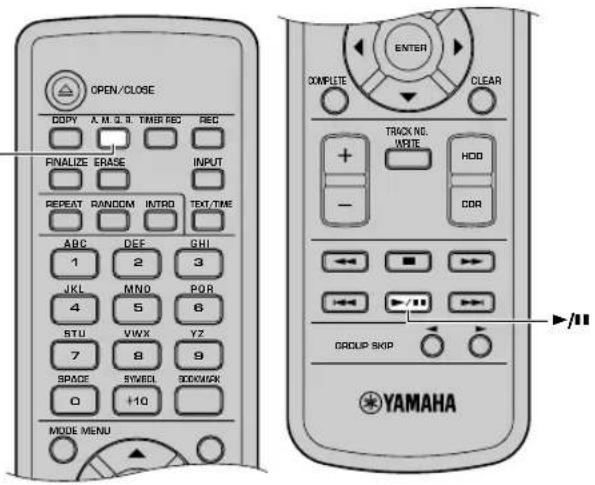
1. Press A.M.Q.R. while the unit is in the CDR copy standby mode (P.40, 42).
The A.M.Q.R. indicator lights up on the display.
2. Press ▷/□ to start copying.
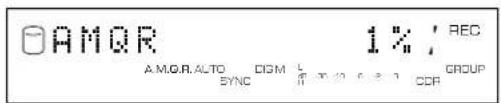
The copying conditions are as follows:
• Copy Method: "Digital Move"
- Copy Level: 0dB
- Copy Speed: "Best Effort"
Notes
- Once copying starts, no button operation is effective until copying is completed.
- N ever turn off the power of this unit or unplug the AC power cord during copying.
When copying has been completed, the operation of the HDD and the CD automatically stops.
Notes
- When total time of the group to be copied exceeds recordable time on a CD-R disc (63 minutes for a 74-minute CD-R disc and 68 minutes for an 79-minute CD-R disc), the following message appears on the display. In this case, Audio Master Quality Recording cannot be used.
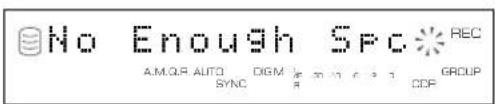
- If you select the album with its tracks' level adjusted as the group to be copied, the following message appears on the display. In this case, Audio Master Quality Recording cannot be used.
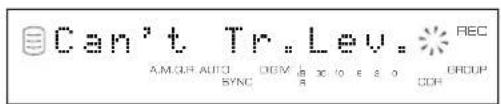
- When a CD-R disc other than a 74-minute, 79-minute or 4x writing compatible CD-R disc is loaded, or a CD-RW disc is loaded on this unit, the following message appears on the display. In this case, Audio Master Quality Recording cannot be used.
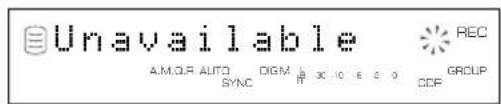
■ Setting the CDR copy mode
In the CDR copy mode, you can specify the number of tracks to be copied on the HDD or enable/disable the auto-finalization feature.
Initial setting: All Synchro
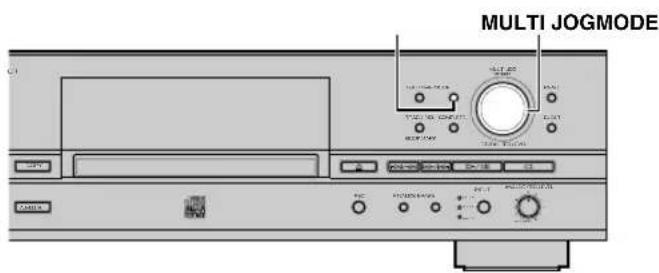
- Press MODE while this unit is in the CDR copy standby mode (P.38, 40).
- Rotate the MULTI JOG knob (press +/-, ▲ or ▼ on the remote control) to select the CDR copy mode.
Choose one of the modes listed below.
All Synchro (All-synchronized copying mode)
This mode copies all of the material from a single audio source at the same time as the source programs are being played. Track markers are automatically placed between the tracks being recorded.
Full Auto (Full auto-synchronized copying mode)
This mode automatically performs finalization after all synchronized copying is complete. A CD-R disc can be played as a CD as soon as finalization has been completed.
Note
CD TEXT is copied only when selecting "Full Auto" in the CDR copy mode for a new CD-R or CD-RW disc.
Multi Synchro (Multi-synchronized copying mode)
This mode copies the set number of tracks at the same time as the source programs are being played. The number of tracks to be recorded can be set in the range of 1 to 99 tracks. This mode is convenient to record a mix of tracks from different sources.
- Press the MULTI JOG knob (ENTER on the remote control) to confirm the CDR copy mode selected.
If "All Synchro" or "Full Auto" is confirmed, this unit returns to the CDR copy standby mode.
If "Multi Synchro" is confirmed, the following message appears on the display. Go to step 4.
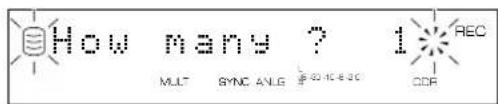
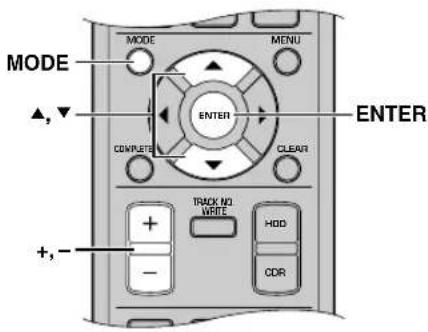
- Rotate the MULTI JOG knob (press +/-, ▲ or ▼ on the remote control) to select the number of tracks.
The number can be selected in the 1 to 99 tracks range.
- Press the MULTI JOG knob (ENTER on the remote control) to confirm the number selected.
This unit returns to the CDR copy standby mode (P.38, 40).
- Rotate the MULTI JOG knob (press +/-, ▲ or ▼ on the remote control) to select the group and track to start copy from.
While the GROUP indicator lights, you can select a group, and while the TRACK indicator lights, you can select a track. For details, refer to "SELECTING THE GROUP OR TRACK MODE" (P.15).
To start copying all tracks from a group, follow step 3 in "Copying all tracks in a group to a disc" (P.38).
To start copying selected tracks from the HDD, follow step 3 in "Copying selected tracks on the HDD" (P.40).
■ Setting the CDR copy menu
In the CDR copy menu, you can set the copy method, copy level, copy speed, and imaging speed.
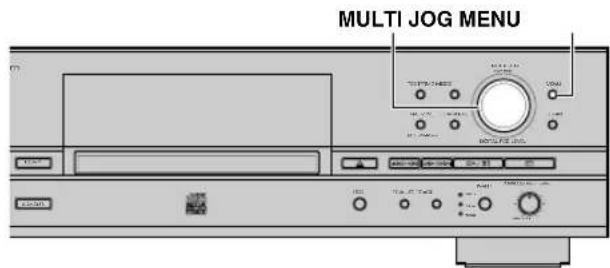
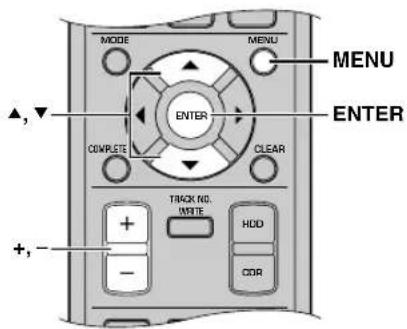
- Press MENU while this unit is in the CDR copy standby mode (P.38, 40).
- In the HDD copy menu, you can set the copy method, copy level, copy speed, and imaging speed.
The copying menu (P.43-44) contains four items as follows:
- Copy Method
- Copy Level
- Copy Speed
-
Imaging Speed
-
Press the MULTI JOG knob (ENTER on the remote control) to confirm the menu item to be adjusted.
- Rotate the MULTI JOG knob (press +/-, ▲ or ▼ on the remote control) to adjust the parameter for each item.
- Press the MULTI JOG knob (ENTER on the remote control) to confirm the setting when adjustment has been completed.
- Press MENU to close the menu.
This unit returns to the CDR copy standby mode (P.38, 40).
Copy Method
Setting of the copying method. Copying may fail if the setting for "Copy Method" is not correctly made.
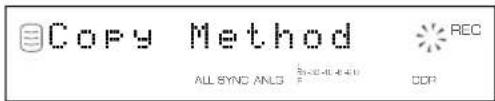
Initial setting: Digital Copy
Analog Copy
This method always makes analog copies.
Digital Move
The data is moved from the HDD to the CD-R/RW. Therefore, the track or group data will be deleted from the HDD after they have been moved to the CD-R/RW disc by this method.
Caution
The data in the HDD is also deleted if the power supply is shut off in the middle Digital Move operation or if data cannot be recorded in the CD-R/RW. Remember that, under any circumstances, Yamaha and suppliers do not assume any liability for the damages incurred by and associated with the destruction or loss of recorded data. Also, Yamaha and suppliers do not repair, restore or replicate the recorded data.
Digital Copy
This method always makes digital copies. Copying is not possible if the tracks are copy protected by the SCMS standard (P.82).
Auto Dig/Anlg
Digital and analog copying are automatically switched depending on the track. If digital copying is prohibited by the SCMS standard (P.82), an analog copy is made. For those tracks that can be digitally copied, a digital copy is made.
Memo
- In analog copying, the data may be copied at a lower sound level.
- The settings is stored in the memory and applied to future copying.
- When copy level is adjusted or when carrying out Analog Copy, the unit automatically creates an image file on the HDD before starting the disc copy process.
Copy Level
Setting of the sound level for copying. Sound level adjustment is not normally necessary. However it is possible to adjust the copying sound level to suit you needs.
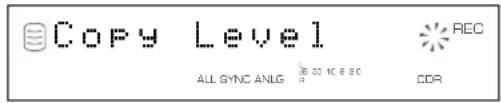
Adjustment is possible in the -12dB to +12dB range by 0.4dB steps.
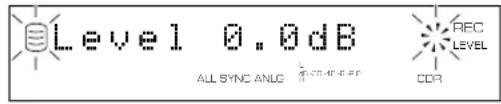
Memo
- L evel adjustment is not possible during copying.
- If the red part on the peak level meter lights at the loudest sound levels, stop copying to adjust the copying level, and then resume copying.
- When copy level is adjusted, the unit automatically creates an image file on the HDD with 1x or 2x speed before starting the disc copy process.
Copy Speed
Setting of the copying speed.
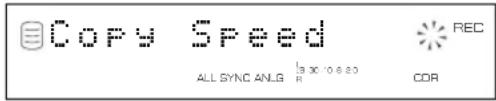
Initial setting: Best Effort
Best Effort
Copying is made at Max. 8x speed for a CD-R disc and 4x speed for a CD-RW disc.
4x Copy
Copying is always made at 4x speed.
Memo
- Depending on the condition of the CD-R disc, the copy speed may drop automatically even when “Best Effort” is selected.
- When “Analog Copy” or “Auto Dig/Anlg” is selected in “Copy Method” (P.43), the unit automatically creates an image file on the HDD with 1x or 2x speed before starting the disc copy process.
- The settings is stored in the memory and applied to future copying.
Imaging Speed
When copy level is adjusted or when carrying out an analog copy, the unit automatically creates an image file on the HDD before starting the disc copy process. By this setting, you can select 2x or 1x speed applied for an image file creation process.
Initial setting: 2x
2x
An image file is made at 2x speed.
1x
An image file is made at 1x speed.
DUPLICATING A CD
This unit equips the Duplicate feature that enables to create a copy CD easily and quickly.
Note
Duplication may not correctly made on a CD-R or CD-RW disc that does not support high speed writing. In this case, copy a CD onto the HDD first, then perform “Digital Move” on a CD-R or CD-RW disc at 4x speed.
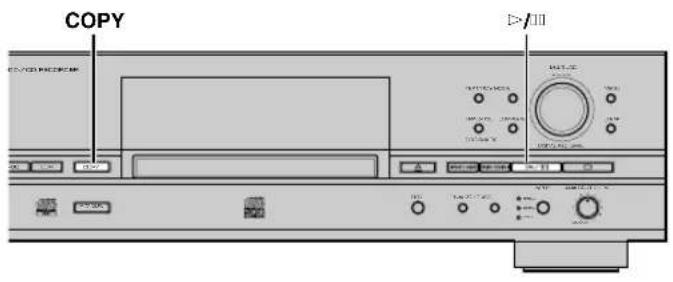
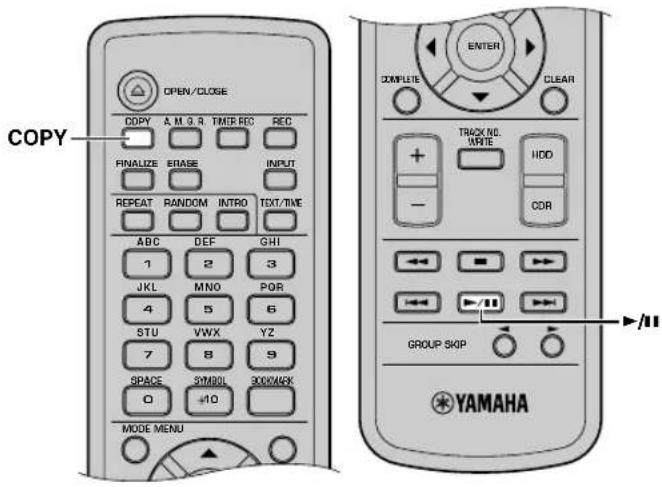
1. Set the original CD in the disc tray.
This unit starts reading the information (type and capacity of a CD) when a CD is loaded.
The following message appears during reading (the process may take 10 to 20 seconds depending on the disc condition).
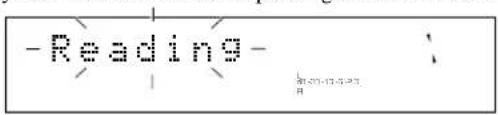
When reading the information has been completed, the display changes as follows, and this unit becomes ready for operation.
Total number of tracks Total time
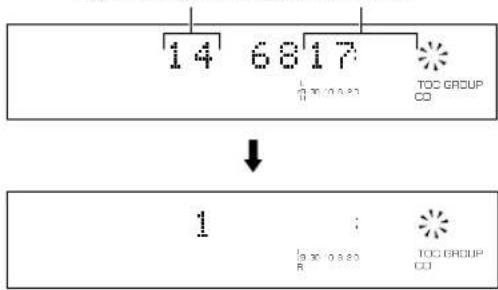
2. Press COPY three times.
The following message appears on the display, and this unit enters the duplicate standby mode. Duplication has not been started yet at this stage.
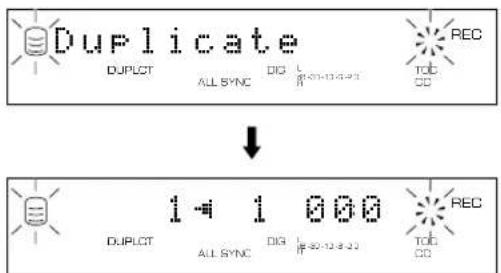
3. Press ▷/□ to start copying from the CD onto the HDD.
The copying conditions are as follows:
• Copy Method: "Digital Copy"
- Copy Level: 0dB
• Copy Speed: “Best Effort”
Notes
- If copying is canceled by □ being pressed, even the data that has been copied before cancellation does not remain on the HDD.
- If a track is copy protected by the SCMS standard (P.82), that track cannot be copied onto the HDD.
When copying from the CD onto the HDD has been completed, the following message appears on the display.
4. Set a new CD-R or CD-RW disc in the disc tray.
The unit starts to read the disc information, then starts copying track data from the HDD to a CD-R or CD-RW disc.
DUPLICATING A CD
Note
New recordings cannot be added to a CD-R or CD-RW disc on which some tracks have been previously recorded.
The copying conditions are as follows:
- Copy Method: "Digital Move"
- Copy Level: 0dB
• Copy Speed: "Best Effort"
Memo
The OPC (Optimum Power Control) feature may start automatically depending on disc conditions. In this case, the message "OPC Adjust" appears on the display until the adjustment is done (about 10 seconds) before the copy process starts.
CD TEXT
If a CD to be duplicated has CD TEXT that can be copied, CD TEXT will be automatically copied at duplication.
■ Duplicating with high quality sounds (Audio Master Quality Recording)
You can duplicate a CD with high quality sound with the Audio Master Quality Recording feature.
Notes
- Audio Master Quality Recording can be used only for duplicating on a new CD-R disc.
- Recordable time is 63 minutes for a 74-minute CD-R disc, and 68 minutes for an 79-minute CD-R disc.
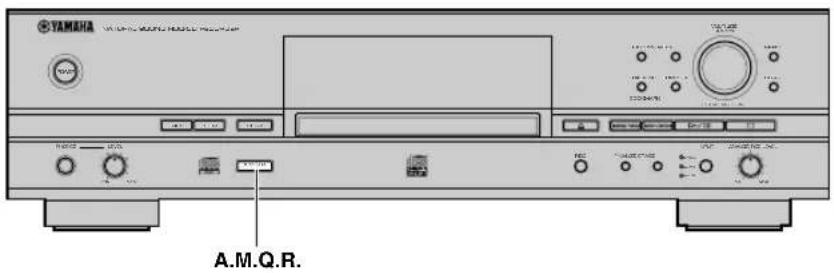
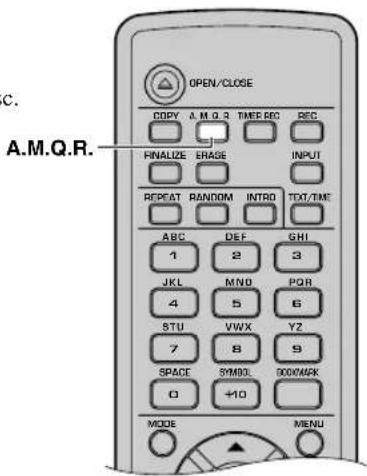
1. Press A.M.Q.R. while the unit is in the duplicate standby mode (P.45).
The A.M.Q.R. indicator lights up on the display.
DUPLCT A.M.Q.R.
2. Carry out steps 3 and 4 in "DUPLICATING A CD" (P.45) to duplicate a CD (copy from a CD to the HDD and copy from the HDD to a new CD-R or CD-RW disc).
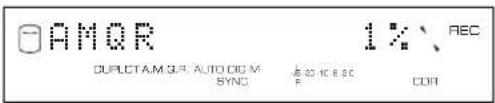
The copying conditions are as follows:
- Copy Method: "Digital Move"
- Copy Level: 0dB
- Copy Speed: "Best Effort"
Notes
- When total time of the CD to be duplicated exceeds recordable time on a CD-R disc (63 minutes for a 74-minute CD-R disc and 68 minutes for an 79-minute CD-R disc), the following message appears on the display. In this case, Audio Master Quality Recording cannot be used.
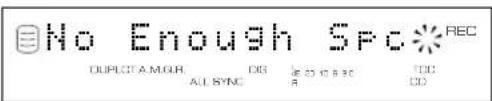
- When a CD-R disc other than a 74-minute, 79-minute or 4x writing compatible CD-R disc is loaded, or a CD-RW disc is loaded on this unit, the following message appears on the display. In this case, Audio Master Quality Recording cannot be used.

- Once copying starts, no button operation is effective until copying is completed.
When copying has been completed, the operation of the HDD and the CD automatically stops.
FINALIZING A CD-R/CD-RW DISC
Finalization is the process that concludes recording, and allows a CD-R disc to be played on a standard CD player or a CD-RW disc to be played on a CD-RW-compatible player.
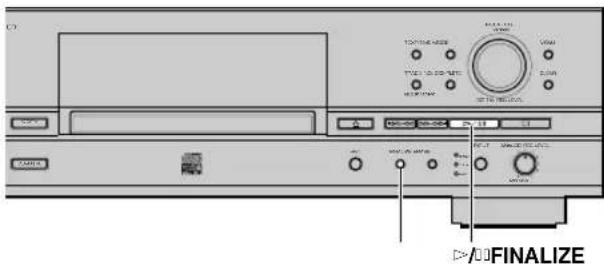
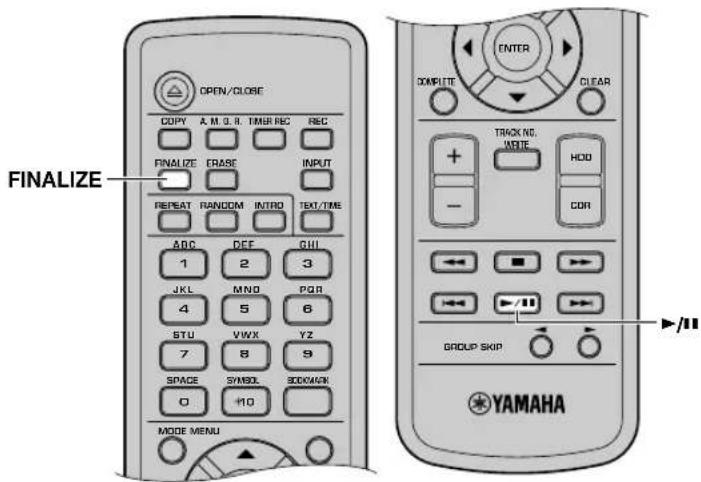
- Set a not-finalized CD-R or CD-RW disc in the disc tray.
- Press FINALIZE.
The confirmation message appears on the display. To cancel finalization, press □.
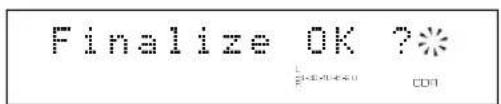
- Press ▷/□ to start finalization.
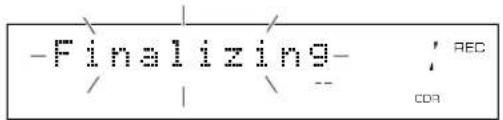
The level meter shows the finalization progress on the display.
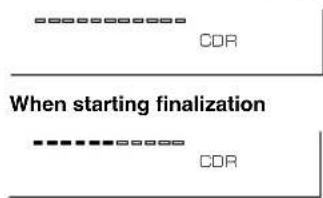
During finalization
When finalization is completed, the TOC indicator lights and the unit enters the stop mode.
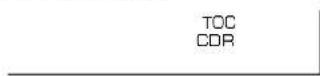
Notes
- Further recording is not possible onto a finalized CD-R disc. Make sure that all recordings have been completed before finalization.
- Make sure a CD-R or CD-RW disc has no scratches, dust, fingerprints or similar marks before loading. Wipe a CD-R or CD-RW disc if there is any dust on it.
- Once the finalization process has started, no other operation is possible until finalization is completed.
- N ever turn off the power or disconnect the power cord during finalization.
ERASING DATA ON A CD-RW DISC
You can erase the data recorded on a CD-RW disc. New recordings can be made in the space created by erasing. The following four types of erasing are possible with this unit.
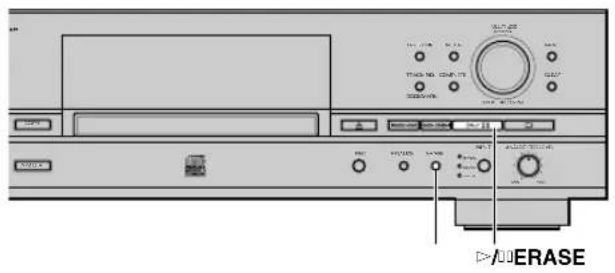
■ Erasing last tracks
This operation erases the last track on a disc. "Last Track Erase" cannot be performed if a CD-RW disc has been finalized, or only one track has been recorded on the disc.
- Set a not-finalized CD-RW disc in the disc tray, then press ERASE.
"Erase Last?" appears on the display.
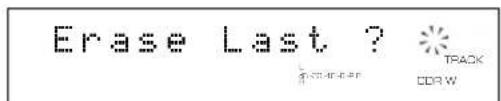
Go to the next step when erasing only the last track. To erase two or more tracks, rotate the MULTI JOG knob (press +/-, ▲ or ▼ on the remote control) to specify the track number (to start erasing from).
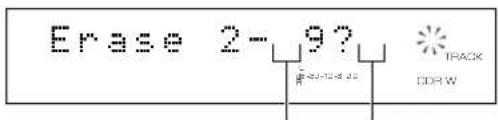
Track to start erasing from Last track
To cancel erasing, press □.
- Press ▷/□ to start erasing.
"Erasing" flashes on the display, and the level meter shows the erasing progress.
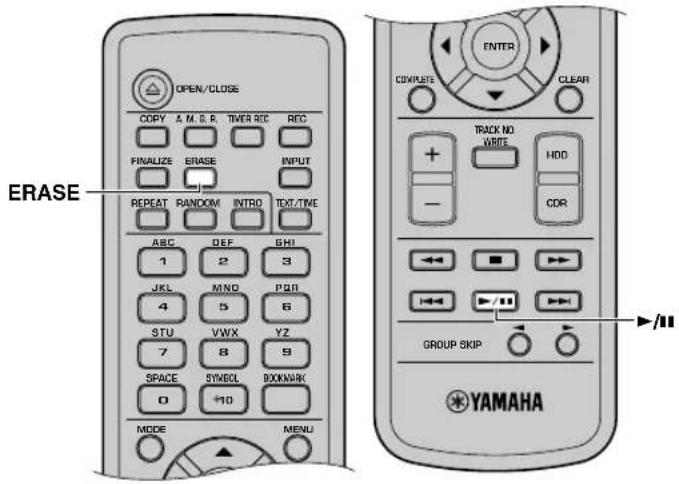
■ Erasing all tracks
This operation erases all tracks recorded on a CD-RW disc. TOC will be erased also if a CD-RW disc has been finalized.
- Set a CD-RW disc in the disc tray, then press ERASE repeatedly until "Erase ALL?" appears on the display.

To cancel erasing, press □.
- Press ▷/□ to start erasing.
"Erasing" flashes on the display, and the level meter shows the erasing progress.
■ Erasing TOC
This operation erases TOC (Table of Contents) data from a finalized CD-RW disc. After erasing TOC data, you can record another track data onto the CD-RW disc.
- Set a finalized CD-RW disc in the disc tray, then press ERASE.
"Erase TOC?" appears on the display.
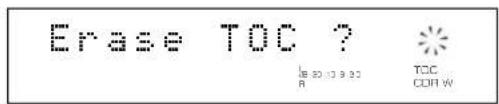
To cancel erasing, press □.
- Press ▷/□ to start erasing.
"Erasing" flashes on the display, and the level meter shows the erasing progress.
Memo
The TOC indicator turns off when "TOC Erase" has been completed.
■ Initializing a CD-RW disc
This operation initializes a CD-RW disc.
1. Set a CD-RW disc in the disc tray, then press and hold ERASE for about two seconds.
"Erase Disc?" appears on the display.
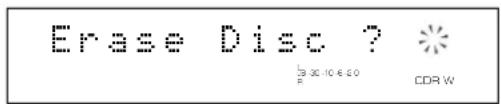
To cancel erasing, press □.
2. Press ▷/□ to start erasing.
“Erasing” flashes on the display, and the level meter shows the crasing progress (the process takes about 20 minutes).
Notes
- “Erase Last” and “Erase TOC” cannot be applied to a CD-RW disc recorded with “Full Auto” (P.42) (except for adding track data to a disc without finalization) or a CD-RW disc recorded with duplication.
- N ever turn off the power of this unit during erasing.
- If “Check Disc” appears on the display during erasing, and erasing stops, there may be dust or damage on the CD-RW disc. Check the CD-RW disc and start the erasing operation again.
LIST OF EDIT MENU
In the edit menu, you can edit album, track, and disc data stored in the HDD. Please select the menu listed below for any purpose. Also, the Undo feature enables to cancel the last edit operation.
| Edit menu Menu content | Selectable during playback* | Page | ||
| Album Edit | Album New | To create a new album | × | 52 |
| Edit Stored | Toedit an already created album | × | 53 | |
| Album Copy | Tocopy other group as an album | × | 54 | |
| Album Rename | Tochange the album number | × | 54 | |
| Album Delete | Todelete an album | ○ | 55 | |
| Album Pack | Toeliminate unused album numbers | × | 55 | |
| Album Title | Toassign an album title | ○ | 55 | |
| Track Shuffle | To change the order of tracks in an album | ○ | 56 | |
| Track Level | Toadjust the track level in an album | ○ | 56 | |
| Tr. Interval | Toadjust each track interval in an album | ○ | 57 | |
| Track Edit | Track Rename | To change a track number | ○ | 58 |
| Track Adjust | To adjust the beginning of a track | ○ | 59 | |
| Track Erase | To erase a track | ○ | 60 | |
| Part Erase | To erase the part of a track | ○ | 60 | |
| Track Combine | To combine a series of tracks | ○ | 62 | |
| Track Divide | Todivide one track into two | ○ | 62 | |
| Track Pack | To eliminate unused track numbers | × | 63 | |
| Add Fade In | To add fade-in to the beginning of a track | ○ | 64 | |
| Add Fade Out | To add fade-out to the end of a track | ○ | 64 | |
| Track Title | To assign a track title | ○ | 65 | |
| Disc Edit | Disc Rename | To change a disc number | ○ | 67 |
| Disc Erase | To erase a disc | ○ | 67 | |
| Disc Combine | To combine a series of discs | ○ | 68 | |
| Disc Divide | Todivide one disc into two | ○ | 68 | |
| Disc Pack | To eliminate unused disc numbers | × | 69 | |
| Disc Title | To assign a disc title | ○ | 69 | |
| Undo | To cancel the editing operation | × | 70 | |
*A menu with × mark is not available during playback. A menu with ○ mark is available in any case. However, if you carry out an edit operation during playback, you cannot select an item (album, disc, or track) other than one currently played back.
■ Cursor button operations in the edit menu
In the edit menu, you can also use the cursor buttons although cursor button operations are not explained in each procedure (P.52-69). It makes edit operations easier.
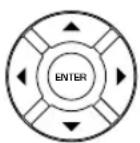
▲, ▼: Selects items or parameters.
◀ ▶: Moves the insertion point.
ENTER : Confirms items or parameters selected by pressing +/-, ▲ or ▼.
■ Entering characters in the edit menu
Memo
The characters that can be entered are alphabetical letters (upper case and lower case), numbers, and symbols (!,",# etc.).
Entering the title characters by using the MULTI JOG knob
1. Rotate the MULTI JOG knob.
When the MULTI JOG knob is rotated clockwise, characters appear in the order of alphabetical capital letters, alphabetical lower case letters, numbers, and symbols.
2. Press the MULTI JOG knob to confirm the selected character.
The cursor moves to the next space. Repeat steps 1 and 2 until the title is complete. A title can contain up to 32 characters.
Entering the title characters by using the alphabetical/numeric buttons on the remote control
1. Select the character to be used for the title by using the alphabetical/numeric buttons on the remote control.
Alphabetical capital letters, alphabetical lower case letters, and numbers switch each time the buttons are pressed. To insert a space, press SPACE. To use a symbol, press SYMBOL to select the desired symbol.
2. Select the next character by pressing one of the alphabetical/numeric buttons.
The cursor automatically moves to the next space. When you need to use the button same to step 1, press ▶▶ to move the insertion point, then press the alphabetical/numeric button.
Correcting the characters
Move the cursor to the character to be corrected by pressing ◀◀◀/◀◀ or ▶▶◀/▶▶ (◀◀ or ▶▶◀ on the remote control). To clear the selected character, press CLEAR. To insert a character before the selected character, use the MULTI JOG knob or alphabetical/numeric buttons to select the character.
EDITING ALBUMS
You can select the desired tracks from among the ones recorded on the HDD and store them as an album in this unit's memory. You can also edit the album afterwards.
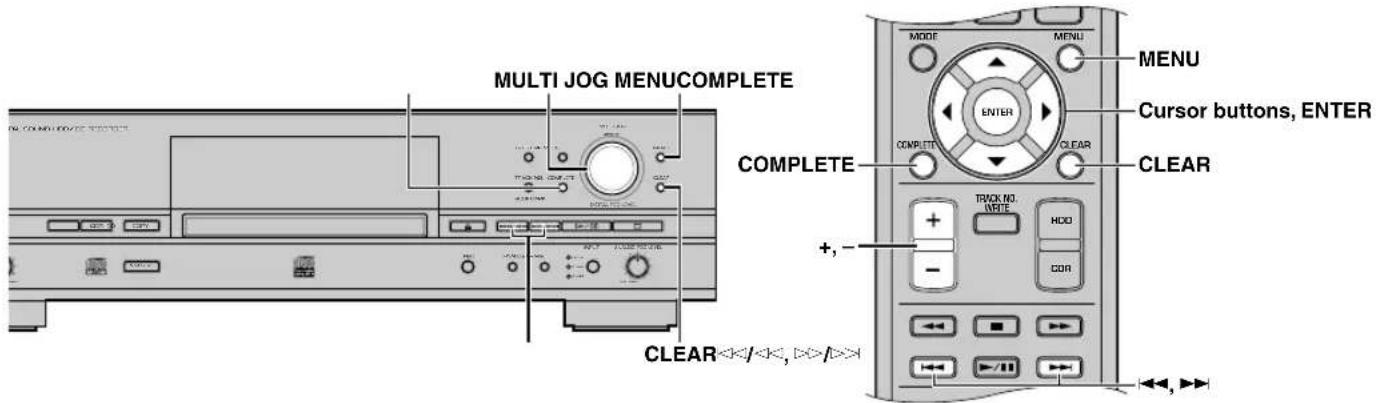
1. Press MENU while the HDD is selected (P.14).
The display changes for the menu item selection.
2. Press MULTI JOG knob (ENTER on the remote control).
The display changes for the editing the menu item selection.
3. Rotate the MULTI JOG knob (press +/-, ▲ or ▼ on the remote control) to select a menu item, then press MULTI JOG knob (ENTER on the remote control) to confirm the selection.
The followings are the album editing menu items.
- Album New* (at right)
- Edit Stored* (P.53)
- Album Copy* (P.54)
- Album Rename* (P.54)
- Album Delete (P.55)
- Album Pack* (P.55)
- Album Title (P.55)
- T rack Shuffle (P.56)
- Track Level (P.56)
• T r. Interval (P.57)
An asterisk (*) next to a menu item indicates that the menu cannot be selected during playback.
Memo
- If MENU is pressed during editing, entry of the selection is canceled, and then this unit returns to the following state;
- This unit returns to the editing menu item selection if having started editing during the stop mode.
- This unit returns to the playback if having started editing during the playback.
- If □ is pressed during editing, all entry of the selection is canceled, and this unit returns to the stop mode.
Album New
You can create a new album by selecting the desired tracks from among the ones recorded on the HDD.
1. If "Album New" is selected (at left), the following screen appears.
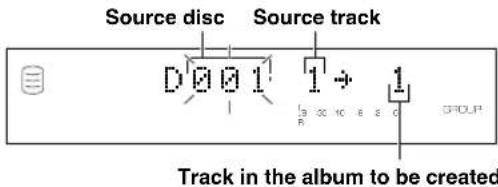
2. Rotate the MULTI JOG knob (press +/- on the remote control) to select the source disc.
3. Press the MULTI JOG knob (ENTER on the remote control) to confirm the source disc.
The number of the source track flashes.
Press CLEAR to cancel the confirmed selection.
4. Rotate the MULTI JOG knob (press +/- on the remote control) to select the source track.
5. Press the MULTI JOG knob (ENTER on the remote control) to confirm the source track.
The track number of the album being created will be advanced to the next, and the display returns to the one shown in step 1. Repeat steps 2 to 5 to select other discs and tracks.
Press CLEAR to cancel the confirmed selection.
6. Press COMPLETE.
A new album is created with the selected tracks recorded on it. This unit returns to the editing menu item selection.
Memo
- Y ou can switch the display by pressing TEXT/TIME (P.18) while an album is being made:
- If the title is assigned to the source disc or track, the title appears.
- By pressing TEXT/TIME while the title is being displayed, the total time of the album being made appears for approximately one second, and the display returns to the one in step 1.
- If no title is assigned to the source disc or track, the total time of the album being made appears for approximately one second, and the display returns to the one in step 1.
- Y ou can create a new album from the bookmark list (P.24). For details, refer to “Album Copy” (P.54).
Edit Stored
You can add tracks to or delete tracks from an already created album.
- If "Edit Stored" is selected (P.52), the following screen appears.
Album to be edited
- Rotate the MULTI JOG knob (press +/- on the remote control) to select the album to be edited.
- Press the MULTI JOG knob (ENTER on the remote control) to confirm the album to be edited.
The following message appears on the display.
To add new tracks to the album, carry out steps 4 to 9 in “When adding new tracks”. To delete tracks from the album, carry out steps 4 to 6 in “When deleting tracks”.
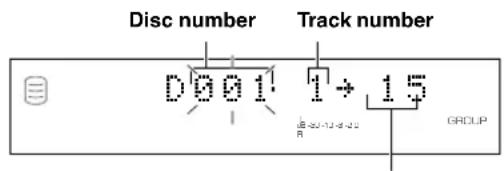
Track number in the album
(When adding new tracks)
- Press ◀◀/◀◀ or ▶▶/▶◀ (◀◀ or ▶▶ on the remote control) to select the track number to where a new track will be added.
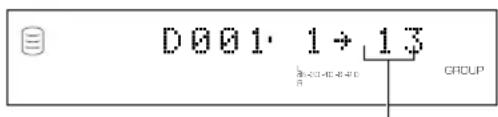
Track number (destination)
-
Rotate the MULTI JOG knob (press +/- on the remote control) to select the disc where the original track is stored.
-
Press the MULTI JOG knob (ENTER on the remote control) to confirm the disc.
Press CLEAR to cancel the confirmed selection.
- Rotate the MULTI JOG knob (press +/- on the remote control) to select the track to be added in the album.
- Press the MULTI JOG knob (ENTER on the remote control) to confirm the track.
When continuing to add tracks to the album, repeat steps 4 to 8.
- Press COMPLETE.
The selected tracks are added to the album.
This unit returns to the editing menu item selection.
(When deleting tracks)
- Press ◀◀/◀◀ or ▶▶/▶▶ (◀◀ or ▶▶ on the remote control) to select the track number to be deleted.
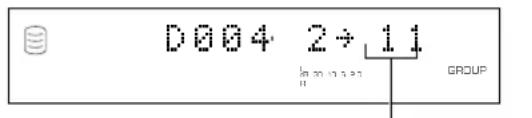
Track number to be deleted
- Press CLEAR.
Memo
The tracks following the deleted track will automatically be down-numbered.
When continuing to delete tracks from the album, repeat steps 4 and 5.
- Press COMPLETE.
The selected tracks are deleted from the album.
This unit returns to the editing menu item selection.
Album Copy
You can copy the entire disc, album, or bookmark to a new album.
- If "Album Copy" is selected (P.52), the following screen appears.
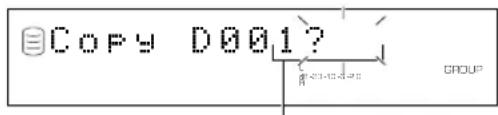
Group to be copied from
- Rotate the MULTI JOG knob (press +/- on the remote control) to select the group to be copied from.
The group to be copied from switches in the order of “disc” → “album” → “bookmark”.
- Press the MULTI JOG knob (ENTER on the remote control) to confirm the group to be copied from.
The display scrolls to the left to indicate the number of the group to be copied from and the number of the album to be copied to. The album to be copied on is assigned the smallest available number.
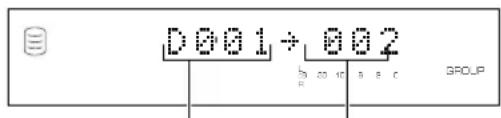
Group to be copied from Album to be copied to
Press CLEAR to cancel the confirmed selection.
- Press COMPLETE.
The selected group is copied to a new album.
This unit returns to the editing menu item selection.
Album Rename
You can move the album and assign a new number.
- If "Album Rename" is selected (P.52), the following screen appears.
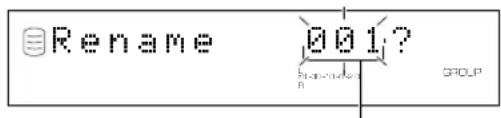
Album to be moved
The number of the album to be moved flashes.
- Rotate the MULTI JOG knob (press +/- on the remote control) to select the album to be moved.
- Press the MULTI JOG knob (ENTER on the remote control) to confirm the album to be moved.
The display scrolls to the left to indicate the number of the album to be moved and the new album number.
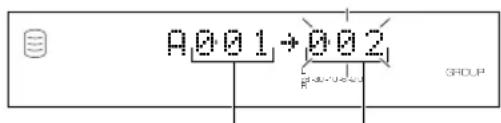
Album to be moved New album number
Press CLEAR to cancel the confirmed selection.
- Rotate the MULTI JOG knob (press +/- on the remote control) to select the new album number.
- Press the MULTI JOG knob (ENTER on the remote control) to confirm the new album number.
Press CLEAR to cancel the confirmed selection.
- Press COMPLETE.
The selected album has been moved and assigned a new number.
This unit returns to the editing menu item selection.
Memo
- If the selected new album number is already in use, the albums following this renumbered album will be automatically up-numbered by one. However, if there is any unused album number, only the albums up to that number will be up-numbered.
- The original number of the album that has been renumbered will be available for future use.
Album Delete
You can delete an existing album.
- If "Album Delete" is selected (P.52), the following screen appears.
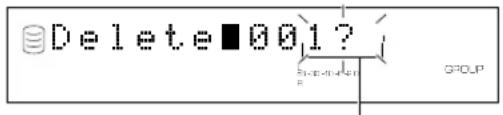
Album to be deleted
If the edit menu is selected during playback, the unit automatically selects the item to be edited. In this case, skip to step 4 since you do not need to select an item.
- Rotate the MULTI JOG knob (press +/- on the remote control) to select the album to be deleted.
- Press the MULTI JOG knob (ENTER on the remote control) to confirm the album.
Press CLEAR to cancel the confirmed selection.
- Press COMPLETE.
The selected album has been deleted.
This unit returns to the editing menu item selection.
Memo
The number of the deleted album will be available for future use.
Album Pack
You can re-organize the album numbers by eliminating unused album numbers that have been created by changing album numbers or deleting albums.
- If "Album Pack" is selected (P.52), the following screen appears.
- Press COMPLETE.
The album numbers are re-organized without unused album numbers.
This unit returns to the editing menu item selection.
Before "Album Pack"
| 1 | 3 | 4 | 6 | |||
| 1 | 2 | 3 | 4 | 5 | 6 |
After "Album Pack" (Unused albums are removed)
Album Title
You can assign a title to a created album.
- If "Album Title" is selected (P.52), the following screen appears.
Album to assign the title to
If the edit menu is selected during playback, the unit automatically selects the item to be edited. In this case, skip to step 4 since you do not need to select an item.
- Rotate the MULTI JOG knob (press +/- on the remote control) to select the album to assign a title to.
- Press the MULTI JOG knob (ENTER on the remote control) to confirm the album to assign a title to.
The cursor flashes. (If the selected album already has a title, the title appears on the display.)
- Use the MULTI JOG knob (press alphabetical/numeric buttons on the remote control) to enter characters.
For details on selecting characters, refer to “Entering characters in the edit menu” (P.51).
- Press COMPLETE when all the characters have been entered.
The title is assigned to the selected album. Press TEXT/TIME to switch the display information as necessary (P.18).
This unit returns to the editing menu item selection. (If the edit menu is carried on during playback, playback restarts.)
Track Shuffle
You can change the order of tracks in an album.
- If "Track Shuffle" is selected (P.52), the following screen appears.
Album to change its tracks' order
If the edit menu is selected during playback, the unit automatically selects the item to be edited. In this case, skip to step 6 since you do not need to select an item.
- Rotate the MULTI JOG knob (press +/- on the remote control) to select the album to change its track' order.
- Press the MULTI JOG knob (ENTER on the remote control) to confirm the album.
The number of the track to be moved flashes.
Press CLEAR to cancel the confirmed selection.
- Rotate the MULTI JOG knob (+/- on the remote control) to select the track to be moved.
- Press the MULTI JOG knob (ENTER on the remote control) to confirm the track.
The display scrolls to the left to indicate the number of the album to change its tracks' order, the number of the track to be moved, and the new track number.
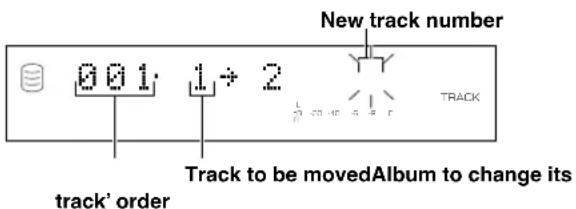
Press CLEAR to cancel the confirmed selection.
- Rotate the MULTI JOG knob (press +/- on the remote control) to select the new track number.
- Press the MULTI JOG knob (ENTER on the remote control) to confirm the new track number.
Press CLEAR to cancel the confirmed selection.
- Press COMPLETE.
The selected track has been moved and assigned a new number. This unit returns to the editing menu item selection.
Track Level
You can adjust the sound level of track in an album.
- If "Track Level" is selected (P.52), the following screen appears.
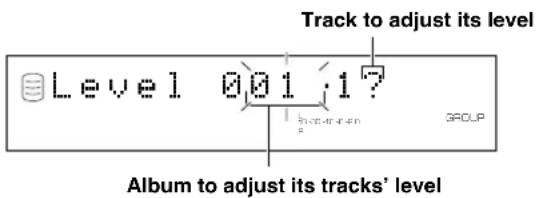
If the edit menu is selected during playback, the unit automatically selects the item to be edited. In this case, skip to step 6 since you do not need to select an item.
- Rotate the MULTI JOG knob (press +/- on the remote control) to select the album to adjust its tracks' level.
- Press the MULTI JOG knob (ENTER on the remote control) to confirm the album.
The number of the track to adjust its level flashes.
Press CLEAR to cancel the confirmed selection.
- Rotate the MULTI JOG knob (+/- on the remote control) to select the track to adjust.
- Press the MULTI JOG knob (ENTER on the remote control) to confirm the track.
Playback of the confirmed track starts, and the following message appears on the display.
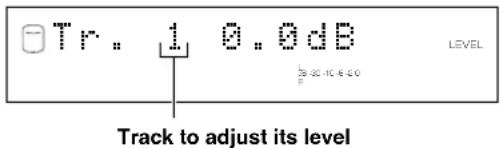
Press CLEAR to cancel the confirmed selection.
- Rotate the MULTI JOG knob (press +/- on the remote control) to adjust the level.
Adjustment is possible in the -12dB to +12dB range by 0.4dB steps.
You can compare the level with the previous or next track' level by pressing / or / (◀◀ or ▶▶ on the remote control).
- Press COMPLETE.
The level of the selected track is confirmed.
This unit returns to the editing menu item selection. (If the edit menu is carried on during playback, playback restarts.)
Memo
- The level may change slightly out of the point that the track itself changes during the playback of the album with its tracks' level adjusted. In this case, add the 1-to-2 second interval using the "Tr. Interval" function (at right).
- You can not copy the album with its tracks' level adjusted in the Audio Master Quality Recording feature (P.41).
- Y ou can also adjust the copy level (P.44) when copying the album with its tracks' level adjusted. The copy will be made in the total level adjusted in "Track Level" and "Copy Level" in the copy menu.
Tr. Interval
You can insert an interval at the beginning of the selected track of an album.
- If "Tr. Interval" is selected (P.52), the following screen appears. Track number
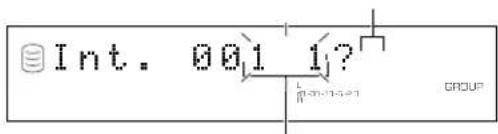
Album to adjust its track interval
If the edit menu is selected during playback, the unit automatically selects the item to be edited. In this case, skip to step 6 since you do not need to select an item.
- Rotate the MULTI JOG knob (press +/- on the remote control) to select the album to adjust its tracks interval.
- Press the MULTI JOG knob (ENTER on the remote control) to confirm the album.
The number of the track to be adjusted flashes.
Press CLEAR to cancel the confirmed selection.
- Rotate the MULTI JOG knob (+/- on the remote control) to select the track to adjust its interval.
- Press the MULTI JOG knob (ENTER on the remote control) to confirm the track.
The ending of the previous track for 5 seconds and the beginning of the selected track for 5 seconds are repeatedly played.
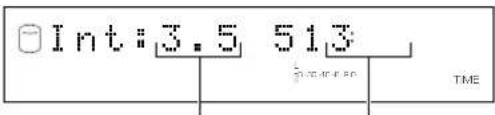
Playing time of the trackTrack inter
Press CLEAR to cancel the confirmed selection.
Memo
If there is no track before the track that is selected and confirmed, "No Previous" appears on the display, and this unit returns to step 4. (If the edit menu is selected during playback, the unit cancels the edit operation.)
- Rotate the MULTI JOG knob (press +/- on the remote control) to adjust the interval.
Adjustment is possible in the 0 to 9.9 seconds range by 0.1-second steps.
If you stop rotating the MULTI JOG knob, the ending of the previous track for 5 seconds and the beginning of the selected track for 5 seconds will be repeatedly played with the adjusted interval.
- Press COMPLETE.
The interval between the selected track and the previous track is confirmed.
This unit returns to the editing menu item selection. (If the edit menu is carried on during playback, playback restarts.)
EDITING TRACKS
You can do various editing operations on the tracks that have been recorded on the HDD.
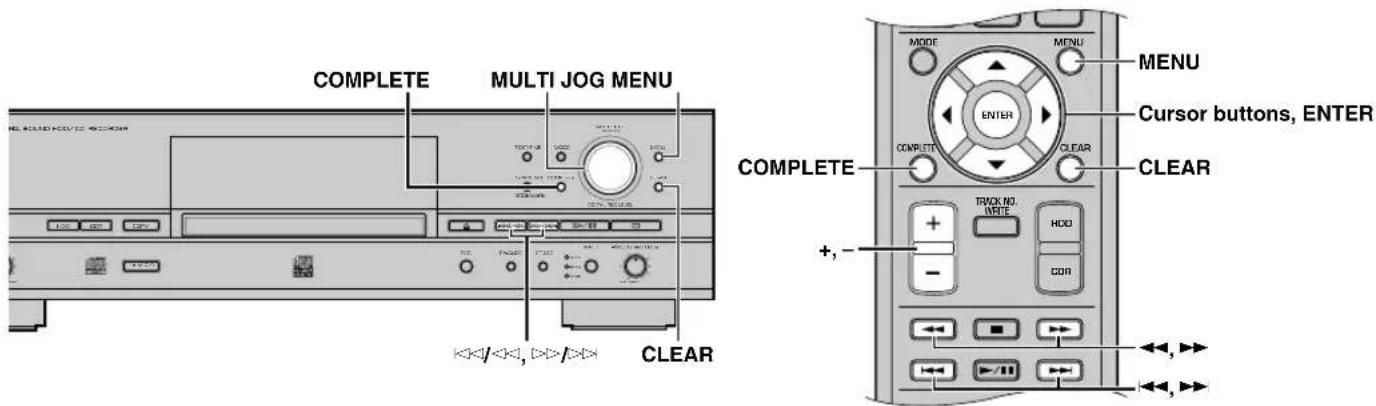
- Press MENU while the HDD is selected (P.14).
The display changes for the menu item selection.
- Rotate the MULTI JOG knob (press +/-, ▲ or ▼ on the remote control) to select "Track Edit"
- Press MULTI JOG knob (ENTER on the remote control).
The display changes for the editing menu item selection.
- Rotate the MULTI JOG knob (press +/-, ▲ or ▼ on the remote control) to select a menu item, then press MULTI JOG knob (ENTER on the remote control) to confirm the selection.
The followings are the track editing menu items:
- Track Rename (at right)
- Track Adjust (P.59)
- Track Erase (P.60)
- P art Erase (P.60)
- Track Combine (P.62)
- Track Divide (P.62)
- Track Pack* (P.63)
• A dd Fade In (P.64) - A dd Fade Out (P.64)
- Track Title (P.65)
* "Track Pack" cannot be selected during playback.
Memo
- If MENU is pressed during editing, entry of the selection is canceled, and then this unit returns to the following state;
- This unit returns to the editing menu item selection if having started editing during the stop mode.
- This unit returns to the playback if having started editing during playback.
- If is pressed during editing, all entry of the selection is canceled, and this unit returns to the stop mode.
Track Rename
You can move a track and assign a new number.
- If "Track Rename" is selected (at left), the following screen appears.
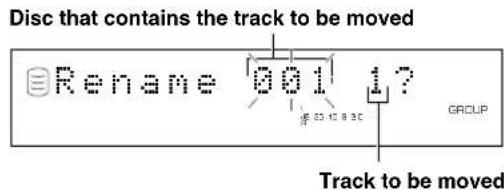
If the edit menu is selected during playback, the unit automatically selects the item to be edited. In this case, skip to step 6 since you do not need to select an item.
- Rotate the MULTI JOG knob (press +/- on the remote control) to select the disc that contains the track to be moved.
- Press the MULTI JOG knob (ENTER on the remote control) to confirm the disc.
The number of the track to be moved flashes.
Press CLEAR to cancel the confirmed selection.
- Rotate the MULTI JOG knob (press +/- on the remote control) to select the track to be moved.
- Press the MULTI JOG knob (ENTER on the remote control) to confirm the track.
The display scrolls to the left to indicate the disc number that contains the track to be moved, the existing track number, and the new track number.
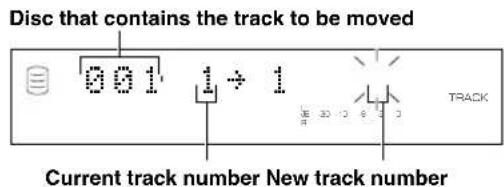
Press CLEAR to cancel the confirmed selection.
- Rotate the MULTI JOG knob (press +/- on the remote control) to select the new track number.
- Press the MULTI JOG knob (ENTER on the remote control) to confirm the new track number.
Press CLEAR to cancel the confirmed selection.
- Press COMPLETE.
The selected track is renumbered.
This unit returns to the editing menu item selection. (If the edit menu is carried on during playback, playback restarts.)
Memo
- If the selected new track number is already in use, the tracks following this renumbered track will be automatically up-numbered by one. However, if there is any unused track number, only the tracks up to that number will be up-numbered.
- The original number of the track that has been renumbered will be available for future use.
Track Adjust
You can change the beginning of the track forward or backward.
- If "Track Adjust" is selected (P.58), the following screen appears.
Disc that contains the track to be adjusted
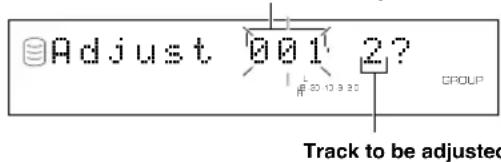
If the edit menu is selected during playback, the unit automatically selects the item to be edited. In this case, skip to step 6 since you do not need to select an item.
- Rotate the MULTI JOG knob (press +/- on the remote control) to select the disc that contains the track to be adjusted.
- Press the MULTI JOG knob (ENTER on the remote control) to confirm the disc.
The number of the track to be adjusted flashes.
Press CLEAR to cancel the confirmed selection.
- Select the track to be adjusted by rotating the MULTI JOG knob (pressing +/- on the remote control).
- Press the MULTI JOG knob (ENTER on the remote control) to confirm the track.
The confirmed track will be played.
The following message appears in the display.
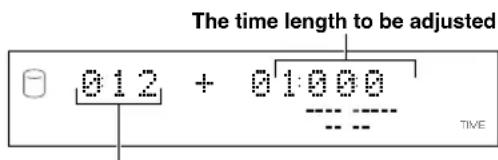
Playing time of the track
Memo
If there is no track before the track that is selected and confirmed, "No Previous" appears on the display, and this unit returns to step 4. (If the edit menu is selected during playback, the unit cancels the edit operation.)
- Rotate the MULTI JOG knob (press +/- on the remote control) to adjust the time length (displacement).
The time length can be adjusted by “minute: second: frame”. (Frame is the unit used for values smaller than 1 second. 75 frames make 1 second.) The unit to be set is flashing. Move the flash to the unit to be adjusted by pressing / or / ( or on the remote control).
If you stop rotating the MULTI JOG knob, this unit searches for the temporarily changed beginning point of the track according to the time length setting made, and starts repeated playback from the new beginning point to the end of the disc.
Press CLEAR to cancel the adjustment.
- Press COMPLETE.
The new track beginning point is set.
This unit returns to the editing menu item selection. (If the edit menu is carried on during playback, playback restarts.)
Before "Track Adjust"
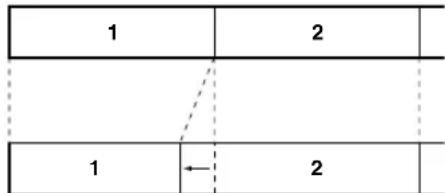
After "Track Adjust" (Track 2 is displaced forward)
Memo
- If the adjusted track includes a part that cannot be copied digitally before adjusting, the adjusted track itself cannot be copied digitally either.
- When the emphasis status of the track to be adjusted is different from that of the previous track, the emphasis status of the track to be adjusted takes precedence over the previous track.
Track Erase
You can erase a selected track.
- If "Track Erase" is selected (P.58), the following screen appears.
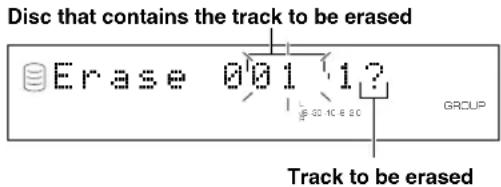
If the edit menu is selected during playback, the unit automatically selects the item to be edited. In this case, skip to step 6 since you do not need to select an item.
- Rotate the MULTI JOG knob (press +/- on the remote control) to select the disc that contains the track to be erased.
- Press the MULTI JOG knob (ENTER on the remote control) to confirm the disc.
The number of the track to be erased flashes.
Press CLEAR to cancel the confirmed selection.
- Rotate the MULTI JOG knob (press +/- on the remote control) to select the track to be erased.
- Press the MULTI JOG knob (ENTER on the remote control) to confirm the track.
Press CLEAR to cancel the confirmed selection.
To check the track to be erased, press [>/] . This unit starts to play the track to be erased repeatedly.
- Press COMPLETE.
The selected track is erased.
This unit returns to the editing menu item selection. (If the edit menu is carried on during playback, playback restarts.)
Memo
The number of the track that has been erased will be available for future use.
Part Erase
You can erase part of a selected track.
- If "Part Erase" is selected (P.58), the following screen appears.
Disc that contains the track to be partially erased
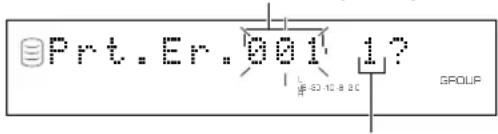
Track to be partially erased
If the edit menu is selected during playback, the unit automatically selects the item to be edited. In this case, skip to step 6 since you do not need to select an item.
- Rotate the MULTI JOG knob (press +/- on the remote control) to select the disc that contains the track to be partially erased.
- Press the MULTI JOG knob (ENTER on the remote control) to confirm the disc.
The number of the track to be partially erased flashes.
Press CLEAR to cancel the confirmed selection.
- Rotate the MULTI JOG knob (press +/- on the remote control) to select the track to be partially erased.
- Press the MULTI JOG knob (ENTER on the remote control) to confirm the track.
The passage between the point that is 5 seconds before the temporary beginning point of the partial erase and the temporary beginning point (the point that is 10 seconds elapsed from the beginning of the track) is repeatedly played.
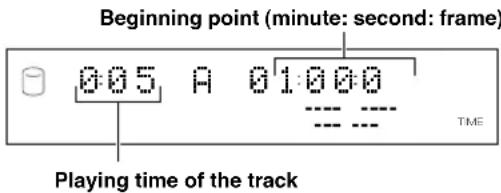
- Rotate the MULTI JOG knob (press +/- on the remote control) to select the beginning point of the partial erase.
The beginning point of the partial erase can be set by “minute: second: frame”. The unit to be set is flashing. Move the flash to the unit to be set by pressing ◀◀/◀◀ or ▶▶/▶▶ (◀◀ or ▶▶ on the remote control).
If you stop rotating the MULTI JOG knob, this unit searches for the beginning point according to the setting made, and starts repeated playback of the passage between the point that is 5 seconds before the beginning point and the beginning point.
7. Press MULTI JOG knob (ENTER on the remote control) to confirm the beginning point of the partial erase.
The passage between the temporary ending point of the partial erase (the point that is 10 seconds after the beginning point) and the point that is 5 seconds after the temporary ending point is repeatedly played.
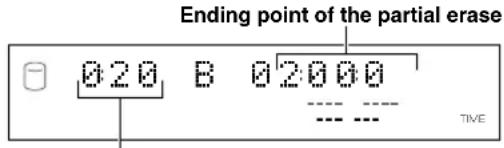
Playing time of the track
Press CLEAR to cancel the confirmed selection.
8. Rotate the MULTI JOG knob (press +/- on the remote control) to select the ending point of the partial erase.
The ending point of the partial erase can be set by “minute: second: frame”. The unit to be set is flashing. Move the flash to the unit to be set by pressing ◀◀/◀◀ or ▶▶/▶▶ (◀◀ or ▶▶ on the remote control).
If you stop rotating the MULTI JOG knob, this unit searches for the ending point according to the setting made, and starts repeated playback of the passage between the ending point and the point that is 5 seconds after the ending point.
9. Press MULTI JOG knob (ENTER on the remote control) to confirm the ending point of the partial erase.
The passage between the point that is 5 seconds before the beginning point and the point that is 5 seconds after the ending point of the partial erase is repeatedly played.
The following message appears on the display.
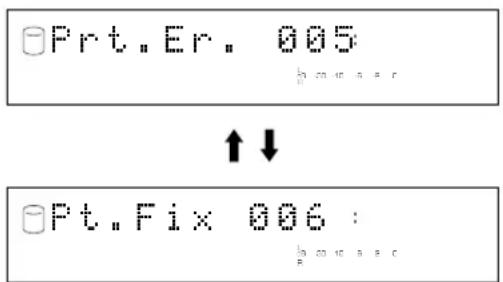
Notes
- T he sound may be interrupted at the joint but it will be played properly after the partial erase is completed.
- The minimum length of a track is four seconds. It is not possible to create a track shorter than four seconds by erasing partially.
Track
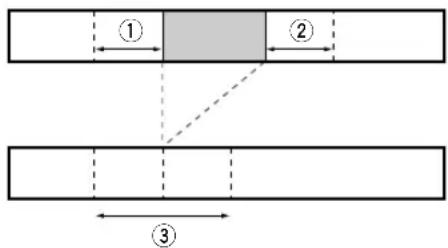
Track
: Part to be erased
① Repeated passage when setting the beginning point
② Repeated passage when setting the ending point
③ Repeated passage after confirming the ending point
To change the ending point, press CLEAR once to return to step 8.
To change the beginning point, press CLEAR twice to return to step 6.
10. Press COMPLETE.
The selected part is erased.
This unit returns to the editing menu item selection. (If the edit menu is carried on during playback, playback restarts.)
Track Combine
You can combine a series of tracks into one.
- If "Track Combine" is selected (P.58), the following screen appears.
Disc that contains the first track to be combined
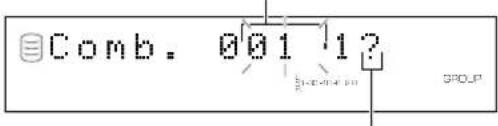
Track to be the first in the combination
If the edit menu is selected during playback, the unit automatically selects the item to be edited. In this case, skip to step 6 since you do not need to select an item.
- Rotate the MULTI JOG knob (press +/- on the remote control) to select the disc that contains the first track for the combination.
- Press the MULTI JOG knob (ENTER on the remote control) to confirm the disc.
The number of the track to be the first in the combination flashes.
Press CLEAR to cancel the confirmed selection.
- Rotate the MULTI JOG knob (press +/- on the remote control) to select the first track for the combination.
- Press the MULTI JOG knob (ENTER on the remote control) to confirm the track.
The display scrolls to the left to indicate the disc number that contains the first track to be combined, the track number to be the first in the combination, and the track number to be the last in the combination.
Disc that contains the first track for the combination
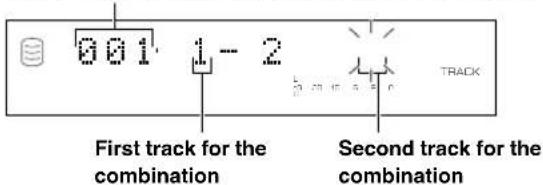
Press CLEAR to cancel the confirmed selection.
- Rotate the MULTI JOG knob (press +/- on the remote control) to select the second track for the combination.
- Press the MULTI JOG knob (ENTER on the remote control) to confirm the track.
Press CLEAR to cancel the confirmed selection.
- Press COMPLETE.
The two selected tracks and all those between are combined into one track.
This unit returns to the editing menu item selection.
Memo
- When combining a series of tracks, the selected track numbers following the selected first track will be available for future use.
- T he track title for the first track is effective for the combined track.
- If there is any track that cannot be copied digitally among the tracks to be combined, the combined track cannot be copied digitally either.
- When tracks with different emphasis status have been combined, the emphasis status of the first track becomes effective for the combined track.
Track Divide
You can divide a track into two at the selected point.
- If "Track Divide" is selected (P.58), the following screen appears.
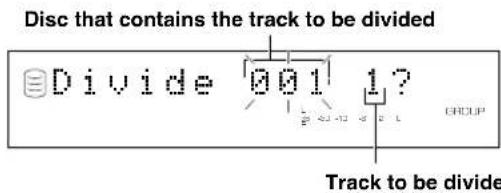
If the edit menu is selected during playback, the unit automatically selects the item to be edited. In this case, skip to step 6 since you do not need to select an item.
- Rotate the MULTI JOG knob (press +/- on the remote control) to select the disc that contains the track to be divided.
- Press the MULTI JOG knob (ENTER on the remote control) to confirm the disc.
The number of the track to be divided flashes.
Press CLEAR to cancel the confirmed selection.
- Rotate the MULTI JOG knob (press +/- on the remote control) to select the track to be divided.
- Press the MULTI JOG knob (ENTER on the remote control) to confirm the track.
The passage between the temporary dividing point (the point that is 10 seconds elapsed from the beginning of the track) and the point that is 5 seconds after the temporary dividing point is repeatedly played.
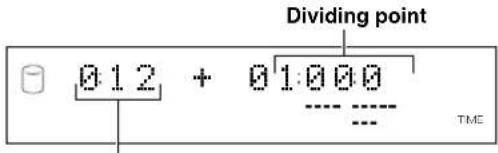
Playing time of the track
6. Rotate the MULTI JOG knob (press +/- on the remote control) to specify the dividing point.
The dividing point can be set by “minute: second: frame”. The unit to be set is flashing. Move the flash to the unit to be set by pressing / or / ( or on the remote control).
If you stop rotating the MULTI JOG knob, this unit searches for the dividing point according to the setting made, and starts repeated playback of the passage between the dividing point and the point that is 5 seconds after the dividing point.
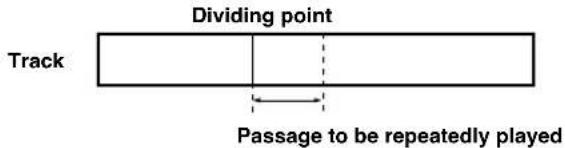
7. Press COMPLETE.
The selected track is divided into two at the set dividing point. This unit returns to the editing menu item selection. (If the edit menu is carried on during playback, playback restarts.)
Notes
- The minimum length of a track is four seconds. It is not possible to create a track that is shorter than four seconds by dividing a track.
- One disc can contain up to 99 tracks. If the disc already contains 99 tracks, "Track No.Full" appears on the display.
Memo
The track numbers following the divided track will be up-numbered by one. However, if there is any unused track number, only the tracks up to that number will be up-numbered.
Before "Track Divide"
| 1 | 2 | 4 | 5 | 6 | ||
| Divided into two | ||||||
| 1 | 2 | 3 | 4 | 5 | 6 | |
After "Track Divide" (When Track 1 is divided)
Track Pack
You can re-organize the track numbers by eliminating unused track numbers, that have been created by changing track numbers or erasing tracks.
- If "Track Pack" is selected (P.58), the following screen appears.
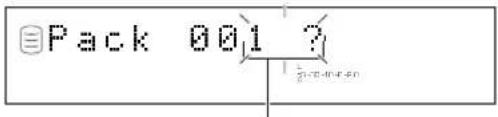
Disc to be organized
-
Rotate the MULTI JOG knob (press +/- on the remote control) to select the disc to be organized.
-
Press the MULTI JOG knob (ENTER on the remote control) to confirm the disc.
Press CLEAR to cancel the confirmed selection.
- Press COMPLETE.
The disc is re-organized by eliminating unused track numbers. This unit returns to the editing menu item selection.
Before "Track Pack"
| 1 | 3 | 4 | 6 | |||
| 1 | 2 | 3 | 4 | 5 | 6 |
After "Track Pack" (Unused track numbers have been eliminated.)
Add Fade In
You can add fade-in at the beginning of a track. The beginning of the track is played with gradually rising level when fade-in has been added.
- If "Add Fade In" is selected (P.58), the following screen appears.
Disc that contains the track to add fade-in
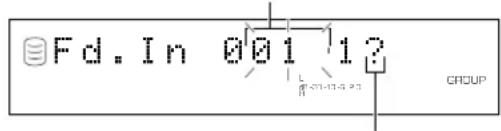
Track to add fade-in
If the edit menu is selected during playback, the unit automatically selects the item to be edited. In this case, skip to step 6 since you do not need to select an item.
- Rotate the MULTI JOG knob (press +/- on the remote control) to select the disc that contains the track to add fade-in.
- Press the MULTI JOG knob (ENTER on the remote control) to confirm the disc.
The number of the track to add fade-in flashes.
Press CLEAR to cancel the confirmed selection.
- Rotate the MULTI JOG knob (press +/- on the remote control) to select the track to add fade-in.
- Press the MULTI JOG knob (ENTER on the remote control) to confirm the track.
The beginning of the track for eight seconds is repeatedly played with a three second (initial setting) fade-in.
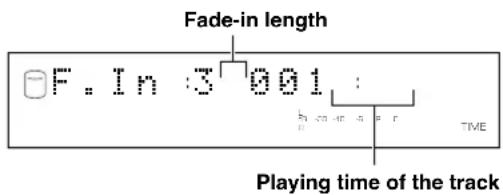
- Rotate MULTI JOG knob (+/- on the remote control) to set the fade-in length.
The fade-in length can be set in the 1 to 10 second range by one second steps.
If you stop rotating the MULTI JOG knob, this unit starts repeated playback of the beginning of the track with a fade-in of the length set in above step, with extra portion for further five seconds.
Press CLEAR to cancel the setting.
- Press COMPLETE.
The fade-in is added to the beginning of the selected track for the selected length.
This unit returns to the editing menu item selection. (If the edit menu is carried on during playback, playback restarts.)
Memo
- Fade-in cannot be added to a track that is shorter than 21 seconds.
- The fade-in effect becomes ineffective if the following editing is performed to the track which the fade-in is added to.
– Erasing a certain part of the track (Part Erase).
- Combining the track (Track Combine).
– Dividing the track (Track Divide).
- Adjusting the beginning of the track (Track Adjust).
- If “Track Adjust” has been performed, the fade-in effect of both the adjusted track and the previous track becomes ineffective.
Add Fade Out
You can add fade-out at the end of a track. The end of the track is played with gradually lowering the level when fade-out has been added.
- If "Add Fade Out" is selected (P.58), the following screen appears.
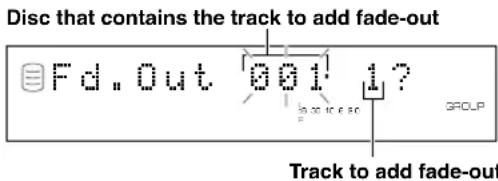
If the edit menu is selected during playback, the unit automatically selects the item to be edited. In this case, skip to step 6 since you do not need to select an item.
- Rotate the MULTI JOG knob (press +/- on the remote control) to select the disc that contains the track to add fade-out.
- Press the MULTI JOG knob (ENTER on the remote control) to confirm the disc.
The number of the track to add fade-out flashes.
Press CLEAR to cancel the confirmed selection.
- Rotate the MULTI JOG knob (press +/- on the remote control) to select the track to add fade-out.
- Press the MULTI JOG knob (ENTER on the remote control) to confirm the track.
The ending of the track for eight seconds is repeatedly played with a three second (initial setting) fade-out.
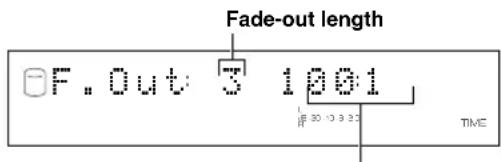
Playing time of the track
6. Rotate MULTI JOG knob (+/- on the remote control) to set the fade-out length.
The fade-out length can be set in the 1 to 10 second range by 1-second steps.
If you stop rotating the MULTI JOG knob, this unit starts repeated playback of the ending of the track with a fade-out of the length set in above step, with extra portion for further 5 seconds.
Press CLEAR to cancel the setting.
7. Press COMPLETE.
The fade-out is added to the end of the selected track for the selected length.
This unit returns to the editing menu item selection. (If the edit menu is carried on during playback, playback restarts.)
Memo
- F ade-out cannot be added to a track that is shorter than 21 seconds.
- T he fade-out effect becomes ineffective if the following editing is performed to the track which the fade-out is added to.
- Erasing a certain part of the track (Part Erase).
- Combining the track (Track Combine).
- D i viding the track (Track Divide).
- Adjusting the beginning of the track (Track Adjust).
- If “Track Adjust” has been performed, the fade-out effect of both the adjusted track and the previous track becomes ineffective.
Track Title
You can assign a title to a track.
- If "Track Title" is selected (P.58), the following screen appears.
Disc that contains the track to assign a title to
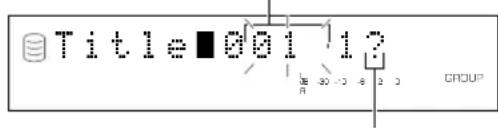
Track to assign a title to
If the edit menu is selected during playback, the unit automatically selects the item to be edited. In this case, skip to step 6 since you do not need to select an item.
- Rotate the MULTI JOG knob (press +/- on the remote control) to select the disc that contains the track to assign a title.
- Press the MULTI JOG knob (ENTER on the remote control) to confirm the disc.
When the disc has been confirmed, the disc number that contains the track to assign a title to flashes.
Press CLEAR to cancel the confirmed selection.
- Rotate the MULTI JOG knob (press +/- on the remote control) to select the track to assign a title.
- Press the MULTI JOG knob (ENTER on the remote control) to confirm the track.
The following message appears on the display.
The cursor flashes. (If the selected track already has a title, the title appears on the display.)
- Use the MULTI JOG knob (press alphabetical/numeric buttons on the remote control) to enter characters.
For details on selecting characters, refer to “Entering characters in the edit menu” (P.51).
- Press COMPLETE when all the characters have been entered.
The title is assigned to the selected track. Press TEXT/TIME to switch the display information as necessary (P.18).
This unit returns to the editing menu item selection. (If the edit menu is carried on during playback, playback restarts.)
EDITING DISCS
You can do various editing operations on the discs that have been recorded on the HDD.
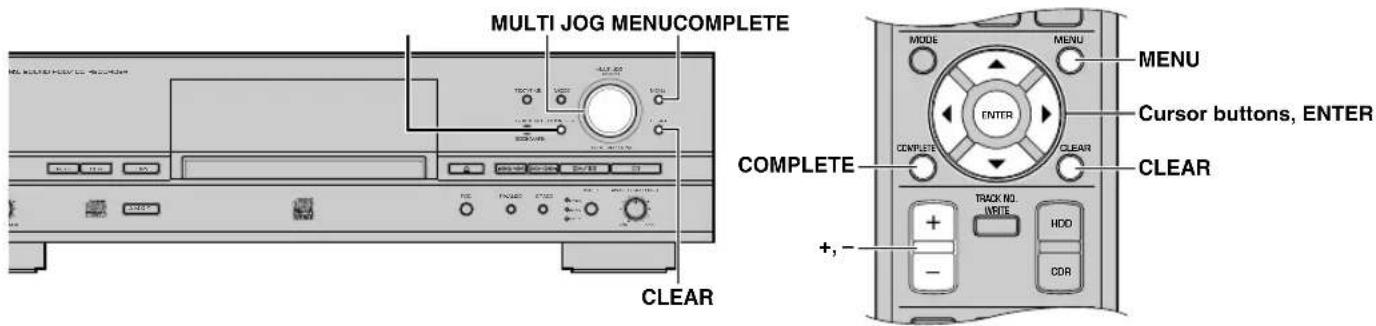
- Press MENU while the HDD is selected (P.14).
The display changes for the menu item selection.
- Rotate the MULTI JOG knob (press +/-, ▲ or ▼ on the remote control) to select "Disc Edit".
- Press MULTI JOG knob (ENTER on the remote control).
The display changes for the editing menu item selection.
- Rotate the MULTI JOG knob (press +/-, ▲ or ▼ on the remote control) to select a menu item, then press MULTI JOG knob (ENTER on the remote control) to confirm the selection.
The followings are the disc editing menu items:
• Disc Rename (P.67)
- Disc Erase (P.67)
• Disc Combine (P.68)
• Disc Divide (P.68)
- Disc Pack* (P.69)
• Disc Title (P.69)
* "Disc Pack" cannot be selected during playback.
Memo
- If MENU is pressed during editing, entry of the selection is canceled, and then this unit returns to the following state;
- This unit returns to the editing menu item selection if having started editing during the stop mode.
- This unit returns to the playback of the disc to be edited if having started editing during playback.
- If is pressed during editing, all entry of the selection is canceled, and this unit returns to the stop mode.
Disc Rename
You can move a disc and assign a new number.
- If "Disc Rename" is selected (P.66), the following screen appears.
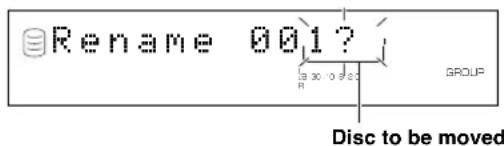
If the edit menu is selected during playback, the unit automatically selects the item to be edited. In this case, skip to step 4 since you do not need to select an item.
- Rotate the MULTI JOG knob (press +/- on the remote control) to select the disc to be moved.
- Press the MULTI JOG knob (ENTER on the remote control) to confirm the disc to be moved.
The display scrolls to the left to indicate the disc number to be moved and new number.
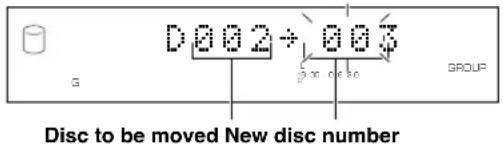
Press CLEAR to cancel the confirmed selection.
- Rotate the MULTI JOG knob (press +/- on the remote control) to select the new disc number.
- Press the MULTI JOG knob (ENTER on the remote control) to confirm the new disc number.
Press CLEAR to cancel the confirmed selection.
- Press COMPLETE.
The selected disc has been moved to and assigned a new number.
This unit returns to the editing menu item selection. (If the edit menu is carried on during playback, playback restarts.)
Memo
- If the selected new disc number is already in use, the disc numbers following this renumbered disc will be automatically up-numbered by one. However, if there is any unused disc number, only the discs up to that number will be up-numbered.
- The original number of the disc that has been renumbered will be available for future use.
Disc Erase
You can erase a selected disc.
- If "Disc Erase" is selected (P.66), the following screen appears.
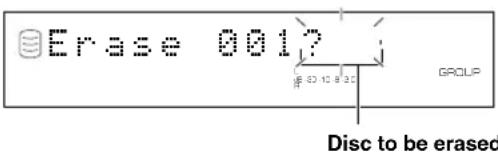
If the edit menu is selected during playback, the unit automatically selects the item to be edited. In this case, skip to step 4 since you do not need to select an item.
- Rotate the MULTI JOG knob (press +/- on the remote control) to select the disc to be erased.
- Press the MULTI JOG knob (ENTER on the remote control) to confirm the disc to be erased.
Press CLEAR to cancel the confirmed selection.
- Press COMPLETE.
The selected disc is erased.
This unit returns to the editing menu item selection. (If the edit menu is carried on during playback, playback restarts.)
Memo
The number of the erased disc will be available for future use.
Disc Combine
You can combine a series of discs into one.
- If "Disc Combine" is selected (P.66), the following screen appears.
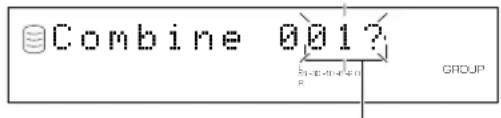
Disc to be the first in the combination
If the edit menu is selected during playback, the unit automatically selects the item to be edited. In this case, skip to step 4 since you do not need to select an item.
- Rotate the MULTI JOG knob (press +/- on the remote control) to select the first disc for the combination.
- Press the MULTI JOG knob (ENTER on the remote control) to confirm the disc.
The display scrolls to the left to indicate the disc numbers to be the first and the last in the combination.
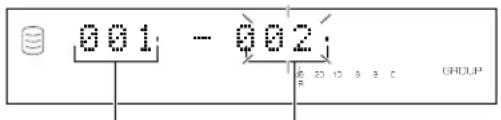
Disc to be the first in the combination
Disc to be the last in the combination
Press CLEAR to cancel the confirmed selection.
- Rotate the MULTI JOG knob (press +/- on the remote control) to select the second disc for the combination.
- Press the MULTI JOG knob (ENTER on the remote control) to confirm the disc.
Press CLEAR to cancel the confirmed selection.
- Press COMPLETE.
The two selected discs and all those between are combined into one disc.
This unit returns to the editing menu item selection. (If the edit menu is carried on during playback, playback restarts.)
Notes
- One disc can contain up to 99 tracks. When the total track number on a disc exceeds 99, “Track No.Full” appears on the display.
- The maximum length of one disc on the HDD is 179 minutes 59 seconds. When the total time of the discs to be combined exceeds 179 minutes 59 seconds, “No Enough Spc” appears on the display.
Memo
- When combining a series of discs, the selected disc numbers following the selected first disc will be available for future use.
- The disc title for the first disc is effective for the combined disc.
Disc Divide
You can divide a disc into two at the selected point.
- If "Disc Divide" is selected (P.66), the following screen appears.
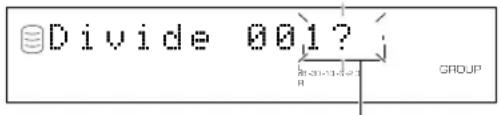
Disc to be divided
If the edit menu is selected during playback, the unit automatically selects the item to be edited. In this case, skip to step 4 since you do not need to select an item.
- Rotate the MULTI JOG knob (press +/- on the remote control) to select the disc to be divided.
- Press the MULTI JOG knob (ENTER on the remote control) to confirm the disc.
“Div. from” and the dividing point (the number of the track to be the first after dividing) appear on the display.
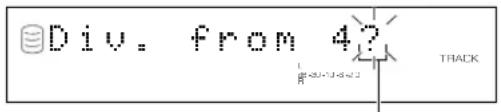
Track to be the first after dividing
Press CLEAR to cancel the confirmed selection.
- Rotate the MULTI JOG knob (press +/- on the remote control) to specify the dividing point.
- Press the MULTI JOG knob (ENTER on the remote control) to confirm the dividing point.
Press CLEAR to cancel the confirmed selection.
- Press COMPLETE.
The selected disc is divided into two at the selected dividing point.
This unit returns to the editing menu item selection. (If the edit menu is carried on during playback, playback restarts.)
Note
The HDD can contain up to 999 discs. If the HDD already contains 999 discs, "Disc No.Full" appears on the display.
Memo
The disc numbers following the divided disc will be up-numbered by one. However, if there is any unused disc number, only the discs up to that number will be up-numbered.
Before "Disc Divide"
| 1 | 2 | 4 | 5 | 6 | ||
| Divided into two | ||||||
| 1 | 2 | 3 | 4 | 5 | 6 | |
After "Disc Divide" (When Disc 1 is divided)
Disc Pack
You can re-organize the disc numbers by eliminating unused disc numbers that have been created by changing disc numbers or erasing discs.
- If "Disc Pack" is selected (P.66), the following screen appears.
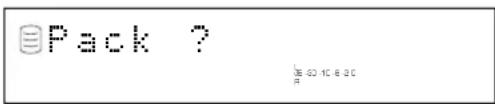
- Press COMPLETE.
The disc numbers are re-organized by eliminating unused disc numbers.
This unit returns to the editing menu item selection.
Before "Disc Pack"
| 1 | 3 | 4 | 6 | |||
| 1 | 2 | 3 | 4 | 5 | 6 |
After "Disc Pack" (Unused disc numbers have been eliminated.)
Disc Title
You can assign a title to a recorded disc.
- If "Disc Title" is selected (P.66), the following screen appears.
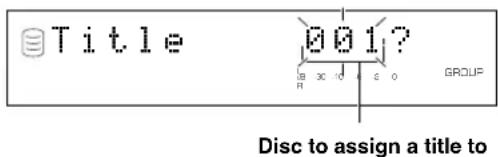
If the edit menu is selected during playback, the unit automatically selects the item to be edited. In this case, skip to step 4 since you do not need to select an item.
- Rotate the MULTI JOG knob (press +/- on the remote control) to select the disc to assign a title.
- Press the MULTI JOG knob (ENTER on the remote control) to confirm the disc to assign a title to.
The cursor flashes. (If the selected disc already has a title, the title appears on the display.)
- Use the MULTI JOG knob (press alphabetical/numeric buttons on the remote control) to enter characters.
For details on selecting characters, refer to “Entering characters in the edit menu” (P.51).
- Press COMPLETE when all the characters have been entered.
The title is assigned to the selected disc. Press TEXT/TIME to switch the display information as necessary (P.18).
This unit returns to the editing menu item selection. (If the edit menu is carried on during playback, playback restarts.)
CANCELING EDIT OPERATIONS (UNDO)
You can cancel an operation and the result of a previous editing step on this unit (Undo function).
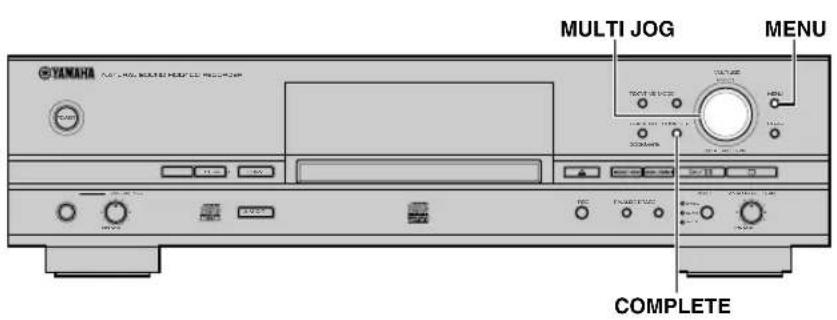
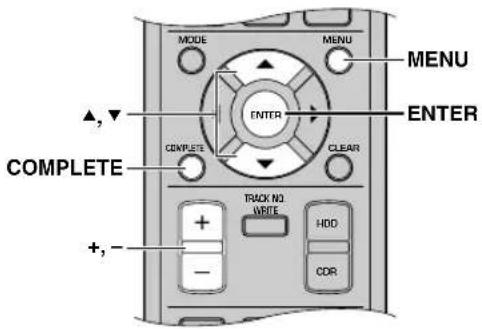
- Press MENU while this unit is in the stop mode.
- Rotate the MULTI JOG knob (press +/-, ▲ or ▼ on the remote control) to select "Undo".
- Press the MULTI JOG knob (ENTER on the remote control) to display "Undo?".
- Press COMPLETE.
The previous editing operation and result are canceled.
The undo function does not work if any of the following operations has been performed after the editing operation.
- After the editing operation, a recording has been made, or this unit has been set in the recording pause mode to start recording.
• After the editing operation, a copy has been made, or this unit has been set in the copy standby mode to start copying.
• Further editing operations have been performed.
• The HDD has been formatted.
The following message appears on the display if the undo function does not work.
Memo
- The undo function does not apply to “Track Level” or “Tr. Interval” in the Album Edit menu and “Add Fade In” or “Add Fade Out” in the Track Edit menu because it can be canceled at any time.
- The undo function does not apply to "Album Title", "Track Title", or "Disc Title".
CONVERTING DIGITAL/ANALOG OUTPUT SIGNALS (DAC MODE)
This unit has the digital-analog converter (DAC) mode. When the DAC mode is turned on, the unit outputs audio sources (audio signals input from the input jacks) from the both digital (OPTICAL and COAXIAL) and analog (ANALOG) jacks.
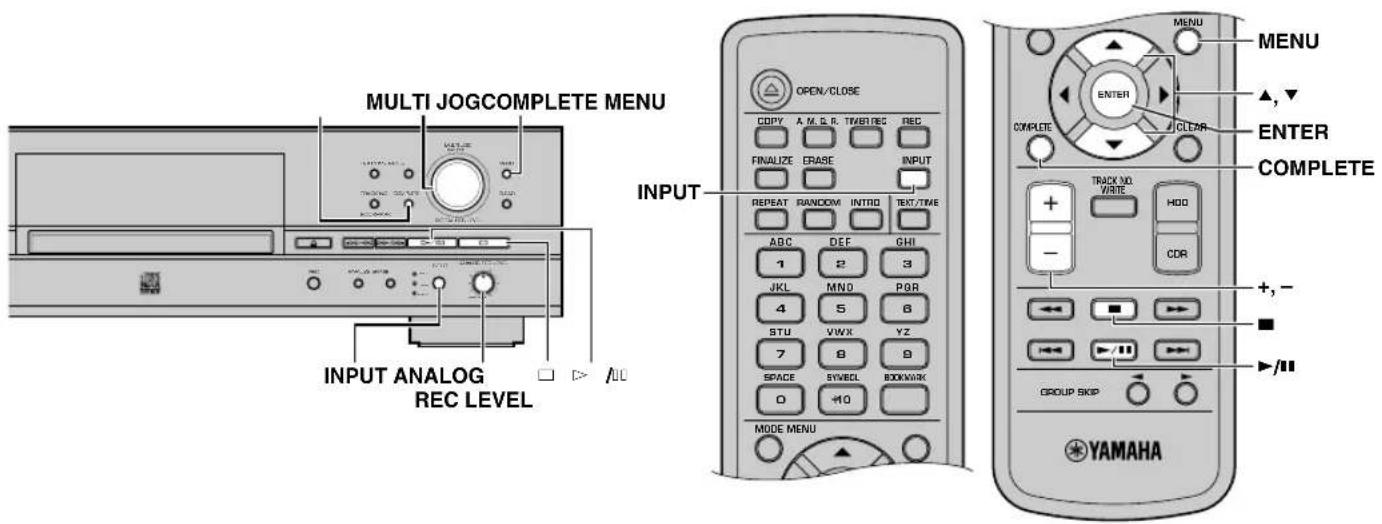
-
Press MENU while this unit is in the stop mode.
The display changes for the menu item selection. -
Rotate the MULTI JOG knob (press +/-, ▲ or ▼ on the remote control) to select "DAC Mode".
-
Press the MULTI JOG knob (ENTER on the remote control) to enter the DAC mode.
-
Press INPUT to select the input sources (OPTICAL, COAXIAL, or ANALOG).
The lamp for the selected input lights up and the unit outputs the input source from ANALOG LINE OUT and DIGITAL OUT (OPTICAL/COAXIAL) jacks.
Memo
- When OPTICAL or COAXIAL is selected, the MULTI JOG knob functions as a volume control.
-
When ANALOG is selected, the ANALOG REC LEVEL control functions as a volume control.
-
Any of the following operation cancel the DAC mode and start normal operation.
-
Press / to play the drive that had been selected before entering the DAC mode.
- Press □ or COMPLETE to set this unit in the stop mode.
- Press MENU to return to the menu item selection.
■ Checking HDD information (HDD Info.)
You can check the HDD utility (capacity, usage, and available space) of this unit.
-
Press MENU while this unit is in the stop mode. The display changes for the menu item selection.
-
Rotate the MULTI JOG knob (press +/-, ▲ or ▼ on the remote control) to select "HDD Utility".
- Press the MULTI JOG knob (ENTER on the remote control) to display "HDD Info.".
- Press the MULTI JOG knob (ENTER on the remote control) again to display the capacity of the HDD.
Rotating the MULTI JOG knob (pressing +/-, ▲ or ▼ on the remote control) changes the display as follows. The disc capacity is indicated by time (hour and minute).
Capacity (total time)
Usage (total used time)
Available space (recordable time)
Memo
The times displayed are rough estimates.
- Press □ or MENU to exit.
The unit returns to the stop mode.
■ Formatting the HDD (HDD Format)
You can format the HDD in this unit.
Notes
• After the HDD has been formatted, all data about the recorded tracks and settings will be erased from the HDD.
• After all data on the HDD have been initialized, the undo function cannot be applied to any editing operations before formatting.
- Carry out steps 1 to 3 in "Checking HDD information (HDD Info.)" (at left).
The display changes for the HDD utility item selection.
- Rotate the MULTI JOG knob (press +/-, ▲ or ▼ on the remote control) to select "HDD Format".

- Press the MULTI JOG knob (ENTER on the remote control) to display "Initialize ?".
- Press the ▷/□ to display "Format Really ?".
To format the HDD, press INPUT. If not, press □.
- Press INPUT to display "Format OK" and restart the unit.
Note
You cannot apply "HDD Format" for a new HDD. To format a new HDD after installation, refer to "HDD Installation Manual".
SYSTEM UTILITY
■ Checking the firmware version (Firm. Version)
Software that is called "firmware" is built into this unit. This firmware controls the operation. The following steps describe the firmware version check procedures.
-
Press MENU while this unit is in the stop mode.
The display changes for the menu item selection. -
Rotate the MULTI JOG knob (press +/-, ▲ or ▼ on the remote control) to select "Sys. Utility".
- Press the MULTI JOG knob (ENTER on the remote control) to display "Firm. Version".
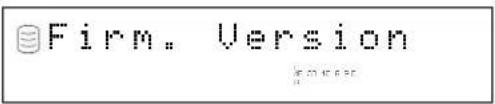
- Press the MULTI JOG knob (ENTER on the remote control) again to display the version of the firmware.
Rotating the MULTI JOG knob (pressing +/-, ▲ or ▼ on the remote control) changes the display as follows.
System firmware version
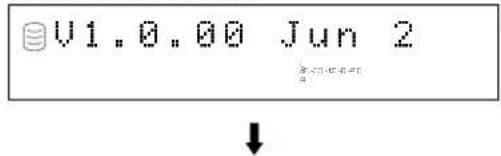
CDR drive firmware version
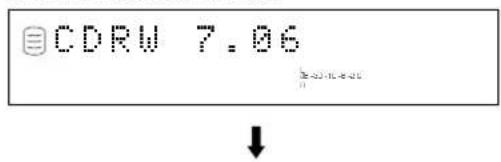
Model of HDD
- Press □ or MENU to exit.
The unit returns to the stop mode.
■ Initializing settings (Initialize)
You can initialize the settings that have been changed. The OPC data stored in this unit is also initialized.
- Carry out steps 1 to 3 in "Checking the firmware version (Firm. Version)" (at left).
The display changes for the system utility item selection.
- Rotate the MULTI JOG knob (press +/-, ▲ or ▼ on the remote control) to select "Initialize".
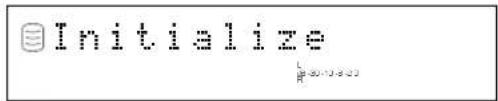
- Press the MULTI JOG knob (ENTER on the remote control) to display "Initialize ?".
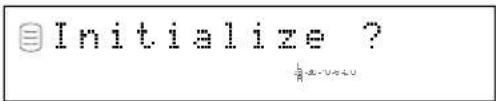
Press □ to cancel the initialization process.
- Press COMPLETE.
The unit restarts with the initial settings.
■ Setting the display brightness (Dimmer Setup)
You can change the brightness of the display.
- Carry out steps 1 to 3 in "Checking the firmware version (Firm. Version)" (P.73).
The display changes for the system utility item selection.
- Rotate the MULTI JOG knob (press +/-, ▲ or ▼ on the remote control) to select "Dimmer Setup".
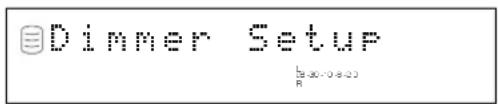
- Press the MULTI JOG knob (ENTER on the remote control) to display the current setting.
Rotating the MULTI JOG knob (pressing +/-, ▲ or ▼ on the remote control) changes the setting as follows.
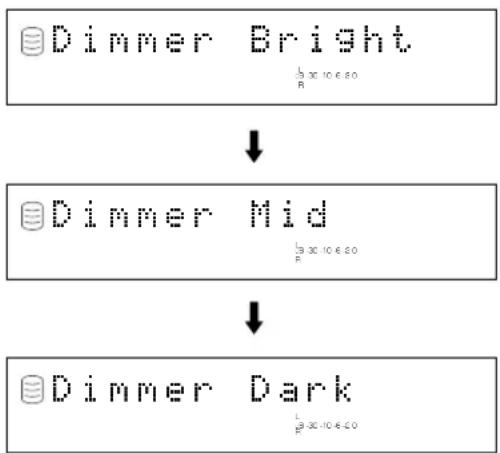
flowchart
graph TD
    A["Dimmer Bright\n\n\n\n\n"] --> B["Dimmer Mid\n\n\n\n\n"]
    B --> C["Dimmer Dark\n\n\n\n\n"]
Memo
Initial setting is "Dimmer Bright".
- Press the MULTI JOG knob (ENTER on the remote control) or COMPLETE.
The display brightness has been set.
- Press □ or MENU to exit.
The unit returns to the stop mode.
■ Setting the video output (VIDEO Output)
You can switch the on-screen display output through the VIDEO OUT jacks on and off.
- Carry out steps 1 to 3 in "Checking the firmware version (Firm. Version)" (P.73).
The display changes for the system utility item selection.
- Rotate the MULTI JOG knob (press +/-, ▲ or ▼ on the remote control) to select "VIDEO Output".
- Press the MULTI JOG knob (ENTER on the remote control) to display the current setting.
Rotating the MULTI JOG knob (pressing +/-, ▲ or ▼ on the remote control) switches the setting between “VIDEO On” and “VIDEO Off”.
Memo
Initial setting is "VIDEO On".
- Press the MULTI JOG knob (ENTER on the remote control) or COMPLETE.
The on-screen display output is set to on or off.
Memo
Select "VIDEO Off" if the on-screen display is not used so that you can enjoy playback or recording with higher quality sounds.
- Press □ or MENU to exit.
The unit returns to the stop mode.
■ Starting playback automatically (Auto Play)
You can set the auto play function which automatically starts playback when the power of this unit is turned on. Using an external timer with this feature enables timer playback.
-
Carry out steps 1 to 3 in "Checking the firmware version (Firm. Version)" (P.73).
The display changes for the system utility item selection. -
Rotate the MULTI JOG knob (press +/-, ▲ or ▼ on the remote control) to select "Auto Play".
- Press the MULTI JOG knob (ENTER on the remote control) to display the current setting.
Rotating the MULTI JOG knob (pressing +/-, ▲ or ▼ on the remote control) switches the setting between “Auto Play On” and “Auto Play Off”.
Memo
Initial setting is "Auto Play Off".
- Press the MULTI JOG knob (ENTER on the remote control) or COMPLETE.
The auto play function is set to on or off.
If the auto play function is set to on, the setting will be applied when the power of this unit is turned on the next time.
- This unit plays data on the drive that had been last selected when the power of this unit was last turned off.
- This unit plays in the playback mode (such as random play) that had been last set when the power of this unit was last turned off.
- To carry out timer playback, connect the power cable of this unit to an external timer, then set the timer.
Memo
The setting for the timer recording takes precedence over the setting for the auto play function. If the timer recording (P.32) is set, this unit starts recording when the power of this unit is turned on the next time even when “Auto Play On” is selected.
■ Updating the firmware version (Firm. Update)
This menu is prepared for the expansion of the functions in the future.
TROUBLESHOOTING
If this unit fails to operate normally, check the following points to determine whether the fault can be corrected by the simple measures suggested. If they cannot be corrected, or if the fault is not listed in the SYMPTOM column, disconnect the power cord and contact your authorized YAMAHA dealer or service center for assistance.
| SYMPTOM | CAUSE | REMEDY |
| This unit does not turn on when POWER is pressed. | The power cable is not completely connected. | Securely connect the power cable (P.10). |
| Playback does not begin with the CD loaded. | There is moisture on the laser pick-up. | Turn the power of this unit and wait 20 to 30 minutes before trying to play (P.14). |
| The CD has been loaded upside down. | Reload the CD with the label side facing up. | |
| The CD is dirty. | Clean the CD (P.v). | |
| Playback is delayed, or begins at the wrong place. | The CD may be scratched or damaged. | Check the CD carefully. Replace it if necessary. |
| Recording/copying is not possible. | The CD-R or CD-RW disc has been finalized. | Load a recordable CD that has not been finalized yet (P.iv). |
| The CD-R or CD-RW disc that has completed recording is loaded. | Load a recordable CD (P.iv). | |
| INPUT is not correctly set. | Set INPUT to the correct position according to the input signal (P.31). | |
| Further digital recording or copying has been attempted from the digitally copied sources. | Switch to ANALOG to make a recording (P.31). | |
| There is not enough available space left or 99 tracks have already been recorded on the disc. | Load a recordable disc (for a CD-R or CD-RW disc) (P.iv). Select the other discs (for the HDD) (P.16). | |
| There is no available space on the HDD. | Erase the space not being used to create available space on the HDD for further recording. | |
| If the power cable was unplugged or there was a power outage during recording, the recorded material may be lost. | When a CD-R disc is in use, retry recording or copying using a new disc. When a CD-RW disc is in use, retry the operation from the beginning. Note that, if data is lost during Digital Move, it cannot be restored or re-recorded any more (P. 45). | |
| The CD-R or CD-RW disc is dirty or damaged. | Clean or replace the CD-R or CD-RW disc (P.v). | |
| Some vibration and rotation noise are created during the copying. | This unit copies by rotating the CD, CD-R or CD-RW disc at high speed. | Lower the copying speed to decrease vibration and rotation noise. |
| Continuous recording cannot be made on a disc or track on the HDD beyond 180 minutes. | The maximum recordable time for a disc or track on the HDD is 179 minutes 59 seconds. | Regardless of the recording mode, the recording will be performed continuously to the next available disc after the recording has been performed to one disc for its maximum length. |
| The beginning of the track is missing during the playback when this unit is connected digitally to an amplifier. | The tracks that have different emphases have been played. | Connect to the amplifier using the ANALOG LINE OUT (PLAY) jacks (P.10). |
| The sound is missing when this unit switches one disc to another. | The titles appear on the display during the playback of the part that has been recorded stretching over the two discs. | Press TEXT/TIME to switch the display to the indication of time (P.18). |
| A CD-R or CD-RW that has been recorded with this unit cannot be played on the other CD player or DVD player. | Your CD or DVD player is not compatible with CD-R or CD-RW discs. | Use a CD or DVD player compatible with CD-R or CD-RW discs. |
| The CD-R or CD-RW disc has not been finalized. | Finalize the CD-R or CD-RW disc (P.47). | |
| Sound “skips”. | This unit and/or the component connected is being subjected to vibration or impact. | Relocate the unit. (This is not possible if the skipping sound is already on the recording due to vibrations or impact that occurred during recording.) |
| The CD is dirty. | Clean the CD (P.v). | |
| This unit makes noise. | Connection has not correctly been made. | Properly connect the audio pin cables. Replace the audio cables (P.10). |
| This unit does not operate properly. | The internal microcomputer has been frozen. | Turn off the power of this unit and then turn on again after about one minute (P.14). |
| There is rotation noise of the fan. | The temperature inside this unit rises. | The fan starts to rotate to cool off the temperature inside this unit. |
| A noise occurs at the change of the tracks that has been recorded from the analog record and edited. | A very low frequency component among the wow and flutter of the analog record is being output as a noise. | Improvement can be made by adding a short fade-in or fade-out to the track (P.64). |
| Remote control does not work. | The batteries of the remote control are too weak. | Replace two batteries with new ones (P.11). |
| Remote control is from too far.Remote control is being used at an incorrect angle. | Use the remote control within 6 m and 60 degrees radius (P.11). | |
| Direct sunlight or lighting (of an inverter type of fluorescent lamp, etc.) is striking the remote control sensor. | Change the position so that the remote control sensor is not exposed to strong lighting. | |
| TV does not correctly function when the remote control is being used. | Remote control is being used near TV set with a remote control sensor. | Relocate this unit away from the TV or cover the TV's remote control sensor. |
| The picture on the TV is impaired. | The indoor antenna is used. | Use an outdoor antenna, or set this unit away from the TV set. |
DISPLAY MESSAGES
Can't Copy
This message is displayed for approximately 3 seconds when digital recording or copying is not possible according to the SCMS standard.
Refer to "Rules of Digital Recording" (P.82).
Can't Edit
This message is displayed when a prohibited editing operation has been attempted.
Can't Tr.Lev.
The album with its tracks' level adjusted is to be copied to a CD-R disc in the Audio Master Quality Recording mode.
Can't use HDD
The loaded HDD has been formatted by other CDR-HD1500s. Reformat by the CDR-HD1500 on which you plan to use that HDD (P.72).
Change Discs!
This message informs that a CD needs to be changed to a disc to be used for duplicating when copying from a CD onto the HDD has been completed.
Check Disc
This unit fails to read the CD because the CD has been loaded on the disc tray upside down or the CD has remarkable scratch on it, or some kind of error has been occurred during operation. Check the disc, and exchange the CD if necessary.
Data Track
This message is displayed when the data track is being played.
Disc Full
This message is displayed when recording to a CD-R or CD-RW disc cannot be performed any further because the recording has been made up to the total recordable time.
Disc No.Full
When the number of discs recorded on the HDD has reached its maximum of 999 discs, this message is displayed if more discs have been attempted to be added.
Drive Check
Some kind of error has been occurred in the HDD or the CDR drive. Contact the nearest authorized YAMAHA dealer or service center. Or HDD is not set to “slave” precisely. Refer to the “HDD Installation Manual” and set the HDD to “slave”.
Erasing
Erasing a CD-RW disc is being performed. The erasing progress is indicated by the level meter.
Finalize OK?
This message confirms starting the finalization of a CD-R or CD-RW disc. If you wish to finalize, press ▷/□.
Finalizing
Finalization is being performed. The finalization progress is indicated by the level meter.
Format Really
This message confirms starting the format of the HDD after "Initialize ?" appears.
HDD Full
This message is displayed when recording to the HDD cannot be performed any further because the recording has been made up to the total recordable time.
Initialize ?
This message confirms starting the format of the HDD, or the initialization of each item.
Invalid Mode
The recording mode that cannot be selected during the timer recording setting has been selected.
New Disc
The disc in the disc tray is either a new CD-R or CD-RW disc, or a CD-RW disc that has been erased by using a “Disc Erase” or “All Erase”.
No Data
There are no tracks (data) recorded on the HDD.
No Disc
There are no CDs on the disc tray.
No Enough Spc
There is not enough space for copying, or the track number exceeds the maximum number when copying.
No Input
There are no input signals when attempting the recording from the external components digitally.
No Previous
When making “Tr. Interval” on the ALBUM EDITING menu or “Track Adjust” on the TRACK EDITING menu, there is no track before the track to be edited.
No Source
There is no source recorded on the HDD or CDs when copying.
Not Audio
A non-audio CD-R or CD-RW disc, such as a CD-R or CD-RW disc for PCs, has been loaded in the disc tray, and recording has been attempted on that CD-R or CD-RW disc.
No Undo data
Undo is not possible.
OPC Adjust
This message is displayed while OPC (Optimum Power Calibration) optimized the laser power to the reflectivity of the disc. Approximately 10 seconds may be required to complete this automatic adjustment. However, this time length may change according to the type of the disc that has been loaded.
Pack Before!
This message is displayed when the editing operation cannot be done unless “Pack” is performed.
Reading
This unit reads the format of the CD, CD-R, or CD-RW disc loaded on the disc tray. Approximately 10 to 20 seconds may be required to complete this automatic adjustment. However, this time length may change according to the type of the CD, CD-R, or CD-RW disc that has been loaded.
Standby
This message is displayed for several seconds after REC has been pressed to record on a CD-R or CD-RW disc.
Timer Standby
This message is displayed after the timer recording setting has been completed, or displayed for approximate five seconds before the timer recording starts.
Track No.Full
One disc can contain up to 99 tracks. Recording is attempted on the disc that has reached the maximum number.
Unavailable
The CD-R disc whose recordable time is other than 74 minutes or 79 minutes or the CD-R disc which does not support 4x writing, or the CD-RW disc has been loaded when copying in the Audio Master Quality Recording mode.
Unrecordable
In recording or copying onto a CD-R or CD-RW disc, the disc cannot be used for recording or copying. Or in recording or copying onto the HDD, no space is available.
Wait
This message flashes while this unit is writing information to the PMA (Program Memory Area) after □ is pressed in recording onto a CD-R or CD-RW disc, or flashes while processing the data on the HDD or detecting the loaded HDD when this unit is turned on.
The following explains key terms used in this manual.
Album
An album is a unit used while playing back or recording audio signals on this unit. For detailed information, see “Data on the HDD” (P.16).
Audio Master Quality Recording
Audio Master Quality Recording is a high quality recording mode used to create an audio CD with its original quality. By minimizing the jitter that subtly degrades the audio quality or even causes data transmission failure, Audio Master Quality Recording actualizes a clear sound close to the original sound.
Bookmark
A bookmark is a collection of audio tracks of your preference. You can play back or record audio data using a bookmark, and an album can be created from a bookmark. For detailed information, see "Data on the HDD" (P.16) or "Data on CDs" (P.17).
CD TEXT
CD TEXT is text information (album title, track title, etc) recorded on CDs and can be read only with a CD player or CD-ROM drive that supports CD TEXT.
Digital Move
Digital move implies moving audio data recorded on the HDD onto CD-R/RW discs. The audio data once digital moved onto CD-R/RW discs are erased from the HDD. Because digital move is regarded as one generation of digital copying, audio data can be digitally copied from CDs onto the HDD and then from the HDD onto CD-R/RW discs. However, audio data cannot be copied onto several CD-R/RW discs at the same time.
Disc
A disc is a unit used while playing back or recording audio signals on this unit. For detailed information, see “Data on the HDD” (P.16) or “Data on CDs” (P.17).
Emphasis
Emphasis is a recording mode used to improve the quality of audio data. Emphasis turns the volume of the upper register up before recording and down while playing back, resulting in a decrease in the noise level of the upper register.
Finalize
Finalize is a process to enable audio data recorded onto CD-R/RW discs to be played back on CD players or other CD-RW compatible devices. An audio disc created on this unit must be finalized to be played back on other playback devices.
Group
A group is a unit used while playing back or recording audio signals on this unit and is a collective term for albums, discs and bookmarks. A group consists of several audio tracks. For detailed information, see “Data on the HDD” (P.16) or “Data on CDs” (P.17).
SCMS
SCMS (Serial Copy Management System) is a system developed by JASRAC (Japanese Society for Rights of Authors, Composers and Producers) to prevent unlimited digital copying of CD's and other prerecorded media. In essence, SCMS prevents more than one generation of digital copying (i.e. a copy of an SCMS copy-protected source cannot be duplicated).
TOC
TOC (Table of Contents) is a disc index recorded on a finalized disc and enables playback devices to distinguish audio tracks recorded on the disc.
Track
A track is equivalent to one audio recording and is the smallest unit used while playing back or recording audio signals on this unit. For detailed information, see “Data on the HDD” (P.16) or “Data on CDs” (P.17).
Track Mark
A track mark is a mark made at the beginning of a track and enables playback devices to distinguish the starting position of each audio track. A track mark also facilitates track search and intro playback. You can make a track mark on this unit either automatically or manually.
LIST OF SYSTEM MENU
You can make the following operations on this unit's system menu according to your needs.
| Menu | PageMenu | ||
| Album Edit* | Album New | Edits the albums on the HDD. For detailed information on each menu, see “LIST OF EDIT MENU” (P.50) or “EDITING ALBUMS” (P.52-57). | 52-57 |
| Edit Stored | |||
| Album Copy | |||
| Album Rename | |||
| Album Delete | |||
| Album Pack | |||
| Album Title | |||
| Track Shuffle | |||
| Track Level | |||
| Tr. Interval | |||
| Track Edit* | Track Rename | Edits the tracks on the HDD. For detailed information on each menu, see “LIST OF EDIT MENU” (P.50) or “EDITING TRACKS” (P.58-65). | 58-65 |
| Track Adjust | |||
| Track Erase | |||
| Part Erase | |||
| Track Combine | |||
| Track Divide | |||
| Track Pack | |||
| Add Fade In | |||
| Add Fade Out | |||
| Track Title | |||
| Disc Edit* | Disc Rename | Edits the discs on the HDD. For detailed information on each menu, see “LIST OF EDIT MENU” (P.50) or “EDITING DISCS” (P.66-69). | 66-69 |
| Disc Erase | |||
| Disc Combine | |||
| Disc Divide | |||
| Disc Pack | |||
| Disc Title | |||
| Undo | Cancels the editing operation. | 70 | |
| HDD Utility | HDD Info. | Displays the HDD capacity. | 72 |
| HDD Format | Formats the HDD. | 72 | |
| Sys. Utility | Firm. Version | Displays the firmware version in use. | 73 |
| Initialize | Initializes settings for various menus. | 73 | |
| Dimmer Setup | Adjusts the display brightness. | 74 | |
| VIDEO Output | Turn on or off the video output. | 74 | |
| Auto Play | Starts playback automatically when the power is on. | 75 | |
| Firm. Update | Updates the firmware version. | 75 | |
| Synchro Setup | OPT TH Level | Adjusts the settings for detecting track intervals in the synchronized recording mode. For detailed information, see “Setting a condition for synchronized recording” (P.36). | 36 |
| COAX TH Level | |||
| ANLG TH Level | |||
| Int. Time | |||
| End Duration | |||
| DAC Mode | Converts digital/analog output signals. | 71 | |
content
* "Album Edit", "Track Edit" and "Disc Edit" only display when the HDD is selected.
RULES OF DIGITAL RECORDING AND NOTES ON SYSTEM
■ Rules of digital recording
SCMS (Serial Copy Management System)
As a digital audio component, this unit conforms with the Serial Copy Management System (SCMS) standards. The Serial Copy Management System restricts copies made by recording digital signals to first-generation copies only.
The digital program sources that have been recorded cannot be digitally recorded again.
There are 2 rules as follows:
Rule 1
Digital sources such as commercially available CDs can be copied digitally onto other recordable digital media with this unit (a first-generation digital copy). However, the first-generation digital copy cannot be copied digitally any further.
Rule 2
The source that was recorded via the ANALOG LINE IN (REC) jacks can be copied digitally onto other recordable digital media (a first-generation digital copy). However, the first-generation digital copy cannot be copied digitally any further.
This unit monitors the SCMS status for each track when a digital recording is made. If the track is protected from digital recording and copying, it is not possible to make a digital recording and copy of that track.
The SCMS standard does not apply to analog recording and copying.
When making a copy from a CD onto the HDD, or from the HDD onto a CD-R or CD-RW disc, any of the copy methods described below can be selected. The following selections are contained in "Copy Method".
• "Auto Dig/Anlg":
Automatically switches to analog recording if the track cannot be digitally recorded for SCMS.
- "Digital Copy":
Performs digital copying of only those tracks that can be digitally copied.
- “Digital Move”:
Performs digital copying of the tracks that cannot be digitally copied by “Digital Copy” when copying from the HDD onto a CD-R or CD-RW disc.
• "Analog Copy":
Performs analog copying regardless of the SCMS standard.
Digital Move
This unit has a built-in HDD with large space that makes a long recording possible. You can create your own CD by editing the various program sources that have been recorded onto the HDD of this unit and copying them onto a CD-R or CD-RW disc.
If you want to make a digital copy of the original data that has been created on the HDD to a CD-R or CD-RW disc, the “Digital Move” method is convenient. You can make a digital copy from the HDD onto a CD-R or CD-RW disc even if the track is protected from making a second-generation copy by the SCMS standard.
However, since the concept of “Digital Move” is that the data is moved from the HDD onto a CD-R or CD-RW disc, the original data on the HDD is erased when moving is complete.
■ Notes on system
Number and length of recordable discs and tracks
- One CD-R or CD-RW disc, or one disc on the HDD can be recorded with up to 99 tracks on them.
- Once 99 tracks have been recorded, no further recording is possible even if space for recording is available on the disc.
- The minimum length of one track must be 4 seconds. If a recording is stopped while the track is less than 4 seconds long, this unit will record for 4 seconds, and then stop recording. The maximum length of one track is 179 minutes 59 seconds for the HDD.
- 999 discs can be created at maximum on the HDD of this unit. However, the number of discs that can be created is limited according to the space availability (total recordable time) on the HDD.
- The maximum length of one disc on the HDD is 99 minutes 59 seconds. However, since each track on the HDD is handled in the unit of frame (75 frames are equal to one second), the maximum length of one track or disc may vary slightly.
- When recording on a CD-R or CD-RW disc, 2-second silence will be automatically added to the beginning of the first track. Therefore the actual total recordable time will be 2 seconds shorter than the total recordable time of a CD-R or CD-RW disc.
Source sampling rate conversion
- Digital input of this unit supports sampling frequencies of 32kHz, 44.1kHz, 48kHz, and 96kHz. This unit converts these inputs to the 44.1kHz, 16-bit digital signals and records them onto the HDD, or a CD-R or CD-RW disc.
- Analog input is also converted to the same digital signal to be recorded.
- This unit outputs the signals at the sampling frequency of 44.1kHz, 16-bit from its digital output.
Recording of non-audio signals
- This unit is designed exclusively for recording audio signals. Recording is only possible for audio signals.
- When a CD with CD TEXT is copied onto the HDD, CD TEXT will be automatically copied if it is not copy protected. When a CD with CD TEXT is recorded from an external CD player, CD TEXT cannot be copied even if it is not copy protected. To copy CD TEXT, use the built-in CDR drive of this unit.
- If the digital signals contain graphic data such as CD graphics, the non-audio signals will not be recorded.
- It is not possible to record from non-audio sources such as CD-ROM or DVD.
Data processing
- A small amount of space may be used for data processing besides recording the actual program sources.
- Although this unit is capable of recording 999 albums at maximum onto the HDD, the data processing speed may slow down if a large number of albums is created.
SPECIFICATIONS
Audio Performance
Frequency response 5 to 20,000 Hz, ±0.5 dB
S/N ratio (JEITA)
Playback 105 dB
Recording 92 dB
Total harmonic distortion (1 kHz)
Playback 0.004 %
Recording 0.006 %
Dynamic range
Playback 99 dB
Recording 92 dB
Laser Diode Properties
Material GaAlAs
Wavelength 777 to 787 nm
Pulse durations and max. output at the objective lens of the laser pickup unit
DC erase mode ...... Max. 12 mW (Continuous)
Write mode ...... Max. 70 mW
(Max. Cycle 98 ns, Min. Cycle 27 ns at Max. Speed)
Inputs
ANALOG LINE IN (REC)
Type Pin jack
Standard input level 500 mV/24 kΩ
DIGITAL IN (OPTICAL)
Type .... Square optical connector jack
DIGITAL IN (COAXIAL)
Type .... Coaxial jack
Standard input level 0.5 Vp-p (75 Ω)
Outputs
ANALOG LINE OUT (PLAY)
Type ...... Pin jack
Standard output level (1 kHz, 0 dB) 2.0±0.5 Vrms
DIGITAL OUT (OPTICAL)
Type .... Square optical connector jack
DIGITAL OUT (COAXIAL)
Type Coaxial jack
Standard output level 0.5 Vp-p (75 Ω)
PHONES
Standard output level (Input 150 Ω shorted, -20 dB) 300 mV/150 Ω
General
Power supply
[U.S.A. model] AC 120 V, 60 Hz
[Australia model]..... AC 240 V, 50 Hz
[U.K. and Europe models] ...... AC 230 V, 50 Hz
Power consumption 37 W
Operating environment
Temperature ....+5 to 35°C
Humidity 30 to 90 % RH (No condensation)
Dimensions (W x H x D) 435 x 115.5 x 414.5 mm
(17-1/8" x 4-1/2" x 16-5/16")
Weight 8.2 kg (18 lbs. 1 oz.) without HDD
Specifications are subject to change without notice.
ATTENTION: VEUILLEZ LIRE CE QUI SUIT AVANT D'UTILISER L'APPAREIL
natural_image
Line drawing of hands holding a cloth over a circular object with an arrow indicating direction (no text or symbols)ACCESSOIRES FOURNIS.... 3
NOMS DES TOUCHES ET COMMANDES .... 4
Panneau avant 4
Télécommande 6
Afficheur 8
Panneau arrière 9
RACCORDEMENTS ...... 10
PRÉPARATION DE LA TÉLÉCOMMANDE ..... 11
natural_image
Illustration of two coiled cable or wire with multiple connectors (no text or symbols)- Câble optique
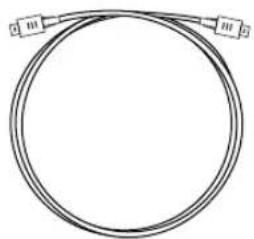
natural_image
Simple line drawing of a circular cable or wire with two labeled connectors (no text or symbols)• Câble vidéo RCA
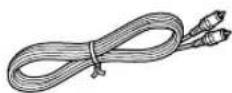
natural_image
Coiled electrical cable with two terminal connectors (no text or symbols)NOMS DES TOUCHES ET COMMANDES
■ Panneau avant
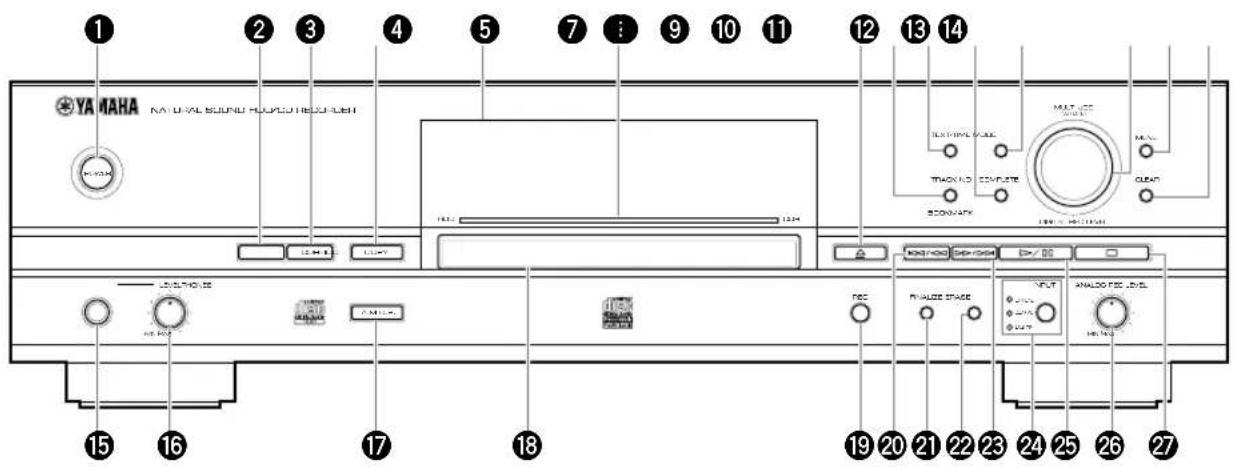
1 POWER
25 ▷/□□ (Lecture/Pause)
16 ▶/II (Lecture/Pause)
28 ▶▶ (Saut de plage)
Prises ANALOG LINE IN (REC)
Prises ANALOG LINE OUT (PLAY)
Prise DIGITAL IN (COAXIAL)
Prise DIGITAL IN (OPTICAL)
Prise DIGITAL OUT (COAXIAL)
Prise DIGITAL OUT (OPTICAL)
natural_image
Diagram of a CD/DVD assembly with a circular component inserted into a base plate (no text or symbols)"FONCTIONS DE LECTURE PRATIQUES" (p. 20-23)
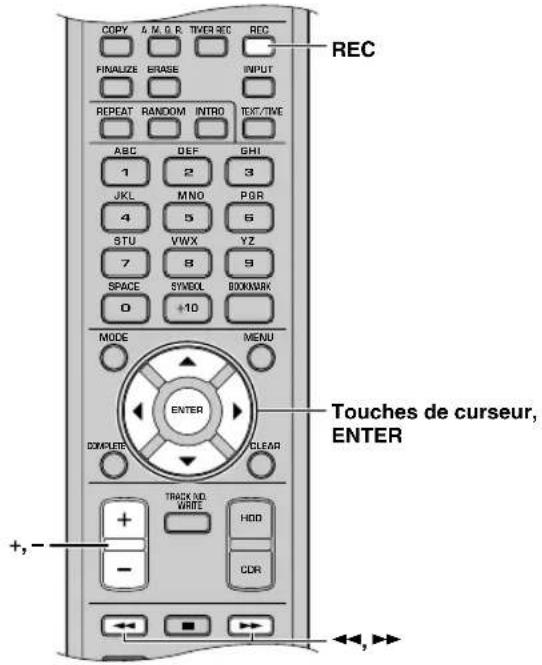
natural_image
Diagram showing a cylindrical object with internal dashed lines and directional arrows, no text or symbols present.- Copy Method: "Digital Copy"
- Copy Level: 0dB
- Copy Speed: "Best Effort"
Mémo
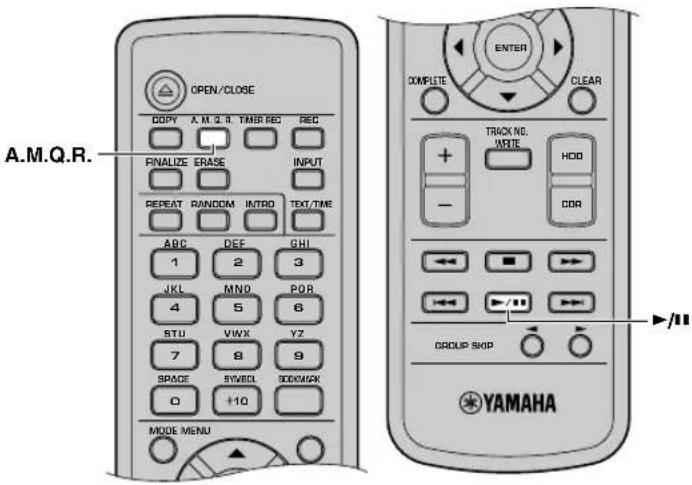
• Copy Method: "Digital Move"
- Copy Level: 0dB
- Copy Speed: "Best Effort"
Remarques
Réglage initial: Best Effort
Best Effort
Réglage initial: 2x
2x
- Copy Method: "Digital Move"
- Copy Level: 0dB
- Copy Speed: "Best Effort"
Mémo
- Copy Method: "Digital Move"
- Copy Level: 0dB
- Copy Speed: "Best Effort"
Remarques
Groupe à copier
flowchart
graph TD
    A["Dimmer Bright\nL 30.10 € 8.0"] --> B["Dimmer Mid\nL 25.67 € 9.0"]
    B --> C["Dimmer Dark\nB 25.67 € 9.0"]
Mémo
Audio Master Quality Recording
ANALOG LINE IN (REC)
Type Prise RCA
DIGITAL IN (OPTICAL)
DIGITAL IN (COAXIAL)
Type ...... Prise coaxiale
DIGITAL OUT (OPTICAL)
DIGITAL OUT (COAXIAL)
Type Prise coaxiale
Consommation.... 37 W
Conditions ambiantes
natural_image
Illustration of hands holding a cloth over a circular object, with no visible text or symbols(Audio Master Quality Recording) 41
(Audio Master Quality Recording) 46
natural_image
Illustration of two coiled cable or wire with multiple connectors (no text or symbols)- Optisches Kabel
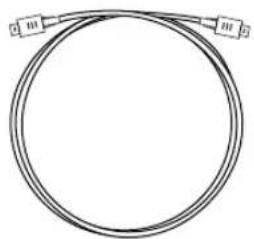
natural_image
Simple line drawing of a circular cable or wire with two labeled connectors (no text or symbols)• V ideo-Stiftkabel
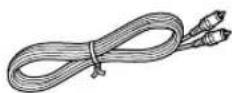
natural_image
Coiled electrical cable with two terminal connectors (no text or symbols)Buchse DIGITAL IN (OPTICAL)
Buchse DIGITAL OUT (OPTICAL)
natural_image
Diagram of a CD/DVD assembly with an arrow indicating a component (no text or symbols present)Titelname
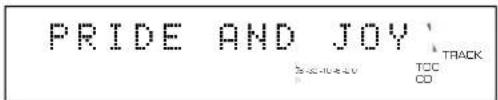
WIEDERGABE DER FESTPLATTE ODER CD
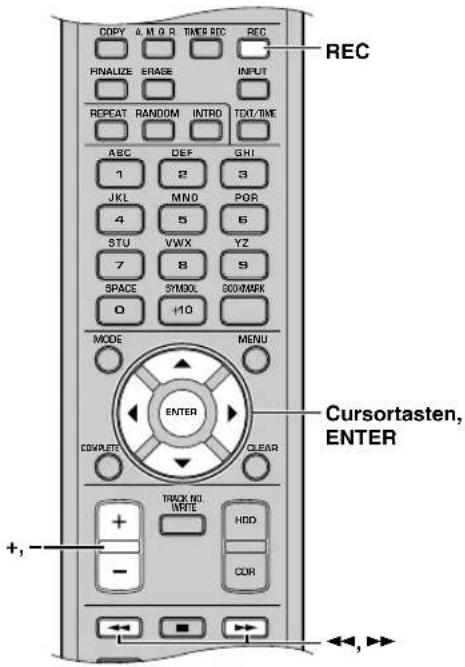
natural_image
Diagram showing a cylindrical object with internal dashed lines and directional arrows, no text or symbols present.Zu löschendes Album
flowchart
Simple three-step diagram showing dimmer progression from bright to dark with intermediate transitions labeled in English.Notiz
Audio Master Quality Recording
ANALOG LINE IN (REC)
Art Stiftbuchse
DIGITAL IN (OPTICAL)
DIGITAL IN (COAXIAL)
Art ....Koaxialbuchse
DIGITAL OUT (OPTICAL)
DIGITAL OUT (COAXIAL)
Art .... Koaxialbuchse
natural_image
Line drawing of hands holding a cloth over a bowl with a small object inside (no text or symbols)(Audio Master Quality Recording) 41
(Audio Master Quality Recording) 46
SLUTBEHANDLING AV EN CD-R/RW-SKIVA 47
RADERING AV DATA PÅ EN CD-RW-SKIVA 48
UTSIGNALER (DAC-LÄGE) 71
HJÄLPPROGRAM FÖR HÅRDDISKEN 72
natural_image
Illustration of two coiled cable or wire with multiple connectors (no text or symbols)- Optisk kabel
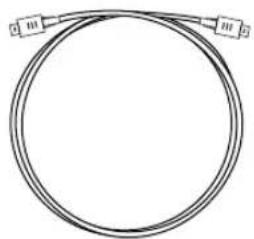
natural_image
Simple line drawing of a circular cable or wire with two labeled connectors (no text or symbols)natural_image
Simple line drawing of a coiled cable with two connectors (no text or symbols)■ Frontpanelen
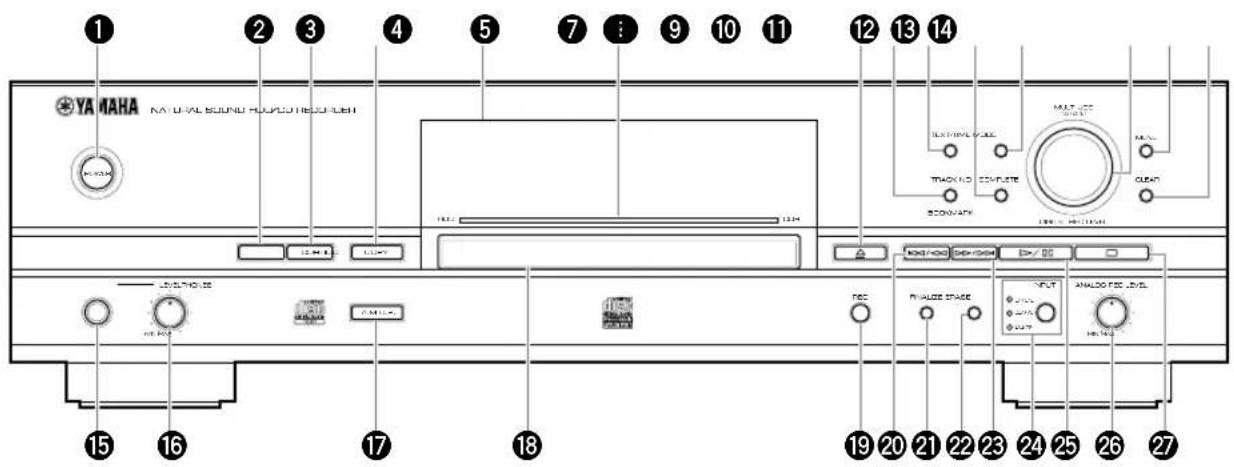
1 POWER
DIGITAL IN (OPTICAL)-ingång
Matar in digitala signaler.
DIGITAL OUT (COAXIAL)-utgång
Matar ut digitala signaler.
DIGITAL OUT (OPTICAL)-utgång
Matar ut digitala signaler.
6 RS-232C-uttag
Batteribyte
natural_image
Diagram of a CD/DVD assembly with an arrow indicating a component (no text or symbols present)UPPSPELNING AV HÅRDDISK ELLER CD-SKIVA
• Copy Method: "Digital Copy"
- Copy Level: 0dB
- Copy Speed: "Best Effort"
Anmärkning
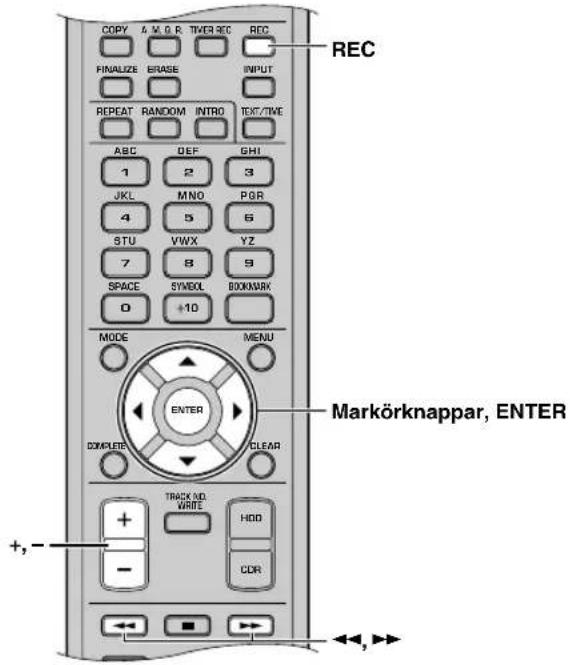
natural_image
Diagram showing a cylindrical object with internal dashed lines and directional arrows, no text or symbols present.• Copy Method: "Digital Copy"
- Copy Level: 0dB
• Copy Speed: "Best Effort"
Anmärkning
Anmärkning
A.M.Q.R.
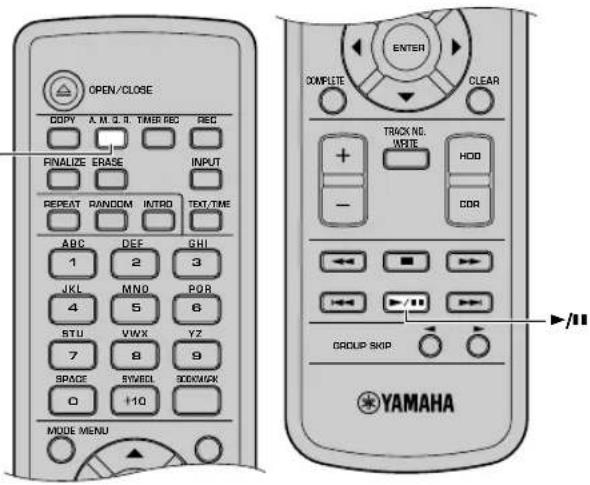
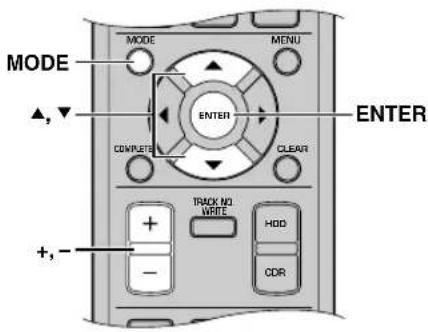
- Copy Method: "Digital Copy"
- Copy Level: 0dB
- Copy Speed: "Best Effort"
Observera
- Copy Method: "Digital Move"
- Copy Level: 0dB
• Copy Speed: "Best Effort"
Anmärkning
- Copy Method: "Digital Move"
- Copy Level: 0dB
- Copy Speed: "Best Effort"
Observera
Speltid för spåret
Skiva som ska organiseras
Anmärkning
CDR-enhetens firmware-version
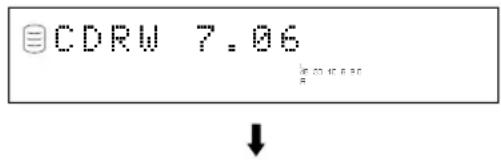
Hårddiskmodell
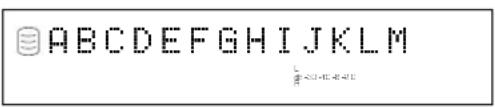
Audio Master Quality Recording
Total harmonisk distorsion (vid 1 kHz)
Spelning 0,004%
Inspelning 0,006%
Dynamikomfång
Spelning 99 dB
Inspelning 92 dB
ANALOG LINE IN (REC)
Typ......Phono
DIGITAL IN (OPTICAL)
DIGITAL IN (COAXIAL)
Typ.... Koaxialuttag
DIGITAL OUT (OPTICAL)
OPTICAL OUT (COAXIAL)
Typ .... Koaxialuttag
natural_image
Line drawing of hands holding a circular object with a cloth, no text or symbols presentnatural_image
Illustration of two coiled cable or wire with multiple connectors (no text or symbols)• Cavo ottico
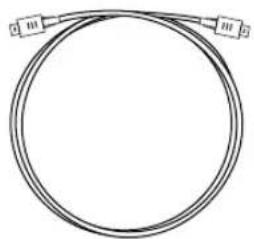
natural_image
Simple line drawing of a circular cable or wire with two labeled connectors (no text or symbols)• Cavo video con spinotti
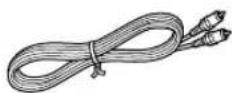
natural_image
Simple line drawing of a coiled cable with two connectors (no text or symbols)NOMI DEI TASTI E DEI COMANDI
■ Pannello anteriore
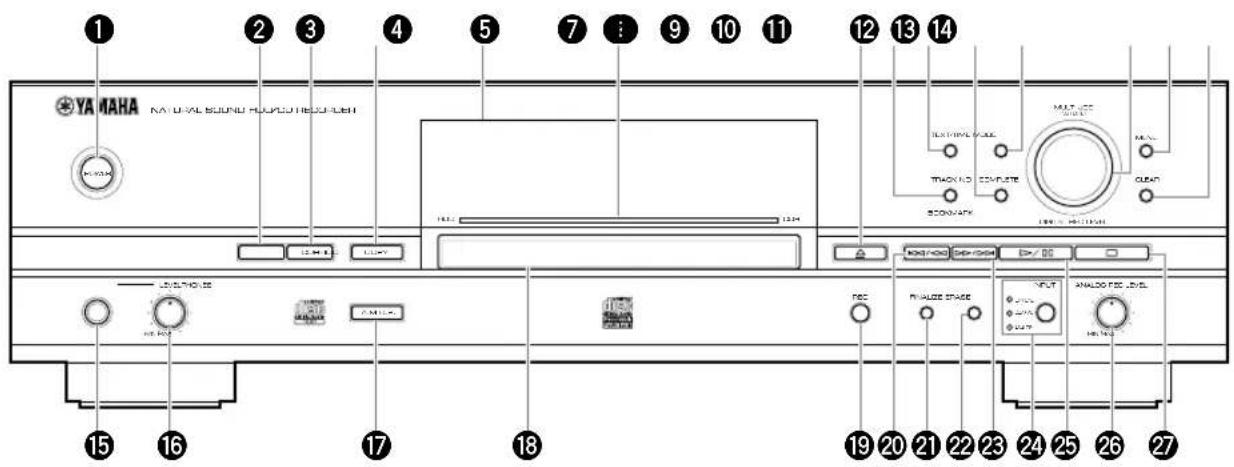
1 POWER
Prese ANALOG LINE IN (REC)
Prese ANALOG LINE OUT (PLAY)
Presa DIGITAL IN (OPTICAL)
Presa DIGITAL OUT (COAXIAL)
Presa DIGITAL OUT (OPTICAL)
natural_image
Diagram of a CD/DVD assembly with an arrow indicating a component (no text or symbols present)Tempo residuo del disco
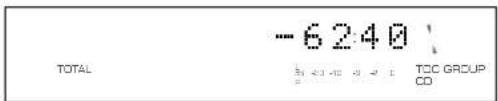
• Copy Method: "Digital Copy"
- Copy Level: 0dB
- Copy Speed: "Best Effort"
Promemoria
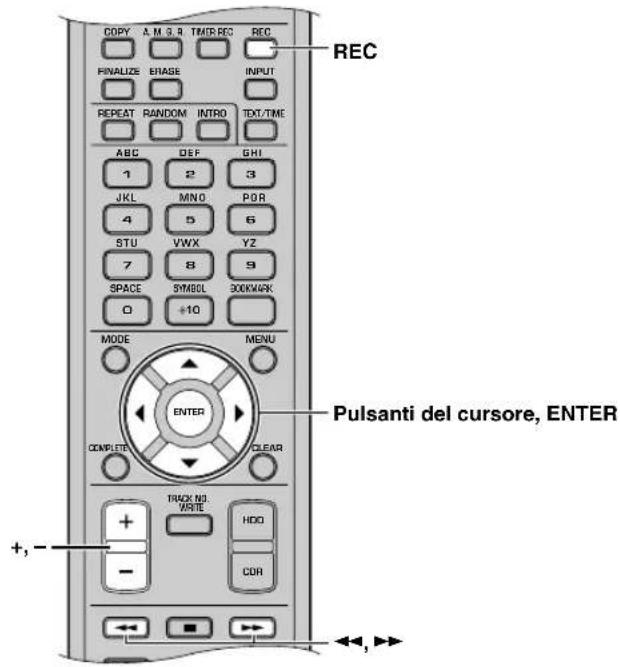
natural_image
Diagram showing a cylindrical object with internal dashed lines and directional arrows, no text or symbols present.(Se OPT TH Level, COAX TH Level, o ANLG TH Level viene scelto)
• Copy Method: "Digital Copy"
- Copy Level: 0dB
• Copy Speed: "Best Effort"
Promemoria
A.M.Q.R.
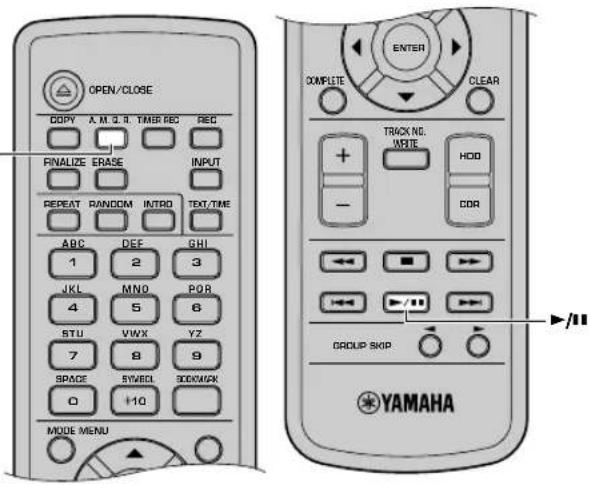
• Copy Method: "Digital Move"
- Copy Level: 0dB
- Copy Speed: "Best Effort"
Note
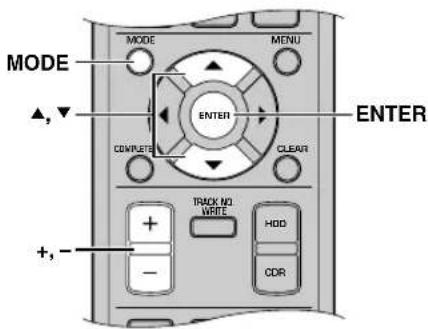
• Copy Method: "Digital Move"
- Copy Level: 0dB
- Copy Speed: "Best Effort"
Promemoria
- Copy Method: "Digital Move"
- Copy Level: 0dB
- Copy Speed: "Best Effort"
Note
Album da cancellare
Se si desidera formattare l'HDD premere INPUT, diversamente premere □.
Modello di HDD
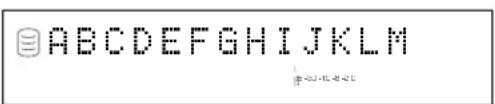
ANALOG LINE IN (REC)
Tipo ...... presa a spinotto RCA
DIGITAL IN (OPTICAL)
DIGITAL IN (COAXIAL)
Tipo ...... presa coassiale
DIGITAL OUT (OPTICAL)
DIGITAL OUT (COAXIAL)
Tipo ...... presa coassiale
natural_image
Illustration of hands holding a cloth over a bowl with a pointer (no text or symbols)natural_image
Illustration of two coiled cable or connector wires with multiple connectors (no text or symbols)- Cable óptico
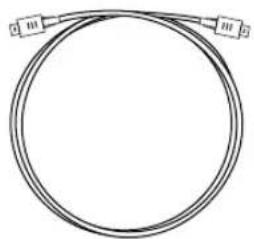
natural_image
Simple line drawing of a circular cable or wire with two labeled connectors (no text or symbols)natural_image
Coiled electrical cable with two terminal connectors (no text or symbols)Cambio de pilas
• Copy Method: "Digital Copy"
- Copy Level: 0dB
- Copy Speed: "Best Effort"
Apunte
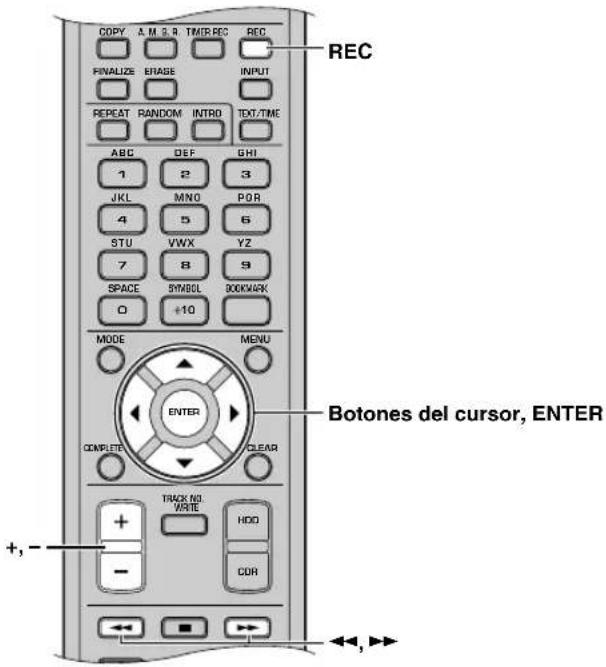
natural_image
Diagram showing a cylindrical object with internal dashed lines and directional arrows, no text or symbols present.• Copy Method: "Digital Copy"
- Copy Level: 0dB
- Copy Speed: "Best Effort"
Apunte
A.M.Q.R.
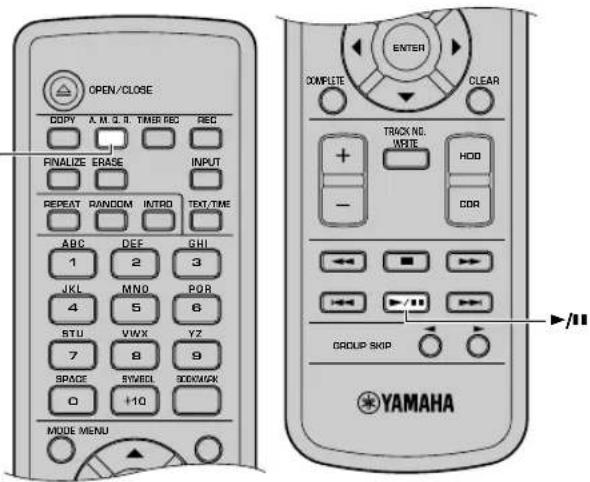
• Copy Method: "Digital Move"
- Copy Level: 0dB
- Copy Speed: "Best Effort"
Notas
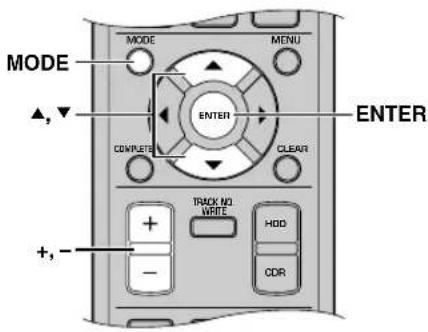
Ajuste inicial: Digital Copy
Analog Copy
Ajuste inicial: 2x
2x
• Copy Method: "Digital Copy"
- Copy Level: 0dB
- Copy Speed: “Best Effort”
Notas
- Copy Method: "Digital Move"
- Copy Level: 0dB
• Copy Speed: "Best Effort"
Apunte
• Copy Method: "Digital Copy"
- Copy Level: 0dB
- Copy Speed: "Best Effort"
Notas
- Album New* (a la derecha)
- Edit Stored* (P.53)
- Album Copy* (P.54)
- Album Rename* (P.54)
- Album Delete (P.55)
- Album Pack* (P.55)
• Album Title (P.55) - Track Shuffle (P.56)
- Track Level (P.56)
• T r. Interval (P.57)
Si desea formatear el disco duro, pulse INPUT. En caso contrario, pulse □.
The display changes for the system utility item selection.
Audio Master Quality Recording
ANALOG LINE IN (REC)
DIGITAL IN (OPTICAL)
DIGITAL IN (COAXIAL)
Tipo ...... Toma coaxial
DIGITAL OUT (OPTICAL)
DIGITAL OUT (COAXIAL)
Tipo ...... Toma coaxial
natural_image
Simple line drawing of a trash bin with a crossed X mark and circular base (no text or symbols)
natural_image
Line drawing of hands holding a cloth over a bowl with an arrow indicating direction (no text or symbols)HANDIGE WEERGAVEFUNCTIES.... 20
natural_image
Illustration of two coiled cable or wire with multiple connectors (no text or symbols)- Optische kabel
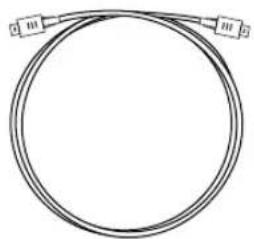
natural_image
Simple line drawing of a circular object with two labeled connectors (no text or symbols)natural_image
Coiled electrical cable with two terminal connectors (no text or symbols)NAMEN VAN DE BEDIENINGSELEMENTEN
■ Voorpaneel
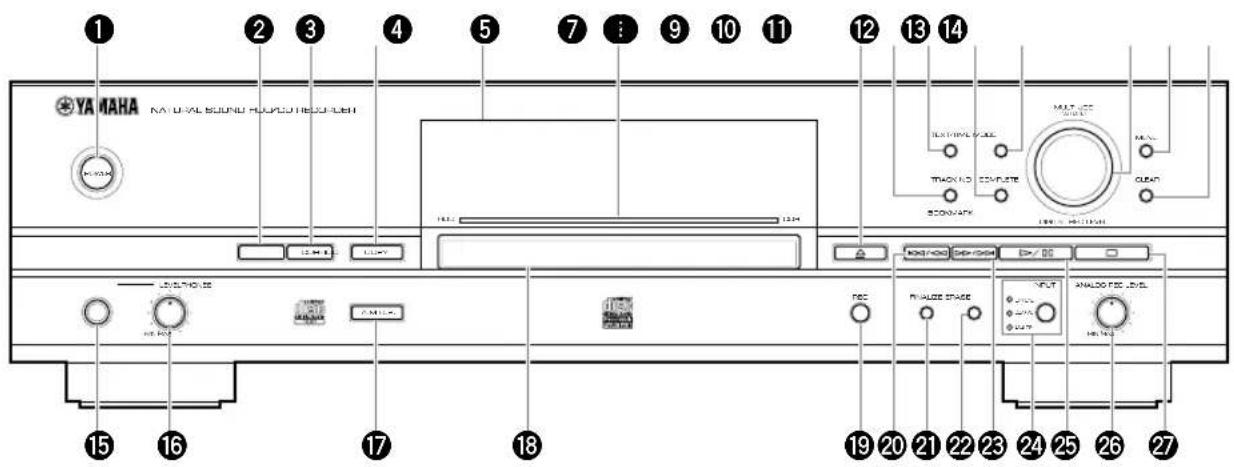
1 POWER
28 ▶▶▶ (track overslaan)
Batterijen vervangen
natural_image
Diagram of a CD/DVD assembly with an arrow indicating a component (no text or symbols present)"HANDIGE WEERGAVEFUNCTIES" (blz. 20-23)
WEERGEVEN VAN HARDE SCHIJF OF CD
HANDIGE WEERGAVEFUNCTIES
Wanneer u "Style All" selecteert
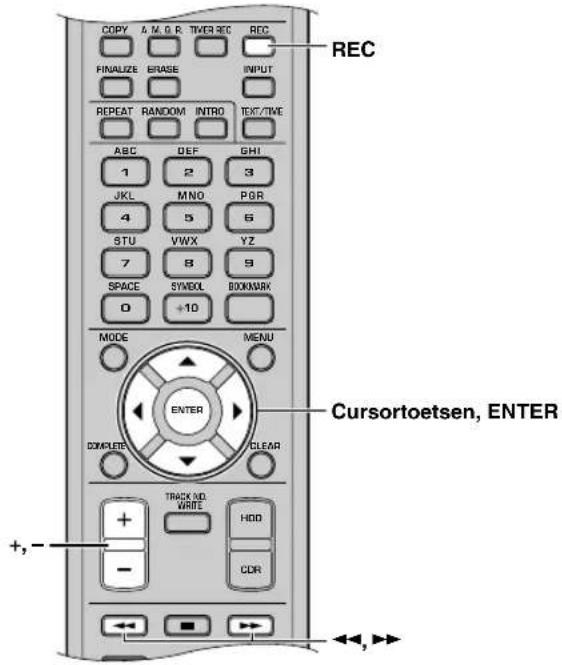
natural_image
Diagram showing a cylindrical object with internal dashed lines and directional arrows, no text or symbols present.(Wanneer OPT TH Level, COAX TH Level, of ANLG TH Level is geselecteerd)
- Copy Method: "Digital Copy"
- Copy Level: 0dB
- Copy Speed: "Best Effort"
Memo
A.M.Q.R.
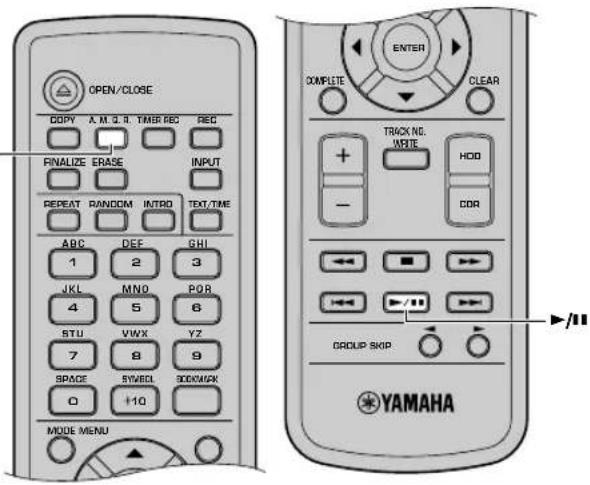
• Copy Method: "Digital Move"
- Copy Level: 0dB
- Copy Speed: "Best Effort"
Opmerkingen
Standaardinstelling: Digital Copy
Analog Copy
Standaardinstelling: Best Effort
Best Effort
Standaardinstelling: 2x
2x
• Copy Method: "Digital Move"
- Copy Level: 0 dB
- Copy Speed: "Best Effort"
Memo
- Copy Method: "Digital Move"
- Copy Level: 0dB
- Copy Speed: "Best Effort"
Opmerkingen
Te organiseren disc
Cd-r-station-firmwareversie
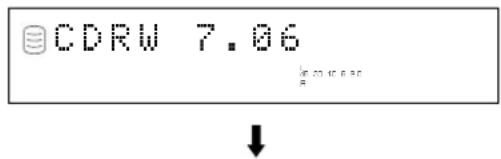
Model harde schijf
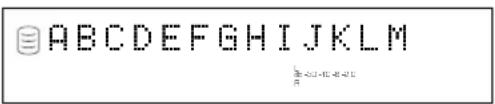
Audio Master Quality Recording
ANALOG LINE IN (REC)
DIGITAL IN (OPTICAL)
DIGITAL IN (COAXIAL)
DIGITAL OUT (OPTICAL)
DIGITAL OUT (COAXIAL)
Use of controls or adjustments or performance of procedures other than those specified herein may result in hazardous radiation exposure.
ATTENTION
(For U.S.A. model)
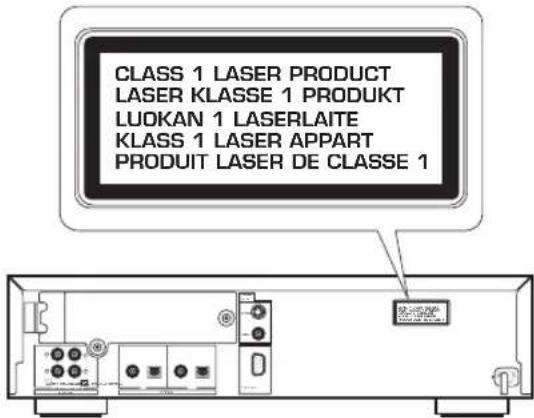
(For U.K. and Europe models)
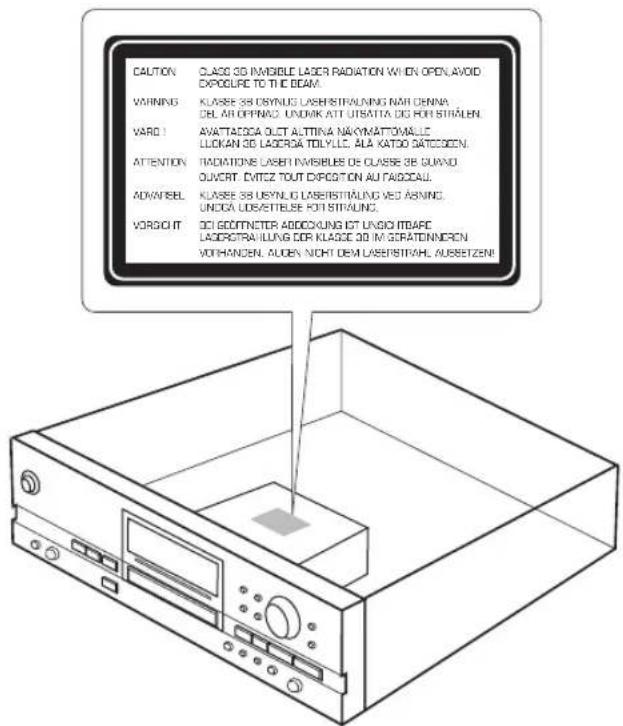

YAMAHA
©2005 YAMAHAS CORPORATION
CDR-HD1500
HDD Installation Manual Manuel d'installation du disque dur Festplattenspeicher-Installationshandbuch Hårddiskinstallationsanvisningar Manuale d'installazione dell'HDD Manual de instalación del disco duro Installatiehandleiding voor de harde schijf
INSTALLING THE HDD
This product does not have a built-in hard disk drive (HDD) depending on the sales location. Please purchase a commercially available HDD for internal use and install it on this unit correctly, referring to the instruction below.
■Required specifications of the HDD
Interface IDE/ATA type
Data Transfer Mode ...... PIO mode 0 to 4 and
Multi-word DMA mode 0 to 2 compatible
Size 3.5-inch type
Capacity 20 to 400GB
■Installation procedures
Before installation
- T urn off the power of this unit and unplug the AC power cable from the wall outlet.
- Disconnect all the connections.
- Set the HDD to SLAVE (see description below).
MASTER or SLAVE setting on the HDD
It is necessary to set the HDD to MASTER or SLAVE when connecting the HDD to the component you plan to use. This unit is designed to operate HDD when it is set to SLAVE. Usually, setting procedure is written on the HDD itself.
Example: When setting the ST3160021A model
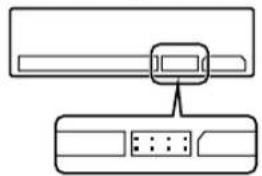
natural_image
Simple line drawing of a device with two rectangular blocks and a central display (no text or symbols)The HDD is set to slave by setting no plastic shunt at any position of the jumper switch.
- Loosen the two fixing screws on the HDD slot door and open the HDD slot door.
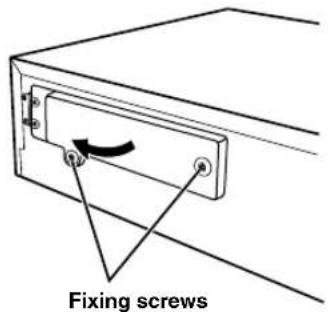
-
Pull out the HDD tray.
-
Be careful not to hook the IDE cable and the power cable over the HDD tray.
- Do not apply the excessive force on the HDD tray.
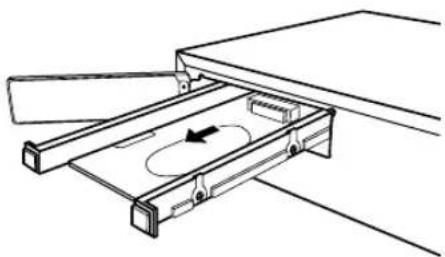
natural_image
Technical line drawing of a mechanical device with a rotating lever and handle (no text or symbols)- Place the HDD on the HDD tray.
- HDD is a very sensitive device. Be careful not to give any shock to it.
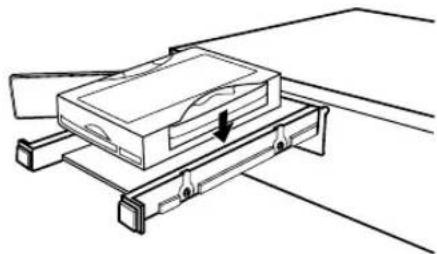
natural_image
Technical line drawing of a mechanical assembly with a lever and base plate (no text or symbols)- Tighten the four fixing screws.
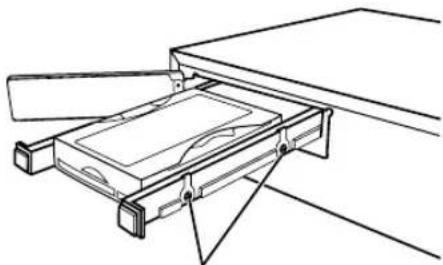
natural_image
Technical line drawing of a mechanical device with no visible text or symbolsFixing screws (Screws are on the opposite side)
-
Push the HDD tray and connect the IDE cable and the power cable.
-
Make sure that the terminals and connectors are in the correct direction, and connect the cables securely.
- Static electricity can damage the HDD. Be careful not to touch the terminal pins and the circuit board.
- Do not apply excessive force on the HDD tray.
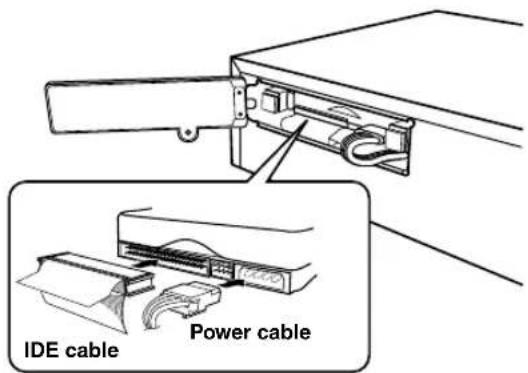
- Close the HDD slot door and tighten the two fixing screws on the HDD slot door.
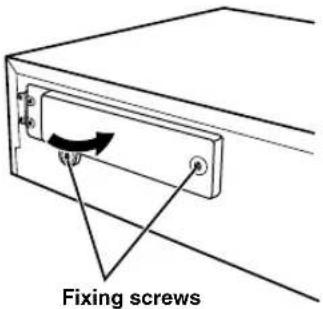
■Formatting the HDD
If you install a new HDD, you need to format the HDD before using with this unit.
- Connect the AC power cable to the wall outlet and turn on the power of this unit.
"Format Start?" appears on the display.
- Press ▷/□□.
"Format Really" appears on the display.
- Press >/00.
"Push PLAY KEY" appears on the display.
- Press ▷/□.
"Wait" flashes on the display. After a few seconds, this unit starts formatting of the HDD. It takes approximately 15 seconds to complete formatting.
- When formatting has been completed, "Format OK" appears on the display. Then the display returns to the one when the power of this unit was turned on.
Note
You do not need to format the HDD when using a HDD formatted with this unit. When using a HDD formatted with another CDR-HD1500 or other device, follow "Formatting the HDD (HDD Format" (P.72) of "CDR-HD1500 Owner's Manual".
■Recommended HDDs
We have checked the compatibility with CDR-HD1500 for the following model (as of March, 2005):
• Seagate Baraccuda 7200.7 Series/ST3160021A (160GB)
(Company and product names are trademarks of their respective company.)
For additional information on HDDs, see your local YAMAHA authorized dealer.
INSTALLATION DU DISQUE DUR
natural_image
Simple line drawing of a device with a handle and connector (no text or symbols)natural_image
Technical line drawing of a mechanical assembly with a rotating component (no text or symbols)natural_image
Technical line drawing of a mechanical device with a lever and mounting base (no text or symbols)- Serrez les quatre vis de fixation.
natural_image
Technical line drawing of a mechanical device with no visible text or symbolsnatural_image
Simple line drawing of a device with two rectangular blocks and a central display (no text or symbols)natural_image
Technical line drawing of a mechanical assembly with a rotating component (no text or symbols)natural_image
Technical line drawing of a mechanical device with a lever and base plate (no text or symbols)natural_image
Technical line drawing of a mechanical assembly with no visible text or symbolsnatural_image
Simple line drawing of a device with a horizontal bar and a connector (no text or symbols)natural_image
Technical line drawing of a mechanical assembly with a rotating component (no text or symbols)natural_image
Technical line drawing of a mechanical device with a lever and mounting base (no text or symbols)natural_image
Technical line drawing of a mechanical device with no visible text or symbolsnatural_image
Simple line drawing of a device with a screen and ports (no text or symbols)natural_image
Technical line drawing of a mechanical device with a handle and internal components, no text or symbols presentnatural_image
Technical line drawing of a mechanical device with a lever and base plate (no text or symbols)natural_image
Technical line drawing of a mechanical assembly with no visible text or symbolsmodo Multi-word DMA 0 a 2