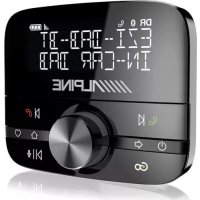
EZIDABBT - Radio ALPINE - Free user manual and instructions
Find the device manual for free EZIDABBT ALPINE in PDF.



| Product Type | Digital DAB/DAB+ radio with FM receiver, Bluetooth, hands-free kit |
| Brand | Alpine |
| Model | EZIDABBT |
| DAB Frequency Range | 174 – 240 MHz (Band III) |
| FM Transmitter | 87.60 – 107.90 MHz, max power 51.20 dBµV/m @ 3 m |
| Bluetooth | HFP, A2DP, AVRCP, OPP, PBAP ; range 2402 – 2480 MHz ; max power 4.40 dBm (EIRP) |
| Display | Backlit LCD screen with two-line text and custom icons |
| Receiver Power Supply | 12 V DC via 12 V accessory adapter |
| Remote Control Power Supply | 2 AAA batteries (supplied) |
| Radio Presets | Up to 20 stations |
| Hands-free Function | Built-in microphone, dial, answer, reject, call history |
| Bluetooth Audio Streaming | Track navigation and control |
| Personal Assistant | Via Pure Go app (iOS/Android) |
| Auto Standby | Adjustable from 2 to 8 hours (default 4 h) |
| Audio Connection | Auxiliary input (3.5 mm) or FM transmission |
| Operating Temperature | -20 °C to +60 °C |
| Storage Temperature | -40 °C to +85 °C |
| Certifications | CE, RED 2014/53/EU, R10, EN 62479:2010 |
| Package Contents | Receiver, DAB film antenna, wireless remote control, 2 AAA batteries, mounting bracket, 12 V adapter, USB cable, self-adhesive clips, cleaning wipe |
| Care and Cleaning | Clean with a dry cloth, do not immerse in water |
| Safety | Use only with 12 V DC voltage, do not obstruct field of vision, avoid heat sources |
| Repairability | Repairs by qualified personnel only; batteries replaceable by user |
Frequently Asked Questions - EZIDABBT ALPINE
User questions about EZIDABBT ALPINE
0 question about this device. Answer the ones you know or ask your own.
Ask a new question about this device
Download the instructions for your Radio in PDF format for free! Find your manual EZIDABBT - ALPINE and take your electronic device back in hand. On this page are published all the documents necessary for the use of your device. EZIDABBT by ALPINE.
USER MANUAL EZIDABBT ALPINE
Please read before using this equipment.
BEDIENUNGSANLEITUNG
Available on the App Store

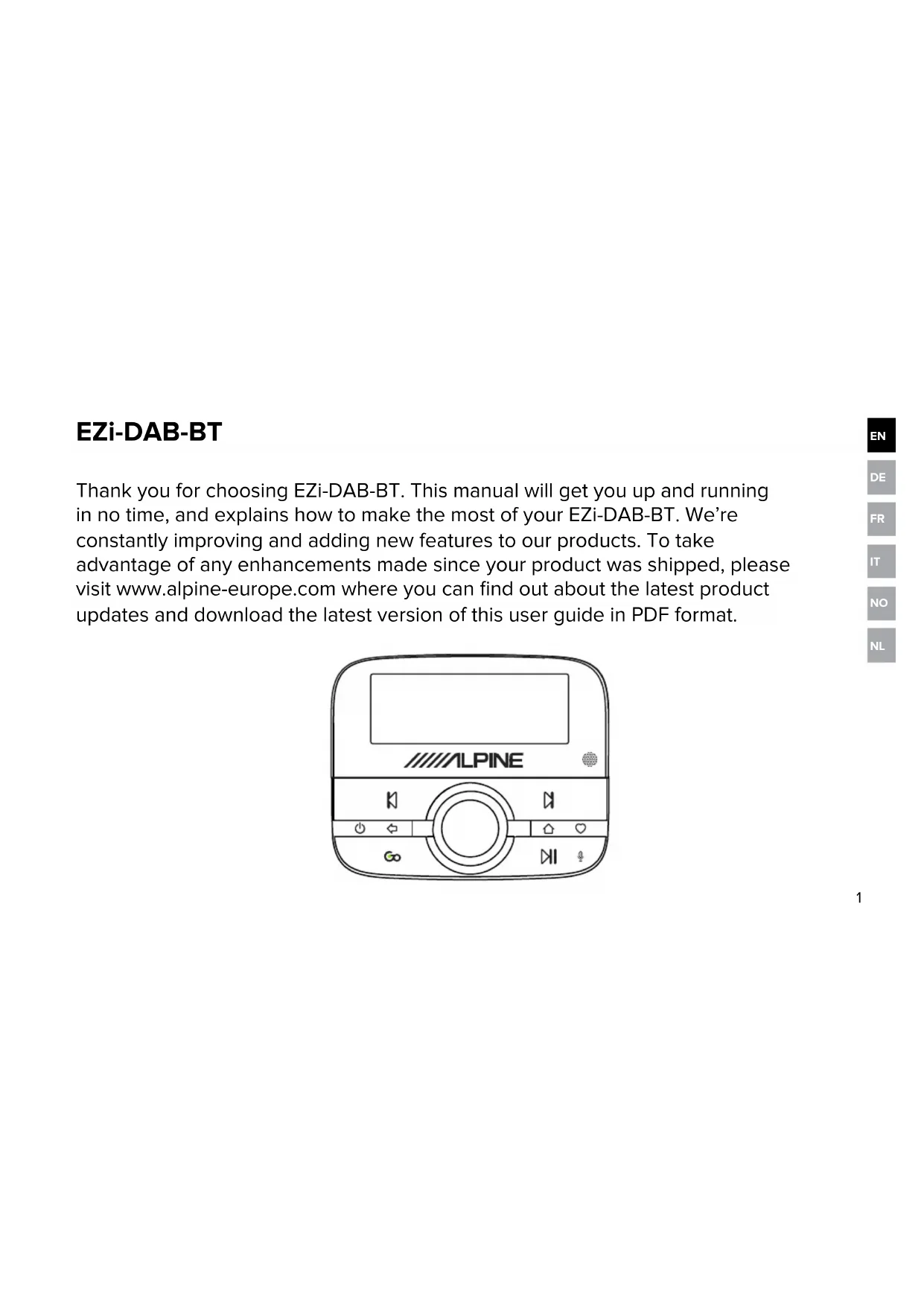
EZi-DAB-BT
Thank you for choosing EZi-DAB-BT. This manual will get you up and running in no time, and explains how to make the most of your EZi-DAB-BT. We're constantly improving and adding new features to our products. To take advantage of any enhancements made since your product was shipped, please visit www.alpine-europe.com where you can find out about the latest product updates and download the latest version of this user guide in PDF format.

Safety instructions
Symbols used on this product
| Symbol | Description |
| A | This WARNING symbol is used throughout this manual to indicate a potentially serious risk to your personal safety. Obey all safety notices that accompany this symbol to avoid possible Injury or death. |
| A# | This symbol is used on the product to indicate a caution and that instructions should be read before use. |
| 12V DC | This symbol indicates 12V DC. |
| 1A This symbol indicates a USB socket rated at 1 Amp maximum. | |
| 0 | This symbol indicates where the product is switched on or put into standby. |
Note: For information on all the other symbols used on the product, see page 12.
-
Read and retain these instructions.
-
Heed the warnings given.
-
Follow the operating instructions.
-
Failure to install or use the product in accordance with these instructions may impair the safety of the product and invalidate the warranty.
-
Use only power supplies listed in the user manual/user instructions.
-
Do not fit the wireless controller, receiver or the antenna in such a way that may interfere with the safe operation of the vehicle, the deployment of air bags or other safety product.
-
Avoid running cables and wires near the steering wheel.
-
Do not connect to anything other than the vehicle 12V supply using the supplied adapter.
-
Do not use the product in a manner that would cause careless driving or improper control of your vehicle.
-
Do not immerse in water.
-
Clean only with a dry cloth.
-
Do not place on or near sources of heat, for example heating vents.
-
This product must only be used with the supplied battery types and 12V accessory power adapter.
-
WARNING: The batteries in the wireless controller shall not be exposed to excessive heat such as sunshine, fire or similar.
-
Ensure batteries are fitted with the correct polarity.
-
Attention should be drawn to the environmental aspects of battery disposal.
-
Do not cover any of the vehicle's ventilation openings as this may impair the vehicle's ventilation.
-
Do not expose the product to naked flame sources, for example a lighter.
-
This product is intended for use in moderate climates.
-
Ensure that power is removed prior to making any connections to the rear of your vehicle's head unit. Only turn on your product once connections are made safe. See your vehicle's owner's manual for more information.

If the product is used in a manner not specified by the instructions, the product's protection could be impaired.
Do not use the product if any damage is noticed.
Product repairs are only allowed to be carried out by competent and authorised personnel.
Keep new and used batteries away from children. If the battery compartment does not close securely, stop using the product and keep it away from children. If you think batteries may have been swallowed or placed inside any part of the body, seek immediate medical attention.
Contents
4 Introduction
4 Package contents
5 Installing EZi-DAB-BT in your vehicle
5 Important safety notice
6 Considerations before installing EZi-DAB-BT
8 Installing the receiver
9 Cable routing overview
10 Connecting the receiver to the power supply
11 Installing the wireless controller
12 Overview
12 Controls
13 Display
13 Switching on and off
14 Switching on EZi-DAB-BT for the first time
15 Listening to digital radio
16 Pairing EZi-DAB-BT with a phone or tablet
17 Using the handsfree telephone function
18 Streaming audio stored on your phone or tablet
19 Streaming from a music streaming service
19 Using EZi-DAB-BT with your mobile's personal assistant feature
19 Settings
19 Digital radio settings
21 Bluetooth settings
22 Switching between auxiliary connection and FM transmission
23 Display
23 About
23 Software updates
24 Resetting EZi-DAB-BT to factory settings
25 Appendix
25 Troubleshooting
28 Technical specifications
Introduction Package contents
Receiver
This is intended to be mounted to the windscreen.
Magnetic grounding tail
This attaches to the receiver (see page 7).
DAB film antenna
This attaches to the receiver. Note: The DAB film antenna is delicate, so be careful not to bend it.
Wireless controller
The wireless controller connects to the receiver using Bluetooth and is used to control all of EZi-DAB-BT's functions.
Batteries
Two AAA batteries.
Wireless controller bracket
Bracket for positioning the wireless controller on your dashboard. Includes sticky pad.
EZi-DAB-BT power adapter
Dual USB port 12V accessory power adapter.
Self-adhesive cable clips
Used for securing any cables.
Cleaning wipe
Used to wipe down surfaces before fixing any of EZi-DAB-BT's components into place.
Installing EZi-DAB-BT in your vehicle
Important safety notice
For your safety, do not run cables so that they interfere with operation of the vehicle, or through a location that would interfere with the function of the airbags or other safety equipment, for example seat belts. Do not install any of EZi-DAB-BT's components in a location that obstructs the view of the driver or in a location where digital radio interference may be caused from the metal bodywork or other components.
Receiver positioning overview
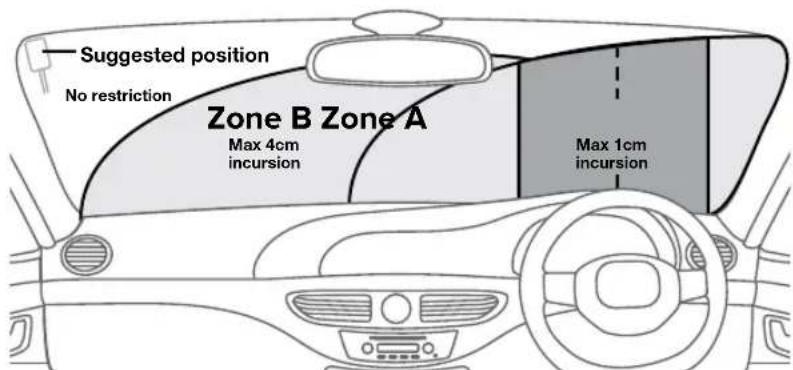
The receiver is designed to be installed on a window using the self-adhesive pads provided.
Make sure that you install the receiver in a safe position where the primary viewing area is not obstructed. Your windscreen can be divided into separate zones to help you determine where the receiver can be safely placed:
Zone A is a vertical area 290mm wide, centred on the steering wheel and contained within the swept area of the windscreen (this area is 350mm wide on vehicles over 3.5 tonnes) which must not be incurred upon by more than 1cm.
Note: Fitting EZi-DAB-BT in this area is not recommended.
Zone B is the remainder of the swept area of the windscreen which must not be incurred upon by more than 4cm.
The above information is a guide only, for full information you should consult the relevant country department of transport guidelines.

Considerations before installing EZi-DAB-BT
Minimum vehicle requirements
- Fitted audio system with either aux-in (3.5 mm) or FM receiver.
- Standard 12V negative earth power system - not suitable for 24V systems.
Check for the latest EZi-DAB-BT software updates
Visit www.alpine-europe.com to see if any software updates are available for your EZi-DAB-BT.
Test intended positions of receiver and wireless controller before fixing into place
- Check the cable length to ensure connectors can reach the audio and accessory power outlet positions.
- Temporarily place the receiver and wireless controller in their intended positions and check that EZi-DAB-BT is working as expected. Check the digital radio quality and signal strength (see 'Info' on page 23 for more information).
Receiver positioning
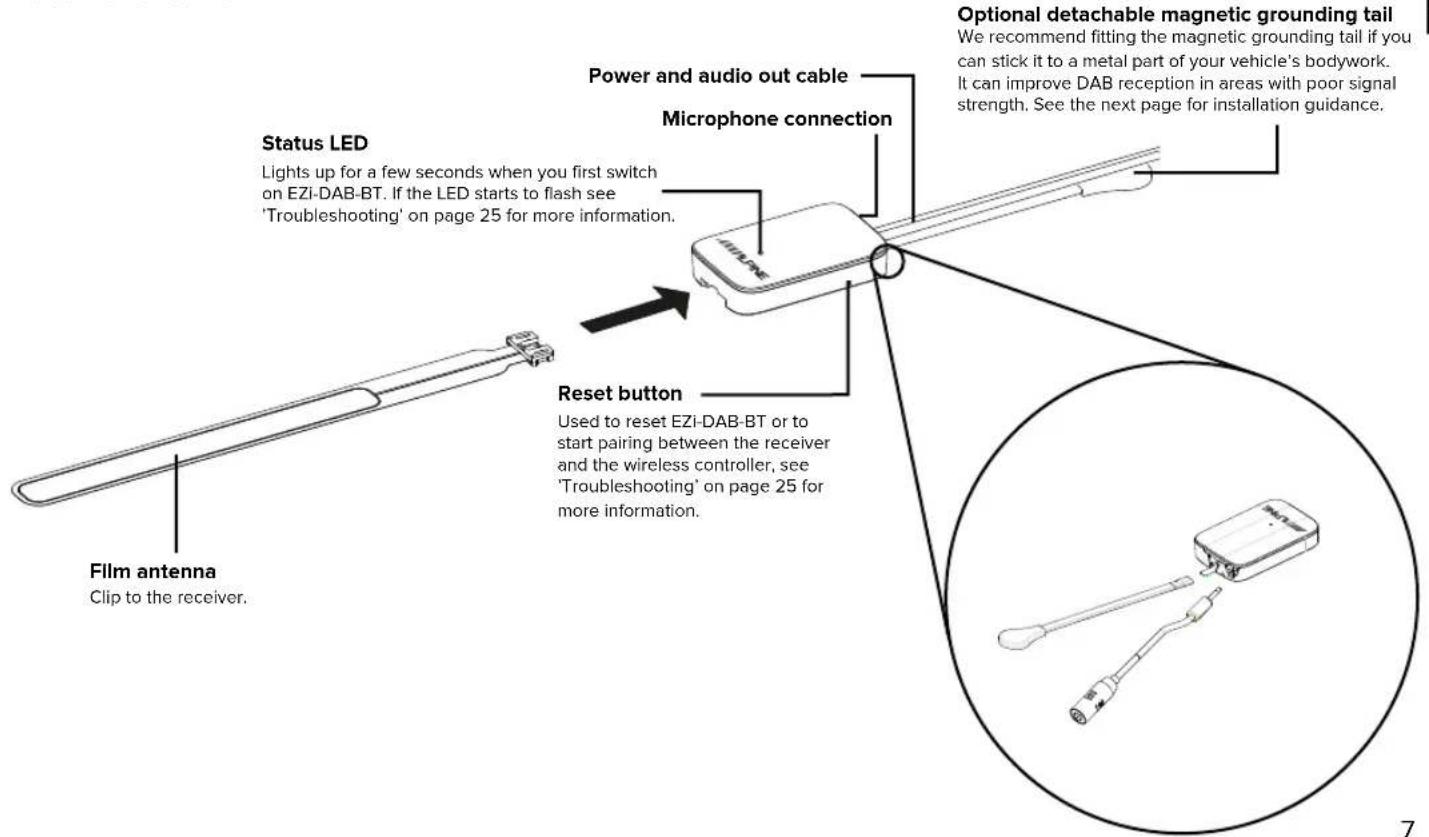
- Ensure you can easily access the 'Reset' button on the receiver before fitting.
- For best performance we recommend positioning the receiver away from heated screen elements and not on glass panels that contain metallic UV filters.
Wireless controller positioning
Consider usability and visibility from driving seat and possible mounting points/brackets.
Connecting to your existing audio system
There are two options for installing EZi-DAB-BT. You can connect EZi-DAB-BT to your audio system's auxiliary connection or you can transmit to your audio system wirelessly using an available FM frequency.
- If you want to use an auxiliary cable (recommended for best performance), check for auxiliary inputs on the existing audio system (this may be on the back on some audio systems). For more information, see your existing audio system's user guide.
- If you want to use an available FM frequency, select this option during initial EZi-DAB-BT setup (see page 14 for more information). Note: To comply with legal requirements the FM transmitter function of EZi-DAB-BT will switch off if no audio is transmitted for a period lasting over a minute - this includes DAB radio or audio streamed from your phone or tablet. If FM transmission is switched off you need to re-tune to an active DAB station or stream audio from your phone or tablet.
Receiver overview
Installing the receiver
We recommend installing EZi-DAB-BT's receiver on your vehicle's windscreen as described below (see page 5 for more information).
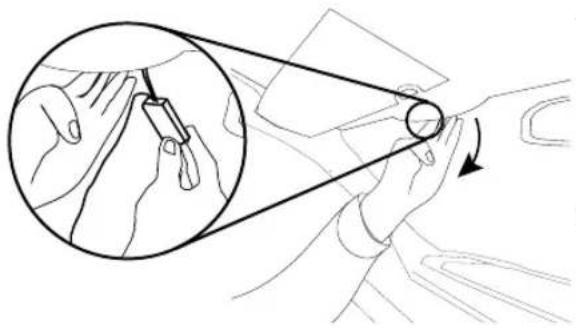
- If you decided to fit the magnetic grounding tail, gently pull down the front of the roof liner so that there is enough room to push the detachable magnetic grounding tail through the gap.
Note: Ensure that the magnet on the end of the magnetic grounding tail makes contact with the roof above your vehicle's headliner or the vehicle's metal bodywork surface.
- Use the supplied cleaning wipe to clean the area of the windscreen that you want to install the receiver and film antenna on and wait for the surface to dry. Important: Ensure the surface is completely clean and dry before adhesion.
Note: The receiver and antenna should be installed at least 40mm from your vehicle's metal bodywork.
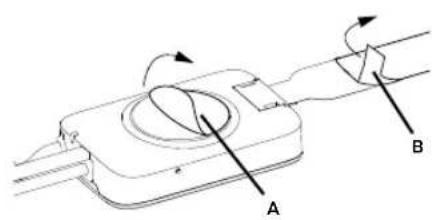
- Remove the backing from the receiver (A) and attach to your windscreen.
Note: Make sure that you install EZi-DAB-BT in a safe position where the primary viewing area is not obstructed (see page 5).
- Gently unpeel the backing of the film antenna (B) and attach to your windscreen, taking care not to bend it. Apply gentle pressure until the film antenna is held firmly in position.
Note: Take care not to unclip the film antenna from the receiver when attaching to your windscreen.
Cable routing overview
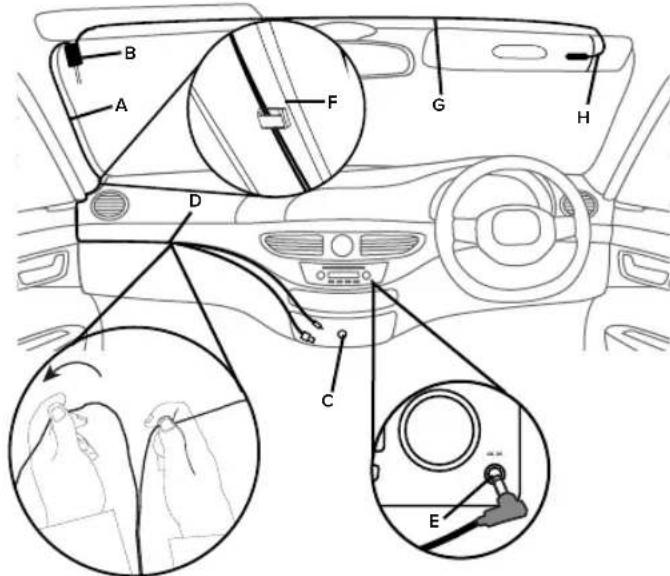
Installing the main cable
- Identify the location of the vehicle power outlet and the auxiliary audio input (if required).
- Uncoil the cable (A) from the receiver (B) and place in its intended position. Check there is adequate length for the cable to run to the 12V accessory socket and the auxiliary connection.
WARNING: Do not route the main cable in a way that could interfere with operation of the vehicle, or through a location that could interfere with the function of the airbags or other safety equipment. See page 5 for more information.
- Route the cable so it is near your 12V accessory socket (C). Try to secure the cable by tucking the cable behind the trim on the side of your windscreen.
- If you are connecting EZi-DAB-BT to your audio system using the auxiliary connection, separate the auxiliary cable (D) from the USB power cable by gently pulling the cables apart to the right length and connect to the auxiliary connection (E) on your audio system. If you are using FM transmission, coil the auxiliary connection cable and stow away in a safe position.
- Secure the cables using the self-adhesive clips (F) (if required). Ensure all surfaces are completely clean and dry before adhesion.
Installing the microphone
- Connect the microphone to your receiver and run the cable (G) along the top of your windscreen near the driver's position.
- Fit the microphone (H) near the driver's position using the supplied pads or microphone clip.
Note: For best results, position the microphone as close as possible to the driver's position.
- Secure the microphone cable using the self-adhesive clip.

Connecting the receiver to the power supply
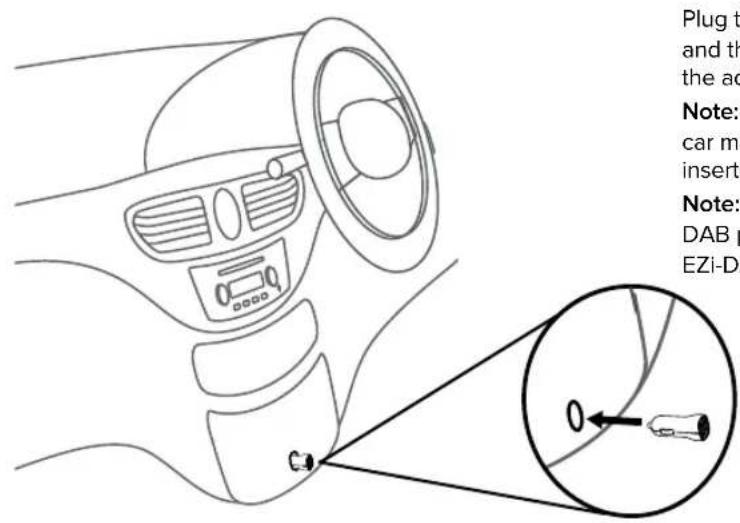
Plug the EZi-DAB-BT power adapter into the 12V accessory socket and then plug the USB power cable from the receiver into one of the adapter's USB ports.
Note: Cigarette lighter and power sockets can vary between car makes and models. Ensure the power adapter is completely inserted and is firmly held in position.
Note: Other electronic devices can interfere with EZi-DAB-BT's DAB performance, for best results only use the supplied EZi-DAB-BT power adapter to power the receiver.
Installing the wireless controller
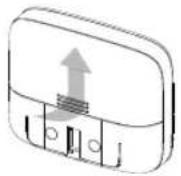
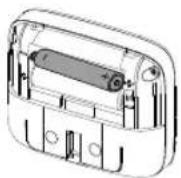

- Slide the back cover from the wireless controller and fit the supplied batteries with the correct polarity.

WARNING: See the 'Safety instructions' on page 2 for more information on fitting and using the batteries.
- Choose an area on your dashboard (A) where you want to install the wireless controller and wipe down with the supplied cleaning wipe. Ensure the surface is completely clean and dry before adhesion.

WARNING: See page 6 for positioning guidance.
-
Attach the bracket (B) to your dashboard.
-
Slide the wireless controller (C) on to the bracket until you hear it click into position.
EN
Overview
Controls
Answer call, Next, Redial button
Phone: Press to answer an incoming call. Press and hold to redial the last number, Bluetooth streaming: Press to skip back to the previous track.
Digital radio: Press to listen to the previous preset.
Power/Back button
Press and hold to put the wireless controller and receiver in or out of standby. Press to move back up a level in menus or lists.
Go button
Press to stream audio from your music streaming service.
Note: If you have set up more than one streaming service, press to cycle through each streaming service. If listening to a radio station, press and hold to identify the track that is currently playing and add it to your supported streaming service.
Note: Before you can use the Go button you'll need to download EZI-DAB-BT's companion app on your mobile device (see page 19 for more information).
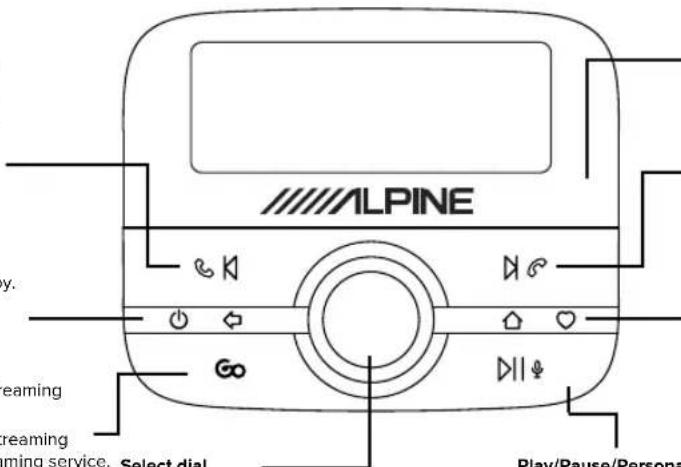
Light sensor
Auto-adjusts the display brightness.
Reject/End Call, Previous Track/Preset button
Phone: Press to reject an incoming call.
Bluetooth streaming: Press to skip to the next track.
Digital radio: Press to listen to the next preset.
Home/Favours button
Press to return to the main menu.
Digital radio: Press and hold to open the favourites menu.
Display

EN
- Mode indicator (DR indicates digital radio, indicates Bluetooth audio, indicates in-call).
- Displays the signal strength and battery level of the mobile device you have connected to EZi-DAB-BT.
- Text area.
Switching on and off
If the 12V accessory power socket in your vehicle only works when you turn on your vehicle's ignition, EZi-DAB-BT will switch on or off automatically with your vehicle's ignition.
If the 12V accessory power socket in your vehicle works even when your vehicle's ignition is switched off, press and hold the button on the controller to manually switch off EZi-DAB-BT.
Note: The wireless controller screen will automatically switch into power saving mode after 15 seconds.
The receiver will automatically go into standby after 4 hours.
Switching on EZi-DAB-BT for the first time

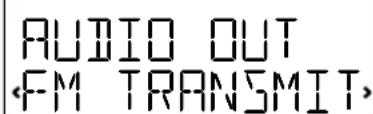
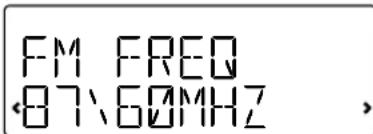

- Turn on your vehicle's ignition to ensure that the receiver is switched on.
Note: The receiver LED will remain illuminated for a short period of time to indicate that it is powered on.
After a few seconds, your controller will automatically connect to the receiver. If your controller doesn't connect to the receiver, see 'Troubleshooting' on page 25. - Choose your display language by turning the Select dial to highlight the language you want. Push the Select dial in to confirm your choice.
- Turn and press the Select dial to choose the way that you have connected EZi-DAB-BT to your audio system. If you are connecting via an available FM frequency, select 'FM TRANSMIT' and move to the next step. If you are connecting using an auxiliary cable, select 'LINE OUT' and skip to step 5,
- Turn and press the Select dial to choose an unused FM frequency that you want EZi-DAB-BT to use for transmitting to your audio system. The recommended frequency for transmitting to your audio system in the UK is 87.6 MHz. Note: You'll need to tune your audio system to this FM frequency when ever you want to listen to EZi-DAB-BT. For easy access, you can store this FM frequency as a preset on your audio system (see your vehicle's owner's manual for more information).
- Wait for EZi-DAB-BT to complete an autotune and find all available digital stations. When the autotune is complete, a station will start playing.
Listening to digital radio

Changing station (current station on top line)
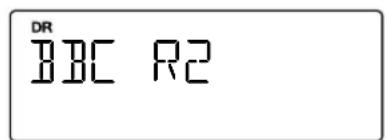
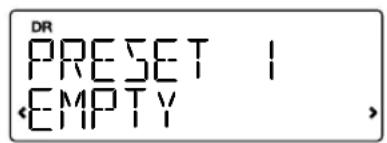
Switching to digital radio
1.Pressthe button.
2. Turn the Select dial until 'DIG. RADIO' is displayed on the bottom line of the screen and press the Select dial.
Changing stations
Turn the Select dial to browse the list of available stations. Press the Select dial to change station.
Using presets
You can save up to 20 of your favourite digital stations in the presets list for easy access.
Saving presets
- When listening to a digital radio station, press and hold the button on the front of the wireless controller.
- Turn the Select dial until you see the preset number that you want to save your favourite station to.
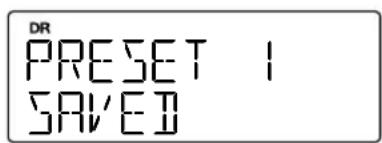
- Press and hold the button or the Select dial to save the current station to that preset number. Previous presets can be overwritten. You will see 'PRESET SAVED' on the screen when the preset has been saved.
Selecting presets
- Press and hold the button.
- Turn the Select dial to browse through your presets list and push the Select dial to select one or press the or buttons to skip to the previous or next preset.
Pairing EZi-DAB-BT with a phone or tablet
You can stream audio to EZi-DAB-BT using your phone or tablet's Bluetooth connection.
Note: Bluetooth pairing varies on different mobile devices. See your mobile device manual for specific information.
To pair with EZi-DAB-BT using Bluetooth:
- Press the button.
- Turn and press the Select dial to select ' SETTINGS' > 'BLUETOOTH' > 'PAIR' > 'BT MUSIC'. The Bluetooth icon on the wireless controller will flash until EZi-DAB-BT has paired with your phone or pairing mode times out.
Important: If 'GO APP CODE' appears on EZi-DAB-BT's wireless controller, press the button and repeat the above steps. Note: To cancel pairing press the button and turn and press the Select dial to select ' SETTINGS' > 'BLUETOOTH' > 'STOP PAIR'.
- On your mobile device, enable Bluetooth and select the option to add a new Bluetooth device. On some mobile devices you may need to select the search or scan option (see your mobile device user guide for more information).
- On your mobile device select 'EZi-DAB-BT' from the list of available devices.
- When EZi-DAB-BT's wireless controller displays a message asking if you want to pair your mobile device with EZi-DAB-BT, turn and press the Select dial to select 'YES'.
Note: Once paired with your Bluetooth device, EZi-DAB-BT will automatically reconnect whenever it is in range. If using the Pure Go app, EZi-DAB-BT will only remember one device. EZi-DAB-BT will remember several previously connected devices if they paired to EZi-DAB-BT using a standard Bluetooth connection.
Using the handsfree telephone function
After pairing your mobile device to EZi-DAB-BT using Bluetooth, you can use EZi-DAB-BT's microphone and your car's built in audio system to make handsfree phone calls. Once connected, you can also use EZi-DAB-BT's display to view information about incoming, outgoing and missed phone calls.
Dialling a phone number from your phonebook
- Press the button.
- Turn and press the Select dial to select 'PHONEBOOK'.
- Turn and press the Select dial to select 'CONTACTS'.
- Turn the Select dial to scroll through the contacts in your phonebook and press the Select dial to ring the phone number. When you have finished your phone call, press the ±b button to hang up.
Answering a call
Press the button to answer an incoming call.
To reject an incoming call press the button.
Ending a call
When you have finished your phone call, press the button to hang up.
Viewing your call history
1.Pressthe button.
- Turn and press the Select dial to select 'PHONEBOOK'.
- Turn and press the Select dial to select 'HISTORY'.
- Turn and press the Select dial to select 'OUTGOING', 'INCOMING' or 'MISSED' calls.

Streaming audio stored on your phone or tablet
Once paired to your Bluetooth device*, you can use EZi-DAB-BT's wireless controller to browse tracks and control playback.
Browsing and selecting tracks
- Press the button.
- Turn and press the Select dial to select 'BT MUSIC'.
- Turn the Select dial and press to browse to your music content.
Note: If you see a 'BROWSE NOT AVAILABLE' message, this function is not supported by your device.
Note: If you see a ^+ symbol while navigating through your music it indicates that the item is a folder or sub folder containing music files.
Controlling playback
Use the following controls to pause and control the audio content streamed from your connected mobile device:
Pause and restart playback.
Press to skip to the start of the current track or press again within three seconds to skip back to the previous track.
Skip track forward.
- Bluetooth classic compatibility varies across different manufacturers. For more information on compatibility, please visit www.alpine-europe.com.
Streaming from a music streaming service


With the Pure Go app, you can enjoy listening to music from streaming services* like Spotify, identify tracks playing on radio stations on EZi-DAB-BT and get the latest software updates† for your EZi-DAB-BT. To download the app, search for Pure Go on the Apple App Store or Google Play from your phone or tablet. If you want to find out more about the Pure Go app visit www.pure.com/apps/go.
Using EZi-DAB-BT with your mobile's personal assistant feature
You can trigger the personal assistant function on your iOS or Android device from EZi-DAB-BT's wireless controller.
Note: You will need to install the Pure Go app to use the personal assistant function (see above for more information).
To use your mobile device's personal assistant feature:
Press and hold the button until you are prompted to ask a question by your mobile device's personal assistant function. You can cancel the personal assistant function by pressing the or button at any time. For more information on using the Pure Go app, refer to the help within the app.
Settings
Digital radio settings
Autotune
You can use the autotune function to automatically scan for new digital radio stations and remove inactive ones.
To autotune EZi-DAB-BT press and hold the Select dial on the wireless controller whilst in digital radio mode.
Alternatively, to carry out an autotune using EZi-DAB-BT's menu:
- Press the button.
-
Turn and press the Select dial to choose ' SETTINGS' > 'DIG. RADIO' > 'AUTOTUNE'. The number of stations found will be displayed during the autotune.
-
Subscription required for some streaming services.
^+ EZi-DAB-BT software updates not available via iOS Pure Go app. To find out more about software updates visit www.alpine-europe.com.
Pure Go app requires phone or tablet with Bluetooth Low Energy (Bluetooth Smart) support. Visit www.pure.com/apps/go for more information.
Alternative station
If you are listening to a digital radio station and you lose the reception, EZi-DAB-BT's service linking feature will always try to automatically tune in to the same radio station with better reception (if available). If the radio station you were listening to cannot be found, you can set EZi-DAB-BT up so that it tunes into a radio station chosen by the broadcaster with similar content. To enable the alternative station feature:
- Press the button.
- Turn and press the Select dial to choose ' SETTINGS' > 'DIG. RADIO' > 'ALT STATION'.
- Turn and press the Select dial to turn the alternative station function 'ON' or 'OFF'.
Traffic announcements
You can set EZi-DAB-BT to automatically tune in to a traffic announcement signal*. During the traffic announcement, EZi-DAB-BT's display will show 'TRAFFIC' until the traffic announcement has finished. Once the traffic announcement has finished, EZi-DAB-BT will automatically tune in to the last digital radio station you were listening to.
Switching traffic announcements on or off
- Press the button.
- Turn and press the Select dial to choose ' SETTINGS' > 'DIG. RADIO' > 'TRAFFIC MSG'.
- Turn and press the Select dial to turn traffic announcements 'ON' or 'OFF'.
Cancelling an active traffic announcement
To cancel an active traffic announcement, press the button. EZi-DAB-BT will return to the radio station you were listening to.
- Visit www.getdigitalradio.com to find out the latest information on digital radio traffic announcements for the UK.
Bluetooth settings
Pair
See 'Pairing EZi-DAB-BT with a phone or tablet' on page 16 for more information about pairing a mobile device with EZi-DAB-BT.
Forget
Note: If you previously forgot EZi-DAB-BT on your mobile device, you will need to use EZi-DAB-BT's 'FORGET' setting to remove the mobile device before you can reconnect it to EZi-DAB-BT.
To make EZi-DAB-BT forget about a mobile device or all mobile devices that were previously paired with EZi-DAB-BT using Bluetooth:
- Press the button.
- Turn and press the Select dial to choose ' SETTINGS' > 'BLUETOOTH' > 'FORGET'.
- Turn and press the Select dial to choose the mobile device that you want EZi-DAB-BT to forget. To forget all mobile devices, turn and press the Select dial to choose 'ALL'.
Note: If you want to reconnect a forgotten mobile device, you will need to use the Bluetooth settings menu on your mobile device to remove EZi-DAB-BT from the list of paired devices before it can be reconnected to EZi-DAB-BT.
Auto standby
By default, the receiver automatically goes into standby after four hours to save your vehicle's battery power. To change the auto standby setting:
- Press the button.
- Turn and press the Select dial to choose ' SETTINGS' > 'AUTO STANDBY'.
- Turn and press the Select dial to choose a standby time between 2 and 8 hours.
Switching between auxiliary connection and FM transmission
To change the way EZi-DAB-BT connects to your existing audio system:
- Press the button.
- Turn and press the Select dial to choose ' SETTINGS' > 'AUDIO OUT'.
- Turn and press the Select dial to choose one of the following options:
FM TRANSMIT: Select this if you want EZi-DAB-BT to connect to your existing audio system using FM transmit. Turn and press the Select dial again to choose the FM frequency that you want EZi-DAB-BT to use for transmitting to your audio system.
Note: You may want to change the FM transmit frequency if you find it is interfering or using the same frequency as a broadcast FM radio station.
LINE OUT: Select this if you want EZi-DAB-BT to connect to your existing audio system using the auxiliary input connection. Turn and press the Select dial again to choose a 'GAIN' setting between 'NORMAL' (Default) and 'LOW'. Choose 'LOW' if the audio sounds distorted. If you still experience problems, try using the 'FM TRANSMIT' option.
Note: For best performance, we recommend using the 'LINE OUT' option.
Display
Language
You can change the language EZi-DAB-BT uses for displaying menus and options:
- Press the button.
- Turn and press the Select dial to choose ' SETTINGS' > 'DISPLAY' > 'LANGUAGE'.
- Turn and press the Select dial to choose from 'ENGLISH', 'NORSK/DANSK' (Norwegian/Danish), 'FRANCAIS' (French), 'ITALIANO' (Italian), 'DEUTSCH' (German) or 'NEDERLANDS' (Dutch).
Info
When listening to digital radio, EZi-DAB-BT usually displays the name of the radio station you're listening to on the wireless controller. You can also display the digital radio quality and signal strength, which can help you position the antenna during installation.
- Press the button.
- Turn and press the Select dial to choose ' SETTINGS' > 'DISPLAY' > 'INFO'.
- Turn and press the Select dial to choose a display option. Select 'STATION' to display the name of the radio station. Select 'QUALITY' to display the digital radio quality and signal strength.
About
To display the software version that is running on EZi-DAB-BT's receiver and controller:
- Press the button.
- Turn and press the Select dial to choose ' SETTINGS' > 'ABOUT'.
- Turn the Select dial until 'ANTENNA' or 'CONTROLLER' is displayed on the bottom line of the screen. The corresponding software version is displayed on the top line of the screen.
Software updates
Software updates may be issued in the future to provide new features and functions for your EZi-DAB-BT. The Pure Go app will display a message whenever a software update is available and advise you on how to update EZi-DAB-BT to the latest version of software. To find out more about updating the software on your EZi-DAB-BT, visit www.alpine-europe.com.
Resetting EZi-DAB-BT to factory settings
Resetting EZi-DAB-BT removes any stored presets, clears the station list and resets all options to defaults.
- Press the button.
- Turn and press the Select dial to choose ' SETTINGS' > 'RESET'.
- To reset EZi-DAB-BT, turn and press the Select dial to choose 'YES' or choose 'NO' if you don't want to reset EZi-DAB-BT.
Wait for EZi-DAB-BT to reset.
Note: If you can't access the 'RESET' menu, you can reset EZi-DAB-BT using the Reset button on EZi-DAB-BT's receiver. See the Troubleshooting' section of this user guide.
Appendix
Troubleshooting
I can't reset EZi-DAB-BT to factory settings from my wireless controller
If you can't access the 'RESET' menu on your wireless controller, you can reset EZi-DAB-BT using the Reset button on EZi-DAB-BT's receiver.
Note: You will need to use a paperclip or pen to reset EZi-DAB-BT to factory settings.
To reset EZi-DAB-BT to factory settings:
- Remove and re-insert the EZi-DAB-BT power adapter into the 12V accessory socket.
- Within 5 seconds, while the Status LED on EZi-DAB-BT's receiver is lit solidly, use a paperclip or pen to press the Reset button.
The Status LED will flash rapidly three times to indicate that the factory reset has started.
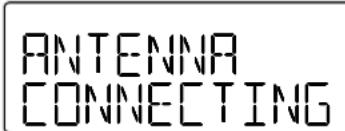
My wireless controller displays a 'Antenna connecting' message
Check the power supply to the receiver is properly inserted into your vehicle's power socket.
Check that EZi-DAB-BT is not in USB upgrade mode.
Power cycle your receiver by removing and re-inserting the USB EZi-DAB-BT power adapter.
The Status LED on EZi-DAB-BT's receiver is constantly illuminated
If the Status LED on EZi-DAB-BT's receiver is constantly illuminated, it means that EZi-DAB-BT is expecting a software update via the USB connection. If this is unintentional, you can exit USB update mode by removing the power or by holding down the Reset button for 10 seconds.
The Status LED on the receiver is flashing rapidly
If the Status LED is flashing rapidly on the receiver it means that the wireless controller has lost its connection with the receiver. To resolve this, you will need to manually re-pair the receiver and controller.
- Remove and re-insert the EZi-DAB-BT power adapter into the 12V accessory socket and wait 5 seconds until the Status LED on the receiver goes out.
- Use a paperclip or pen to press the Reset button on the receiver. The Status LED on the receiver will start to blink slowly.
- Press and hold the _1 and bohons simultaneously on the wireless controller for 10 seconds. All the segments on the wireless controller will briefly light up and 'ANTENNA CONNECTING' will be shown on the display.
The Bluetooth icon on the controller will blink while the receiver and wireless controller try to connect.
If the receiver and controller still fail to connect, then you will need to reset your receiver back to factory settings (see the reset instructions on the previous page), and repeat step 3.
The wireless controller is not responding
- Check that the batteries in the wireless controller have not gone flat. If they have, the screen will not light up when you press the button.
- Check that the receiver is powered. To test this, remove then re-apply power to the receiver. The status LED should light for 5 seconds to confirm power supply.
- If the batteries and power are OK, check that the wireless controller and receiver are properly paired. Press and hold the and buttons simultaneously on the wireless controller. If paired correctly, the Status LED on the receiver should light solidly, and turn off as soon as you release the buttons. If the Status LED does not light up when you press and hold the and buttons, you will need to re-pair the controller and receiver. For re-pairing instructions see 'The Status LED on the receiver is flashing rapidly' above.
The audio on EZi-DAB-BT sounds distorted when I connect EZi-DAB-BT to my existing audio system using the auxiliary connection
If the audio on EZi-DAB-BT sounds distorted when you've connected EZi-DAB-BT to your audio system via the auxiliary connection, try setting the 'GAIN' value to 'LOW'. If this still doesn't solve the problem, try using 'FM TRANSMIT' instead (see page 22 for more information).
EZi-DAB-BT turned itself off
See 'Auto standby' on page 22.
I can't connect EZi-DAB-BT to my Bluetooth device
Check that your device is Bluetooth compatible and that Bluetooth is switched on.
Check that no other Bluetooth devices are connected to EZi-DAB-BT.
In the unlikely event you still cannot connect and pair manually, you can clear the previous connected device log by pressing the
Reset button on the receiver after EZi-DAB-BT's receiver has switched on (Status LED is off).
The DAB signal cuts out
Check that there are no obstructions (see page 5 for more information).
Only use the provided power adapter.
Check that no other electrical products are being used in your vehicle as they can cause interference with DAB signals.
Ensure the detectable magnetic ground tail is correctly fitted.
No sound or too quiet
On the Bluetooth settings menu of your mobile device, check that your device is connected to EZi-DAB-BT.
Check that EZi-DAB-BT is not in pairing mode.
If you are using the auxiliary connection, check that the plugs are firmly inserted into the sockets.
Check the volume levels on your mobile device or check what's playing on the display.
How do I force EZi-DAB-BT to switch off?
To force EZi-DAB-BT to switch off, use a paper clip or pen to press the Reset button on the receiver for 10 seconds, or remove power.
EZi-DAB-BT has locked up or frozen
In the unlikely event of a software lock up, press and hold the power button for 10 seconds to force EZi-DAB-BT to switch off.
Note you must ensure EZi-DAB-BT is plugged in via the adapter.
How long are the AAA batteries in EZi-DAB-BT's controller expected to last before they need replacing?
The AAA batteries supplied with EZi-DAB-BT should last for around 12 months under typical usage conditions. EZi-DAB-BT's controller will display a message when the batteries in EZi-DAB-BT's controller are running low. See the illustration on page 11 to find out how to fit new batteries.
I can't hear the DAB station
If using FM transmit, make sure you have tuned your vehicle's radio to the FM frequency that EZi-DAB-BT is transmitting on (see page 22). If you have connected EZi-DAB-BT to your vehicle radio's line in or aux-in socket, make sure that the correct input source on your vehicle's radio is selected (refer to the manufacturer's instructions).
The audio will fade down to silent if the DAB signal is very weak and begins to 'buckle'.
Technical specifications
Radio Digital (DAB/DAB+)
Frequency ranges Band III 174-240 MHz
FM Transmitter Frequency range: 87.60<107.90 MHz
Maximum power: 51.20 dBuV/m @ 3m
Display Backlit LCD with 2-line text display and custom icons
Receiver power supply

Wireless controller 2 × AAA batteries power
Bluetooth
HFP (Hands Free Profile), A2DP (Advanced Audio Distribution Profile), AVRCP (Audio Video Remote Control Profile), OPP (Object Push Profile), PBAP (Phone Book Access Profile)
Frequency range: 2402<2480 MHz
Maximum power: 4.40 dBm (EIRP)
Temperature range Operational temperature: -20^ to +60^
Storage temperature: -40^ to +85^
Approvals

CE Marked. Hereby, ALPINE declares that this Band II LPD device is in compliance with the essential requirements and other provisions of RED 2014/53/EU. Compliant with UNECE Regulation 10 (E-Mark) and RF exposure requirements EN 62479: 2010. You can view the Declaration of Conformity at www.alpine-europe.com.
Software Versions Controller : v1.3
Antenna unit : v1.10
EZi-DAB-BT
Wireless-Controllers
Bluetooth HFP (Hands Free Profile), A2DP (Advanced Audio Distribution Profile), AVRCP (Audio Video Remote Control Profile), OPP (Object Push Profile), PBAP (Phone Book Access Profile)
Innstillinger for digital radio
Autotuning
Stromtilforsel mot- DC 12V taker
Strom for tradlos 2 x AAA-batterier kontroll
Bluetooth HFP (handfri profil), A2DP (avansert lydfordelingsprofil), AVRCP (lyd/video fjernekontrollprofil), OPP (profil for objekt-push), PBAP (profil for adresseboktiggang)
Frequency Omrade: 2,402 <2,480 MHz
Maksimal strøm: 4.40 dBm (EIRP)
Temperaturomrade Brukstemperatur: -20^ til +60^
Oppbevaringstemperatur: -40^ til +85^
Godkjenninger CE-merket. Herved erklær ALPINE atijke LPD-enheten med bänd er i samsvar med viktige krav og andre bestemmelser i RED-direktiv 2014/53/EU. I samsvar med UNECE-regulering 10 (E-merke) Og RF eksponeringskrav EN 62479: 2010. Du kan lese samsvarserklæringen på www.alpine-europe.com.
Programvar Ke nntroller: v1.3
Bluetooth HFP (Hands Free Profile), A2DP (Advanced Audio Distribution Profile), AVRCP (Audio Video Remote Control Profile), OPP (Object Push Profile), PBAP (Phone Book Access Profile)
Frequentie bereik: 2402 <2480 MHz
Maximale vermogen: 4,40 dBm (EIRP)
Correct disposal of this product
This marking indicates that this product should not be disposed with other household waste throughout the EU. To prevent possible harm to the environment or human health from uncontrolled waste disposal, recycle it responsibly to promote the sustainable reuse of material resources. To return your used device, please use the return and collection system or contact the retailer where the product was purchased. They can take this product for environmental safe recycling.
Copyright
Copyright 2017 by Alpine Electronics (Europe) GmbH. All rights reserved. No part of this publication may be copied or distributed, transmitted, transcribed, stored in a retrieval system, or translated into any human or computer language, in any form or by any means, electronic, mechanical, magnetic, manual or otherwise, or disclosed to third parties without the express written permission of Alpine Electronics (Europe) GmbH.
Trademarks
EZI-DAB-BT, Alpine and the Alpine logo are trademarks or registered trademarks of Alpine Electronics Inc. All other product names are trademarks of their respective companies.
Version 2, July 2017.
ALPINE ELECTRONICS MARKETING, INC.
1-7 Yukigaya-Otsukamachi, Ota-ku
Tokyo 145-0067, Japan
Tel.: 03-5499-4531
ALPINE ELECTRONICS OF AMERICA, INC.
19145 Gramercy Place, Torrance,
California 90501 U.S.A.
Tel.: 1-800-ALPINE-1 (1-800-257-4631)
ALPINE ELECTRONICS OF CANADA, INC.
777 Supertest Road, Toronto,
Ontario M3J 2M9, Canada
Phone 1-800-ALPINE-1 (1-800-257-4631)
ALPINE ELECTRONICS OF AUSTRALIA PTY, LTD.
161-165 Princess Highway, Hallam
Victoria 3803, Australia
Tel.: 03-8787-1200
ALPINE ELECTRONICS GmbH
Fletchamstead Highway, Coventry CCV4 9TW, U.K.
Tel.: 0870-33 33 763
ALPINE ELECTRONICS FRANCE S.A.R.L.
184, Allée des Erables, CS 52016 - Villepinte
95 945 Roissy CDG Cedex, France
Phone 01-48638989