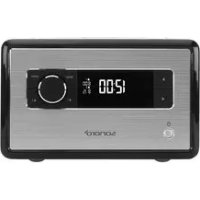
CD - Radio SONORO - Free user manual and instructions
Find the device manual for free CD SONORO in PDF.



| Product type | Clock radio with CD player, FM/DAB receiver, Bluetooth, USB, AUX |
| Dimensions (W x D x H) | Approx. 210 x 257 x 140 mm |
| Weight | Approx. 3.2 kg |
| Power supply | External power adapter: input 100-240 V ~50/60 Hz, output 15.5 V DC 2.9 A |
| Backup battery | CR2032 lithium battery, 3 V (for clock) |
| Radio reception | FM 87.5-108 MHz, DAB/DAB+ 174.928-239.2 MHz |
| Supported CD formats | Audio CD (CD-DA), CD-R, CD-RW; audio formats: CD-DA, MP3, WMA |
| USB playback | MP3, WMA; FAT16/32 systems, max capacity 32 GB, files <2 GB, max 999 tracks |
| Bluetooth | Version 3.0 (EDR), profiles AVRCP 1.0, A2DP 1.0 |
| Main functions | FM/DAB radio, CD player, Bluetooth, USB, AUX, dual alarm, sleep timer, relaxation music, demo |
| Alarm | 2 independent alarms, sources: FM, DAB, CD, relaxation, beep; adjustable snooze |
| Display | Adjustable backlit LCD screen (8 high levels, 8 low levels), automatic brightness adjustment |
| Sound adjustment | Adjustable bass and treble |
| Station presets | Up to 6 FM presets and 6 DAB |
| Antenna | FM/DAB antenna supplied, connection for external antenna |
| Connections | 3.5 mm headphone jack, 3.5 mm AUX IN, USB (5 V/1 A charging and playback), antenna, power adapter |
| Cleaning | Dry soft cloth; do not use harsh chemicals or solvents |
| Safety | Class 1 laser, do not disassemble; use only the supplied power adapter; keep out of reach of children |
| Warranty | 2 years (1 year North America/Australia), excludes batteries and damage from improper use |
Frequently Asked Questions - CD SONORO
User questions about CD SONORO
0 question about this device. Answer the ones you know or ask your own.
Ask a new question about this device
Download the instructions for your Radio in PDF format for free! Find your manual CD - SONORO and take your electronic device back in hand. On this page are published all the documents necessary for the use of your device. CD by SONORO.
USER MANUAL CD SONORO
Digital Audio Broadcasting

Bluetooth
Bedienungsanleitung
Operating manual
Mode d'emploi
Digital Audio Broadcasting

Bluetooth
Bedienungsanleitung
sonoro
sonoro audio GmbH & Co. KG
Unter Goldschmied 6
50667Koln
Telefon: +49 221 - 16 79 29 - 0
Telefax: +49 221 - 16 79 29 - 290
E-Mail: info@sonoro-audio.com
Internet: www.sonoro-audio.com
sonoro Service Center DE
Telefax: +49 8000 - 76 66 76
E-Mail: support@sonoro-audio.com
sonoro
Inhaltsverzeichnis
Digital Audio Broadcasting

Bluetooth
Operating manual
sonoro
sonoro audio GmbH & Co. KG
Unter Goldschmied 6
50667 Cologne Germany
Telephone: +49 221 - 16 79 29 - 0
Fax: +49 221 - 16 79 29 - 290
email: info@sonoro-audio.com
Internet: www.sonoro-audio.com
sonoro Service Center GB
Computers Unlimited - Main Office
The Technology Park
Colindeep Lane
London NW9 6BX
United Kingdom
Telephone: +44 20 82 00 82 82
Fax: +44 20 82 00 37 88
email: general@unlimited.com
sonoro
Table of contents
1 Introduction. 41
2 For your own safety. 41
2.1 Symbols in this manual 41
2.2 Intended use 41
2.3 Children and persons with limited cognitive abilities 41
2.4 Power supply 41
2.5 Batteries 42
2.6 Laser 42
2.7 Transport 42
2.8 Ambient conditions 42
2.9 Operation 42
2.10 Headphone use 43
2.11 Defect 43
2.12 Cleaning 43
3 Scope of delivery. 43
4 Compatible formats. 43
5 Controls and ports 44
6 Display 49
7 Unpacking the device and commencing operation 50
7.1 Unpacking the device.. 50
7.2 Inserting the battery.. 50
7.3 Connecting the power supply.. 51
7.4 Connecting the antenna 51
7.5 Preparing the remote control 51
7.6 Connecting the headphones 51
8 Setting the basic functions. 52
8.1 Switching on the device for the first time 52
8.2 The Standby menu 52
8.3 The Settings menu.. 53
8.4 Setting the dimmer 54
8.5 Setting the sound 54
8.6 Setting the Sleep Timer.. 54
9 The wake-up function 55
9.1 Setting the alarm time.. 55
9.2 Setting the alarm source 55
9.3 Setting the alarm volume.. 56
9.4 Setting the alarm repeat frequency.. 56
9.5 Switching on/off the alarm clock 56
9.6 Switch off the alarm clock after the alarm sounds.. 56
sonoro
9.7 Setting the Snooze function.. 56
10 General audio playback functions 56
10.1 Setting the volume.. 57
10.2 Muting the audio playback 57
10.3 Selecting a playback mode.. 57
11 Radio playback 57
11.1 FM Radio.. 57
11.1.1 Searching an FM station 57
11.1.2 Storing FM stations.. 58
11.1.3 Retrieving saved FM stations 58
11.2 DAB radio 58
11.2.1 Searching a DAB station 58
11.2.2 Storing a DAB station 59
11.2.3 Retrieving stored DAB stations 59
11.2.4 Retrieving DAB info 59
11.2.5 Setting the DRC. 59
12 CD playback 60
Bluetooth playback 61
13.1 Connecting Bluetooth devices.. 61
13.2 Playing music via Bluetooth 61
14 AUX playback 61
USB playback 61
Relax Music playback 62
Demo Sound playback 62
Troubleshooting 63
Cleaning 64
Technical Data. 65
Disposal 65
Declaration of Conformity 66
Warranty 66
1 Introduction
Thank you for purchasing a sonoroCD.
This manual and the safety instructions provide all the information required for trouble-free and safe operation of the device.
Read these operating instructions in their entirety before using the device.
- Keep this manual for future reference.
If you pass the device on to a third party, please provide them with the operating instructions and safety instructions as well.
Failure to follow these instructions can result in serious injury or damage to the device.
We assume no liability for damage resulting from failure to observe the instructions in this manual.
The images in this manual are intended to illustrate the necessary actions to operate the device.
Enjoy your device!
Contact data
| Address sonoro Service Center Computer Unlimited - Main Office The Technology Park Colindeep Lane London NW9 6BX United Kingdom | |
| Phone +44 20 82 00 82 82 | |
| FAX +44 20 82 00 37 88 | |
| e-mail general@unlimited.com | |
| Internet www.sonoro-audio.com |
2 For your own safety
2.1 Symbols in this manual
Safety instructions
Important information for your safety is highlighted. Always make sure to observe these instructions to avoid accidents and damage to the device:
WARNING!
Indicates a potentially hazardous situation that may result in death or serious injury.
CAUTION!
Indicates a potentially hazardous situation that may result in minor or moderate injury.
A NOTICE!
Indicates a potentially hazardous situation that may result in material and environmental damage.
Helpful tips and recommendations
i
Highlights information and useful recommendations.
2.2 Intended use
The device is for personal use only. It is not intended for commercial use. The device is solely intended for the following tasks:
Playback of FM/DAB radio stations.
Playback of Audio CDs and MP3/WMA CDs.
Audio playback from external USB devices.
Audio playback of external devices connected via AUX.
Audio playback of Bluetooth-enabled devices (e.g. mobile phones).
- Charging function for external devices that are connected via USB.
i
Regarding the charging function, please note the specifications described in the manufacturer's operating instructions.
Any other use is considered improper use and is prohibited. We assume no liability for damages from improper use.
2.3 Children and persons with limited cognitive abilities
- Do not leave the device unattended and do not use it when children or persons who cannot estimate the associated risks are nearby.
Persons (including children) who are not able to safety operate the device due to their physical, sensory or mental capabilities or lack of experience or knowledge regarding the device, should not operate this device without proper supervision or instruction by a responsible person. Please keep it safely out of their reach.
Remember that packaging materials should not be toyed with. Risk of suffocation!
2.4 Power supply
The device is electric powered, so there is always a risk of electric shock. Therefore pay particular attention to the following:
sonoro
Never touch the power plug with wet hands.
When you want to pull the power plug from the wall outlet, always pull directly on the plug itself. Never pull on the cable. It could break.
Ensure unobstructed access to the power outlet so that the power plug can be pulled out immediately in case of an emergency.
Make sure that the power cord is not bent, pinched or run over. Lay the power cord in such a way that it is not a tripping hazard or within reach of children.
Only use extension cords that are rated for the current of the device.
Keep the device away from rain and moisture and any heat sources.
Only operate the device if the electrical voltage indicated on the device nameplate and the power plug matches the voltage of your power outlet. Incorrect voltage may destroy the device.
To avoid a fire hazard, disconnect the device completely from the power supply when you are not using the device for a long time. Do this by unplugging the power cord from the AC outlet.
2.5 Batteries
Remove the batteries/rechargeable batteries from the battery compartment as soon as they are empty or if you do not intend to use the device for a period of time.
Don't throw the batteries/rechargeable batteries into fire and never expose them to high temperatures.
- Do not attempt to recharge the batteries. Do not attempt to open or short circuit the batteries/rechargeable batteries. Explosion hazard!
Fluid that leaks from the batteries when these are used incorrectly can cause skin irritation. In case of contact, wash off the fluid with plenty of water. If the fluid gets into your eyes, do not rub eyes but immediately flush these for 10 minutes with water and consult a physician immediately.
2.6 Laser
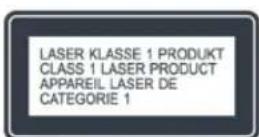
Fig. 1: Laser
This device is classified as a Class 1 laser device. Laser beams can injure your eyes. So please observe the following:
Do not attempt to disassemble the device.
To avoid risks: All maintenance and repair work must only be performed by the manufacturer or its customer service department.
2.7 Transport
To avoid damage to the inserted medium, remove it from the device before transporting/shipping the device.
Whilst driving in a vehicle, store the device so as not to endanger its occupants.
If you ship the device, please stow it in its original packaging. Keep the packaging for this purpose.
2.8 Ambient conditions
Safe operation of the device implies maintaining appropriate ambient conditions for the device. So please observe the following:
- Protect the device from the elements. Never use it outdoors and never place it in areas with increased exposure to sunlight.
Never place the device on or in the immediate vicinity of fire and heat sources, such as burning candles, stove tops, ovens, etc.
Place the device in such a way that adequate ventilation is ensured. This prevents heat build up inside the device. Always keep a minimum distance of 10 cm from other objects or walls. - Protect the device from strong mechanical vibrations and place it on a solid surface.
Protect the remote control from the weather, humidity and high temperatures (e.g. from direct sunlight).
Protect the device from splashing or dripping water. Never place objects containing liquids on or next to the device.
2.9 Operation
- Do not insert any object into the CD slot of the device other than the permitted CDs. Special formats damage your device.
Do not use any media other than those specified in this manual.
The rubber feet of the device may produce stains on certain surfaces. So use a suitable surface.
2.10 Headphone use
Always decrease the volume of the device before putting on the headphones. Increase the volume to the desired level only after the headphones are in the correct position.
- Do not adjust the volume too high when listening on headphones. If you hear permanent noise or background noise in your ears (ringing), immediately decrease the volume or stop using the headphones altogether.
Even if your headphones are designed in such a way that you can hear outside noises, remember to never adjust the volume so high that you are no longer aware of your immediate surroundings.
2.11 Defect
Should the device be defective, do not attempt to repair it on your own.
If the power plug, the adapter, or the power cord of this device is damaged, they must be replaced by the manufacturer or the manufacturer's customer service department to avoid the risk of electric shock.
Should any fluid enter the device or if the device was dropped or otherwise damaged, have it checked by an authorised dealer. Immediately disconnect the device from the power supply and contact an authorised dealer as soon as possible.
2.12 Cleaning
Clean the device only from the outside with a soft, dry cloth. Never use abrasive or solvent-based cleaning agents as these may damage the surface of the device.
If the device is extremely dirty, wipe it with a slightly damp cloth and dry it with a soft, dry cloth.
3 Scope of delivery
Many additional components that you need to receive radio frequencies and connect additional devices are part of sonoroCD's scope of delivery.
sonoroCD with protective cover
Remote control
Two button cells (CR2032, 3 V)
AC adapter with universal adapter (CE and UK)
FM/DAB antenna
Gloves
Operating instructions
4 Compatible formats
Compatible CD formats

NOTICE!
Material damage from using an incorrect CD format
Inserting a mini-disc can damage the device.
-Only use compatible CD formats.
- Compact Disc Digital Audio CD-DA
CD-R
CD-RW
Compatible audio formats
CD-DA
MP3
WMA
5 Controls and ports
sonoroCD front view
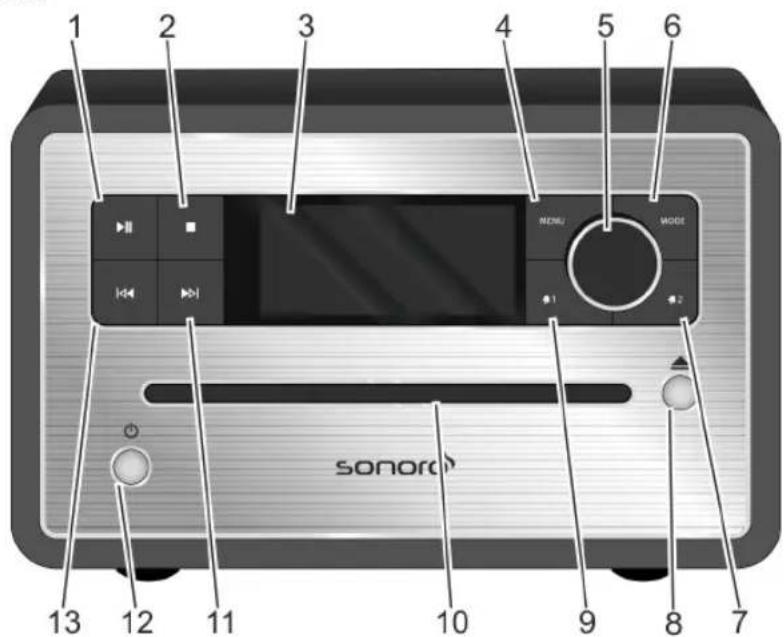
Fig. 2: sonoroCD front view
| Item(Fig. 2) | Designation Furction | |
| 1 Play/Pause CD/USB start/pause playback. | ||
| 2 Stop CD/USB stop playback.DAB and FM:info button | ||
| 3 LCD display Displays current time and date when the device is switched off. Provides mode-related information when the device is switched on. | ||
| 4 MENU Open and save/close the menu entries. | ||
| 5 Click wheel | Turn: set volume,FM/DAB station,and alarm,and to navigate.Press: confirm the individual submenus. | |
| 6 MODE Switch to the nextplayback mode. | ||
| 7 Alarm 2 | Press: switch the Alarm 2 on/off,stop the alarm.Press and hold: set the alarm. | |
| 8 Eject Eject the DO. | ||
| 9 Alarm 1 | Press: switch the Alarm 1 on/off,stop the alarm.Press and hold: set the alarm. | |
| 10 CD slotLoads the CD when the device is switched on or in Standby mode. | ||
| 11 Next | Press: navigate the menu entries;search FM/DAB stations,next track in CD,USB,Relax Music,Demo Sound modesPress and hold: fast forward | |
sonoro
| Item (Fig. 2) | Designation Function | ction |
| 12 Standby Switch device | ice on/off. Stop the alarm. | |
| 13 Previous | Press: Navigate the menu entries. Search FM/DAB stations, previous track in CD/USB, Relax Music, Demo Sound modesPress and hold: fast forward |
sonoroCD top view
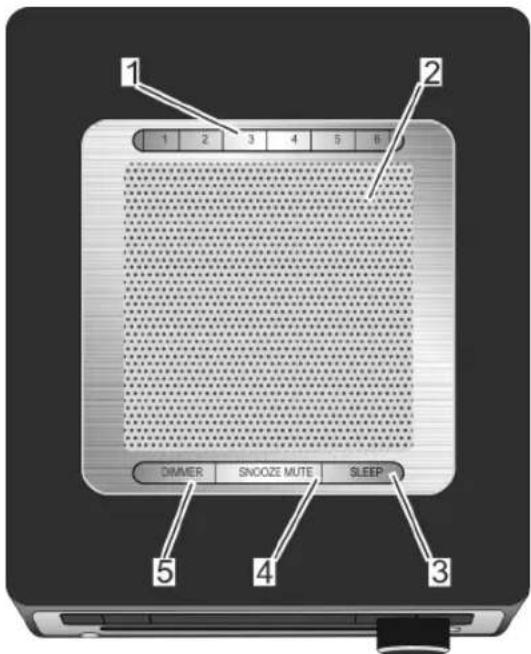
Fig. 3: sonoroCD top view
| Item (Fig. 3) | Designation Function | |
| 1 Memory | 1–6 Station memory. | |
| 2 Speaker | Speaker opening. | |
| 3 SLEEP | Press briefly: switch the auto disconnect (Sleep Timer) function on/off. Press and hold for a while: [Sleep Timer] menu to set the time the device will be switched off automatically. | |
| 4 SNOOZE | MUTE | Press briefly (in playback mode): Switch audio playback (Mute) on/off. Press briefly (in Alarm mode): Start the snooze function (Snooze). Press and hold for a while: [Snoopze Setting] menu to set the snooze time. |
| 5 DIMMER | Press briefly: The display is illuminated at higher brightness level for 3 s. Press and hold for a while: [DIMMER] menu to set the display's brightness level. | |
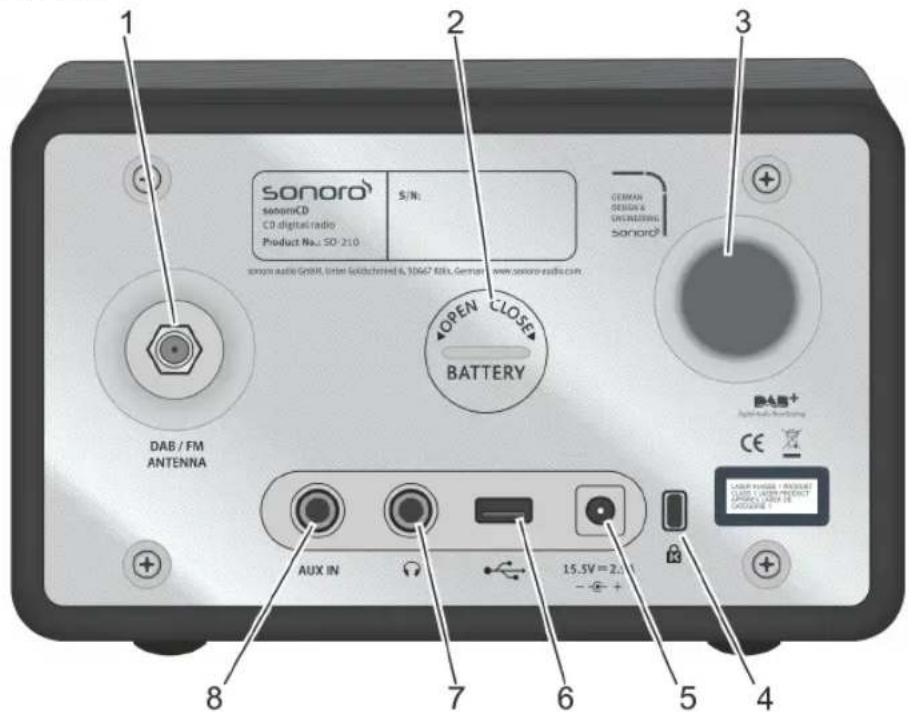
sonoroCD rear view
Fig. 4: sonoroCD rear view
| Item (Fig. 4) | Designation Fur | ction |
| 1 DAB/FM | antenna | Port for the antenna (included) or an external antenna. |
| 2 Battery | com-partment | The battery (CR2032 button cell, 3V) ensures continued operation of the clock in case of power failure. |
| 3 Bass ref | exopening | Bass response is enhanced. The distance to the next wall should measure at least 3 cm. |
| 4 Keylock | Anti-theft protection port. | |
| 5 AC adapter | port | 15.5 V connection for the AC adapter (included). |
| 6 USB charger & playback | Port for a USB stick or a USB cable. Port for charging external devices from a USB cable (DC 5 V, 1 A). | |
| 7 Headphones | ones Port for headphones. | |
| 8 AUX IN | Port for external audio devices. |
Remote control
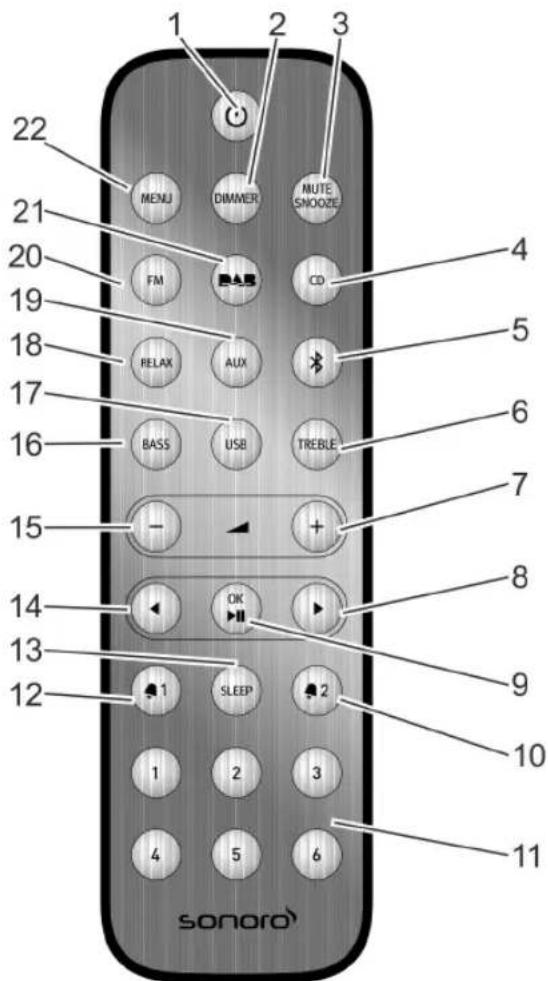
Fig. 5: Remote control
| Item (Fig. 5) | Button Function | |
| 1 Standby | Switch the device | on/off. |
| 2 DIMMER | Switch the dimmer on/off. Adjust the dimmer settings. | |
| 3 MUTE | SNOOZE | Press briefly (in playback mode): Switch audio playback (Mute) on/off. Press briefly (in Alarm mode): Start the snooze function (Snooze). Press and hold for a while: [Snoopze Setting] menu to set the snooze time. |
| 4 CD Switch CD playback o | h/off. Press briefly (in the mode): display ID3 tags. | |
| 5 Bluetooth Switch Bluetooth | oth on/off. | |
| 6 TREBLE Adjust the treble | ||
| 7 VOL + All playback modes: Increase the volume. | ||
| 8 Next Channel scan and menu navigation | ||
| 9 OK, Play | Pause Confirm | the selected settings in the menu. Play or pause the selected track. |
| 10 Alarm | 2 | Press: switch the Alarm 2 on/off, stop the alarm. Press and hold: set the alarm. |
| 11 Memo | 1-6 Station | memory. |
| 12 Alarm | 1 | Press: switch the Alarm 1 on/off, stop the alarm. Press and hold: set the alarm. |
| 13 SLEEP | Switch the auto disconnect (Sleep Timer) function on/off. Press briefly (in Standby mode): The device switches itself on. | |
| 14 Previo | us Scan ch | nages and navigate the menus. |
| 15 VOL | -All playback | es: decrease the volume. |
| 16 BASS | adjust the bass. | |
| 17 USB | Switch USB on/off. | Switch between artist and track info (if available). |
| 18 RELAX | Switch the stored | Relax Music on/off. |
| 19 AUX | Switch AUX on/off. | |
| 20 FM | Switch the FM radio on/off. Press briefly (in FM mode): switch RDS on/off. | |
| 21 DAB | Switch DAB radio on/off. Press briefly (in DAB mode): switch DAB info. | |
| 22 MENU | Open the menu. | |
6 Display
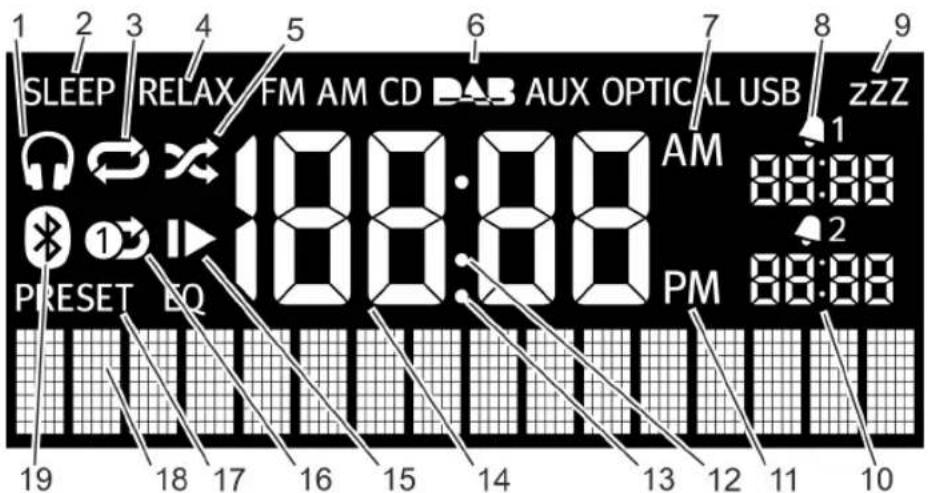
Fig. 6: Display
| Item(Fig. 6) | Symbol Function | |
| 1 Headph | ones Headphones | are connected. |
| 2 Sleep Th | the Sleep Timer is | on. |
| 3 Repeat | CD: repeat all trac | cks on the CD. |
| 4 Relax Th | the Relax mode is | on. |
| 5 Shuffle | CD: shuffle the pl | ay order of individual tracks. |
| 6 FM/CD/AUX/USB | DAB/AUX/USB | Displays the selected operating mode. |
| 7 AM Time | s suffix in the 12- | hour setting. |
| 8 Alarm 1 | Displays the set | Alarm 1 time. |
| 9 Snooze | The Snooze funct | ion is on. |
| 10 Alarm | 2 Displays the set | Alarm 2 time. |
| 11 PM Time | he suffix in the 12- | -hour setting. |
| 12 Colon | Flashes to indicate | seconds. |
| 13 Period | For the FM frequ | ency range. |
| 14 Time D | displays the current | nt time. |
| 15 Resume | CD: resume playback. | |
| 16 Repeat | One CD: repeat | one track. |
| 17 Preset | Station memory | |
| 18 Lower | displaysection | Display for date, menus, frequencies, etc. |
| 19 Bluetob | oth Blueto | oth is on. |
7 Unpacking the device and commencing operation
Only use connection cables and external devices that comply with the electromagnetic compatibility and insulation quality of this device.
7.1 Unpacking the device
All parts of the device are delivered in a single cardboard box.
WARNING!
Risk of suffocation when you toy with the packaging!
The packaging material presents a choking hazard.
-
Keep the packaging material out of reach of children and people who can not estimate the hazard involved.
-
Unpack the device and all accessories and check the contents for completeness and integrity.
i
Should you detect any damage, contact your dealer immediately or sonoro support (see 'Contact data' on page 41).
- Place the device in a suitable location and remove the protective film from the display.
i
Observe the safety instructions regarding the ambient conditions (Chapter 2 'For your own safety' on page 41).
7.2 Inserting the battery
The battery ensures the clock functions in case of power failure.
WARNING!
Risk of injury from improper handling of batteries!
Risk of injury from explosions from improper handling of batteries!
- Never attempt to recharge, open or short-circuit the batteries. Explosion hazard!
- Never damage or warp the batteries.
- Never throw the batteries into an open fire or expose them to high temperatures.
- Kepp batteries out of reach of children. Risk of suffocation!
-
Fluid may escape from misuse, which can cause skin irritation. In case of contact:
-
Wash off the fluid with plenty of water.
- Do not rub your eyes, but flush eyes with plenty of water for 10 minutes and seek immediate medical attention.
A NOTICE!
Material damage from improper handling of batteries!
The device may become damaged from improper handling of batteries.
-Do not insert the batteries the wrong way. Observe the correct polarity.
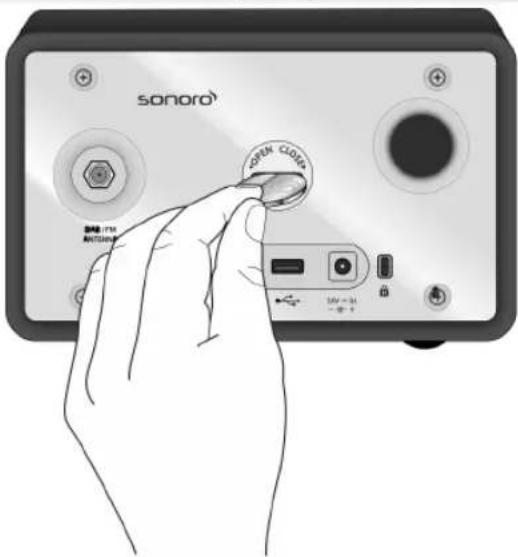
Fig. 7: Inserting the battery
- Open the battery compartment cover on the back of the device with a small coin (Fig. 7).
sonoro
- Insert the supplied battery with the label side up.
- Insert the battery compartment cover and close with a small coin.
7.3 Connecting the power supply
Power is supplied to the device via the AC adapter (included). The AC adapter with universal adapter must be connected before use.
WARNING!
Risk of injury from incorrect handling!
Risk of electric shock from improper handling of the AC adapter with universal adapter.
- Make sure that the AC adapter and universal adapter are always firmly connected to each other.
- Pull the AC adapter straight out of the socket so that the adapter does not break off the mounting bracket.
NOTICE!
Material damage occurs from an incorrect voltage connection!
Connection values that exceed the maximum allowable values of the device can destroy the device.
-Only use the AC adapter (included).
- Only operate the device if the electrical voltage indicated on the AC adapter matches the voltage of your power outlet.
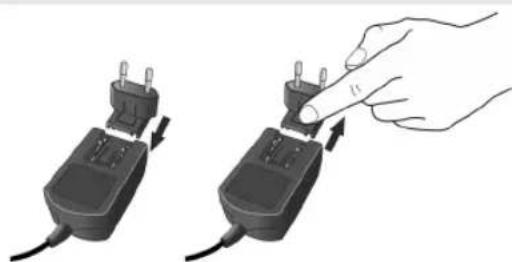
Fig. 8: Installing and disconnecting the universal adapter
- Slide the universal adapter onto the AC adapter until it engages (Fig. 8).
- Plug the AC adapter's connector plug on the back of the device into the 15.5 V, 2.9 A DC port.
- Plug the power plug into an electrical outlet.
7.4 Connecting the antenna
The antenna (included) is needed for radio reception in the FM frequency range and for DAB radio stations.
- Screw the FM/DAB antenna located on the back of the device to the DAB/FM antenna connector.
- Unfold and align the antenna so that you have the best possible reception.
i
For good FM/DAB radio reception, the two ends of the antenna should form a "T" (dipole) with the connecting cable.
For even better reception, attach the cable to a suitable house antenna.
7.5 Preparing the remote control
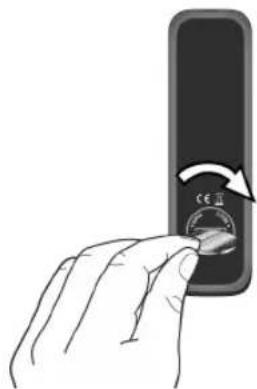
Fig. 9: Insert the battery into the remote control.
- Open the battery compartment on the remote control (Fig. 9).
- Insert the supplied button cell (CR2032, 3 V) with the label side (+) up.
- Close the battery compartment.
7.6 Connecting the headphones
The headphones can be connected to the device with the 3.5mm stereo jacks (not included in the package).
WARNING!
Risk of injury from improper headphone use! Improper use of headphones can lead to serious injuries and health hazards.
- Do not set the volume too high when using the headphones.
- Turn the click wheel to the left to set the volume to minimum.
-
Insert the headset jack into the headset port at the back of the device.
-
Slowly turn the click wheel to the right to increase the volume.
8 Setting the basic functions
The individual menus let you select the functions and settings of the device.
8.1 Switching on the device for the first time
After you have switched the device on for the first time, the LCD display shows the clock display and the [Tune to FM RDS station to set time & date]message.
i
In FM/DAB mode, time and date are set automatically as long as this has not been disabled.
8.2 The Standby menu
You can adjust the following settings in the Standby menu:
Manually set the time.
Manually set the date.
Switch on/off the date on the display.
The procedure for setting the individual functions is the same.
Setting the time manually
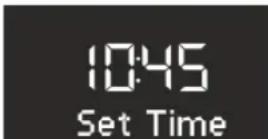
Fig. 10: Setting the time
- Press the [MENU] button on the device or the remote control in Standby mode.
The display shows the [Set Time] menu (Fig. 10). - Press the click wheel to set the hours.
The hour display flashes. - Turn the click wheel to set the hours.
- Press the click wheel to confirm the setting.
The minute display flashes. - Turn the click wheel to set the minutes.
- Press the click wheel to confirm the setting.
The time is set.
i
Use the [Next] or [Previous] button to switch between the hours and minutes display.
i
After 10 seconds of inactivity, the device automatically goes into Standby mode without saving the settings.
Setting the date manually
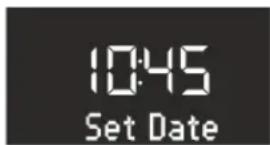
Fig. 11: Setting the date
- Press the [MENU] button in Standby mode on the device or the remote control.
The display shows the [Set Time] menu (Fig. 10).
- Press the [Next] button.
The display shows the [Set Date] menu (Fig. 11). - Press the click wheel.
You can now set the date according to the same procedure as described in Setting the time manually' on page 52.
Switching on/off the date
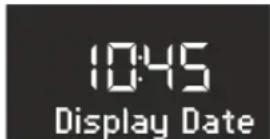
Fig. 12: Switching on/off the date
1. Press the [MENU] button of the device or the remote control in Standby mode.
The display shows the [Set Time] menu (Fig. 10).
2. Press the [Next] button twice.
The display shows the [Date] menu (Fig. 12).
3. Press the click wheel.
You can now switch the date on or off.
8.3 The Settings menu
In operating mode, you can make the following configurations in the [Settings] menu:
Set the time format.
Set the date format.
Set the automatic time/date update function.
Set the display language.
Activate/Deactivate Demo Sound.
Reset the device to the factory settings.
To adjust the settings, proceed as follows:
- Press the [MENU] button on the front of the device or the remote control to enter the corresponding submenu.
- Press the [Next] or [Previous] button or turn the click wheel to scroll through the individual menu items.
- To open the selected menu item, briefly press the click wheel or the [OK] button on the remote control.
- To exit the menu, briefly press the [MENU] button on the device or on the remote control
i
If you do not make any further entries, the menu will close and the display switches to the initial mode.
Setting the time format
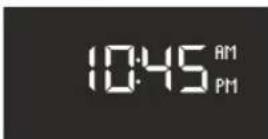
Fig. 13: Setting the time format
You can choose between the 24-hour and 12-hour formats. In the 12-hour format, the time of day is indicated by [AM] and [PM].
Setting the date format

DDD dd.mm.yyyy

DDD mm.dd.yyyy

Fig. 14: Setting the date format
DDD Mmm dd.yyyy
You can set three different date formats (Fig. 14/A, B and C) as well as the current day. The configuration options are:
A: Current day, month, year.
B: Current month, day, year.
C: Current month (in words), day, year.
Setting the automatic time/date update function
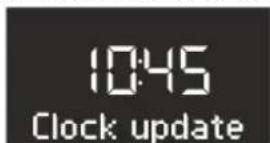
Fig. 15: Setting the automatic update function
You can select the automatic update function in the [Set Time] submenu (Fig. 15). Switching on this function automatically synchronizes the time and date in the FM radio and DAB radio operating modes.
Setting the display language
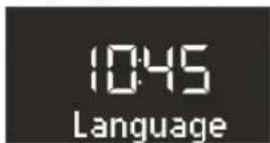
Fig. 16: Setting the language
You can set the menu language and playback display (Fig. 16). The following languages are available:
English and
German.
Switching on/off Demo Sound
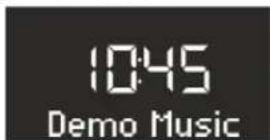
Fig. 17: Switching on/off Demo Sound
The Demo Sound function can be switched on or off (Fig. 17).
Resetting the device to the factory setting

Fig. 18: Resetting to the factory setting
If necessary, you can reset all specified settings, such as language and time formats and saved stations, to the default factory setting (Fig. 18).
8.4 Setting the dimmer
You can use the dimmer setting to adjust the display brightness.
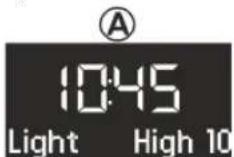
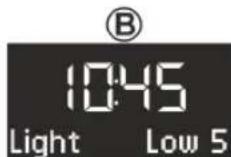
Fig. 19: Setting the dimmer
- Press [DIMMER] button on the top of the device or the remote control for approx. 3 seconds.
[Light High] appears in the display (Fig. 19/A).
-
Adjust the brightness level from 8-15 by turning the click wheel or pressing the [Next] or [Previous] buttons.
-
Confirm the setting by pressing the click wheel.
[Light Low] appears in the display (Fig. 19/B).
-
Adjust the brightness level from 1-8 by turning the click wheel or pressing the [Next] or [Previous] buttons.
-
Confirm the setting by pressing the click wheel.
The initial screen appears.
i
The backlight is adjusted automatically depending on the ambient lighting.
8.5 Setting the sound
The audio playback's sound can be adjusted via the bass and treble settings.
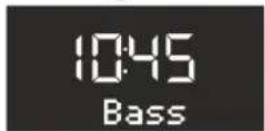
A
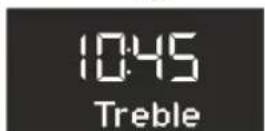
B
Fig. 20: Setting the sound
- Go to the corresponding menu or press the corresponding button on the remote control.
- To adjust the bass, select [Bass] (Fig. 20/A) and turn the click wheel. To adjust the treble, select [Treble] (Fig. 20/B) and turn the click wheel.
i
Alternatively, you can also use the [Next] or [Previous] buttons to adjust the values.
- Press the click wheel or wait 10 seconds to confirm the setting.
8.6 Setting the Sleep Timer
The Sleep Timer is an automatic power-off function that switches the device to Standby mode after the specified time has expired.
Setting the Sleep Timer
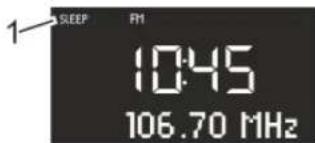
Fig. 21: Switching on/off the Sleep Timer
- Press [SLEEP] button on the top of the device or the remote control.
The [SLEEP] symbol appears in the display (Fig. 21/1).
Switching off the Sleep Timer
- To switch off the sleep timer, press the [SLEEP] button again.
The symbol on the display is hidden.
i
If the device was switched off by the Sleep Timer, it will start in the last heard mode when you turn it on again.
Setting the time interval for the Sleep Timer
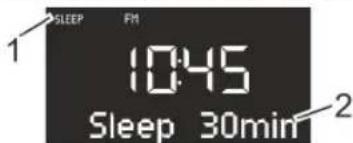
Fig. 22: Setting the time interval for the Sleep Timer
- Hold down the[SLEEP] button on the top of the device or the remote control for a while.
The Sleep Timer appears (Fig. 22) and the Sleep symbol flashes on the display (Fig. 22/1).
- Turn the click wheel to select the desired time interval length (Fig. 22/2). The maximum time interval is 120 minutes.
i
Alternatively, you can also use the [Next] or [Previous] buttons to adjust the values.
- Press the click wheel to confirm the setting.
When the specified time expires, playback gradually fades out.
9 The wake-up function
You can use the radio to wake up with FM/DAB radio, a CD, Relax Music or stored ringtones.
All settings are made by pressing the [Alarm 1] or [Alarm 2] button on the front of the device or the remote control for a while.
The alarm functions can also be set in Standby mode of the device.
The alarm Setup menu is structured as follows:
Set the Wake-Up Time Set the Alarm Source
Set the Alarm Volume
Set the alarm repeat frequency End
i
If you do not enter any information for approx. 10 seconds when setting the alarm, the setting is terminated without saving it.
9.1 Setting the alarm time
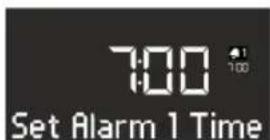
Fig. 23: Setting the Alarm 1
- Keep the [Alarm 1] or [Alarm 2] button pressed.
The submenu for adjusting the alarm time is displayed (Fig. 23).
- Set the hour by turning the click wheel.
- Press the click wheel to confirm the hours.
Minutes are displayed.
- Set the minutes by turning the click wheel.
- Press the click wheel to confirm the entry.
i
Use the [Next] and [Previous] buttons to switch between the setting for hours and minutes.
9.2 Setting the alarm source
After you have set and confirmed the wake-up time, you can choose the source for the alarm (Fig. 24).
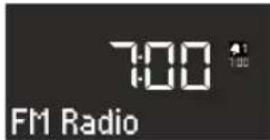
Fig. 24: Setting the alarm source
- Select the desired medium you want to wake up with by turning the click wheel and pressing the [MODE], [Next] or [Previous] buttons.
| FM | Select an FM station preset from the station memory that you wish to start the radio with and wake up to. |
| DAB Select a DAB station preset from the station memory that you wish to start the radio with and wake up to. | |
| CD Select a track from the CD you wish to start the radio with and wake up to. | |
| Relax Music Select a Relax Music sound from the memory you wish to start the radio with and wake up to. | |
| Ringtone Select a ringtone from the memory you wish to start the radio with and wake up to. | |
- Press the click wheel to confirm the setting.
The source is displayed on the upper part of the display and the selection is displayed on the left hand side.
9.3 Setting the alarm volume
After you have set and confirmed the alarm source, you can set the alarm volume (Fig. 25).
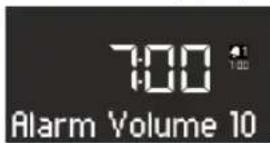
Fig. 25: Setting the alarm volume
- Select the desired volume by turning the click wheel or pressing the [Next] or [Previous] buttons.
- Press the click wheel to confirm the setting.
i
The alarm audio playback always starts with the minimum volume and gradually increases to the specified volume level.
9.4 Setting the alarm repeat frequency
After you have set and confirmed the alarm volume, you can set the alarm repeat frequency (Fig. 26).
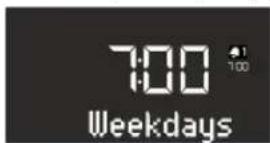
Fig. 26: Setting the Snooze function
- Select the desired interval by turning the click wheel or pressing the [Next] or [Previous] buttons.
- Press the click wheel to confirm the setting.
9.5 Switching on/off the alarm clock
Switching on the alarm clock
- To switch on the alarm clock, briefly press the [Alarm 1] or the [Alarm 2] button on the front of the device or the remote control.
Switching off the alarm clock
- To switch off the alarm clock, briefly press the [Alarm 1] or [Alarm 2] button again.
9.6 Switch off the alarm clock after the alarm sounds
- To switch off the alarm, press one of the following buttons:
[Alarm 1]
[Alarm 2]
Click wheel
[Standby]
The alarm will remain activated for the next day. The non-recurring alarm setting is an exception.
- Press [Snoopze] button on the top of the device or the remote control to activate the Snooze function. The remaining snooze time is displayed. After the set time expires, the alarm will sound again.
9.7 Setting the Snooze function
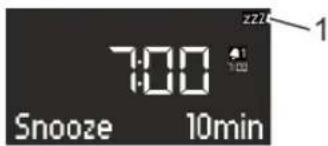
Fig. 27: Setting the Snooze function
- Briefly press the [SNOOZE] button in Standby mode. Press and hold the [SNOOZE] button in an operating mode until the Snooze setting appears (Fig. 27).
The Snooze symbol (Fig. 27/1) appears on the display. - Turn the click wheel to set the snooze time.
i
Alternatively, you can also use the [Next] or [Previous] buttons to set the snooze time.
- Press the click wheel to confirm the entry.
10 General audio playback functions
To playback audio from different media, select the relevant mode using the [MODE] button on the front of the device or select the relevant mode on the remote control.
10.1 Setting the volume
Fig. 28: Setting the volume
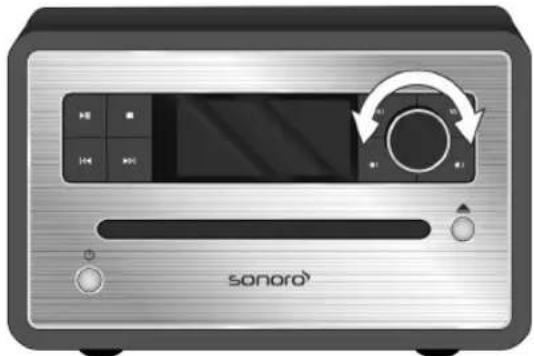
1. Turn the click wheel (Fig. 28) to increase or decrease the volume.
A volume control is shown on the display.
10.2 Muting the audio playback
Mute
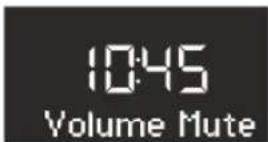
Fig. 29: Mute
- In playback mode, briefly press the [MUTE] button on the top of the device to turn off the sound during playback. Alternatively, you can also press the [MUTE] button on the remote control.
The [Volume Mute] Fig. 29 text appears on the display
Switching on the sound
- To turn the sound back on, press the [MUTE] button on the device or the remote control again.
The initial screen is displayed.
10.3 Selecting a playback mode
Select the desired mode to playback audio from different media or external devices.
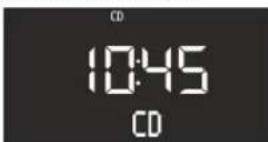
Fig. 30: Selecting a playback mode
- Switch on the device.
- Press the [MODE] button on the front of the device or the desired mode on the remote control.
The selected mode is displayed (Fig. 30).
i
Alternatively, you can also rotate the click wheel after pressing the [MODE] button to toggle through the different modes. Confirm the mode by pressing the click wheel.
11 Radio playback
After you have selected radio playback from FM-DAB, the FM or DAB symbol appears on the display. In radio mode, the display shows the following information:
Mode: FM or DAB.
- Stored programme channel, if the radio station is stored in the programme memory.
Station name, if the station transmits RDS text.
RDS text transmitted by the station, if the station transmits RDS text.
i
RDS is only available for stations in the FM frequency range and only if the corresponding station transmits RDS data.
If the station does not broadcast RDS text, then the frequency is displayed instead of the station name.
11.1 FM Radio
11.1.1 Searching an FM station
Automatic tuning
Prerequisite:
The DAM/FM antenna is connected.
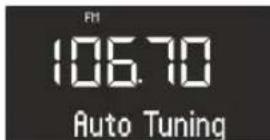
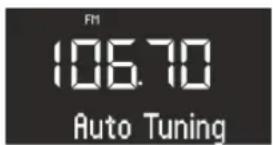
Fig. 31: Automatic tuning
- Press and hold the [Next] or [Previous] button in FM playback mode to activate the automatic station search function.
The display shows the [Auto Tuning] (Fig. 31) text.
Manual tuning
Prerequisite:
The DAM/FM antenna is connected.
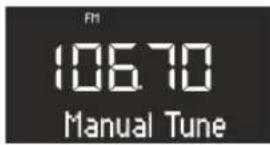
Fig. 32: Manual tuning
- Press and hold the click wheel to activate the manual station search function.
The display shows the [Manual Tune] (Fig. 32) text. - Turn the click wheel or press the [Next] or [Previous] buttons to change the frequency range.
- Press the click wheel to confirm your selection.
Automatic tuning
The automatic station search function automatically creates and saves a station list with up to 30 stations. The stations are sorted according to the strongest reception.
Prerequisite:
The DAM/FM antenna is connected.
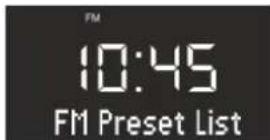
Fig. 33: FM preset list
- Press the [Menu] button.
The display shows the [FM Preset List] (Fig. 33) text. - Press the [Next] button.
The display shows the [FM Auto Search] text. - Press the click wheel.
The display shows the [Auto Search YES] text. - Press the click wheel again.
The automatic search function is started. After the search is complete, the device will jump to the first station on the list.
11.1.2 Storing FM stations
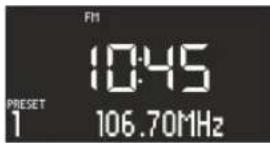
Fig. 34: Storing FM stations
- Set the radio station as described in 'Automatic tuning' on page 57 or 'Manual tuning' on page 58.
- Press and hold one of the station preset buttons on top of the device or the remote control.
The station preset is displayed.
i
You can save up to 6 FM stations.
11.1.3 Retrieving saved FM stations
- Briefly press one of the station preset buttons on top of the device or the remote control.
The selected station is played.
11.2 DAB radio
11.2.1 Searching a DAB station
Automatic tuning
Prerequisite:
The DAM/FM antenna is connected.
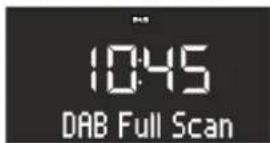
Fig. 35: Automatically searching a DAB station
- Press the [Menu] button in DAB playback mode.
[DAB Full Scan] (Fig. 35) appears in the display. - Press the click wheel on the device or the [OK] button on the remote control to activate.
The device will now search for available radio stations and play back the first available station.
Manual tuning
Prerequisite:
The DAM/FM antenna is connected.
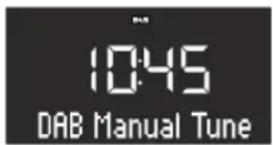
Fig. 36: Manually searching a DAB station
- Press the [Menu] button in DAB playback mode.
- Press the [Next] button.
[DAB Manual Tune] appears in the display (Fig. 36).
- Press the click wheel on the device or the [OK] button on the remote control.
- Turn the click wheel or press the [Next] or [Previous] buttons to change the frequency range.
- Press the click wheel to confirm your selection.
Removing inactive stations - Prune list
Prerequisite:
The DAB station list created using the DAB full scan function is out of date (e. g., after a change of address).
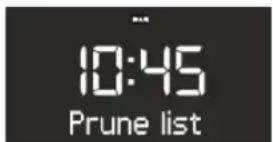
Fig. 37: Deleting inactive DAB stations
- Press the [Menu] button in DAB playback mode.
[Prune list] (Fig. 37) appears in the display.
- Press the click wheel to confirm your selection.
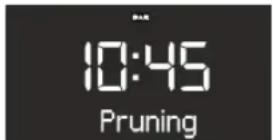
Fig. 38: Pruning
- Press the click wheel again to select and delete inactive DAB stations.
Inactive DAB stations are deleted. In the meantime, [Pruning] is displayed (Fig. 38).
11.2.2 Storing a DAB station
- To store DAB stations, proceed as described in Chapter 11.1.2 'Storing FM stations' on page 58.
i
You can store up to 6 DAB stations.
11.2.3 Retrieving stored DAB stations
- To retrieve a stored DAB station, proceed as described in Chapter 11.1.3 'Retrieving saved FM stations' on page 58.
The selected station is played.
11.2.4 Retrieving DAB info
In DAB mode, you can call up information on the station, programme, etc. The information is displayed in the following order:
Station name (starting point)
■ Broadcaster
DLS ("Dynamic Label Service" programme-related information, such as artist, track, etc.)
Programme type (e.g. Sport)
Station frequency
Signal quality
The device is in DAB mode. The display shows the station name.
- To retrieve the different DAB information, press the [STOP] button on the device or on the remote control in DAB mode.
The display shows the [Broadcaster] text.
- Press the [Stop] button again.
The display shows the [DLS] text. - Proceed accordingly to retrieve the remaining DAB information.
11.2.5 Setting the DRC
3 different settings are available for the Dynamic Range Compression (DRC) function:
The device is in DAB mode.
- Press the [Menu] button.
The display shows the [DAB Full Scan] text.
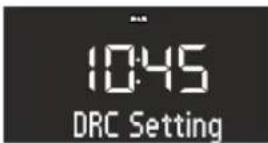
Fig. 39: Setting the DRC
- Press the [Next] button until the [DRC Setting] text is displayed.
- Press the click wheel on the device or the [OK] button on the remote control.
- Select the desired setting using the [Next] or [Previous] button.
- Confirm the setting by pressing the click wheel.
12 CD playback
NOTICE!
Material damage from improper operation!
Do not insert any recording media that deviate from the standard CD format (e. g. mini-discs, etc.) into the CD player. These may not be played and ejected correctly. Insert only one disc at a time into the CD player.
- Switch on the device.
- Insert the CD into the CD slot with the label side up.
The CD player will automatically pull in the CD and start playback.
i
If the device is in a different mode, it will automatically switch to CD mode.
In CD mode, the display shows the following information:
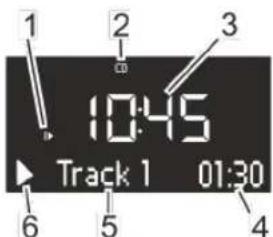
Fig. 40: Display in CD mode
1Playback sequence (Repeat, Shuffle, CD Resume)
2 CD mode
3 Time
4 Elapsed time in minutes
5 Track number
6 Playback status (Play/Pause)
To pause CD playback, press [Play/Pause].
To resume CD playback, press [Play/Pause].
To switch to the next track, press [Next] once.
To fast forward through a track, press and hold down [Next].
To switch to the previous track, press [Previous].
To fast reverse through a track, press and hold down [Previous].
To stop CD playback, press [Stop].
To eject the CD, press [Eject].
Adjusting CD playback
You can choose different playback sequences to play tracks on a CD.
- Press the [Menu] button to open the CD menu. This includes the following functions:
Repeat a single track
Repeat all tracks on the CD
Shuffle
CDResume
Set bass
Settreble
Settings
- Press the click wheel to select the function.
Repeating a single track
The current track is played repeatedly. This function is terminated when you switch modes or eject the disc.
Repeating all tracks
All tracks on the CD are played repeatedly. This function is terminated when you switch modes or eject the disc.
Shuffle
All tracks on the CD are played in random order. This also happens when you press [Next] or [Previous]. This function is terminated when you switch modes or eject the disc.
CD Resume
The CD will resume playback from the last played position, even if you have switched modes or switch the device to Standby mode. This function is terminated when you eject the CD. This function is intended for audible books, for example.
13 Bluetooth playback
Mobile phones and other Bluetooth-enabled devices can be connected to the radio via Bluetooth.
i
Use the manual of your mobile phone or your device for help.
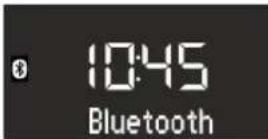
Fig. 41: Setting the Bluetooth mode
-
Switch on the device.
-
Press the [MODE] button on the front of the device or the [Bluetooth] button on the remote control.
The Bluetooth mode is now active (Fig. 41).
i
Alternatively, you can also use the [Next] or [Previous] buttons to set the mode.
- Connect your mobile phone or your device to the radio via Bluetooth.
i
Ener code '0000'.
i
The radio can store up to 8 devices and connects itself automatically with previously configured devices if Bluetooth is enabled.
13.1 Connecting Bluetooth devices
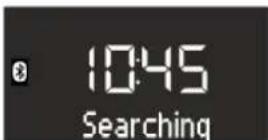
Fig. 42: Searching for Bluetooth
-
The Bluetooth symbol will flash on the display and the [Searching] (Fig. 42) text appears.
-
After connecting, the display permanently shows the [Bluetooth] text.
13.2 Playing music via Bluetooth
Starting playback
- Press [Play] on the front of the device or on the remote control to start playback.
Pausing playback
- To pause playback, press [Play] again.
14 AUX playback
You can connect and play additional audio devices to the radio via the AUX port on the back of the device.
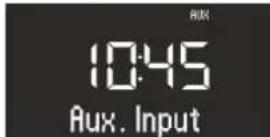
Fig. 43: Activating AUX Playback
- Switch on the device.
- Press the [MODE] button and select [AUX] mode or press the [AUX] button on the remote control.
i
Alternatively, you can also use the [Next] or [Previous] buttons or the click wheel to select the mode.
The AUX symbol (Fig. 43) appears on the display
- Turn on the external device and start playback on the external device.
i
You cannot operate an external device using the buttons on the radio.
15 USB playback
You can connect additional devices to the radio and play music through the USB Charge & Playback port on the back.
i
The MP3 and WMA formats can be played.
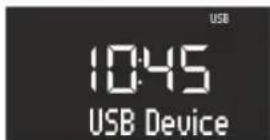
Fig. 44: Set USB playback
-
Switch on the device.
-
Press the [MODE] button and select the [USB] mode or press the [USB] button on the remote control.
i
Alternatively, you can also use the [Next] or [Previous] buttons and the click wheel to select the mode.
The USB symbol appears on the display (Fig. 44).
- Connect an external USB device to the radio.
The [Search] text appears on the display
- Press the [Play/Pause] button to commence playback.
i
By pressing the [USB button] on the remote control, you can edit the ID3 metadata, if available. The sequence is:
'track artist album elapsed time'
- Press the [Play/Pause] button to stop playback.
Stopping USB playback
- Press the [Stop] button on the front of the device to pause USB playback.
16 Relax Music playback
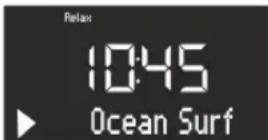
Fig. 45: Setting Relax Music
-
Switch on the device.
-
Press the [MODE] button and select the [Relax] mode. Alternatively, you can also press the [RELAX] button on the remote control.
i
Alternatively, you can also use the [Next] or [Previous] buttons and the click wheel to select the mode.
The Relax Music menu appears on the display (Fig. 45).
- Press one of the memory keys or the [Next] or [Previous] button to select music:
Ocean Surf
Whales
Birds
Rain
Wind chimes
Fireplace
17 Demo Sound playback
Demo Sound can be played in Standby mode to demonstrate the device in a shop, for example.
Activating Demo Sound mode
- Press and hold the click wheel for approx. 3 seconds.
Demo Sound mode is activated. - Press the 1-6 memory keys located on the top of the device or the remote control to select a Demo track.
The Demo Sound track is displayed.
i
The following buttons are active:
- Play/Pause.
-Mute.
Exiting Demo Sound mode
- Press and hold the [Standby] button or press and hold the click wheel for approx. 3 seconds to exit Demo Sound mode.
18 Troubleshooting
Malfunctions may occur with any electrical equipment. This must not always involve a defect of the device. Therefore, check the following table to see if you can eliminate the problem yourself.
| Malfunction Possible cause Elimination | ||
| Device does not turn on AC adapter | with universal adapter is not properly connected | Properly connect the AC adapter with universal adapter (see Chapter 7.3 'Connecting the power supply' on page 51). |
| No sound Volume is set to minimum | Increase the volume (see | Chapter 10.1 'Setting the volume' on page 57). |
| Sound is turned off Switch on the sound | and (see Chapter 10.2 'Muting the audio playback' on page 57). | |
| Headphones are connected Pull the headphones out of the jack. | headphones out of the jack. | |
| Another mode is set Set the correct mode (see Chapter 10.3 'Selecting a play-back mode' on page 57). | mode (see Chapter 10.3 'Selecting a play-back mode' on page 57). | |
| CD playback does not start CD format | is not compatible Insert a different CD into the CD slot. | CD into the CD slot. |
| CD is dirty Clean the CD. | ||
| CD is damaged Insert a different CD into the CD slot. | into the CD slot. | |
| CD is upside down in the disc tray Remove the CD and insert it correctly into the disc tray. | remove the CD and insert it correctly into the disc tray. | |
| USB playback does not start USB device | ice is not plugged in Insert the USB device into the port on the back of the device (see Chapter 15 'USB playback' on page 61). | device into the port on the back of the device (see Chapter 15 'USB playback' on page 61). |
| USB device is not compatible Check if your USB device is compatible with the radio. | if your USB device is compatible with the radio. | |
| USB device has no legible audio files. | Check the files on the USB device. | |
| No or poor Bluetooth connection Malfunction due to other radio transmitters or devices | If functions due to other radio transmitters or devices | Increase the distance between the radio and your TV. |
| Software is out of date Ensure that the current software version is installed on your external Bluetooth device. | the current software version is installed on your external Bluetooth device. | |
| Device does not respond | Error in the device | Switch the device off and then on again. |
| Poor FM/DAB reception FM/DAB antenna | enna is not properly positioned | Change the position of the FM/DAB antenna. |
| Remote control does not work or only sporadically | Distance is too great | Decrease the distance between the remote control and the device. |
sonoro
| Malfunction Possible cause Elimination | ||
| Battery is empty Replace the battery | of your remote control (see Chapter 7.5 'Preparing the remote control' on page 51). | |
| Malfunctions due to other radio transmitters or devices | Increase the distance between the source of interference and the radio. Plug the device into another socket so that the source of interference and the radio are connected to different branch currents. | |
| Alarm does not work Alarm is not switched | Switched on Switch on the alarm (see Chapter 9.5 'Switching on/off the alarm clock' on page 56). | |
| Alarm volume is set to minimum Inc | ease the volume (see Chapter 9.3 'Setting the alarm volume' on page 56). | |
| Headphones are connected Pull the | headphones out of the jack. | |
19 Cleaning
▲NOTICE!
Material damage from improper cleaning!
Only clean the device from the outside using a dry, soft cloth. Never use abrasive or solvent-based cleaning agents as these may damage the surface of the device.
20 Technical Data
| Specification Value | |
| Dimensions (WxDxH) approx. 210 x 257 x 140 mm | |
| Weight approx. 3.2 kg | |
| Reception range FM 87.5 MHz - | 108 MHz |
| Reception range DAB/DAB+ 174.9 | 928 MHz - 239.2 MHz |
| Tuning range (FM) 50 KHz | |
| AC adapter, power Model: S0480 | M1550290 Input: 100 - 240 V ~50/60 Hz Output: 15.5 V, DC, 2.9 A |
| Bluetooth Version: 3.0 (EDR) | Profile: AVRCP 1.0, A2DP 1.0 |
| AUX-IN Connection: 3.5 mm jack | Sensitivity: 300 mV |
| Batteries Lithium battery: 3 V, type CR2032 (button cell) | |
| Laser Class 1 | |
| Ports Headphones, AUX-IN, USB | (loading and playing USB) |
| CD Playback formats: Audio CD, MP3 CD, WMA CD, CD-R* and CD-RW* (*Playback depends on the CD and the recording quality) | |
| USB Playback formats: MP3, WM | A Output: DC 5V, 1A Compatible systems: FAT 16, FAT 32 (not compatible with NTFS systems) Maximum capacity of the USB device: 32 GB Maximum supported file size: < 2 GB Maximum supported tracks: 999 Supports ID3 tag to display track/artist |
21 Disposal
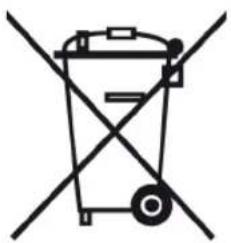
obtained at your municipality, local waste disposal company and the store where you purchased this device. Proper disposal of old devices prevents environmental damage and does not jeopardise your health.
Batteries/rechargeable batteries may contain toxic heavy metals and are subject to hazardous waste treatment. Return the batteries/rechargeable batteries to a municipal collection point or have them disposed of by a specialist company.
Fig. 46: Do not dispose of in household waste
Devices that are marked with this symbol should not be disposed of in household waste but must be returned to a collection point for recycling of electrical and electrotechnical devices. Information regarding the disposal of old equipment can be
22 Declaration of Conformity
Declaration of Conformity

Fig. 47: CE mark
Manufacturer: sonoro audio GmbH
We hereby declare that sonoroCD meets the essential requirements of the EMC Directive 2004/108/EC, the Low Voltage Directive 2006/95/EC, the R & TTE Directive 1999/5/EC and the Ecodesign Directive 2009/125/EC, including changes valid at the time of the declaration, due to its design, engineering and build.
23 Warranty
When submitting warranty claims, the following is valid - without restricting - your legal rights:
Warranty claims can only be asserted within a period of max. 2 years (1 year in North America and Australia), calculated from the date of purchase.
sonoro audio GmbH shall, at its own discretion, repair or replace the device free of charge any defects caused by material or manufacturing defects within the warranty period.
In case of a complaint, please contact our customer service department. You can find contact details ( Contact data' on page 41) or at www.sonoro-audio.com.
No new warranty period begins following repair or replacement of the device. The warranty period of 2 years (1 year in North America and Australia) from date of purchase remains applicable.
Excluded from the warranty are batteries, damage caused by improper use, normal wear and tear, as well as defects which only minimally affect the value or usability of the device. The warranty also expires for any modifications not made by our authorised service centre.
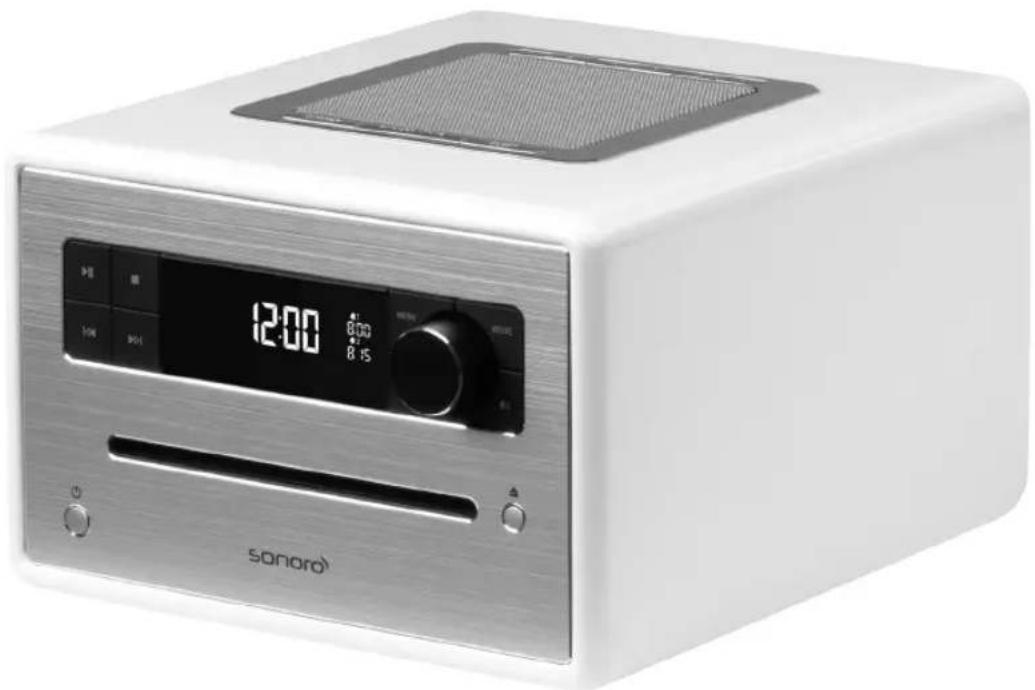
sonoroCD (SO-210)
CD-Digitalradio

Digital Audio Broadcasting

Bluetooth
Mode d'emploi
sonoro
sonoro audio GmbH & Co. KG
Unter Goldschmied 6
50667 Cologne
Telephone: +49 221 - 16 79 29 - 0
Fax: +49 221 - 16 79 29 - 290
Courriel: info@sonoro-audio.com
Internet: www.sonoro-audio.com
sonoro Service Center FR
Telephone: +49 18 05 27 67 66
Courriel: support@sonoro-audio.com
sonoro
Table des matieres
I'antenne DAB/FM est raccordee.
I'antenne DAB/FM est raccordee.
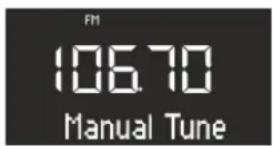
Fig. 32: Recherche manuelle de stations
I'antenne DAB/FM est raccordee.
I'antenne DAB/FM est raccordee.
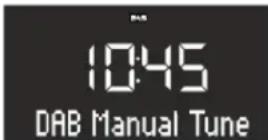
Fig. 36: Recherche manuelle d'une station DAB
Digital Audio Broadcasting

Bluetooth
Este aparato está clasificado como aparato láser de Clase 1. Los rayos láserSEOSEOSEOSEOSEOSEOSEOSEOSEOSEOSEOSEOSEOSEOSEOSEOSEOSEOSEOSEOSEOSEOSEOSEOSEOSEOSEOSEOSEOSEOSEOSEOSEOSEOSEOSEOSEOSEOSEOSEOSEOSEOSEOSEOSEOSEOSEOSEOSEOSEOSEOSEOSEOSEOSEOSEOSEOSEOSEOSEOSEOSEOSEOSEOSEOSEOSEOSEOSEOSEOSEOSEOSEOSEOSEOSEOSEOSEOSEOSEOSEOSEOSEOSEOSEOSEOSEOSEOSEOSEOSEOSEOSEOSEOSEOSEOSEOSEOSEOSEO SEO SUIGUE:
A工程技术 of the radio and its application.
A工程技术 of the radio and its application.
A Technology of the radio and its application.
A Technology of the radio and its application.
Digital Audio Broadcasting

Bluetooth
Manuale operativo
sonoro
sonoro audio GmbH & Co. KG
Unter Goldschmied 6
50667Koln
Telefono: +49 221 - 16 79 29 - 0
Fax: +49 221 - 16 79 29 - 290
E-mail: info@sonoro-audio.com
Internet: www.sonoro-audio.com
sonoro Service Center IT
Tecnostyle S.r.l.
Via Rodi 6
25124 Brescia Italy
[Tune to FM RDS station to set time & date].
i
Digital Audio Broadcasting

Bluetooth
[Tune to FM RDS station to set time & date] på displayer.
i
11.2.1 Søgning after DAB-stationer
Repeat One
Repeat Disc
Shuffle Disc
CD Resume
Bass
Treible
Settings
- Tryk pa betjeningsknappen for at vaelge en Funktion.
Repeat One
Den aktuelle sang gentages. Denne Funktion deaktiveres, his du skifter fonction aller tager cd'en ud.
Repeat Disc

- sonoro
- Inhaltsverzeichnis
- Table of contents
- General audio playback functions 56
- Radio playback 57
- CD playback 60
- AUX playback 61
- Introduction
- For your own safety
- Symbols in this manual
- Safety instructions
- WARNING!
- CAUTION!
- A NOTICE!
- Helpful tips and recommendations
- i
- Intended use
- Children and persons with limited cognitive abilities
- Power supply
- Batteries
- Laser
- Transport
- Ambient conditions
- Operation
- Headphone use
- Defect
- Cleaning
- Scope of delivery
- Compatible formats
- Compatible CD formats
- NOTICE!
- Compatible audio formats
- Controls and ports
- Remote control
- Display
- Unpacking the device and commencing operation
- Unpacking the device
- Inserting the battery
- Connecting the power supply
- Connecting the antenna
- Preparing the remote control
- Connecting the headphones
- Setting the basic functions
- Switching on the device for the first time
- The Standby menu
- Setting the time manually
- Setting the date manually
- Switching on/off the date
- The Settings menu
- Setting the time format
- Setting the date format
- Setting the automatic time/date update function
- Setting the display language
- Switching on/off Demo Sound
- Setting the dimmer
- Setting the sound
- Setting the Sleep Timer
- Setting the Sleep Timer
- Switching off the Sleep Timer
- Setting the time interval for the Sleep Timer
- The wake-up function
- Setting the alarm time
- Setting the alarm source
- Setting the alarm volume
- Setting the alarm repeat frequency
- Switching on/off the alarm clock
- Switching on the alarm clock
- Switching off the alarm clock
- Switch off the alarm clock after the alarm sounds
- Setting the Snooze function
- General audio playback functions
- Setting the volume
- Muting the audio playback
- Mute
- Fig. 29: Mute
- Switching on the sound
- Selecting a playback mode
- Radio playback
- FM Radio
- Searching an FM station
- Automatic tuning
- Prerequisite:
- Manual tuning
- Fig. 32: Manual tuning
- Fig. 33: FM preset list
- Storing FM stations
- Fig. 34: Storing FM stations
- Retrieving saved FM stations
- DAB radio
- Searching a DAB station
- Removing inactive stations - Prune list
- Fig. 38: Pruning
- Storing a DAB station
- Retrieving stored DAB stations
- Retrieving DAB info
- Setting the DRC
- CD playback
- Adjusting CD playback
- Repeating a single track
- Repeating all tracks
- Shuffle
- CD Resume
- Bluetooth playback
- Connecting Bluetooth devices
- Playing music via Bluetooth
- Starting playback
- Pausing playback
- AUX playback
- USB playback
- Stopping USB playback
- Relax Music playback
- Demo Sound playback
- Activating Demo Sound mode
- Exiting Demo Sound mode
- Troubleshooting
- Cleaning
- ▲NOTICE!
- Technical Data
- Disposal
- Declaration of Conformity
- Warranty
- sonoroCD (SO-210)
- CD-Digitalradio
- Table des matieres
- Søgning after DAB-stationer
- Repeat One
- Repeat Disc
Brand : SONORO
Model : CD
Category : Radio