LCD2037TNDVX - TV SALORA - Free user manual and instructions
Find the device manual for free LCD2037TNDVX SALORA in PDF.




| Product type | LCD TV with built-in DVD/DivX player |
| Screen size | 19 inches (20 and 22 inches depending on variant) |
| Maximum resolution | 1440 x 900 (19") / 1360 x 768 (20") / 1680 x 1050 (22") |
| Panel type | Active color TFT LCD |
| Dimensions (with stand) | 479 x 392.6 x 200 mm (19") |
| Dimensions (without stand) | 479 x 323 x 89.8 mm (19") |
| Weight | 5 kg (19") |
| Power supply | DC 12V / 5A (AC adapter included) |
| Maximum consumption | 60 W (19") |
| Standby consumption | Less than 3 W |
| Built-in TV tuner | DVB-T (Freeview) and analog PAL/SECAM |
| Supported video formats | DVD, DivX (3.11/4.x/5.x), MPEG4 ASP, VCD, SVCD |
| Supported audio formats | MP3, WMA, CD audio |
| Image formats | JPEG, Picture CD |
| Video connectors | HDMI, SCART (Peritel), Component YPbPr, S-Video, CVBS, PC (D-Sub) |
| Audio connectors | PC audio input, digital audio output S/PDIF, headphone output |
| Main functions | Electronic program guide (EPG), teletext, timer, parental lock, favorites lists |
| PC function | Use as monitor, position and frequency settings |
| Care and cleaning | Turn off and unplug before cleaning; use a soft slightly damp cloth; do not use flammable products |
| Safety | Do not expose to water or humidity; do not block ventilation openings; use only provided adapter |
| Included accessories | Remote control, AAA batteries, power cable, adapter, stand screws, cleaning cloth, stand cover for wall mounting |
Frequently Asked Questions - LCD2037TNDVX SALORA
User questions about LCD2037TNDVX SALORA
0 question about this device. Answer the ones you know or ask your own.
Ask a new question about this device
Download the instructions for your TV in PDF format for free! Find your manual LCD2037TNDVX - SALORA and take your electronic device back in hand. On this page are published all the documents necessary for the use of your device. LCD2037TNDVX by SALORA.
USER MANUAL LCD2037TNDVX SALORA
Aansluting van DTV receiver
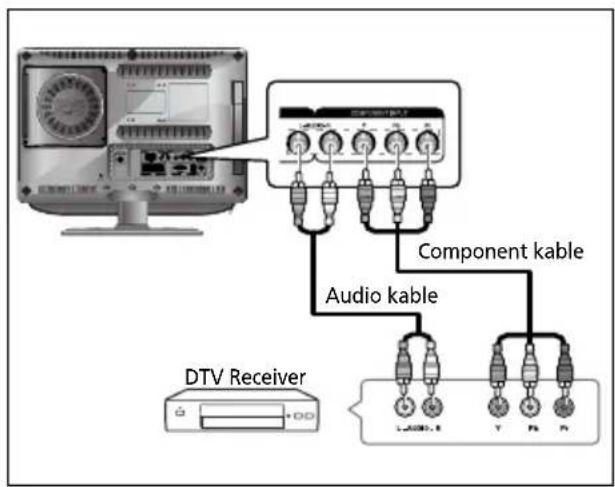
Aansluitprocedure

(Het standard password is 0000.)
Smart card information
Language
Software Download
Press OK to select, or Exit to quit
OK Afbreken
Cd = Cadmium, Hg = Quecksilber, Pb = Blei
TFT LCD TV - Built in DVD/DivX(Option) Player
19”/20”/22”
English
Safety Instruction
Warning
TO PREVENT FIRE OR SHOCK HAZARD. DO NOT EXPOSE THIS APPLIANCE TO RAIN OR MOISTURE.
| CAUTION | |
| RISK OF ELECTRIC SHOCK DO NOT OPEN NO USER-SERVICEABLE PARTS INSIDE | ! |
CAUTION: TO REDUCE THE RISK OF ELECTRIC SHOCK, DO NOT REMOVE COVER (OR BACK). NO USER-SERVICEABLE PARTS INSIDE. REFER SERVICING TO QUALIFIED SERVICE PERSONNEL.

THIS SYMBOL IS INTENDED TO ALERT THE USER TO THE PRESENCE OF UNINSULATED. DANGEROUS VOLTAGE. WITHIN THE PRODUCTS ENCLOSURE THAT MAY BE OF SUFFICIENT MAGNITUDE TO CONSTITUTE A RISK OF ELECTRIC SHOCK TO PERSONS.

THIS SYMBOL IS INTENDED TO ALERT THE USER TO THE PRESENCE OF IMPORTANT OPERATING AND MAINTENANCE (SERVICING) INSTRUCTIONS IN THE LITERATURE ACCOMPANYING THE APPLIANCE.
Important Safety Instructions
This equipment has been designed and manufactured to meet international safety standards but, like any electrical equipment, care must be taken if you are to obtain the best results and safety is to be assured. So, please read the points below for your own safety. They are of a general nature, intended to help you with all your electronic consumer products and some points may not apply to the goods you have just purchased.
- Read these instructions.
- Keep these instructions.
Heed all warnings. - Follow all instructions.
- Do not use this apparatus near water.
- Clean only with a dry cloth.
- Do not block any ventilation openings. Install in accordance with the manufacturer's instructions.
- D o not install near any heat sources such as radiators, heat registers, stoves, or other apparatus (including amplifiers) that produce heat.
- This TV is not completely disconnected from a power supply line, as minute current is consumed even when the POWER switch is turned off.
- Do not place hot objects or naked flame sources, such as lighted candles or nightlights on, or close to the TV. High temperatures can melt plastic and lead to fires.
-
Do not set on top of the TV any object or container that might spill liquids or small objects into the TV.
-
Protect the power cord from being walked on or pinched, particularly at plugs, convenience receptacles, and the point where it exits the apparatus.
- Only use attachments/accessories specified by the manufacturer.
- Use only with the cart, stand, tripod, bracket, or table specified by the manufacturer, or sold with the apparatus. When a cart is used, use caution when moving the cart/apparatus combination to avoid injury from tip-over.
- Unplug this apparatus during lightning storms or when unused for long periods of time.
Refer all servicing to qualified service personnel. Servicing is required when the apparatus has been damaged in any way, such as power supply cord or plug is damaged, liquid has been spilled or objects have fallen into the apparatus, the apparatus has been exposed to rain or moisture, does not operate normally, or has been dropped. - The apparatus shall not be exposed to dripping or splashing and no objects filled with liquids, such as vases, shall be placed on the apparatus.
CAUTION: Danger of explosion if battery is incorrectly replaced. Replace only with the same or equivalent type.
Disposal of Old Electrical & Electronic Equipment (Applicable in the European Union and other European countries with separate collection systems)
This symbol on the product or on its packaging indicates that this product shall not be treated as household waste.
Instead it shall be handed over to the applicable collection point for the recycling of electrical and electronic equipment.
By ensuring this product is disposed of correctly, you will help prevent potential negative consequences for the environment and human health, which could otherwise be caused by inappropriate waste handling of this product. The recycling of materials will help to conserve natural resources. For more detailed information about recycling of this product, please contact your local city office, your household waste disposal service or the shop where you purchased the product.
Installing the Stand
- Place the TV face down on a soft cloth or cushion on a table.
- Tilt the stand by about 45 degrees to the right, and then put it together with the TV like the picture below.
- When the stand is engaged with the TV set, spin it counterclockwise to fix it on the TV.
- Following the Picture 3, turn the screw in the bottom of the stand to hold it in place.
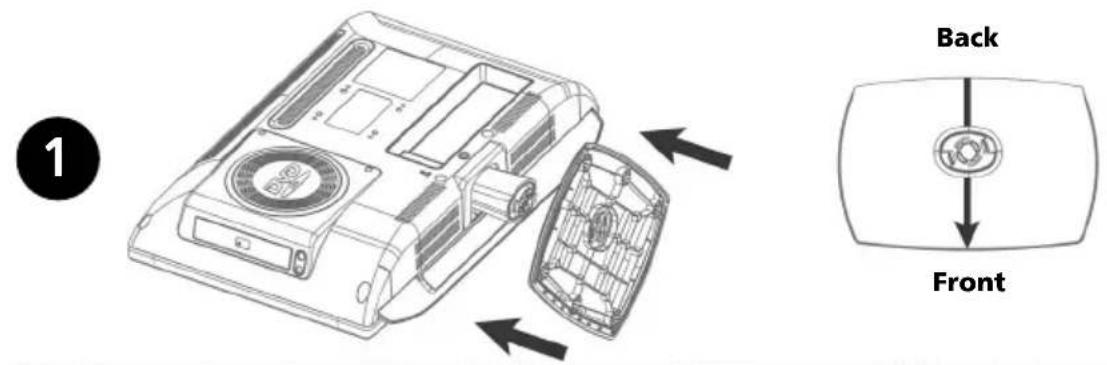
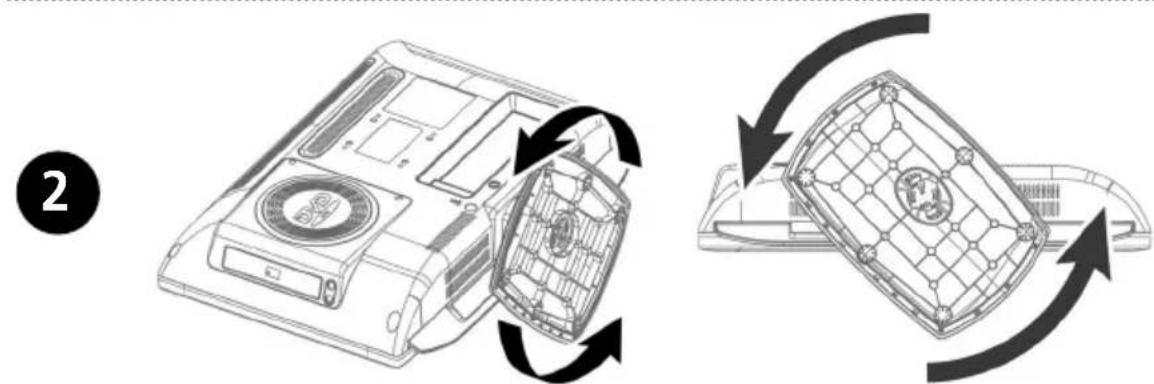
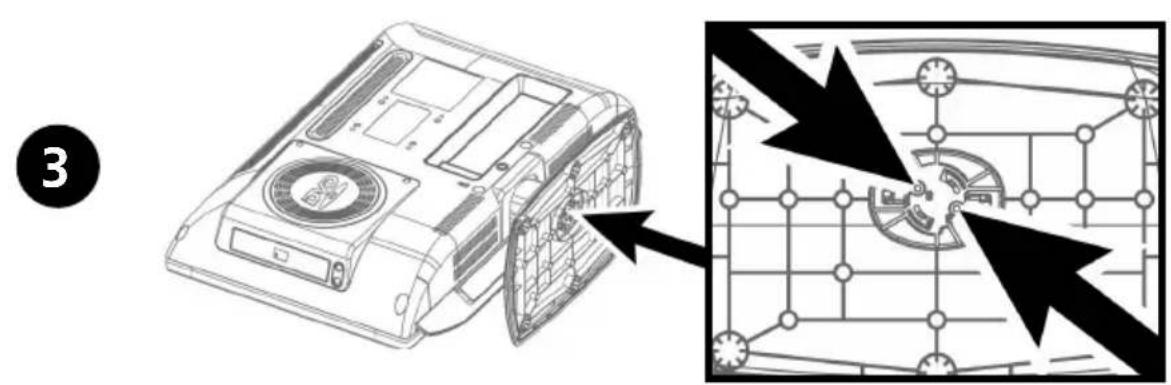
Using ARM on the Outer Wall
NOTE.
- Before installing TV wall mount, detach the stand from the TV.
- With the stand detached, install the stand cover in the same way like the stand.
Installing the Stand neck-Cover
- Place the TV face down on a soft cloth or cushion on a table.
- Install the stand neck cover following the picture below.
- With the cover fixed, turn the screw in bottom of the cover to hold it in place.
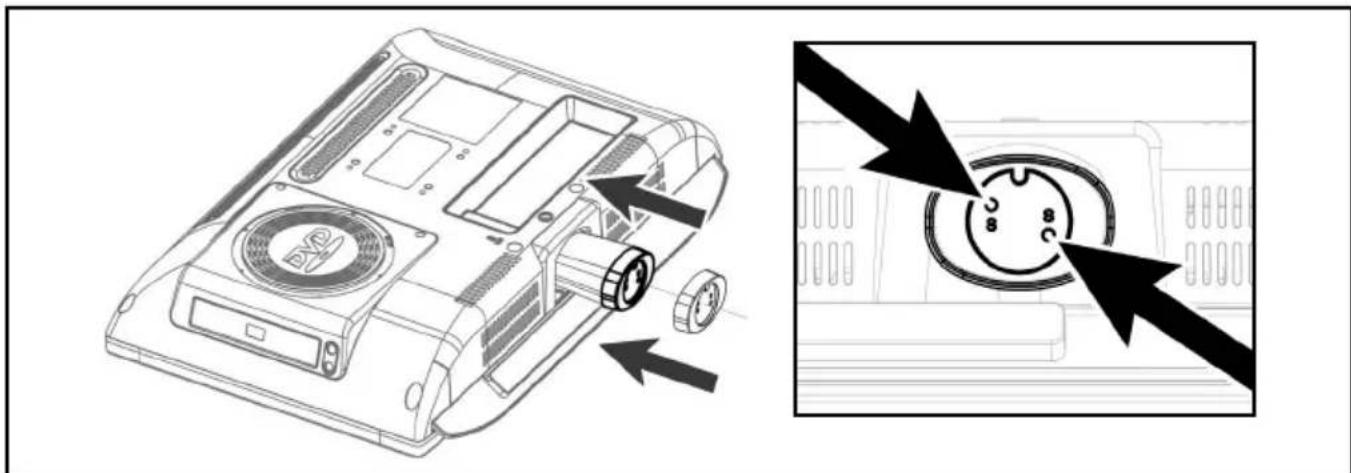
You can use any wall mount arms manufactured by an office furniture manufacturer. You should take into account the following conditions.
- They have to comply with VESA Mount Interface 75mm standard.
- They have to be able to sustain the weight of the LCD TV.
They have to be fixed to a position adjustable by hand. - They have to be adjustable.
- The distance between the screw holes for fixing the arms has to be 75mm . Additionally, refer to the installation manual supplied with the arms for installation.
- Arm installation procedures Install the arms following the procedures given below.
1.Remove all cables connected to the LCD TV.
2.Lay the LCD TV face down on a flat surface with a cushion or some type of soft material to protect the screen.
3.Using a screwdriver, remove the screws fixing the stand.
4.Install the steel frame of the arms, insert the attached screws into the screw holes of the LCD TV, and then fasten the screws using a screwdriver.
- A ttach the arm to the fixed board first.
- Do not use the handle screws for fixing the stand and the handle screws to fix the arms. Use only the screws attached for the arms (M4 x 10 screws with a diameter of 4mm , and a length of 10mm ). If you use the stand screws to fix the arms, the LCD TV may be fall and get damaged, because the arms are not fixed completely. To reattach the removed stand, use the stand screws.
- Attach the arms completely. If the LCD TV becomes detached from the arms, it may cause injury or damage the product.
If the LCD TV is somehow detached accidentally, unplug the power cable from the wall outlet, and contact your service center. Damage may cause fire or electric shock.
Unplug the LCD TV from the power outlet before cleaning
- To clean your flat panel display screen, lightly dampen a soft, clean cloth with water or mild detergent.
If possible, use a special screen cleaning tissue or solution suitable for the antistatic coating.
- To clean the LCD TV cabinet, use a cloth lightly dampened with a mild detergent.
- Never use flammable cleaning material to clean your LCD TV or any other electrical apparatus.
Contents
- Safety Instruction 2
- Installing the Stand 3
Using ARM on the Outer Wall 4 - Unplug the LCD TV from the power outlet before cleaning 5
- Overview 6
Remote Control 8 - Connecting Your TV 9
- Check Before Using 11
- TV Function
Watching TV 12
Storing Channels Automatically 12
Manual Storing of Channels 13
Channel Name 13
Program Edit 14
Changing Channel 14
When the Picture Quality is Poor or Unstable 15
Selecting the Picture Status 15
Adjusting the Picture Settings 16
Selecting the Sound Mode. 16
Adjusting the BALANCE 17
Adjusting the Bass/Treble 17
Choosing a Soundtrack 17
Selecting the AVC mode. 18
Changing the Screen Size 18
Setting the Clock 18
Setting the On/Off Timer 19
Selecting the ON Timer Channel 19
Setting the Sleep Timer 19
- TTX Function
Teletext 20
Displaying the Teletext Information 20
Selecting a Page by Number 20
Using FLOF to Select a Page 21
PC Function
Connecting to a PC 21
Adjusting the PC 22
DVD Function (Depend on the model)
Playing DVD's 23
Displaying the Playback Status 23
Searching for a Specific Screen/Song 23
Repeating a Title, Chapter(DVD), Track(CD) ...24
Changing the Audio Language/
Changing the Subtilte Language 24
Changing the Size and Angle of the Screen ...25
Additional Function. 25
Setting a Specific DVD Title or Chapter 26
Playing MP3 Discs. 27
Playing DIVX Discs (Option) 27
Playing Kodak Picture CD and JPEG File 28
Using the Setup Menu 30
- DivX Function (Depend on the model)
DivX feature Table 32
DivX® VOD Playback 33
DVB-T Function (Depend on the model)
First time installation 34
Main menu 34
Channel list 35
Favourites 38
Guides
- Now/Next EPG 39
- List Schedule EPG / Timeline Schedule EPG 39
Setting
- Configuration 41
- Language 42
- Installation 43
Common Interface 45
Technical Specification 46
- Troubleshooting 47
- Specifications 49
Appendix 50
Overview
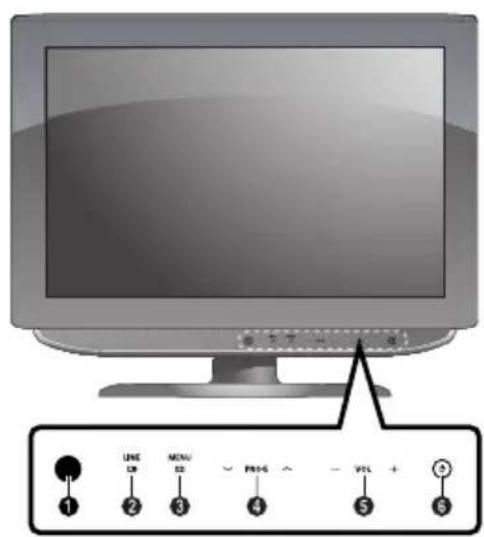
Front View
LV
LW
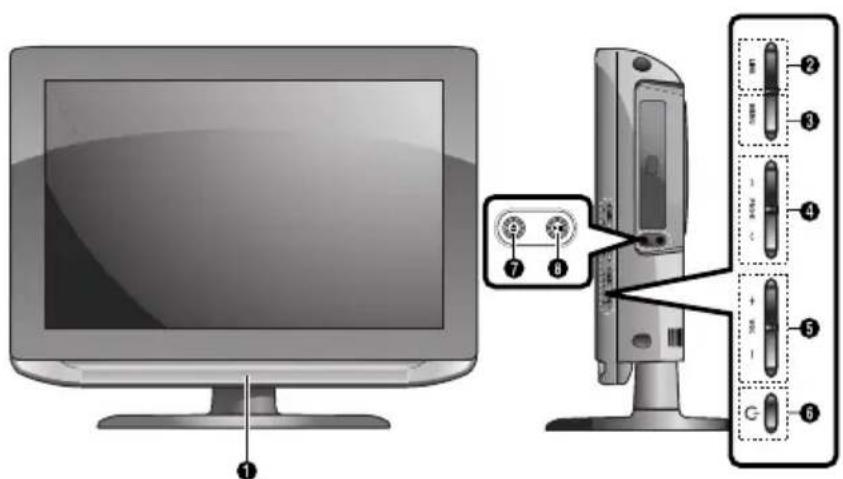
Remote Control Sensor
LINE(AV) : External input selection.
3 MENU: To access or close menus, simultaneously.
PROG: Changes channels or "MOVE" to items on the on-screen menu.
VOL: Increases or decreases the volume. This is also used to select the MOVE/ PREV item on the on-screen menu.
POWER:Turns the TV on and off.
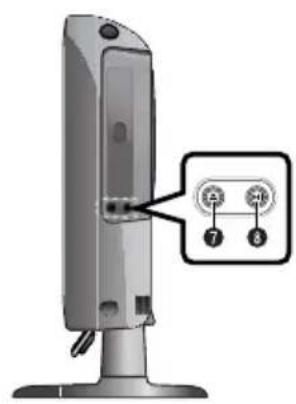
Depend on the model
7 OPEN/CLOSE: OPEN/CLOSE the DVD.
PLAY/PAUSE: Play the DVD or temporarily stop playback.
Rear Panel Jacks
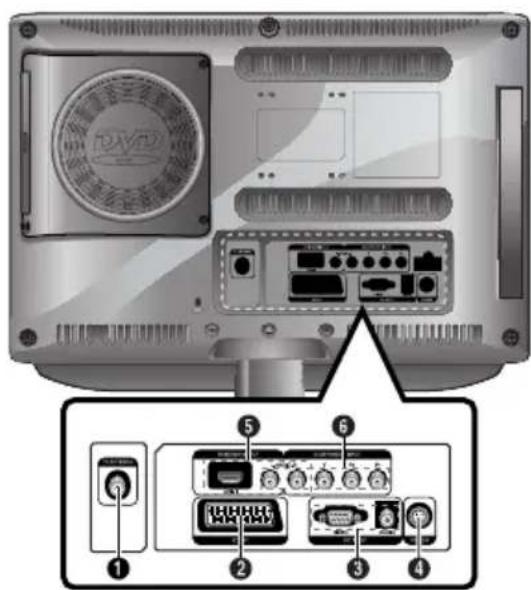
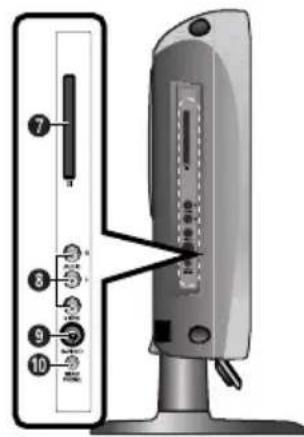
TV ANTENNA INPUT JACK
SCART JACK
PCVIDEO(D-SUB) INPUT JACK PC AUDIO INPUT JACK
4 POWER INPUT CONNECTOR
HDMI INPUT, DVI INPUT(VIDEO/AUDIO:L/R) JACK
6 COMPONENT JACKS (VIDEO: Y, Pb, Pr/AUDIO: L/R)
7 CI INPUT JACK
VIDEO(VIDEO/AUDIO) INPUT JACKS
9 S-VIDEO INPUT JACK
10 HEADPHONE JACK : Used for headphones that can be purchased additionally.
For more details on connections see page 9~11.
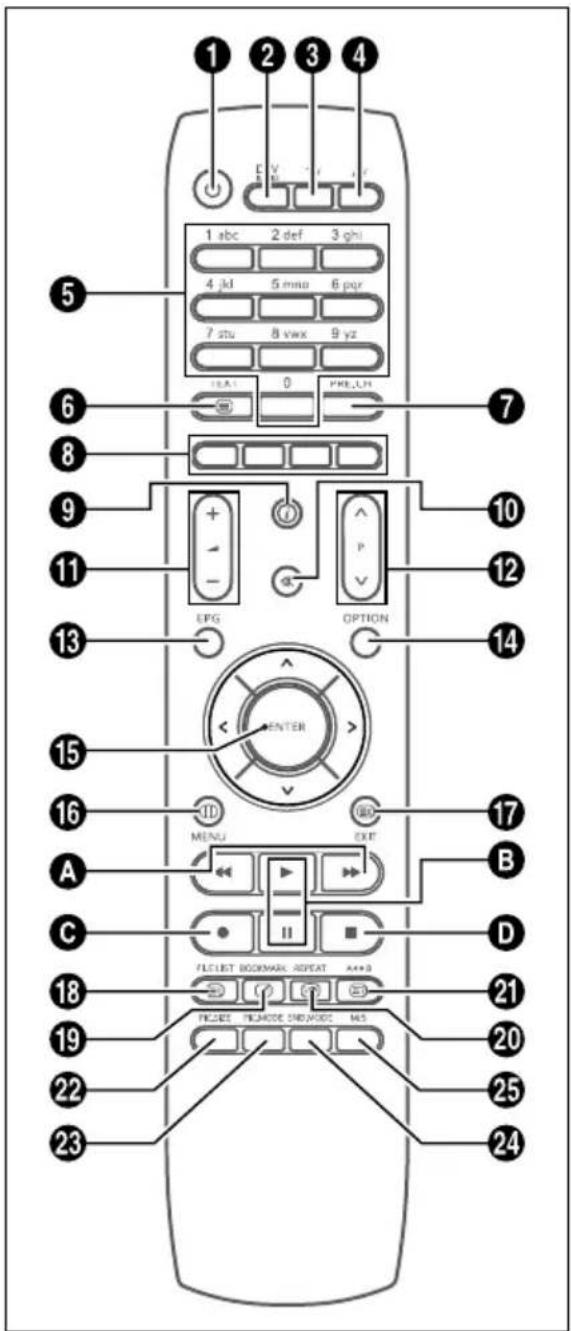
1 POWER: Turns the TV on and off.
DTV/RADIO: Switches to DVB-T mode.
3 TV: Switches to TV mode.
4 AV: External input selection.
NUMBER BUTTONS: Selects channels directly on the TV.
TEXT: Switches to Teletext mode.
PRE.CH: Moves to the previous channel.
8 COLOUR BUTTONS
9 TV - Displays the current channel and the audio-video settings. DTV - Display the current channel information.
10 (MUTE): Temporarily mute the sound.
1 (VOLUME): Increases or decreases the volume.
12 P (CHANNEL): Changes channels.
18 EPG: Electronic program guide.
OPTION: Displays the Configuration Menu in DVD or DTV mode.
15 K D V AENTER:
Select an item of menu / Change confirmation.
16 MENU: Displays the OSD menu.
17 EXIT: Exit the current configuration / To exit from the teletext display.
INDEX/FILE LIST: Programme selection by name / File list.
19 MIX/BOOKMARK: Video & TTX MIX / To SAVE a specific frame for later viewing.
SUB PAGE/REPEAT: Teletext SUB-PAGE / For specifying and repeating playback of a segment.
REVEAL/A B: Teletext reveal / For repeated playback of disc titles, chapters or sound.
PIC.SIZE: Change the screen size.
PIC.MODE: Change the picture status.
24 SND.MODE: Change the sound mode.
M/S:Sound mode selection.
- Depend on the model
A
Skip forward - Reverse /
For fast and slow playback (press and hold the button over 2seconds).
5 Play the DVD / Temporarily stop playback.
: Record (PVR ONLY)
D:Stop the DVD playback.
Connecting Your TV
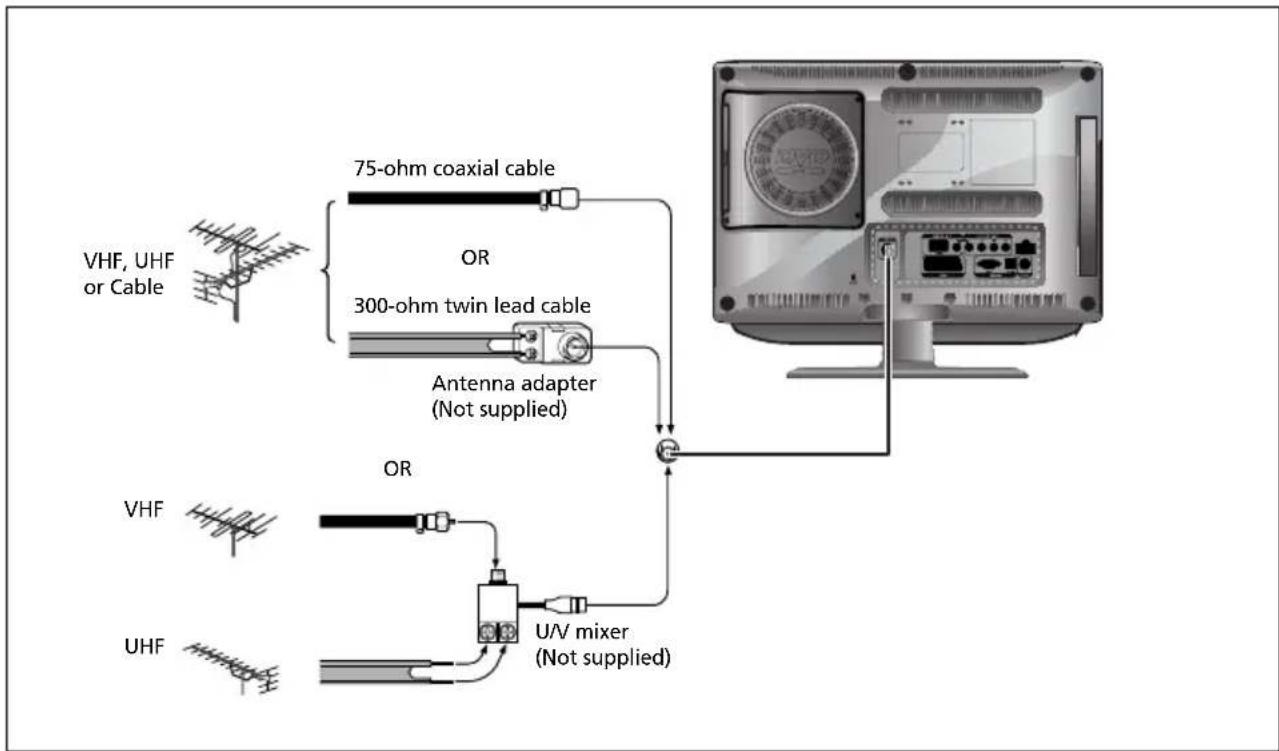
Connecting an Antenna or Cable without a Decoder box
Connecting the Video or S-Video/Audio Jacks
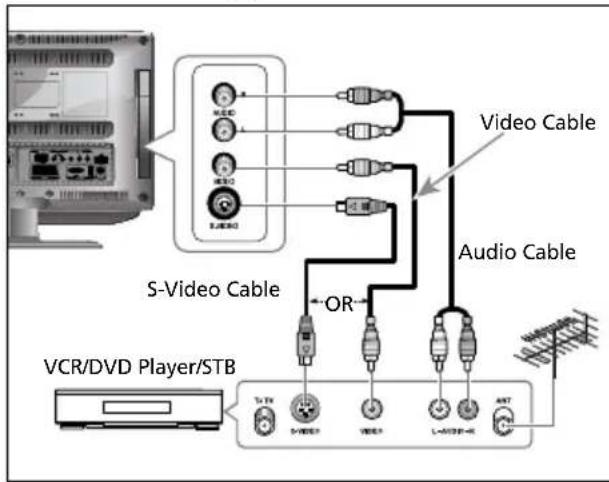
Connection Procedures
Connect the antenna cable to the ANTENNA IN terminal on the back of your VCR.
Connect theVIDEO/AUDIO INPUT jacks of the TV and the video/ audio output jacks of your VCR with the video/ audio cables. (Connect the cable to the terminal of the same color)
- You can use the S-Video cable to connect a VCR or a DVD player for better video quality.
- If your VCR does not support stereo sound, connect the mono audio out jack to the AUDIO INPUT (left) jack.
Procedures for watching a video over a VCR
Turn the TV on, and select 'VIDEO' using the AV button on the remote control.
- If you have connected a S-Video cable, select 'S-Video'.
Connecting the Scart Jack
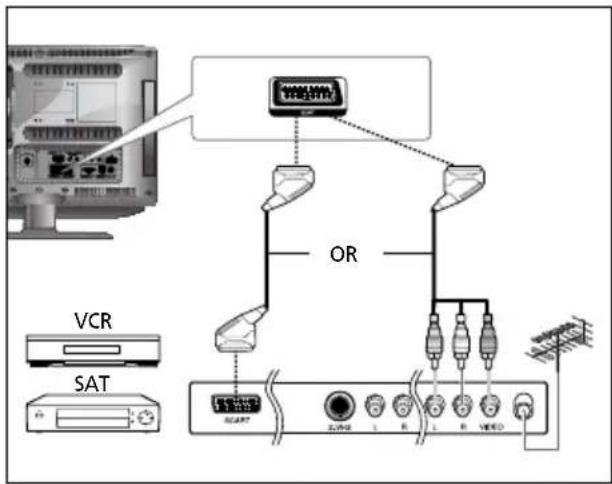
Connection Procedures
AV output is used for the equipment with an RGB output, such as video game devices or video disc players.
This end can be fitted with:
-A SCART connector
- Three RCA connectors(VIDEO+AUDIO_L+AUDIO_R)
Procedures for watching a Video over a VCR
1 Turn the TV on, and select 'SCART' using the AV button on the remote control.
NOTE: When the RGB cloors look abnormal on screen, check the SCART cable if it's properly connected.
Connecting the HDMI JACK
- Warning : Do not Connect DVI audio cable.
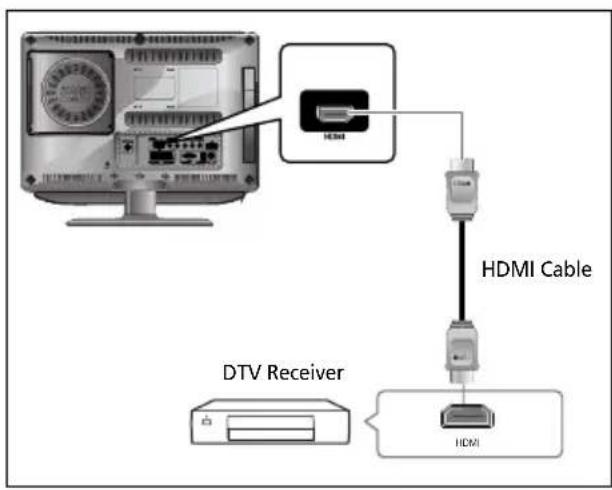
Connection Procedures
1 Connect the HDMI input jack of the TV and the HDMI output jack of your DTV Receiver (480p/60Hz, 576p/50Hz, 720p/50Hz, 720p/60Hz, 1080i/50Hz, 1080i/60Hz).
Connecting the HDMI JACK (USE DVI JACK)
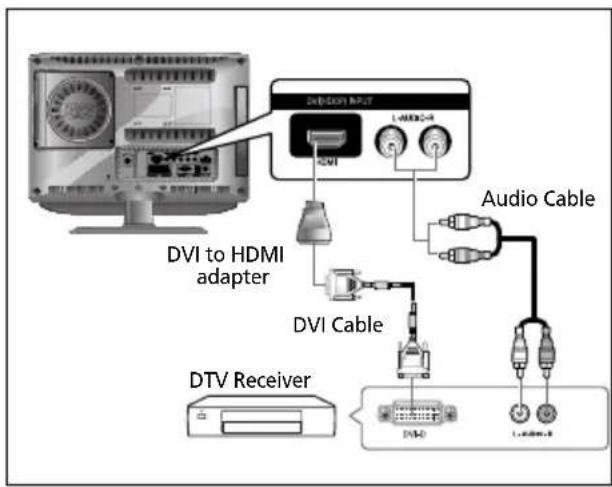
Connection Procedures
Connect the HDMI input jack of the TV and the DVI output jack of your DTV Receiver (Using the adapter or HDMI cable).
Connect the DVI audio input jacks of the TV and the DVI audio output jacks of your DTV Receiver with the audio cable (480p/60Hz, 576p/50Hz, 720p/50Hz, 720p/60Hz, 1080i/50Hz, 1080i/60Hz).
VESA Standard Mode (Resolution/Vertical Frarequency), refer to page 50.
Connecting the DTV Receiver
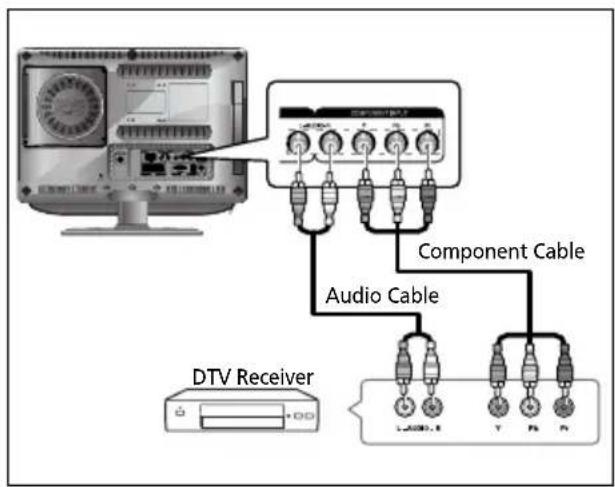
Connection Procedures
1 The COMPONENT VIDEO IN and COMPONENT AUDIO IN connectors are used for equipment with a DVD or DTV receiver out. (480i/60Hz, 480p/60Hz, 576i/50Hz, 576p/50Hz, 720p/50Hz, 720p/60Hz, 1080i/50Hz, 1080i/60Hz)
To watch the DTV
1 Turn the TV on, and select 'COMPONENT' using the AV button on the remote control.
Turn the DTV Receiver on.
Check Before Using
Please check the following check list before using the TV.
1 Is the antenna cable connected properly?
Is the AC adapter connected properly?
- When you connect the adapter to the unit, turn the power switch on the front panel to "off", and then connect the adapter cable.
- When not using the adapter for a long time period, separate the AC adapter from both the main body and the power outlet on the wall.
3 Are the remote control batteries installed properly?
- Install two AAA size batteries according to the correct polarity.
- The remote control works up to about 7 10m from the TV, 3m to the left or right of the TV, and to within 30 degrees from the remote control sensor of the TV.
4 Have the receive channels been configured?
Are the cables connected to any external devices connected properly?
Watching TV
Turning the TV On and OFF
Plug the mains lead into an appropriate socket.
Press the POWER() button on the remote control (or on the front panel of the unit.) You can also switch on by pressing the PvA buttons.
- when you power on this product in the first time, the product will ask you language selection, country selection and automatic search on the screen menu.
Thus, you should select desired status by k / and ENTER button.
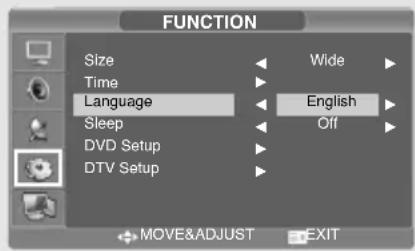
Selecting the Menu Language
Press the MENU button. The OSD MENU will be displayed.
2 Select Function using the Abutton and then press the button.
3 Select Language using the Abutton and then press the button.
4 Select the desired menu language using the button.
Press the EXIT button to exit the menu.
Viewing the Status Information
Press the button on the remote control. The TV will display the input source, the picture mode, the sound mode, the stereo mode, sleep time and the current time.
Adjusting the Volume
Adjust the volume using the + button.
Muting the Sound
Press the button. You can conveniently use the button when a telephone or a door bell rings.
To cancel, press the button again.
Viewing a Video or DVD
Press the AV button. For connection and setup procedures, refer to page 9-11.
Storing Channels Automatically
Press the MENU button. The OSD MENU will be displayed.
2 Select Setup using the button and then press the button.
3 Select Auto Program using the button and then press the button.
4 Select Country using the button and then press the button.
Select your country using the button and then press the button.
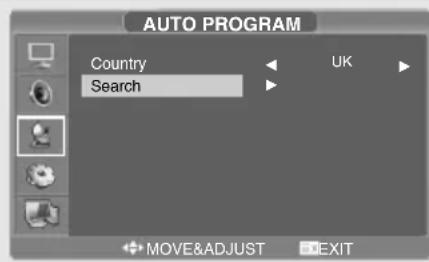
Select Search using the button and then press the button.
Manual Storing of Channels
When storing channels manually, you can choose:
- Whether or not to store each of the channels found.
- The programme number by which you wish to identify each stored channel.
Press the MENU button. The OSD MENU will be displayed.
2 Select Setup using the button and then press the button.
3 Select Manual program using the button and then press the button.
4 Select System using the button and then press the button. And press the / button to select the system.
Whenever you press this button, system changes to Auto BG DK I L Auto mode in this order.
Select Program no. using the button and then press the button.
And press the button to select the required channel number.
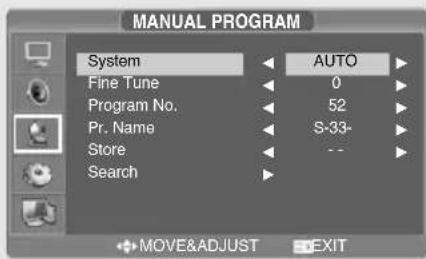
Select Search using the Nouton and then press the button. The tune scans the frequency range until the first channel on the channel that you selected is received on your screen.
Select Store using the button and then press the button.
And press the button to select the OK.
Repeat Step 5 to 7 for each channel to be stored.
Channel Name
Press the MENU button. The OSD MENU will be displayed.
2 Select Setup using the Abutton and then press the button.
3 Select Manual program using the button and then press the button.
Select Name using the button and then press the button. And press the //K> buttons to edit the name.
V/A: Select the characters (A~Z, 0~9, -, +).
< / > move on the previous or next letter.
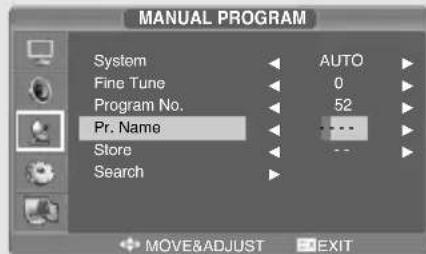
Select Store using the button and then press the button.
And press the button to select the OK.
Press the EXIT button to exit the menu.
Program Edit
This function enables you to delete, copy, move or skip the stored programs.
1 Select the channel to tune using the numeric or channel buttons.
Press the MENU button. The OSD MENU will be displayed.
3 Select Setup using the button and then press the button.
4 Select Program edit using the button and then press the button.
Delete a Program
1 Select a program to the deleted with the < / > / / buttons.
Press the RED button. The selected program is deleted. All the following programs are shifted up one position.
Copy a Program
1 Select a program to the copied with the < / > / / buttons.
Press the BLUE button. All the following programs are shifted down one position.
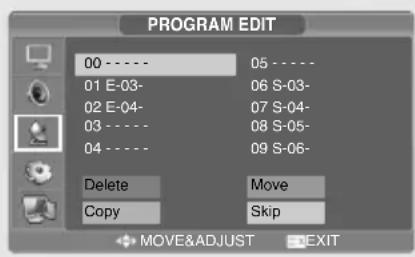
Moving a Program
1 Select a program to the moved with the < / > / / buttons.
Press the GREEN button.
3 Move the program to the desired program number with the / button.
4 Press the GREEN button again to release this function.
Skipping a Program Number
1 Select a program to the skipped with the < / > / / buttons.
Press the YELLOW button. The skipped program turns to Gray.
Press the YELLOW button again to release this function. When a program number is skipped it means that you will be unable to select it using the button during normal TV viewing. If you want to select the skipped program, directly enter program number with the number buttons or select it in the program edit or table menu.
Changing Channel
Using the P V A buttons. Press the P w buttons to change channels. You will see all the channels that the TV has memorized. (The TV must have memorized at least three channels.)
Using the Previous Channel Press the PRE.CH button on the remote control. The TV changed to the last channels to the last channel you were watching.
When the Picture Quality is Poor or Unstable
Use fine tune to adjust a particular channel for better picture quality when noise interferes, color quality is poor, or the screen is unstable.
1 Select the channel to tune using the numeric or P
Press the MENU button. The OSD MENU will be displayed.
3 Select Setup using the Abutton and the press the button.
4 Select Manual program using the N A button and then press the button.
Select Fine tune using the Abutton and then press the button.
6 Press the button and then press the > button. If you are unable to fine-tune a channel, check that the System settings are correct.
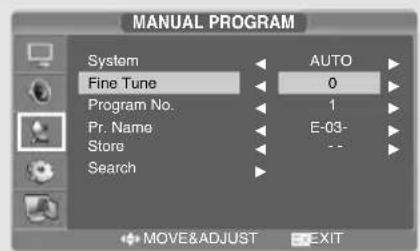
Select Store using the button and then press the button. And press the button to select OK.
Press the EXIT button to exit the menu.
Selecting the Picture Status
You can select a video mode from among User, Standard, Dynamic or Mild mode according to your personal preference.
Press the MENU button. The OSD MENU will be displayed.
2 Select Picture using the Abutton and then press the button.
Select Status using the Abutton and then press the button.
Select the desired Picture Status using the button. Whenever you press this button, Picture Status changes to Standard Dynamic Mild User mode in this order.
When you have finished, press the EXIT button to exit the menu.
Picture Status
- Standard: Select this mode when the surrounding illumination is bright.
- Dynamic: Select this mode to increase picture clarity and sharpness.
- Mild: Select this mode when viewing the TV when the light is low.
- User: Select this mode if you want to adjust the settings according to your personal preferences.
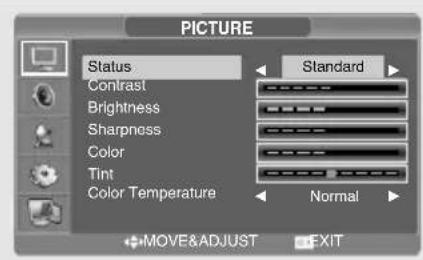
Adjusting the Picture Settings
Press the MENU button. The OSD MENU will be displayed.
2 Select Picture using the Abutton and then press the button.
Select the desired item to adjust using the button and then press the button.
4 Select the desired status using the button. During the adjustment, an additional adjustment window will be displayed. In addition, Picture Status is automatically changed to User mode.
Press the EXIT button to exit the menu.
Picture
- Contrast: Determines the difference in brightness between an object and the background.
- Brightness: Determines the brightness of the screen.
- Sharpness: Determines the sharpness of an object image.
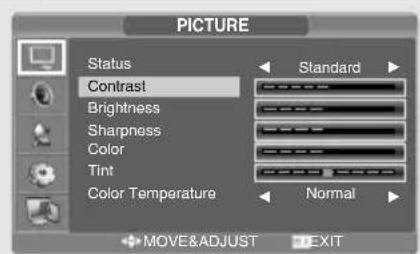
Color: Determines the color density.
- Tint: Determines the tint of the screen (NTSC ONLY).
- Color Temperature: Determines the temperature of colour tone. Status changes to Normal Warm Cool Normal mode in this order.
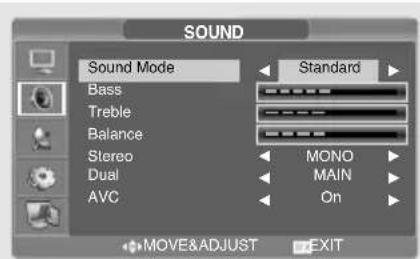
Selecting the Sound Mode
You can select a sound mode from among STANDARD, MUSIC, SPEECH or USER mode according to your personal preference.
Press the MENU button. The OSD MENU will be displayed.
2 Select Sound using the button and then press the button.
Select Sound Mode using the Abutton and then press the button.
4 Select Sound Mode using the button. Whenever you press this button, Sound Mode changes to STANDARD MUSIC SPEECH USER mode, in this order.
When you have finished, press the EXIT button to exit the menu.
Sound Mode
STANDARD: Select this to listen to sound normally.
MUSIC: Select this to listen to the original sound.
- SPEECH: Select this to listen to clear voice sound.
- USER: Select this if you want to adjust the settings according to your personal preferences.
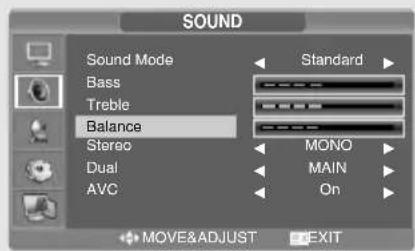
Adjusting the BALANCE
Determines the volume ratio between the left and right speakers.
Press the MENU button. The OSD MENU will be displayed.
2 Select Sound using the button and then press the button.
3 Select Balance using the button and then press the button.
4 Select the desired status using the button. During the adjustment, an additional adjustment window will be displayed. Also, the Sound Status is automatically changed to User mode.
Press the EXIT button to exit the menu.
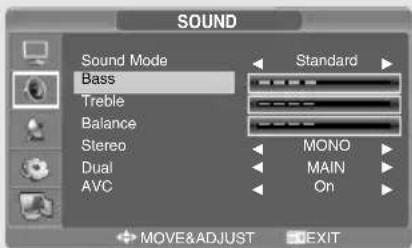
Adjusting the Bass/Treble
Press the MENU button. The OSD MENU will be displayed.
2 Select Sound using the button and then press the button.
3 Move to the item using the button and then press the button.
4 Select the desired status using the k > button. During the adjustment, an additional adjustment window will be displayed. Also, the Sound Status is automatically changed to User mode.
Press the EXIT button to exit the menu.
Choosing a Soundtrack
Quick! Pressing the M/S button. Whenever you press this button, the mode changes to Stereo/Mono mode, in this order.
- If the receiving conditions deteriorate, listening will be easier if the mode is set to the Mono position using the M/S button.
- I f the stereo signal is weak( or if intermittent Stereo-Mono) and automatic switching occurs, then switch to the Mono mode.
- When receiving mono sound in the AV mode, connect to the 'L' input jack on the panels.
- If the mono sound comes out only from the left speaker, then press the M/S button.
CAUTION: If stereo mode is set to mono, the output is mono even though the broadcast is in stereo.
| Type of broadcast | On-Screen | |
| NICAM STEREO | Standard broadcast | MONO |
| Regular+NICAM MONO | MONO | |
| NICAM STEREO | NICAM STEREO ↔ MONO | |
| NICAM DUAL | NICAM MAIN > NICAM SUB | |
| A2 STEREO | Standard broadcast | MONO |
| Bilingual or DUAL | MAIN ↔ SUB | |
| STEREO | STEREO ↔ MONO |
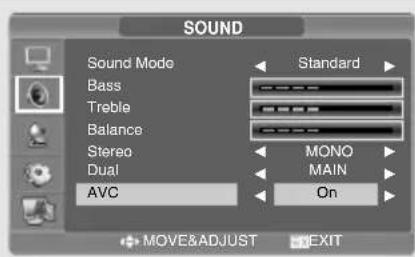
Selecting the AVC Mode
If you switch AVC to on, the set automatically keeps on an equal volume level.
Press the MENU button. The OSD MENU will be displayed.
2 Select SOUND using the button and then press the button.
3 Select AVC using the button and then press the button.
4 Select the desired status using the Abutton.
Press the EXIT button to exit the menu.
Changing the Screen Size
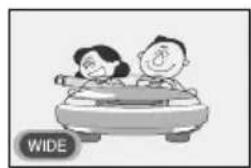
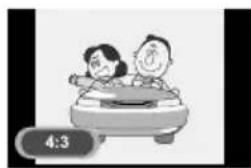
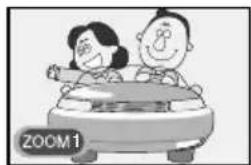
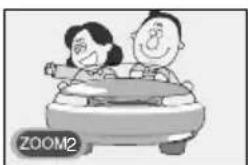
You can select a desired screen size for each video. Press the PIC.SIZE button.
Whenever you press the PIC.SIZE button, the screen size changes to WIDE 4:3 ZOOM1 ZOOM2, in this order.
Screen Size Menu
- WIDE: Set the picture to 16:9 wide mode (default).
- 4:3: Sets the picture to 4:3 normal mode. This is a standard TV screen size.
- ZOOM1: Magnifies the size of the picture on the screen.
- ZOOM2: Magnifies the size of the picture on the screen leaving the subtitles visible.
Note
- You can select only WIDE, 4:3 screen size in the PC/HDMI Mode.
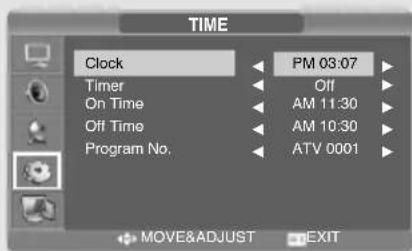
Setting the Clock
Press the MENU button. The OSD MENU will be displayed.
2 Select Function using the Abutton and then press the button.
3 Select Time using the Abutton and then press the button.
4 Select Clock using the Abutton and then press the button.
Move to the Hour using the button and then set the Hour to the correct time using the / button.
6 Move to the Minute using the button and then set the Minutes to the correct time using the / button.
Press the EXIT button to exit the menu.
Setting the On/Off Timer
You can set the On/Off Timer to automatically turn the TV on and off at a desired time.
The current time has to be configured first to set the On/Off Timer.
STEP1\~STEP3 is the same as that of Setting the clock.
4 Select Timer using the button and then press the button.
Select On using the button.
- The On/off timer works only when the timer is configured to On.
Example:Turning On At 6:10 AM
Move to On time using the Abutton.
Move to the Hours using the button and then set the Hour to AM 6 using the button.
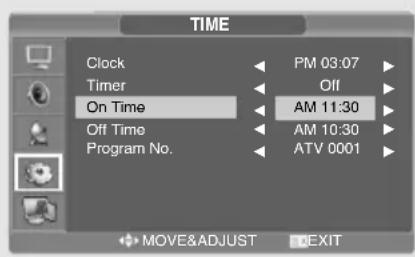
Move to the Minute using the button and then set the Minutes to 10 using the × button.
Press the button to finish the On time configuration.
Press the EXIT button to exit the menu. For Off timer setting, select Off time instead of On time.
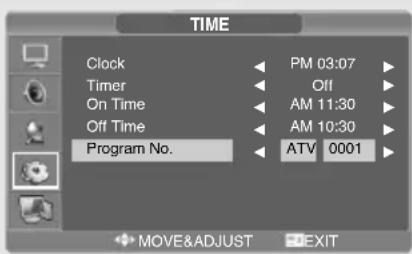
Selecting the ON Timer Channel
STEP1\~STEP3 is the same as that of Setting the clock.
4 Select Program No. using the button and then press the button.
Select the desired source to watch when the TV is turned on using the button and then press the button.
Select the desired channel to watch when the TV is turned on using the button.
Press the EXIT button to exit the menu.
Setting the Sleep Timer
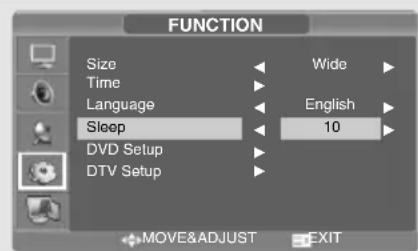
You can shut off the TV after a desired period of time.
Press the MENU button. The OSD MENU will be displayed.
2 Select Function using the Abutton and then press the button.
3 Select Sleep using the button and then press the button.
Select the desired sleep time using the button. Whenever you press this button, Sleep Mode changes to Off 10 30 60 90 120 150 180 Off mode, in this order.
Press the EXIT button to exit the menu.
Teletext
Most television channels provide written information services via teletext. Information provided includes:
- Television program times
- News bulletins and weather forecasts
- Sports results
-Travel information.
This information is divided into numbered pages (see diagram).
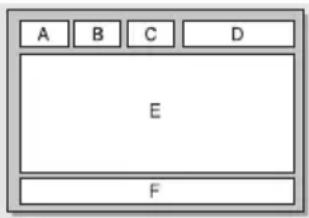
Part Contents
A Selected page number.
B Broadcasting channel identity.
C Current page number or search indications.
D Date and time.
E Text.
F S tatus information.
Displaying the Teletext Information
You can display Teletext information at any time on your television.
For Teletext information to be displayed correctly, channel reception must be stable; otherwise:
- Information may be missing
- Some pages may not be displayed
1 Select the channel providing the Teletext service using the P or P button.
Press the TEXT ( 三 ) button to activate the teletext mode.
Result: The contents page is displayed. It can be
redisplayed at any time by pressing the INDEX (按钮。
3 If you wish to display the actual broadcast at the same time as the teletext page, press the MIX (1) button again.
Press the TEXT ( 面 ) button to exit from the teletext display.
Selecting a Page by Number
You can enter the page number directly by pressing the numeric buttons on the remote control.
1 Enter the three-digit page number given in the content by pressing the corresponding numeric buttons.
Result: The current page counter is incremented and the page is then displayed.
Using the various display options:
| To display... Press the... | |
| Hidden text (answers to quiz REVEAL ()games, for example) | |
| The normal screen | REVEAL (连 again |
| A secondary page, byentering its 4-digit number | SUBPAGE (图 |
| The next page | P√ |
| The previous page | P^ |
Using FLOF to Select a Page
The various topics included in the teletext pages are colorcoded, and can be selected by pressing the colored buttons on the remote control.
Display the teletext contents page by pressing the MIX button.
Press the coloured button corresponding to the topic that you wish to select; the available topics are given on the status line.
Result: The page is displayed with other coloured information that can be selected in the same way.
To display the previous or next page, press the corresponding coloured button.
To display the subpage, see the following steps.
- Press the SUBPAGE ( ) button.
Result: The available subpages appear.
- Select the required sub-page.
Sub-pages can be scrolled by using the P or P button.
PC Function
Connecting to a PC
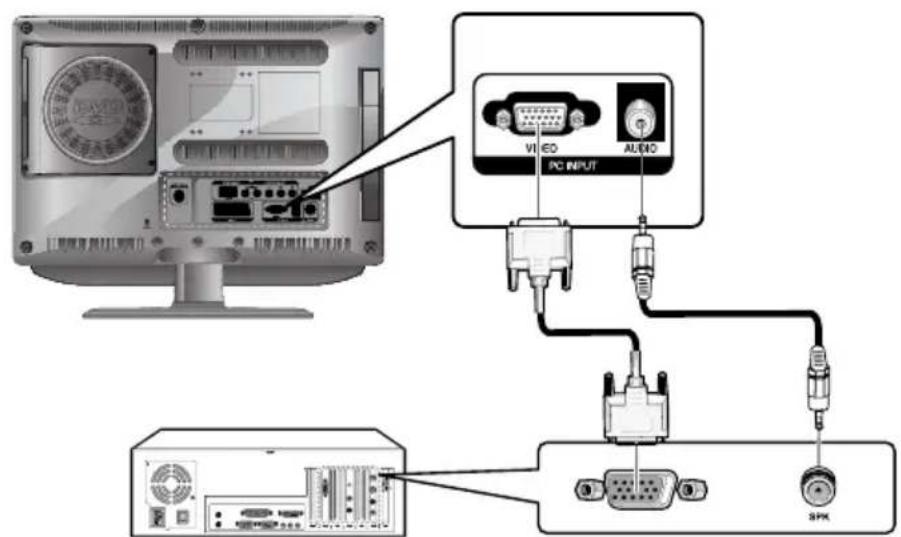
Connection Procedures
1 Connect the PC D-SUB INPUT jack of the TV and the monitor output jack of the PC using the D-Sub cable.
Connect the PC AUDIO jack of the TV and the audio output jack of the PC with the audio cable. (This can only be applied when the PC actually has an audio output jack.)
Procedures for viewing the PC screen through the TV
1 Turn the PC on and check that the PC settings are correct.
- If the PC settings are incorrect, the screen may display a duplicated or distorted picture.
For PC configuration procedures, refer to page 50.
Press the AV button and select PC INPUT mode.
Adjust the PC screen. (For adjustment procedures, refer to page 22.)
VESA Standard Mode
| Resolution / Vertical Frequency | IBM | 640x350 / 70.0Hz 640x480 / 59.9Hz 720x400 / 70.0Hz | VESA | 1024x768 / 60.0Hz 1024x768 / 70.0Hz 1024x768 / 75.0Hz |
| MAC | 640x480 / 66.6Hz 832x624 / 74.5Hz 1152x870 / 75.0Hz | 1280X768 / 60.0Hz 1360x768 / 60.0Hz 1152x864 / 75.0Hz (19" / 22" ONLY) | ||
| VESA | 640x480 / 75.0Hz 640x480 / 72.8Hz 800x600 / 56.2Hz 800x600 / 60.3Hz 800x600 / 75.0Hz 800x600 / 72.1Hz | 1280x960 / 60.0Hz (19" / 22" ONLY) 1280x1024/ 60.0Hz (19" / 22" ONLY) 1280x1024/ 75.0Hz (19" / 22" ONLY) 1440x900 / 59.8Hz (19" ONLY) 1440x900 / 74.9Hz (19" ONLY) 1680x1050/ 59.9Hz (22" ONLY) |
Adjusting the PC
Press the MENU button. The OSD MENU will be displayed.
2 Select PC using the button and then press the button.
PC Adjust using the button and then press the button.
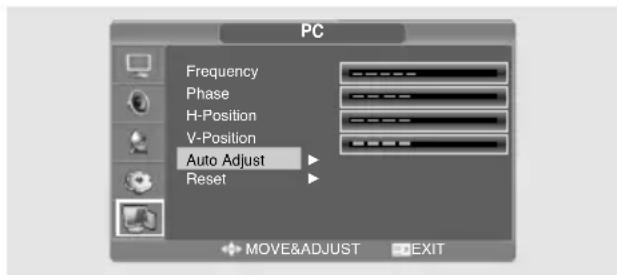
Adjusting the Horizontal Position
4 Select H POSITION using the button and adjust the horizontal position using the button.
Adjusting the Vertical Position
4 Select V POSITION using the button and adjust the vertical position using the button.
Initializing Settings (RESET)
4 Select RESET using the buttons and then select using the button. This returns you to the factory default screen.
Press the EXIT button to exit the menu.
Auto Adjust
You can adjust the frequency and the phase of the PC screen automatically.
4 Select AUTO ADJUST using the button and then select using the button. The PC screen is adjusted automatically.
Frequency
If vertical lines appear on the PC screen, adjust the clock.
Select FREQUENCY using the Abuton and then select using the button.
Phase
The phase controls the image fine on the screen.
4 Select PHASE using the button and then select using the button.
Playing DVD's
Turn on the power of the TV and external audio system. Ensure that the local code of the TV set is matched to that of the disc. (If not matched, your disc cannot be played.)
Press the AV button.
Insert the DVD. Ensure that the labeled surface is at the front when placing it.
DVD Playback. Your DVD will be automatically played depending on the current program mode.
- To STOP PLAYBACK, press the button.
- To temporarily STOP PLAYBACK, press the button.
- To resume PLAYBACK, press the button.
Displaying thePlayback Status
1 Press the button
For DVD Playback
- The ROOT MENU, TITLE REMAIN, CHAPTER ELAPSED, CHAPTER REMAIN is shown.
- Pressing the button again shows the TITLE REMAIN for the chapter.
- Pressing the button again shows the CHAPTER ELAPSED for the chapter.
- Pressing the button again shows the CHAPTER REMAIN for the chapter.
- Pressing the button again exits the status display.
For CD Playback
The SINGLE ELAPSED for the track is shown.
- Pressing the button again shows the SINGLE REMAIN for the track.
- Pressing the button again shows the TOTAL ELAPSED for the track.
- Pressing the button again shows the TOTAL REMAIN for the track.
- Pressing the button again exits the status display.
Searching for a Specific Screen/Song
You can use one of the functions listed below to jump to a specific chapter or track during playback.
Fast Forward/Reverse
Use this function to play the DISC contents in fastforward or fast reverse. During searching audio will be muted (except CD or MP3).
Press and hold the or button for over 2 seconds.
- For DVD playback, pressing the button executes the function in the following order: X2 → X4 → X8 → X16 → X32 → X64 → normal.
For VCD playback, X2 X4 X8 X16 X32 normal - For CD/MP3 playback, X2 → X4 → X8 → normal.
Skip Forward/Reverse
Use this function to move to the next or previous chapter for DVD, track for CD and MP3.
Press the or button.
- When the button is pressed, playback skips to the next chapter or track during DVD or CD playback.
- When the button is pressed, playback skips to the beginning of the current chapter during DVD playback and to the previous chapter when it is pressed again.
Slow Forward/Reverse
Press the button to resume normal playback.
Press and hold the or button for over 2 seconds.
For disc playback, pressing the button executes the function in the following order: X1/2 X1/4 X1/8 X1/16 X1/32 X1/64 NORMAL
Press the button to resume normal playback.
Repeating a Title, Chapter(DVD), Track(CD)
Repeat Playback
This function repeats the playback of a chapter, title or track.
Press the REPEAT button.
Each press of the button changes the repeat mode in the following order:
For DVD playback, Chapter Title Repeat Off.
For CD playback, Track Disc Repeat Off.
To resume normal playback, press the REPEAT button repeatedly until the repeat mode indicator disappears on screen.
Repeating a Specific Section
During playback, press the A B button at the beginning of the desired section.
Press the A B button again at the end of the section. "AB" will be displayed on the screen then the A-B section is continually repeated.
To resume normal playback, press the A< button repeatedly until the repeat mode indicator disappears on screen.
Chapter repeat: Repeats playback of a single chapter.
- Title repeat: Repeats playback of a single title.
-Repeat disc: Repeats playback of the whole disc.
-Repeat track: Repeats playback of a single track.
-Repeat off: Exits repeat mode.
Changing the Audio Language/Changing the Subtitle Language
Select the language on discs that contain more than one language by following the instructions below.
Changing the Audio Language
It is possible to change the audio soundtrack language to a different language from the one selected at the initial settings.
This operation works only with discs on which multiple audio soundtrack languages are recorded. If the loaded disc supports multiple languages, you can select the audio language.
1 Press the OPTION button.
The DVD MENU will be displayed.
2 Select AUDIO using the button and then press the ENTER button.
- For DVD playback, Each time you press the ENTER, the language is changed.
- For CD playback, Mono Left Mono Right Mix-Mono Stereo.
Changing the Subtitle Language
It is possible to change the subtitle language to a different language from the one selected at the initial settings. This operation works only with discs on which multiple subtitle languages are recorded.
1 Press the OPTION button.
The DVD MENU will be displayed.
2 Select SUBTITLE using the button and then press the ENTER button.
Press the ENTER button repeatedly until the desired subtitle language is displayed.
To turn the subtitles off, Select the SUBTITLE and then press the ENTER button until Subtitle off is displayed.
Changing the Size and Angle of the Screen
Changing the Size of the Screen
1 Press the OPTION button. The DVD MENU will be displayed.
2 Select ZOOM using the button and then press the ENTER button.
Each press of the ENTER button changes the zoom mode in the following order: X1.5 → X2 → X3 → OFF
- If you press the / / / button during the zoom mode, the zoom point will shift.
To resume normal playback, select the ZOOM and then press the ENTER button repeatedly until the repeat mode indicator disappears on screen. - This function is activated for only DVD playback.
Viewing from another Angle
Some DVDs contain scenes that have been shot simultaneously from multiple angles.
1 Press the OPTION button.
The DVD MENU will be displayed.
2 Select ANGLE using the button and then press the ENTER button.
- Pressing the button successively changes the viewing angle which is displayed on the screen.
The (on appears. If no additional camera angle are recorded, the (on will be displayed. - If multiple camera angles are recorded, the ( ) on displays the current angle, number and the number of angles available.
- This function is activated only for discs having scenes recorded at different angles.
Additional Function
Muting the sound
Press the button.
- Pressing the button toggles the mute function on and off. If no sound is heard with mute turned on, turn it off to hear sound.
Basic Disc Menu Controls
Some DVD's contain menus. Sometimes these are displayed automatically when you start playback;
1 Press the OPTION button.
The DVD MENU will be displayed.
2 Select MENU using the button and then press the ENTER button.
The menu contained on the disc will appear on the screen. The menu appears differently with different disc.
2 Select TITLE using the button and then press the ENTER button.
The title contained on the disc will appear on the screen. The title menu appers differently with different disc.
Setting a Specific DVD Title or Chapter
This function is used to go to the Chapter, Track or Song of the disc you want.
Program play DIRECT Search (GO TO) for DVD
1 Press the OPTION button.
The DVD MENU will be displayed.
Select GOTO using the button and then press the ENTER button.
3 Select the item using the button and press the ENTER button.
Chapter: Press the chapter number using the numeric button.
- Title: Press the Track number using the numeric button.
- TT :Press the number of the desired time in title using the numeric button.
Press the ENTER button to confirm.
DIRECT Search (GO TO) for CD
1 Press the OPTION button.
The DVD MENU will be displayed.
2 Select GOTO using the button and then press the ENTER button.
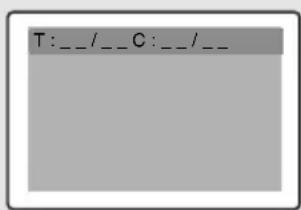
Each press of the ENTER button changes the repeat mode in the following order: Disc Go To --: -- Disc go to XX:XX.
3 Enter the number using the numeric button.
- Disc Go To: Press the number of the desired time in disc using the numeric button.
- Track Go to: Press the number of the desired time in track using the numeric button.
- Select Track: press the track number using the numeric button.
GO TO:---
C:--/T:- 00:00:00
Playing MP3 Discs
Playback of a CD/CD-RW disc that contain a MP3 files.
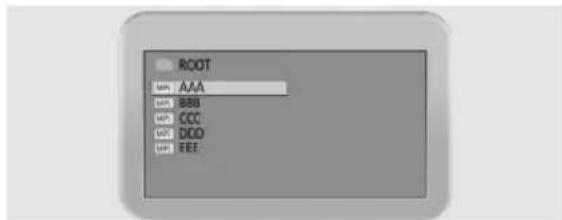
To Play a MP3 File
Insert the MP3 disc. Make sure that the disc's label is facing up.
Using the Munton to find the desired folder.
Using the Munton to select the desired a mp3 files.
Press the ENTER button to start playback a file.
Repeat Playback
Playback of a CD/CD-RW disc that contain a MP3 files.
Press the REPEAT button.
Each press of the REPEAT button changes the repeat mode in the following order: Repeat track Folder repeat Repeat OFF.
Playing DIVX Discs(option)
Playback of a CD/CD-RW disc that contain a DIVX files.
CAUTION: This subtitle is selectable only when it's name is same with the title's.
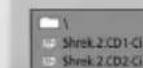
To Play a DIVX File
1 Insert the DIVX disc. Make sure that the disc's label is facing up.
Using the button to find the desired folder.
Using the button to select the desired a divx files.
Press the ENTER button to start playback a file.
To delete the subtitle while playback.
- Press the OPTION button. The DVD MENU will be displayed.
- Select SUBTITLE using the kbtton and then press the ENTER button.
Note
The file name is only displayed in English.
- This player is compatible with the "MPEG-1 Audio Layer 3" standard. It is not compatible with other standards, such as "MPEG-2 Audio Layer 3", "MPEG-2.5 Audio Layer 3", MP1, MP2, etc.
- Do not play CD-R/RW discs containing any files other than music CD files, MP3 and JPEG files.
- Programmed playback is not possible with MP3 discs.
- When writing MP3 files on CD-R/RW discs, select "ISO9660 level 1" as the writing software format.
Note
- AVI file used to contain the audio and video data : these must be stored on CD in the ISO 9660 format .
- Press STOP button when file do not appear on the screen.
- When playing the DivX disk, you can play the file with extension of AVI only.
- DTS Audio is not supported.
WMA is not supported. - When burning a subtitle file to a CD-ROM in your PC, be sure to burn it as an SMI file.
- Reverse of slow playback does not work DivX.
Supported format :VIDEO - Divx3. 11 , 4 . x , 5 . x AUDIO - AC3 , MP3(80kbps ~ 320kbps)
Playing Kodak Picture CD and JPEG File
To play Kodak Picture CD and JPEG File
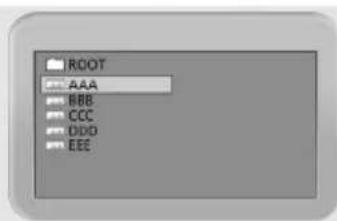
When a Kodak Picture CD is inserted, an automated slide show is launched. When a JPEG file is loaded the table of contents is displayed on TV screen.
Insert the Kodak Picture CD or JPEG file disc.
- An automated slide show is launched.
- If you press the button, File menu screen will be appeared.
Select the picture.
- Select the picture, you want to see, by pressing the button.
Press the ENTER button.
The selected item is displayed as a full size picture.
Changing the Size of the Screen
1 Press the OPTION button.
The DVD MENU will be displayed.
2 Select ZOOM using the button and then press the ENTER button.
Each press of the ENTER button changes the zoom mode in the following order: 25% 50% 100% (default) 150% 200% .
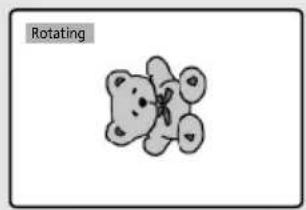
Image Rotation
1 Press the / button There are 4 modes to rotate a picture:
- button:invert
- button : mirror
- Button:Turn left
- Button:Turn right
Changing JPEG Slideshow Transition Mode
1 Press the OPTION button.
The DVD MENU will be displayed.
2 Select ANGLE using the button and then press the ENTER button.
- 13 slideshow transition modes are provided.
Each press of the ENTER button is pressed during JPEG image playback, the display mode on screen shows 13 variations as follows:
mode 1: It displays from top to bottom in turn.
mode 2 : It displays from buttom to top in turn.
-mode 3:It displays from top to buttom to center in turn
mode 4: It displays from center to top and buttom in turn.
mode 5 : It displays from vertical blind.
mode 6: It displays from from left to right in turn.
mode 7 : It displays from right to left in turn.
mode 8: It displays from left and right to center in turn.
mode 9: It displays from center to left and right in turn.
mode 10: It displays from outside to inside in turn.
mode 11: It displays from horizontal blind.
mode RAND : It displays at random.
- NONE
Starting MUSIC slide show
1 Press the OPTION button. The DVD MENU will be displayed.
2 Select SUBTITLE using the button and then press the ENTER button at STOP mode, SLIDE SHOW MODE1 SLIDE SHOW MODE2 SLIDE SHOW MODE3 SLIDE SHOW OFF will be selected repeatedly.
3 Starting slide show mode 1
After selecting SLIDE SHOW MODE 1, press ENTER button.
MP3 FILE No.1 Track will be played with JPEG Picture changing automatically.
4 Starting slide show mode 2
- Select SLIDE SHOW MODE 2 and press the arrow button to select the MP3 File tracks.
- Press A→B button on the remote control and Press ENTER.
- The seltcted MP3 FILE will be played with JPEG Picture changing automatically.
⑤ Starting slide show mode 3
-
Select SLIDE SHOW MODE 3 and press ENTER button. While MP3 FILE No.1 Track is playing, JPEG picture will not be changed.
-
When the MP3 FILE track moves to the next one, the JPEG picture will be moved to the next one too.
6 Stoping slide show mode
- Press button to stop MP3 FILE and SLIDE SHOW.
Using the Setup Menu
QUICK!
a. Press OPTION button to display the DVD MENU.
b. Press the button to select SETUP and then press the ENTER button.
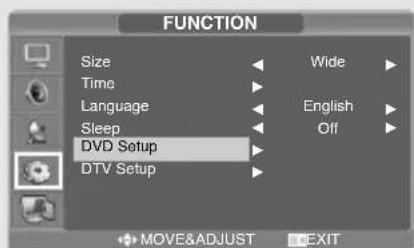
Press the MENU button. The OSD MENU will be displayed.
2 Select Function using the button and then press the button.
Select DVD Setup using the button and then press the button. The DVD OSD MENU will be displayed.
Language Setup
Press the button to move to Language Setup.
Press the button to move to desired item. And press the ENTER button.
Press the Abacus to select desired language.
- AUDIO: Use the audio language menu to select the subtitle language that you prefer. If the disc you are playing has that language available, it will display subtitles in that language.
- SUBTITLE: Use the subtitle language menu to select the subtitle language that you prefer. If the disc you are playing has that language available, it will display subtitles in that.
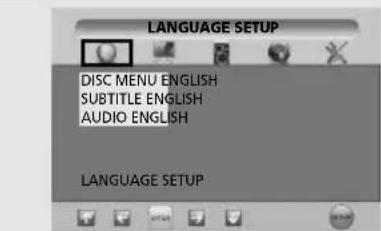
- DISC MENU: Use the Disc Menu option to select the language you want a DVD's disc menu to be displayed in (not the same as the player menu).
Video Setup
For selecting TV screen ratio.
Press the button to move to Video Setup.
Press the button to move to desired item. And press the ENTER button.
Press the button to select desired item.
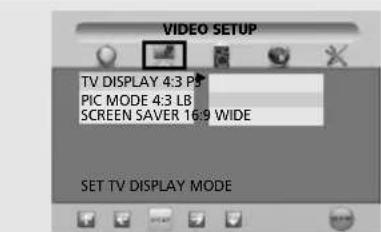
TV DISPLAY
- 4:3 / PS: Choose this setting if you want the movie to fill the entire screen of your TV. This might mean that the left and right edges won't be seen.
- 4:3 / LB: Choose this setting if you want to see movies in their original aspect ratio. The movie might appear with black bars at top and bottom of the screen.
- 16:9 / WIDE: Choose this setting if you want the movie to be seen in widescreen.
PIC MODE
- AUTO: The picture mode will be selected automatically according to the disc information.
FILM : The optimal display at still mode will be selected.
VIDEO: The optimal display at movie mode will be selected.
SMART: The optimal display will be displayed by the combination of Film and Video.
SCREENSAVER
-You can select the screen protection function 'On' and 'Off'.
Speaker Setup
4 Press the button to move to Speaker Setup.
Press the button to move to desired item. And press the ENTER button.
6 Press the button to select desired item.
Downmix
- LT/RT: Choose this setting if you want to select the surround sound for the front speaker.
- Stereo: Choose this setting if you want to select the stereo output through the front speaker.
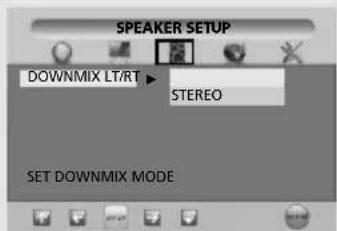
Audio Setup
4 Press the button to move to Audio Setup.
Press the button to move to desired item. And press the ENTER button.
Press the button to select desired item.
DUAL MONO
- STEREO : For stereo sound output.
- LEFT MONO : For stereo the output of the left channel of the audio track.
- RIGHT MONO : For selecting the output of the right channel of the audio track.
- MIXED MONO : For selecting the output of both the left and right channels of the audio track.
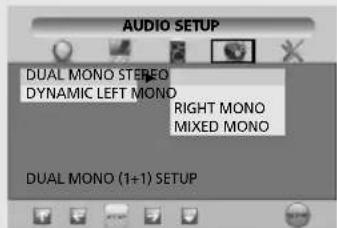
Dynamic
- For increasing the output of the audio only.
(4/4, 3/4, 2/4, 1/4, OFF) - Selecting OFF returns to the default value.
Custom Setup
4 Press the button to move to Custom Setup.
Press the button to move to desired item. And press the ENTER button.
6 Press the button to select desired item.
- Logo
- MPG Logo : To use the original initial screenen.
- JPG Logo : To use the initial screen downloaded from CD.
If you use DivX(option), the JPG logo is applied. If you use DVD(option), the JPG logo is not applied.
Parental
- Set a password and select rating level for DVD's unsuitable for children.
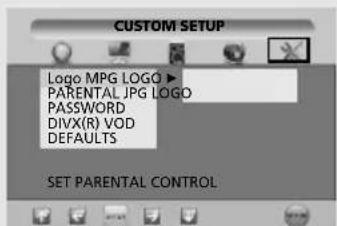
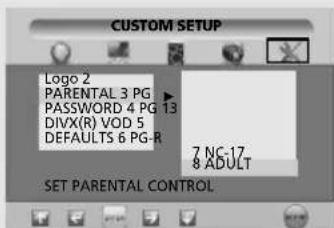
- Password Change
Press the button to move to PASSWORD. And press the ENTER button.
Press the ENTER button again.
Enter your old password, and new password in 4 digits.
Re-enter new password for confirmation then press the ENTER button.
-
Default
-
If user selects reset from the setup menu, all the value of setup menu will be initialized by factory setting value.
(Exception: Parental level and Password values will not be changed.)
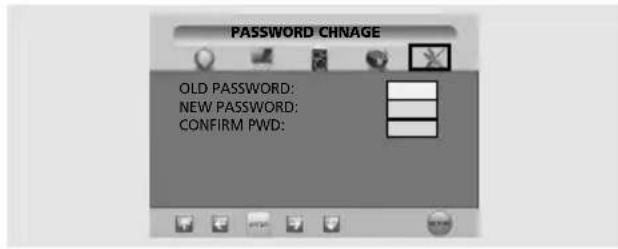
The password is preset to 0000.
DivX Function(Depend on the model)
DivX (option)
DivX Feature Table
- AVI files are used to contain the audio and video data; these must be stored on CD in the ISO 9660 format.
- When playing the DivX disc, you can play the file with extension of AVI only.
WMV is not supported. - When burning a subtitle file to a CD-ROM in your PC, be sure to burn it as an SMI file.
- Reverse of slow playback does not work with DivX.
VIDEO
DivX 3.11 content
DivX 4 content (Based on MPEG-4 simple profile)
DivX 5 content (MPEG-4 simple profile, bi-directional frames, Qpel and GMC are not supported.
| Support all resolution up 720 X 480 @ to maximum of 720 X 576 @ 25fps | 30fps |
| Macroblocks per second 40500 | |
| Maximum average bitrate 4000 kbps | |
| Maximum peak bitrate 10000kbps during any 3 seconds of video | |
| Minimum VBV buffer size (kbytes) 384k bytes | |
Note.
Our solution supports a maximum constant 6Mbps bitrate.
AUDIO
DivX certified devices can play back any interleaved MP3 audio at any bitrate, both CBR and VBR. The audio must be sampled at standard frequencies, such as 32kHz, 44.1kHz, and must conform to the AVI file specification.
DivX® VOD Playback
This chapter explains how to playback DivX VOD.
1 Press the MENU button.
The OSD MENU will be displayed.
Select FUNCTION using the button and then press the button.
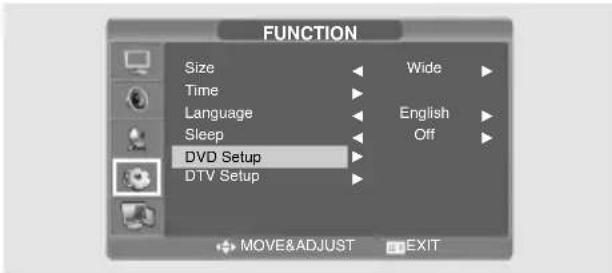
3 Select DVD Setup using the button and then press the button.
The DVD OSD MENU will be displayed.
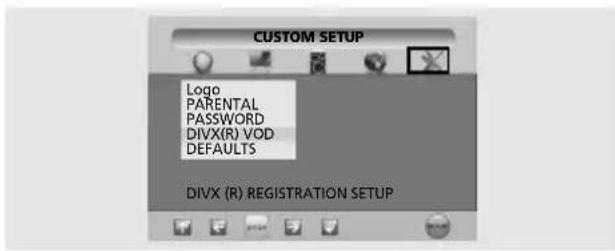
Use to move to "Custom" mode.
Use move to "DivX® VOD", then press ENTER.
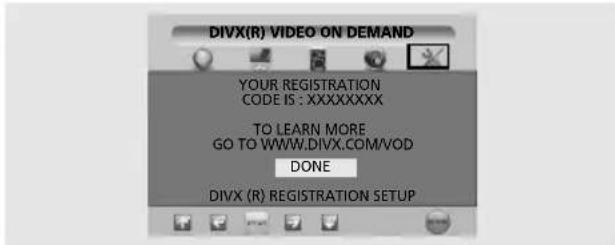
Then, below message will pop up.
YOUR REGISTRATION
CODEIS:XXXXXXX
TO LEARN MORE
GO TO WWW.DIVX.COM/VOD
DONE
Registration code is :XXXXXXXXX please fill out 8 characters registration code.
3 When you down load files through internet. Please make sure to insert registration code before the down loading.
9 Burn the down loaded file to CD-R or CD-RW.
10 Playback CD-R or CD-RW disc to the set.
1 You will see below message. This rental video has X view left. A view ends when you stop playback, play a different video, or trun off your player. Do you want to use one of your X views now?
If you select "YES" button, it will playback, otherwise it will show you list of files.
Note.
- If you tried to play back anything over X view. If will show you following message "This rental is expired" and will not play back. If you tried to play back expired rental disc, it will show you following message "This rental is expired".
If you want play back new rental disc, please follow the procedure from No.1 - In case of Bad Registration code are inserted. It turns out to be invalid registration code, the file will not be play back.
- "This video player is not authorized to play this video." showing following message.
DVB-T Function (Depend on the model)
This product is designed for the access of digital terrestrial free to view only.
First time installation
When the system is first switched on, the Application attempts to configure itself for the first time. This is called "First Time Installation". You can choose your country.
(EU Only)
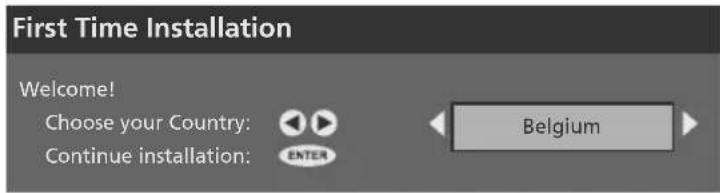
(UK Only)
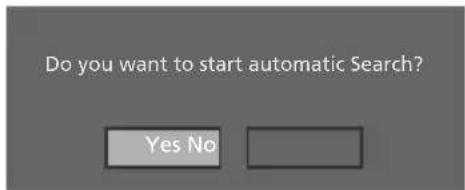
The user is then asked if they wish to perform an automatic tune for services. Automatic tuning functionality is described later in this document. When the automatic tune finishes and services have been found, the lowest number service is selected and a banner describing that service is shown.
A user may have chosen not to perform an automatic tune or no services may have been found by an automatic scan. In this instance the user may use the"Main Menu" to automatically scan again or perform a manual scan.
Main menu
A "Main Menu" is provided to enable the user to configure elements of the DVB-T.
QUICK!
a. Press OPTION button to display the DTV MENU.
b. Press the button to select SETUP and then press the ENTER button.
Press the MENU button. The OSD MENU will be displayed.
2 Select Function using the button and then press the button.
3 Select DTV Setup using the button and then press the button. The DTV OSD MENU will be displayed.
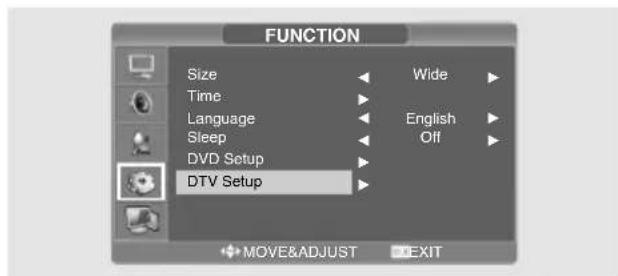
Configurable elements of the Reference Application are described elsewhere in this document.
- Channel List, Installation, Automatic Search, Manual Search, Favourites, Configuration, Language, Guides.
Channel List
The Channel List presents a list of all channels found during the channel search described earlier. The list comprises radio and TV channels.
They have been allocated a channel(reference) number and are listed in this numerical order.
The Channel List can be used to watch and listen to the selected channels. delete them from the list, edit the name of the channel, set a password to access the channel, and to add the channel to your list of favourite channels.
A password to access the channel, and to add the channel to your list of favourite channels.
To Display the Channel List
- Press the OPTION button. The DTV MENU will be displayed.
- Select LIST using the / button and then press the ENTER button to display the CHANNEL LIST, see below for an example. This shows a TV channel selected. When a radio channel is selected the picture frame will be blank.
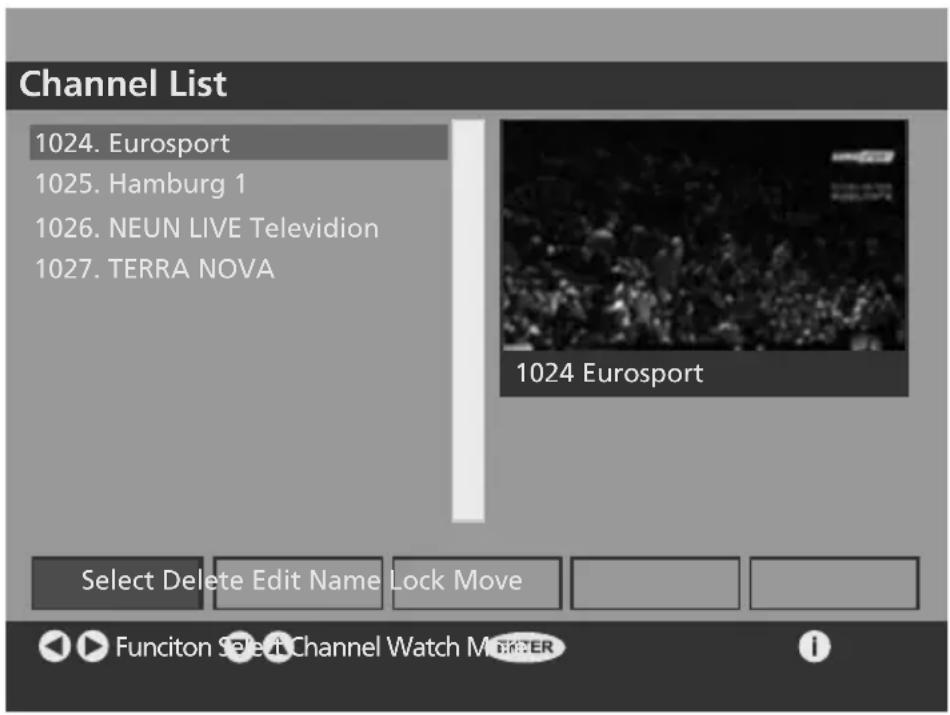
To Watch a channel
- Use / buttons to step along the options until you reach Select.
- Use Mornavigate through the channel list until you reach the channel you want to watch.
- Press "ENTER" to watch the selected channel in the picture window located at the top right corner.
- To watch the channel on full screen press EXIT.
To Delete a Channel
- Use to step along the options until you reach Delete.
- Use Navigate through the channel list until you reach the channel you want to delete.
- Press "ENTER" to delete the selected channel in the picture window, top right corner.
- A confirmation box opens up. Answer Yes or No as required. If you answer Yes, the channel will be removed from the list and will no longer be available to watch/listen to.
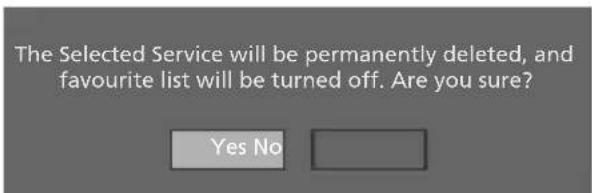
To Edit a channel name
- Use Monovagate through the channel list until you reach the channel you want to edit.
- Use to step along the options until you reach Edit Name.
- Press "ENTER" to select the edit name function.
- The selected channel name appears in a text box that opens below the picture window. The first character of the name is enclosed in square brackets.
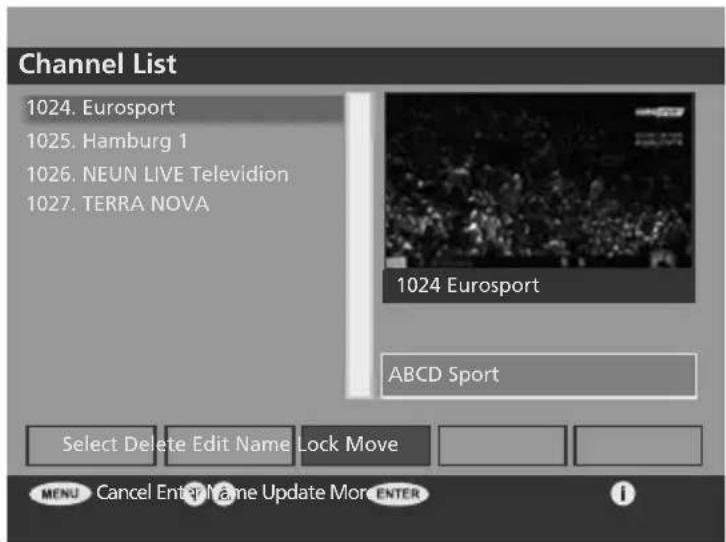
- Use the number buttons (0~9) to modify this character using the table below.
| Remote button | 1 | 2 | 3 | 4 | 5 | 6 | 7 | 8 | 9 | 0 |
| Press once | A | D | G | J | M | P | S | V | Y | SP |
| press twice | B | E | H | K | N | Q | T | W | Z | 0 |
| Press three thimes | C | F | I | L | O | R | U | X | 9 | + |
| Press four times | 1 | 2 | 3 | 4 | 5 | 6 | 7 | 8 | y | - |
| Press five times | a | d | g | j | m | p | s | v | z | * |
| Press six times | b | e | h | k | n | q | t | w | & | / |
| Press seven times | c | f | i | l | o | r | u | x | • | ! |
- Use k to step along the characters of the name and modify each as required. The new name can be shorter or longer than the existing name. Maximum length is 16 characters.
To Lock a channel
This function allows you to set a password to gain access to selected channels.
- Use AnnoVigate through the channel list until you reach the channel you want to lock.
- Use /to:step along the options until you reach Lock.
- Press "ENTER" to set Lock.
- The lock() Symbol appears alongside the selected channel in the list.
- Press "ENTER" again to remove the lock.
The next time you select to watch this channel you will be asked for a password - the Enter Lock Key window will be displayed for this.
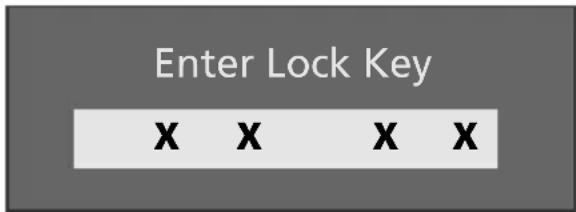
(Initial password is 0000)
You will only be able to watch this channel if you enter a valid number. If you enter a wrong number, the Wrong Lock Key box will be displayed briefly. When a valid number is entered the channel will be played.
To Move a channel
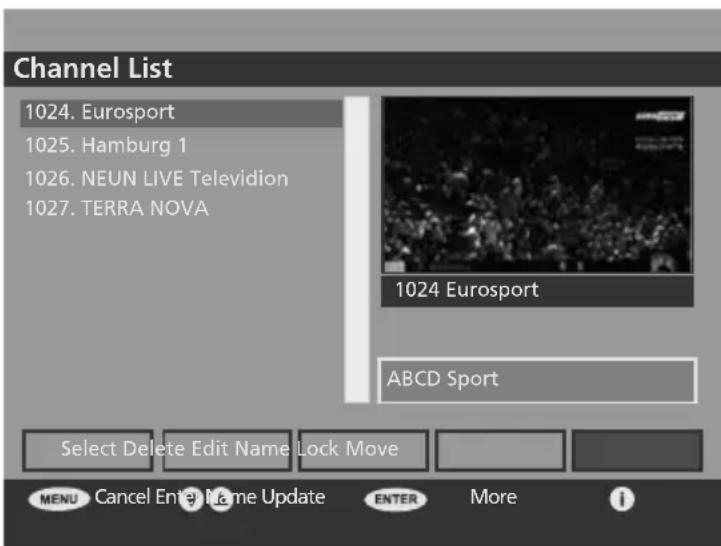
- < /> key on function button and reach to "Move" button.
- Press "ENTER" key, enter moving.
- Use key to change the position of the selected channel.
- When A key to choose destination position of the moved channel, User Press , give warning information to tell if user want to cancel moving. If choose yes, restore to Previous List, If choose "No", go on moving channel.
- "ENTER" to Save the result of moving. Warning information for timer canceling because program index changed.
- If choose "Yes", store the result and exit moving.
- If choose "No", just restore to Previous List state.
Favourite Service Lists
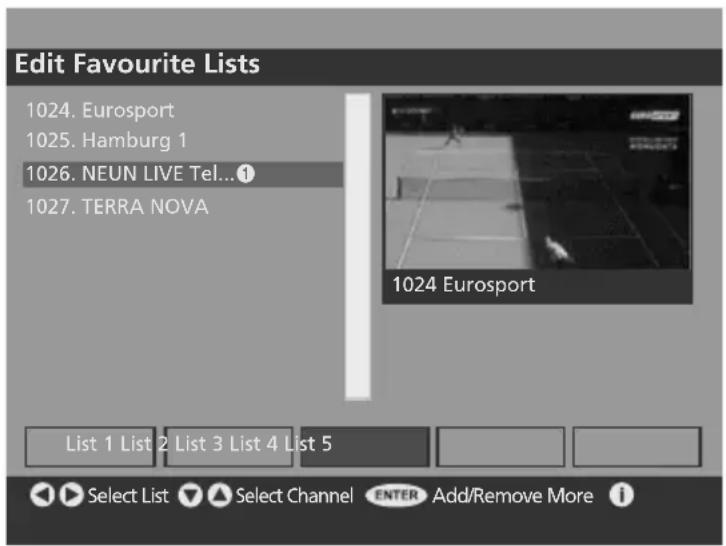
A favourites list enables the user to select a subset of services they consider favourite.
The Application allows the user to have up to five different favourites lists.
Favourites lists are defined in the favourites dialog that can be accessed by selecting the favourites button on the Channel List dialog and via the Main Menu.
The favourites dialog contains a scrolling list of all services and a set of buttons to enable the user to toggle a service's inclusion in a favourites list. Icons indicate the services that are members of a favourites list.
The currently selected service is displayed in the background of the favourites dialog.
The favourites mode can be enabled from the Configuration dialog in the "Main Menu".
The user cannot select a favourites list that contains no services. When a user selects a favourites list, all EPG's will show only those services in that favourite list.
When the favourites mode is enabled, the program up and down buttons on the remote control will only select those services selected as favourites, and all EPGs will only show the services in the current favourite list. It is still possible to select a service using the service's number even if it is not a member of the currently selected favourites list.
The Favourites dialog cannot be accessed if there are no services available.
Changing Channel
You can change channels by using any of the following methods.
Channel browse buttons
- Use the P ∧ / ∨ buttons to browse up and down the available channels.
Number buttons (0~9)
- The complete channel number must be entered within 3 seconds of the first digit entry.
- For example, to watch channel 43, press button 4 and then button 3.
- The enterd channel number will be displayed in top left of TV screen and the TV will show the entered channel.
Channel list
- Display the Channel list to view the list of available channels in the Channel List.
Press the OPTION button. The DTV MENU will be displayed.
2 Select LIST using the < / > button and then press the ENTER button.
- Select the required channel using the buttons.
- Press "ENTER" to view/listen to the channel.
Now/NextElectronicProgramGuide
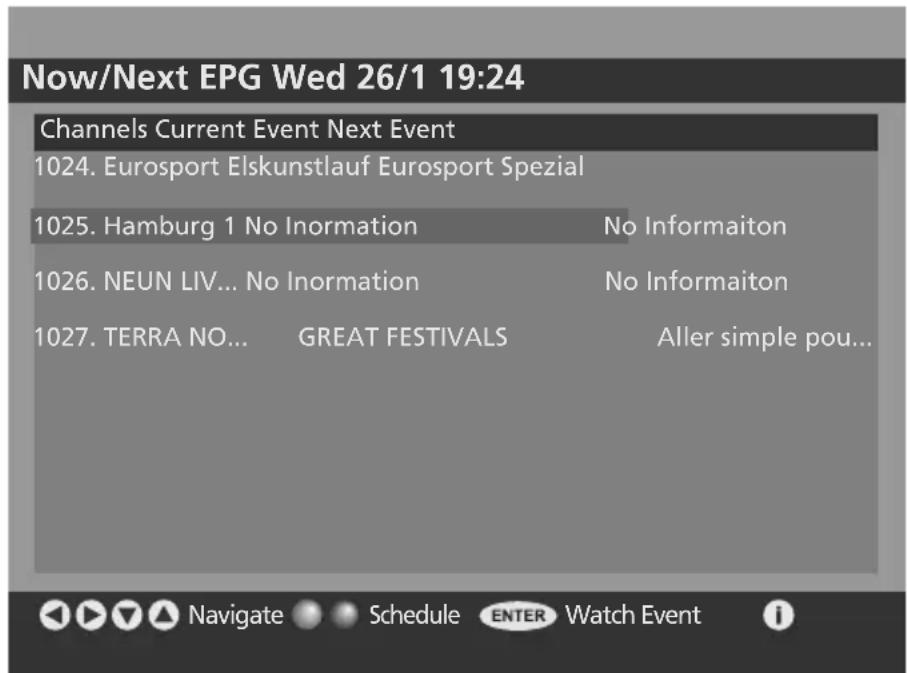
An EPG dialog is provided that allows the user to view the current and next programme playing on each service.
In this dialog a list of channels and the corresponding current and next programmes is displayed. The user can navigate up and down the list of channels and highlight either the now or next programme. Information for the highlighted programme can be displayed by pressing "Info". This information includes the start/end time of the programme, the programme genre in brackets, and a synopsis of the programme content.
A user may select a service by highlighting a program in the "now" list and pressing the "ENTER" key. The Now/Next Electronic Program Guide cannot be accessed if there are no services available.
List Schedule EPG
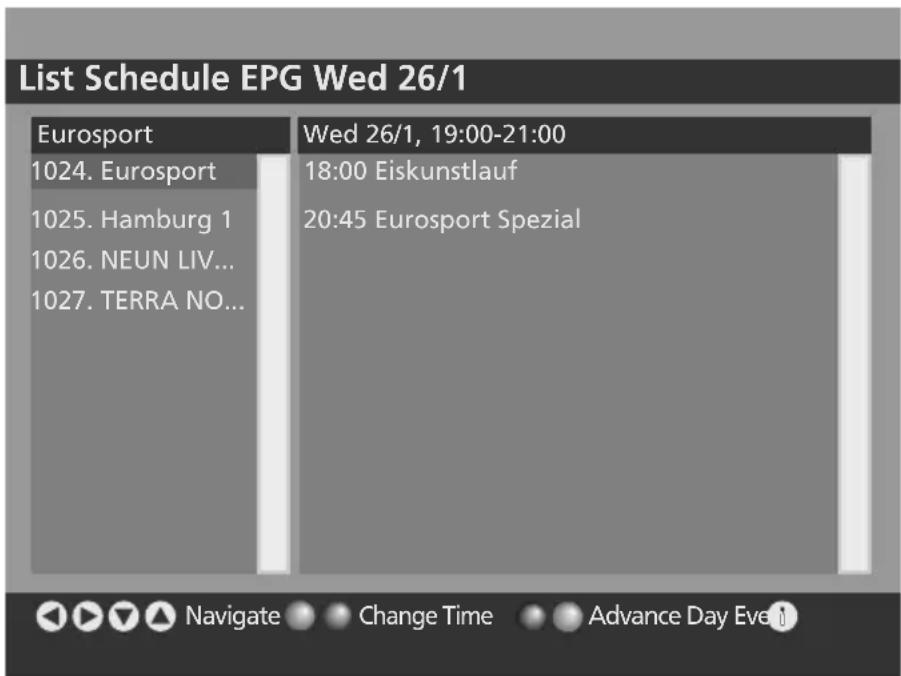
Timeline Schedule EPG
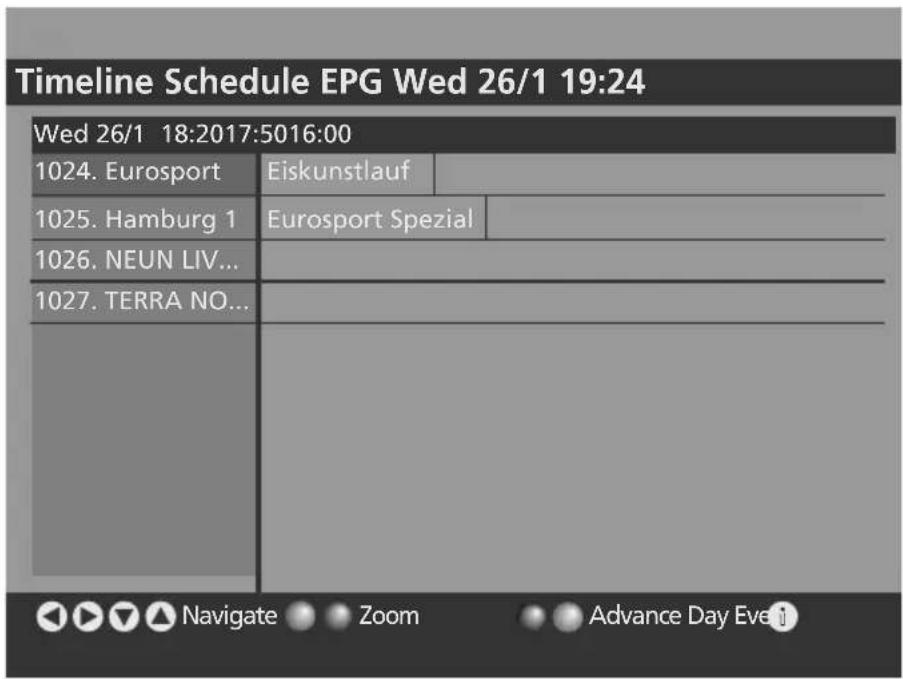
List Schedule EPG information is presented using a list format, either on a banner for the current service, or as a full screen dialog showing multiple services.
A banner with schedule list displays the similar information to that displayed by the current service banner.
On this banner, instead of next programme name, a scrolling list is presented containing programme schedule information for four hours. Users may change the time of the schedule information displayed and highlight a programme within the schedule information.
Whilst this banner is displayed a user may change the current service using the Program Up and Program Down remote control keys.
In the case when there is no schedule information available, the list shown on the banner displays the label "No Information Available".
The user may view more detail for the programme playing now or the programme highlighted in the schedule list using the yellow and blue keys respectively.
The A full screen dialog with schedule list presents the user with two lists and an information panel. The leftmost list displays all available services, the current selected service is displayed in the title bar of this list. The rightmost list displays two hours of schedule information for the currently selected service, its title shows the time span covered by the list. The user navigates between the two lists to change the selected service or the highlighted programme using the Arrow keys on the remote control.
Programme information for the highlighted programme, or first programme item on the schedule list can be displayed by pressing the "information") key.
The user may change the time span of the schedule information displayed for a channel by either two hours or an entire day.
In the case when there is no schedule information available, the list shown on the banner displays the label "No Information Available".
programme detail shown includes start/end time and a description of the programme.
The Extended Schedule Electronic Program Guide cannot be accessed if there are no services available.
Setting
To Display the Configuration
- Press the OPTION button. The DTV MENU will be displayed.
- Select OPT using the < / > button and then press the ENTER button.
Configuration
The Configuration window allows you to customise various settings.
You can select from the available options for each of the items in the Configuration window.
See below for a typical display.
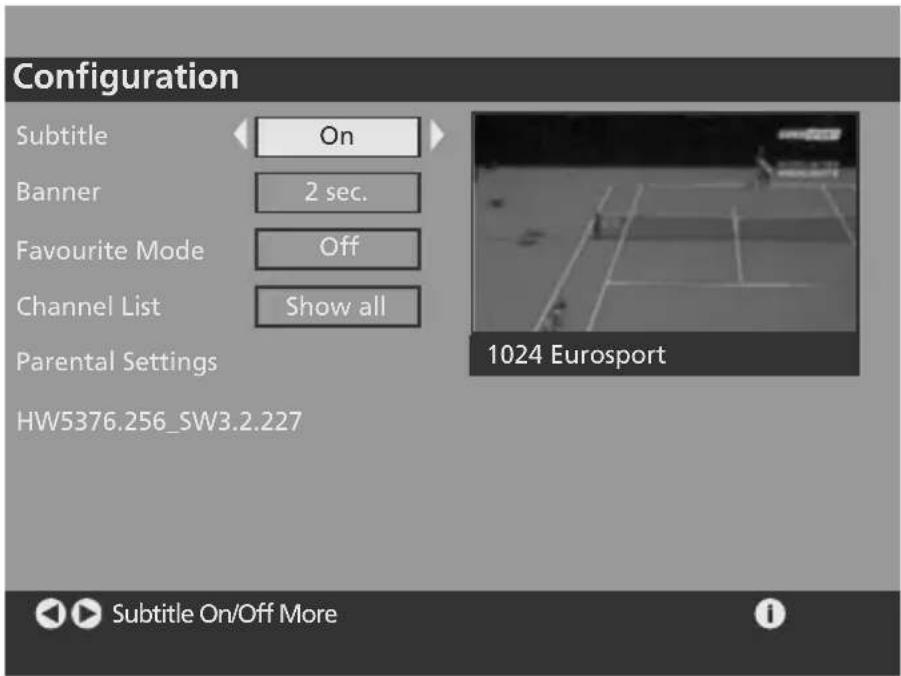
The text along the lower banner changes according to the item selected.
- Use the buttons to display the options in turn.
- Use / to navigate through the configuration list until you reach the item you want to reconfigure.
- Press EXIT to close down the configuration window and return to the previously displayed channel.
- The configuration settings are now as they were set at the time you pressed the EXIT button.
Parental Settings
The Parental Setting feature allows you to password protect groups of menus or allow access to all menus.
- Use V/A to highlight Parental Settings.
- Press "ENTER".
- Initial password is 0000.
The window below left is displayed:
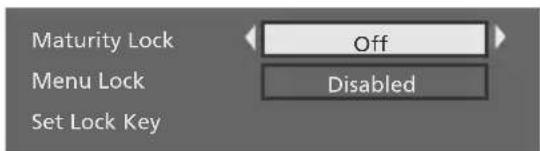
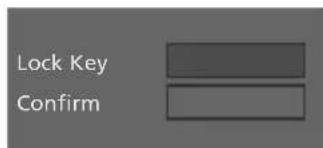
(Initial password is 0000)
- Use / to step through and display the available options: All menus, Installation Menus or None (Disabled).
- Use Mtorhight Set Lock Key.
- Press "ENTER".
A second sub-window is displayed, above right. - Enter the Lock Key code in the code entry box using the number buttons (0~9).
- Input now switches to the Confirm code entry box.
- Enter the same Lock Key code in this window using the number buttons(0~9).
- The second sub-window displays Key Lock Changed and then closes.
- Press EXIT to Apply Setting and return to the Configuration menu.
Language
System, Audio and Subtitle language selection
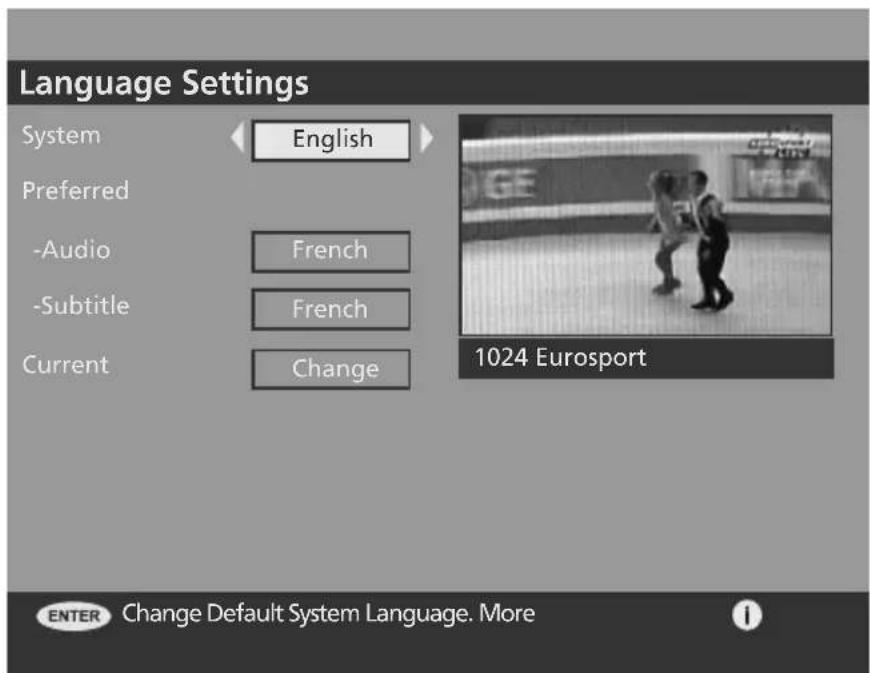
A languages dialog is provided in the "Main Menu", here the user can set the preferred and the current language of both the audio and subtitles.
The preferred language options available are predefined and depend on the customer requirements.
By setting the current language the user can choose from the languages available for a particular selected service. Here, only the languages available for the current service will be offered as an option.
It is not possible to determine exactly which audio language is currently selected as an audio source may indicate that provides support for more than one language.
The languages dialog also displays the current system language.
The system language refers to the language used for all UI text throughout the Application.
The current language can also be set from the Current Service Banner. When multiple language options are available for either subtitles or audio on the current event the icon "I/II" will be displayed on the Current Service Banner. The user can then press the "Left" key to display a dialog and set the current audio or subtitle language for that service.
The dialog will not be displayed if there are no current language options available.
Installation
Automatic Search
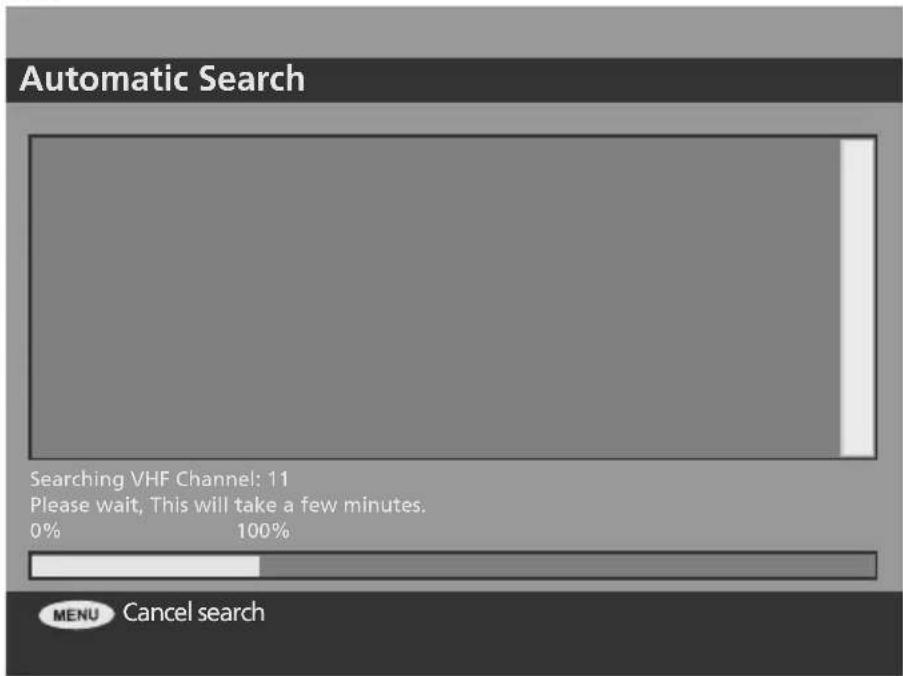
Automatic tuning can be triggered on "First Time Installation" and using an option in the "Main Menu" -> Settings -> Installation.
Whilst performing an automatic tune no service will be selected. A dialog is displayed during automatic tuning that shows the progress of the scan through the channels.
Automatic tuning may be cancelled by the user, in such cases the previous list of services is used, if already stored. When an automatic tune is complete the application will attempt to select the service with the lowest number from the service list and return to "normal viewing" operation.
Note that after automatic tuning has been completed successfully, all user preferences that are related to services are reset, e.g. favourite lists.
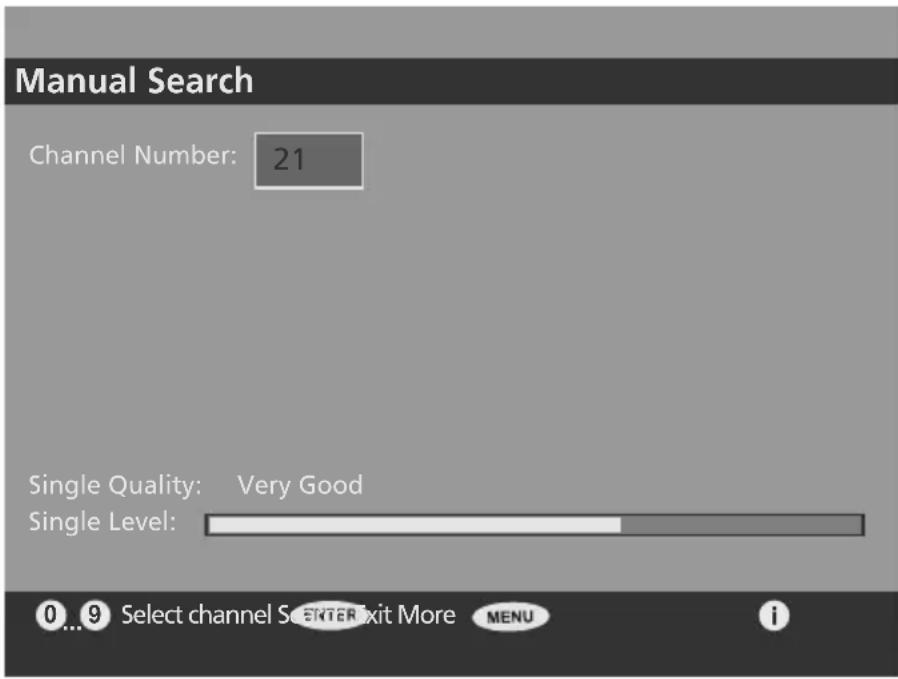
Manual tuning allows the user to scan an individual channel (frequency) for services. The user can perform a manual tune by selecting an option on the "Main Menu".
Whilst performing a manual tune no service will be selected. The user enters the channel number to be scanned, only those channels supported by the tuner may be entered.
The Manual tuning dialog displays a bar indicating the quality and strength of the signal of the currently selected channel. The user can then choose to scan the selected channel for services, a separate dialog is displayed showing the services found whilst scanning is taking place.
Newly discovered services are merged with the current list of services.
Manual tuning may be cancelled by the user, in such cases any newly discovered services are disregarded.
When a manual tune is complete the application will attempt to select the previously selected service and return to "normal viewing" operation. In cases where there was not a previously selected service the application will attempt to select the service with the lowest number.
Common Interface
Viewing Common Interface
- Insert the CAM with the CI CARD installed into the common interface slot. If you installed CAM/CI CARD, the CI Message will be displayed below for an example.
CI Message
Common Interface module inserted.
- Check if you can see a picture on a scrambled signal channel.
To Display the Common Interface Menu
- Press the OPTION button. The DTV MENU will be displayed.
- Select SETUP using the K button and then press the ENTER button. The DTV OSD MENU will be displayed.
- Select Common Interface using the button and then press the ENTER button to display the Common Interface, see below for an example.
Common Interface
Top Up Tv
- Press the ENTER button to display the CI Main menu, see below for an example.
Main menu
Module information
Smart card information
Language
Software Download
Press OK to select, or Exit to quit
OK Cancel
- Select the desired option using the button and then press the ENTER button.
- Press the EXIT button to exit the menu.
Connecting CI
- The Application Info inserting is about the CI CARD.
- You can install the CAM anytime whether the TV is ON or OFF.
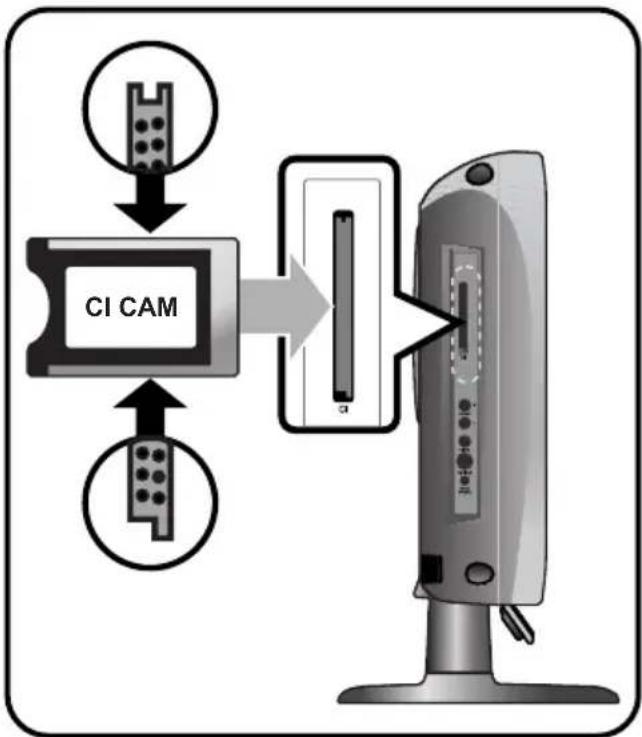
Insert the CI CARD into the CAM in the direction of the arrow until it fits.
Insert the CAM with the CI CARD installed into the common interface slot.
(Insert the CAM in the direction of the arrow, right up to the end so that it is parallel with the slot.)
Technical Specification
Basics
DVB Terrestrial Free-To-Air receiver compliant to EN 300 744
VHF/UHF frequency range
Video and Audio out via internal connector
- S/PDIF out via internal connector
- Fast channel search
- Read-Solomon decoding support (EN 300 744)
Automatic FEC selection (1/2, 2/3, 3/4, 5/6, 7/8)
MPEG2 Transport Stream support: ISO/IEC 13818-1
DVB-Video/-Audio support : ISO/IEC 13818-2, -3
MHEG and LCN support (UK only)
RF specification
- QPSK/QAM16/64 demodulation compliant to DVB terrestrial standard EN 300 744
COFDM 2K and 8K
VHF/UHF support (47...862 MHz): EU area - UHF Support(474...862 MHz) : UK area
7/8 MHz channel brandwidth - Guard Interval Modes: 1/32, 1/16, 1/8, 1/4 active symbol duration
- Fast PLL tuning speed: step size 62.5 KHz / 166.67 KHz
Input / Output specification
-
TV out: CVBS, YUV
Audio analogue out
Digital Audio out via S/PDIF
RF input -
Connector IEC60169-2 female
Termination 75 Ω -
Return Loss : min. 6dB (75 Ω)
-
Loop-Through of RF signals
- Internal connection for 1KX modem protocol for software update service
Mode functionality
DVB Terrestrial TV and Radio reception
- Easy-to-use graphical user interface
- Multi language support
Automatic and manual channel scan
Electronic Program Guide (EPG)
- Aspect ratio : 4:3, 16;9, 2.21:1(PAL only)
- Wide Screen Signalling (WSS)
- Context referred help function
- Excellent quality monitoring to avoid video and audio artefacts if to weak signal
- Excellent help to adjust indoor aerial for maximum input RF signal level
Standard and Regulation Compliance
DVB terrestrial standard EN 300 744
- MPEG2 Transport Stream support to ISO/IEC 13818-1
DVB-Video/-Audio support to ISO/IEC 13818-2, -3
- Safety and EMC regulations : EN 55013, EN 55020 and EN 60065
Troubleshooting
If the TV seems to have a problem, first try the following list of possible problems and solutions before contacting a service center. If none of these troubleshooting tips apply, do not attempt to repair the product yourself. Call your nearest service center.
- Symptoms that may appear to be a problem
The following symptoms may happen even if the TV has no problem. First try the following list of possible problems and solutions before contacting a service center. First try the following list of possible problems and solutions. If the symptom continues, turn the TV off, and call your nearest service center.
| Symptom | Possible Problem | Possible Solution |
| No picture on the screen, and the power LED does not turn on. | Power connection problem. | Check the power cable connectivity to the power connector.Press the power switch again. |
| The TV is turned on, but there is no picture on the screen. | The brightness is adjusted too low.The fluorescent tube is out of order. | Adjust the brightness and the contrast so that a picture is displayed brightly.The fluorescent tube of a LCD TV has a lifetime of about 50,000 hours .To replace the fluorescent tube, contact a service center. |
| An afterimage is generated when continuously watching a still image. | This is caused by an inherent property of LCD panels.Depending on the number of valid pixels, there may be black or bright pixels.These will be less than 0.005% of the sum of all pixels.This is not a problem. | |
| No picture on the screen.No audio. | Discordance between the external device jack and the input switch button location. | Adjust the input switch location. |
| A picture is displayed on the screen, but there is no audio. | The volume is adjusted to 0.Mute is active.The audio cable is disconnected. | Turn up the Volume button.Press the Mute button again.Check the audio cable connectivity. |
| Remote control malfunctions. | The polarity of the batteries installed in the remote control is wrong.The batteries installed in the remote control have not been discharged completely. | Reinstall the batteries properly.Replace the batteries with new ones. |
| Noise is heard on the radio. | This may happen when you use a radio near the TV. | Noise may occur when you use a radio near the TV.Kep some distance between any radios and the LCD TV. |
| No color in a color picture. | The Color density is adjusted to 0 or almost 0. | Adjust the Color density to 100 or less. |
| Duplicated pictures on the screen. | This may be caused by reflected broadcasting signals when there is are mountains, buildings, or trees near your house. | Check if there are any tall objects such as skys crapers near your house. Check that the direction of the antenna is adjusted correctly. |
| Blurred or snowy picture. | The direction of the antenna is not optimal. The antenna cable is disconnected. | Check that the direction of the antenna is correct. Check that the antenna cable is connected to the ANTENNA jack on the back of the LCD TV. |
The remote control does not work properly!
- Are the polarities of the installed batteries correct?
- Has the battery discharged completely?
- Is the power cord plugged in properly or is there a power failure?
- Is fluorescent lighting or a neonsign near the unit?
Warning
If a problem has been detected, unplug the power cable from the wall outlet first.
Using the product when it has a fault may cause electric shocks or fire.
Do not place objects near the wall outlet so that you can unplug the power cable if necessary.
Specifications
The exterior design and the product specifications are subject to be changed without prior notice due to improvements in performance. This product is manufactured for domestic use.
This product may not be used in countries whose television system type or power voltage is different.
The TFT LCD panel uses a panel consisting of sub pixels which require sophisticated technology to produce. However, there may be few bright or dark pixels on the screen. These pixels will have no impact on the performance of the product.
| LCD Panel | Screen Size | 19 Inch WIDE 20 | Inch WIDE 22 Inch | WIDE | |
| Type | TFT LCD | ||||
| Display Color | 16.7M | 16.2M 16.7M | |||
| DVD loader (option) | Applicable disc (Do not insert 8Cm/3inch disc) | DVD-Video / DVD-R /+R / Super VCD / VCD / CD / CD-R / RW MP3 / WMA / JPEG files / Picture CD Disc Compatible | |||
| MPEG4 ASP Video (option) | Support Divx 3.11 / 4.x / 5.x | ||||
| Aspect Ration | 16:9, 4:3Letter Box, PAN&SCAN | ||||
| Language | Audio(9), Subtitle(9) (+others) | ||||
| Others | Built-in screen saver,Repeat mode (chapter/title), Continuous repeat A-B, Resume play/Last Memory | ||||
| TV/VIDEO | Receiver / Channels | VHF: E2 ~ E12 | |||
| UHF: E21 ~ E69 | |||||
| CATV: S1 ~ S41 | |||||
| Television Broadcasting System: PAL, SECAM: B/G, D/K, I, L | |||||
| Antenna Interface | VHF, UHF: 75 ohm | ||||
| Video Signal | PAL, SECAM, NTSC(3.58/4.43) | ||||
| Video Type | CVBS, S - VHS, RGB, YUV, HDMI | ||||
| PC | Synchronization | Horizontal F | 30 ~ 60KHz | ||
| Vertical F | 56 ~ 75Hz | ||||
| Color Quality | 16.7M 16.2M | 16.7M | |||
| Maximum Resolution | 1440 x 900 | 1360 x 768 1680 x 1050 | |||
| Separation Signal | TTL, Anode or Cathode | ||||
| Display Color | 8-bit, 16.7M 6-bit, 16.2M 8-bit, 16.7M | ||||
| Interface | D-sub | ||||
| HDMI | HDMI/DVI-D | ||||
| Audio Out | 2W x 2 | ||||
| Power Supply | 50/60Hz, DC12V/5A | 50/60Hz, DC12V/6A | 50/60Hz, DC12V/5A | ||
| Power Consumption | Maximum 60W | Maximum 72W | Maximum 72W | ||
| Power Consumption When Power Saving Mode | Less than 3W | ||||
| Dimension (mm) | With Stand (W x H x D) | 479 X 392.6 X 200 | 532.9 X 398.5 X 200 | 548.5 X 428 X 200 | |
| Monitor (W x H x D) | 479 X 323 X 89.8 | 532.9 X 332.5 X 99.5 | 548.5 X 381 X 85.5 | ||
| Weight | 5 Kg | 6 Kg | 6.3 Kg | ||
| Accessories | Remote control, Battery (AAA), Owner's Instructions, Power Cord, AC adapter, Stand Screw, Cleaning Cloth, Neck Cover (for WALL MOUNT) | ||||
- This device has been registered in regards to EMI for residential use. It may be used in all areas.
Appendix
Standard Signal Mode Table
A TFT LCD TV is configured to support the following 24 signal modes. A user can register up to 24 modes. Configure the PC display mode referring to the following table.
For configuration procedures, refer to the Appendix of the PC manual.
| Resolution | Horizontal Frequency (KHz) | Vertical Frequency (Hz) | Clock Frequency (MHz) | Polarity (H/V) |
| IBM, 640 X 350 | 31.469 | 70.086 | 25.175 | +/- |
| IBM, 640 X 480 | 31.469 | 59.940 | 25.175 | -/- |
| IBM, 720 X 400 | 31.469 | 70.087 | 28.322 | -/+ |
| MAC, 640 X 480 | 35.000 | 66.667 | 30.240 | -/- |
| MAC, 832 X 624 | 49.726 | 74.551 | 57.284 | -/- |
| MAC, 1152 X 870 | 68.681 | 75.062 | 100.000 | -/- |
| VESA, 640 X 480 | 37.500 | 75.000 | 31.500 | -/- |
| VESA, 640 X 480 | 37.861 | 72.809 | 31.500 | -/- |
| VESA, 800 X 600 | 35.156 | 56.250 | 36.000 | -/- |
| VESA, 800 X 600 | 37.879 | 60.317 | 40.000 | +/+ |
| VESA, 800 X 600 | 46.875 | 75.000 | 49.500 | +/+ |
| VESA, 800 X 600 | 48.077 | 72.188 | 50.000 | +/+ |
| VESA, 1024 X 768 | 48.363 | 60.004 | 65.000 | -/- |
| VESA, 1024 X 768 | 56.476 | 70.069 | 75.000 | -/- |
| VESA, 1024 X 768 | 60.023 | 75.029 | 78.750 | +/+ |
| VESA, 1280 X 768 | 47.693 | 59.992 | 80.125 | -/+ |
| VESA, 1360 X 768 | 47.712 | 60.015 | 85.800 | +/+ |
19" ONLY
| Resolution | Horizontal Frequency (KHz) | Vertical Frequency (Hz) | Clock Frequency (MHz) | Polarity (H/V) |
| VESA, 1152 X 864 | 67.500 | 75.000 | 108.000 | +/+ |
| VESA, 1280 X 960 | 60.000 | 60.000 | 108.000 | +/+ |
| VESA, 1280 X 1024 | 63.891 | 60.020 | 108.000 | +/+ |
| VESA, 1280 X 1024 | 79.976 | 75.025 | 135.00 | +/+ |
| VESA, 1440 X 900 | 55.935 | 59.887 | 106.500 | -/+ |
| VESA, 1440 X 900 | 70.635 | 75.984 | 136.750 | -/+ |
22" ONLY
| Resolution | Horizontal Frequency (KHz) | Vertical Frequency (Hz) | Clock Frequency (MHz) | Polarity (H/V) |
| VESA, 1152 X 864 | 67.500 | 75.000 | 108.000 | +/+ |
| VESA, 1280 X 960 | 60.000 | 60.000 | 108.000 | +/+ |
| VESA, 1280 X 1024 | 63.891 | 60.020 | 108.000 | +/+ |
| VESA, 1280 X 1024 | 79.976 | 75.025 | 135.00 | +/+ |
| VESA, 1680 X 1050 | 65.290 | 59.954 | 146.250 | -/+ |