
KM60 - Receiver Hartke - Free user manual and instructions
Find the device manual for free KM60 Hartke in PDF.



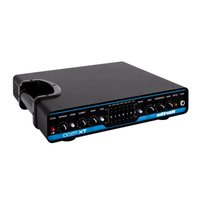
| Product Type | Keyboard Amplifier (Receiver) |
| Brand | Hartke |
| Model | KM60 |
| Output Power | 60 Watts |
| Woofer | Hartke 254 mm (10") aluminum cone, 4 ohms |
| Tweeter | Ceramic tweeter |
| Equalizer | 7-band graphic, ±12 dB, frequencies: 100 Hz, 250 Hz, 500 Hz, 1 kHz, 2.5 kHz, 5 kHz, 10 kHz |
| Inputs | 1 XLR microphone input (CH1), 4 1/4" line inputs (CH1-CH4), 1 stereo RCA Aux In input |
| Outputs | 1 XLR Direct Out, 1 1/4" stereo headphone output, 1 1/4" speaker output (KM100) |
| Dimensions (H x W x D) | 43.1 cm x 42 cm x 28.3 cm |
| Weight | 20 kg |
| Power Supply | Mains (power cord included) |
| Power Consumption | Not specified |
| Main Features | 4-channel built-in mixer, graphic equalizer, direct output, auxiliary input, headphone output |
| Care and Cleaning | Clean with a damp cloth only. Do not use solvents. |
| Safety | Do not expose to rain or moisture. Do not open the enclosure. Refer servicing to qualified personnel. |
| Spare Parts and Repairability | No user-serviceable parts. Contact customer service for repairs. |
| Warranty | 3 years |
| Included Accessories | Power cord, user manual |
Frequently Asked Questions - KM60 Hartke
User questions about KM60 Hartke
0 question about this device. Answer the ones you know or ask your own.
Ask a new question about this device
Download the instructions for your Receiver in PDF format for free! Find your manual KM60 - Hartke and take your electronic device back in hand. On this page are published all the documents necessary for the use of your device. KM60 by Hartke.
USER MANUAL KM60 Hartke
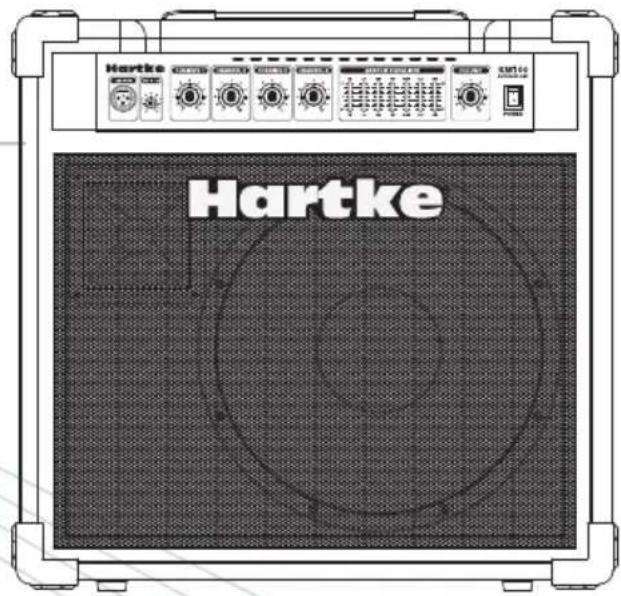
KEYBOARD MONITOR
Owners Manual
Hartke
Copyright 2005 - 2006, Samson Technologies Corp.
Printed April, 2006 v1.2
Samson Technologies Corp.
45 Gilpin Avenue
Hauppauge, New York 11788-8816
Phone: 1-800-3-SAMSON (1-800-372-6766)
Fax: 631-784-2201
www.hartke.com
WARNING: To reduce the risk of fire or electric shock, do not expose this unit to rain or moisture. To reduce the hazard of electrical shock, do not remove cover or back. No user serviceable parts inside. Please refer all servicing to qualified personnel. The lightning flash with an arrowhead symbol within an equilateral triangle, is intended to alert the user to the presence of uninsulated "dangerous voltage" within the products enclosure that may be of sufficient magnitude to constitute a risk of electric shock to persons. The exclamation point within an equilateral triangle is intended to alert the user to the presence of important operating and maintenance (servicing) instructions in the literature accompanying the product.
Important Safety Instructions
- Please read all instructions before operating the unit.
- Keep these instructions for future reference.
- Please heed all safety warnings.
- Follow manufacturers instructions.
- Do not use this unit near water or moisture.
- Clean only with a damp cloth.
- Do not block any of the ventilation openings. Install in accordance with the manufacturers instructions.
-
Do not install near any heat sources such as radiators, heat registers, stoves, or other apparatus (including amplifiers) that produce heat.
-
Do not defeat the safety purpose of the polarized or grounding-type plug. A polarized plug has two blades with one wider than the other. A grounding type plug has two blades and a third grounding prong. The wide blade or third prong is provided for your safety. When the provided plug does not fit your outlet, consult an electrician for replacement of the obsolete outlet.
-
Protect the power cord from being walked on and pinched particularly at plugs, convenience receptacles and at the point at which they exit from the unit.
-
Unplug this unit during lightning storms or when unused for long periods of time.
-
Refer all servicing to qualified personnel. Servicing is required when the unit has been damaged in any way, such as power supply cord or plug damage, or if liquid has been spilled or objects have fallen into the unit, the unit has been exposed to rain or moisture, does not operate normally, or has been dropped.
Hartke KM60 and KM100 Keyboard Amplifier Features....2
Guided Tour - Front Panel 3
Guided Tour - Rear Panel 4
Setting Up and Using Your Hartke KM60 and KM100 Keyboard Amplifier . . . . . . 5
Using the KM60 and KM100's Set-ups....7
Specifications....46
FRANÇAIS
Introduction 10
Congratulations on purchasing the Hartke KM60 or KM100 Keyboard Amplifier! The KM60 and KM100 are perfect solutions for just about any keyboard player who needs a flexible mix /monitor system to handle a sophisticated instrument rig, and who demands a high quality amplifier that faithfully reproduces the sound, nuances, and soul, of their performance. The KM60 achieves this goal by delivering a solid 60 watts of power, driving a custom designed Hartke 10" aluminum cone low frequency drive unit, working with a ceramic tweeter, fit in a rugged enclosure. The KM100 handles the job by delivering 100 watts of power, driving a custom designed Hartke 12" aluminum cone low frequency drive unit, working with a 1" titanium compression driver, enclosed in an innovative kickback cabinet, giving you a powerful full-range 2-way professional monitoring system.
For players with multiple keyboards and sound modules, an additional mixer isn't needed because the KM60 and KM100 have one built-in. The mixer features a Mic/Line input, as well as three additional inputs, giving you a total of 4 channels, plus a stereo Aux in. The KM60 and KM100 also feature a powerful 7-band Graphic Equalizer allowing you to set a customized frequency response contour that's perfect for your sound and helps you hear yourself better on stage. The KM60 and KM100 are easy to transport and the solid construction makes them reliable performers from night-to-night and venue-to-venue.
Although these units are designed for easy operation, we suggest you first take some time to go through these pages so you can fully understand how we've implemented a number of unique features. In these pages, you'll find a detailed description of the many features of the KM60 and KM100 keyboard amplifiers, as well as a guided tour through it's front and rear panels, step-by-step instructions for setting up and using the product, detailed discussions about equalization and compression, and full specifications. You'll also find a warranty card enclosed—please don't forget to fill it out and mail it so that you can receive online technical support and so we can send you updated information about these and other Hartke and Samson products in the future.
With proper care and adequate air circulation, your KM60 or KM100 will operate trouble free for many years. We recommend you record your serial number in the space provided below for future reference.
Serial number: ____
Date of purchase: ____
Should your unit ever require servicing, a Return Authorization number (RA) must be obtained before shipping your unit to Samson. Without this number, the unit will not be accepted. Please call Samson at 1-800-3SAMSON (1-800-372-6766) for a Return Authorization number prior to shipping your unit. Please retain the original packing materials and if possible, return the unit in the original carton and packing materials.
Hartke KM60 and KM100 Keyboard Amplifier Features
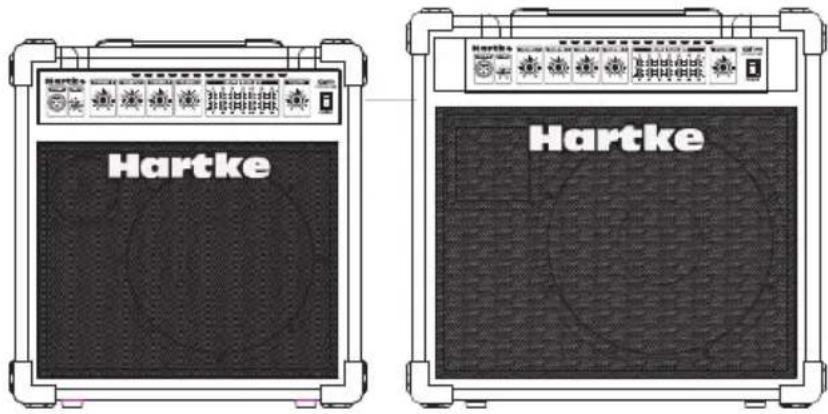
The Hartke KM60 and KM100 keyboard amplifiers offer all the newest concepts in Keyboard amplification. Here are some of their main features:
- Four Channel Keyboard mixer amplifier with 2-way speaker system.
- Microphone input, plus 3 additional mono input channels.
- The KM60 features 60 Watts of clean Hartke power while the KM100 provides 100 Watts, delivered to thier 2-way internal speaker system.
- For rocking lows, the KM60 employs a 10-inch, custom designed Hartke Aluminum Cone Low Frequency Drive Unit and the KM100 emlpoys a 12-inch, custom designed Hartke Aluminum Cone Low Frequency Drive Unit.
• To capture and project the high frequencies of your keyboard rig, the the KM60 utilizes a ceramic tweeter, and the KM100, a 1-inch Throat Titanium Compression Driver.
• A 7-band Graphic Equalizer is provided to shape the overall tone of the keyboard monitor. - The KM100 features an innovative Kickback enclosure design that allows the sound to be projected up at the player.
- Rugged construction makes the KM60 and KM100 eminently road-worthy.
• Three year extended warranty.
Guided Tour - Front Panel
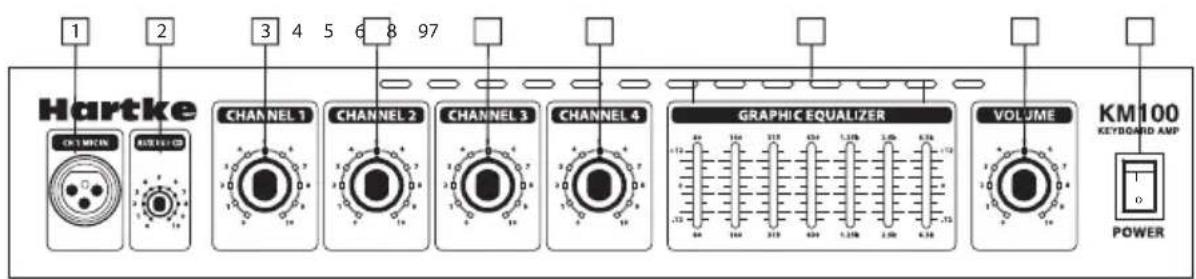
- Channel 1 MIC IN - XLR input connector for connecting to Channel 1's Low-noise Microphone Pre-amp.
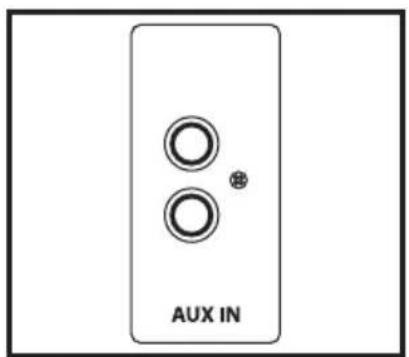
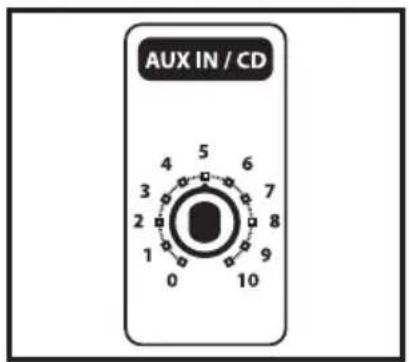
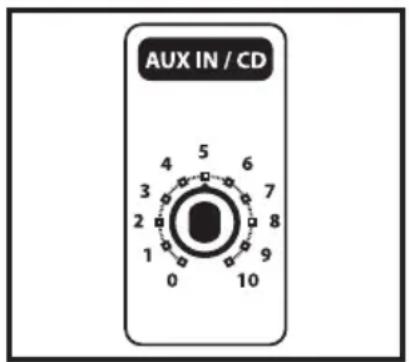
- AUX IN/CD - Your KM Series amplifier features a CD input which you can use with a portable CD player, cassette, mini disk or MP3 player. You can use the CD input to jam with pre-recorded tracks or to learn a riff from a favorite recording.
- Channel 1 Volume - Control knob is used to control the overall level of the Channel 1 input.
- Channel 2 Volume – This control knob used to control the overall level of the Channel 2 input.
- Channel 3 Volume - Control knob is used to control the overall level of the Channel 3 input.
- Channel 4 Volume – This control knob is used to control the overall level of the Channel 4 input.
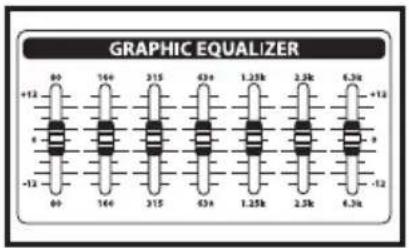
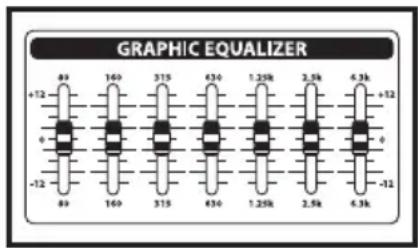
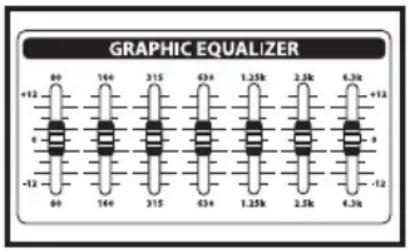
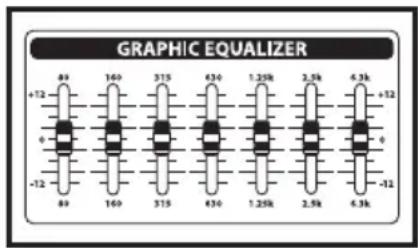
- Graphic Equalizer - These sliders allow you to "draw" the tonal response of the system by adding 12 dB of boost or attenuation to seven different narrow-band frequency areas (100 Hz, 250 Hz, 500 Hz, 1 kHz, 2.5 kHz, 5 kHz, and 10 kHz), affecting the main output signal of the KM100. When a slider is at its center detented ("0") position, the selected frequency area is unaffected (it is said to be flat). When a slider is moved up (above the "0" position, towards the "+12" position), the selected frequency area is boosted, and when it is moved down (below the "0" position, towards the "-12" position), the selected frequency area is attenuated. For more information, see the "About Equalization" section on pages 9 - 10 of this manual.
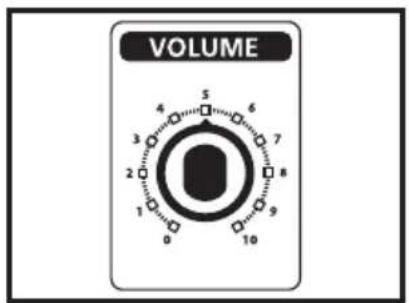
- Volume - Control knob used to control the overall level the KM60 or KM100 amplifier.
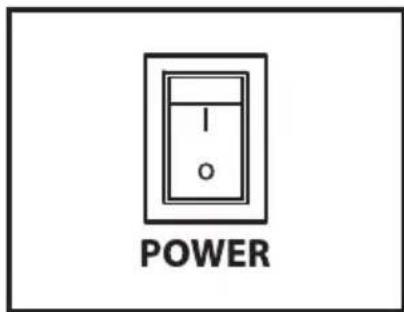
- Power switch - Use this to power the KM60 or KM100 on or off.
Guided Tour - Rear Panel
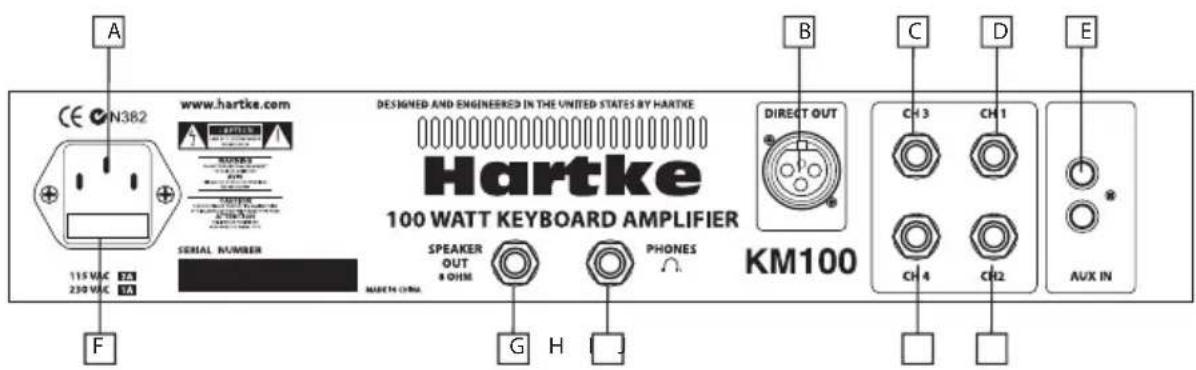
A. AC INLET - Connect the supplied standard IEC power cable here.
B. Direct Output XLR - This connector carries the Balanced signal from the KM60 or 100's mixer output and can be used to connect to the main PA mixer.
C. Channel 3 Input - 1/4-inch phone jack for connecting line level inputs. Use this input if you are connecting a mono signal source.
D. Channel 1 Input - 1/4-inch phone jack for connecting line level inputs like those from keyboards and drum machines.
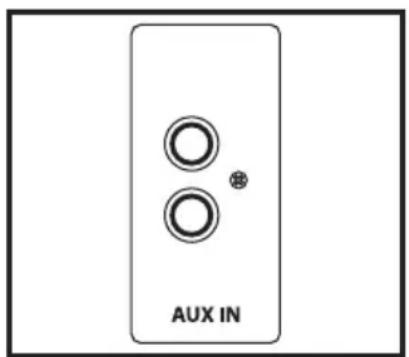
E. Aux Input – RCA inputs for connecting an external line level signal like that from a CD, MP3 player or sound card.
F. FUSE - User accessible fuse.
G. PHONES - Connect any stereo headphone (600 ohms or less) to this standard 1/4" stereo jack. When a plug is inserted into the headphone jack, the speaker output is disconnected, allowing you to use your KM60 or KM100 as a practice amplifier. The level of the signal sent to the headphones is determined by the setting of the Output knob—at the point where a connected speaker would clip, the headphones will clip.
WARNING: Because even the smallest KM Series amplifier is capable of generating extremely high headphone signal levels, always start with the Volume knob at minimum and then slowly turn it up. In particular, a clicking sound is an indication of distortion and possible damage to the headphones (and/or your hearing!); don't let things get to that point!
H. Speaker Output - 1/4-inch phone jack for connecting the internal speaker (KM100 only).
I. Channel 4 Input - 1/4-inch phone jack for connecting line level inputs like those from keyboards and drum machines.
J. Channel 2 Input - 1/4-inch phone jack for connecting line level inputs like those from keyboards and drum machines.
Setting Up and Using Your Hartke KM60 and KM100 Keyboard Amplifier
KM200 Basic Operation
Setting up your Hartke KM60 or Km100 Keyboard amplifier is a simple procedure which takes only a few minutes:
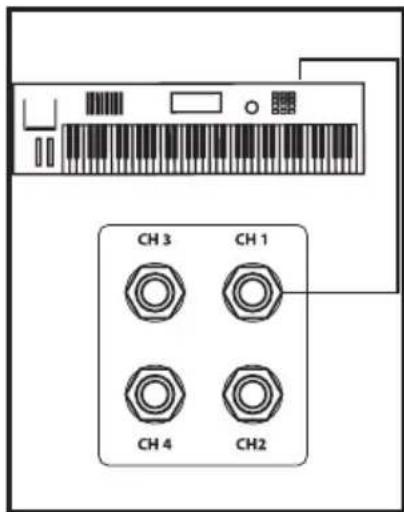
- Remove all packing materials (save them in case of need for future service) and decide where the amplifier is to be physically placed. To avoid potential overheating problems, be sure that the rear panel is unobstructed and that there is good ventilation around the entire unit.
- Connect the 3-pin AC plug into any grounded AC socket. Don't turn the amplifier on just yet, though.
- Use standard music instrument cables to connect your keyboards and/or drum machines to the appropriate Input jack, or jacks, on the rear panel. If you want to connect a microphone, connect a low impedance mic to the Channel 1 XLR mic input located on the front panel.

WARNING: Hartke amplifiers can deliver very high power levels. Driven to full power, they can damage connected loudspeakers, regardless of brand, size, or configuration. Care should be taken not to strain connected loudspeakers as this can cause permanent damage and will degrade the performance of the entire system. If you see connected loudspeakers moving excessively, turn your system down immediately or use the equalization and/or compression controls to reduce the amount of sub harmonic (extremely low frequency) signal.
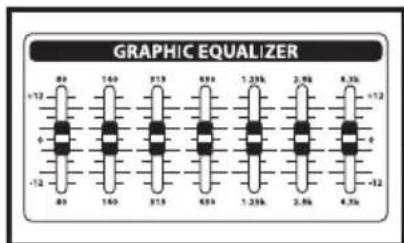
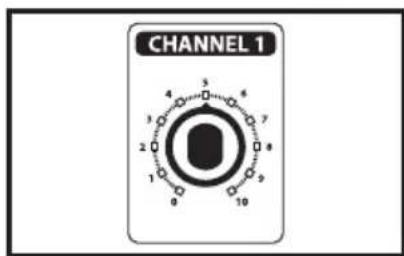
- Set the main Volume control to "0" (fully counterclockwise and set channel volume knobs to "5" (the twelve o'clock position). Then, set the graphic equalizer sliders to the middle 0dB position.
- Press the front panel Power switch in order to turn on the amplifier.
Setting Up and Using Your Hartke KM60 and KM100 Keyboard Amplifier
- Set the output of your keyboard to about 3/4's the way up and then, while playing, slowly turn the main Volume control up until the desired level is achieved. If you hear distortion even at low amplifier Master volume settings, back off the output of your Keyboard (or check for a faulty cable).
- Next, experiment with the KM60 or KM100's graphic equalizer. Begin by setting each of the seven sliders to their flat "0" center detented position. Finally, move each slider in turn as you play your Keyboard. For more information, see the "About Equalization" section on pages 8-9 of this manual. Again, when you get a graphic equalization setting that complements your instrument and playing style, it's a good idea to write it down for future use.
If you have followed all the steps above and are still experiencing difficulties, call Samson Technical Support (516-932-1062) between 9 AM and 5 PM EST.
- Your KM series amplifier features a AUX/CD input which you can use with a portable CD player, cassette, mini disk or MP3 player to jam with pre-recorded tracks or learn a riff from a favorite tune. In fact, you can plug any line level signal into the AUX input including the signal from a keyboard or drum machine. Connect the CD player or other Line level device to the AUX Input using standard RCA cable. You will want to use the volume control on the CD player or other Line level device to set the balance between the track and your keyboard. So, start with the volume control all the way down and slowly raise it until you reach a good balance with your keyboard
- Test the headphone output by turning the Volume control to its minimum (fully counterclockwise) position and then connect a standard stereo headphone to the rear panel Phones jack. While playing your keyboard, slowly turn the Volume control up—you should hear sound from the headphones and none from the connected speaker.

Using the KM60 and KM100's Set-ups
Using the Direct Output
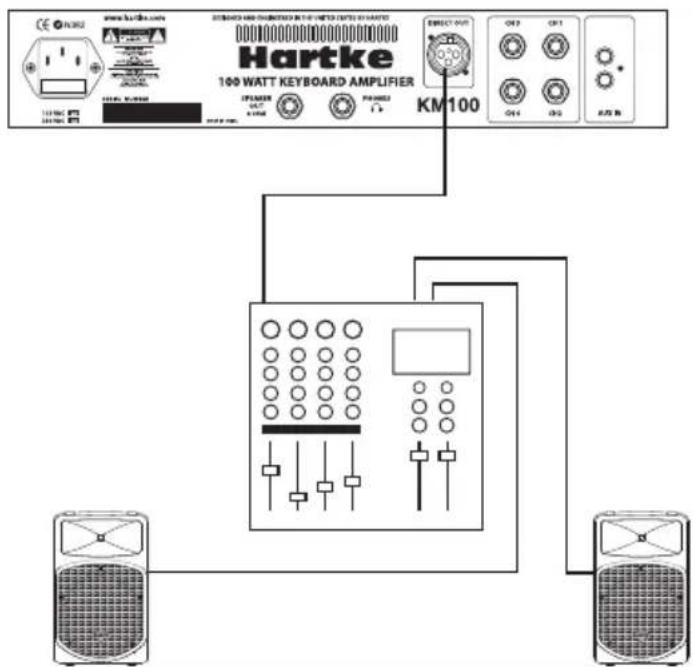
The KM 60 and KM100 feature a Direct Out jack for connecting to the main PA systems. Use this electronically balanced XLR jack to route signal from the KM60 or KM100 to a professional mixing console or as a tap to a main PA system via a mic input on the console. The signal output from this jack is low impedance (100 ohm) with an output level of approximately -30 to -20 dB. You can also use the Direct Out jack to route signal to an external amplifier with a -10 dB input sensitivity.
flowchart
graph TD
    A["CE"] --> B["100 WATT KEYBOARD AMPLIFIER"]
    C["WWW.SURO2"] --> B
    D["POWER"] --> B
    E["INR"] --> B
    F["AC"] --> B
    G["AC"] --> B
    H["AC"] --> B
    I["AC"] --> B
    J["AC"] --> B
    K["AC"] --> B
    L["AC"] --> B
    M["AC"] --> B
    N["KM100"] --> B
    O["OUT"] --> P["100 WATT KEYBOARD AMPLIFIER"]
    Q["OUT"] --> P
    R["OUT"] --> P
    S["OUT"] --> P
    T["OUT"] --> P
    U["OUT"] --> P
    V["OUT"] --> P
    W["OUT"] --> P
    X["OUT"] --> P
    Y["OUT"] --> P
    Z["OUT"] --> P
    AA["OUT"] --> P
    AB["OUT"] --> P
    AC["OUT"] --> P
    AD["OUT"] --> P
    AE["OUT"] --> P
    AF["OUT"] --> P
    AG["OUT"] --> P
    AH["OUT"] --> P
    AI["OUT"] --> P
    AJ["OUT"] --> P
    AK["OUT"] --> P
    AL["OUT"] --> P
    AM["OUT"] --> P
    AN["OUT"] --> P
    AO["OUT"] --> P
    AP["OUT"] --> P
    AQ["OUT"] --> P
    AR["OUT"] --> P
    AS["OUT"] --> P
    AT["OUT"] --> P
    AU["OUT"] --> P
    AV["OUT"] --> P
    AW["OUT"] --> P
    AX["OUT"] --> P
    AY["100 WATT KEYBOARD AMPLIFIER"]
    AZ["100 WATT KEYBOARD AMPLIFIER"]
    BA["100 WATT KEYBOARD AMPLIFIER"]
    BB["100 WATT KEYBOARD AMPLIFIER"]
    BC["100 WATT KEYBOARD AMPLIFIER"]
    BD["100 WATT KEYBOARD AMPLIFIER"]
    BE["100 WATT KEYBOARD AMPLIFIER"]
    BF["100 WATT KEYBOARD AMPLIFIER"]
    BG["100 WATT KEYBOARD AMPLIFIER"]
    BH["100 WATT KEYBOARD AMPLIFIER"]
    BI["100 WATT KEYBOARD AMPLIFIER"]
    BJ["100 WATT KEYBOARD AMPLIFIER"]
    BK["100 WATT KEYBOARD AMPLIFIER"]
    BL["100 WATT KEYBOARD AMPLIFIER"]
    BM["100 WATT KEYBOARD AMPLIFIER"]
    BN["100 WATT KEYBOARD AMPLIFIER"]
    BO["100 WATT KEYBOARD AMPLIFIER"]
    BP["100 WATT KEYBOARD AMPLIFIER"]
    BQ["100 WATT KEYBOARD AMPLIFIER"]
    BR["100 WATT KEYBOARD AMPLIFIER"]
    BS["100 WATT KEYBOARD AMPLIFIER"]
    BT["100 WATT KEYBOARD AMPLIFIER"]
    BU["100 WATT KEYBOARD AMPLIFIER"]
    BV["100 WATT KEYBOARD AMPLIFIER"]
    BW["100 WATT KEYBOARD AMPLIFIER"]
    BX["100 WATT KEYBOARD AMPLIFIER"]
    BY["100 WATT KEYBOARD AMPLIFIER"]
    CA["100 WATT KEYBOARD AMPLIFIER"]
    CB["100 WATT KEYBOARD AMPLIFIER"]
    CC["100 WATT KEYBOARD AMPLIFIER"]
    CD["100 WATT KEYBOARD AMPLIFIER"]
    CE --> AD
    CE --> BJ
    CE --> BK
KM60 or KM100 Stereo Set-up
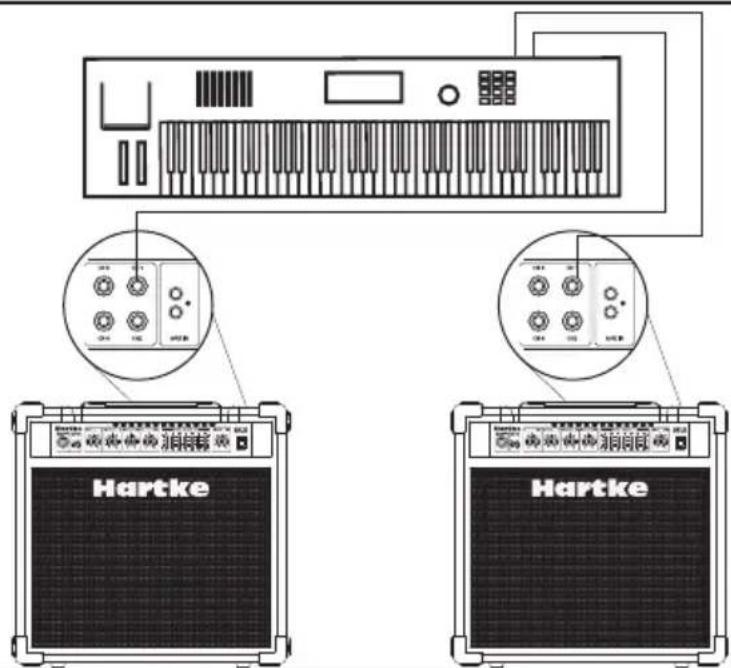
You can use two KM60's or KM100's for stereo operation by simply connecting the left output of your keyboard to one KM60 or KM100 and the right output of your keyboard to the second KM60 or KM100. You can repeat this set-up for up to four stereo keyboards or drum machines using channel 1 - 4 on each KM series amplifier.
About Equalization
The Hartke KM60 or KM100 Keyboard amplifier gives you enormous control over shaping the sound of your keyboard rig, using a process called equalization. To understand how this works, it's important to know that every naturally occurring sound consists of a broad range of pitches, or frequencies, combined together in a unique way. This blend is what gives every sound its distinctive tonal color. EQ controls allow you to alter a sound by boosting or attenuating specific frequency areas—they operate much like the bass and treble controls on your hi-fi amp, but with much greater precision. The KM60 or KM100 provides you with one most effective tool for shaping the overall tone of your Keyboard sound; a Graphic Equalizer providing 12 dB of cut or boost in seven narrow frequency bands.
The seven-band graphic equalizer provides seven sliders, each corresponding to a single narrow frequency band (100 Hz, 250 Hz, 500 Hz, 1 kHz, 2.5 kHz, 5 kHz, and 10 kHz). This allows you to "draw" the desired tonal response of your system. When a slider is in its center position ("0"), it is having no effect. When it is moved above center (towards "+12"), the particular frequency area is being boosted; when it is moved below center (towards "-12"), the frequency area is being attenuated. We carefully selected these frequency areas because they have maximum impact on keyboard signals. For example, the lowest slider (100 Hz) affects the very lowest audible frequencies (in fact, most humans cannot hear below 20 Hz), while the highest four sliders affects the mid-range and high frequencies.
To find out how each graphic equalizer slider affects the sound of your particular keyboard, start with all seven bands flat (that is, all seven sliders at their "0" center position).
About Equalization
Then, one by one, raise and lower each slider, listening carefully to the effect of each. Note that turning all EQ controls up the same amount will have virtually the same effect as simply turning up the main Volume; conversely, turning them all down the same amount will have virtually the same effect as turning down the main Volume. Both approaches are pointless (after all, that's why we gave you a main Volume control!)
In many instances, the best way to deal with equalization is to think in terms of which frequency areas you need to attenuate, as opposed to which ones you need to boost. Be aware that boosting a frequency area also has the effect of boosting the overall signal; specifically, too much low frequency EQ boost can actually cause overload distortion or even harm a connected speaker.
The specific EQ you will apply to your Keyboard signal is very much dependent upon your particular instrument and personal taste and playing style. However, here are a few general suggestions:
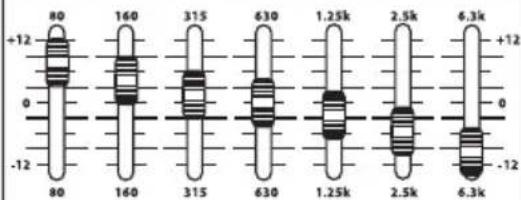
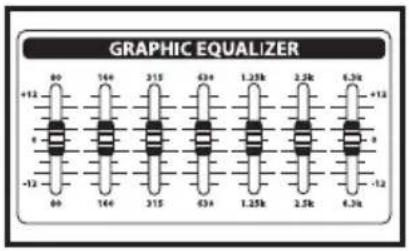
- For that super-deep reggae or techno bass sound, boost low frequencies slightly while attenuating the highest ones (leave mid-range frequencies flat or slightly attenuated), as shown in the illustration on the right.
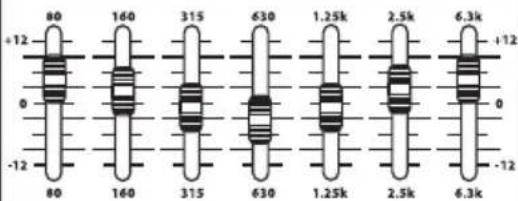
- To remove boxiness and make your instrument sound more "hi-fi," try attenuating mid-range frequencies while leaving low and high frequency settings flat, as shown in the illustration on the right.
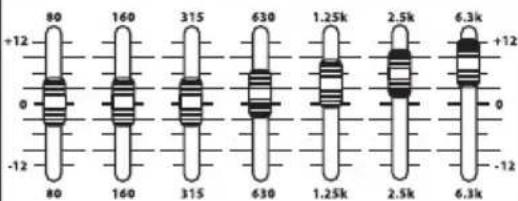
- For a bright, cutting sound, try boosting the high and high mid-range frequencies, as shown in the illustration on the right.
- Whenever you get a really good EQ setting for a particular instrument or song, write it down (you'd be amazed how easy it is to forget these things!).
Finally, as you experiment with the EQ controls of the KM60 or Km100, don't forget that your keyboard probably provides EQ control, so experiment by using both.
GRAPHIC EQUALIZER
GRAPHIC EQUALIZER
GRAPHIC EQUALIZER
Introduction
flowchart
graph TD
    A["CE"] --> B["HLA"]
    C["WWW.HARTKE"] --> D["HLA"]
    E["HLA"] --> F["HLA"]
    G["HLA"] --> H["HLA"]
    I["HLA"] --> J["HLA"]
    K["HLA"] --> L["HLA"]
    M["HLA"] --> N["HLA"]
    O["HLA"] --> P["HLA"]
    Q["HLA"] --> R["HLA"]
    S["HLA"] --> T["HLA"]
    U["HLA"] --> V["HLA"]
    W["HLA"] --> X["HLA"]
    Y["HLA"] --> Z["HLA"]
    AA["HLA"] --> AB["HLA"]
    AC["HLA"] --> AD["HLA"]
    AE["HLA"] --> AF["HLA"]
    AG["KM100"] --> AH["controller with buttons and display"]
    AI["OK1"] --> AJ["OK2"]
    AK["OK3"] --> AL["OK4"]
    AM["OK5"] --> AN["OK6"]

flowchart
graph TD
    A["CE"] --> B["HP"]
    C["HP"] --> D["HP"]
    E["HP"] --> F["HP"]
    G["HP"] --> H["HP"]
    I["HP"] --> J["HP"]
    K["HP"] --> L["HP"]
    M["HP"] --> N["HP"]
    O["HP"] --> P["HP"]
    Q["HP"] --> R["HP"]
    S["HP"] --> T["HP"]
    U["HP"] --> V["HP"]
    W["HP"] --> X["HP"]
    Y["HP"] --> Z["HP"]
    AA["HP"] --> AB["HP"]
    AC["HP"] --> AD["HP"]
    AE["HP"] --> AF["HP"]
    AG["HP"] --> AH["HP"]
    AI["HP"] --> AJ["HP"]
    AK["HP"] --> AL["HP"]
    AM["HP"] --> AN["HP"]
    AO["HP"] --> AP["HP"]
    AQ["HP"] --> AR["HP"]
    AS["HP"] --> AT["HP"]
    AU["HP"] --> AV["HP"]
    AW["HP"] --> AX["HP"]
    AY["HP"] --> AZ["HP"]
    BA["HP"] --> BB["HP"]
    BC["HP"] --> BD["HP"]
    BE["HP"] --> BF["HP"]
    BG["HP"] --> BH["HP"]
    BI["HP"] --> BJ["HP"]
    BK["HP"] --> BL["HP"]
    BM["HP"] --> BN["HP"]
    BO["HP"] --> BP["HP"]
    BP --> BQ["HP"]
    BR["HP"] --> BS["HP"]
    BT["HP"] --> BU["HP"]
    BV["HP"] --> BW["HP"]
    BX["HP"] --> BY["HP"]
    BZ["HP"] --> CA["HP"]
    CB["HP"] --> CD["HP"]
    CE --> ED["Hartke 100 WATT KEYBOARD AMPLIFIER"]
    AD --> ED
    AE --> ED
    AF --> ED
    AG --> ED
    AH --> ED
    AI --> ED
    AJ --> ED
    AK --> ED
    BB --> ED
    BC --> ED
    BF --> ED
    BG --> ED
    BH --> ED
    BI --> ED
    BJ --> ED
    AK --> ED
    AL --> ED
    AM --> ED
    AN --> ED
    AO --> ED
    AU --> ED
    AV --> ED
    BW --> ED
    BX --> ED
    BY --> ED
KM60 oder KM100 Stereo-Setup
Über den Equalizer
bar
| Group | Value | |-------|-------| | Top Left | +12 | | Top Right | 0 | | Bottom Left | -12 | | Bottom Right | 0 | | Bottom Left | 1.25k | | Bottom Right | 2.5k | | Bottom Left | 6.3k | | Bottom Right | +12 |Introducción
flowchart
graph TD
    A["CE"] --> B["HP"]
    C["www.hartke.com"] --> D["HP"]
    E["HP"] --> F["HP"]
    G["HP"] --> H["HP"]
    I["HP"] --> J["HP"]
    K["HP"] --> L["HP"]
    M["HP"] --> N["HP"]
    O["HP"] --> P["HP"]
    Q["HP"] --> R["HP"]
    S["HP"] --> T["HP"]
    U["HP"] --> V["HP"]
    W["HP"] --> X["HP"]
    Y["HP"] --> Z["HP"]
    AA["HP"] --> AB["HP"]
    AC["HP"] --> AD["HP"]
    AE["HP"] --> AF["HP"]
    AG["HP"] --> AH["HP"]
    AI["HP"] --> AJ["HP"]
    AK["HP"] --> AL["HP"]
    AM["HP"] --> AN["HP"]
    AO["HP"] --> AP["HP"]
    AQ["HP"] --> AR["HP"]
    AS["HP"] --> AT["HP"]
    AU["HP"] --> AV["HP"]
    AW["HP"] --> AX["HP"]
    AY["HP"] --> AZ["HP"]
    BA["HP"] --> BB["HP"]
    BC["HP"] --> BD["HP"]
    BE["HP"] --> BF["HP"]
    BG["HP"] --> BH["HP"]
    BI["HP"] --> BJ["HP"]
    BK["HP"] --> BL["HP"]
    BM["HP"] --> BN["HP"]
    BO["HP"] --> BP["HP"]
    BP --> BQ["HP"]
    BR["HP"] --> BS["HP"]
    BT["HP"] --> BU["HP"]
    BV["HP"] --> BW["HP"]
    BX["HP"] --> BY["HP"]
    BZ["HP"] --> CA["HP"]
    CB["HP"] --> CD["HP"]
    CE --> DA["MPA"]
    D --> DB["MPS"]
    E --> DC["MPS"]
    AF --> DD["MPS"]
    AG --> DE["MPS"]
    AH --> DF["MPS"]
    AI --> DG["MPS"]
    AJ --> DH["MPS"]
    AK --> DI["MPS"]
Nominal Output Level
Line Out +4 dBu
Stereo Line 0 dBu
Rated Output Power
KM60 60 watts
KM100 100 watts
Total Harmonic Distortion less than .5%
Equalizer
Seven-Band Graphic (Main Output) ±12 dB, center @ 100 Hz, 250 Hz, 500 Hz, 1
kHz, 2.5 kHz, 5 kHz, 10 kHz
Connectors
Ch1-4 Input 1/4" phone
Mic Input XLR
Line Output XLR
Aux In Left and Right RCA
Headphone - St. TRS 1/4" phone
Speaker Output 1/4" phone (KM100 only)
Speaker System Impedance (Ohms) 4 Ohms Impedance
Low Frequency Drivers
KM100 12" Special Design Hartke Aluminum 4
KM60 10" Special Design Hartke Aluminum 4
High Frequency Driver
KM100 1" Throat Compression Driver
KM60 Ceramic Tweeter
Weight
KM100 74.8 lbs. (34 kg)
KM60 50 lbs. (20 kg)
Dimensions
KM100 Height:18.85" (47.88 cm) Width:19.75"
KM60 Height:17" (43.18 cm) Width:16.5" (42.09
(50.17 cm) Depth: 15.25" (38.48 cm)
cm) Depth: 11.25" (28.30 cm)
1 kHz, 2.5 kHz, 5 kHz, 10 kHz
Anschlüsse
kHz, 2.5 kHz, 5 kHz, 10 kHz
Conectores
Entrada Ch1-4 6.3 mm
Entrada de micro XLR
Salida de línea XLR
kHz, 2.5 kHz, 5 kHz, 10 kHz
Connettori
Ingressi Ch1-4 Jack da 1/4"
Ingresso Mic XLR
Uscita Line XLR
Aux In Left e Right RCA
Headphone - St. Jack TRS da 1/4"
Uscita Speaker Jack da 1/4" (solo KM100)
Impedenza sistema altoparlanti (Ohms)
Impedenza 4 Ohms
Driver Basse Frequenze
KM100 Driver Hartke "Special Design" da 12" con
cono in alluminio, 100 watt/4 ohm
KM60 Tweeter in ceramica
Peso
KM100 34 kg (74.8 lbs.)
KM60 20 kg (50 lbs.)
Dimensioni


- Owners Manual
- Important Safety Instructions
- FRANÇAIS
- Hartke KM60 and KM100 Keyboard Amplifier Features
- Guided Tour - Front Panel
- Guided Tour - Rear Panel
- Setting Up and Using Your Hartke KM60 and KM100 Keyboard Amplifier
- Using the KM60 and KM100's Set-ups
- Using the Direct Output
- KM60 or KM100 Stereo Set-up
- About Equalization
- Introduction
- KM60 oder KM100 Stereo-Setup
- Über den Equalizer
- Introducción
Brand : Hartke
Model : KM60
Category : Receiver