IN210 - Hi-fi system SCANSONIC - Free user manual and instructions
Find the device manual for free IN210 SCANSONIC in PDF.



| Product Type | Internet and FM Radio with Spotify Connectivity |
| Brand | Scansonic |
| Model | IN210 |
| Dimensions (W x H x D) | 215 mm x 130 mm x 110 mm |
| Power Supply | AC adapter: input 100-240 V AC, 50/60 Hz; output 9 V DC, 1 A |
| Audio Output Power | 5 W RMS |
| Power Consumption | 9 W max |
| FM Frequency Range | 87.5 – 108 MHz |
| Network Connectivity | Wi-Fi (wireless LAN), compatible WEP/WPA/WPS |
| Audio Inputs | AUX IN jack (3.5 mm) |
| Headphone Output | 3.5 mm stereo jack (front) |
| Operating Modes | Internet Radio, Spotify Connect, Music Player (UPnP), FM, Auxiliary |
| Playback Functions | Repeat, shuffle, My playlist, 10 station presets |
| Display | Backlit display with brightness adjustment (on/standby) |
| Wake-up / Alarm | 2 alarms with sources: Buzzer, Internet radio, FM; snooze function |
| Auto Shut-off | Sleep timer: off, 15, 30, 45 or 60 minutes |
| Remote Control | Scansonic Remote app for iOS (iPhone, iPad, iPod Touch) |
| Display Languages | Multiple languages available (configurable) |
| Care and Cleaning | Wipe with a dry cloth; do not expose to water or moisture |
| Safety | Do not open the casing; unplug during storms; keep away from heat sources |
| Repairability / Spare Parts | Repair by qualified technician only; spare parts not listed |
| General Information | Manual available in 192 pages, free download at notice-facile.com |
Frequently Asked Questions - IN210 SCANSONIC
User questions about IN210 SCANSONIC
0 question about this device. Answer the ones you know or ask your own.
Ask a new question about this device
Download the instructions for your Hi-fi system in PDF format for free! Find your manual IN210 - SCANSONIC and take your electronic device back in hand. On this page are published all the documents necessary for the use of your device. IN210 by SCANSONIC.
USER MANUAL IN210 SCANSONIC
Important Safety Instructions
- Read these instructions.
- Keep these Instructions.
- Heed allWarnings.
- Follow all instructions.
- Do not use the speaker near water.
- Clean only with dry cloth.
WARNING: TO REDUCE THE RISK OF FIRE OR ELECTRIC SHOCK, DO NOT EXPOSE THIS SPEAKER TO RAIN OR MOISTURE.
To reduce the risk of electrical shock, fire, etc.:
- Do not place near any heat source such as radiators, heat registers, stoves, or other apparatus (including amplifiers) that produce heat.
- Do not block any ventilation openings of this product.
- The device shall not be exposed to dripping or splashing and no objects filled with liquids, such as vases, shall be placed on the device.
- Protect the power cord from being walked on or pinched particularly at the plugs, convenience receptacles, and at any point where they exit from the device.
- Please read Rating Labels on the back of unit for power input and other safety information.
- Never unplug your unit by pulling on the power cord. Always grasp the plug firmly and pull straight out from the outlet.
- Repair or replace all electric service cords that have become frayed or otherwise damaged immediately. Do not use a cord that shows cracks or abrasion damage along its length, the plug, or the connector end.
- To prevent fire or shock hazard, do not use this plug with an extension cord or other outlet unless the blades can be fully inserted to prevent blade exposure.
- To prevent fire or shock hazard, do not expose this device to rain or moisture.
- Do not place any heavy loads onto the unit, and do not step on it, the load may fall and cause serious injury to the unit.
- Do not attempt to carry out any service work yourself. By opening or removing the cabinet, you may be exposed to dangerous voltage or other hazards. Any service work should be carried out by qualified technicians.
- During lightning or raining days, unplug the unit for additional protection during thunderstorms or when the unit is not used for prolonged periods. This will prevent damage to the unit from lightning and power surges.
- In the interests of safety and to avoid unnecessary energy consumption, never leave the unit switched on while unattended for long periods of time, e.g. overnight, while on holiday or while out of the house. Switch it off and disconnect the mains plug from the mains socket.
Contents
Important Safety Instructions. 2
Contents 3
Getting Started. 5
Unit Front View. 7
Unit Back View 8
Setup Wizard 9
Internet Radio Mode 11
Local Country Stations 11
Selecting a station through Stations. 12
Selecting a station through Podcasts 12
Getting Access Code and FAQ Solutions 13
Adding Station to My Favourites 13
Adding Station to My Added Stations 13
Viewing Station Information. 13
Storing Preset Stations 14
Recalling a Preset Station 14
Music Player Mode 15
Setting up a Music Server 15
Sharing Media with Windows Media Player 15
Playing Shared Media 15
My Playlist 16
Repeat Play Mode. 16
Shuffle Play Mode 16
Clearing My Playlist. 16
Prune Servers 17
Now Playing Information 17
FM Mode 18
Selecting FM Mode 18
Scan Setting 18
Audio Setting 18
Viewing Station Information. 19
Storing Preset Stations 19
Recalling a Preset Station 19
Aux in Mode 20
Wireless Device Remote Control App 21
App installation 21
Scansonic Remote App installation 21
Setting up the connection 22
Starting the Navigation 22
General Operation 23
Setting Sleep 23
Setting Alarm 23
Equaliser 24
Network Setup 24
Setting Time/Date 25
Setting Language 25
Factory Reset 25
Software Update 25
Setup Wizard 26
Viewing System Info. 26
Setting Backlight 26
Specifications 27
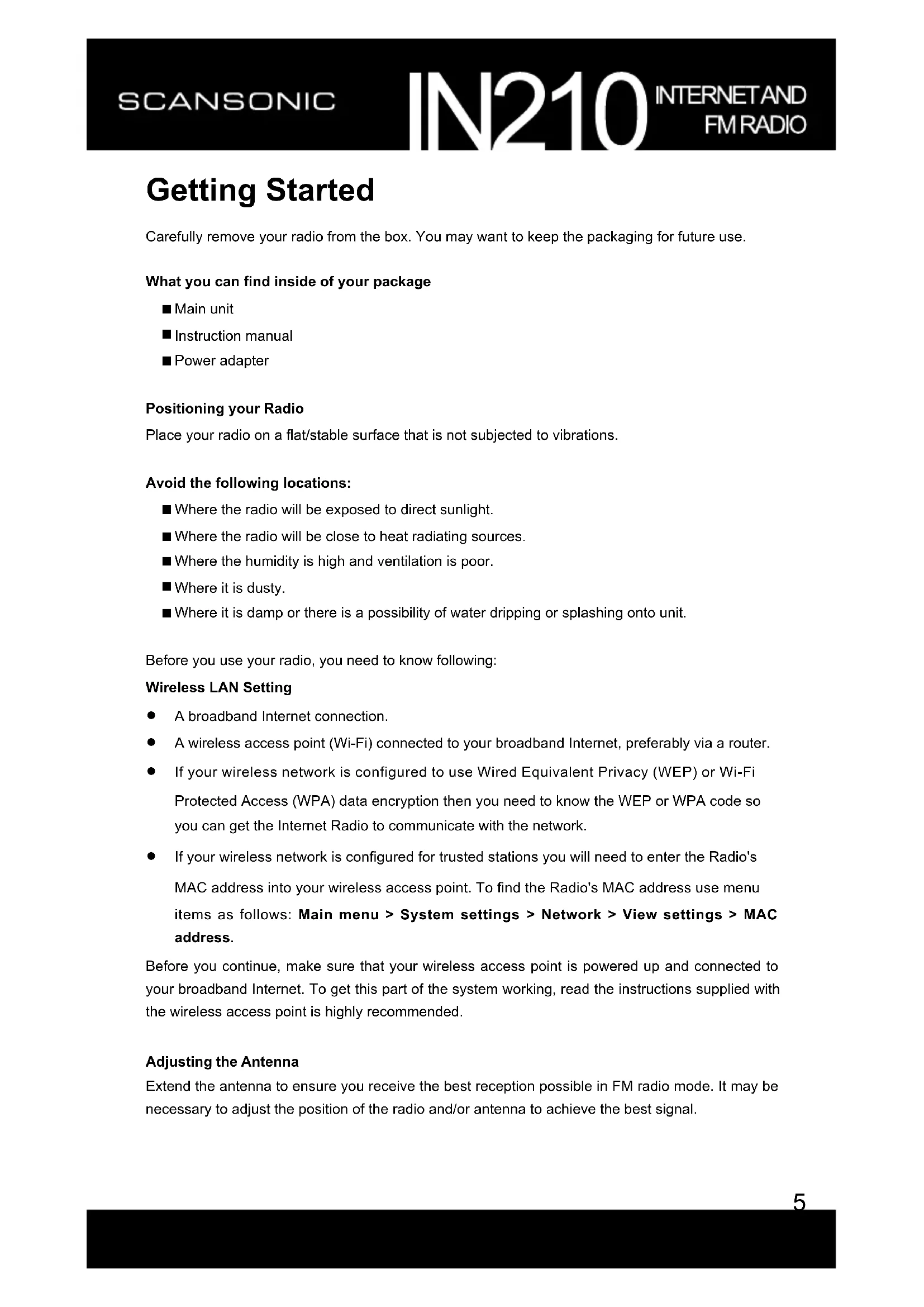
Getting Started
Carefully remove your radio from the box. You may want to keep the packaging for future use.
What you can find inside of your package
Main unit
Instruction manual
Power adapter
Positioning your Radio
Place your radio on a flat/stable surface that is not subjected to vibrations.
Avoid the following locations:
Where the radio will be exposed to direct sunlight.
Where the radio will be close to heat radiating sources.
Where the humidity is high and ventilation is poor.
Where it is dusty.
Where it is damp or there is a possibility of water dripping or splashing onto unit.
Before you use your radio, you need to know following:
Wireless LAN Setting
A broadband Internet connection.
- A wireless access point (Wi-Fi) connected to your broadband Internet, preferably via a router.
- If your wireless network is configured to use Wired Equivalent Privacy (WEP) or Wi-Fi Protected Access (WPA) data encryption then you need to know the WEP or WPA code so you can get the Internet Radio to communicate with the network.
- If your wireless network is configured for trusted stations you will need to enter the Radio's MAC address into your wireless access point. To find the Radio's MAC address use menu items as follows: Main menu > System settings > Network > View settings > MAC address.
Before you continue, make sure that your wireless access point is powered up and connected to your broadband Internet. To get this part of the system working, read the instructions supplied with the wireless access point is highly recommended.
Adjusting the Antenna
Extend the antenna to ensure you receive the best reception possible in FM radio mode. It may be necessary to adjust the position of the radio and/or antenna to achieve the best signal.
Using Headphones
You will require headphones fitted with a 3.5mm diameter stereo plug. The Headphones socket is located on the front of this unit. Headphones are not supplied with this radio.
Turn down the volume before connecting earphones. Slowly raise the volume with the earphones on until you reach your desired level.
Caution: long-term exposure to loud music may cause hearing damage. It is better to avoid extreme volume when using earphones, especially for extended periods of time.
Turning the Unit On/Off
Connect the plug at the end of power adapter cable to the DC IN socket on the back of the unit. Then insert the power adapter into the mains socket. Press STANDBY/ON button to turn the unit on or standby. To switch the unit off completely, unplug the power adapter from the mains socket.
Volume Control
Adjust the radio volume by turning the SELECT/SNOOZE knob. Make sure no menu setting is going on.
Unit Front View
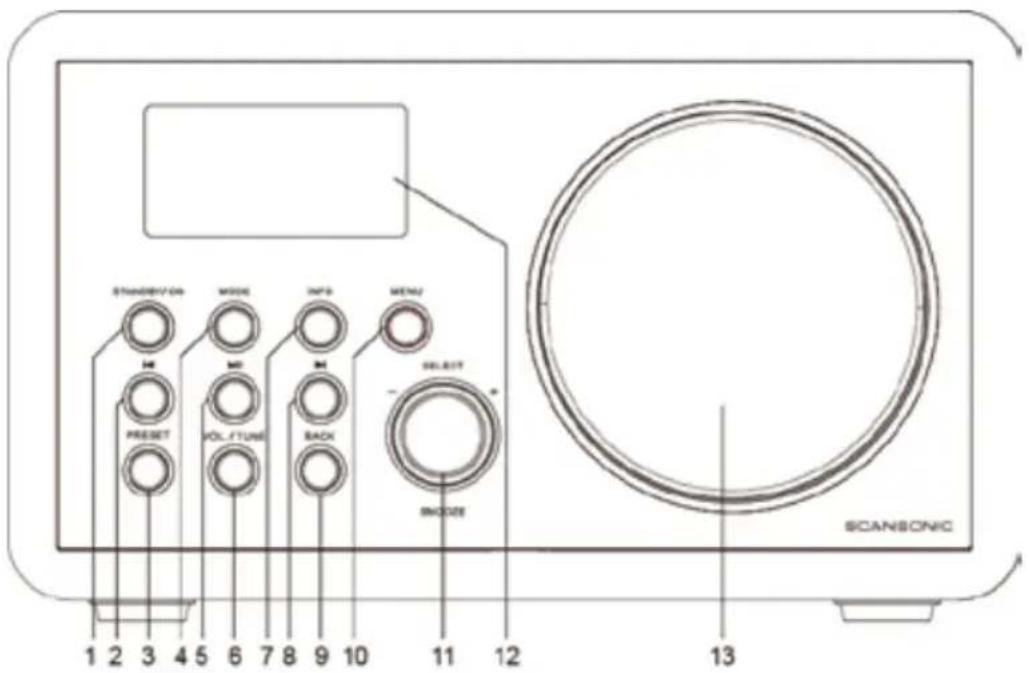
- STANDBY/ON button
Press to switch radio on or standby.
- 串 button
Press to skip to previous track in Spotify and Music player modes.
Press and hold to rewind current playing track in Music player mode.
- PRESET button
Press and hold to store preset station.
Press to recall stored preset station.
- MODE button
Press to switch among Internet, Spotify, Music player, FM and Aux modes.
- button
Press to play/pause current playing track in Spotify and Music player modes.
- VOL/TUNE button
Press to shift between volume adjusting function and tuning function of SELECT/SNOOZE knob.
- INFO button
Press to browse station information.
- button
Press to skip to next track in Spotify and Music player modes.
Press and hold to fast forward current playing track in Music player mode.
- BACK button
Press to return to previous menu option.
- MENU button
Press to display menu screen.
- SELECT/SNOOZE knob
Turn to browse options.
Press to confirm selection.
Press to activate snooze function while alarm sounds.
-
Display
-
Speaker
Unit Back View
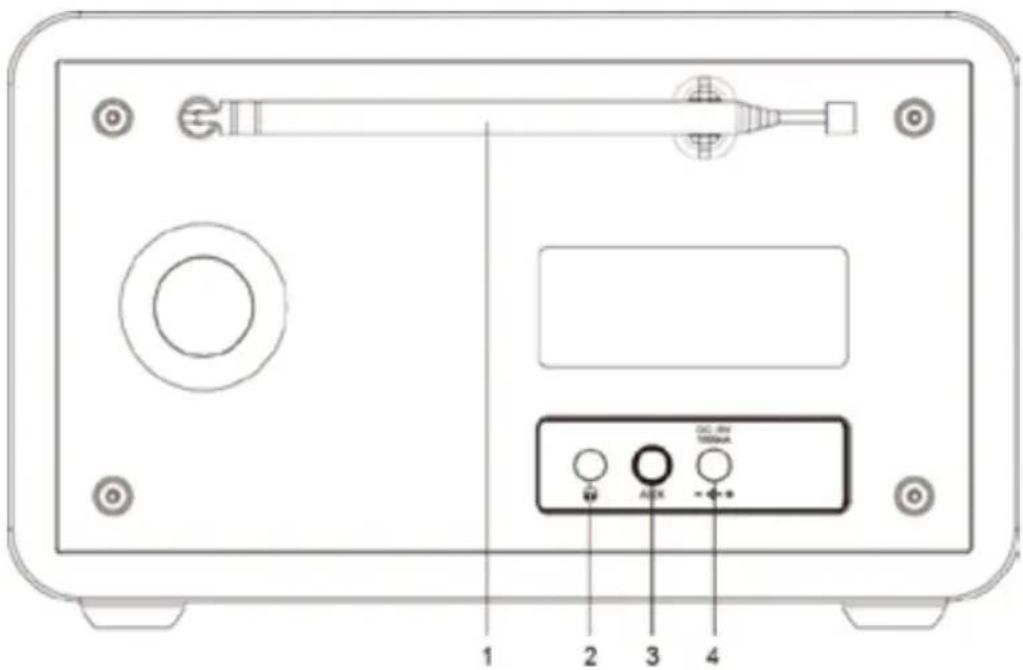
- FM antenna
- Headphones socket
- AUX IN socket
- DC IN socket
Setup Wizard
- For initial use, the display will show 'Setup wizard' screen.
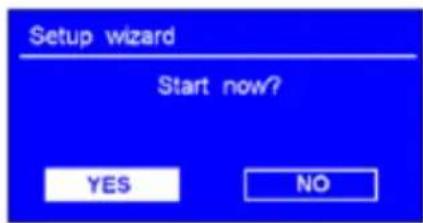
- Press SELECT/SNOOZE knob to confirm 'YES' to start setup. Options in the setup wizard include the following:
Date/Time
Set 12 or 24 hour format
Auto update
- Update date/time from FM
- Update date/time from Network
Select your time zone and daylight savings is needed.
No update
Set the date and time is needed
Keep network connected
Select YES or NO
- The Wizard will scan your location for accessible wireless networks. When the scan has finished, a list of networks will be displayed.
Names of wireless networks in range.
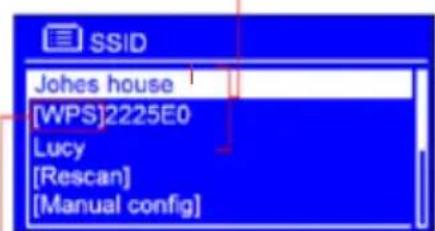
WPS security is available for this network.
Selecting wireless network
a. If a WEP/WPA key (password) is required, display will ask you to input the WEP/WPA code and show the password entry screen as follows:
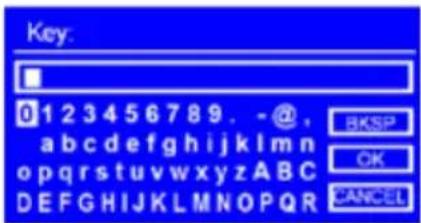
b. Turn SELECT/SNOOZE knob to cycle through the alphanumeric character list, press SELECT/SNOOZE knob to select an appointed character.

Note: WEP/WPA pass codes are case-sensitive.
c. If a wrong character is being input while entering your password, select BKSP to delete that character.

Note: BKSP = Backspace; means return to previous track; radio will automatically save the WEP/WPA you've input, so no bother to re-enter these codes.
d. After selecting the final character of your password, turn SELECT/SNOOZE knob to OK, and then press SELECT/SNOOZE knob to confirm. The radio is connected to wireless network.

Note: If a password (WEP/WPA) isn't required by your network, radio will connect to the network automatically.
- Setup wizard completed, press SELECT/SNOOZE knob again to exit.
Internet Radio Mode
- The display will show 'Main menu' after 'Setup wizard' completed. Press SELECT/SNOOZE knob to select Internet radio mode.
- While 'Station list' is highlighted, press SELECT/SNOOZE knob to confirm.
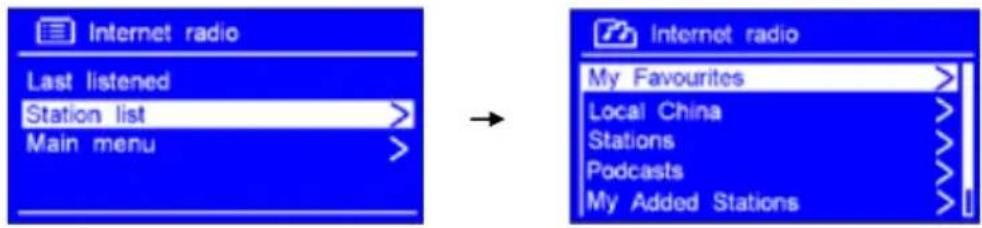
- Then refer to following section to choose stations. Or if failed to connect to network, please follow:
a. Check your Router, see it working normally or not;
b. Relocating your radio to a stronger signal position is necessary!
c. Make sure your password is input correctly.
Local Country Stations
Local "Country" will change according to your current location. It displays local programs of your current location.
- To enter local stations, press MENU button > Station list > Local "Country", press SELECT/SNOOZE knob to confirm.
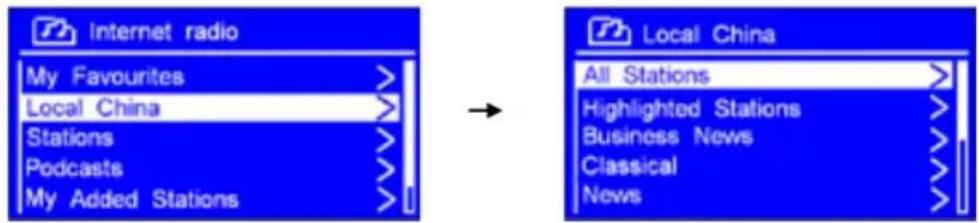
- Turn SELECT/SNOOZE knob to select options, and then press SELECT/SNOOZE knob to confirm.
- Step by step to the program you desired.
Selecting a station through Stations
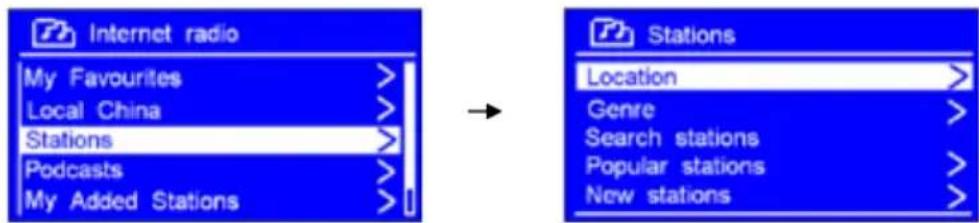
- Press MENU button > Station list > Stations, press SELECT/SNOOZE knob to confirm.
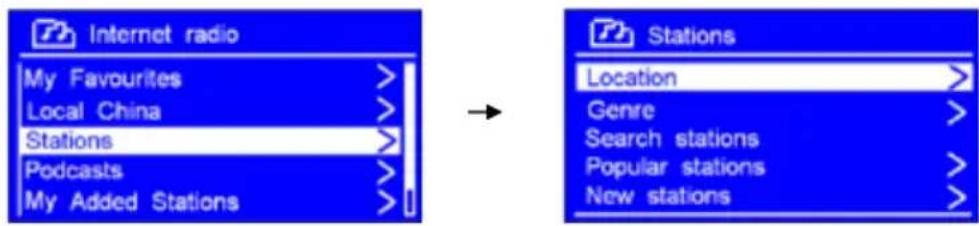
- In 'Stations' menu:
■ 'Location' enables you to choose from the radio stations provided by any country which you choose from a list.
a. While 'Location' is highlighted to show, press SELECT/SNOOZE knob to confirm.
b. Turn SELECT/SNOOZE knob to select the region you wanted, and then press
SELECT/SNOOZE knob to confirm.
c. Using the same method to choose country, station in turn, radio will perform loading.
■ 'Genre' enables you to choose radio stations according to their content, for example, Classic Rock, Sport, News, etc.
Search stations' enables you to enter all or part of station name to find a station.
■ 'Popular stations' enables your radio to list the stations that have the most listeners.
■ 'New stations' enables your radio to list the stations that have recently joined the Internet radio network.

Note: Some radio stations do not broadcast 24 hours a day, and some stations are not always on-line.
Selecting a station through Podcasts
- Press MENU button > Station list > Podcasts, press SELECT/SNOOZE knob to confirm.
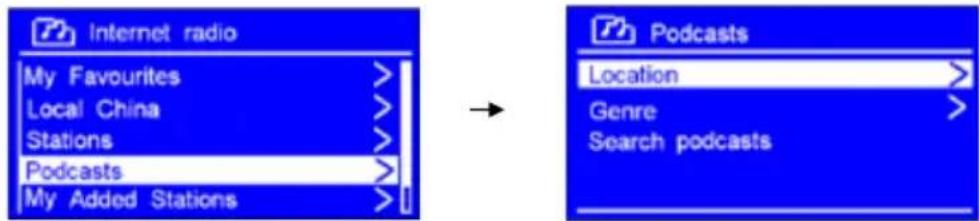
- Turn SELECT/SNOOZE knob to select options, and then press SELECT/SNOOZE knob to confirm.
- Step by step to your selecting program.
Getting Access Code and FAQ Solutions
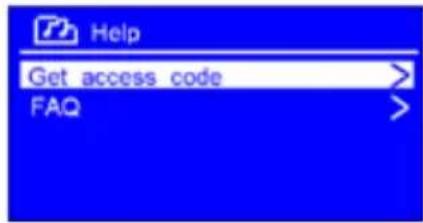
- To access to this order, press MENU button > Station list > Help, press SELECT/SNOOZE knob to confirm.
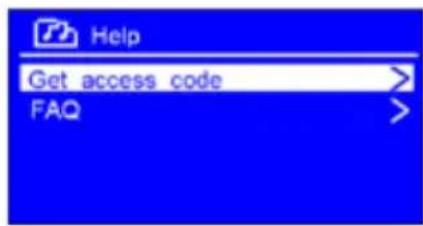

Note: at this step, you can also listen the radio FAQ solutions.
- When 'Get access code' is highlighted, press SELECT/SNOOZE knob to confirm, you will get it.
Adding Station to 'My Favourites'
- To register your radio with the portal: www.wifiradio-frontier.com.
- Create account login, enter Access code is required. Access code can be found from "Station list >Help >Get access code".
- You can add your favourite stations via the portal (www.wifiradio-frontier.com).
- After you added the stations, in order to have your radio access your new settings, get your radio power off for several minutes is necessary.
- The added stations are accessible by selecting MENU > Station list > My favourites.

Note: doing a 'factory reset' cannot erase 'my favourites' stations.
Adding Station to 'My Added Stations'
- Even though the Internet radio portal contains thousands of stations, you may want to listen to stations not listed. You can add your own stations via the portal (www.wifiradio-frontier.com).
- After you added the stations, in order to have your radio access your new settings, get your radio power off for several minutes is necessary.
- The added stations are accessible by selecting MEN > Sta tion list > My added stations.

Note: doing a 'factory reset' cannot erase 'my added stations'.
Viewing Station Information
Internet programs broadcast additional information. Press INFO button repeatedly, the display will show the information through Station Description, Genre, Country, Reliability, Bit rate, Codec, Sampling Rate, Playback Buffer and Date.
Storing Preset Stations
Your radio can store up to 10 of your favourite Internet stations.
- While an Internet station is playing, press and hold PRESET button until display shows 'Save to Preset', and then turn SELECT/SNOOZE knob to select a preset number.
- Press SELECT/SNOOZE knob to confirm, the display will show 'Preset stored'.
- The station is stored and the display will then show 'P#.
Recalling a Preset Station
- Press PRESET button to show the stored preset stations.
- Turn SELECT/SNOOZE knob to select the preset station you want to play and then press the SELECT/SNOOZE knob to confirm.
Music Player Mode
Setting up a Music Server
In order for your radio play music files from a computer, the computer must be set up to share files or media.
- UPnP media sharing allows devices like this radio to play music from a shared media library, navigating through tag menus such as Artist, Album or Genre.
- If you are running a suitable server system such as a PC with Windows Media Player10 or later (WMP), and your music library is well-tagged, then it is recommended to use media sharing.
Only the UPnP server needs to be set up.
Sharing Media with Windows Media Player
The most common UPnP server is Windows Media Player (10 or later). Alternatively, other UPnP platforms and servers may be used. To set up WMP for media sharing, perform the following steps:
- Ensure that the PC is connected to the network.
- Ensure that the radio is powered on and connected to the same network.
- In WMP, add to media library about the audio files and folders you want to share with your radio (Library > Add to Library...).
- In WMP, enable media sharing (Library > Media sharing...).
- Make sure your radio has accessed to the shared media by selecting it and clicking Allow. You can also set a name for the shared media in Settings... Click OK to close the dialogue boxes.
- The PC is now ready to stream music to the radio. The WMP UPnP service runs in the background, there is no need to start WMP explicitly.
Playing Shared Media
- Press MODE button repeatedly to select Music player mode.
- While 'Shared media' is highlighted, press SELECT/SNOOZE knob to confirm, and then step by step to your selecting music.
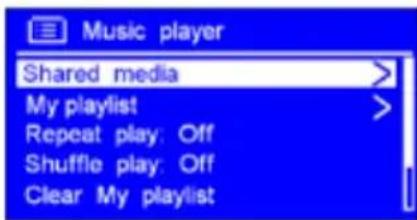
- When a track is playing, you can:
a. Press button to skip to previous track; press and hold button to rewind current playing track.
b. Press button to play/pause current playing track.
c. Press button to skip to next track; press and hold button to fast forward current playing track.
My Playlist
The My Playlist feature enables you to create a playlist of your favourite tracks from your music libraries.
Once you have your playlist ready you can choose to play through the playlist on your radio and can also set shuffle and repeat play functions while your playlist is playing.
To save a track to 'My Playlist', browse the track you want to add to the playlist, press and hold SELECT/SNOOZE knob, then the track is added to the playlist.
To play 'My Playlist', press MENU button, and then turn SELECT/SNOOZE knob to select 'My playlist', press SELECT/SNOOZE knob to confirm. Browse the track you want to play, press SELECT/SNOOZE knob to select.
Repeat Play Mode
Press MENU button, and then turn SELECT/SNOOZE knob to select 'Repeat play: Off', then press SELECT/SNOOZE knob repeatedly to shift repeat play 'On' or 'Off'.
Shuffle Play Mode
Press MENU button, and then turn SELECT/SNOOZE knob to select 'Shuffle play: Off', then press SELECT/SNOOZE knob repeatedly to shift repeat play 'On' or 'Off'.
Clearing My Playlist
This feature enables you to clear the contents of your playlist.
-
Press MENU button, turn SELECT/SNOOZE knob to select 'Clear My playlist' and then press SELECT/SNOOZE knob to confirm.
-
Select 'YES' to clear my playlist.
Prune Servers
The Prune Servers feature enables you to remove music servers that are no longer available to you to browse for music.
- Press MENU button, turn SELECT/SNOOZE knob to select 'Prune servers' and then press SELECT/SNOOZE knob to confirm.
- Select 'YES' to 'Prune shared media wake on LAN servers'.
Now Playing Information
While a track is playing, the display shows the track and a progressing bar with figures for elapsed and total track time.
To view further information, press INFO button repeatedly to display more information about the track.
FM Mode
Selecting FM Mode
- Press MODE button repeatedly to select FM mode.
- For initial use, it will start at the beginning of the FM frequency range (87.50MHz). Otherwise the last listened FM station will be selected.
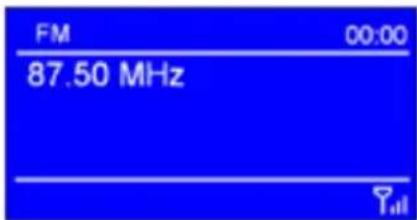
- To manually change the FM frequency, while FM frequency shows up, press VOL/TUNE button to activate the tuning function and then turn SELECT/SNOOZE knob to change the frequency by 0.05MHz per step.
- To automatically scan, while FM frequency shows up, press VOL/TUNE button to activate the tuning function and then turn SELECT/SNOOZE knob clockwise or anticlockwise, and then press the SELECT/SNOOZE knob, your radio will skip forwards or backwards until it reached the next available station.
Scan Setting
By default, FM scans stop at any available station. This may result in a poor signal-to-noise ratio (hiss) from weak stations.
- To change the scan settings to stop only at stations with good signal strength, press MENU button, turn SELECT/SNOOZE knob to select Scan setting, and then press SELECT/SNOOZE knob to confirm.
- The display will show 'Strong stations only?', turn SELECT/SNOOZE knob to select 'YES', and then press SELECT/SNOOZE knob to confirm.
Audio Setting
By default, all stereo stations are reproduced in stereo. For weak stations, this may result in a poor signal-to-noise ratio (hiss).
- To play weak stations in mono, press MENU button, turn SELECT/SNOOZE knob to select Audio setting, and then press SELECT/SNOOZE knob to confirm.
- The display will show 'Listen in Mono only?', turn SELECT/SNOOZE knob to select 'YES', and then press SELECT/SNOOZE knob to confirm.
Viewing Station Information
FM stations broadcast additional information. Press INFO button repeatedly to view information through Radio Text, Program Type, Program Name and Date.
Storing Preset Stations
Your radio can store up to 10 of your favourite FM stations.
- While a FM station is playing, press and hold PRESET button until display shows 'Save to Preset', and then turn SELECT/SNOOZE knob to select a preset number.
- Press SELECT/SNOOZE knob to confirm, the display will show 'Preset stored'.
- The station is stored and the display will then show 'P#.
Recalling a Preset Station
- Press PRESET button to show the stored preset stations.
- Turn SELECT/SNOOZE knob to select the preset station you want to play and then press the SELECT/SNOOZE knob to confirm.
Aux in Mode
AUX IN allows for quick and easy connection to an MP3 player or other external audio sources.
- Before connecting to the mains socket, use a 3.5mm audio cable (not supplied) to connect to your external audio device through the AUX IN socket on the rear of unit.
- Connect power adapter to mains socket, press STANDBY/ON button to switch unit on.
- Press MODE button repeatedly to select Auxiliary Input mode.
- In Aux in mode, you may operate your audio device directly for playback features.
- To gain optimal volume levels, adjusting the output volume level on the audio device as well is recommended.

Note: the unit will automatically switch to standby mode after 30 minutes if the source device is disconnect, switch off or the source input is too close to mute.
Wireless Device Remote Control App
This feature enables you to navigate the radio via iOS device such as iPhone, iPad, iPod Touch. All iOS devices running iOS 3.1.3 or later allow users to control your radio as long as you install it properly.
App installation
First and foremost, we need to make sure App Store has already installed on your iOS device properly.
- Create an account on the Apple Store website:
http://www.ehow.com/how 4822341 download-apps-iphone.html#ixzz1Y508MZs8
-
You will need a credit card or payment information when sign up, even if you only plan on downloading free apps, it will still require this information. After you complete this process, you should have a user name (email address) and a password. You will need these to download the apps.
-
From your iOS device, click on the App Store icon that you want to install.

and scroll through to find the app
-
Select the app you want and tap the "free" icon (if it's a free app), it will then change the "free" to "install". Tap again to install. Here is where you will enter your user name and password. You should only have to enter your username once and then your iOS device will remember it, but you will need to always enter a password to prevent just anyone from downloading apps to your iOS device.
-
Once your iOS device has started downloading the app, a status bar will show up to indicate how long it will take to download. Once it is complete, you can access your new app.
Scansonic Remote App installation
Scansonic Remote is an application that allows your iOS device to control your radio.
-
To install the Scansonic Remote App on your iOS device, type App Store icon on the iOS device to open the App store.
-
In the App store, search for 'Scansonic Remote'.
-
Tap 'Scansonic Remote' icon

, and
then tap 'Free' and then 'install'. The wireless device remote control application - Scansonic Remote is downloaded and installed on your iOS device.
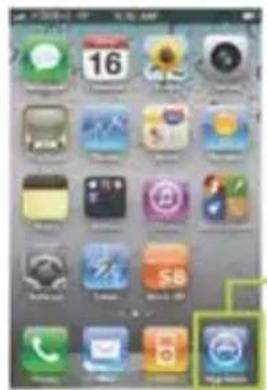
App Store icon
Setting up the connection
After downloading the wireless device remote control application, you must set up a connection between the iOS device and your radio.
- For initial use, tap the 'Scansonic Remote' icon, your device pop-up a dialog box invites you input 'Net Remote Pin code', the default code is 1234. You can give a user-defined code via your radio: press MENU button > Main menu > System setting > Network > NetRemote PIN setup.
- To also allows App works while your radio in non-internet and standby mode, press MENU button > Main menu > System setting > Network > Keep network connected, turn Select/Scroll knob to select 'YES', and then press SELECT/SNOOZE knob to confirm.

Note: If unattended to use radio for long periods of time, e.g. overnight, while on holiday or while out of the house, select NO to save power is recommended.
- Set the iOS device to use the same WiFi network access point as your radio:
a. Select Setting > Wi-Fi.
b. Choose the network of your radio accessed.
Starting the Navigation
Tap Scansonic icon on the main menu of your iOS device, then start to navigate your radio.
In menu screen can find controls below:
- Browse: allows you to browse mode menu of Internet radio, Music player or AUX in modes.
Mode: enables you to switch between listening modes (Internet radio, Music player or AUX in). - Preset: in Internet Radio mode, allows you to select any stations that have been stored as presets on the radio unit.
Audio EQ: allows you to select an audio equalization setting. - Settings: allows you to change Smart Radio application setting parameters.
Type 'Now Playing' on top right to show presenting information and controls for the current track or station.
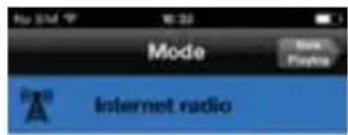
Spotify Connect

Music player

FM

Auxiliary Input

General Operation
Setting Sleep
This feature enables your radio to switch to standby mode by itself after a set sleep time.
- Press MENU button > Main menu > Sleep, and then press SELECT/SNOOZE knob to confirm.
- Turn SELECT/SNOOZE knob to view options Sleep OFF, 15, 30, 45 or 60 MINS, press SELECT/SNOOZE knob to confirm. The sleep icon ^品 and sleep time will show on the display.
- To turn the sleep function off while the sleep timer is still counting down, select 'Sleep' option, turn SELECT/SNOOZE knob to select 'Sleep OFF'.
Setting Alarm
Your radio includes dual alarms. Set Alarm, making sure set time at first
- Press MENU button > Main menu > Alarms, and then press SELECT/SNOOZE knob to confirm.
- Turn SELECT/SNOOZE knob to select 'Alarm 1' or 'Alarm 2', and then press SELECT/SNOOZE knob to confirm.
- Turn SELECT/SNOOZE knob to select options, and then press SELECT/SNOOZE knob to confirm the setting.
| Enable: Alarm | active day: Off, Daily, Once, Weekends or Weekdays |
| Time: Alarm time: 00:00 (manually set up the time ) | |
| Mode: Alarm mode: Buzz, Internet radio or FM | |
| Preset: | Last listened or saved preset station (not available for Buzz mode). |
| Volume: Alarm volume | |
| Save: Save the alarm | |
- When the display shows 'Alarm Saved', the alarm setting is successful. 1 or 2 will show on the display.
- To temporarily switch off alarm, press SELECT/SNOOZE knob to activate Snooze function when the alarm sounds. Press SELECT/SNOOZE knob repeatedly can set Snooze time of 5, 10, 15 or 30 minutes in turn. The set snooze time will show on the display.
- To turn off alarm, press STANDBY/ON button when the alarm sounds.
- To cancel Alarm, refer to steps1-3 to enable alarm 'Off'.
Equaliser
This feature enables you to choose a sound equalization profile. Each of the equalization settings will change the tone of the sound from your radio when selected.
- Press MENU button > Main menu > System settings > Equaliser, and then press SELECT/SNOOZE knob to confirm.
- Turn SELECT/SNOOZE knob and then press it to select Normal, Flat, Jazz, Rock, Movie, Classic, Pop, News, My EQ or My EQ profile setup.
- To set up My EQ, select 'My EQ profile setup', and then press SELECT/SNOOZE knob to confirm. Turn SELECT/SNOOZE knob to select Bass or Treble, and then press SELECT/SNOOZE knob to confirm. Turn SELECT/SNOOZE knob to change the value of Bass or Treble, and then press SELECT/SNOOZE knob to confirm. Press BACK button, display will show 'Save changes'. Turn and press SELECT/SNOOZE knob to select 'YES' to save changes.
Network Setup
Users encountering networking issue may find these options useful for diagnosing and fixing network problems.
- Press MENU button > Main menu > System settings > Network, press SELECT/SNOOZE knob to confirm.
- Turn SELECT/SNOOZE knob to select your preferred network setting option:
| Network wizard: Scan for available networks | |
| PBC Wlan Setup: | Set up a WPS encrypted network (only supporting the router uses WPS 2.0) |
| View settings: | View network settings such as MAC address, Wlan region, IP address etc. |
| Manual settings: Set wireless connection | |
| NetRemote PIN Setup: Set a Net Remote Pin code | |
| Network profile: | List of registered networks or delete some of unwanted networks |
| Keep network connected: Keep network connected in FM, Aux in and standby modes | |
- Press SELECT/SNOOZE knob to confirm your setting.
Setting Time/Date
- Press MENU button > Main menu > System settings > Time/Date, press SELECT/SNOOZE knob to confirm.
- Turn SELECT/SNOOZE knob to select options, and then press SELECT/SNOOZE knob to confirm the setting.
| Set Time/date: Manually set-up both Time and Date | |
| Auto update: | ‘Update from FM’, ‘Update from Network’ or ‘No update’ |
| Set format: 12 or 24 hour format | |
| Settimezone: | Select atimezone (Only available when auto update from Network.) |
| Daylight saving: | Daylight saving settings (Only available when auto update from Network.) |
- Then setting time according to your personal preference.
Setting Language
This feature enables you to change the language of displaying menu names.
- Press MENU button > Main menu > System settings > Language, press SELECT/SNOOZE knob to confirm.
- Turn SELECT/SNOOZE knob to select your language, and then press SELECT/SNOOZE knob to confirm.
Factory Reset
A factory reset resets all user settings to default values, so time/date, alarms and presets are lost.
- Press MENU button > Main menu > System settings > Factory Reset, press SELECT/SNOOZE knob to confirm.
- Turn SELECT/SNOOZE knob to select 'YES', and then press SELECT/SNOOZE knob to confirm.
Software Update
From time to time, your radio may make software upgrades available with bug fixes and/or additional features. If your radio detects that newer software is available, it will ask if you want to go ahead with an update. If you agree, the new software is then downloaded and installed.
After a software upgrade, all user settings are maintained.
CAUTI ON
Before starting a software upgrade, ensure that your radio is plugged into a stable mains power connection. Disconnecting power during a software update may permanently damage the unit.
- Press MENU button > Main menu > System settings > Software update, press SELECT/SNOOZE knob to confirm.
- Turn SELECT/SNOOZE knob to select 'Auto-check setting', your radio will check periodically for new version software.
- Turn SELECT/SNOOZE knob to select 'Check now', your radio will check now if any new version software available for upgrade.
Setup Wizard
When this unit is started for the first time, it runs through a setup wizard to configure settings for date/time and network. Once this has finished, the system is ready to use in most modes.
- Press MENU button > Main menu > System settings > Setup wizard, press SELECT/SNOOZE knob to confirm.
- Turn SELECT/SNOOZE knob to select 'YES', and then press SELECT/SNOOZE knob to confirm.
Viewing System Info
This information may be requested when dealing with technical support issues.
- Press MENU button > Main menu > System settings > Info, press SELECT/SNOOZE knob to confirm.
- Turn SELECT/SNOOZE knob to view 'SW version', 'Spotify version', 'Radio ID' and 'Friendly Name'.
Setting Backlight
- Press MENU button > Main menu > System settings > Backlight, press SELECT/SNOOZE knob to confirm.
- Turn SELECT/SNOOZE knob to select 'Power-on Level' or 'Standby Level', then press SELECT/SNOOZE knob to confirm.
- Turn SELECT/SNOOZE knob to select backlight level, and then press SELECT/SNOOZE knob to confirm the setting.
| Power-on Level | High |
| Low | |
| Standby Level | High |
| Low | |
| Off |
Specifications
| Items Specifications | |
| Descriptions: Internet and FM radio with Spotify connect | |
| Power Requirements: AC Input: 100-240Vac, 50-60Hz DC Output: 9V, 1A | |
| Frequency Range: FM: 87.5-108 MHz | |
| Audio Output Power: 5W rms | |
| Power Consumption: 9W (Max) | |
| Dimensions (W x H x D): 215mm x 130mm x 110mm |

CE
This symbol on the product or in the instructions means that your electrical and electronic equipment should be disposed at the end of its life separately from your household waste.
There are separate collection systems for recycling in the EU.
For more information, please contact the local authority or your retailer where you purchased the product.
DK Brugervejledning

Installation of App'en 21
Scansonic Remote App installation 21
Start of navigation 22
General betjening 23
- Update date/time from FM
- Update date/time from Network
Keep network connected
Vaelg YES ellr NO
- Opsaetningsprogrammet scanner dit opholdssted for at &, netvark. Nar scanningen er fuldort, vises der en liste over netvark.
- Tryk pa MENU-knappen > Station list > Stations, tryk pa SELECT/SNOOZE-knappen for at bekrafte.
2.1 'Stations'menu:
- For at fá adgang, tryk pá MENU-knappen > Station list > Help, tryk pá SELECT/SNOOZE-knappen for at bekraeffe.

Installation of App'en
Scansonic Remote App installation
Browse: giver dig mulighed for at browse menuer it tilstanden Internet radio, Music player ell AUX in.
Mode: giver dig mulighed for at skiffe mullem
lyttemader (Internet radio, Music player erer AUX in).
Update date/time from FM
Update date/time from Network
Keep network connected
Update date/time from FM
Update date/time from Network
Keep network connected
Update date/time from FM
Update date/time from Network
Keep network connected
Selezione YES o NO
- Update date/time from FM
- Update date/time from Network
Keep network connected
Selectionare YES o NO
Scansonic Remote App installation 21
De Verbinding Instellen 22
Update date/time from FM
Update date/time from Network
Keep network connected
Selecteer YES of NO