LRD3050K - Hi-fi system TOKAI - Free user manual and instructions
Find the device manual for free LRD3050K TOKAI in PDF.



| Product type | Hi-fi system with DVD player, radio and DTT receiver |
| Brand | Tokaï |
| Model | LRD3050K |
| Dimensions (W × D × H) | 438.4 × 242 × 155 mm |
| Power supply | 230 V AC, 50 Hz |
| Battery power | 8 LR14 (UM2) batteries – only works without mains cord |
| Power consumption | 28 W |
| Output power | 2.5 W × 2 |
| Built-in display | LCD TFT, resolution 640 × 480 RGB |
| Battery life | Approximately 120 minutes |
| Radio wave bands | AM: 540 – 1600 kHz, FM: 88 – 108 MHz |
| Supported file formats | DVD, MP3, MPEG4, JPEG, Kodak Photo CD |
| Compatible discs | CD, CD-R, CD-RW, DVD, DVD-R, DVD-RW, DVD+R, DVD+RW |
| Main functions | DVD/CD playback, programming (up to 16 tracks), zoom, repeat, scene search, still frame, slow motion, language and subtitle change, multiple angles |
| Connectivity | USB port, SD/MMC card reader, AUX input, audio/video outputs, headphone jack (3.5 mm), microphone jack (3.5 mm), TV antenna |
| DTT reception | DVB-T with auto and manual search, program guide, teletext |
| Remote control | Full functions, CR2025 battery |
| TV system | NTSC / PAL / AUTO |
| Safety | Class 1 laser protection, auto stop, parental control, password |
| Operating temperature | 5 °C to 35 °C |
| Operating humidity | 10 % to 75 % |
| Maintenance and cleaning | Clean discs with a soft cloth; avoid benzene, thinner; do not touch surface |
Frequently Asked Questions - LRD3050K TOKAI
User questions about LRD3050K TOKAI
0 question about this device. Answer the ones you know or ask your own.
Ask a new question about this device
Download the instructions for your Hi-fi system in PDF format for free! Find your manual LRD3050K - TOKAI and take your electronic device back in hand. On this page are published all the documents necessary for the use of your device. LRD3050K by TOKAI.
USER MANUAL LRD3050K TOKAI

okai
LRD-3050W
♦ NOTICE D'EMPLOI
11 INSTRUCTION MANUAL
20 MANUAL DE INSTRUCCIONES
30 MANUAL DE INSTRUÇÕES
40 HANDLEIDING

okai
LRD-3050W
natural_image
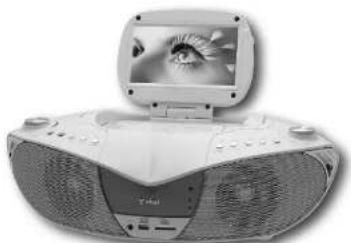
Illustration of a portable electronic device with a monitor displaying an eye (no text or symbols visible)Before operating this product, please read user manual completely
CLASS 1 LASER PRODUCT KLASSE 1 LASER PRODUKT CLASSE 1 APPAREIL LASER CLASE 1 PRODUCTO LASER
QUAND CE LECTEUR EST BRANCHÉ À LA PRISE DE COURANT, NE PAS S'APPROCHER AVEC LES YEUX POUR REGARDER À TRAVERS LES FENTES À L'INTÉRIEUR DU LECTEUR.
EFFECTUER DES CONTROLES OU DES RÉGLAGES OU FAIRE EFFECTUER D'AUTRES OPÉRATIONS AUTRE QUE CELLES INDIQUÉES DANS CE MANUEL PEUT AVOIR COMME CONSÉQUENCE L'EXPOSITION À DES RADIATIONS DANGEREUSES. NE PAS OUVRIR LE COUVERCLE ET NE PAS ESSAYER DE RÉPARER SOI-MÊME L'APPAREIL MAIS S'ADRESSER À UN PERSONNEL QUALIFIÉ.
AVIS :
AFIN DE RÉDUIRE LE RISQUE D'INCENDIE OU DE CHOCS ÉLECTRIQUES, NE PAS EXPOSER CET APPAREIL À LA PLUIE OU À L'HUMIDITÉ. AFIN DE RÉDUIRE LE RISQUE D'INCENDIE OU DE CHOCS ÉLECTRIQUES, OU D'AUTRES INTEREFÉRENCES, UTILISER SEULEMENT LES ACCESSOIRES RECOMMANDÉS.

3. ROTATION D'IMAGES
Options: 4:3PS: Mode normal Pan & scan
4:3LB: Mode normal Letter box
16:9: Mode 16:9 écran large
DC 12 V. Piles 8 x LR-14 (UM2)
TO PREVENT ELECTRIC SHOCK, MATCH PLUG WITH SLOT AND FULLY INSERT. THE APPARATUS SHALL NOT BE EXPOSED TO WATER AND NO OBJECTS FILLED WITH LIQUID SUCH AS VASES SHALL BE PLACED ON THE APPARATUS.
CAUTION:
THE UNIT EMPLOYS A LASER SYSTEM. TO ENSURE THE PROPER USE OF THE UNIT, READ THIS MANUAL CAREFULLY AND KEEP IT FOR FUTURE REFERENCE.
IF THE UNIT REQUIRES SERVICING, CONTACT THE SELLER OR SEE "TROUBLESHOOTING".
TO PREVENT DIRECT EXPOSURE TO THE LASER RADIATION, DO NOT OPEN THE CABINET. VISIBLE LASER MAY RADIATE WHEN THE CABINET IS OPENED OR THE INTERLOCKS ARE DEFEATED. DO NOT STARE INTO THE LASER BEAMS.
CAUTION:
THE DVD VIDEO PLAYER IS A CLASS 1 LASER PRODUCT. USE OF CONTROLS OR ADJUSTMENTS OR PERFORMANCE OF PROCEDURES OTHER THAN THOSE SPECIFIED HEREIN MAY RESULT IN HAZARDOUS RADIATION EXPOSURE.
AS THE LASER BEAM USED IN THIS DVD VIDEO PLAYER IS HARMFUL TO THE EYES, DO NOT ATTEMPT TO DISASSEMBLE THE CABINET. REFER SERVICING TO QUALIFIED PERSONNEL ONLY.
CLASS 1 LASER PRODUCT KLASSE 1 LASER PRODUKT CLASSE 1 APPAREIL LASER CLASE 1 PRODUCTO LASER
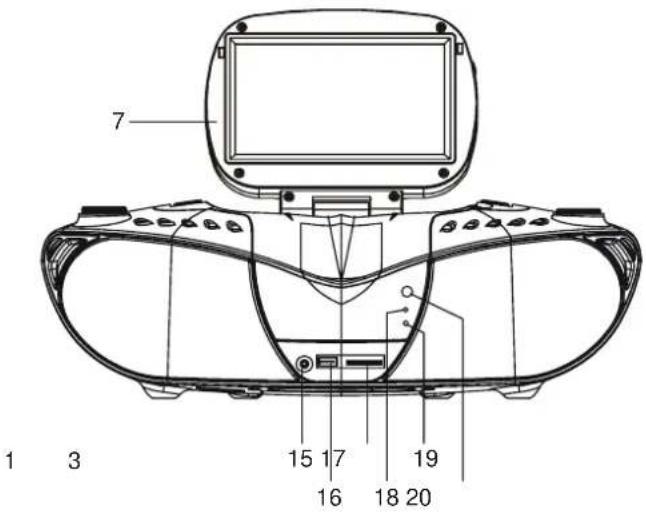
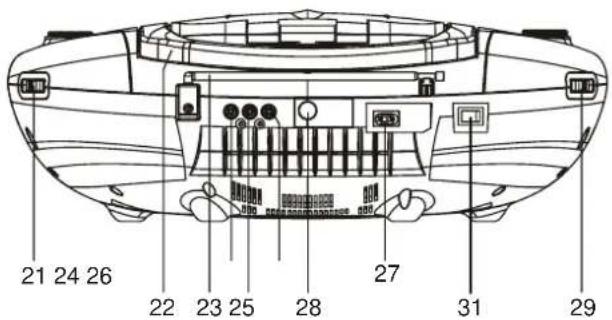
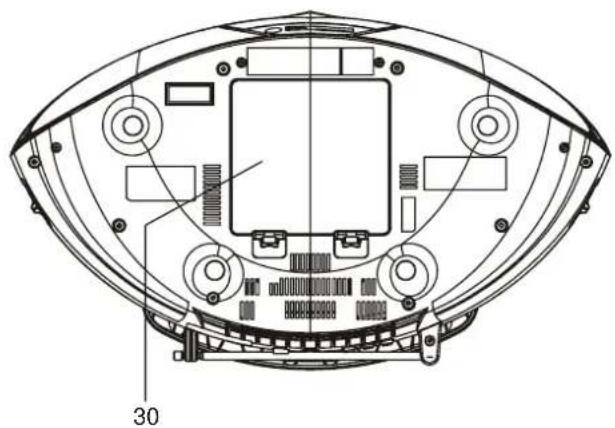
Illustration of the Controls/Jacks on the Main Unit
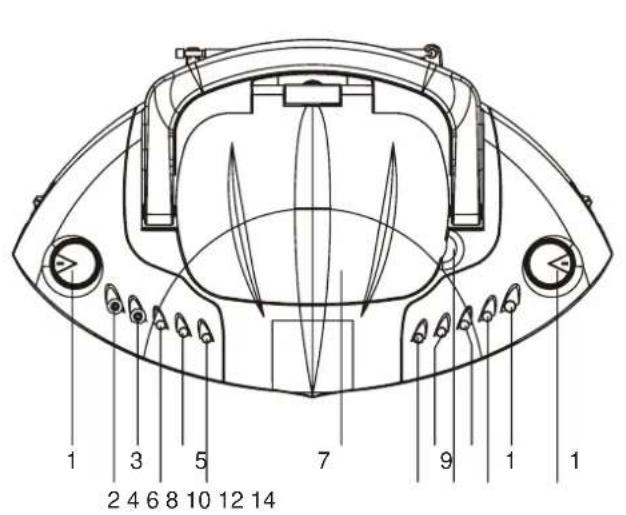
- VOLUME CONTROL
- PHONES JACK
- MIC JACK
- DVD/DVB-T BUTTON
- PREV/LEFT BUTTON
- NEXT/RIGHT BUTTON
- LCD SCREEN (CD DOOR IS INSIDE)
- STOP&DVD/SD/USB BUTTON
- PLAY/PAUSE/ENTER BUTTON
- CD DOOR OPEN AREA
- FAST REVERSE/DOWN/CH-BUTTON
- FAST FORWARD/UP/CH+ BUTTON
- DISPLAY BUTTON
- TUNING CONTROL
- AUX IN JACK
-
USB PORT COMPATIBLE
-
SD/MMC CARD SLOT COMPATIBLE
- POWER INDICATOR
- FM ST. INDICATOR
- REMOTE SENSOR
- BAND SWITCH
- HANDLE
- FM TELESCOPIC ANTENNA
- VIDEO OUTPUT JACK
- AUDIO LEFT JACK
- AUDIO RIGHT JACK
- AC SOCKET
- TV ANT JACK
- FUNCTION SWITCH
- BATTERY COMPARTMENT
- POWER ON/OFF BUTTON
Illustration of the Keys on the Remote Controller and Their Main Functions
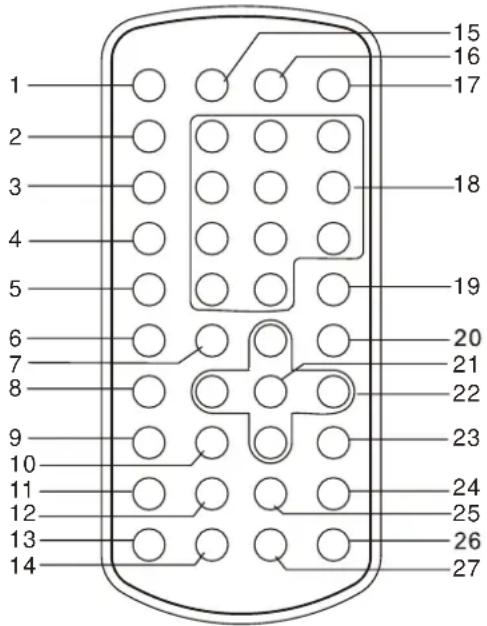
- DVD/USB/CARD button
- P/N button
- PROGRAM/GUIDE button
- REPEAT button
- MENU button
- SUBTITLE button
- PLAY button
- TITLE button
- AUDIO button
- PAUSE/STEP button
- ANGLE button
- ZOOM button
- DVD/DVB-T button
- TV/RADIO button
- DISPLAY button
- SETUP button
- TFT ON/OFF button
- NUMERIC buttons
- CLEAR button
- STOP button
- SELECT button
- NAVIGATION buttons (LEFT, RIGHT, UP/CH+, DOWN/CH- buttons)
- SLOW button
- NEXT&F.FWD button
- PREV.&F.BWD button
- SEARCH button
- TEXT button
BATTERY INSTALLATION MAIN UNIT BATTERY INSTALLATION
-
Remove the Battery Compartment Cover by gently pushing in the opposite direction of the "OPEN" arrow and lifting up. Insert 8 pcs "UM2" or "C" type batteries. For best performance, always use heavy duty alkaline batteries. Be sure to place the batteries as the engraved diagram shown at the bottom of the cabinet.
-
Replace the cover.
NOTE: Old batteries may swell and leak. To avoid damage to your instrument, remove the batteries when the unit is to be
stored for long periods of time or if the batteries become exhausted.
NOTE: To use your set on battery power, you MUST remove the AC cord from both the wall outlet and the back of the set.
REMOTE CONTROL BATTERY INSTALLATION
Insert the battery while observing the correct (+) and (-) polarities.
NOTE:
- The battery normally last for about one year although this depends on how often, and for what operations, the remote control unit is used.
- If the remote control unit fails to work even when it is operated near the player, replace the batteries.
- Use one CR2025 battery.
BASIC CONNECTION
- It is recommended to be connected to a multi-system TV.
- Ensure that this player and other equipment to be connected to the unit are in the standby or off mode and disconnect the AC power cords before commencing connection.
- Do not block ventilation holes of any piece of the equipment and arrange them so that air can circulate freely.
- Read through the instructions before connecting other equipment.
- Ensure that you observe the color coding when connecting audio, video cables. If the RCA adapter is supplied only, the audio/video RCA cable is required. Plug one end of the RCA adapter to the unit. Then connect the audio/video RCA cable to the RCA adapter and the television.
Note:
- During DVD play, the TV volume may be at a lower level than during TV broadcasts, etc. If this is the case, adjust the volume to the desired level.
- If the DVD/CD player is connected to the TV through a video cassette recorder, the picture may not be played back normally with some DVDs. If this is the case, do not connect the player via the VCR.
Connecting to a stereo TV set
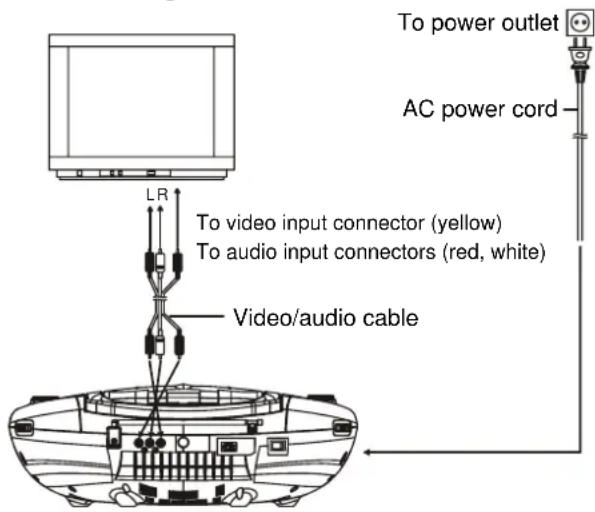
OPERATIONS
PREPARATION
Power on the TV set and select video input mode.
GET STARTED
- Turn on the player and slide the FUNCTION switch to the DVD/DVB-T position.
- Lift up the screen, and lift up the CD door to open the disc tray.
- Place a disc onto the disc tray.
- Close the disc tray and the playback starts automatically.
- When a menu screen appears on the TV, use the navigation buttons or press the numeric buttons to select a preferred track number to start playback.
ADJUST THE VOLUME
Adjust the volume to your favorite by rotating the volume control.
SKIP AHEAD OR BACK
Press NEXT or PREV button once during play to skip a chapter (DVD) or a track (CD) ahead or backwards.
RAPID ADVANCE/REVERSE
During playback, press FAST FORWARD button or FAST REVERSE button on the unit or press and hold the FAST BACKWARD or FAST FORWARD button on the remote several times to scan the disc forward or backward at X2, X4, X8, X20 normal speed.
Press PLAY button to resume normal play.
PAUSE/STEP PLAY
Press PAUSE/STEP button during playback to pause. During pause mode, each time the PAUSE/STEP button is pressed, the player will only play one frame; to resume normal play, press PLAY button.
STOP PLAYBACK
Press STOP button during playback to stop playback; the player activates its resume function when STOP is pressed in PLAY mode; press PLAY button again, playback resumes at the point it stopped previously; open the disc tray or press the STOP button one more time to clear the resume function. Press and hold STOP button on the unit to make selection between disc, USB and card.
Press SLOW button on the remote control during playback, the disc will be played at 1/2 normal speed at first, each time this button is pressed, the play speed becomes slower (down to 1/7 normal speed.)
Press PLAY button, normal play will resume.
REPEAT
Press REPEAT button during play, it will repeat play one chapter/title or repeat all (DVD disc), or repeat play a track or all tracks (for CD), or repeat the specified points (A-B).
SEARCH FOR PREFERRED SCENE
- Press SEARCH button during play and highlight the item to be played (Title, Chapter, or Chapter time) by navigation buttons.
- Input the desired number or time via the numeric buttons.
- Press ENTER/SELECT button to confirm and the playback from the located scene starts.
- To exit search menu, press SEARCH button directly. Note: during DVB-T play mode, press SEARCH button to auto searching the TV channels directly.
PROGRAM PLAY (UP TO 16 MEMORIES)
- Press PROGRAM/GUIDE during playback to display the program menu.
- Select location(s) to be memorized via navigation buttons and then enter desired Titles/Chapters numbers via numeric buttons.
Note: Inputting leading zero is not necessary. If the chapter/title/track number is more than the cardinal 10, press the +10 first and then another unit digit. Some figure inputs may be useless, because it's greater figure than total title/chapter/track number on the disc.
Example: Track 3, press "3"
Track 12, press "+10" and then "2"
Track 21, press "+10" twice, and then "1"
-
To start programmed playback, select PLAY on the menu and press ENTER/SELECT button; pressing PROGRAM/GUIDE button again to exit programming.
-
To clear a programmed item, press PROGRAM button to enter the program menu first, and then use navigation buttons to highlight the item you want to clear, finally press CLEAR button on the remote to clear it. To clear all items, select the
on the menu, and then press ENTER/SELECT button. -
You can also cancel program mode by clearing all the items in the program menu.
ZOOM PLAY
Press the ZOOM key continuously to zoom in the picture by 2, 3, and 4 times, zoom out by 1/2, 1/3, 1/4 normal size.
Press this key once more when the picture is at 1/4 size to return to the normal size display.
Scroll to view the enlarged picture using Navigation buttons.
ON SCREEN DISPLAY INFORMATION
When the player is in operation, press DISPLAY button continuously on the remote control, the screen will display parts of information (current disc type, title number, chapter number, playtime, audio language, audio type, subtitle language and multi angle, etc) in a sequence.
CHANGING AUDIO SOUNDTRACK LANGUAGE (DVD DISC)
It is possible to change the audio soundtrack language to a different language from the one selected at the initial settings (This operation works only with discs on which multiple audio soundtrack languages are recorded).
Press AUDIO button during DVD disc play, the sound track language changes with the current sound track number shown on the TV screen.
NOTE: When no soundtrack languages are recorded, pressing this button will not work.
MULTI-ANGLE VIEWING (DVD ONLY)
Press ANGLE button repeatedly during playback to cycle the available angles on the disc.
Note: only the DVDs shot with multi-angle scenes have this function.
CHANGING SUBTITLE LANGUAGE (DVD ONLY)
Press SUBTITLE button during playback, the subtitle language shown on the screen will change as a response to each press; When the desired language appears, release the button to view the subtitle in that language.
Note: this function only works on the DVDs recorded with multi-language.
RETURNING TO MAIN MENU AND PLAYING TITLE (DVD)
During playback, press MENU button to return to main menu.
Press the TITLE button to play the title.
MP3/MPEG 4 PLAYBACK
- Load the MP3/MPEG 4 disc onto the disc tray and the TV screen will show all its folders after a few seconds.
- Select the folder you want by pressing navigation buttons on the remote or long pressing navigation buttons on the unit and then ENTER/SELECT button to confirm.
- The files in this folder are displayed and select your favourable song via pressing navigation buttons on the remote or long pressing navigation buttons on the unit and press ENTER/SELECT button to start playback.
- Press NEXT and PREV button to select track directly.
- Press REPEAT button change play mode.
KODAK PICTURE CD / JPEG CD PLAYBACK
Slide show of Kodak Picture CD after being loaded begins automatically;
Folders of JPEG picture CD after being loaded are displayed on the TV screen; use the navigation buttons on the remote or press and hold navigation buttons on the unit to select your desired folder, confirm by pressing ENTER/SELECT button.
Files on the folder show on the screen. Use navigation buttons on the remote or press and hold navigation buttons on the unit to select your favorite file, and play it by pressing ENTER/SELECT button.
Preview of the picture will be displayed while you scroll across the filenames.
KODAK PICTURE CD / JPEG CD OPERATIONS
1. PLAY MODES
Press REPEAT button during play to change the play modes. During playback, press STOP to enter preview mode.
2. SKIP TO NEXT/PREVIOUS PICTURE
Press NEXT button to skip to the next picture or PREV button to the previous picture.
3. PICTURE ROTATIONS
Press RIGHT and LEFT navigation buttons on the remote or press and hold these RIGHT and LEFT navigation buttons on the unit to rotate the picture Clockwise and anti-clockwise respectively.
4. PICTURE FLIPS
Press UP navigation button on the remote or press and hold UP navigation button on the unit to flip the picture vertically. Press DOWN navigation button on the remote or press and hold DOWN navigation button on the unit to flip the picture horizontally.
5. PICTURE ZOOM IN/OUT
Press ZOOM button continuously, the picture zooms in by 2, 3, 4 times or zooms out by 1/2, 1/3, 1/4 the original size.
Press this button once more when the picture getting 1/4 size to return to the normal play.
If the picture is enlarged, you may use the navigation buttons to view blocked parts of the picture.
6. SLIDE SHOW TRANSITION MODES
During slide show playback, press the PROGRAM button cyclically to select one of the slide effect to play.
EXTERNAL MEMORY MEDIA OPERATION (USB&SD/MMC CARD)
Prepare the player for External Memory media operation
-
Make sure the power is connected; slide the FUNCTION switch to DVD/DVB-T position.
-
Plug a USB data traveller filled with music or video files into the USB port compatible or insert the SD/MMC card filled
with media files into the SD/MMC card slot compatible, after the USB or SD/MMC is successfully detected and read for a few seconds, the TV screen will show all its folders.
- You may play the files stored in the storage media much in the same way as you do the MP3 disc.
- Press and hold STOP& DVD/SD/USB button on the unit or press DVD/USB/CARD button on the remote to make change between disc, USB and card via navigation UP/DOWN button, confirm by pressing ENTER/SELECT button.
Please note that this player can read both unlocked and locked SD cards.
TFT ON/OFF BUTTON
Press TFT ON/OFF button to turn on or turn off the TFT display.
TV SYSTEM
Press P/N button during DVD or DVB-T mode to select the TV system.
INITIAL SETTINGS
Initial settings page is for you to make your preferred settings up for your player. Once the initial settings are done they are retained in the CPU of the player until otherwise modified.
COMMON PROCEDURES FOR INITIAL SETTINGS
- Press SETUP button.
- Use the navigation buttons on the remote or press and hold navigation buttons on the unit to select the item you want to modify, setting page with further setting items displayed shows on the TV screen. Again use navigation buttons on the remote or press and hold navigation buttons on the unit to make changes. Press ENTER/SELECT button to confirm modifications.
- Use navigation buttons on the remote or press and hold navigation buttons on the unit to switch to another setting on the main setting page.
- Press SETUP button to exit main setting page.
1. SYSTEM SETUP
SYSTEM SETUP
| TV SYSTEM |
| SCREEN SAVER |
| TV TYPE |
| PASSWORD |
| RATING |
| DEFAULT |
| EXIT SETUP |
1.1 TV SYSTEM - it is used to select the TV mode.
Please select this option as per your TV set.
1.2 SCREEN SAVER - when the play is not in used for several minutes, a running DVD logo will move across the TV screen to protect the TV Screen.
Options: ON: screen saver is enabled
OFF: screen saver is disabled.
1.3 TV TYPE - it is used to select the TV scan mode, please set as per your TV set.
Options: 4:3PS : Normal Pan & scan mode
4:3LB : Normal Letter box mode
16:9 : 16:9 wide screen mode
1.4 PASSWORD - input password to unlock the system.
The steps are as follows:
1.4.1 Enter SYSTEM SETUP, select the PASSWORD item by scrolling the down navigation button, and then press the right navigation button to select the input box.
1.4.2 Input user's password "0000" to unlock it, in this case, select the input box again to change the password by inputing another new four numeric numbers and then press ENTER/SELECT button to confirm. When the password is changed, you are needed to input the new one to unlock the system.
1.4.3 Once you forget your own password, use the supervisor's password "8200" to unlock it. NOTE: If wrong password was input in unlock status, the system will lock.
1.5 RATING - Set the rating of this player. If you want to change the rating of parental lock, please input the password to unlock first.
Options: 1 KID SAFE / 2 G / 3 PG / 4 PG 13 / 5 PG-R / 6 R / 7 NC-17 / 8 ADULT
1.6 DEFAULT - Reset to factory settings.
Options: RESTORE
2. LANGUAGE SETUP
| LANGUAGE SETUP |
| OSD LANGUAGE |
| AUDIO LANG |
| SUBTITLE LANG |
| MENU LANG |
| EXIT SETUP |
2.1 OSD LANGUAGE - It is used to select different On Screen Display language for different user.
2.2 AUDIO LANG - select preferred audio language. (DVD only, need disc software support)
2.3 SUBTITLE LANG - Select preferred subtitle language. (DVD only, need disc software support)
2.4 MENU LANG - Select preferred disc menu language. (DVD only, need disc software support)
3. VIDEO SETUP
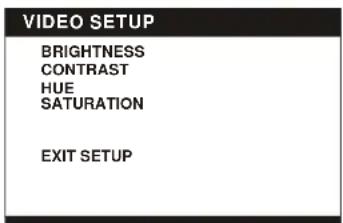
3.1 BRIGHTNESS - to set the brightness for the display. Options: 0/2/4/6/8/10/12
3.2 CONTRAST - to set the contrast effect for display. Options: 0/2/4/6/8/10/12
3.3 HUE - to set the colour impression for display. Options: -6/-4/-2/0/+2/+4/+6
3.4 SATURATION - to set the saturation level for display. Options: 0/2/4/6/8/10/12
4. SPEAKER SETUP
- Slide the FUNCTION switch to the RADIO position.
- Select the desired band with the BAND switch.
- Tune to the desired station by rotating the TUNING control (Move the control back and forth until you get the strongest clearest sound).
- The built-in AM antenna and external FM TELESCOPIC ANTENNA are directional.
- When receiving an FM broadcast, fully extend the TELESCOPIC ANTENNA and position for the best reception.
- For AM broadcasts, rotate the whole set until the best reception is heard.
- Adjust the volume level to a comfortable listening level.
- To turn off the radio, slide the FUNCTION switch to AUX or DVD/DVB-T position.
NOTES:
- If a particular FM (STEREO) station is weak, or you hear too much background noise, try moving the position of the band selector switch to the FM (MONO) position. This can often result in a much clearer reception.
- When the band selector switch is set to FM STEREO and a stereo broadcast is being received, the FM STEREO indicator on the top of the unit will be lit.
STEREO HEADPHONE JACK
A stereo headphone jack has been provided on the top of the unit so that you can listen to the unit without disturbing others.
To use this jack, plug in the headphones/earphones (not included) and adjust the VOLUME control to a comfortable listening level.
NOTE: When external headphones/earphones are connected, the sound to the unit's main speakers will be muted.
Caution: Listening at high power for a long moment could damage users' ears.
MIC AND MIC LEVEL CONTROL
Connect the Microphone with 3.5mm two joints plug to MIC jack. Then adjust the MIC volume to proper level via the MIC level control. (The MIC jack only works in DVD and USB modes)
AUX IN
Your player can be used as a power amplifier to playback the programs from portable radio, TV set or MP3 player or whatever provided this appliance is so designed that audio signal may be produced through a LINE-OUT jack or the like. Observe the following steps to connect the player to another appliance:
- Power the player on using the supplied AC Power Cord.
- Slide Function Switch to AUX position.
- Connect the appliance into the player's AUX in socket with the LINE OUT cable of the appliance.
- Power on the appliance and begin play.
At this time you will be able to hear the sound produced from the programs the connected appliance is broadcasting.
DVB-T OPERATIONS
GET STARTED
- Be sure the TV antenna is connected to your player properly;
- Power on the player and slide the FUNCTION switch on the main unit to DVD/DVB-T position, then press DVD/DVB-T button to select DVB-T play mode.
A dialogue of first time installation shows on the screen, select YES option to perform the first time installation, then select the options as mentioned in the dialogue to finish the first time installation, select NO option to exit this interface.
LANGUAGE
Press AUDIO button on the remote repeatedly to select preferred audio language by TV programs provided during DVB-T mode.
DISPLAY PROGRAM DETAIL INFORMATION
Press DISPLAY button during DVB-T play mode to show the program detail information.
TV PROGRAM GUIDE
Press PROGRAM/GUIDE button during DVB-T play mode to skip over TV Programs guide.
TELETEXT
Press TEXT button to display teletext.
DISPLAY SUBTITLE
During DVB-T playback, press SUBTITLE button to cycle the available subtitle.
SEARCH A PROGRAM
- Press FAST FORWARD/FAST BACKWARD button on the main unit or NAVIGATION UP/DOWN button on the remote to change the channel number. A desired channel can be reached using these two keys.
- Once the desired channel is selected, it will start broadcasting the selected channel immediately.
- During DVB-T play mode, press TV/RADIO on the remote to switch to RADIO play mode.
Connecting the Aerial to the player
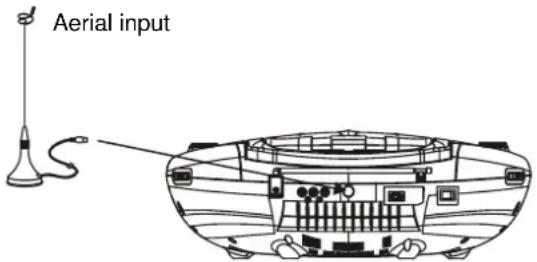
- When this player is connected to the outdoor aerial, make sure that the TV programme is available from the signal tower.
- The quality of video depends on the signal strength.
- When this player is connected to the outdoor aerial, in avoid that the huge buildings or obstacle would block the signal.
Press SETUP Button once, a video menu will be displayed on the screen. Please set the item as your desire.
1. Channel Guide
TV channels - It is used to enter the TV channels list for you to select or sort the TV channels as your desired.
Radio channels - It is used to enter the Radio channels list for you to select or sort the Radio channels as your desired.
Channels class - Select this option to edit the programs as your desired.
Channels edit - Select this option to edit the channels name, move or delete the channels as your desired.
2. System config
TV setting
TV system: it is used to select TV system.
Options: NTSC, PAL, AUTO
TV type: it is used to select the TV scan mode, please set as per your TV set.
Options: 4:3PS : Normal Pan & scan mode
4:3LB : Normal Letter box mode
16:9 : 16:9 wide screen mode
Video setting
BRIGHTNESS - to set the brightness for the display.
CONTRAST - to set the contrast effect for display.
HUE - to set the colour impression for display.
SATURATION - to set the saturation level for display.
Language
Please select one of desired language for the system.
Parental Control
Change pin - It is used to change the password. Input user's password "0000" to unlock it.
1) Enter old password in the OLD PASSWORD row
2) Enter new password in the NEW PASSWORD row
3) Enter the new password again in the CONFIRM row Channel lock - it is used to lock the channels.
Time setting
Time zone-it is used to select local time zone.
System info
Select this option, the system info shows on the screen such as: Update date, Tuner info, F/W version Model version etc.
Press SETUP button to exit.
Remark: In press setup button to return previous setup menu.
3. Installation
Auto Scan - select one of country from
Manual scan - scroll to manual scan option, a dialogue shows on the screen for you to set, after then, select
Default setup - select this option to restore the factory setting.
SPECIFICATIONS:
Power source: AC 230V/50Hz
DC 12V UM2/"C" x 8pcs
Remote control: CR2025
Receiving bands: AM/FM
Tuning range: AM 540 - 1600 kHz
FM 88 -108 MHz
Power consumption: 28W
Output power: 2.5W x 2
TV system supportable: NTSC / PAL / AUTO
Operating Temperature Range: +5°C to +35°C
Continuous playing time: 120 minutes
Dimensions: 438.4mm(L)x262mm(W)x155mm(H)
Operating Humidity Range: 10 % to 75 %
Resolution: 640 x480 RGB
Disc supportable: CD, CD-R, CD-RW, DVD, DVD-R, DVD-RW,
DVD+R, DVD+RW
Support media format: DVD/MP3/MPEG4/KODAK PHOTO
CD/JPEG
Audio signal output:
- DVD (linear audio)
(1) Frequency response: 20Hz-20KHz (48KHz sampling) & 20Hz-20KHz (96KHz sampling)
(2) S/N ratio: >45dB
(3) Wow and flutter: below measurable level
- CD audio:
(1) Frequency response: 20Hz-20KHz
(2) S/N ratio: >45dB
(3) Wow and flutter: below measurable level
Specifications are subject to change without notice
DISC HANDLING PRECAUTIONS
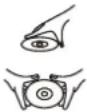


- Hold the disc by the edge so the surface will not be soiled with finger prints. Finger prints, dirt and scratches can cause skipping and distortion.
- Do not write on the label side with a ball-point pen or other writing utensils.
- Do not apply benzene, thinners and liquid that prevents static electricity.
- Be careful not to drop or bend the disc.
• Install only one disc on the disc tray. - Do not try to close the disc tray when the disc is not installed properly.
- Be sure to store the disc in its case when not in use.
TROUBLESHOOTING
If your DVD player does not seem to be functioning properly, check the items below before you contact an authorized service center.
| Symptom | Check |
| Power does not turn on or suddenly turns off. | Make sure the AC cord is securely plugged into AC socket and an AC outlet.Turn the power off and then back on. |
| Remote control won't work | Check that the battery is inserted in the "+" and "-" direction properly.The battery may be flat. Replace it with a new one.Check that the signal transmission is directed at the remote control sensor on the DVD player.Remove the obstacle between the remote controller and remote control sensor. |
| No picture or sound | Check that the A/V cables are securely connected.Check that the disc is a DVD, DVD-RW or AUDIO CD.Do not use a disc that has scratches or dirt.Check that the label-side of the disc is facing up.The pick-up lens of the DVD player may be dirty. Contact the service center for lens cleaning.Check that the TV channel is set to VIDEO or AV if viewing with a TV.Check image brightness and contrast settings.Check if TV signal is strong or not. |
| No picture | Check that the LCD display is turned on. |
| No sound | Check the volume setting. If set to zero, turn up volume level.Check that the headphones are plugged into the PHONES socket. Speakers cannot be used with the headphones. |
| No picture and sound | Check that the battery is properly installed and AC cord is properly connected. |
| Distorted video or sound | Use a disc without scratches or dents. |
| Image is unclear or distorted | Check the direction, position and connection of the antenna. |
| No image or image is black and white | Adjust color settings.Check color settings. |
IMPORTANT SAFETY INSTRUCTIONS
- The apparatus shall not be exposed to dripping or splashing and that no objects filled with liquids, such as vases, shall be placed on the apparatus.
- When the mains plug or an appliance coupler is used as the disconnect device, the disconnect device shall remain readily operable. To be completely disconnected the power input, the mains plug of the apparatus or the appliance coupler shall be disconnected from the mains completely.
- No naked flame sources, such as lighted candles, should be placed on the apparatus.
- Minimum distances 2.0cm around the apparatus for sufficient ventilation. The ventilation should not be impeded by covering the ventilation openings with items, such as newspapers, table-cloths, curtains, etc.
- The use of apparatus is in tropical and/or moderate climates.
- Attention should be drawn to the environmental aspects of battery disposal.
- CAUTION: Danger of explosion if battery is incorrectly replaced. Replace only with the same or equivalent type.
- Battery shall not be exposed to excessive heat such as sunshine, fire or the like.
- Excessive sound pressure from earphones and headphones can cause hearing loss.
- The marking plate is located at the bottom of the apparatus.
End of Life Disposal
Warning ! This logo set on the product means that the recycling of this apparatus comes within the framework of the Directive 2002/96/CE of January 27, 2003 concerning the Waste of Electrical and Electronic Equipment (WEEE). This symbol means that used electrical and electronic products should not be mixed with general household waste. There is a separate collection system for these products.
If you want to dispose of this equipment, please do not use the ordinary dust bin!
- The presence of dangerous substances in the electrical and electronic equipments can have potential consequences on the environment and human health in the cycle of reprocessing this product.
Therefore, at the end of its lifetime, this product shall not be disposed with other non-recycled waste. Used electrical and electronic equipment must be treated separately and in accordance with legislation that requires proper treatment, recovery and recycling of used electrical and electronic equipment. - Local authorities and resellers have set special procedures for the purpose of collecting and recycling this product (please contact your local authority for further details). You have the obligation to use the selective waste collection systems put in place by your local authority.
- If your used electrical or electronic equipment has batteries or accumulators, please dispose of these separately beforehand according to local requirements.
- By disposing of this product correctly you will help ensure that the waste undergoes the necessary treatment, recovery and recycling and thus prevent potential negative effects on the environment and human health which could otherwise arise due to inappropriate waste handling.

This unit complies with European Council Directive 2006 / 95 CE (Electromagnetic Compatibility & Low Voltage Directives)

DVD Compatibility This Product can only play REGION Code 2 DVD

CLASS 1 LASER PRODUCT KLASSE 1 LASER PRODUKT CLASSE 1 APPAREIL LASER CLASE 1 PRODUCTO LASER
3. AJUSTE VIDEO (IMAGEN)
VIDEO SETUP
BRIGHTNESS
CONTRAST
HUE
SATURATION
EXIT SETUP
CLASS 1 LASER PRODUCT KLASSE 1 LASER PRODUKT CLASSE 1 APPAREIL LASER CLASE 1 PRODUCTO LASER
INFORMATION "ON ECRÃ"
CLASS 1 LASER PRODUCT KLASSE 1 LASER PRODUKT CLASSE 1 APPAREIL LASER CLASE 1 PRODUCTO LASER
natural_image
Technical line drawing of a device rear panel with labeled components (no text or symbols beyond basic labels)- VOLUMEREGELING
- HOOFDTELEFOON INGANG
- MIC INGANG
- DVD/DVB-T TOETS
- VORIGE/LINKS TOETS
- VOLGENDE/RECHTS TOETS
- LCD SCHERM (CD HOUDER BINNENIN)
- STOP&DVD/SD/USB TOETS
- START/PAUZE/ENTER TOETS
- CD HOUDER OPENZONE
- TERUGSPOELEN/OMLAAG/CH-TOETS
- VOORUITSPOELEN/OMHOOG/CH+ TOETS
- DISPLAYTOETS
- AFSTEMREGELING
- AUX INGANG
-
USB POORT COMPATIBEL
-
SD/MMC KAARTSLEUF COMPATIBEL
- AAN/UIT INDICATOR
- FM ST. INDICATOR
- AFSTANDSENSOR
- BANDSCHAKELAAR
- HENDEL
- FM UITSCHUIFBARE ANTENNE
- VIDEO UITGANG
- AUDIO LINKS AANSLUITING
- AUDIO RECHTS AANSLUITING
- AC INGANG
- TV ANTENNE AANSLUITING
- FUNCTIESCHAKELAAR
- BATTERIJHOUDER
- AAN/UIT TOETS
3. AFBEELDING DRAAIEN
PROGRAMMA-INFORMATIE WEERGEVEN
Afmeting: 438,4mm(L)x262mm(B)x155mm(H)
Resolution: 640 x480 RGB
Ondersteunde disks: CD, CD-R, CD-RW, DVD, DVD-R,
DVD-RW, DVD+R, DVD+RW
Ondersteunde mediaformaten: DVD/MP3/MPEG4/KODAK
FOTO CD/JPEG

- AVIS :
- ROTATION D'IMAGES
- CAUTION:
- Illustration of the Keys on the Remote Controller and Their Main Functions
- BATTERY INSTALLATION MAIN UNIT BATTERY INSTALLATION
- REMOTE CONTROL BATTERY INSTALLATION
- BASIC CONNECTION
- OPERATIONS
- PREPARATION
- GET STARTED
- ADJUST THE VOLUME
- SKIP AHEAD OR BACK
- RAPID ADVANCE/REVERSE
- PAUSE/STEP PLAY
- STOP PLAYBACK
- REPEAT
- SEARCH FOR PREFERRED SCENE
- PROGRAM PLAY (UP TO 16 MEMORIES)
- ZOOM PLAY
- ON SCREEN DISPLAY INFORMATION
- CHANGING AUDIO SOUNDTRACK LANGUAGE (DVD DISC)
- MULTI-ANGLE VIEWING (DVD ONLY)
- CHANGING SUBTITLE LANGUAGE (DVD ONLY)
- RETURNING TO MAIN MENU AND PLAYING TITLE (DVD)
- MP3/MPEG 4 PLAYBACK
- KODAK PICTURE CD / JPEG CD PLAYBACK
- KODAK PICTURE CD / JPEG CD OPERATIONS
- PLAY MODES
- SKIP TO NEXT/PREVIOUS PICTURE
- PICTURE ROTATIONS
- PICTURE FLIPS
- PICTURE ZOOM IN/OUT
- SLIDE SHOW TRANSITION MODES
- EXTERNAL MEMORY MEDIA OPERATION (USB&SD/MMC CARD)
- TFT ON/OFF BUTTON
- TV SYSTEM
- INITIAL SETTINGS
- COMMON PROCEDURES FOR INITIAL SETTINGS
- SYSTEM SETUP
- LANGUAGE SETUP
- VIDEO SETUP
- SPEAKER SETUP
- NOTES:
- STEREO HEADPHONE JACK
- MIC AND MIC LEVEL CONTROL
- AUX IN
- DVB-T OPERATIONS
- LANGUAGE
- DISPLAY PROGRAM DETAIL INFORMATION
- TV PROGRAM GUIDE
- TELETEXT
- DISPLAY SUBTITLE
- SEARCH A PROGRAM
- Connecting the Aerial to the player
- Channel Guide
- System config
- TV setting
- Video setting
- Parental Control
- Time setting
- System info
- Installation
- SPECIFICATIONS:
- DISC HANDLING PRECAUTIONS
- TROUBLESHOOTING
- IMPORTANT SAFETY INSTRUCTIONS
- End of Life Disposal
- AJUSTE VIDEO (IMAGEN)
- INFORMATION "ON ECRÃ"
- AFBEELDING DRAAIEN
- PROGRAMMA-INFORMATIE WEERGEVEN
Brand : TOKAI
Model : LRD3050K
Category : Hi-fi system