LabelManager 100 Plus - Label printer DYMO - Free user manual and instructions
Find the device manual for free LabelManager 100 Plus DYMO in PDF.



| Product Type | Electronic Label Printer |
| Brand | DYMO |
| Model | LabelManager 100 Plus |
| Power Supply | 6 AA batteries (1.5 V) or optional AC adapter |
| Display | LCD screen, up to 11 characters |
| Tape Widths | 6 mm, 9 mm, 12 mm |
| Tape Type | DYMO D1 cassettes |
| Memory | Up to 70 characters (last label saved) |
| Text Size | 6 settings: condensed/normal/extended in half-height or full height |
| Text Styles | Italic, Outline |
| Frame / Underline | Yes, with dedicated menu |
| Vertical Text | 90° rotation (not available on 2 lines) |
| Multiple Copies | 1 to 20 copies |
| Auto Numbering | Increment from 1 to 20 |
| Symbols and Accents | Accents and special symbols via dedicated keys |
| Cut | Integrated lever cutter |
| Auto Power Off | After 2 minutes of inactivity |
| Maintenance | Cleaning the blade and print head with alcohol |
| Safety and Compliance | CE, EN 60950, EN 55022, FCC Class B |
| Warranty | Return the warranty card within 7 days |
Frequently Asked Questions - LabelManager 100 Plus DYMO
User questions about LabelManager 100 Plus DYMO
0 question about this device. Answer the ones you know or ask your own.
Ask a new question about this device
Download the instructions for your Label printer in PDF format for free! Find your manual LabelManager 100 Plus - DYMO and take your electronic device back in hand. On this page are published all the documents necessary for the use of your device. LabelManager 100 Plus by DYMO.
USER MANUAL LabelManager 100 Plus DYMO
LM100+ US.qxd 26-09-2001 11:17 Pagina 1
DYMO LabelMANAGER 100+
Electronic Labelmaker Instructions for Use
text_image
D - 6 mm (1/4") - 5-12 mm (3/8" (1/2")| 1 | 2 | 3 | 4 | 5 | 6 | 7 | 8 | |
| A | ! | ! | ? | ↓ | * | |||
| B | , | d | % | & | ||||
| C | @ | $ | £ | € | ||||
| D | + | - | * | - | 1 | |||
| E | : | { | } | |||||
| F | ↑ | → | ← | 1/4 | 1/2 | |||
| G | = | + | + | - | □ | |||
| H | ∅ | ∅ | ∅ | ∅ | × | |||
| I | A | a | A | a | A | a | A | a |
| J | A | a | A | a | A | a | A | a |
| K | A | a | C | φ | ||||
| L | ∅ | d | ∅ | ∅ | E | φ | E | φ |
| M | E | ε | E | ε | E | φ | E | φ |
| N | G | g | G | g | l | l | l | l |
| O | l | l | l | l | l | l | l | l |
| P | l | l | K | k | ||||
| Q | L | l | L | l | L | l | L | z |
| R | n | Ñ | n | N | n | N | n | |
| S | ∅ | ø | 1 | ø | ∅ | ø | ∅ | |
| T | ∅ | ø | ∅ | ø | ∅ | ø | ∅ | ø |
| U | P | P | R | r | R | r | ||
| V | S | S | S | s | S | s | B | |
| W | † | † | U | u | U | u | U | ü |
| X | U | U | U | U | U | U | ||
| Y | U | U | U | U | Y | y | Y | y |
| Z | Z | Z | Z | Z | Z | Z |
text_image
DYSMO LabelMANAGER 100+ PRINT E QWERTY' I 2 3 4 5 6 7 8 9 0 1 2 3 4 5 6 7 8 9 0 Q M E R T Y U I O P A S D F G H J K L P S V X Y Z SYMBOL SPACEHow to use your DYMO LabelMANAGER 100+
What LabelMANAGER 100+ can do for you
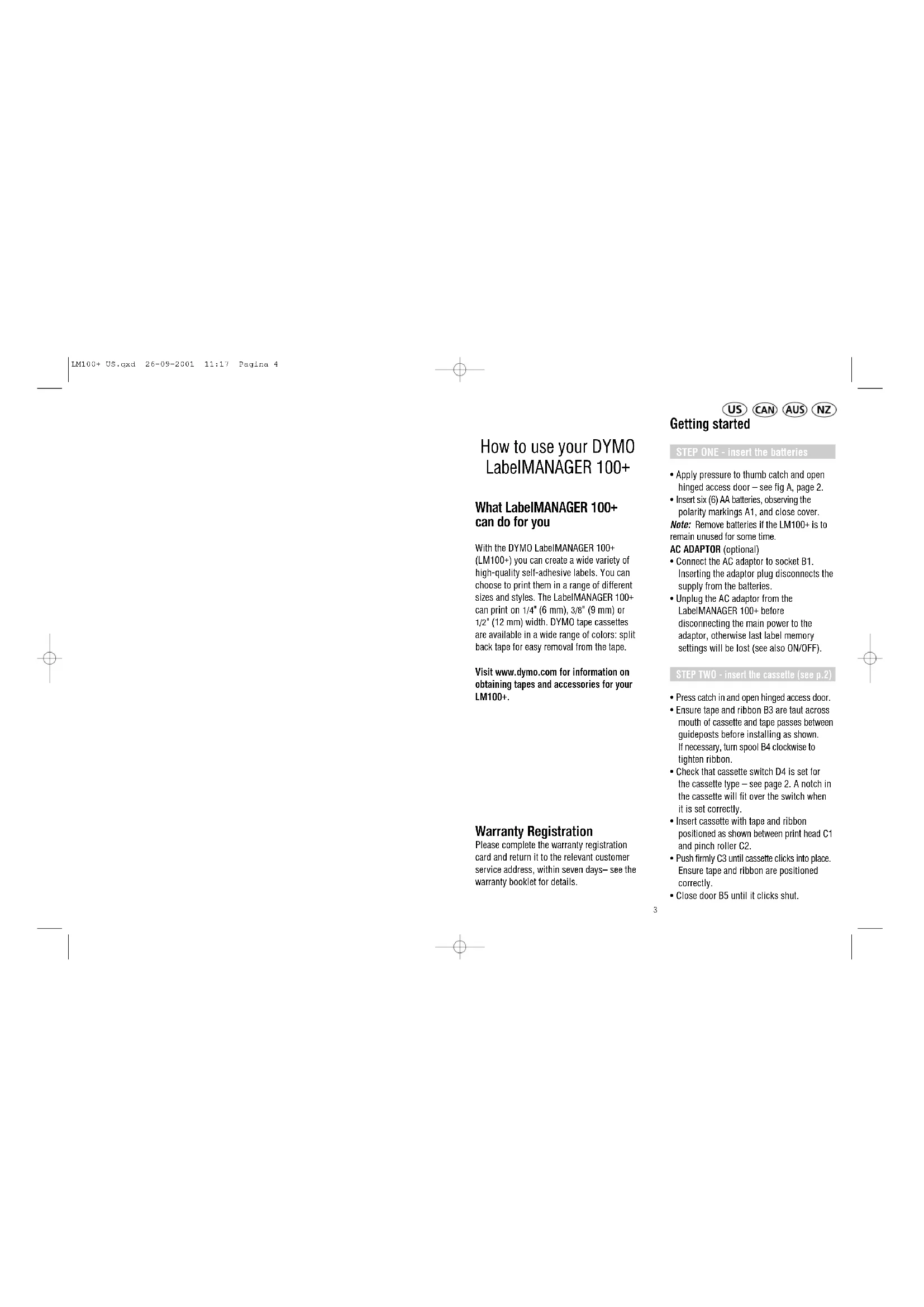
With the DYMO LabelMANAGER 100+ (LM100+) you can create a wide variety of high-quality self-adhesive labels. You can choose to print them in a range of different sizes and styles. The LabelMANAGER 100+ can print on 1/4" (6 mm), 3/8" (9 mm) or 1/2" (12 mm) width. DYMO tape cassettes are available in a wide range of colors: split back tape for easy removal from the tape.
Visit www.dymo.com for information on obtaining tapes and accessories for your LM100+.
Warranty Registration
Please complete the warranty registration card and return it to the relevant customer service address, within seven days—see the warranty booklet for details.
Getting started
STEP ONE - insert the batteries
- Apply pressure to thumb catch and open hinged access door – see fig A, page 2.
- Insert six (6) AA batteries, observing the polarity markings A1, and close cover.
Note: Remove batteries if the LM100+ is to remain unused for some time.
AC ADAPTOR (optional) - Connect the AC adaptor to socket B1. Inserting the adaptor plug disconnects the supply from the batteries.
- Unplug the AC adaptor from the LabelMANAGER 100+ before disconnecting the main power to the adaptor, otherwise last label memory settings will be lost (see also ON/OFF).
STEP TWO - insert the cassette (see p.2)
- Press catch in and open hinged access door.
- Ensure tape and ribbon B3 are taut across mouth of cassette and tape passes between guideposts before installing as shown. If necessary, turn spool B4 clockwise to tighten ribbon.
- Check that cassette switch D4 is set for the cassette type – see page 2. A notch in the cassette will fit over the switch when it is set correctly.
- Insert cassette with tape and ribbon positioned as shown between print head C1 and pinch roller C2.
- Push firmly C3 until cassette clicks into place. Ensure tape and ribbon are positioned correctly.
- Close door B5 until it clicks shut.
STEP THREE - switch on
Switch on with the ON/OFF switch.
Note: the LabelMANAGER 100+ switches off automatically after two minutes if no keys are pressed.
STEP FOUR - type a label
- Type a simple first label to test your machine. Learn more about formatting in the following pages.
STEP FIVE - print your label
- Press 📄 to print the label.
STEP SIX - cut the label
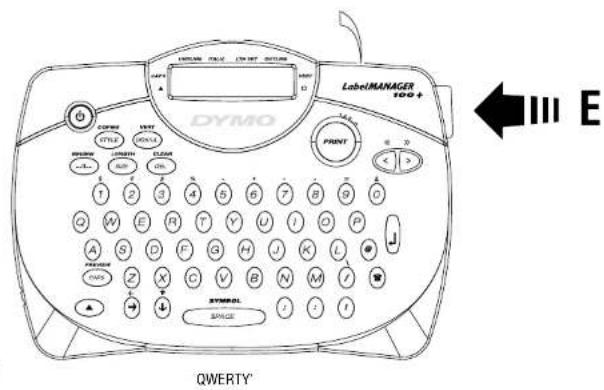
- Use cutter button E to cut the label — see page 2.
Congratulations! You've printed your first label!
Let's go on to learn more about typing and formatting.
Getting to know your LabelMANAGER 100+
The Display
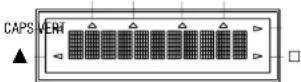
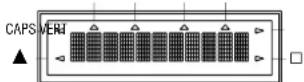
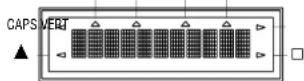
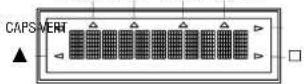
The display shows:
- Up to eleven text characters, at one time. Use < or > to move along the text.
- 8 indicators – as shown below.
- The display will flash if you press an incorrect key in a function sequence
UNDLINE ITALIC LTH SET OUTLINE
Function keys
ON/OFF
Switches the power on and off.
- Switches off automatically after two minutes if no keys are pressed. The last label created will be retained and displayed when next turned on. Any stored last label settings will also be retained.
Note: If the batteries are removed for more than a few seconds, all text and settings will be lost.
When power is restored, the display will show a flashing cursor (no text) and the settings will be full height standard width text with ▲ and all other settings off.
CAPITALS CAPS
- Press this button, and all subsequent characters will appear in UPPER CASE (CAPITALS), as confirmed by the CAPS indicator in the display.
- Press again to cancel and return to lower case.
SHIFT KEY
This has a dual action: either press and hold down or press and release to remain in "shift" position"
Press ▲again to return to normal state.
- Use ▲ before pressing an alphabet key to produce an UPPER CASE (CAPS) character.
- For dual-purpose keys, press ▲first to produce the legend above the key.
- Pressing ▲ while CAPS is set will give a lower case character.
DELETE DEL
- Press to delete the character to the left of the cursor, or to exit certain function key operations.
CLEAR ALL TEXT + ▲ DEL
- Press to clear all the current text and cancel any fixed length setting, but leave the text size and other settings unchanged. Also use to exit or clear certain function key operations.
CURSOR KEYS
- Press to move the cursor along the text, one character at a time.
- Press and hold to scan quickly through the text.
- Press ▲ + < or > to move the cursor to the beginning or end of the text.
- When used in conjunction with certain
function keys, use < or > to select options.
- To insert characters into the text, use < or > to position the cursor under the character to the right of the insertion point, then type in the characters required.
PRINTING PRINT
- Press PRINT to print the label. (see extended memory)
- Use cutter button E to release the label — see page 2.
PRINT PREVIEW
Allows you to preview your selected label before printing it.
- Press ▲ + CAPS and the entire text of the selected label will scroll across the display. Note: with a 2 line label, the message will be previewed as a single line message.
BUFFER PREVIEW
- Press ---II--- and the entire content of the label storage buffer will scroll across the display. (see extended memory)
Note: any 2-line label in the buffer will be previewed as a single line message.
SPACE KEY SPACE
SYMBOLS
- Press SPACE to insert a space into the text.
- Press ▲ + SPACE to select a symbol character – see Symbols and special characters and the symbols table on page 2.
TEXT SIZE SIZE
- Press SIZE to display the six text print sizes:
I condensed full height
I condensed half-height
I normal full height
normal half-height
■ extended full height
■ extended, half-height.
The cursor will be positioned over the current selection.
- Either press DEL to exit, or use < or > to move the cursor over the size symbol you require, then press ENTER to confirm the selection, or PRINT to confirm the selection and print the label.
VERTICAL TEXT

- Press ▲ + BOX/UL to rotate the text through 90° so that the text on the label is printed >∞<∞<∞> (i.e., it reads from top to bottom). This is confirmed by the VERT indicator, top right of the display.
- Press again to cancel and return to horizontal text (left to right). Note: Vertical text is not available on two lines.
2-LINE PRINTING

- Press to start the second line of text on a two-line label. The two lines will be printed half-height and ranged left, i.e. « THIS IS A TWO LINE LABEL » in the display will be printed as: THIS IS A TWO LINE LABEL
BOXED/UNDERLINED PRINTING

- Press BOX/UL once to display the menu above.
- Use (or) to move the cursor under the desired option and press to enter. (Confirmed by the or UNDLINE indicator displayed.)
• To return to previously selected Box / Underline text press DEL.
STYLE STYLE
Italic and Outline are accessible from STYLE. When pressing STYLE a menu appears with
Italic and Outline. < or > will guide you to the preferred option. To select your choice, press enter.
Note: Italic and Outline can be used simultaneously but you'll have to enter the STYLE menu twice.
- Press again to cancel.
- Use < or > to move the cursor under the desired option and press ← to enter.
LABEL LENGTH


Displays the current label length. The length is normally calculated automatically, according to the length of the text on the label.
- Press DEL to exit the length function without changing the length, or:
- Use < or > to increase (400mm / 15.6"max.) or decrease the length (2mm / 0.1") in steps. The display will flash if you try to make the label shorter than the text.
- If the length displayed is preceded by the symbol, the length has already been fixed; the label is too short for the text and it will not print. Either press to increase the length in 2mm / 0.2 inch steps until the symbol disappears, or press ▲ + DEL CLEAR to cancel fixed length; the label is now long enough for the text and can be printed.
- Press ← to fix the length for all subsequent labels, confirmed by the LTH SET indicator in the display, or
- Press PRINT to fix the new length and print the label.
- Pressing ▲ + DEL will cancel the fixed length and restore the automatic length.
EXTENDED MEMORY

- Press ---II---
Allows you to start a new label after stored
labels. You may store as many labels as you like until the memory is full, indicated by an error flash warning. To make space in the memory you can edit any stored label. Extended memory allows you to store your favorite labels in the memory. You can store up to 70 characters in as many labels as you like. Each label can have its own characteristics such as bold, underline, ...
To store a new label, simply press ---II--- after the last label entered. To make space in the memory, simply edit any label. To select a label to print or edit, move the cursor anywhere within the label and press print. Move the cursor with the < or > buttons or to jump between labels, use << or >>.
MULTIPLE COPIES


- Your LabelMANAGER 100+ can provide multiple copies within the range 1-20.
- To use this facility press ▲then STYLE to show n = 1 on the display. To increase the number of copies required press >. By pressing <you can work backwards from 20. To print the desired quantity press PRINT.
Note: A row of vertical dots will print between each label as a cutting guide.
INCREMENTAL NUMBERING


Labels can be printed in increments of 1-20 automatically.
• Key in your starting number as the right most digit on the label. Press ▲ then PRINT the display will automatically move up a digit to the next number. Press ▲ then PRINT to continue the sequence.
- It is also possible to include automatic incremental numbering when printing multiple copies.
• Key in your starting number, i.e. LABEL 1.
- Next press ▲ then STYLE followed by > until the desired number of copies are displayed i.e. 10.
Now press ▲ then PRINT this will print ten labels - LABEL 1 to LABEL 10. - It is possible to print up to 20 sequentially numbered labels at any one time.
LAST LABEL MEMORY
- The unit will store the last label text and settings when turned off. Upon power-up, these will be restored and displayed. Removal of the batteries for more than a few seconds will cause this information to be lost.
Symbols and special characters
INTERNATIONAL CHARACTERS
To add a diacritical (accent) to create an international character, enter the character first, followed immediately by the diacritical, i.e. press E followed by ▲ then / to get é. To add a diacritical to an existing character, use < or > to place the cursor under the character to be changed, then press the appropriate diacritical key.
SYMBOLS


- Press ▲ + SPACE to show symbols and special characters, some of which are not available direct from the keyboard. The display will show: A-Z Each letter selects a line of symbol characters, as shown in the table on page 2.
- Press DEL to cancel, or press a letter key 'A' to 'Z' until you find the line of symbols required.
- Use < or > to select a symbol. Press ← to place the symbol in the label.
PRINT CONTRAST - May be adjusted by pressing ▲+ SPACE + PRINT
- Use < or > to select lighter or darker print.
- Press ← to confirm the setting. The contrast level will revert to the mid-setting when the LabelMANAGER 100+ is turned off and on again.
Note: This function enables you to adjust the print quality under extreme temperature conditions.
Cleaning
- Clean the cutter blade regularly: Remove the cassette, then insert the tip of a ball pen or pencil between L-shaped piece D1 and the guide pin – see page 2.
- Press and hold down cutter lever E to expose cutter blade D2, then use a cotton ball and alcohol to clean both sides of the blade. Release cutter lever E.
- Check and clean print head face D3 regularly using a cotton ball and alcohol ONLY.
Changing the cassette
- Press catch in and open hinged access door.
- Hold as shown, then lift cassette B2 straight up and out.
- Ensure tape and ribbon B3 are taut across mouth of cassette and tape passes between guideposts before installing as shown. If necessary, turn spool B4 clockwise to tighten ribbon.
- Check that cassette switch D4 is set for the cassette type – see page 2. A notch in the cassette will fit over the switch when it is set correctly.
- Insert cassette with tape and ribbon positioned as shown between print head C1 and pinch roller C2.
- Push firmly C until cassette clicks into place. Ensure tape and ribbon are positioned correctly.
- Close door B5 until it clicks shut.
Troubleshooting
No display
- check that the machine is on
- replace discharged batteries
No printing or poor text
- Replace discharged batteries
- Check that the tape cassette is installed correctly
- Clean the print head
- Replace the tape cassette.
Tape jammed
• Lift out tape cassette carefully
- Remove/release jammed tape
- DO NOT cut the ink ribbon – turn spool to tighten
- Cut off excess label tape
- Refit/replace the tape cassette.
Poor cutter performance
- Clean the cutter blade regularly
No response to print key
- !!!!!!!! in the display indicates a printer jam. Press any key to return to normal display. Open the cassette compartment and free the jam.
- flashing in the display indicates discharged batteries. Press any key to return to normal display. Replace the batteries.
No success?
Call the DYMO customer service hotline telephone number in your country – see the warranty booklet.
UNDLINE ITALIC LTH SET OUTLINE
Touches de fonction
MISE SOUS/HORS TENSION
UNDLINE ITALIC LTH SET OUTLINE
Teclas de función
PASSO UM – insira as baterias
UNDLINE ITALIC LTH SET OUTLINE
Teclas de função
ON/OFF
| Tape cassettesWidth: 6mm 9mm 12mm(1/4") (3/8") (1/2") |
Length: 7m 7m 7m
| Black/Clear | 43610 | 40910 | 45010 |
| Blue/Clear | 45011 | ||
| Red/Clear | 45012 | ||
| Black/White | 43613 | 41913 | 45013 |
| Blue/White | 40914 | 45014 | |
| Red/White | 40915 | 45015 | |
| Black/Blue | 40916 45016 | ||
| Black/Red | 40917 45017 | ||
| Black/Yellow | 43618 40918 45018 | ||
| Black/Green | 40919 45019 | ||
| White/Clear | 45020 | ||
| White/Black | 45021 | ||
| Black/Silver | 45022 | ||
| Black/Gold | 45023 | ||
| Black/Fluo Green | 45024 | ||
| Black/Fluo Red | 45025 | ||
| US Adaptor | 40077 |
This product is pt marked in accordance with the EMC directive and the low voltage directive and is designed to conform with the following international standards:
| Safety – | EN 60950, IEC 950, UL 1950 |
| EMC emissions – | EN 55022 Class B, CIS PR22 Class B, FCC pt15 Sub pt B Class B |
| EMC immunity – | EN50082-1, IEC801-2 & IEC801-3 |
Accessoires
| Cassettes ruban | ||
| Largeur: | 6mm 9mm 12mm | |
| Longueur: | 7m 7m 7m | |
| Noir/Transparent | 43610 40910 | 45010 |
| Bleu/Transparent | 45011 | |
| Rouge/Transparent | 45012 | |
| Noir/Blanc | 43613 41913 | 45013 |
| Bleu/Blanc | 45014 | |
| Rouge/Blanc | 45015 | |
| Noir/Bleu | 45016 | |
| Noir/Rouge | 45017 | |
| Noir/Jaune 43618 40918 | 45018 | |
| Noir/Vert | 45019 | |
| Blanc/Transparent | 45020 | |
| Blanc/Noir | 45021 | |
| Noir/Argente | 45022 | |
| Noir/Dord | 45023 | |
| Noir/Vert fluo | 45024 | |
| Noir/Rouge fluo | 45025 | |
Adaptateur C.A.