LabelWriter SE450 - Label printer DYMO - Free user manual and instructions
Find the device manual for free LabelWriter SE450 DYMO in PDF.


User questions about LabelWriter SE450 DYMO
0 question about this device. Answer the ones you know or ask your own.
Ask a new question about this device
Download the instructions for your Label printer in PDF format for free! Find your manual LabelWriter SE450 - DYMO and take your electronic device back in hand. On this page are published all the documents necessary for the use of your device. LabelWriter SE450 by DYMO.
USER MANUAL LabelWriter SE450 DYMO
DYMO® LabelWriter® SE450 Label Printer

text_image
DYM0 LabelWriter® SE450www.dymo.com
Copyright
© 2010 Sanford, L.P. All rights reserved. Revised 7/26/2010.
No part of this document or the software may be reproduced or transmitted in any form or by any means or translated into another language without the prior written consent of Sanford, L.P.
Trademarks
LabelWriter and DYMO are trademarks or registered trademarks of Sanford, L.P. All other trademarks are the property of their respective holders.
Description: Direct Thermal Printer
Model: LabelWriter SE450
This equipment has been tested and found to comply with the limits for a Class B digital device, pursuant to Part 15 of the FCC (Federal Communications Committee) rules. These limits are designed to provide reasonable protection against harmful interference in a residential installation. This equipment generates, uses, and can radiate radio frequency energy, and, if not installed and used in accordance with the instructions, may cause harmful interference to radio communications.
However, there is no guarantee that interference will not occur in a particular installation. If this equipment does cause harmful interference to radio or television reception, which can be determined by turning the equipment off and on, the user is encouraged to try correcting the interference by one or more of the following measures:
■ Reorient the receiving antenna.
■ Increase the separation between the equipment and the receiver.
- Connect the equipment to an outlet on a circuit different from that to which the receiver is connected.
■ Use shielded cables to connect this device to computers.
■ Consult the dealer or an experienced radio/TV technician for help.
- Changes or modifications to this unit not expressly approved by the party responsible for compliance could void the user's authority to operate the equipment and void the manufacturer's warranty.
Certification
This device has been tested and complies with the requirements of:
UL 1950
EN60950: Low Voltage Directive Product Safety
FCC Part 15 Class B
EN55022: Radiated and Conducted Emissions B
EN50082-1: Generic Immunity ESD, RF, and Transient Susceptibility
Contents
Introduction 1
Configuring the Host Computer for RS-232 Serial Interface 3
RS-232 Settings 3.
RS-232 Cabling 4
RS-232 Signal Levels 4.
Programming Overview 5
Programming the LabelWriter Printer 5
Resetting the Printer 6.
Command Parameters.... 6
Character Evaluation 6
16-Bit Character Parameters.... 6
Conversions 7
Font Specifications 8
Objects 8
Print Modes 8
Raster Mode 9
Orientation....9
Portrait Mode 9
Landscape Mode 10
Text Objects 10
Barcode Objects.... 11
Graphic Objects 12
Line Objects 12
Command Reference 13
Alphabetical Command List.... 13
Commands by Function 15
Position Control.... 15
Font Control 16
Barcodes....17
Miscellaneous 17
Printable Characters.... 17
Raster Compatibility....18
Commands....18
20h - FFh Printable Characters 18
CR Carriage Return 19....
DC4 Cancel Double Wide Mode 19
ESC A Return Printer Status 20....
ESC a Return Hardware Status 20
ESC B Set Dot Tab.20....
ESC c Set Print Temperature to Low 21
ESC D Set Bytes per Line 21.
ESC d Set Print Temperature to Medium 21
ESC E Form Feed 22....
ESC e Set Print Temperature to Default 22
ESC F 1 n Feed n Lines 23
ESC g Set Print Temperature to High 23
ESC h Set Print Speed to Fast.... 23
ESC i Set Printing Speed to Barcode 23
ESC J Feed n Lines 23
ESC L Set Feed Length 24
ESC M Sct Font to 12 .cpi.... 24
ESC P Set Font to 16.cpi 25
ESC Q Set Top Margin 26
ESC S Set Font to 20 cpi 26
ESC T Set Font to 7.cpi....26
ESC U Set Font to 10 cpi 27
ESC V Return Firmware Revision 28
ESC W Wrap Data 28
ESC X Set Horizontal Starting Position 29
ESC Y Set Vertical Starting Position 29
ESC y Set 203 x 203 dpi 30
ESC z Set 136 x 203 dpi 30
ESC * Reset to Defaults.... 30
ESC @ Reset to Power-up Condition 30
ETB Raster Mode Compressed Graphics 31
FF Form Feed 32
GS A Starting Position of Bar Code.... 33
GS DC2 Set Font to Double Height 33
GS DC3 Cancel Double Height 34
GS d Feed n Text Lines 34
GS h Set Barcode Height 35
GS k Print Barcode 35
Data Matrix Barcode 36
PDF417 2D Barcode.39....
GS 1 Draw Line in Landscape Mode 41
GS L Set Feed Length 43....
GS q Print UPC/EAN Checksum 44
GS RS Set Inverse Print Mode 44....
GS S Return Printer Status 45
GS T Select Line Wrap/Truncate Modes 46....
GS t Set Characters per Line in Landscape 46
GS US Cancel Inverse Print Mode.47....
GS u Set Characters per Line in Portrait 47.
GS V Set Print Orientation 48
GS W Set Bar Code Element Width 48
GS w Set Barcode Module Width.... 49
GS \~ Enter Debug Mode 49
GS * Landscape Mode Graphics 50
HT Horizontal Tab 51
LF Line Feed 51
SO Set Font to Double Wide Mode 51
SYN Raster Mode Graphics.... 52
The Caret Feature 53
Activating the Caret Feature.... 53
Using the Caret Feature 53
Character Codes 55
Configuration Menu 65
Printer Specifications 67
Hardware Specifications 67
Interface Specifications....67
Print Head Specifications 67
USB Settings.... 69
Serial Interface Specifications 69
This page intentionally left blank for double-sided printing.
Chapter 1
Introduction
The LabelWriter SE450 printer is a compact, thermal-transfer label printer. Featuring both RS-232 serial and USB connections and including both an ASCII command set as well as raster printing modes, this printer can fit a wide variety of uses.
The LabelWriter SE450 printer can be readily connected to most common computer systems using the included Windows, Mac or Linux drivers. Or, for driver-less applications, the printer can be connected and driven entirely by ASCII Escape commands. This makes the LabelWriter SE450 an ideal printer to use in embedded applications, including medical devices, paint matching systems, and so on.
The LabelWriter SE450 printer can accept label material up to 62 mm (2.44") wide, and has a 57 mm (2.24") wide, 203 dot-per-inch (dpi) print head.
This Technical Reference provides all the information you need to be able to print labels with the LabelWriter SE450 printer.
In addition, Windows and Mac sample code is available on the CD that came with the LabelWriter SE450 printer.
In this Technical Reference, you will find:
■ Information about how to configure the host computer to communicate with the LabelWriter SE450 over an RS-232 serial interface.
■ Information about programming the LabelWriter SE450 printer
■ A list of commands by function
■ A complete alphabetical command reference
■ A complete list of the standard and extended ASCII character codes supported by the printer
■ Instructions for configuring the printer
■ Printer specifications
As an additional resource, visit the Developer's Forum on the DYMO Web site.
This page intentionally left blank for double-sided printing.
Chapter 2
Configuring the Host Computer for RS-232 Serial Interface
This chapter describes how to configure the host computer to communicate with the LabelWriter SE450 printer over an RS-232 serial interface.
■ RS-232 Settings
■ RS-232 Cabling
■ RS-232 Signal Levels
For information about communicating with the host computer using the USB port, see the sample code located on the LabelWriter SE450 CD that came with the printer.
RS-232 Settings
In order for the host computer to communicate with the LabelWriter SE450 printer, the communication parameters must be set as follows:
Baud Rate 9600
Data Bits 8
Stop Bits 1
Parity None
These settings can often be set using a BIOS setup program or an Operating System Control Panel application. For embedded applications, you may need to build these settings into the embedded system's initialization code.
Most languages provide a command or function to initialize a serial port.
If programming under Windows using Microsoft C/C++, use the function:
bios_serialcom()
Other C compilers offer a similar function. Consult your compiler user guide for the appropriate function to use to configure a serial port.
If you are using the Unix OS, you'll need to configure the RS-232 port as a dumb printer port, with no special handling, control characters or form feeds. The LabelWriter printer will handle these functions internally.
RS-232 Cabling
RS-232 cable pinouts are shown in the table below. For details on RS-232 signal names, consult the RS-232 Standard documentation.
| Origination (Mod. 8 x 8) | Termination (DB9S) | Name Dir Description |
| 1 8 RTS Out Printer is ready to receive data | ||
| 2 3 RX In Data to the printer | ||
| 3 2 TX | Out Data from the printer | |
| 4 | 5 | GND -- Signal, earth, and power ground |
| 5 7 CTS | In Depends on software selection | |
| 6 6 | DTR | Out Indicate printer is online |
Modular Plug
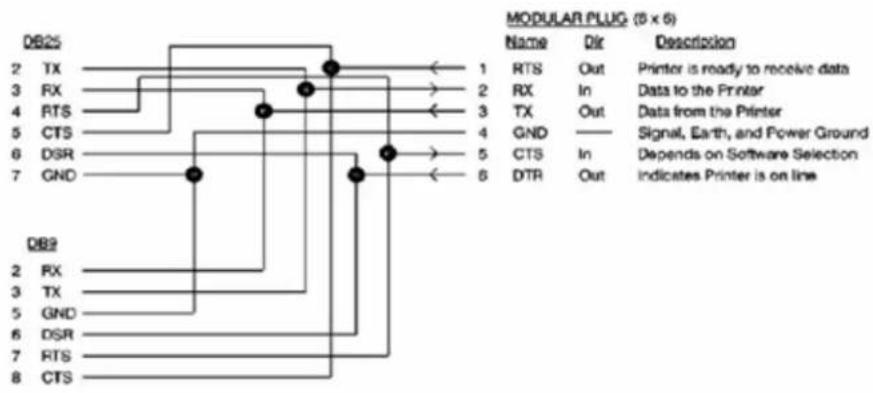
flowchart
graph TD
    A["DB25"] --> B["TX"]
    A --> C["RX"]
    A --> D["RTS"]
    A --> E["CTS"]
    A --> F["DSR"]
    A --> G["GND"]
    H["DB2"] --> I["RX"]
    H --> J["TX"]
    H --> K["GND"]
    H --> L["DSR"]
    H --> M["RTS"]
    H --> N["CTS"]
    O["MODULAR PLUG (5 x 6)"] --> P["1"]
    O --> Q["2"]
    O --> R["3"]
    O --> S["4"]
    O --> T["5"]
    O --> U["6"]
    P --> V["RTS Out"]
    P --> W["RX In"]
    P --> X["TX Out"]
    P --> Y["GND In"]
    Q --> Z["CTS Out"]
    Q --> AA["DTR Out"]
    style O fill:#f9f,stroke:#333,stroke-width:2px
RS-232 Signal Levels
The serial interface uses standard RS-232 signal levels as shown in the table below: RS-232 signal levels.
| Signal Level | Input | Output |
| MARK (1) | -27 V to -5 V | -5 V |
| SPACE (0) | +5 V to +27 V | +12 V |
Chapter 3
Programming Overview
This chapter includes the information needed to control the LabelWriter SE450 printer correctly using ASCII Escape commands (referred to as ESC commands throughout this reference guide). Both basic and advanced topics are explained so that you understand how the LabelWriter SE450 printer works.
Programming the LabelWriter Printer
The first step in controlling the LabelWriter SE450 printer is to understand how the printer works.
As an ASCII-based printer, the LabelWriter SE450 printer accepts 8-bit ASCII characters as both data and commands. The ASCII character table shows the relationship between the 8-bit values and the characters they represent.
The ASCII Table contains both "Printable" characters (with values 32 - 127 decimal) which are normally just printed, and non-printable, control commands that the printer interprets as action commands (form-feed for example).
As the printer reads character input from the controlling device, it interprets the data as characters to be printed, or commands, and acts accordingly. This means that sending data and commands to the printer is usually as simple as transmitting the characters from your program to the port to which the printer is connected.
A simple program to print ‘Hello World’ on the LabelWriter printer might look as follows if written in BASIC.
OPEN "COM1:9600,n,8,1" FOR OUTPUT AS #1
PRINT #1, "HELLO WORLD"
The "OPEN..." line above opens the selected COM port for printing and initializes the communication settings while the "PRINT..." line sends the data to the printer.
Commands can be sent to the printer in exactly the same way. For example, if you wanted to change the font which “Hello World” was printed into a 7-characters-per-inch font, you could look in this manual and find that the required command characters to do this are ESC and T. ESC refers to the Escape character. By checking the ASCII character table, you would find that the ESC character has a decimal value of 27. With this information, you can construct the following program to print ‘Hello World’ in a 7-characters-per-inch font.
OPEN "COM1:9600,n,8,1" FOR OUTPUT AS #1
PRINT #1, CHR\$(27); "T";
PRINT #1, "HELLO WORLD"
In a nutshell, that's all there is to controlling the LabelWriter printer. Any formatting or special effect that you may need for your output can be specified simply and easily by sending the appropriate command characters and the data to be printed.
The next few sections cover the ins, outs, and general information that you should know before programming the LabelWriter printer.
Resetting the Printer
Each print job should begin with a printer reset command. This ensures that the printer always begins in a known state. The command characters used to reset the LabelWriter printer are ESC (decimal value 27) followed by * (decimal value 42).
Command Parameters
When sending a command, all of the command characters and parameters that make up a command must be sent, without intervening characters. This is especially important when using the barcode and graphics commands. Sending fewer characters than specified for the command will either cause the command to fail or result in subsequent data being lost.
Character Evaluation
Most of the parameters that are sent to the LabelWriter printer are evaluated based on their decimal value. It is very important to have a good understanding of what this means.
The ASCII character that is represented by a '3' does not have a decimal value of 3 (the character '3' has a decimal value of 51, as listed in the character code table).
Some people find it easy to think of the ASCII table as a table of 8-bit BYTE values, and these byte values represent the characters shown in the table. Since a SPACE character has a value of 32 decimal, a byte value of 32 decimal needs to be sent to represent a space in character output.
Some commands accept parameters by either their decimal value or the representative character. For example, the set print orientation command (GS V) interprets both a NULL (ASCII decimal value of 0) and the '0' character as meaning the same thing. This ensures backwards compatibility with the original LabelWriter SE printer and should not be assumed to be true for all commands in general.
16-Bit Character Parameters
The maximum value a single 8-bit character can represent is 255. Some commands, though, can take values that are greater than 255.
The set horizontal starting position command (ESC X), for example, specifies a distance (in dots) that the next text object will print from the left margin. Because a dot is only 1/8th of a millimeter, a value of 255 would place the object only a little over 31 mm from the left margin.
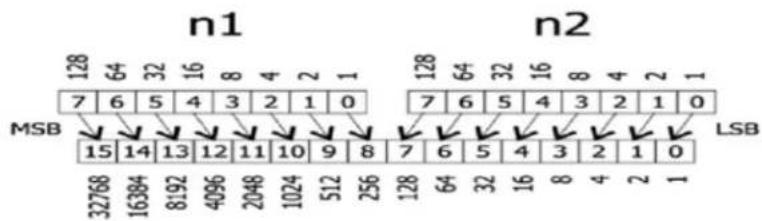
To allow for longer distances to be specified, two 8-bit characters are used to specify the value, by combining them into one 16-bit character. Though the calculations are all performed within the printer itself, it is important to understand how the characters are handled.
The decimal value of the first character that is sent (usually noted as n1) is multiplied by 256. The decimal value of the second character sent (usually noted as n2) is then added to this.
The following illustration is a graphical representation of how this works.

other
| Sequence | n1 | n2 | | :--- | :--- | :--- | | n1 | 128 | 128 | | n1 | 64 | 64 | | n1 | 32 | 32 | | n1 | 16 | 16 | | n1 | 8 | 8 | | n1 | 4 | 4 | | n1 | 2 | 2 | | n1 | 1 | 1 | | n2 | 7 | 7 | | n2 | 6 | 6 | | n2 | 5 | 5 | | n2 | 4 | 4 | | n2 | 3 | 3 | | n2 | 2 | 2 | | n2 | 1 | 1 | | n2 | 0 | 0 | | n2 | 15 | 15 | | n2 | 14 | 14 | | n2 | 13 | 13 | | n2 | 12 | 12 | | n2 | 11 | 11 | | n2 | 10 | 10 | | n2 | 9 | 9 | | n2 | 8 | 8 | | n2 | 7 | 7 | | n2 | 6 | 6 | | n2 | 5 | 5 | | n2 | 4 | 4 | | n2 | 3 | 3 | | n2 | 2 | 2 | | n2 | 1 | 1 | | LSB | 32768 | | | LSB | 16384 | | | LSB | 8192 | | | LSB | 4096 | | | LSB | 2048 | | | LSB | 1024 | | | LSB | 512 | | | LSB | 256 | | | LSB | 128 | | | LSB | 64 | | | LSB | 32 | | | LSB | 16 | | | LSB | 8 | | | LSB | 4 | | | LSB | 2 | | | LSB | 1 | (no label) | The bars represent the frequency of each element in the sequence n1 and n2. The values for each element are explicitly labeled on the bars.To send a value under 256 to a command that takes the n1 n2 parameters, simply send the first character with a 0 value. For values greater than 256 but less than 512, the first parameter should be sent with a value of 1. For values greater than 512 but less than 768, the first parameter should be set to 2, and so on.
Conversions
Converting from dots to inches using the n1 n2 parameters can seem a bit challenging at first, but is really no more complex than multiplication and division. The table below lists some common values and their relationship.
| Inches | Dots | n1 | n2 |
| 0.5 | 101 | 0 | 101 |
| 1.0 | 203 | 0 | 203 |
| 1.5 | 304 | 1 | 48 |
| 2.0 | 406 | 1 | 150 |
| 2.5 | 507 | 1 | 251 |
| 3.0 | 609 | 2 | 97 |
| 3.5 | 710 | 2 | 198 |
| 4.0 | 812 | 3 | 44 |
To convert from a value shown in the Dots column, convert the Dots value to binary, and then convert the top eight bits to base 10 for n1 and the bottom eight bits to decimal for n2. For example:
710 base 10 = 0000001011000110
n1 binary = 00000010 or "2" decimal
n2 binary = 11000110 or "198" decimal
Font Specifications
The table below lists the specifications for the five internal fonts the LabelWriter printer supports. Height and width are expressed in dots.
| Font Setting Command | Height | Width | Horizontal | cpi | Vertical | cpi |
| ESC S 16 | 10 | 20.3 | 12.7 | |||
| ESC P 24 | 12 | 16.9 | 8.4 | |||
| ESC M 32 | 16 | 12.7 | 6.4 | |||
| ESC U | 32 | 20 | 10.2 | 6.4 | ||
| ESC T | 56 | 28 | 7.3 | 3.6 |
Objects
Objects are the basic units printed by the LabelWriter printer. An object can be either a line of text, a barcode, a landscape graphic, a landscape line, or a raster dot line. Each of these objects has different rules relating to them. These rules are discussed later in this section.
Objects can also be either active or completed. An active object is one that is still receiving the data that composes it. A completed object is one that has been terminated. A line of text that has not yet received a line feed or carriage return is a good example of an active object. Until a terminator character, such as a line feed, is sent, more text characters can be added to the text object. Barcode and graphic objects do not require special terminator characters (such as line feeds). Instead they are considered complete as soon as they receive the correct amount of data.
Print Modes
Before we move on to discuss the specific objects that the LabelWriter printer supports, it is important to cover the different print modes in which the LabelWriter may print the objects.
The LabelWriter printer includes three modes of printing: raster (bitmap graphics) mode, portrait printing mode, and landscape printing mode. Each mode operates under very different rules. These rules are detailed in the sections that follow.
The LabelWriter printer may be in only one print mode at a time. Multiple areas may be printed in different print modes on a single label, but these areas may not overlap.
In any mode, the set feed length command (GS L) is used to determine how far the LabelWriter printer will feed in search of a top-of-form hole. If the LabelWriter printer finds
a top-of-form hole before this maximum feed distance is reached, it will stop at that point, rather than continuing. This command is only needed when dealing with continuous-feed paper.
Raster Mode
The LabelWriter SE450 command set includes most of the commands included in the command set for the LabelWriter 450 series printers, as well as the ASCII commands that are included in this Technical Reference. The two commands not available nor applicable to the LabelWriter SE450 printer are ESC G and ESC q (used to change rolls for the LabelWriter 450 Twin Turbo).
Raster mode refers to printing using the LabelWriter 450 printing commands, and is most often used when using printer drivers to print from Windows, Mac, or Linux computers. Because the LabelWriter 450 commands are an inherent part of the LabelWriter SE450, there are no special commands to switch to raster mode. Data may be sent exactly as though it were being sent to a LabelWriter 450 series printer and the LabelWriter SE450 will process and print the data correctly.
If you need to create your own printer driver for an embedded device or an unsupported operating system, refer to the LabelWriter 450 Series Technical Reference for full details.
In raster mode, each dot line is a complete object and is printed as soon as it is processed. Because of this, a raster dot line should not be sent while a label is being constructed using ASCII commands.
Orientation
By default, the LabelWriter SE450 is set for portrait printing. The page orientation can be changed to landscape printing using the GS V command.

text_image
PORTRAIT TEXT LANDSCAPE TEXT■ Portrait Mode
■ Landscape Mode
Portrait Mode
In portrait mode, text characters travel out of the printer from the top of the character to the bottom. It is also possible to switch to this mode using the set print orientation command (GS V). The printer is set to portrait mode by default.
Portrait mode is also referred to as immediate mode printing, because each object that is sent to the printer while the printer is in portrait mode is printed as soon as the object is completed. No two objects may be printed on the same line in this mode because the paper is advanced as each object is completed and printed.
Certain commands are disabled or work differently while the printer is in portrait mode. Exact details can be found with each command's description.
Landscape Mode
By using the set print orientation command (GS V), you can configure the LabelWriter printer for landscape printing. In landscape printing, text characters travel out of the printer from the left side of the character to the right. Before the printer can be switched to landscape printing though, you must send the set characters per line command (GS t). The set characters per line command defines the width of the landscape page.
A landscape page is defined as the area allocated by the LabelWriter printer in which landscape text, graphics, barcode, and line objects may be printed. The height of this landscape page always equals the width of the print head. The width of the landscape page is calculated when the set characters per line command (GS t) is sent. The width of the page is equal to the number of characters per line multiplied by the width of the current font. The default font is 16 dots wide (2 mm) and the default number of characters per line is 80.
In landscape mode, completed objects are placed within a memory buffer in the printer and are only printed when the landscape page is terminated. A form feed (FF) character is normally used to terminate a landscape page. This causes the printer to print the objects that have been placed on the landscape page and advance to the next label.
After a landscape page is printed, the LabelWriter printer will remain in landscape mode. If more objects are sent to the printer, a new landscape page will be allocated, with a width equal to the previous page. To change the width of a landscape page, you must send the set characters per line command (GS t) followed by the set print orientation command (GS V).
Because the LabelWriter printer does not print objects immediately, multiple objects can be placed on the same line. The set horizontal starting position (ESC X) and set vertical starting position (ESC Y) commands allow objects to be placed at any location within a landscape page. In the case of objects that are positioned to overlap each other, the first object that is sent to the printer will be printed in the overlapping area.
Objects that would normally print below the bottom of the landscape page can be either wrapped to the next label or truncated by using the select line wrap/truncate modes command (GS T).
Unless the set vertical starting position command (ESC Y) is used, the first object sent will be printed at the top of the landscape page. When printing to a label that is narrower than the print head, the top of the landscape page will be above the top of the label. In this case, you should use the set vertical starting position command (ESC Y) to position the object on an area of the landscape page that corresponds to the label.
Text Objects
A text object is simply a line of printable characters. A text object is created whenever the LabelWriter printer receives a printable character that is not otherwise part of a command. Once it's created, a text object will remain active until it is terminated.
While a text object is active, any printable characters sent to the printer will be added to that text object. The only exceptions are printable characters that are sent as part of a
command. While a text object is active, commands that alter text line attributes (such as font and double-height character commands) are ignored. Commands that alter text character attributes (such as double wide and inverse) may be sent at any time.
Line attributes include the five basic fonts (ESC S, P, M, U, and T), plus the double-height font command (GS DC2). These commands may not be issued while a text object is active; instead they should be issued before a text object is begun. The font line attribute persists until another font command is received. The double-height line attribute persists either until the cancel double-height command (GS DC3) is sent or the current font is changed.
The character attribute commands include the set font to double wide (SO) and set inverse print mode (GS RS) commands. These commands may be issued or canceled at any time. Character attributes persist only until the end of a text object.
A text object can be terminated with a carriage return, a line feed, or both, in either combination. If the length of the text object exceeds the space allowed for printing, it will either wrap to the next line or truncate at the end of the printable area. The decision to wrap or truncate is determined by the select line wrap/truncate mode command (GS T). By default, text objects will wrap to the next line.
Barcode Objects
A barcode object is created by the print barcode (GS k) command. Specified within the command is the symbology to be used, the amount of data to be encoded, and the data itself. Other attributes of the barcode, such as height and width, can be set using other commands.
The set barcode height (GS h) command specifies the height of the barcode in dots, or 1/8th mm. The maximum height for a barcode is 256 dots, or 32 mm. In cases where a taller barcode is needed, a second barcode can be printed below the first at the same left offset.
The set barcode module width (GS w) and set barcode element width (GS W) commands can be used to alter the width of the barcode. See the command descriptions for a full explanation of the differences between these two commands.
The POSTNET barcode symbology is an exception and does not respond to any of these commands. Instead, it always prints within the U.S. Postal Service's specifications.
The limitations of each symbology must be adhered to when sending data for a barcode. For example, you should not send alphabetic characters to symbologies that only accept numeric data (like the UPC/EAN symbology).
Other items must also be considered when printing barcodes. You must leave sufficient blank space on either side of the barcode to create a quiet zone. You must also select a good ratio/element size if the default values are not being used, and you must allow adequate room for the barcode to be printed on the label. If you ignore any of these items, the barcode that is printed may be unreadable.
In general, you should be very familiar with using barcodes if you want to ensure success.
A barcode object is self-terminating and will be processed as soon as it has received the last byte of data required to define to it. The print barcode (GS k) command's second
parameter specifies whether a fixed amount of data will be sent or whether delimiters will be used. In either case, the data sent must match the parameter setting. If a fixed number of characters are specified, then the exact number of characters specified must be sent. If delimiters are indicated, then matching characters must be sent before and after the barcode data to specify the beginning and end of the data. If an incorrect number of characters or delimiters are sent, the printer will not print correctly.
Barcodes that are too long to fit within the printable area of a label are truncated or do not print at all. This usually results in an unreadable barcode being printed. To correct this condition, you must set a narrower ratio, encode fewer digits, or use a more compact symbology.
Graphic Objects
Graphic objects are created by the landscape mode graphics command (GS *).
Graphic objects may only be printed as part of a landscape page. To print a graphic without entering landscape mode, you must use raster mode graphic commands.
No landscape graphic may be wider than 256 dots; however, a graphic may be as tall as the width of the LabelWriter printer's print head. If you need to print a graphic wider than 256 dots, you must either subdivide it into narrower sections or print it using raster mode graphics commands.
For more information about landscape graphic objects, see the descriptions of the graphics commands in this manual.
See Also
GS *
Line Objects
Line objects are created using the draw line in landscape mode command (GS 1).
Line objects may only be printed as part of a landscape page. If the length of a line object is set to exceed the printable area of a label, the line will be truncated at the end of the printable area.
See Also
GS1
Command Reference
This chapter describes the commands you can use to program your LabelWriter SE450 printer. Below are some of the things you can do with the commands:
■ Send line feeds and carriage returns
■ Define barcode size and position
- Read firmware revision and printer status information
■ Define label size, and paper orientation
■ Print graphics in inverse text mode and print enlarged characters
See the pages that follow for listings of commands arranged alphabetically and by function.
Alphabetical Command List
| NAME DESCRIPTION | |
| CR | Carriage Return |
| DC4 | Cancel Double Wide Mode |
| ESC * | Reset to Defaults |
| ESC @ | Reset to Power-up Condition |
| ESC A | Return Printer Status |
| ESC a | Return Hardware Status |
| ESC B | Set Dot Tab |
| ESC c | Set Print Temperature to Low |
| ESC D | Set Bytes per Line |
| ESC d | Set Print Temperature to Medium |
| ESC E | Form Feed |
| ESC e | Set Print Temperature to Default |
| ESC F 1 n | Feed n Lines |
NAME DESCRIPTION
| ESC g | Set Print Temperature to High |
| ESC J n | Feed n Lines |
| ESC L | Set Feed Length |
| ESC M | Set Font to 12 cpi |
| ESC P | Set Font to 16 cpi |
| ESC Q | Set Top Margin |
| ESC S | Set Font to 20 cpi |
| ESC T | Set Font to 7 cpi |
| ESC U | Set Font to 10 cpi |
| ESC V | Return Firmware Revision |
| ESC W n1 n2 | Wrap Data |
| ESC X n1 n2 | Set Horizontal Starting Position |
| ESC Y n1 | Set Vertical Starting Position |
| ESC y | Set 203 x 203 dpi |
| ESC z | Set 136 x 203 dpi |
| ETB | Raster Mode Compressed Graphics |
| FF | Form Feed |
| GS * n1 n2 t h w dl...dm | Landscape Mode Graphics |
| GS A n1 n2 | Bar Code Start Position |
| GS d n | Feed n Text Lines |
| GS DC2 | Set Font to Double Height |
| GS DC3 | Cancel Double Height |
| GS h n | Set Bar Code Height |
| GS k n m dl...dk | Print Barcode |
| NAME DESCRIPTION | |
| GS L n1 n2 | Set Feed Length |
| GS l n1 n2 ll 12 m | Draw Line in Landscape Mode |
| GS q n m d1...dk | Print UPC/EAN Checksum |
| GS RS | Set Inverse Print Mode |
| GS S | Return Printer Status |
| GS T n | Select Line Wrap/Truncate Modes |
| GS t n | Set Characters per Line (Landscape) |
| GS u n | Set Characters per Line (Portrait) |
| GS US | Cancel Inverse Print Mode |
| GS V n | Set Print Orientation |
| GS W Thin Thick | Set Bar Code Element Width |
| GS w n | Set Bar Code Module Width |
| GS ~ | Enter Debug Mode |
| HT | Horizontal Tab |
| LF | Line Feed |
| SO | Set Font to Double Wide Mode |
| SYN | Raster Mode Graphics |
Commands by Function
Position Control
| NAME DESCRIPTION | |
| HT | Horizontal Tab |
| LF | Line Feed |
| FF | Form Feed |
NAME DESCRIPTION
| CR | Carriage Return |
| ESC J n | Feed n Sublines |
| ESC X n1 n2 | Set Horizontal Starting Position |
| ESC Y n1 | Set Vertical Starting Position |
| GS T n | Select Line Wrap/Truncate Modes |
| GS V n | Set Text and Bar Code Orientation |
| GS d n | Feed n Text Lines |
| GS t n | Set Characters per Line (Landscape) |
| GS u n | Set Characters per Line (Portrait) |
Font Control
| NAME DESCRIPTION | |
| 20h - FFh | Printable Characters (See Character Codes for a table of printable characters.) |
| DC4 | Cancel Double Wide Mode |
| ESC T | Set Font to 7 cpi |
| ESC M | Set Font to 12 cpi |
| ESC P | Set Font to 16 cpi |
| ESC S | Set Font to 20 cpi |
| ESC U | Set Font to 10 cpi |
| ESC X n1 n2 | Set Horizontal Starting Position |
| GS DC2 | Set Font to Double Height |
| GS DC3 | Cancel Double Height |
| GS RS | Set Inverse Print Mode |
| GS US | Cancel Inverse Print Mode |
NAME DESCRIPTION
| SO | Set Font to Double Wide Mode |
Barcodes
| NAME DESCRIPTION | |
| GS A n1 n2 | Barcode Start Position |
| GS W Thin Thick | Set Barcode Element Width |
| GS h n | Set Barcode Height |
| GS k n m d1...dk | Print Barcode |
| GS w n | Set Barcode Module Width |
Miscellaneous
| NAME DESCRIPTION | |
| ESC @ | Reset to Power-up Condition |
| ESC V | Return Firmware Revision |
| ESC W n1 n2 | Wrap Data |
| GS ~ | Enter Debug Mode |
| GS * n1 n2 t h w d1...dm | Landscape Mode Graphics |
| GS L n1 n2 | Set Feed Length |
| GS S | Return Printer Status |
| GS 1 n1 n2 l1 l2 m | Draw Line in Landscape Mode |
Printable Characters
| NAME DESCRIPTION | |
| 20h - FFh | Printable Characters |
Raster Compatibility
NAME DESCRIPTION
| SYN | Raster Mode Graphics |
| ETB | Raster Mode Compressed Graphics |
| ESC * | Reset to Defaults |
| ESC @ | Reset Printer to Power-up Condition |
| ESC A | Return Printer Status |
| ESC B | Set Dot Tab |
| ESC D | Set Bytes per Line |
| ESC E | Form Feed |
| ESC L | Set Feed Length |
| ESC Q | Set Top Margin |
| ESC a | Return Hardware Status |
| ESC c | Set Print Temperature to Low |
| ESC d | Set Print Temperature to Medium |
| ESC c | Set Print Temperature to High |
| ESC F 1 n | Feed "n" Sublines |
| ESC y | Set 203 x 203 dpi |
| ESC z | Set 138 x 203 dpi |
Commands
The commands are listed by name in alphabetical order. Each section contains a description of the command. The ASCII, hexadecimal, and decimal values for each command are also provided.
See Character Codes for a list of ASCII, hexadecimal, and binary codes.
20h - FFh Printable Characters
Description
These characters, while not part of an escape (command) sequence, will be printed using the currently selected font. The standard, printable ASCII characters are associated with their normal values, which range from decimal value 32 to decimal value 127. The extended ASCII character set is also included and ranges from decimal value 128 to decimal value 255.
See Character Codes for a summary of all the characters available.
Parameters
None
CR Carriage Return
Description
Prints the current line of text and advances the text position to the beginning of the next line. Note that the line feed, line feed/carriage return, carriage return, and carriage return/line feed instructions all behave as a single line feed. If the current line extends beyond the printable area, the text will wrap to the next printable area.
All character attributes (including inverse and double-wide text) will be cleared after the line is printed.
Expression
ASCII CR
Decimal 13
Hex 0D
Parameters
None
DC4 Cancel Double Wide Mode
Description
Cancels double-wide text printing and returns the text to normal.
See Also
SO
ESC W
Expression
ASCII DC4
Decimal 20
Hex 14
Parameters
None
ESC A Return Printer Status
Description
Provided for LabelWriter printer raster compatibility. ESC A is identical to the GS S command described in this guide. See the description of the GS S command for information on how to return the printer status.
See Also
GS S
ESC a Return Hardware Status
Description
Provided for LabelWriter printer raster compatibility.
See Also
GS S
ESC B Set Dot Tab
Description
Provided for LabelWriter printer raster compatibility. ESC B defines the left-hand starting position for the placement of raster mode bitmap data. ESC B is used in conjunction with the SYN (Raster Mode Graphics) and ETB (Raster Mode Compressed Graphics) commands.
The LabelWriter SE450 printer prints up to 56 bytes (448 dots) of bitmap data. ESC B allows the starting point (the left margin) to be relocated from the default position (byte 0), which is the extreme left side of the label, to any point, up to the right-hand margin (byte 56). The increments for relocating the starting point are in millimeters. Use of this command, along with the ESC D command, can drastically reduce the number of data bytes required to skip blank areas.
See Also
ESC D
SYN
ETB
Expression
ASCII ESC B nl
Decimal 27 66 n1
Hex 1B 42 nl
Parameters
n1 starting position from the left in millimeters: 0 to 55 (default = 0)
ESC c Set Print Temperature to Low
Used to adjust the printing strobe.
This command is also supported by the LabelWriter SE300 and the LabelWriter 400 and 450 series printers.
Expression
ASCII ESC c
Decimal 27 99
Hex 1B 63
Paramenters
None
Provided for LabelWriter printer raster compatibility.
This command defines the number of bytes in a single line of raster bitmap data. The LabelWriter SE450 printer prints up to 56 bytes (448 dots) of bitmap data. Use of this command, along with the ESC B command, can drastically reduce the number of data bytes required to skip blank areas.
See Also
ESC B
SYN
ETB
Expression
ASCII ESC D nI
Decimal 27 68 n1
Hex 1B 44 nI
Parameters
n1 number of bytes per line (default = the allowed maximum, 56 bytes)
ESC d Set Print Temperature to Medium
Used to adjust the printing strobe.
This command is also supported by the LabelWriter SE300 and the LabelWriter 400 and 450 series printers.
Expression
ASCII ESC d
Decimal 27 100
Hex 1B 64
Parameters
None
ESC E Form Feed
Description
Prints the contents of the text buffer and advances the print media. The distance the media will advance depends on two factors: the feed distance specified by the GS L command and the presence of a punch hole. The LabelWriter printer will advance until a punch hole is detected or until the feed distance (specified by the GS L command) has been reached.
When the printer is powered on, the feed distance stored in flash memory is used as the default distance; the factory default is 7.5 inches. A new feed distance specified by the GS L command will override the flash memory setting until the printer is either powered down or a reset command is issued (by the ESC @ or ESC * command).
The FF and ESC E commands are the same and produce the same result.
See Also
FF
Expression
ASCII ESC E
Decimal 27 69
Hex 1B 45
Parameters
None
ESC e Set Print Temperature to Default
Used to adjust the printing strobe.
This command is also supported by the LabelWriter SE300 and the LabelWriter 400 and 450 series printers.
Expression
ASCII ESC e
Decimal 27 101
Hex 1B 65
Parameters
None
ESC F 1 n Flèdes
Description
Provided for LabelWriter raster compatibility.
The command is used to feed the next "n" lines on the label. This command requires two bytes: the first byte is always 1, the second byte is the feed line value.
Note that this command functions identically to the ESC J command.
See Also
ESC J
ESC g Set Print Temperature to High
Used to adjust the printing strobe.
This command is also supported by the LabelWriter SE300 and the LabelWriter 400 and 450 series printers.
Expression
ASCII ESC g
Decimal 27 103
Hex 1B 67
Parameters
None
ESC h Set Print Speed to Fast
Used to set the printing speed to fast, which is the default speed.
This command is also supported by the LabelWriter 400 and 450 series of printers.
ESC i Set Printing Speed to Barcode
Used to adjust the printing speed to slow for better print quality for barcodes and graphics.
This command is supported by the LabelWriter 400 and 450 series printers.
ESC J FeedLines
Description
Feeds n number of sublines (n/203 inch). This command causes the printer to print data stored in the buffer and then feed n number of dot lines. This command is similar to the GS d command.
See Also
GS d
Expression
ASCII ESC J n
Decimal 27 74 n
Hex 1B 4A n
Parameters
n = the desired number of sublines to feed
ESC L Set Feed Length
Description
Provided for LabelWriter raster compatibility.
See the GS L command for information.
See Also
GS L
ESC M Set Font to 12 cpi
Description
Changes to the 12 cpi normal font. The cell dimension is 32 H x 16 W. This is the default font.
Fonts may only be changed at the beginning of a line, prior to any printable characters. This font will remain in effect until the printer is reset (by the ESC @ or ESC * command) or another font is selected.
See Also
ESC P
ESC S
ESC T
ESC U
Expression
ASCII ESC M
Decimal 27 77
Hex 1B 4D
Parameters
None
| Font | Height Width | Horizontal cpi | Vertical cpi |
| ESC S 16 | 10 | 20.3 | 12.7 |
| Font | Height | Width | Horizontal cpi | Vertical cpi |
| ESC P 24 12 16.9 8.4 | ||||
| ESC M 32 16 12.7 6.4 | ||||
| ESC U 32 20 10.2 6.4 | ||||
| ESC T 56 28 7.3 3.6 | ||||
ESC P Set Font to 16 cpi
Description
Changes to the 16 cpi mini font. The cell dimension is 24 H x 12 W.
Fonts may only be changed at the beginning of a line, prior to any printable characters.
This font will remain in effect until the printer is reset (by the ESC @ or ESC * command) or another font is selected.
See Also
ESC M
ESC S
ESC T
ESC U
Expression
ASCII ESC P
Decimal 27 80
Hex 1B 50
Parameters
None
| Font | Height | Width | Horizontal cpi | Vertical cpi |
| ESC S | 16 | 10 | 20.3 | 12.7 |
| ESC P | 24 | 12 | 16.9 | 8.4 |
| ESC M | 32 | 16 | 12.7 | 6.4 |
| ESC U | 32 | 20 | 10.2 | 6.4 |
| ESC T | 56 | 28 | 7.3 | 3.6 |
ESC Q Set Top Margin
Description
Provided for LabelWriter raster compatibility.
ESC S Set Font to 20 cpi
Description
Changes to the 20 cpi micro font. The cell dimension is 16 H x 10 W.
Fonts may only be changed at the beginning of a line, prior to any printable characters.
This font will remain in effect until the printer is reset (by the ESC @ or ESC * command) or another font is selected.
See Also
ESC M
ESC P
ESC T
ESC U
Expression
ASCII ESC S
Decimal 27 83
Hex 1B 53
Parameters
None
| Font Height Width | Horizontal cpi | Vertical cpi | ||||||||
| ESC | S | 16 | 10 | 20.3 | 12.7 | |||||
| ESC | P | 24 | 12 | 16.9 | 8.4 | |||||
| ESC | M | 32 | 16 | 12.7 | 6.4 | |||||
| ESC | U | 32 | 20 | 10.2 | 6.4 | |||||
| ESC | T | 56 | 28 | 7.3 | 3.6 | |||||
ESC T Set Font to 7 cpi
Description
Changes to the 7 cpi headline font. The cell dimension is 56 H x 28 W.
Fonts may only be changed at the beginning of a line, prior to any printable characters. This font will remain in effect until the printer is reset (by the ESC @ or ESC * command) or another font is selected.
See Also
ESC M
ESC P
ESC S
ESC U
Expression
ASCII ESC T
Decimal 27 84
Hex 1B 54
Parameters
None
Example
| Font Height Width | Horizontal cpi | Vertical cpi | |||||||
| ESC S | 16 | 10 | 20.3 | 12.7 | |||||
| ESC P | 24 | 12 | 16.9 | 8.4 | |||||
| ESC M | 32 | 16 | 12.7 | 6.4 | |||||
| ESC U | 32 | 20 | 10.2 | 6.4 | |||||
| ESC T | 56 | 28 | 7.3 | 3.6 | |||||
ESC U Set Font to 10 cpi
Description
Changes to the 10 cpi headline font. The cell dimension is 32 H x 20 W.
Fonts may only be changed at the beginning of a line, prior to any printable characters.
This font will remain in effect until the printer is reset (by the ESC @ or ESC * command) or another font is selected.
See Also
ESC M
ESC P
ESC S
ESC T
Expression
ASCII ESC U
Decimal 27 85
Hex 1B 55
Parameters
None
| Font | Height | Width | Horizontal cpi | Vertical cpi |
| ESC | S 16 | 10 20.3 12.7 | ||
| ESC | P 24 | 12 16.9 8.4 | ||
| ESC | M 32 | 16 12.7 6.4 | ||
| ESC | U 32 | 20 10.2 6.4 | ||
| ESC | T | 56 28 | 7.3 | 3.6 |
ESC V Return Firmware Revision
Description
Returns ten ASCII characters (1765303v0G) that represents the firmware revision of the of the LabelWriter 450 series printers, with which the SE450 is 100% compatible.
Expression
ASCII ESC V
Decimal 27 86
Hex 1B 56
Parameters
None
ESC W Wrap Data
Description
Causes the characters n1 and n2 to be echoed back to the host. As soon as n1 is received by the printer, the printer, in turn, will transmit n1 back to the host. Your program should wait to receive n1 before outputting n2 . If you don't wait, you may
n1
n2 are received successfully by the host, you can be reasonably assured that there is a LabelWriter printer attached connected and your program can communicate with the printer.
Expression
ASCII ESC W n1 n2
Decimal 27 87 n1 n2
Hex 1B 57 n1 n2
Parameters
n1 first character to echo
n2 second character to echo
ESC X Set Horizontal Starting Position
Description
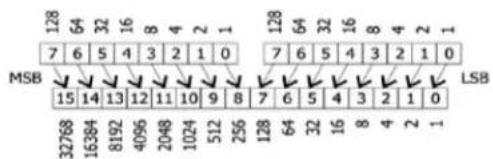
This command is used in landscape printing to set a new offset from the left margin from which to begin printing text and barcode objects. Distance is specified in dots (1 dot = 1/203 of an inch). The n1 and n2 parameters are evaluated to form a 16-bit word as follows: first, the n1 parameter's decimal value is multiplied by 256, then the result is added to the decimal value of the n2 parameter.
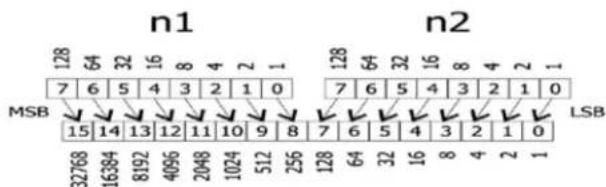
other
| Gene | n1 | n2 | |---|---|---| | 128 | 7 | 128 | | 64 | 6 | 64 | | 32 | 5 | 64 | | 16 | 5 | 64 | | 8 | 4 | 64 | | 4 | 3 | 64 | | 2 | 2 | 64 | | 1 | 1 | 64 | | MSB | 15 | 15 | | MSB | 14 | 14 | | MSB | 13 | 13 | | MSB | 12 | 12 | | MSB | 11 | 11 | | MSB | 10 | 10 | | MSB | 9 | 9 | | MSB | 8 | 8 | | MSB | 7 | 7 | | MSB | 6 | 6 | | MSB | 5 | 5 | | MSB | 4 | 4 | | MSB | 3 | 3 | | MSB | 2 | 2 | | MSB | 1 | 2 | | LSB | 32768 | 32768 | | LSB | 16384 | 16384 | | LSB | 8192 | 8192 | | LSB | 4096 | 4096 | | LSB | 2048 | 2048 | | LSB | 1024 | 1024 | | LSB | 512 | 512 | | LSB | 256 | 256 | | LSB | 128 | 128 | | LSB | 64 | 64 | | LSB | 32 | 32 | | LSB | 16 | 16 | | LSB | 8 | 8 | | LSB | 4 | 4 | | LSB | 2 | 2 | | LSB | 1 | 1 | n1: n1 n2: n2Expression
ASCII ESC X n1 n2
Decimal 27 88 n1 n2
Hex 1B 58 n1 n2
Parameters
n1 high-order byte of 16-bit word that specifies distance
n2 low-order byte of 16-bit word that specifies distance
ESC Y Set Vertical Starting Position
Description
This command is used in landscape printing to set a new offset from the top margin from which to begin printing text and barcode objects. Distance is specified in millimeters. The LabelWriter SE450 print head is 56 millimeters wide.
Expression
ASCII ESC Y n
Decimal 27 89 n
Hex 1B 59 n
Parameters
n the offset distance in millimeters
ESC y Set 203 x 203 dpi
Description
Provided for LabelWriter raster compatibility.
ESC z Set 136 x 203 dpi
Description
Provided for LabelWriter raster compatibility.
ESC \* Reset to Defaults
Description
Returns the printer to its power-up condition, clears all buffers, and resets all character attributes. The ESC * command is the same as the ESC @ command.
See Also
ESC @
Expression
ASCII ESC *
Decimal ESC 42
Hex ESC 2A
Parameters
None
ESC @ Reset to Power-up Condition
Description
Returns the printer to its power-up condition, clears all buffers, and resets all character attributes. The ESC @ command is the same as the ESC * command.
See Also
ESC *
Expression
ASCII ESC @
Decimal 27 64
Hex 1B 40
Parameters
None
ETB Raster Mode Compressed Graphics
Description
Provided for LabelWriter printer raster compatibility.
The ETB command is a synchronization character used to encode compressed raster bitmap print data. Print data is encoded in strings of 8-bit bytes preceded by a single ETB (Hex 17) character. The control electronics in the printer do not check the validity of the bitmap data.
Data compression is done through a form of run-length encoding. Bit seven (the sign bit) of a compressed character represents the value to be printed:
0 = white space, 1 = a printed pixel. Bits 6 through 0 represent the number of consecutive bits of the selected value plus 1.
Examples:
00 = 1 white pixel
80 = 1 printed pixel
0F = 16 white pixels
FF = 128 printed pixels
The data sent to the LabelWriter printer is handled on a line-by-line basis, so compressed lines may be intermixed with normal lines. In addition, the compressed mode also uses the set bytes per line command (ESC D) to determine how much data from the host to expect for each line. However, the sum of the pixels must be equal to the bytes per line variable (ESC D, default on the LabelWriter SE450 printer is 56) multiplied by 8. No error checking is done on the incoming data and unexpected results will occur if this caution is not observed.
Below is a sample compressed line for a ESC D 24 setting:
17 OF 8F 20 A0 20 A0 0F 8F
which would translate to:
16 white pixels
16 printed pixels
32 white pixels
32 printed pixels
32 white pixels
16 white pixels
16 printed pixels
Total 192 pixels = 24 bytes x 8
Using the ETB command, along with the ESC D and ESC B commands, can drastically reduce the number of data bytes required to form a print image. Refer to the description of the SYN command for more information on printing bitmap data.
See Also
SYN
ESC B
ESC D
Expression
ASCII ETB dl...dn
Decimal 23 dl...dn
Hex 17 dl...dn
Parameters
d1...dn n bytes of bitmap print data as per ESC D setting.
FF Form Feed
Description
Prints the contents of the text buffer and advances the print media. The distance the media will advance depends on two factors: the feed distance specified by the GS L command and the presence of a punch hole. The LabelWriter printer will advance until a punch hole is detected or until the feed distance (specified by the GS L command) has been reached.
When the printer is powered on, the feed distance stored in flash memory is used as the default distance; the factory default is 7.5 inches. A new feed distance specified by the GS L command will override the flash memory setting until the printer is either powered down or a reset command is issued (by the ESC @ or ESC * command).
The FF and ESC E commands are the same and produce the same result.
See Also
ESC E
Expression
ASCII FF
Decimal 12
Hex 0C
Parameters
None
GS A Starting Position of Bar Code
Description
Defines the distance from the left where the first barcode will print. The distance is represented in n/203 inch (dot) increments. This command is used to center a barcode on a text line.
Expression
ASCII GS A n1 n2
Decimal 29 65 n1 n2
Hex 1D 41 n1 n2
Parameters
n1 the most significant byte
n2 the least significant byte
Inches/203 = (n1 * 256) + n2
| Length # of Dots n1 n2 | |||
| 0.5 | 102 | 0 | 102 |
| 1.0 | 203 | 0 | 203 |
| 2.0 | 406 | 1 | 150 |
| 3.0 | 609 | 2 | 97 |

GS DC2 Set Font to Double Height
Description
Causes the current font to be printed at twice its normal height. The double-height setting will remain in effect until the current line attributes are cleared
See Also
GS DC3
Expression
ASCII GS DC2
Decimal 29 18
Hex 1D 12
Parameters
None
GS DC3 Cancel Double Height
Description
Cancels the double-height characters and returns the font to normal size. This command must be sent at the beginning of a line, before any printable characters.
See Also
GS DC2
Expression
ASCII GS DC3
Decimal 29 19
Hex 1D 13
Parameters
None
GS d Feed n Text Lines
Description
Prints the contents of the buffer and feeds n number of text lines. This command has the same effect as line feeds.
See Also
ESC J
Expression
ASCII GS d n
Decimal 29 100 n
Hex 1D 64 n
Parameters
n the desired distance (in text lines) to advance the print head
GS h Set Barcode Height
Description
Defines the height of the bars (in dots) for barcodes. The height is defined in n/203 inch increments. For example, specify 203 as the value for n to print a 1-inch high barcode. The barcode height is always rounded up to the next multiple of 8.
Expression
ASCII GS h n
Decimal 29 104 n
Hex 1D 68 n
Parameters
n the desired height (in dot lines) of the barcode
GS k Print Barcode
Description
Prints a barcode at the current position in the current orientation. The n parameter selects the symbology to be printed. (See the table below.) The m parameter specifies how many characters are to be encoded as part of the barcode. If the number of characters to be encoded is variable, the m parameters can be set to zero. This will cause the printer to read the next character sent as a delimiter character. Further characters will then be encoded into the barcode until a character is found that matches the start character.
Expression
ASCII GS k n m dl...dm
Decimal 29 107 n m dl...dm
Hex 1D 6B n m dl...dm
Parameters
n Selects the barcode symbology to be used
m Specifies the number of characters to be encoded. Also specifies which EAN/UPC symbology will be used
d1...dm The data characters to be encoded.
| Character Value | Barcode Symbology |
| n = 0 | POSTNET |
| n = 1 | reserved |
Character Value Barcode Symbology
n = 2 EAN/UPC Auto
m = 6 UPC - E
m = 7 EAN-8
m = 8 invalid
m = 9 UPC-E + 2
m = 10 UPC Auto (UPC-E/UPC-A)
m = 11 UPC-A
m = 12 UPC-E + 5, EAN-13
m = 13 UPC-Auto + 2
m = 14 UPC-A + 2
m = 15 EAN-13 + 2
m = 16 UPC-Auto + 5
m = 17 UPC-A + 5
m = 18 EAN-13 + 5
n = 3 reserved
n = 4 Code 3 of 9
n = 5 MSI Plessey
n = 6 Codabar
n = 7 Interleaved 2 of 5
n = 8 Code 128-A
n = 9 Code 128-B
n = 10 Code 128-C
n = 11 Code 128-Auto
n = 12 Bookland EAN
n = 13 SISAC
n = 14 PDF417
n = 15 Data Matrix
Data Matrix Barcode
GS k command has different parameters for Data Matrix 2D barcodes, as follows:
ASCII GS k n t r c m1 m2 dl....dm
Decimal 29 107 n t r c m1 m2 dl....dm
Hex 1D 6B n t r c m1 m2 dl....dm

For Data Matrix encoding, the LabelWriter SE450 printer supports only basic ASCII characters 0x00-0x7F.
Data Matrix barcodes are only supported for 203 x 203 dpi modes. They are not supported for 203 x 136 dpi modes.
Parameters
n 15 (0x0F)
option byte
Bit 7: “Numbers-only” compression.
Uses the ASCII number pairs compression in the Data Matrix specification. When this is enabled, only ASCII numbers may be sent to the printer. Any other data will be turned into the digit 0.
0: Compression disabled
1: Compression enabled
Bit 6: Exclude rectangles.
t
Excludes rectangular symbols for when the symbol size is being auto-selected. Only effective when r and c are both 0.
0: When symbol size is being auto-selected (r=c=0), a rectangular or square symbol may be chosen.
1: When symbol size is being auto-selected (r=c=0), only square symbols will be chosen.
Bit 5-0: Element size
The remaining 6 bits form a binary value for the size of the individual square elements in each Data Matrix symbol. This value is in units of the printers 203 dpi pixels. So, a value of 5 will result in each square element in the symbol being 5/203" wide and tall. If this value is set to 0, the printer will use its default value of 4.
the number of rows in the symbol.
r
If both r and c are 0, the printer will use the smallest supported Data Matrix symbol to store the data. Otherwise, this should be the desired number of rows, chosen from a supported symbol in the tables below.
the number of columns in the symbol.
c
If both r and c are 0, the printer will use the smallest supported Data Matrix symbol to store the data. Otherwise, this should be the desired number of columns, chosen from a supported symbol in the tables below.
ml the most significant byte of data length.
m2 the least significant byte of data length.
Supported Square Data Matrix Symbol Sizes
| Rows | Columns | Number of Encodable ASCII bytes | Encodable numeric bytes with "Numbers-only" compression |
| 10 | 10 3 6 | ||
| 14 | 14 8 16 | ||
| 18 | 18 18 36 | ||
| 22 | 22 30 60 | ||
| 26 | 26 44 88 | ||
| 36 | 36 86 172 | ||
| 44 | 44 144 288 | ||
| 52 | 52 204 408 | ||
| 72 | 72 368 736 | ||
| 88 | 88 576 1152 | ||
| 104 | 104 | 816 1632 |
Supported Rectangular Data Matrix Symbol Sizes
| Rows Columns | Number of Encodable ASCII bytes | Encodable numeric bytes with "Numbers-only" compression | |
| 8 | 18 5 | 10 | |
| 8 | 32 10 | 20 | |
| 12 26 16 | 32 | ||
| 12 36 22 | 44 | ||
| 16 36 32 | 64 | ||
| 16 48 49 | 98 | ||
Examples
Encoding the numbers 12345, using numbers-only compression, and excluding rectangles. This should result in a 10x10 symbol.
GS 'k' 15 trc ml m2 dl...dm
GS 0x6B 0x0F 0xC0 0x00 0x00 0x00 0x05 0x3132333435
Prints the following image:

Here, 5 characters are also sent: ABCDE. However, since they are not all numbers, compression is not used. Rectangles are not excluded, so an 8x18 symbol should be auto-selected. The element size has been set to 5.
GS 'k' 15 t r c m1 m2 dl...dm
GS 0x6B 0x0F 0x05 0x00 0x00 0x00 0x05 0x4142434445
Prints the following image:

PDF417 2D Barcode
PDF417 is a barcode symbology with the following basic characteristics:
■ Encodable Character Set:
- Text compaction mode permits all printable ASCII characters to be encoded, i.e. values 32-126 inclusive in accordance with ISO/IEC 646 (IRV), as well as selected control characters.
- Byte compaction mode permits all 256 possible 8-bit byte values to be encoded. This includes all ASCII characters value 0 to 127 inclusive and provides for international character set support.
- Numeric Compaction mode permits efficient encoding of numeric data strings.
- Various function codewords for control purposes.
■ Symbol character structure:
Each PDF417 symbol consist of a stack of vertically aligned rows with a minimum of 3 rows (maximum 90 rows). Each row shall include a minimum of a 1 symbol character (maximum 30 symbol characters), excluding start, stop and row indicator columns. The symbol shall include a quiet zone on all four sides. Each character is 17 modules wide: 4 bar and 4 space elements with the largest element 6 module wide. SE450 specifies each module is 2 dots line wide.
■ Maximum possible number of data characters per symbol (at error correction level 0): 925 data codewords which can encode:
- Text Compaction mode: 1850 characters (at 2 data characters per codeword).
- Byte Compaction mode: 1108 characters (at 1.2 data characters per codeword).
- Numeric Compaction mode: 2528 characters (at 2.93 data characters per codeword).
At the minimum recommended error correction level, there is a maximum of 863 data codewords which can encode:
- Text Compaction mode: 1726 characters (at 2 data characters per codeword).
- Byte Compaction mode: 1033 characters (at 1.2 data characters per codeword).
- Numeric Compaction mode: 2528 characters (at 2.93 data characters per codeword).
■ Symbol size:
• Number of rows: 3 to 90.
• Number of Columns: 1 to 30
• Maximum codewords capacity: 928 codewords.
• Maximum data codewords capacity: 925 codewords.
- Selectable error correction: 2 to 512 codewords per symbol.
But due to the limitation of SE450's 2" Print head, the maximum data user can send in portrait and landscape mode as following:
Portrait mode: Any giving Dymo label can hold the maximum PDF417 barcode symbol column and row specified as following:
Column: 10
Row: 90
That gives user: the maximum characters with error correction level 0 sent to SE450 are:
■ Numeric Compaction mode: 1318
■ Byte Compaction mode: 540
■ Text Compaction mode: 900
■ At error correction level 4:
■ Numeric Compaction mode: 1224
■ Byte Compaction mode: 836 Text Compaction mode: 501
If the pdf417 barcode is too large to print in portrait mode, it will be printed in landscape mode, after printing the barcode, it will resume to portrait mode again.
Landscape mode
Maximum column is 30 and maximum raw is 74. In landscape mode, user can send the maximum data according to PDF417 specification which is described previously.
With current firmware setup, SE450 switches to landscape mode if user sends the data is too large for portrait mode to hold a complete PDF417 symbol image.
GS k command has different parameters in PDF417 2D barcode, it is defined as following:
ASCII GS k n c r e m1 m2 dl....dm
Decimal 29 107 n c r e m1 m2 dl...dm
Hex 1D 6B n c r e m1 m2 dl...dm
Parameters:
n = 14: specify it is PDF417 2D barcode.
c = user defined symbol column number (1 to 30 in landscape, 1 to 10 in portrait), if it is 0, which means the column will be calculated according to PDF417 specification by SE450
Firmware.
r = user defined symbol row number (3 to 74 in landscape, 3 to 90 in portrait); if it is 0 which means the raw will be calculated according to PDF417 specification by SE450
Firmware.
e = user defined error correction level (0 to 8), if it is 0 which means the error correction level will be set according to PDF417 specification. It will be assigned as per the following Table:
| Error Correction Level | Error Correction Codewords | Number of Data Codewords |
| 0 2 -- | ||
| 1 4 1-40 | ||
| 2 8 1-40 | ||
| 3 16 41-160 | ||
| 4 32 161 | ||
| 5 64 320 | ||
| 6 128 > 321 | ||
| 7 256 -- | ||
| 8 512 -- |
m1 = the most significant byte of data length.
m2= the least significant byte of data length.
Total data length = m1 * 256 + m2
Example
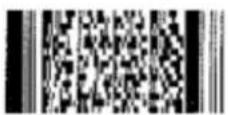
GS 'k' 0x0E 0x0 0x0 0x0 0x0 0x23 "This is a PDF417 Test, test 1234567" prints the following PDF417 image:
GS I Draw Line in Landscape Mode
Description
Draws a line in landscape mode. The thickness of the line is determined by the bit set by the bitmask, m.
Expression
| ASCII GS 1 n1 n2 L1 L2 m | ||||||
| Decimal | 29 | 108 | n1 | n2 | L1 | L2 m |
| Hex | 1D | 6C | n1 | n2 | L1 | L2 m |

text_image
L1 L2 MSB 128 64 32 16 8 4 2 1 7 6 5 4 3 2 1 0 15 14 13 12 11 10 9 8 7 6 5 4 3 2 1 0 32768 16384 8192 4096 2048 1024 512 256 128 64 32 16 8 4 2 1 n1, n2 m L1, L2 n1 n2 MSB 128 64 32 16 8 4 2 1 7 6 5 4 3 2 1 0 15 14 13 12 11 10 9 8 7 6 5 4 3 2 1 0 32768 16384 8192 40.96 20.48 10.24 5.12.256.128.64.32.16.8.4.2.1 LSBParameters
n1 most significant byte of the offset from the left (in dots)
n2 least significant byte of the offset from the left (in dots)
L1 most significant byte of the line length (in dots)
least significant byte of the line length (in dots)
where: L2
$$ \text { offset } = \text { inches } / 2 0 3 = (n 1 * 2 5 6) + n 2 $$
$$ \text { length } = \text { inches } / 2 0 3 = (L 1 * 2 5 6) + L 2 $$
m the bitmask (where 0 = top and 7 = bottom)
Example
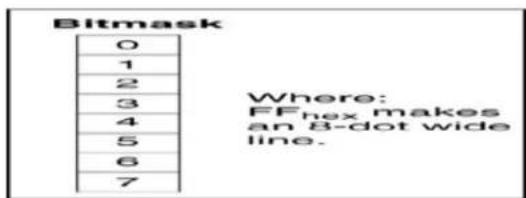
text_image
Bitmask 0 1 2 3 4 5 6 7 Where: FFhex makes an 8-dot wide line.GS L Set Feed Length
Description
Sets the distance the print media will advance upon receipt of a form feed (FF or ESC E) command. The distance is defined as n/203 inches. The number of dots = n1 * 256 + n2.
Expression
ASCII GS L n1 n2
Decimal 29 76 n1 n2
Hex 1D 4C n1 n2
Parameters
n1 the most significant byte
n2 the least significant byte
Inches/203 = (n1 * 256) + n2
| Length(in inches) | # of Dots n1 n2 | |
| 0.5 102 0 102 | ||
| 1.0 203 0 203 | ||
| 2.0 406 1 150 | ||
| 3.0 609 2 97 | ||
| 4.0 812 3 44 | ||
| 5.0 | 1015 | 3 247 |
| 6.0 | 1218 | 4 194 |
| 7.0 | 1421 | 5 141 |
| 8.0 | 1624 | 6 88 |
Example
GS q Print UPC/EAN Checksum
Description
Prints the checksum digit for the specified barcode. The checksum digit is printed in the current font, at the current text position. Currently the only supported symbologies are the UPC/EAN barcodes.
Expression
ASCII n m d1...dm
Decimal n m dl...dm
Hex n m dl...dm
Parameters
n1 selects the barcode symbology to be used
m specifies the number of characters to be encoded
dl...dm the data characters to be encoded
GS RS Set Inverse Print Mode
Description
Causes all the data that follows the command and appears on the current line to be printed as inverse characters (white on black). Inverse characters are canceled when character attributes are canceled.
See Also
GS US
Expression
ASCII GS RS
Decimal 29 30
Hex 1D 1E
Parameters
None
GS S Return Printer Status
Description
Returns a single status byte. The printer status is determined by testing the individual bits within the returned status byte. Only bits that have defined values should be tested. Do not test bits designated as reserved.
When polling for the status byte, your program must wait for the status byte to arrive. The printer will take several milliseconds to process the request and then transmit the status byte. If your program does not wait for a received character, you may receive erroneous results.
ESC A and GS S are functionally identical. ESC A is provided for compatibility with the LabelWriter raster bitmap label printer. If possible, you should use GS S in order to ensure future compatibility.
See Also
ESC A
Expression
ASCII GS S
Decimal 29 83
Hex 1D 53
Parameters
None
Returns
Bit Bit =0 Bit =1
0 LSB Printer ready Printer not ready
1 Not top of form Top of form
2 RESERVED RESERVED
3 RESERVED RESERVED
4 RESERVED RESERVED
5 Paper loaded Out of paper
6 RESERVED RESERVED
7 MSB Printer has no error Printer has error
GS T Select Line Wrap/Truncate Modes
Description
Determines how to handle a text wrap condition. A text wrap condition occurs when text extends beyond the end of a line or a page. The default is to wrap at the end of a line and a page.
Expression
ASCII GST n
Decimal 29 84 n
Hex ID 54 n
Parameters
n = 0 truncate in both directions
n = 1 wrap at end of line, but not end of page
n = 2 wrap at end of page, but not end of line
n = 3 wrap at end of line and end of page
GS t Set Characters per Line in Landscape
Description
Creates an internal memory buffer to store landscape text and barcodes until a form feed is received. The size of the buffer is determined by n, the number of characters per line. The n parameter is converted internally to millimeters so new line lengths can be automatically calculated in the event a font change takes place. The conversion to millimeters is done by multiplying the value of n by the width of whatever font is currently set when the GS t command is sent.
This command may be used in conjunction with the GS T command to determine where, if at all, text wraps to the next line.
This command is similar to the GS u command.
See Also
GS u
GST
Expression
ASCII GS t n
Decimal 29 116 n
Hex 1D 74 n
Parameters
n the desired number of characters per line in landscape mode
GS US Cancel Inverse Print Mode
Description
Cancels the inverse print mode (white on black) and returns text back to its normal attributes for the remainder of the current line.
See Also
GS RS
Expression
ASCII GS US
Decimal 29 31
Hex 1D 1F
Parameters
None
GS u Set Characters per Line in Portrait
Description
Creates an internal memory buffer to store portrait text and barcodes. The size of the buffer is determined by n, the number of characters per line. The n parameter is converted internally to millimeters so new line lengths can be automatically calculated in the event a font change takes place. The conversion to millimeters is done by multiplying the value of n by the width of whatever font is currently set when the GS u command is sent.
This command may be used in conjunction with the GS T command to determine where, if at all, text wraps to the next line.
This command is similar to the GS t command.
See Also
GS t
GS T
Expression
ASCII GS u n
Decimal 29 117 n
Hex 1D 75 n
Parameters
n the desired number of characters per line in portrait mode
GS V Set Print Orientation
Description
Causes the LabelWriter printer to print the data stored in the print buffer and then change to the selected orientation.
See Also
GS t
Expression
ASCII GS V n
Decimal 29 86 n
Hex 1D 56 n
Parameters
n Specifies the orientation and speed/resolution
n = 0 Portrait 203 x 203 High Speed
n = 1 Landscape 203 x 203 High Speed
n = 2 Landscape 203 x 138 High Speed
n = 4 Landscape 203 x 203 High Resolution
n = 6 Landscape 203 x 138 High Resolution
PORTRAIT TEXT
LANDSCAPE TEXT
GS W Set Bar Code Element Width
Description
Selects the horizontal size of a barcode element. The Thin parameter represents the thickness of the thin bars (in dots). The Thick parameter represents the thickness of the thick bars (in dots). Each dot measures .0049 inches in 203 dpi and .0073 inches in 138 dpi.
In Code 3 of 9, Interleaved 2 of 5, and Codabar barcodes, the thick bar width is set according to the Thick parameter; however, all other symbologies ignore the Thick parameter. The Thin parameter is used by all symbologies.
Expression
ASCII GS W Thin Thick
Decimal 29 87 Thin Thick
Hex 1D 57 Thin Thick
Parameters
Thin thickness of thin bars
Thick thickness of thick bars
GS w Set Barcode Module Width
Description
Selects the horizontal size of a barcode module. The parameter n represents the thickness of the thin bars (in dots). Each dot measures .0049 inches in 203 dpi and .0073 inches in 138 dpi. With Code 3 of 9, Interleaved 2 of 5, and Codabar barcodes, the thick bars will be automatically adjusted to 2 × n .
Expression
ASCII GS w n
Decimal 29 119 n
Hex 1D 77 n
Parameters
the desired horizontal size (in dots) of thin barcodes; with Code 3 of 9, Interleaved 2 of 5, and Codabar, thick barcodes = 2 * n
GS \~ Enter Debug Mode
Description
Prints the received printer codes either as a Hex or ASCII dump. This allows you to debug print problems. The debug mode remains in effect until the printer is powered off.
Expression
ASCII GS \~ n
Decimal 29 126 n
Hex 1D 7E n
Parameters
n = "a" ASCII dump of received characters
n = "h" Hex dump of received characters
GS \* Landscape Mode Graphics
Description
Prints a graphic image (in landscape mode only).
Expression
ASCII GS * n1 n2 t h w dl...dm
Decimal 29 42 n1 n2 t h w dl...dm
Hex 1D 2A n1 n2 t h w dl...dm
Parameters
n1 most significant byte of left offset
n2 least significant byte of left offset
t offset from top (in millimeters)
h height of graphic (in millimeters)
w width of graphic (in dots)
d1 first data byte
dm last data byte (h * w)
n1
text_image
128 64 32 16 8 4 2 1 7 6 5 4 3 2 1 0 MSB 15 14 13 12 11 10 9 8 7 6 5 4 3 2 1 0 LSB 32768 16384 8192 4096 2048 1024 512 256 128 64 32 16 8 4 2 1
text_image
0 0 0 0 0 p1 p2 p3 p4 p5 7 7 7 7 7 0 0 0 0 0 p6 7 7 7 7 d10 7 7 7 7 0 d11 0 0 0 0 7 7 7 7 dm 7 7 7 7 h=3 w=5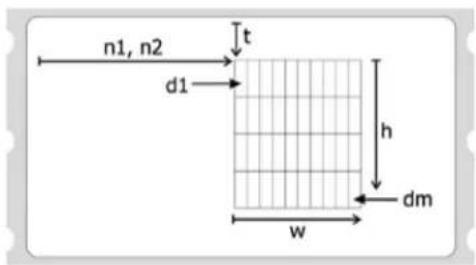
text_image
n1, n2 d1 t h dm wHT Horizontal Tab
Description
Moves cursor position to next multiple of eight single-width characters. Note that double-width characters count as two single-width characters. If the HT command causes the cursor to move beyond the printable area, the text will wrap to the next line.
Expression
ASCII HT
Decimal 9
Hex 9
Parameters
None
LF Line Feed
Description
Prints the current line of text and advances the text position to the beginning of the next line. Note that the line feed, line feed/carriage return, carriage return, and carriage return/line feed instructions all behave as a single line feed. If the current line extends beyond the printable area, the text will wrap to the next printable area.
All character attributes (including inverse and double-wide text) will be cleared after the line is printed.
Expression
ASCII LF
Decimal 10
Hex 0A
Parameters
None
SO Set Font to Double Wide Mode
Description
Causes all the text that follows the command on the same line to be printed as double-wide characters. Double-wide characters are canceled by a line feed (CR or LF) or the DC4 command.
Double wide is a character attribute and is available on a character-by-character basis. Double-wide text can be canceled at any point on the line. Double-wide text is automatically canceled at the end of the line. Therefore, subsequent lines will not be printed as double-wide text unless the SO command is re-issued at the beginning of each line.
See Also
DC4
Expression
ASCII SO
Decimal 14
Hex 0E
Parameters
None
SYN Raster Mode Graphics
Description
Provided for LabelWriter raster compatibility.
SYN is a synchronization character used to encode bitmap print data. The number of bytes in each string is controlled by the ESC D command. The starting position (left margin) is controlled by the ESC B command. The control electronics in the printer do not check the validity of the bitmap data. Therefore, it is the responsibility of the host software to send the correct number of data bytes for the width of the print head in use by the printer.
The print head forms the image by heating a row of resistive elements that blacken the thermally sensitive label material. The resistive elements are 0.125 millimeters square (0.00492 inches) and are spaced at eight dots per millimeter (203.2 dots per inch) apart. The print head on the LabelWriter SE450 printer contains 448 elements. When a line is to be printed, the control electronics in the printer load the desired data into a serial shift register (the print head). The serial shift register has one location for each print element. A “1” in any given location causes the corresponding dot to be printed; a “0” leaves the dot un-printed. The most significant bit (bit 7) prints at the left margin.
There is no command for clearing the shift register, therefore, the entire register must be loaded for each print line in order to flush out the old data. To reset the LabelWriter printer after a synchronization error or to recover from an unknown state, the host computer should send at least fifty-seven (57) ESC characters, followed by an A, to request the printer to return the status byte. A minimum of 57 ESC characters are
required because this amount exceeds the longest possible string of bitmap data bytes that the LabelWriter printer expects.
See Also
ESC B
ESC D
ETB
Expression
ASCII SYN dl...dn
Decimal 22 dl...dn
Hex 16 dl...dn
Parameters
dl
... bytes of bitmap print data (max 56 bytes for LabelWriter
dn = SE450 print heads).
n
The Caret Feature
Some computing environments do not allow the user to send the full range of ASCII characters, limiting output to printable characters only (20h - FFh). The Caret feature is used to resolve difficulties that may arise because of this.
Activating the Caret Feature
The Caret feature defaults to off on the LabelWriter printer. To enable the Caret feature, set the printer to terminal mode and send a carriage return/line feed followed by the characters 'C' and '1'. The program below demonstrates this.
OPEN "COM1:9600,N,8,1" FOR OUTPUT AS #1
PRINT #1, CHRS(13); CHRS(10);
PRINT #1, "C1";
Refer to Configuration Menu for more information about Terminal mode.
Using the Caret Feature
When the caret feature is enabled, the LabelWriter printer will translate any three-digit characters following a caret character (^) as the decimal value the digits expressed. For example, if the characters ^027 are sent to the printer, they are interpreted as a single character with a value of 27 (the Escape character).
When using the caret feature, three-digit characters must always follow the caret (^). Also, while the caret feature is enabled, the printer will not work correctly with the LabelWriter Windows or Mac raster print drivers.
Character Codes
Below is a list showing the ASCII codes from 1 to 255. The list shows the ASCII characters and names, and the corresponding decimal, hexadecimal, and binary values.
| Char | Name | Decimal | Hex | Binary | ||
| None | NUL | 0 00 0000 0000 | ||||
| ^A | SCH | 1 01 0000 0001 | ||||
| ^B | STX | 2 02 0000 0010 | ||||
| ^C | ETX | 3 03 0000 0011 | ||||
| ^D | EOT | 4 04 0000 0100 | ||||
| ^E | ENQ | 5 05 0000 0101 | ||||
| ^F | ACK | 6 06 0000 0110 | ||||
| ^G | BEL | 7 07 0000 0111 | ||||
| ^H | BS | 8 08 0000 1000 | ||||
| ^I | HT | 9 09 0000 1001 | ||||
| ^J | LF | 10 0A 0000 1010 | ||||
| ^K | VT | 11 0B 0000 1011 | ||||
| ^L | FF | 12 0C 0000 1100 | ||||
| ^M | CR | 13 0D 0000 1101 | ||||
| ^N | SO | 14 0E 0000 1110 | ||||
| ^O | SI | 15 OF 0000 1111 | ||||
| ^P | DLE | 16 | 10 0001 0000 | |||
| ^Q | DC1 | 17 | 11 0001 0001 | |||
| ^R | DC2 | 18 | 12 0001 0010 | |||
| ^S | DC3 | 19 | 13 0001 0011 | |||
| ^T | DC4 | 20 | 14 0001 0100 | |||
| ^U | NAK | 21 | 15 0001 0101 | |||
| ^V | SYN | 22 | 16 0001 0110 | |||
| ^W | ETB | 23 | 17 0001 0111 | |||
| ^X | CAN | 24 | 18 0001 1000 | |||
| ^Y | EM | 25 | 19 0001 1001 | |||
| ^Z | SUB | 26 1A 0001 1010 |
| Char | Name | Decimal | Hex | Binary |
| ^[ | ESC | 27 1B 0001 1011 | ||
| ^\ | FS | 28 1C 0001 1100 | ||
| ^] | GS | 29 1D 0001 1101 | ||
| ^^ | RS | 30 1E 0001 1000 | ||
| ^ | US | 31 1F 0001 1111 | ||
| Space | space | 32 20 0010 0000 | ||
| ! | exclamation pt. | 33 21 0010 0001 | ||
| " | quotation mark | 34 22 0010 0010 | ||
| # | number sign | 35 23 0010 0011 | ||
| $ | dollar sign | 36 24 0010 0100 | ||
| % | percent sign | 37 25 0010 0101 | ||
| & | ampersand | 38 26 0010 0110 | ||
| · | apostrophe | 39 27 0010 0111 | ||
| ( | open parentheses | 40 28 0010 1000 | ||
| ) | close parentheses | 41 29 0010 1001 | ||
| * | asterisk | 42 2A 0010 1010 | ||
| + | plus sign | 43 2B 0010 1011 | ||
| , | comma | 44 2C 0010 1100 | ||
| - | hyphen | 45 2D 0010 1101 | ||
| . | period | 46 2E 0010 1110 | ||
| / | slash | 47 2F 0010 1111 | ||
| 0 | zero | 48 30 0011 0000 | ||
| 1 | one | 49 31 0011 0001 | ||
| 2 | two | 50 32 0011 0010 | ||
| 3 | three | 51 33 0011 0011 | ||
| 4 | four | 52 34 0011 0100 | ||
| 5 | five | 53 35 0011 0101 | ||
| 6 | six | 54 36 0011 0110 | ||
| 7 | seven | 55 37 0011 0111 | ||
| 8 | eight | 56 38 0011 1000 | ||
| 9 | nine | 57 39 0011 1001 | ||
| :; | colonsemicolon | 58 3A 0011 101059 3B 0011 1011 | ||
| < | less than sign | 60 3C 0011 1100 | ||
| = | equal sign | 61 3D 0011 1101 | ||
| > | greater than sign | 62 3E 0011 1110 | ||
| ? | question mark | 63 3F 0011 1111 | ||
| @ | at sign | 64 40 0100 0000 | ||
| A | capital A | 65 41 0100 0001 | ||
| B | capital B | 66 42 0100 0010 | ||
| C | capital C | 67 43 0100 0011 | ||
| D | capital D | 68 44 0100 0100 | ||
| E | capital E | 69 45 0100 0101 | ||
| F | capital F | 70 46 0100 0110 | ||
| G | capital G | 71 47 0100 0111 | ||
| H | capital H | 72 48 0100 1000 | ||
| I | capital I | 73 49 0100 1001 | ||
| J | capital J | 74 4A 0100 1010 | ||
| K | capital K | 75 4B 0100 1011 | ||
| L | capital L | 76 4C 0100 1100 | ||
| M | capital M | 77 4D 0100 1101 | ||
| N | capital N | 78 4E 0100 1110 | ||
| O | capital O | 79 4F 0100 1111 | ||
| P | capital P | 80 50 0101 0000 | ||
| Q | capital Q | 81 51 0101 0001 | ||
| R | capital R | 82 52 0101 0010 | ||
| S | capital S | 83 53 0101 0011 | ||
| T | capital T | 84 54 0101 0100 | ||
| U | capital U | 85 55 0101 0101 | ||
| V | capital V | 86 56 0101 0110 | ||
| W | capital W | 87 57 0101 0111 | ||
| X | capital X | 88 58 0101 1000 | ||
| Y | capital Y | 89 59 0101 1001 | ||
| Z[ | capital Zopen | bracket | 90 5A 0101 101091 5B 0101 1011 | |
| \ | back | slash | 92 5C 0101 1100 | |
| ] | close | bracket | 93 5D 0101 1101 | |
| ^ | caret | 94 5E 0101 1110 | ||
| _ | underscore | 95 5F 0101 1111 | ||
| ` | accent | grave | 96 60 0110 0000 | |
| a | lowercase | a | 97 61 0110 0001 | |
| b | lowercase | b | 98 62 0110 0010 | |
| c | lowercase | c | 99 63 0110 0011 | |
| d | lowercase | d | 100 64 0110 0110 | |
| e | lowercase | e | 101 65 0110 0101 | |
| f | lowercase | f | 102 66 0110 0110 | |
| g | lowercase | g | 103 67 0110 0111 | |
| h | lowercase | h | 104 68 0110 1000 | |
| i | lowercase | i | 105 69 0110 1001 | |
| j | lowercase | j | 106 6A 0110 1010 | |
| k | lowercase | k | 107 6B 0110 1011 | |
| l | lowercase | l | 108 6C 0110 1100 | |
| m | lowercase | m | 109 6D 0110 1101 | |
| n | lowercase | n | 110 6E 0110 1110 | |
| o | lowercase | o | 111 6F 0110 1111 | |
| p | lowercase | p | 112 70 0111 0000 | |
| q | lowercase | q | 113 71 0111 0001 | |
| r | lowercase | r | 114 72 0111 0010 | |
| s | lowercase | s | 115 73 0111 0011 | |
| t | lowercase | t | 116 74 0111 0100 | |
| u | lowercase | u | 117 75 0111 0101 | |
| v | lowercase | v | 118 76 0111 0110 | |
| w | lowercase | w | 119 77 0111 0111 | |
| x | lowercase | x | 120 78 0111 1000 | |
| y | lowercase | y | 121 79 0111 1001 | |
| z | lowercase | z | 122 7A 0111 1010 | |
| { | open | brace | 123 7B 0111 1011 | |
| | | vertical | line | 124 7C 0111 1100 | |
| } | close | brace | 125 7D 0111 1101 | |
| ~ | tilde | 126 7E 0111 1110 | ||
| Delete | DEL | 127 7F 0111 1111 | ||
| € Euro 128 80 1000 0000 | ||||
| 129 81 1000 0001 | ||||
| , 130 82 1000 0010 | ||||
| f 131 83 1000 0011 | ||||
| ,, | 132 84 1000 0100 | |||
| ... | 133 85 1000 0101 | |||
| † 134 86 1000 0110 | ||||
| ‡ 135 87 1000 0111 | ||||
| ^ 136 88 1000 1000 | ||||
| ‰ | 137 89 1000 1001 | |||
| Š | 138 8A 1000 1010 | |||
| < 139 8B 1000 1011 | ||||
| CE | 140 8C 1000 1100 | |||
| 141 8D 1000 1101 | ||||
| Ž | 142 8E 1000 1110 | |||
| 143 8F 1000 1111 | ||||
| 144 90 1001 0000 | ||||
| ‘ 145 91 1001 0001 | ||||
| ’ 146 92 1001 0010 | ||||
| “ | 147 93 1001 0011 | |||
| ” | 148 94 1001 0100 | |||
| • 149 95 1001 0101 | ||||
| - 150 96 1001 0110 | ||||
| — | 151 97 1001 0111 | |||
| ` 152 98 1001 1000 | ||||
| TM | Trademark | 153 99 1001 1001 | ||
| š | 154 9A 1001 1010 | |||
| Char | Name | Decimal | Hex | Binary |
| > 155 9B 1001 1011 | ||||
| 156 9C 1001 1100 | ||||
| 157 9D 1001 1101 | ||||
| 158 9E 1001 1110 | ||||
| 159 9F 1001 1111 | ||||
| 160 A0 1010 0000 | ||||
| ; 161 A1 1010 0001 | ||||
| 162 A2 1010 0010 | ||||
| £ 163 A3 1010 0011 | ||||
| □ 164 A4 1010 0100 | ||||
| ¥ 165 A5 1010 0101 | ||||
| | | 166 A6 110 0110 | |||
| § 167 A7 1010 0111 | ||||
| " 168 A8 1010 1000 | ||||
| © Copyright 169 A9 1010 1001 | ||||
| a | 170 AA 1010 1010 | |||
| « 171 AB 1010 1011 | ||||
| - | 172 AC 1010 1100 | |||
| 173 AD 1010 1101 | ||||
| ® Registered 174 AF 1010 1110 | ||||
| - 175 AF 1010 1111 | ||||
| ° | 176 B0 1011 0000 | |||
| ± | 177 B1 1011 0001 | |||
| 2 | 178 B2 1011 0010 | |||
| 3 | 179 B3 1011 0011 | |||
| ' 180 B4 1011 0100 | ||||
| μ | 181 B5 1011 0101 | |||
| ¶ 182 B6 1011 0110 | ||||
| . | 183 B7 1011 0111 | |||
| , 184 B8 1011 1000 | ||||
| ! | 185 B9 1011 1001 | |||
| ° 186 BA 1011 1010 | ||||
Char Name Decimal Hex Binary
| » 187 BB 1011 1011 | |
| 14 188 BC 1011 1100 | |
| 12 189 BD 1011 1101 | |
| 34 190 BE 1011 1110 | |
| ¿ 191 BF 1011 1111 | |
| À 192 C0 1100 0000 | |
| Á 193 C1 1100 0001 | |
| Â 194 C2 1100 0010 | |
| Ã 195 C3 1100 0011 | |
| Ã 196 C4 1100 0100 | |
| Ã 197 C5 1100 0101 | |
| Æ 198 C6 1100 0110 | |
| Ç | 199 C7 1100 0111 |
| È | 200 C8 1100 1000 |
| Ê | 201 C9 1100 1001 |
| Ê | 202 CA 1100 1010 |
| Ê | 203 CB 1100 1011 |
| ì | 204 CC 1100 1100 |
| í | 205 CD 1100 1101 |
| î | 206 CE 1100 1110 |
| Ï | 207 CF 1100 1111 |
| D 208 D0 1101 0000 | |
| Ñ 209 D1 1101 0001 | |
| Ò 210 D2 1101 0010 | |
| Ó 211 D3 1101 0011 | |
| Ô 212 D4 1101 0100 | |
| Õ 213 D5 1101 0101 | |
| Ö 214 D6 1101 0110 | |
| × | 215 D7 1101 0111 |
| Ø 216 D8 1101 1000 | |
| Ù 217 D9 1101 1001 | |
| Ú 218 DA 1101 1010 | |
| Char | Name | Decimal | Hex | Binary |
| 219 DB 1101 1011 | ||||
| 220 DC 1101 1100 | ||||
| 221 DD 1101 1101 | ||||
| 222 DE 1101 1110 | ||||
| 223 DF 1101 1111 | ||||
| à 224 E0 1110 0000 | ||||
| á 225 E1 1110 0001 | ||||
| á 226 E2 1110 0010 | ||||
| ä 227 E3 1110 0011 | ||||
| ä 228 E4 1110 0100 | ||||
| ä 229 E5 1110 0101 | ||||
| æ | 230 E6 1110 0110 | |||
| ç 231 E7 1110 0111 | ||||
| è 232 E8 1110 1000 | ||||
| é 233 E9 1110 1001 | ||||
| ê 234 EA 1110 1010 | ||||
| ē 235 EB | 1110 1011 | |||
| i | 236 EC 1110 1100 | |||
| i | 237 ED 1110 1101 | |||
| î | 238 EF 1110 1110 | |||
| ï | 239 EF 1110 1111 | |||
| ð 240 | F0 1111 0000 | |||
| ñ 241 | F1 1111 0001 | |||
| ò 242 | F2 1111 0010 | |||
| ó 243 | F3 1111 0011 | |||
| ô 244 | F4 1111 0100 | |||
| ô 245 | F5 1111 0101 | |||
| ö 246 | F6 1111 0110 | |||
| ÷ 247 | F7 1111 0111 | |||
| ø 248 | F8 1111 1000 | |||
| ù 249 | F9 1111 1001 | |||
| ú 250 FA | 1111 1010 | |||
Char Name Decimal Hex Binary
û 251 FB 1111 1011
ü 252 FC 1111 1100
ý 253 FD 1111 1101
b 254 FE 1111 1110
ÿ 255 FF 1111 1111
This page intentionally left blank for double-sided printing.
Configuration Menu
The LabelWriter SE450 printer has a Printer Configuration Menu built into the firmware. Through this menu, flash memory settings such as baud rate and feed distance can be changed. Flash memory settings remain in effect even after power has been removed from the printer.
The Printer Configuration Menu is accessible by using any terminal communications (modem) program (such as, Hyperterminal in Windows) and communicating with the printer through an RS-232 serial port. The communications software MUST be configured to operate as follows:
9600 baud, no parity, 8 data bits, and 1 stop bit
To access the Printer Configuration menu
- Load labels in the printer and connect the serial cable.
- Disconnect power to the printer.
- Press and hold down the form feed button.
- While the form feed button is pressed, connect the power cord.
- Continue to hold the form feed button down for five more seconds. The green light will blink.
- Release the feed button.
- Start your communications software.
- Press
until the menu appears.
Dymo LabelWriter SE450
Firmware Version 1765303v0G
Printer Configuration Menu
Type ? for help
- Press ? for help.
You should see the following on your screen:
-?
B? Display Baud Rate
B0 Set 1200 Baud
B1 Set 2400 Baud
B2 Set 4800 Baud
B3 Set 9600 Baud
B4 Set 14,400 Baud
B5 Set 19,200 Baud
B6 Set 28,800 Baud
B7 Set 38,400 Baud
B8 Set 57,600 Baud
B9 Set 115,200 Baud
F? Display Default Feed Length
Fnnnn Set default feed length
X? Display XON/XOFF inhibit status
X0 Send XON/XOFF
X1 Inhibit XON/XOFF
C? Display Caret (^) Status
C0 Disable Caret Command
C1 Enable Caret Command
-
- When you are finished, unplug the printer.
The next time you connect power to the printer the changes you made will be in effect.
Chapter 6
Printer Specifications
This section covers hardware specifications for the LabelWriter SE450 printer.
■ Hardware specifications
■ Interface specifications
■ Print head specifications
Hardware Specifications
This section lists printer, interface, print head, and printing specifications. For additional serial interface specifications, refer to the next section in this chapter.
Model LabelWriter SE450
Dimensions Width: 4-7/8"
Height 5-3/4"
Depth 7-1/4"
Weight 1.5 pounds
Paper Handling Straight. Entire path is accessible.
Maximum Duty Cycle
Continuous print at 10% print coverage.
Interface Specifications
USB
Type Full-speed USB 2.0; USB 1.1 compatible
Serial
Type Bi-directional, serial RS-232 using transmit, receive, and ground
Protocol RTS/CTS or XON/XOFF, 9600 baud, 8 data bits, no parity, 1 start bit, 1 stop bit
Speed 1200 to 115,200 Baud
Print Head Specifications
Model
Fixed 2.25" linear thermal head
Average Life 2 million lineal inches (over 31 miles) Print head is replaceable
Printing Method Direct thermal
| 40 labels per minute (115,200 Baud, Serial) | |
| Speed | 48 labels per minute (through DYMO Label V.8, USB driver) |
| 48 labels per minute for ASCII over both serial and USB (4-line address label) |
Label Width Maximum width of 62 mm (2.44 inches)
Resolution 203 x 203 and 136 x 20 dots per inch
Fonts Five fonts (7.5 cpi, 10 cpi, 12 cpi, 16.5 cpi, and 20 cpi) and four variations (Normal, Double Height, Double Width, and Double Height/Double Width) for a total of 20 possible font variations
Bookland EAN
Codabar
Code 3 of 9
Code 128-A
Code 128-B
Code 128-C
Code 128-Auto
Data Matrix
EAN-8
EAN-13
EAN-13 + 2
EAN-13 + 5
Interleaved 2 of 5
Barcode Types
MSI Plessey
PDF417
POSTNET
SISAC
UPC-A
UPC-A + 2
UPC-A + 5
UPC AUTO (UPC-E/UPC-A)
UPC AUTO + 2
UPC AUTO + 5
UPC-E
UPC-E + 2
UPC-E + 5
USB Settings
The LabelWriter SE450 printer communicates with the host computer using a full-speed USB 2.0 interface. This interface also operates with USB Version 1.1 or later. The printer implements the standard USB Printer Class Device interface for communications (see www.usb.org/developers/devclass/).
While it is not the purpose of this section to define how to write a USB driver for a printer device, this section provides some product specific information that is required for any USB device.
Each USB device provides plug-and-play information when it is connected to a host computer. This information includes a manufacturer specific, or Vendor, ID (VID) and a product specific ID (PID). These identifiers, when combined with the class type provided during USB enumeration, are sufficient to identify the driver to load.
USB Vendor ID
The USB Vendor ID (VID) assigned to DYMO by the USB Implementers Forum is 0x0922h (2338 Decimal).
USB Product IDs
The LabelWriter SE450 printer has the following unique Product ID:
Printer Model Product ID (Hex)
DYMO LabelWriter SE450 0x0400
Serial Interface Specifications
This section describes the specifications for the serial interface. See Configuring the Host for details about connecting the printer to your computer through the serial interface.
The RS-232 serial interface communicates using hardware and XON/XOFF flow control. Flow control helps to ensure that your computer doesn't send information to the printer faster than it can print.
The XON/XOFF protocol is a popular data communications protocol. When the printer's buffer is approximately 90 percent full, it sends the ASCII code XOFF (13 hex) to the computer to tell it to stop sending data. When there is again room (that is, space for approximately 10 percent more characters in the buffer), the printer sends the ASCII code XON (11 hex) to the computer to tell it to resume sending data. (XON is also known as DC1; XOFF is synonymous with DC3.) If the computer doesn't stop sending data after it receives an XOFF, the data that overflows the buffer will be lost, and the printed results will be different from what was expected and may include dropped characters.
The printer will send an XON code when it goes on-line to get things started. It will send an XOFF code to stop the computer from sending information if the input buffer is approximately 80 percent full.
This page intentionally left blank for double-sided printing.