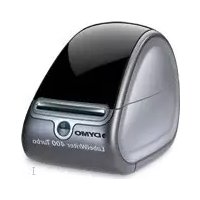
LabelWriter 400 - Label printer DYMO - Free user manual and instructions
Find the device manual for free LabelWriter 400 DYMO in PDF.

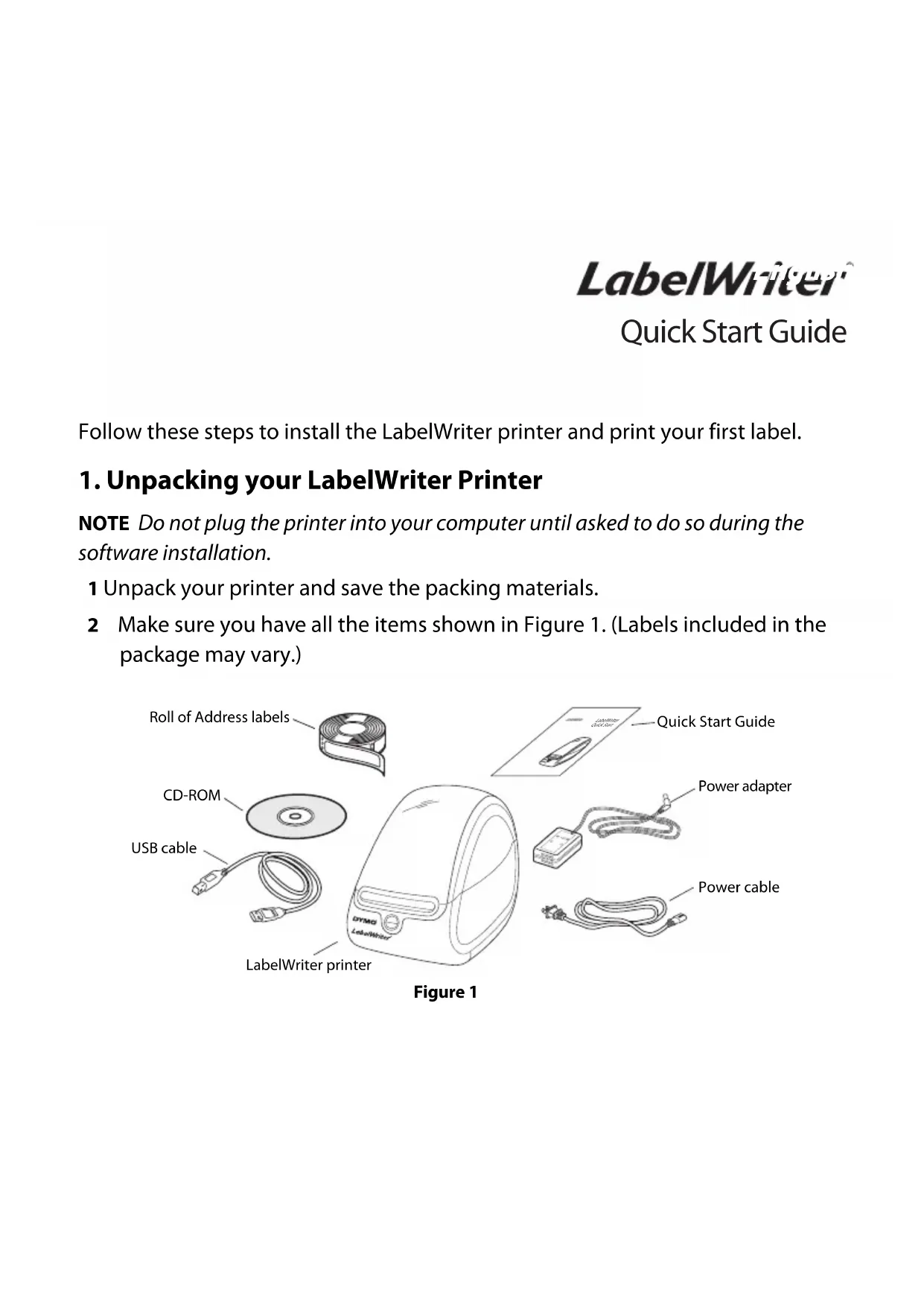


| Product Type | Direct Thermal Label Printer |
| Brand | DYMO |
| Model | LabelWriter 400 |
| Printing Technology | Direct thermal (no toner or ink cartridge) |
| Label Format | Specific DYMO label rolls |
| Connectivity | USB |
| Power Supply | AC adapter (power cord and adapter) |
| Visual Indicators | LED indicator (solid blue: ready; blinking blue: label problem) |
| Buttons | Paper feed, eject |
| Dimensions (L x W x H) | Approximately 200 x 165 x 110 mm |
| Weight | Approximately 0.7 kg |
| Package Contents | Printer, AC adapter, USB cable, CD-ROM, quick start guide |
| Compatible Operating Systems | Windows, Macintosh |
| Included Software | DYMO Label Software |
| Consumables | DYMO label rolls (available widths depending on model) |
Frequently Asked Questions - LabelWriter 400 DYMO
User questions about LabelWriter 400 DYMO
0 question about this device. Answer the ones you know or ask your own.
Ask a new question about this device
Download the instructions for your Label printer in PDF format for free! Find your manual LabelWriter 400 - DYMO and take your electronic device back in hand. On this page are published all the documents necessary for the use of your device. LabelWriter 400 by DYMO.
USER MANUAL LabelWriter 400 DYMO
Follow these steps to install the LabelWriter printer and print your first label.
1. Unpacking your LabelWriter Printer
NOTE Do not plug the printer into your computer until asked to do so during the software installation.
1 Unpack your printer and save the packing materials.
2 Make sure you have all the items shown in Figure 1. (Labels included in the package may vary.)
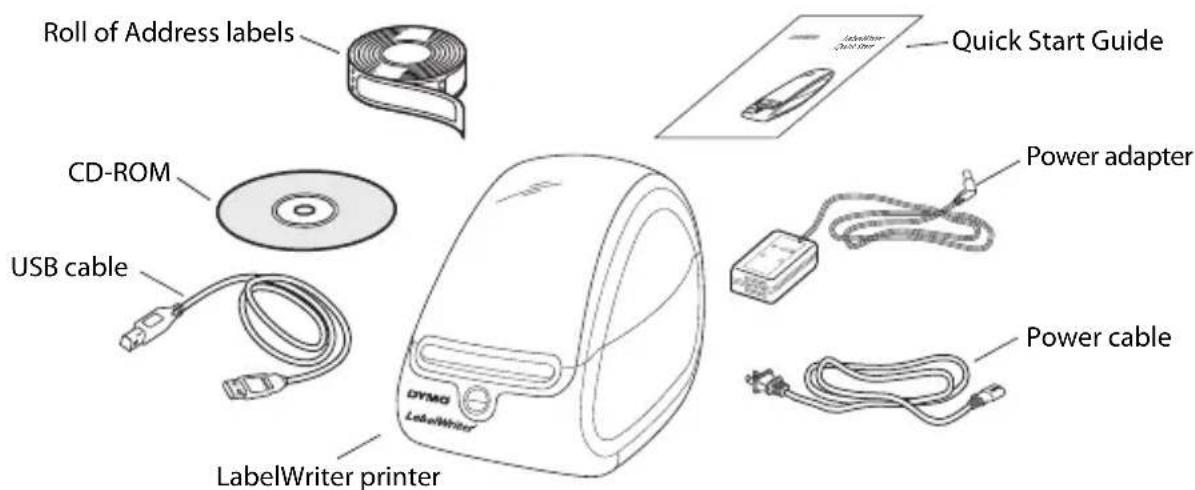
Figure 1
Become familiar with the printer's major components. See Figure 2.
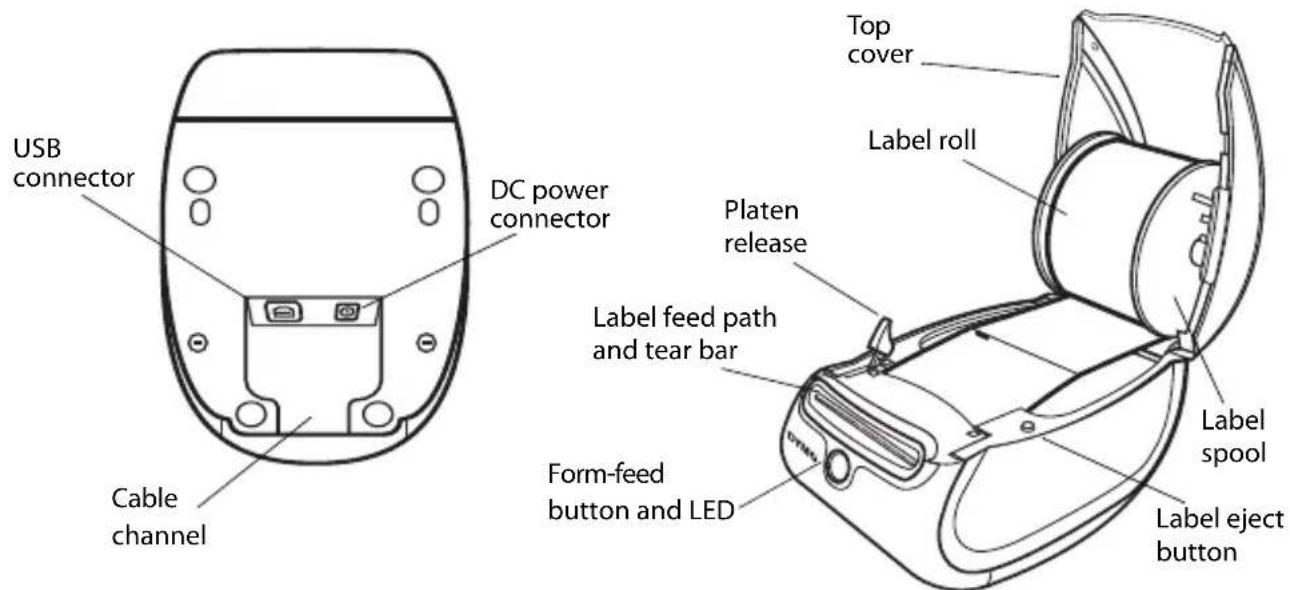
Figure 2
LabelWriter Printer Features
Your LabelWriter printer is a direct thermal printer and does not use ink or toner. Instead, the printer uses heat from a thermal print head to print on specially treated labels. Labels are the only supplies you will ever need to buy.
The form-feed button on the front of the printer advances a single label. The label eject button is used to remove labels from the printer when changing rolls.
The LED status light visually shows the current state of the printer:
Solid blue - power is on and the printer is ready.
- Flashing blue - labels are not loaded properly or label spool is empty.
2. Installing the Software
NOTE Do not connect the printer to your computer until instructed to do so during the software installation.
To install the software on a Windows system
1 Insert the LabelWriter CD into your CD-ROM drive. After a few seconds, the installation screen appears.
If the installation screen does not appear:
a. Click Start, then Run on the Windows taskbar. The Run dialog box appears.
b. Enter D:\install.exe (where D is the letter assigned to the CD-ROM drive) and click OK.
2 Select the language version you wish to install and follow the instructions.
To install the software on a Mac OS system
1 Insert the DYMO LabelWriter CD into the CD-ROM drive.
After a few seconds, the DYMO Label Software Installer icon appears. See Figure 3.
Figure 3
2 Double-click the Installer icon and follow the instructions.
If you do not see your printer in the printer list when the installation is complete, refer to the ReadMe file for instructions on how to add the printer.
3. Connecting your LabelWriter Printer
NOTE Do not connect the printer to your computer until instructed to do so during the software installation.
To connect the power
1 Plug the power cord into the power adapter. See Figure 4.
2 Plug the power adapter into the power connector on the bottom of the printer. See Figure 5.
3 Plug the other end of the power cord into a power outlet.
4 Plug the USB cable into the USB port on the bottom of the printer. See Figure 5.
5 Insert the power and USB cables through the cable channel and set the printer down.
NOTE DO NOT CONNECT the other end of the USB cable to your computer until asked to do so during the software installation.
6 When prompted by the software installer, plug the USB cable into a USB port.
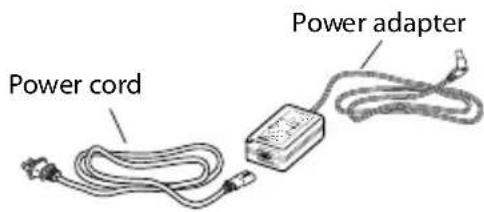
Figure 4
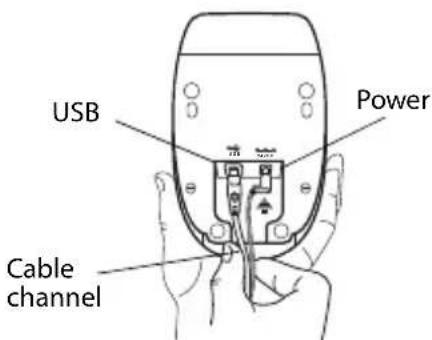
Figure 5
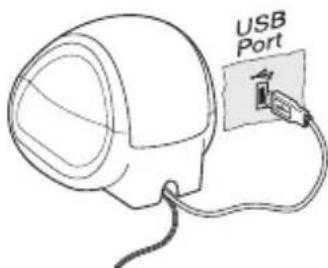
Figure 6
4. Loading Labels
To load labels
1 Press the form-feed button to eject the labels that protected the printer during shipment.
2 Open the top cover and remove any packing material inside the label compartment.
3 Remove the label spool from inside the cover.
4 Hold the spool spindle in your left hand and place the label roll on the spindle so that the labels feed from underneath and the left edge of the label roll is flush against the side of the spool. See Figure 7.
5 Place the spool guide onto the right side of the spool and press the guide tightly against the side of the
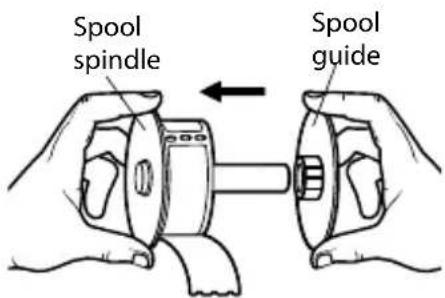
Figure 7
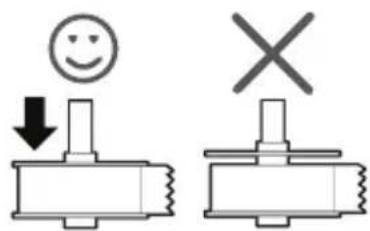
Figure 8
label roll, leaving no gap between the roll and the spool. See Figure 8.
NOTE The label roll must fit snugly against both sides of the label spool, with no gaps, to avoid drifting as the labels feed through the printer.
6 Insert the label spool into the slot in the printer cover with the labels extending from underneath the roll. See Figure 9.
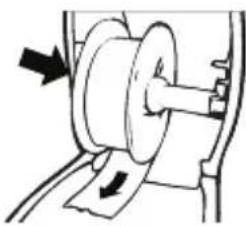
Figure 9
NOTE The label roll must fit snugly against both sides of the label spool, with no gaps, to avoid drifting as the labels feed through the printer.
7 Align the left edge of the label with the left edge of the label feed slot and insert the label into the slot. See Figure 10.
The printer feeds the labels, stopping at the beginning of the first label. If the printer does not feed the labels, make sure the first label is fully inserted and then press the form-feed button.
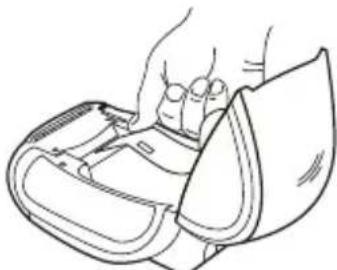
Figure 10
8 Close the top cover.
You are now ready to print your first label.
5. Printing your First Label
To print your first label
1 Start DYMO Label Software by doing one of the following:
- For Windows, click Start, then Programs>DYMO Label>DYMO Label.
- For Macintosh, double-click in the DYMO Label folder.
The first time you open the application, you are asked to register the software. Registering the software ensures that you will be informed of any software updates. You are also asked to enter your default return address.
2 At the main window, click once on the label and type some text.
3 Choose a font and a justification setting from the Formatting toolbar.
4 Click to print the label.
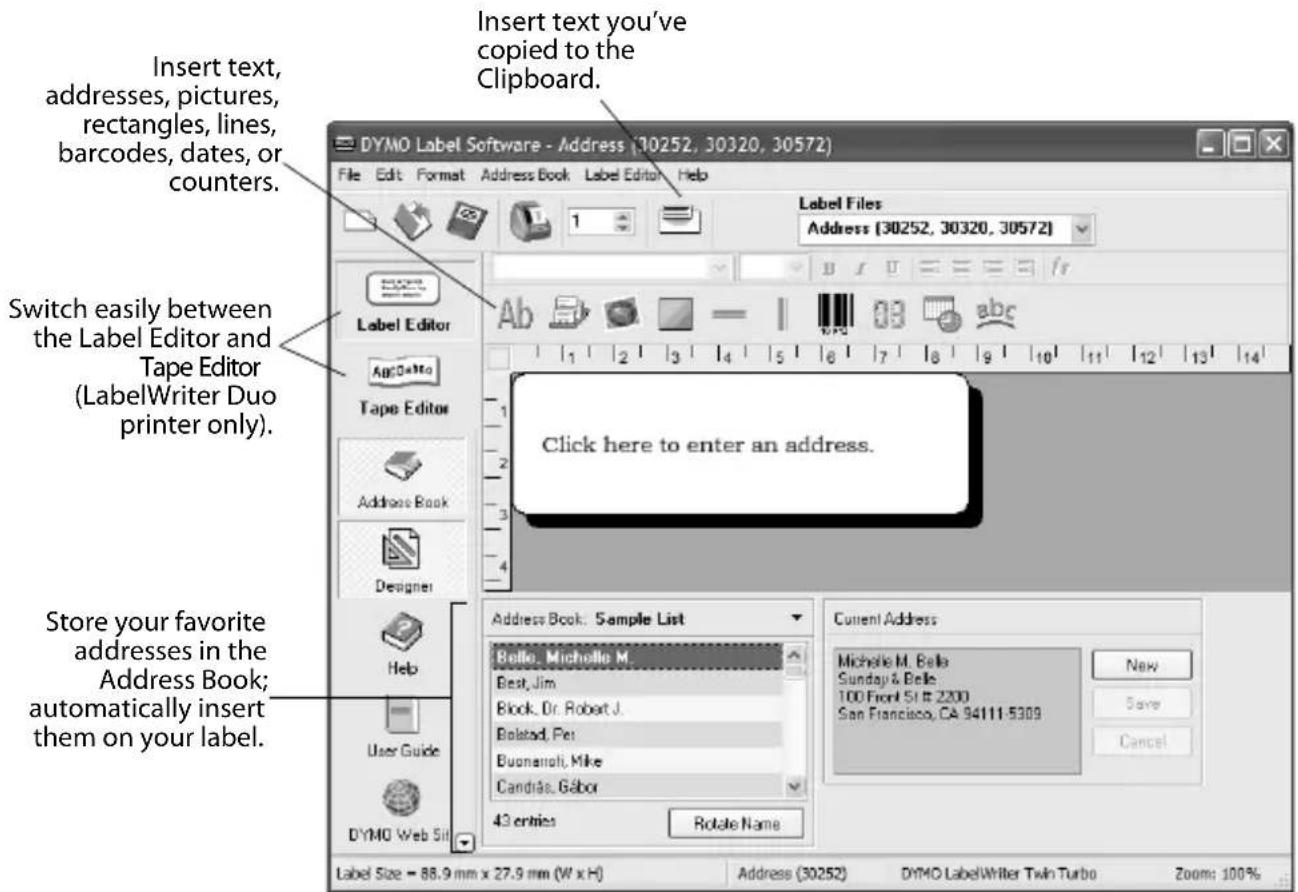
Figure 11 highlights some of the major features available in DYMO Label Software.
Figure 11
For complete details on using the software, refer to the DYMO Label Software User Guide, located on the DYMO LabelWriter CD-ROM, and the online Help.
LabelWriter
For Troubleshooting or Customer Service, visit www.dymo.com.