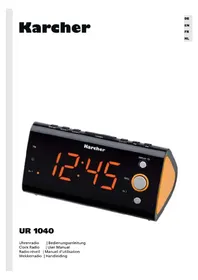
UR 1040 - Alarm clock radio Karcher Audio - Free user manual and instructions
Find the device manual for free UR 1040 Karcher Audio in PDF.



User questions about UR 1040 Karcher Audio
0 question about this device. Answer the ones you know or ask your own.
Ask a new question about this device
Download the instructions for your Alarm clock radio in PDF format for free! Find your manual UR 1040 - Karcher Audio and take your electronic device back in hand. On this page are published all the documents necessary for the use of your device. UR 1040 by Karcher Audio.
USER MANUAL UR 1040 Karcher Audio
Clock Radio | User Manual
- MEM.SET / NAP/M+ / Display On/Off
- Alarm 1 On/Set
- Alarm 2 On/Set
- Snooze / Sleep / Dimmer
- CLK.ADJ. / TEMP / Radio Frequency
6 ◀◀/Tune-/Y-M-D - ▶▶ / Tune + / DST / C-F
- Volume + / Display Auto Change On/Off
- On/Off
text_image
14 15 16 17- Read Instructions - All the safety and operating instructions should be read before the appliance is operated.
- Retain Instructions - The safety and operating instructions should be retained for future reference.
- Heed Warnings - All warnings on the appliance and in the operating instructions should be adhered to.
- Water and Moisture – Do not use the apparatus near water (e.g. bath tub, sink, swimming pool) or in wet places or tropical climates. Do not place objects filled with liquids, such as vases, on top of the apparatus. Do not expose the apparatus to dripping or splashing.
- Setup – The apparatus should only be placed on a stable, flat surface. Do not let the apparatus fall down or expose it to shock.
- Wall or Ceiling Mounting - The appliance should be mounted to a wall or ceiling only as recommended by the manufacturer.
- Ventilation - The appliance should be situated so that its location or position does not interfere with its proper ventilation. For example, the appliance should not be situated on a bed, sofa, rug, or similar surface that may block the ventilation openings; or, placed in a built-in installation, such as a bookcase or cabinet that may impede the flow of air through the ventilation openings. Ensure a minimum distance of 5 cm around the apparatus for sufficient ventilation. Ensure that the ventilation is not impeded by covering the ventilation openings with items such as newspapers, table-cloths, curtains, etc.
- Heat - The appliance should be situated away from heat sources such as radiators, heat registers, stoves, or other appliances (including amplifiers) that produce heat.
- Power Sources - The appliance should be connected to a power supply only of the type described in the operating instructions or as marked on the appliance.
- Cables and Plugs – The mains plug shall remain readily operable. All cables should be routed so that they are not likely to be walked on or pinched by items placed upon or against them, paying particular attention to cords at plugs, convenience receptacles, and the point where they exit from the appliance.
- Cleaning - The appliance should be cleaned only as recommended by the manufacturer. Clean by wiping with a dry and clean cloth. Do not use chemical cleaners or detergents. Always pull the mains plug before cleaning the unit.
- Non-use Periods - The power cord of the appliance should be unplugged from the outlet when left unused for a long period of time.
- Object and Liquid Entry - Care should be taken so that objects do not fall and liquids are not spilled into the enclosure through openings.
- Damage Requiring Service - The appliance should be serviced by qualified service personnel when:
a) The power-supply cord or the plug has been damaged; or
b) Objects have fallen, or liquid has been spilled into the appliance; or
c) The appliance has been exposed to rain; or
d) The appliance does not appear to operate normally or exhibits a marked change in performance; or
e) The appliance has been dropped, or the enclosure damaged. - Servicing - The user should not attempt to service the appliance beyond that described in the operating instructions. All other servicing should be referred to qualified service personnel.
- Open Fire – Keep the apparatus away from open fires. Do not place naked flame sources, such as lighted candles on the apparatus.
- Thunderstorms – During a thunderstorm the mains plug should be unplugged.
- Safety Check – After servicing the technician should conduct a safety check in order to
ensure that the apparatus is working properly and safely.
- Batteries – Always place batteries in the correct polarization into electrical components. Danger of explosion if battery is incorrectly replaced. Replace only with the same or equivalent type. Do not mix old and new batteries. Take attention to the environmental aspects of battery disposal. Batteries shall not be exposed to excessive heat such as sunshine, fire or the like. Remove batteries before disposing of the product.
- Volume Levels – To prevent possible hearing damage, do not listen at high volume levels for long periods.
- Headphones (if applicable) – Excessive sound pressure from earphones and headphones can cause hearing loss.

CAUTION
RISK OF ELECTRO SHOCK DO NOT OPEN

WARNING: To reduce the risk of fire or electric shock, do not expose this appliance to dripping or splashing.
WARNING: To reduce the risk of electric shock, do not remove cover (or back). No user serviceable parts inside. Refer servicing to qualified service personnel.
The lightning flash with arrowhead symbol within an equilateral triangle is intended to alert the user to the presence of uninsulated dangerous voltage within the product's enclosure that may be of sufficient magnitude to constitute a risk of electric shock to persons.

The exclamation point within an equilateral triangle is intended to alert the user to the presence of important operating and maintenance (servicing) instructions in the literature accompanying the appliance.
Resetting
If the system does not respond or exhibits erratic or intermittent operation, you may have experienced an electrostatic discharge (ESD) or a power surge that triggered the internal microcontroller to shut down automatically. If this occurs, simply disconnect the AC power cord and remove the system backup battery, wait for at least 3 minutes and then setup the unit again as if it is a new unit.

Batteries
Batteries may not be disposed of in regular house hold trash. Every consumer has the obligation to return batteries to special disposal locations.
Disposal of Used Electrical & Electronic Equipment
The meaning of the symbol on the product, its accessory or packaging indicates that this product shall not be treated as household waste. Please, dispose of this equipment at your applicable collection point for the recycling of electrical & electronic equipments waste. By ensuring the correct disposal of this product, you will help prevent potential hazards to the environment and to human health, which could otherwise be caused by unsuitable waste handling of this product. The recycling of materials will help conserve natural resources. For more detailed information about recycling of this product, please contact your local city office, your household waste disposal service or the shop where you purchased the product.

text_image
1 2 3 4 5 6 7 Marker 12:45 8 9 10 11 12 13- MEM.SET / NAP/M+ / Display On/Off
- Alarm 1 On/Set
- Alarm 2 On/Set
- Snooze / Sleep / Dimmer
- CLK.ADJ. / TEMP / Radio Frequency
6 ◀◀/Tune-/Y-M-D - ▶▶ / Tune + / DST / C-F
- Volume + / Display Auto Change On/Off
- On/Off
text_image
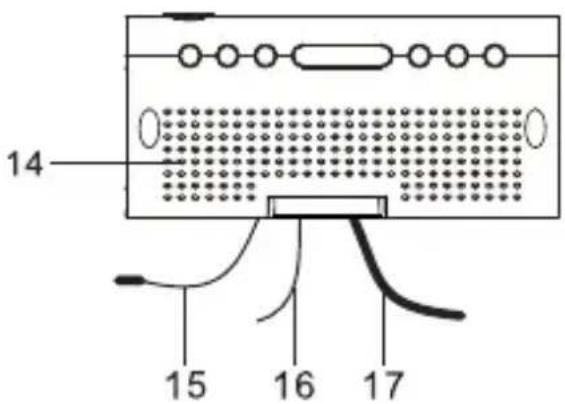
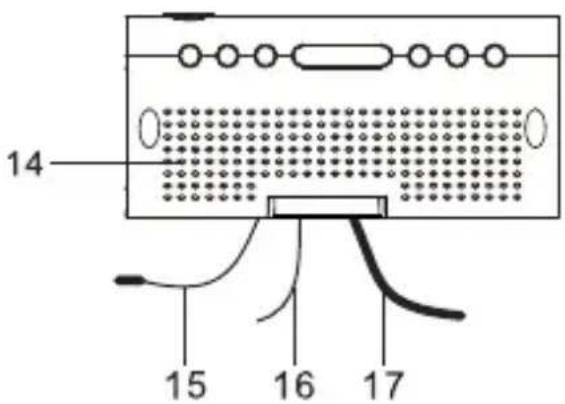
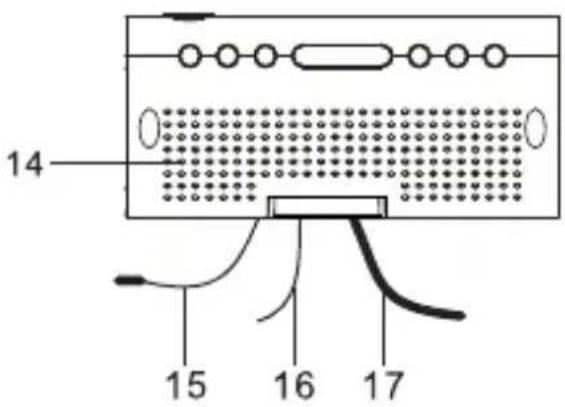
14 15 16 17- Volume -
- Display
- Battery compartment (bottom)
- Rating label (bottom)
- Speaker
- Temperature sensor (indoor)
- FM antenna
- AC power cord
Display

text_image
Time Indicator PM Indicator Standby Indicator 12:45 MHz Indicator Alarm 2 IndicatorAlarm 1 IndicatPower Connection
Plug the AC power cord to a household outlet. Ensure that the output power of the outlet matches the power requirement as indicated on the unit's rating label.
This unit is equipped with a battery back up system; it requires a 3V CR2032 flat lithium battery (not included). Insert the battery in the battery compartment, making certain that the positive and negative (+ and -) battery terminals are attached to the corresponding terminals on the plate in the battery compartment. If an AC power failure occurs, the clock automatically switches to the battery power supply, the clock and timer memory continue running. When the AC power resumes, the clock switches back to AC again.
Getting Started
Setting Time and Date
-
Press and hold the CLK.ADJ. button (5) for 2 seconds. The year starts flashing. Select the current year using the buttons ◀◀ (6) and ▶▶ (7).
-
Press the CLK.ADJ. button (5) again. The month starts flashing. Select the current month using the buttons ◀◀ (6) and ▶▶ (7).
- Press the CLK.ADJ. button (5) again. The day starts flashing. Select the current day using the buttons ◀◀ (6) and ▶▶ (7).
- Press the CLK.ADJ. button (5) again. The hour format starts flashing. Select the desired hour format (24h or 12h) using the buttons ◀◀ (6) and ▶▶ (7).
- Press the CLK.ADJ. button (5) again. The hour starts flashing. Select the current hour using the buttons ◀◀ (6) and ▶▶ (7).
- Press the CLK.ADJ. button (5) again. The minute starts flashing. Select the current minute using the buttons ◀◀ (6) and ▶▶ (7).
- Press the CLK.ADJ. button (5) again. Time and date are now set and the time is being displayed.
Alarm Setting
This unit enables you to set 2 different and independent alarm times. You can even set an alarm to ring every day of the week, Monday through Friday, on Weekends, or one specific day of the week.
To preview a set alarm time press one of the ALARM buttons (ALARM 1 or ALARM 2) once while the unit is in clock display mode. After 3 seconds the display switches back to the clock display.
- To set an alarm, press the ALARM 1 (2) or ALARM 2 (3) button once to change the display to alarm mode.
- In this mode press and hold the respective ALARM button for 2 seconds to switch to alarm setting mode. The hour starts blinking. Select the desired alarm hour using the buttons ◀◀ (6) and ▶▶ (7).
- Press the respective ALARM button again. The minute starts flashing. Select the desired alarm minute using the buttons ◀◀ (6) and ▶▶ (7).
- Press the respective ALARM button again. The alarm intervall starts flashing. Select your desired intervall using the buttons ◀◀ (6) and ▶▶ (7):
1 - 5: Monday - Friday
1 - 7: Every day of the week (incl. Saturday and Sunday)
6 - 7: Weekend only (Saturday - Sunday)
1 - 1: One day of the week
Note: In order for the alarm intervall to work correctly, it is mandatory that you have set the date correctly.
-
Press the respective ALARM button again. If you have selected "1 - 1" for intervall you are now being asked to select the day on which the alarm should sound (1 = Monday, 2 = Tuesday, 3 = Wednesday, 4 = Thursday, 5 = Friday, 6 = Saturday, 7 = Sunday). Select the desired day using the buttons ◀◀ (6) and ▶▶ (7).
-
Press the respective ALARM button again. The alarm mode starts flashing. Select either buzzer ("bu") or radio using the buttons ◀◀ (6) and ▶▶ (7). When selecting radio, the last set frequency will flash.
-
Press the respective ALARM button again. If you selected buzzer ("bu") as alarm mode the setting is finished and the display will switch back to the clock display. When you selected radio as alarm mode, the volume starts flashing. Select the desired radio volume using the buttons ◀◀ (6) and ▶▶ (7). When the alarm goes on the radio volume will increase until it reaches the set volume.
-
Press the respective ALARM button again. The setting is finished and the display will
switch back to the clock display.
- The ALARM indicator is lit indicating that the alarm is active.
Functions
Activating/Deactivating an Alarm
- To deactivate a previously set alarm, press and hold the respective ALARM button (1 or 2) during regular clock display for 2 seconds until the alarm indicator disappears. This alarm is now deactivated and will not ring.
- To activate a previously set alarm, press and hold the respective ALARM button (1 or 2) during regular clock display for 2 seconds until the alarm indicator appears in the display. This alarm will now ring at the previously set time.
Alarm Duration and Stopping an Alarm
Once active the alarm (buzzer or radio) will sound for 30 minutes. To stop the active alarm, press the respective ALARM button (1 or 2) or the On/Off button (9) once. The alarm will stop and come back on again at the set time.
Snooze Function
The snooze function allows you to delay an active alarm for 9 minutes. To do so, press the Snooze button (4) once while the alarm is active. The alarm will stop and come on again after 9 minutes. To cancel this function, press the On/Off button (9) once.
Nap Function
The nap function enables you to set a timer after which the buzzer will sound.
- During clock display mode, repeatedly press the NAP button (1) to select a desired duration until the buzzer sounds.
- You can select 90, 80, 70, 60, 50, 40, 30, 20, or 10 minutes.
- To check the remaining time on the timer, press the NAP button (1) once.
- To disable the alarm once it sounds, press the On/Off button (9).
- If you want to cancel the function, press the NAP button (1) repeatedly until "OFF" appears in the display.
Date Display
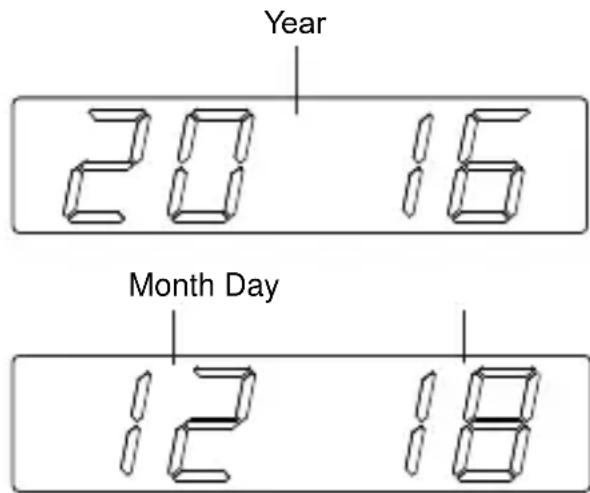
- To display the date, press the Y-M-D button (6) once during regular clock display. This will show the year.
- Press the Y-M-D button (6) once again to display month and day. After 2 seconds the display will switch back to the time.
text_image
Year 20 16 Month Day 12 18Temperature Display
- To display the room temperature, press the TEMP button (5) once during clock display or in radio mode. The temperature will be shown in the display.
- To switch between Celsius and Fahrenheit, press the C-F button (7) once during temperature display.
• After 2 seconds the display will switch back to the time.
• Temperature range: 0°C to +50°C (32°F to 122°F).
Daylight Savings Time
In case of daylight savings time it is not necessary to completey do over the clock setting:
- During clock display mode simply press and hold the DST button (7) for 2 seconds. 1 hour will be added to the time.
- To back to regular time, press and hold the DST button (7) once again for 2 seconds during clock display.
Dimmer
The display brightness can be adjusted in 3 levels (High - Medium - Low).
To adjust the display brightness press the Dimmer button (4) repeatedly during clock display mode. Each press of the button changes the brightness.
Display Off
- To switch off the display, press and hold the Display On/Off button (1) for 3 seconds during clock display mode. The standby indicator will light up. After about 20 seconds the display switches itself off.
- To temporarily display the time, press the Dimmer button (4). After about 15 seconds the display will switch off again.
- If you have an alarm set it will ring at the set time.
- To turn the display on again, first press the Dimmer button (4) to show the time, and then press and hold the Display On/Off button (1) for 2 seconds until the standby indicator disappears.
Display Auto Change
When this function is activated the display will consecutively show time, year, month and day, and the room temperature.
- To activate the Display Auto Change function, press and hold the Display button (8) for 2 seconds in the clock display mode. The display will show "ON" indicating that the function is active.
- To turn this function of press and hold the Display button (8) once again for 2 seconds in the clock display mode until the display shows "OFF".
Radio
Listening to the Radio
- Press the On/Off button (9) to switch on the radio.
- Select a desired radio station by pressing the buttons ◀◀ / Tune - (6) or ▶▶ / Tune + (7) repeatedly.
- To automatically search for the next available radio station, press and hold for 2 seconds the buttons ◀◀ / Tune - (6) or ▶▶ / Tune + (7).
- To increase or decrease the volume, press the Volume + (8) or Volume - (10) button.
- To switch the radio off, press the On/Off button (9).
Note: For the best FM reception completely unroll the FM wire antenna.
Radio Station Presets
- Press the On/Off button (9) to switch on the radio.
- Select a desired radio station using the buttons ◀◀ / Tune - (6) or ▶▶ / Tune + (7).
- Press and hold the MEM.SET button (1) for 2 seconds. "P01" will flash in the display.
- Select a preset between 01 and 10 on which you would like to store the current station using the buttons ◀◀ / Tune - (6) or ▶▶ / Tune + (7).
- Press the MEM.SET button (1) again to store the station on the selected preset.
- Repeat steps 2 to 5 to store a total of up to 10 radio stations.
- To recall one of the stored stations press the M+ button (1) repeatedly during radio mode to select the desired preset.
Sleep Function
The sleep function enables you to set a countdown timer after which the radio will turn itself off automatically.
- While listening to the radio, repeatedly press the Snooze/Sleep button (4) to select a desired countdown after which the radio will turn itself off automatically.
- You can select 90, 60, 30, or 15 minutes.
- To check the remaining time on the countdown, press the Snooze/Sleep button (4) once.
- If you want to cancel the function, press the Snooze/Sleep button (4) repeatedly until "OFF" appears in the display.
Specifications
Power supply: AC 230V \~ 50Hz Battery backup: 3V (CR2032 flat lithium battery, not included) Frequency range: FM 87.5 - 108 MHz
Technical specifications and design may change without notice.
CONSIGNES DE SÉCURITÉ
- MEM.SET / NAP/M+ / Display On/Off
- Alarm 1 On/Set
- Alarm 2 On/Set
- Snooze / Sleep / Dimmer
- CLK.ADJ. / TEMP / Radio Frequency
6 ◀◀/Tune-/Y-M-D - ▶▶ / Tune + / DST / C-F
- Volume + / Display Auto Change On/Off
- On/Off